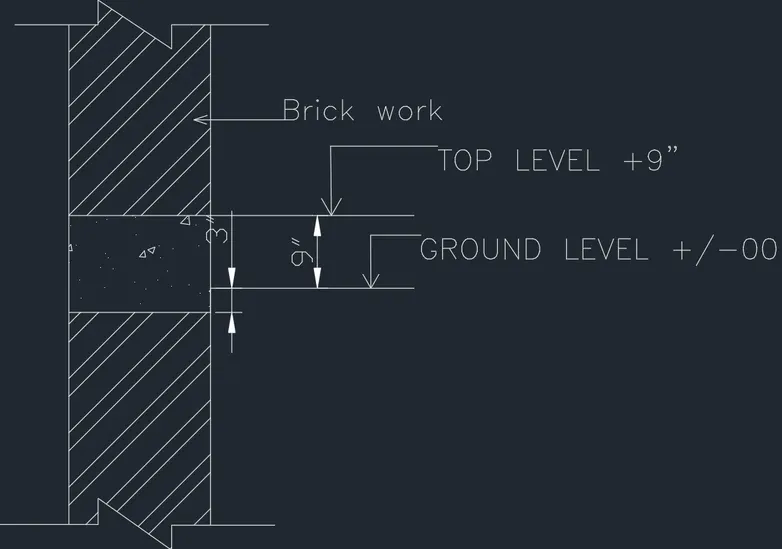
Creation of Column Schedule and Drawing Template using AutoCad
Aim:
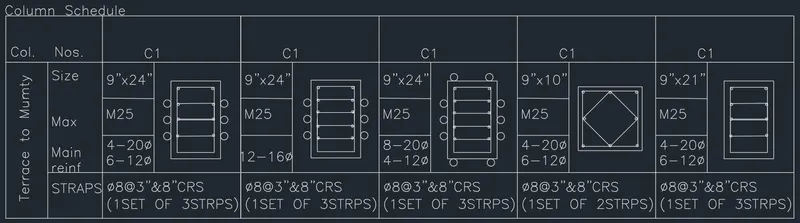
To create a column schedule as shown in the figure.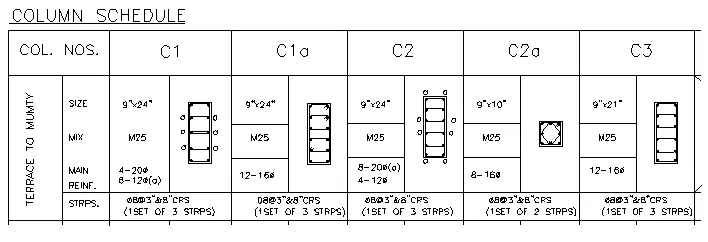
Procedure:
- Create a Table using line command
- In the command line type ST (text style) >romans.shx (font)> 8” (height)> Justify: Left
- In the command line type text to text the given text in the drawing.
- In the command line type Mtext>symbols> to get the diameter symbol.
Result:
_____________________________________________________________________________________________________________________
Aim:
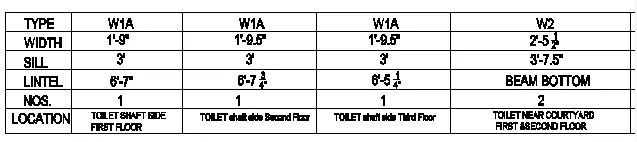
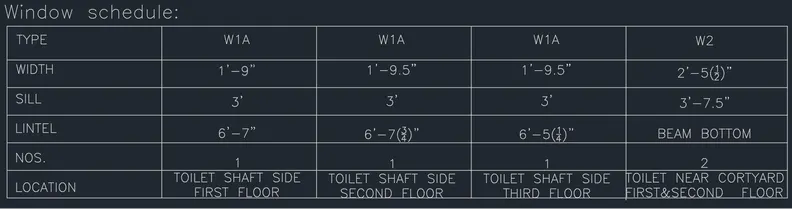
To create a window schedule as shown in the figures.
Procedure:
- Create a Table using line command
- In the command line type ST (text style) >romans.shx (font)> 8” (height)> Justify: Left
- In the command line type text to text the given text in the drawing.
Result:
________________________________________________________________________________________________________
Aim:
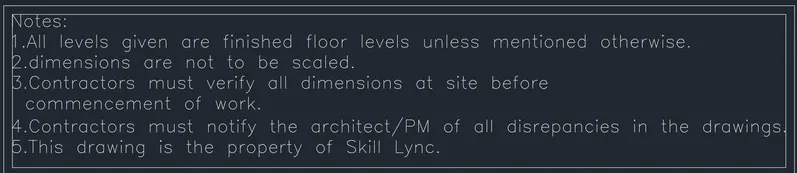
To create the drawing template as shown in the figure:< Use the Notes as in the figure>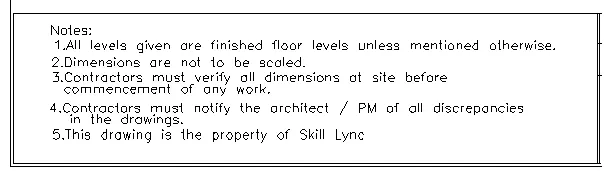
Procedure:
- Create a Table using line command
- In the command line type ST (text style) >romans.shx (font)> 8” (height)> Justify: Left
- In the command line type text to text the given text in the drawing.
Result:
________________________________________________________________________________________________________
Aim:
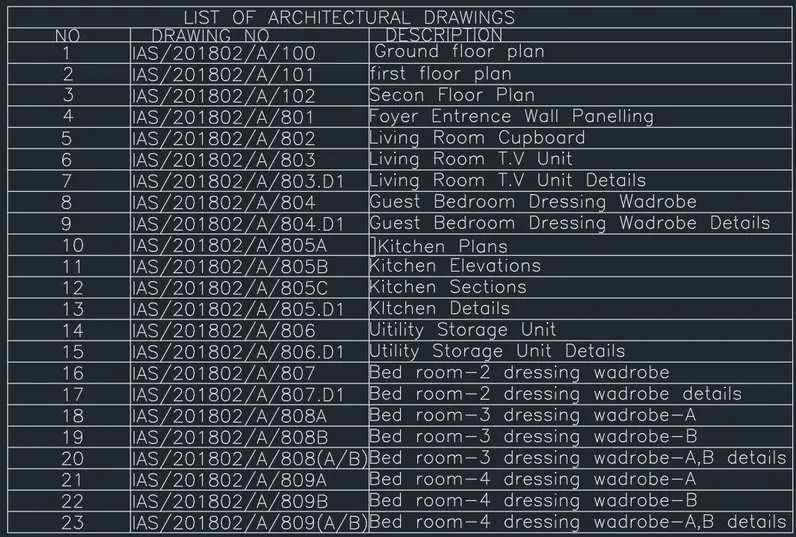
To Create the list of drawing schedules as shown in the figure.
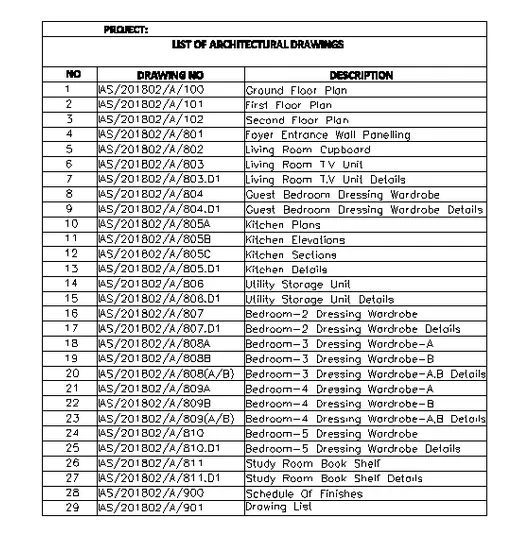
Procedure:
- Create a Table using line command
- In the command line type ST (text style) >romans.shx (font)> 8” (height)> Justify: Left
- In the command line type text to text the given text in the drawing.
Result:
________________________________________________________________________________________________________
Aim:
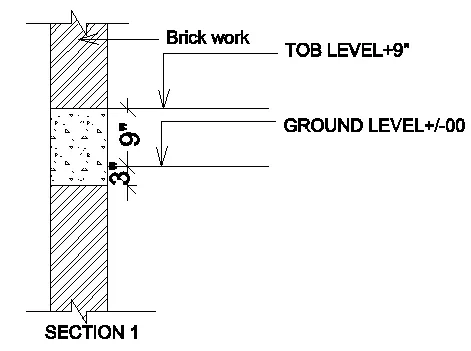
To create the Beam detail as shown in the figure and provide text wherever given.
Procedure:
- In the Command prompt type line to create the column.
- Using Hatch command, shade the shape.
- Mark the dimenisons.
Result: