Creation of Column Schedule and Drawing Template using AutoCad
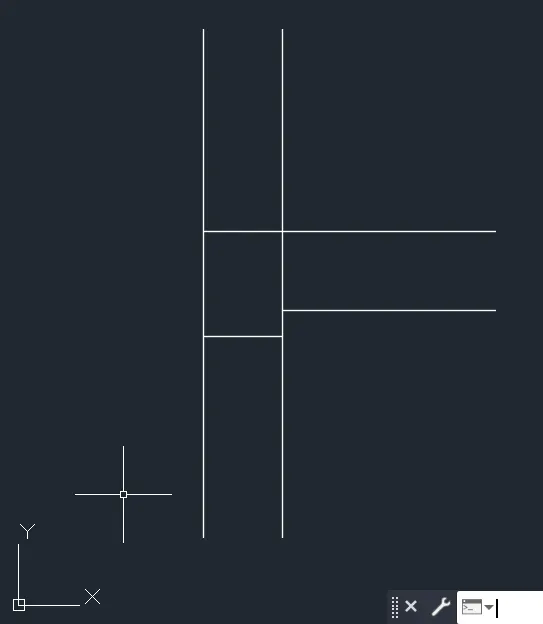
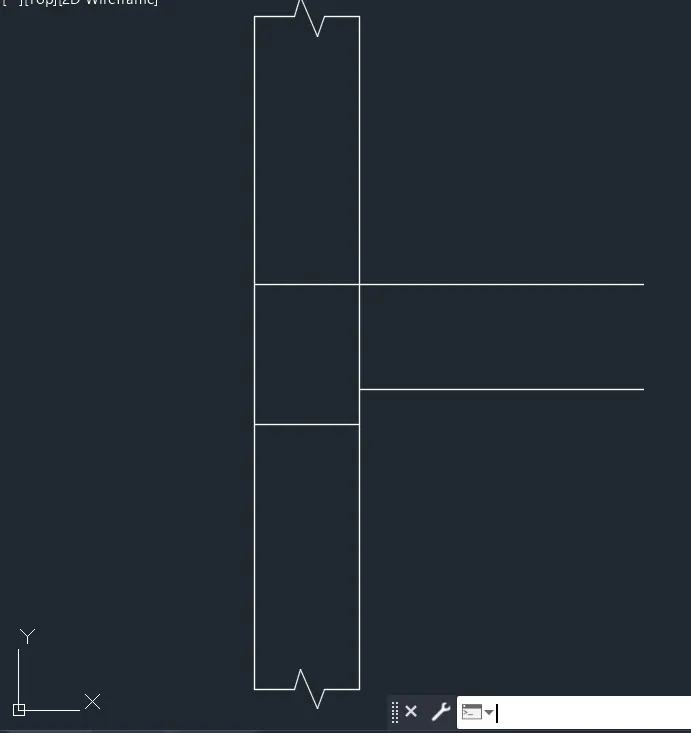
Q1: Aim: To create a column schedule with the help of lines and insert text, and illustrate the procedure involved.
Procedure:
- Create a new drawing from the dropdown menu
- Select the imperial system and Engineering units

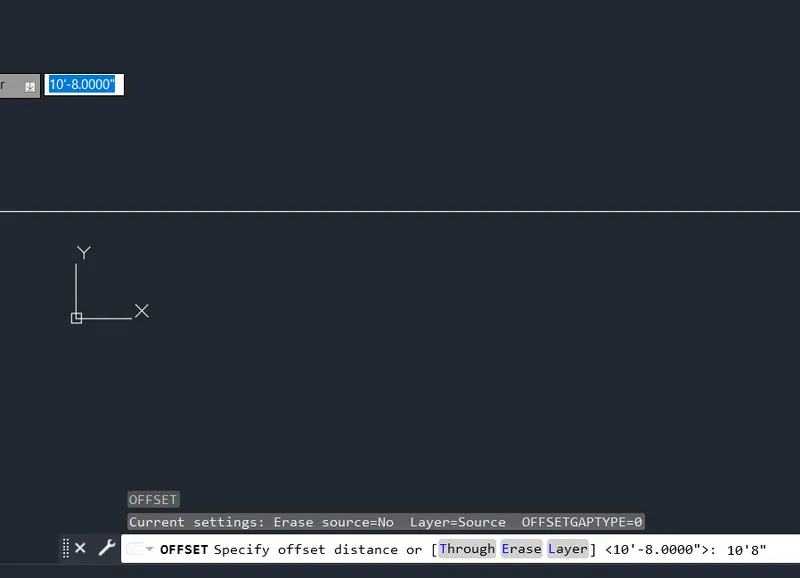

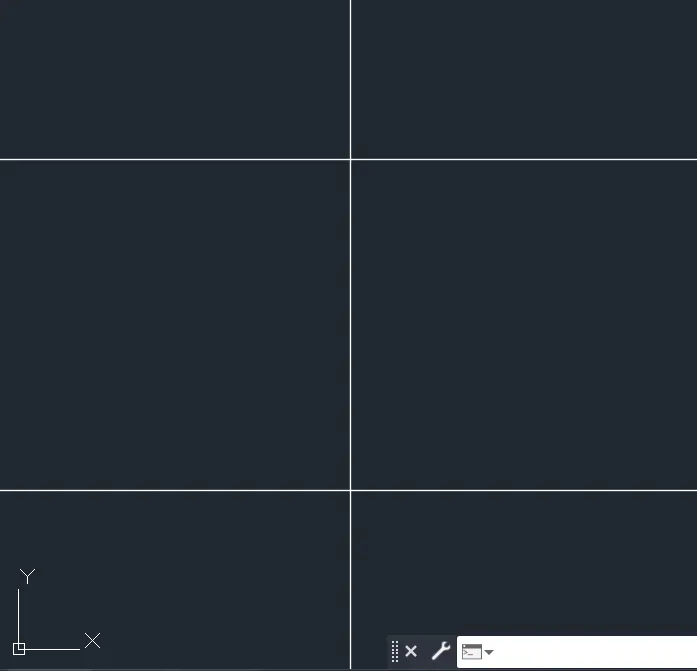
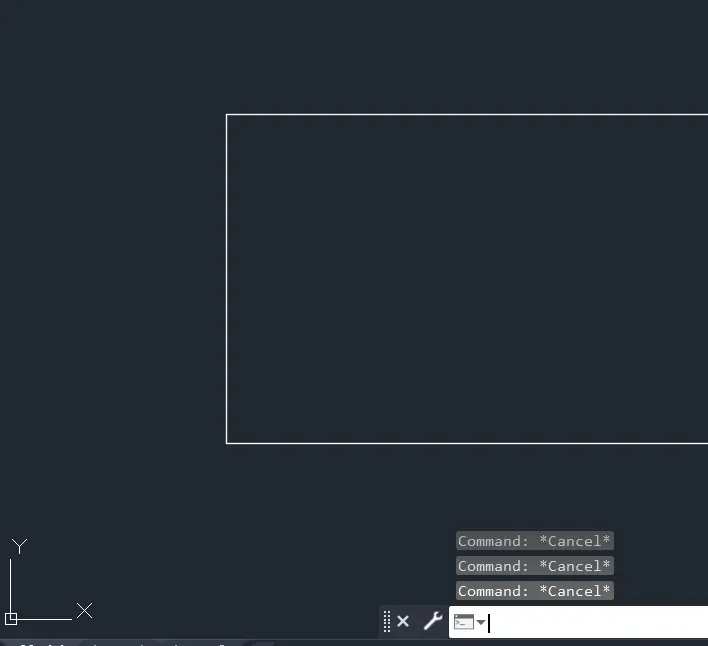
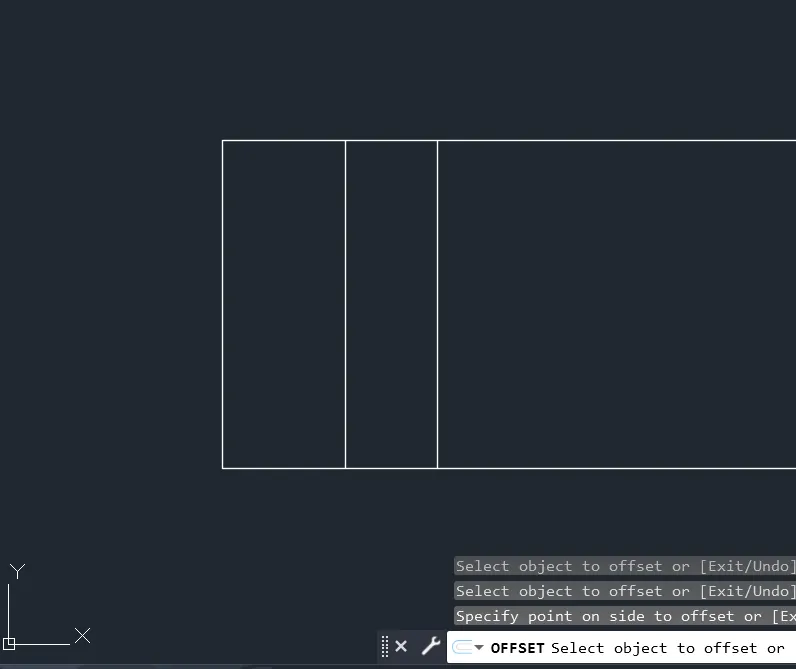
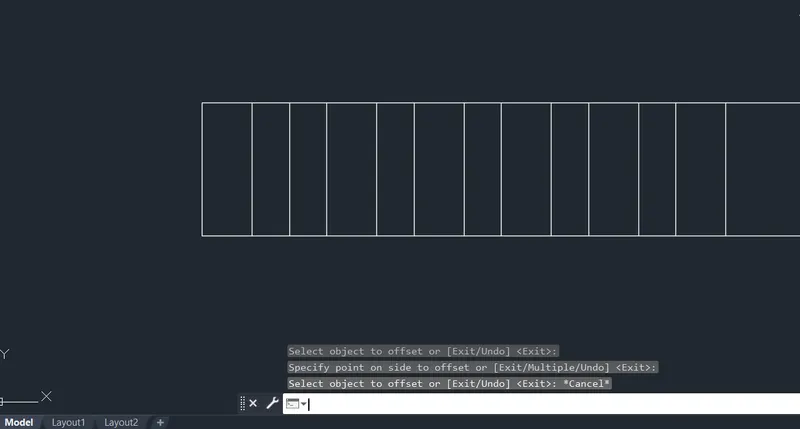
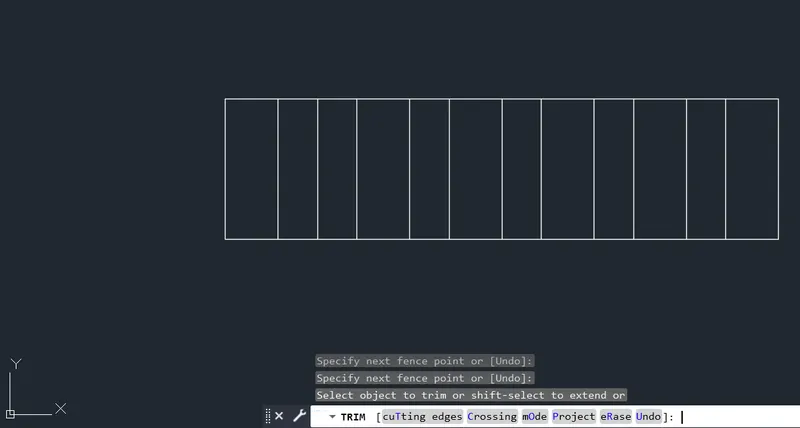
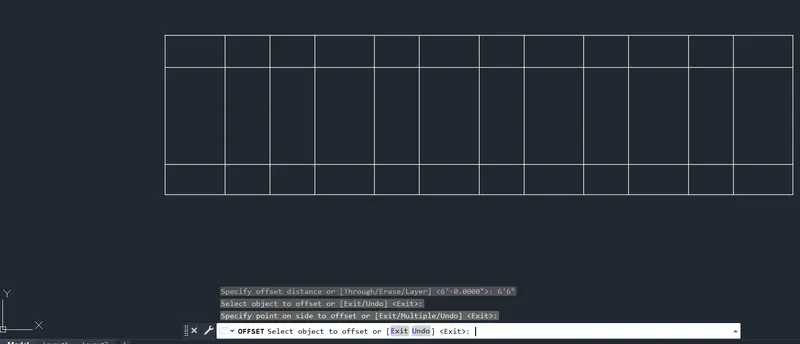
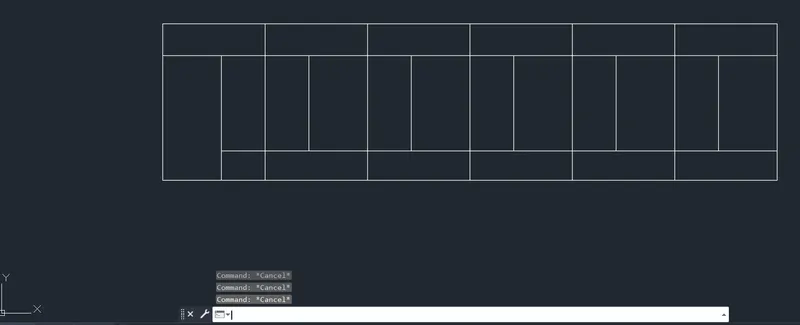
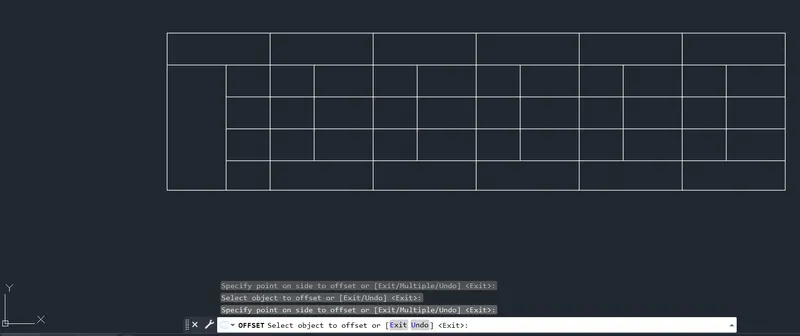
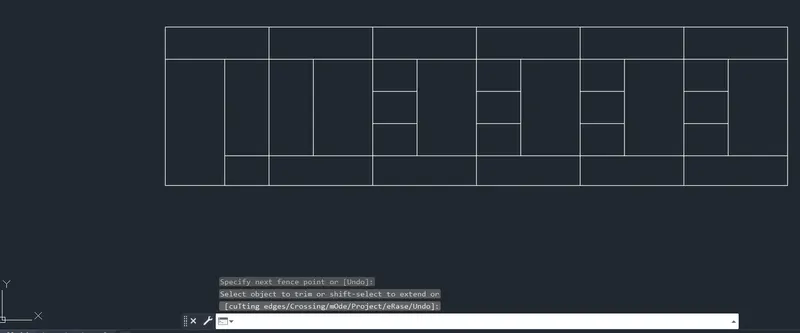
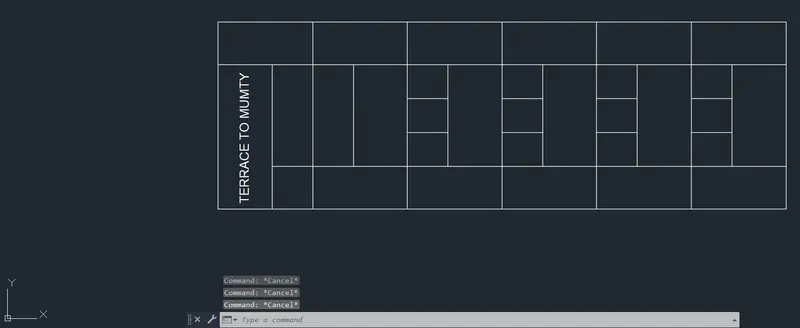
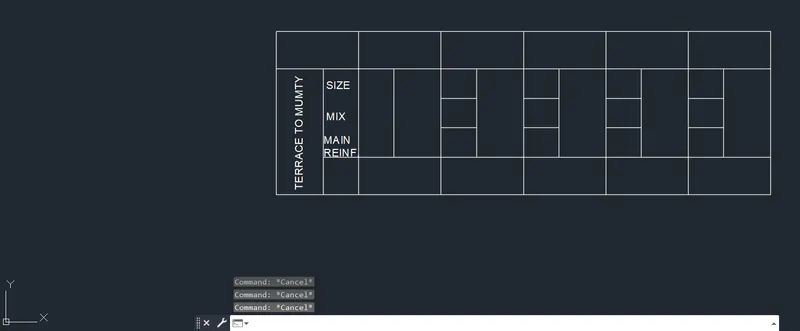
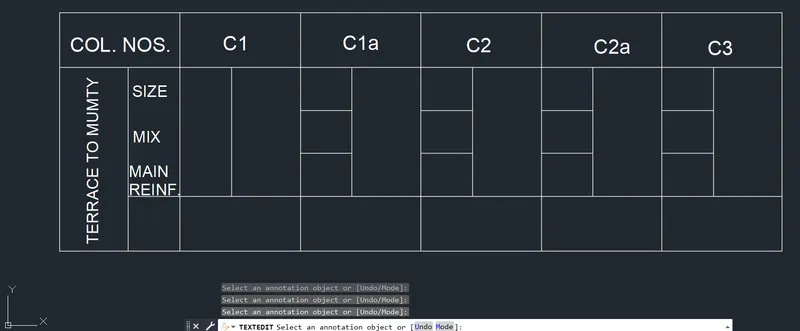
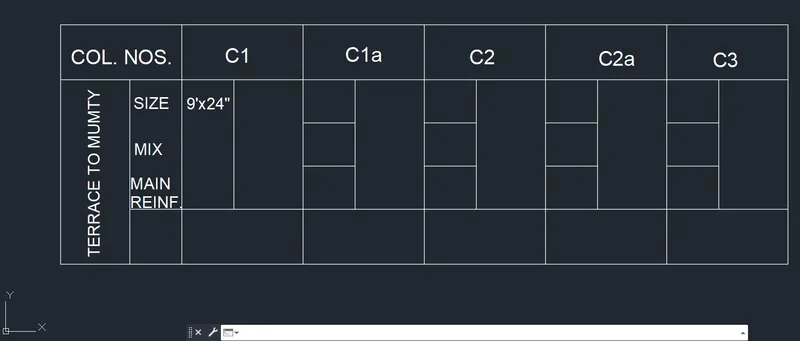
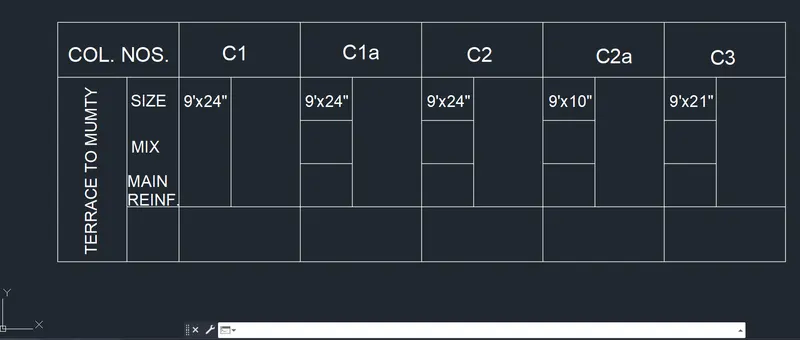
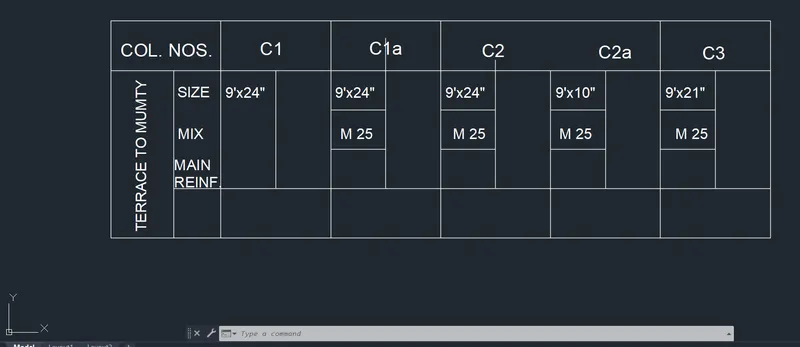
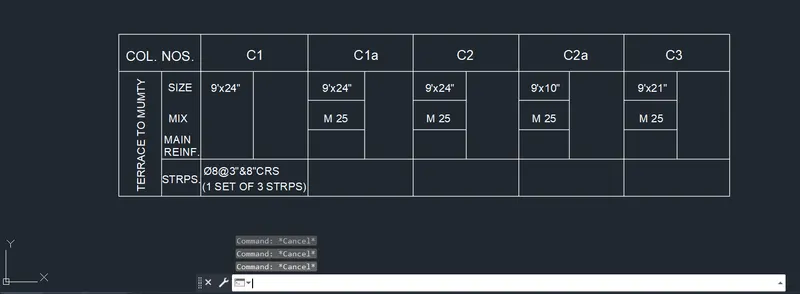
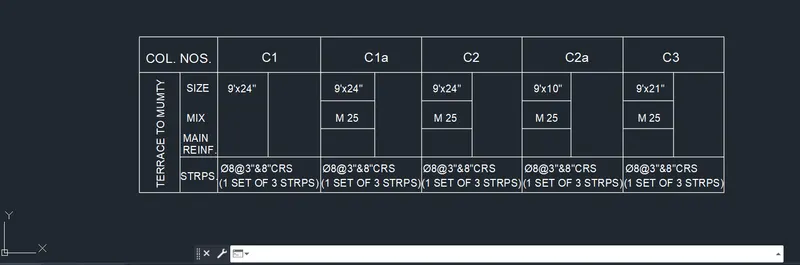
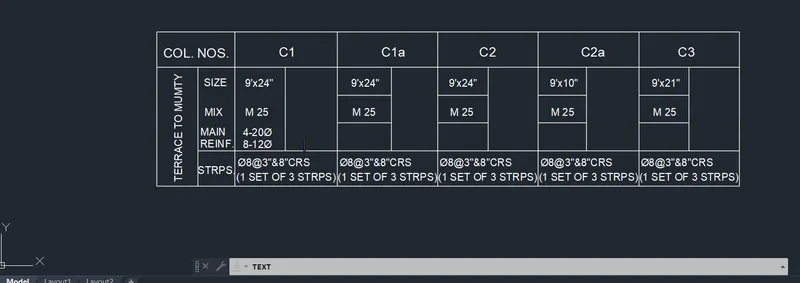
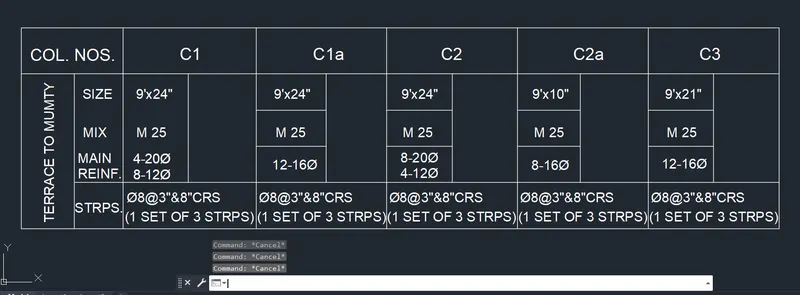
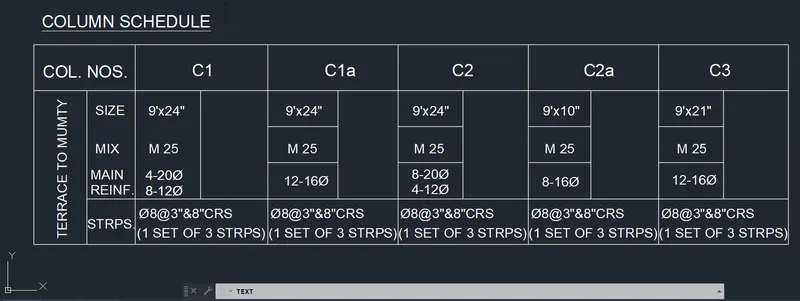
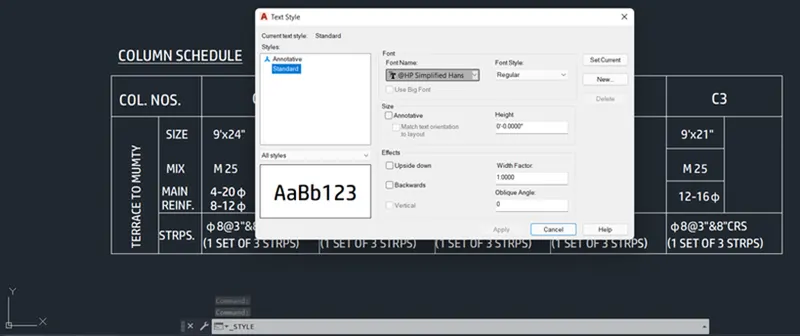
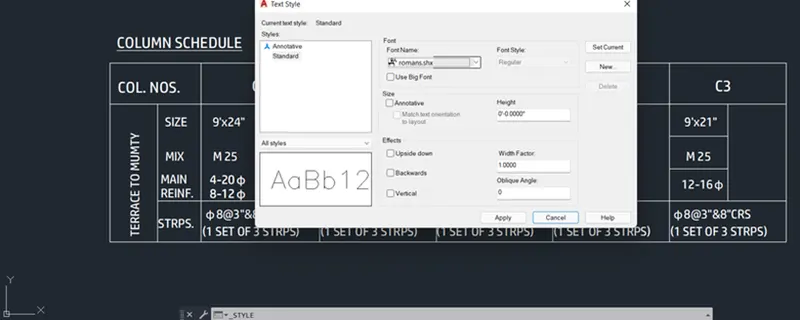
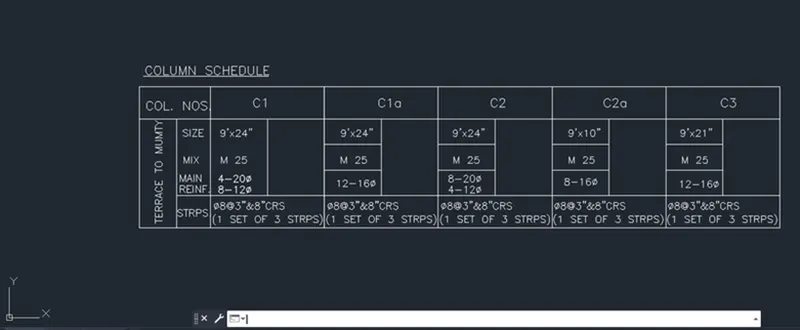
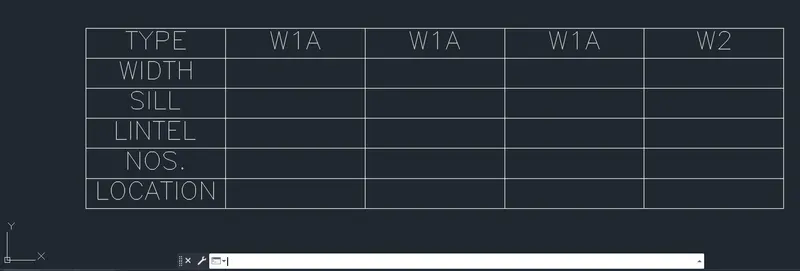
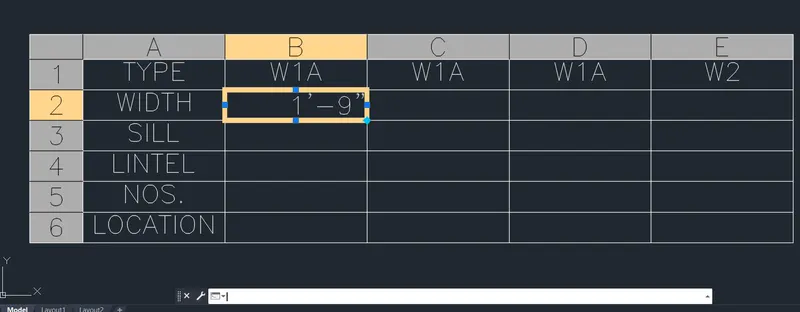
Q2: Aim: To create a window schedule with the help of table insertion and insert text, and illustrate the procedure involved.
Procedure:
- Create a new drawing from the dropdown menu
- Select the imperial system and Engineering units
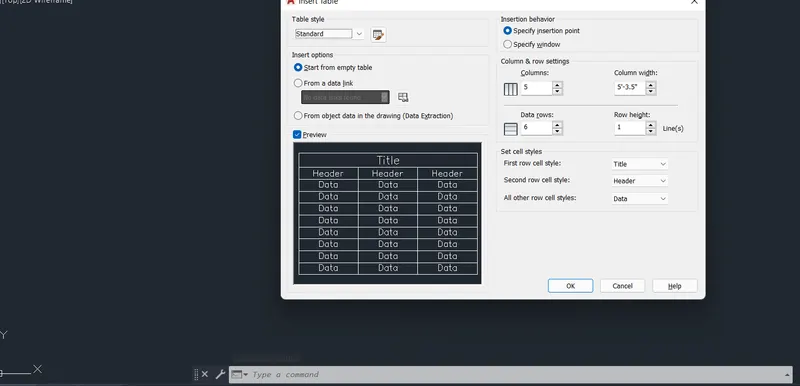
- Type TABLE to activate table tool
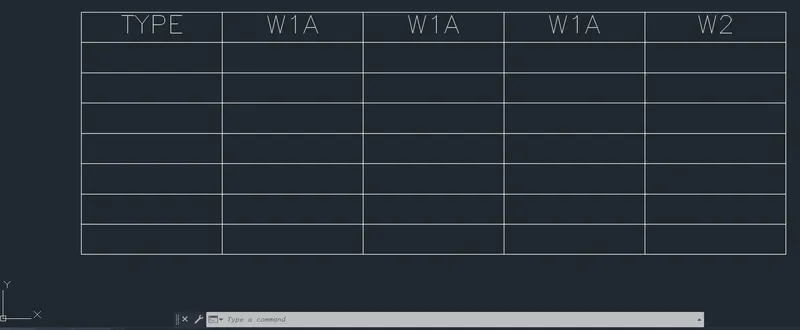
- Enter the number of columns and rows and set text size as 9"
- Select first, second and all other lines styles as data
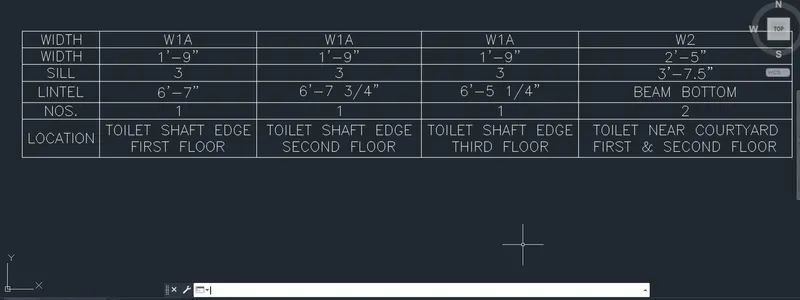
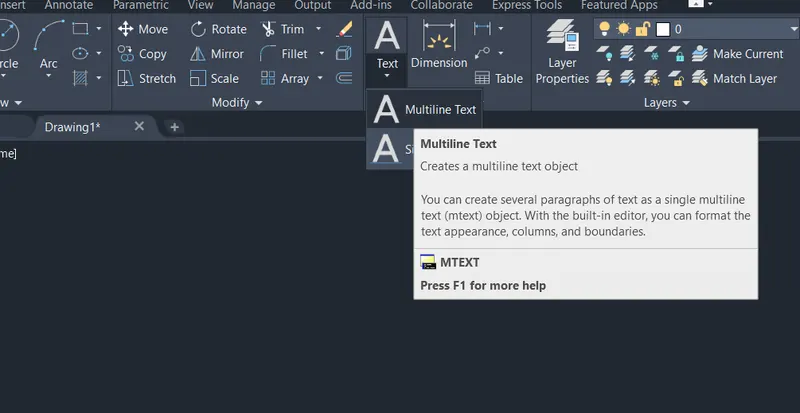
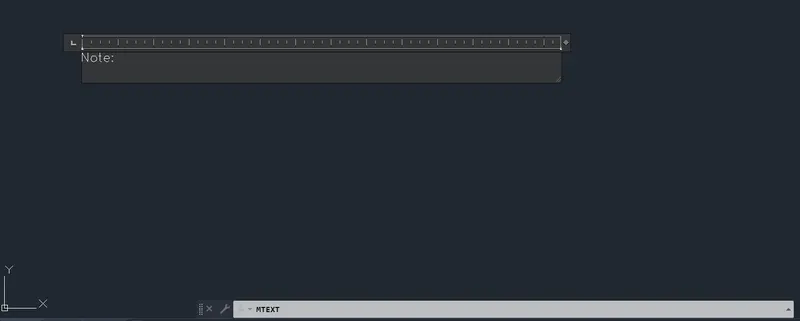
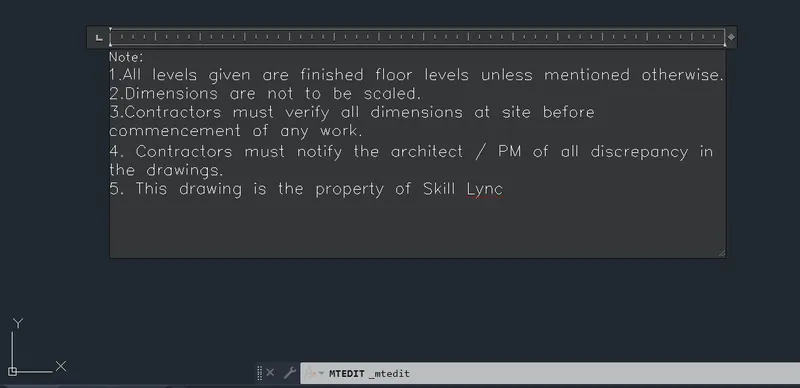
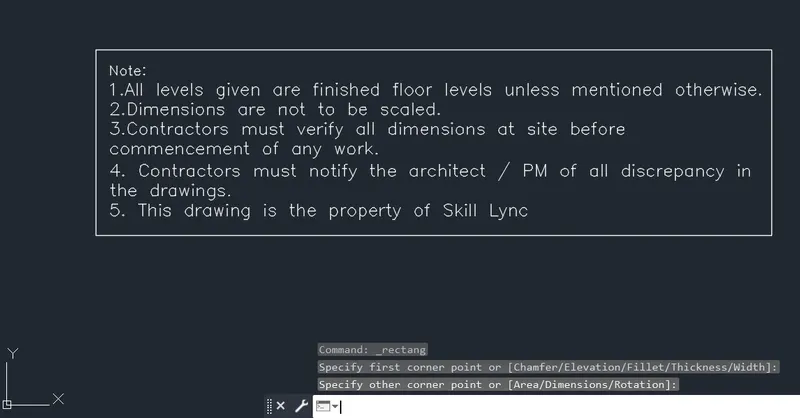
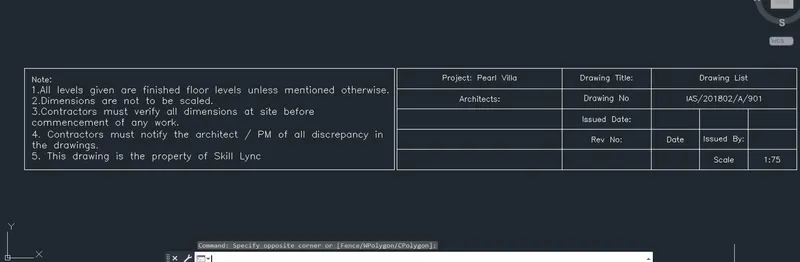
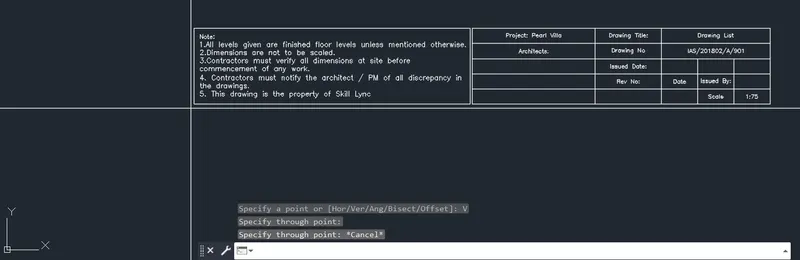
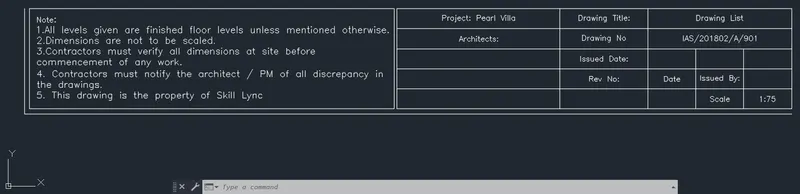
Q3: Aim: To create the drawing template and insert text, and illustrate the procedure involved.
Procedure:
- Create a new drawing from the dropdown menu
- Select the imperial system and Engineering units
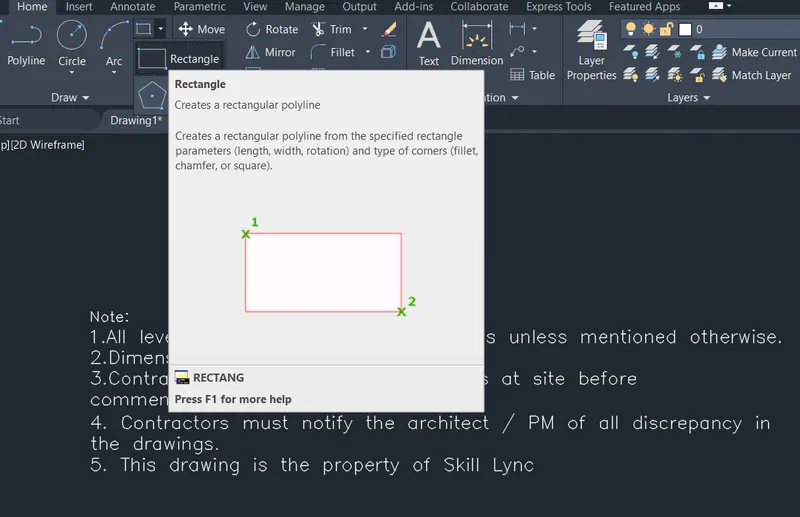
- Select Multiline text from the ribbon
- Set the text size as 9"
.
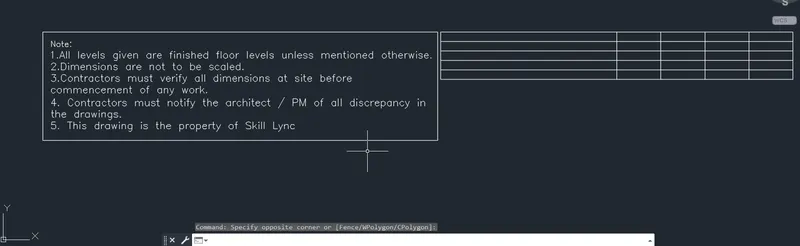
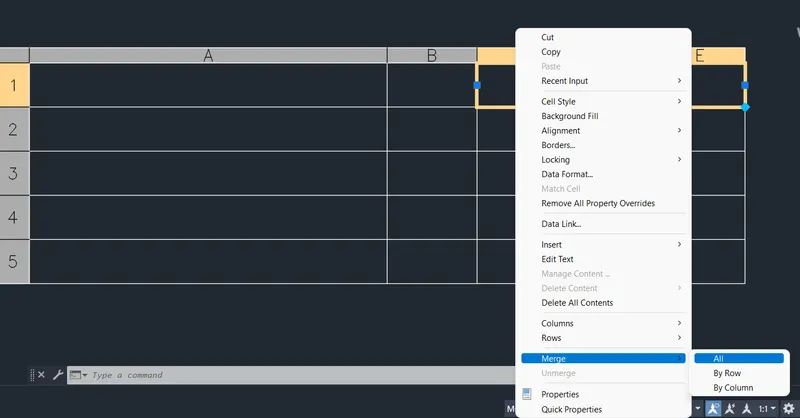
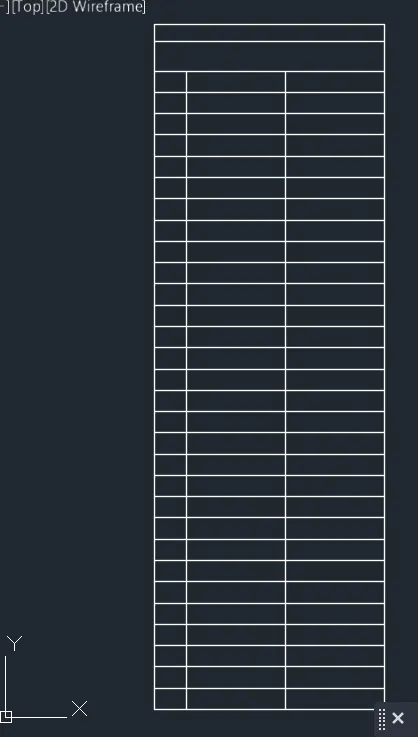
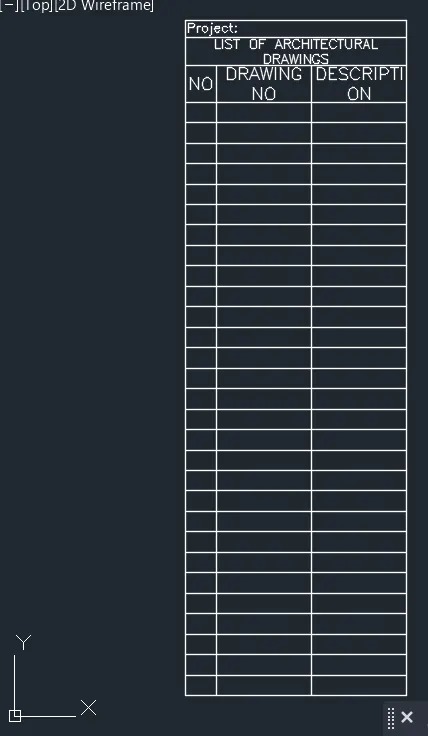
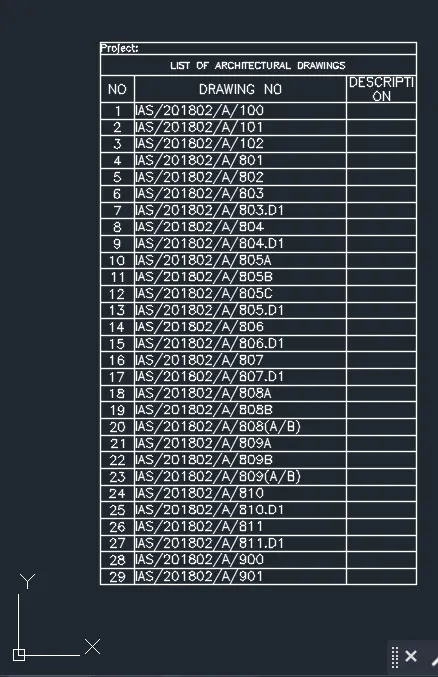
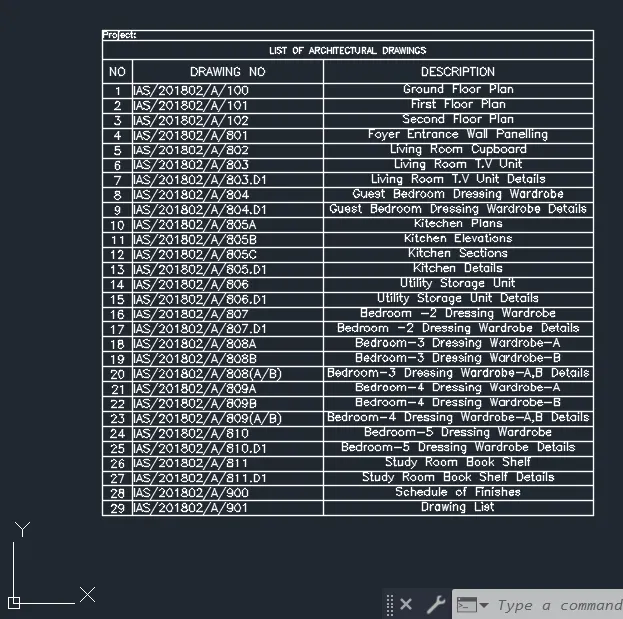
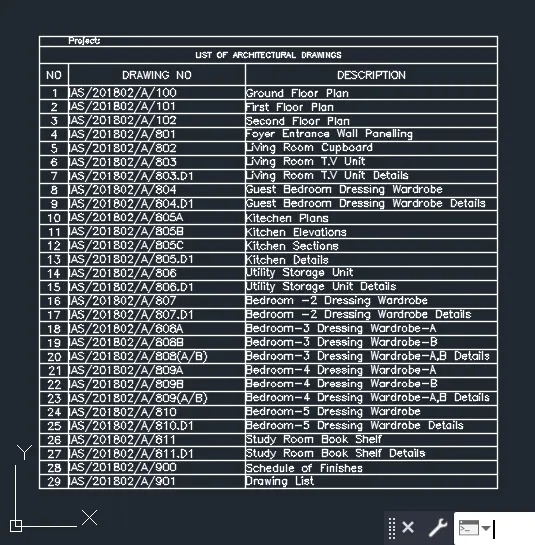
Q4: Aim: To create the list of drawing schedules with the help of table insertion and insert text, and illustrate the procedure involved.
Procedure:
- Create a new drawing from the dropdown menu
- Select the imperial system and Engineering units
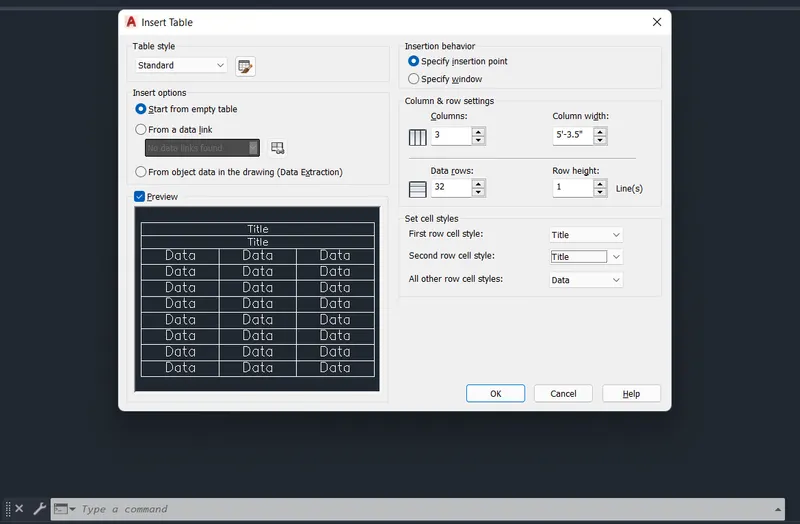
- Type TABLE to activate table tool
- Enter the number of columns and rows and set text size as 9"
- Select first and second lines as Title and all other row cell styles as Data
Q5: Aim: To create the bedroom details and insert text, and illustrate the procedure involved.
Procedure:
- Create a new drawing from the dropdown menu
- Select the imperial system and Engineering units