Creating Walls, Partition walls and Floors for a residential layout using REVIT
AIM:
To create Walls, Partition Walls, and Floors for a residential layout using REVIT.
INTRODUCTION:
The main objective of this challenge is to gain knowledge to perform the following tasks like the creation of interior and exterior walls and floors, adding components, placing levels, etc.
The various tools which are used for doing this challenge are as follows:
FLOOR:
To create a floor, define its boundaries by picking walls or sketching its profile with drawing tools.
- Click Architecture tab, Build panel, Floor drop-down (Floor: Architectural).
- Draw the floor boundaries, using one of the following methods:
- Pick walls: By default, Pick Walls is active. If it is not active, click Modify, Create Floor Boundary tabDraw panel (Pick Walls). Select walls in the drawing area to use as floor boundaries.
- Sketch boundaries: To sketch the profile of the floor, click Modify, Create Floor Boundary tabDraw panel, and select a sketching tool.
- The floor boundary must be a closed-loop. To create an opening in the floor, you can sketch another closed loop where you want the opening to appear.
- On the Options Bar, for Offset, specify an offset for the floor edges.
Note: When you are using Pick Walls, select Extend into the wall (to the core) to measure the offset from the wall's core. - Click on Tick to Finish Edit Mode.
GRIDS:
Grids are annotation elements that help organize your design.
- On the ribbon, click Grid.
- Architecture tabDatum panelGrid
- Structure tabDatum panelGrid
- Click Modify, Place Grid tabDraw panel, and select a sketch option
Use Pick Lines to snap the grid to an existing line, such as a wall.
(Or) Click Modify, Place Grid tabDraw panelMulti-Segment to sketch grids requiring more than one segment. - Click when the grid is the correct length.
Revit automatically numbers each grid. To change the grid number, click the number, enter the new value, and press Enter. You can use letters for grid line values. If you change the first grid number to a letter, all subsequent grid lines update appropriately.
As you draw grid lines, the heads and tails of the lines can align with one another. If grid lines are aligned and you select a line, a lock appears to indicate the alignment. If you move the grid extents, all aligned gridlines move with it.
WALLS:
To create walls
- Click Architecture tab Build panel architectural Wall
- On the Properties palette, click the Type Selector drop-down, and select Basic Wall
- Click Modify, Place Wall tabDraw paneling.
- Draw walls from starting point to ending.
- Press Esc to change options and place another wall.
- To end the command, on the Modify, Place Wall tab, press Esc twice.
COPY ELEMENTS TO ANOTHER FLOOR:
- Select elements to be copied in the active view (plan, section/elevation, or 3D view).
- Copy to clipboard(CTRL+C) or from the Modify ribbon>Clipboard panel, choose Copy
- On the Modify ribbon > Clipboard, click the drop-down arrow under the Paste command
- Select "Aligned to Selected Levels"
- Choose the Target level (i.e. Level 2)
- Switch to a 3D View to see the results.
ADDING COMPONENTS:
This tool lets you select components in view of being added to a system.
- In the drawing area, select one of the components in the system where you want to add a component and click the appropriate component like door, window, etc
When more than one system is associated with the selected component, the Select a System dialog opens. - Select a system and click OK.
All except the components in the selected system are dimmed in the view and the System Editor toolbar displays. The Options Bar displays the System Name, System Equipment, and the Number of Elements in the system. - In the drawing area, select one or more compatible components that you want to add to the existing system.
- Click the tick to Finish Editing System to add the selected component or Cancel Editing System to discard the changes.
TASK 1:- To provide the flooring with appropriate material and thickness in the residential unit (created in Week 2)
PROCEDURE:
- Open the week 2 Revit project of the residential unit as shown.
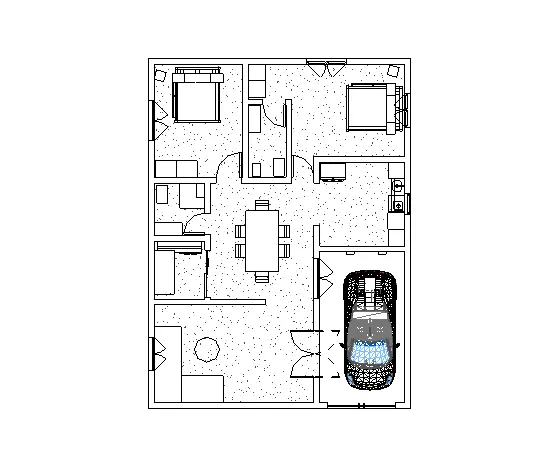
- To create the architectural floor: In the architectural tab select floor and in the drop-down list select Floor: Architectural.
- As we already made the floor on the previous assignment so Now click on the edit type in the properties options to open the type properties dialogue box as shown. It will show the details of the wood truss joist-12" carpet finish.
- Click on the duplicate option to create the duplicate copy of the current floor and give it any name and click ok.
- Click on the edit option corresponding to the structure parameter, to open the edit assembly dialogue box.
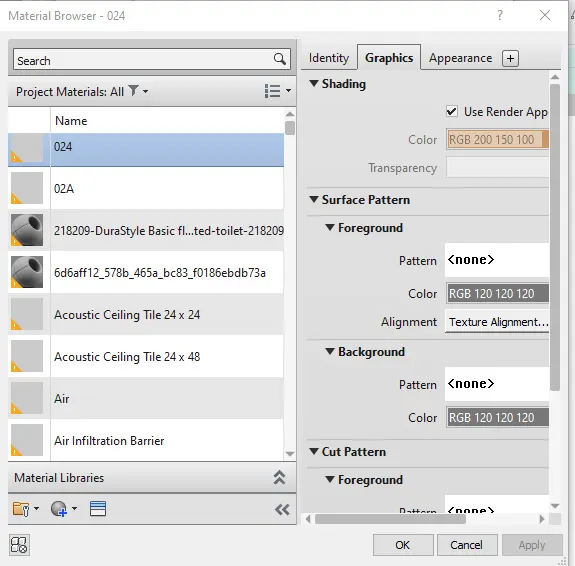
- Under the material section corresponding to structure click on the menu to open the Material Browser and select the required flooring material as shown.
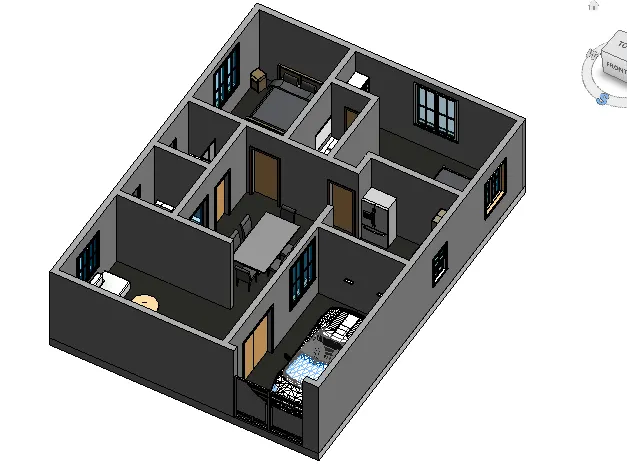
GRIDS ALIGNMENT.
Grids were placed horizontally from 1 to 5 from the right to left at 10' from each other, similarly vertical grids from A to F at 20' using the grids option in the datum tab under the architectural panel.
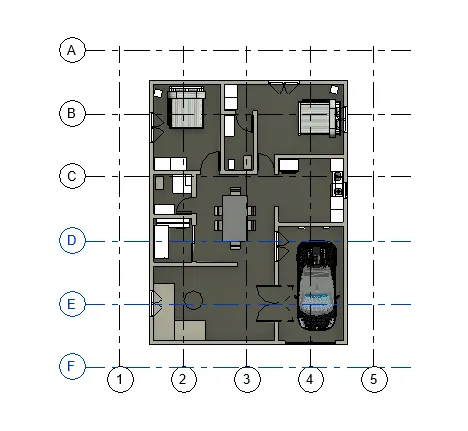
TASK 2:- To add walls based on the floor layout, to use the property browser to select appropriate material and thickness for walls.
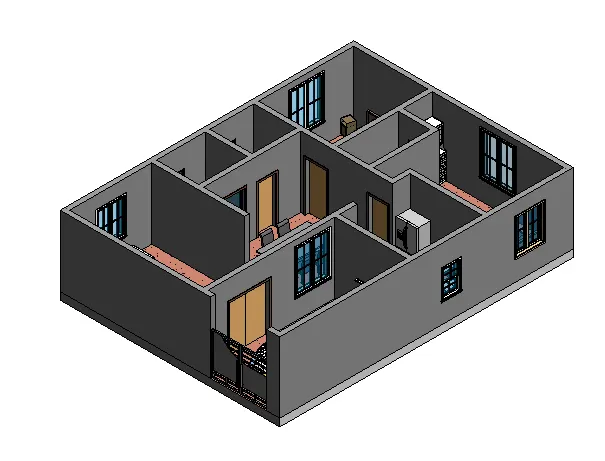
- First of all the residential project file in Revit was opened, from the figure we can understand that that the internal and external wall thickness is the same. So our first task here will be to change the wall thickness and then to apply a suitable material to the internal and external wall.
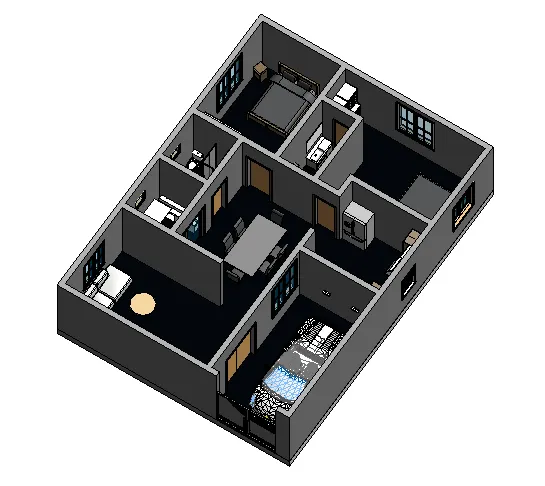
To change the thickness of the internal walls:
- By pressing the control key all the internal wall was selected using the mouse. After that click on the edit type in the properties bar to open the type properties dialogue box.
- Now choose Generic 5" & create a duplicate of it and ok.
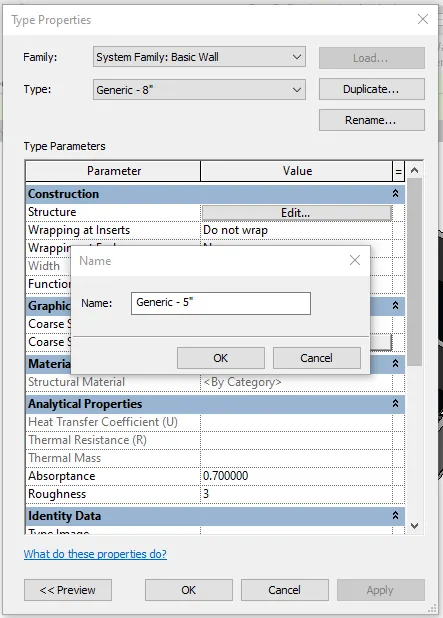
- Click Ok on the properties type dialogue box to apply the changes to the walls. Now we can see all the internal wall thickness was changed from 8" to 5".
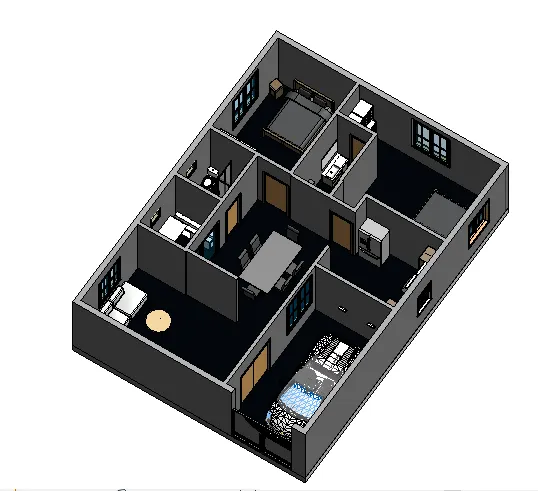
To apply materials to the internal and exterior walls:
- Let us apply materials to the external walls first. For that select all the external walls as shown and click on the edit type in the properties to open the type properties dialogue box.
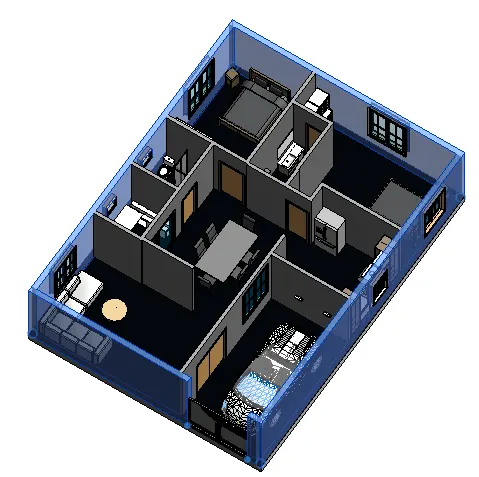
- In the type properties, the dialogue box creates the duplicate level and renames it External wall, and clicks ok.
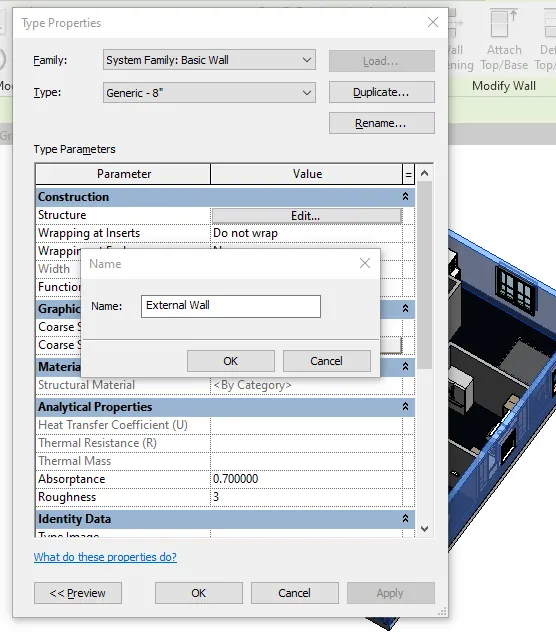
- Now click on the edit value corresponding to structure to open the edit assemble dialogue box. The material of my choice was applied to the walls.
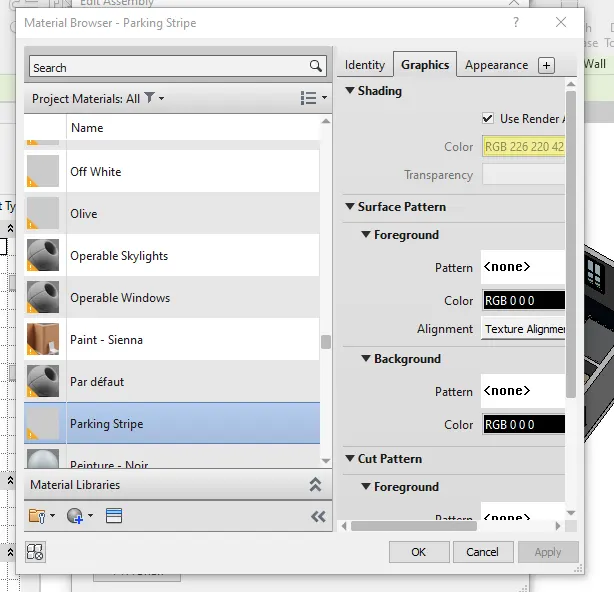
- A parking stripe was selected and applied to the external walls and as shown.
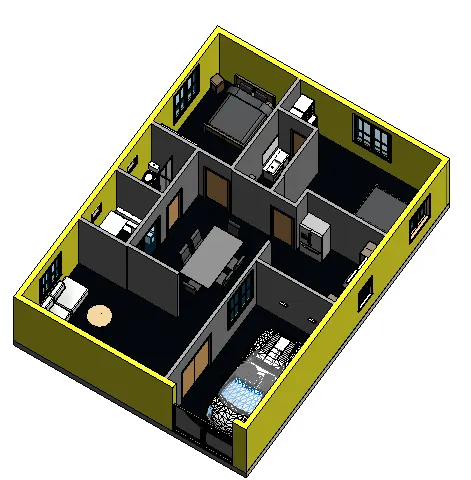
- In a similar manner material of my choice was applied to the interior wall also. The final image of the walls after applying materials is as shown.
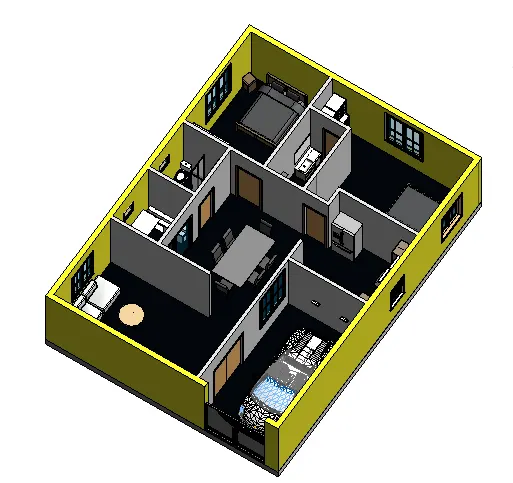
- To change the wall constraint to level 2 or up to the first floor.
- For that, an external wall was selected and then in the properties dialogue box it was checked to see where the constraint limits were, it was already set to first-floor level or level 2 for both internal and external walls.
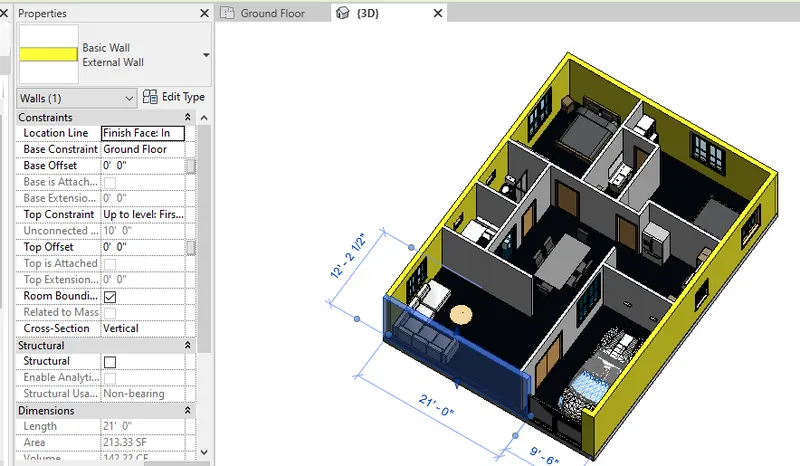
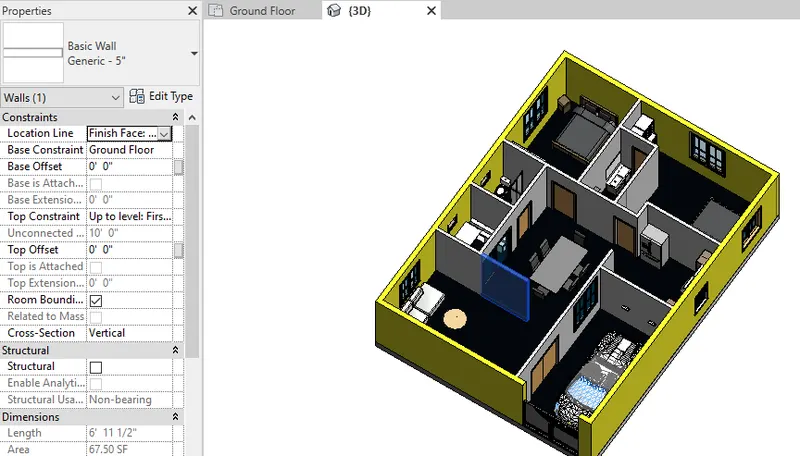
a. Based on your observation, what is beneficial for connecting walls with associated levels rather than being Unconnected
- When a wall is drawn, It’s better to draw it in connection with level mode, because in the future if the height of all walls needs to be changed, then they can be changed by changing only the height of the respective levels but in unconnected walls, the height should be changed individually.
b. Which option is convenient for modeling walls, By Height or By Depth
- For me, Height is the convenient option for modeling walls.
TASK 3:- To copy the model elements modeled to ground floor level and paste it aligned to the first-floor level
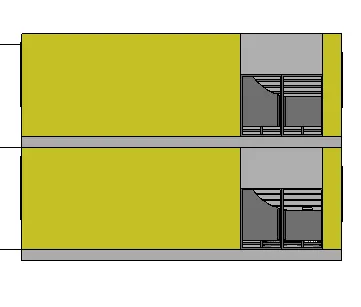
- In order to copy the ground floor and copy it to the first-floor level, we must first come to the front view that is the elevation view as shown.
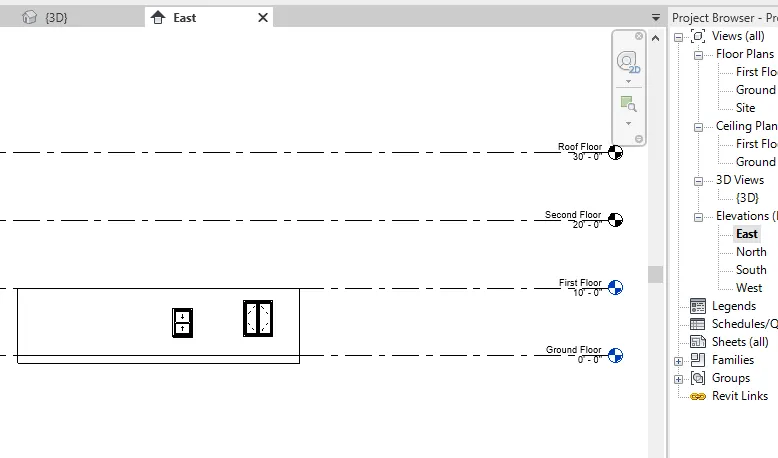
- Select the entire floor and in the modify panel select the copy to clipboard option
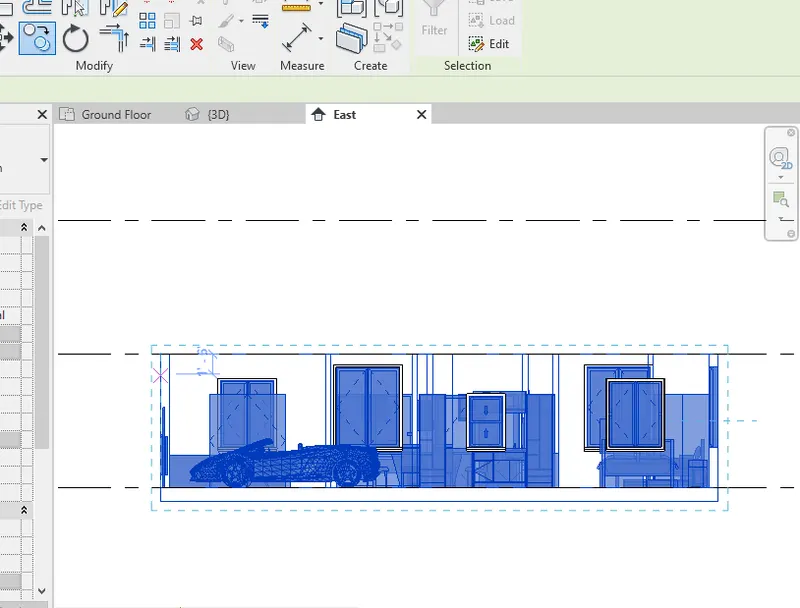
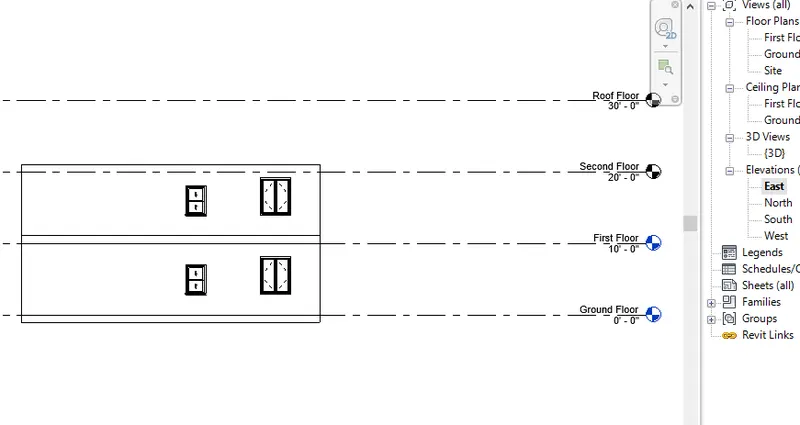
- Using the paste option in the modify panel align the floor correctly to the first-floor level
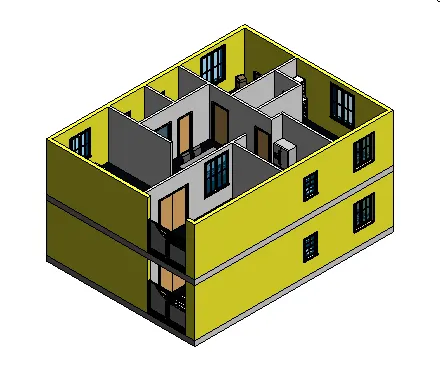
- The 3D isometric view of the same is shown
- Front elevation of the same is as shown
TASK 4:- To use interior partition walls to create separate rooms within your residential unit
- Initially, go to the architecture tab and select walls. Then in the properties select interior walls and create the model from the layout created. Then again go to the architecture tab and choose components and then load the family. after that include furniture, lightings, beds, chairs, etc in the model.
- Delete unnecessary walls and components to create a Balcony
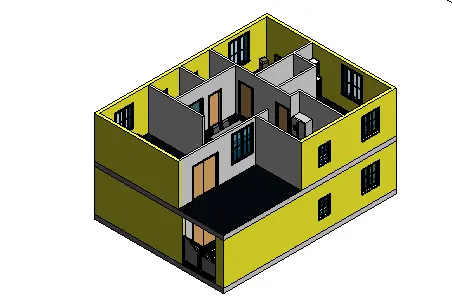
To add railing to the balcony created follow these steps:
- On the architectural tab click on railing followed by railing path to draw the railings with 1' base offset.
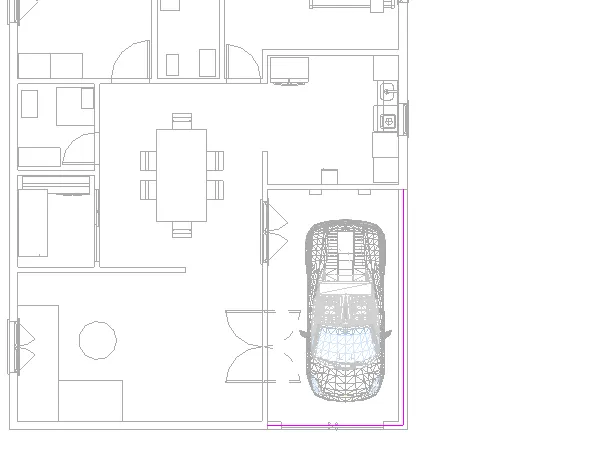
- Then draw a path along which we want to create the railing and click on the tick mark to create the railing.
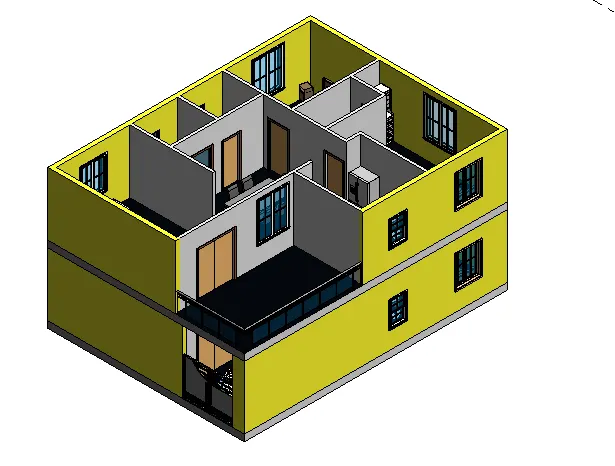
- Now a column was created at the ground floor level.
- A generic column was placed at first, In the same way, we changed the thickness to the wall earlier here also the width and height were changed using the properties option.
- Aligning the column properly. After that Change the wall height to 6'.
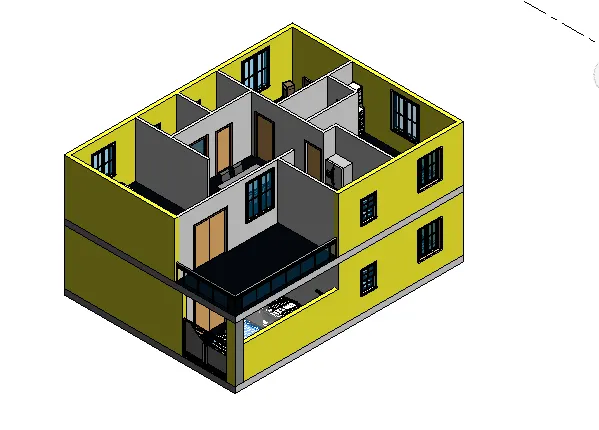
TASK 5:-
To add components that are to be included in a residential unit. Have to place these components in appropriate locations to add details to your residential model
a. Place Doors and windows in the wall at appropriate locations
b. The Living Room must include a furniture set, couch table, and TV desk and shelf cabinets
c. The Dining Room must include a table and chairs serving the purpose of eating
d. Bed Room must include a bed set, shelf, lighting, and individual study desk and chair
e. The restroom should include bathtub and plumbing fixtures.
f. Kitchen should include countertops, gas stove cabinet, and shelves to store food items
g. The wash/storage room can include washing machines and shelves to store clothes
And finally to use 3D navigation to check the model and its authenticity on a real-time basis to verify the model
PROCEDURE:
- A few components are already added to the plan like:
- Doors and windows at required places
- Furniture set, couch table, Tv desk, and cabinet in the hall
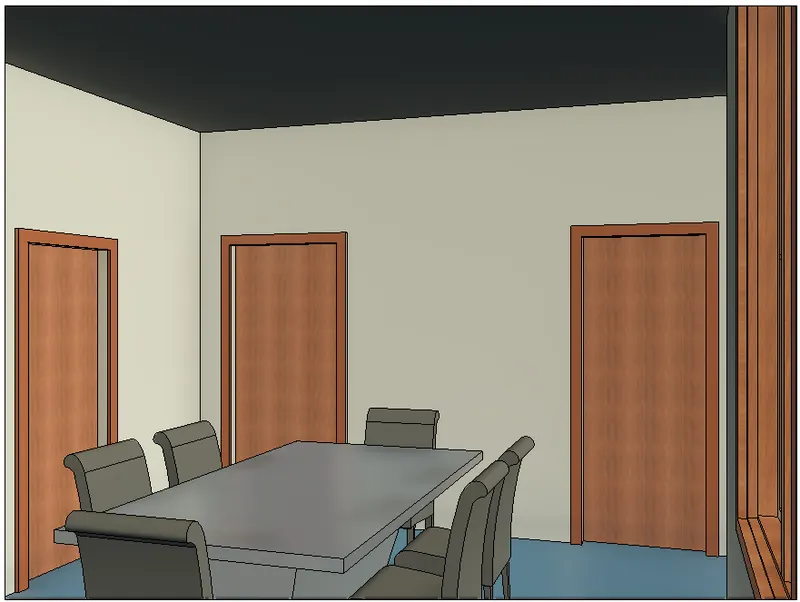
- Dining table and chairs in the dining area.
- Bed set and file cabinet in the bedroom.
- Water closet in the restroom.
- A few other items like washing machine, gas stove, study table, shelves were added now from the library as shown in plan view.
- As all the components were filled at places necessary. The next step was to place the cameras and to 3D navigation to check the model:
- To set up the camera in the bedroom follow these steps.
- In the view, the panel selects the camera option in the 3d view dropdown list.
- Now place the camera at the required position and pivot along to create the required view.
- After placing the camera at the necessary position change to 3D view to confirm it. If the view is ok then change the name to Bedroom in the properties browser. The final 3D image of the bedroom after setting the camera is shown
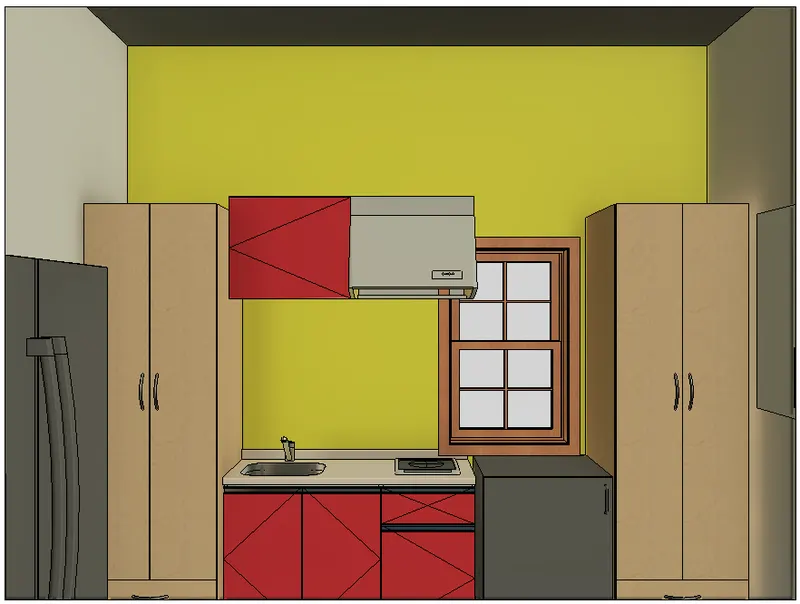
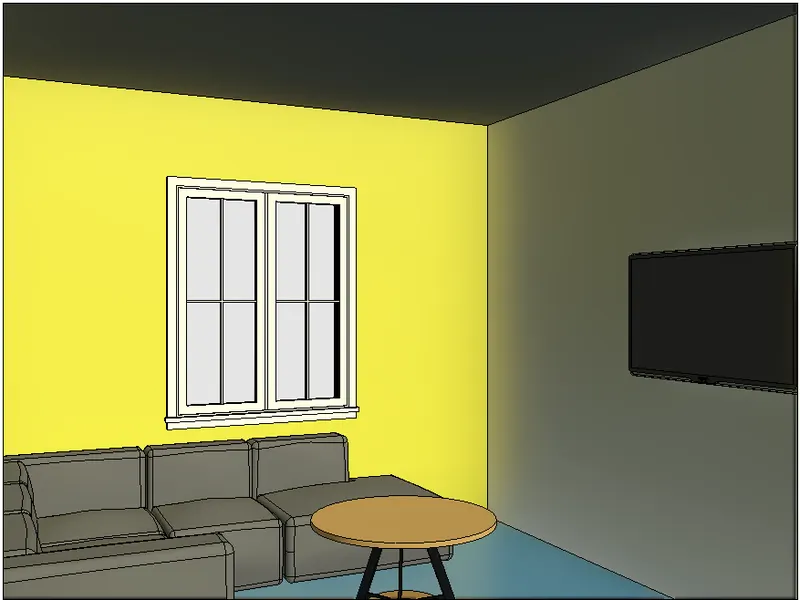
- Now in a similar way Drawing room, kitchen, dining room views were created as shown.
DRAWING ROOM:
DINING ROOM:
KITCHEN: