Creating various 3D Models like Furniture, Footing, Girder, Column drop with panel and Gable Wall in AutoCad
1.AIM:
Create a 3D Furniture element . Assume dimensions which are missing.
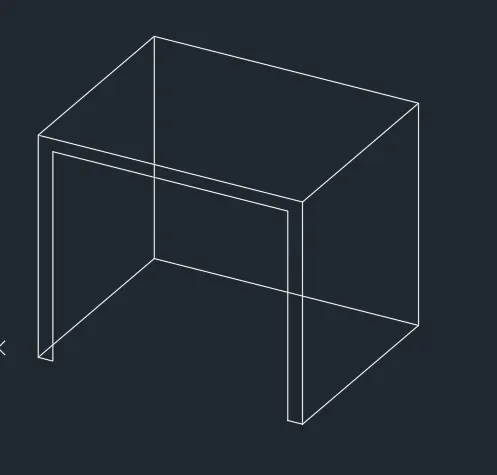
Create a 3D Furniture element:
- First click 3Dmodeling view in setting.
- Then change a 'Units' as per given in drawing.
- Click a '3D view' in right coner of the screen.
- Click "Line" and draw the element given in the drawing
- After complete the drawing the line is need to hide
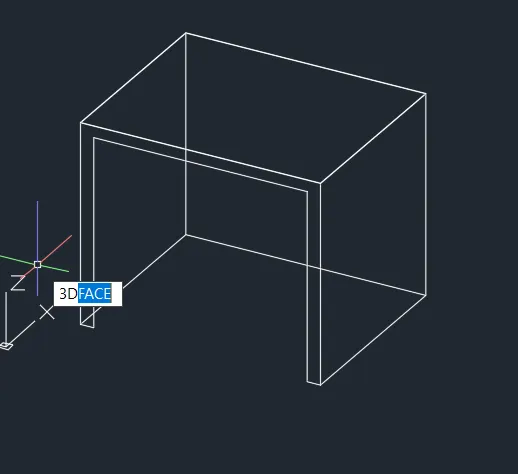
- So Click '3Dface' command and draw 4 coners and join.
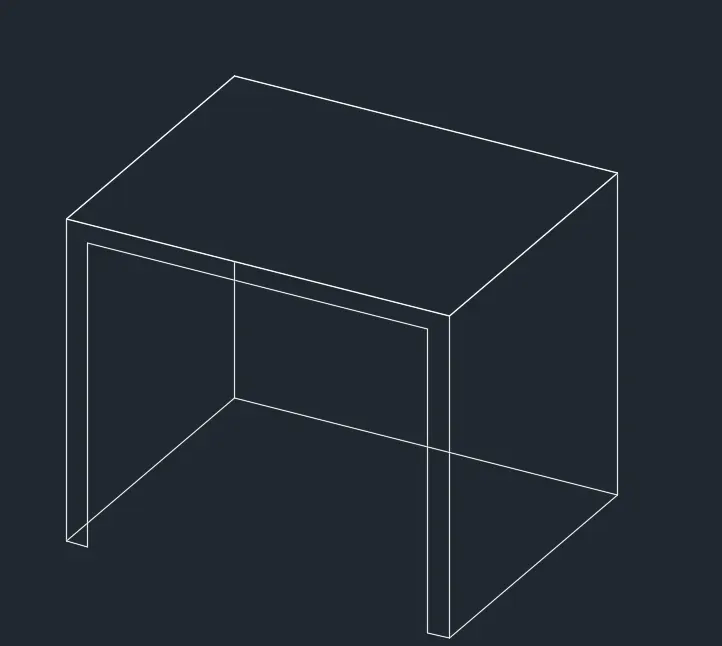
- Then Click "Hide" command to hode the drawn line.
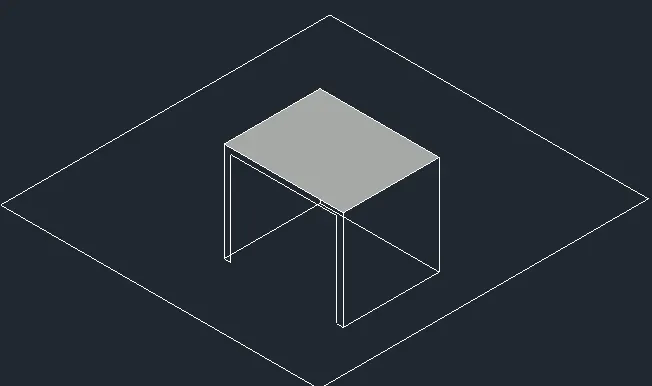
- After the view in the 'Shadow' to clear view of the drawing.
- And Click "SAVE"command to save the Text.
- Finally we SNIPPING TOOL to screenshot the drawing.
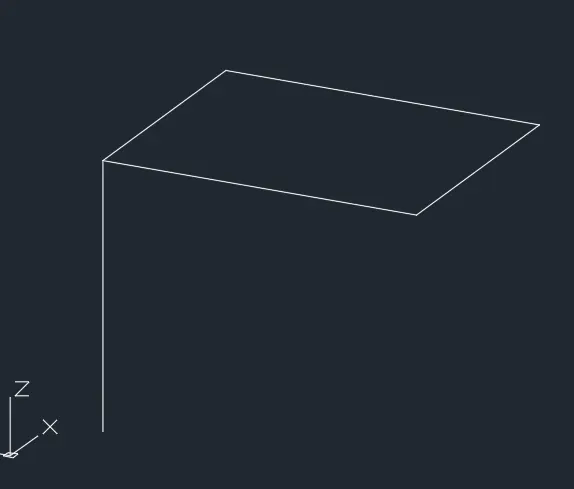
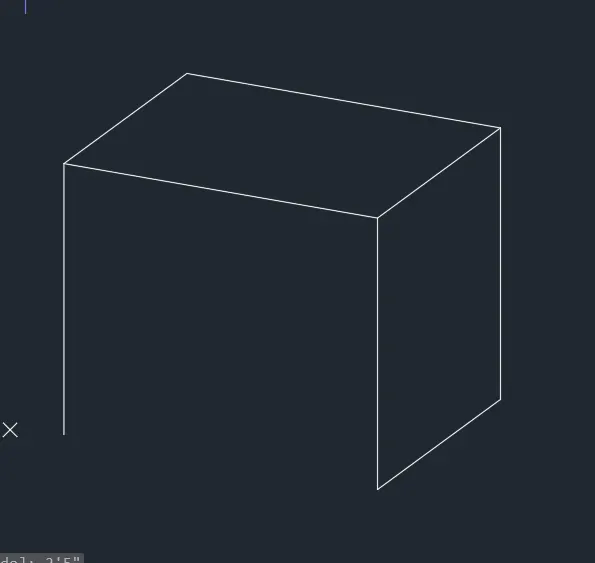
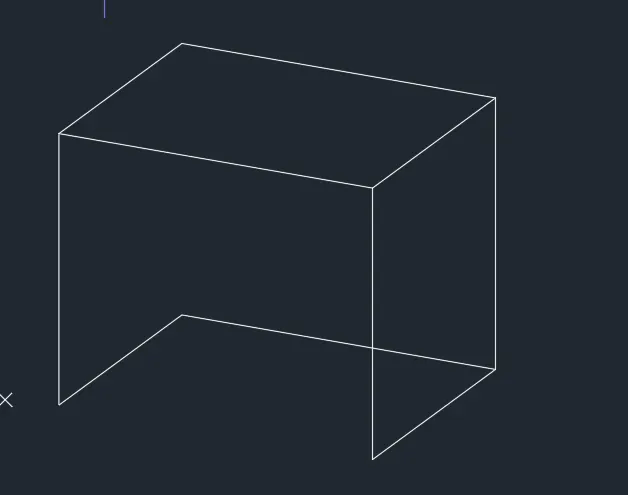
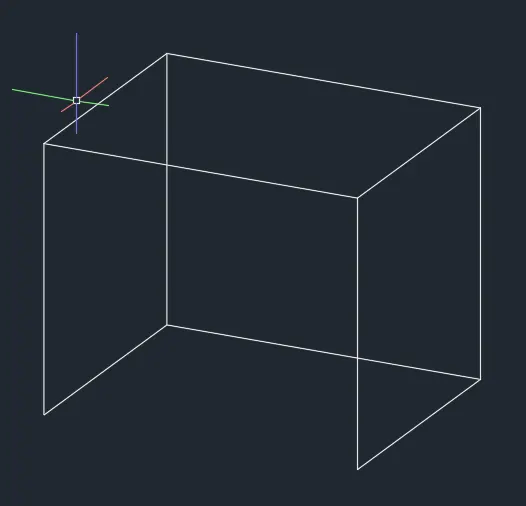
2.AIM:
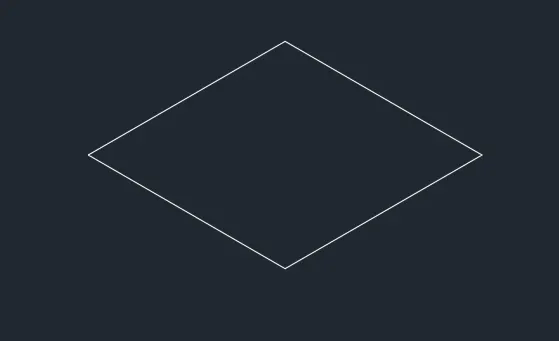
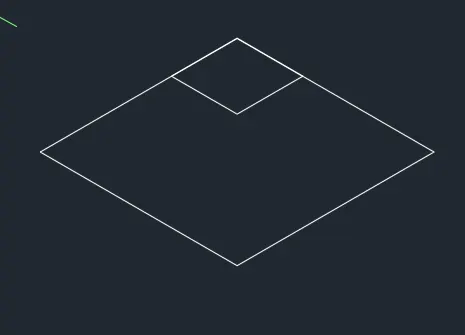
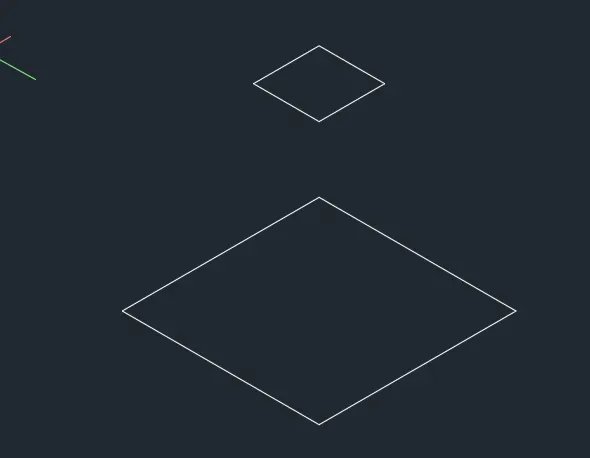
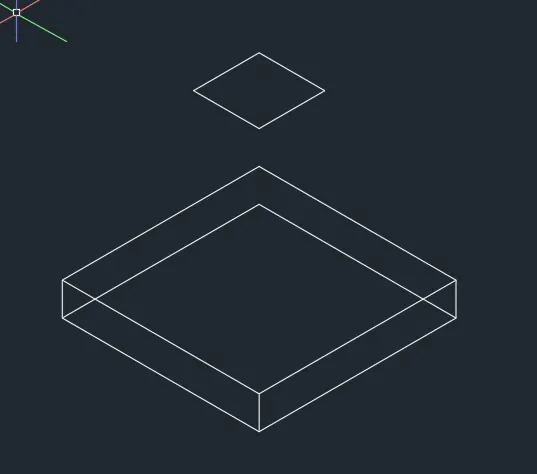
Create the 3d Model of an Isolated footing with 3d modeling view.
Create the 3d Model of an Isolated footing:
- First click 3Dmodeling view in setting.
- Then change a 'Units' as per given in drawing.
- Click a '3D view' in right coner of the screen.
- Create a "REC" rectangular command and draw in given size.
- The create the rectangle to corener point and copy in the Z axis.
- The offset the rectangle at 6"inch create the base.
- Click "Line" and joint the element given in the drawing
- Then Fianlly joint the line over the top layer.
- we can found the isolated footing view in 3d model.
- And Click "SAVE"command to save the Text.
- Finally we SNIPPING TOOL to screenshot the drawing.

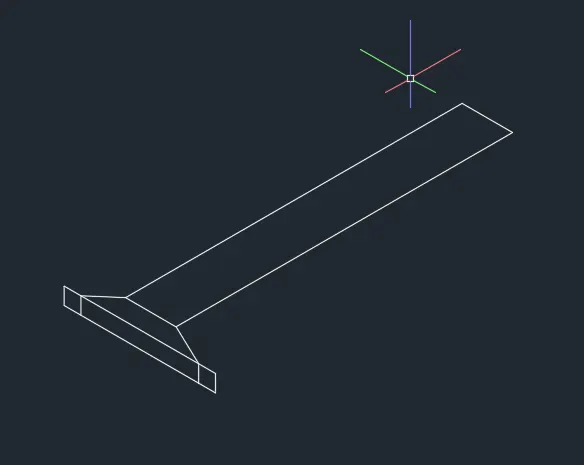
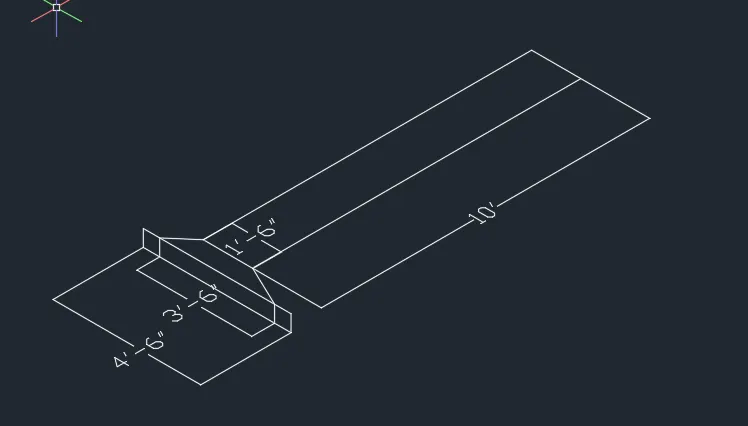
3.AIM:
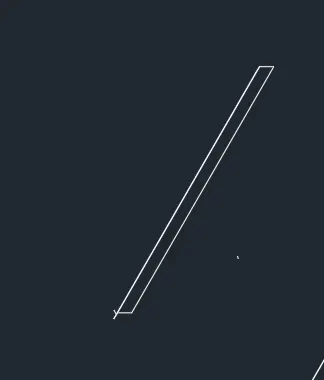
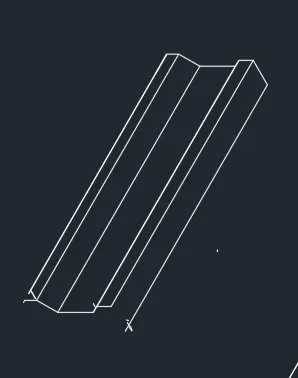
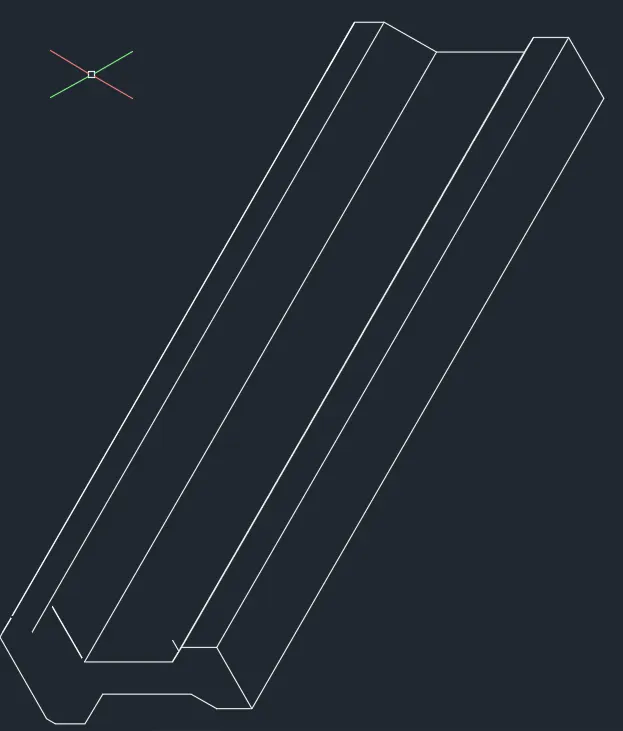
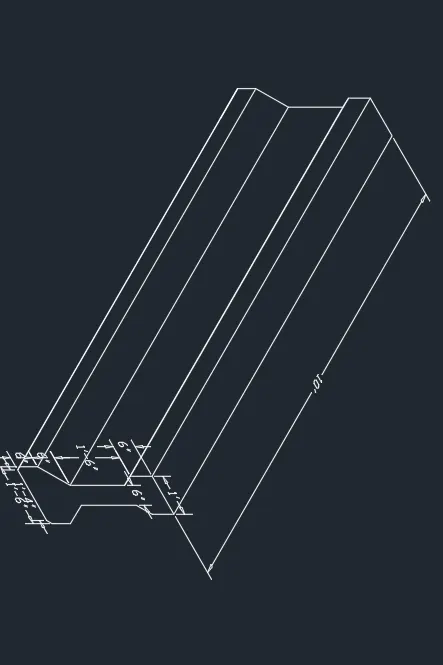
Create the 3D view of the AASTHO Type Girder by using the 3d modelong view.
Create the 3D view of the AASTHO Type Girder:
- First click 3Dmodeling view in setting.
- Then change a 'Units' as per given in drawing.
- Click a '3D view' in right coner of the screen.
- Click "Line" and joint the element given in the drawing.
- Then offset the line through drawing.
- we can found the Aastho grider view in 3d model.
- And Click "SAVE"command to save the Text.
- Finally we SNIPPING TOOL to screenshot the drawing.
4.AIM:
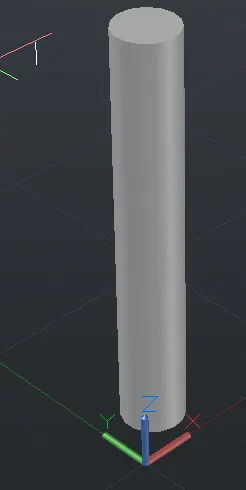
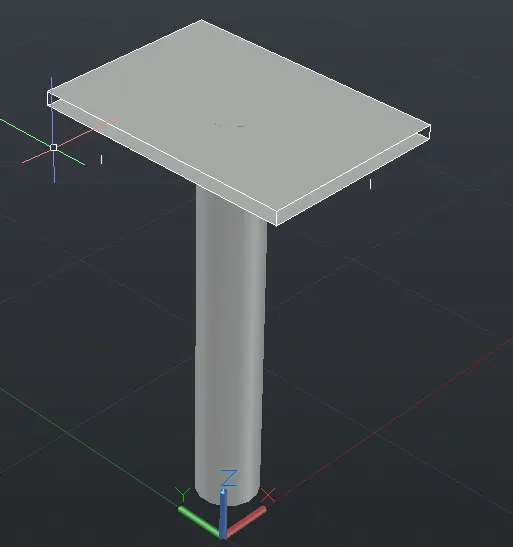
Create a 3d Model of a drop column with panel as shown in section and isometric view
Create a 3d Model of a drop column:
- First click 3Dmodeling view in setting.
- Then change a 'Units' as per given in drawing.
- Click a '3D view' in right coner of the screen.
- Click "Line" and draw the element given in the drawing.
- Then select the Cylinderical to creat the column.
- After click REC command rectangle to create the upper base of the column.
- Then offset the rectangle to create the column base.
- After complete the drawing the line is need to hide
- So Click '3Dface' command and draw 4 coners and join.
- Then Click "Hide" command to hode the drawn line.
- After the view in the 'Shadow' to clear view of the drawing.
- And Click "SAVE"command to save the Text.
- Finally we SNIPPING TOOL to screenshot the drawing.
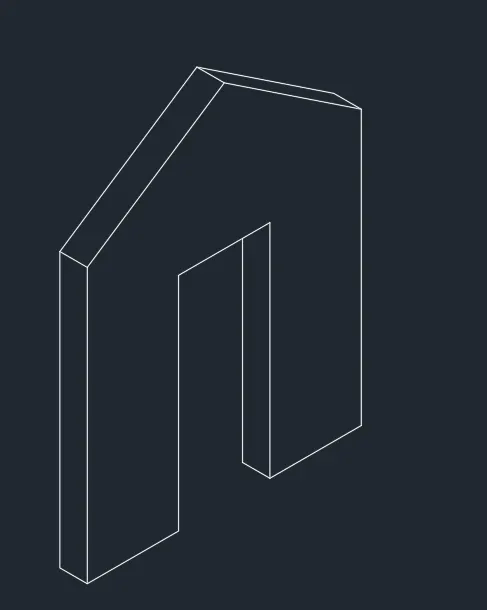
5.
- First check the dimension as we start before a line.
- Click a Isometric Drafting to create a Isometric View.
- Next start with a "L"line command.
- Draw a line as per dimension.
- In Isometric have a 3 option to draw.
- The Isometric Right,Isometric Left,Isometric Top to draw the line.
- ISometric right goes in Right, top and staright.
- Isometric Left goes in Left,top and staright.
- Isometric Top goes on Left,Right and top.
- Click "TEXT" command to mention the rooms.
- After complete a drawing we need show dimension.
- And use a "COPY" command for copy the line .
- And we use a Snipping Tool to take a screenshot.
- Finally Click Save as to save the picture.
`
Result:
In this challenge we learn about 3D elements and 3DFooting details and Isometric views with help of above mentioned commands.