Creating various 3D Models like Furniture, Footing, Girder, Column drop with panel and Gable Wall in AutoCad
AIM:- To Create various 3D Models like Furniture, Footing, Girder, Column drop with panel and Gable Wall in AutoCad.
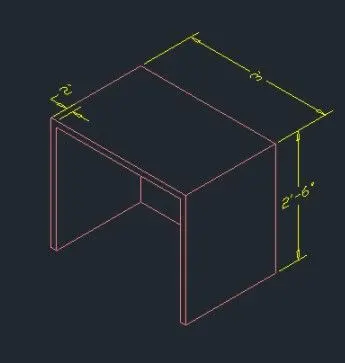
1) 3D Furniture element
Procedure:
- Open Auto CAD, select imperial as the units are in feet and inches.
- Got to units command and set it to engineering so that feet inches can be inserted.
- Create a box by clicking from the toolbar or box command, click on length, give length as 3' and width as 2'6".
- Give height as 2'6".
- Select the front face, command "UCS" give x and y coordinate in the front face horizontally and vertically respectively and select the front face.
- Type the command "PLAN" so that the front face is aligned correctly.
- Draw a line of 2" from the right side of the front view.
- By rectangle command draw a rectangle of dimensions 32" and 2'4".
- Move the rectangle to the line drawn earlier 2" from the right face.
- Delete the line created earlier.
- Now with the command "3do" orbit the object and select the rectangle.
- Extrude the rectangle to -z-axis 2'4" leaving 2" thickness.
- Now give the command"Subtract" select the larger object than the smaller extruded rectangle in the 2d wireframe model.
- Dimensions are given by dim linear command by switching the UCS.
Result:-
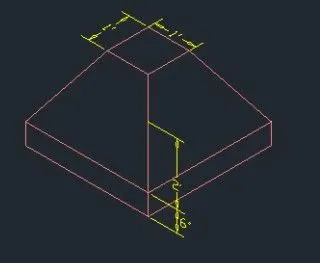
2) 3D model of isolated footing
Procedure:
- Create a rectangle of 2'x2' on the top view.
- Create another rectangle on 1'x1' on the top view.
- Place the smaller rectangle in the larger one with snap-on and such that the midpoint of both rectangles is at the same point.
- With the "M" move command moves the small rectangle of 1'x1' by 2' in +z direction with ortho on.
- Click on the loft from the home toolbar and select the two rectangles to loft.
- Again go to the top view and create a rectangle on top of the bigger rectangle of the same size.
- Command "3DO" and orbit the image such that a proper view is seen.
- Click on extrude from the home toolbar and select the created rectangle and give the extrude height as 6" and the direction of extrusion is pointed by the mouse.
- Give the dimensions.
Result:-
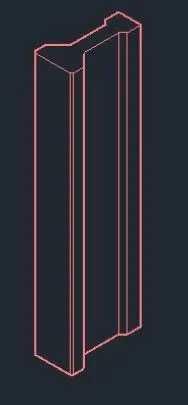
3) 3D model of AASTHO type girder
Procedure:
- Click on the front view.
- Use the UCS command and make the x and y-axis in the front view plane.
- Then by line command draw the I section with the given dimension.
- Line command draws a line of 1' then a line downwards of 6".
- With snap-on draw a line from the centre of 1' and offset 3" on both sides such that the width of the web becomes 6".
- Give a taper distance and join the web and flange.
- Mirror the same on the other side.
- The web is given a height of 1'6", offset the distance1'6" from the end of tapering of the flange portion.
- Delete the centre line drawn for the offset and also trim off the extra lines in the flange.
- Extend the web to the offset line.
- Again offset 6" from the last line and taper the sides.
- Mirror the tapered portion to the other side.
- The sides should be tapered such that the bottom should be 1'6" draw a centre line and offset 9" on both sides, then join the taper.
- Offset 6" downwards from the bottom horizontal line to define the height.
- To draw the taper at the bottom 1'4" from the centre draw a line and offset 8" on both sides.
- Extend the 5" offset line and trim the rest of the lines.
- Draw the vertical line downwards and tapering also.
- With 3d orbit turn the view and draw a line of 10' in the z-direction.
- Click on the sweep from the home toolbar and select the section and then select the path through which the section has to be swept.
Result:-
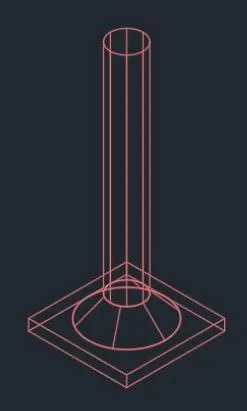
4) 3D model of a drop column with panel section
Procedure:
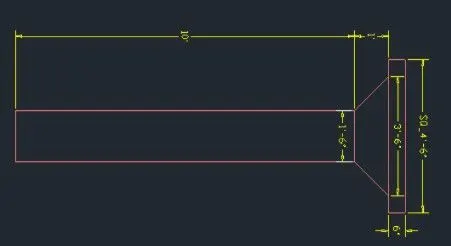
- Create a circle of diameter 1'6" in the top view.
- Create a region by region command and select the rectangle.
- Extrude it with extrude command in the home toolbar and give a distance of 10'.
- Create a cone by clicking on the cone from the home toolbar.
- Click on diameter and give the base diameter is 1'6".
- Click on tp radius and give the value as 21"
- Give the height of the cone as 1".
- Place the frustum of the cone on top of the extruded circle with snap option and place such that the centre of two objects coincides also place the centre of a frustum with the centre of the column in the top view.
- In top view,create a rectangle of dimension 4'6"x4'6".
- Extrude it to a height of 6".
- In the top view place, the rectangle at the centre of the cone and also adjunct in front viewer give move command and give the coordinate as 0,10',0 as the rectangle is at the bottom in front view.
Result:-
5) 3D model of the wall
Procedure:
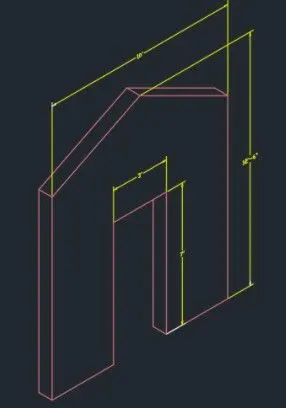
- Draw a rectangle of 10'x9"
- Create a line in the centre and offset 1.5" on both sides as 3" is the width of the door opening.
- Use command "BO" for boundary and create the region.
- Extrude the region to a height of 12'6".
- A layer is created for the door and create a rectangle in place of the door in the top view in that layer for identification.
- Move the rectangle in the z-axis at a height of 7' from the bottom.
- Go to the front view and draw a line from the centre of the moving line of the door.
- Draw a slanting line from the total height from the centre line intersecting the edge.
- Mirror the line to the other side.
- Draw the horizontal line to join.
- Trim off the excess line and the centre line and join the triangle with the join command.
- Create a region with region command in the triangle created.
- Select the extruded rectangle and with the help of grip bring it down to the level of the triangle base on both sides.
- Extrude the rectangle of the door to a height equal to the base of the triangle.
- With a union, the command makes all the entities into a single one.
Result:-
CONCLUSION:-
All result of each drawing has been attached which was drawn in AutoCAD.