Creating Levels, Grids, Layout and model elements for a residential unit using REVIT
AIM: To Create Levels, Grids, Layout, and model elements for a residential unit using REVIT
INTRODUCTION:
Revit is BIM software that brings all architecture, engineering, and construction disciplines into a unified modeling environment, driving more efficient and cost-effective projects. The main objective of this challenge is to understand the overall layout and various tools that are available and used by us in REVIT.
TASK1:- What is BIM? Summarize the features of BIM and the benefits of using BIM over 2D CAD tools.
BIM and its benefit over 2d CAD tool.
- BIM is Building Information Modelling.
- It is a concept created by Autodesk.
- Revit helps in achieving BIM as a process.
Features in BIM:
BIM is divided into 2 concepts:
- Coordination: It is the key feature in BIM. It helps in the coordination of multiple disciplines. Like Revit offers in the coordination of projects in architecture, structural, mechanical, etc. in single projects as independent design theme units.
- Computation: calculation of quantities of material, performing analysis. To create material schedules, quantity schedule, performing energy analysis in Revit. In structural discipline in Revit, robostructutraI analysis helps in computing the response to load applied in a building.
- Autodesk CFD, for computing floor and thermal computation in specification to mechanical engineering.
- Revit is a BIM tool that helps in achieving coordinating and computing as a part of the model.
Benefits over 2D CAD tool:
- It saves a lot of time.
- The modification of the model in one view will in turn reflect on other views.
- Unlike the 2D tool, we do not have to edit the modification in the plan, elevation, etc. whereas in Revit changes made in one view will be automatically loaded in all other views.
- If we select a wall in one view, the same wall in all other views will be selected and gets modified thus saving time.
- The changes will affect the quantities and computation also.
- It also reflects in the paper space and model space.
TASK 2:- Understand the concept of Categories, Families, Elements, Instances in Revit. Go to Insert Tab, choose a category. Pick a family and element. Understand the instances and insert them into the Revit model.
Category, family, and element Category:
- Categories are groups of elements having common properties.
- It is predefined by the software. Like the door, the window is an example of the category.
- We can insert elements of our choice and create a category.
- It controls the organization, visibility, graphical representation, and scheduling options of the family within the project.
Family:
- Family is different elements having the same properties. Like a single flush door, it has different sizes having the same property.
- Family is a grouping of 2d or 3d information that serves to represent a discrete building or documentation element in the project.
- It defines parametric, graphical, and documentation requirements.
Element:
- Element is the basic feature that cannot be subdivided. Like in a single flush door, the different sizes represent the element.
- Single flush door of sizes 30"x80",30"x84".
- Element is a specific representation in a family defined by distinct parametric, graphical, and documentation characteristics which make it unique from other types in the family.
Instance:
It is an individual representation of a type in the project defined by unique parametric, graphical, and documentation characteristics which make it unique from other instances in the project.
Eg:
- Go to the Insert tab, click on load family.
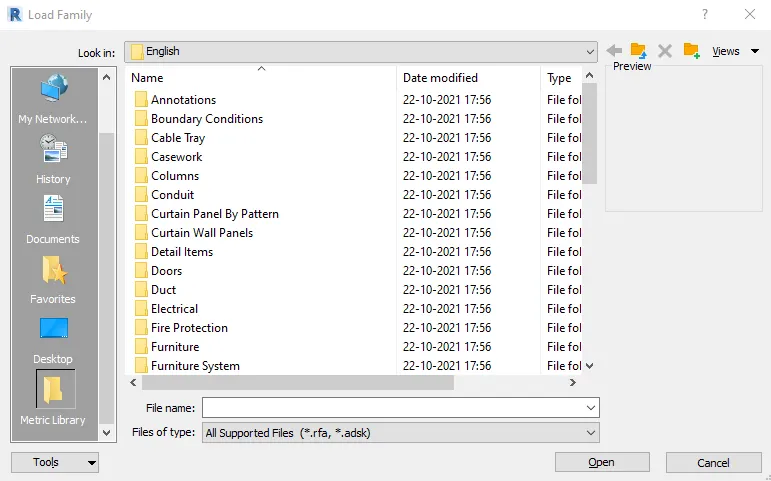
- A dialogue box appears, from that click on doors, which is the category.
- Another list of doors appears, double flush panel, double glass, double sliding these are families.
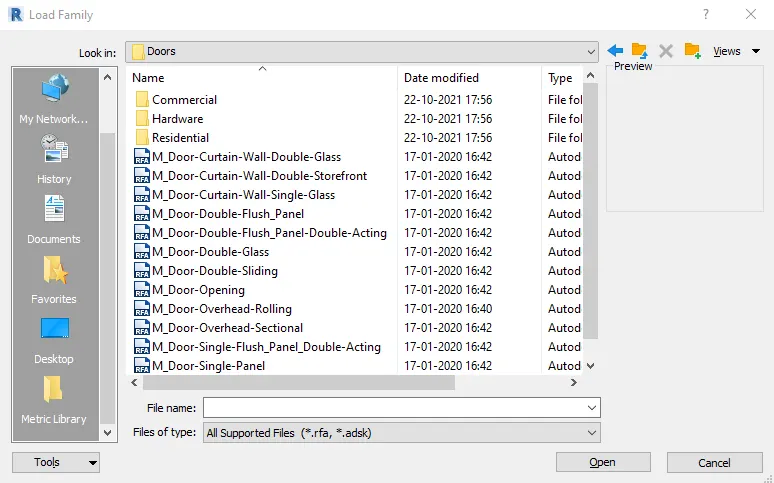
- Click on door single panel
- Then a dialogue box showing different sizes of doors appears, the different sizes represent elements.
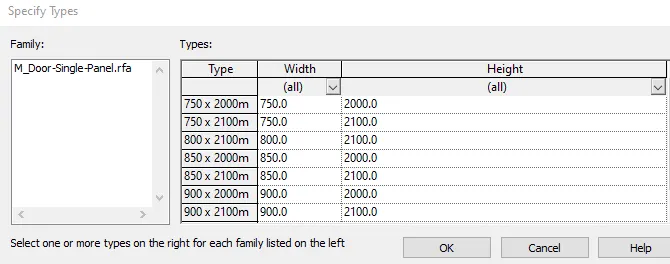
- Select 750 x 2100mm and click ok, then the door gets loaded in the door properties in the architectural tab.
- Go to architectural, select doors(category), go to single flush(family), and select 750 x 2100mm(element) which is loaded.
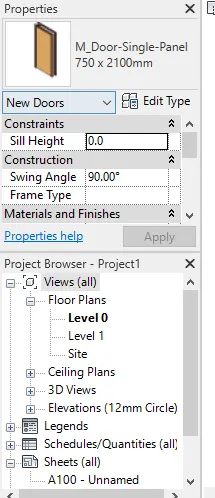
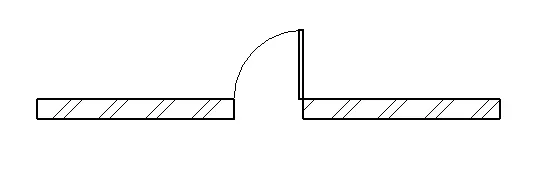
- Click on the 750 x 2100mm size door and place it in a wall created, this is the instance.
TASK 3:- Setting up a Project – Open a project file with an architectural template. Save the file with an appropriate name. Set up the project units to Imperial / Metric based on your convenience of modeling. Complete the project information under the Manage tab. Set up the maximum backups for project files to 3
Setting up Revit software for a project:
- Creating a template and setting units
- Saving the file
- Adding project information
- Creating backups
Procedure:
- Open the project file, select the imperial default template for units.
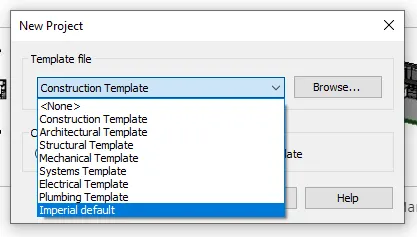
- Type UN for units and change it to meters.
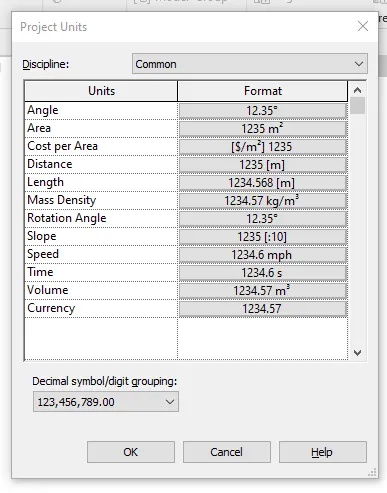
To save the file: Go to the File tab and click on the save option and save the name as "project 1".
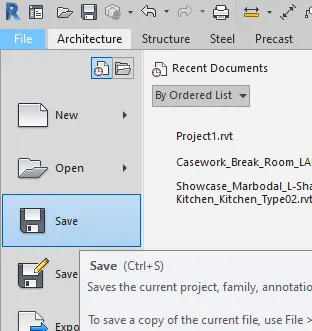

- Click on save.
- Go to the Manage tab, click on the project information tab.
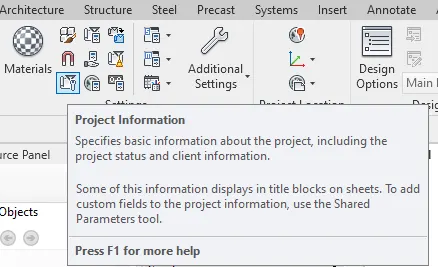
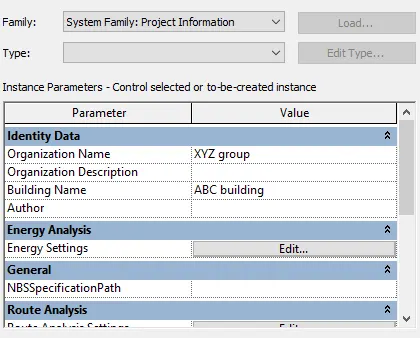
- The project information dialogue box appears, enter the organization name, project details.
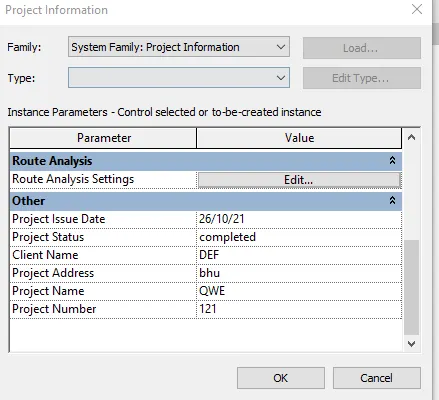
Setting backups:
- Go to the File menu, click on save as click on the project.
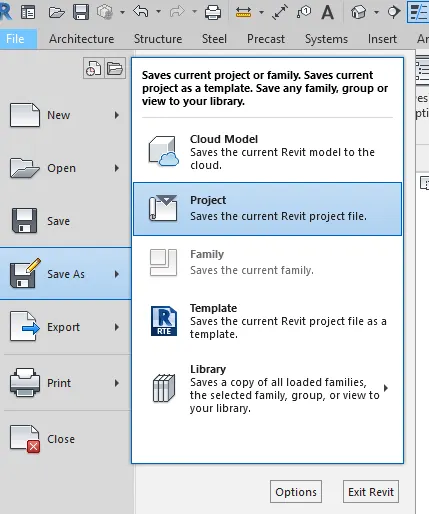
- Click on options in the save as dialogue box.
- File save option dialogue appears, enter the no of backups as 3.
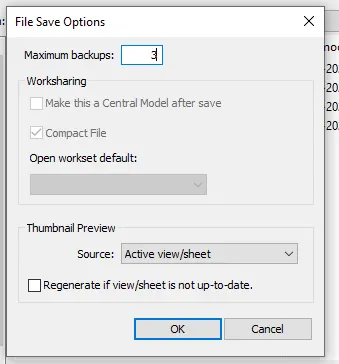
- Click on OK and click save.
Result: Revit software is set for the project.
TASK 4:- Understand the concept of Levels and Grids. Follow the naming and conventions. Create the following Levels: ( Convert to metric equivalents if the metric is your units)
Ground Floor @ 0’
First Floor @ 10’
Second Floor @ 20’
Roof @ 30’
Grids Transverse Grids A, B, C, D, E @ 10’ spacing
Longitudinal Grids from 1 to 10 @ 20’ spacing
Levels:
- Ground floor @0’, first floor @10’, second floor @20’, Roof @30’.
Grids:
- Transverse grids A, B, C, D, E@10’ spacing.
- Longitudinal grids from 1 to 10 @20’ spacing.
Tools: level and grid
Procedure:
Creating levels:
- Open a new project with an imperial architectural template.
- Go to elevation-east in the project browser.
- There are two levels by default.
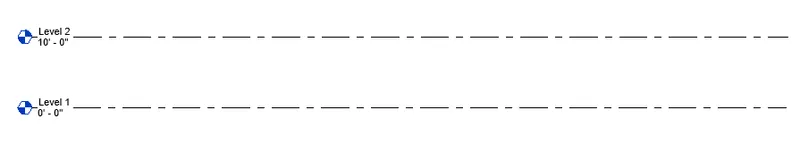
- Level 1 at 0’ and level 2 at 10’.
- Rename level 1 as the ground floor by double-clicking the level.
- Rename level 2 as the first floor.
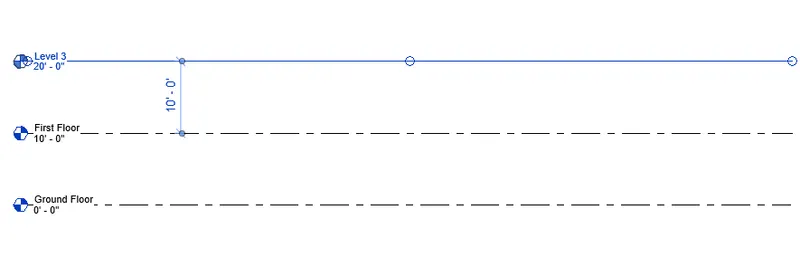
- To create a new LeveL, in the architecture tab click on LeveL, click on the pick line option and give the offset as 10’ and then click on the first-floor level.
- Level 3 is created at 20' from the ground floor.
- Rename the level as the second floor by double-clicking the text of the level.
- Similarly, create the roof floor by offsetting 10' from the second-floor level.
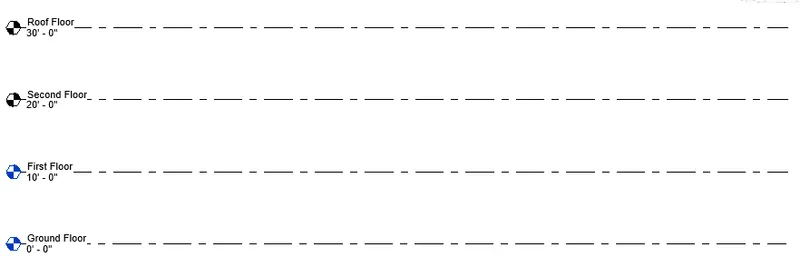
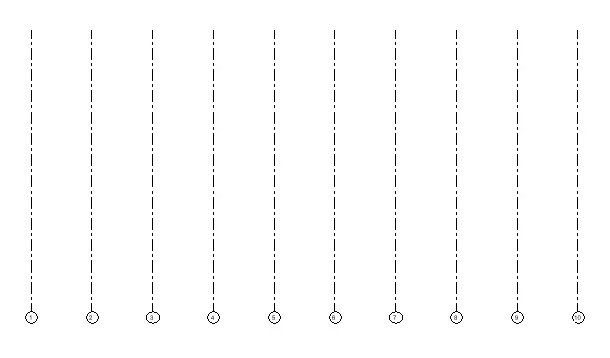
Grids: longitudinal grids are drawn from right to left 1 to 10 and transverse grids from top to bottom A to E.
- Go to the plan view, in the architecture tab, click on grid.
- Click on the line and draw the grid line on the right side of the workspace.
- The grid number will be represented as 1, if not double click and enter the value 1.

- Again, in the architecture tab, click on-grid and now select pick line and give offset as 20’ and click on the grid
- As the distance between the grid is 20’ without moving out of command-click on grid 2 and grid 3 will be created.
- Similarly, create 10 grid lines with a spacing of 20’.
- In the transverse direction, draw a grid line by tool and mark it as A on top.
- By pick, the line gives an offset of 10' and picks the first grid.
- As the distance between the grid is 10’, click on grid B, and then grid C will be created at a distance of 10' without exiting from the command.
- Similarly, create the grid up to E.
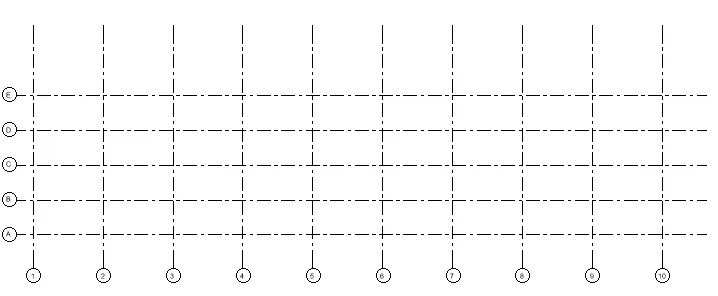
Result: levels and grids are created.
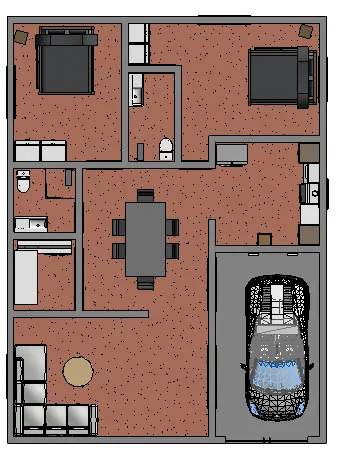
TASK 5:- 3D modeling of the residential unit – From looking at your house / or a place you aspire. Create a conceptual layout of the residential unit. You can measure using a tape or
you can access your residential plan to create a similar layout.
Tools used:
- Walls - architectural tab.
- Project information-manage tab
Procedure:
- Go to the metric architectural template, then create a new workspace.
- In the manage tab, go to project information and add the information.
- Click on the wall in an architectural tab, in plan view draw the wall.
- Select the height and draw the wall in level 1.
- Change the level 2 to 10’ if it is not.
- Draw the wall of 8" thickness by clicking on the workspace.
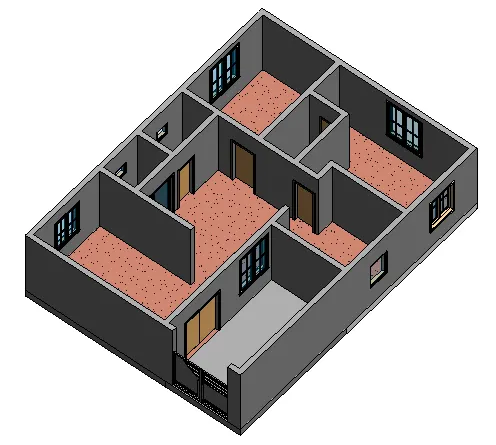
Result: The layout of 3d residential unit created.
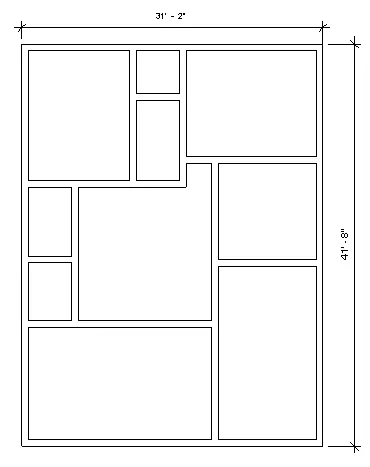
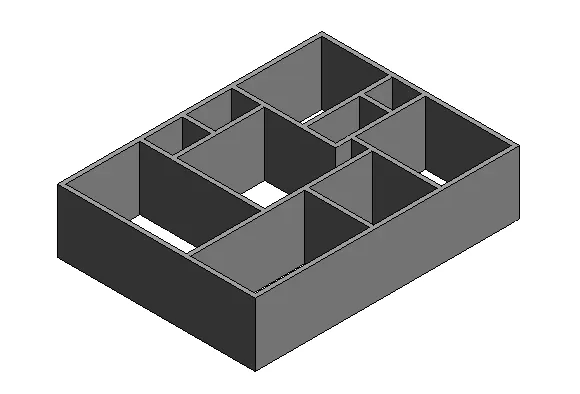
TASK 6:- In the layout created to draft the level of details you are planning to include – Dimensions of room, components you plan to add in the residential unit.
Components. Tools used:
- Door- in architectural tab
- Room- in architectural tab to add rooms
- Window- architectural tab
- Floor- in architectural tab
Procedure:
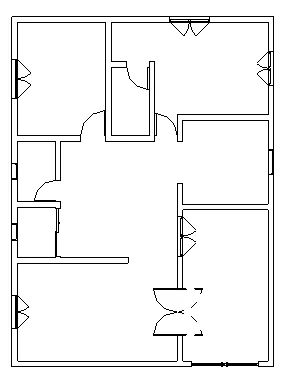
- In the layout created, dimension the rooms with annotate tab and then linear dimensions.
- Go to the architecture tab then select room and then select tag room(RT).
- Give the room number to each and every portion.
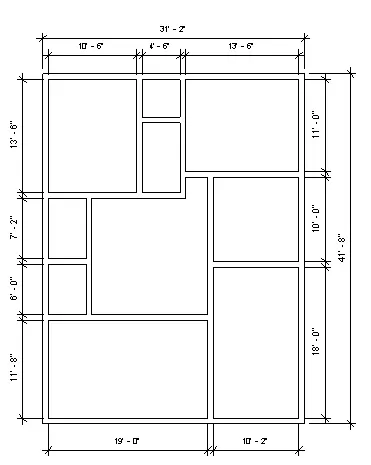
Placing of doors:
- Click on the door component from the architectural tab and place it wherever required
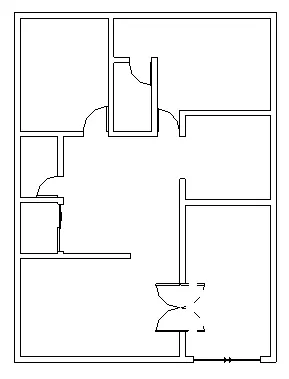
Placing of windows:
- Click on windows from the architectural tab.
- Place fixed windows in the kitchen, drawing room, bedroom, kitchen.
- For the bathroom select a ventilator.
Creating floors:
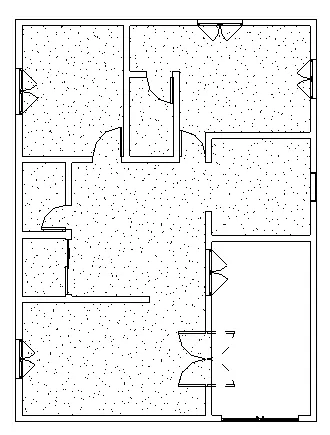
- Click on the floor in an architectural tab, select 6" wall.
- Select pick points and select inside of walls and to draw click on the line tool and select rectangular part to draw in one go.
- Then tick the box in the mode and the floor will be created.
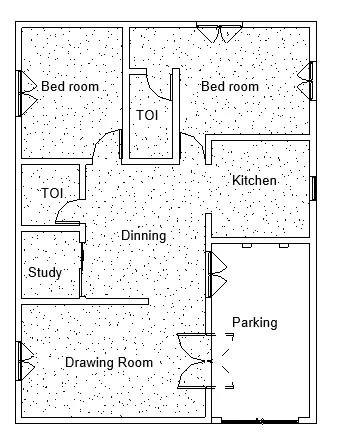
Rooms marking:
- In the architectural tab, click on rooms and place it in each room.
- Double click the text and insert the room name and size.
TASK 7:- Identify the residential model elements such as Door, Windows, Tables, Chair, Couch, Bed, Lamps from the library and insert them into the model. Save the project
Tools used:
- Doors
- Windows
- Load family-from insert tab
- Table
- Chair
- Couch
- Bed
- Lamps
Procedure:
Placing of doors:
- Click on the door component from the architectural tab and place it wherever required.
Placing of windows:
- Click on windows from the architectural tab.
- Place fixed windows in the kitchen, drawing room, bedroom, kitchen.
- For the bathroom select a ventilator.
Inserting components:
- From the architectural tab click on components.
- Click on place a component, if not available go to insert and click on load families and select the table, then click open.
- Select the table from the properties list.
- Select the table we want to place, here we choose the dining table.
- Place the table in the required position.
- Similarly, add the sofa and chairs.
- Similarly, place the table with a chair in the dining area.
- Similarly place the bed in the bedroom, cabinet, floor lamp in the desired location.
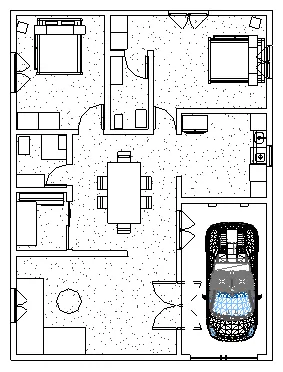
Result: The components are placed in the room.