Creating Kitchen layout, Hatching of Architectural elements and sectional view of an Industrial Building in AutoCad
1.AIM:
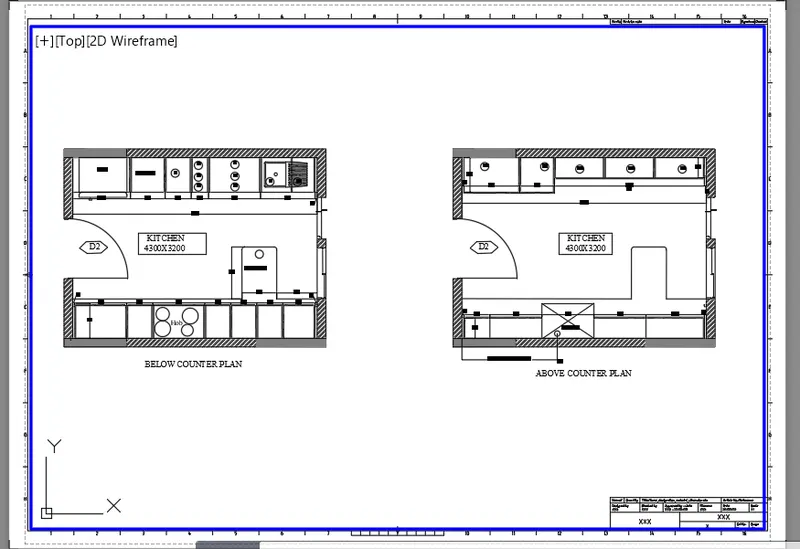
Create the layouts of the Kitchen and provide hatches pattern.
INTRODUCTION:
- The layouts of the Kitchen and provide hatches pattern
- Also, use blocks wherever required. Provide appropriate dimensions in the plan.
Create the layouts of the Kitchen:
- Frist create the "Layout" command.
- Then Click 'templete' option and selected the option tutorial march.dwt
- And Click "MV" command for create the space of drawing.
- It can keep a multiple view of drawings in one template.
- Then click 'PS' to edit the space line in the layout.
- The click the Costum option and create the scale.
- And Click "SAVE"command to save the Text.
- Finally we SNIPPING TOOL to screenshot the drawing.
2. AIM:
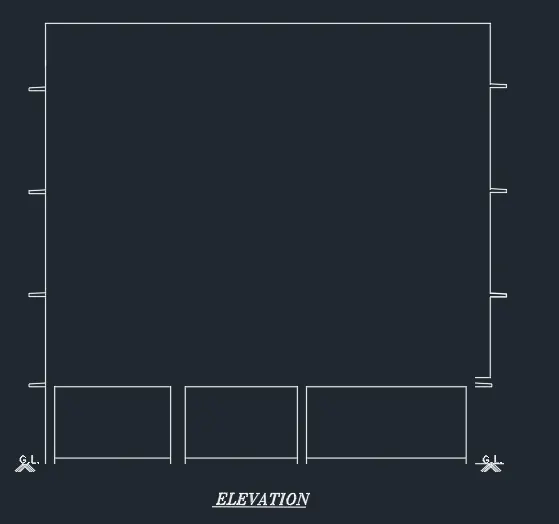
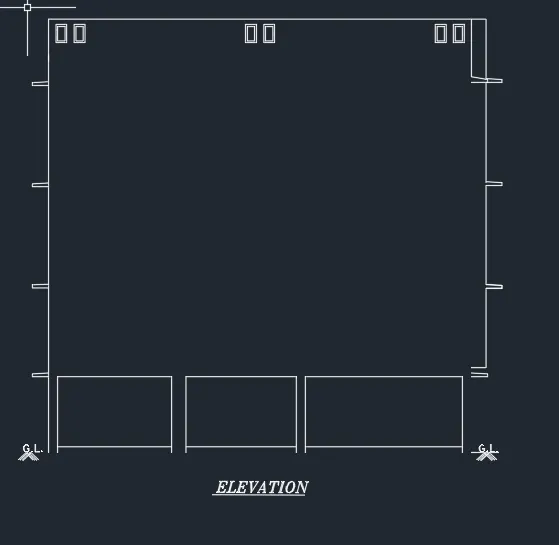
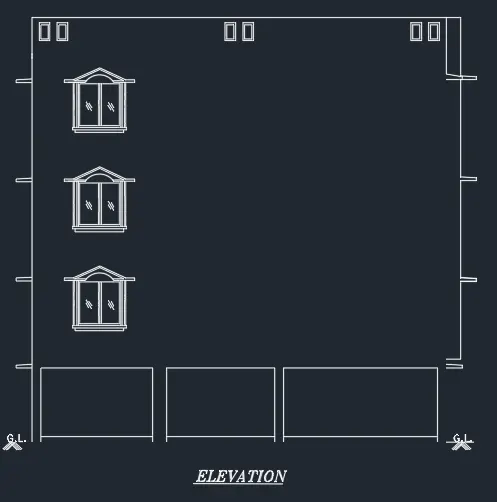
Create the elevation of the plan.
INTRODUCTION:
- created in the Challenges 7 and apply proper hatch in the walls, doors,windows, and other architectural elements.
- Refer to the dimensions in Plans and sections in Challenges 7.Refer to the elevation that needed to be created.
Create the elevation of the plan.
- we create a SectionAA .
- First we need study the where we cut the sectionAA properly before start the plan.
- And we need Draw the plan as per dimension.
- Click 'REC' Rectangle command to draw the outer of the plan.
- And offset the 250mm of outer wall and inner wall 125mm.
- After Click 'L'Line command to draw the center line.
- And click 'OF'Offset commend to offset the Line.
- Create a rooms as per dimensions using of ofset command.
- And create a Staircase as per dimension with a 250mmouter wall.
- Windows and door are create with standart size using in residencial building
- Also insert text with help of Dtext command or Single Line text.
- Click "DTEXT" command to create the text.
- Click 'DIM'to create a dimension of the plan.
- And check the dimesnion before save.
- And Click "SAVE"command to save the Text.
- Finally we SNIPPING TOOL to screenshot the drawing.
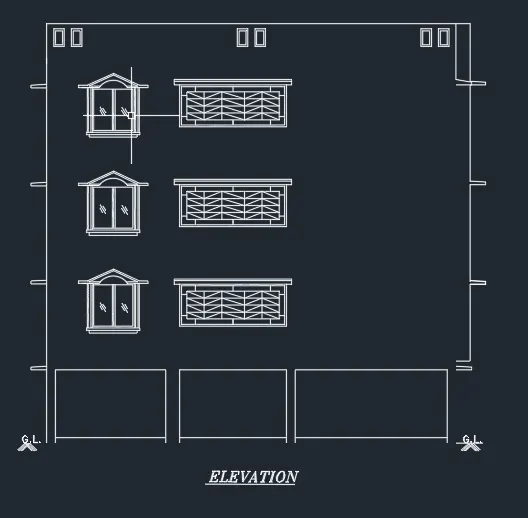
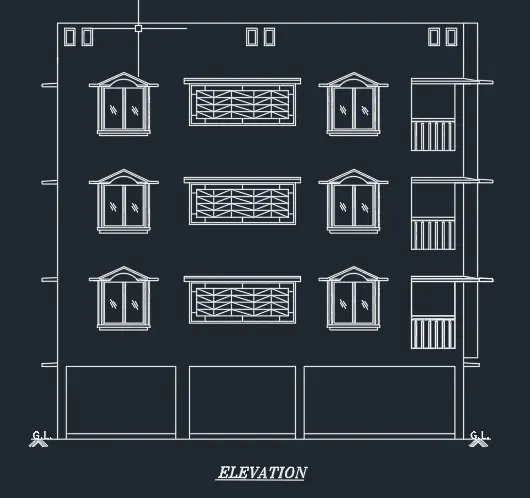
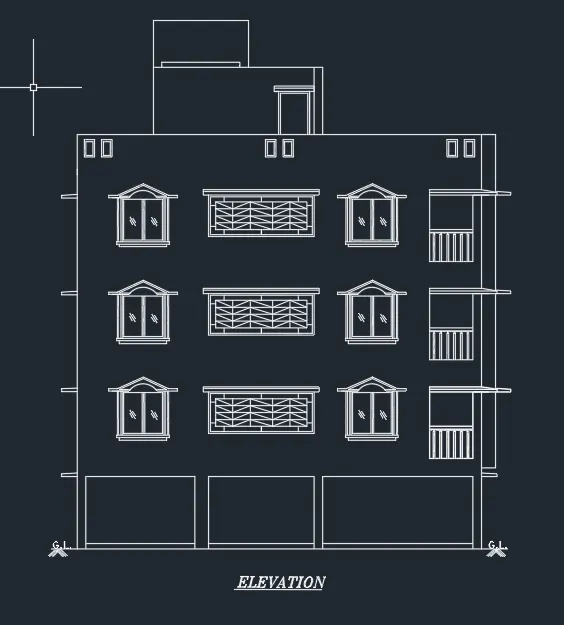
3.AIM:
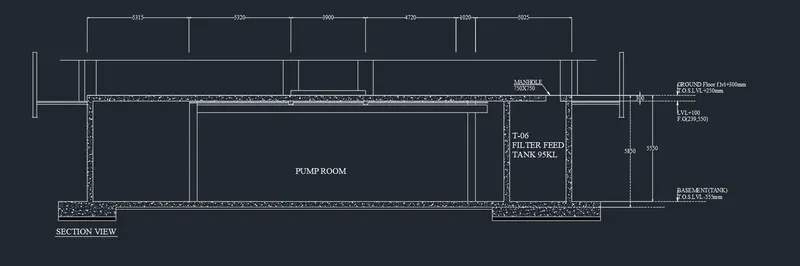
- Create the section view of an industrial building.
INTRODUCTION:
- Provide appropriate hatches anddimensions wherever required. Also, provide annotations to the drawing.
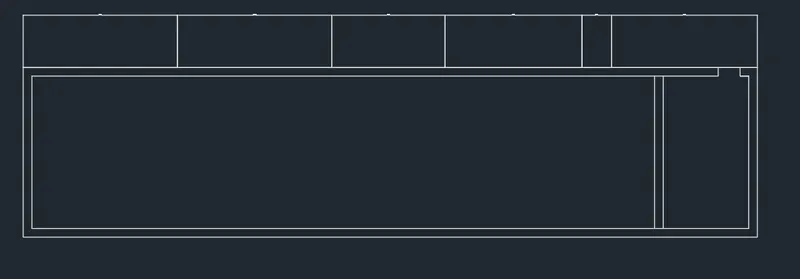
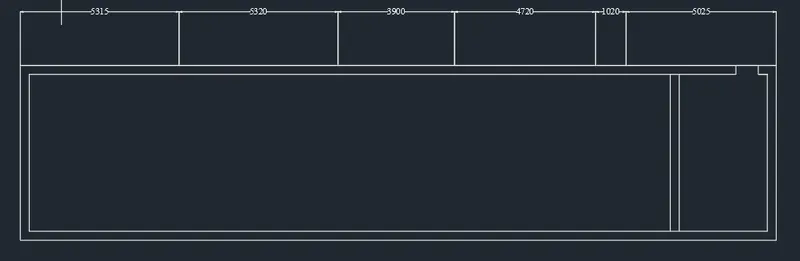
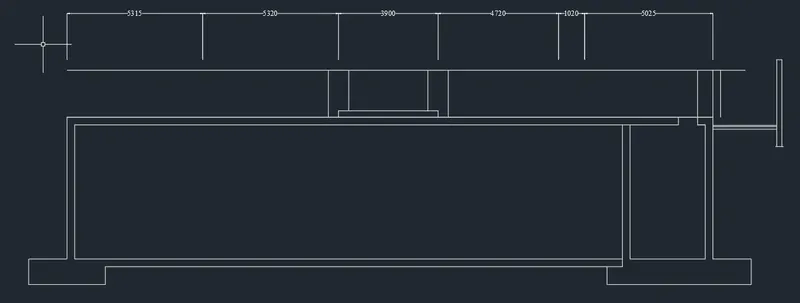
Create the section view of an industrial building:
- First we click "REC" rectangle command as per dimension.
- Then we check the dimension of the drawing.
- Nxt "OFF" offset command with 400mm.
- Click "TRim" command to edit the water tank area.
- Then Click "HAT" hatch command to hatch the outer portion.
- Also insert text with help of Dtext command or Single Line text.
- Click "DTEXT" command to create the text.
- Click 'DIM'to create a dimension of the plan.
- And check the dimesnion before save.
- And Click "SAVE"command to save the Text.
- Finally we SNIPPING TOOL to screenshot the drawing.