Creating Kitchen layout, Hatching of Architectural elements and sectional view of an Industrial Building in AutoCad
TASK 1:
AIM:
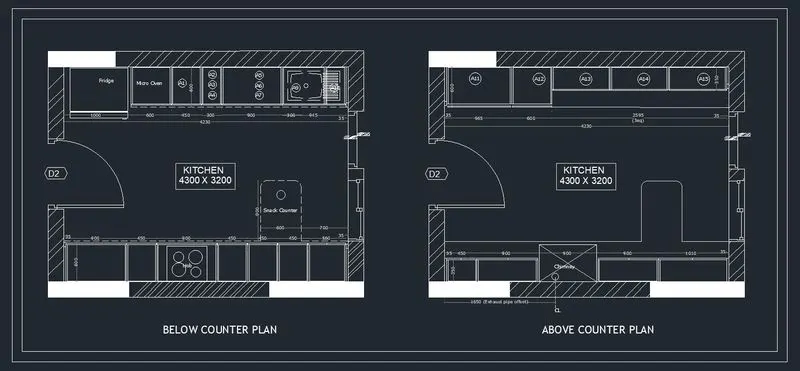
To create the layouts of the Kitchen and provide hatches pattern as shown. Also, use blocks wherever required. Provide appropriate dimensions in the plan. Assume the size of doors, appliances and others as per the standards.
PROCEDURE:
- From the the challenge 6 Open the Kitchen Plan in the Auto CAD.
- Once the Project is opened We can start the Hatch patterns since the Project is alread completed.
- Click the Hatch on the Draw tool bar or Type 'h' (hatch) Command on the Command box.
- Now select the Hatch Patterns to Hatch the given layout.
- Select the scale with respect to the layouts.
- Use Pick point option to hatch the layouts.
- Add Dimensions to the Layout.
TASK 2:
AIM:
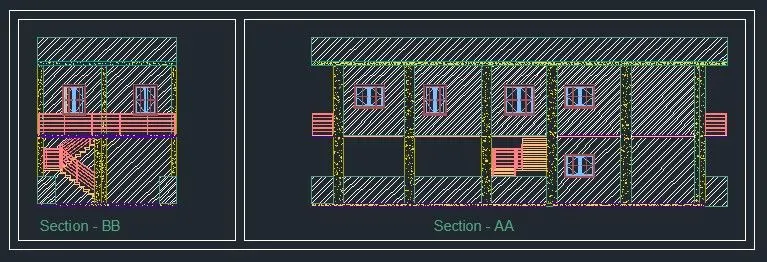
To create the elevation of the plan created in the Challenges 7 and apply proper hatch in the walls, doors, windows, and other architectural elements. Refer to the dimensions in Plans and sections in Challenges 7.
PROCEDURE:
- From the the challenge 7 Open the Project 1 in the Auto CAD.
- Once the Project 1 is opened, We can start the Hatch patterns since the Project is alread completed.
- Click the Hatch on the Draw tool bar or Type 'h' (hatch) Command on the Command box.
- Now select the Hatch Patterns to Hatch the given layout.
- Select the scale with respect to the layouts.
- Use Pick point option to hatch the layouts.
TASK 3:
AIM:
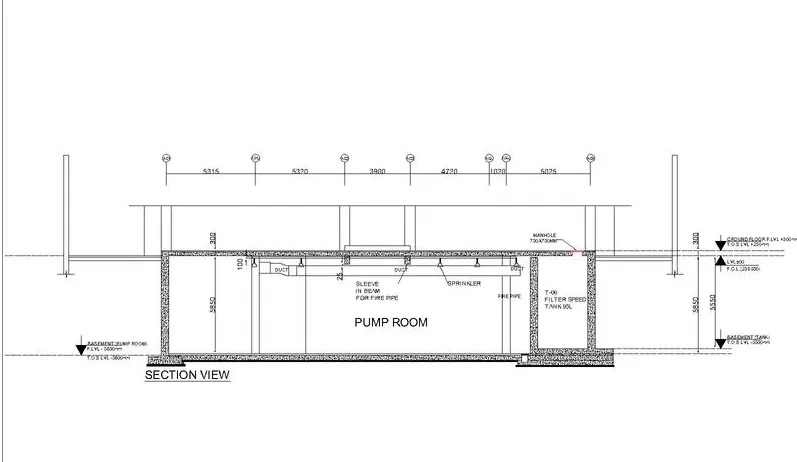
To create the section view of an industrial building as shown in Figure. Provide appropriate hatches and dimensions wherever required. Also, provide annotations to the drawing.
Commands used:
- Line command,
- Circle command,
- Dimlinear command,
- Text command,
- Offset,
- Trim,
- Extend.
PROCEDURE:
- Go to START MENU, select AutoCAD 2023
- Click on START DRAWING .DWG File
- In the Command line type in: STARTUP [ENTER]
- Enter new value of startup: 1
- Go to Application Menu and select New
- Next select the 'Decimal' unit system from the 'Advanced Setup' option.
- Set the limits by entering LIMITS in the Command tab. The lower-left corner is specified as 0,0, and the upper-right corner is specified as 100,100.
Thus the Challenge is completed.