Creating Conceptual mass in REVIT and Creation of Sinusoidal curve and a Parametric stadium using Dynamo
AIM: Creating Conceptual mass in REVIT and Creation of a Sinusoidal curve and a parametric stadium using Dynamo.
INTRODUCTION:
- Dynamo is an open-source visual programming language for Revit, written by designers and construction professionals. It is a programming language that allows us to type lines of code; while also creating an algorithm that consists of nodes.
- Using Dynamo, we can work with enhanced BIM capabilities in Revit.
- Dynamo and Revit together can be utilized to model and analyze complex geometries, automate repetitive processes, minimize human error, and export data to Excel files and other file types not typically supported by Revit.
- Dynamo can make the design process more efficient, with an intuitive interface and many pre-made scripting libraries available as well.
- The user interface for Dynamo is organized into five main areas, the largest being the workspace where programs are processed. The user interface sections include:
- Main menu
- Toolbar
- Library
- Workspace
- Execution bar
TASK 1: Using Dynamo create a set of sinusoidal points create a curve and create a surface out of the curve.
PROCEDURE:
Open a Revit architectural template file.
Now in the Manage tab select the dynamo option.
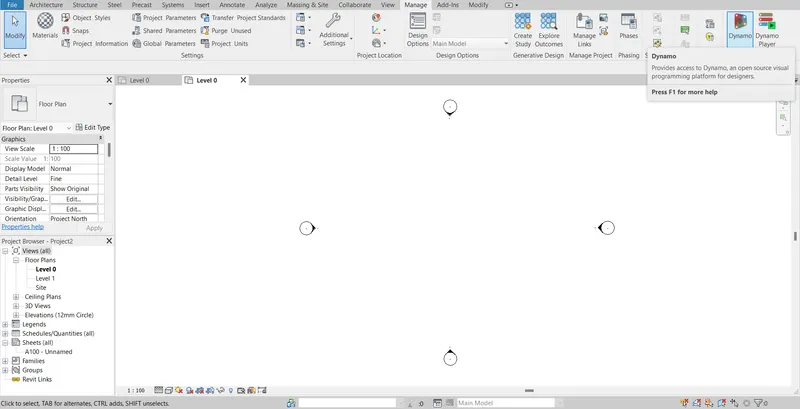
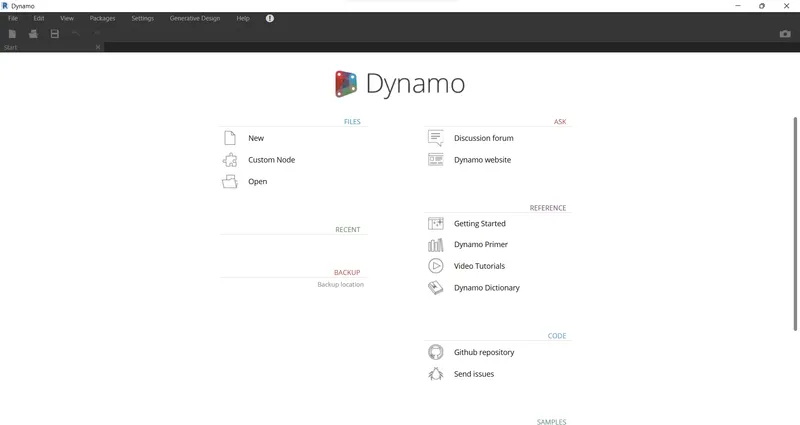
The Dynamo window opens and clicks on the new command.
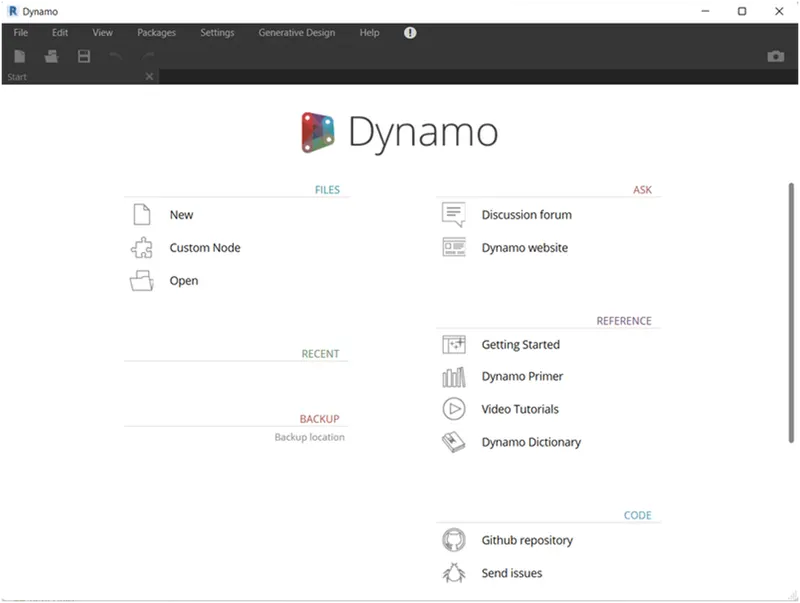
A new Dynamo file is now opened as shown
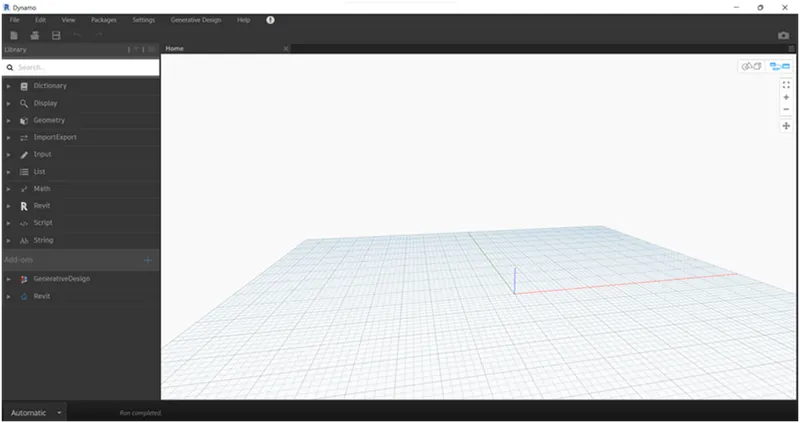
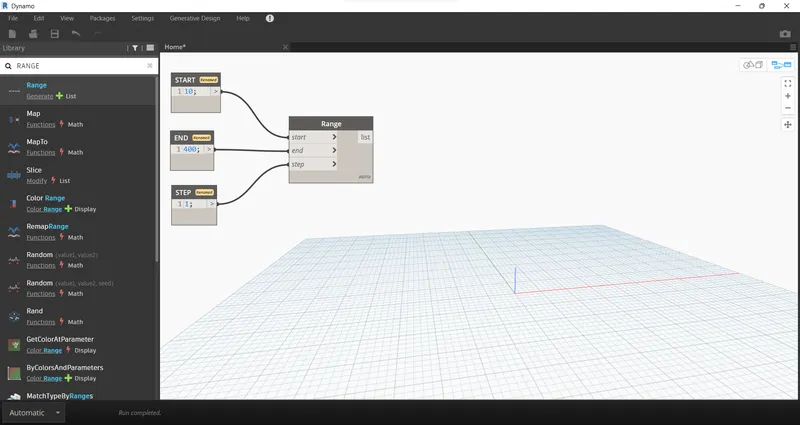
To draw a curve certain parameters are required like start, end, and step. This can be done using Code Blocks.
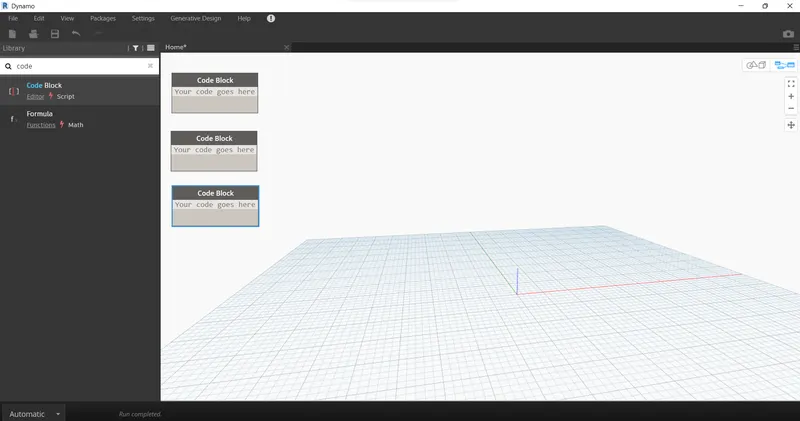
In the library to the left search for Code Block
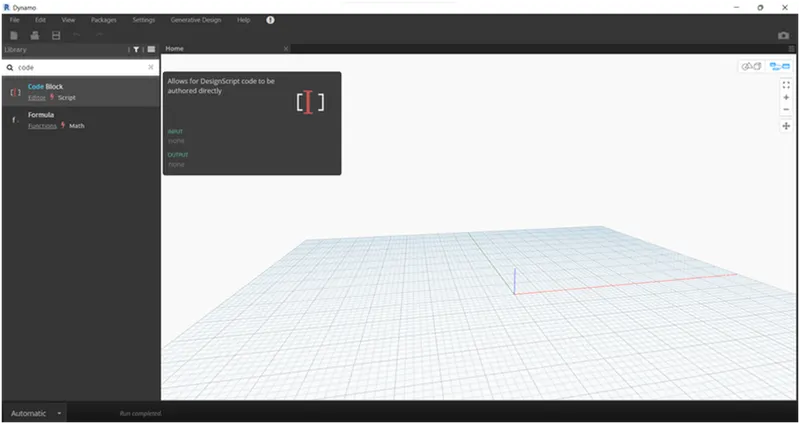
Three Code Blocks are inserted now
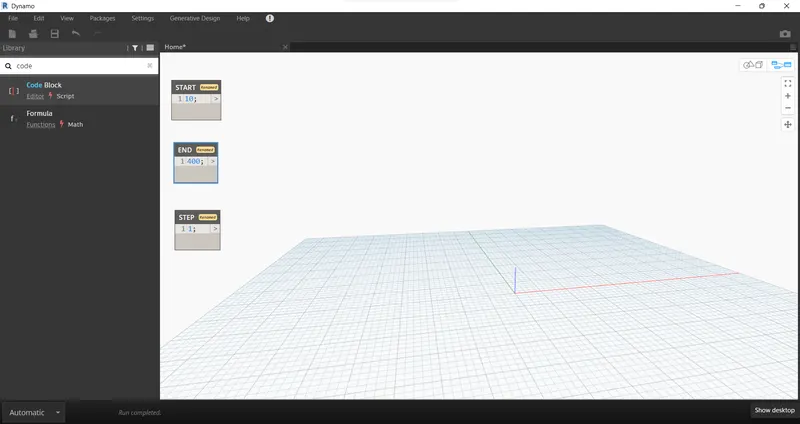
They are renamed to Start, End, and Step with values of 10,400 and 1
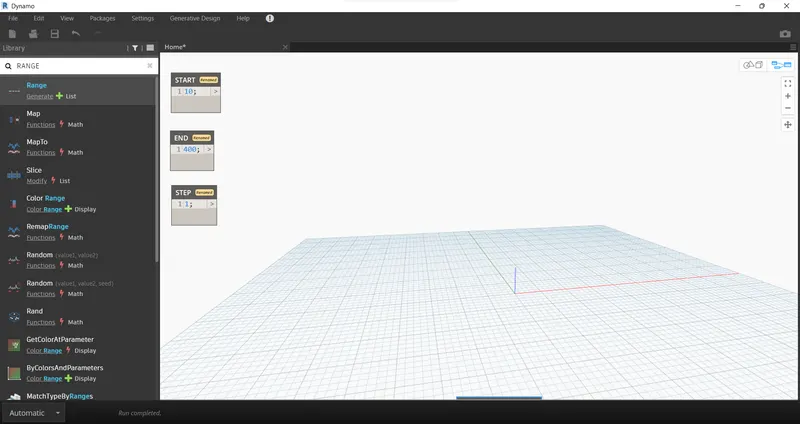
Search for Range in the library panel and insert it.
Range Block is now inserted as shown
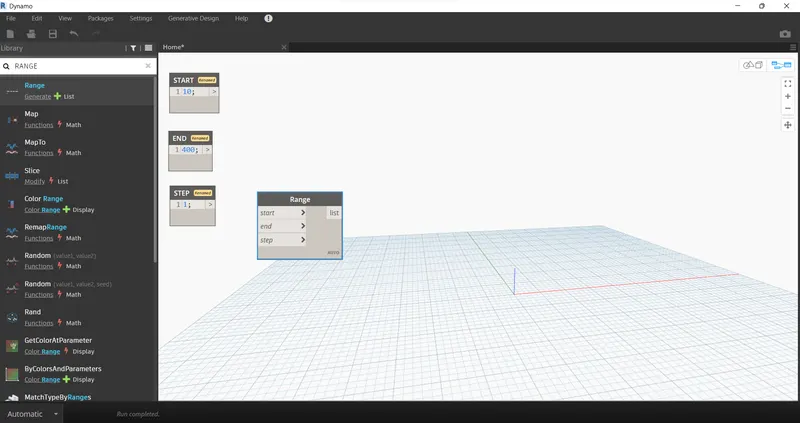
Now connect the Range Box to previously created Code Blocks.
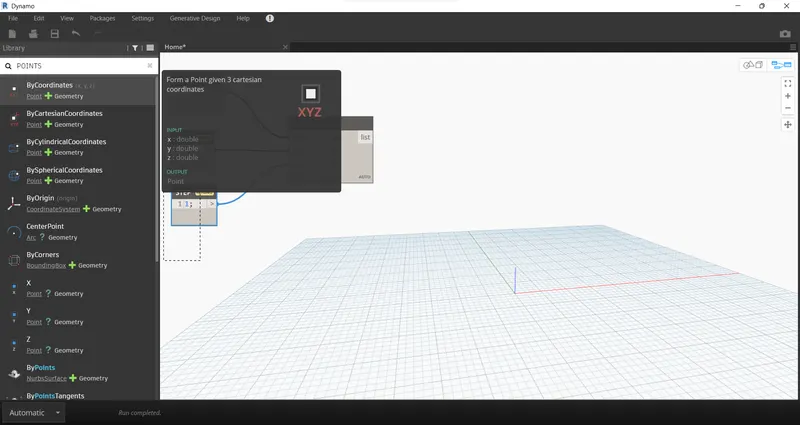
To insert the coordinates search for points by coordinate
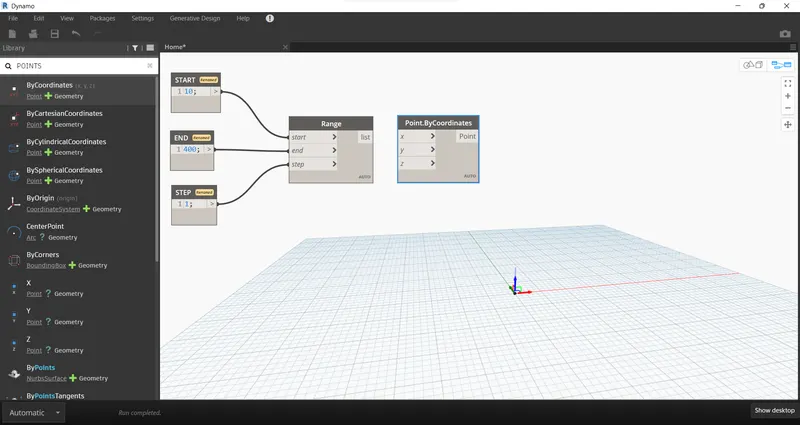
The Points By Coordinates box is inserted.
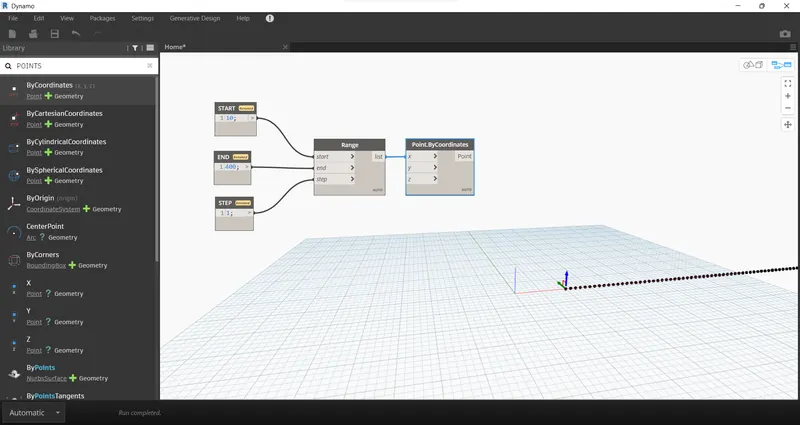
Connect the Range Block to the X coordinate of the Point by Coordinate block.
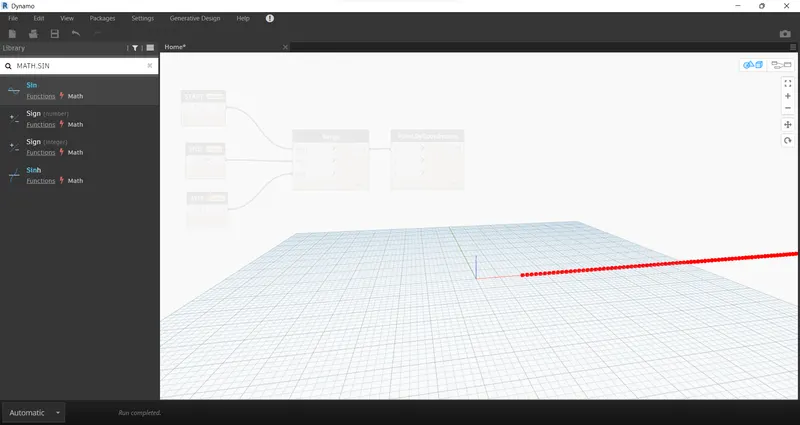
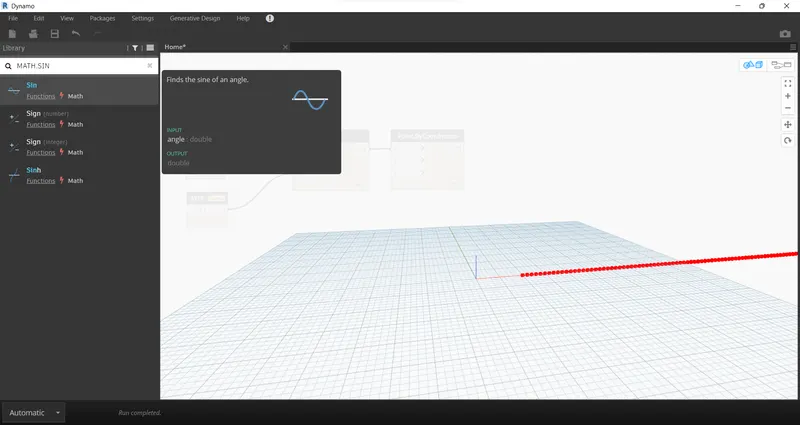
To create a Sin Wave search for the math.sin option
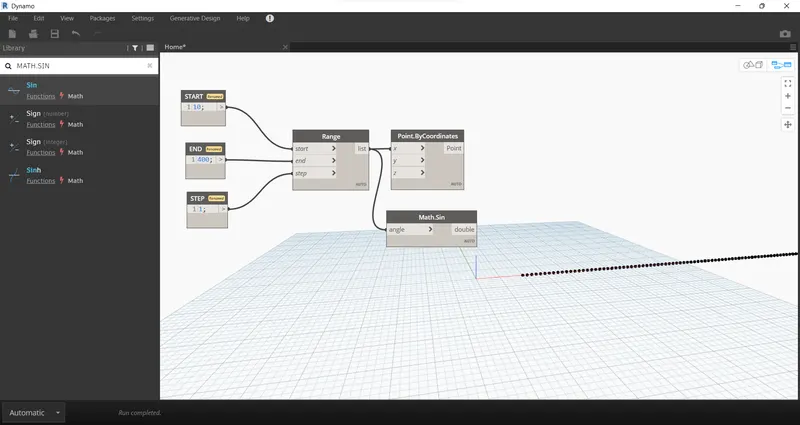
Connect Range to Math Sin block as shown.
Sin value is too small, so we need to amplify it.
Search for an integer slider and rename it the amplifier
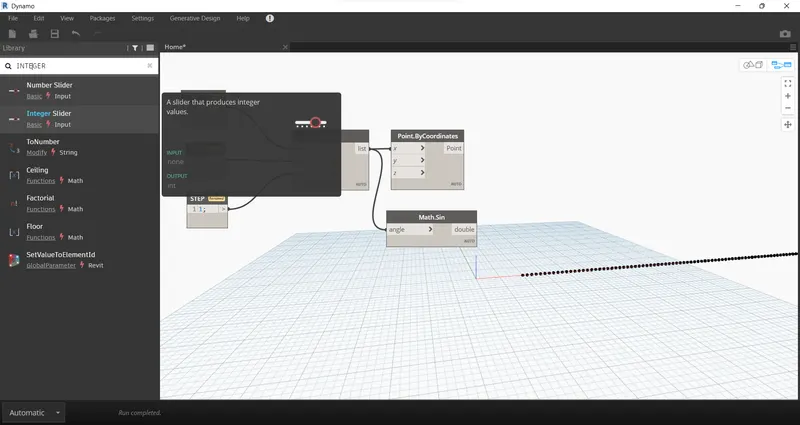
Integer slider was renamed to an amplifier and it needs to be multiplied. Search for product functions in the library and insert them.
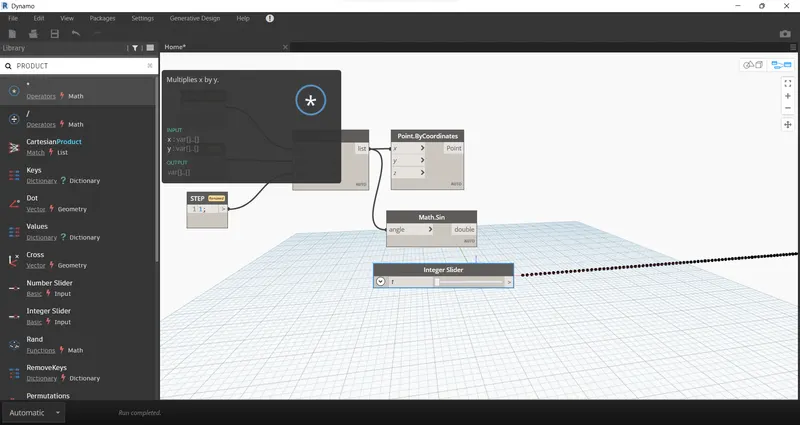
The X value in the product corresponds to the Sin block and the Y value is Amplifier.
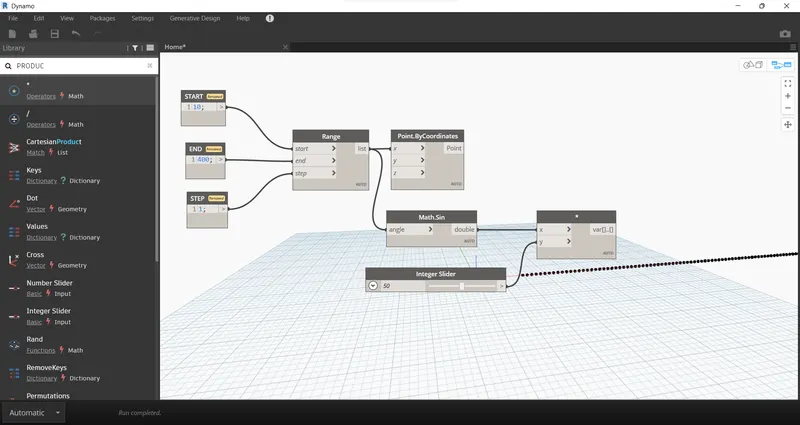
Phase Block:
For that insert an integer slider and name it phase
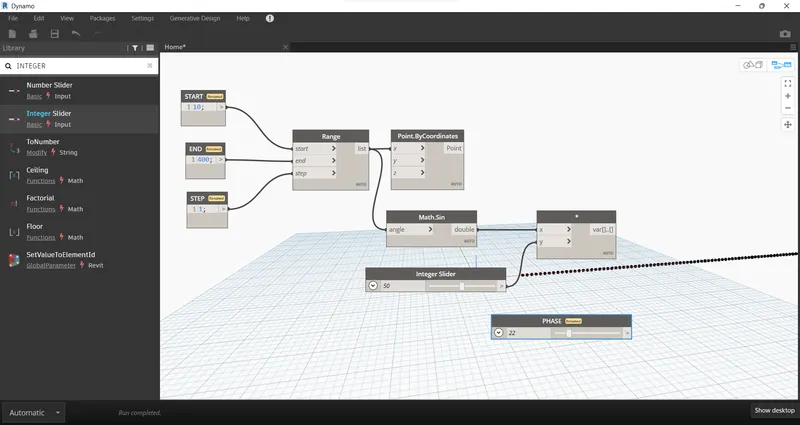
Amplified sine block:
Search and insert the add operator from the library.
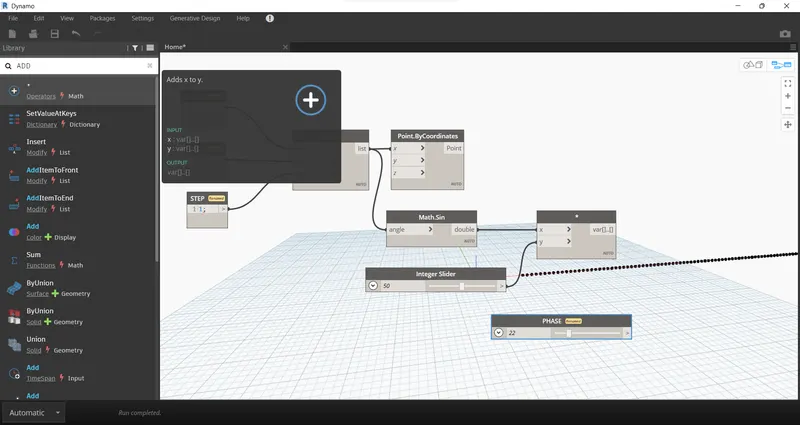
Phase block is then added to amplified sin block and is then connected to the coordinates of the points by coordinates block.
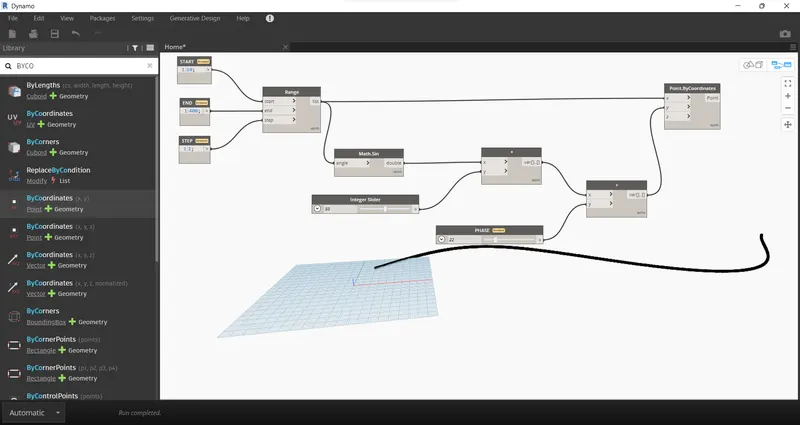
Now a set of sinusoidal points is obtained as shown
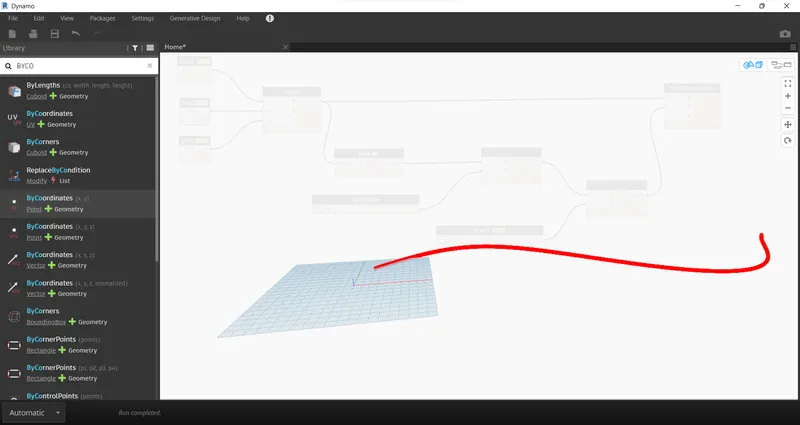
CURVE CONVERSION:
The curve is created from the NURBS curve
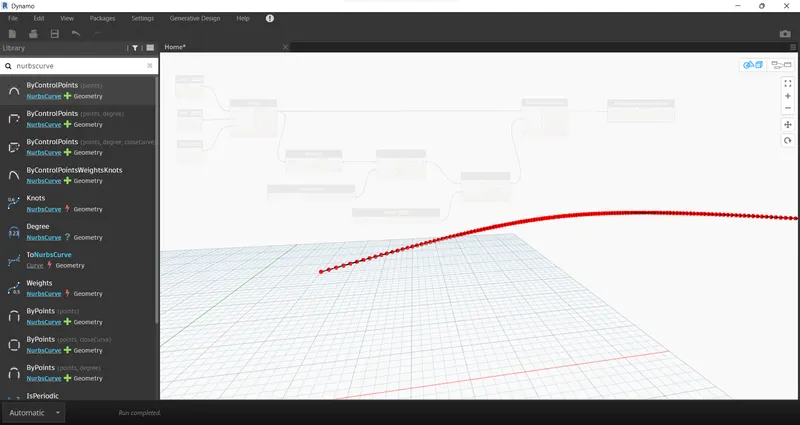
Search for NURBS curve and select NURBS curve by control points
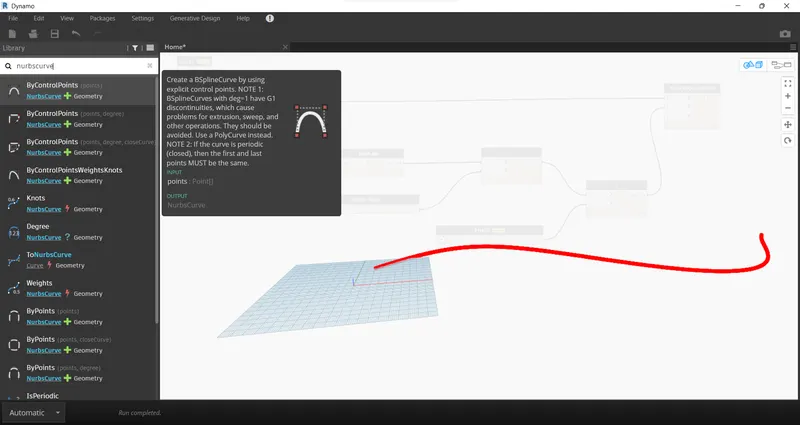
The points by coordinates block are connected to the NURBS curve.
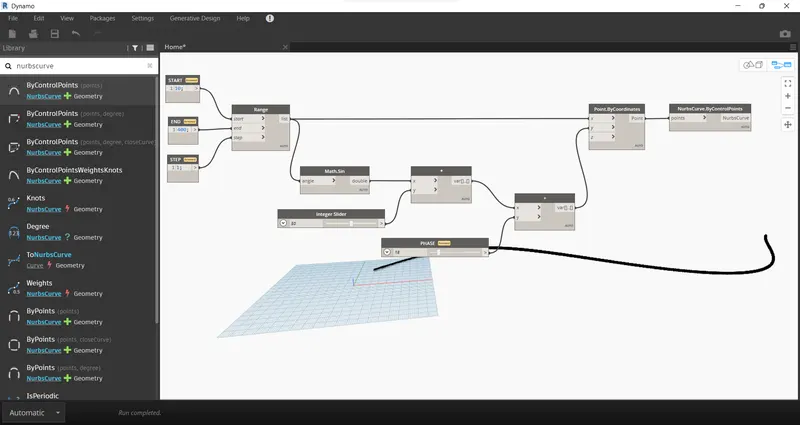
A line is being developed now connecting these points. Now the sinusoidal curve is created
SURFACE CREATION:
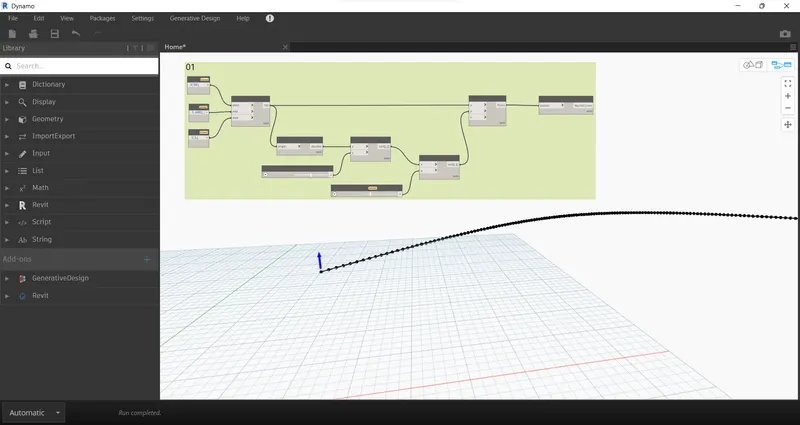
To create a surface, first group all the blocks created till now. For that select all the blocks and click the create group option in the Edit tab.
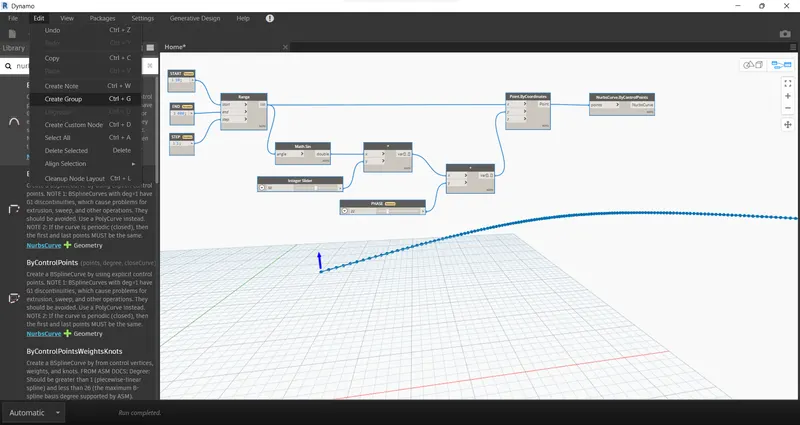
Now copy the group using the copy command in the edit menu.
Paste the group components two times as shown
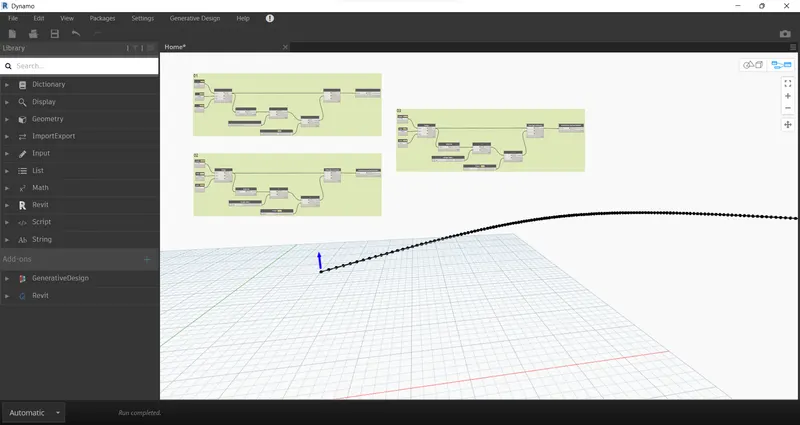
By adjusting the phase values we can see the other two curve lines which we pasted.
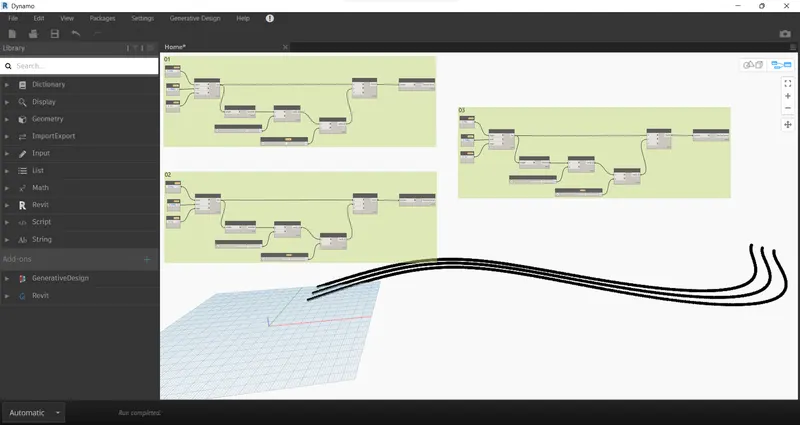
LIST:
To create the list search for a list in the library
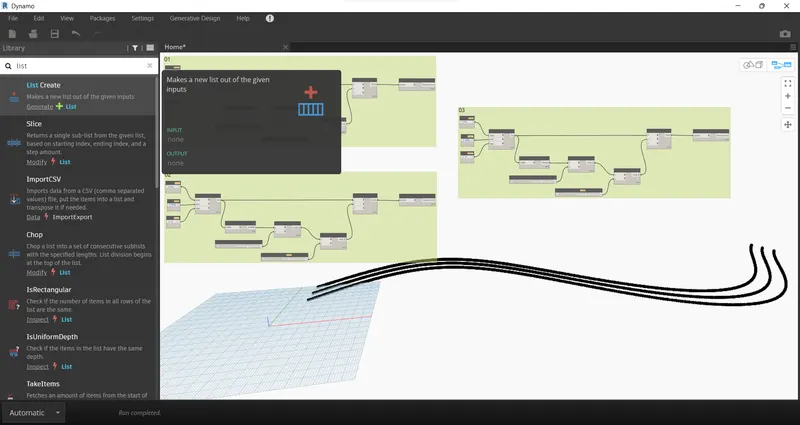
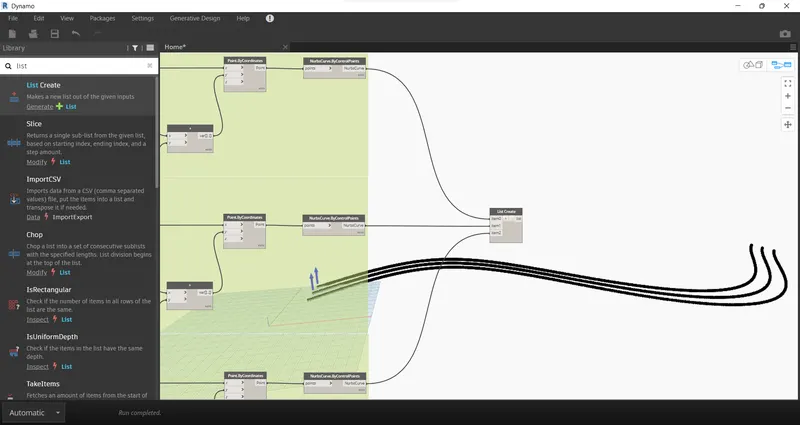
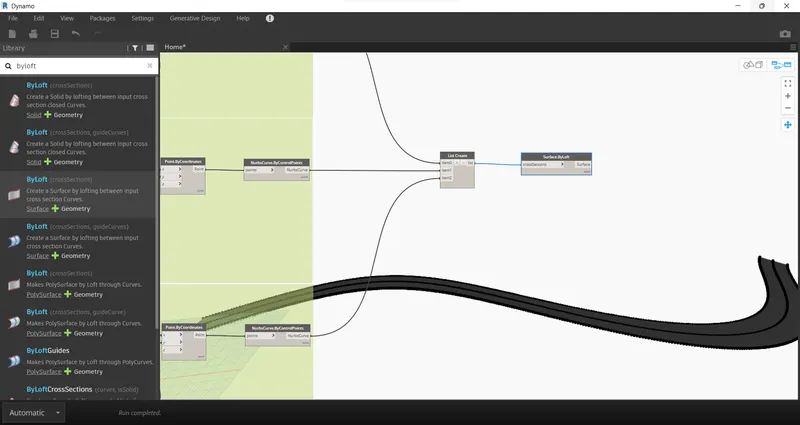
Now connect all the outputs of the sin curve as inputs to the listed block as shown. This list will now act as the input for surface
In the library, search for the surface by the loft and is inserted.
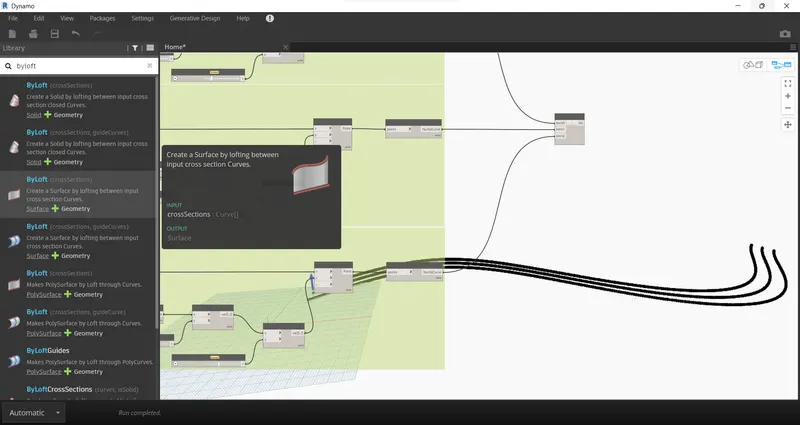
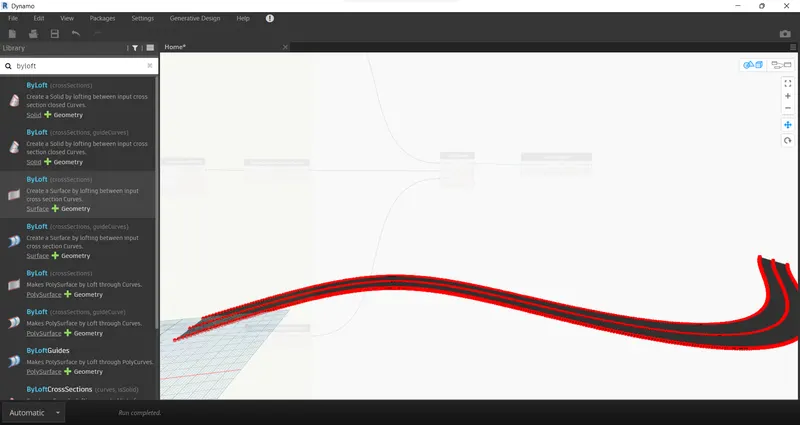
Connect the list as input to the loft and the surface is now developed as shown
RESULTS:
A set of sinusoidal points was created first. A sinusoidal curve connected through a line is created next. Finally, a surface was developed from the curve.
TASK 2: Create a conceptual layout of the floor plan in dynamo. Using the tools available in dynamo link the lines to appropriate model elements in Revit by choosing the wall types and wall parameters. Make use of the sliders to slide through the height of the wall and the length of the wall
PROCEDURE:
Open a Revit architectural template file.
Now in the Manage tab select the Dynamo option
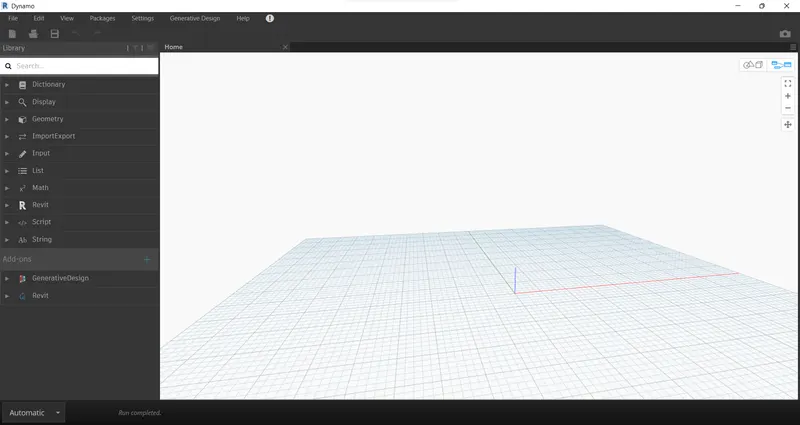
The Dynamo window opens and clicks on the new command.
A new Dynamo file is now opened as shown.
CONTROL POINTS:
To create walls we need control points.
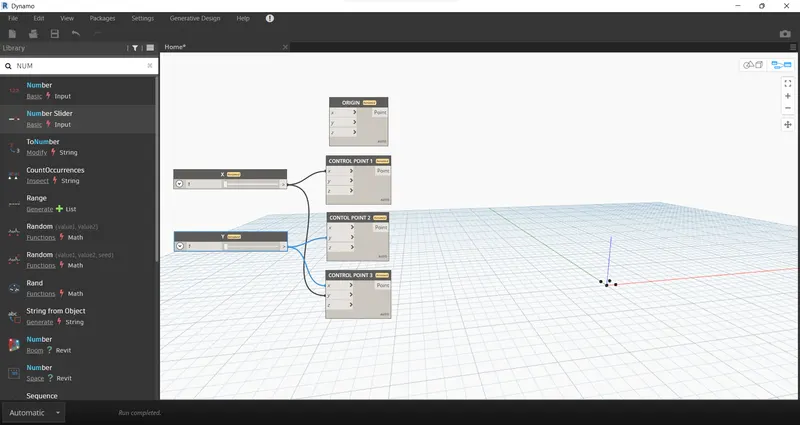
Search points in the library and insert 4 control points.
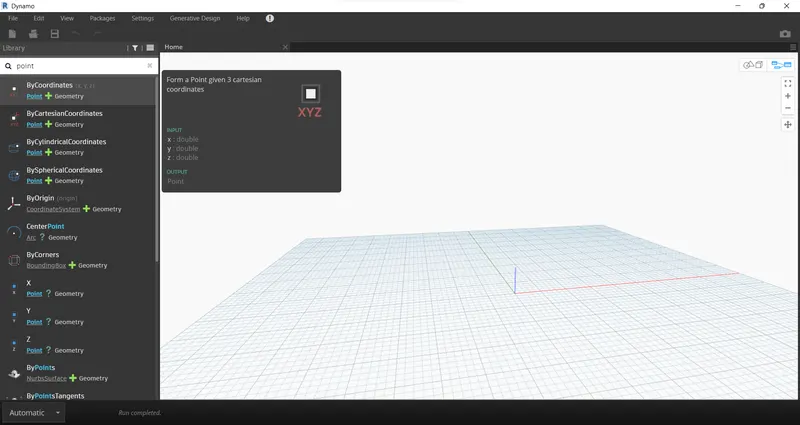
Name them as Origin rest of them as control points 1, 2, and 3.
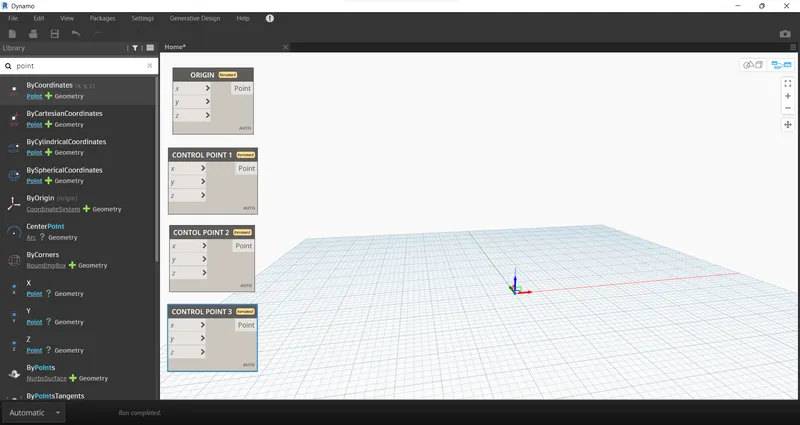
To give values to X and Y provide two integer sliders. Search for number sliders in library and insert 2 of them
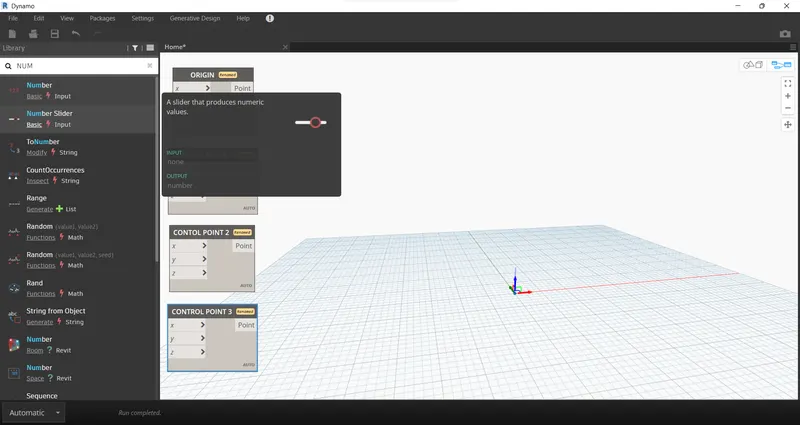
And was renamed X and Y respectively.
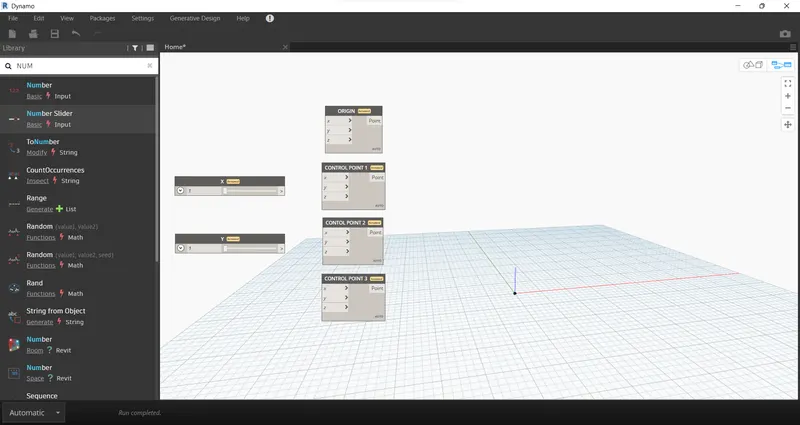
These points are connected by the integer sliders as input.
LINE:
These points are connected by a line. Search for line in library and insert 4 blocks.
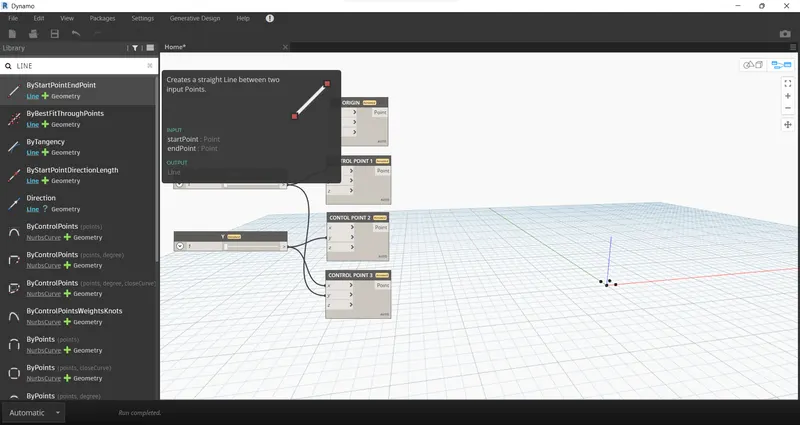
The 4 blocks were inserted and connected to previously created points.
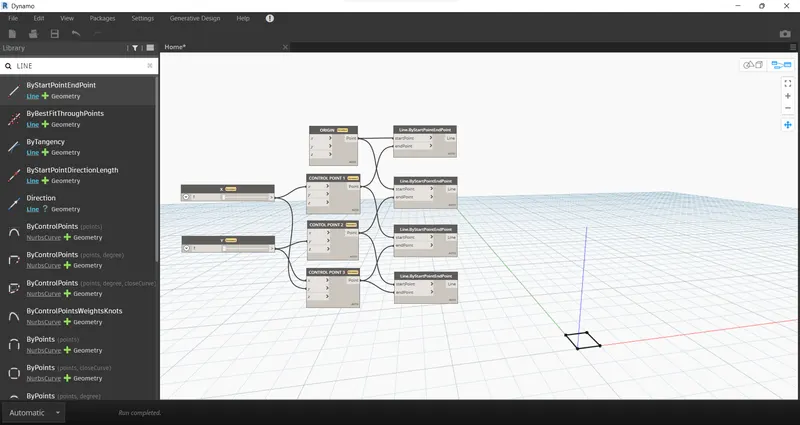
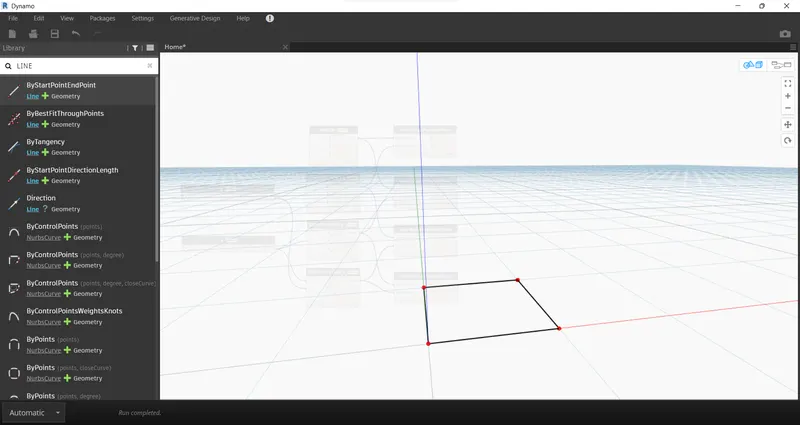
Now a layout of the floor plan is obtained.
WALLS:
Search for the wall in the library and select wall by curve and height block.
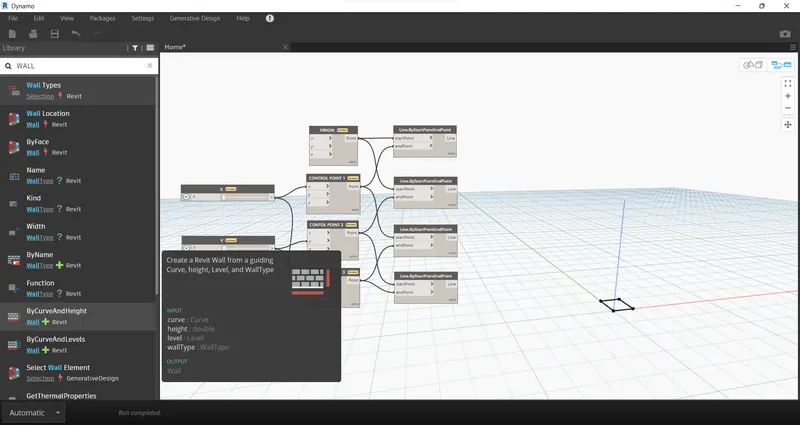
Wall by curve and height block is inserted
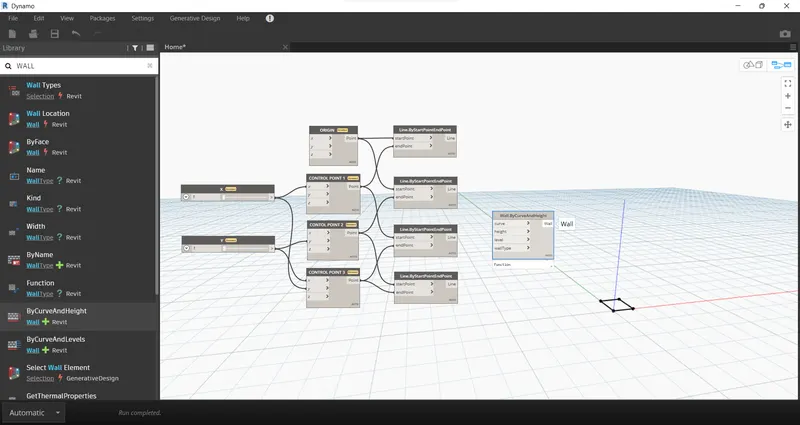
To create a wall we need details like curve, height, level, and wall type. For the curve, combine all the four lines in a list by choosing list Create.
For height, a number slider is chosen and named its height.
For levels, the search level in the search panel will contain the levels available in your Revit folder. Then choose the level at which we want to place your Structure.
For wall type, search wall type in the panel and it will display the wall types linked in the Revit file.
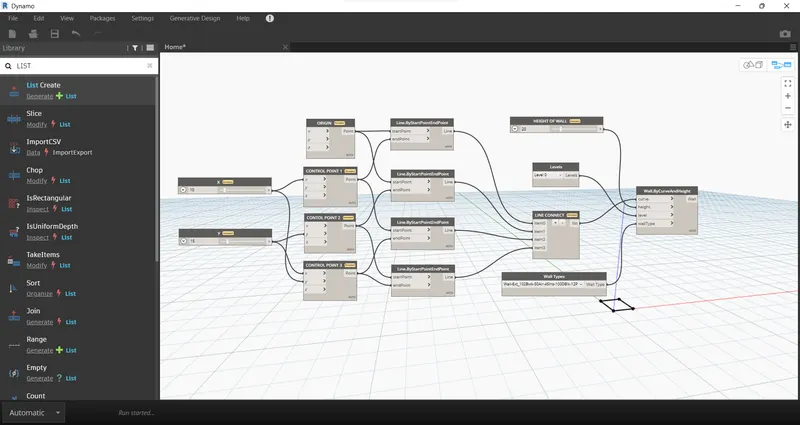
The floor plan layout is as given below
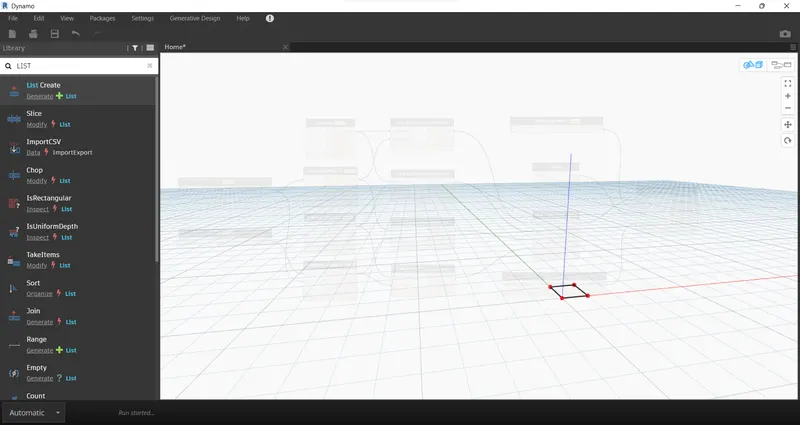
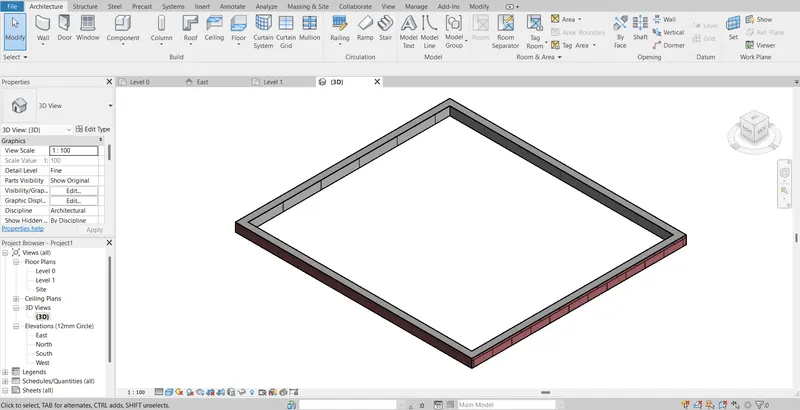
The Revit file view of the same is shown below.
Floor:
Search for floor in the library and insert one block
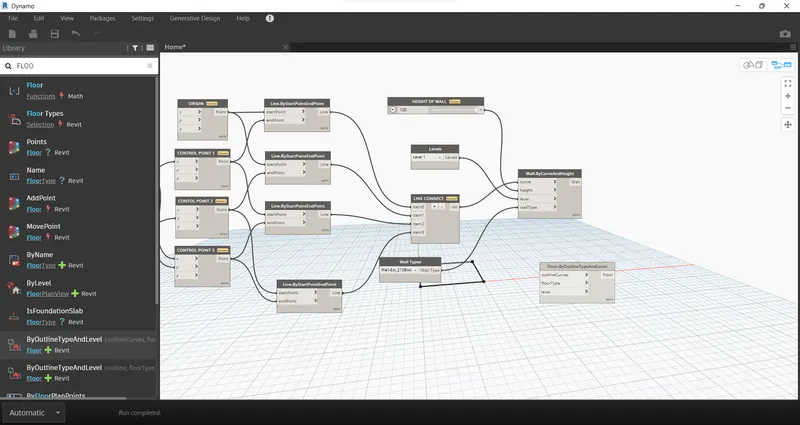
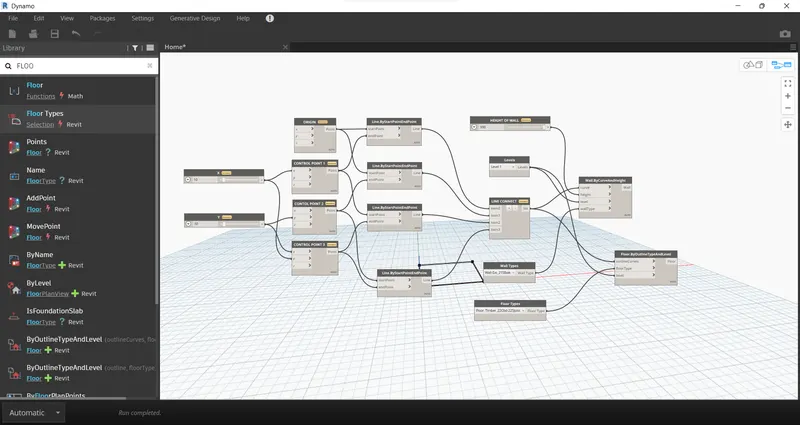
Select the required details like floor type, curve, and level, then connect it as shown
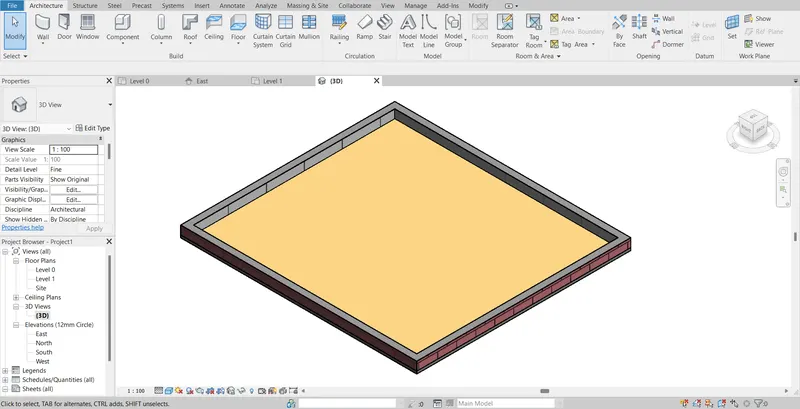
The floor is now ready and the same in 30 views of Revit is as shown.
RESULTS:
The conceptual floor layout was created using Dynamo.
TASK 3: Create an array of model elements in Revit. Use dynamo to vary the properties of model elements by using the slider or code block
PROCEDURE:
Open a new architectural template
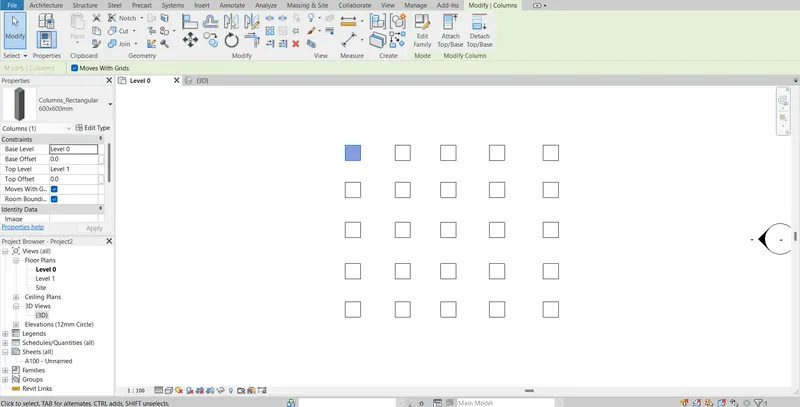
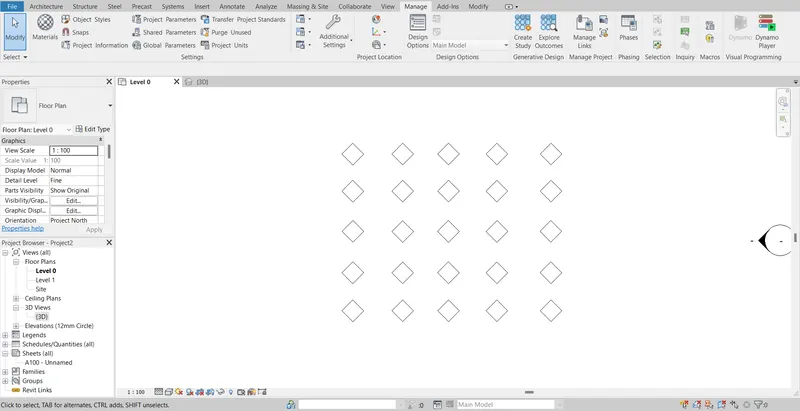
Columns of size 600x600 mm made and were placed as shown
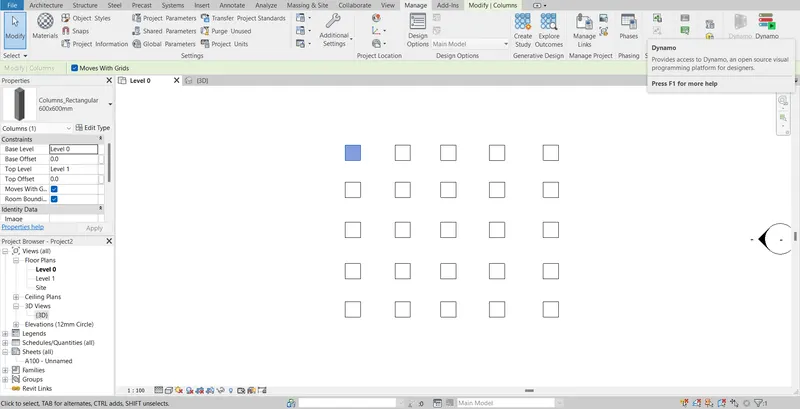
The task is to change the properties of model elements using Dynamo. For that open Dynamo in the manage tab
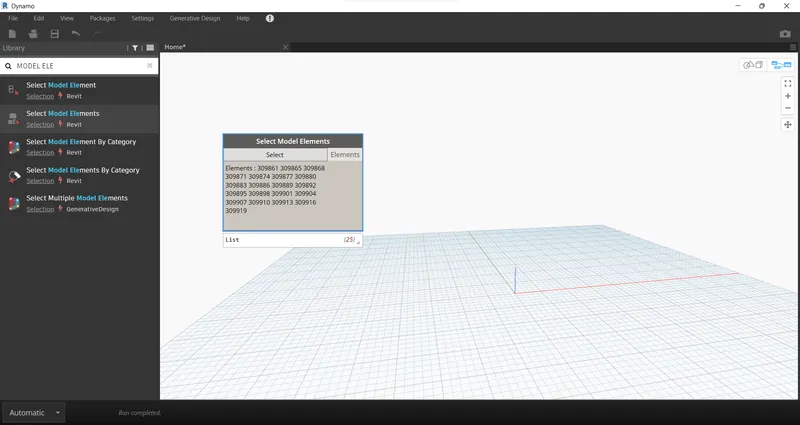
In the library search for model elements and insert the block.
Now select the columns from the Revit file and add them to the block
Insert integer slider and set rotator by searching them in the library.
Integer slider was renamed to rotation angle.
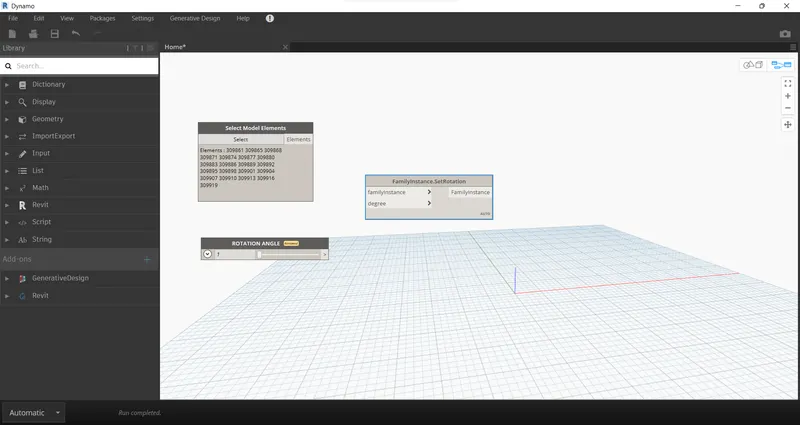
Select model elements were made input to the family instance and rotation angle as input to a degree.
And assign the angle to 45
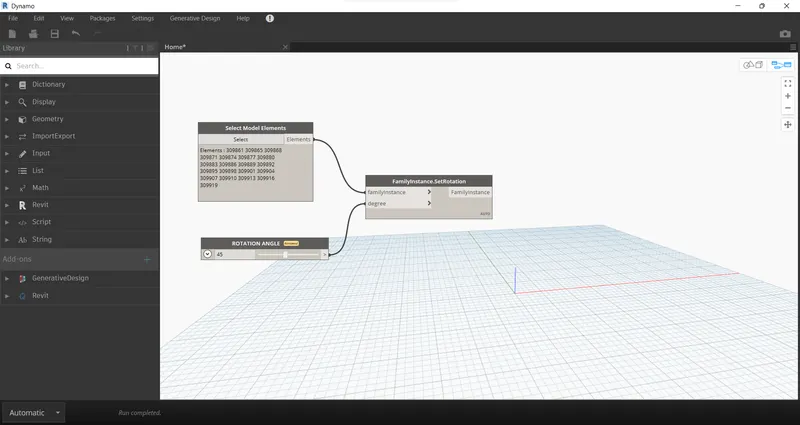
In the Revit file, we can see that the change is reflected and columns are rotated to 45 degrees from their initial position.
Again, the angle was changed to 60
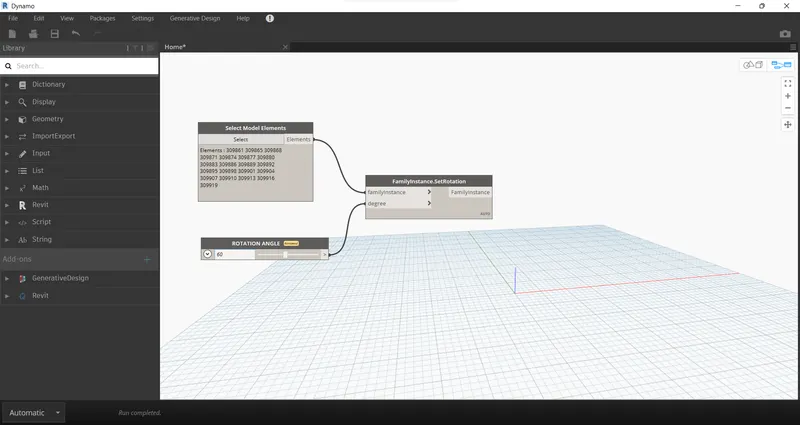
And that change was also reflected in Columns in Revit.
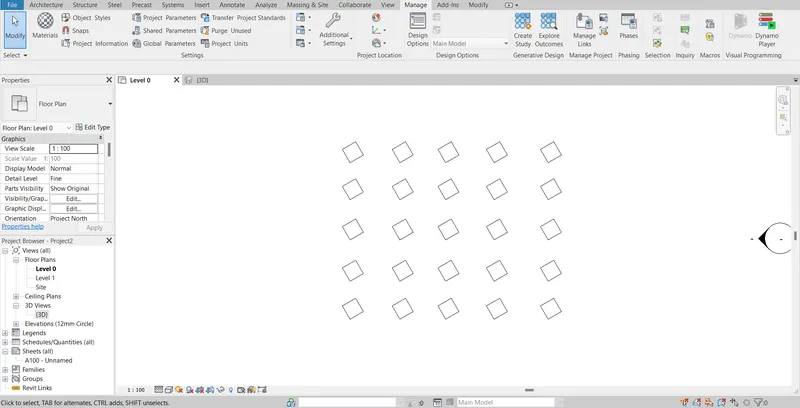
RESULTS:
Model elements array was created and their properties were varied in Dynamo using blocks. The angles were changed to 45 and 60.
45 DEGREE
60 DEGREE
TASK 4: Create a conceptual mass in Revit and develop a parametric column by dividing the surfaces and applying the concepts similar to used in parametric walkway modeling. Use triangular bent or square-shaped panels to add a finish to the parametric column
PROCEDURE:
Open Revit, select the new option under the Families section, and open the folder conceptual mass
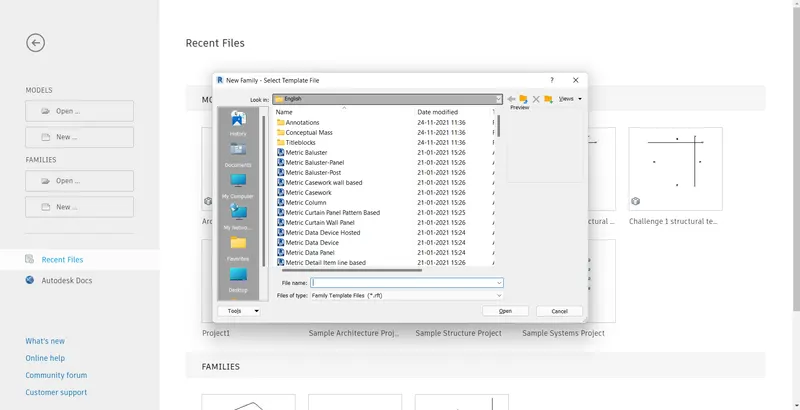
Then select the Metric mass file
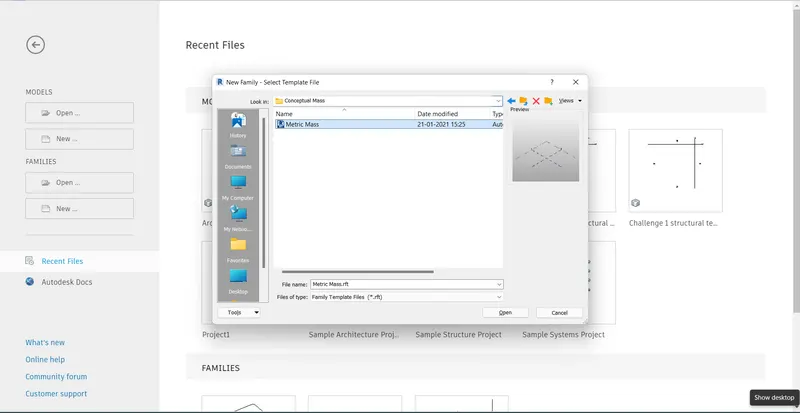
The metric mass file is now open and its 3D view is as shown.
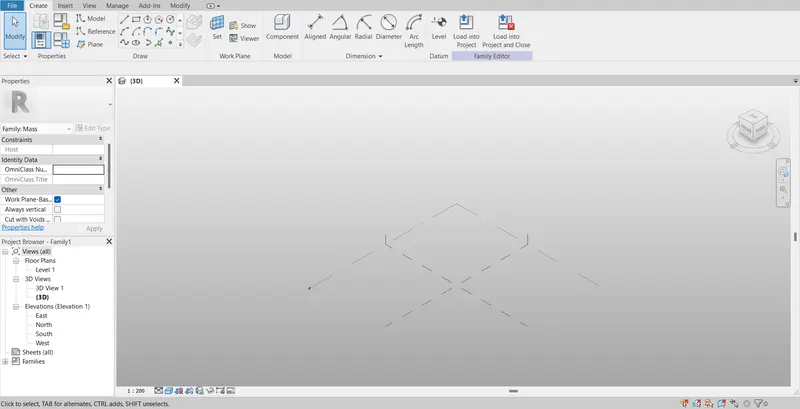
In the elevation view create a new level and then set it to the desired height needed.
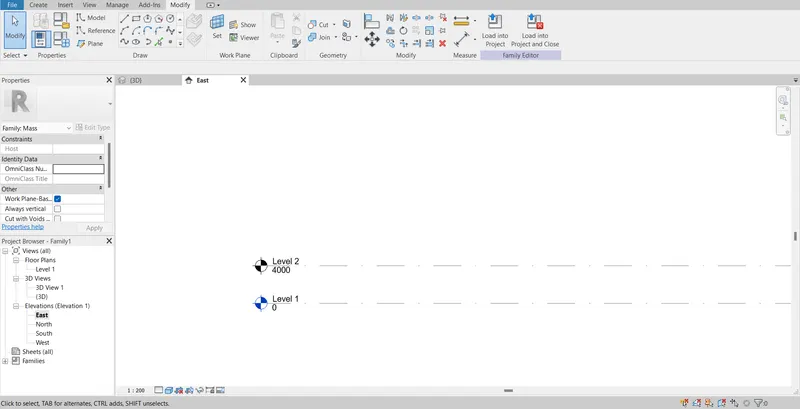
Now using the spline tool in the modify panel draws the desired outline for the walkway.
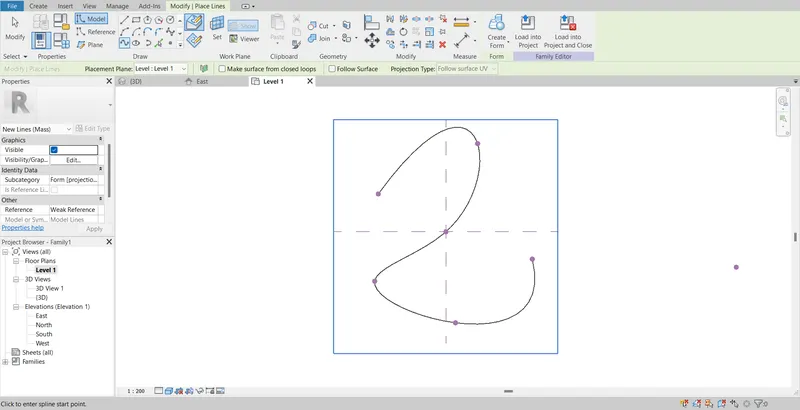
A profile was created to sweep through the curve.
Workplace at the points was set and a polygon was developed at the workplace keeping the point at the center. Now a polygon is developed with the point as the center A workplace and a polygon was developed at all the nodes.
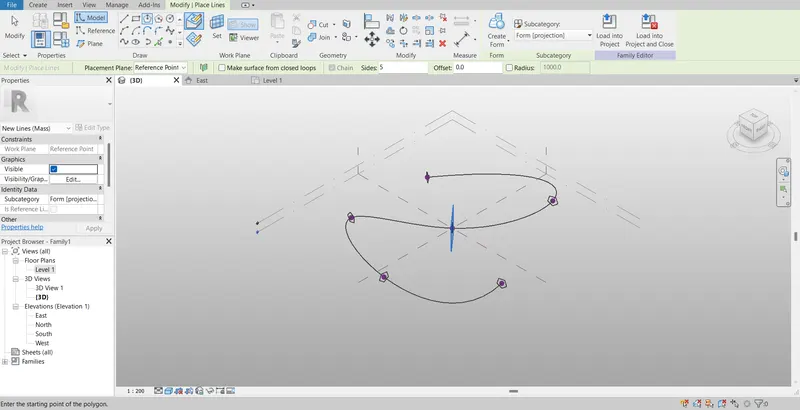
The surface is created next which was done using sweep. For this select all the polygons and curve lines and select the form option.
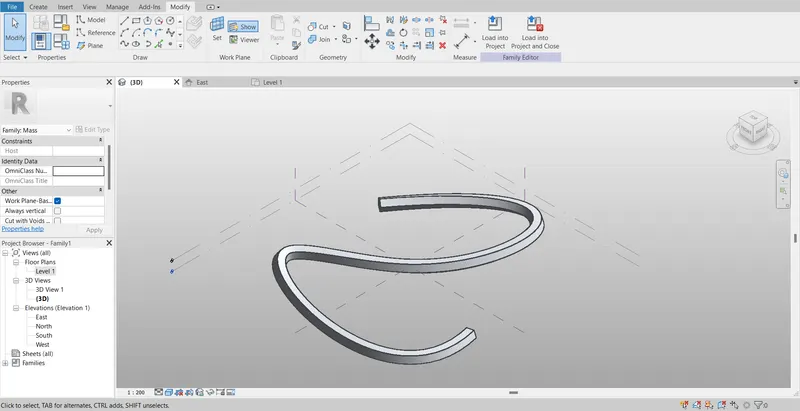
Select the entire form, filter it and retain just the form
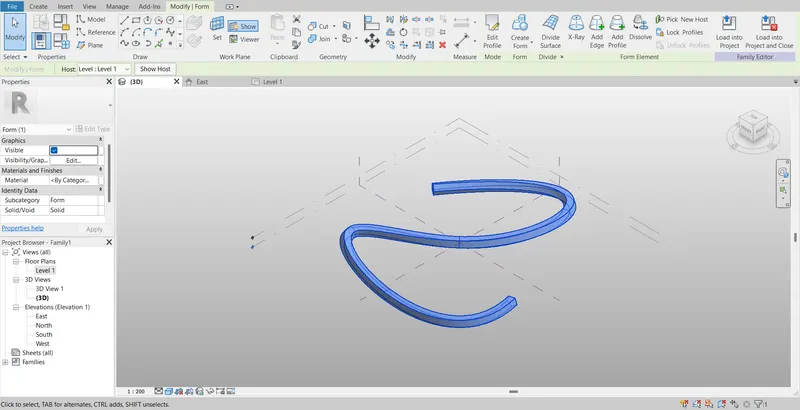
Now select the form, then divide the surface and provide the triangular bend pattern
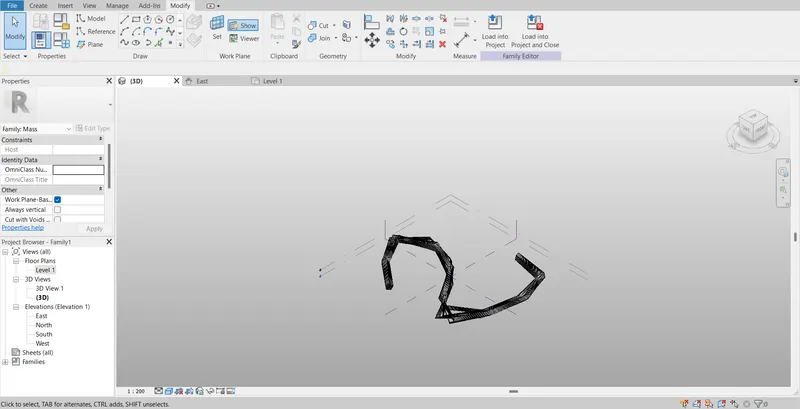
Now select the pattern like a triangle bend and create a reference point at the center of the face.
Draw a circle of a small radius at the reference point. Select the type of pattern, reference plane, and circle created and choose to create a form
Now load this into the project.
Select the entire form of the walkway and filter it such that it retains only the divided surface
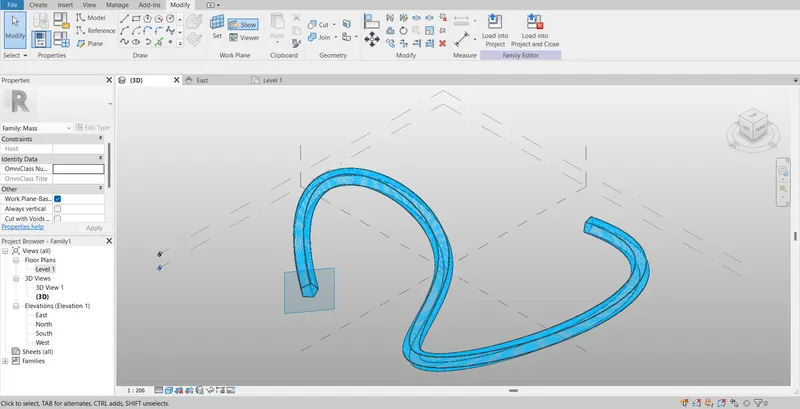
RESULT:
The conceptual mass was generated.
TASK 5: Use Dynamo to work on developing a Parametric Stadium. List your parameters and use the visual programming approach to complete the modeling, You can use the concepts discussed in parametric high rise tower in class for reference.
PROCEDURE:
Open a Revit architectural template file.
Now in the Manage tab select the Dynamo option.
The Dynamo window opens and clicks on the new command.
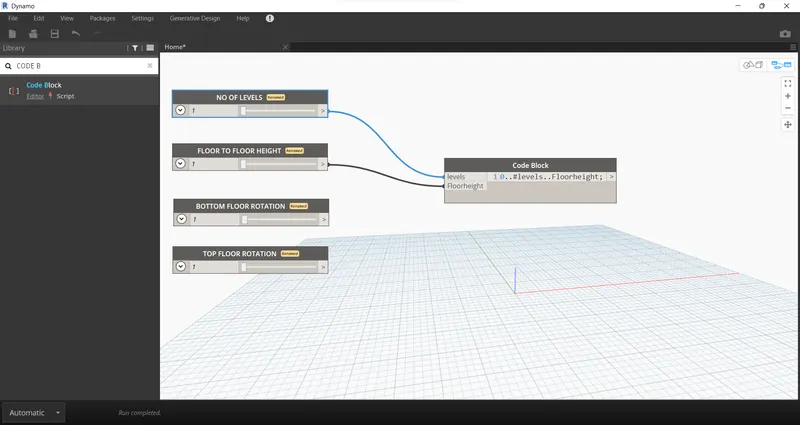
Integer slides were created and were renamed into the following:
No of levels
Floor to floor height
Bottom floor rotation
Top floor rotation
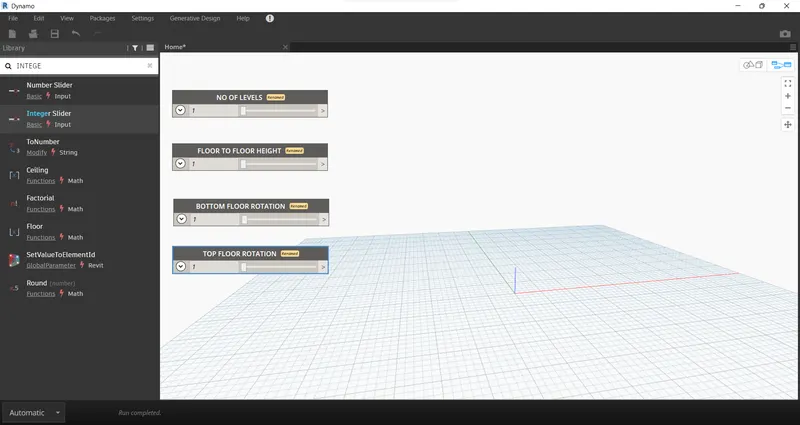
Insert a code block and type O..#levels. Floor height to combine level and floor to the floor height and type. Connect the No of levels and floor to floor height as input to the code block as shown
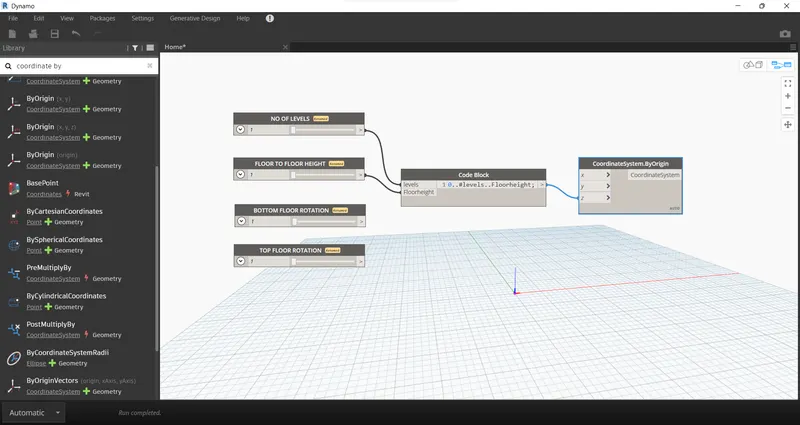
Insert coordinate by origin in the file and connect the code block as input to the z coordinate in the coordinate by origin block.
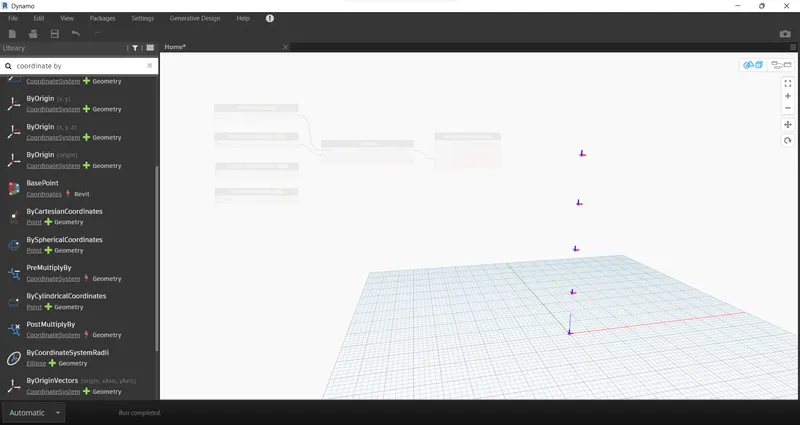
5 points are generated as corresponding to 5 levels
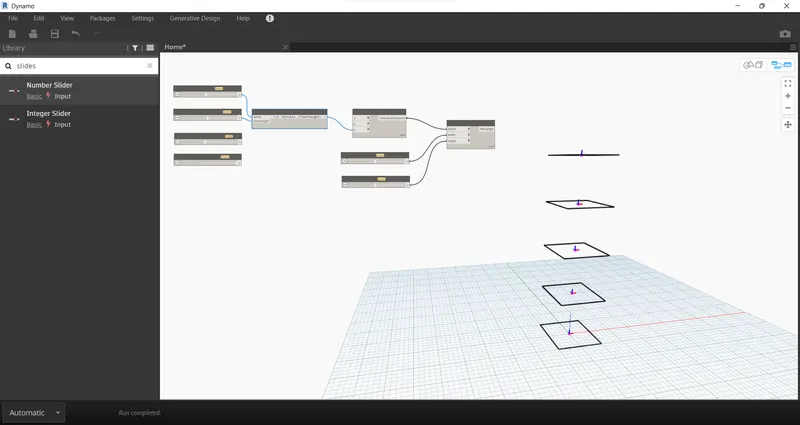
Search for rectangles by width and length in the library and insert them. The data needed for that is the Coordinate system, length, and width.
Now connect the inputs correspondingly to the rectangle block as shown.
To rotate the geometry insert the rotate block from the library. The data needed are geometry, origin, axis, and degree.
For degree insert a code block and type Bottom..Top..#level:
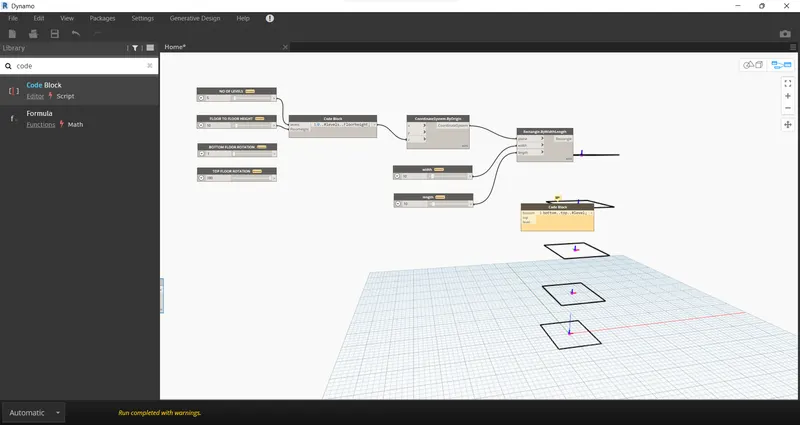
The number slider was inserted and renamed to bottom floor rotation and top floor rotation and connected to the code block. No of the levels was connected as an input to level in the code block
For geometry select rectangle block.
Origin block was inserted from the library and made as input to origin in the code block
For axis insert the Z vector from the library and connect it
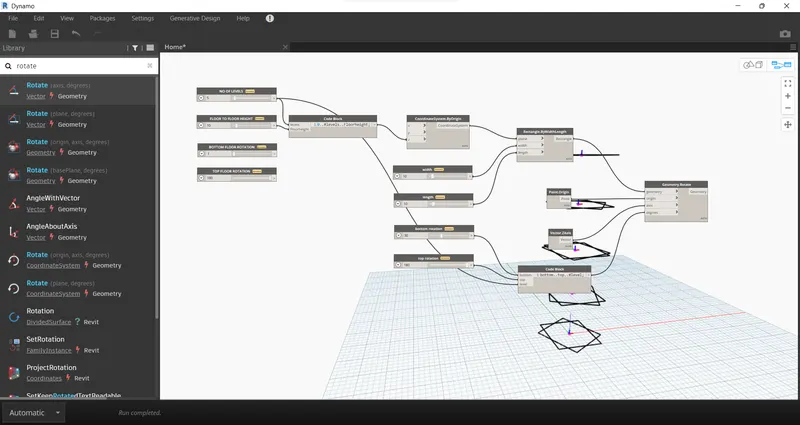
To create a surface search for the surface by the loft in the library and insert it. Make the geometry rotate block as input for surface by loft
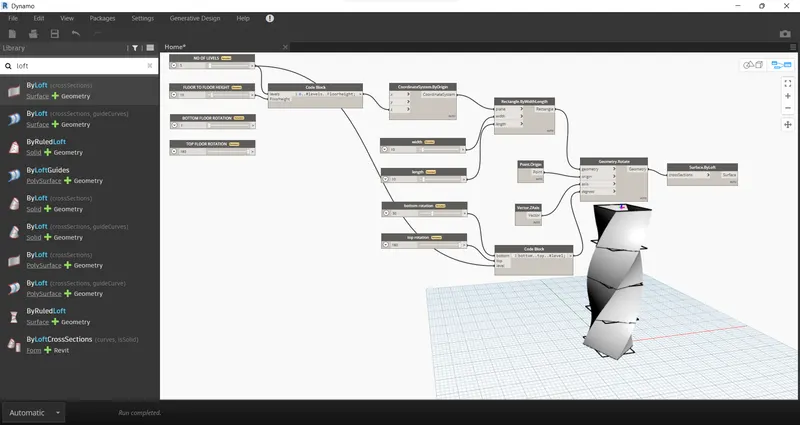
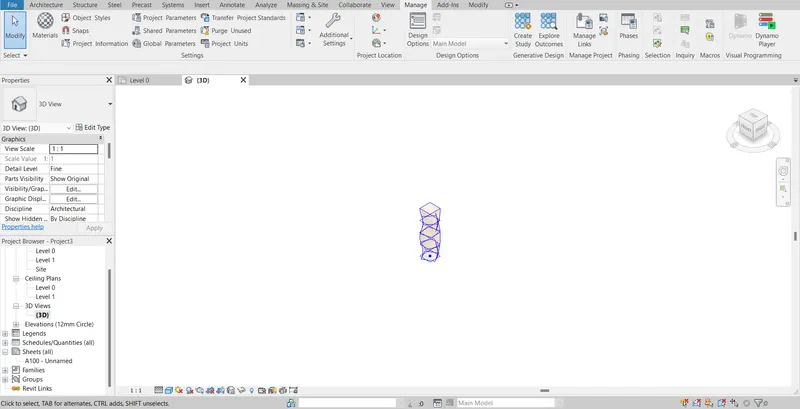
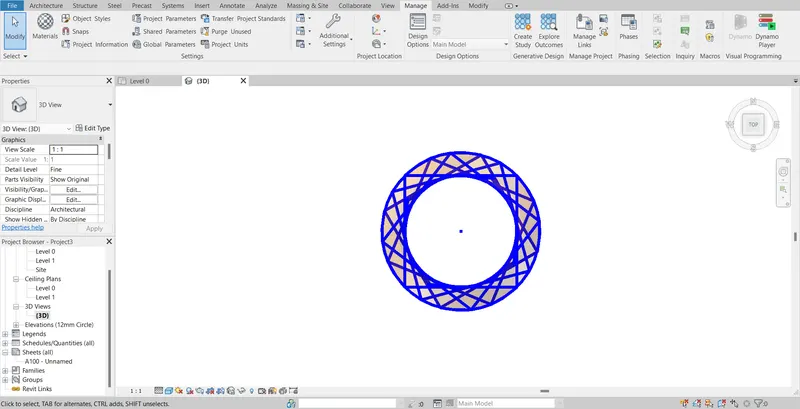
Now the parametric stadium is created and its levels, width, and length can be changed as needed
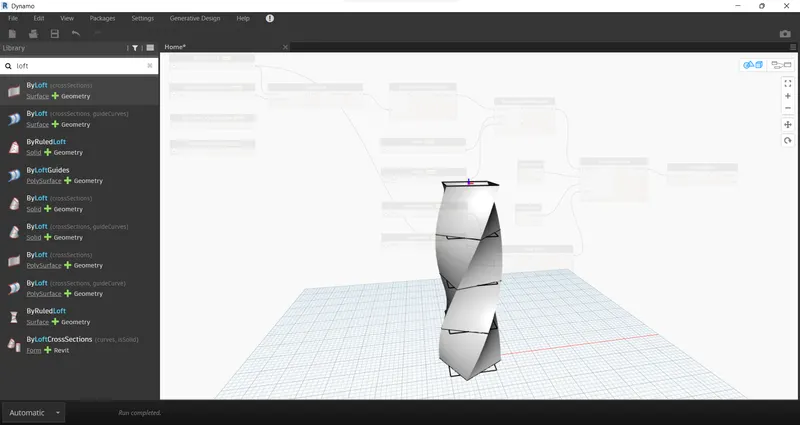
Revit file views
3D Isometric view
3D Topview
RESULTS:
The parametric stadium is created.
CONCLUSION:
All results of each drawing have been attached which were drawn in Revit and Dynamo.