Creating Conceptual mass in REVIT and Creation of Sinusoidal curve and a Parametric stadium using Dynamo
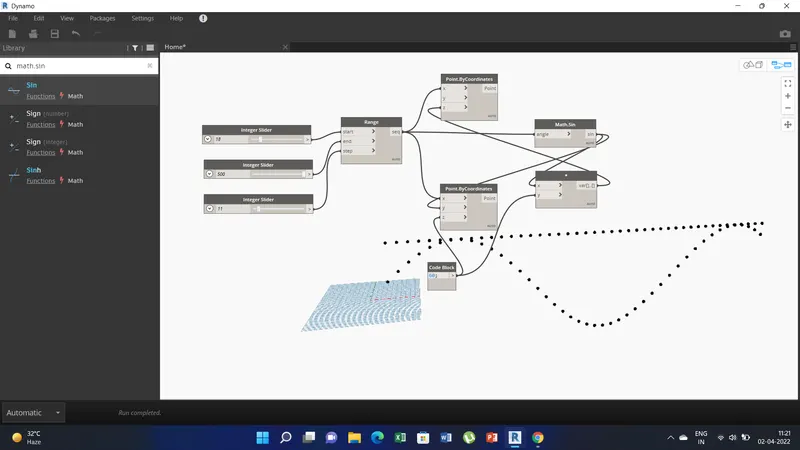
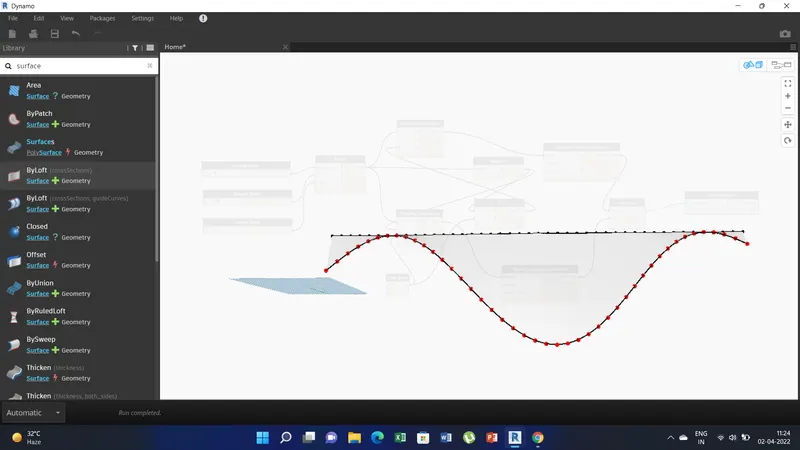
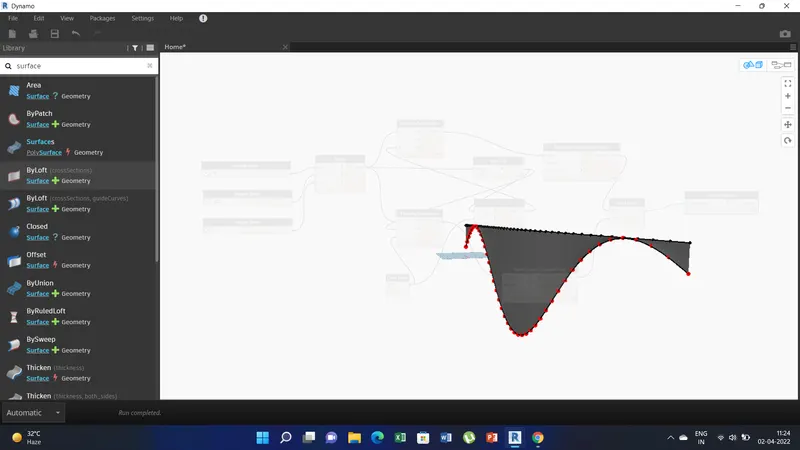
1) Aim of this project is to create a set of sinusoidal points using dynamo and also create a curve and than create surface out of the curve.
Procesudure:
a) First search for integer slider and place 3 no.s of integer slider.
b) Than search for range and place the range. After that place 2 no.s of point by coordinate.
c) Now create code block and acertain any value. And also place math.sin & product.
d) Now link the three integer slider to the range-start,end, step sequentially. And than link the range to the both point coordinates at X.
e)Link the code block to the product-Y and also link the code block to the point coordinates -z.
f)Connect the range-seq to the math.sin-angle. Link math.sin-sin to the product-x and to the point coordinate-Y.
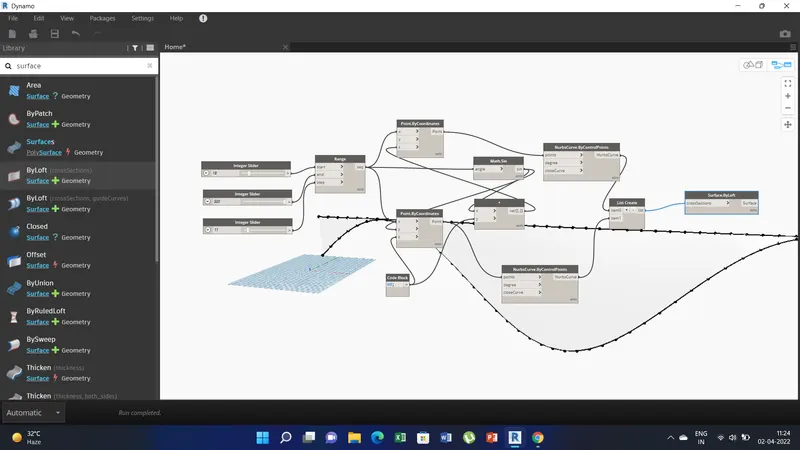
g) Now search and place 2no.s Nurbscurve By control points. And also place the list create. under list create list2.
h) Now link the point coordinates-points to nurbs curve-point. Link point coordinates-Z to Product-variance.
i)Link the Nurbs curve to List-item 0 and other nurbs curve to the list 1.
j)To create a surface search surface by loft and place it. Link the list create-list to the surface by loft-cross section.
k) We can vary the sinuisoidal points by using the integer slider.
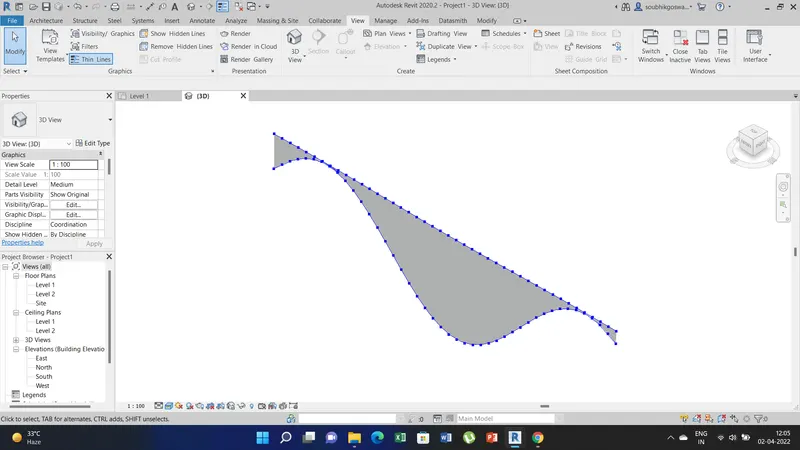
2) Aim of this project is to create a floor plan using dynamo and we have to link the lines in the appropriate model in revit by choosing the wall types and wall parameters.
Procedure:
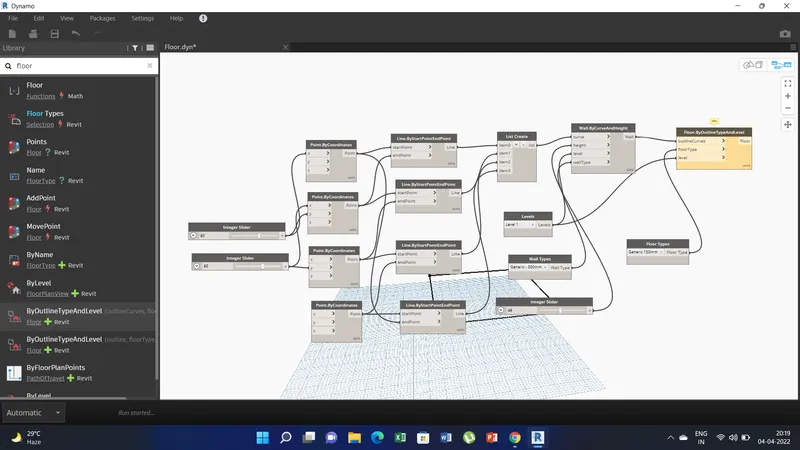
a) First place two integer slider and than place four numbers of point by coordinates.
b) Connect integer slider 1 to first point by coordinates at x and second point by coordinates at Y. Similary second integer slider to second point by coordinates at X and third point by coordinates Y.
c) Now place four numbers of line by start point end point. Than connect as shown in the below screen shot.
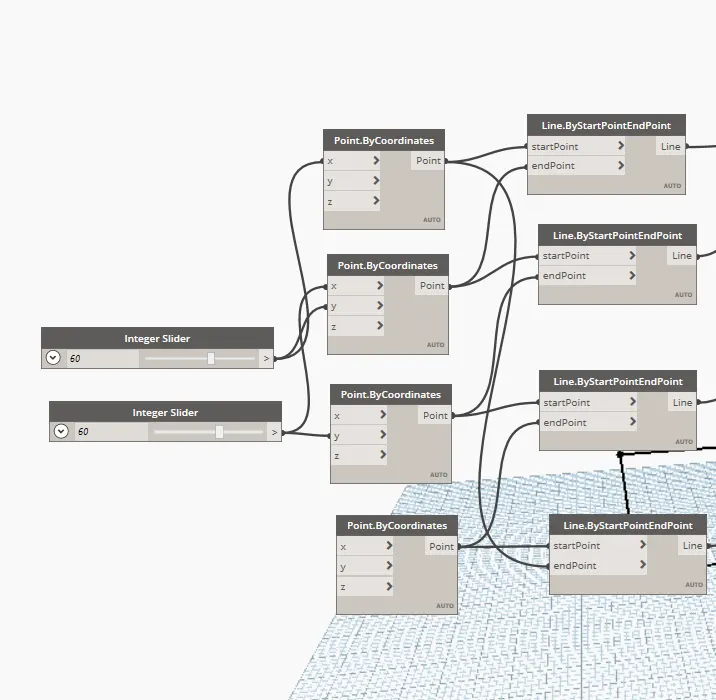
d) Now place list create and create four item. Than connect the line to item 0, second line to item1 and similarly connect the other item in the same manner.
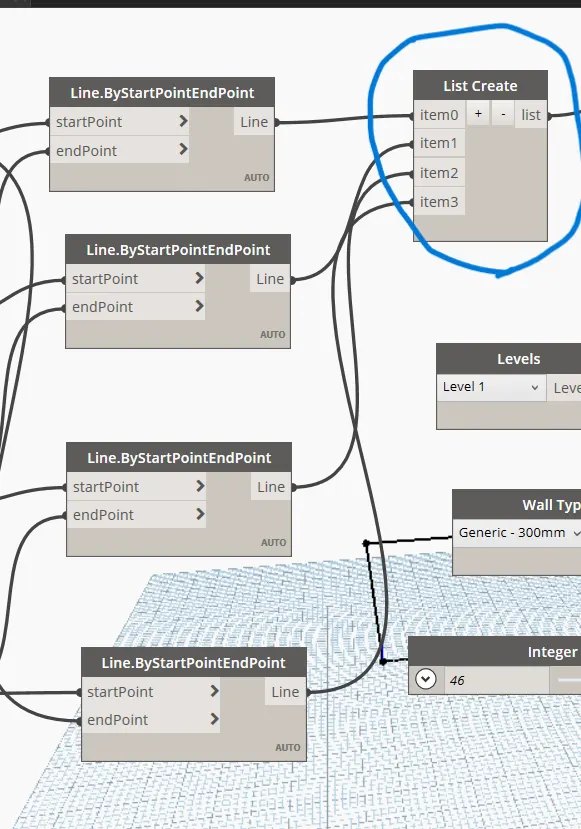
e) Now place levels, wall types, one more integer slider and wall by curve and height. Than connect list to curve, level to level,wall type to wall type and integer slider to height.
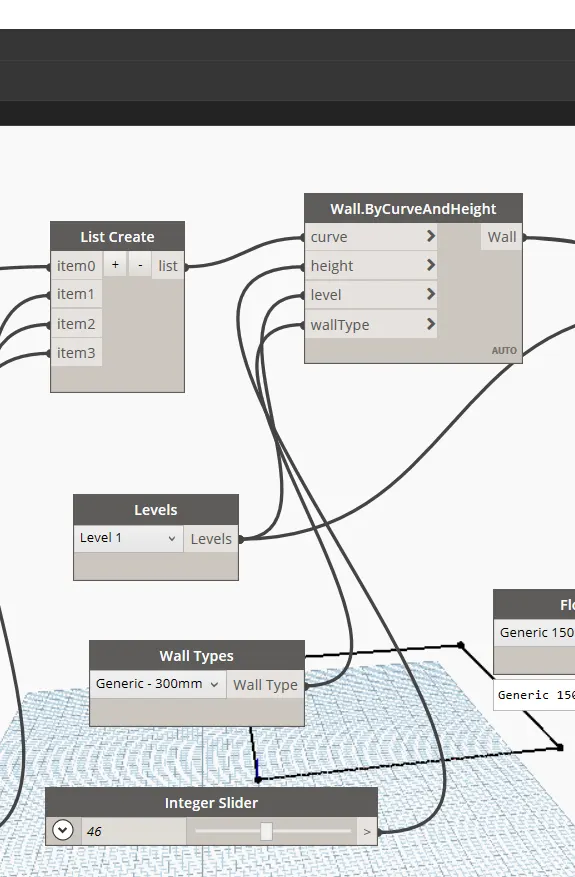
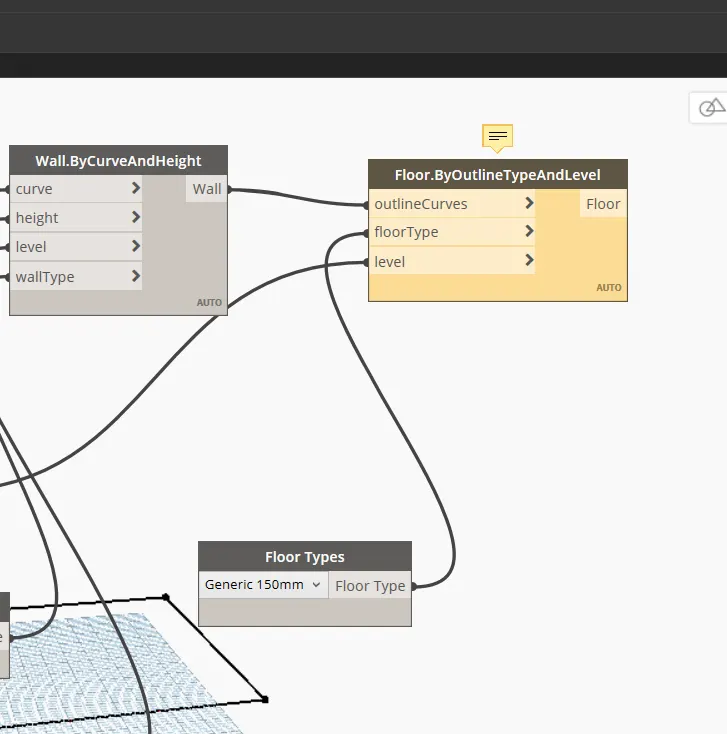
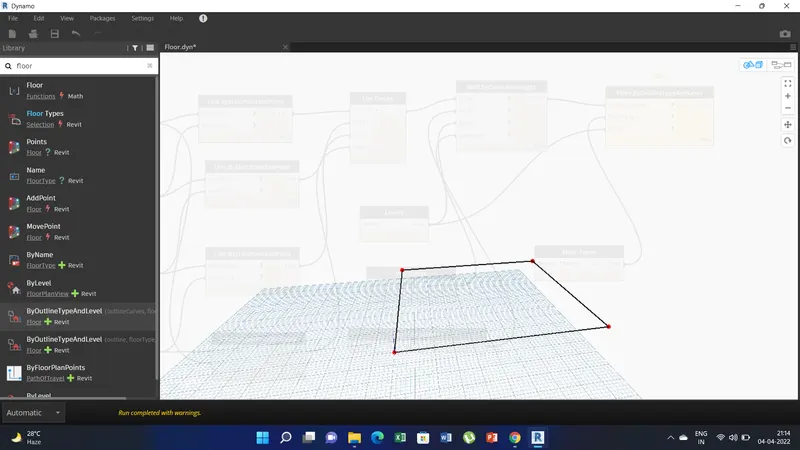
f) Now place floor type and floor by outline type and level. And than connect the floor type to floor type, wall to outline curves, and level to level. Now the floor and wall has been created.
3) Aim of this project is to create array of model elements in revit and by using dynamo vary the properties of model elements by using slider or coder.
Procedure:
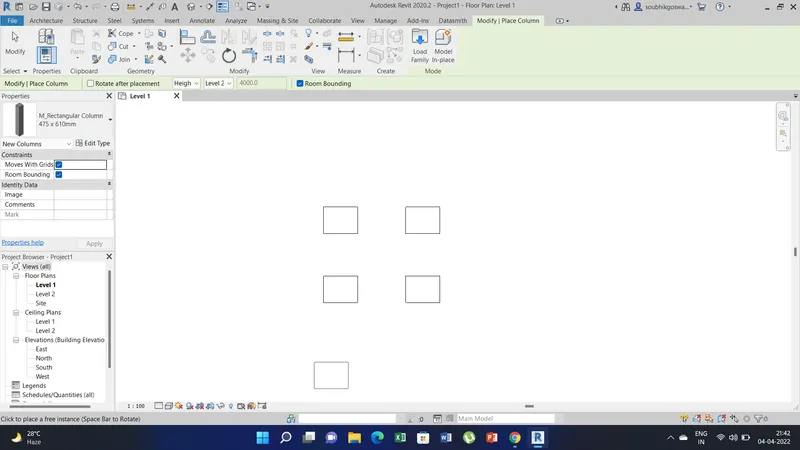
a) Create four architectural columns and than open dynamo under manage tab.
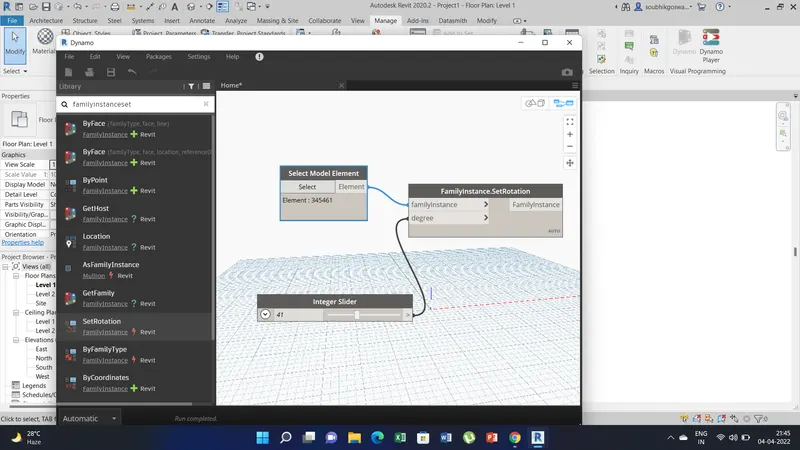
b) Now place integer slider,select model elements, familyinstance.set rotation.
c) Connect the elements to the family instance and integer slider to degree.
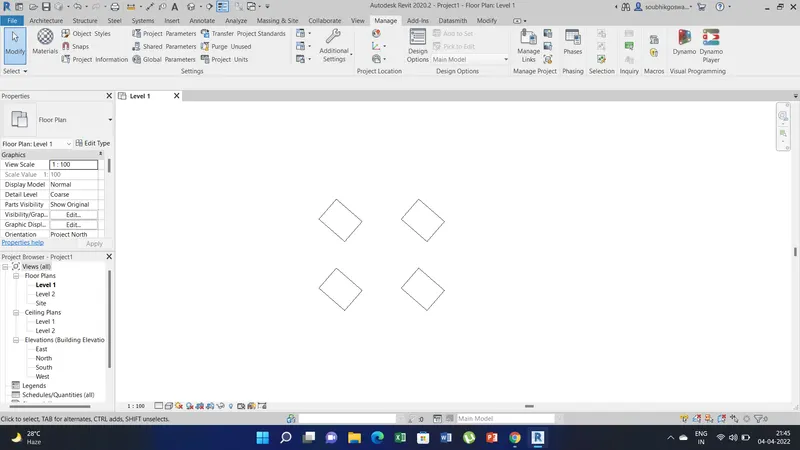
d) Click on select in select model elements and than in revit select the columns one by on. Now the columns will show in select model elements. Now by using the integer slider we can rotate the column orientation.
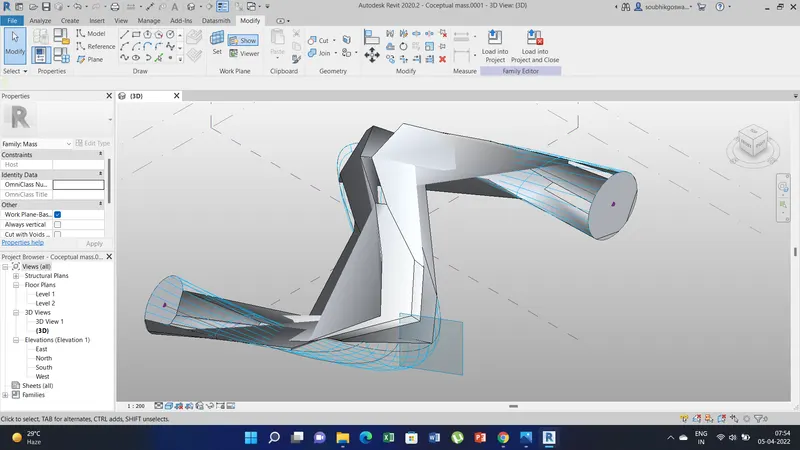
4) Aim of this project is to create a conceptual mass in Revit and develop a parametric column by dividing the surfaces and apply the concepts similar to used in parametric walkway modelling. And also use triangular bent or square shaped panels to add finish to the parametric column.
Procedure:
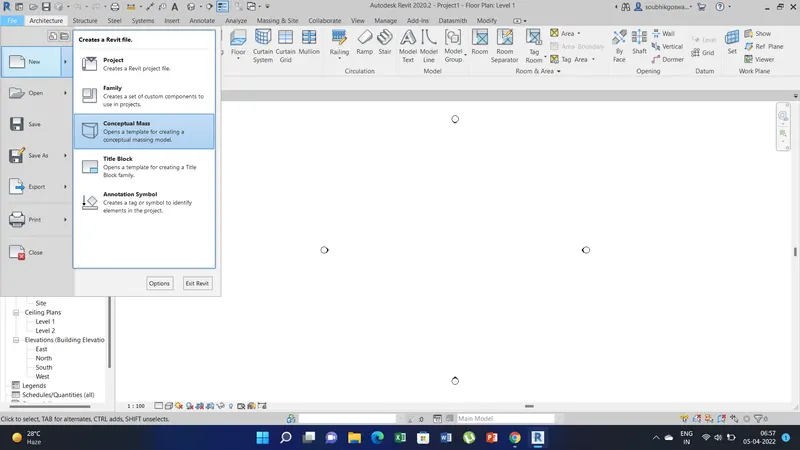
a) First open revit and than go to file option-new and select the conceptual mass option. A popup window appears there select the metric mass and click open.
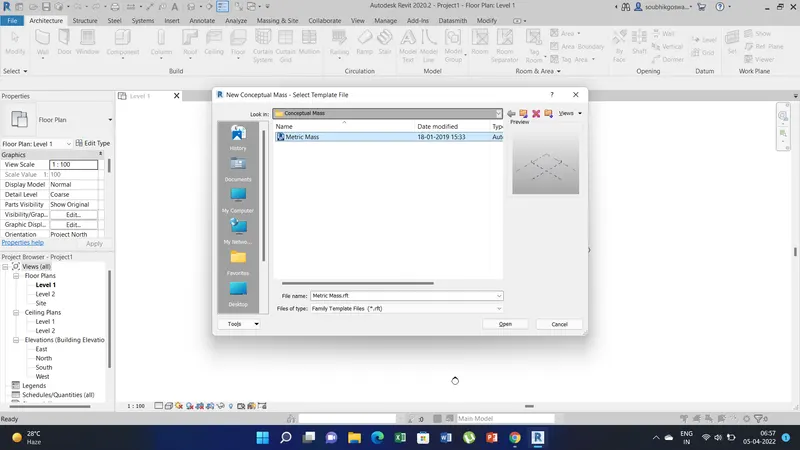
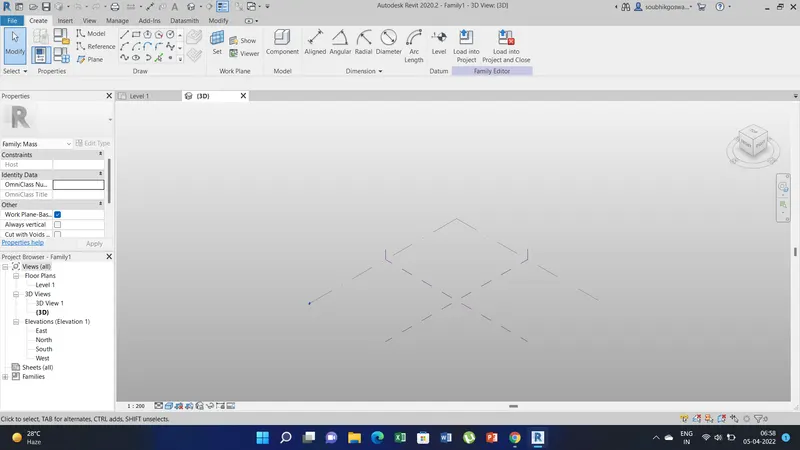
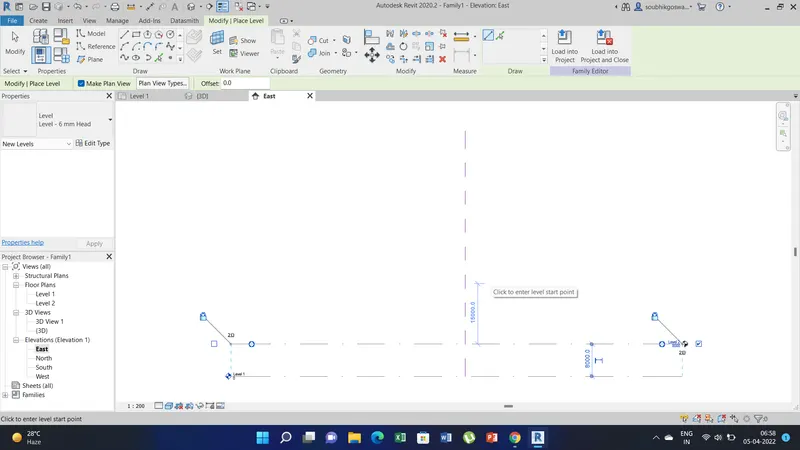
b) Now in project browser create a level in elevation. Here I have created in east elevation.
c) Now create a spine line in the floor plan at level 1 using spine line option in the create tab section.
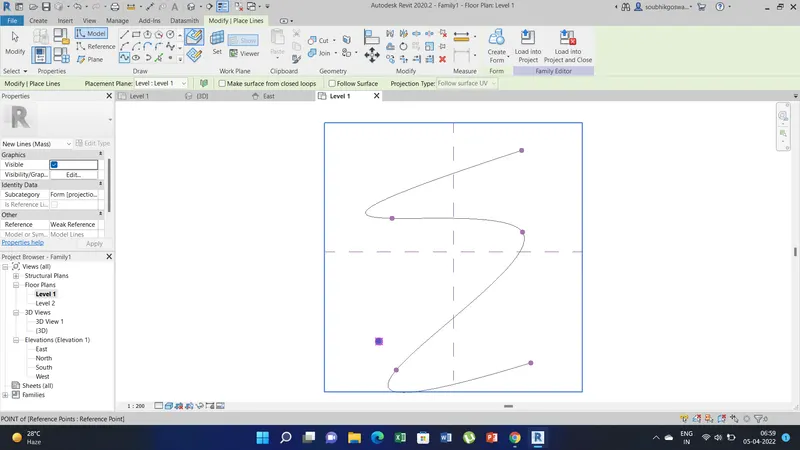
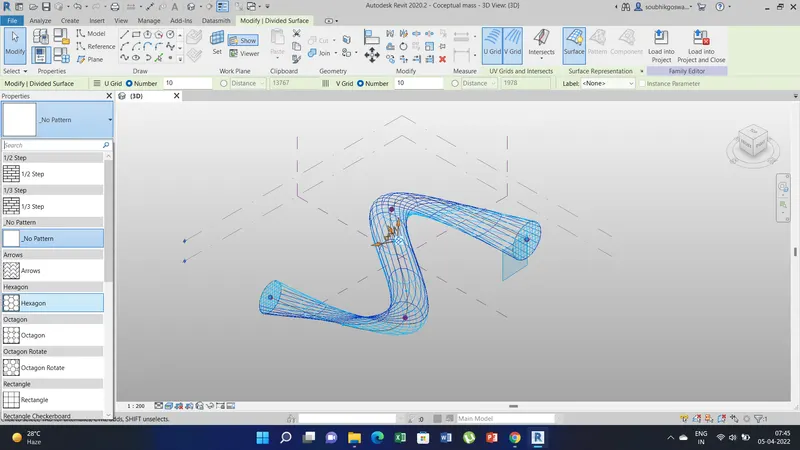
d) Now go to the set work plane option and place the work plane in the nodes of the spine line and simultaneously place the polygon or circular surface from the draw tool. Here I have used circular. Create for all the nodes in the spine line.
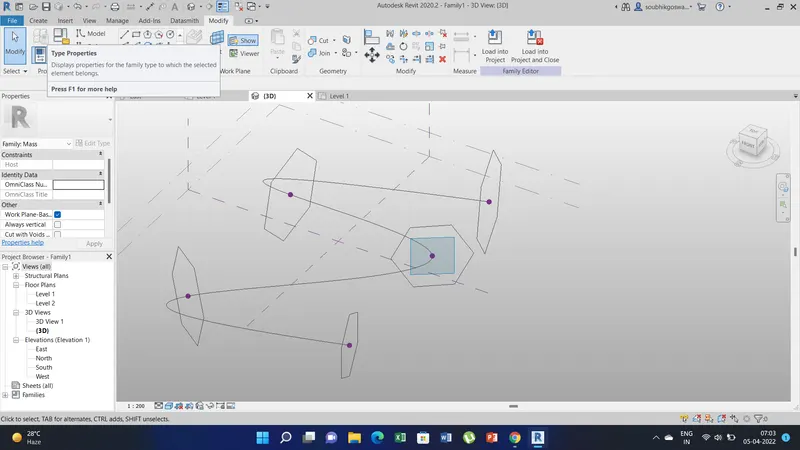
e) Now select all the circles in the spine line nodes by pressing ctrl. and than click on the create form-solid form option. This will create the solid surface.
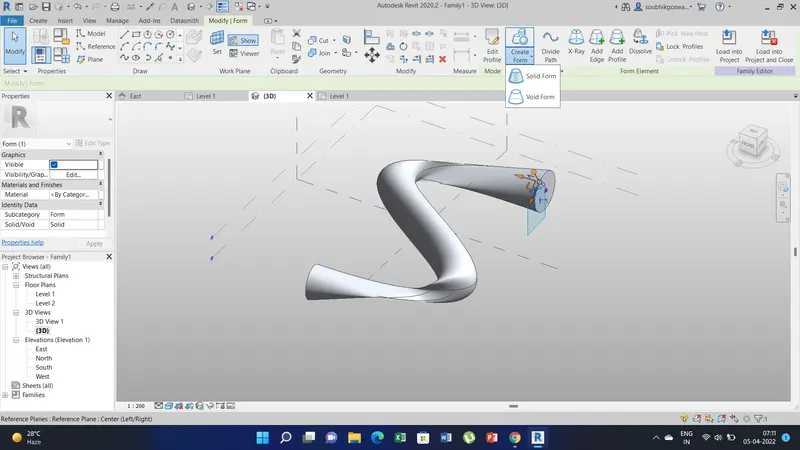
f) Now to create patterns like hexagonal surface on the conceptual mass select the entire model and go to filter option uncheck all except form. and apply. Than go to the divide path option.
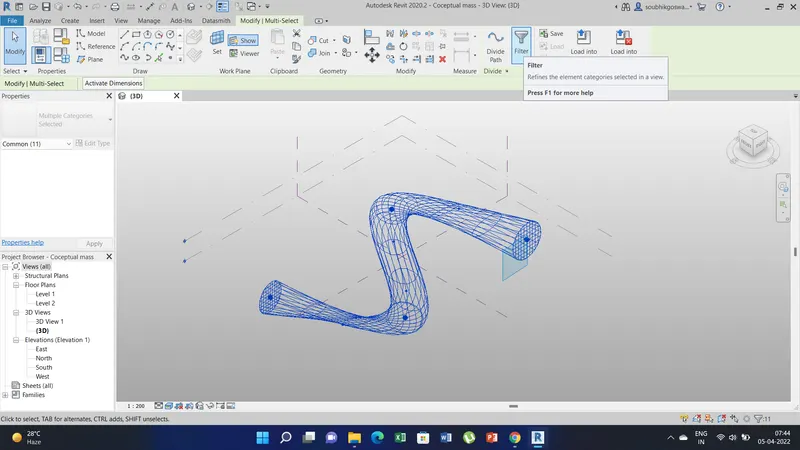
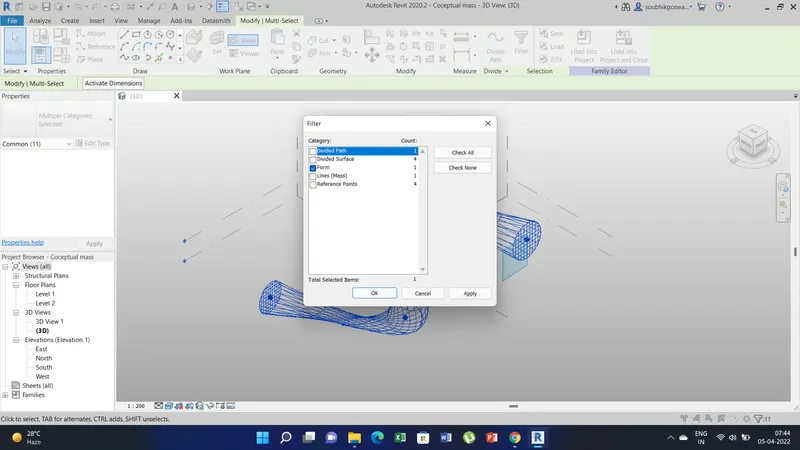
g) Select the entire model conceptual mass and than in the properties window select the pattern like hexagonal or triangular.
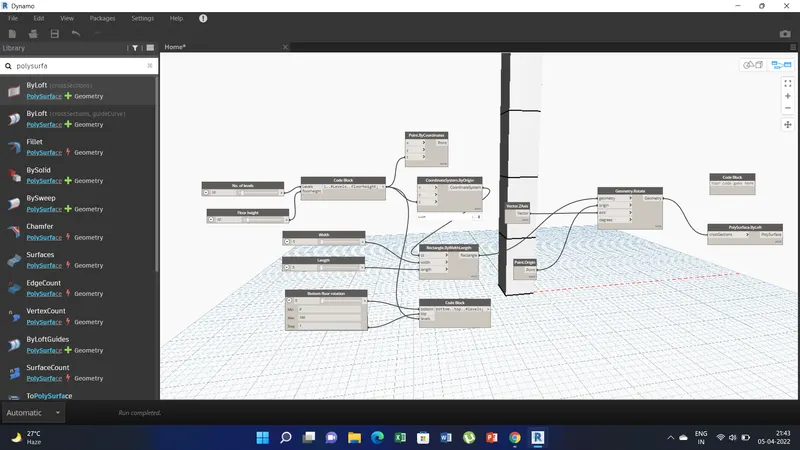
5) Aim of this project use Dynamo to work on developing a Parametric Stadium and list the parameters and use the visual programming approach to complete the modelling.
Procedure:
a)First place two integer slider and rename them as no. of levels and the other one as floor heights.
b) Than place a code block and there write the cooding as 0..#levels..floorheight;
c) Than place four integer slider and rename them as width, length, top floor rotation, bottom floor rotation.
d) Place point by coordinate, coordinate system by origin, rectangle by width length, code block. In the code block create the coding as bottom..top..#levels;
e) Now connect the code block 1 to point by coordinate-Z,coordinate system by origin z and also connect to code block 2-levels.
f)Connect width integer slider to Rectangular by width-width. Connect length integer slider to length, coordinate system to cs. Also connect the bottom floor rotation integer slider to code block-bottom and top floor rotation to code block top.
g) Now place vector.z axis and also place point.origin and geometry.rotate.
h) Connect vector.z axis to geometry.rotate-axis, point to origin, rectangle to geometry second codeblock levels to geometry.rotate-degree.
i) In order to create a surface/ mass place poygon by loft and connect geometry to crossection of the polysurface.loft.
j) Now the parametric structures will be created and we can varty the rotation, levels by using those integer sliders.