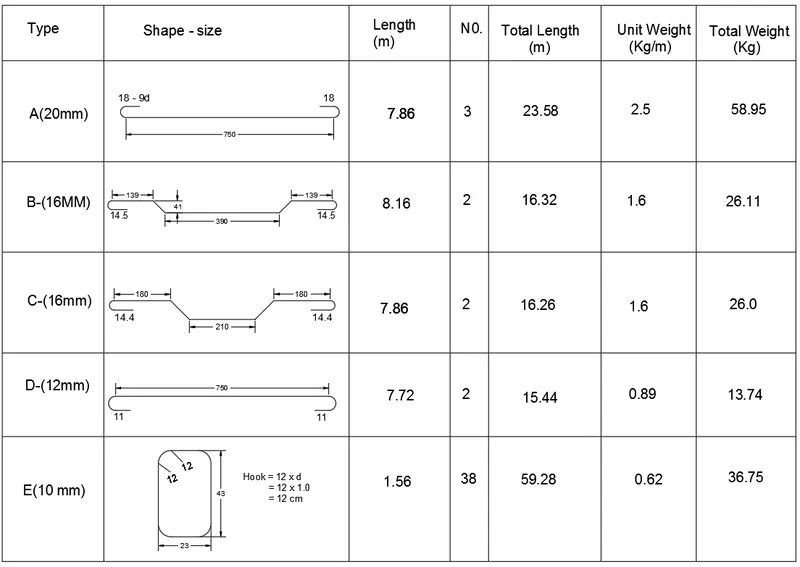
Creating Bar Bending schedule, Different Door types, and Creation of standard drawing templates using AutoCad
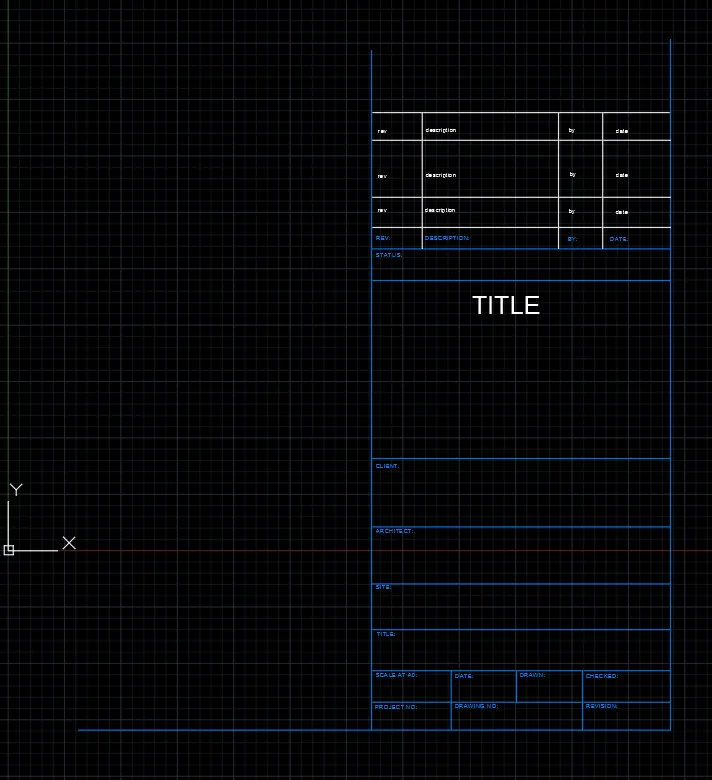
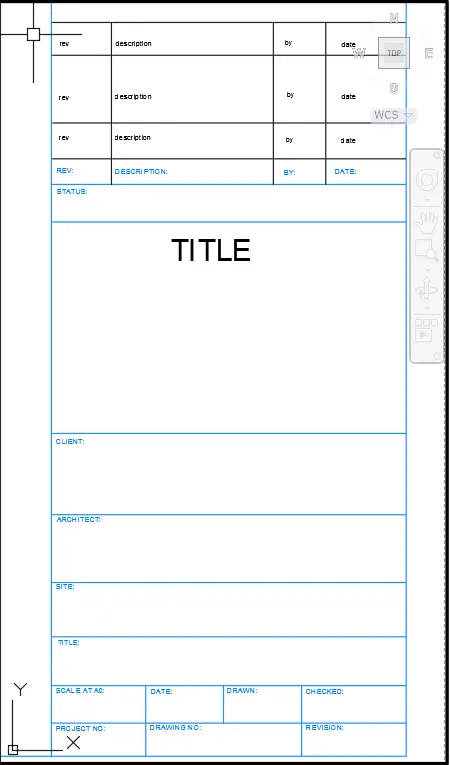
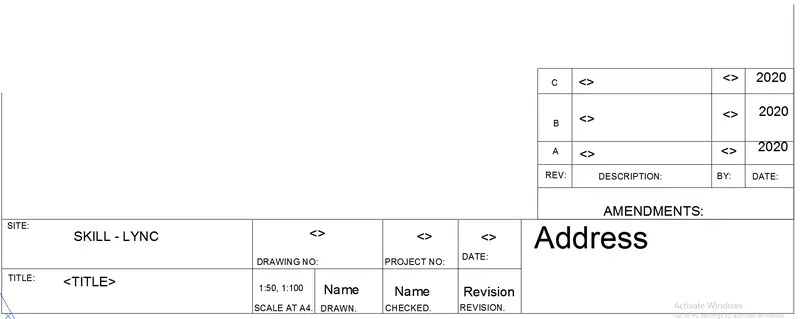
Q 1. Create the templates as shown in Figures. Take the size of the title block as per industry standards or you can assume it as per the size of the paper. Use text and attributes wherever required. After creating the title block you need to save it as a block with names: Custom1_titleblock and Custom2_titleblock, respectively.
AIM: To create the templates as shown in figure and create blocks of the templates
PROCEDURE
Custom1_titleblock
STEP 1:
- In command prompt type UNITS, set to DECIMAL, precision = 0, insertion scale = MILLIMETERS
- In command prompt type LIMAX and LIMITS set to desired
- In command prompt type ZOOM, All and enter
STEP 2:
- In command prompt type REC, create a rectangle
- In command prompt type EXPLODE, explode the created rectangle
- In command prompt type OFFSET, offset the required lines to create title block
- In command prompt type DT, assign the text as required
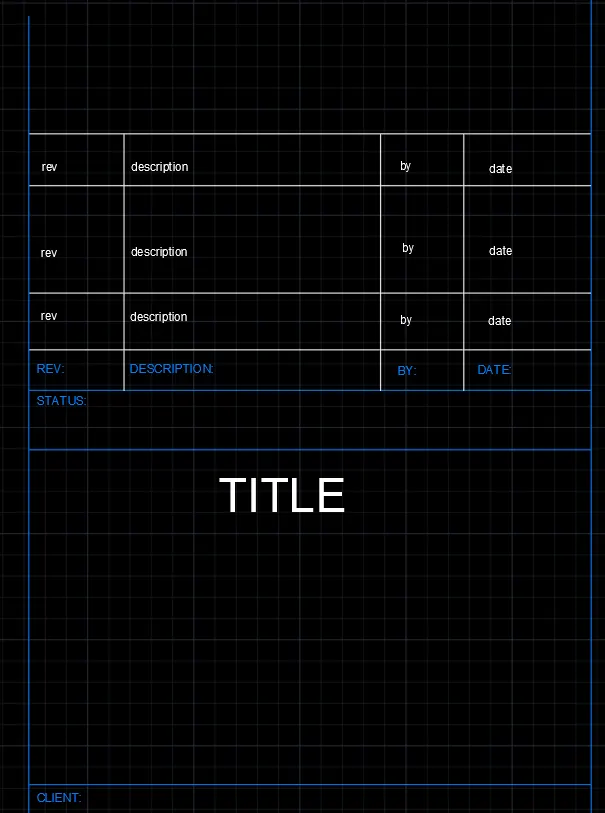
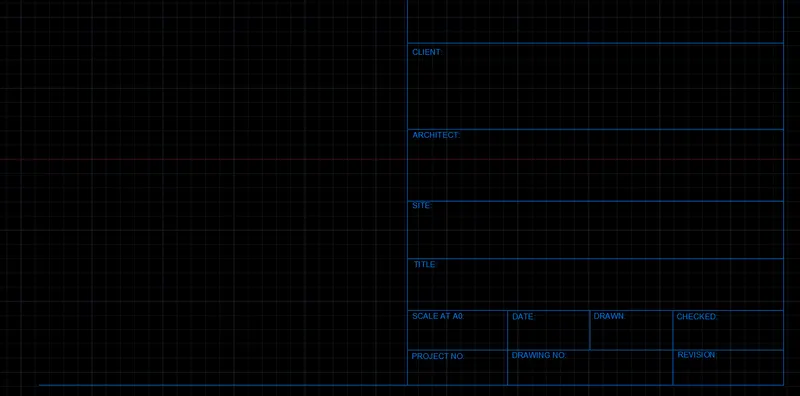
STEP 3: CREATION OF BLOCK
- In command prompt type BLOCK, assign a name, pick point and select object to create block
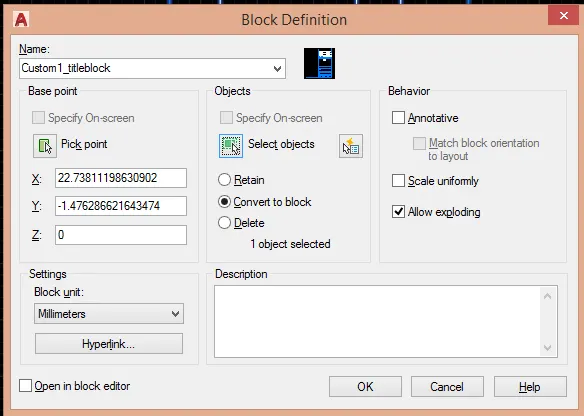
RESULT OF Custom1_titleblock:
Custom2_titleblock
STEP 1:
- In command prompt type REC, create a rectangle
- In command prompt type EXPLODE, explode the created rectangle
- In command prompt type OFFSET, offset the required lines to create title block
- In command prompt type DT, assign the text as required
STEP 2: CREATION OF BLOCK
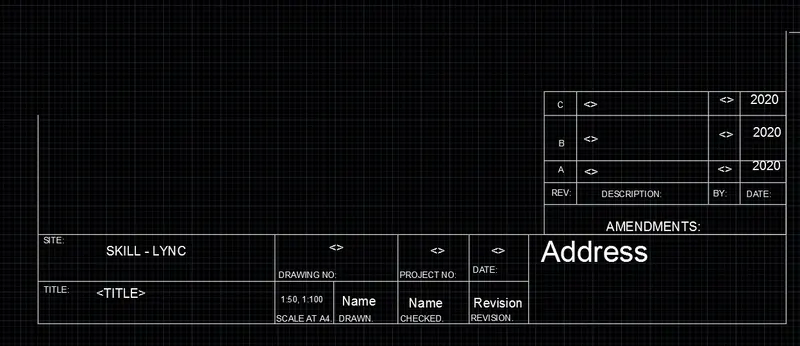
- In command prompt type BLOCK, assign a name, pick a point and select object to create block
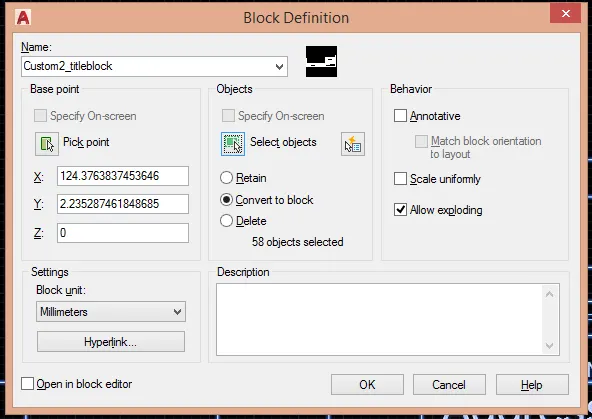
RESULT OF Custom2_titleblock:
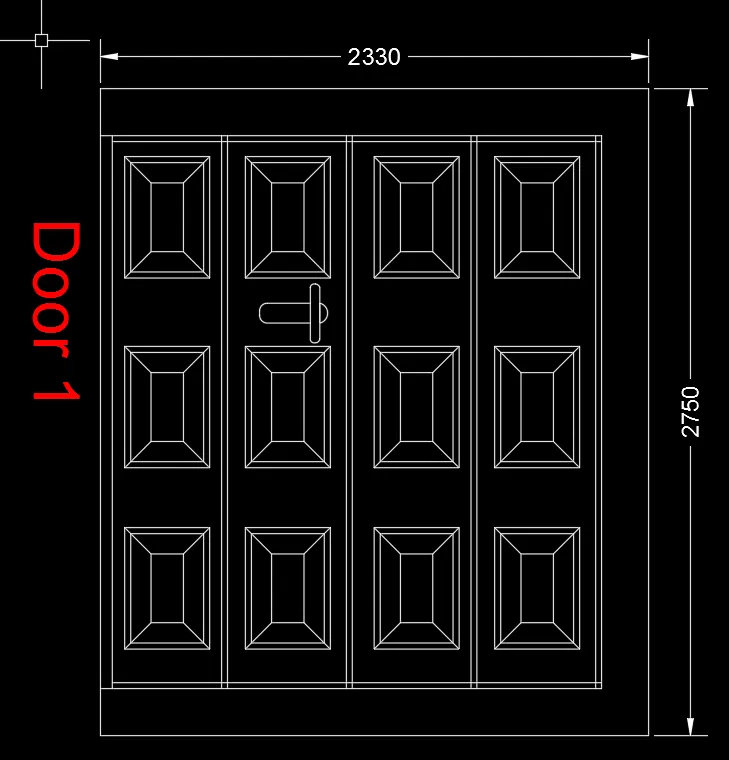
Q 2. Create the doors type for warehouse as shown in the Figure. You need to create each door type as per standard size or given dimensions. Create the blocks of this door type after creating them.
AIM: To create doors type for warehouse and to create blocks of the created doors
PROCEDURE :
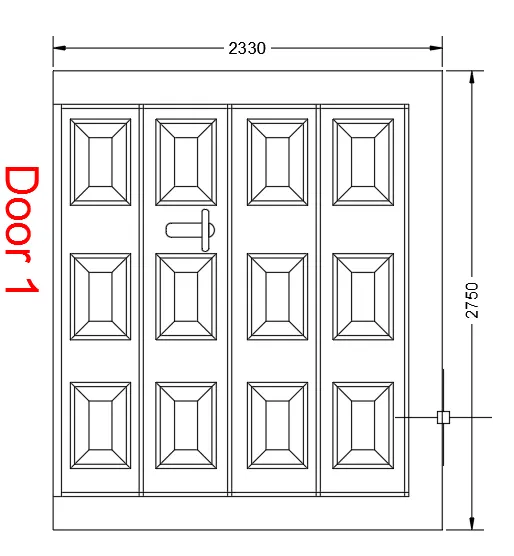
WAREHOUSE DOOR_1
STEP 1:
- In command prompt type UNITS, set to DECIMAL, precision = 0, insertion scale = MILLIMETERS
- In command prompt type LIMAX and LIMITS set to desired
- In command prompt type ZOOM, All and enter
STEP 2:
- In command prompt type REC, create the required rectangles
- In command prompt type FILLET, select radius assign value as desired and make the curved edges
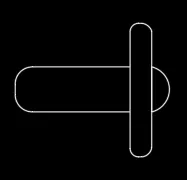
- In command prompt type REC, create the rectangle as per dimension and also make the door panes
- In command prompt type EXPLODE, explode the created rectangle
- In command prompt type OFFSET, offset the lines as per required distances
- In command prompt type DIML, assign the linear dimensions
- In command prompt type DT, assign the text
- In command prompt type BLOCK, assign a name, pick point and select object to create block
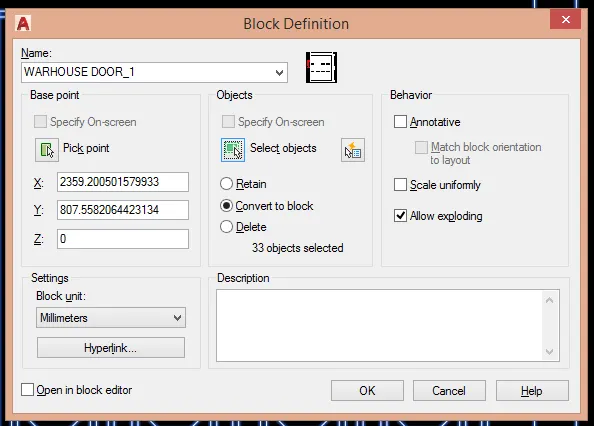
RESULT OF WAREHOUSE DOOR_1 BLOCK:
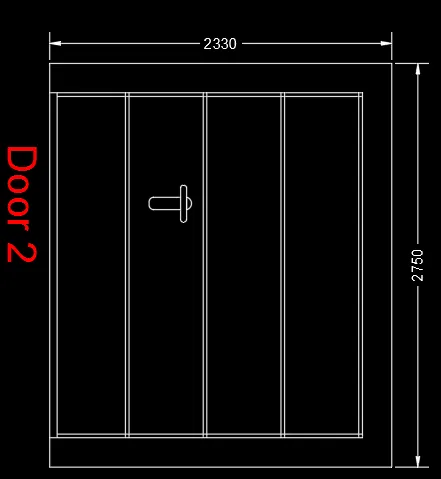
WAREHOUSE DOOR_2:
STEP 1:
- In command prompt type UNITS, set to DECIMAL, precision = 0, insertion scale = MILLIMETERS
- In command prompt type LIMAX and LIMITS set to desired
- In command prompt type ZOOM, All and enter
STEP 2:
- In command prompt type REC, create the rectangle as per dimension and also make the door panes
- In command prompt type EXPLODE, explode the created rectangle
- In command prompt type OFFSET, offset the lines as per required distances
- In command prompt type DIML, assign the linear dimensions
- In command prompt type DT, assign the text
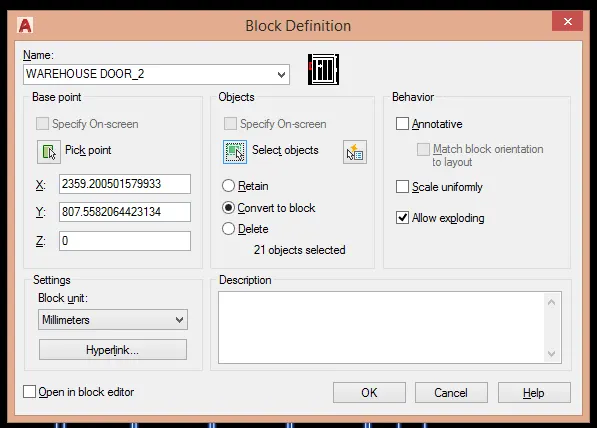
- In command prompt type BLOCK, assign a name, pick point and select object to create block
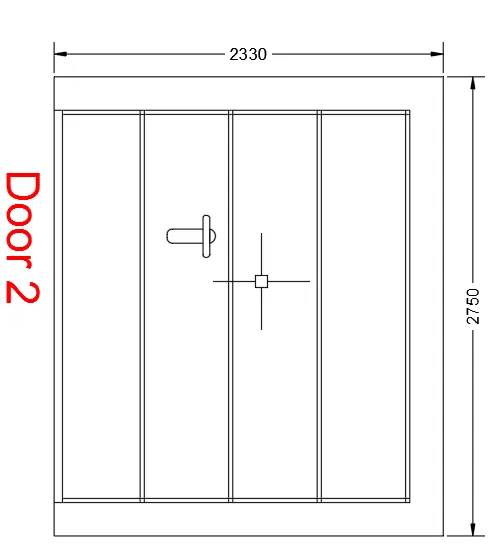
RESULT OF WAREHOUSE DOOR_2 BLOCK:
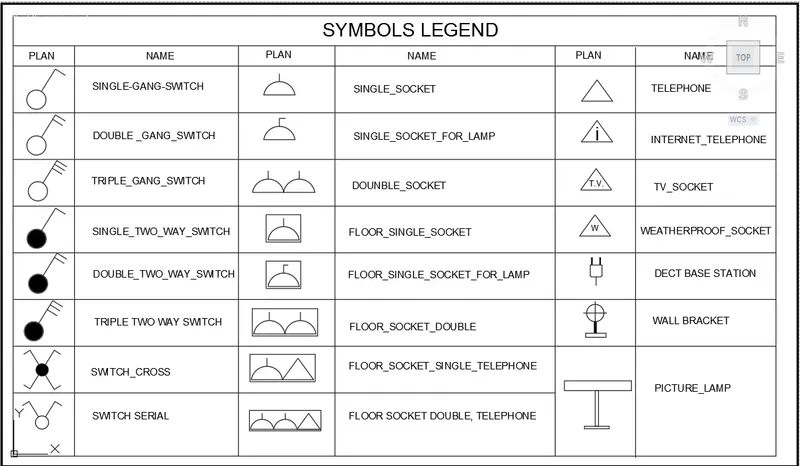
Q 3. Create each symbol as a block with the name given in the legend. After creating the blocks arrange them in the legend as shown in the Figure.
AIM: To create each symbol as a block with the name given in the legend
procedure:
STEP 1:
- In command prompt type UNITS, set to Architectural, precision = 0'-0", insertion scale = inches
- In command prompt type LIMAX and LIMITS set to desired
- In command prompt type ZOOM, All and enter
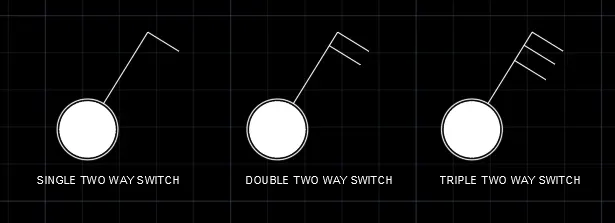
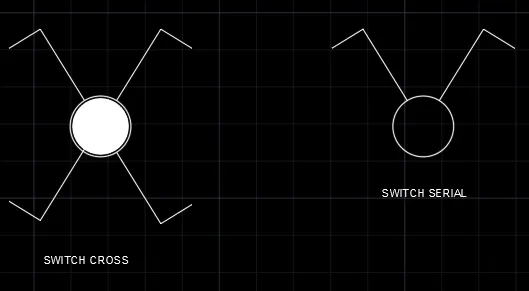
STEP 2: SWITCHES
- By using CIRCLE, REC, LINE, TRIM, OFFSET, HATCH, MIRROR command switches are created
- In command prompt type DT, the text is assigned
- In command prompt type BLOCKS, the switches are created to blocks

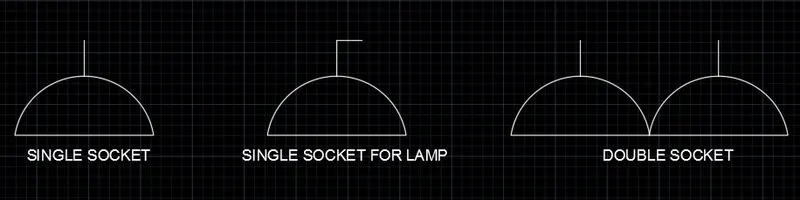
SOCKETS, BRACKETS, LAMP and STATION:
- By using ARC, REC, LINE, TRIM, OFFSET, HATCH, MIRROR command switches are created
- In command prompt type DT, the text is assigned
- In command prompt type BLOCKS, the SOCKETS, BRACKETS, LAMP and STATION are created to blocks
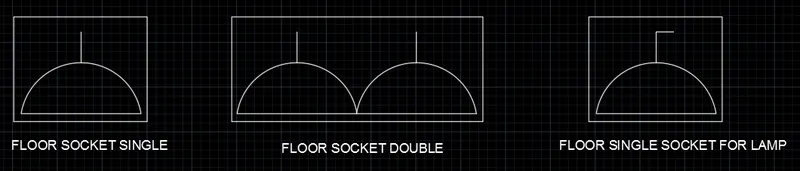
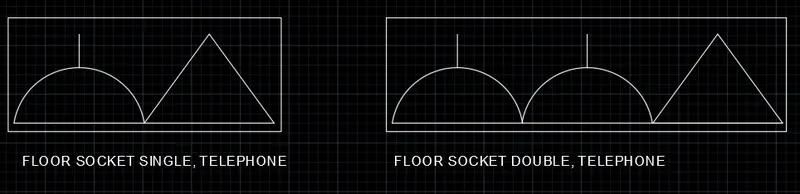
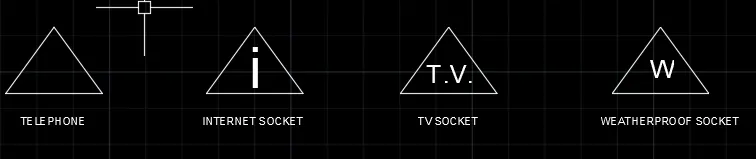
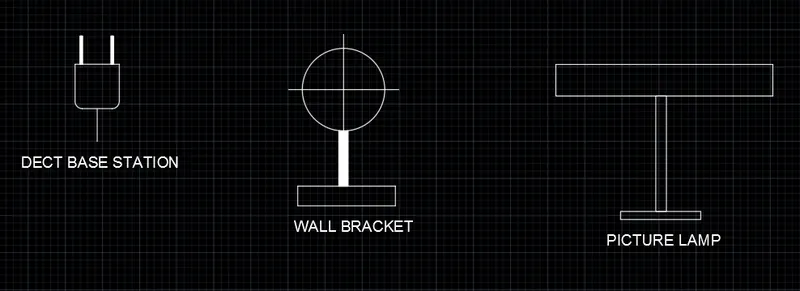
- In command prompt type INSERT, the created blocks will appear in the current drawing tab in the insert dialogue box
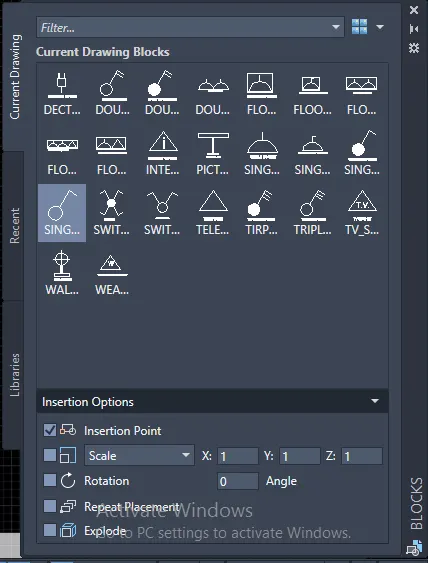
STEP 3:CREATION OF THE LEGEND
- In command prompt type REC, draw the rectangle as required shape
- In command prompt type OFFSET, offset the lines as required to get the desired table
- In command prompt type FIELD, select field category as object and in object type select block assign required content
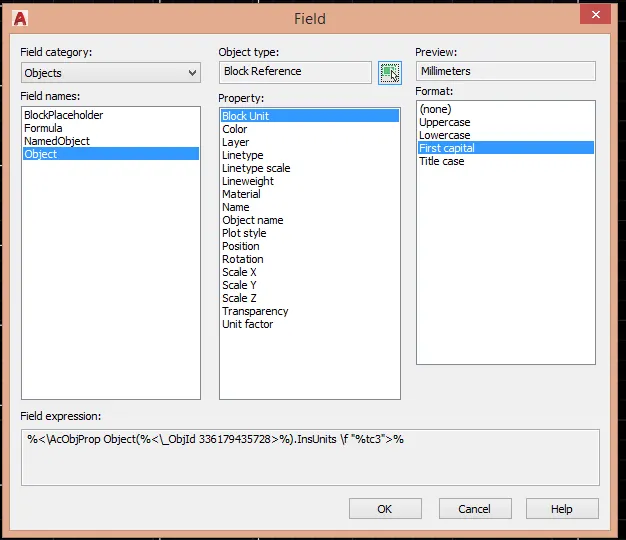
- In command prompt type DT, assign the required text in the legend
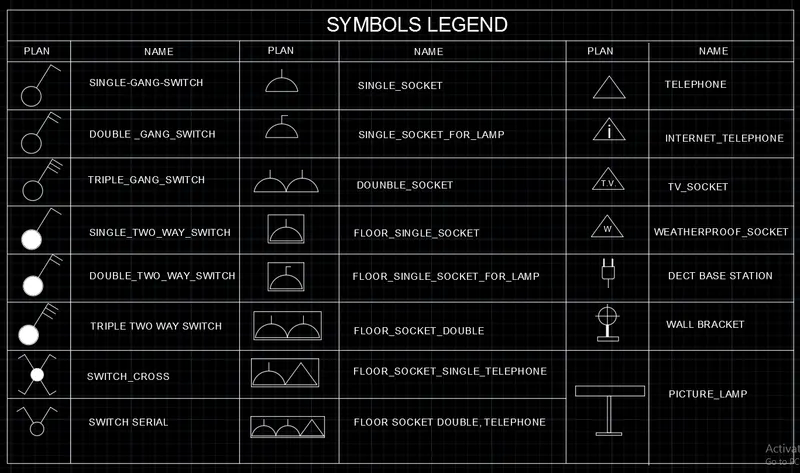
RESULT:
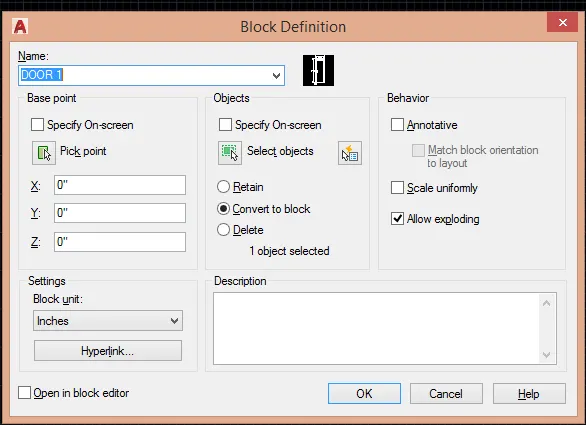
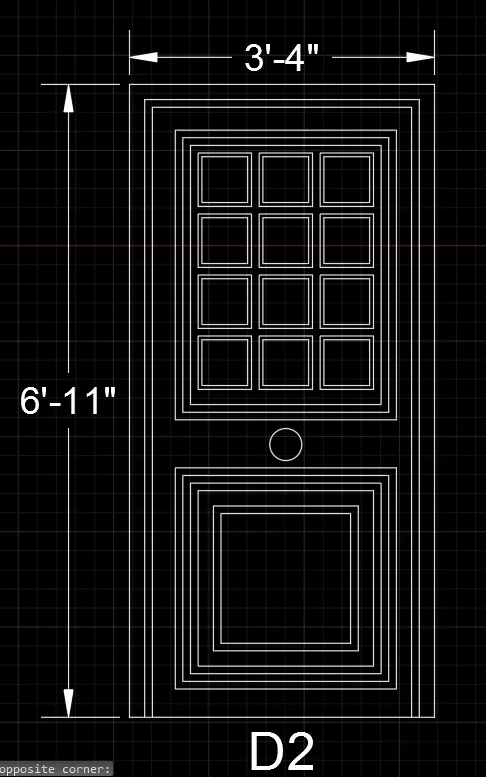
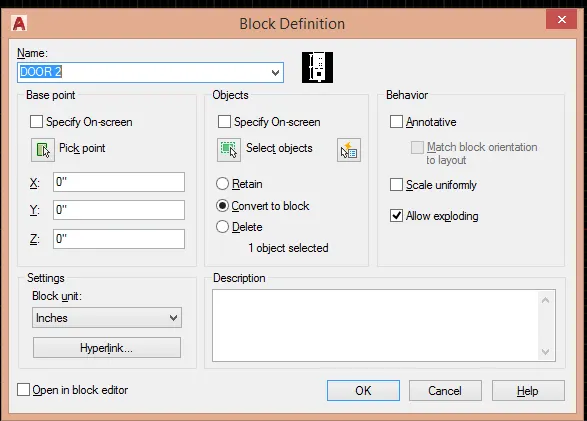
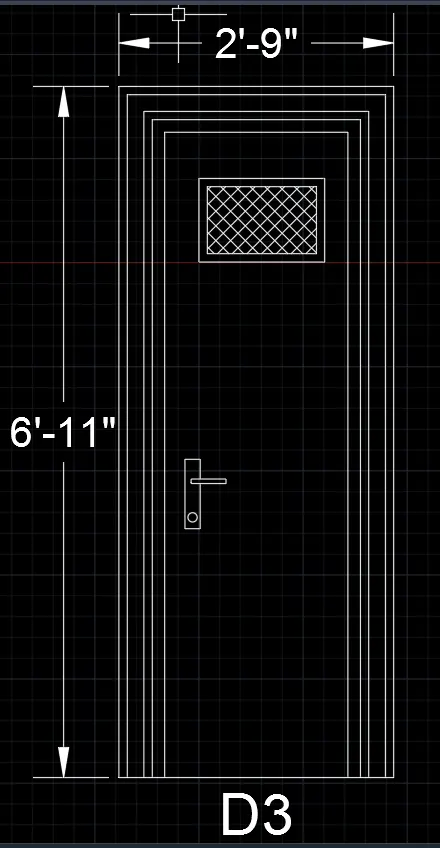
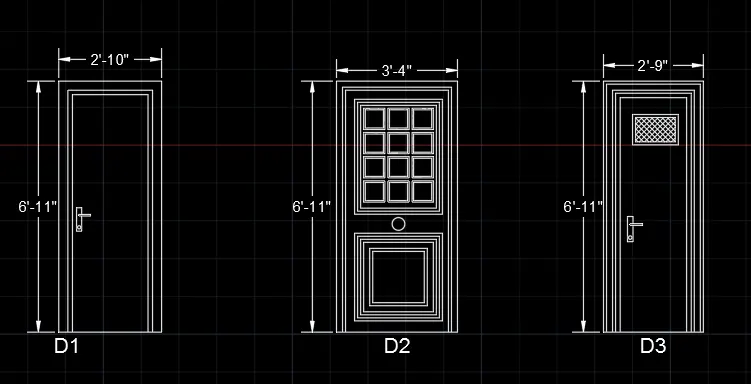
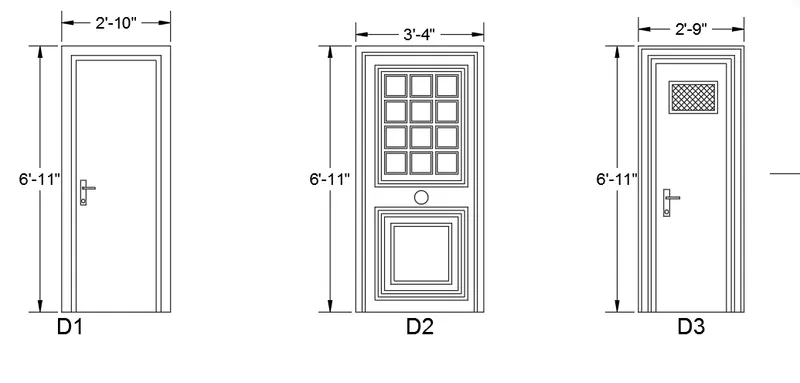
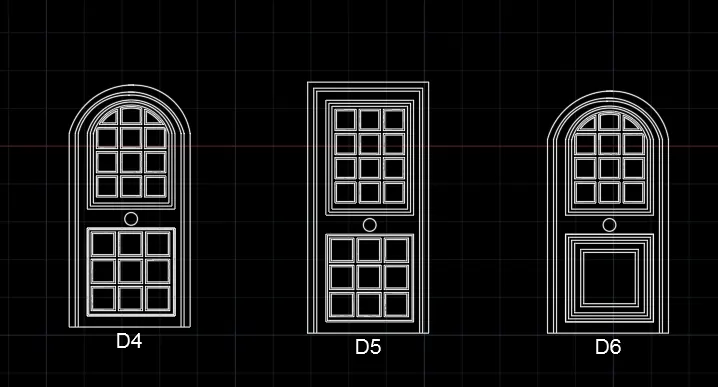
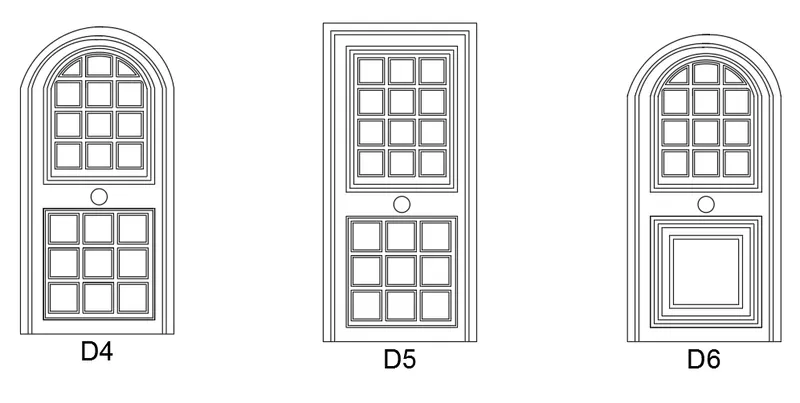
Q 4. Create the door type for a residential building as a block. Save the name of the blocks as type. Use given dimensions or assume dimensions as per industry standards.
AIM: To create the door type for a residential building as a block and save the name of the block as type
PROCEDURE :
STEP 1:
- In command prompt type UNITS, set to Architectural, precision = 0'-0", insertion scale = inches
- In command prompt type LIMAX and LIMITS set to desired
- In command prompt type ZOOM, All and enter
STEP 2:
- In command prompt type REC, create a rectangle
- In command prompt type EXPLODE, explode the created rectangle
- In command prompt type OFFSET, offset the required lines
- In command prompt type DT, assign the text as required
- In command prompt type BLOCKS, save each door in blocks
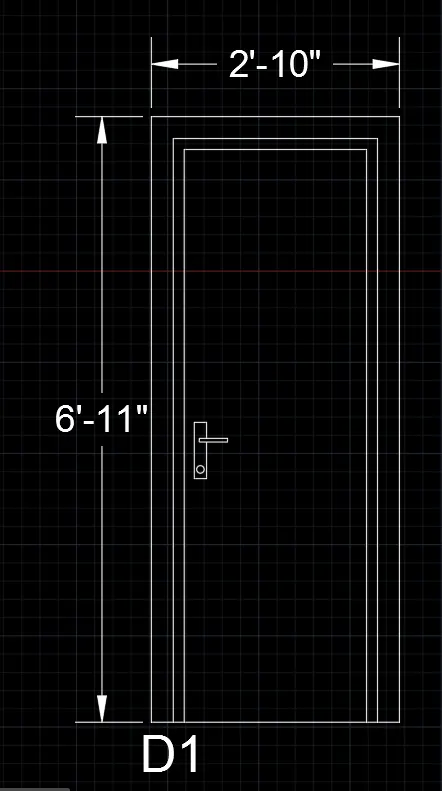
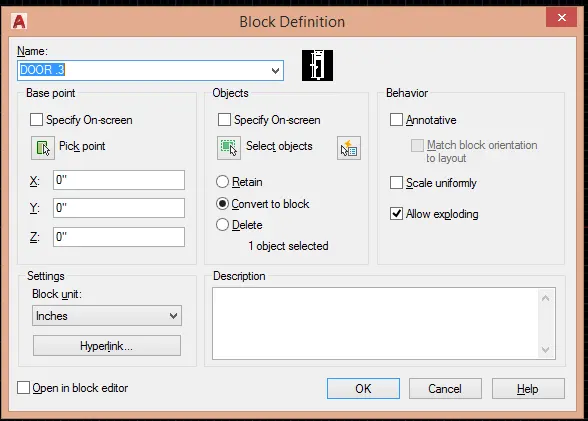
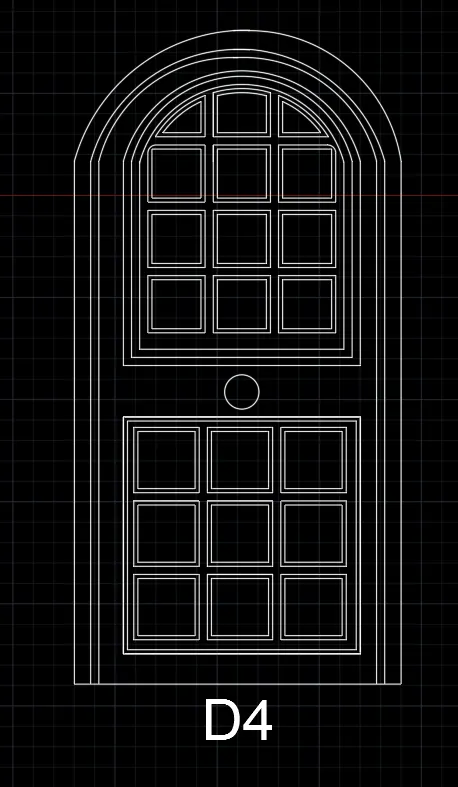
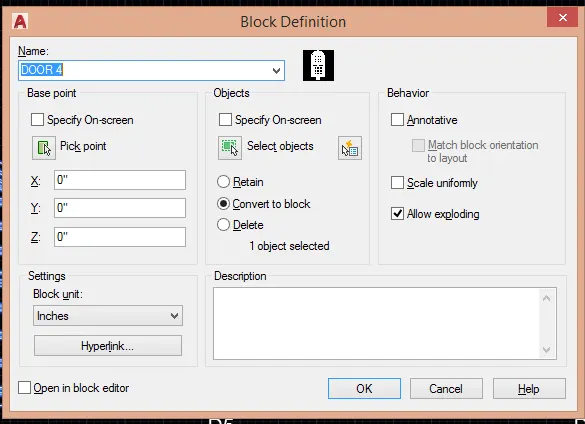
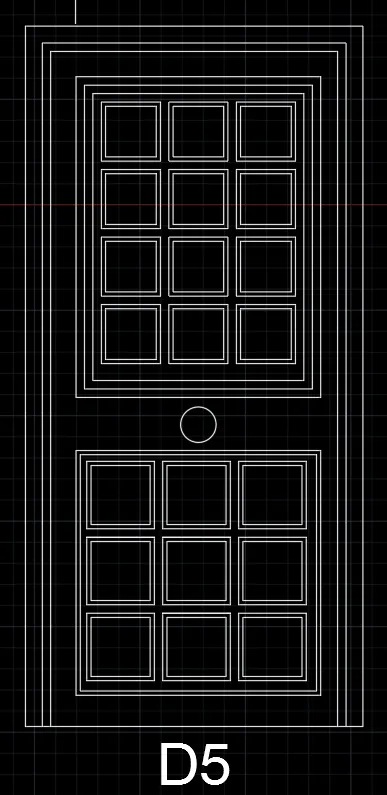
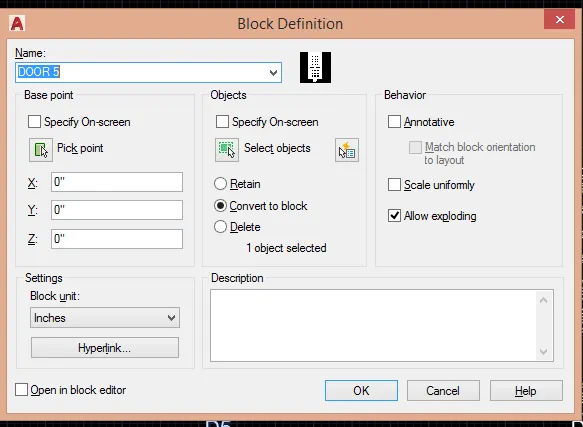
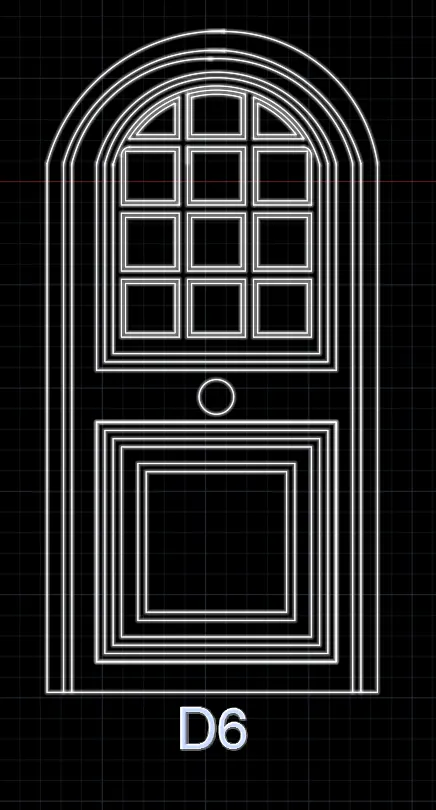
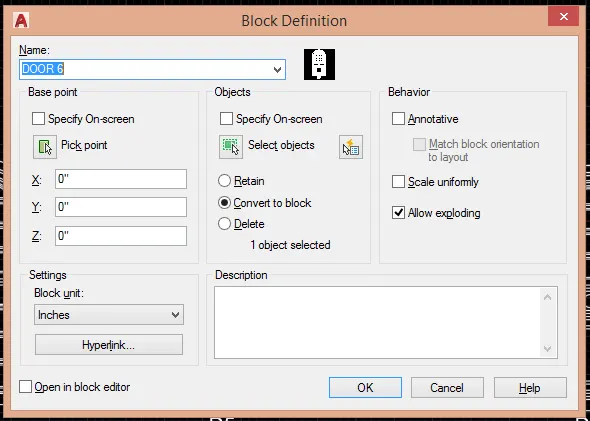
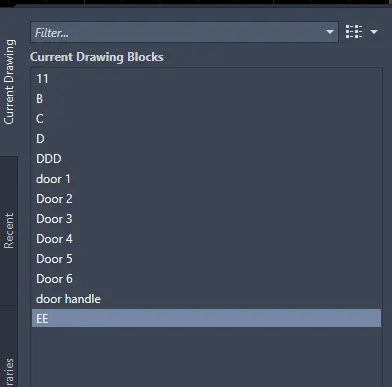
RESULT :
Q 5. Create each shape as a block as shown in the Figure. Save the block and insert them on the table as shown in the Figure.
AIM: To create each shape as a block and insert them in the table as shown in the figure
PROCEDURE :
STEP 1:
- In command prompt type UNITS, set to DECIMAL, precision = 0, insertion scale = MILLIMETERS
- In command prompt type LIMAX and LIMITS set to desired
- In command prompt type ZOOM, All and enter
STEP 2:
- In command prompt type BLOCK, create the blocks of the created drawing blocks by assigning names to them
- In command prompt type INSERT, the created blocks will appear in the current drawing tab in the insert dialogue box
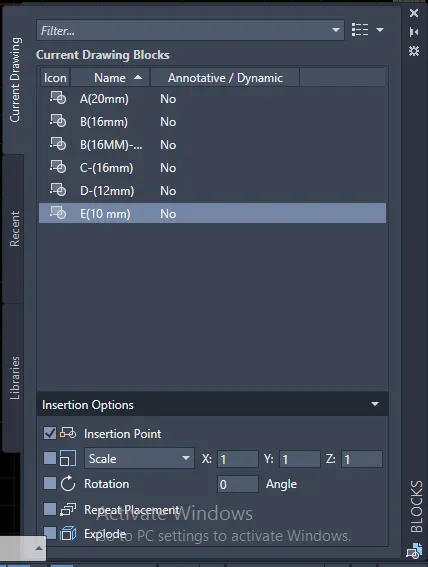
STEP 3: CREATION OF THE LEGEND
- In command prompt type REC, draw the rectangle as required shape
- In command prompt type OFFSET, offset the lines as required to get the desired table
- In command prompt type FIELD, select field category as object and in object type select block assign required content
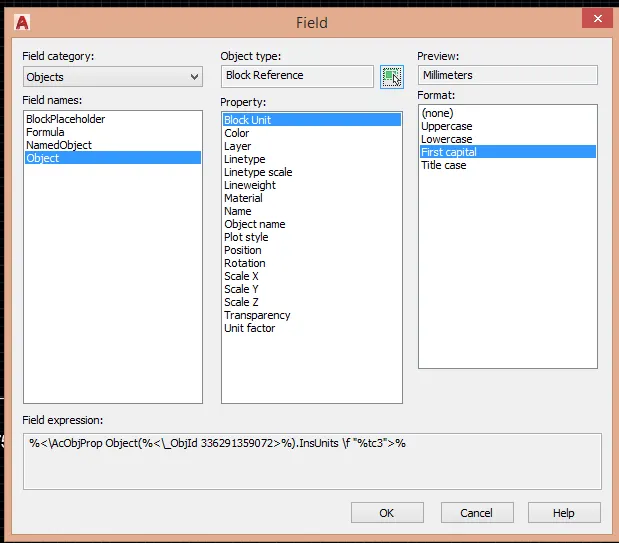
- In command prompt type DT, assign the required text in the legend
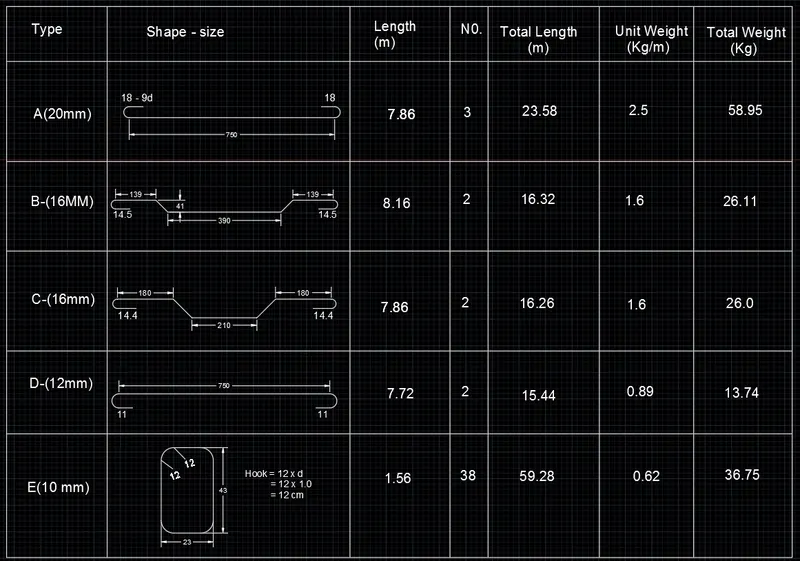
RESULT :