Creating Bar Bending schedule, Different Door types, and Creation of standard drawing templates using AutoCad
1. AIM:
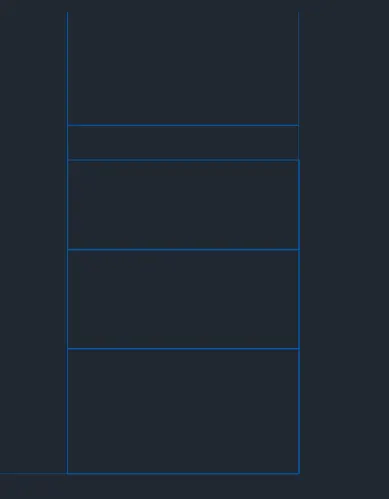
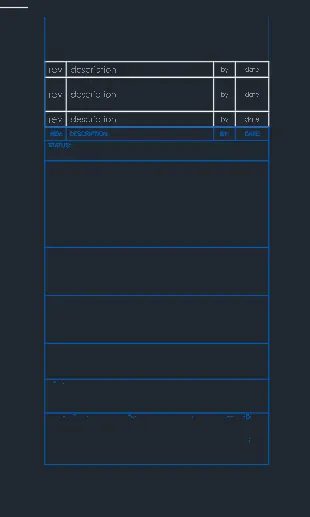
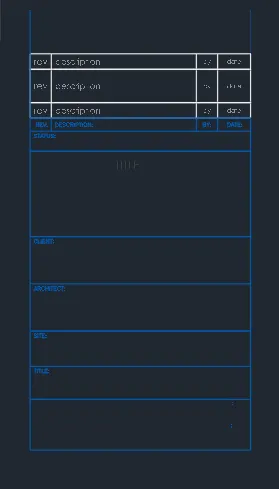
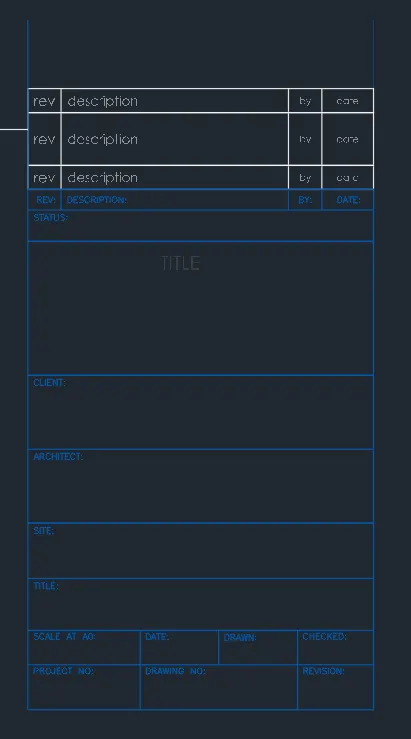
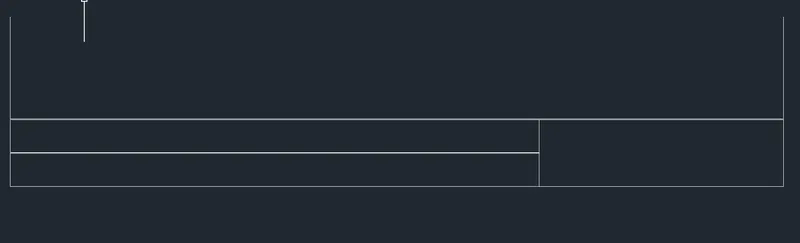
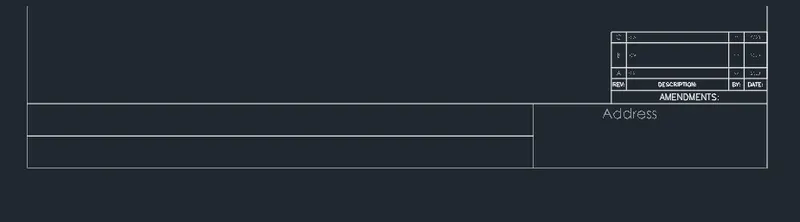
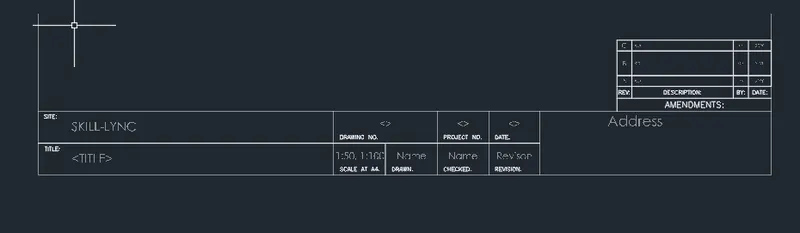
Create the templates as shown in Figures.
INTRODUCTION:
- Take the size of the title block as per industry standards oryou can assume it as per the size of the paper.
- Use text and attributes wherever required.
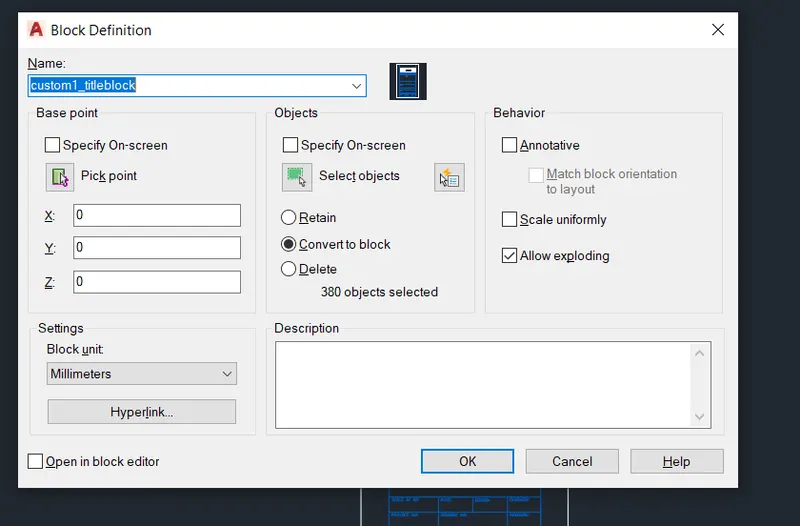
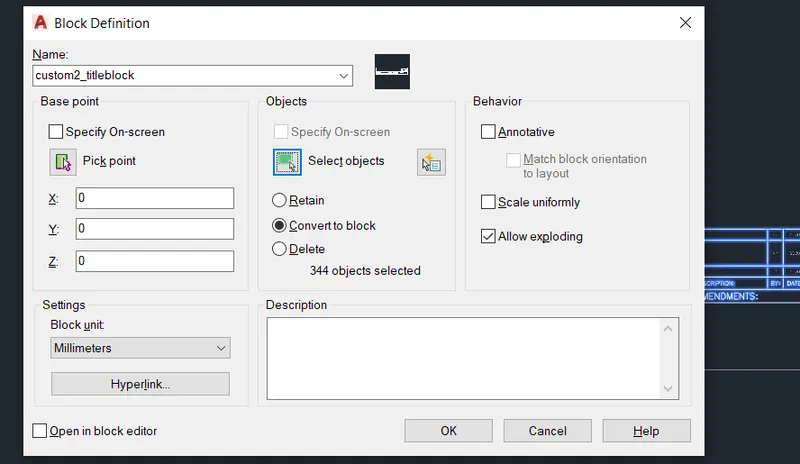
- After creatingthe title block you need to save it as a block with names: Custom1_titleblock and Custom2_titleblock,
respectively.
Create the templates:
- we create a the templates with the help of lines.
- Also insert text with help of Dtext command or Single Line text.
- Use the Fornt name:Romans;height:8",and justify Left
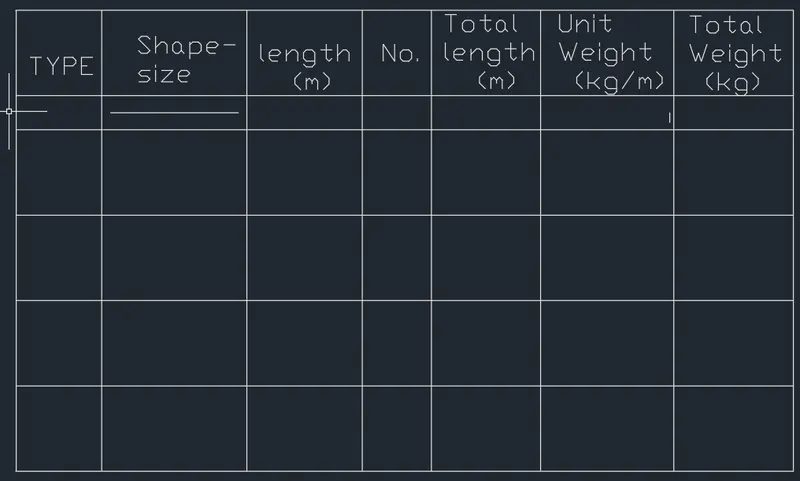
- First create a tabular Title blocks to type the name
- Click "DTEXT" command to create the text.
- And type the text as per dimension.
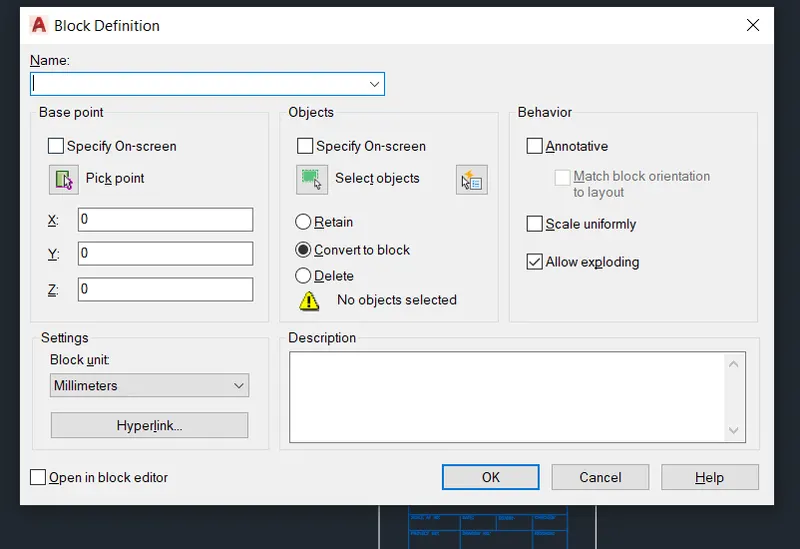
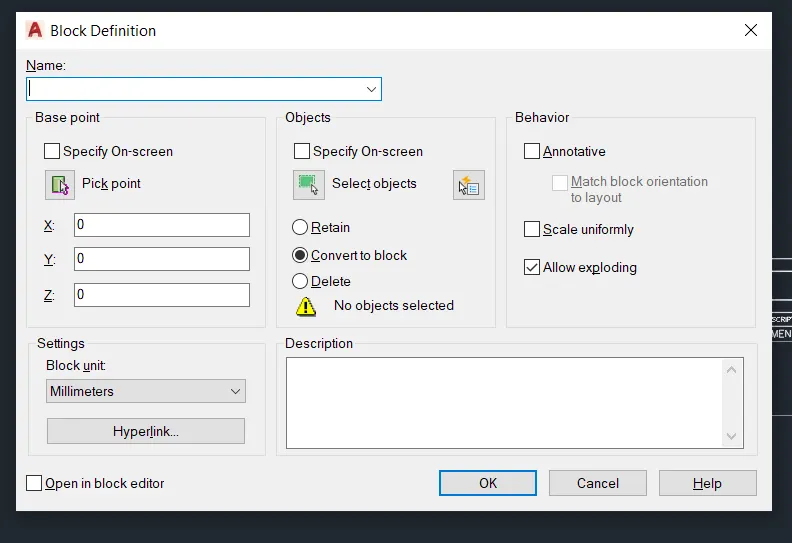
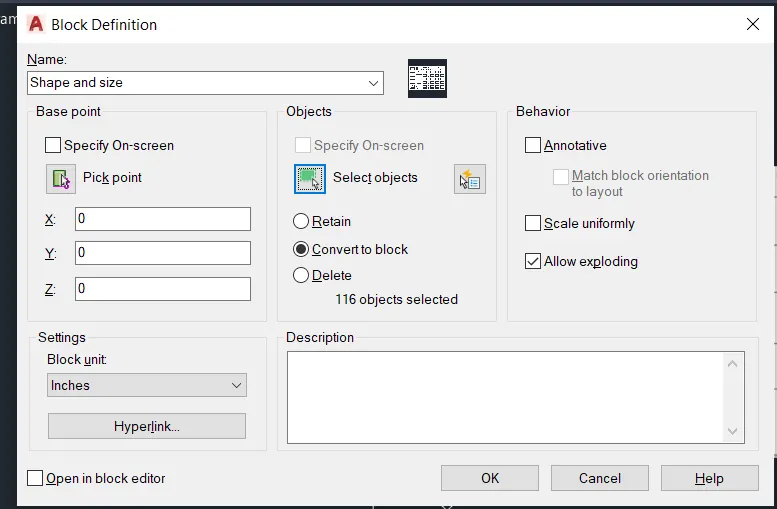
- Then Click "B''Block command to create the block
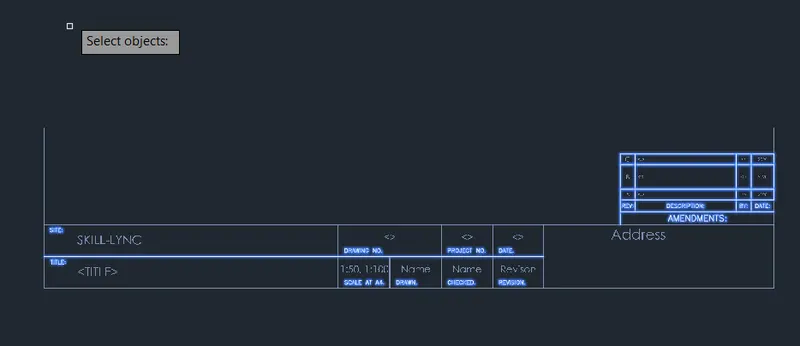
- And Select the object and click enter to create the block.
- And Click "SAVE"command to save the Text.
- Finally we SNIPPING TOOL to screenshot the drawing.

2.AIM:
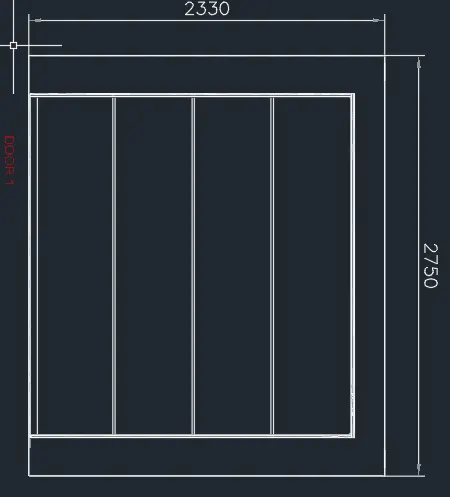
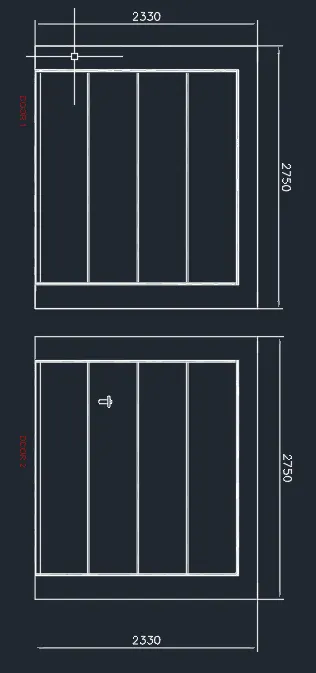
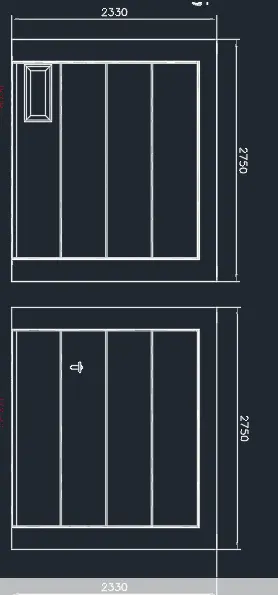
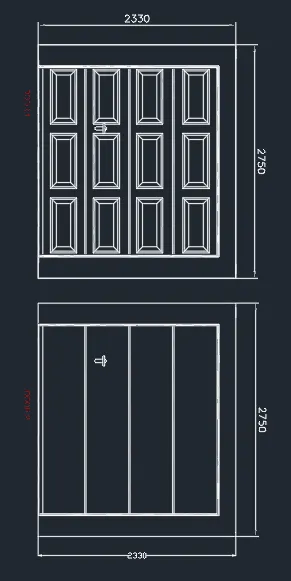
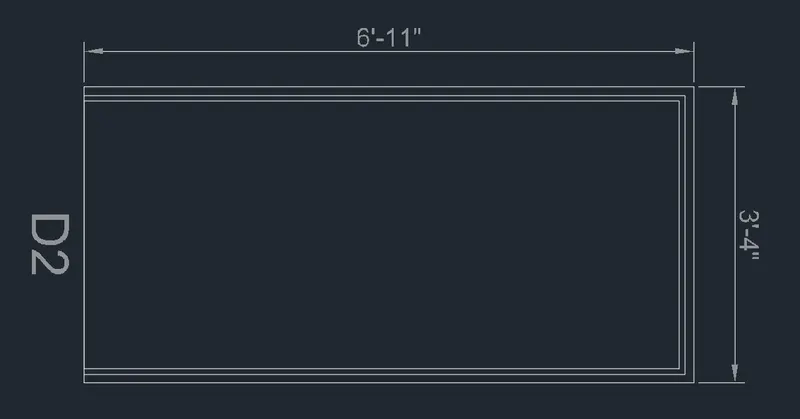
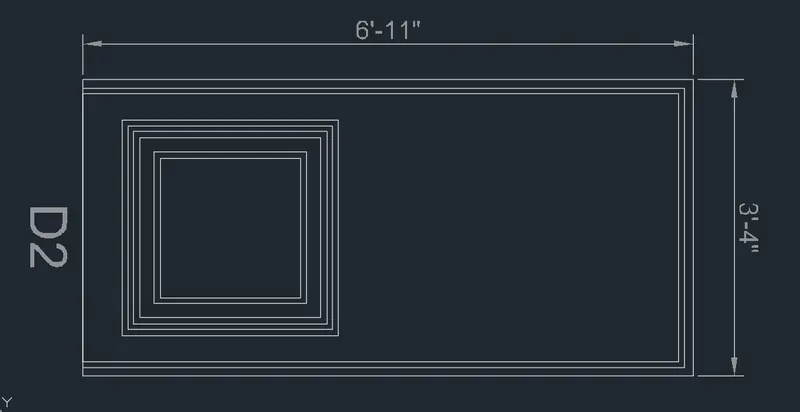
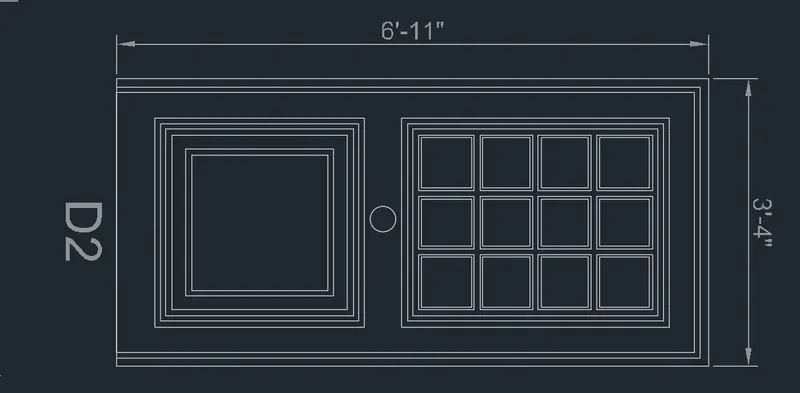
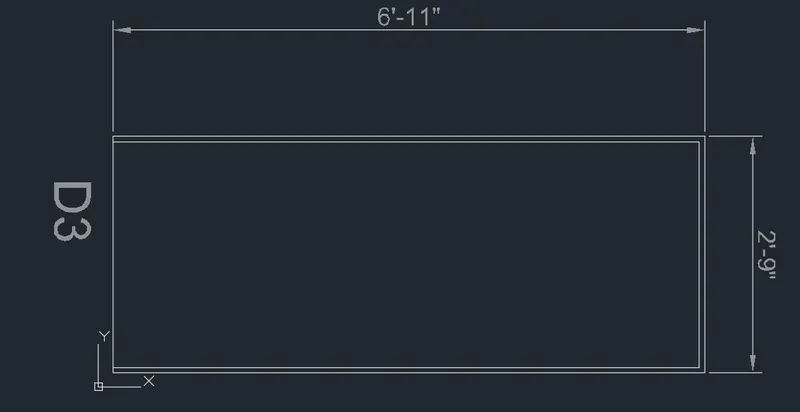
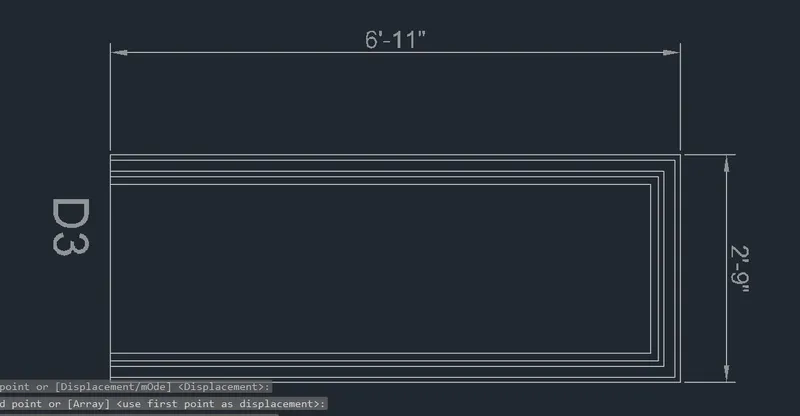
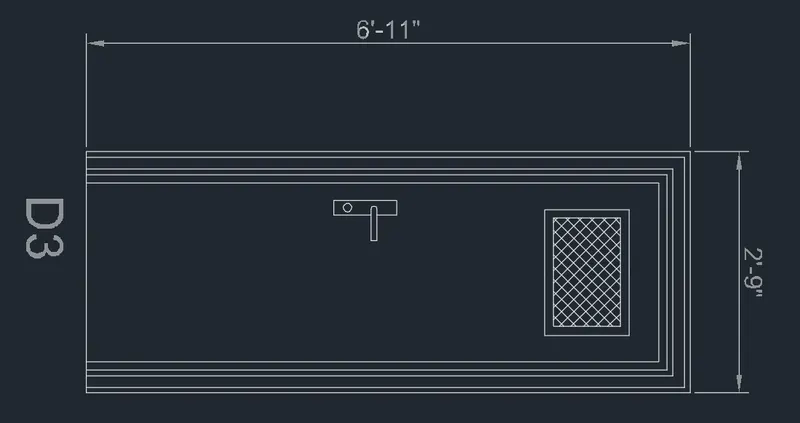
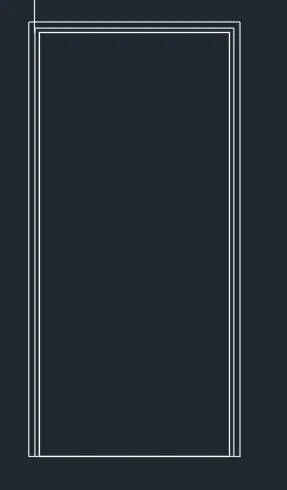
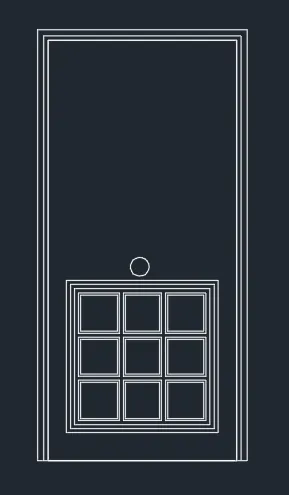
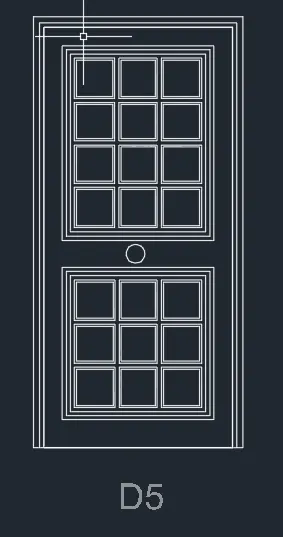
Create the doors type for warehouse as shown in the Figure.
INTRODUCTION:
- You need to create each door type as per standard size or given dimensions.
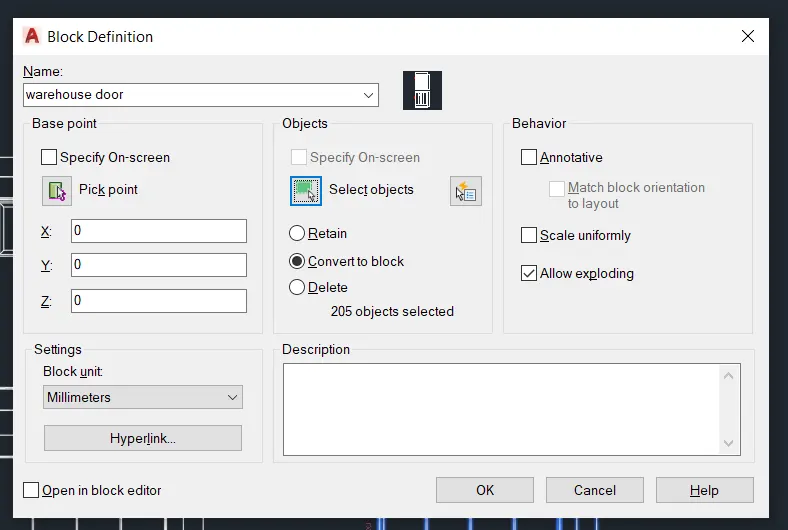
- Create the blocks of this door type after creating them.
The doors type for warehouse:
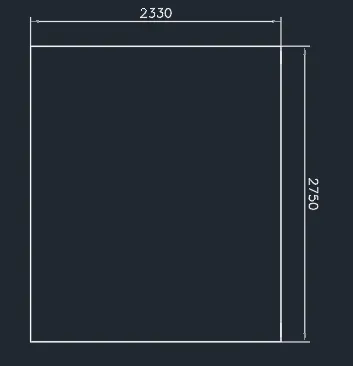
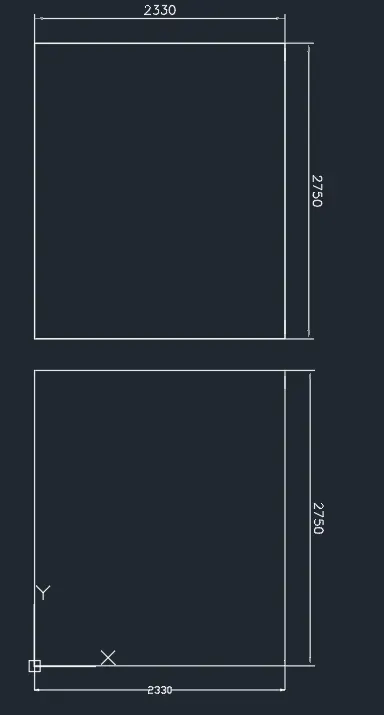
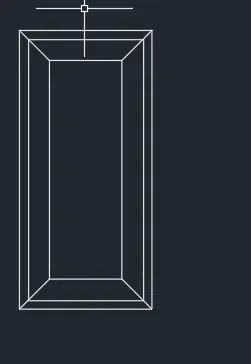
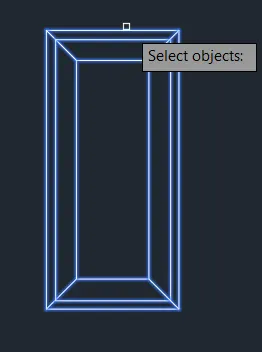
- Click 'REC' rectangle command to create the ouer line.
- Then Offset the rectangle 50mm.
- Nxt we need to Create the Door style as per given the diagram.
- After we create the door as per style.we copy the door.
- Create the Door1& Door2 as per a style given in diagram.
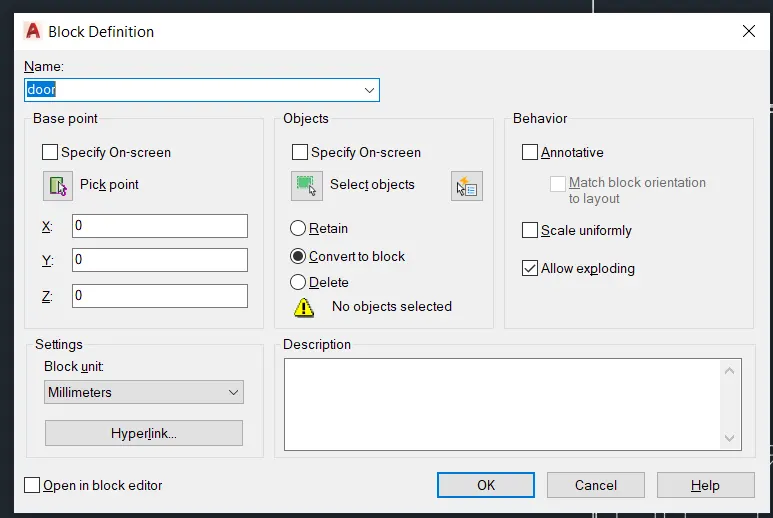
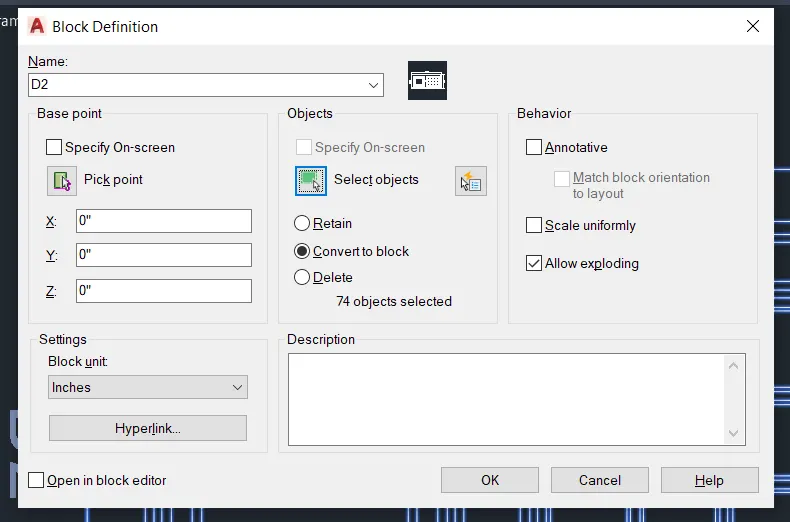
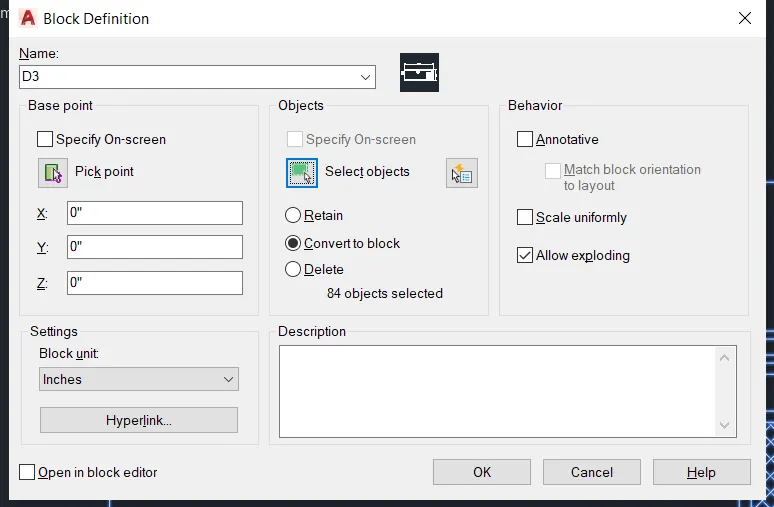
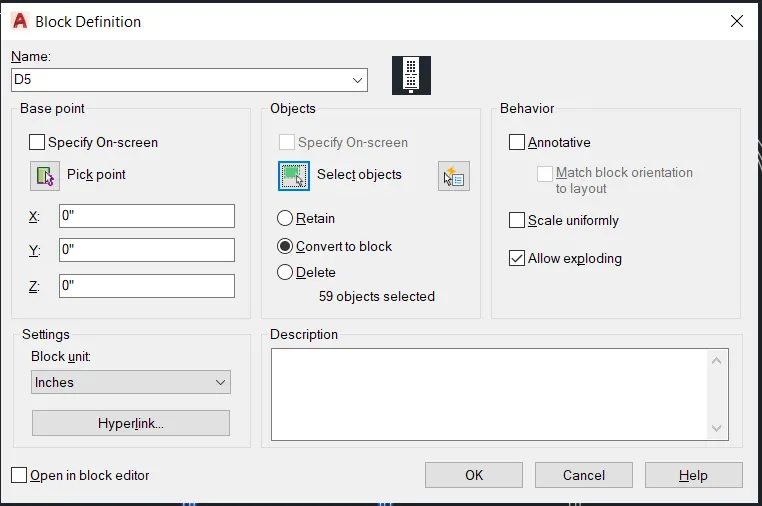
- Then Click "B''Block command to create the block
- And Select the object and click enter to create the block.
- And Click "SAVE"command to save the Text.
- Finally we SNIPPING TOOL to screenshot the drawing.
3.AIM:
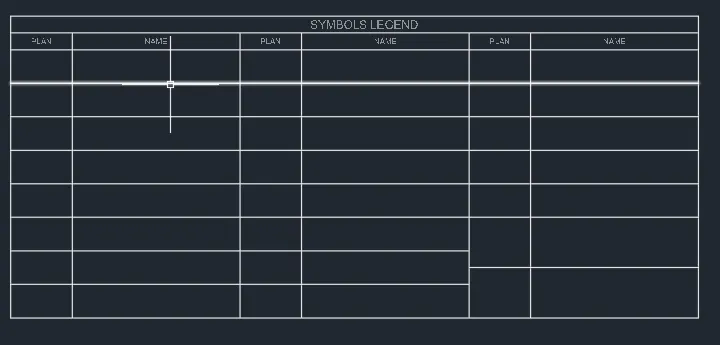
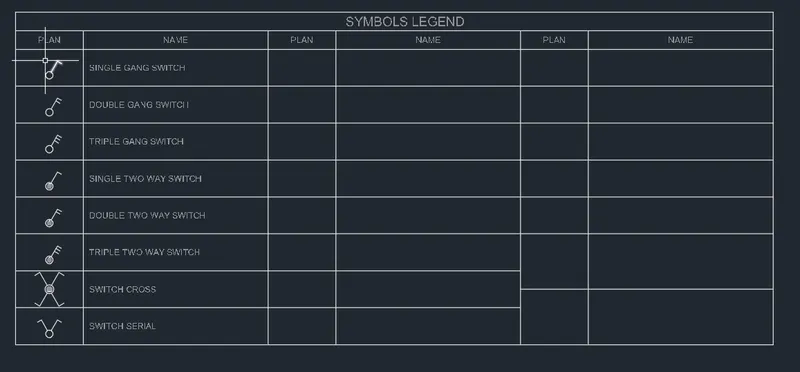
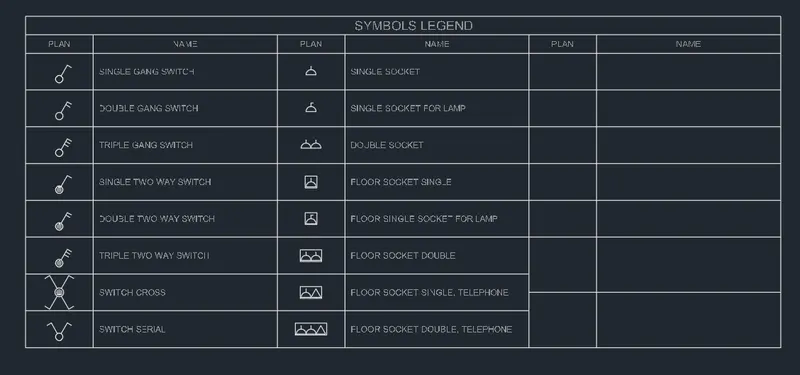
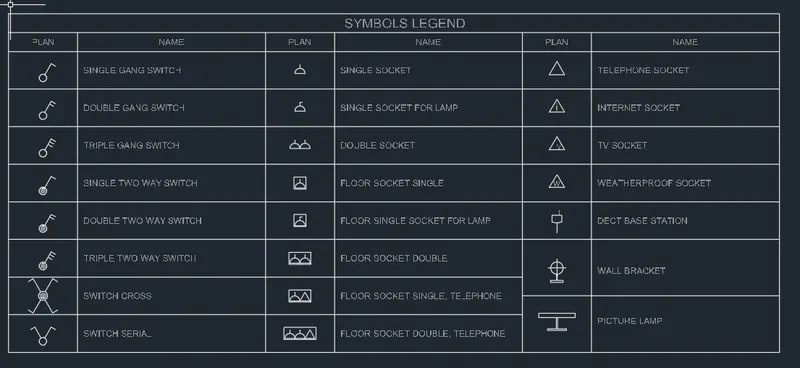
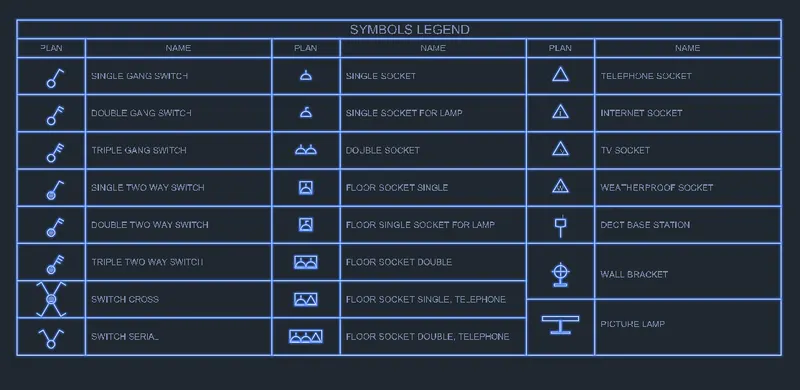
- Create each symbol as a block with the name given in the legend.
INTRODUCTION:
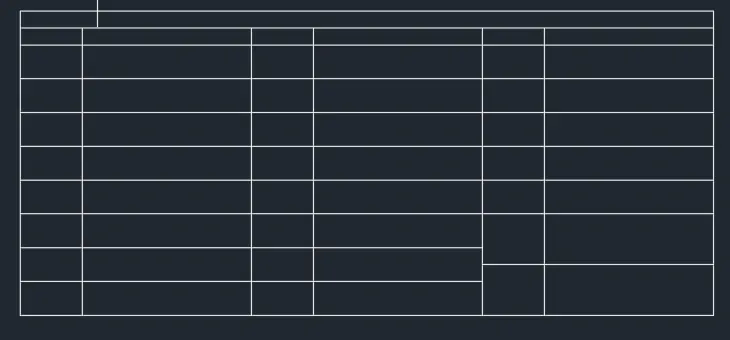
- After creating the blocks arrangethem in the legend as shown in the Figure.
Create symbol as a block:
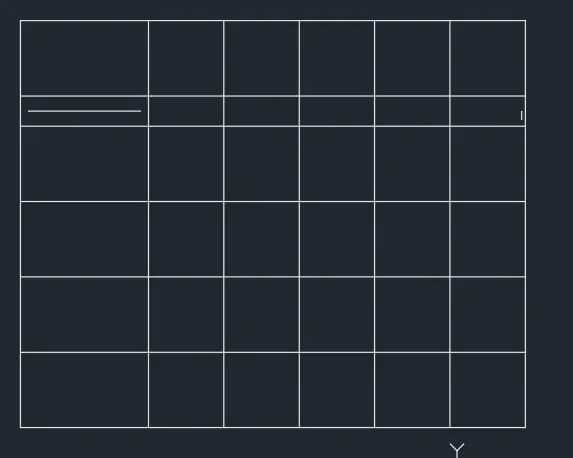
- First Click rectangle command and create the tabular column.
- Create the Symbol as per drawing.
- Draw the symbole using the comand Line and Circle.
- After we Create the line we need create the text.
- Also insert text with help of Dtext command or Single Line text.
- Use the Fornt name:Romans;height:8",and justify Left
- First create a tabular Symbole blocks to type the name
- Click "DTEXT" command to create the text.
- And type the text as per dimension.
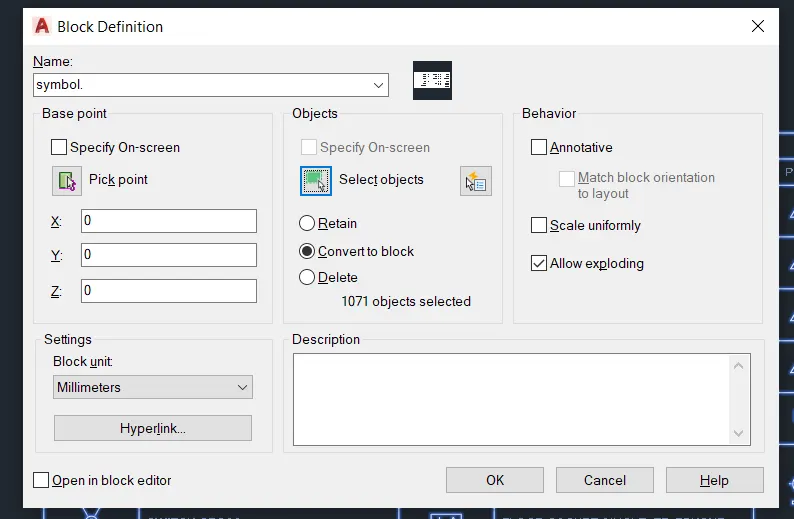
- Then Click "B''Block command to create the block
- And Select the object and click enter to create the block.
- And Click "SAVE"command to save the Text.
- Finally we SNIPPING TOOL to screenshot the drawing.

4.AIM:
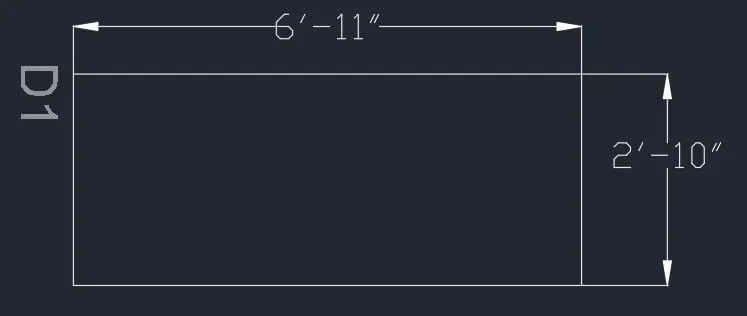
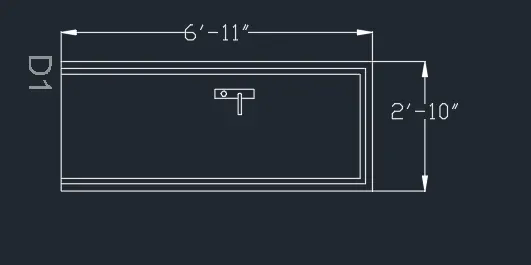
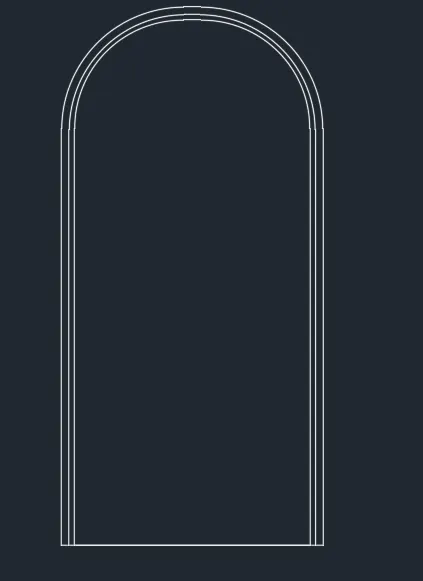
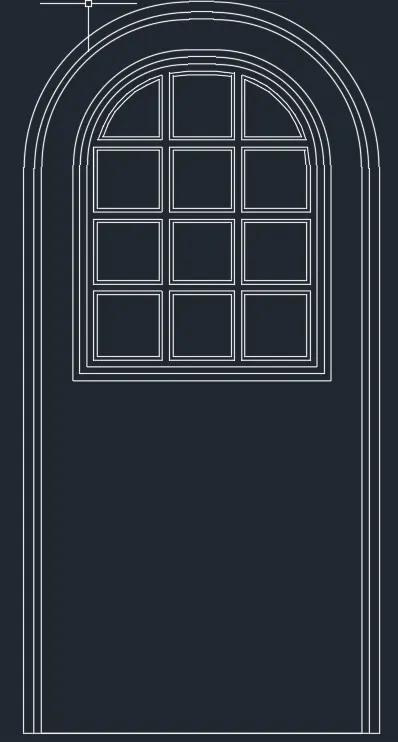
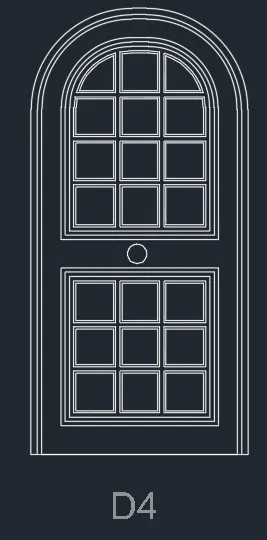
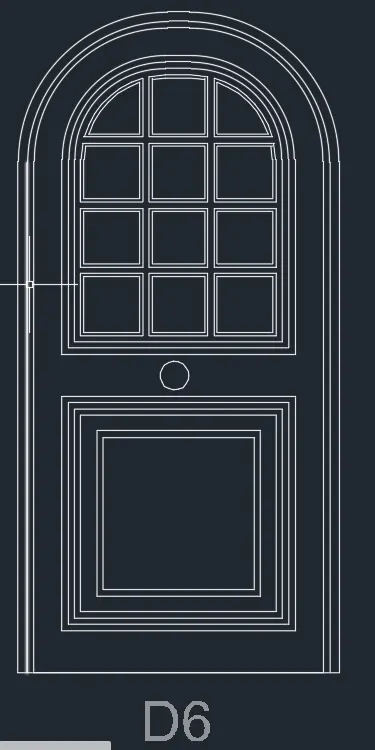
- Create the door type for residential building as a block.
Create the door type for residential building:
- Click 'REC' rectangle command to create the ouer line.
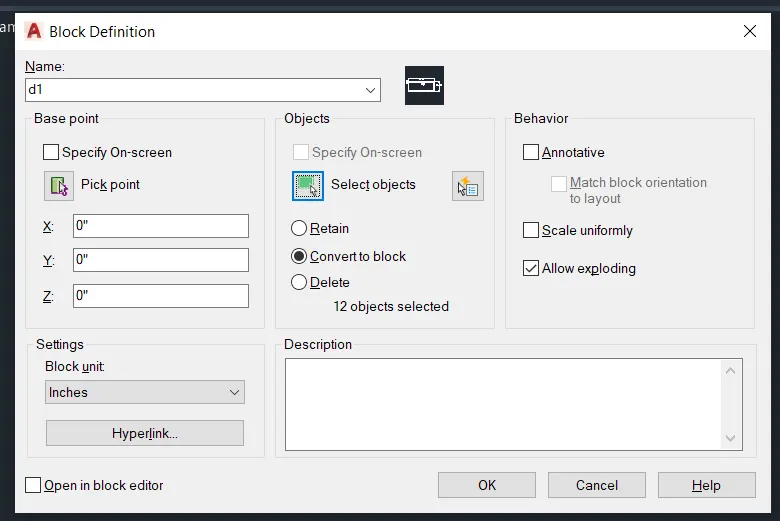
- Save the name of the blocks as type.
- Use givendimensions or assume dimensions as per industry standards.
- Draw the door using th line command and arch command.
- Nxt we need to Create the Door style as per given the diagram.
- After we create the door as per style.we copy the door.
- Create the Door1TO Door6 as per a style given in diagram.
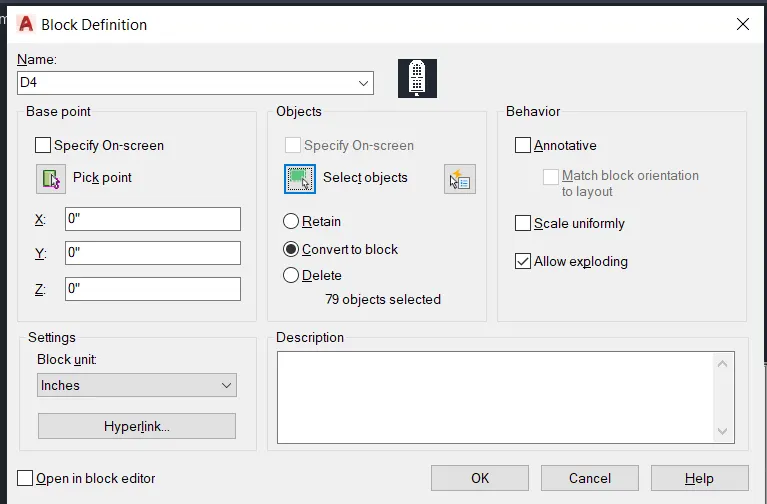
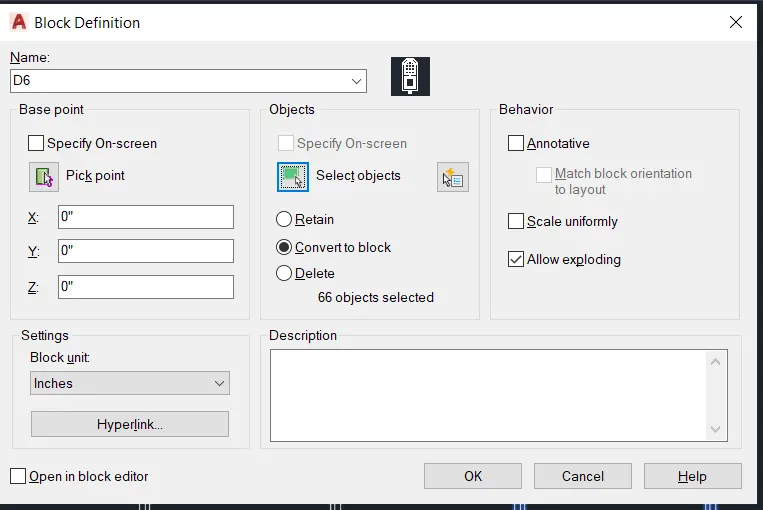
- Then Click "B''Block command to create the block
- And Select the object and click enter to create the block.
- And Click "SAVE"command to save the Text.
- Finally we SNIPPING TOOL to screenshot the drawing.
5.AIM:
- Create each shape as a block as shown in the Figure.
Create shape as a block:
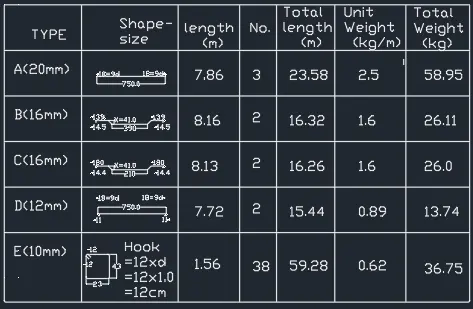
- Create the shape and block with use of line command.
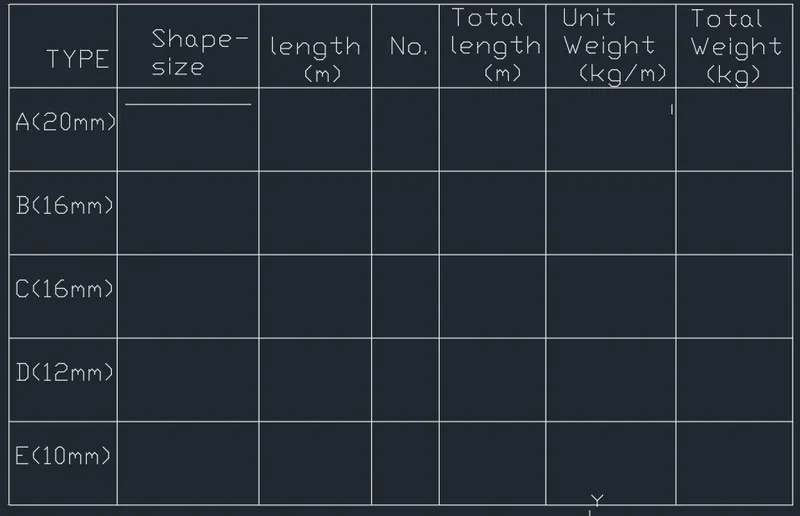
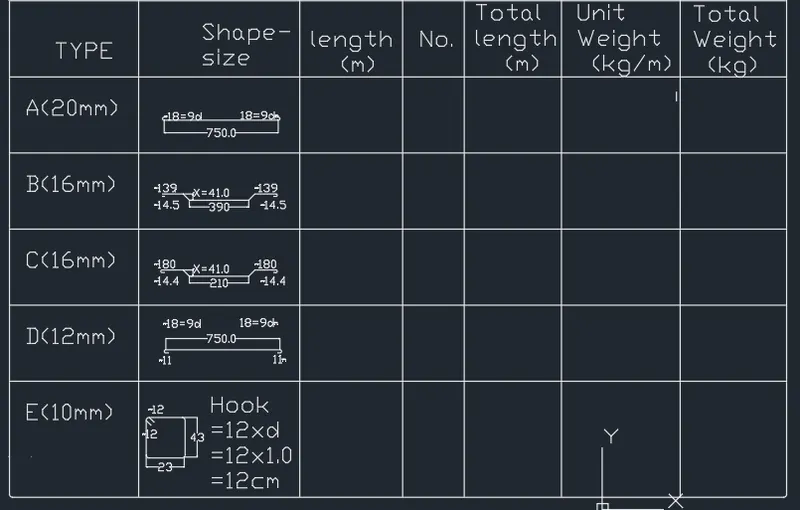
- First we create the tabulare column.
- Then we create the text to create the symbol.
- We create the Symbol and use fillet command for curve.
- Then Click "B''Block command to create the block
- And Select the object and click enter to create the block.
- And Click "SAVE"command to save the Text.
- Finally we SNIPPING TOOL to screenshot the drawing.
Result:
In this challenge we create the various types of drawing and Learn to use a block command.