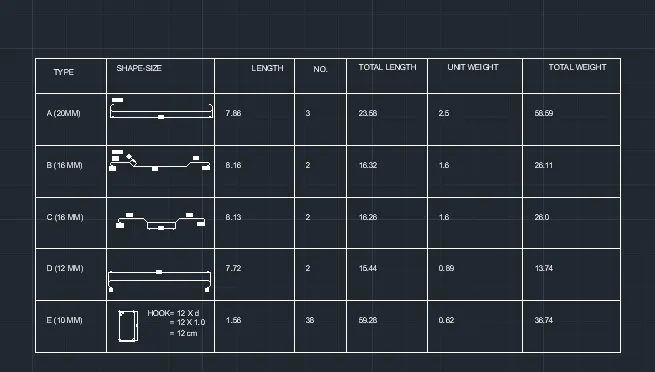
Creating Bar Bending schedule, Different Door types, and Creation of standard drawing templates using AutoCad
Aim:- To Creat the Bar Bending Schedule, Different Door Types and Creating the Title blocks As per the Requirments or as per Standered size of paper Using AUTOCAD Application.
Introduction:
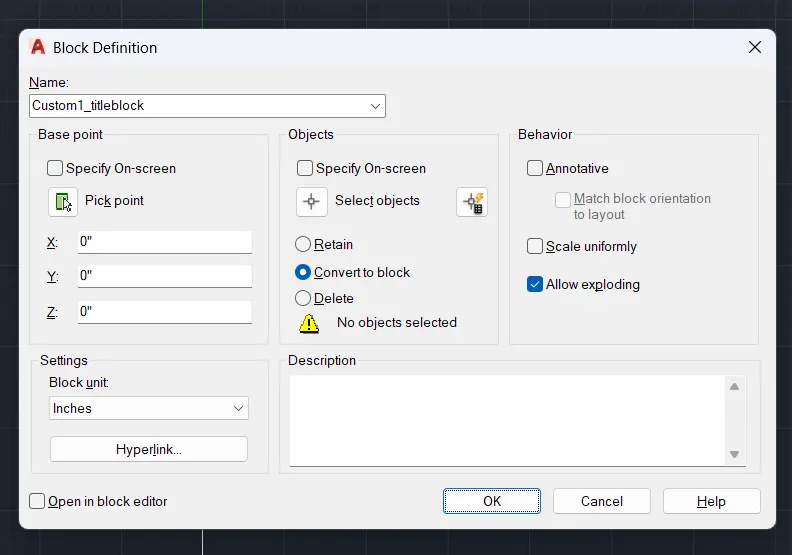
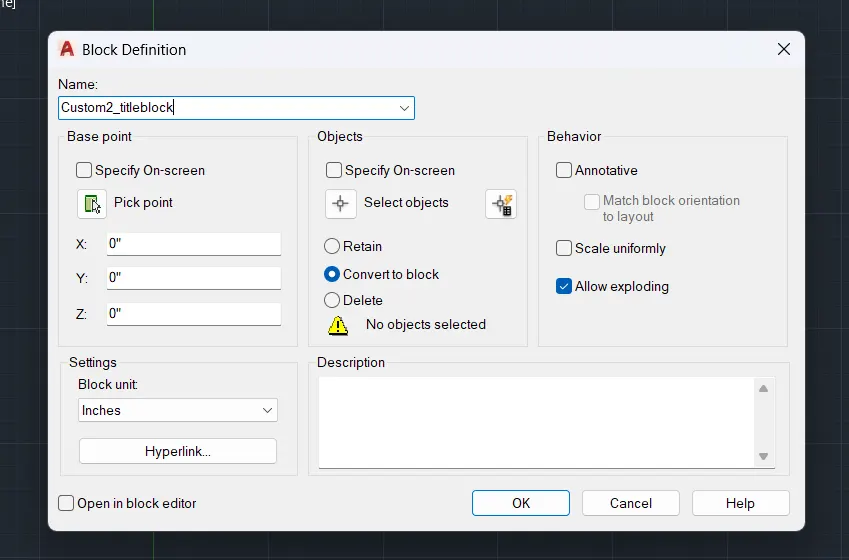
1. Almost every drawing entered into this challenge has been turned into a block. Use the command BLOCK (type B in the command line) to create blocks. Then, give the block a unique name, specify the origin and the objects for the block to be created, adjust the other parameters as needed, and click the OK button.
2. To insert a block, choose the block to be inserted and use the command INSERT (enter I on the command line).
3. The block can be utilised in any other AutoCad drawing by saving it as an AutoCad file using the WBLOCK command.
4. Use the ATT (Define Attribute) command to insert the variable text.
5. Blocks simplify the drawing, save time, and minimise file size. They help make the drawing more consistent.
Drawing-1:
Procedure:
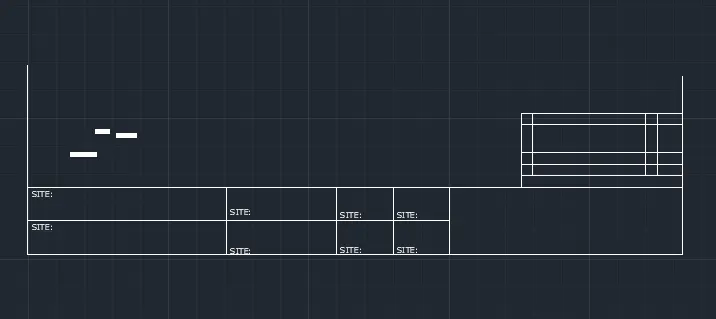
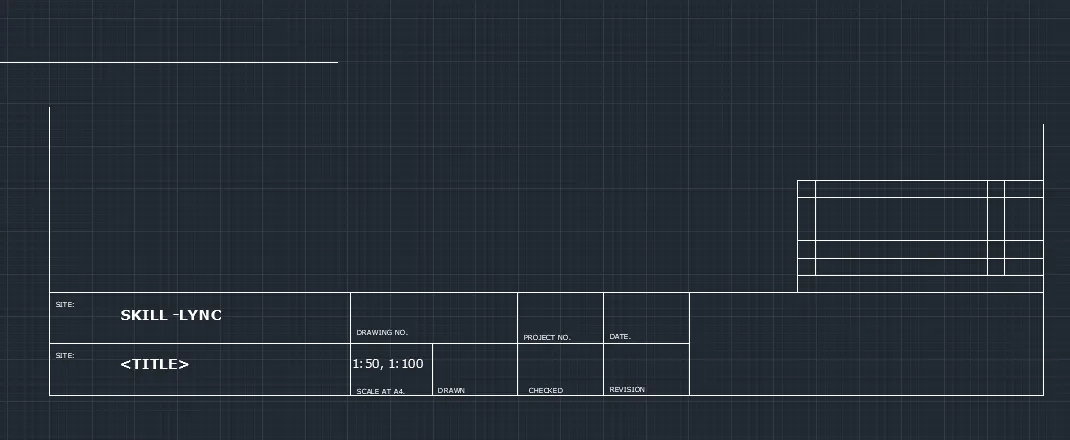
- At first creat the new dwg in Autocad
- now using the drafting tools creat the template table.
- then enter the required text in using verdana front.
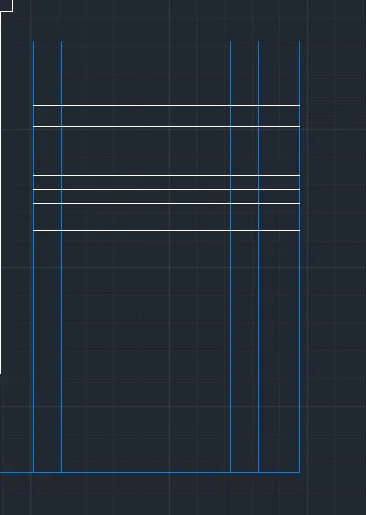
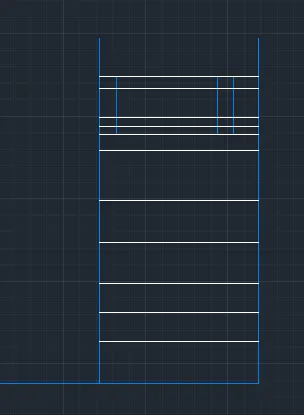
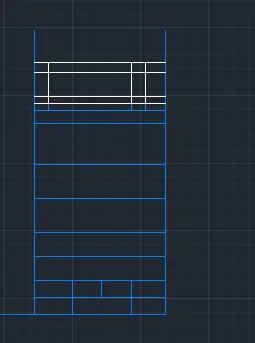
RESULT:
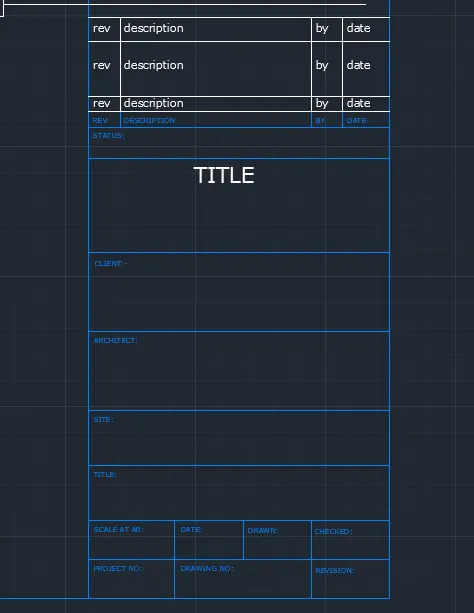
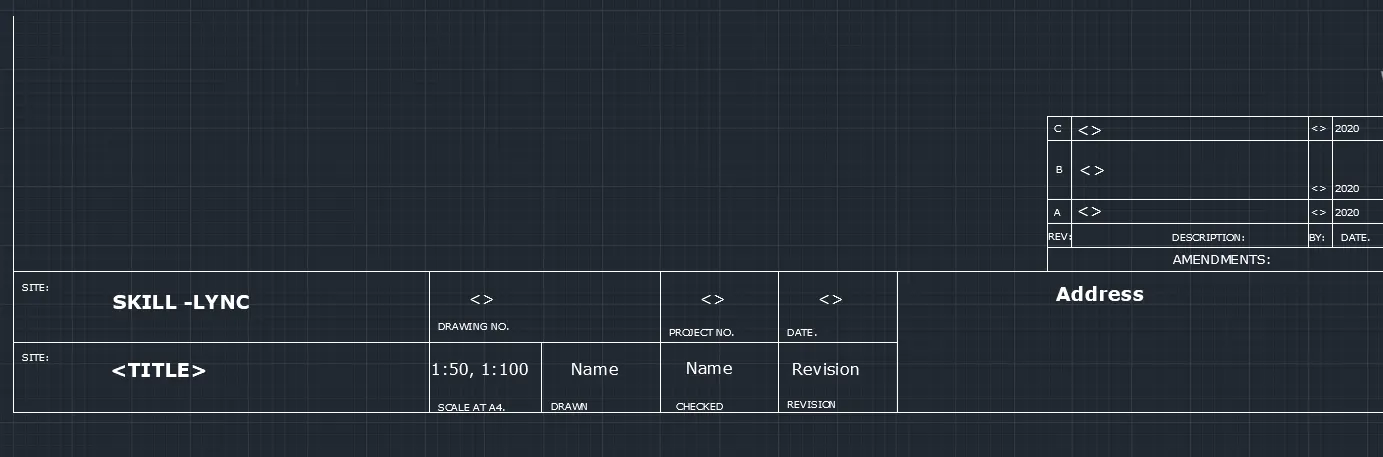
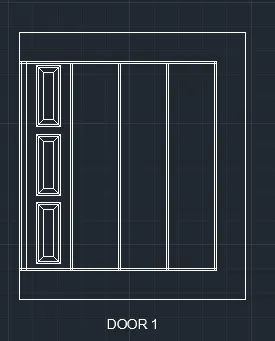
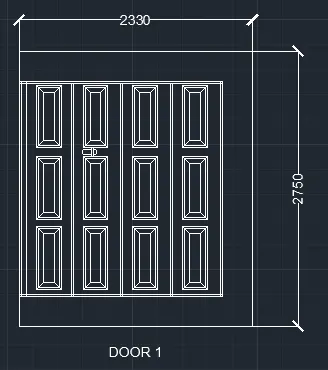
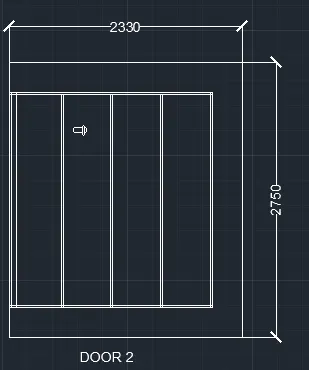
Drawing-2: Door Types of WareHouse.
- using drafting tools in Autocad First Creat The Rectangle of Size 2330 x 2750
- And the panels blocks using same drafting tools.
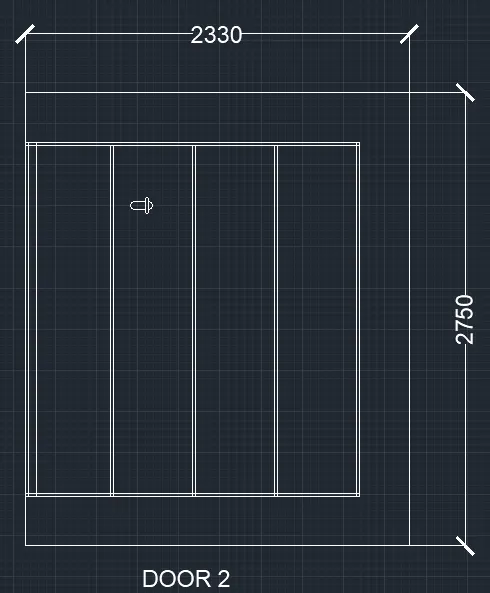
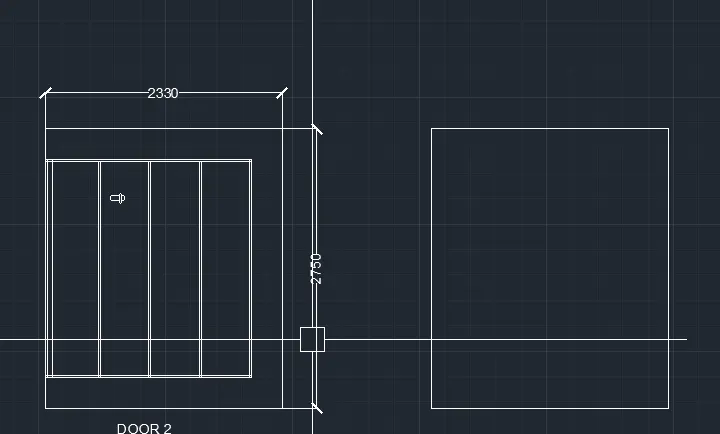
RESULT:
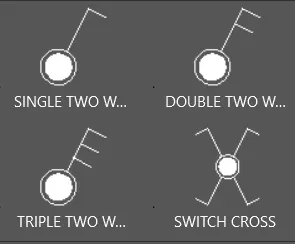
Drawing-3: Symbols legend of an electrical Dwg
- creat a table using drafting tools .
- And enter the text as required.
- now make the each symbols as block.



Result:
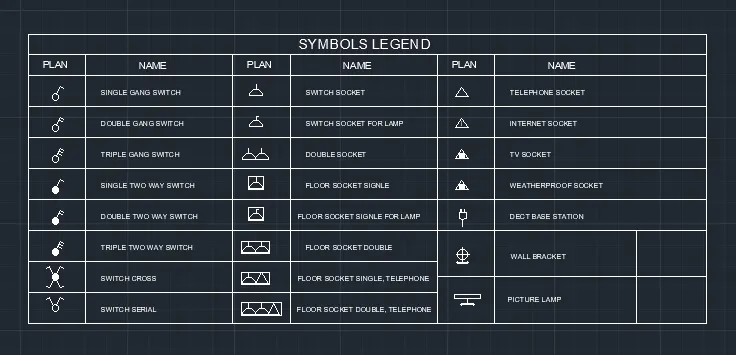
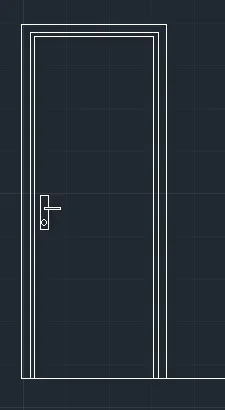
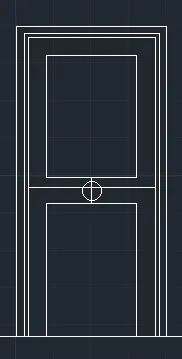
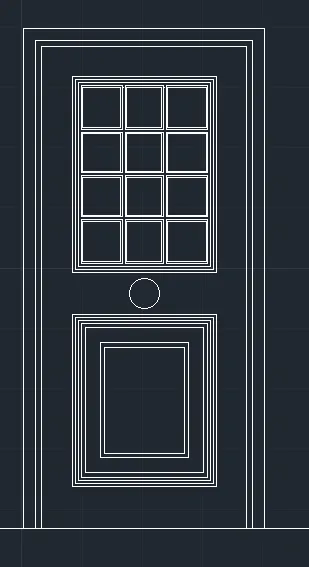
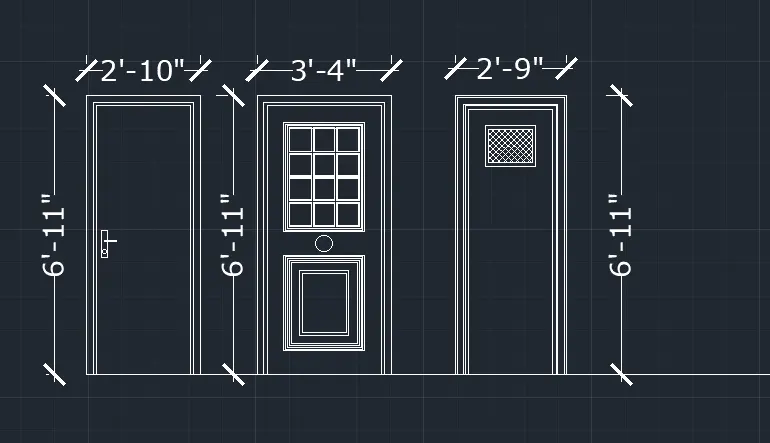
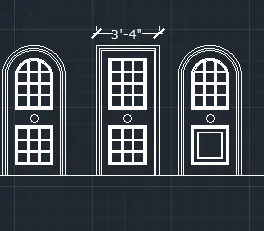
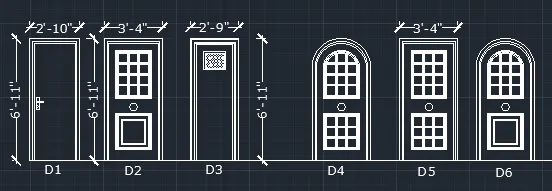
Drawing-4: Different type of door blocks of residential building
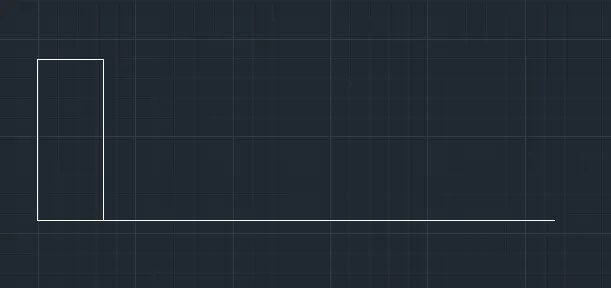
- Using different type of drafting tools like; rectangle, circle, line, arc, etc... draw the desire size and shape of door.
- for handle use the block reference from before hand created block.
Result:
Drawing-5: Different type of barbending blocks and a barbending table.
- first setup the shit by using mvsetup command in mm file and 1:1 scale.
- now using drafting tools like, line , offset, fillet, trime, extend creat the desire block.
- now creat the table and enter the text in the table and
- in the finle step insert the block created beforehand.
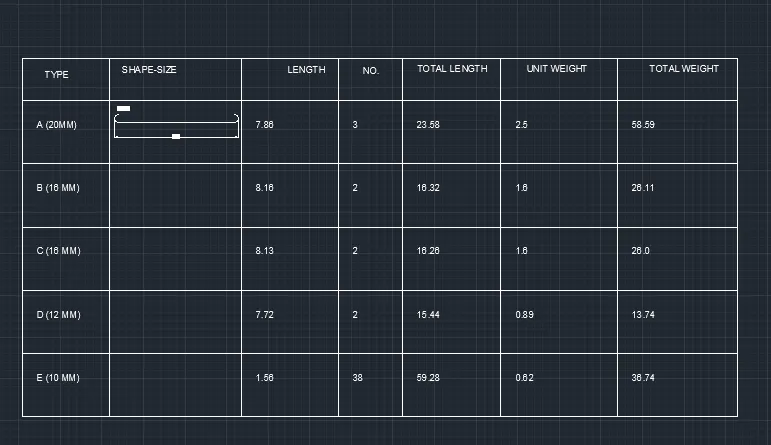
Result: