Creating Bar Bending schedule, Different Door types, and Creation of standard drawing templates using AutoCad
1. PROCEDURE
- Use command NEW ->Advanced Startup-> set the required units
- Or Set the required units using UNITS command.Here the unit system is DECIMAL
- Set the limit of the sheet using LIMMAX command
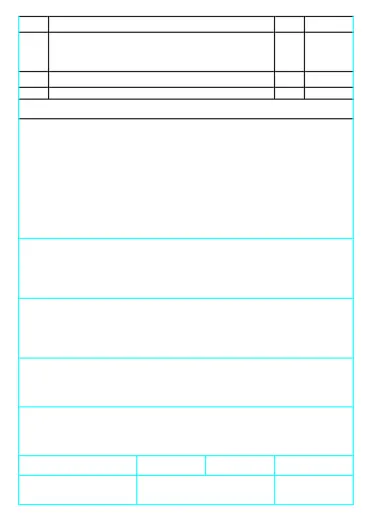
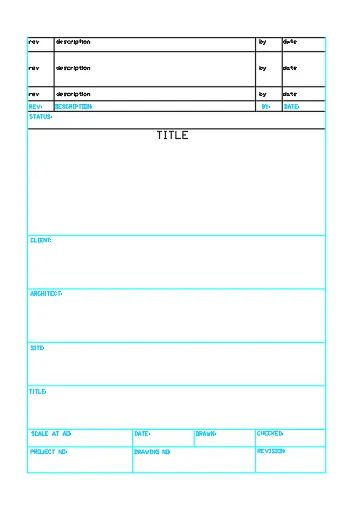
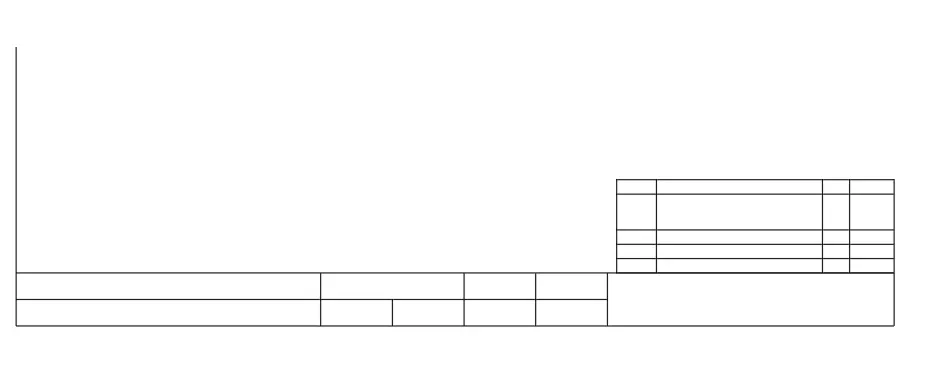
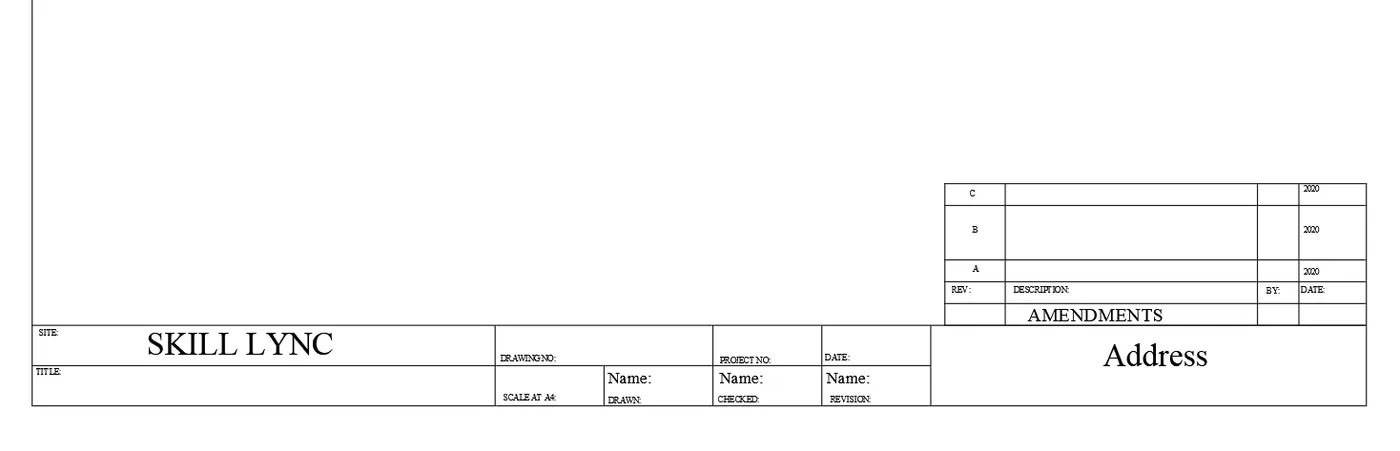
- Create the given template using the Commands like LINE,OFFSET,TRIM,COPY,MIRROR etc
- From the RIBBON >Home>Text,the texting of the geometry can be done or by using the TEXT command
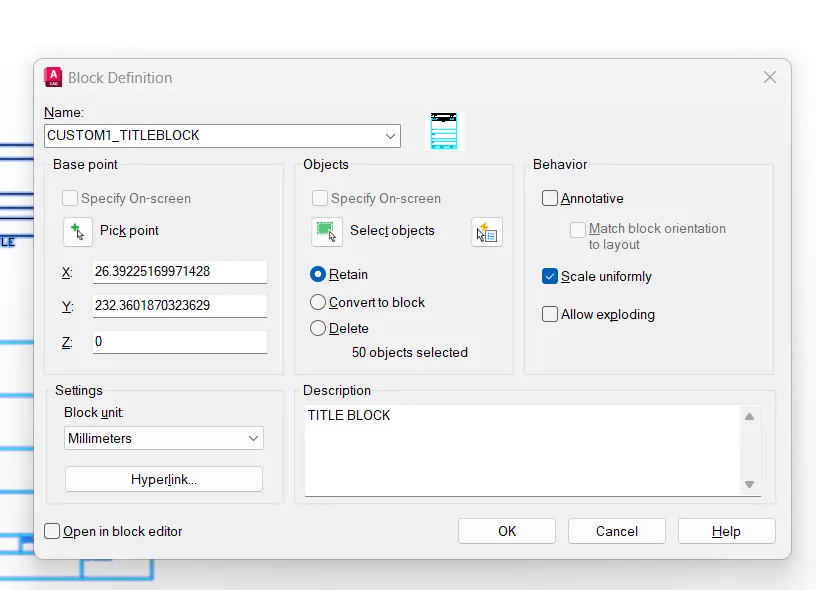
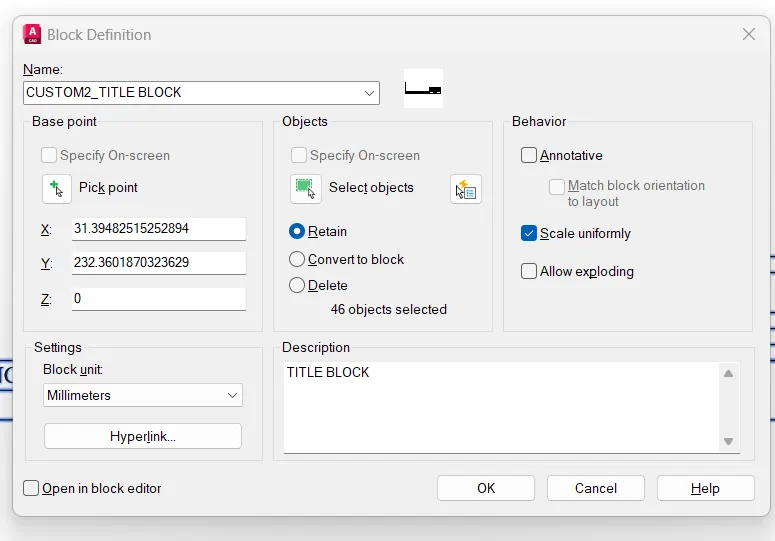
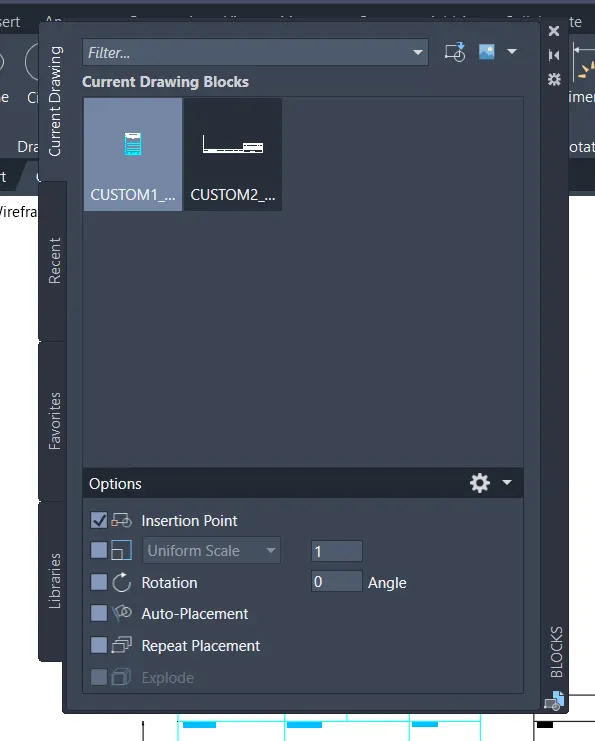
- BLOCK command can be used to make drawings convert to block
- INSERT command can be used for the block insertion
- Scaling of the object converted to block can be done using SCALE Command
2. PROCEDURE
- Use command NEW ->Advanced Startup-> set the required units
- Or Set the required units using UNITS command.Here the unit system is DECIMAL
- Set the limit of the sheet using LIMMAX command
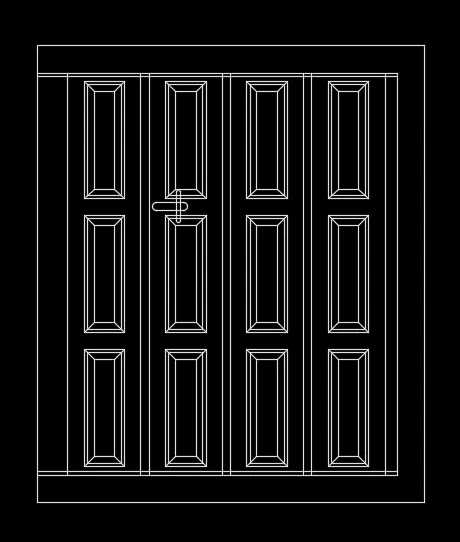
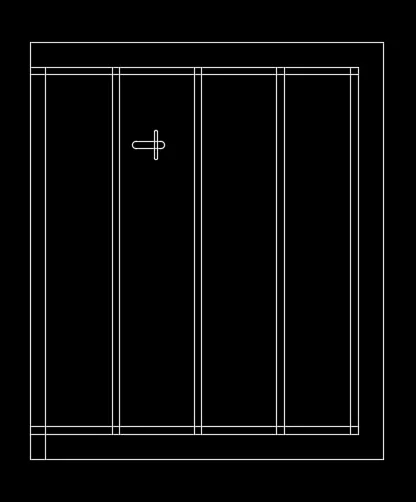
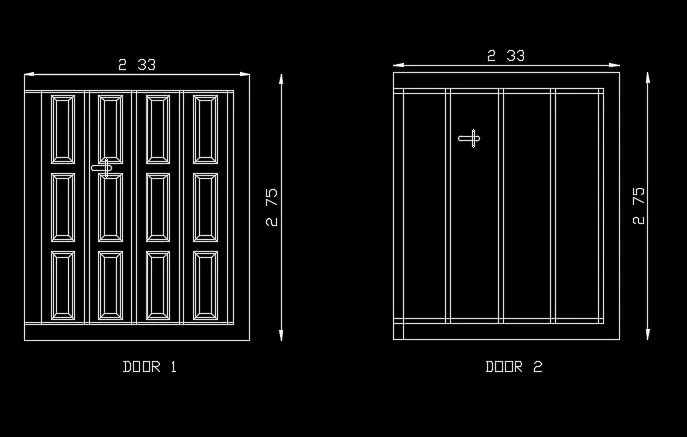
- Create the given door types using the Commands like LINE,OFFSET,TRIM,COPY,MIRROR ,RECTANGLE,EXTEND,FILLET etc
- From the RIBBON >Home>Text,the texting of the geometry can be done or by using the TEXT command
- Do the dimensioning of the geometry using the DIMENSION command from the menu bar or using the DIMLINEAR command
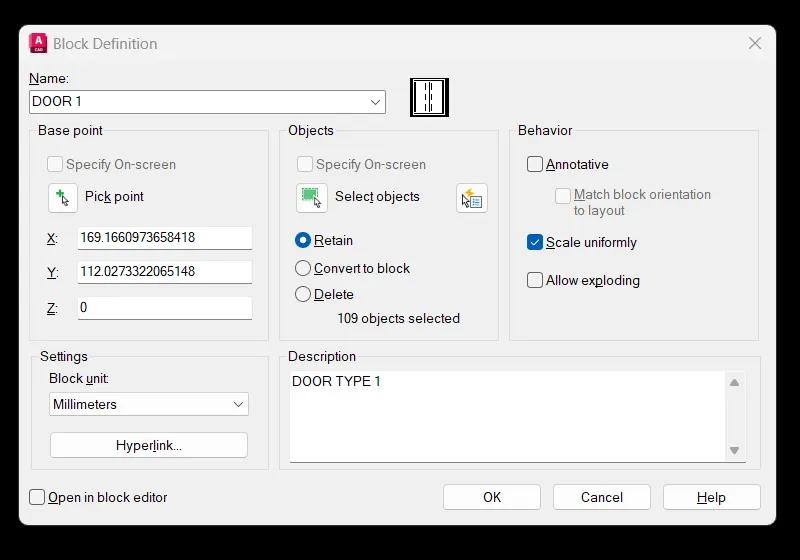
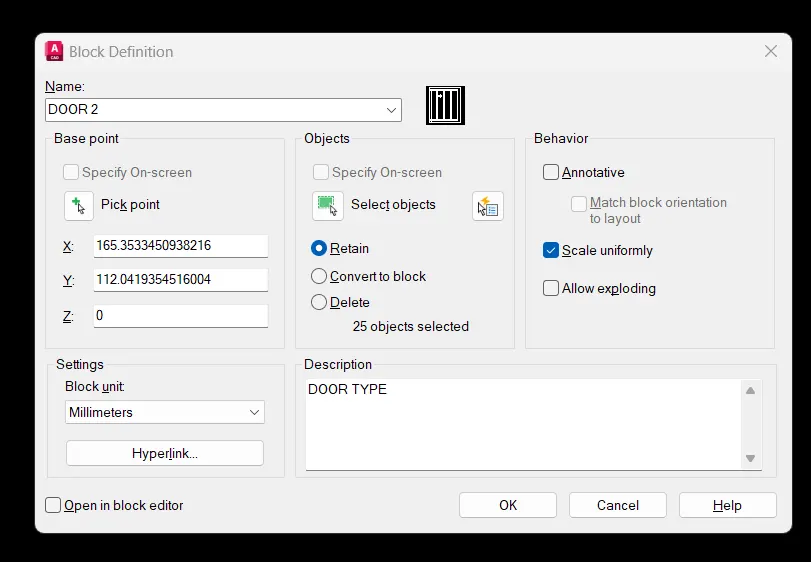
- BLOCK command can be used to make drawings convert to block
- INSERT command can be used for the block insertion
- Scaling of the object converted to block can be done using SCALE Command
3. PROCEDURE
- Use command NEW ->Advanced Startup-> set the required units
- Or Set the required units using UNITS command.Here the unit system is DECIMAL
- Set the limit of the sheet using LIMMAX command
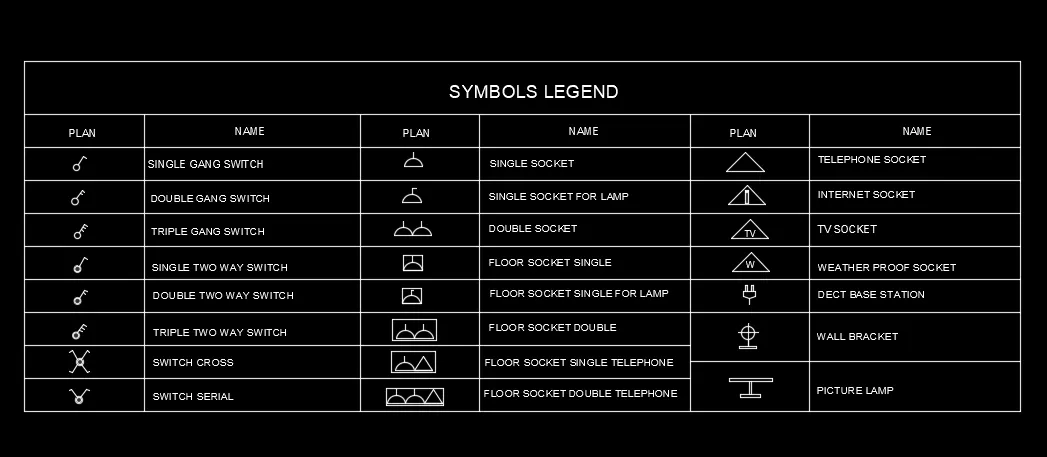
- Create the given symbols using LINE,OFFSET,TRIM,COPY,MIRROR,FILLET,RECTANGLE etc commands
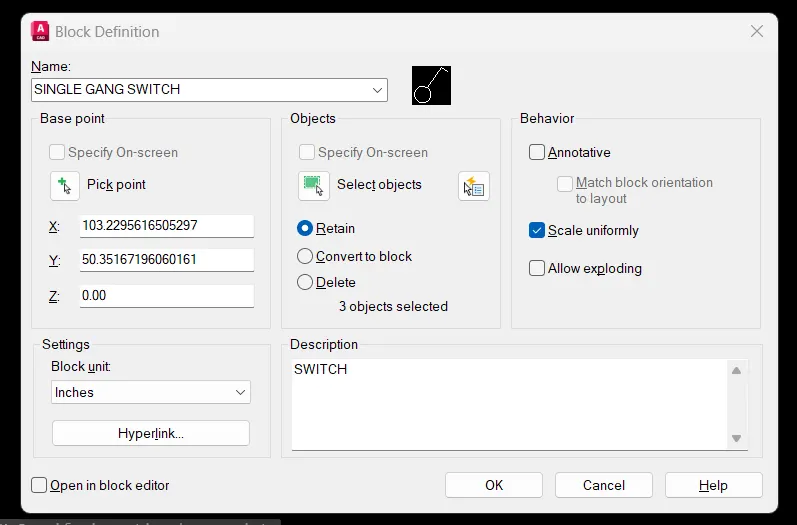
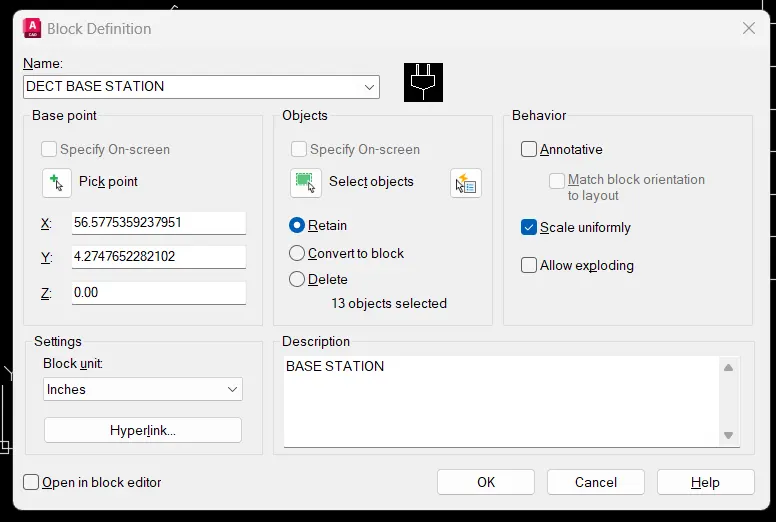
- Using the command BLOCK convert each symbol to block with their respective names given in the legend
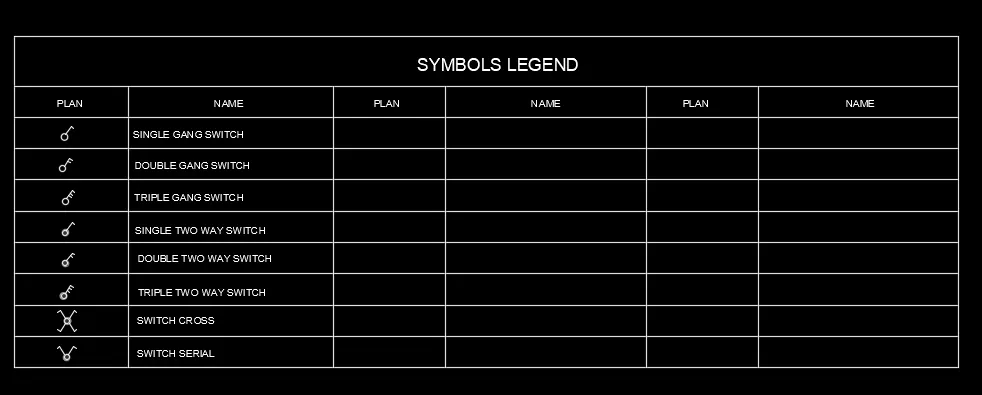
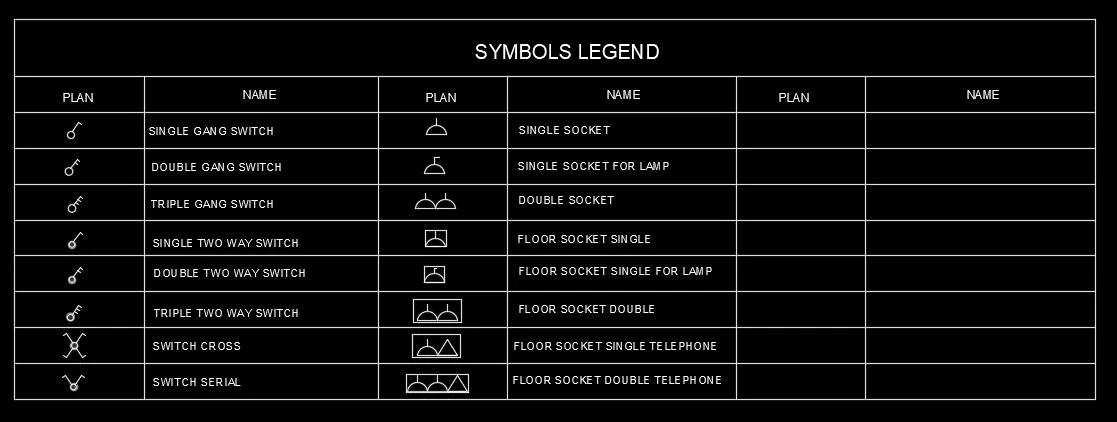
- Using the INSERT command ,insert the symbol in the drawn legend
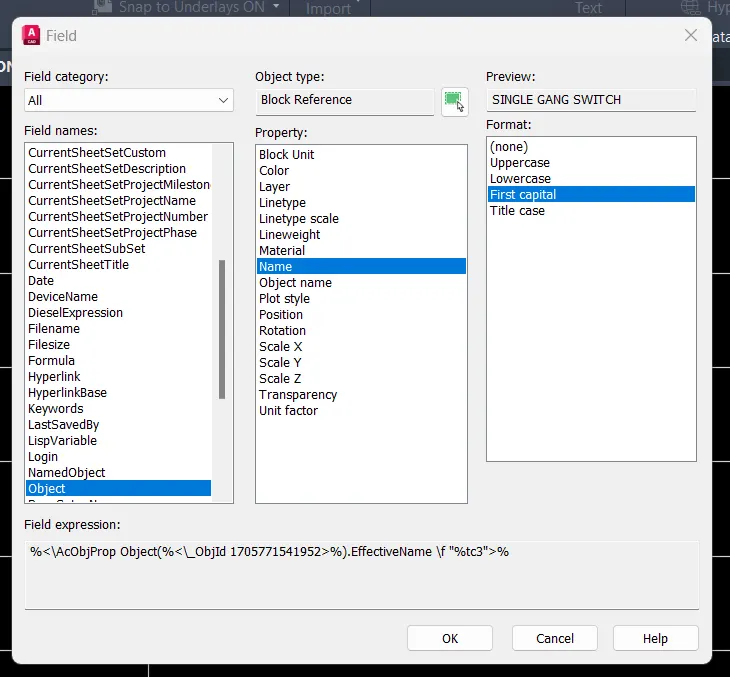
- The Name of the symbol is written in the legend from RIBBON - INSERT -FIELD
- Scaling of the object converted to block can be done using SCALE Command
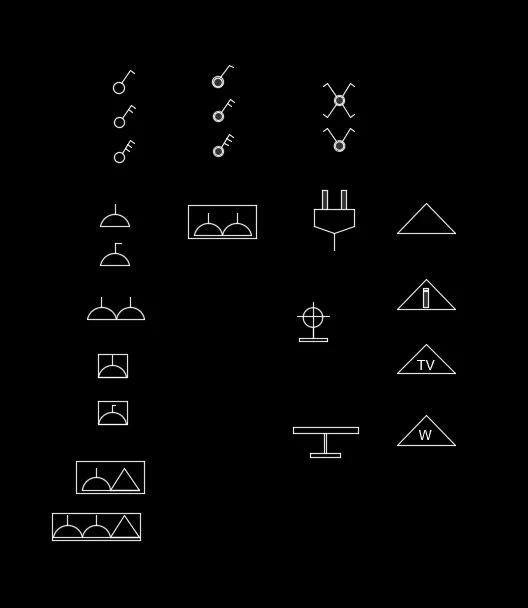
- Converting of symbols into BLOCKS ,Some of the examples are shown:
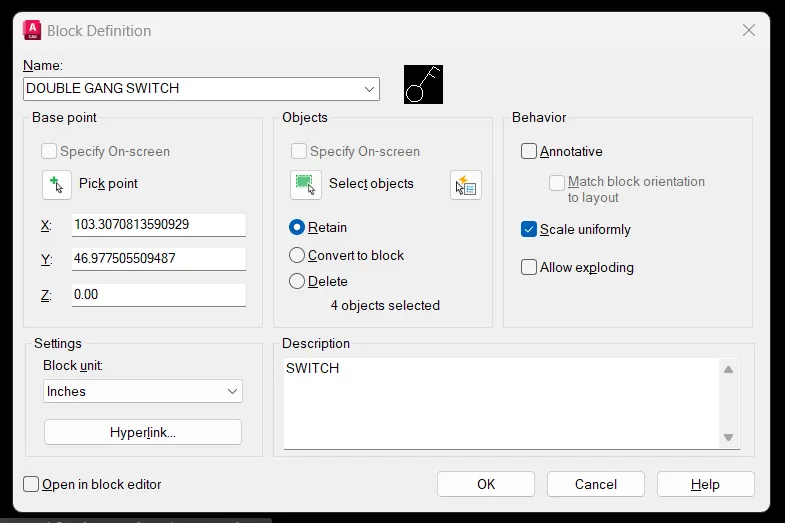
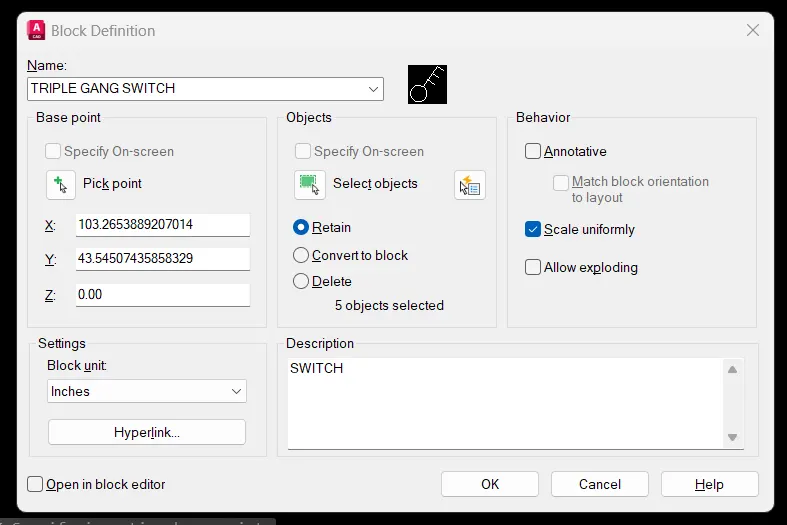
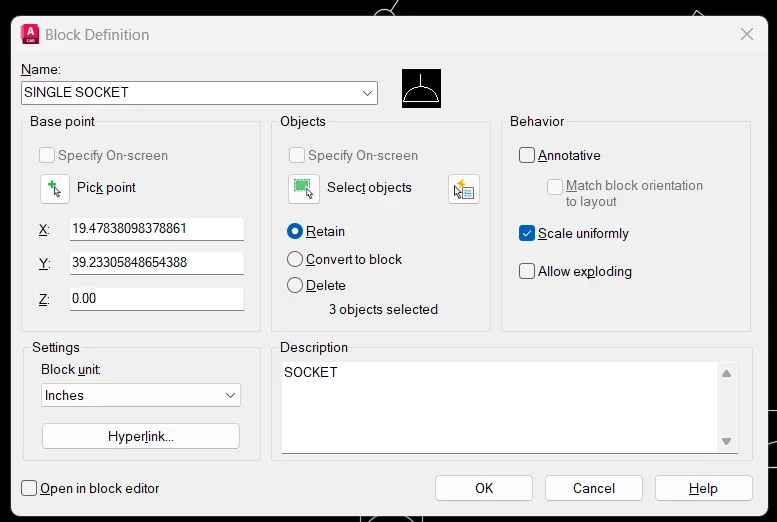
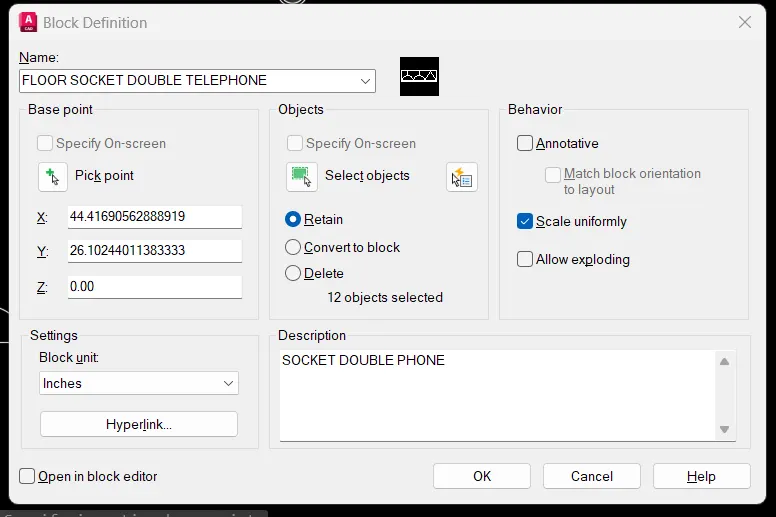
- For inserting the names of the symbols in the legend,from RIBBON tab select INSERT, in that go to the FIELD option.
- From the FIELD,select OBJECT,Select the required object whose details are required
- Here as we need the name of the object select the NAME option and then insert it on the legend
4. PROCEDURE
- Use command NEW ->Advanced Startup-> set the required units
- Or Set the required units using UNITS command.Here the unit system is DECIMAL
- Set the limit of the sheet using LIMMAX command
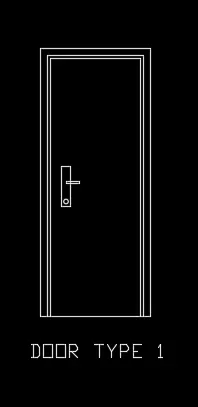
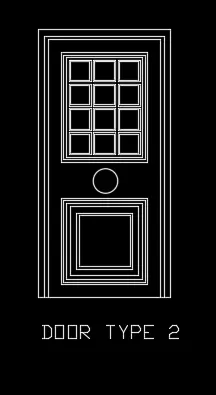
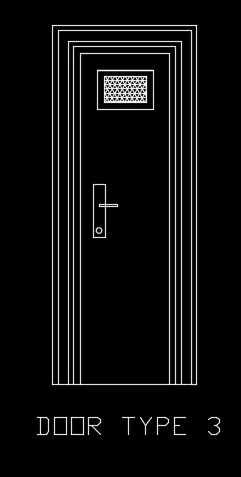
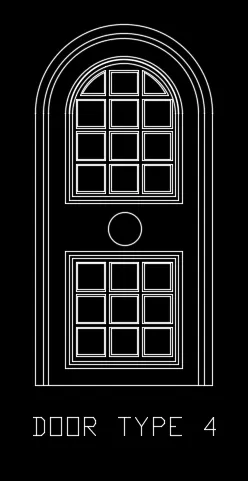
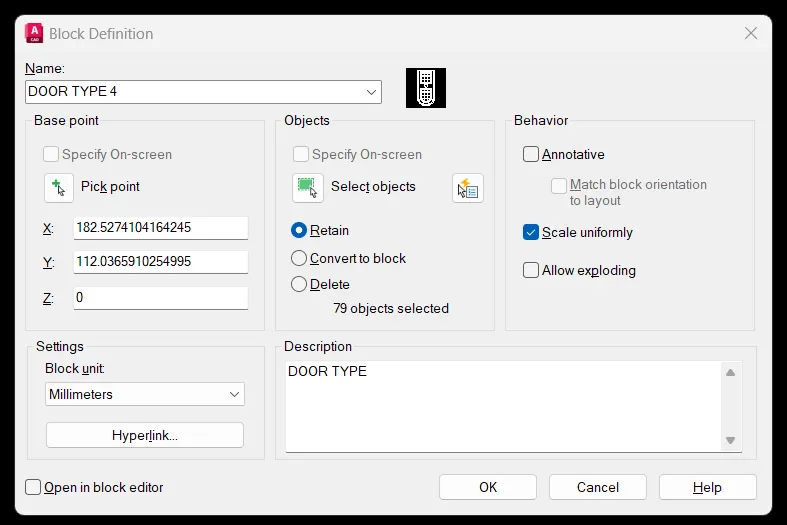
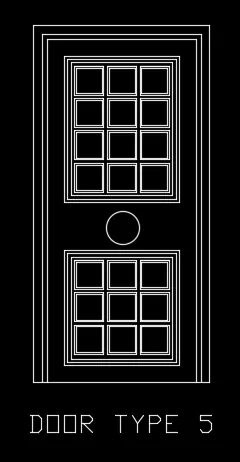
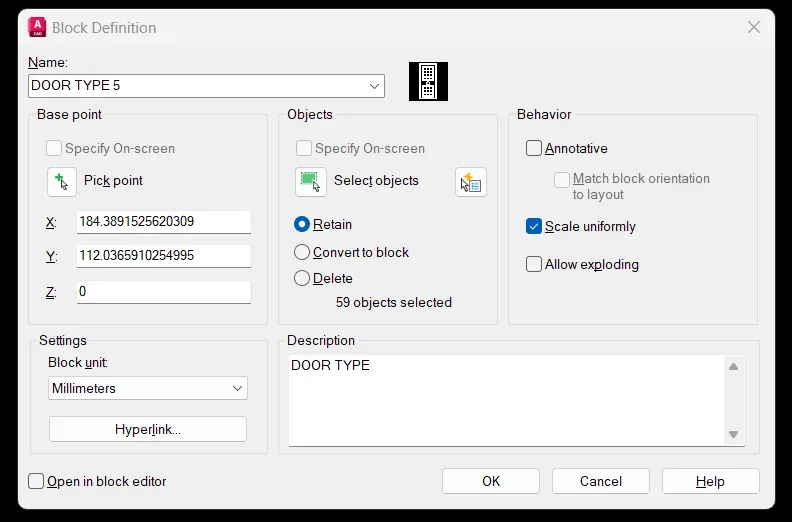
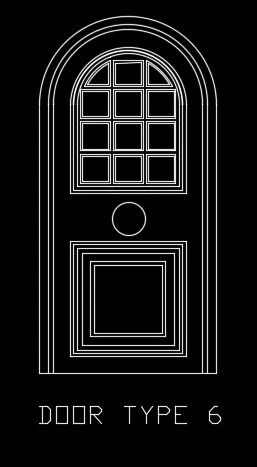
- Create the given door types using LINE,OFFSET,TRIM,COPY,MIRROR,FILLET,RECTANGLE etc commands
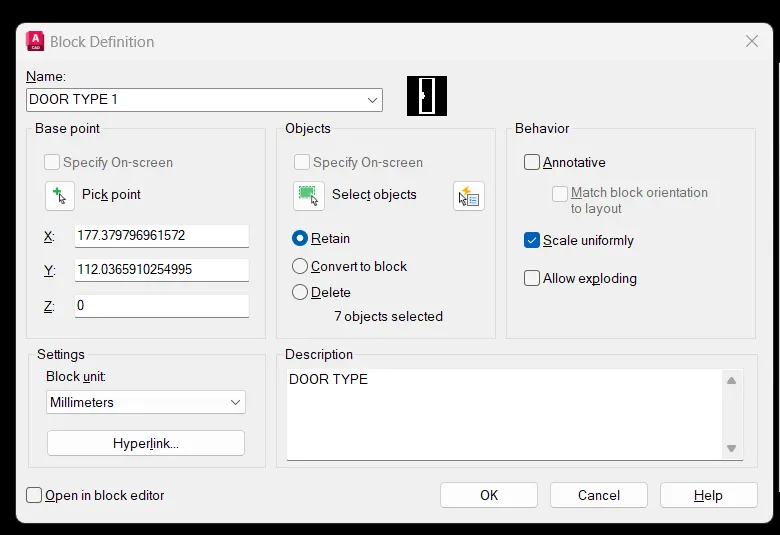
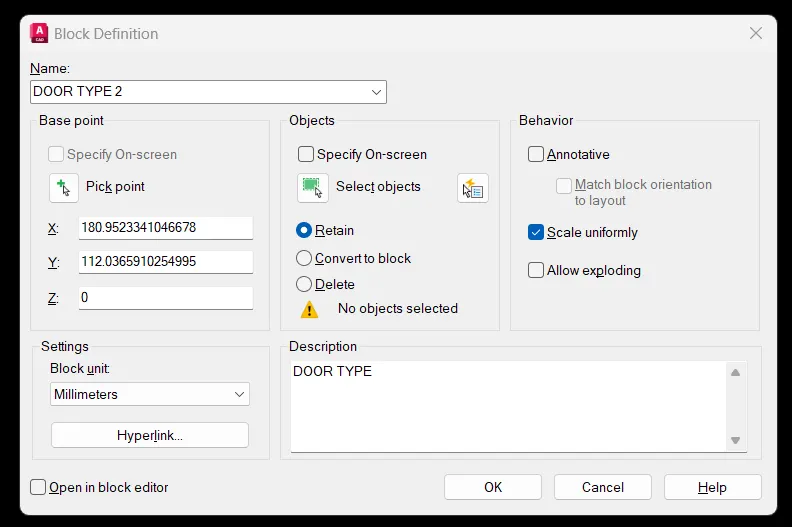
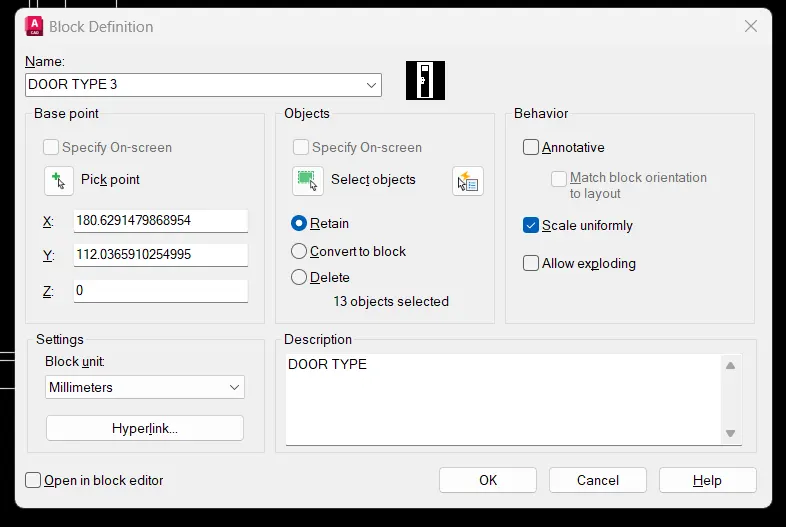
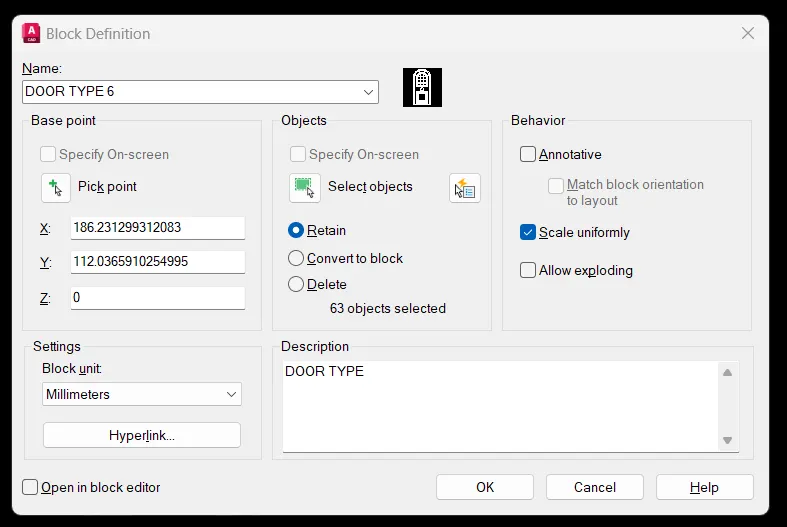
- Using the command BLOCK convert each door type to block
- Using the INSERT command ,the door types can be inserted wherever required
5. PROCEDURE
- Use command NEW ->Advanced Startup-> set the required units
- Or Set the required units using UNITS command.Here the unit system is DECIMAL
- Set the limit of the sheet using LIMMAX command
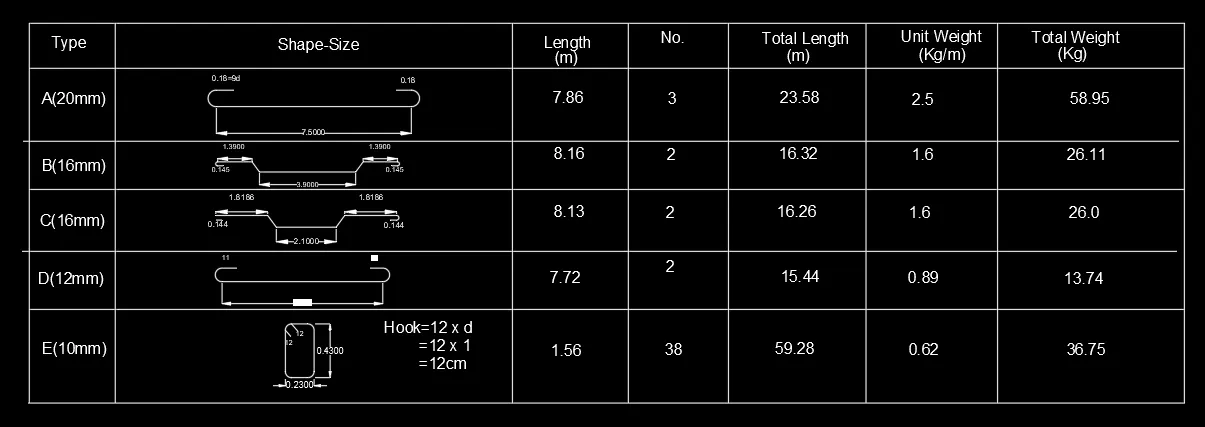
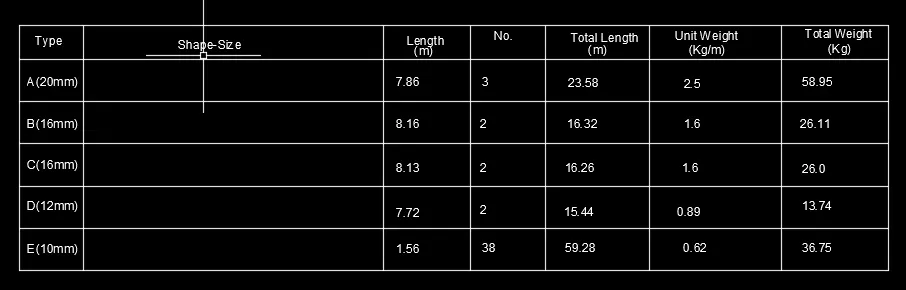
- Draw the TABLE with the contents given,table can be drawn either using the TABLE command 0r by using LINES, OFFSET Commands
- From the RIBBON >Home>Text or by using the TEXT command the texting of the contents in the table can be done
- Draw the required reinforcement details using the LINE,OFFSET,FILLET,TRIM,RECTANGLE,EXTEND etc Commands
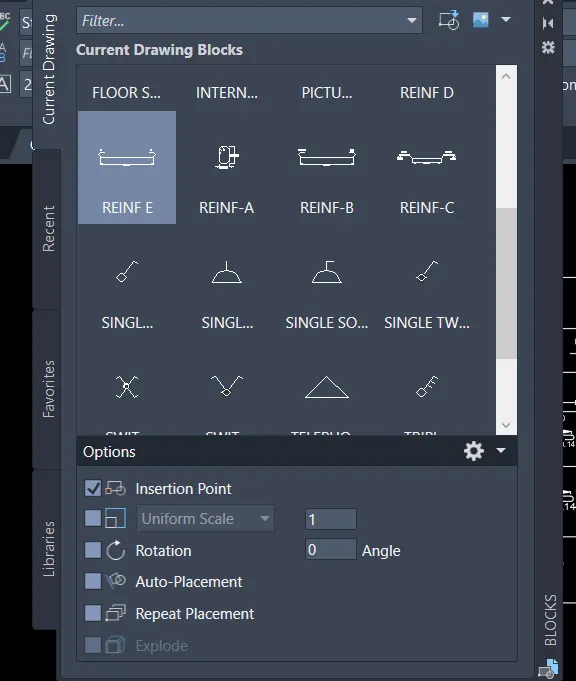
- Convert them to block using the BLOCK Command
- INSERT command can be used for the block insertion in the table
- Scaling of the objects converted to block can be done using the SCALE command
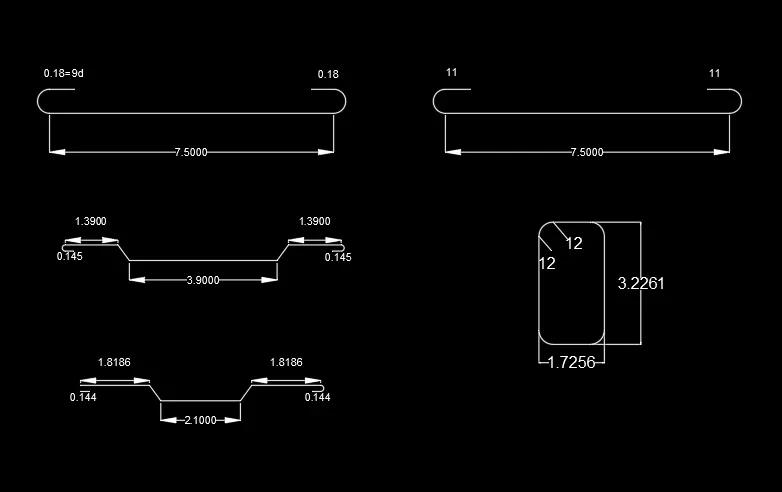
- An example of BLOCK creation
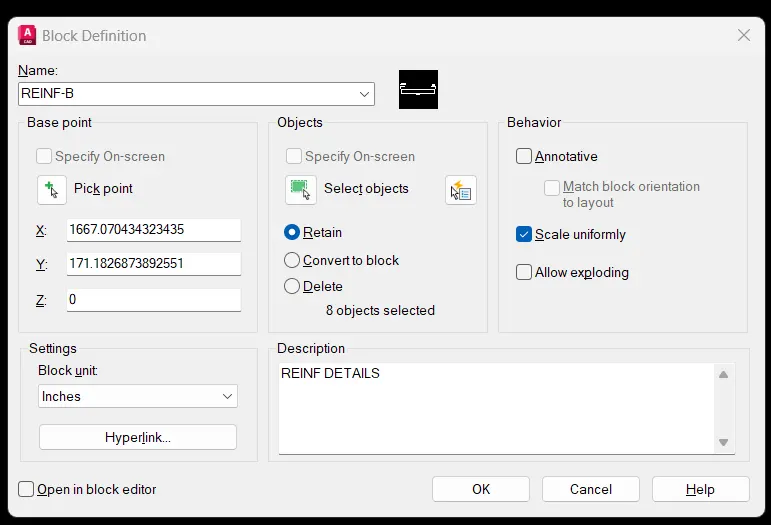
similarly other reinforcement details can be made as a BLOCK