Creating Bar Bending schedule, Different Door types, and Creation of standard drawing templates using AutoCad
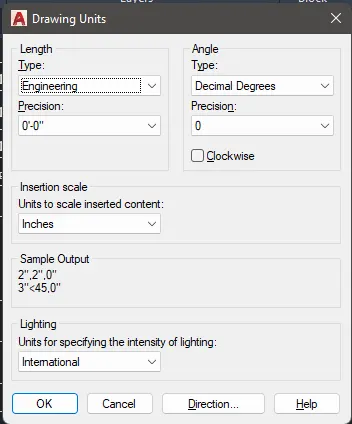
- Set the units and limits
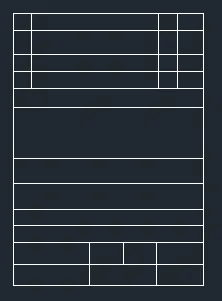
- Using line draw a table as shown in the fig
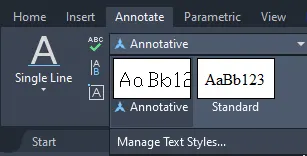
- In Annotate click on ‘Manage Text Style’
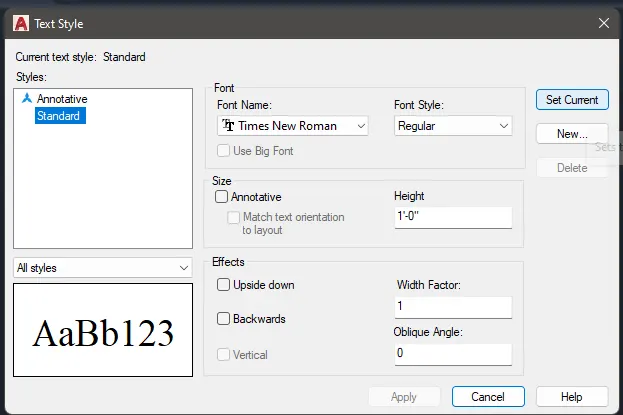
- Select the font Name, style and height
- Set Current and close
- Now select Standard and start texting
- After completing the text use B command to block the entire object
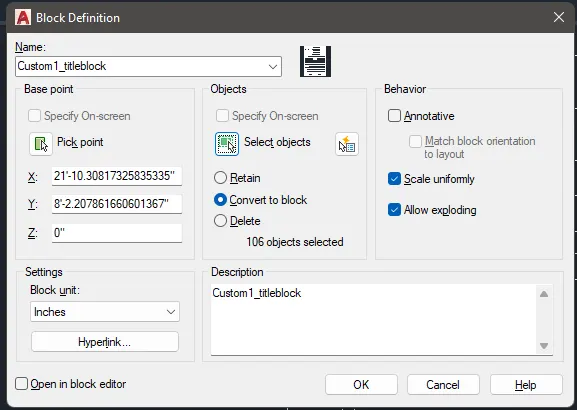
- Give the name and pick point, select object and OK
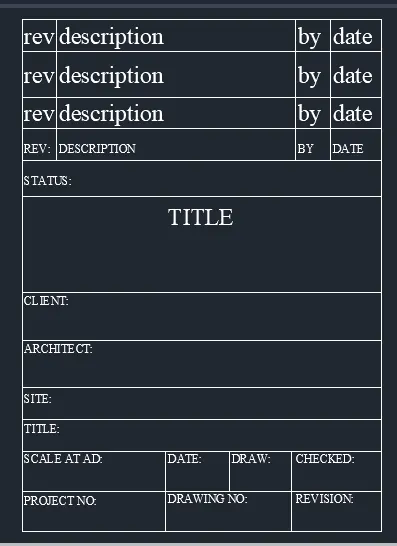
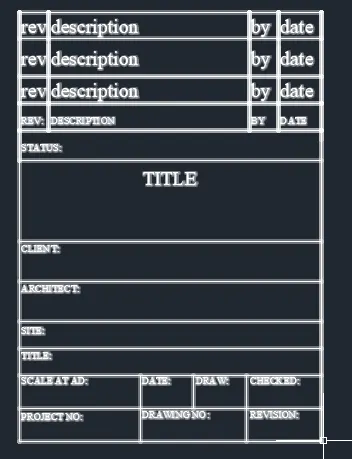
- Now entire object is in block
- Save the file name as ‘Custom1_titleblock’
________________________________________________________________________________________________________________________________________________
- Set the units and limits
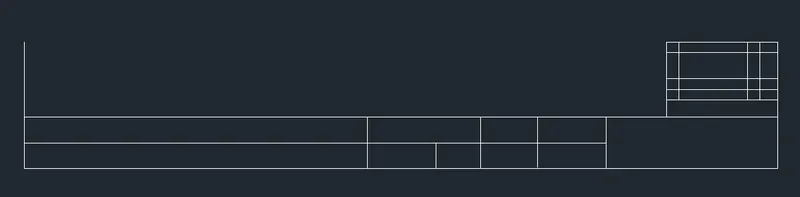
- Using line draw a table as shown in the fig
- In Annotate click on ‘Manage Text Style’
- Select the font Name, style and height
- Set Current and close
- Now select Standard and start texting
- After completing the text use B command to block the entire object
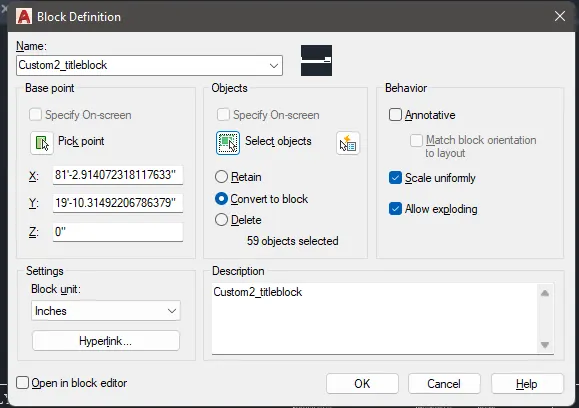
- Give the name and pick point, select object and OK
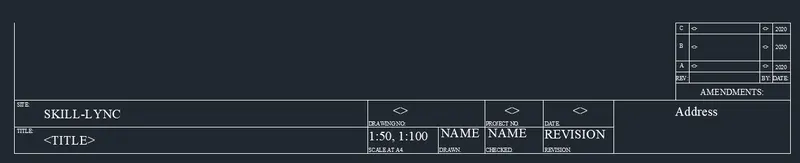
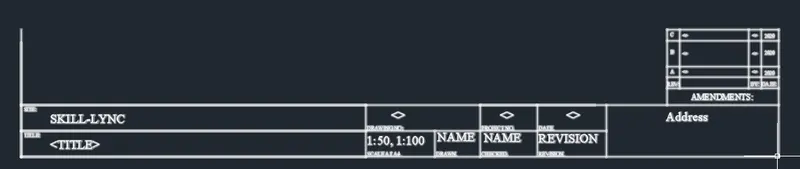
- Now entire object is in block
- Save the file name as ‘Custom2_titleblock’
_____________________________________________________________________________________________________________________________________________________
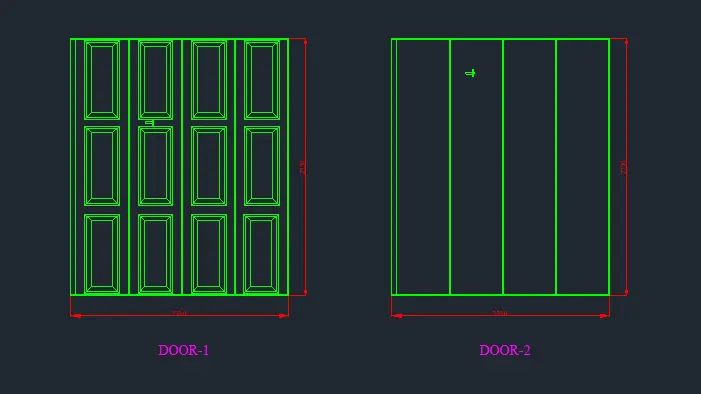
DOOR-1
- Set the units and limits
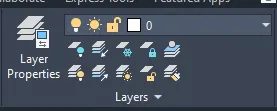
- Click on Layers Properties
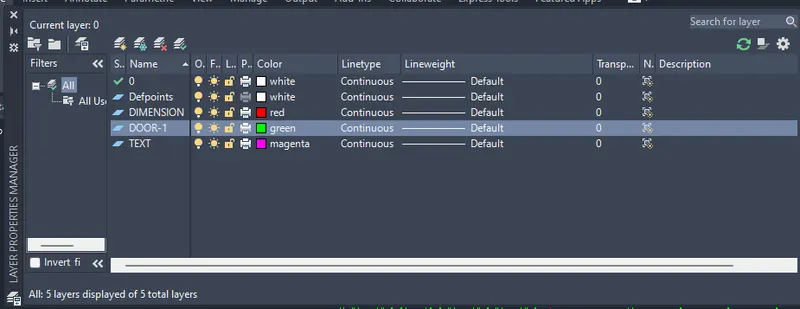
- Create the layers
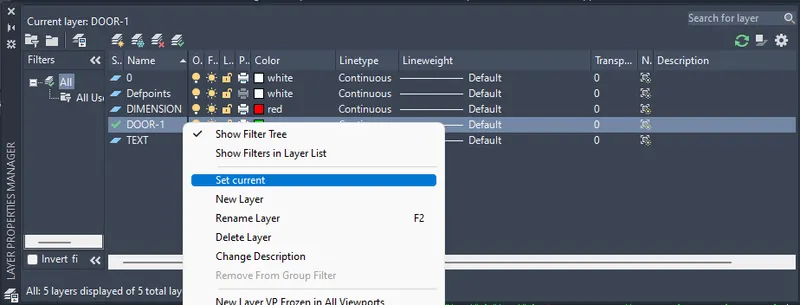
- Select DOOR-1 and select Set Current

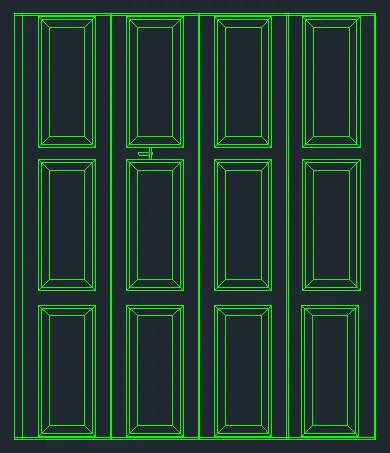
- After drawing Door using B command Block the entire object
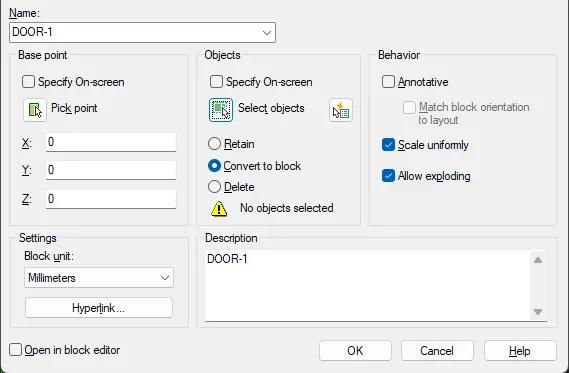
- Give the name and pick point, select object and OK
-
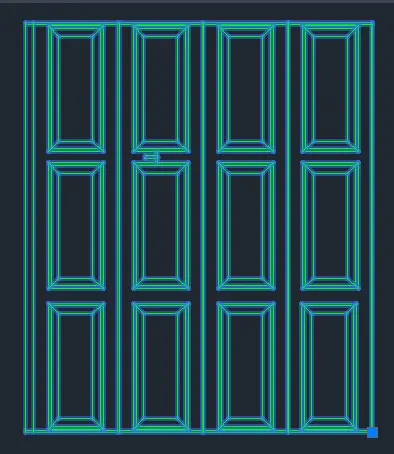
- Now entire object is in block
- Save the file name as ‘DOOR-1’
- Now change the Layer to Dimension

- Now using D command to set the dimension
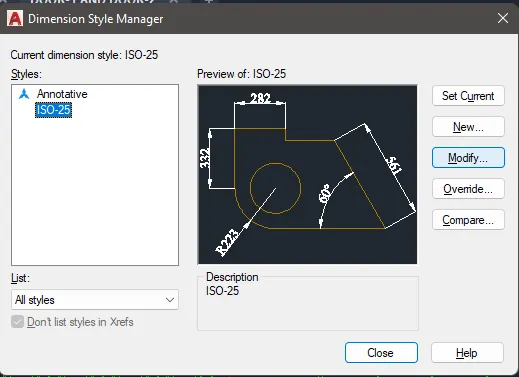
- Click on ‘Modify’
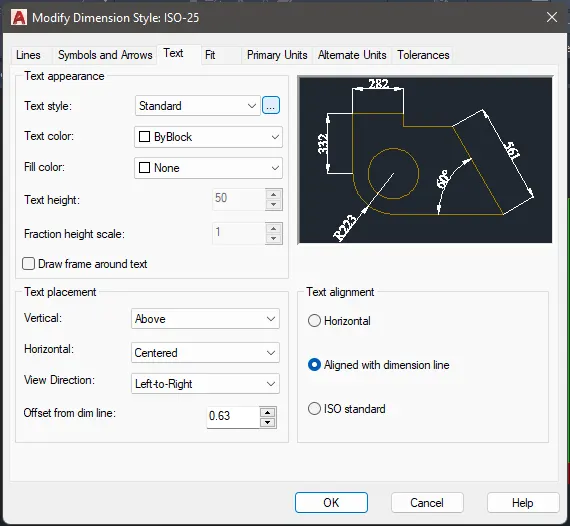
- Click on 3 dots
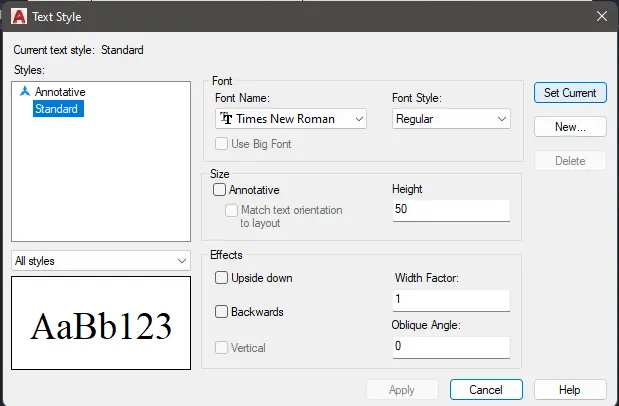
- Select the font Name, style and height
- Set Current and close
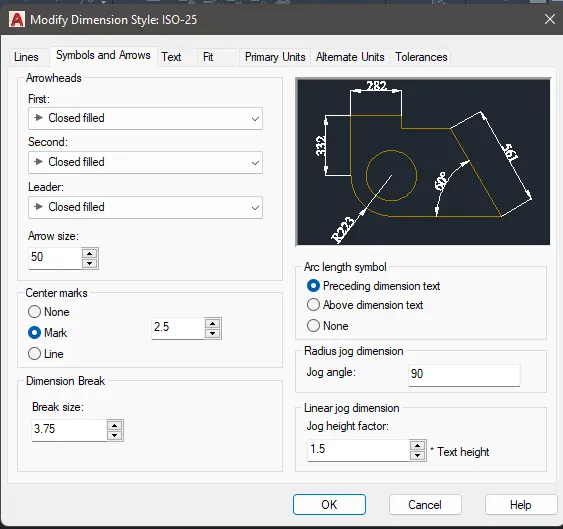
- In Symbols and Arrows change the Arrow size etc. click ok
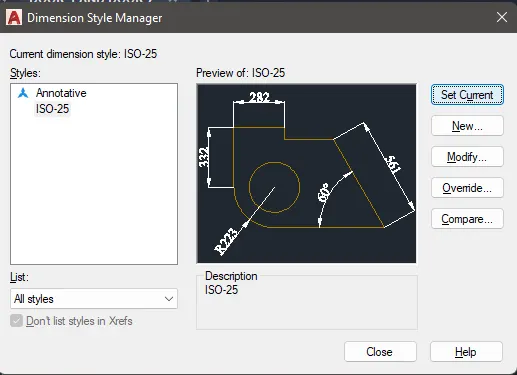
- After all the settings click on Set Current and close
- Now start giving dimension
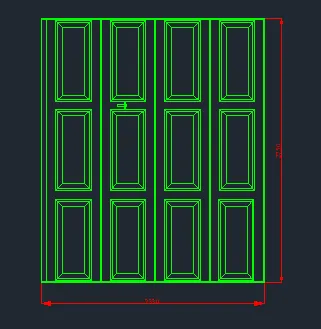
- Now change the Layer to ‘Text’

- To change the text style, go to Annotate
- In Annotate click on ‘Manage Text Style’
- Select the font Name, style and height
- Set Current and close
- Now select Standard and start texting
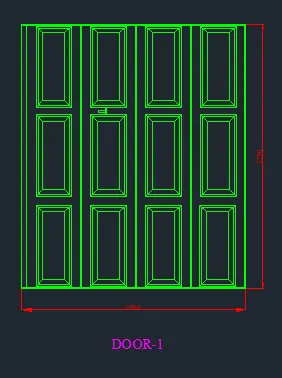
- Save the file name as ‘DOOR-1’
DOOR-2
- Set the units and limits
- Click on Layers Properties
- Create the layers
- Select DOOR-1 and select Set Current
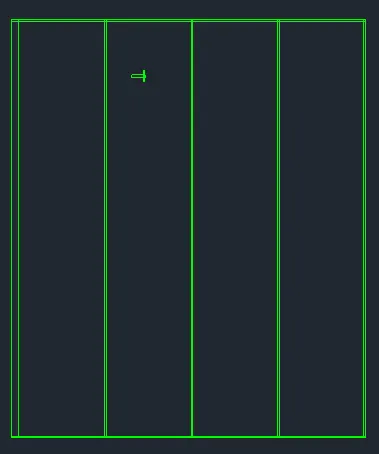
- After drawing Door using B command Block the entire object
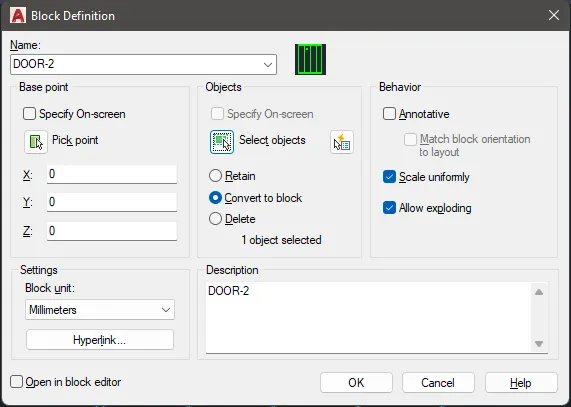
- Give the name and pick point, select object and OK
-
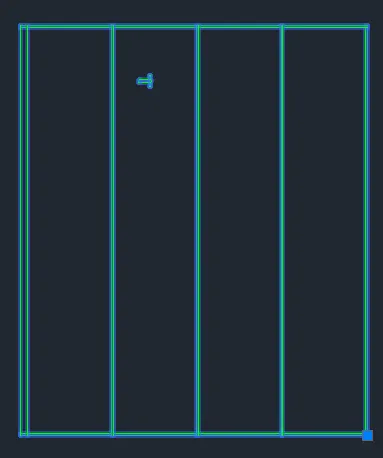
- Now entire object is in block
- Save the file name as ‘DOOR-2’
- Now change the Layer to Dimension
- Now using D command to set the dimension
- Click on ‘Modify’
- Click on 3 dots
- Select the font Name, style and height
- Set Current and close
- In Symbols and Arrows change the Arrow size etc. click ok
- After all the settings click on Set Current and close
- Now start giving dimension
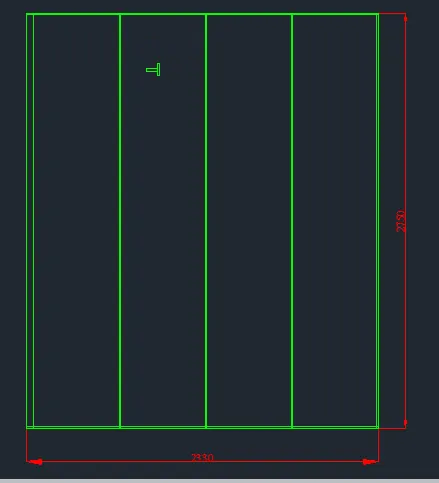
- Now change the Layer to ‘Text’
- To change the text style, go to Annotate
- In Annotate click on ‘Manage Text Style’
- Select the font Name, style and height
- Set Current and close
- Now select Standard and start texting
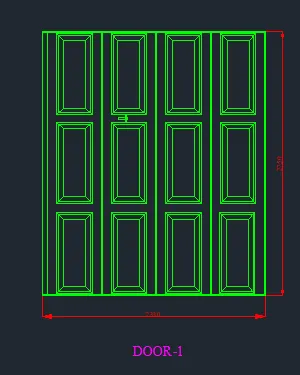
- Save the file name as ‘DOOR-2’
_____________________________________________________________________________________________________________________________________________________
D-1, D-2 and D3
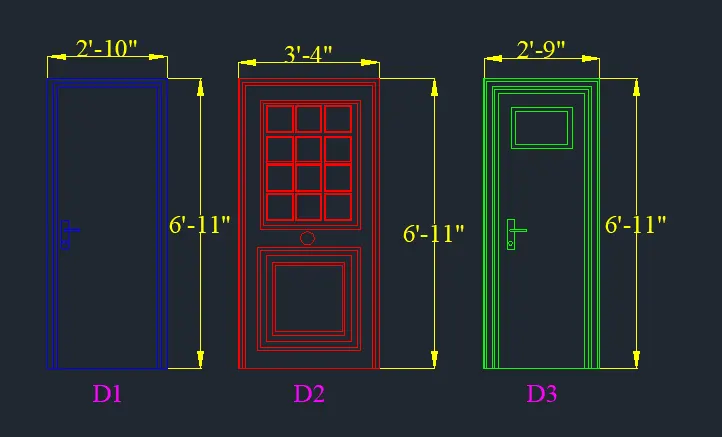
D-1
- Set the units and limits
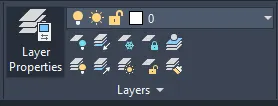
- Click on Layers Properties
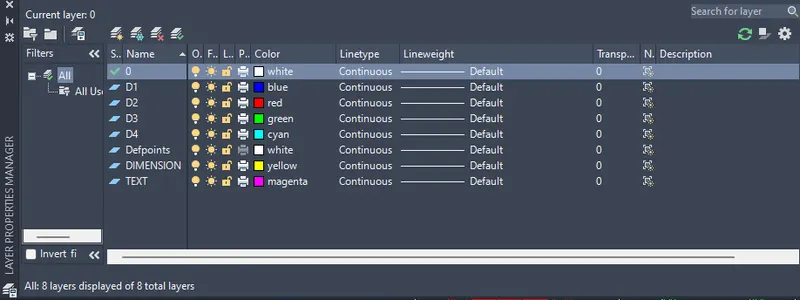
- Create the layers
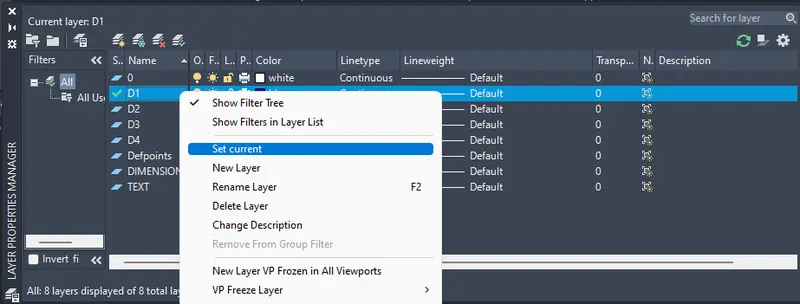
- Select DOOR-1 and select Set Current

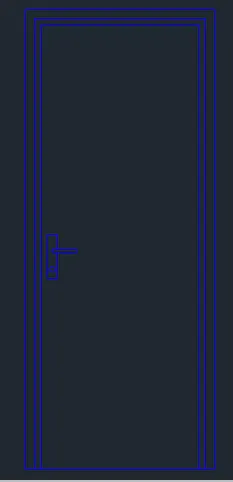
- After drawing Door using B command Block the entire object
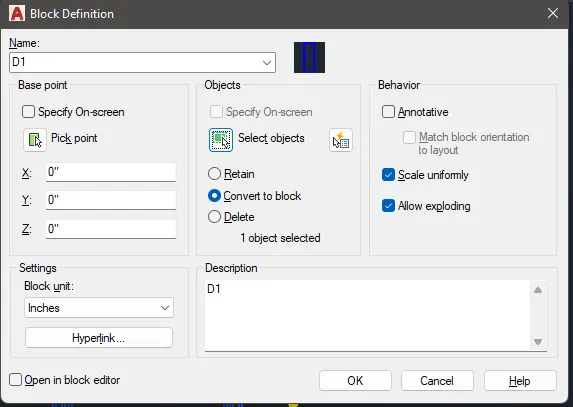
- Give the name and pick point, select object and OK
-
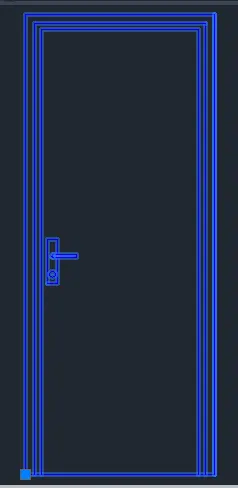
- Now entire object is in block
- Save the file name as ‘D-1’
- Now change the Layer to Dimension

- Now using D command to set the dimension
- Click on ‘Modify’
- Click on 3 dots
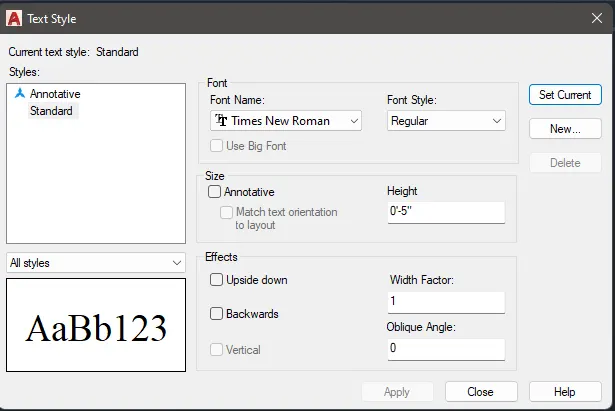
- Select the font Name, style and height
- Set Current and close
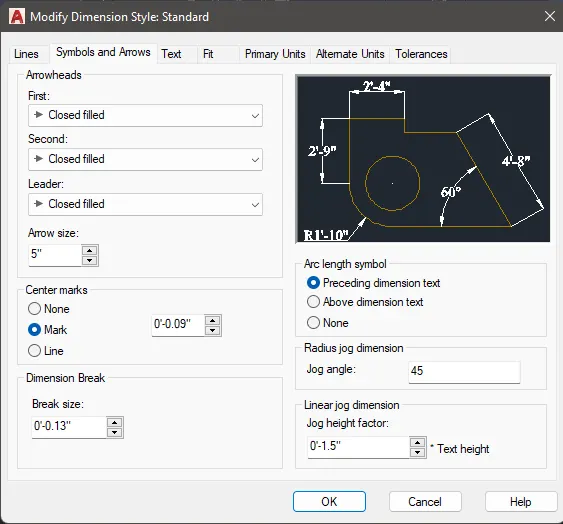
- In Symbols and Arrows change the Arrow size etc. click ok
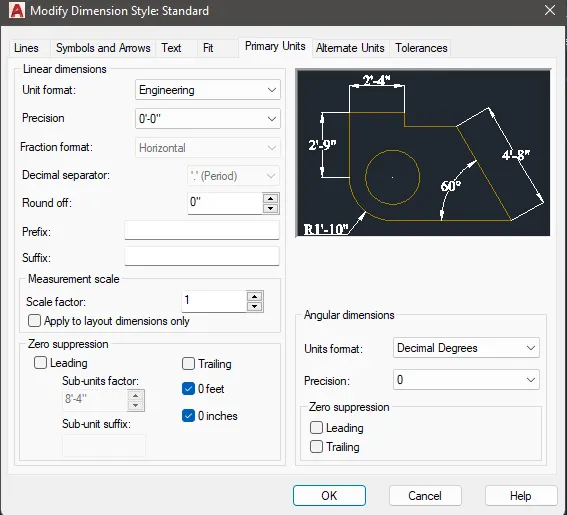
- In Primary units change the unit format and click ok
- After all the settings click on Set Current and close
- Now start giving dimension
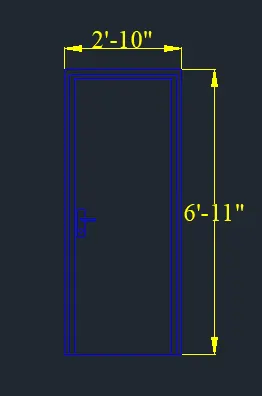
- Now change the Layer to ‘Text’
- To change the text style, go to Annotate
- In Annotate click on ‘Manage Text Style’
- Select the font Name, style and height
- Set Current and close
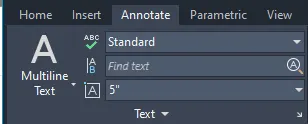
- Now select Standard and start texting
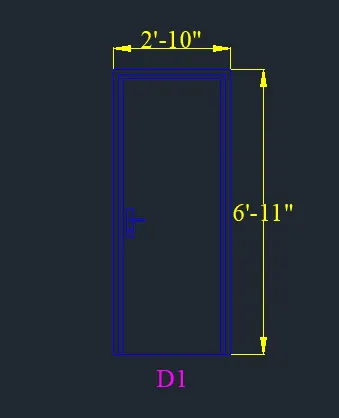
- Save the file name as ‘DOOR-1’
___________________________________________________________________
- Now change the Layer to D2

- Now start drawing Door with given dimension
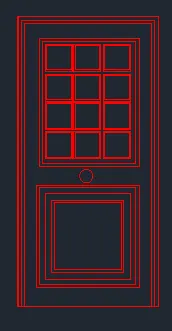
- After drawing Door using B command Block the entire object
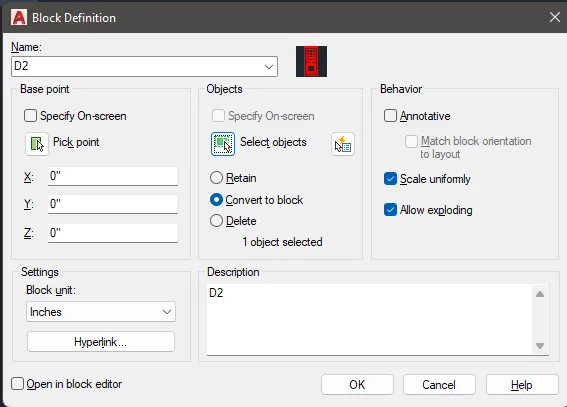
- Give the name and pick point, select object and OK
-
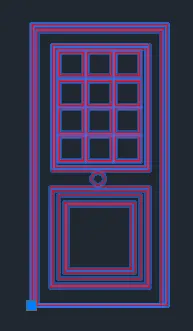
- Now entire object is in block
- Save the file name as ‘D-2’
- Now change the Layer to Dimension
- Now start giving dimension
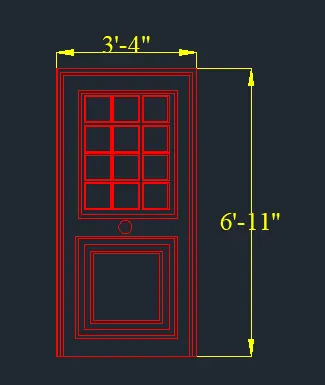
- Now change the Layer to ‘Text’

- Start texting
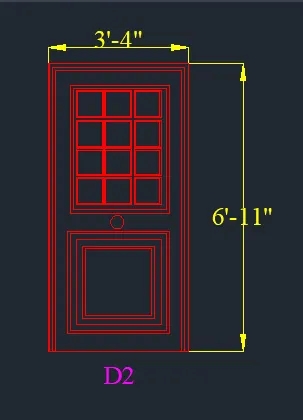
- Save the file name as ‘D-2’
______________________________________________________________________
D-3
- Now change the Layer to D3

- Now start drawing Door with given dimension
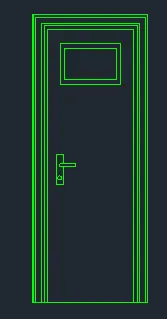
- After drawing Door using B command Block the entire object
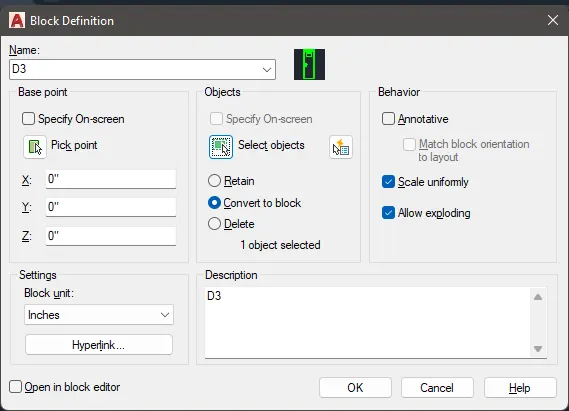
- Give the name and pick point, select object and OK
-
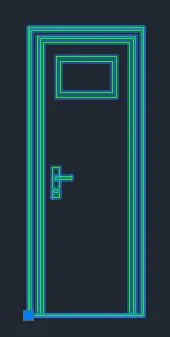
- Now entire object is in block
- Save the file name as ‘D-3’
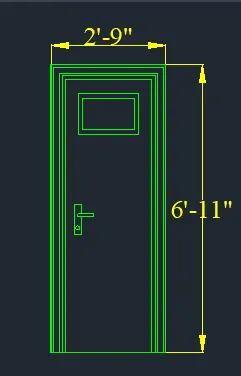
- Now change the Layer to Dimension
- Now start giving dimension
- Now change the Layer to ‘Text’
- Start texting
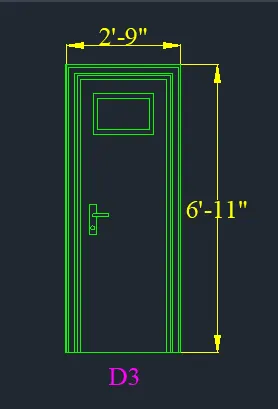
- Save the file name as ‘D-3’
_____________________________________________________________________________________________________________________________________________________
D-4, D-5 and D6
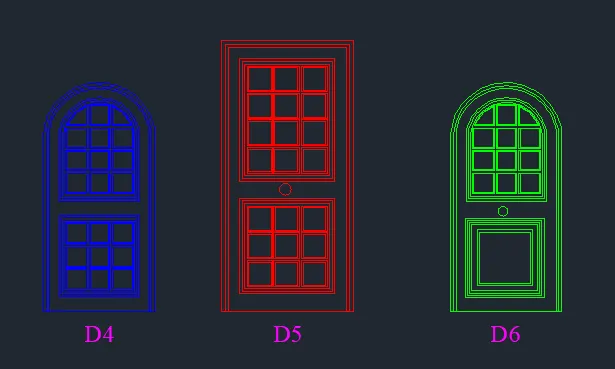
D-4
- Set the units and limits
- Click on Layers Properties
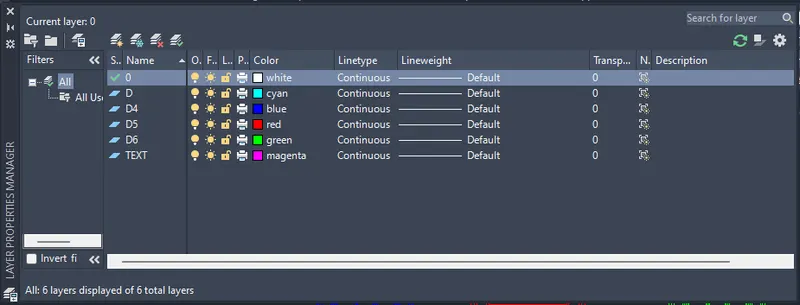
- Create the layers
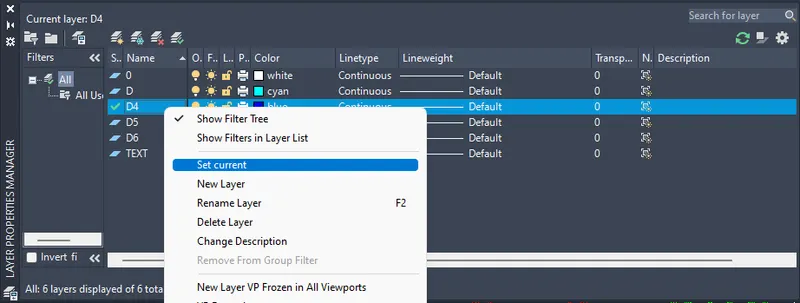
- Select D-4 and select Set Current

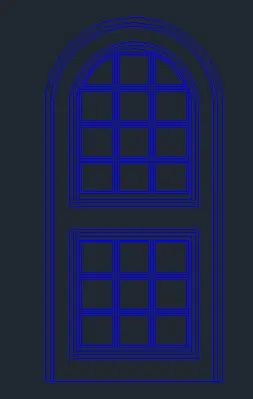
- After drawing Door using B command Block the entire object
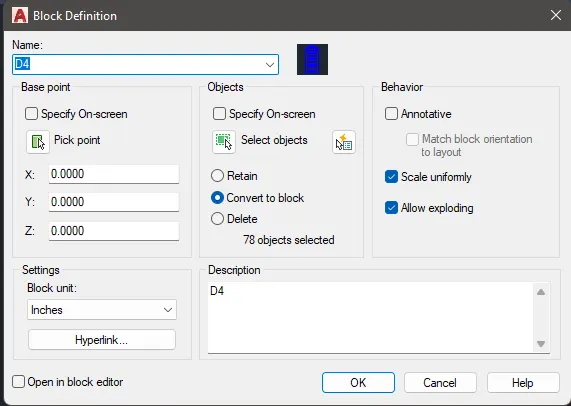
- Give the name and pick point, select object and OK
-
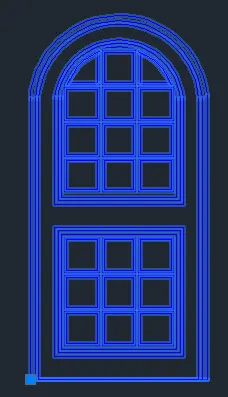
- Now entire object is in block
- Save the file name as ‘D-4’
- Now change the Layer to Dimension
- Now change the Layer to ‘Text’

- To change the text style, go to Annotate
- In Annotate click on ‘Manage Text Style’
- Select the font Name, style and height
- Set Current and close
- Now select Standard and start texting
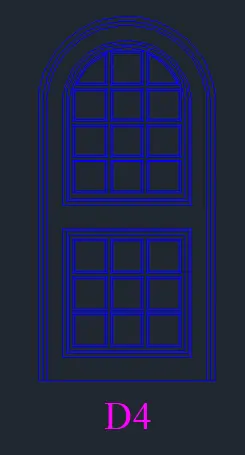
- Save the file name as ‘D-4’
___________________________________________________
- Now change the Layer to D5

- Now start drawing Door with given dimension
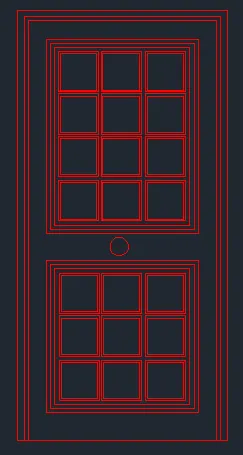
- After drawing Door using B command Block the entire object
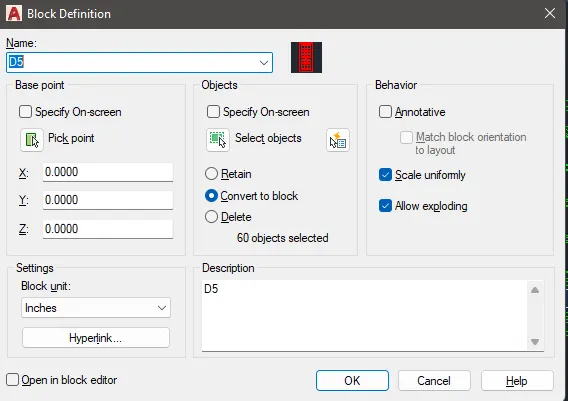
- Give the name and pick point, select object and OK
-
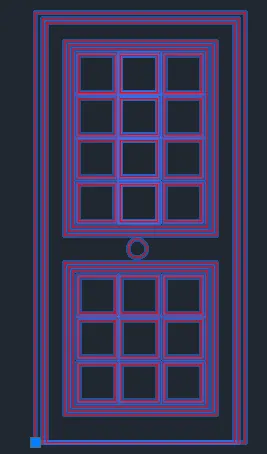
- Now entire object is in block
- Save the file name as ‘D-5’
- Now change the Layer to ‘Text’
- Start texting
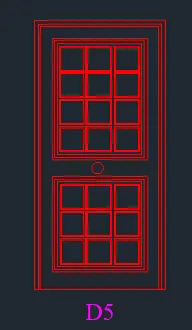
- Save the file name as ‘D-5’
______________________________________________________________________
D-6
- Now change the Layer to D6

- Now start drawing Door with given dimension
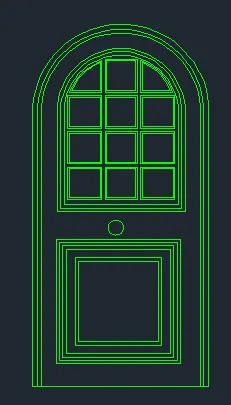
- After drawing Door using B command Block the entire object
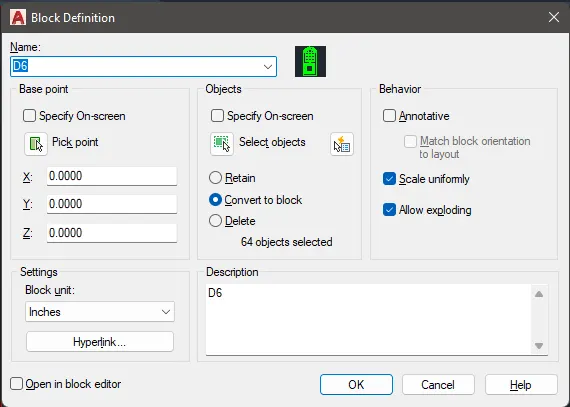
- Give the name and pick point, select object and OK
-
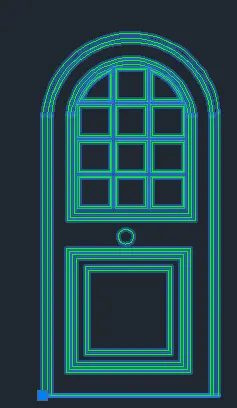
- Now entire object is in block
- Now change the Layer to ‘Text’
- Start texting
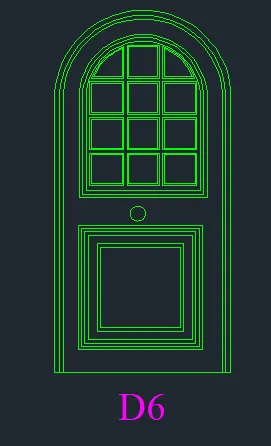
- Save the file name as ‘D-6’
_______________________________________________________________________________________________________________________________________________
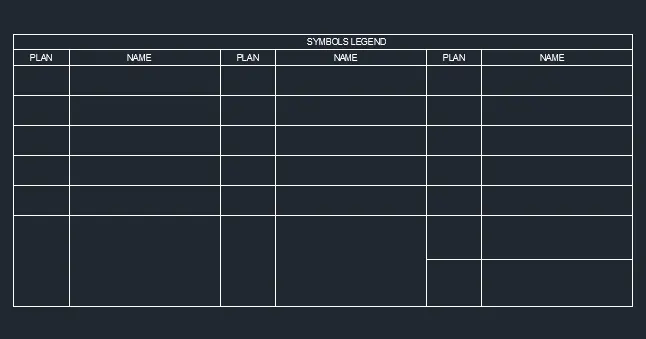
SYMBOLS LEGEND
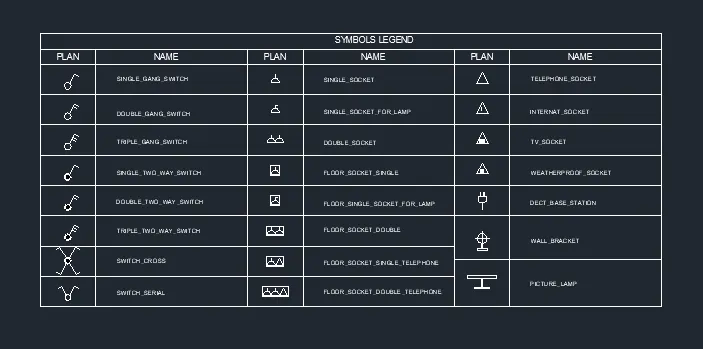
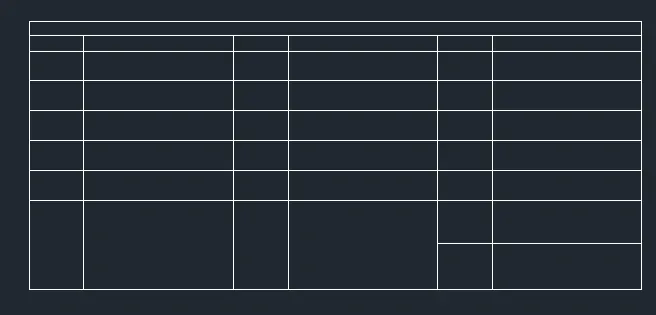
- Set the units and limits
- now using line draw a table as showen in fig
- To change the text style, go to Annotate
- In Annotate click on ‘Manage Text Style’
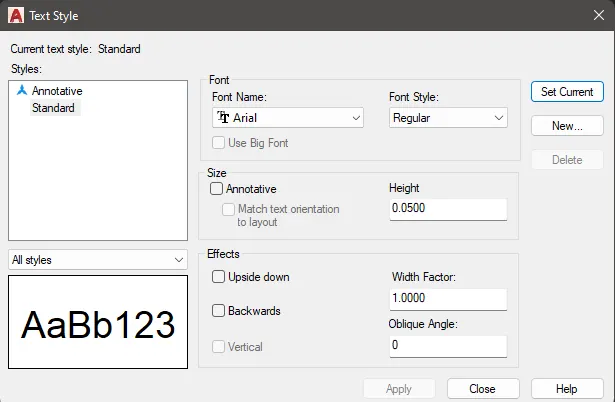
- Select the font Name, style and height
- Set Current and close
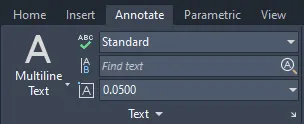
- Now select Standard and start texting
- using circle and line draw a single line gang switch
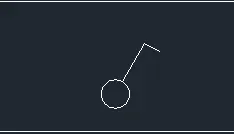
- using trim and fillet complete the fig
- now using B command make it block
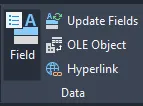
- in insert click on Field
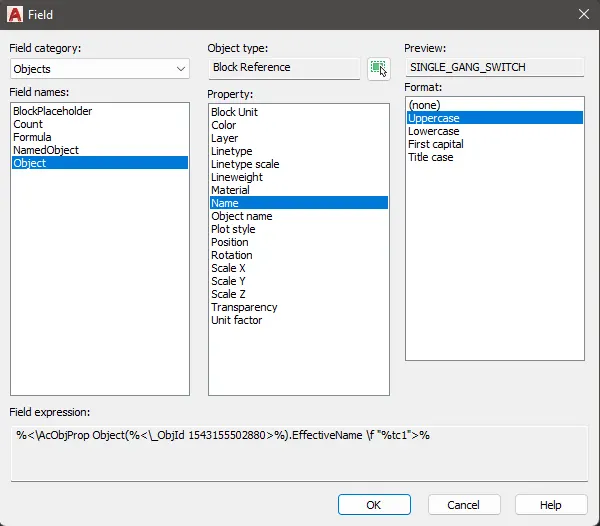
- now change the settings as i did above the pic and click ok
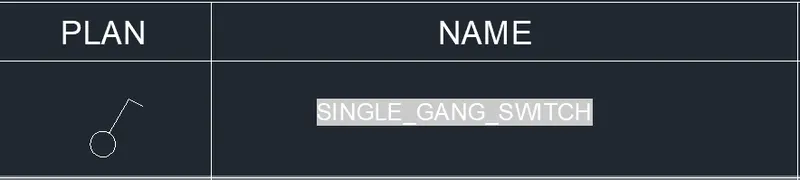
- to remove back ground color use ex command and explode it
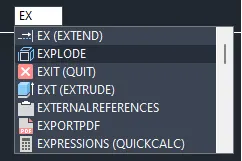
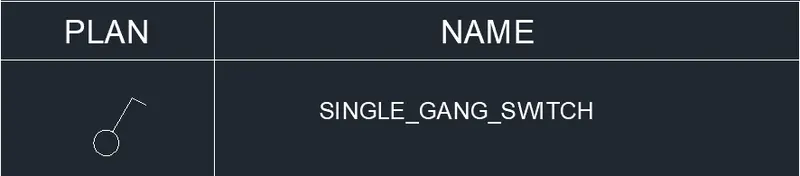
- now text is removed back ground color
- follow the same step what we did for the entire object
- save the file as Symbole Legend
____________________________________________________________________________________________________________________________________________________
Q5
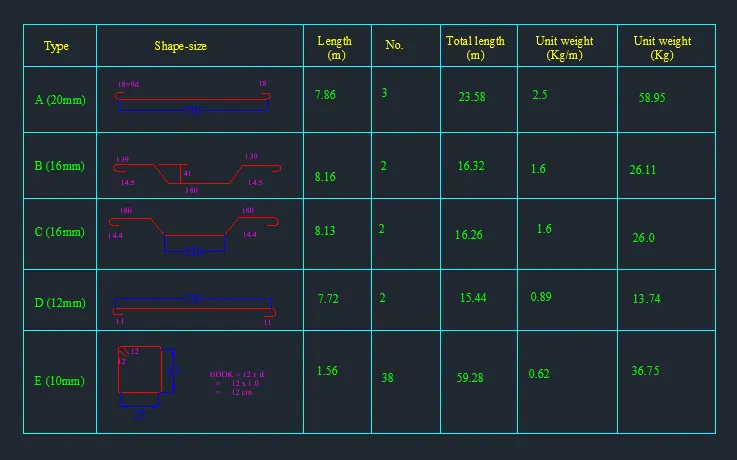
- Set the units and limits
- Click on Layers Properties
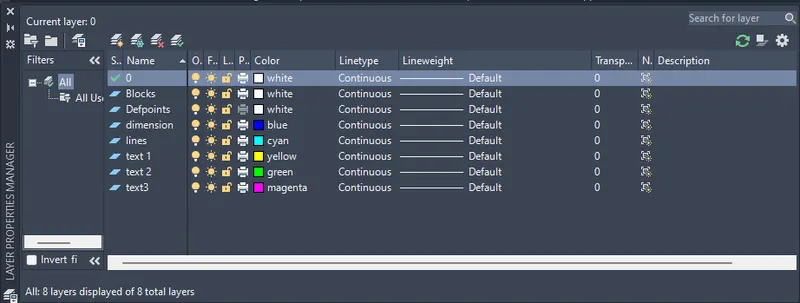
- Create the layers
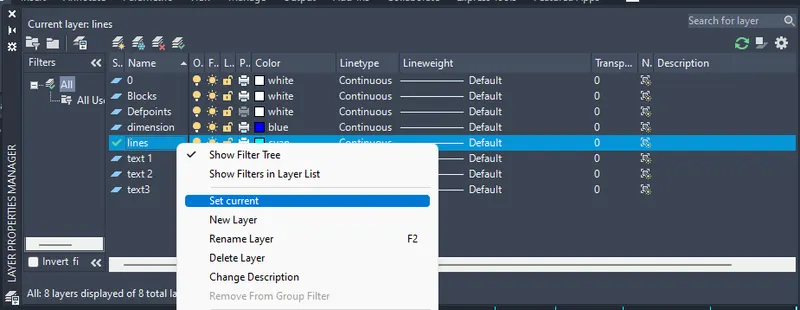
- Select lines and select Set Current

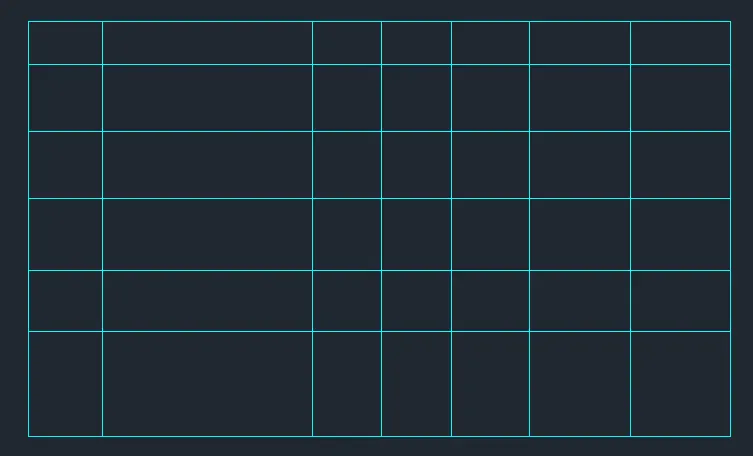
- Using line draw a table as shown in the fig
- In Annotate click on ‘Manage Text Style’
- Select the font Name, style and height
- Set Current and close
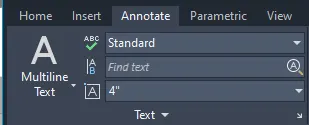
- Now select Standard and start texting
- use different layers of text
- after drawing a fid make it block by using B command
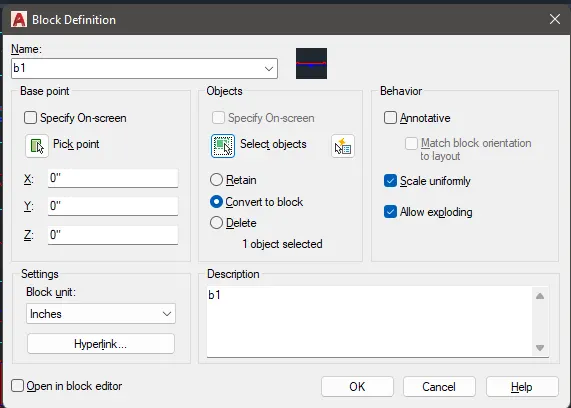
- follow the same step for all fig
- use dimension layer for dimension
- to change the value in dimension double click on the dimension and change the value
- using text 3 layer complete the drawing
- save the file