Creating Bar Bending schedule, Different Door types, and Creation of standard drawing templates using AutoCad
Creating Bar Bending schedule, Different Door types, and Creation of standard drawing templates using AutoCad
Jagadeep.M.M
AIM:
To create the templates,inserting text & attributes.
PROCEDURE:
1)
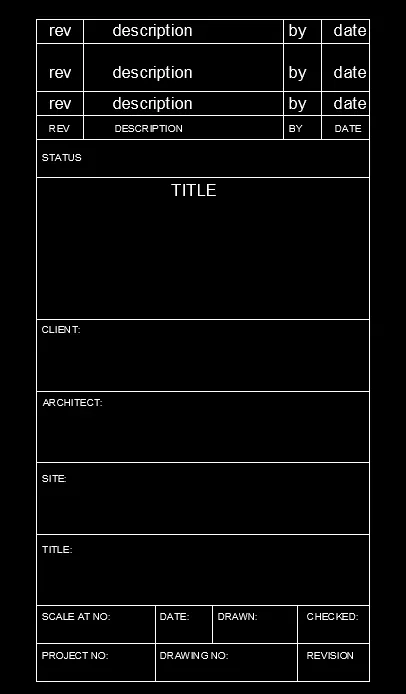
a)Custom 1_ title block:
- Create a rectangle of 70mm & 139mm.
- Divide the line for the text into column.
- For rows take offset of 5,10,5,5,8,30,15,15,15,15,8,8mm.
- By multiline text,type rev,description,by date,on the first row by text height 2.5& the style as Arial.
- Again use the multiline text & type the required text in caps with text height 1.5 & style as arial.
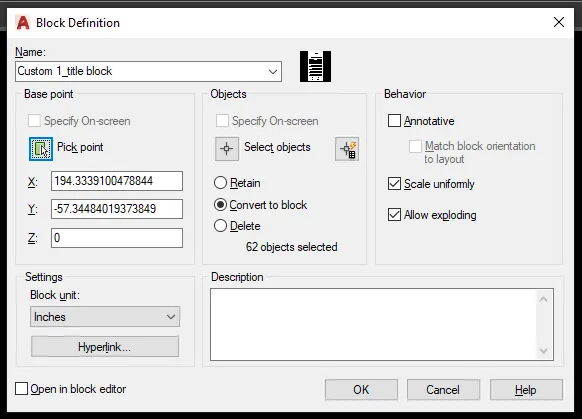
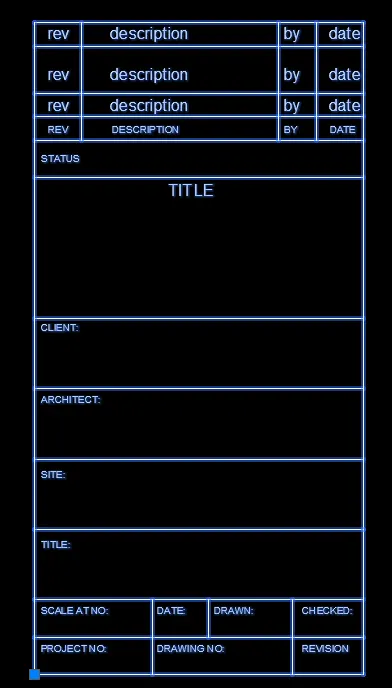
- Now create the block using block command give the name as Custom 1_title block-select pick point & select the object-select the whole table including text.
- Select convert to block option & give scale uniformly & Allow exploding,ok.
Result
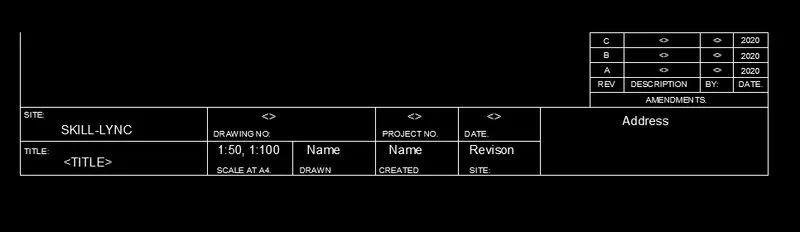
b)Custom 2_ title block:
- Draw the rectangle of 252 & 46mm.
- With lines divide the required rows & columns.
- Using multiline text insert the following height 2.5.
- Create a small rectangle at the right corner,explode it, create rows & columns.
- By attributes create the text inside it.
- Command "ATT" -attribute definition dialogue box appears.
- Create attributes similarly for the rest of the text.
- Now create the block using block command with name Custom 2 title block select the whole title block & make it as a block.
- After creating it as block we are see that all attributes will change to their default values.
Result
2)
AIM:
To create the doors for warehouse & placing it in blocks.
PROCEDURE:
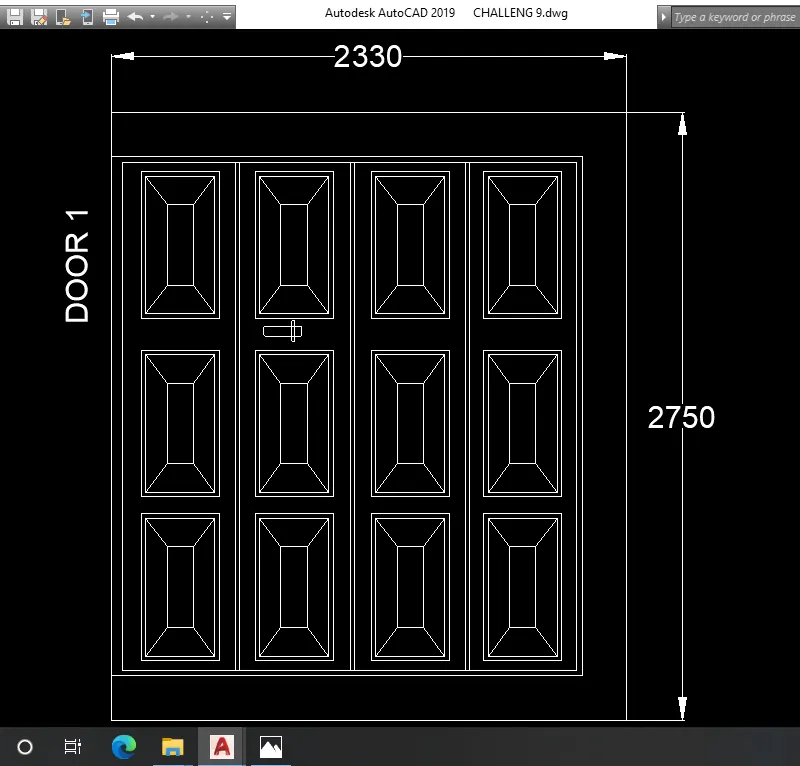
a)Door 1-2330X2750mm
- Create the rectangle of size 2330X2750mm.
- give the offset of all 3sides as 200mm & left side as 50mm & explode the rectangle.
- again give the offset of 25mm in all 3inside offset & explode it.
- by divide command divide the top line into 4 segment.
- From the divided point draw the line vertically to the shutters.
- give the offset of 10mm for both the sides & delete the center line.
- to create the inside rectangular designed drawing to assume the size.
- use the array command, give the rows,columns,& distance.
- create the lock using rectangular command & fillet the raius of 5mm,
- create the block using block command & give the name as door 1.
Result
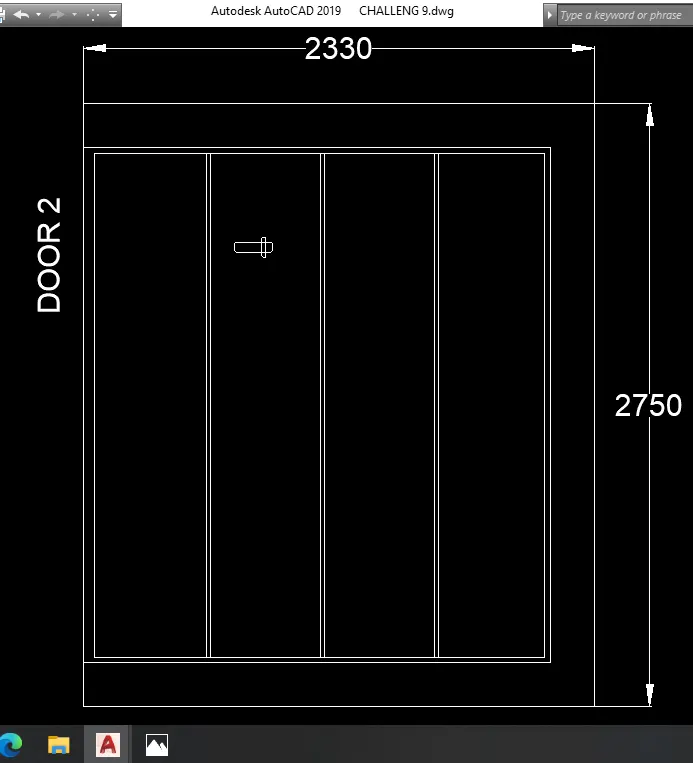
b)door 2-2330X2750mm:
- Create the rectangle of size 2330X2750mm.
- give the offset of all 3sides as 200mm & left side as 50mm & explode the rectangle.
- again give the offset of 25mm in all 3inside offset & explode it.
- by divide command divide the top line into 4 segment.
- From the divided point draw the line vertically to the shutters.
- give the offset of 10mm for both the sides & delete the center line.
- create the lock using rectangular command & fillet the raius of 5mm,
- create the block using block command & give the name as door 2.
Result
3)
AIM:
To create the electrical legend.
PROCEDURE:
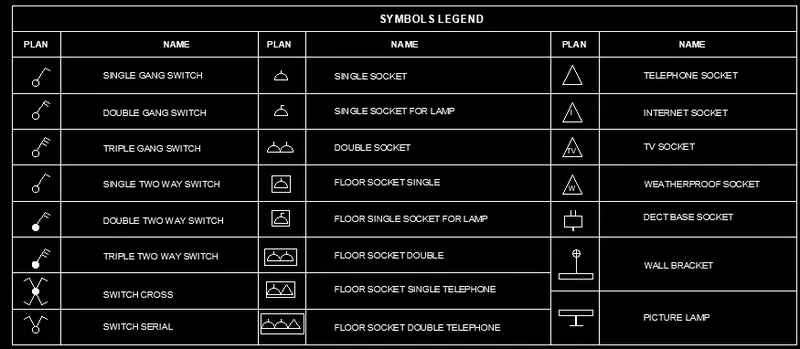
- Here we created the total as by legend, the table has been created by the command of line.
- no of rows are 11 & the & the columns are 7 are required.
- on of the top table we want create header text
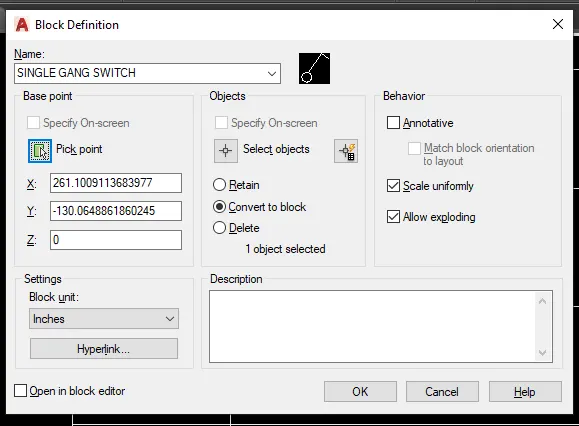
- to create the legend first we draw the electric symble & to create the block.
- Enter the block command & type the name ,then select the object, then pick point,click conver to block,scale uniform,allow exploding.then OK.
- Create all the symbles in same step.
- Next we inser the text in same blocked symble.
- Type the field in a command box.
- select the field name as -object.
- select the converted block press enter.
- select the name,OK.
- which place text required place it.
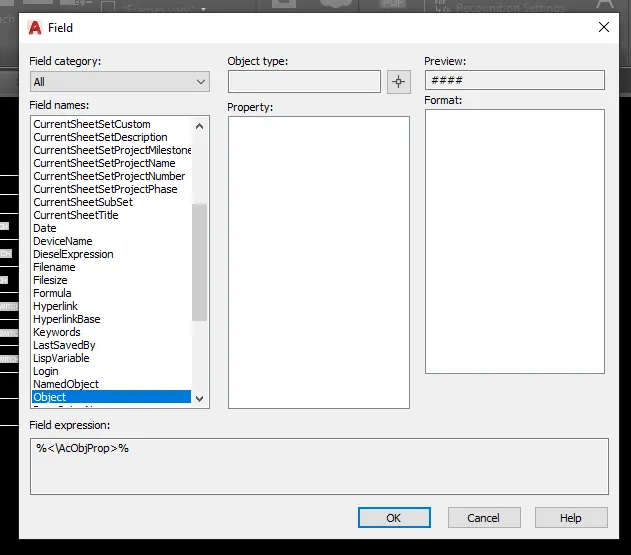
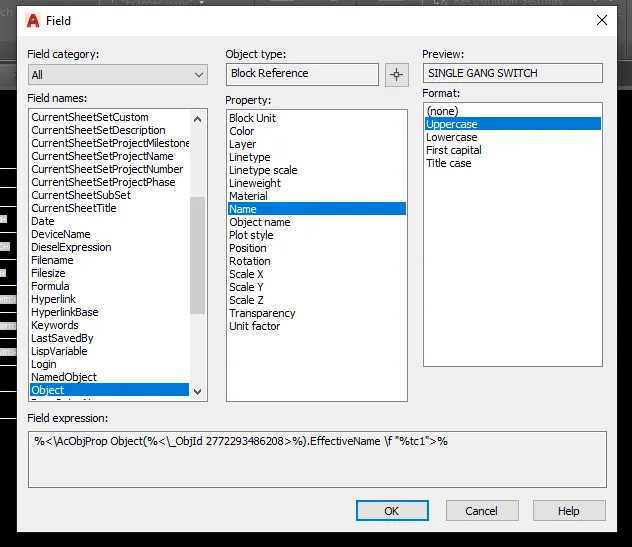
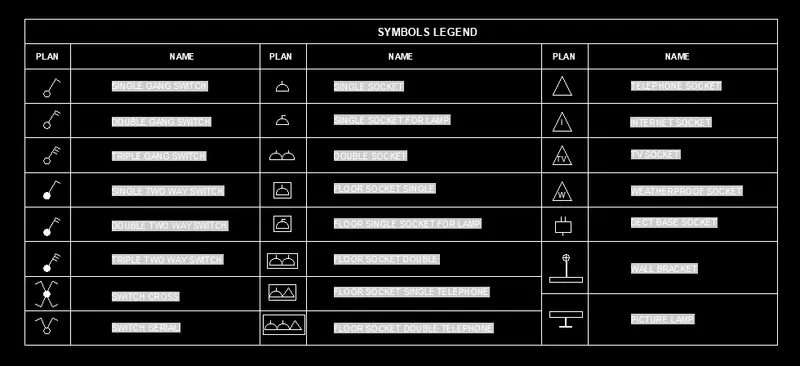
- Select all the text & explode it.
Result
4)
AIM:
To create the door type of residensial building.
PROCEDURE:
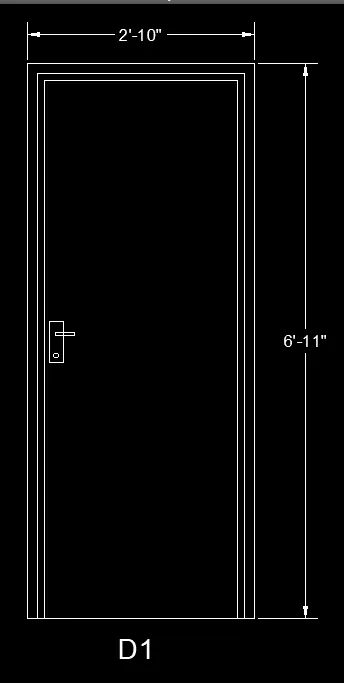
a) D1-2'10"X6'11"
- Draw the rectangle with dimension as 2'10"X6'11".
- Draw the offset 2" inside & again give the offset of 1".
- Draw the lock by two rectangle perpendicular to each other & give the circle.
- Write the text by multiline text D1.
- give the dimension using dimension command.
- Create it as block "B" give name as type-D1-pick a corner point. select the object & then block is created.
- bottom of the offset will be remove the trim command.
Result
b)D2-3'4"x6'11":
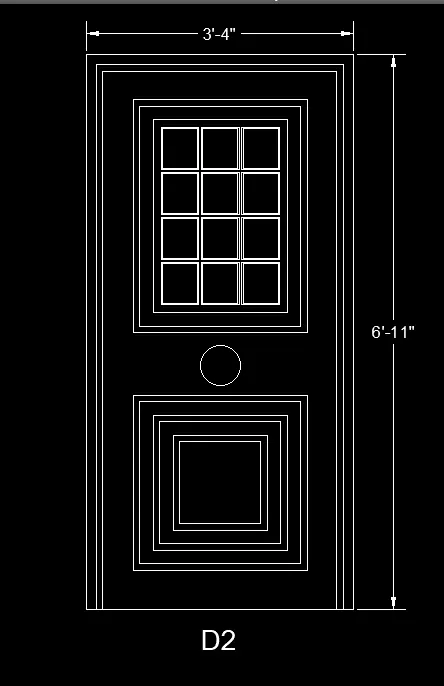
- Draw the rectangle with dimension as 3'4"X6'11".
- Draw the offset 2" inside & again give the offset of 1".
- Draw the rectangle 2'2"X2'11" & give the offset of 1" inside.again give the offset of 2" & again 1" offset.
- Draw the rectangle of 5'2"X5'9" & offset of 2".
- copy the rectangle in 3 rows & again copy the 4 column.
- Draw the second panel give rectangle size 2'2.1"X2'2.2" & give the inside offset of 1",2",1",2",1".
- Draw the lock by circle in between the two panels.
- Write the text by multiline text D2.
- give the dimension using dimension command.
- Create it as block "B" give name as type-D2-pick a corner point. select the object & then block is created.
- bottom of the offset will be remove the trim command.
Result
c)D3-2'9"x6'11":
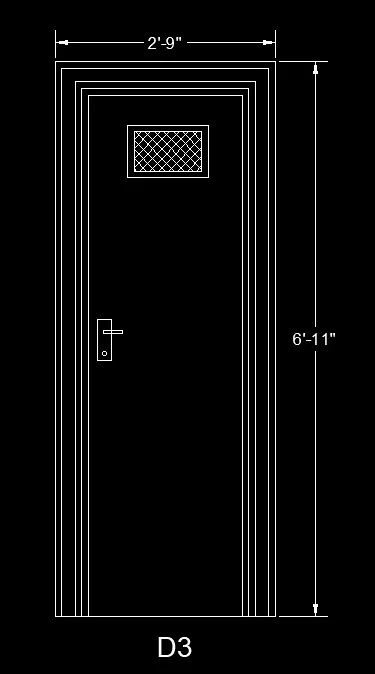
- Draw the rectangle with dimension as 2'9"X6'11".
- Draw the offset 2" inside & again give the offset of 1" in three times.
- Draw the rectangle of top ventilation 1'0.1"X7.8" & give the inside offset of 1" then insert the hatch.
- Draw the lock by two rectangle perpendicular to each other & give the circle.
- Write the text by multiline text D3.
- give the dimension using dimension command.
- Create it as block "B" give name as type-D3-pick a corner point. select the object & then block is created.
- bottom of the offset will be remove the trim command.
Result
d)D4-3'4"x7'8":
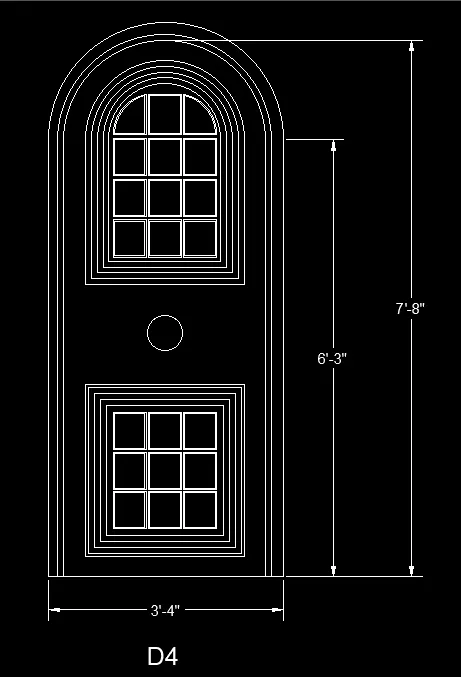
- Draw the rectangle with dimension as 3'4"X7'8".
- Draw the offset 2" inside & again give the offset of 1".
- explode all the lines,& trim the upper & lower lines.
- create on circle with 2-point method with first point & end point.trim the unwanted lines.
- Offset the arc & the line with 1" & 2".
- draw the rectangle & create the smaller rectangle.
- trim the upper line & give offset of 2- point circle,
- Write the text by multiline text D4.
- give the dimension using dimension command.
- Create it as block "B" give name as type-D4-pick a corner point. select the object & then block is created.
Result
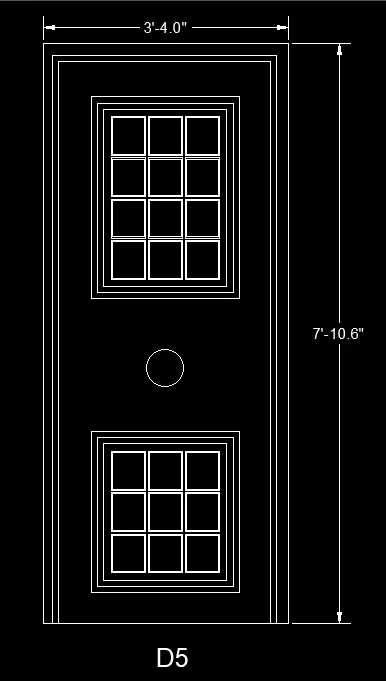
e)D5-3'4"x7'10.6":
- Draw the rectangle with dimension as 3'4"X7'10.6".
- Draw the offset 2" inside & again give the offset of 1".
- Draw the rectangle 2'2"X2'11" & give the offset of 1" inside.again give the offset of 2" & again 1" offset.
- Draw the rectangle of 5'2"X5'9" & offset of 2".
- copy the rectangle in 3 rows & again copy the 4 column.
- create the bottom another rectangle using rectangle command & inside the small rectangle create it.
- Write the text by multiline text D5.
- give the dimension using dimension command.
- Create it as block "B" give name as type-D5-pick a corner point. select the object & then block is created.
Result
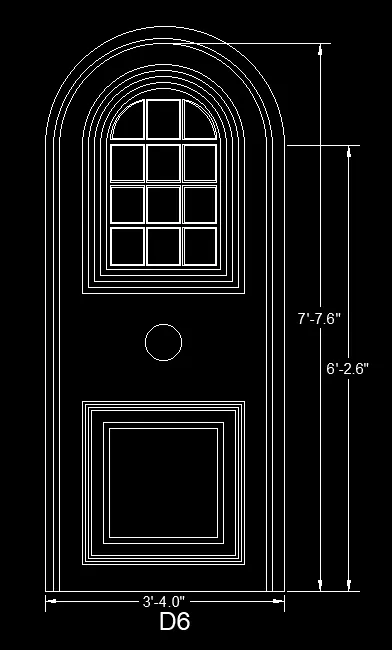
f)D6-3'4"x7'7.6":
- Draw the rectangle with dimension as 3'4"X7'7.6".
- Draw the offset 2" inside & again give the offset of 1".
- explode all the lines,& trim the upper & lower lines.
- create on circle with 2-point method with first point & end point.trim the unwanted lines.
- Offset the arc & the line with 1" & 2".
- draw the rectangle & create the smaller rectangle.
- trim the upper line & give offset of 2- point circle,
- create the middle of the circle .
- create the botttom of the rectangle 2'3.1"X2'3.2" & give the offst of 0.5" in three times.
- again give the offset of 2" & 1" inside.
- Write the text by multiline text D6.
- give the dimension using dimension command.
- Create it as block "B" give name as type-D6-pick a corner point. select the object & then block is created.
Result
5)
AIM:
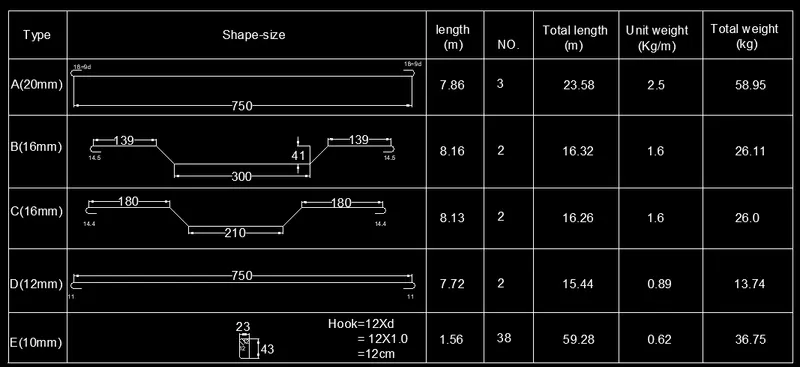
To create the bar bending schedule & insert the block.
PROCEDURE:
A-20mm
- Draw a line of 750cm for straight line.
- Create arc for the bend in one side & mirror the another side.
- insert the text using text command.
- draw the dimension using dimension command.
B-16mm
- Draw aline of 300cm for straight line.
- draw the vertical line of 41cm & extand the line & draw the line inclind 45 degree & the next straight line distance 139cm .
- then create an arc bend in one side & mirror the another side.
- insert the text using text command.
- draw the dimension using dimension command.
C-16mm
- Draw aline of 210cm for straight line.
- draw the vertical line of 41cm & extand the line & draw the line inclind 45 degree & the next straight line distance 180cm .
- then create an arc bend in one side & mirror the another side.
- insert the text using text command.
- draw the dimension using dimension command.
D-12mm
- Draw a line of 750cm for straight line.
- Create arc for the bend in downward direction of one side & mirror the another side.
- insert the text using text command.
- draw the dimension using dimension command.
E-10mm
- Draw a rectangle of 23cm & 43cm.
- fillet the corner with fillet radius 5cm.
- Draw the two hook line of 12cm.
- insert the text using text command.
- draw the dimension using dimension command.
Create the each them of block:
- Command "B" give name as A-pick point ,select the object,select delete,tick scale uniform & explode all.
- Similarly create 5 blocks,A,B,C,D,E & insert each of the bars as blocks.
- Create the table with rectangle & divide it into 6 rows & 7 columns.
- With multiline text enter the word.
Result