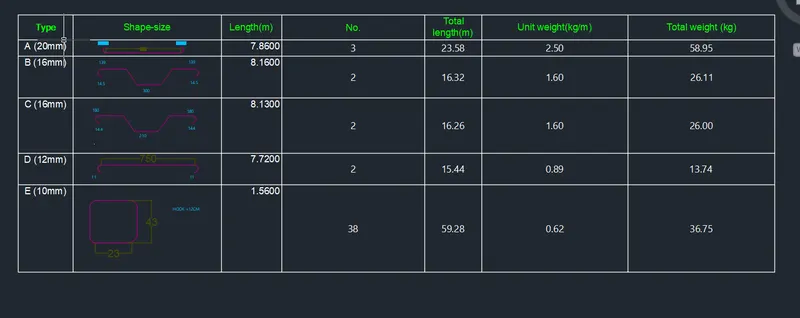
Creating Bar Bending schedule, Different Door types, and Creation of standard drawing templates using AutoCad
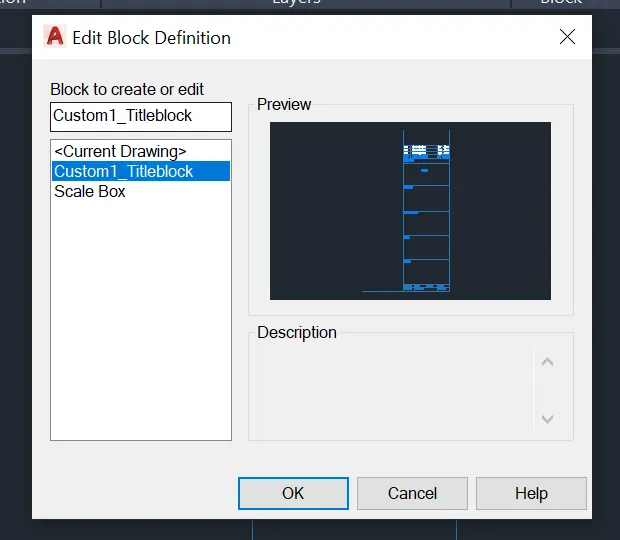
1. Create the templates as shown in Figures. Take the size of the title block as per industry standards or you can assume it as per the size of the paper. Use text and attributes wherever required. After creating the title block you need to save it as a block with names: Custom1_titleblock and Custom2_titleblock, respectively.
Aim: To create and Title block as per industry standards
Procedure:
Step:1) create a drawing with decimal units
Step:2) Create Text style, dimension style and layers
Step 3:) Create text using attribute
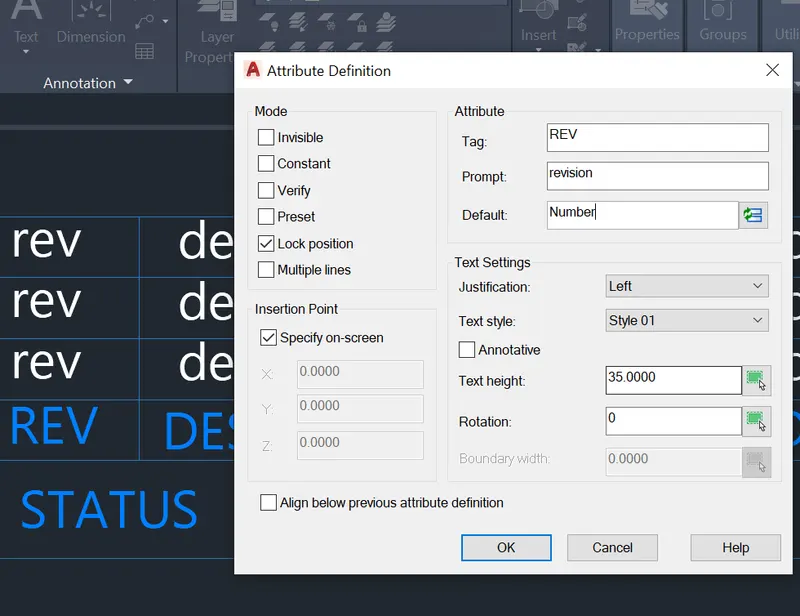
Step 3:) Draw the lines & add text (Create block Custom1-Titleblock)
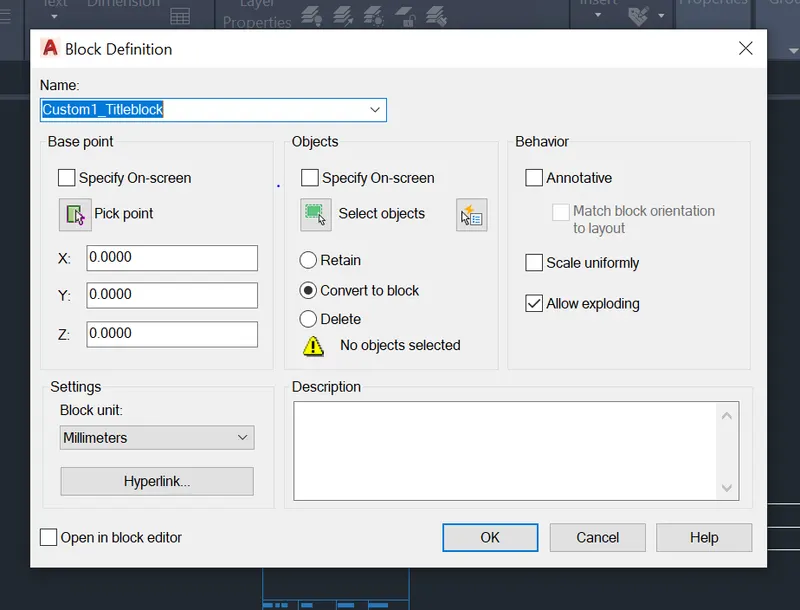
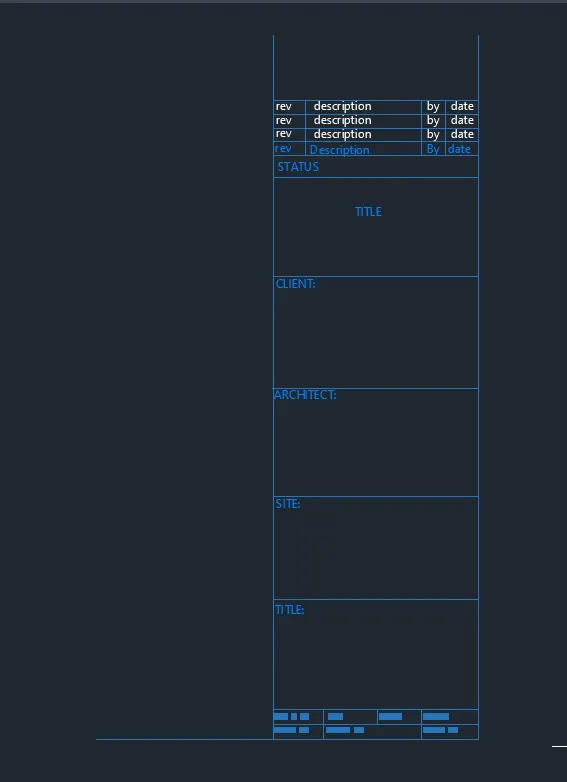
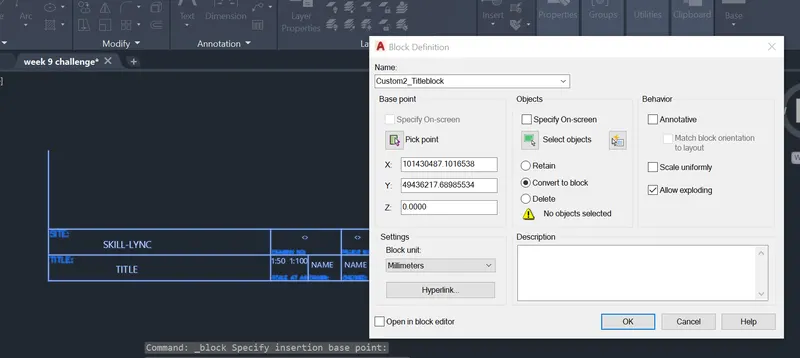
Step 4:) Draw the lines & add text (Create block Custom2-Titleblock)
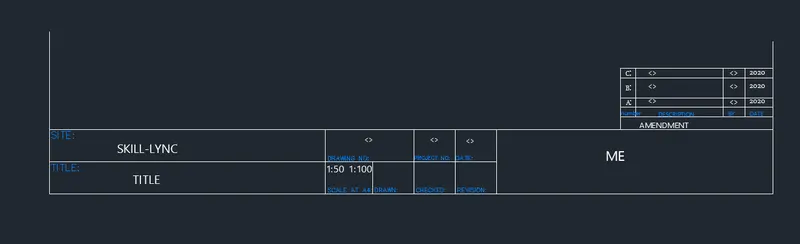
Result: The two tittle blocks were created
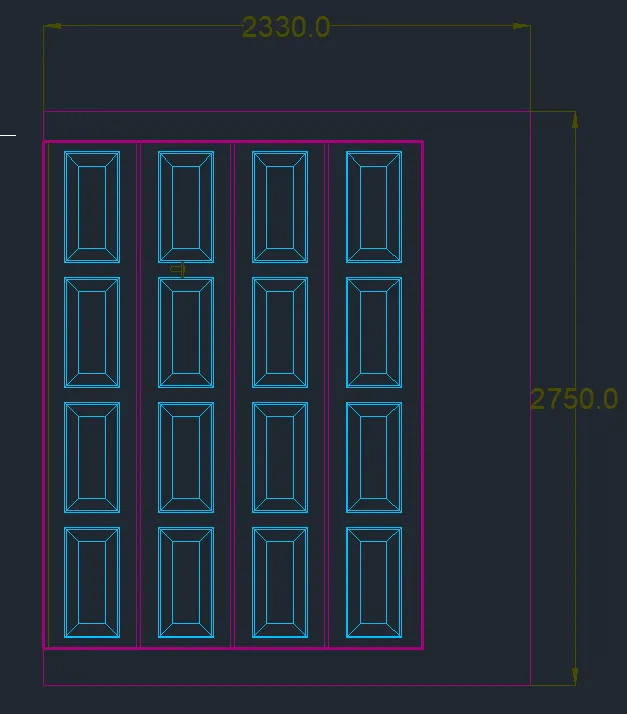
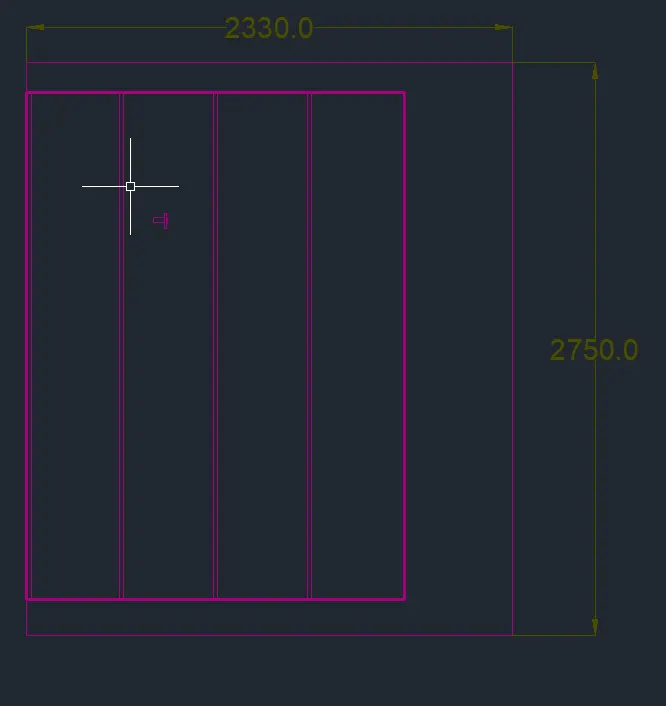
2. Create the doors type for warehouse as shown in the Figure. You need to create each door type as per standard size or given dimensions. Create the blocks of this door type after creating them.
Aim: To draw doors and create blocks
Step:1) Draw the door frame & Create panel using array tool
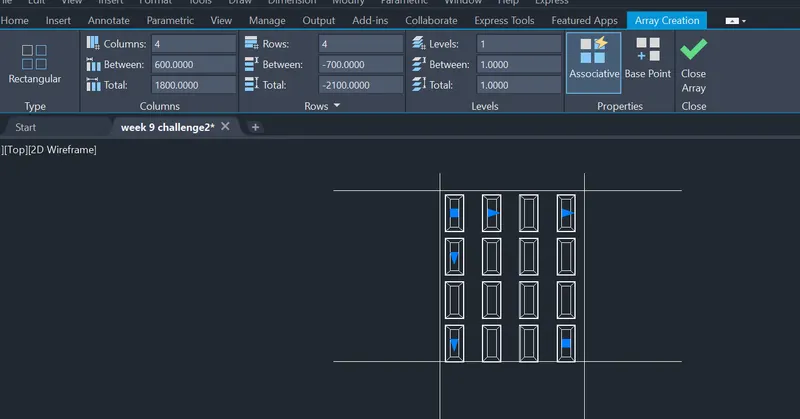
Step:2) Create a block with name as 'Door_01'
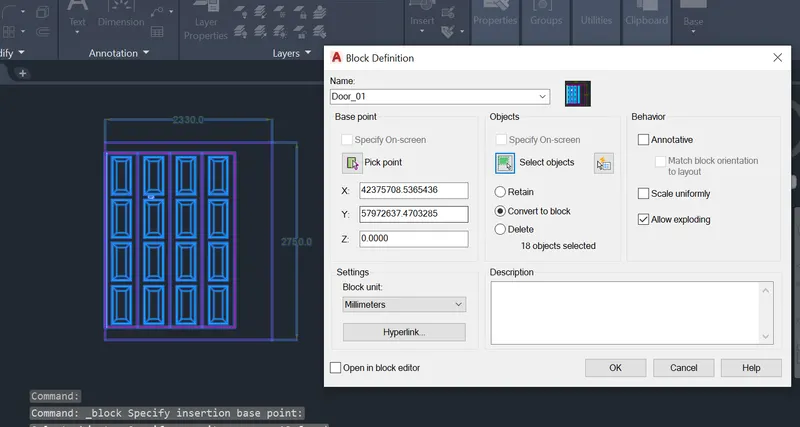
Step:3) Create the second door with block name 'Door_02'
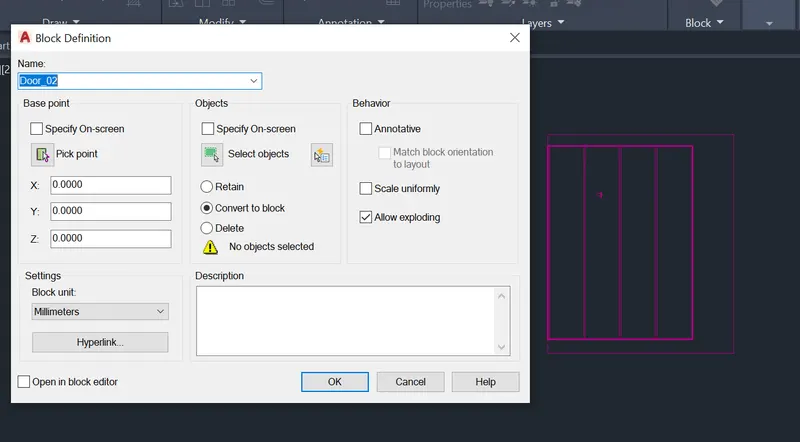
Result:
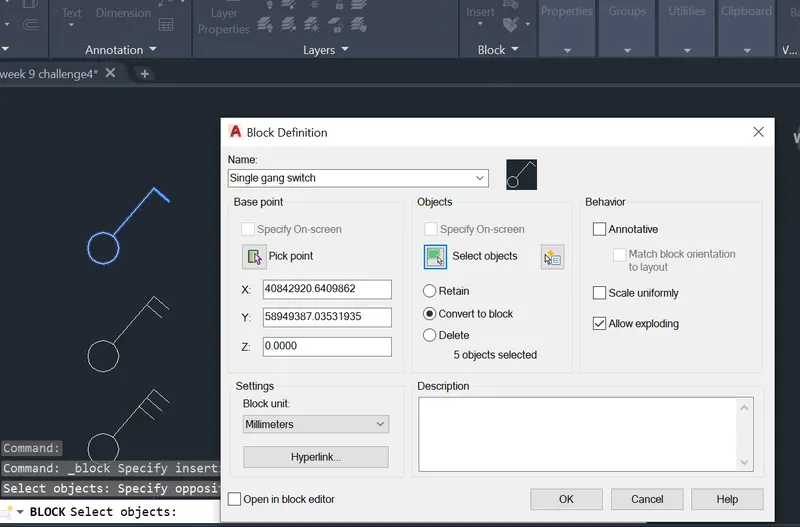
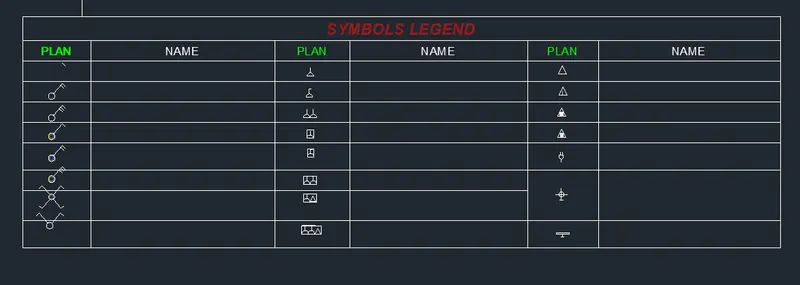
3. Create each symbol as a block with the name given in the legend. After creating the blocks arrange them in the legend as shown in the Figure.
Aim: To create a table woth electrical legend
Step:1) Draw the required symbols and make block
Step:2) Insert table with suitable dimensions
Step:3) Insert symbol block with names
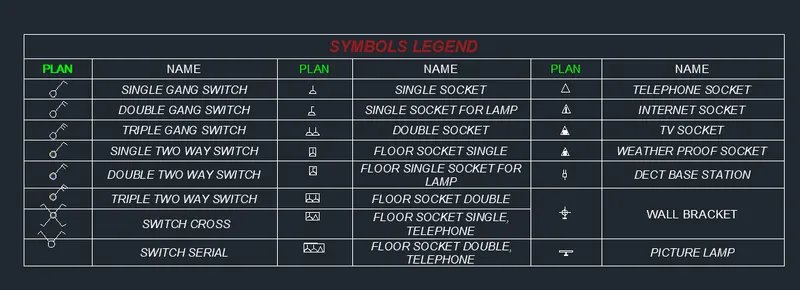
Result: The electrical symbols table was created
4. Create the door type for residential building as a block. Save the name of the blocks as type. Use given dimensions or assume dimensions as per industry standards.
Aim: To create door and save as block
Step:1) Create layers in drawing with engineering units
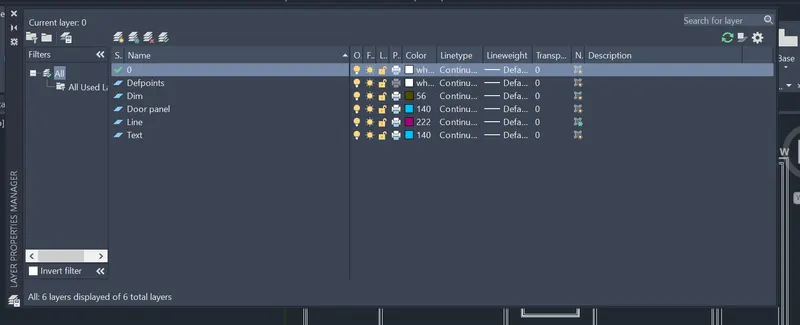
Step:2)
Skecth a Door D1
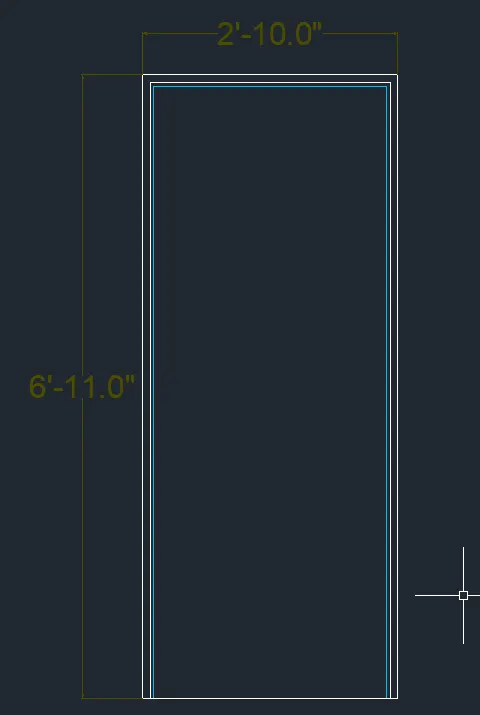
Step:3)Create block D1
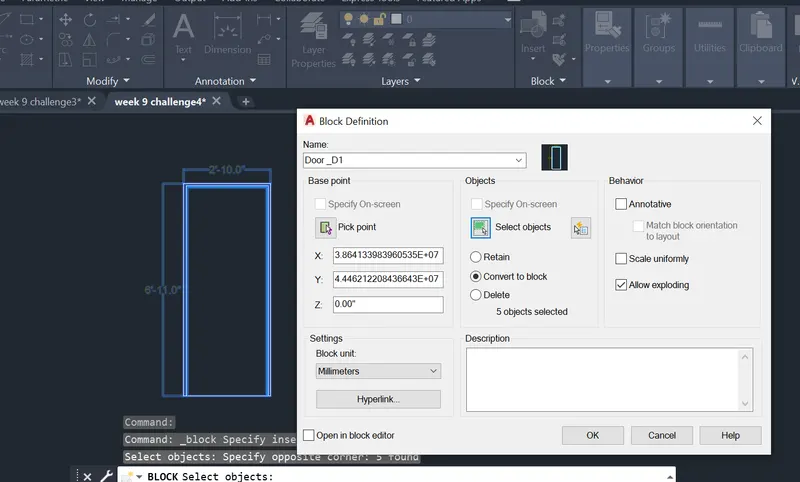
Step:4)Create block D2
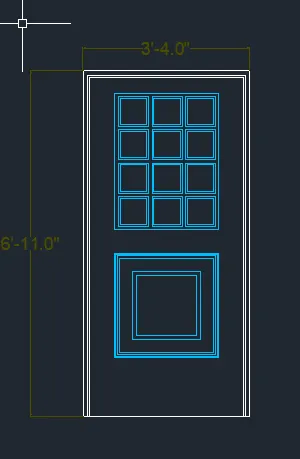
Step:5)Create block D3
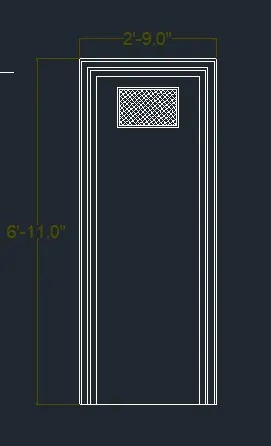
Step:6)Create block D4
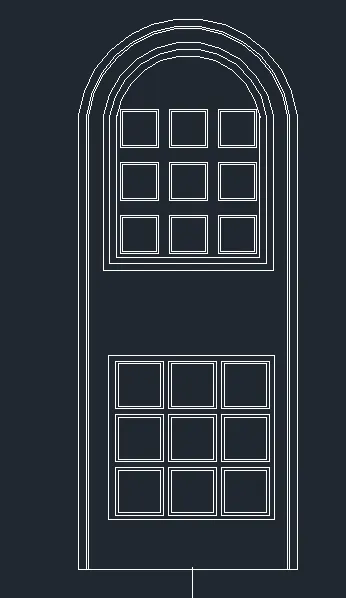
Step:7)Create block D5
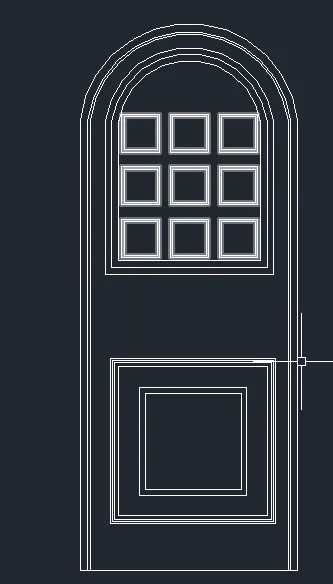
Step:8)Create block D6
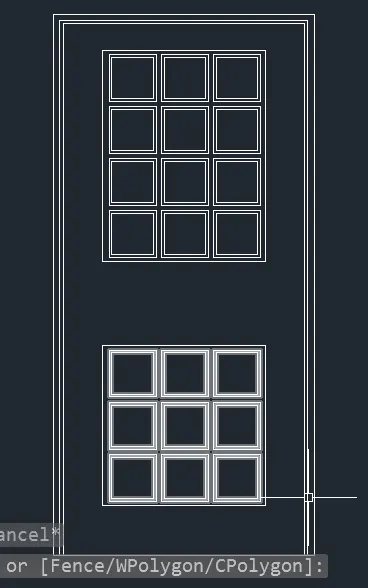
5. Create each shape as a block as shown in the Figure. Save the block and insert them on the table as shown in the Figure.