Creating Architectural and Structural model with 3D rendering using REVIT
AIM: Creating Architectural and Structural models with 3D rendering using REVIT
INTRODUCTION:
Autodesk Revit is a Building Information Modeling (BIM) tool, which can be used by more than one person working on a new project. This is an important feature in collaboration within a project, between projects, and with other users, firms, and disciplines.
Collaboration Tools guide is to enable us, who have a basic knowledge of Autodesk Revit, to increase their productivity while working with other people on a team, either in the same firm or other firms as well as with other disciplines. It also covers linking Autodesk Revit files and linking or importing other CAD files. Practices are available for each of the primary disciplines covered by Autodesk Revit: architecture, MEP, and structure.
Revit provides several different ways to collaborate with team members who are also using the software.
- We can link multiple Revit models together, allowing team members to work in context.
- Through work sharing, users on the same local area network (LAN) can work together in the same Revit model.
- When collaboration needs to occur among users who are not in the same geographic location, use Revit Server or Revit Cloud Worksharing. o Revit Server connects offices that share a network but are not in the same geographic location.
- Revit Cloud Worksharing is a cloud-based service that allows any Revit users inside or outside a network to collaborate on a Revit model.
TASK 1: Select the type of structure you want to build from one of the three below:
- Multi-Unit Residential Apartment
- Office Buildings
- School
I Choose an office building for this project
TASK 2: Assume reasonable assumptions for geographic and location details for your project modeling. Based on assumptions and type of structure selected identify the modeling requirements from NBC
- The office building is planned to be constructed in Bhubaneswar. Modeling requirements as per NBC
- Since my building is an office building, it can be taken as a Business building.
- The open space around the building shall not be less than 4.5m. The width of the road abutting the building is taken as 30'.
- The maximum height of the building shall not exceed 1.5 times the width of road abutting plus the front open space. The building will consist of 6 floors each floor having a floor height of 15'. Hence, the entire floor height will be 75', which is within the limits prescribed by NBC.
TASK 3: Using the structural model, include the following components based on the type of structure selected
- Foundation - Isolated/ Wall/Matt Foundation
- Columns
- Beams Connected to Columns
- Roof Framing/ Truss
- Floor/ Decks
- Floor Openings for Elevators and Stairs
PROCEDURE:
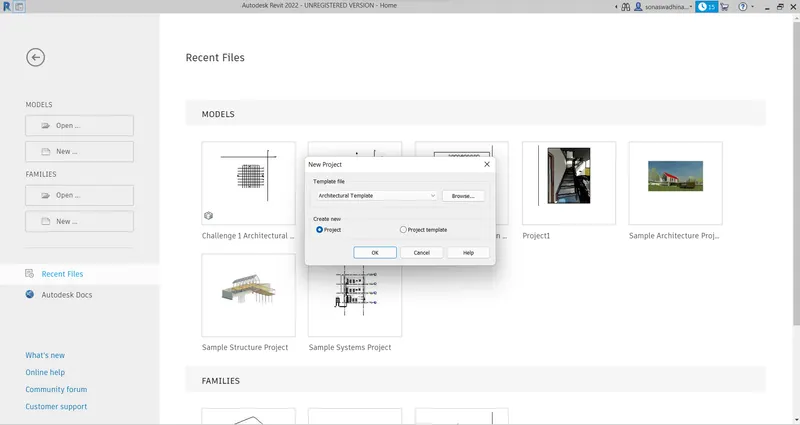
- Click on the New options in the Models section and select the Architectural template from the new project dialogue box and click OK.
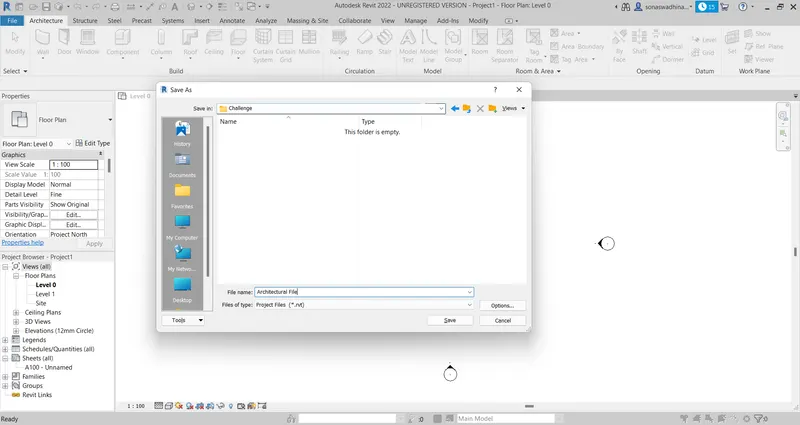
- Save the file to the desired folder and was named as an Architectural File.
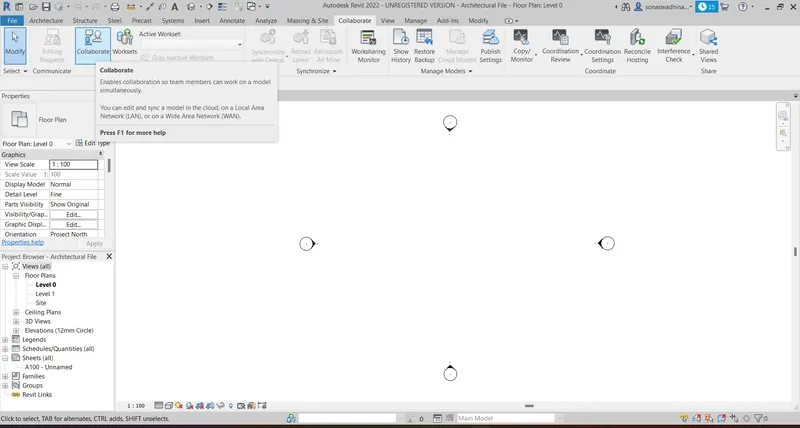
- Go to collaborate tab in the ribbon and click on the collaborate icon
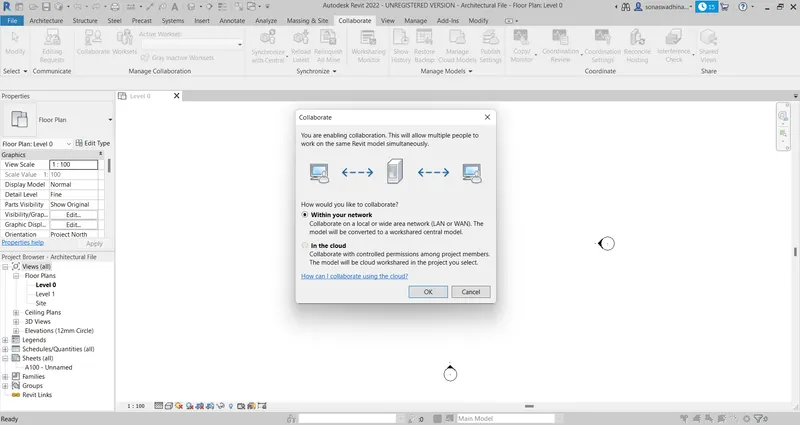
- The collaborate dialogue box will appear and select within your network and click ok.
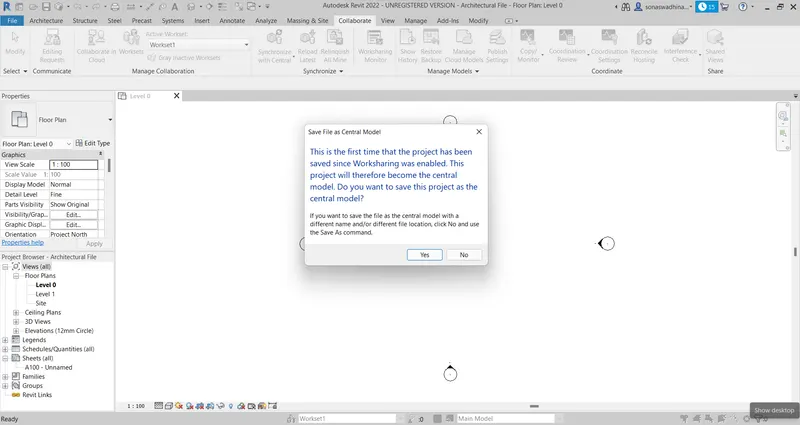
- Now save the file and save it as a central model by clicking yes in the dialogue box that appeared.
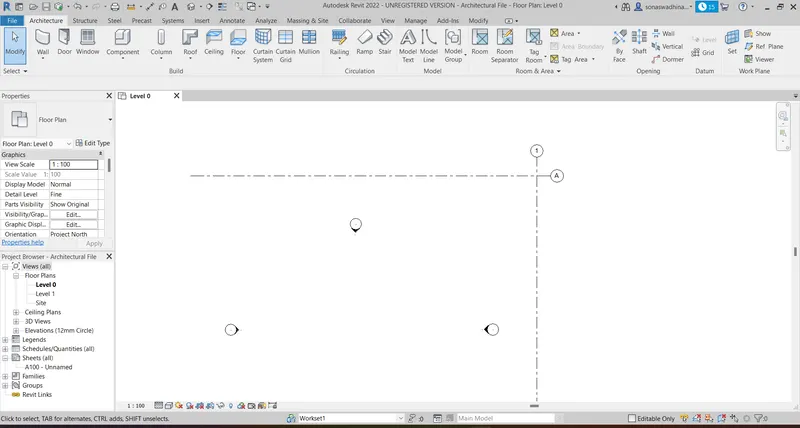
- The outermost horizontal and vertical grids were now created as shown
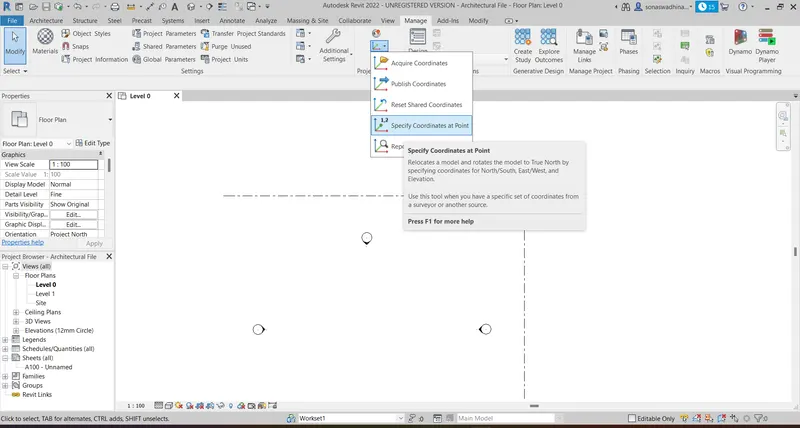
- Now in the manage menu under the project location tab click on the Specify coordinates at Point.
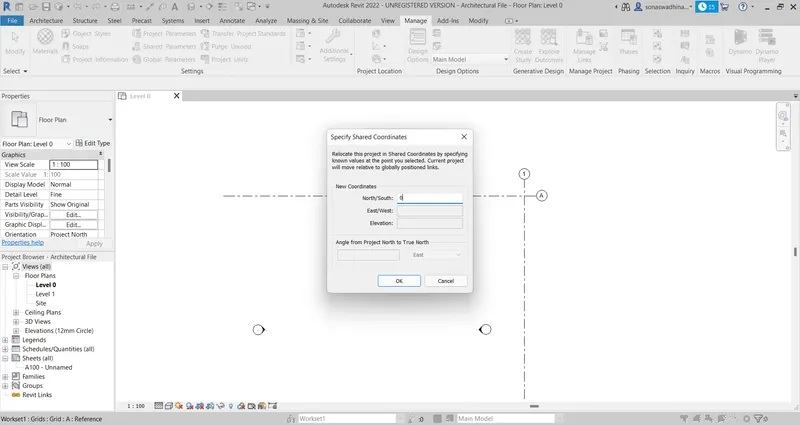
- Click on one baseline grid drawn to open the specified shared Coordinates dialogue box and change the North/South coordinate to 0 and click Ok
- Click on one next baseline grid drawn to open the specified shared Coordinates dialogue box and change the East/West coordinate to 0 and click Ok.
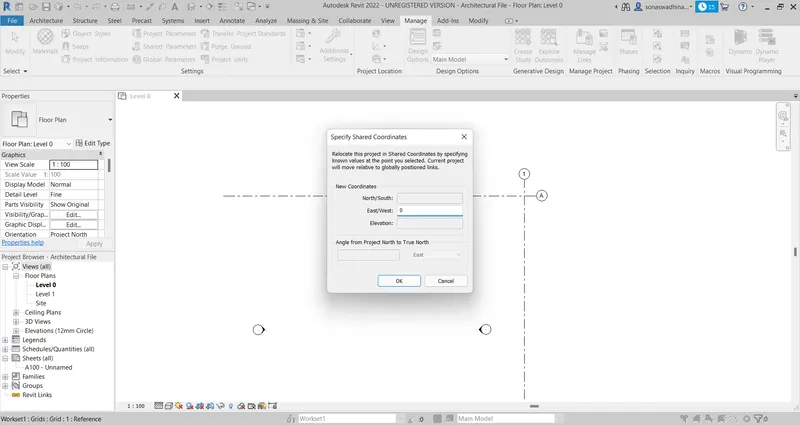
- Finally, save the file to the desired folder and close it
- Click on the New options in the Models section and select the Structural template from the new project dialogue box and click OK.
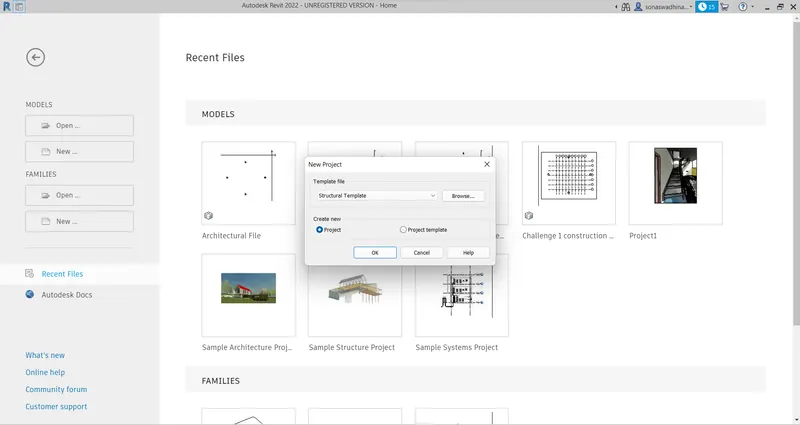
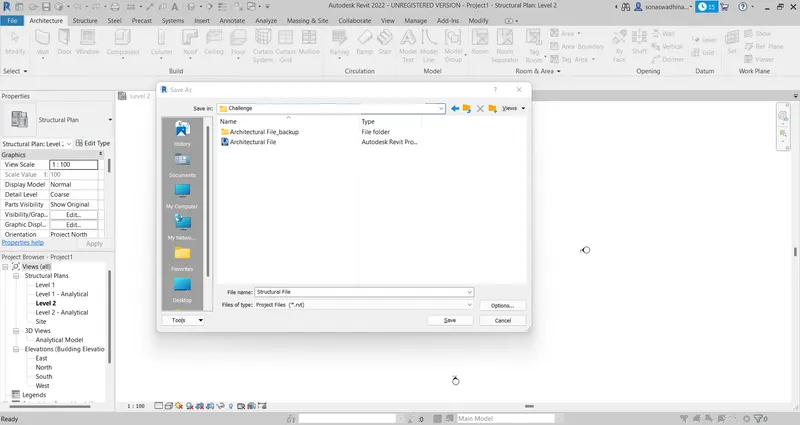
- Finally, save the file to the desired folder and was named a Structural file
- Go to collaborate tab in the ribbon and click on the collaborate icon.
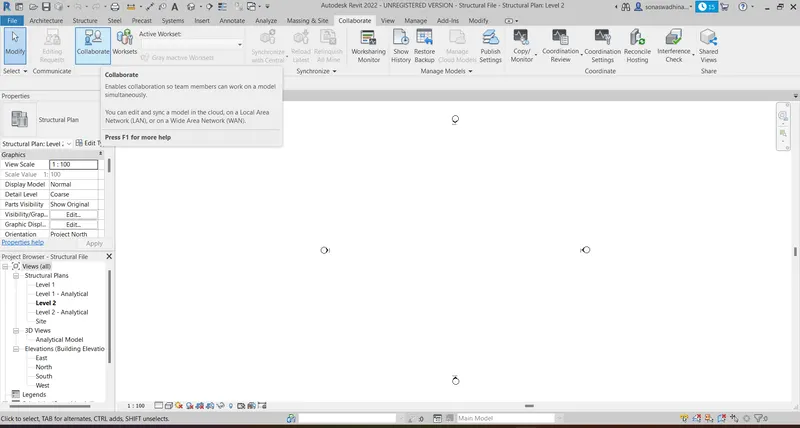
- The collaborate dialogue box will appear and select within your network and click ok.
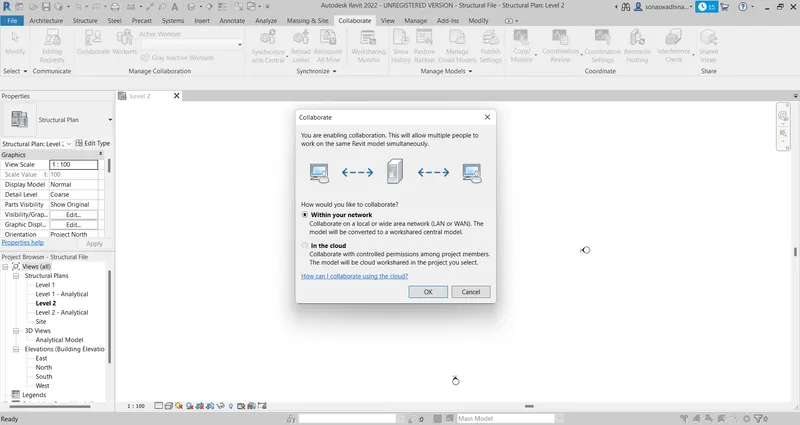
- Save it as a central model by clicking yes in the dialogue box that appeared.
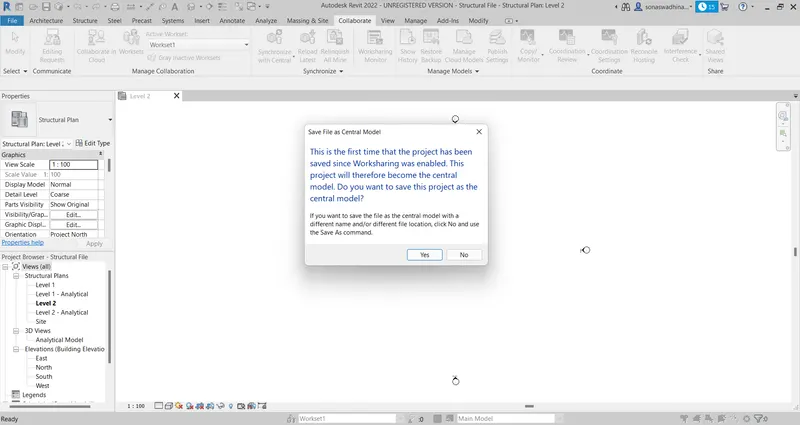
- The outermost horizontal and vertical grids were now created as shown
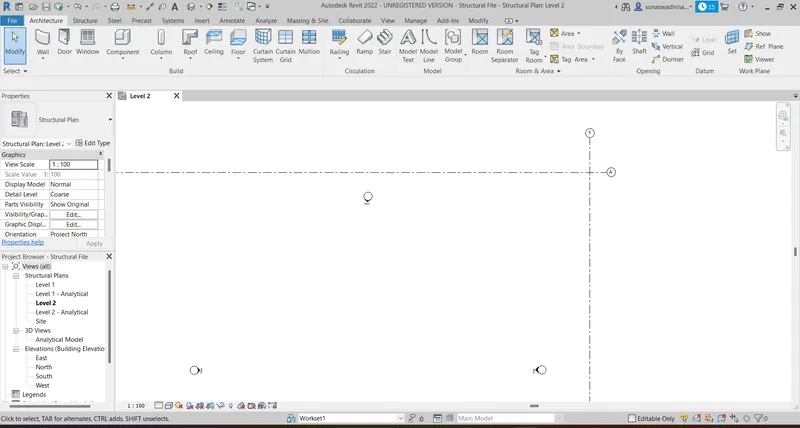
Now in the manage menu under the project location tab click on the Specify coordinates at Point.
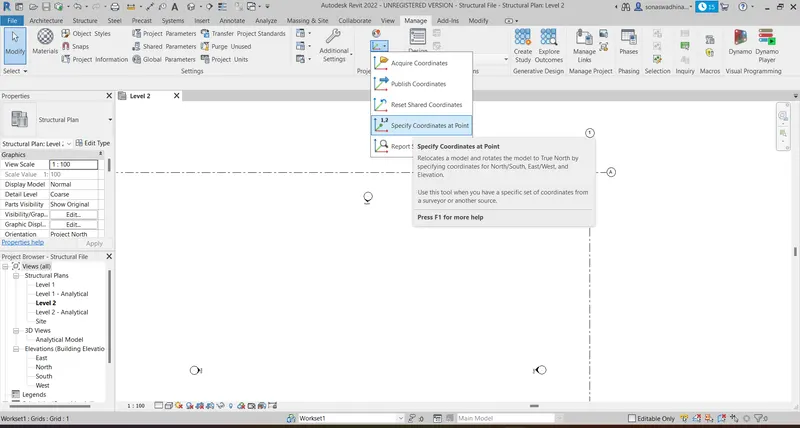
Click on one baseline grid drawn to open the specified shared Coordinates dialogue box and change the North/South coordinate to 0 and click Ok
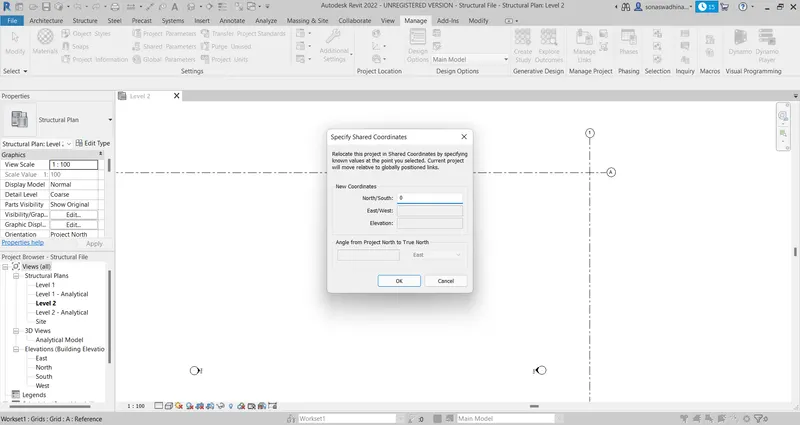
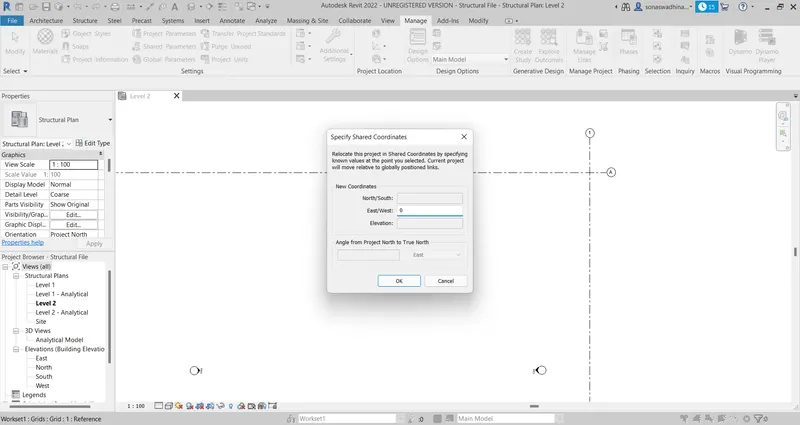
Click on the next baseline grid drawn to open the specify shared Coordinates dialogue box and change the East/West coordinate to 0 and click Ok
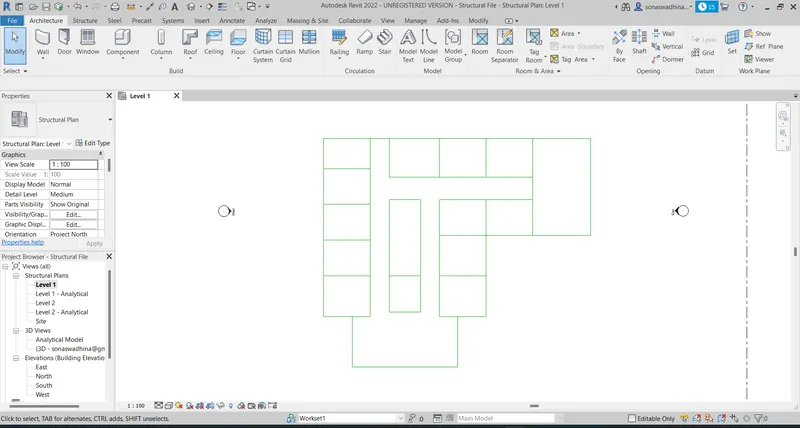
Using the model line a model of the office building was created as shown in level 1.
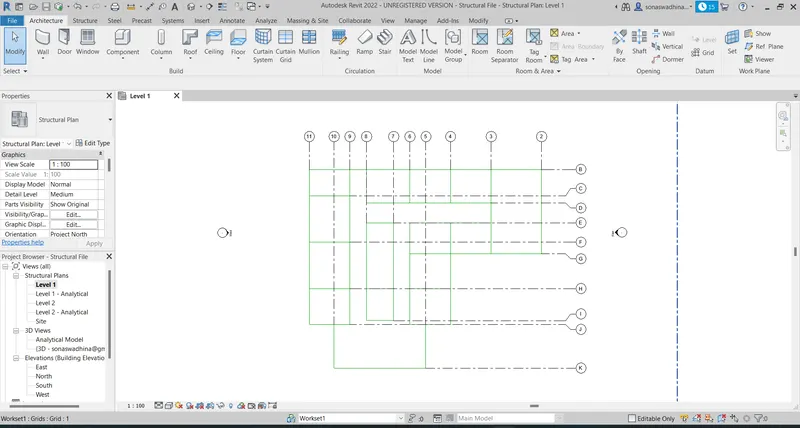
All the horizontal and vertical grids were created as shown. Horizontal grids are named from 2 to 11 starting from right to left and vertical grids named from B to K starting from top to bottom
By using the levels option in the structure tab B levels were created at a height of 15' each and foundation level at a depth of 8'.
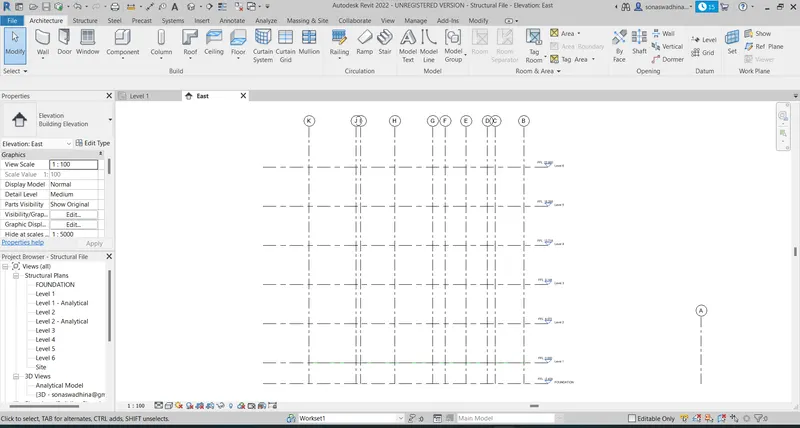
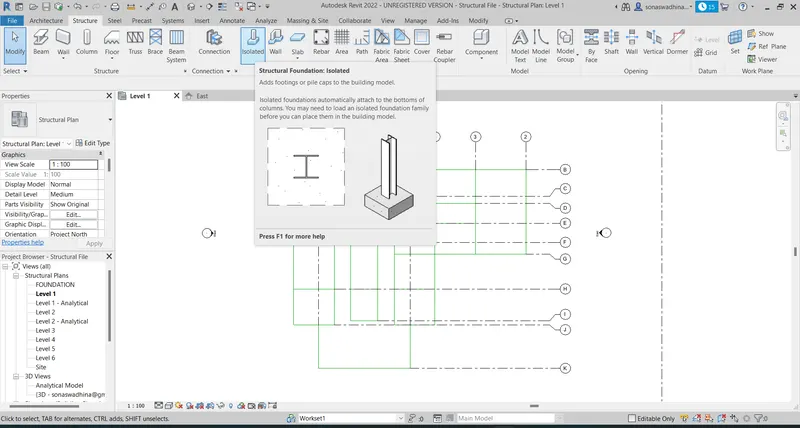
Click on the Isolated footing option in the Structure tab to apply footings to the building
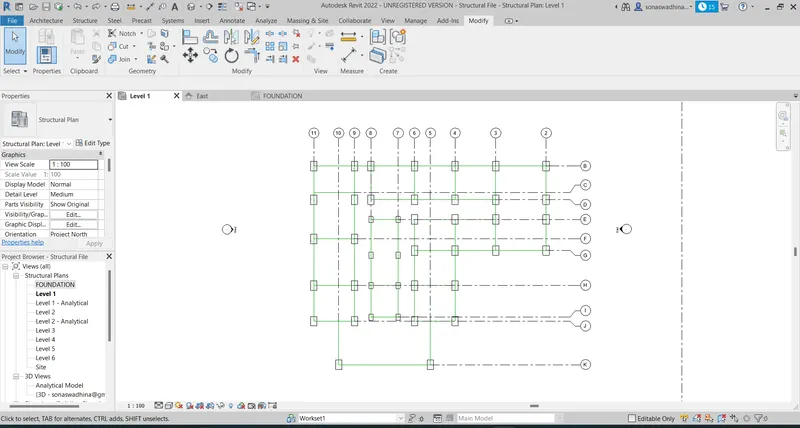
All the footings were placed at the intersection of vertical and horizontal grids as needed.
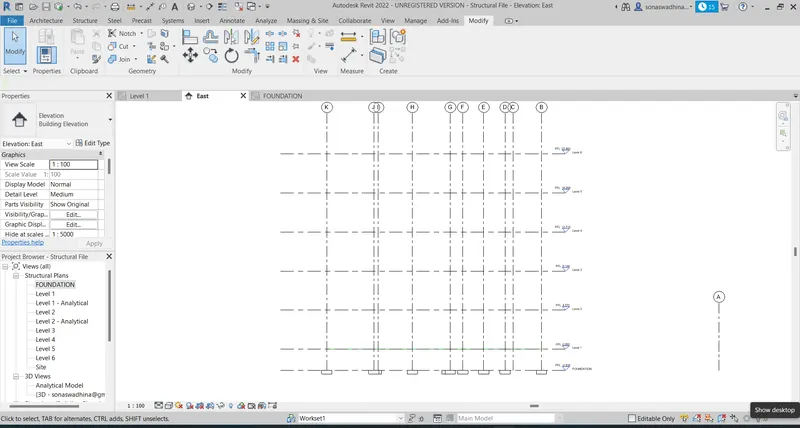
The East Elevation view showing the footings is provided below. From the figure, we can understand that all the footings are correctly aligned.
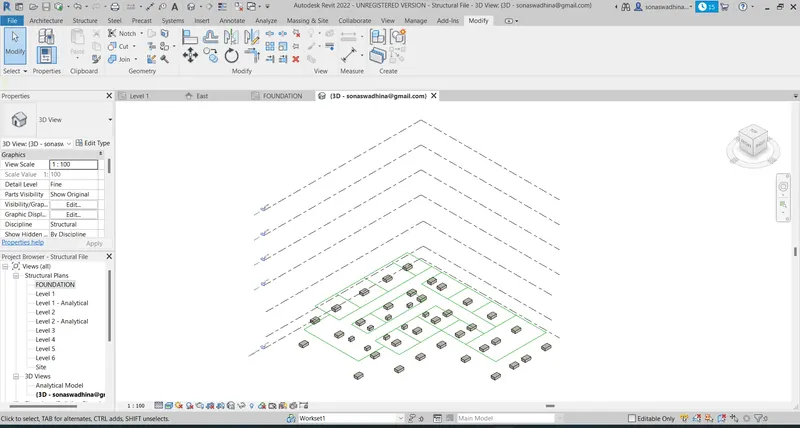
The 3D view of the same is as shown. The green line is the model line that we created earlier, as it was created in level 1 and as the foundation is at level 8 it shows that irregularity.
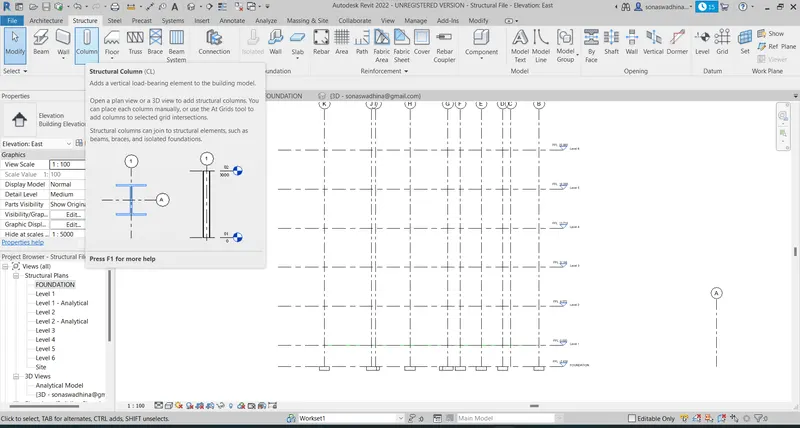
Click on the Column option in the structural tab to draw the columns now
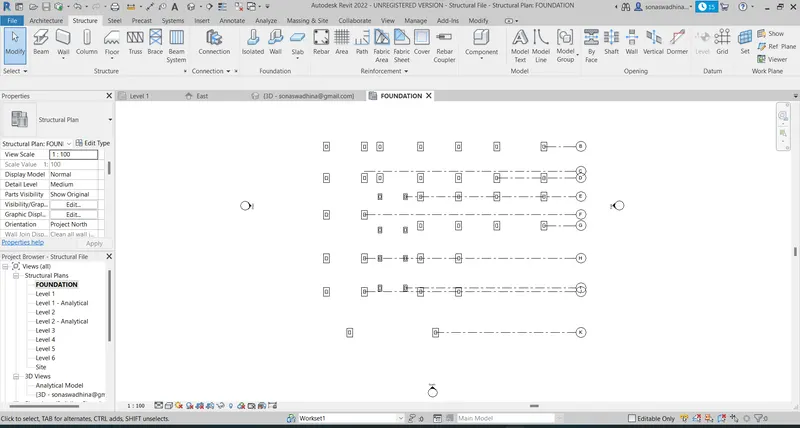
Now all the columns are placed at the center position on the top of the isolated footing till the ground floor level that is still level 1.
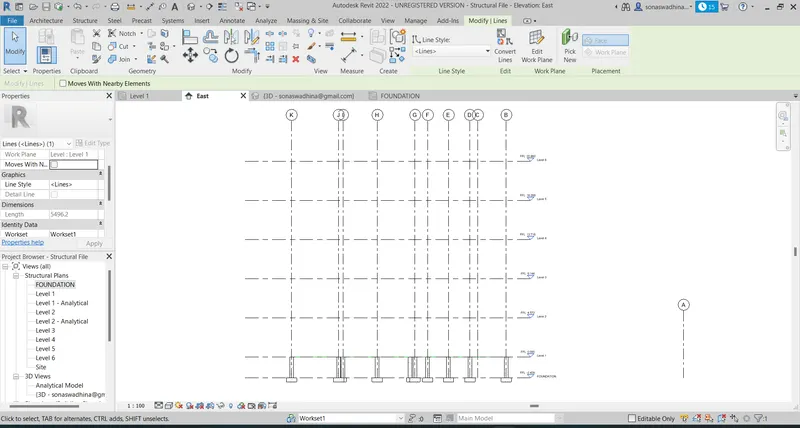
The East Elevation view showing the Columns is provided correctly on top of the footings.
The 3D view of the same is as shown. The green line is the model line that we created earlier, as it was created in level I and as the column is constrained at the level I now it is aligned correctly.
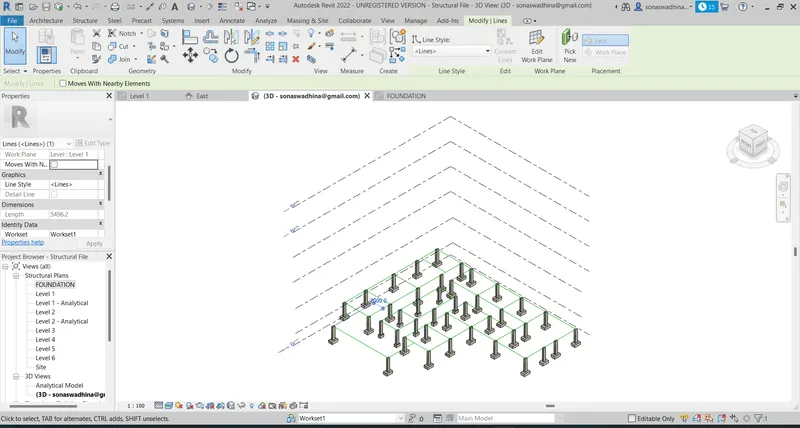
Now in a similar way the Columns are placed at level 1 to level 2 using the at-grids option. For this just select all the grid lines, assign the top and bottom constraints and click ok. This is the easiest way of placing columns according to me.
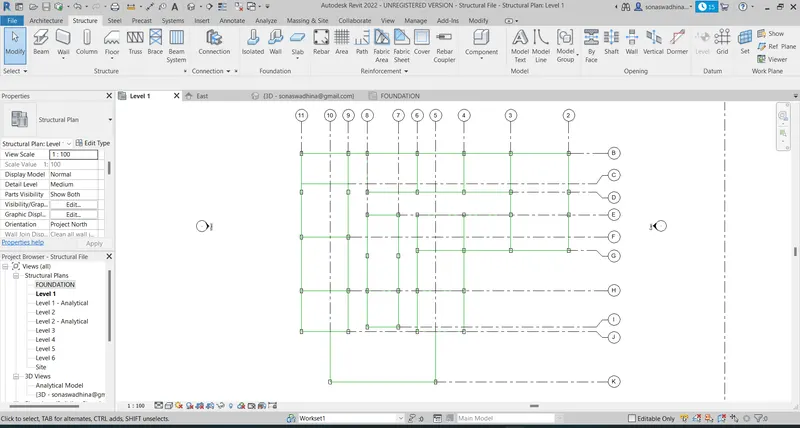
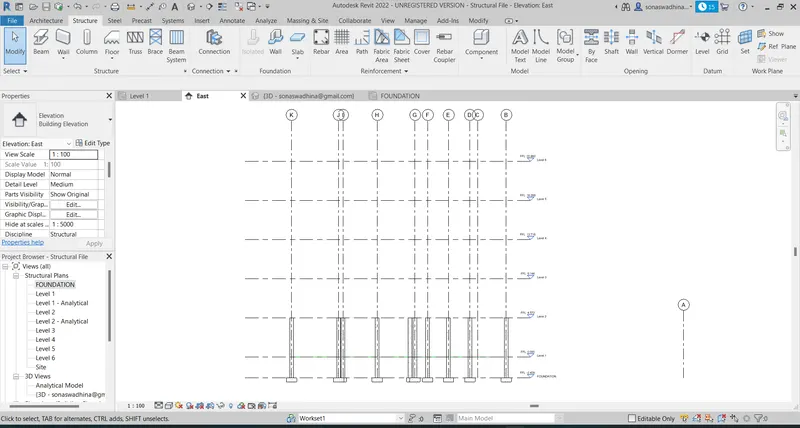
The East Elevation view showing the Columns is provided correctly.
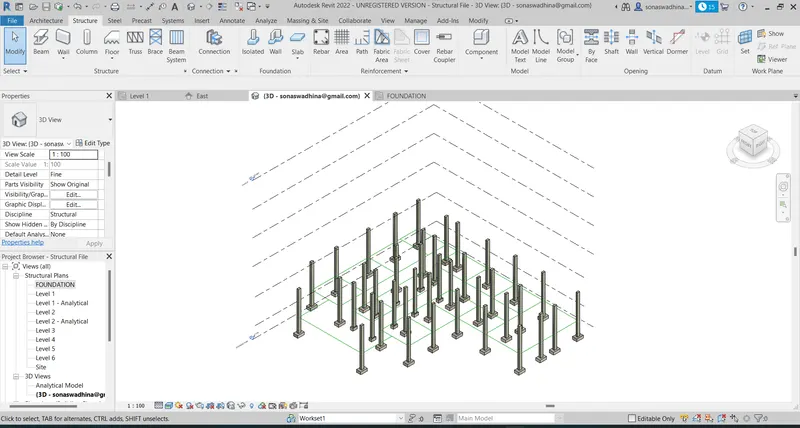
The 3D view of the same is as shown.
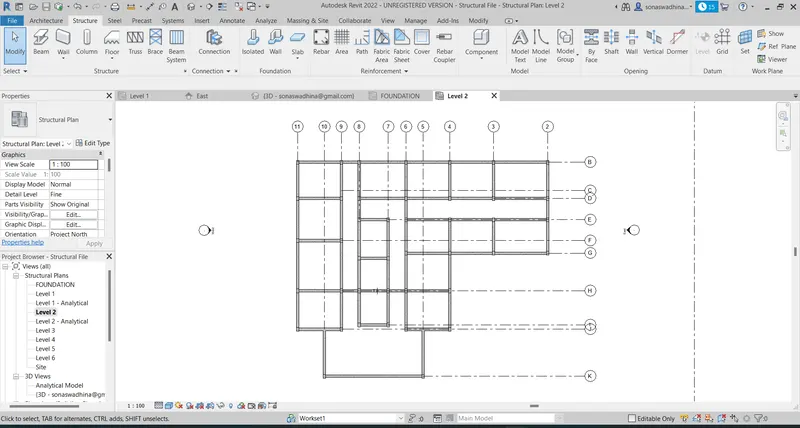
The beams are placed next using the On grids options. Click on the beam option in structure and select the beam of our choice and select the On grids option. Now select all the grid lines and click ok.
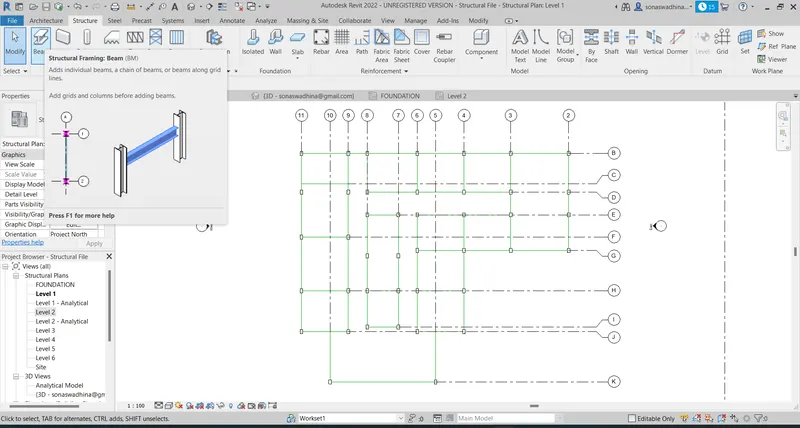
The beam is now properly arranged and placed at required places as shown
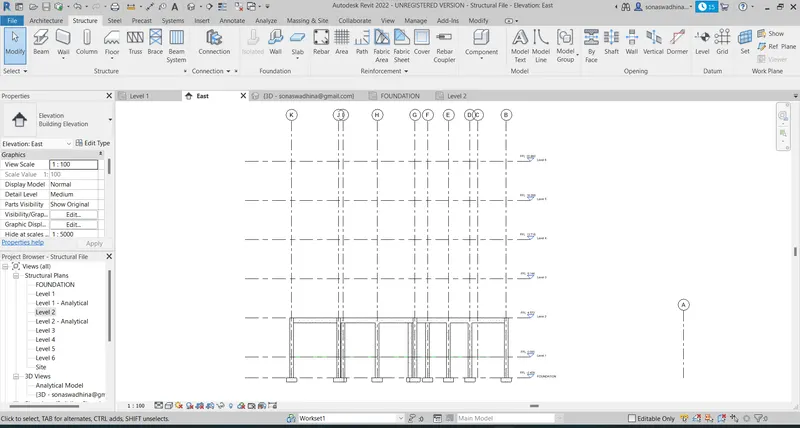
The East Elevation view shows that the beams are provided correctly.
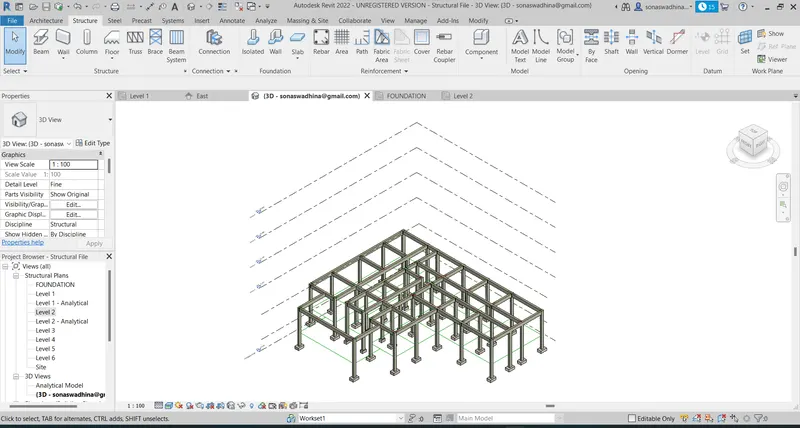
The 3D view of the same is as shown.
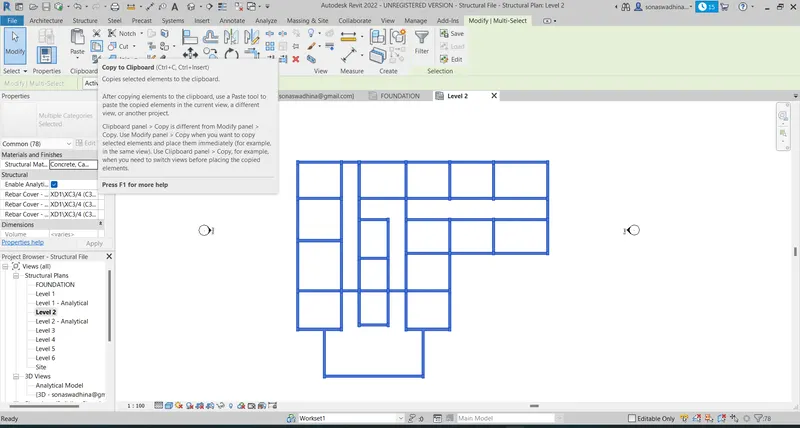
Now select all the components that are the beams and columns of a level and copy them to the clipboard using the copy option
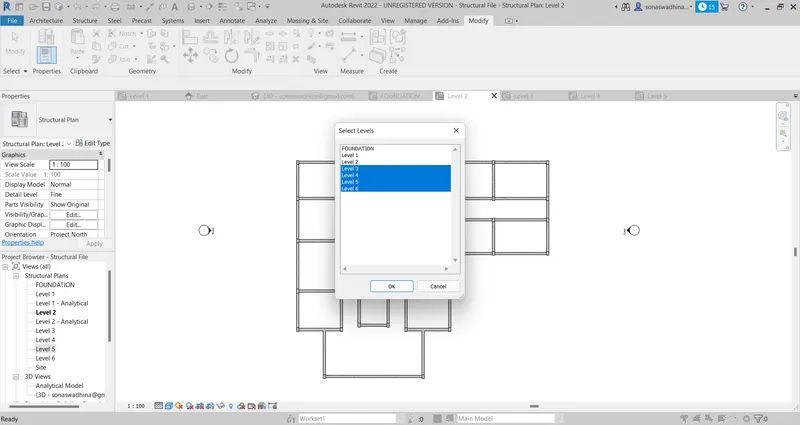
Now paste the copied components and select the required levels using the paste to required levels as shown.
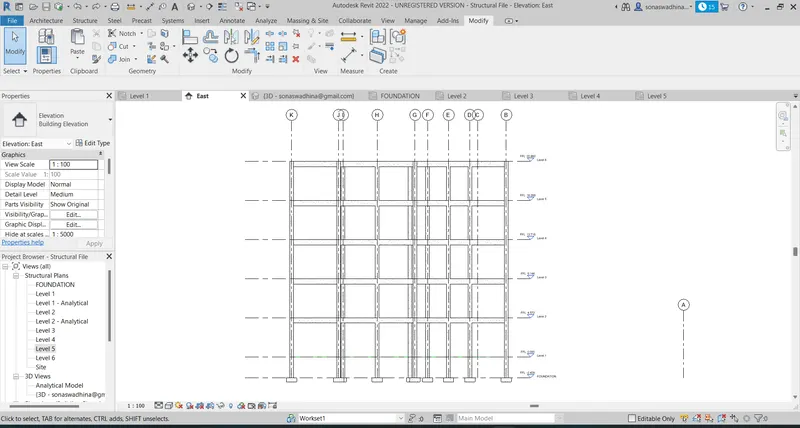
The East Elevation view shows that the copy-paste operation was successfully executed.
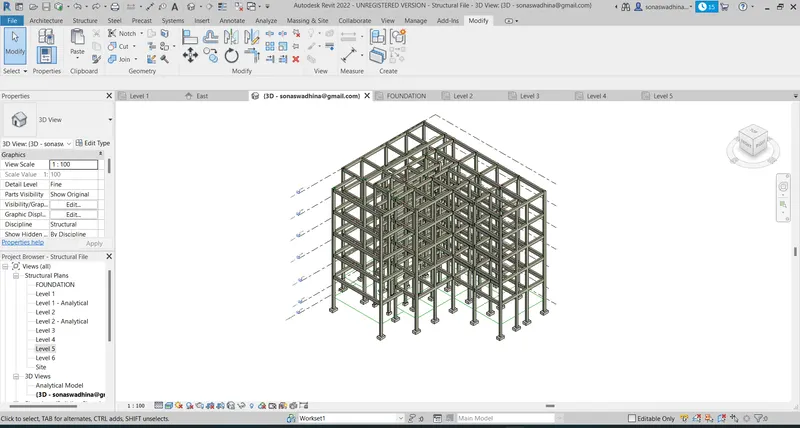
The 3D view of the same is as shown.
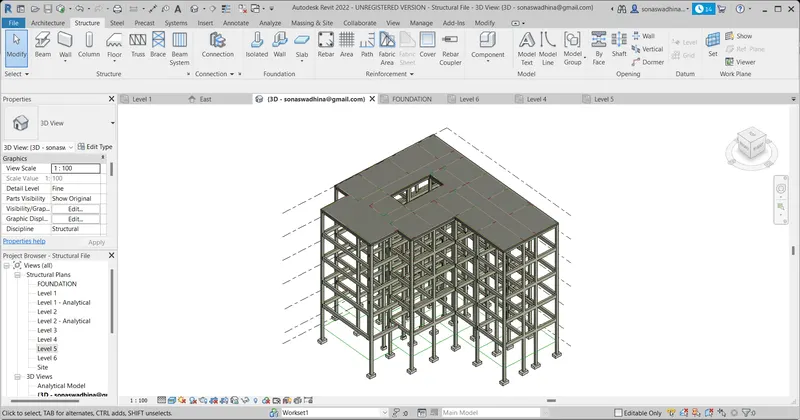
d)Next task is to provide a roof to the structure. Here a flat roof is provided as shown.
e)Structural floors:
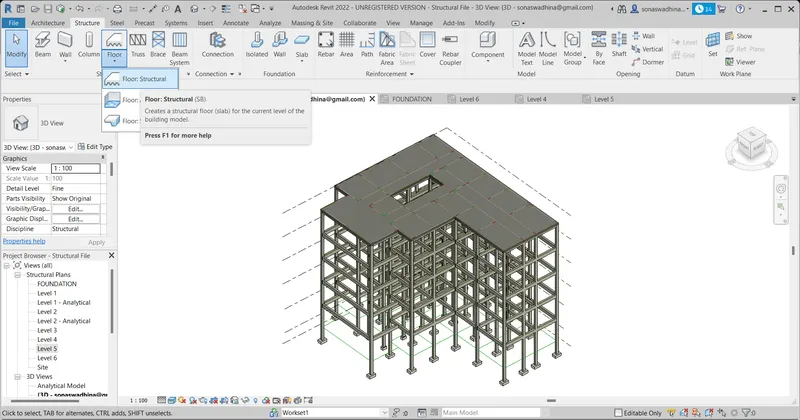
Click on the structural floor option in the structural tab as shown
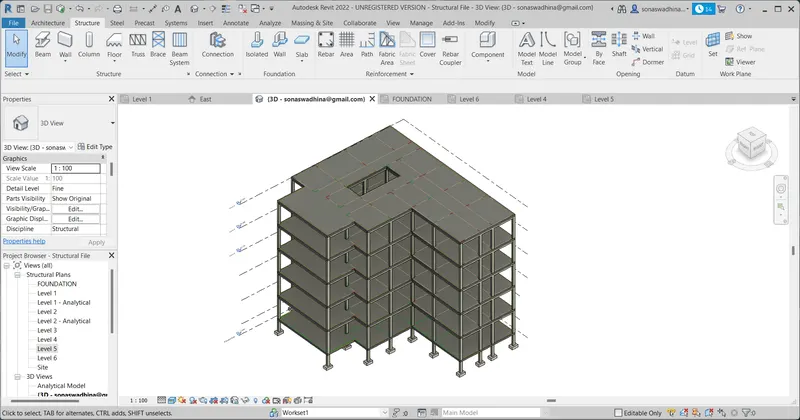
Initially draw the structural floor in the ground floor and then copy-paste it to the remaining levels as shown.
f)Shaft openings:
Click on the shaft opening option in the structure tab. Using the line option draw the opening portion for the shaft and select the required levels
`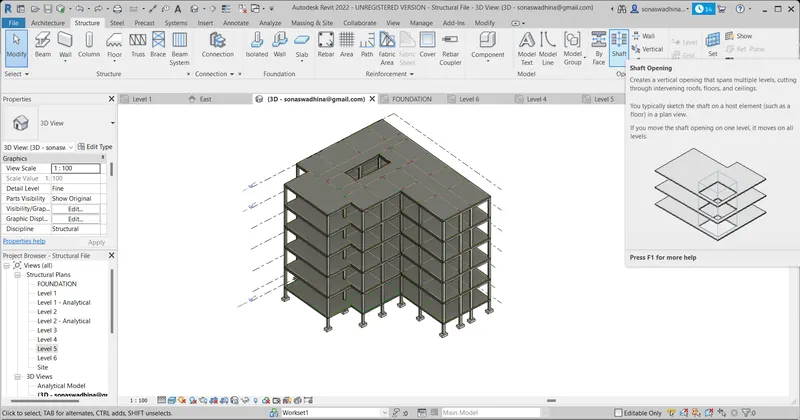
The shaft opening is provided as shown in the 3D view.
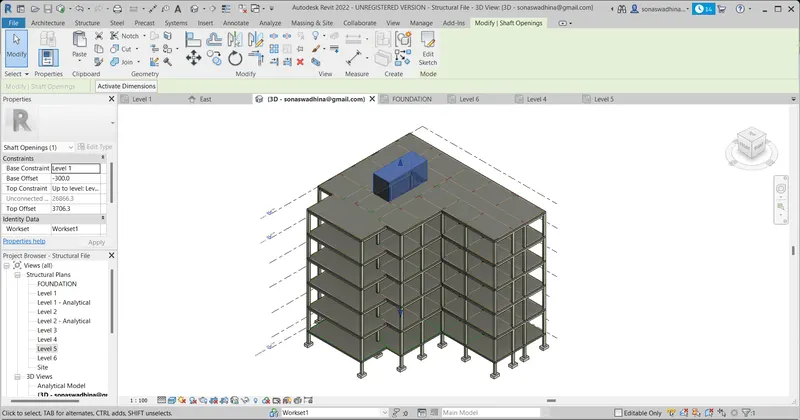
RESULTS:
Structural components like footings, Columns, beams, roof, structural floor, and shaft openings were provided.
TASK 4: Using the architectural model, include the following components based on the type of structure selected
- Wall Layout with appropriate material and finishing
- Exterior façade with fancy finish
- Interior partition walls to size rooms
- Components to add details to a room ( Desk, Chair, Lighting, Plumbing fixtures)
- Add components such as stairs Elevators
- Have at least one side of the building with curtain walls and glass panels
- Include interior and exterior lighting fixtures
- Place proper topographic components from outside ( Trees, Parking, Plants) to add details to the model
PROCEDURE:
- Initially, we have to link the architectural and structural templates.
- For this first, open the architectural template and then insert the structural template into it.
- For this, go to the Insert tab, then Revit links, choose the links
- Using the copy monitor copy all the components to the structural template
- Now the architectural model and structural model are linked.
a)Wall Layout with appropriate material and finishing:
The Wall layout has been developed. The Wall thickness provided is 300mm. Now, we have to assign the material to the wall. Here, some curtain walls wre also provided.
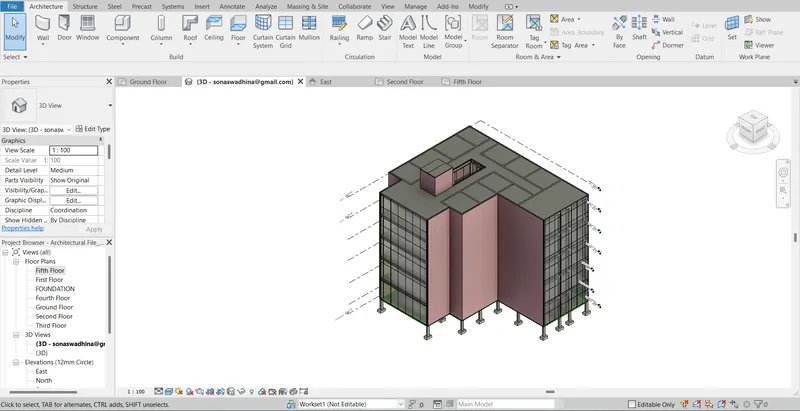
The material provided for the wall is Brick and CMU. After the wall is designed all the necessary doors and windows was provided in the exterior wall as shown
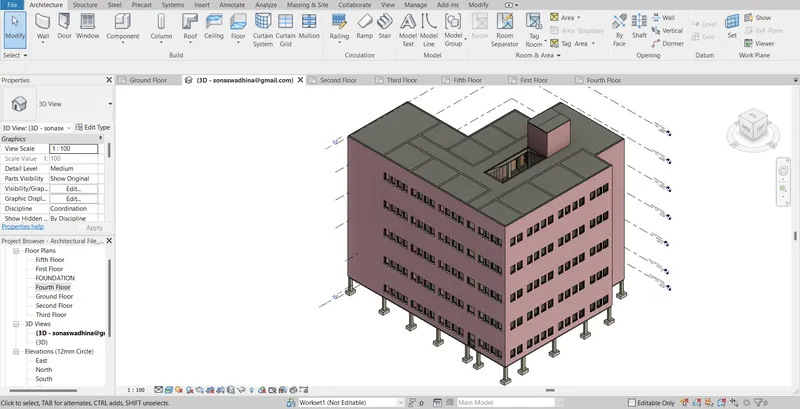
b)Exterior facade with fancy finish:
An Exterior facade with a fancy finish was provided as shown.
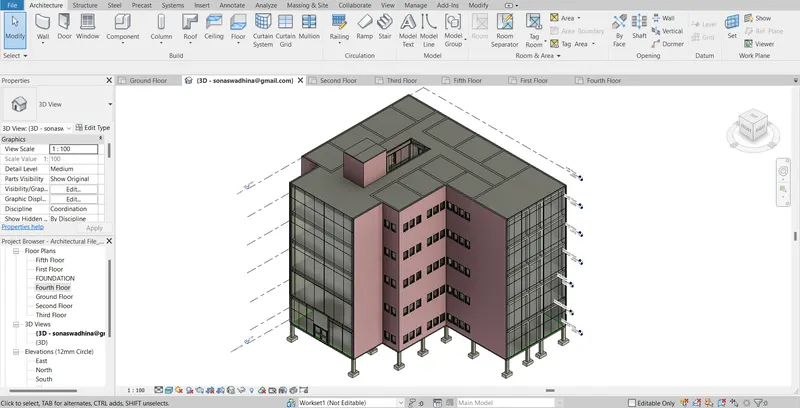
c) Interior partition walls to size rooms:
The interior partition walls were provided. All the windows and doors were provided in the required places.
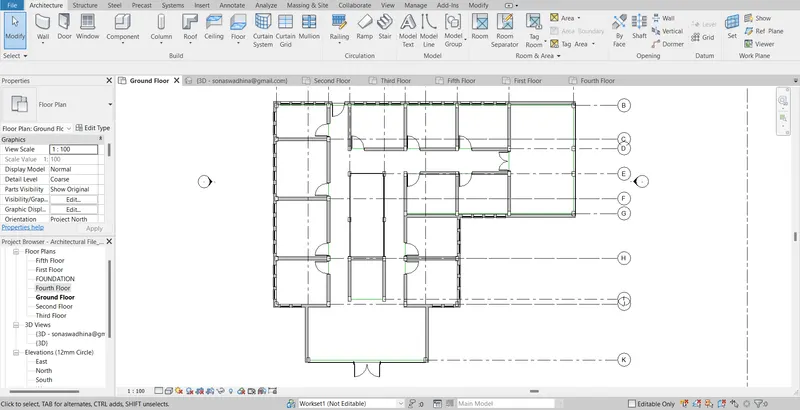
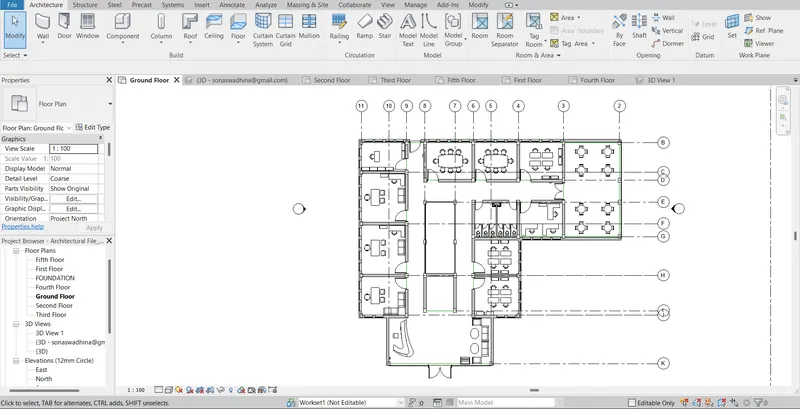
d)Components to add details to a room ( Desk, Chair, Lighting, Plumbing fixtures):
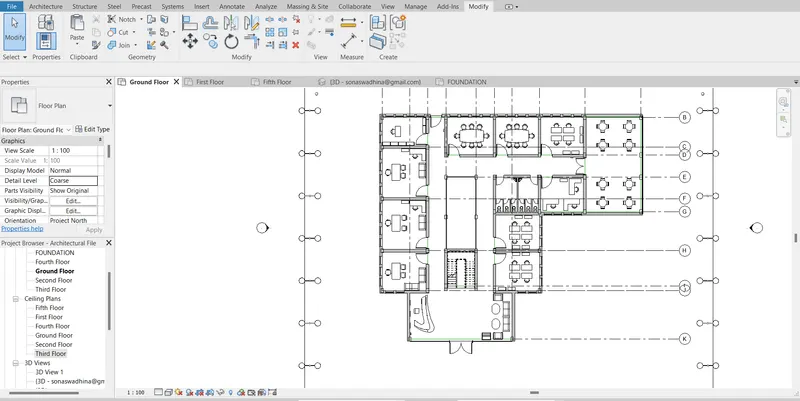
This can be provided by going to the architecture tab –> components –>load family –> and then placing the required components at the required locations. The same layout is followed till level 7.
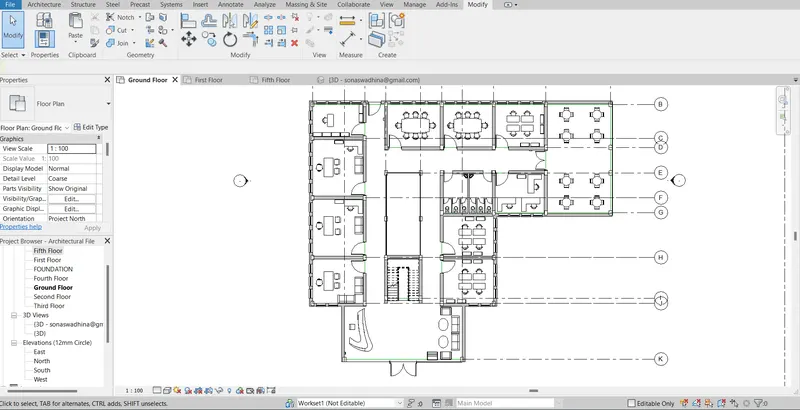
e) Add components such as stairs Elevators:
At the shaft opening provided, a straight stair was made as shown
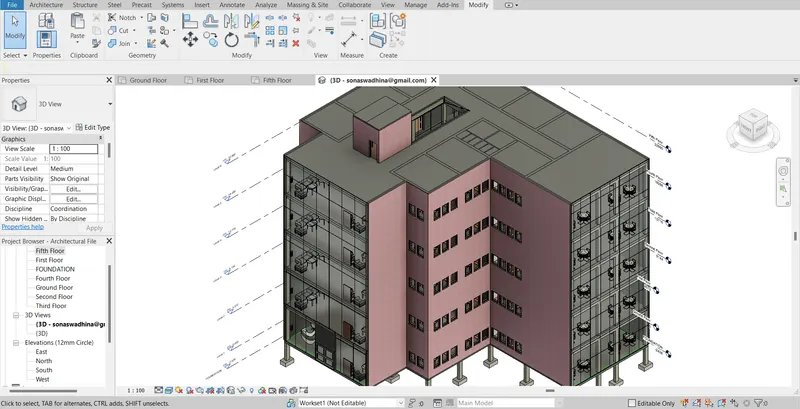
f) Have at least one side of the building with curtain walls and glass panels:
Two sides of the building have been assigned with the storefront curtain wall as shown.
g) Include interior and exterior lighting fixtures
EXTERIOR:
Exterior lighting fixtures were provided as shown by going to the architecture tab –> components –>load family –> and then placing the exterior light components at the required locations.
INTERIOR:
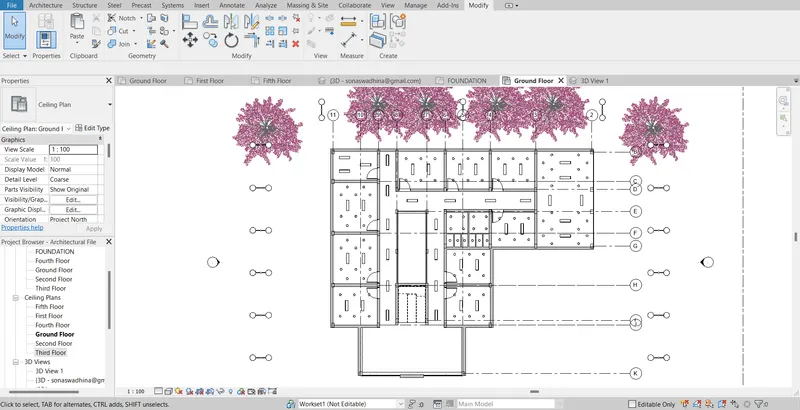
Similarly, internal lightings were also provided as shown.
h) Place proper topographic components from outside ( Trees, Parking, Plants) to add details to the model:
For this, go to Architecture tab –> components load family –>select plantings and place plants. Already while providing the lighting itself all the topographic components were placed at that time itself.
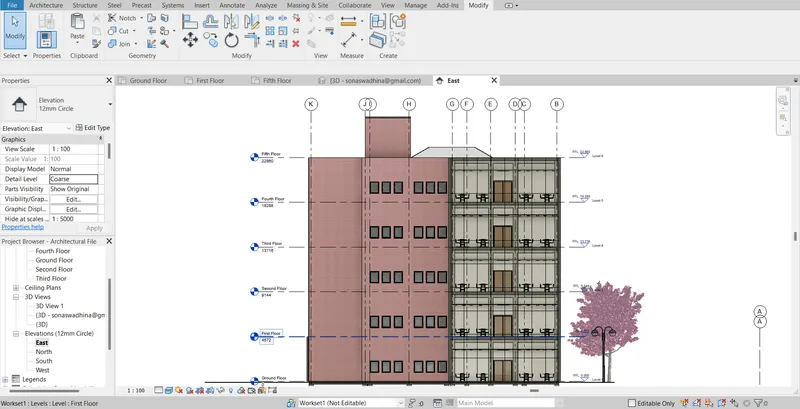
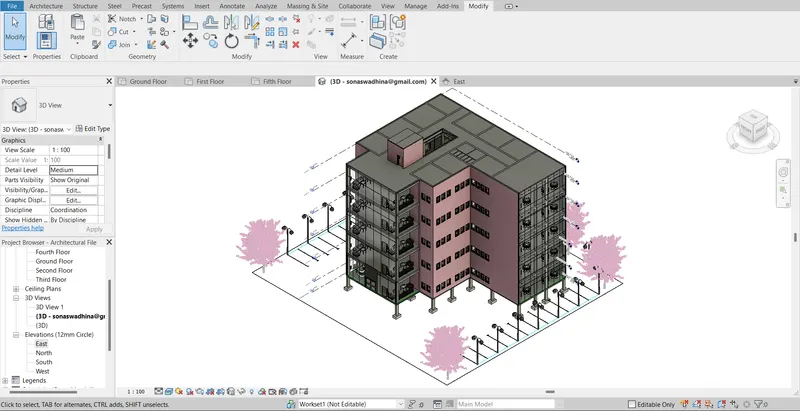
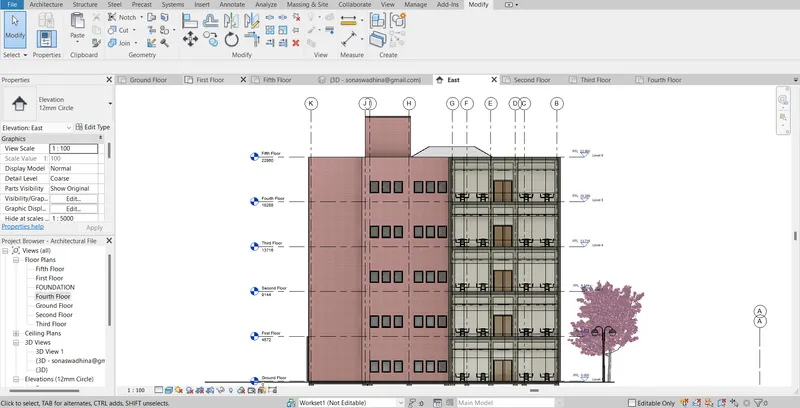
East elevation view showing most of the topographic view is as shown.
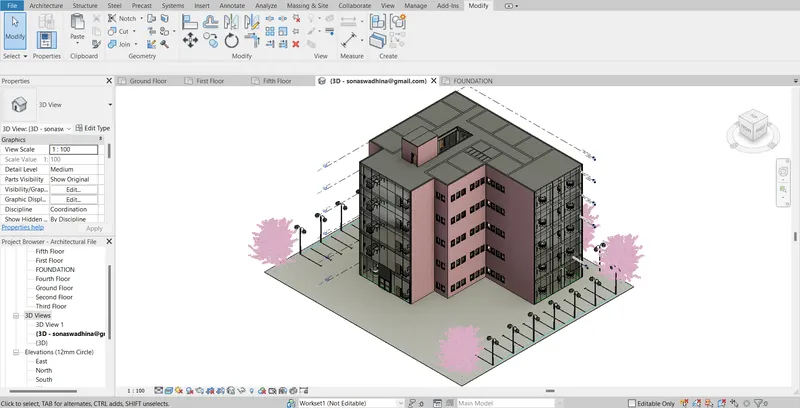
3D isometric view of the building is a show, it shows the topographic details of the building.
RESULTS:
The following components were included in the architectural model:
- Wall Layout with appropriate material and finishing
- Exterior facade with fancy finish
- Interior partition walls to size rooms
- Components to add details to a room (Desk, Chair, Lighting, Plumbing fixtures)
- Add components such as stairs Elevators
- Have at least one side of the building with curtain walls and glass panels
- Include interior and exterior lighting fixtures
- Place proper topographic components from outside ( Trees, Parking, Plants) to add details to the model
TASK 5: Provide a set of drawings in an architectural and structural model to list the following details with categories and appropriate sheet templates included
- Floor Plans with Annotations
- Elevations
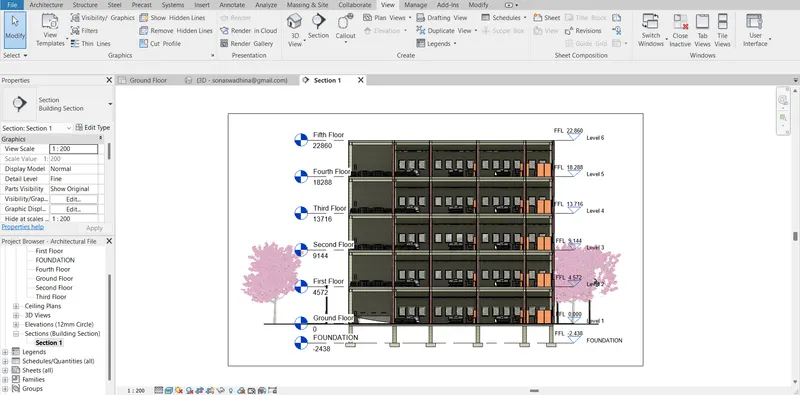
- Sections
PROCEDURE:
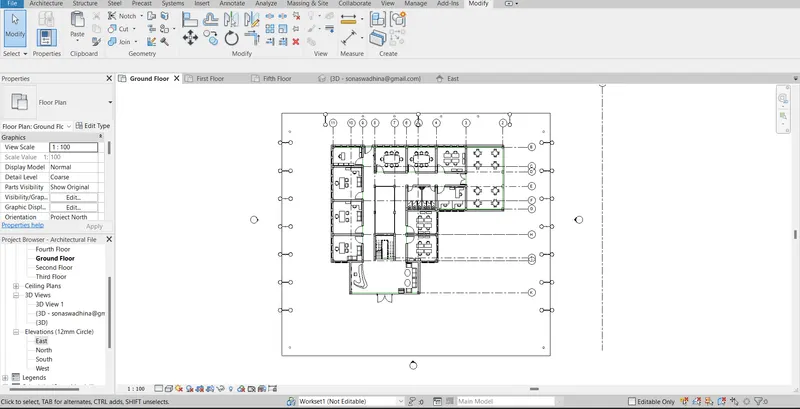
Ground Floor
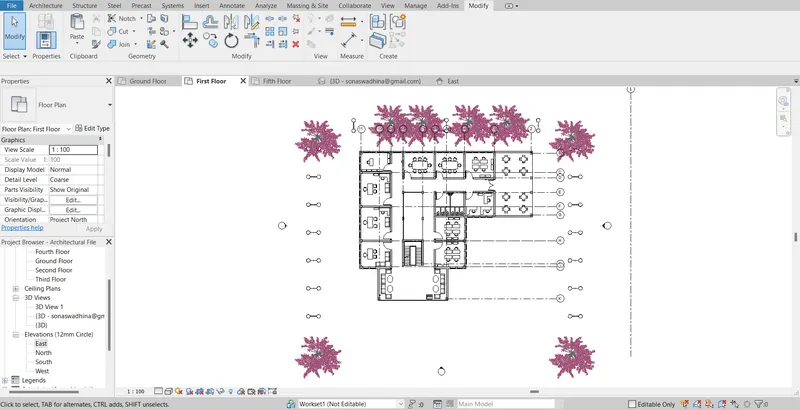
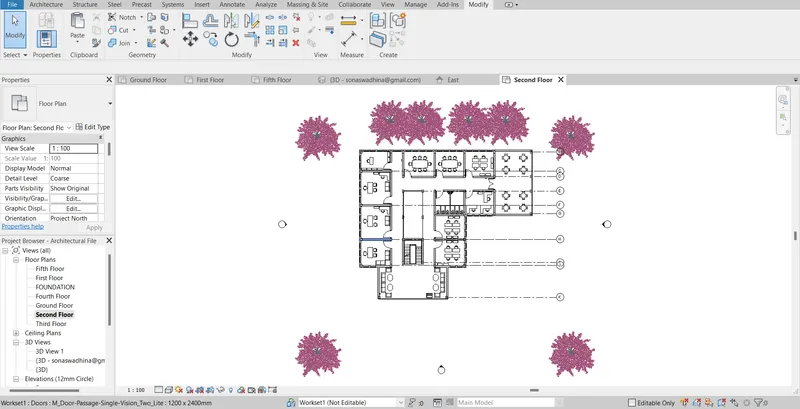
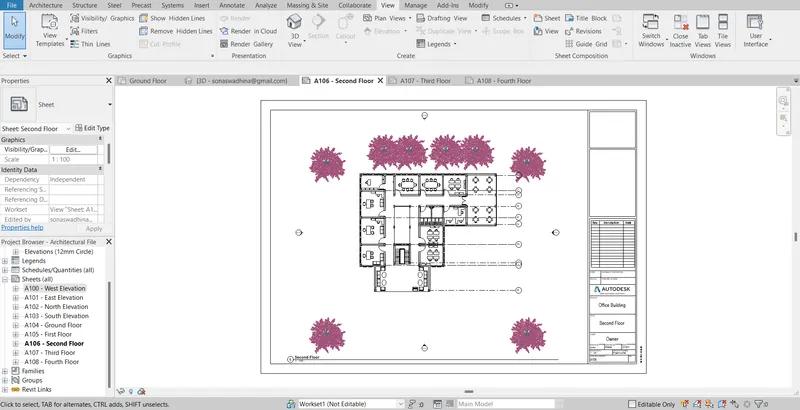
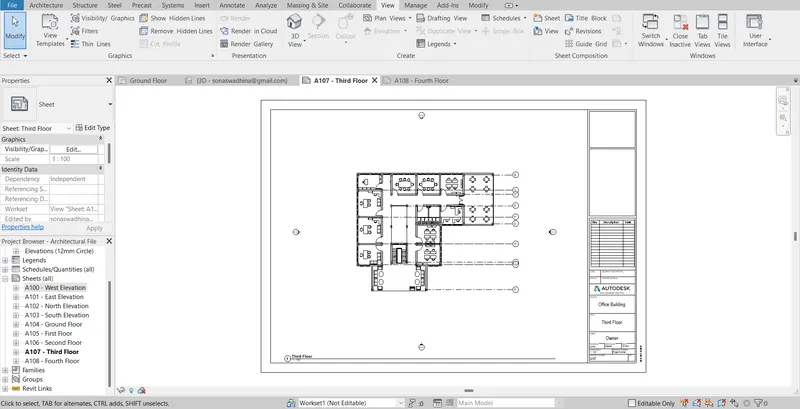
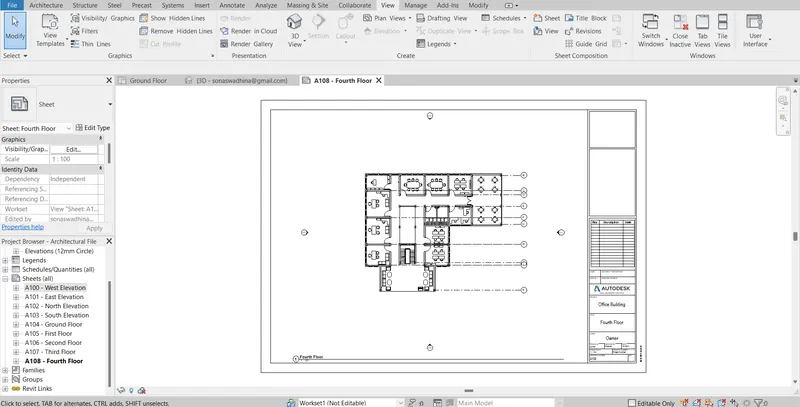
Initially, all the floor plans were properly annotated as shown. It was an easy task as all the floor contains the same elements.
First Floor
Second Floor
Third Floor
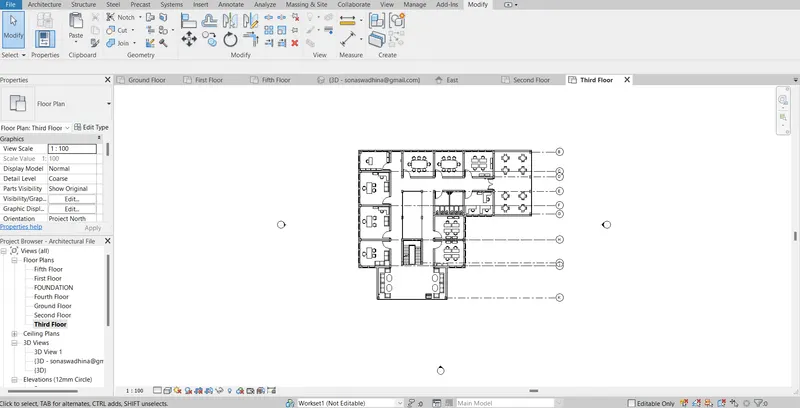
Fourth Floor
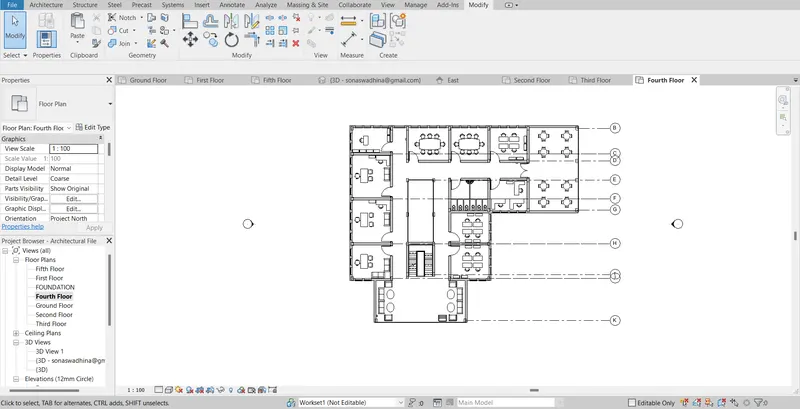
Floor Elevation Templates:
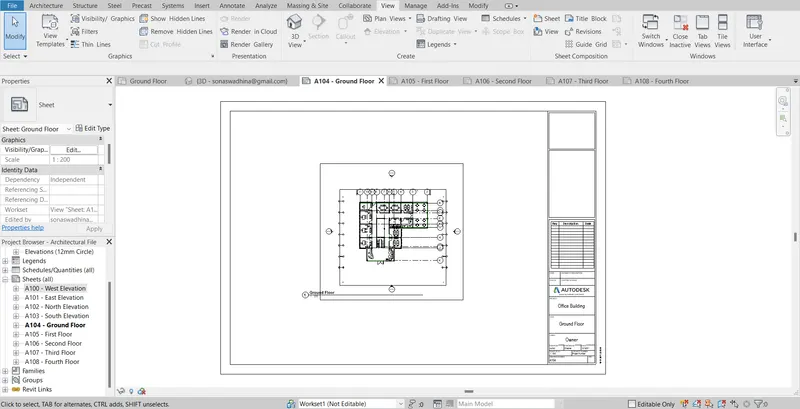
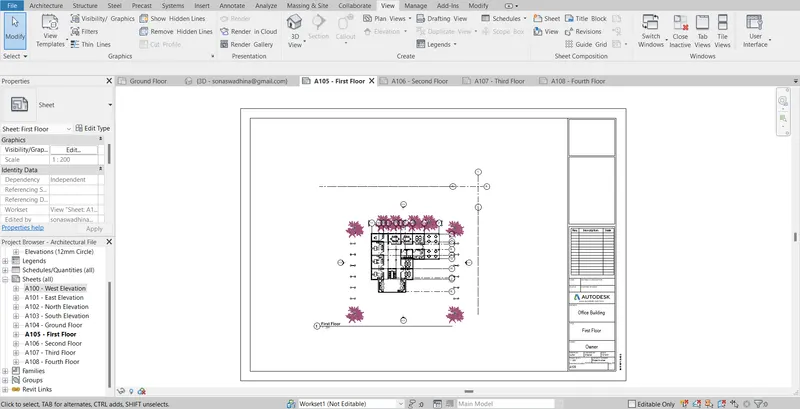
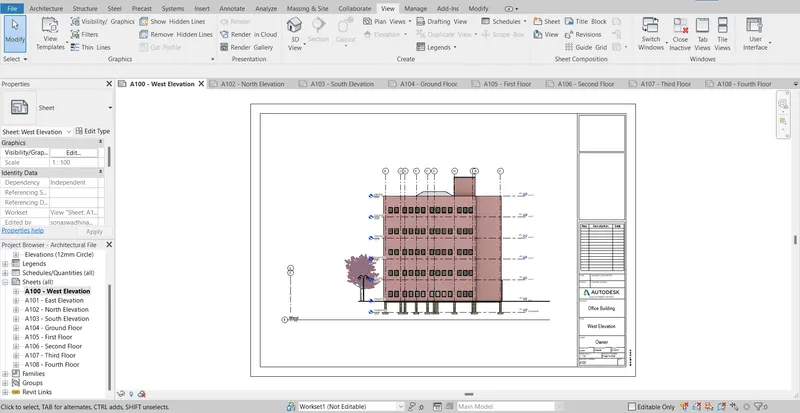
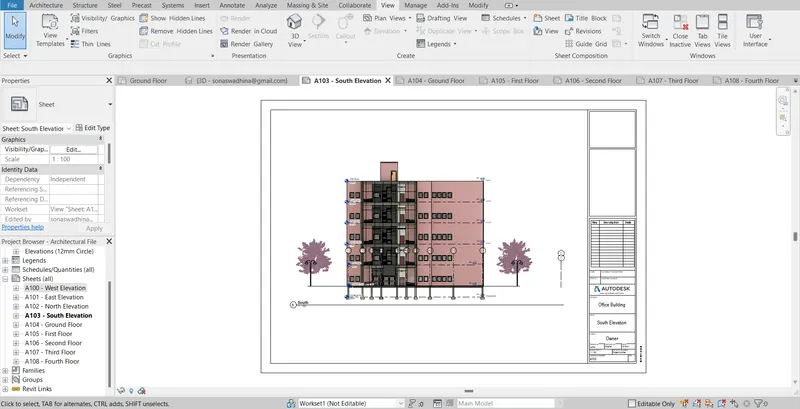
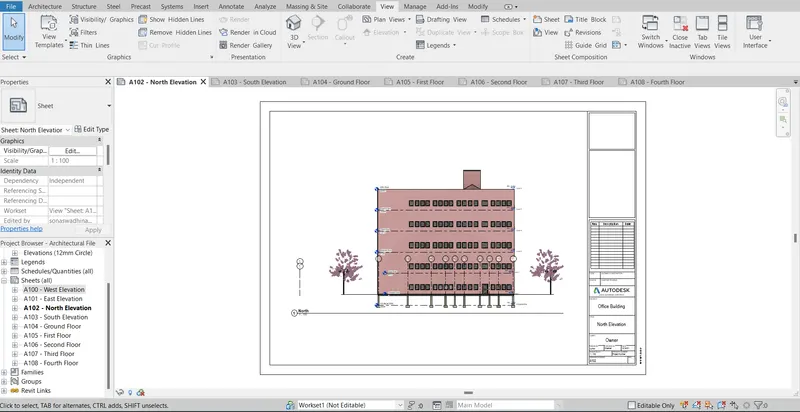
Now all the views were added to the template as shown.
Ground Floor:
First Floor:
Second Floor:
Third Floor:
Fourth Floor:
Elevation Templates:
EAST Elevation:
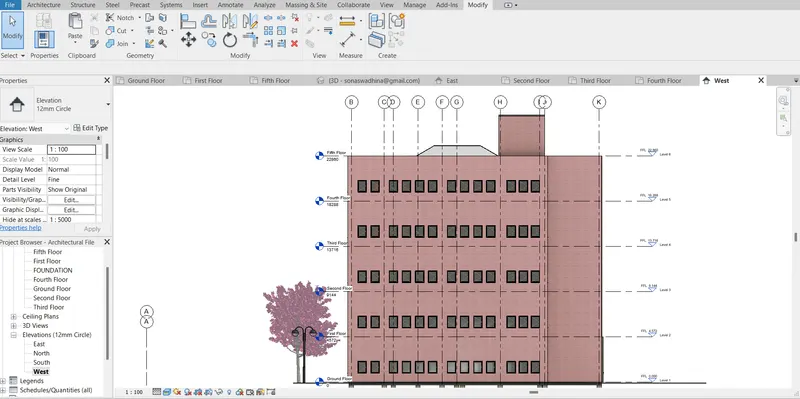
WEST Elevation:
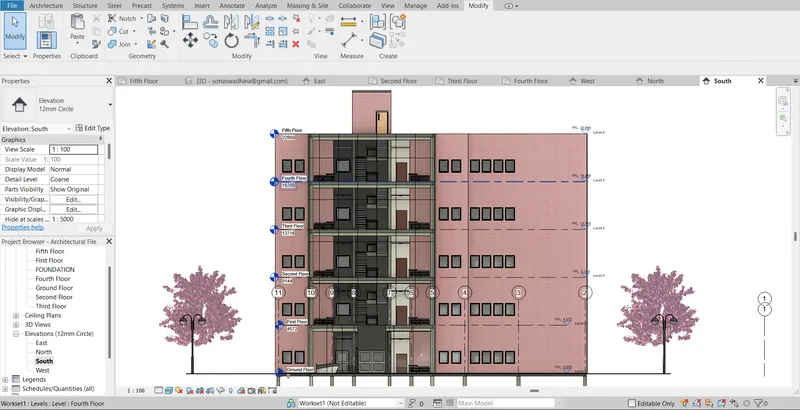
SOUTH Elevation:
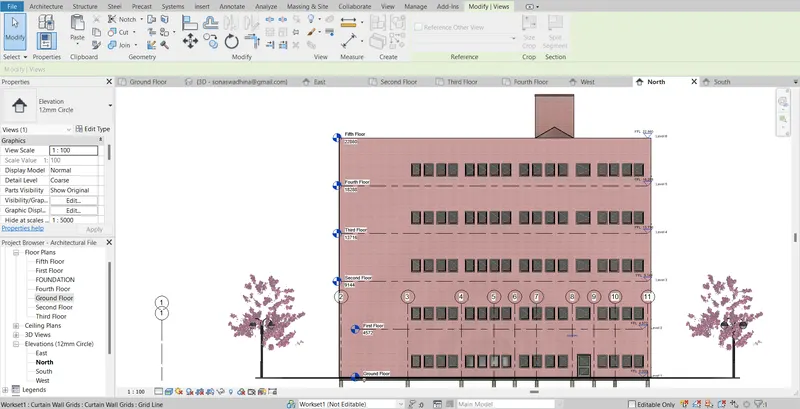
NORTH Elevation:
Elevation Sheet Templates:
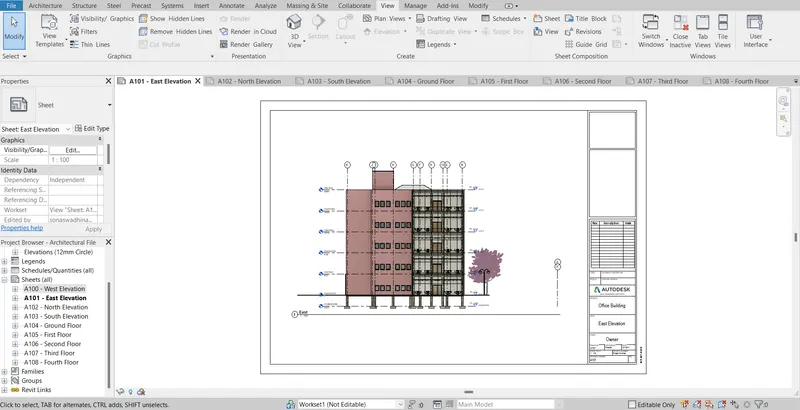
East Elevation Template
West Elevation Templates
South Elevation Templates
North Elevation Templates
Section :
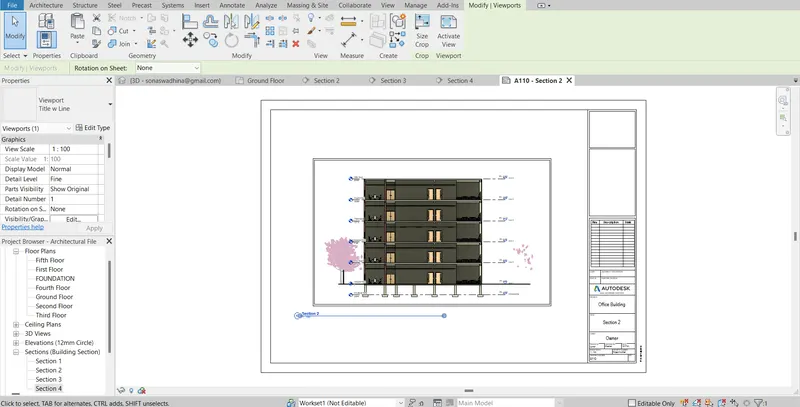
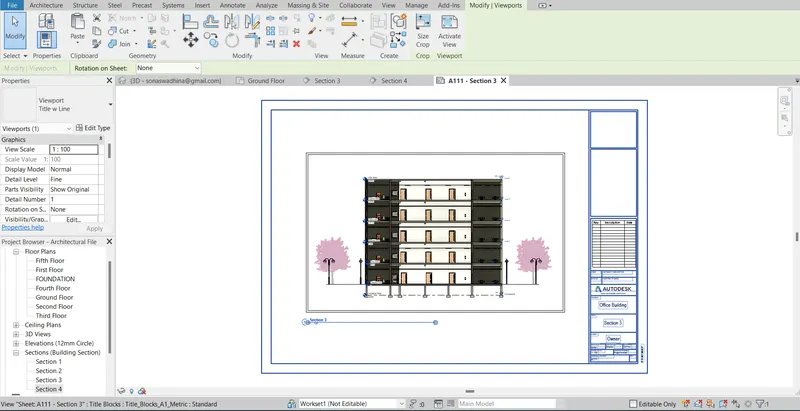
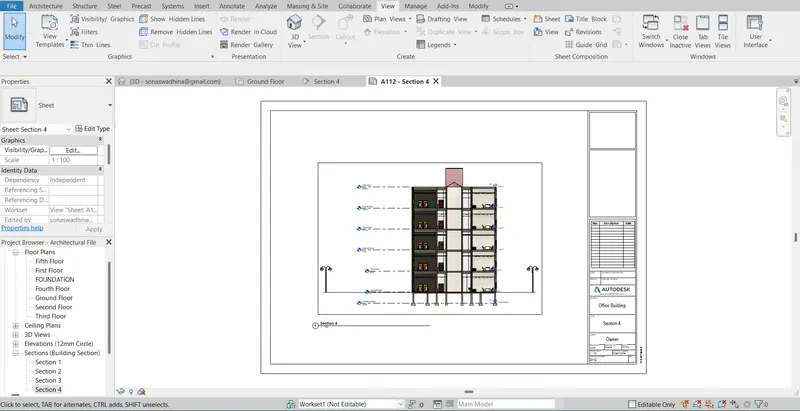
Click on the section line in the view tab. Draw the section line through the building as required
Section 1
Section 2
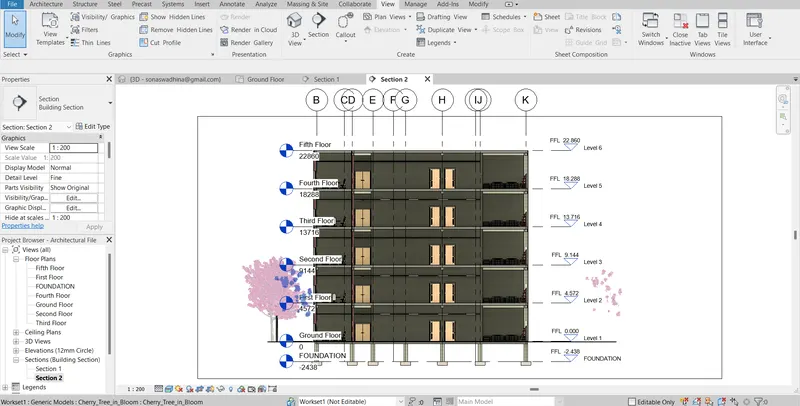
Section 3
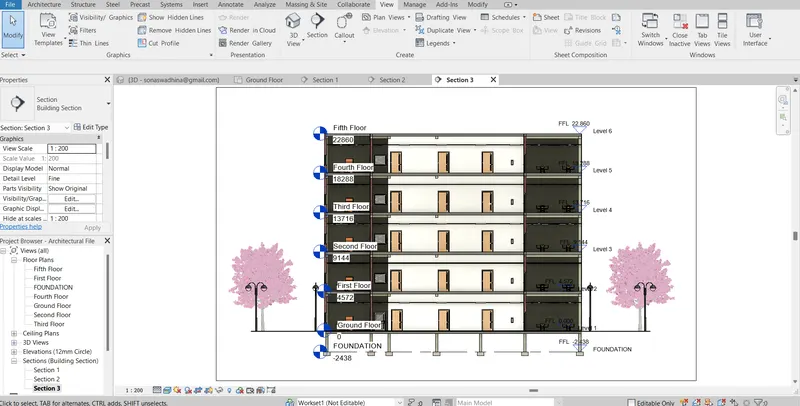
Section 4
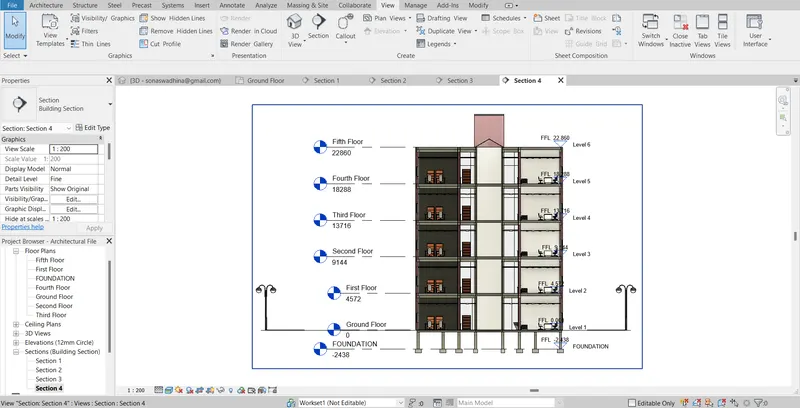
Section sheet templates:
Section 1Template
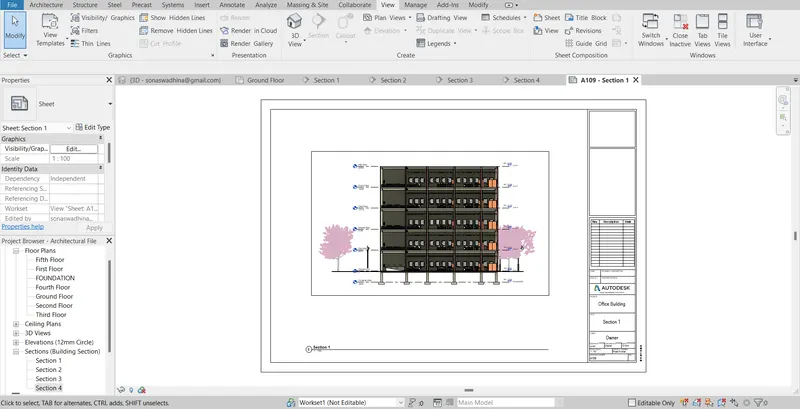
Section 2 Template
Section 3 Template
Section 4 Template
RESULTS:
The Floor Plans with Annotations, Elevations, and Sections were created and placed on the drawing sheet.
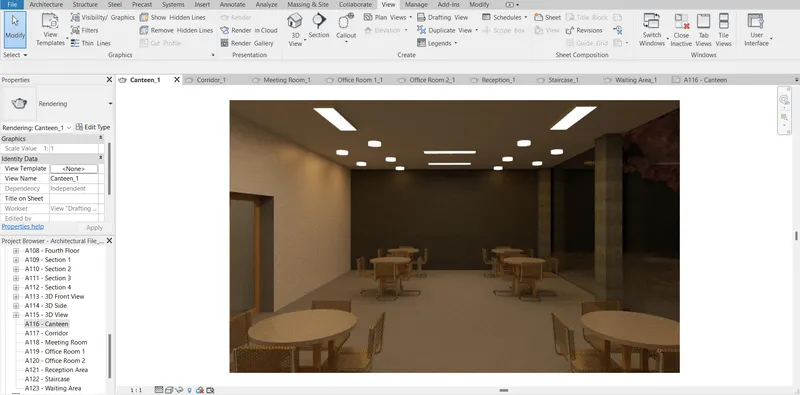
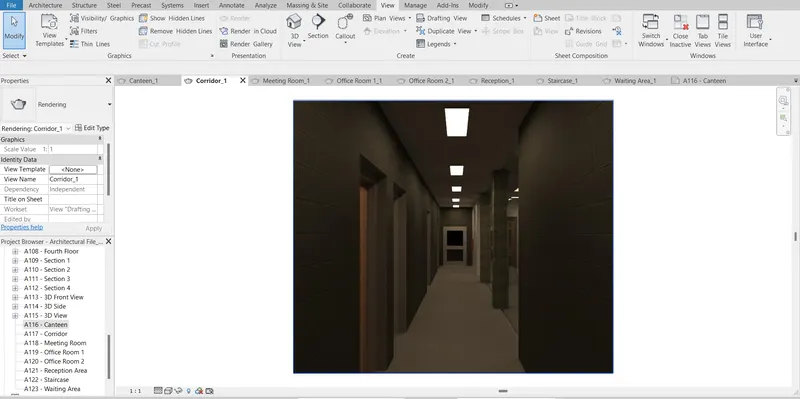
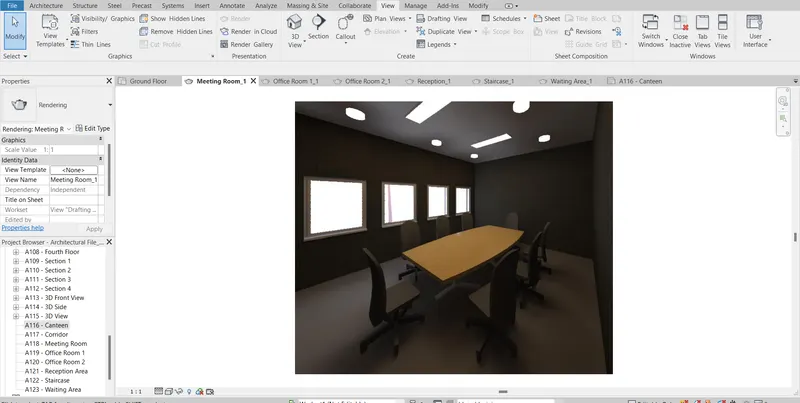
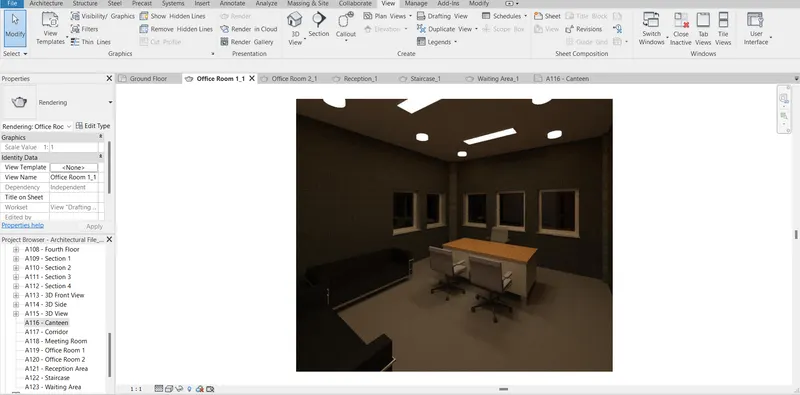
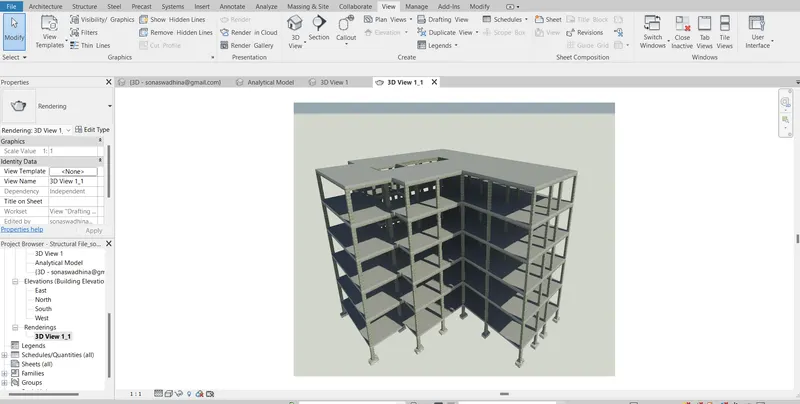
TASK 6: Using the Rendering settings, Render images of the 3D model produced and include the rendered images in the drawing sheets
- Rendering from interior rooms
- Rendering from out showing topographic features
- Rendering through structural framing
PROCEDURE:
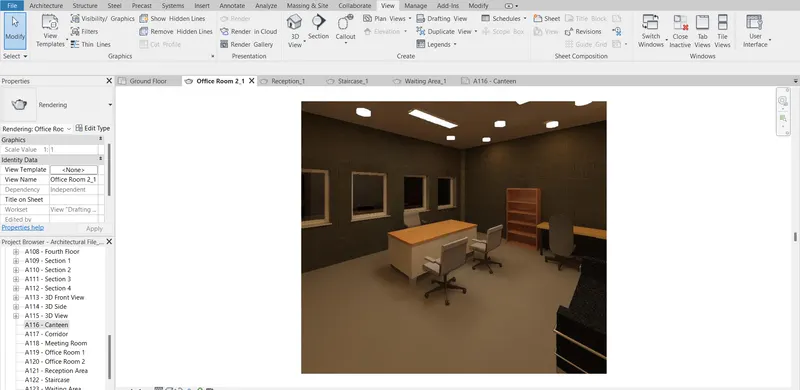
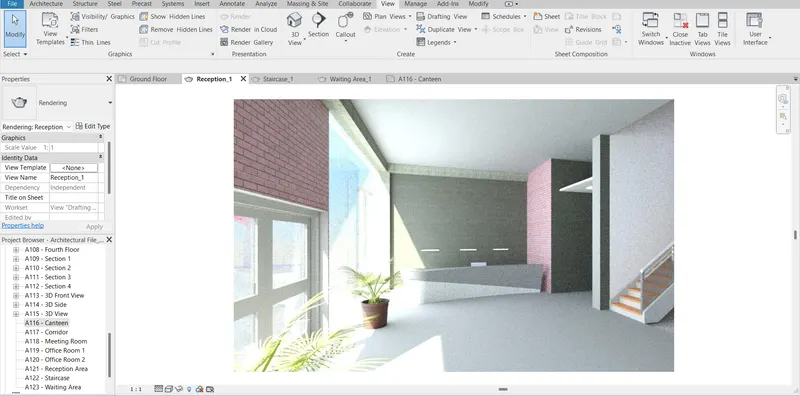
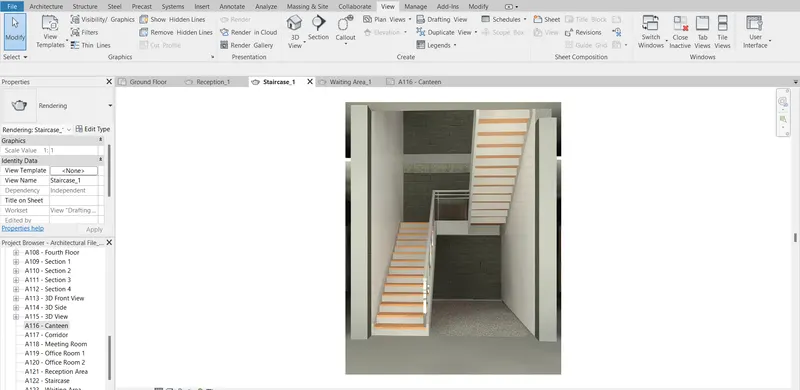
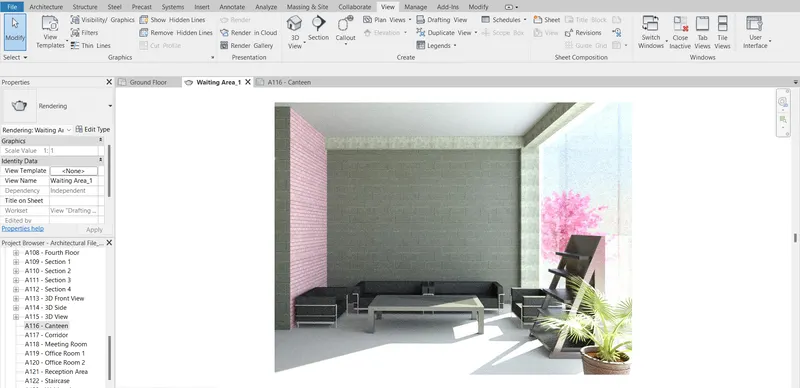
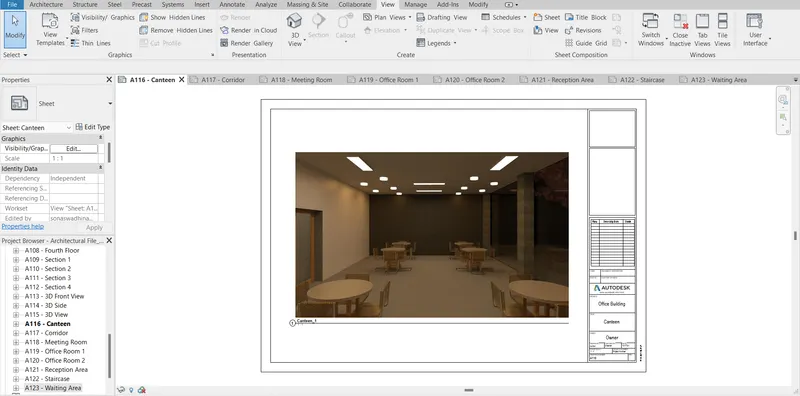
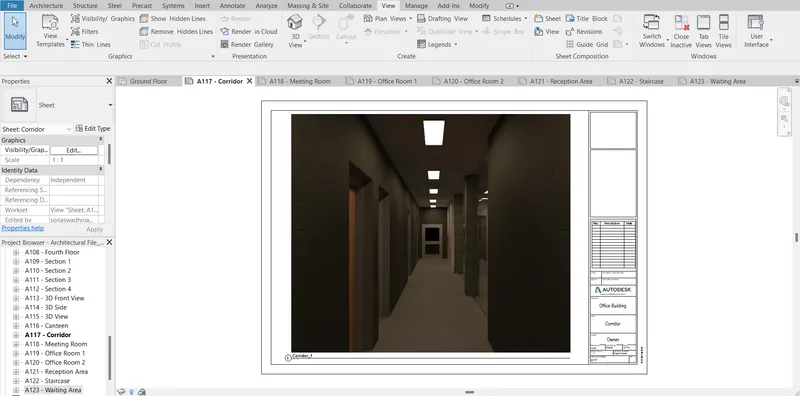
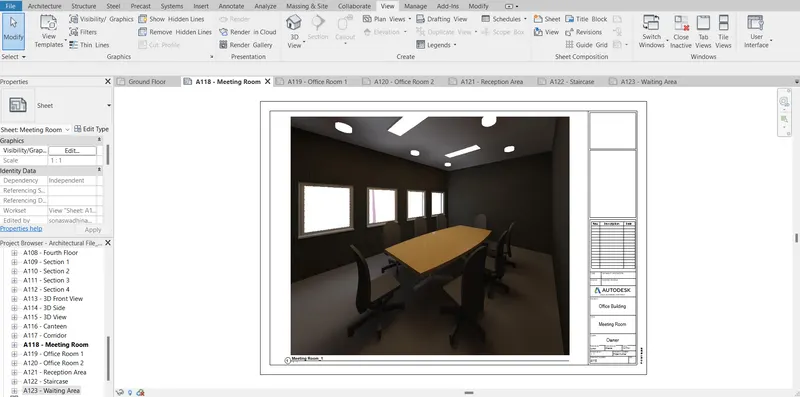
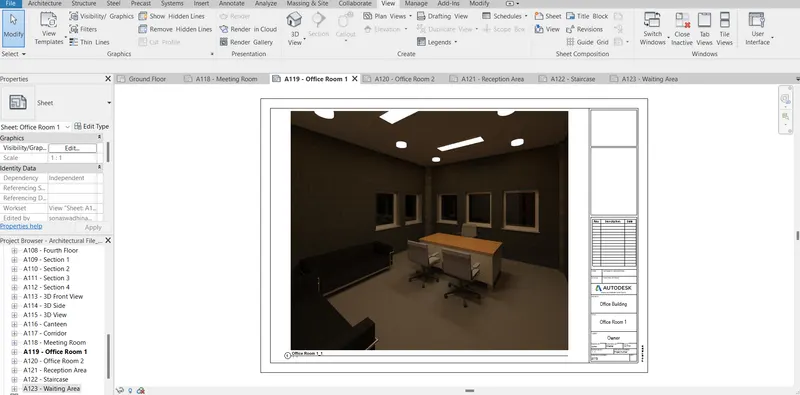
- To create the 3D rendered image first go to view–> 3D view –> Camera.
- Then place the camera wherever required.
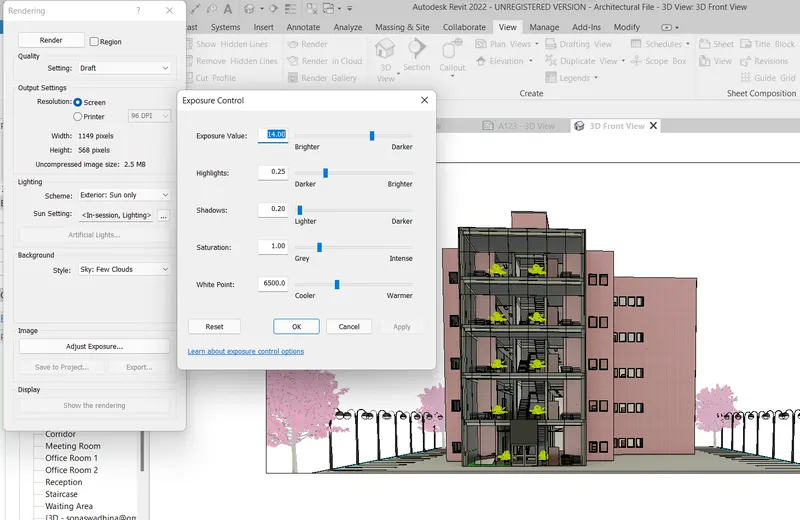
- Then in the view tab select the render option to render the 3D image.
Rendering settings were modified as follows
Canteen
Corridor
Meeting Room
Office Room 1
Office Room 2
Reception
Staircase
Waiting Area
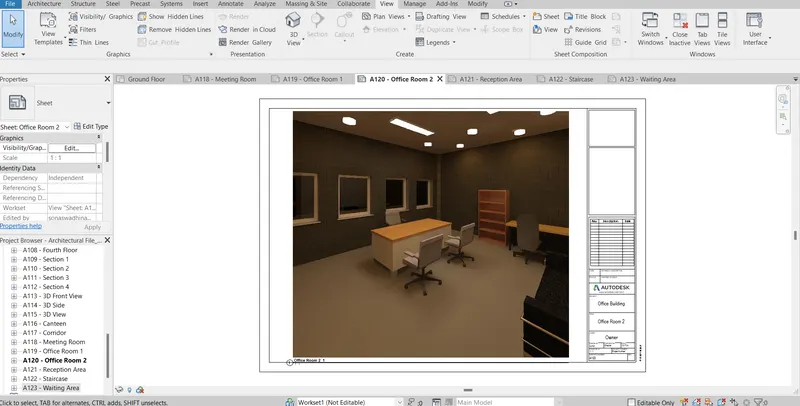
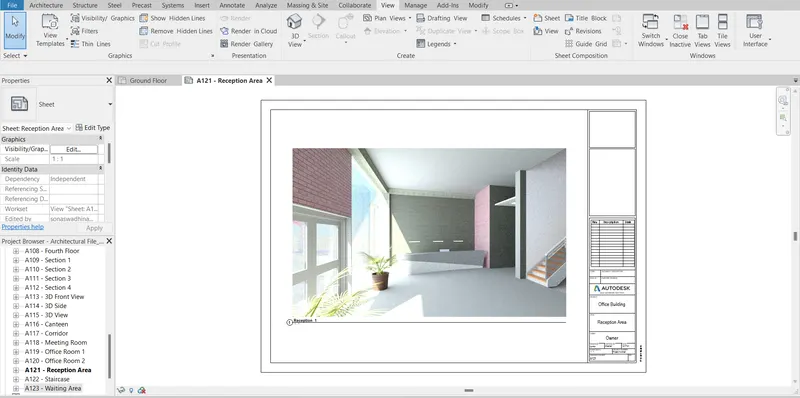
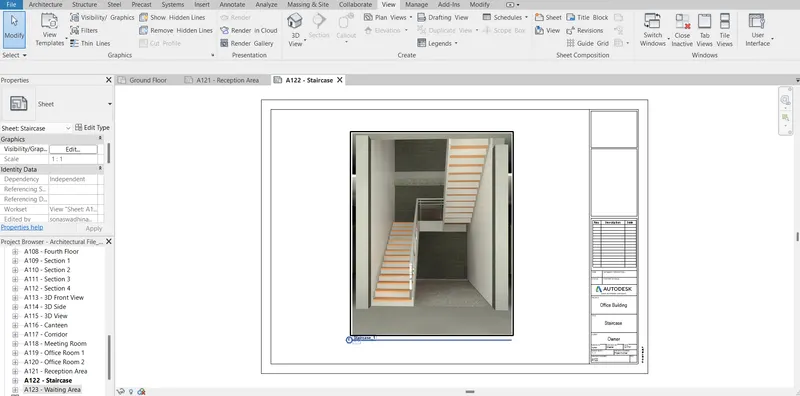
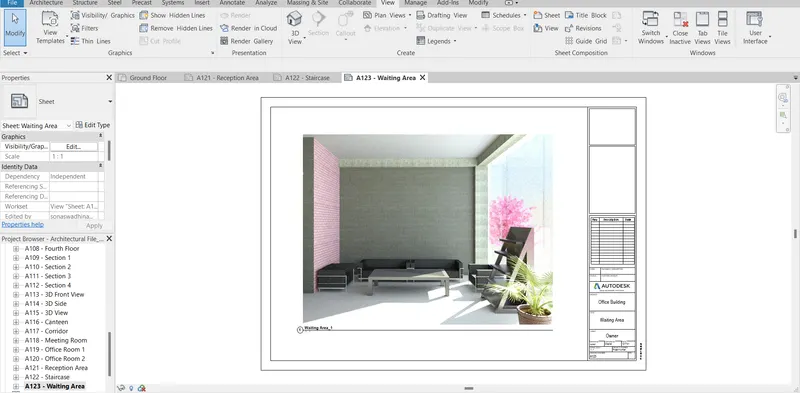
a) Rendered images were placed on the sheet template as follows.
Canteen
Corridor
Meeting Room
Office Room 1
Office Room 2
Reception
Staircase
Waiting Area
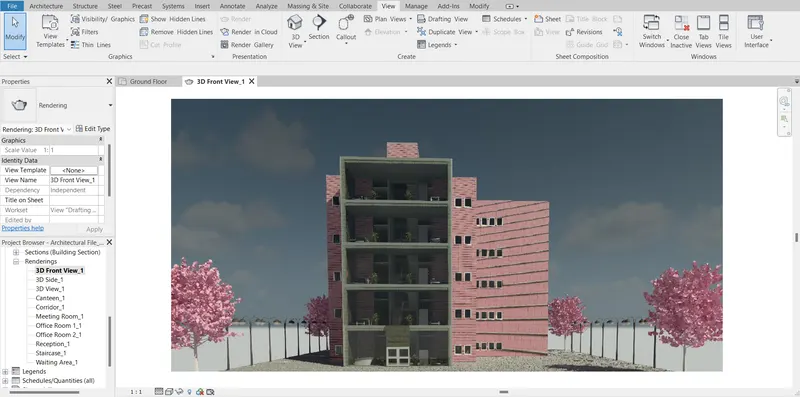
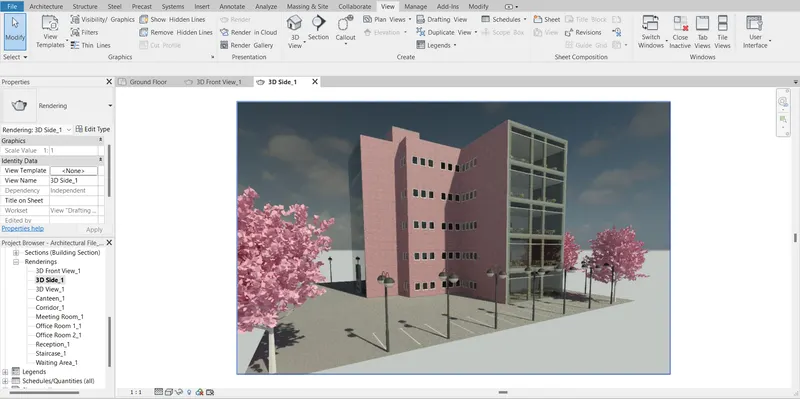
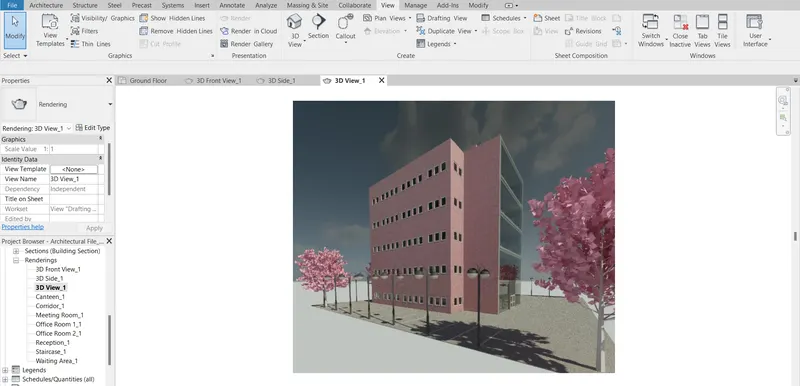
b) Outside rendering showing outside Geography.
3D View 1
3D View 2
3D View 3
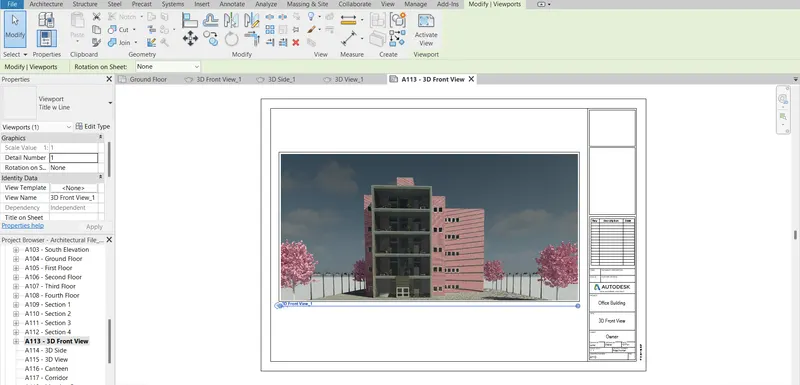
Outside view in Templates:
3D View 1
3D View 2
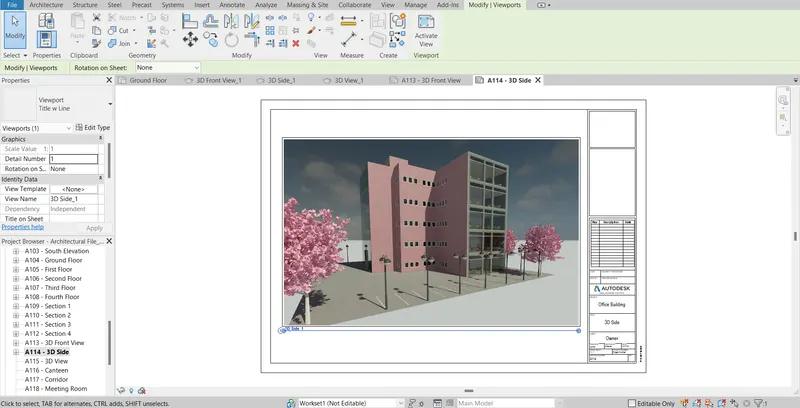
3D View 3
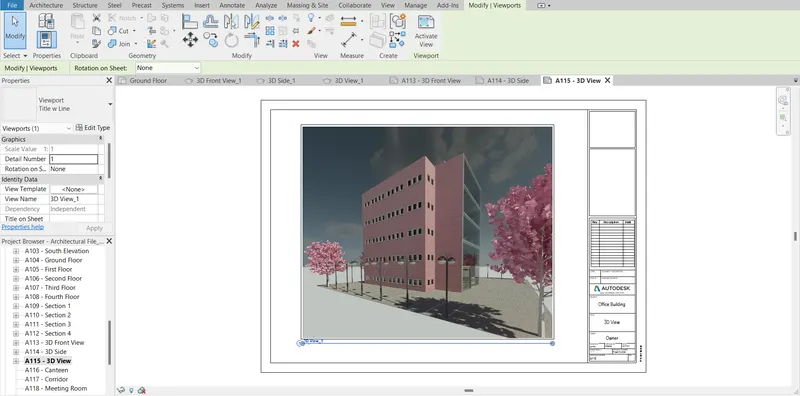
c) Rendering Through structural framing
RESULTS:
The Rendering from interior rooms, from out showing topographic features, and through structural framing was done and is placed in drawing sheets.
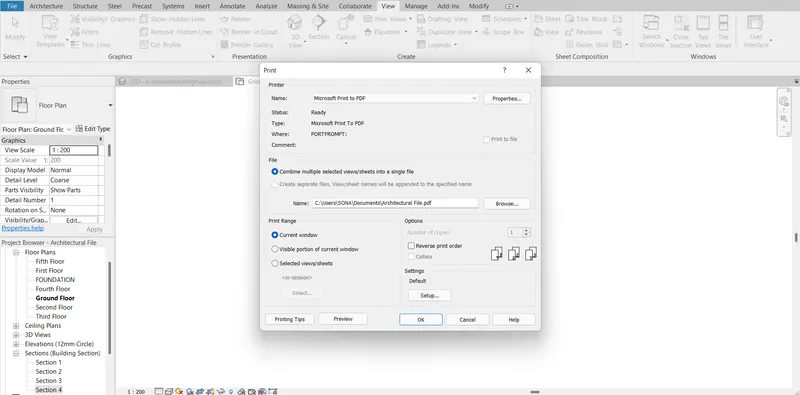
TASK 7: Print the set of drawing sheets created and submit the drawings from the architecture and structure model.
The different drawing templates can be printed. This can be done by going to the File menu in the top left corner of the Revit window and in that choose print then this window appears.
CONCLUSION:
All results of each drawing have been attached which were drawn in Revit.