Creating an Architectural plan for the provided plot size and develop relevant basic structural drawings
1.Aim:
To Create a Floor Plan for Plot Size 60'X20, by using Auto Cad.
INtroduction:
- To Create a Floor Plan for Plot Size 60'X20by using a various command.
- Now we see the Step by Step Producre to Create a Drawing.
Floor for Plot Size 60'X20:
- we create a Floor Plan elevation and with section.
- First we need study the plan properly before start the plan.
- And we need Draw the plan as per dimension.
- Click 'REC' Rectangle command to draw the outer of the plan.
- And offset the 9" of outer wall and inner wall 4.5"mm.
- After Click 'L'Line command to draw the center line.
- And click 'OF'Offset commend to offset the Line.
- Create a rooms as per dimensions using of ofset command.
- And create a column for front portico as per dimension with a 9"X12"mm column.
- Then we create a 'Layer Properties'with a different layer.
- Create a Layer for window,door,and dimension.
- Windows and door are create with standart size using in residencial building
- And cut the SectionAA and SectionBB in different side.
- Also insert text with help of Dtext command or Single Line text.
- Click "DTEXT" command to create the text.
- Thyen create the Room name given in plan.
- Click 'DIM'to create a dimension of the plan.
- And check the dimesnion before save.
- And Click "SAVE"command to save the Text.
- Finally we SNIPPING TOOL to screenshot the drawing.
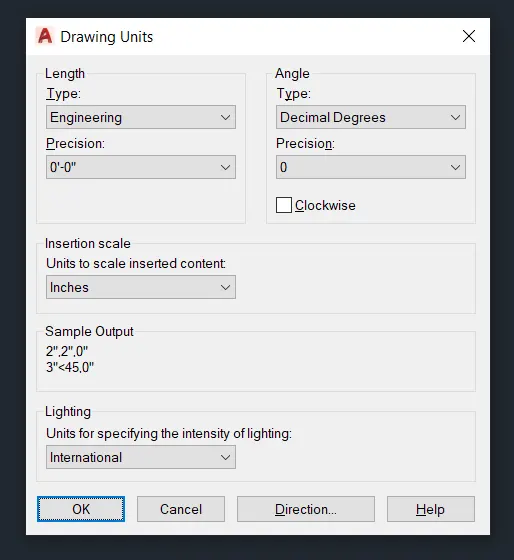

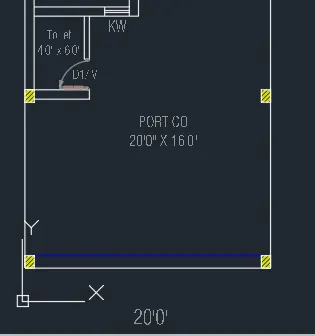
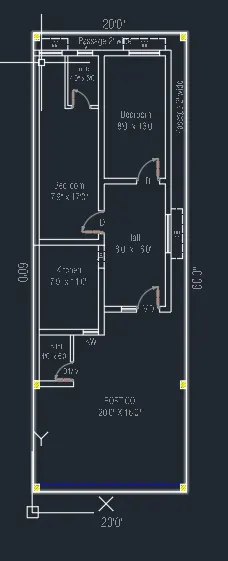
2.Aim:
To create a Structural Drawing for column, beam and Footing.
Structural Drawings For Footing:
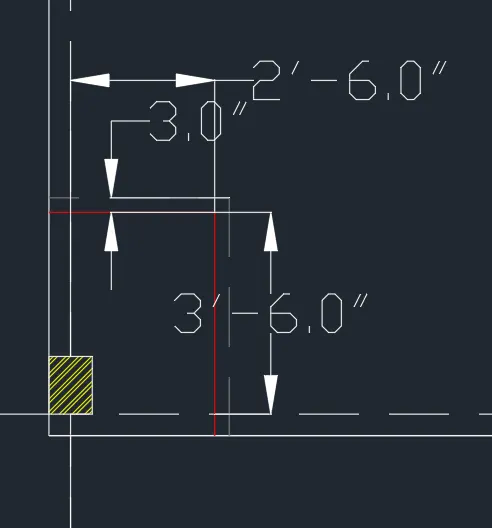
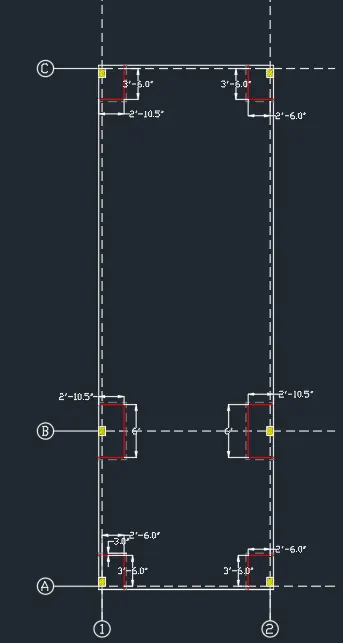
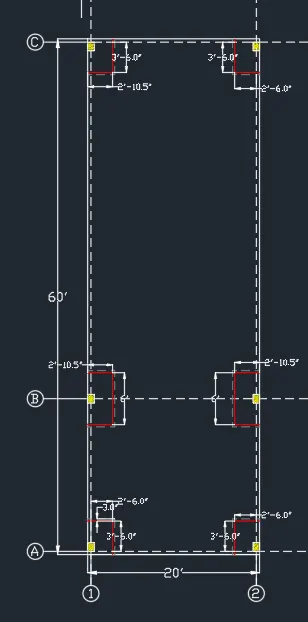
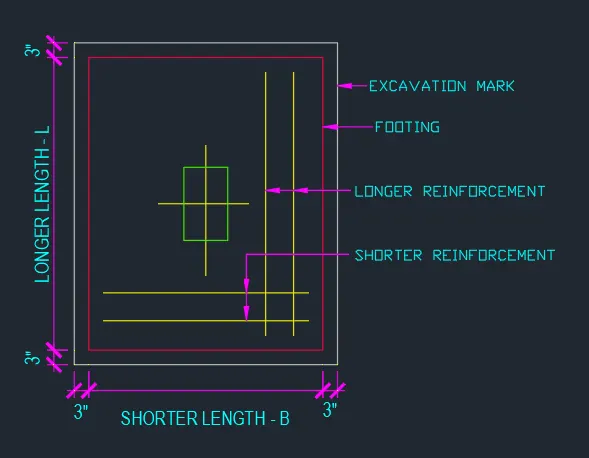
- We need to Create a grid line for Footing size.
- And Draw a column in center line of the column placing in plan.
- Create a column and check with dimenson given in the plan ofcolumn size.
- Click Offset command to create the footing Size.
- And offset the line to create a Excavation mention in different line.
- All the Lines are Shown in a different Layer to Find.
- And show the column dimension and footing size.
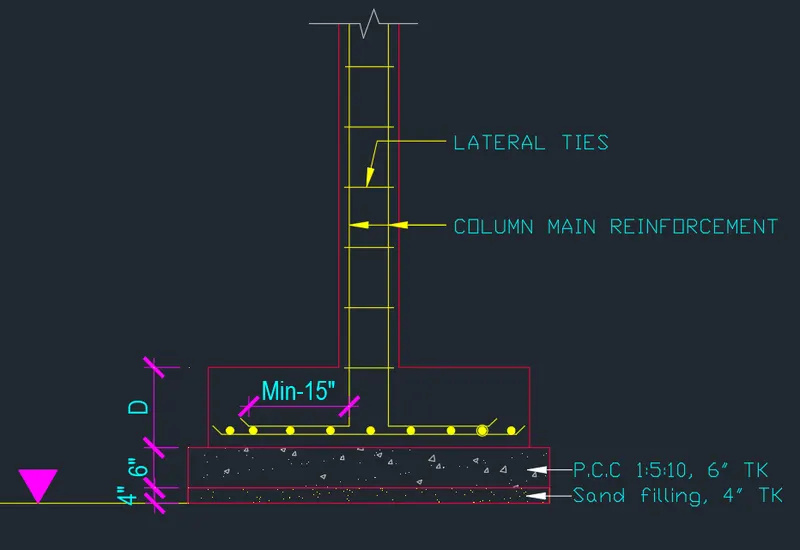
- Finally we draw the section footing and show the dimension of the footing column size.
- Click 'DIM'to create a dimension of the plan.
- And check the dimesnion before save.
- And Click "SAVE"command to save the Text.
- Finally we SNIPPING TOOL to screenshot the drawing.
Structural Drawings For Column:
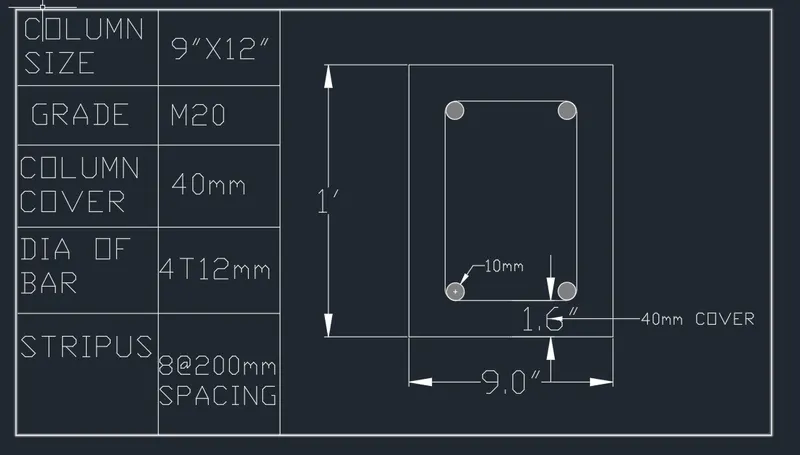
- Draw the REC rectangle command with column size.
- Next Click C cricle command to draw the reinforcement bar.
- Then OFF offset the column as a cover 40mm.
- And crate a text of show a details in dailogue box.
- Click 'DIM'to create a dimension of the plan.
- And check the dimesnion before save.
- And Click "SAVE"command to save the Text.
- Finally we SNIPPING TOOL to screenshot the drawing.
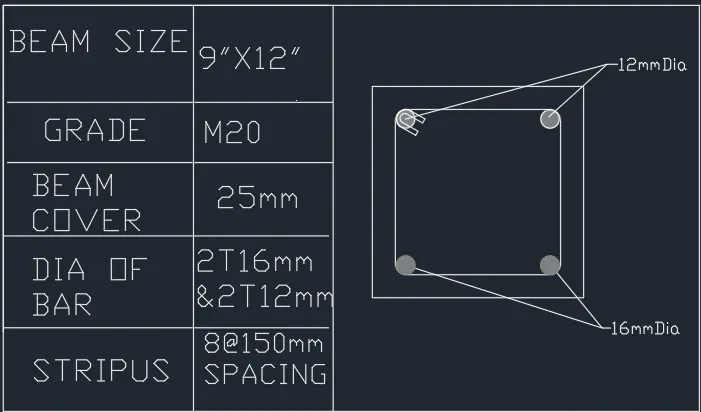
Structural Drawings For Beam:
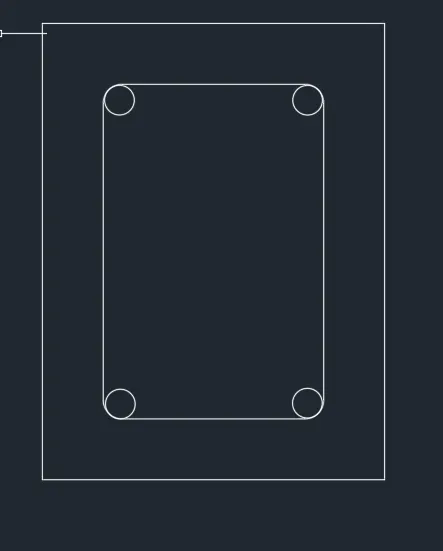
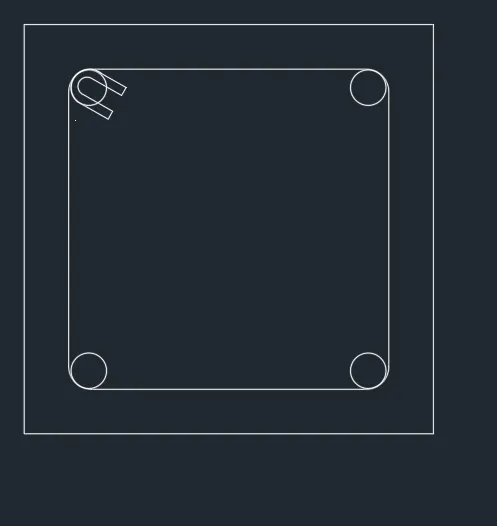
- Draw the REC rectangle command with column size.
- Next Click C cricle command to draw the reinforcement bar.
- Then OFF offset the column as a cover 25mm.
- And crate a text of show a details in dailogue box.
- Click 'DIM'to create a dimension of the plan.
- And check the dimesnion before save.
- And Click "SAVE"command to save the Text.
- Finally we SNIPPING TOOL to screenshot the drawing.
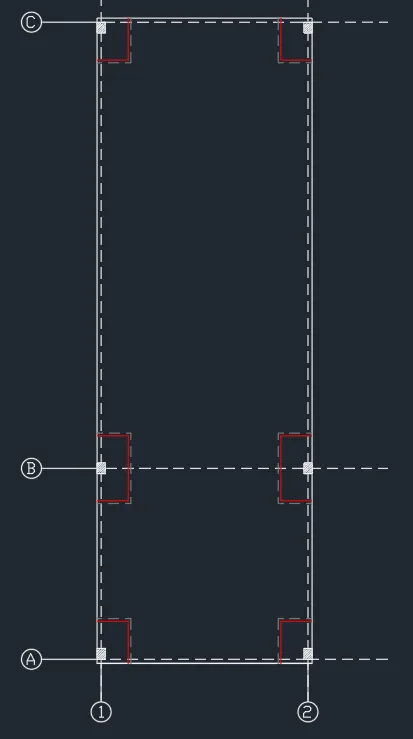
RESULT:
In this challenge we learn about the floor plan and structural drawings.