Creating a Wardrobe detailed drawing, Floor Plan, Kitchen Layout and Column Detail using AutoCad
1.Aim:
To Create a Cabinet drawing by using Auto Cad.
INtroduction:
- To Create a Cabinet drawing by using a various command.
- Now we see the Step by Step Producre to Create a Drawing.
Cabinet Drawing:
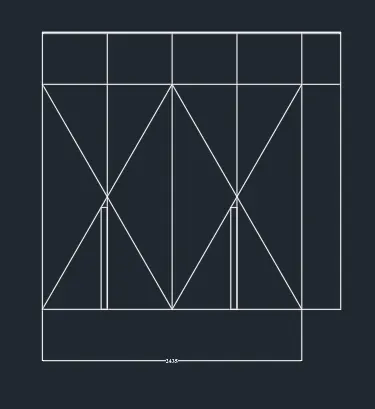
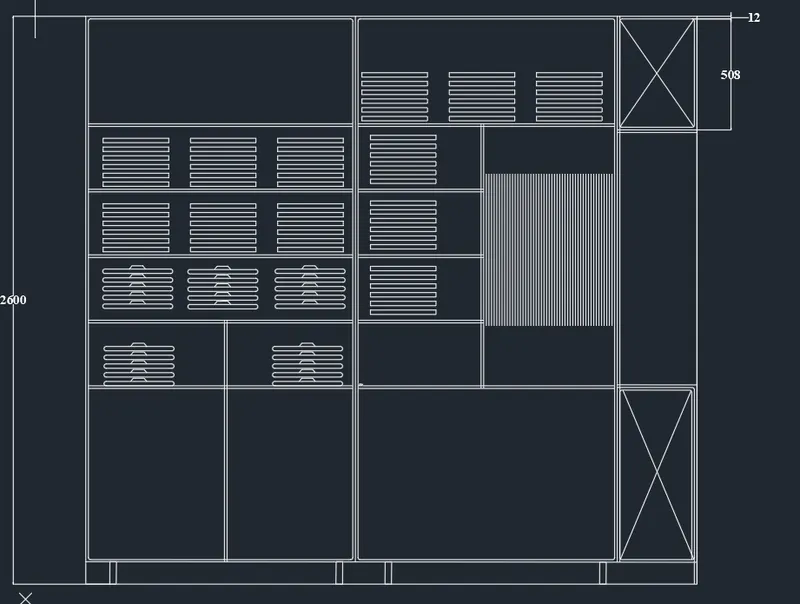
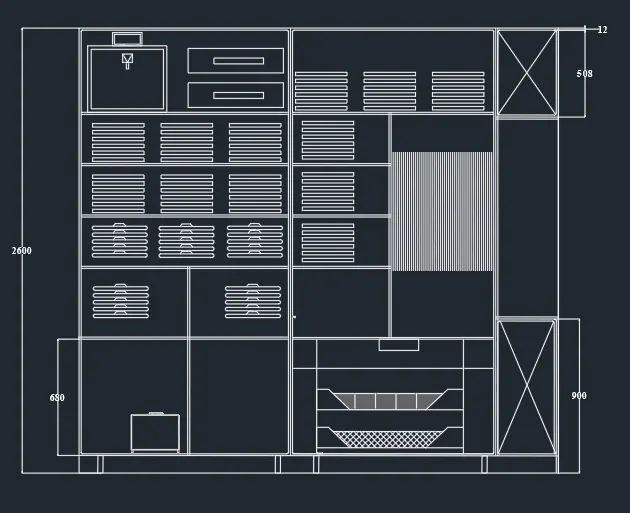
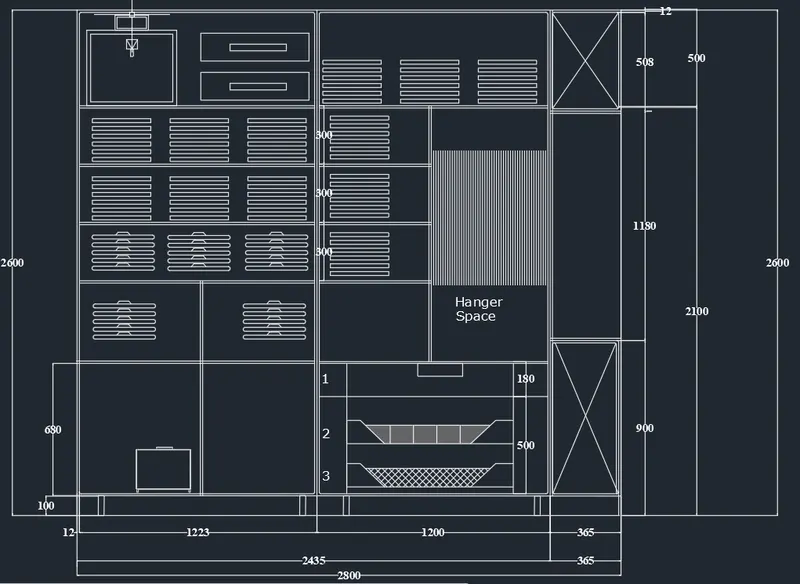
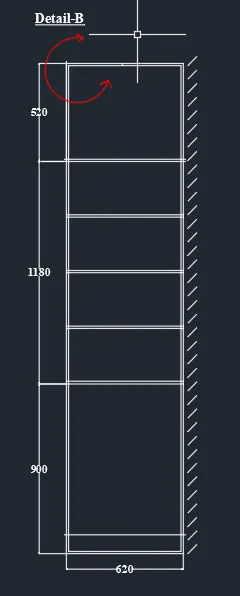
- we create a Cabinet Drawing elevation,plan, and with section.
- And we need Draw the plan as per dimension.
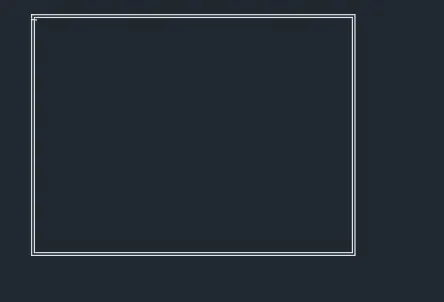
- Click 'REC' Rectangle command to draw the outer of the plan.
- After Click 'L'Line command to draw the center line.
- And click 'OF'Offset commend to offset the Line.
- Click 'DIM' dimension and show the dimension.
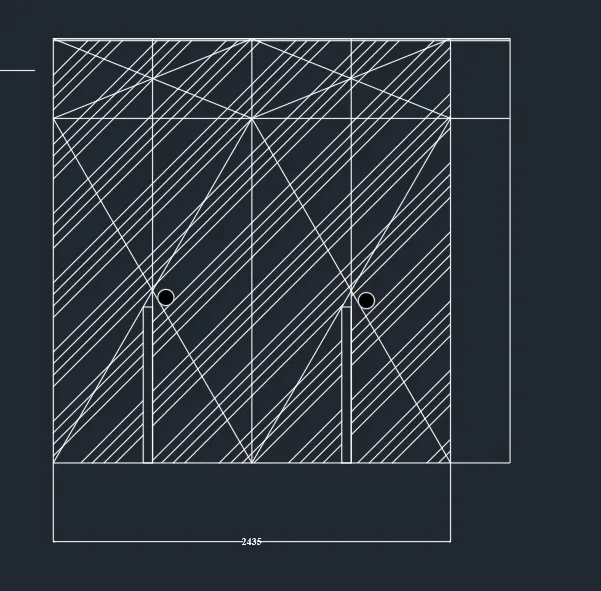
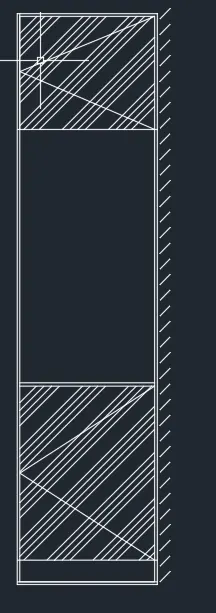
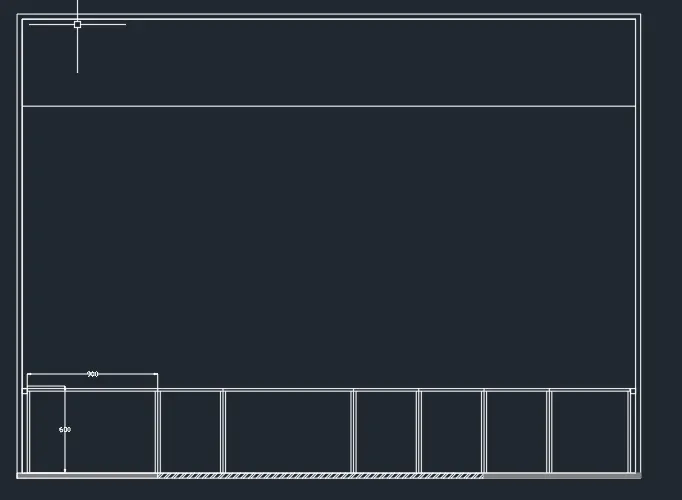
- Next we go for Elevation drawing.
- Click 'REC' Rectangle command to draw the outer of the elevation.
- After Click 'L'Line command to draw the center line.
- And click 'OF'Offset commend to offset the Line.
- Click 'HAT'Hatch command to hatch the point.
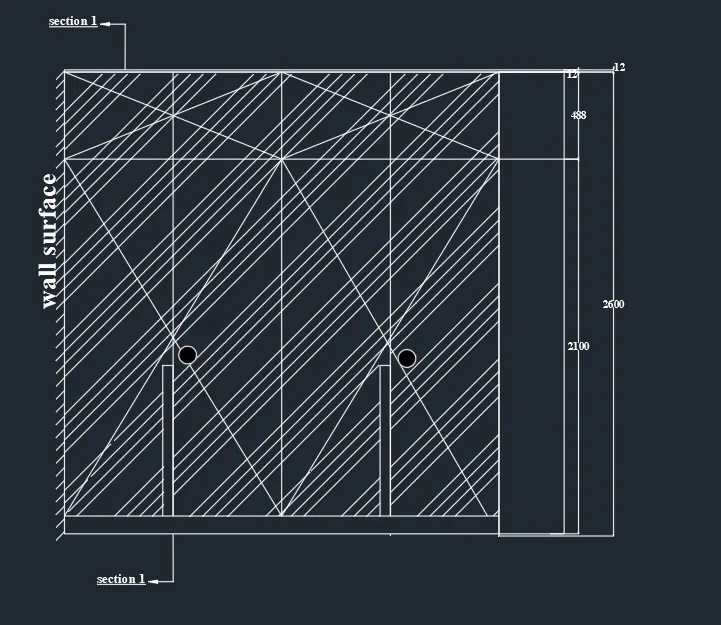
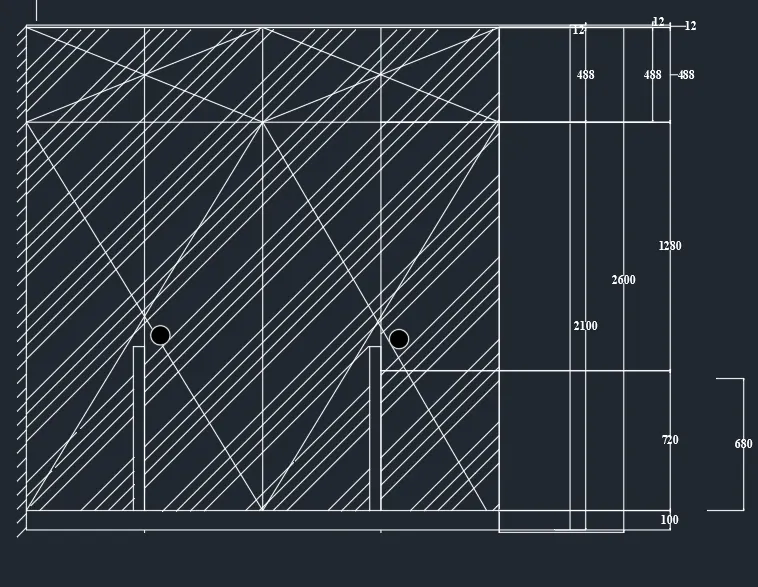
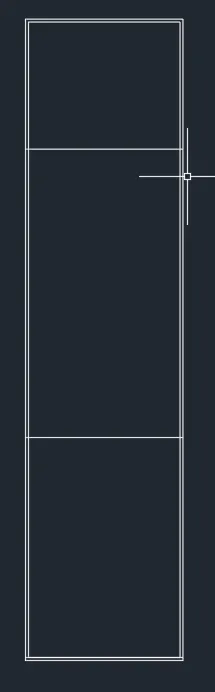
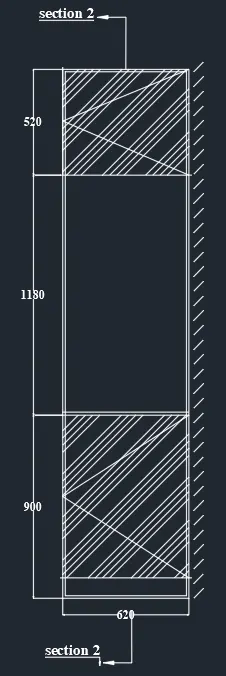
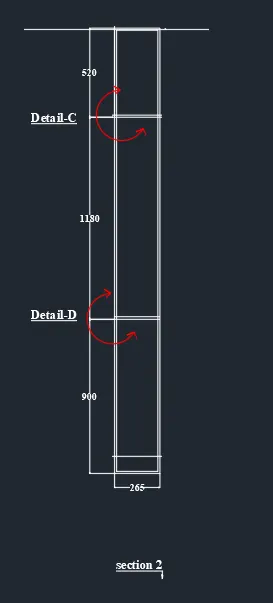
- Next we need to draw the Section 1&2 Drawings.
- Draw the section as per elevation drawing.
- Click 'REC' Rectangle command to draw the outer of the elevation.
- After Click 'L'Line command to draw the center line.
- And click 'OF'Offset commend to offset the Line.
- Click 'HAT'Hatch command to hatch the point.
- Click 'DIM' dimension and show the dimension.
- And show the deatils mark.
- Also insert text with help of Dtext command or Single Line text.
- Click "DTEXT" command to create the text.
- And Click "SAVE"command to save the Text.
- Finally we SNIPPING TOOL to screenshot the drawing.
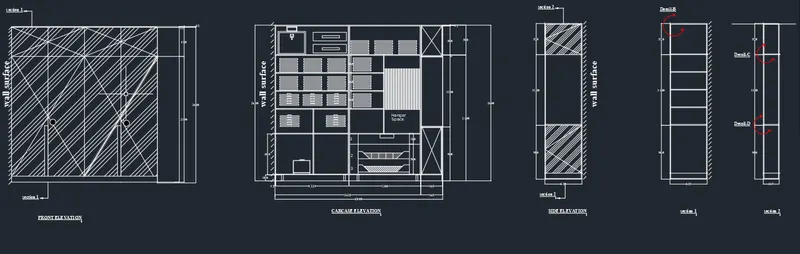
2. To create the Kitchen plan by using autocad.
Kitchen plan:
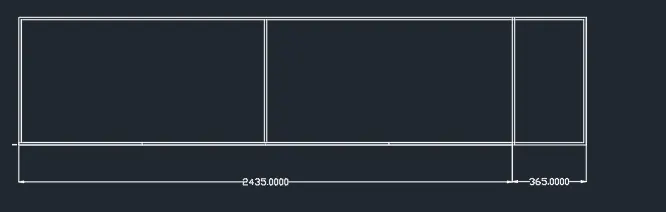
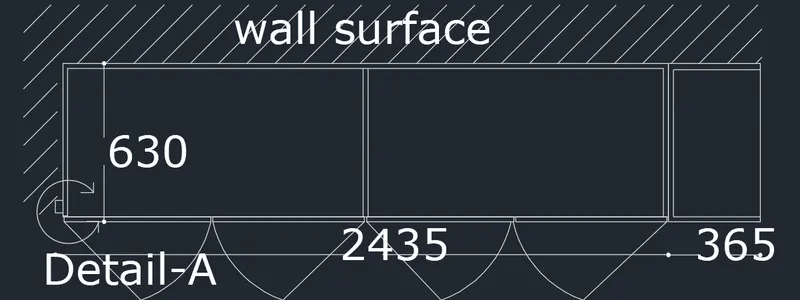
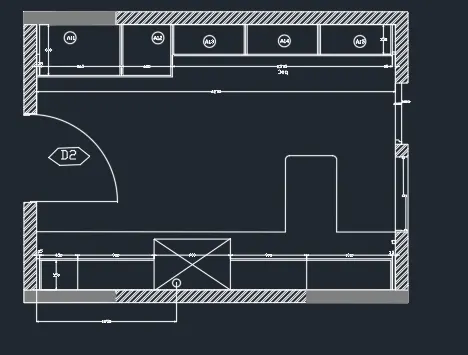
- In this drawing we create a Kitchen plan.
- Now we can see the command used for this drawing as step by step.
Step:
- First we need to study the plan and get planed to draw.
- First we need start from a left hand side of the plan.
- Click 'REC'Rectangle to create the outer wall.
- Click 'XL'-V(Vertical Line) command to start draw.
- And 'Of' offset coomand as per plan dimension.
- First we need to create a inner wall of drawing.
- Then offset the Room size as per Dimension given as per plan.
- Click 'TR'Trim command trime the extendend line.
- Then 'Ex'extend command to extentend line with upto second line.
- And Draw the 'DOOR' with the help of 'Circle' command.
- And first to draw hinch .25"inch and draw over a circle.
- And draw staright line to the centre to centre of the line
- Finally trim the cricle and create a door.
- Then Click "HAT"Hatch option to outer wall.
- Click "TEXT"option to create a room name as a text Layer.
- After complete a drawing we need show dimension of Kitchen Plan.
- Click "DIM"command to create a dimension.
- And we use a Snipping Tool to take a screenshot.
- Finally Click Save as to save the picture.
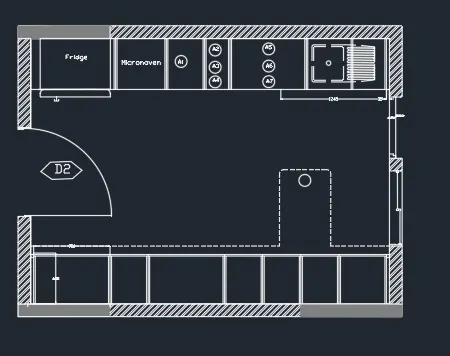
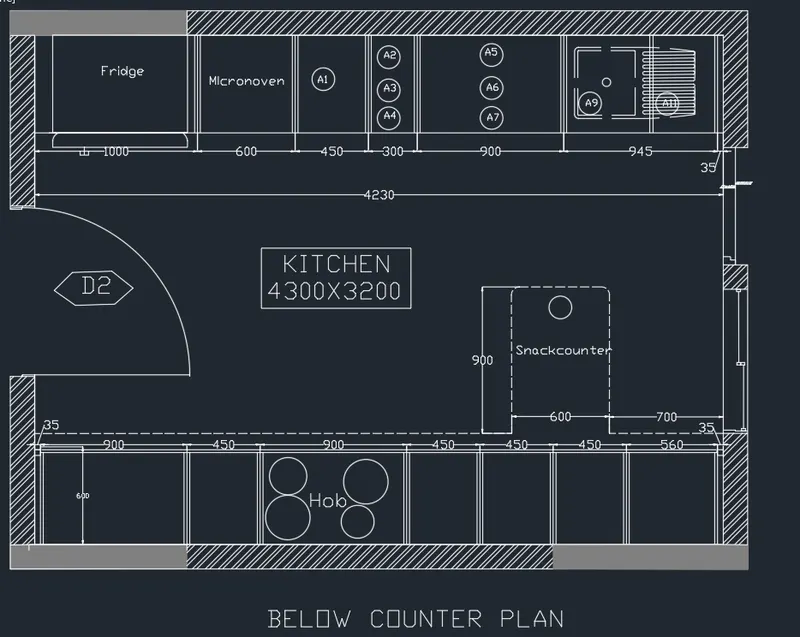
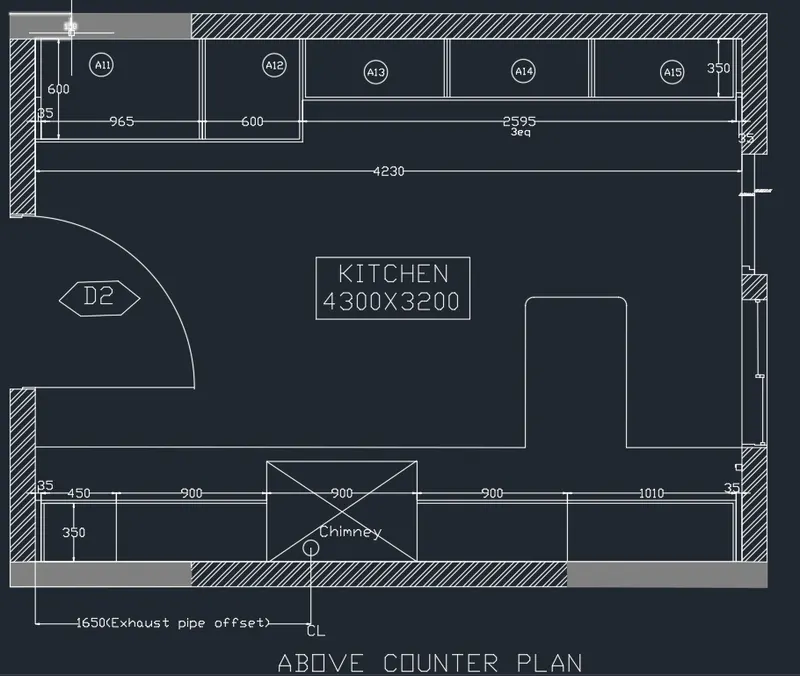
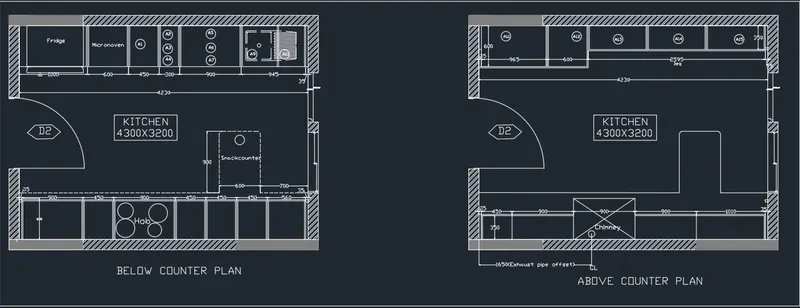
3.Aim:
To Create a Column Schedule by using Auto Cad.
INtroduction:
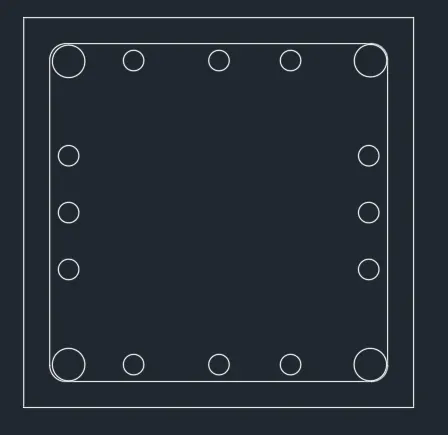
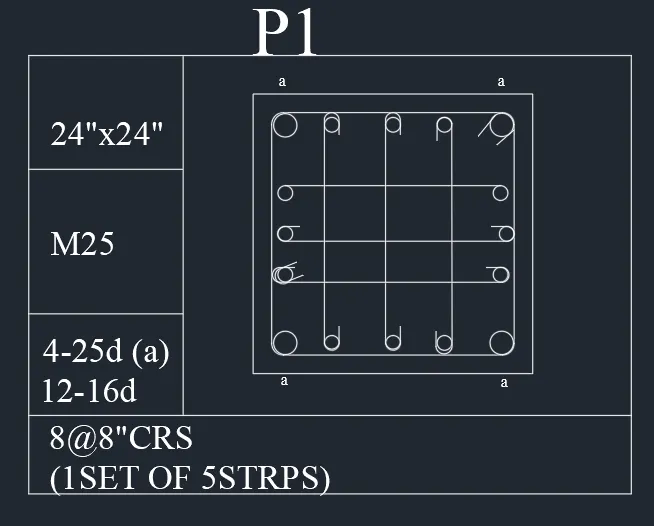
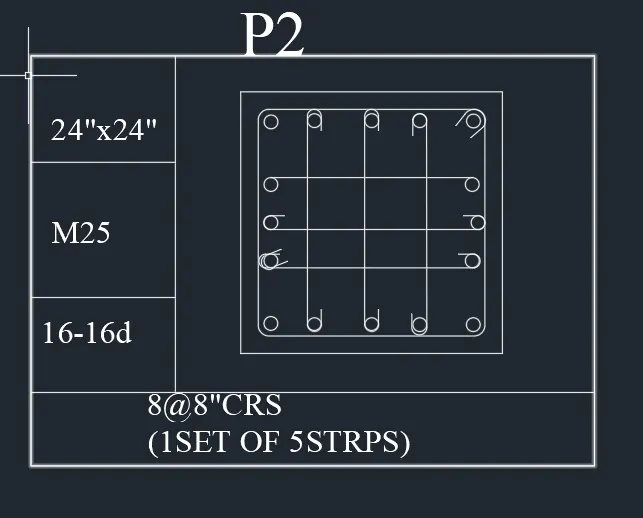
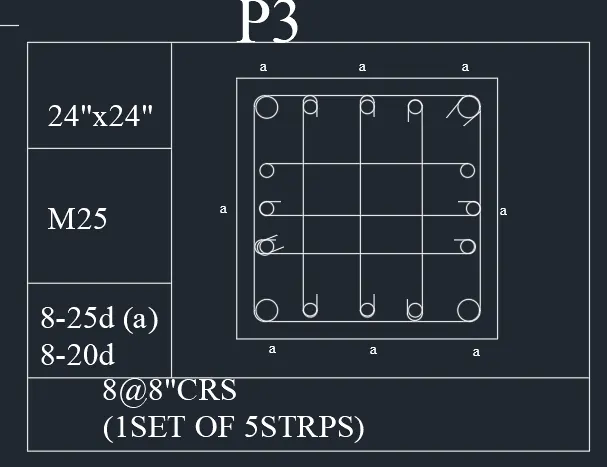
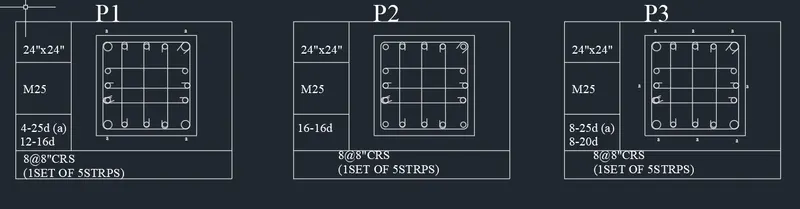
- To Create a Column Schedule (P1,P2,P3)by using a Dtext
- Now we see the Step by Step Producre to Create a Text.
Column Schedule:
- we create a column schedule with the help of rectangle.
- Click the 'REC' rectangle command to draw the column.
- Then 'OF'offset the rectangle to 40mm cover to inner of column.
- And to start the reinforcement placing the dia as per details.
- Draw the column "circle" command used to create.
- Then draw the stripus Line & Fillet command used to draw.
- Draw the 3 types of column in different reinforcement.
- Also insert text with help of Dtext command or Single Line text.
- Use the Fornt name:Romans;height:4",and justify Left
- First create a tabular column to type the name
- Click "DTEXT" command to create the text.
- And type the text as per dimension.
- And Click "SAVE"command to save the Text.
- Finally we SNIPPING TOOL to screenshot the drawing.
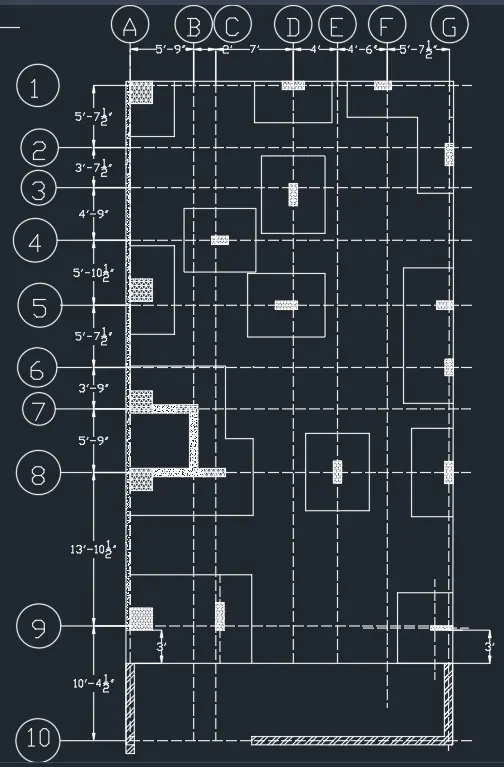
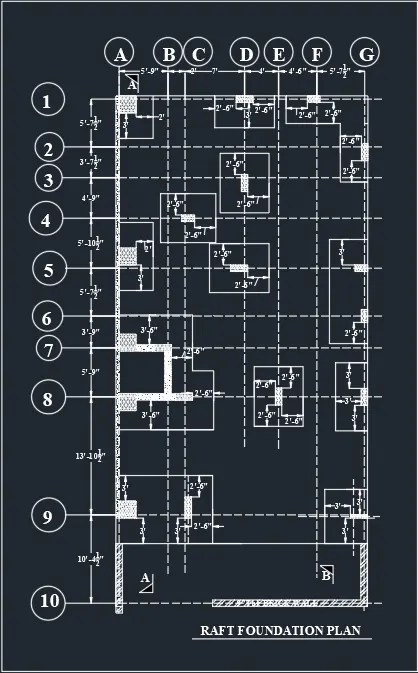
4.To create the Raft footing by using autocad.
Kitchen plan:
- In this drawing we create a Raft footing .
- Now we can see the command used for this drawing as step by step.
Step:
- First we need to study the Raft footing and get planed to draw.
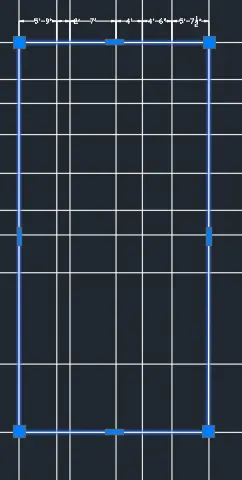
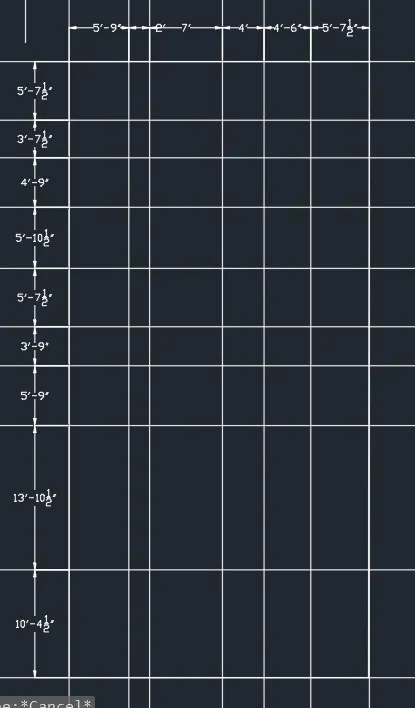
- Create the grid line as per drawing.
- Click 'XL'line as vertical and horizontal line.
- And use the 'TR' TRime command and cut the line as per dimension
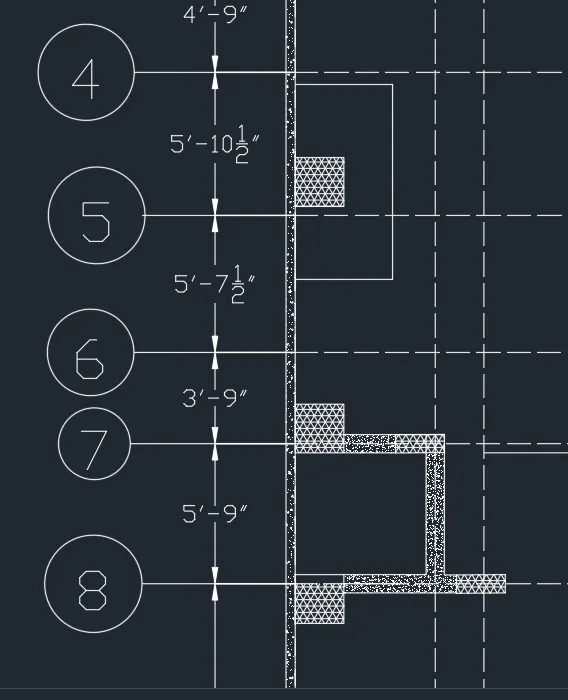
- Then we create the column footing in the center of the line.
- Click 'REC'rectangle command to draw the column as per dimension.
- And 'HAT' hatch command to pick inner point of the column.
- The outer footing size is mention in drawing as per we need to draw.
- After we need to draw as per column column size various footing size.
- Finally complete the Raft footing drawing we need to show the dimension.
- Click "DIM"command to create a dimension.
- And we use a Snipping Tool to take a screenshot.
- Finally Click Save as to save the picture.