Creating a Wardrobe detailed drawing, Floor Plan, Kitchen Layout and Column Detail using AutoCad
AIM:-
To Create a Wardrobe detailed drawing, Floor Plan, Kitchen Layout, and Column Detail using AutoCAD.
INTRODUCTION:-
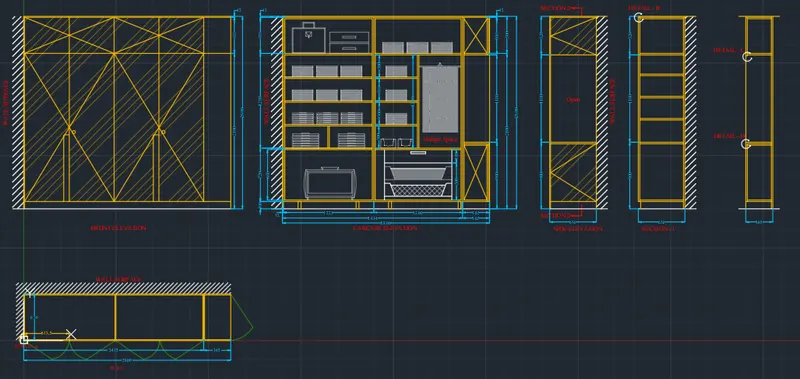
The Wardrobe detailed drawing is created in AutoCAD using primarily the Line tool and after sketching, the dimensions and text are provided with the use of layers. The procedure of drawing is explained in detail with diagrams of each step and the final result is given.
1) Wardrobe Detailed Drawing:
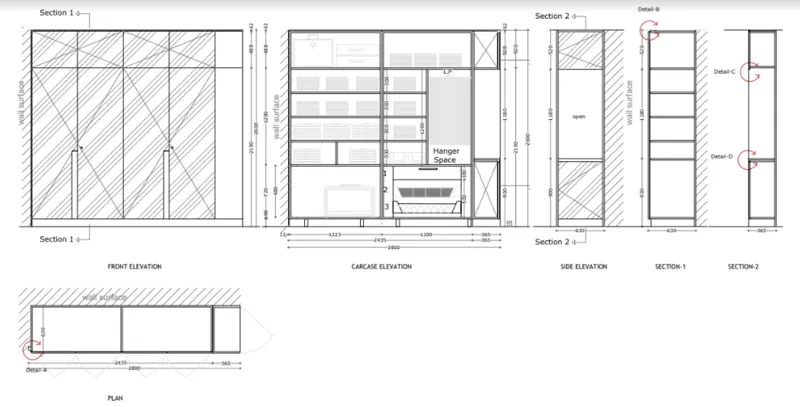
Procedure:-
Step-1:-
- Set the limits by entering LIMITS in the Command tab. The lower-left corner is specified as 0,0, and the upper-right corner is specified as 10000,10000.
- Enter the 'UNITS' command in the command tab. In the Drawing Units dialog box, select 'Decimal' in Type; ' 0 ' in Precision; and 'Millimeters' in Insertion scale. Click on 'OK'.
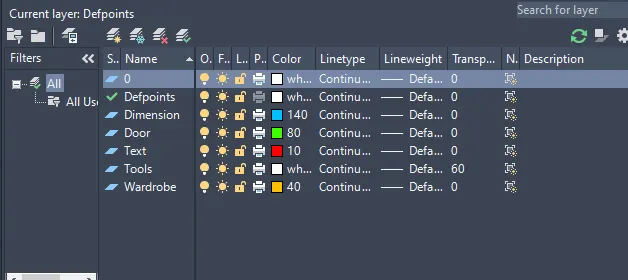
- Click on 'Layer Properties' in the Layer panel on the Ribbon.
- Create the new layer - Wardrobe, Dimension, Door, tools and Text. Specify different colors for the different layers and then close the Layer Properties Manager dialog box.
Step-2:-
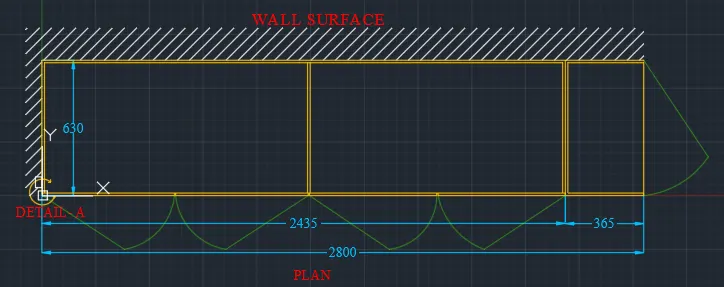
- Select the Wardrobe layer.
- Select the Line tool by entering the ‘LINE’ command in the command tab.
- Specify the starting coordinate of point 1 as 0,0 in the command line.
- Specify the next coordinate of point 2 as @2800,0 in the command line.
- Specify the next coordinate of point 3 as @0,630 in the command line.
- Specify the next coordinate of point 4 as @-2800,0 in the command line. Click ‘Close’ on the command line.
- Select the Offset tool by entering the ‘OFFSET’ command in the command tab.
- Enter 365 as offset distance in the command line.
- Select the right vertical edge of the object created before. Click on the inside of the object.
- Repeat offset, specify a distance of 1187, select the previous offset line and click towards the left of the selected line.
- Repeat offset, specify a distance of 12, select the outer edges and partition lines of the wardrobe individually and click on the inside of the selected line.
- Press ‘Esc’ to cancel the OFFSET command.
- Select the Line tool from the ribbon and draw a small box-shaped (50X30) object at the bottom left corner of the wardrobe plan.
- Press ‘Esc’ to cancel the LINE command.
- Then the unwanted lines are Trimmed and Erased to edit the drawing as per requirement.
- For the wardrobe doors, select the POLYLINE tool and draw lines to represent the door swing.
- Next, select the wardrobe doors, right-click, select Properties and change the Transparency to 60.
- Draw a rectangle, using the REC command, Specify the first point outside the top left corner of the wardrobe, and specify the second corner as the bottom right corner of the wardrobe.
- Select the Hatch tool, by entering the H command, select the JIS_LC_20 pattern, and set the hatch scale as per requirement, pick the point as the rectangle created earlier. Press Esc.
- Erase the outer rectangle. Select the Arc tool from the ribbon, select the 3 Point option and draw an arc as shown in the given diagram.
- Select the Line tool from the ribbon and draw arrows at the ends of the above arc. Press Esc.
- Select the Dimensions and text layer.
- Enter the ‘DST’ command in the command tab to open the Dimension Style Manager dialog box.
- Click on the Modify tab. Under the Symbols and Arrows option change the Arrow size to 30.
- Under the Text, option change the Text height to 60.
- Click OK. Then click on Set Current and Close the dialog box.
- Select the Dimension tool by entering 'DIM' in the command line.
- Select the first point and second point of the object to be measured, then drag the dimension line to the desired location. Repeat for all the objects to be measured.
- Enter the 'MTEXT' command in the command line.
- Create the text box, scale the text to the desired size.
- Copy the text box to all desired locations.
- Enter ED in the command line, and edit the texts as required. Click Enter and press Esc.
Step-3:-
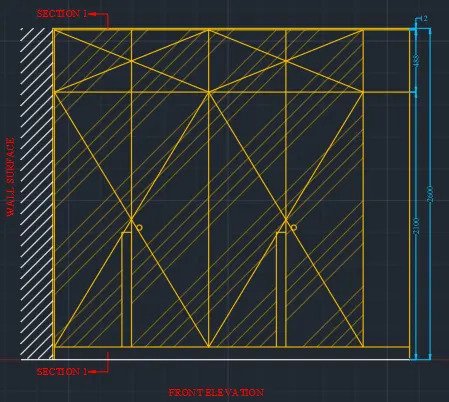
- Select the Wardrobe layer.
- Select the Line tool by entering ‘LINE’ command in the command tab.
- Specify the start point. Point the cursor in the upward direction and enter a distance of 2600.
- Next point the cursor towards the left and enter a distance of 2800.
- Point the cursor in the downward direction and enter a distance of 2600. Select Close in the command line.
- Select the Offset tool by entering ‘OFFSET’ command in the command tab.
- Specify a Offset of 12, Select the outer edges of the wardrobe and click on the inside to offset individually.
- Repeat offset, specify a distance of 100, select the bottom line (floor line) and click on the upwards.
- Repeat offset, specify a distance of 488, select the top outer edge of the wardrobe and click on the inside.
- Repeat offset, specify a distance of 365, select the right outer edge of the wardrobe and click on the inside.
- Select the Divide tool from the Ribbon, select the bottom horizontal line of the wardrobe remaining after the offset of 365, divide into 4 segments.
- Select the Line tool by entering ‘LINE’ command in the command tab.
- Draw lines from the three segment points to create the wardrobe doors. Press Esc.
- Erase the divide points.
- Then the unwanted lines are Trimmed, and Erased to edit the drawing as per requirement.
- Select the Polyline tool from the ribbon, and draw diagonal lines across the front face of the wardrobe as shown in the given image. Press Esc.
- Select the Line tool and draw the wardrobe handles as shown in the figure. Press Esc.
- Select the Circle tool from the ribbon, and specify the centre of circle, and specify radius of circle as 20.
- Enter CO in the command line, select the circle created earlier and copy it to the desired locations (to represent door knobs). Press Esc.
- Draw a rectangle, using REC command, Specify the first point outside the top left corner of the wardrobe, and specify the second corner as the bottom right corner of the wardrobe.
- Select the Hatch tool, by entering H command, select JIS_LC_20 pattern, and set the hatch scale as per requirement, pick the point as the rectangle created earlier. Press Esc.
- Erase the outer rectangle.
- Enter 'H' in the command line, select ANS134 pattern and pick point face of the wardrobe
- In the Hatch editor, increase the Transparency of the pattern to 60. Press Esc.
- Select the Dimensions and text layer.
- Select the Dimension tool by entering 'DIM' in the command line.
- Select the first point and second point of the object to be measured, then drag the dimension line to the desired location. Repeat for all the objects to be measured.
- Enter 'MTEXT' command in the command line.
- Create the text box, scale the text to the desired size.
- Copy the text box to all desired locations.
- Enter ED in the command line, and edit the texts as required. Click Enter and press Esc.
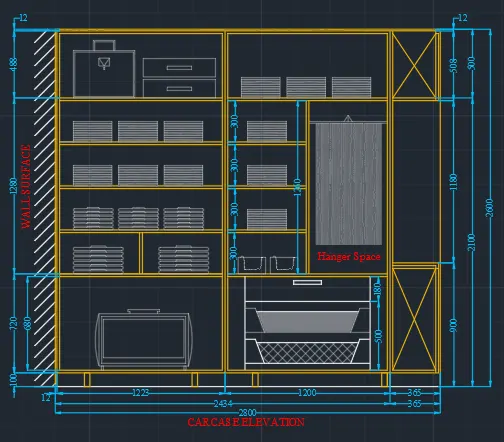
Step-4:-
- Select the Wardrobe layer.
- Select the Line tool by entering the ‘LINE’ command in the command tab.
- Specify the start point. Point the cursor in the upward direction and enter a distance of 2600.
- Next, point the cursor towards the left and enter a distance of 2800.
- Point the cursor in the downward direction and enter a distance of 2600.
- Select Close in the command line.
- Extend the bottom line on either side.
- Draw a rectangle, using the REC command, Specify the first point outside the top left corner of the wardrobe, and specify the second corner as the bottom right corner of the wardrobe.
- Select the Hatch tool, by entering the H command, select the JIS_LC_20 pattern, and set the hatch scale as per requirement, pick the point as the rectangle created earlier. Press Esc.
- Erase the outer rectangle.
- Select the Offset tool by entering the ‘OFFSET’ command in the command tab.
- Specify an Offset of 12, Select the outer edges of the wardrobe and click on the inside to offset individually.
- Repeat offset, specify a distance of 100, select the bottom line (floor line) and click on the upwards.
- Repeat offset, specify a distance of 1223, select the left inner edge of the wardrobe and click on the inside.
- Repeat offset, specify a distance of 1200, select the last offset line and click towards the right.
- Repeat offset, specify a distance of 20, select the last offset lines and click to provide the thickness of the wardrobe partitions as per the given diagram.
- Repeat offset, specify a distance of 508, select the top edge of the wardrobe and click downwards.
- Repeat offset, specify a distance of 1260, select the last offset line and click downwards.
- Repeat offset, specify a distance of 20, provide thickness to the last two offset lines.
- Repeat offset, specify a distance of 300, select the last offset line and click downwards.
- Repeat offset, specify a distance of 20, provide thickness to the previous offset line.
- Repeat offset, specify a distance of 300, select the last offset line and click downwards.
- Repeat offset, specify a distance of 20, provide thickness to the previous offset line.
- Repeat offset, specify a distance of 300, select the last offset line and click downwards.
- Repeat offset, specify a distance of 20, provide thickness to the previous offset line.
- Repeat offset, specify a distance of 300, select the last offset line and click downwards.
- Repeat offset, specify a distance of 20, provide thickness to the previous offset line. Press Esc.
- Enter 'Tr' in the command prompt, click Enter twice and select the unwanted portion of lines.
- Enter 'E' in the command line and select the objects to be erased.
- Select the Divide tool from the Ribbon, and create points to divide the sections of the wardrobe as per requirement.
- Select the Line tool by entering the ‘LINE’ command in the command tab.
- Draw lines to create separate compartments in the wardrobe. Press Esc.
- Select the Offset tool, specify offset distance of 20 and offset the partition lines created just before.
- Again select the Line tool, create boxes with diagonal lines at the top right corner and bottom right corner of the wardrobe.
- Enter 'Tr' in the command prompt, click Enter twice and select the unwanted portion of lines to be trimmed.
- By using LINE, RECTANGLE, ARRAY, MIRROR, COPY, POLYLINE, ARC, HATCH create all the Accessories.
Step-5:-
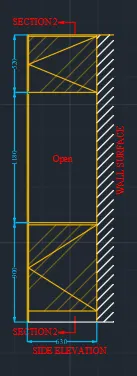
- Select the Wardrobe layer.
- Select the Line tool by entering the ‘LINE’ command in the command tab.
- Specify the start point. Point the cursor in the upward direction and enter a distance of 2600.
- Next, point the cursor towards the right and enter a distance of 630.
- Point the cursor in the downward direction and enter a distance of 2600.
- Select Close in the command line. Extend the top and bottom lines on either side.
- Select the Offset tool by entering the ‘OFFSET’ command in the command tab.
- Specify an Offset distance of 12, select the top, left and right sides individually, click on the inside to offset.
- Repeat offset, specify an Offset distance of 100, select the bottom line of the rectangular figure, click on the inside of the rectangle to offset.
- Repeat offset, specify an Offset distance of 800, select the last offsetted line of the figure, click on the inside of the rectangle to offset.
- Repeat offset, specify an Offset distance of 1180, select the last offset line of the figure, click on the inside of the rectangle to offset.
- Repeat offset, specify an Offset distance of 20, select the previous offset lines, click downwards to offset. Press Esc.
- Enter 'Tr' in the command prompt, click Enter twice and select the unwanted portion of lines. Press Esc.
- Turn Ortho off. Select the Line tool by entering the ‘LINE’ command in the command tab.
- Draw diagonal lines at the top and bottom sections as shown in the given diagram. Press Esc.
- Draw a rectangle, using the REC command, Specify the first point outside the top left corner of the wardrobe, and specify the second corner as the bottom right corner of the wardrobe.
- Select the Hatch tool, by entering the H command, select the JIS_LC_20 pattern, and set the hatch scale as per requirement, pick the point as the rectangle created earlier. Press Esc.
- Erase the outer rectangle.
- Enter 'H' in the command line, select the ANS134 pattern and pick a point as the top and bottom portion of the side elevation.
- In the Hatch editor, increase the Transparency of the pattern to 60. Press Esc.
- Select the Dimensions and text layer.
- Select the Dimension tool by entering 'DIM' in the command line.
- Select the first point and second point of the object to be measured, then drag the dimension line to the desired location. Repeat for all the objects to be measured.
- Enter the 'MTEXT' command in the command line.
- Create the text box, scale the text to the desired size.
- Copy the text box to all desired locations.
- Enter ED in the command line, and edit the texts as required. Click Enter and press Esc.
Step-5:-
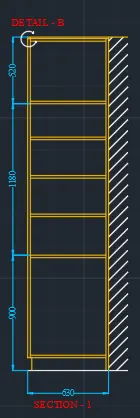
- Select the Wardrobe layer.
- Select the Line tool by entering the ‘LINE’ command in the command tab.
- Specify the start point. Point the cursor in the upward direction and enter a distance of 2600.
- Next, point the cursor towards the right and enter a distance of 630.
- Point the cursor in the downward direction and enter a distance of 2600.
- Select Close in the command line.
- Extend the top and bottom lines on either side.
- Select the Offset tool by entering the ‘OFFSET’ command in the command tab.
- Specify an Offset distance of 12, select the top, left and right sides individually, click on the inside to offset.
- Repeat offset, specify an Offset distance of 100, select the bottom line of the rectangular figure, click on the inside of the rectangle to offset.
- Repeat offset, specify an Offset distance of 800, select the last offset line of the figure, click on the inside of the rectangle to offset.
- Repeat offset, specify an Offset distance of 300, select the last offset line, click upwards four times to offset.
- Repeat offset, specify an Offset distance of 20, select the previous offset lines individually, click downwards to offset and provide thickness to the shelves. Press Esc.
- Enter 'Tr' in the command prompt, click Enter twice and select the unwanted portion of lines to be trimmed. Press Esc.
- Draw a rectangle, using the REC command, Specify the first point outside the top left corner of the wardrobe, and specify the second corner as the bottom right corner of the wardrobe.
- Select the Hatch tool, by entering the H command, select the JIS_LC_20 pattern, and set the hatch scale as per requirement, pick the point as the rectangle created earlier. Press Esc.
- Erase the outer rectangle. Press Esc.
- Select the Arc tool from the ribbon, select the 3 Point option and draw an arc as shown in the given diagram.
- Select the Line tool from the ribbon and draw arrows at the ends of the above arc. Press Esc.
- Select the Dimensions and text layer. Select the Dimension tool by entering 'DIM' in the command line.
- Select the first point and second point of the object to be measured, then drag the dimension line to the desired location. Repeat for all the objects to be measured.
- Enter the 'MTEXT' command in the command line.
- Create the text box, scale the text to the desired size.
- Copy the text box to all desired locations.
- Enter ED in the command line, and edit the texts as required. Click Enter and press Esc.
Step-6:-
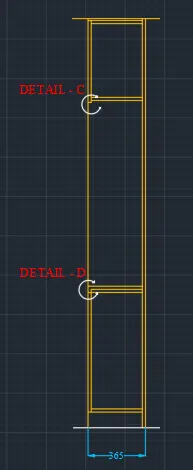
- Select the Wardrobe layer.
- Select the Line tool by entering the ‘LINE’ command in the command tab.
- Specify the start point. Point the cursor in the upward direction and enter a distance of 2600.
- Next, point the cursor towards the right and enter a distance of 365.
- Point the cursor in the downward direction and enter a distance of 2600.
- Select Close in the command line.
- Select the Offset tool by entering the ‘OFFSET’ command in the command tab.
- Specify an Offset distance of 12, select the top, left and right sides individually, click on the inside to offset.
- Repeat offset, specify an Offset distance of 100, select the bottom line of the rectangular figure, click on the inside of the rectangle to offset.
- Repeat offset, specify an Offset distance of 800, select the last offset line of the figure, click on the inside of the rectangle to offset.
- Repeat offset, specify an Offset distance of 1180, select the last offset line of the figure, click on the inside of the rectangle to offset.
- Repeat offset, specify an Offset distance of 20, select the previous offset lines individually, click downwards to offset and provide thickness to the shelves. Press Esc.
- Enter 'Tr' in the command prompt, click Enter twice and select the unwanted portion of lines to be trimmed. Press Esc.
- Select the Arc tool from the ribbon, select the 3 Point option and draw an arc as shown in the given diagram. Select the Line tool from the ribbon and draw arrows at the ends of the above arc. Press Esc.
- Enter CO in the command line, select the direction circle created before and copy it to the desired location. Press Esc.
- Select the Dimensions and text layer.
- Select the Dimension tool by entering 'DIM' in the command line.
- Select the first point and second point of the object to be measured, then drag the dimension line to the desired location. Repeat for all the objects to be measured.
- Enter the 'MTEXT' command in the command line.
- Create the text box, scale the text to the desired size.
- Copy the text box to all desired locations.
- Enter ED in the command line, and edit the texts as required. Click Enter and press Esc.
RESULT:-
2) Floor Plan:
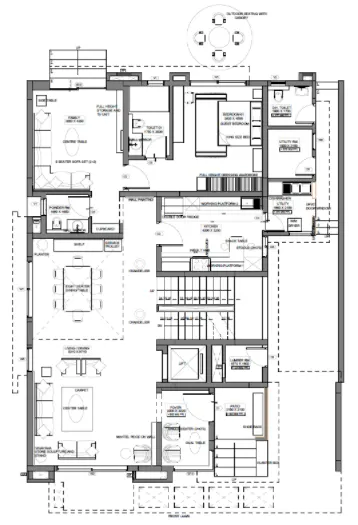
Procedure:-
- Draw horizontal and vertical lines using construction lines "XL".
- Give an offset of 230mm from the vertical to draw the thickness.
- First, we draw the Drawing family room:
- Give an offset of 3880mm from the wall thickness and an offset of 230mm for the other side.
- Now draw an offset of 300mm as wall thickness from the horizontal construction line.
- Again draw an offset of 4350mm from the 300mm wall thickness for drawing the room.
- Now we draw the toilet:
- Give an offset of 1750mm from the right wall of the family room and also offset 150mm to show wall thickness.
- Draw an offset of 250mm from the horizontal construction line for the wall thickness of the toilet on the outside side.
- Now draw an offset of 3000mm from the wall thickness so that the toilet is formed.
- From the offset, line draw 150mm for the wall thickness inside.
- Now we draw the guest bedroom:
- Draw an offset from the toilet wall at a distance of 3830mm.
- Again offset the wall thickness of 230mm.
- Offset 4500mm from the horizontal wall also offset 230mm from that line.
- Now we draw the DH toilet:
- Take an offset from the guest bedroom wall of a distance of 1900mm towards the right side.
- Now offset the wall thickness of 150mm from that line.
- Offset a distance of 1700mm from the horizontal line and wall thickness of 230mm.
- Also, offset wall thickness of 150mm.
- Trim the extra lines using a trim tool.
- Now we draw the utility room:
- Take an offset of 2100mm downwards the wall of the DH toilet.
- Also, offset the wall thickness of 150mm.
- Now we draw the dishwasher utility:
- From the utility, the wall takes an offset of 2150mm downwards and also the wall thickness of 150mm.
- Now we draw the Kitchen:
- From the left wall of the dishwasher utility room, take an offset of 4300mm to the left and a wall thickness of 230mm.
- From the wall of the guest bedroom draw an offset of 3200mm downwards and also the wall thickness of 230mm.
- Extend the top wall of the kitchen up to a distance of 1462mm excluding the wall thickness.
- Now we draw the cupboard and powder room:
- From the extended line, give a distance of 1000mm for the cupboard and wall thickness of 150mm.
- Give an offset of 1800mm from the wall and also a wall thickness of 230mm.
- Make the above wall of the powder room 150mm.
- Take an offset of 1650mm from that wall to the bottom.
- Now we draw the living/dining:
- Draw an offset of 9710mm from the wall of the powder room and also 230mm for the wall thickness.
- Now we draw the foyer:
- Draw an offset from the wall of the living room 2000mm to the right and a wall thickness of 230mm.
- Now draw the width of the room 3220mm and offset it from the line extended from the living room.
- offset the wall thickness of 150mm.
- Again offset 230mm for the lift wall and extend it to right.
- Now we draw patio:
- From the wall thickness of 230mm draw an offset of 2100mm downwards.
- From the wall of the foyer draw an offset of 2150mm and a wall thickness of 150mm on the right side.
- Now we draw lumber-room:
- From the wall of the partition draw an offset of 1600mm towards the backside.
- Offset a wall thickness of 230mm and to the left side give an offset of 150mm as wall thickness.
- Now we draw duct and lift:
- Draw an offset of 500mm from the 150mm wall and wall thickness of 230mm.
- Take an offset of 1620mm from the wall for lift.
- Draw the sidewalls and front walls of 230mm.
- Now we draw stairs:
- Divide the stair room and offset 200mm to two sides by offset from the centerline.
- We draw the first step then offset 300mm up to 11 divisions and the rest portion forms landing and draw 10 threads on the other side of the division.
- Create ducts at the front and backside.
- Door sizes given: D1-1000mm,D2-900mm,D3-800mm,D4-750mm,D5-700mm.
- Window sizes given: W1- 2700mm, W2- 2500mm, W3- 900mm, W5- 1000mm, W9- 800mm.
- Ventilators sizes: V1- 800mm, V2- 750mm.
- Dimension of all the rooms and wall thickness.
- Insert the text using multi-line text with text height as 300mm and style roman.shx.
- At last, create the layers by clicking on layer tools and assigning each layer with different colors.
RESULT:-
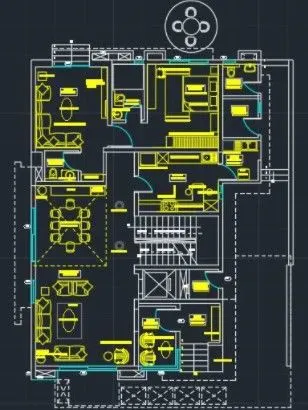
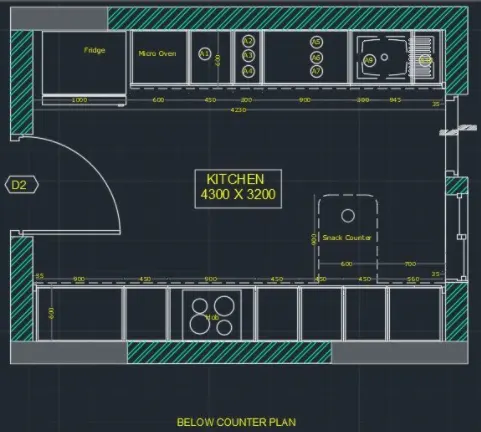
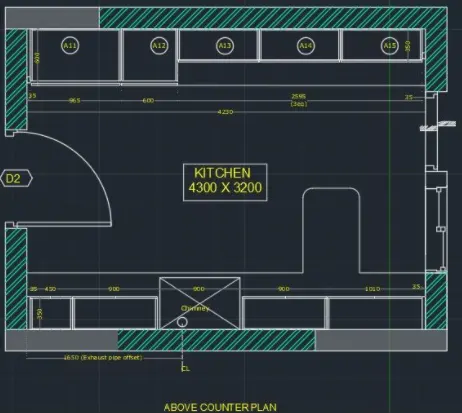
3) Kitchen Layout:
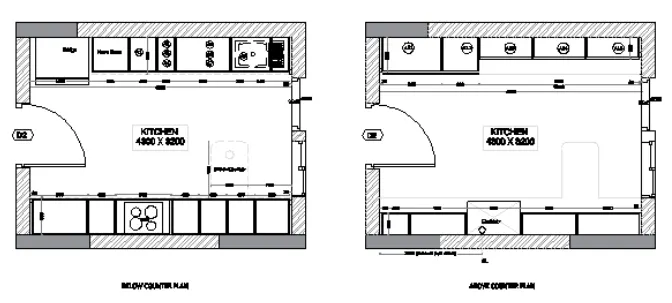
Procedure:-
- Start the Line command by clicking the Line button on the Draw panel on the Ribbon, or by entering L and then pressing Enter.
- Draw line segments by picking several random points.
- Terminate the command by pressing Enter, Esc, or the spacebar. Press Enter or the spacebar to repeat the Line command.
- Click Home tab Modify panel Trim. Select the objects to serve as cutting edges.
- Press Enter when you finish selecting the cutting edges. Select the objects to trim and press Enter a second time when you finish selecting the objects to trim.
- We can offset any object through a point or at a specified distance. We can create as many parallel lines and curves as with the help of the offset command.
- Place doors and windows.
- Go to the Draw panel on the Home tab. You will see a Hatch creation tab.
- Specify the pattern on the Pattern panel. Choose your desired method-Pick Points or Select Boundary Objects. After filling the area, hit Enter to apply the hatch.
- Give all dimensions to the elevation & Enter text by using the MTEXT command.
RESULT:-
4) Column Details:
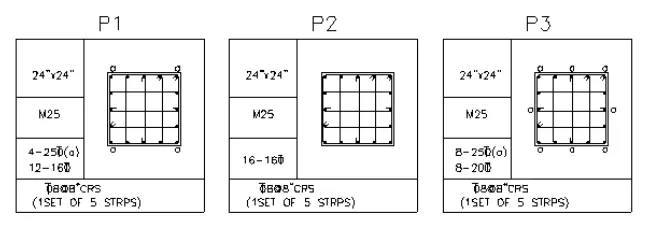
Procedure:-
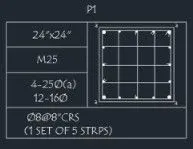
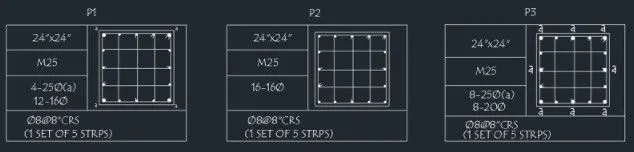
Drawing of P1
- Draw the RECTANG of 24”x24” for column size
- Place the 4-25ø and 12-16ø bars as shown in P1 at the designated place
- Use CIRCLE to drawbars of 25mm and 16 mm and place them at designated place using COPY with Array, MIRROR, and ROTATE command
- Again, use CIRCLE to draw the circle to show the location of 25mm dia bars
- Use LINE to draw the stirrups of 8ø bars as shown in P1
- Draw a boundary around it using the RECTANG command
- Use OFFSET and LINE commands to make boxes for inserting different texts
- MTEXT for inserting texts as shown in the drawing
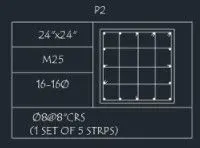
Drawing of P2
- Draw the RECTANG of 24”x24” for column size
- Place the 16-16ø bars as shown in P2 at the designated place
- Use CIRCLE to the drawbar of 16 mm and place them at designated place using COPY with Array, MIRROR and ROTATE command
- Use LINE to draw the stirrups of 8ø bars as shown in P2
- Draw a boundary around it using the RECTANG command
- Use OFFSET and LINE commands to make boxes for inserting different texts
- MTEXT for inserting texts as shown in the drawing
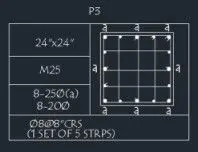
Drawing of P3
- Draw the RECTANG of 24”x24” for column size
- Place the 8-25ø and 8-20ø bars as shown in P3 at the designated place
- Use CIRCLE to drawbars of 25mm and 20 mm and place them at designated place using COPY with Array, MIRROR and ROTATE command
- Again, use CIRCLE to draw the circle to show the location of 25mm dia bars
- Use LINE to draw the stirrups of 8ø bars as shown in P1
- Draw a boundary around it using the RECTANG command
- Use OFFSET and LINE commands to make boxes for inserting different texts
- MTEXT for inserting texts as shown in the drawing
RESULT:-
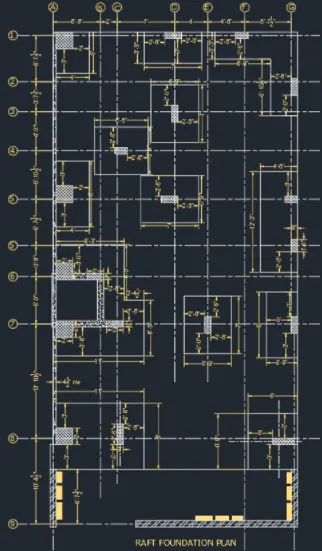
5) Raft Layout:
Procedure:-
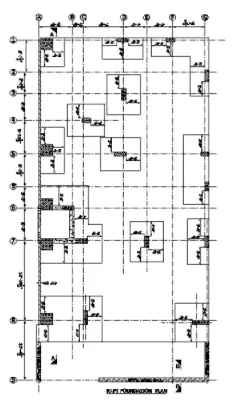
- Draw the vertical construction line using command XL.
- Offset the vertical line with offset distance as 5'9", 2'0", 7'0", 4'0", 4'6", 5'7.5".
- Draw the horizontal construction line using command XL
- Offset the horizontal lines with offset distance as 5'7.5", 3'7.5", 4'9", 5'10.5", 5'7.5", 3'9", 5'9", 13'10.5", 10'4.5".
- Change the line type to ISO dash by clicking on line type and selecting ISO dash.
- Mark horizontal lines from 1 to 9.
- Mark vertical lines from A to G.
- Draw the bottom thickness of the wall as 9" with the gridline at the center.
- A thickness of 4.5" is drawn from the gridline inside the left vertical grid line.
- Now we draw the columns:
a) Column between grid line A & B and 1 & 2 of column size 24" X 24"
- Draw a rectangle of 24" X 24" by rectangle command and place it in the required position.
- Explode the rectangle using explode command.
- Offset 2' vertically and 3' horizontally from the column.
- Join the lines by using the fillet command to make the mat.
- Hatch the column by command "H" and selecting "ANS 137" and giving a scale of 20".
b) Column between grid line C & E and 1 & 2 of column size 24" X 9"
- Draw a rectangle of 24" X 9" by rectangle command and place it in the required position.
- Explode the rectangle using explode command.
- Offset 2' 6" vertically and 3' horizontally from the column.
- Join the lines by using the fillet command to make the mat.
- Hatch the column by command "H" and selecting "ANS 137" and giving a scale of 20"
c) Column between grid line E & G and 1 & 2 and F & G and 2 & 3 of column size 9" X 18" and 9" X 24"
- Draw a rectangle of 18" X 9" by the rectangle command and place it in the required position.
- Explode the rectangle using explode command.
- Offset 2' 6" vertically and 2'6" horizontally from the column.
- Join the lines by using the fillet command to make the mat.
- Hatch the column by command "H" and selecting "ANS 137" and giving a scale of 20"
- Draw a rectangle of 9" X 24" by rectangle command and place it in the required position.
- Explode the rectangle using explode command.
- Offset 2' 6" vertically and 2'6" horizontally from the column.
- Join the lines by using the fillet command to make the mat.
- Hatch the column by command "H" and selecting "ANS 137" and giving a scale of 20".
d) Column between grid line C & E and 2 & 4 of column size 24"X9"
- Draw a rectangle of 24" X 9" by rectangle command and place it in the required position.
- Explode the rectangle using explode command.
- Offset 2' 6" on all sides.
- Join the lines by using the fillet command to make the mat.
- Hatch the column by command "H" and selecting "ANS 137" and giving a scale of 20"
e) Column between grid line A & D and 1 & 5 of column size 9" X 18"
- Draw a rectangle of 9" X 18" by rectangle command and place it in the required position.
- Explode the rectangle using explode command.
- Offset 2' 6" on all sides.
- Join the lines by using the fillet command to make the mat.
- Hatch the column by command "H" and selecting "ANS 137" and giving a scale of 20".
f) Column between grid line A & B and 4 & 5 of column size 24" X 24"
- Draw a rectangle of 24" X 24" by rectangle command and place it in the required position.
- Explode the rectangle using explode command.
- Offset with a distance of 3' on the left and right sides and 2' towards the front.
- Join the lines by using the fillet command to make the mat.
- Hatch the column by command "H" and selecting "ANS 137" and giving a scale of 20".
g) Column between grid line C & E and 4 & 5 of column size 9" X 24"
- Draw a rectangle of 9" X 24" by rectangle command and place it in the required position.
- Explode the rectangle using explode command.
- Offset with a distance of 2'6" on all sides.
- Join the lines by using the fillet command to make the mat.
- Hatch the column by command "H" and selecting "ANS 137" and giving a scale of 20".
h) Column between grid line F & G and 4 & 6 of column size 9" X 18"
- Draw a rectangle of 9" X 18" by rectangle command and place it in the required position.
- Explode the rectangle using explode command.
- Offset with a distance of 3' on one side and 3' towards the front.
- Join the lines by using the fillet command to make the mat.
- Hatch the column by command "H" and selecting "ANS 137" and giving a scale of 20".
- Draw a rectangle of 9" X 18" by rectangle command and place it in the required position.
- Explode the rectangle using explode command.
- Offset with a distance of 3' on one side and 3' towards the front.
- Join the lines by using the fillet command to make the mat.
- Hatch the column by command "H" and selecting "ANS 137" and giving a scale of 20".
i) Column between grid line F & G and 6 & 8 of column size 24" X 9"
- Draw a rectangle of 9" X 24" by rectangle command and place it in the required position.
- Explode the rectangle using explode command.
- Offset with a distance of 3' on one side and 3' towards the front.
- Join the lines by using the fillet command to make the mat.
- Hatch the column by command "H" and selecting "ANS 137" and giving a scale of 20".
j) Column between grid line A & D and 5 & 8 of column size 24" X 9" and 24" X 24"
- Draw a rectangle of 9" X 24" by rectangle command and place it in the required position.
- Explode the rectangle using explode command.
- Offset with a distance of 2' 6" to the front from the wall and column.
- Give an offset distance of 3' to the right and left sides.
- Join the lines by using the fillet command to make the mat.
- Draw a rectangle of 24" X 24" by rectangle command and place it in the required position.
- Draw a 9" thickness wall from the column at a distance of 3'9"
- Explode the rectangle using explode command.
- Offset with a distance of 3' on one side and 3' towards the front.
- Join the lines by using the fillet command to make the mat.
- Hatch the column by command "H" and selecting "ANS 137" and giving a scale of 20".
- Hatch the wall by "AR CONC" scale 1.
k) Column between grid line A & D and 5 & 8 of column size 24" X 24" and 9" X 2'6"
- Draw a rectangle of 2" X 24" by rectangle command and place it in the required position.
- Explode the rectangle using explode command and extend the base of the rectangle from grid point C offset 4.5" and create a rectangle of 9" X 2'6".
- Give an offset distance of 2'6" to the front and left of the 9" X 2'6" and an offset of 3' from the 2' X 2' rectangle.
- Hatch the column by command "H" and selecting "ANS 137" and giving a scale of 20".
l) Column between grid line F & G and 8 & 9 of column size 3' X 9"
- Create a rectangle by selecting base point as intersection of 4.5" and wall and giving dimensions as 3' and 9"
- Delete the offset line.
- Give offset with a distance of 3'.
- Hatch the column by command "H" and selecting "ANS 137" and giving a scale of 20".
- Now we insert the text using multiline text with a height of 10".
- Dimension is done by the dimension tool in the toolbar and measures all the distances between grid lines and other required distances.
- Now at last create the layers by clicking on layer properties and assign different colors to each layer to distinguish between them.
RESULT:-
CONCLUSION:-
In this extensively elaborated exercise, almost all the majorly used commands like – LINE, RECTANG, OFFSET, FILLET, EXTEND, TRIM, CIRCLE, MIRROR, ROTATE, ARRAY, COPY, MOVE, ARC, PLINE, CIRCLE, TEXT, MTEXT, DIMLIN, DIMCONT, DIMBREAK, QLEADER, TABLE, LAYER, DIMSTYLE, LINETYPE, LINEWEIGHT, EXPLODE, PDFIMPORT, HATCH to name a few. Apart from these other properties like the thickness of lines were also extensively used.