Creating a Wardrobe detailed drawing, Floor Plan, Kitchen Layout and Column Detail using AutoCad
AIM : To Create the cabinet drawing by using autocad.
PROCEDURE :
1.CABINET DRAWING :
- In this drawing we create a cabinet drawing using various commands.
- Now we can see the command used for this drawing as step by step.
Steps :
- We create a Cabinet drawing which consists of elevation , plan,and with section. so that we need to know the dimenssions clearly from figure given.
- first we need to create the plan with the help of lines to specified dimensions .
- Click " REC " for rectangle command used to outer of the plan.
- After that click " L " for line command to draw center lines
- Click " OF " for offset command to offset the line.
- Click " DIM " for dimenssion and show the dimenssion.
- once plan is done then moving to elevation drawing.
- Click " REC " for rectangle command used to outer of the plan.
- After that click " L " for line command to draw center lines
- Click " OF " for offset command to offset the line.
- Click ' HAT ' for hatch command to hatch the point.
- Next we need to draw the section 1 & section 2. draw the section as per elevation drawing.
- Click " REC " for rectangle command used to outer of the plan.
- After that click " L " for line command to draw center lines
- Click " OF " for offset command to offset the line.
- Click ' HAT ' for hatch command to hatch the point.
- Click " DIM " for dimenssion and show the dimenssion.
- Also insert text with help of DTEXT command or single line text.
- Use the font names : Romans , Height : 8" and justify left.
- once everything is done using ' snipping tool ' take a screenshot & save the copy.
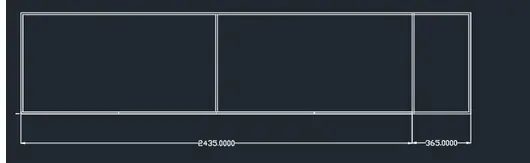
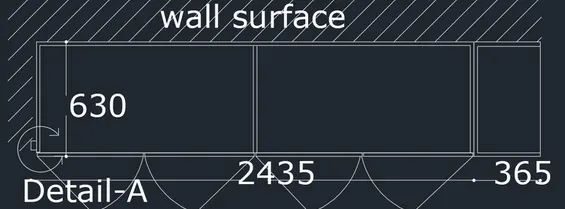
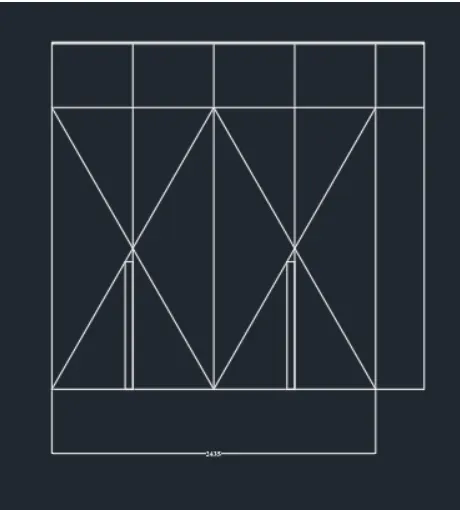
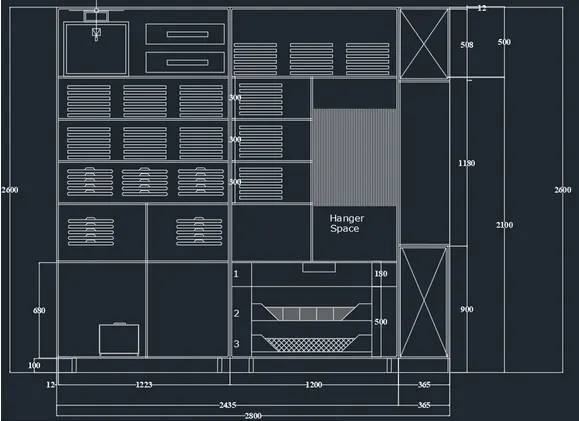
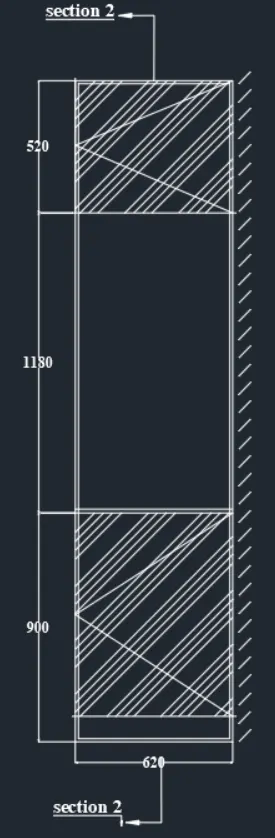
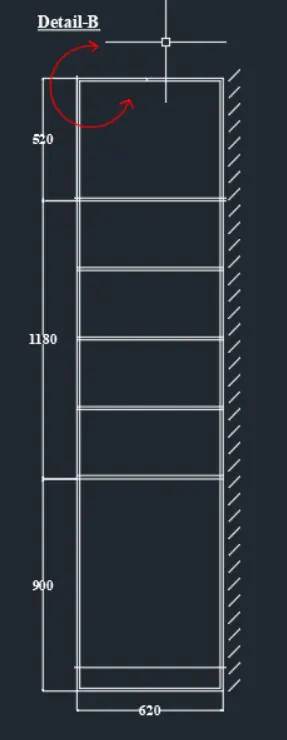
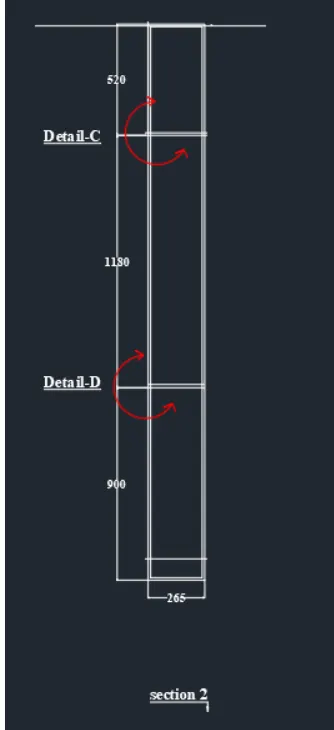
RESULT : IN this we learned how to create cabinet drawing using various commands in autio cad anmd figures are mentioned above.
2.KITCHEN PLAN :
- In this drawing we create a Kitchen plan using various commands.
- Now we can see the command used for this drawing as step by step.
Steps :
- We create a Kitchen plan ,so that we need to know the dimenssions clearly from figure given.
- first we need to create the plan with the help of lines to specified dimensions .
- Click " REC " for rectangle command used to outer of the plan.
- After that click " L " for line command to draw center lines.
- Click " OF " for offset command to offset the line.
- Click " EX " for to extend the line.
- Click " TR " for trim commond used to cut the extented line.
- Click ' HAT ' for hatch command to hatch the point.
- Click " DIM " for dimenssion and show the dimenssion.
- Also insert text with help of DTEXT command or single line text.
- Use the font names : Romans , Height : 8" and justify left.
- once everything is done using ' snipping tool ' take a screenshot & save the copy.
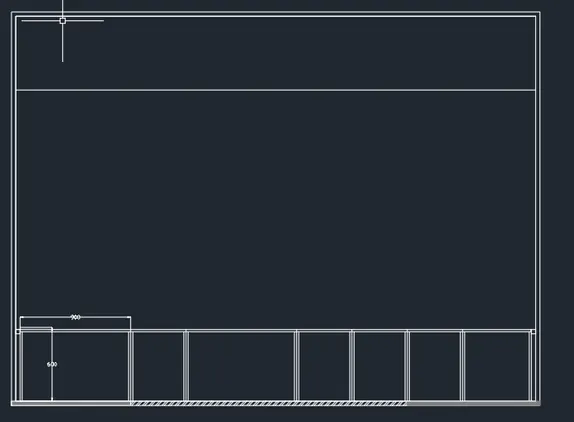
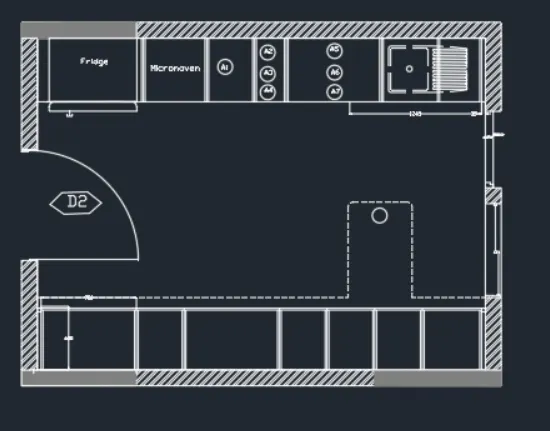
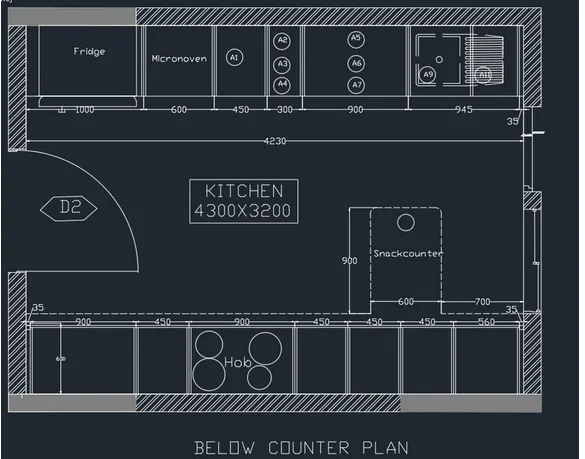
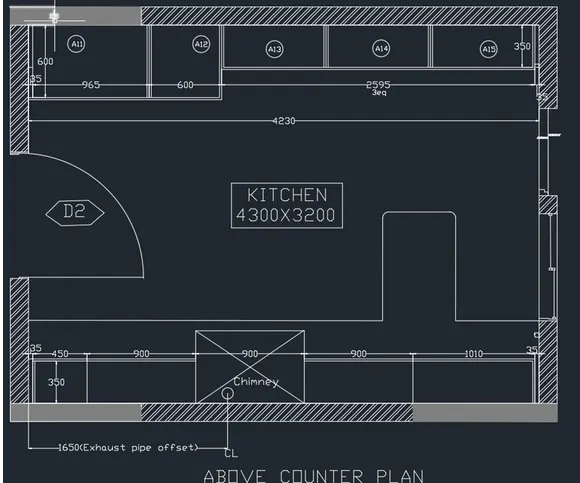
RESULT : IN this we learned how to create kitchen plan using various commands in autio cad anmd figures are mentioned above.
3. COLUMN SHEDULE :
- In this drawing we create a Column shedule(P1 , P2, P3 ) using various commands.
- Now we can see the command used for this drawing as step by step.
Steps :
- We create a Column shedule with help of rectangle. so that we need to know the dimenssions clearly from figure given.
- first we need to create the plan with the help of lines to specified dimensions .
- Click " REC " for rectangle command used to outer of the plan.
- After that click " L " for line command to draw center lines.
- Click " OF " for offset command to offset the line or rectangle to 40mm inner cover of column.
- To prepare reainforcement detailing as per details given dtaw a circle using 'c' command .
- Then draw the stirups and fillet command is used to draw it.
- Draw three types of column in different reinforcement details.
- Click " EX " for to extend the line.
- Click " TR " for trim commond used to cut the extented line.
- Click " DIM " for dimenssion and show the dimenssion.
- Also insert text with help of DTEXT command or single line text.
- Use the font names : Romans , Height : 8" and justify left.
- once everything is done using ' snipping tool ' take a screenshot & save the copy.
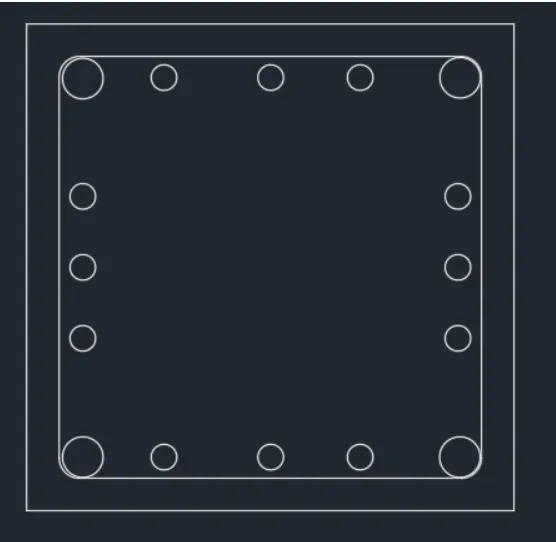
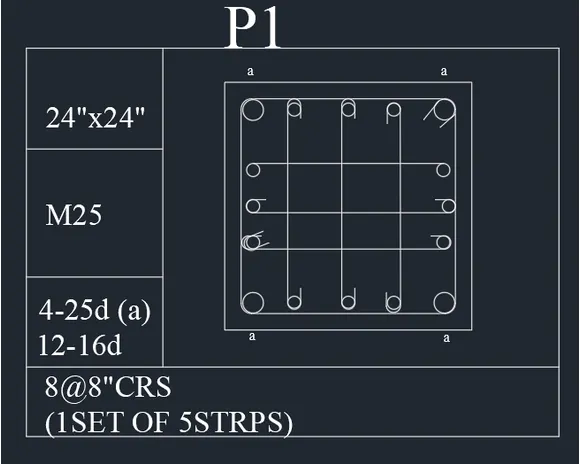
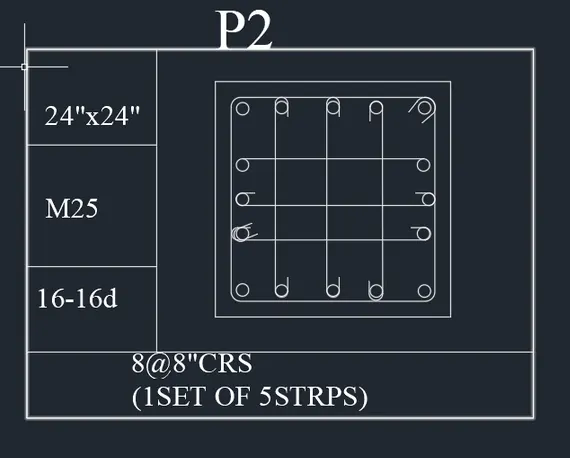
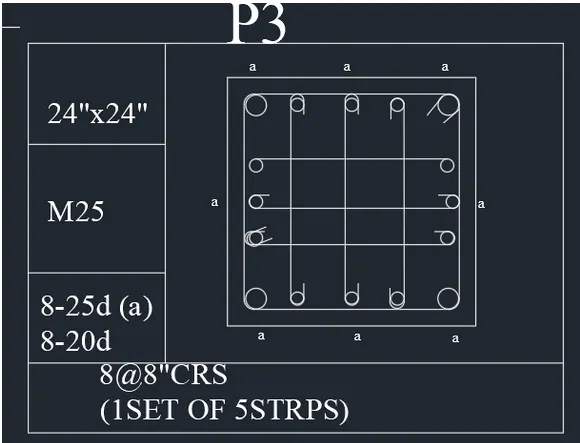
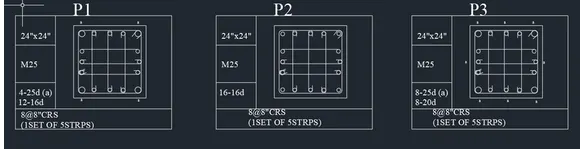
RESULT : IN this we learned how to create column shedule using various commands in autio cad anmd figures are mentioned above.
4.RAFT FOOTING :
- In this drawing we create a RAFT FOOTING using various commands.
- Now we can see the command used for this drawing as step by step.
Steps :
- We create a Raft footing drawing ,so that we need to know the dimenssions clearly from figure given.
- first we need to create the plan with the help of lines to specified dimensions .
- Create the grid lines as per drawing.
- Click " REC " for rectangle command used to outer of the plan.
- After that clickB for line command to draw center lines.
- Click " OF " for offset command to offset the line.
- Click " EX " for to extend the line.
- Click " TR " for trim commond used to cut the extented line.
- Click ' HAT' for hatch command to hatch the point.
- The outer footing size is mentioned in figure so according to it we need to draw outer footing
- Then column is drawn according to footing size.
- Click " DIM " for dimenssion and show the dimenssion.
- Also insert text with help of DTEXT command or single line text.
- Use the font names : Romans , Height : 8" and justify left.
- once everything is done using ' snipping tool ' take a screenshot & save the copy.
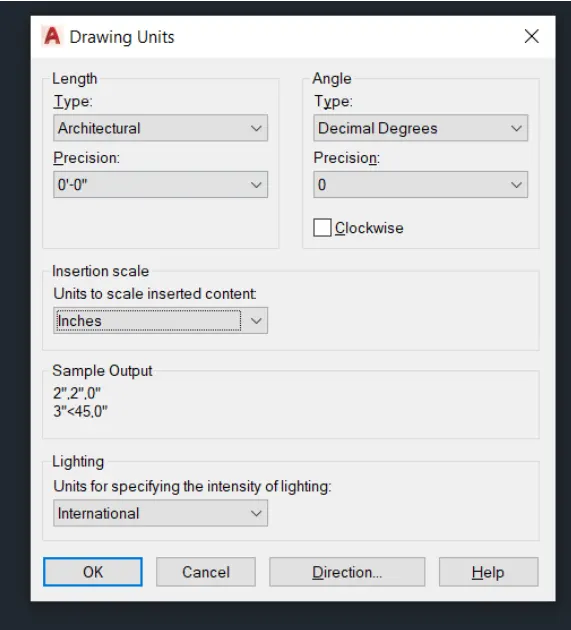
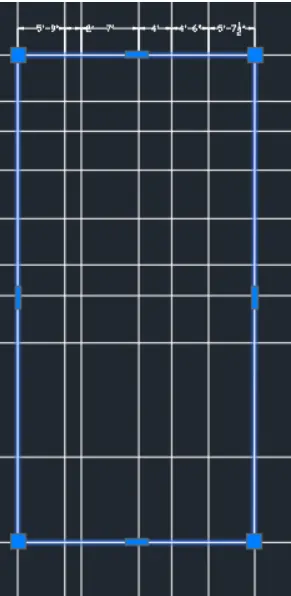
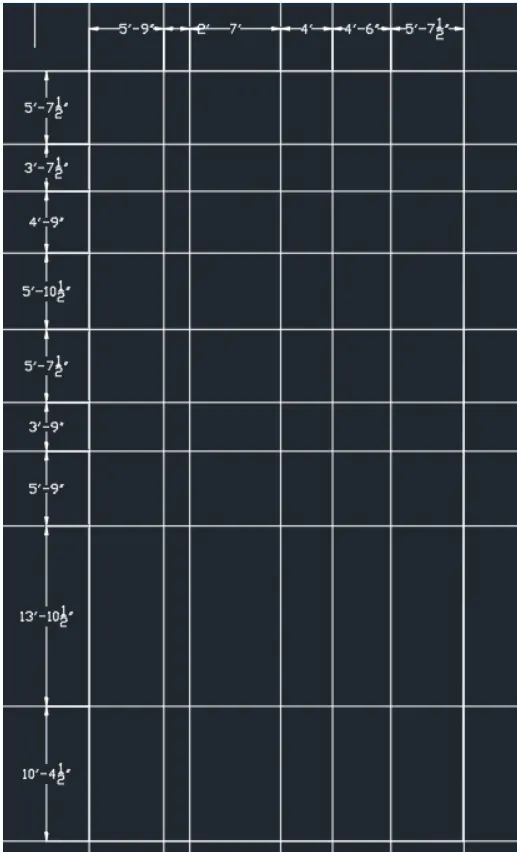
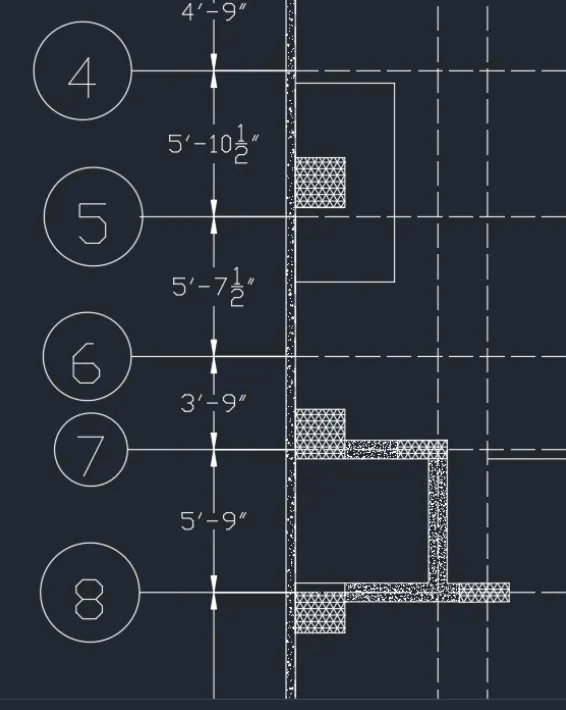
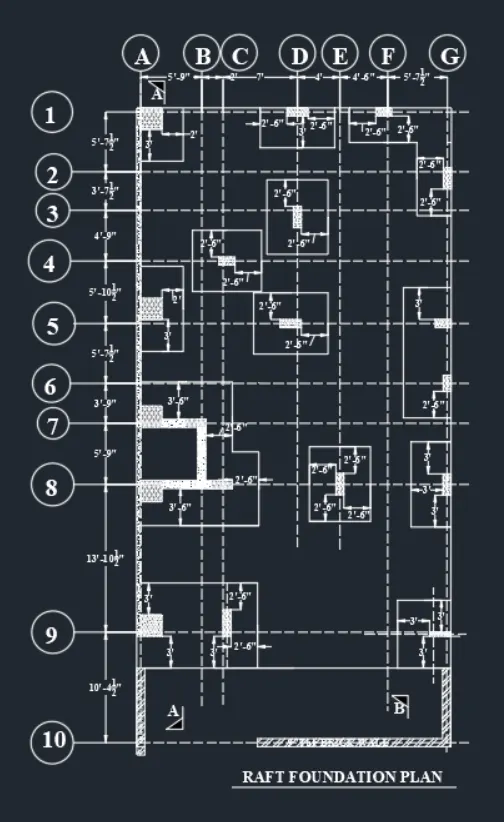
RESULT : IN this we learned how to create kRaft footing drawingusing various commands in autio cad anmd figures are mentioned above.