Creating a Residence Layout, Seating plan, Toilet and Utility room plan using AutoCad
AIM : To Create the plan , Residential Layout, seating plan, toilet and utility room plan by using autocad.
PROCEDURE :
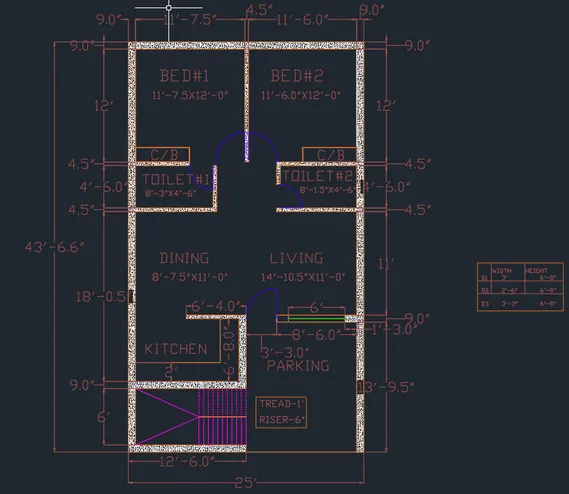
1.RESIDENTIAL LAYOUT PLAN :
- In this drawing we create a residence layout plan.
- Now we can see the command used for this drawing as step by step.
Steps :
- First we need to study the plan and get to know dimnsions to draw.
- First we need to from a left hand side of the plan.
- Click ' XL'-V ( Vertical line ) command to start draw.
- And 'OF' offset command as per plan dimenssion.so that we can create a outer plan of drawing first.
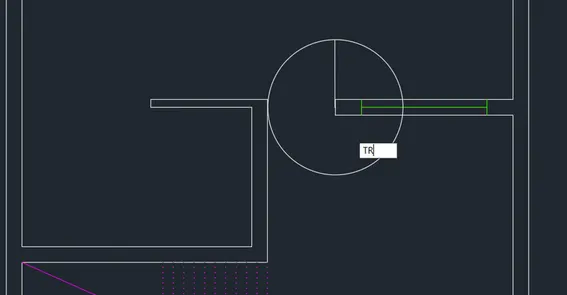
- Click 'TR' trim command to cut the lines, and 'EX' command to extend the line.
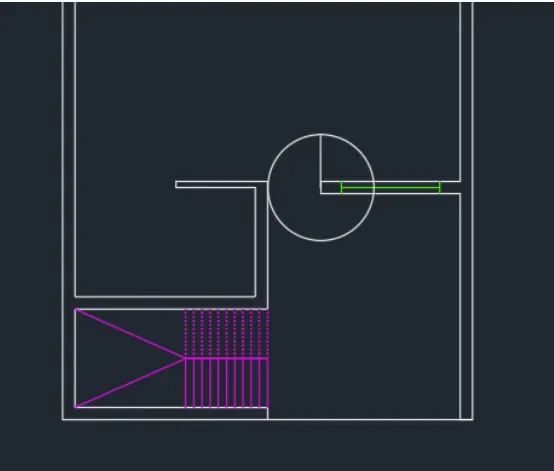
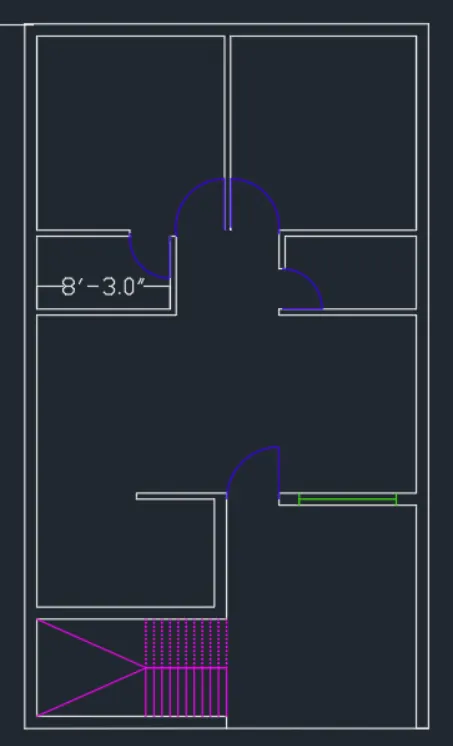
- Then draw staircase as per dimension of given plan. and click OFFSET to offset the steps by length mentionEd in plan.
- Now, Draw the ' DOOR ' with the help of circle command. first draw hinge 0.25" inch and draw overa circle.
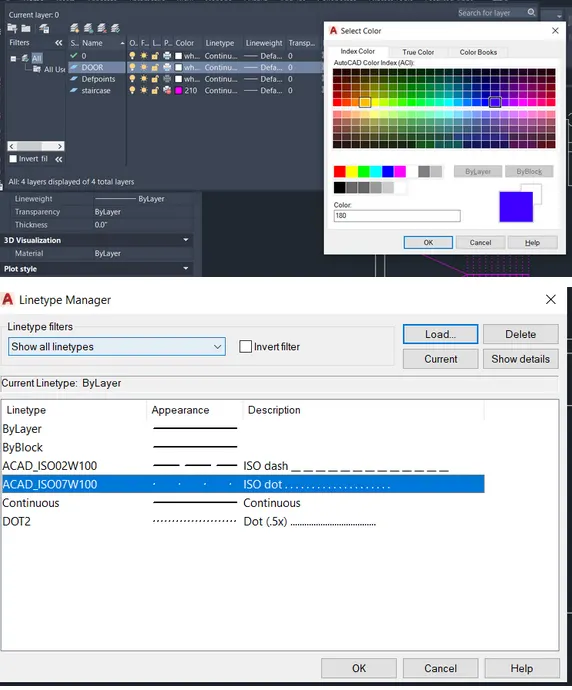
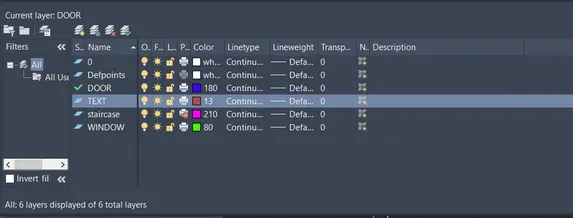
- Then create a layout properties to create a layer option.
- Create a layer option to TEXT , STAIRCASE , DOOR SEPRATELY.
- Then click " HAT" Hatch option to outer wall.
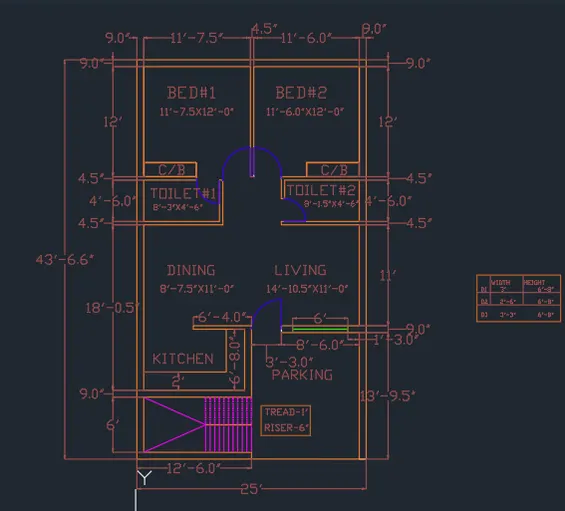
- once the drawing is completed a drawing we need to show dimenssion of OBJECTS. For that click " DIM " command to create show dimenssion.
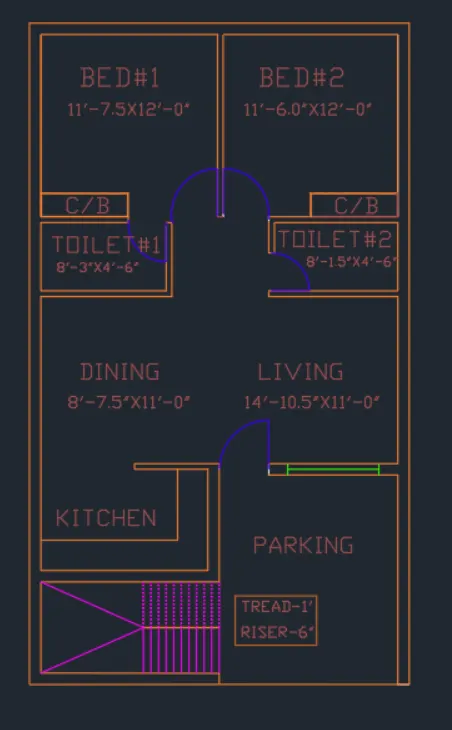
- after completing dimentioning , using 'TEXT ' Option name the objects.
- once everything is done using ' snipping tool ' take a screenshot & save the copy.
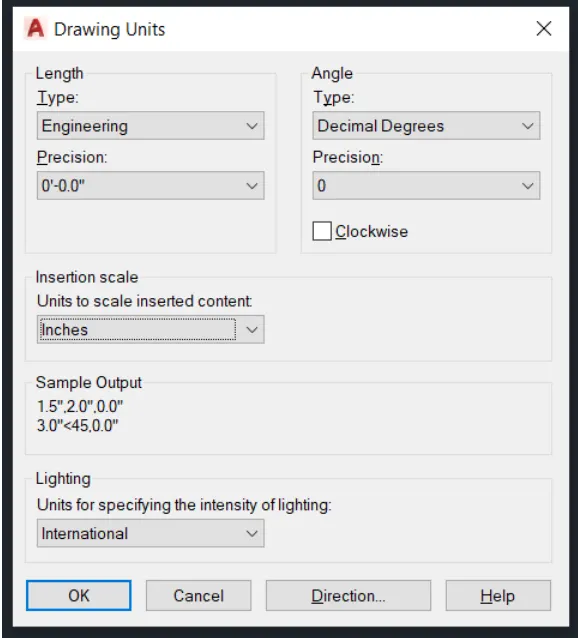
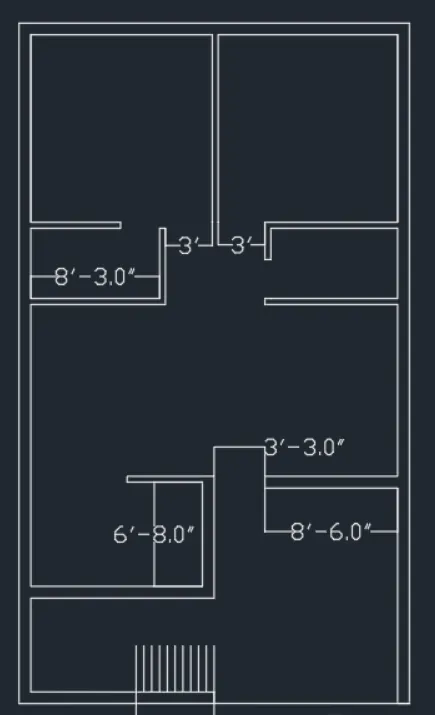
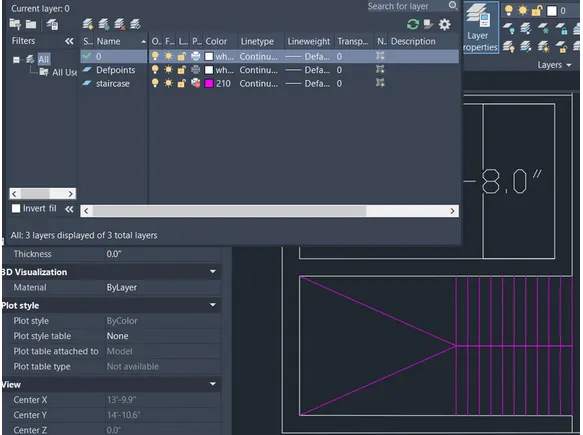
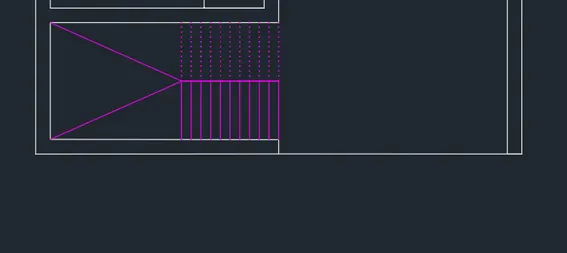
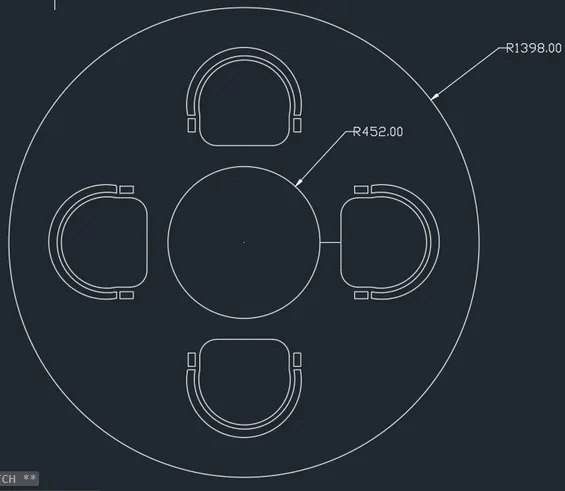
2. SEATING PLAN :
- In this drawing we create a residence layout plan.
- Now we can see the command used for this drawing as step by step.
Steps:
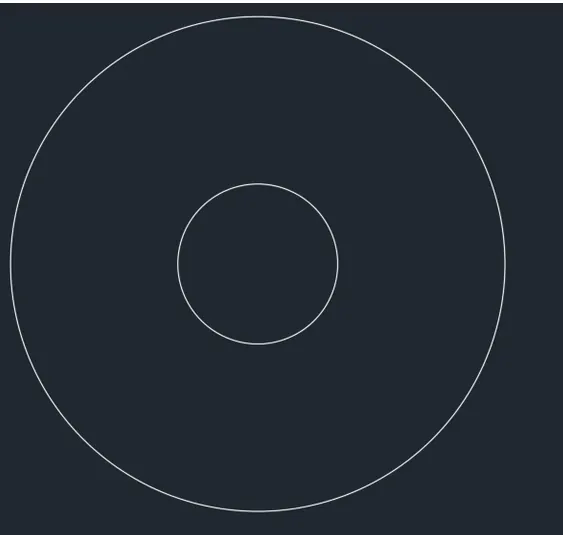
- start a drawing from circle .
- Click ' C ' Circle Command to draw the two circle to given radius.
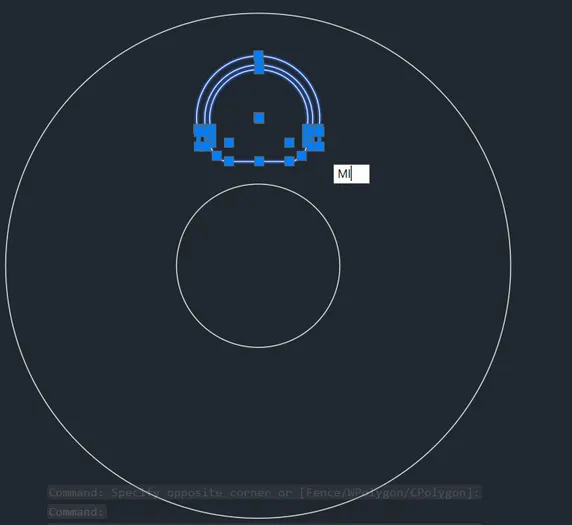
- Click ' ARC ' arch Command to draw the 3 point arch. and using 'L' command draw line .
- Click 'F' fillet and place sest in 'QUAD' quadrant specific line.
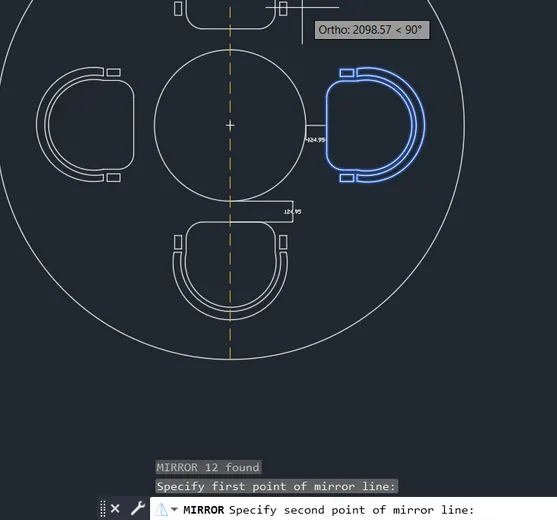
- Then Click ' MI ' mirror Command to place seat in the Four quadrant line as per drawing.
- After completing a drawing we need to show dimension / radius of circle.
- Click " DIMRAD " coammand to show radius of circle.
- use 'TEXT' command to name the objects.
- once everything is done using ' snipping tool ' take a screenshot & save the copy.

3.TOILET AND UTILITY LAYOUT PALN :
- In this drawing we create a residence layout plan.
- Now we can see the command used for this drawing as step by step.
Steps :
- First we need to study the plan and get to know dimnsions to draw.
- First we need to from a left hand side of the plan.
- Click 'XL'-V ( Vertical line ) command to start draw.
- And 'OF' offset command as per plan dimenssion.so that we can create a outer plan of drawing first.
- Click 'TR' trim command to cut the lines, and 'EX' command to extend the line.
- Then draw staircase as per dimension of given plan. and click OFFSET to offset the steps by length mentionEd in plan.
- Now, Draw the ' DOOR ' with the help of circle command. first draw hinge 0.25" inch and draw overa circle.
- Then create a layout properties to create a layer option.
- Create a layer option to TEXT , STAIRCASE , DOOR SEPRATELY.
- Then click " HAT" Hatch option to outer wall.
- once the drawing is completed a drawing we need to show dimenssion of OBJECTS. For that click " DIM " command to create show dimenssion.
- after completing dimentioning , using 'TEXT ' Option name the objects.
- once everything is done using ' snipping tool ' take a screenshot & save the copy.
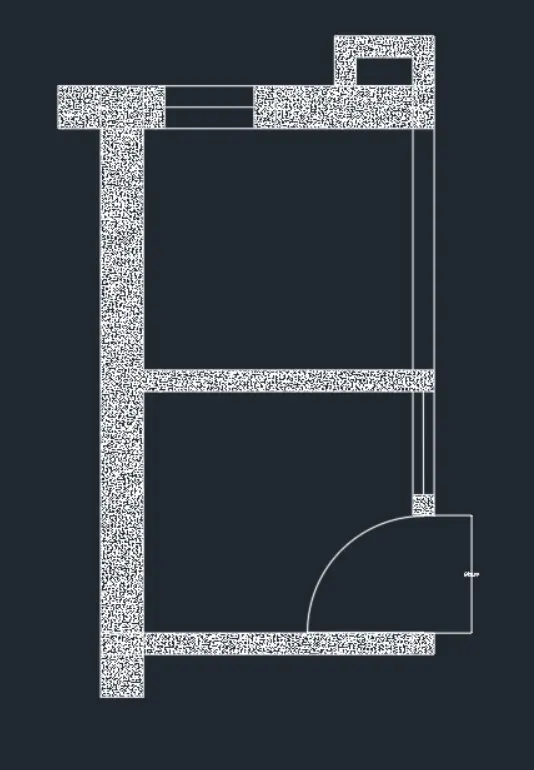
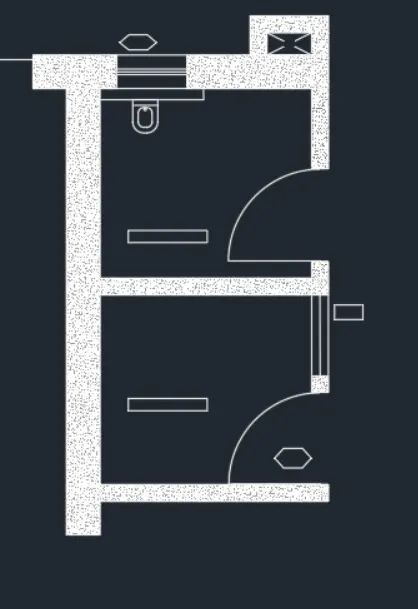
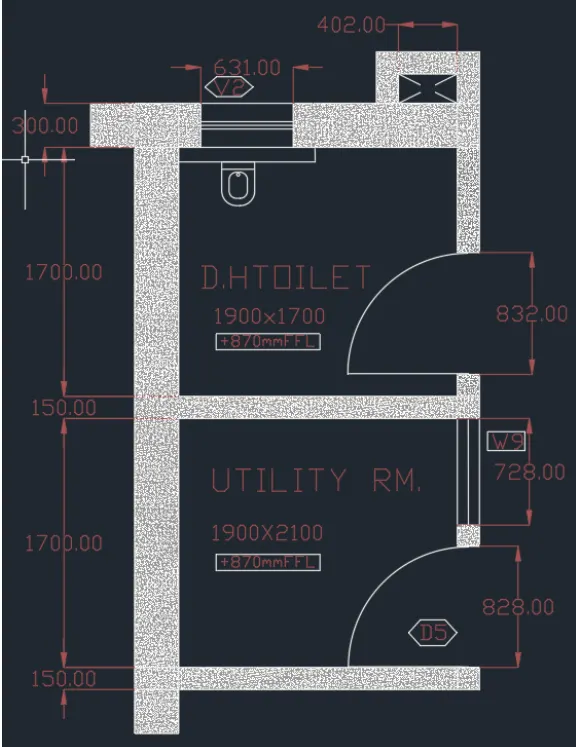
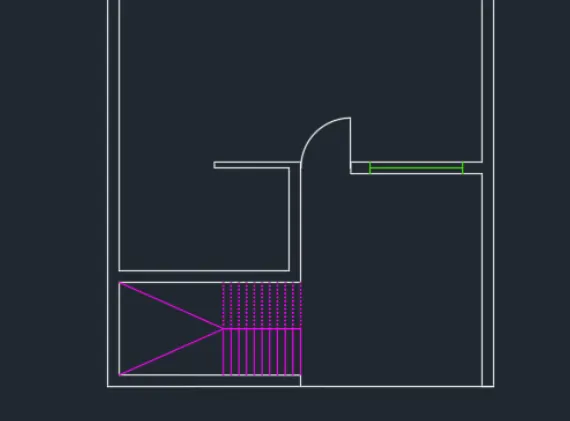
RESULTS : Plans of residential layout , seating plans, toiletand utility room paln by using autocad are shown in above mentioned iamges.