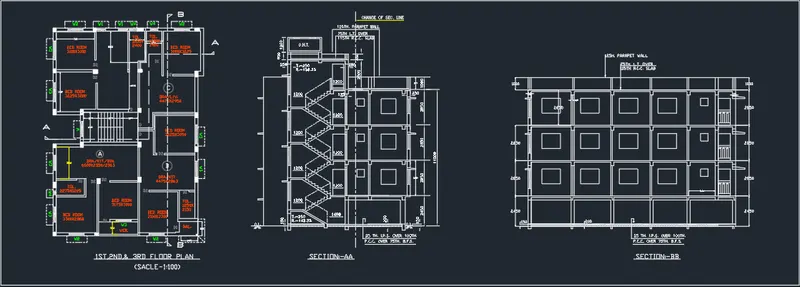
Creating a Layout, Section and Elevation with dimensions using AutoCad
1.Aim:
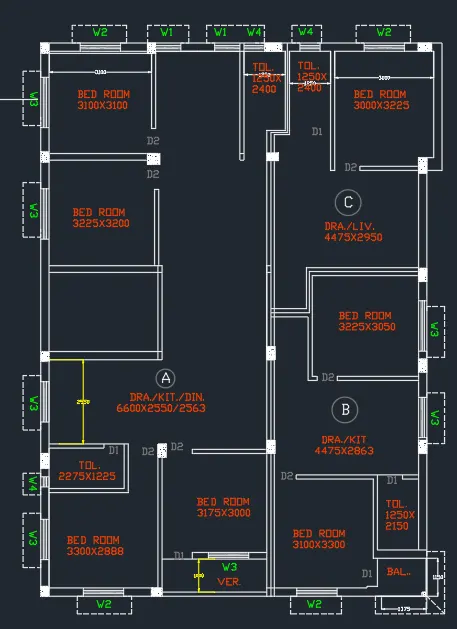
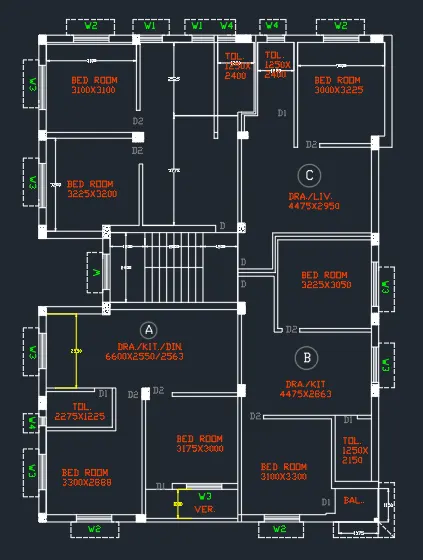
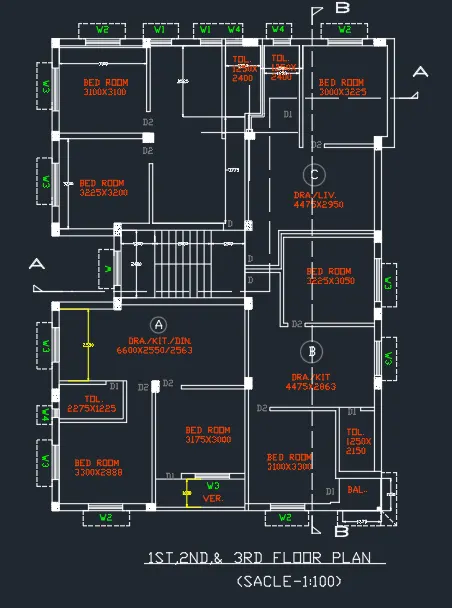
To Create a Floor Plan 1,2&3 by using Auto Cad.
INtroduction:
- To Create a Floor Plan 1,2&3 by using a various command.
- Now we see the Step by Step Producre to Create a Drawing.
Floor Plan 1,2&3:
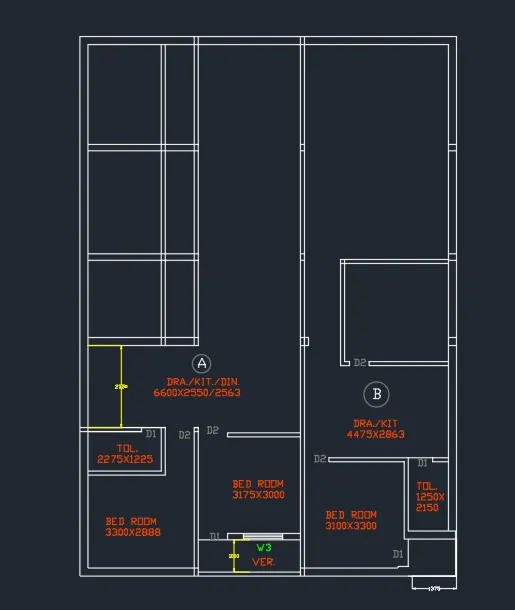
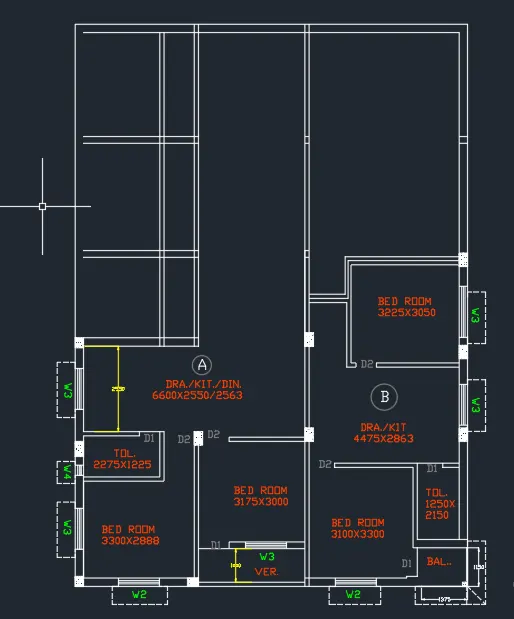
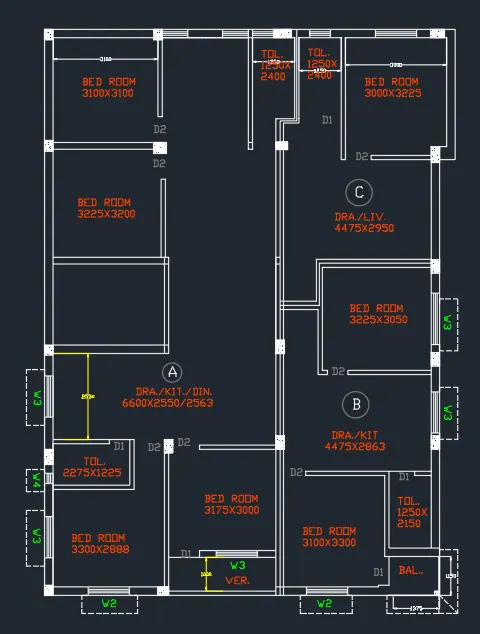
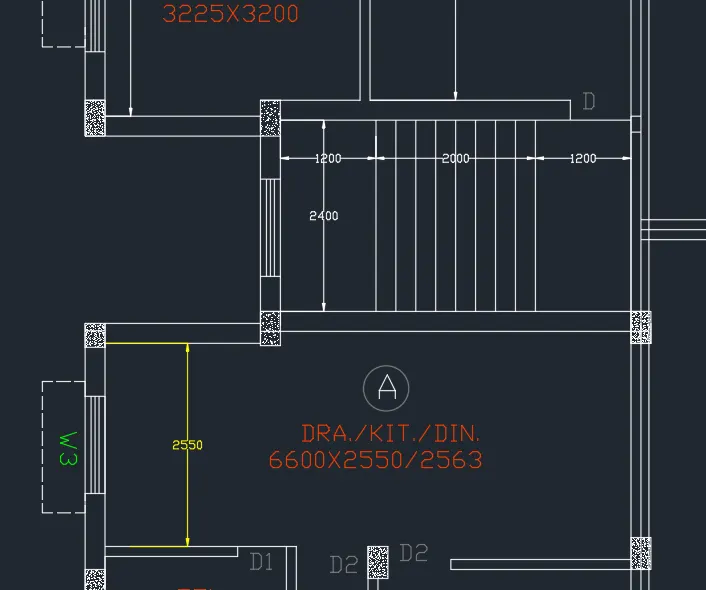
- we create a Floor Plan 1,2&3 elevation,plan, and with section.
- First we need study the plan properly before start the plan.
- And we need Draw the plan as per dimension.
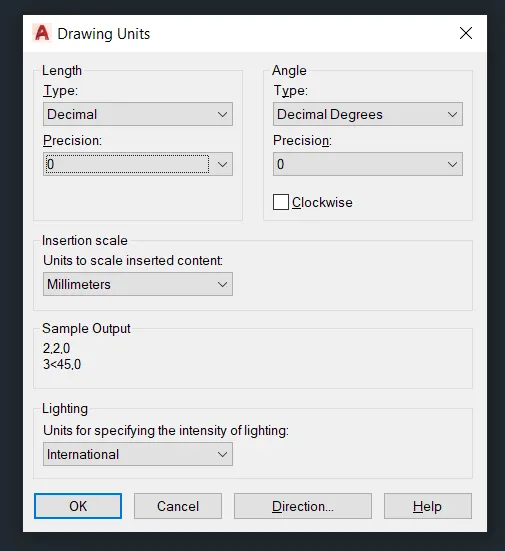
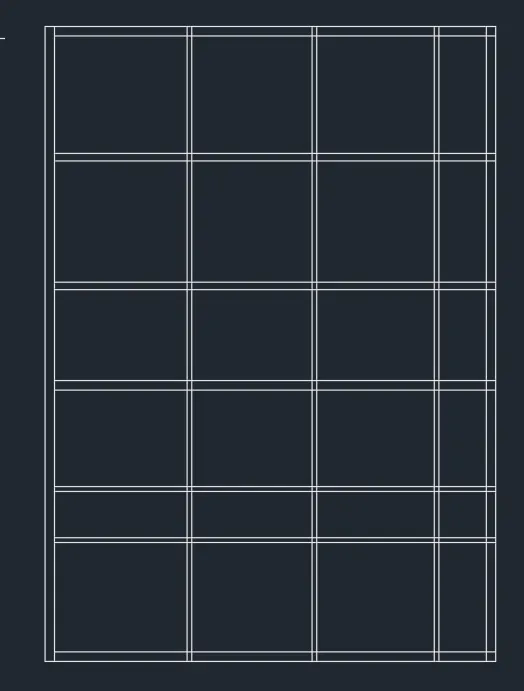
- Click 'REC' Rectangle command to draw the outer of the plan.
- And offset the 250mm of outer wall and inner wall 125mm.
- After Click 'L'Line command to draw the center line.
- And click 'OF'Offset commend to offset the Line.
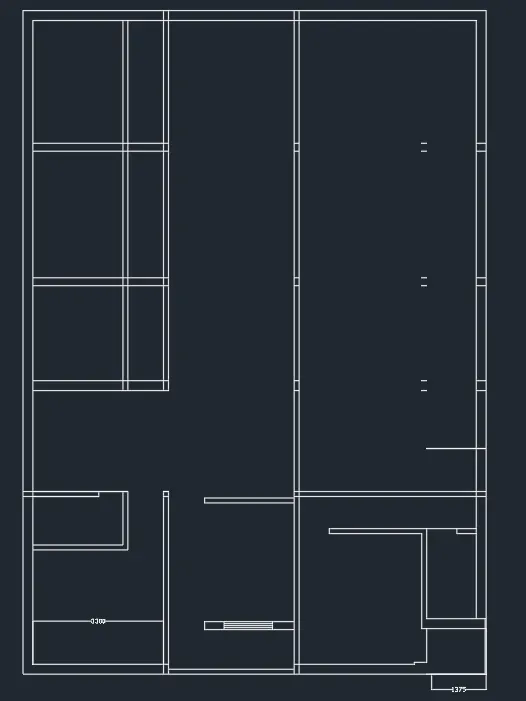
- Create a rooms as per dimensions using of ofset command.
- And create a Staircase as per dimension with a 250mmouter wall.
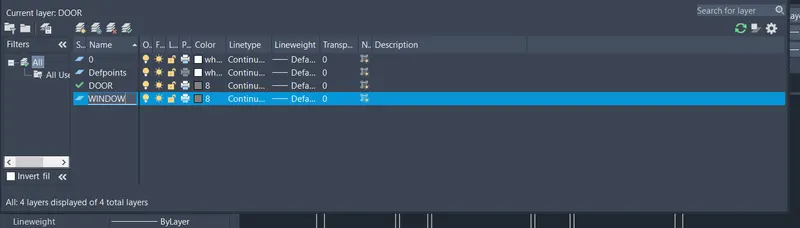
- Then we create a 'Layer Properties'with a different layer.
- Create a Layer for window,door,and dimension.
- Windows and door are create with standart size using in residencial building
- And cut the SectionAA and SectionBB in different side.
- Also insert text with help of Dtext command or Single Line text.
- Click "DTEXT" command to create the text.
- Thyen create the Room name given in plan.
- Click 'DIM'to create a dimension of the plan.
- And check the dimesnion before save.
- And Click "SAVE"command to save the Text.
- Finally we SNIPPING TOOL to screenshot the drawing.
2.Aim:
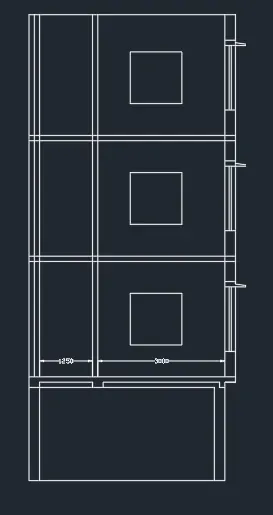
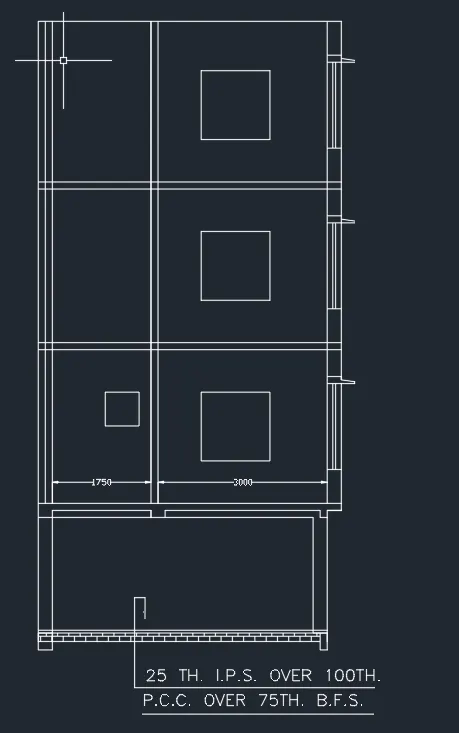
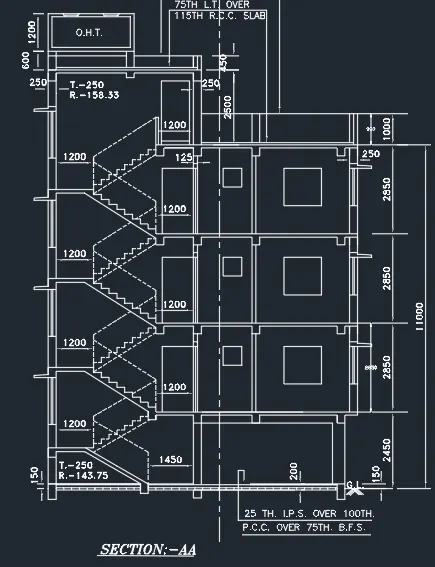
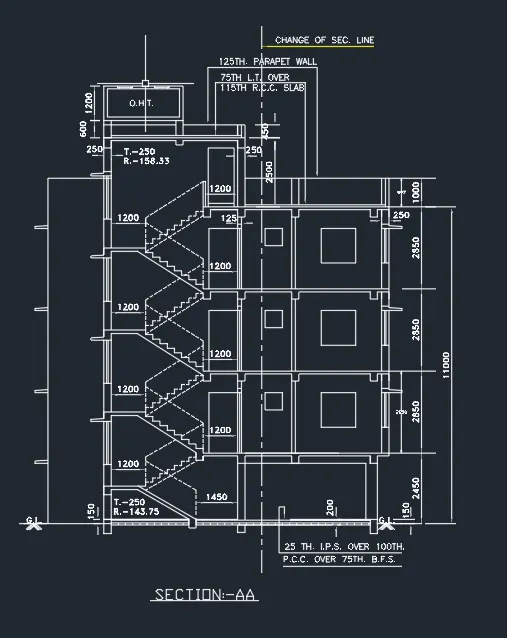
To Create a SectionAA by using Auto Cad.
INtroduction:
- To Create a SectionAA by using a various command.
- Now we see the Step by Step Producre to Create a Drawing.
SectionAA:
- we create a SectionAA .
- First we need study the where we cut the sectionAA properly before start the plan.
- And we need Draw the plan as per dimension.
- Click 'REC' Rectangle command to draw the outer of the plan.
- And offset the 250mm of outer wall and inner wall 125mm.
- After Click 'L'Line command to draw the center line.
- And click 'OF'Offset commend to offset the Line.
- Create a rooms as per dimensions using of ofset command.
- And create a Staircase as per dimension with a 250mmouter wall.
- Windows and door are create with standart size using in residencial building
- Also insert text with help of Dtext command or Single Line text.
- Click "DTEXT" command to create the text.
- Click 'DIM'to create a dimension of the plan.
- And check the dimesnion before save.
- And Click "SAVE"command to save the Text.
- Finally we SNIPPING TOOL to screenshot the drawing.
3.Aim:
To Create a SectionBB by using Auto Cad.
INtroduction:
- To Create a SectionBB by using a various command.
- Now we see the Step by Step Producre to Create a Drawing.
SectionBB:
- we create a SectionBB .
- First we need study the where we cut the sectionBB properly before start the plan.
- And we need Draw the section as per dimension.
- Click 'REC' Rectangle command to draw the outer of the plan.
- And offset the 250mm of outer wall and inner wall 125mm.
- After Click 'L'Line command to draw the center line.
- And click 'OF'Offset commend to offset the Line.
- Create a rooms as per dimensions using of ofset command.
- Windows and door are create with standart size using in residencial building
- Also insert text with help of Dtext command or Single Line text.
- Click "DTEXT" command to create the text.
- Click 'DIM'to create a dimension of the plan.
- And check the dimesnion before save.
- And Click "SAVE"command to save the Text.
- Finally we SNIPPING TOOL to screenshot the drawing.

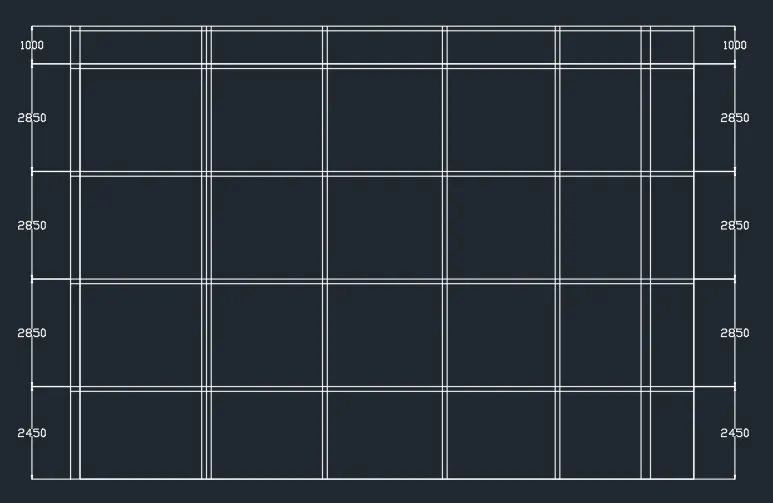
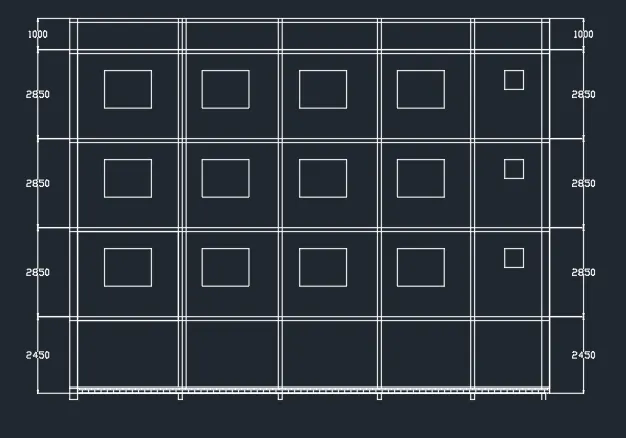
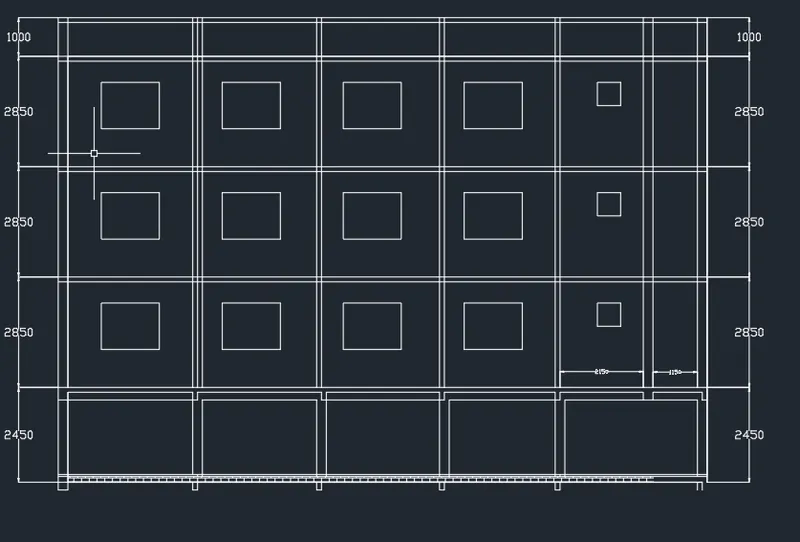
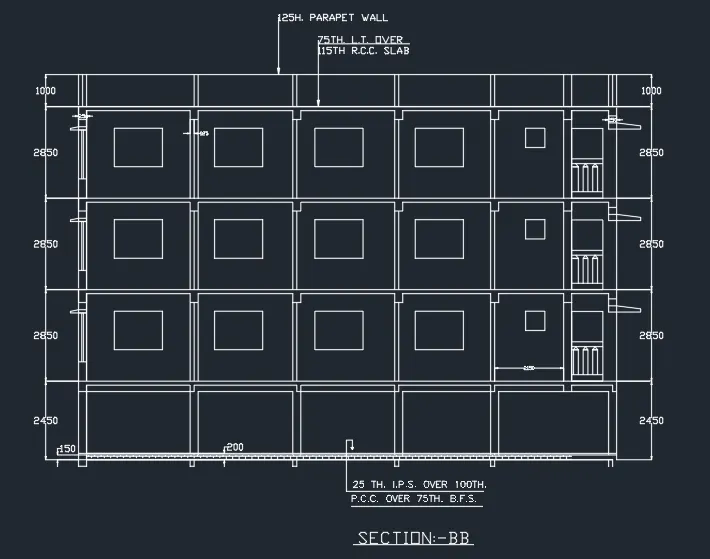
RESULT:
Finally we learn about Plan of residensical building with sectionAA and BB.