Creating a Layout, Section and Elevation with dimensions using AutoCad
AIM:- To Create a Layout, Section and Elevation with dimensions using AutoCad
INTRODUCTION:- The plan is created in AutoCAD using primarily the XLine and Line tools, the dimensions and text are provided with the use of layers. The procedure of drawing is explained in detail with diagrams of each step and the final result is given.
1) FLOOR PLAN:
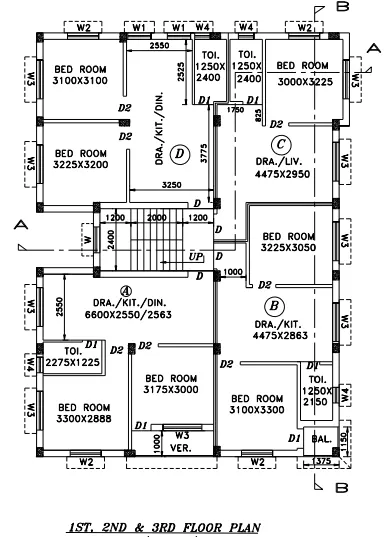
Procedure:
STEP 1
- Enter the 'UNITS' command in the command tab.
- In the Drawing Units dialog box, select 'Decimal' in Type. Click on 'OK'.
- Set the limits by entering LIMITS in the Command tab. The lower-left corner is specified as 0,0, and the upper-right corner is specified as 40000,40000.
- Click on 'Layer Properties' in the Layer panel on the Ribbon.
- Click on 'New Layer' to create the following layers - Doors and windows; Walls; Stairs; Columns; and Dimensions and Text. Specify different colors for the different layers and then close the Layer Properties Manager dialog box.
- To begin drawing, select the Walls layer as the default layer in the Layer panel.
- Select the Construction Line tool by entering the ‘XLINE’ command in the command tab.
- Draw two lines, one vertical and the other horizontal, both intersecting at a point.
- Press Esc to cancel the XLINE.
- Select the Offset tool by entering the ‘OFFSET’ command in the command tab.
- As the thickness of the external wall is 250, enter 250 as offset distance in the command line.
- Select both the vertical and horizontal lines of the above drawing.
- Specify the next point on the desired side to offset.
- The vertical X lines are offset to distances as per the given room dimensions and wall thickness.
- The horizontal X lines are offset to distances as per the given room dimensions and wall thickness. Press ‘Esc’ to cancel the OFFSET command.
- The unwanted portion lines are trimmed off using the TRIM command.
- Once all the external walls have been created, next the internal walls are drawn.
- Select the Offset tool by entering the ‘OFFSET’ command in the command tab.
- Specify the offset distance, Select the line to offset, and click on the direction we need the line in.
- While offsetting, the thickness of the internal walls is specified to be 75 and 150. Press ‘Esc’ to cancel the OFFSET command.
- Select the extruded lines. Press ‘Esc’ to cancel the TRIM command.
- Then the lines are Trimmed, Erased, and Extended to edit the drawing as per requirement.
- To draw doors, select the Doors and windows layer as the default layer in the Layer panel.
- Select the Line tool by entering the ‘LINE’ command in the command tab.
- Draw doors at the specified positions. Door D is created with a width of 1000. Press Esc.
- Select the Line tool by entering the ‘LINE’ command in the command tab.
- Door D1 is created with a width of 800. Press Esc.
- Select the Line tool by entering the ‘LINE’ command in the command tab.
- Door D2 is created with a width of 900. Press Esc.
- To draw the windows, Select the Line tool by entering the ‘LINE’ command in the command tab.
- Window W1 is created with a width of 900. Press Esc.
- Select the Line tool by entering the ‘LINE’ command in the command tab.
- Window W2 is created with a width of 1200. Press Esc.
- Select the Line tool by entering the ‘LINE’ command in the command tab.
- Window W3 is created with a width of 1500. Press Esc.
- Select the Line tool by entering the ‘LINE’ command in the command tab.
- Window W4 is created with a width of 600. Press Esc.
- For staircase drawing, select the Stairs layer as the default layer in the Layer panel.
- Select the Offset tool by entering the ‘O’ command in the command tab.
- Specify an offset distance of 1200, then click on the desired side.
- Repeat offset for distances 2000, 1200, and 250 to create the staircase. Press Esc to cancel the OFFSET command.
- Select the Column layer. Select the Line tool by entering the ‘LINE’ command in the command tab.
- Draw a column of dimension 250 x 350. Press Esc to cancel the LINE command.
- Select the Copy tool by entering the ‘CO’ command in the command tab.
- Copy the column created before to the desired locations. Press Esc.
- Enter 'H' in the command line, select the AR-CONC pattern, and pick points inside the columns. Press Esc.
- Select the Trim tool by entering the ‘TR’ command in the command tab. Press ENTER.
- Select the Edge option, and click on No Extend.
- Select the unwanted lines. Press ‘Esc’ to cancel the TRIM command.
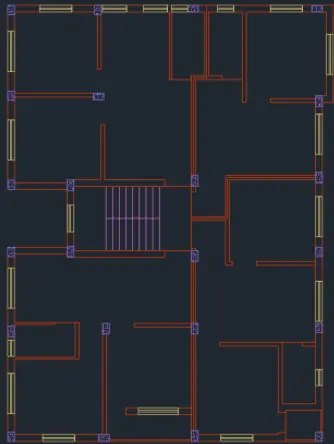
STEP 2
- Select the Line tool by entering the ‘LINE’ command in the command tab.
- Draw lines depicting the section lines A-A & B-B. Press Esc.
- Go to Properties and change line type to long dash short dash.
- Select the Dimension and Text layer as the default layer in the Layer panel.
- Enter the ‘DST’ command in the command tab to open the Dimension Style Manager dialog box.
- Click on the Modify tab.
- Under the Lines, option change the color of the dimension and extension lines.
- Under the Symbols and Arrows option change the Arrow size to 200.
- Under the Text, option changes the Text height to 200.
- Click OK. Then click on Set Current and Close the dialog box.
- Select the Dimension tool by entering 'DIM' in the command line.
- Select the first point and second point of the object to be measured, then drag the dimension line to the desired location. Repeat for all the objects to be measured.
- Enter the 'MTEXT' command in the command line.
- Specify the start point of the text as required.
- Scale the text to the desired size.
- Copy the text box wherever necessary.
- Enter ED in the command prompt and edit the text boxes as required. Click Enter and press Esc.
RESULT:-
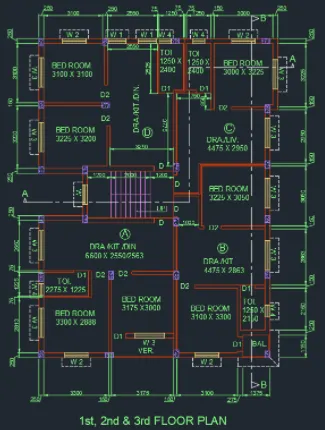
2) Section A-A:
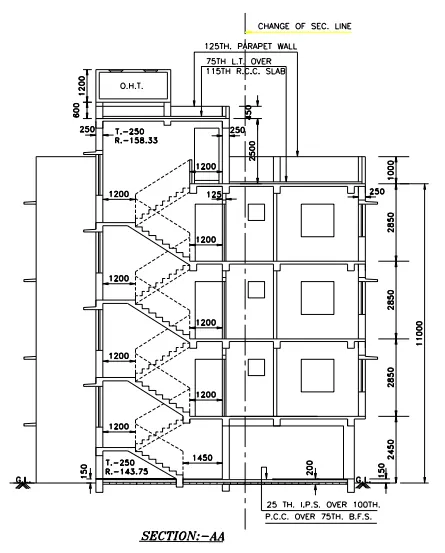
Procedure:
STEP 1
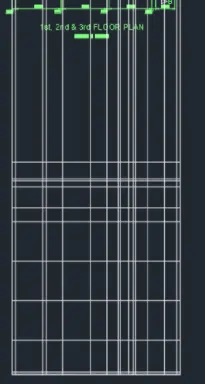
- Select the Construction Line tool by entering the ‘XLINE’ command in the command tab.
- Enter V.
- Draw projection lines from the plan created in Step I).
- Enter H.
- Draw a horizontal line at a suitable distance.
- Press Esc.
- Select the Trim tool by entering the ‘TR’ command in the command tab.
- Press ENTER.
- Select the Edge option, and click on No Extend.
- Select the extruded lines.
- Press ‘Esc’ to cancel the TRIM command.
- Select the Offset tool by entering the ‘OFFSET’ command in the command tab.
- Create offsets according to the given drawing.
- The vertical X lines are offset to distances as per the given room dimensions and wall thickness.
- The horizontal X lines are offset to distances as per the given room dimensions and wall thickness.
- Press ‘Esc’ to cancel the OFFSET command.
- While offsetting, the thickness of the internal walls is specified to be 75, 125, and 150.
- Press ‘Esc’ to cancel the OFFSET command.
- Select the Trim tool by entering the ‘TR’ command in the command tab.
- Press ENTER.
- Select the Edge option, and click on No Extend.
- Select the extended lines.
- Press ‘Esc’ to cancel the TRIM command.
STEP 2
- Select the Trim tool by entering the ‘TR’ command in the command tab.
- Press ENTER.
- Select the Edge option, and click on No Extend.
- Select the unwanted lines.
- Press ‘Esc’ to cancel the TRIM command.
- Select the Line tool by entering the ‘LINE’ command in the command tab.
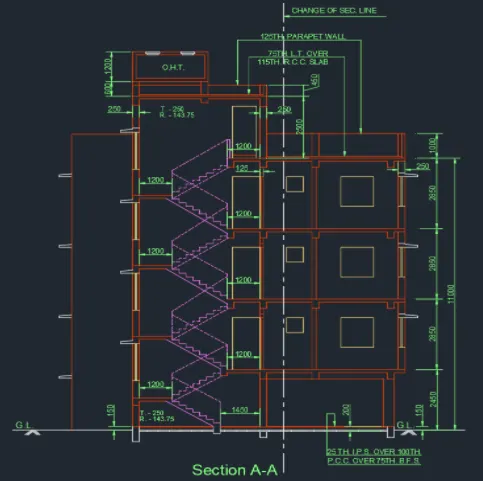
- Draw stairs having a rise of 143.75 and a tread of 250.
- Press Esc.
- Select the Copy tool by entering the ‘CO’ command in the command tab.
- Copy the stairs several times to create the flight of stairs.
- Press Esc.
- Select the flight of stairs created and assign it to the Stairs layer.
- Select the Offset tool by entering the ‘OFFSET’ command in the command tab.
- Create offsets according to the given drawing for the doors and windows, the height od door is taken as 2100, and the height of the window is taken to be 600 for the smaller window and 1200 for the bigger window. Press Esc.
- Select the Trim tool by entering the ‘TR’ command in the command tab.
- Select the Edge option, and click on No Extend.
- Select the unwanted lines.
- Press ‘Esc’ to cancel the TRIM command.
- Assign the different objects to their respective layers.
- Select the Line tool by entering the ‘LINE’ command in the command tab.
- Draw the new section line. Press Esc.
- Go to Properties and change line type to long dash short dash.
- Select the Dimension tool by entering 'DIM' in the command line.
- Select the first point and second point of the object to be measured, then drag the dimension line to the desired location. Repeat for all the objects to be measured.
- Enter the 'MTEXT' command in the command line.
- Specify the start point of the text as required.
- Scale the text to the desired size.
- Copy the text box to wherever necessary.
- Enter ED in the command prompt and edit the text boxes as required.
- Click Enter and press Esc.
- In Annotate panel, go to Multileader Style Manager, select the standard option, click on Modify and make necessary changes, click OK, and Set current.
- Select the Multileader tool and create multi leaders wherever required as per the given drawing.
RESULT:-
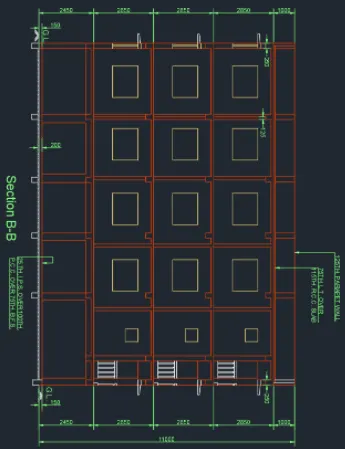
3) Section B-B:
Procedure:
STEP 1
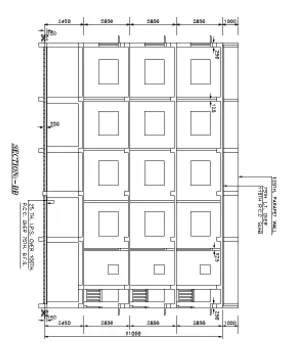
- Select the Construction Line tool by entering the ‘XLINE’ command in the command tab.
- Enter H.
- Draw projection lines from the plan created in Step I).
- Enter V.
- Draw a horizontal line at a suitable distance.
- Press Esc.
- Select the Trim tool by entering the ‘TR’ command in the command tab.
- Press ENTER.
- Select the Edge option, and click on No Extend.
- Select the extruded lines.
- Press ‘Esc’ to cancel the TRIM command.
- Select the Offset tool by entering the ‘OFFSET’ command in the command tab.
- Create offsets according to the given drawing.
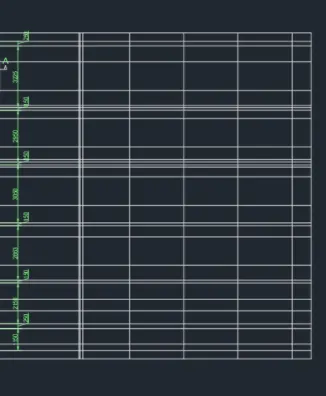
- The vertical X lines are offset to distances as per the given room dimensions and wall thickness.
- The horizontal X lines are offset to distances as per the given room dimensions and wall thickness.
- Press ‘Esc’ to cancel the OFFSET command.
- While offsetting, the thickness of the internal walls is specified to be 75, 125, and 150.
- Press ‘Esc’ to cancel the OFFSET command.
- Select the Trim tool by entering the ‘TR’ command in the command tab.
- Press ENTER.
- Select the Edge option, and click on No Extend.
- Select the extended lines.
- Press ‘Esc’ to cancel the TRIM command.
STEP 2
- Select the Trim tool by entering the ‘TR’ command in the command tab. Press ENTER.
- Select the Edge option, and click on No Extend.
- Select the unwanted lines.
- Press ‘Esc’ to cancel the TRIM command.
- Select the Offset tool by entering the ‘OFFSET’ command in the command tab.
- Create offsets according to the given drawing for the doors and windows, the height of the door is taken as 2100, and the height of the window is taken to be 600 for the smaller window and 1200 for the bigger window. Press Esc.
- Select the Trim tool by entering the ‘TR’ command in the command tab.
- Select the Edge option, and click on No Extend.
- Select the unwanted lines.
- Press ‘Esc’ to cancel the TRIM command.
- Assign the different objects to their respective layers.
- Select the Line tool by entering the ‘LINE’ command in the command tab.
- Draw the new section line. Press Esc.
- Go to Properties and change line type to long dash short dash.
- Select the Dimension tool by entering 'DIM' in the command line.
- Select the first point and second point of the object to be measured, then drag the dimension line to the desired location. Repeat for all the objects to be measured.
- Enter the 'MTEXT' command in the command line.
- Specify the start point of the text as required.
- Scale the text to the desired size.
- Copy the text box to wherever necessary.
- Enter ED in the command prompt and edit the text boxes as required. Click Enter and press Esc.
- In Annotate panel, go to Multileader Style Manager, select the standard option, click on Modify and make necessary changes, click OK, and Set current.
- Select the Multileader tool and create multi leaders wherever required as per the given drawing.
RESULT:-
CONCLUSION:-
In this extensively elaborated exercise, almost all the majorly used commands like – LINE, RECTANG, OFFSET, FILLET, EXTEND, TRIM, CIRCLE, MIRROR, ROTATE, ARRAY, COPY, MOVE, ARC, PLINE, CIRCLE, TEXT, MTEXT, DIMLIN, DIMBREAK, LAYER, DIMSTYLE, LINETYPE, LINEWEIGHT, PDFIMPORT, HATCH to name a few. Apart from these other properties like the thickness of lines were also extensively use.