Creating 3D Isometric view of various structural elements in AutoCAD
AIM:- To Create 3D Isometric view of various structural elements in AutoCAD
1) 3D Isometric View of the building with plan and elevation
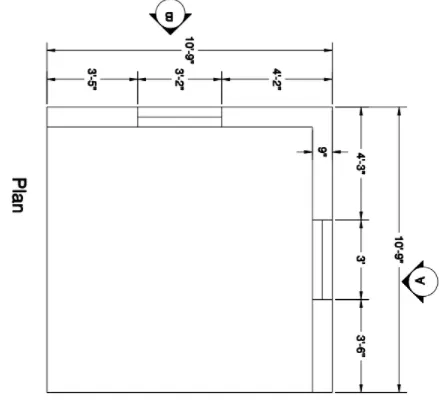
Procedure:
- Draw the plan in the top view.
- With line, command draws a line of 10'9" vertically and horizontally such that an L-shape wall is formed.
- Offset 9" lines from the two lines.
- Give offset of 4'2" from the corner of the wall.
- Again offset of 3'2" from that line for the window.
- Draw the window.
- Similarly on the other side also offset 4'3" from the corner,3' for the window.
- Use command "3do" for orbiting the view so that 3d is seen.
- Now create a region in the wall area by command "BO" for a boundary.
- Now extrude the region and give a height of 10' using extrude command.
- Now create an opening for windows and draw a rectangle over the window portion and extrude it to sill level.
- Similarly, create a rectangle at the top and extrude it downwards to a height of 3' from the top.
- Union the walls using the union command.
- Similarly creates a wall on the other side.
- Create layers for walls and place the layer.
- In the top view by polyline create an outline of the plan.
- Then place it at the bottom by a move command.
- Create a region by boundary and extrude it downwards to a height of 4".
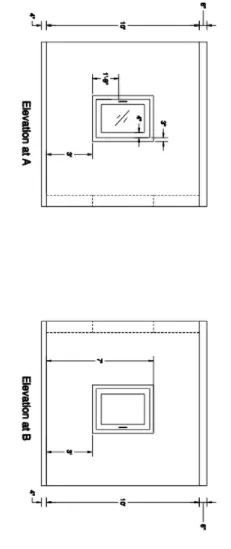
- Now create the elevation in 2D and draw the elevation A from the plan in top view.
- Project the wall line from the plan and also the window lines.
- Give the height as 10' and then offset lines of 3' from bottom and top to create a window.
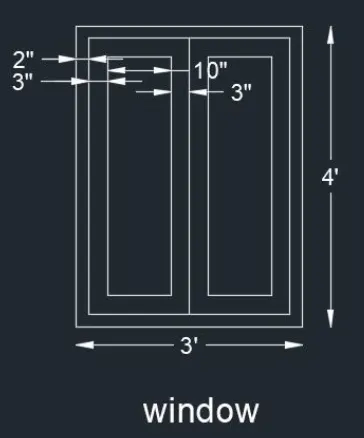
- Then offset 3" for the frame and 4" for the mullion.
- Also, offset 4' downwards for the plinth and 6' upwards for the roof slab.
- Create different layers for frame, mullion, and glass.
- Place the 2d drawing in alignment with the 3D.
- Group the elevation by group command so that all will be in a single selection.
- By using the 3D rotate command rotate the image making it parallel to the 3d wall.
- Place the 2nd elevation in the 3d object by snapping the corner and move it to the side parallel to the 3d wall face.
- Creating frame, mullion, and glass of window by boundary command and then create a region for the frame.
- Extrude the region by giving a -3" value.
- Similarly, create the region for mullions by "BO" command and extrude it by - 1.2".
- Create a region for glass by creating a rectangle boundary if the boundary is not there and extrude it by 0.6".
- Move the 3d window to the opening of the window created in the 3d model.
- Similarly create elevation B by going to the top view and extending the lines from the plan and the rest process is the same.
Result:
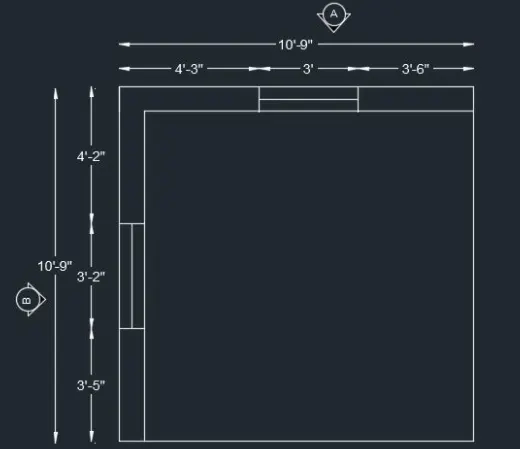
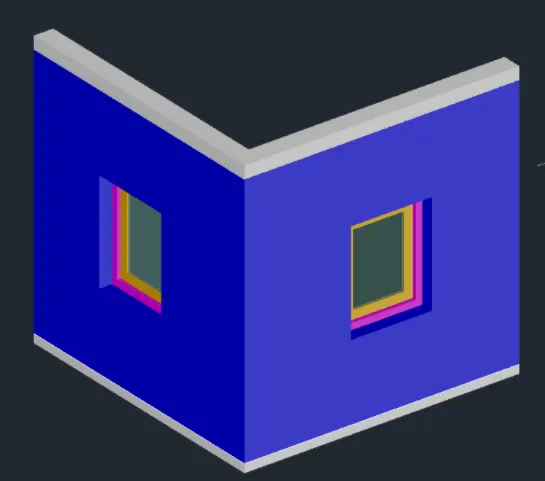
2) 3D View of the Building Façade as given in the plan and elevation
Procedure:
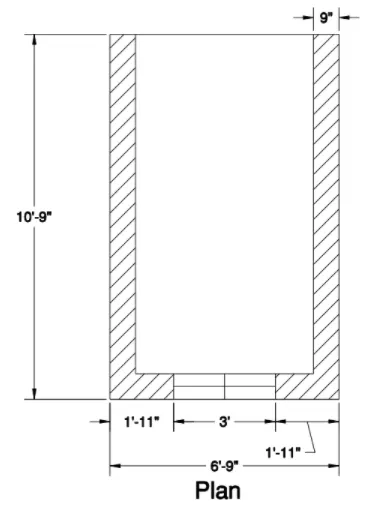
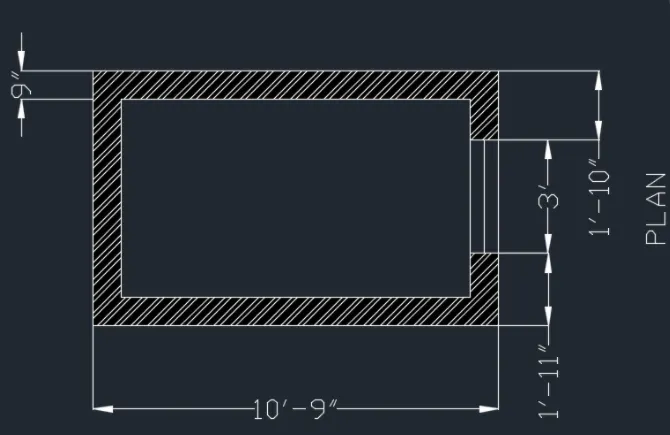
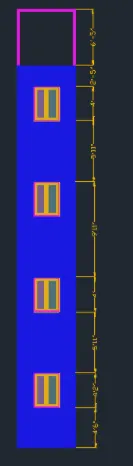
- Create the plan with a rectangle of 10'9" and 6'9" and offset 9" for the wall thickness and create a window of 3' width.
- With extrude command extrude the created region giving height a height of 10'11".
- Create the windows by creating a rectangle at the bottom of the window position.
- Extrude it to a height of 4'6" and similarly create a rectangle at the top and extrude 2'5" downwards.
- With a union, the command makes all the walls in the union.
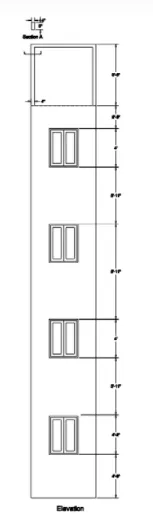
- Create the elevation of the plan in 2D top view.
- As the window is on the side of the plan, the side elevation is taken by a projecting line from the plan.
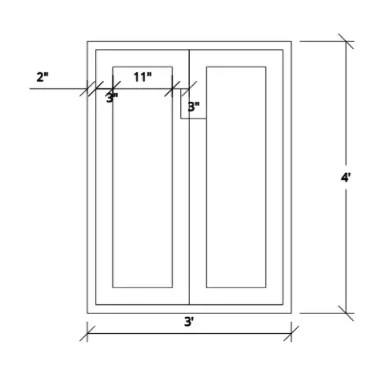
- Window detailing is done, 2" offset for frame and 3" for mullions, then 12" will be the glass area.
- Creating the window in 3D.
- Group the elevation and place the elevation in front of the 3D image.
- With 3D rotate command rotate the elevation by 270 degrees.
- Place it in parallel to the face and move it aside.
- Ungroup and delete the walls and keep only the window.
- Create a region in the frame of the window by the "BO" command and making the frame a layer.
- Extrude 3" for the thickness of the frame.
- For mullions create another region in a different layer and extrude -1.2".
- For glass create a region and extrude -0.6".
- Move this object and place the window on the gap in 3d wall.
- Now create the floor and go to the top view and create a extrude it by 5".
- Now create the 2nd floor and group the created model and copy the created 1st floor on top.
- Copy the floors one over the other.
- Now create the top frame and type UCS as a command and place the UCS on top of the building.
- Draw a rectangle of 9"x4" and extrude it by 6'5".
- Copy it on the other side.
- Again create a rectangle on the top face and extrude it by -4".
- Create the roof on top of a rectangle and extruding it.
Result:
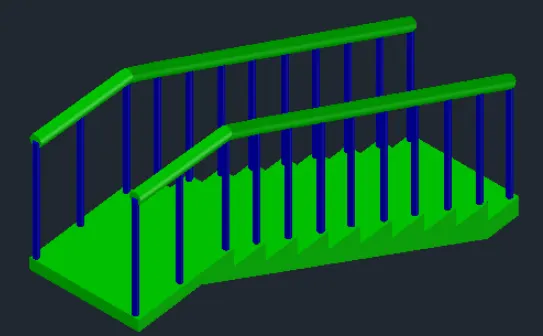
3) Ismoteric 3d view of a stair with railing
Procedure:
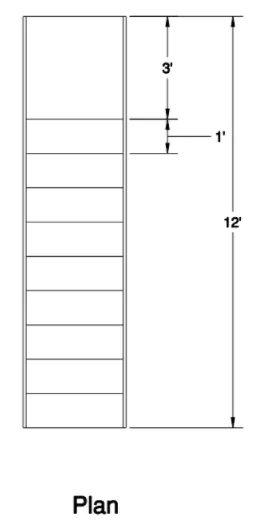
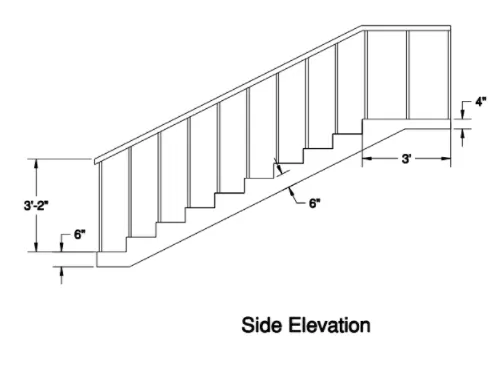
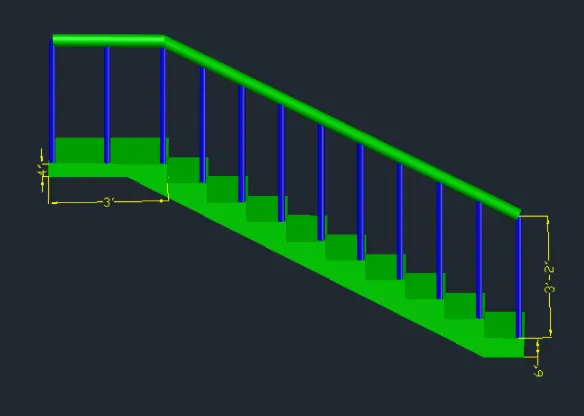
- Creating with thread as 1' and riser as 6" and draw the steps in the top view 2d wireframe.
- Landing is 3' and waist slab is 6" thickness.
- Join all these to form the section of the stair.
- Create a region by boundary command.
- With 3d orbit place the section in such a way that it is visible.
- Extrude 3' towards the side as 3' is taken as the width of the stair.
- With 3d rotation select the x-axis and give the value of 90 degrees.
- Now create the balusters and handrails by placing the UCS on the thread and create a circle of dia 2" and height 3'2".
- Copy it in all the threads and also in the landing.
- For handrails create a polyline joining the balustrades by 3d polyline.
- Create a circle of radius 2" and seep it by selecting the circle and then the polyline.
Result:
4) 3D view of a Wall with spread footing
Procedure:
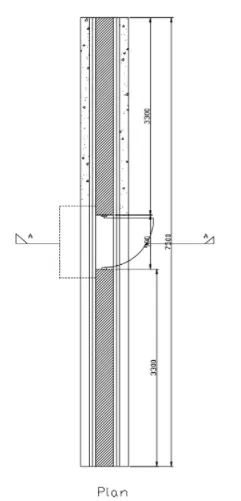
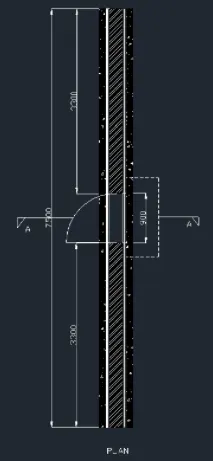
- Draw the plan foundation with line command and draw a vertical line of 7500mm and 230mm width.
- Draw a centerline in-wall and offset 150mm on both sides so that the total width is 300mm.
- From the 300mm line offset 25mm on both sides then the total width becomes 350mm.
- From the center again offset 300mm on both sides and the total width is 600mm.
- Extend the horizontal line and offset 3300mm both sies for the door opening of 900mm.
- Create the door in the opening by circle and line and hatch the wall and foundation with different hatches.
- Make the 3d plan to 3d-footing R.C.C and place it in the respective layer and copy it.
- Create the region by boundary command and extrude it by 300mm.
- Create the footsteps by going to the top view and create the profile for the footing step in 2d plan and copy it and place it in 3d plan with the help of the snap tool.
- Create the region by Boundary command and extrude it by 400mm.
- Again create a profile and place such that the midpoint of the 2d profile coincides with the 3d object.
- Create a region and extrude it by 400mm.
- Now create a profile for the foundation in different layers and place it on top of the 3d model.
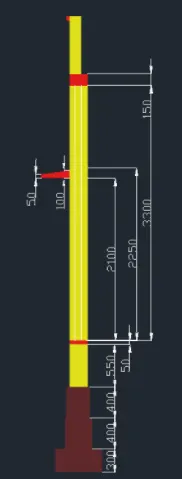
- Extrude it to a height of 550mm.
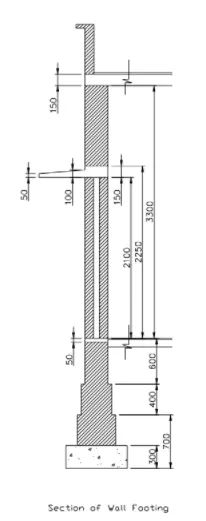
- Now create the floor by creating a rectangle and extruding it to a height of 50mm.
- Now create the profile for a wall on both sides of the door.
- Copy it and place it in 3d model and extrude at a height of 3300mm.
- Now create the lintel beam by creating a rectangle profile at the top and move it to move command at -1050 distance.
- Extrude it to a height of -150mm.
- Now create the top partition of the wall by creating a rectangle at the top face.
- Extrude it to a height of -1050mm.
- With union command, make the extruded part as part of the wall.
- Now create the shade by keeping USC on the side face.
- Draw a horizontal line from the bottom of the lintel, then a vertical line of 50mm to the top.
- On the other side draw a vertical line of 100mm upwards, then join these two points of 50 and 100.
- Group it into a single entity.
- Create region by boundary command by placing USC on the side face of the jamb of the door.
- Extrude it towards the side till the opening.
- Create the top slab and create a rectangular profile on top of the wall and extrude it by 150mm.
- Create the parapet and coping with a width of 150mm and a height of 750mm.
- Create a rectangle of 7500mm and 150mm on top of the 3d model.
- Extrude it by 750mm.
- For coping in the side view place the UCS and draw a 40mm width line from the parapet with a projection of 60mm. Create a region by bo command.
- Draw a line on top and use the sweep option and select the projection and then the line.
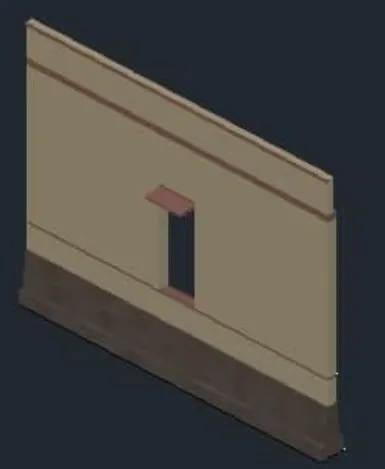
- Rendered view- go to visualize tab and select material browser.
- for foundation select a stone, for wall select from paint, for the floor, select from flooring and select each object and give assign to selection and keep the shadows on.
- Create a cylinder and give distant light and click on render.
Result:
CONCLUSION:-
All result of each drawing has been attached which was drawn in AutoCAD.