Creating 3D Isometric view of various structural elements in AutoCAD
1.AIM:
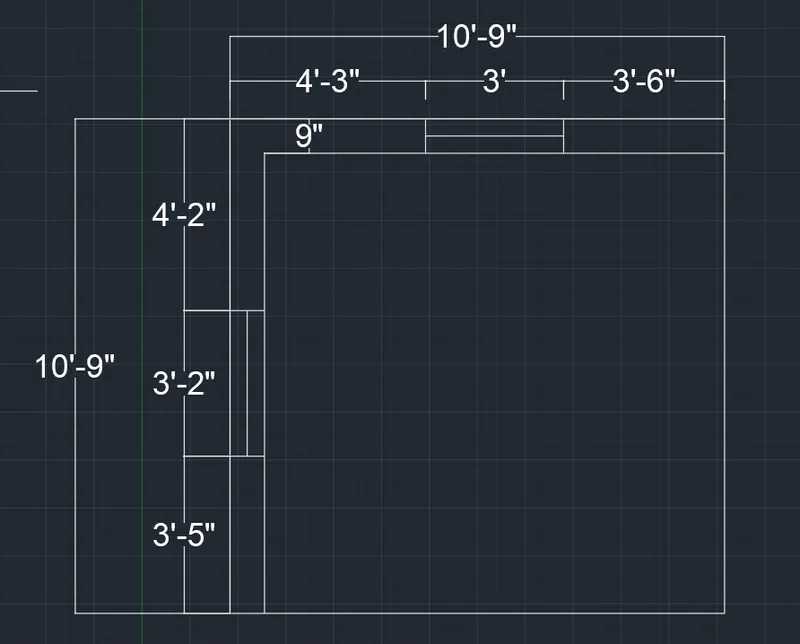
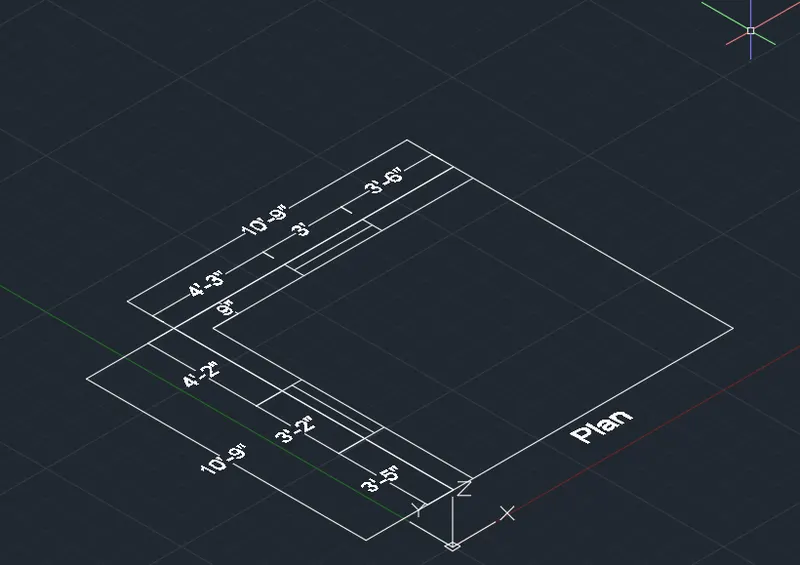
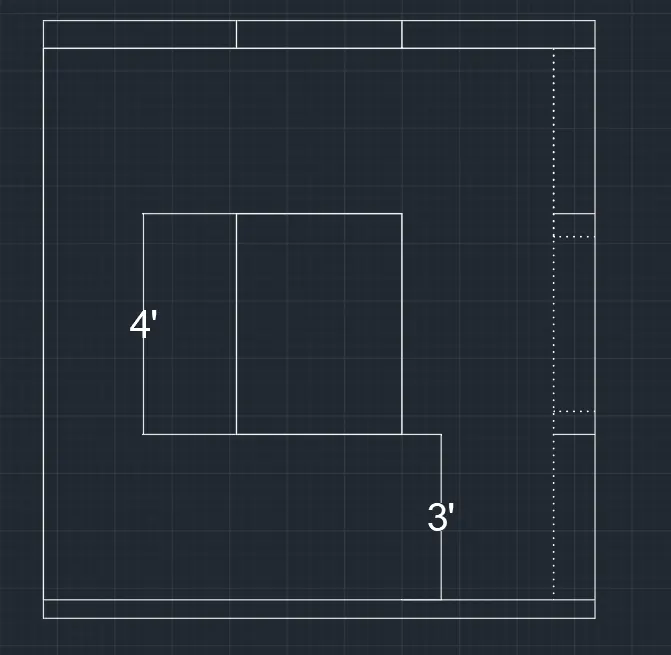
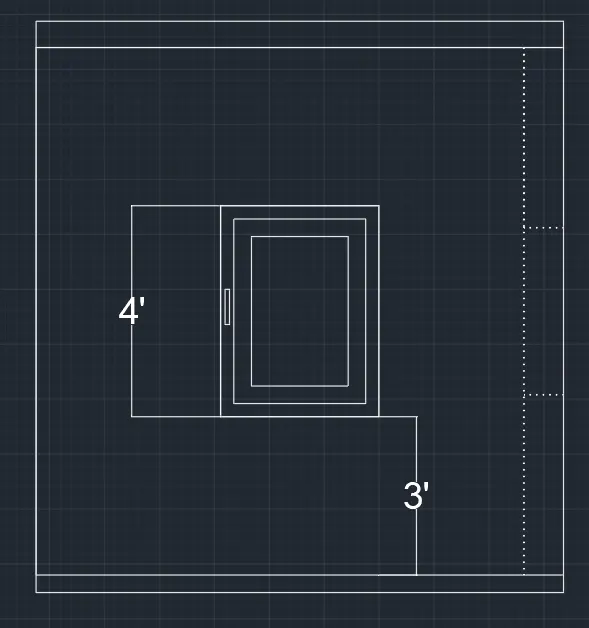
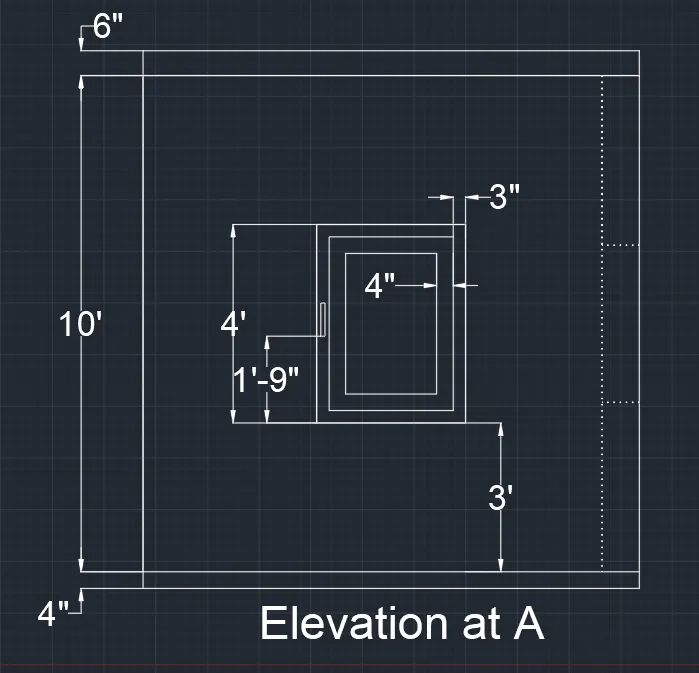
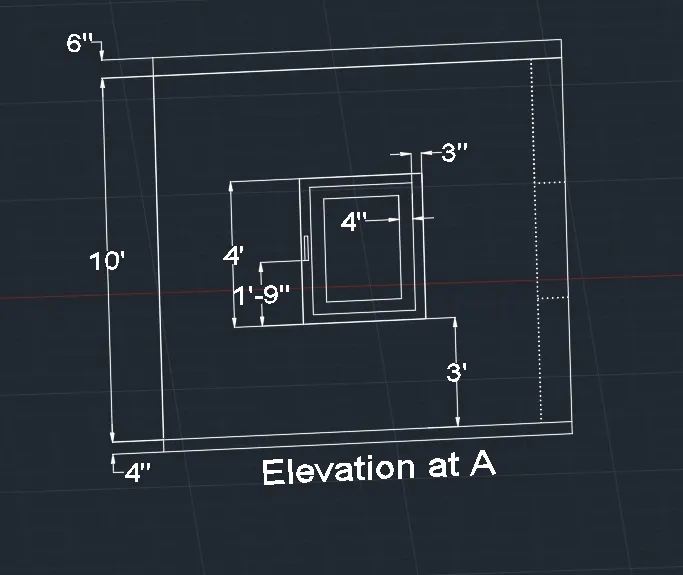
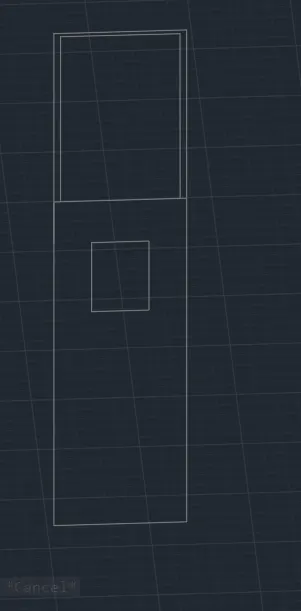
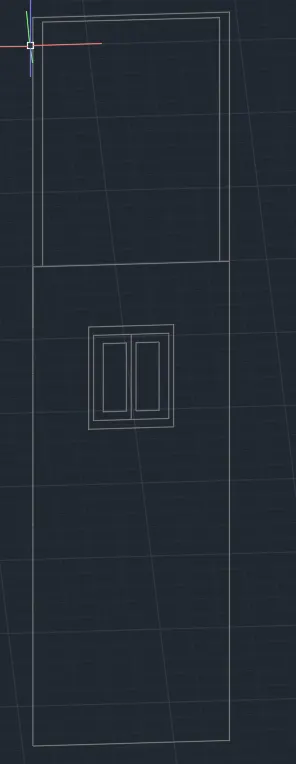
Create a 3D Isometric View of the building with plan and elevation given.
Create a 3D Isometric View:
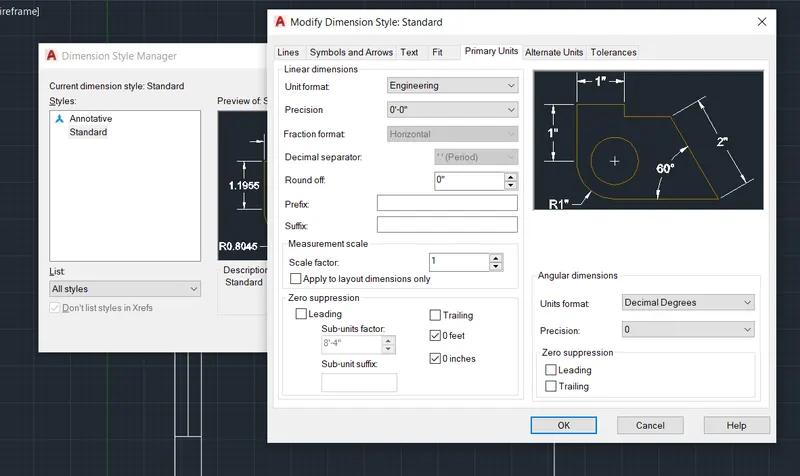
- First to click 'Units" to change as per given plan.
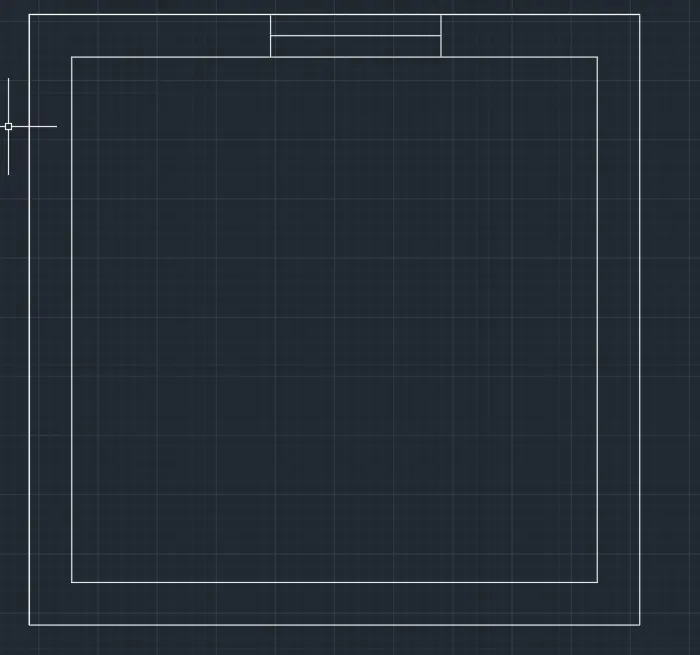
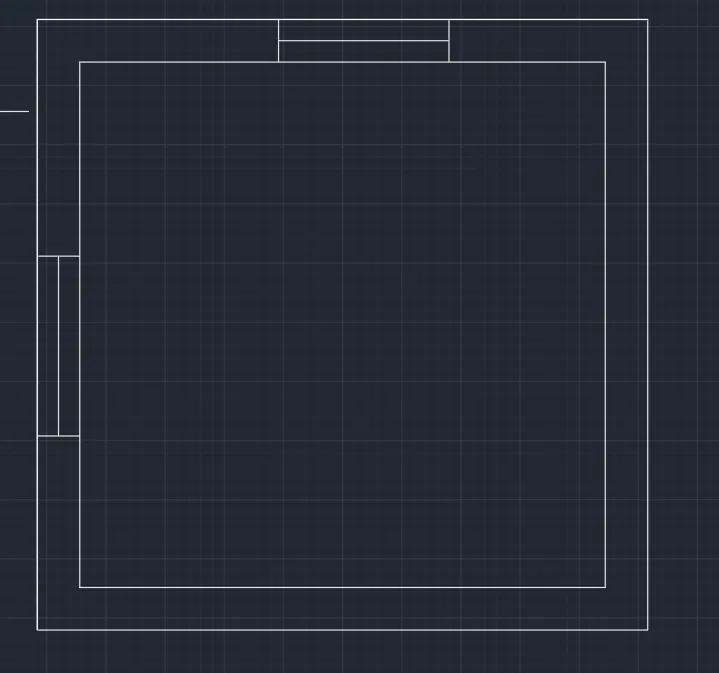
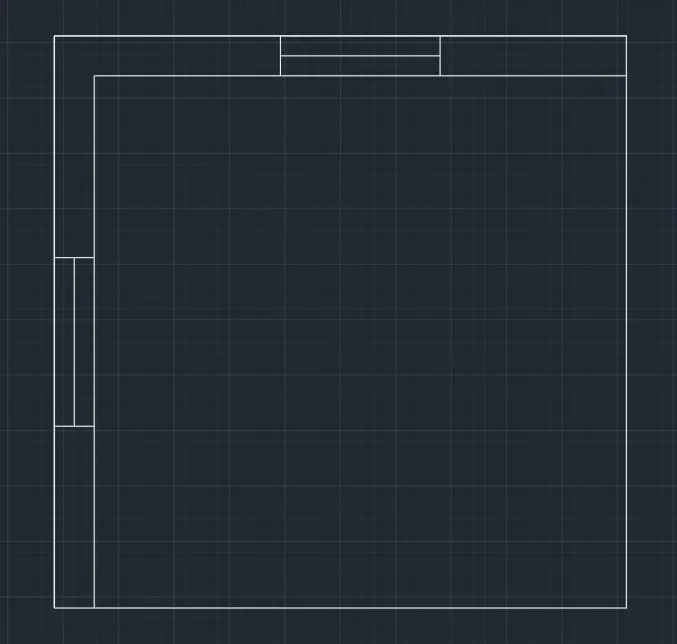
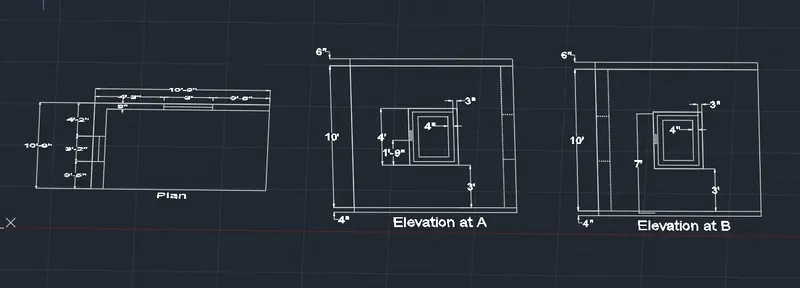
- Then Click 'REC' rectangle command to start the plan.
- The create the window opening as per dimension.
- Now offset the line by window dimension
- Then Dim dimension command to create the dmension of the plan.
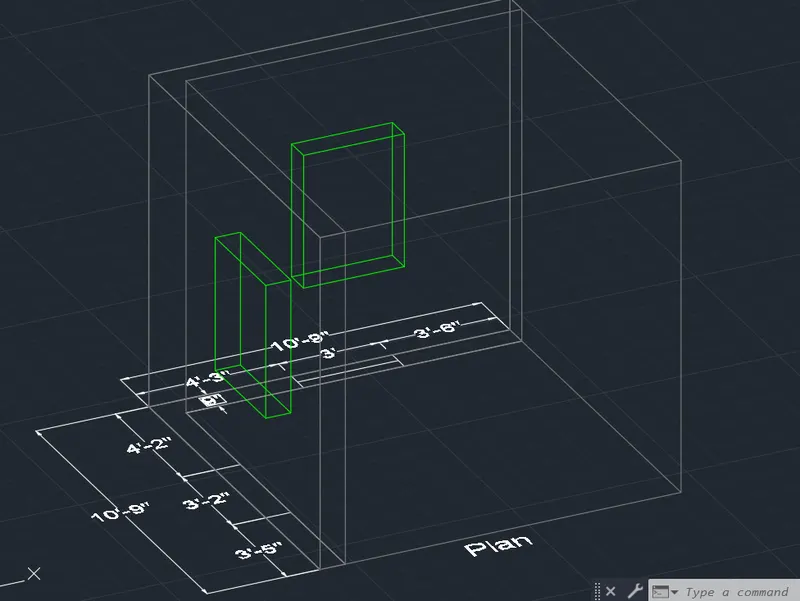
- After finally view to the isomaetric view of the building plan.
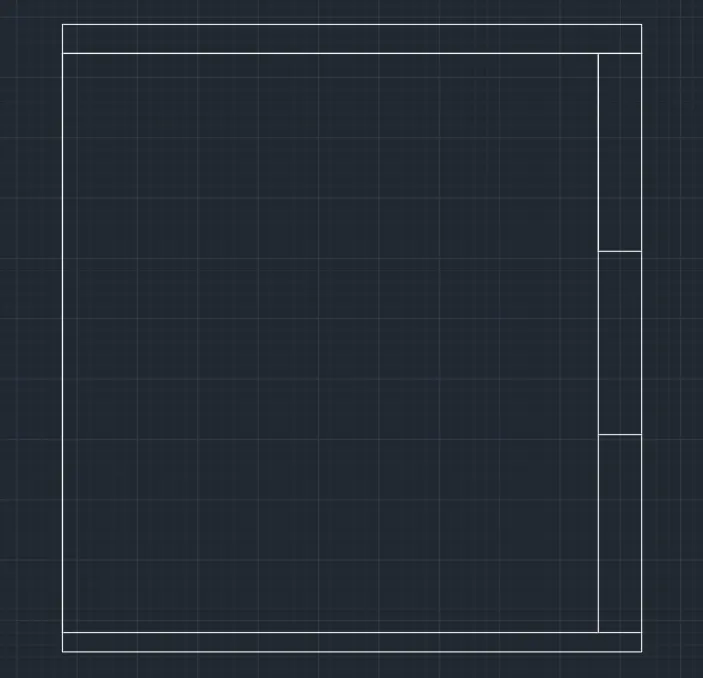
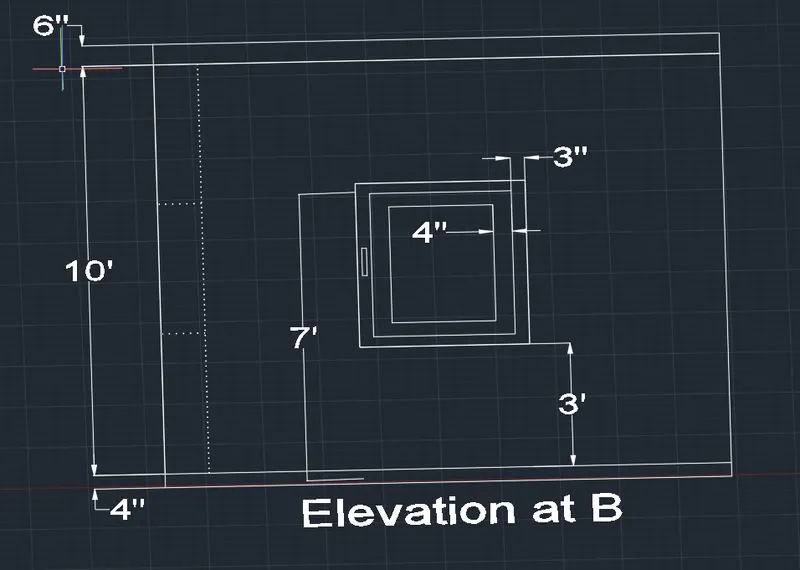
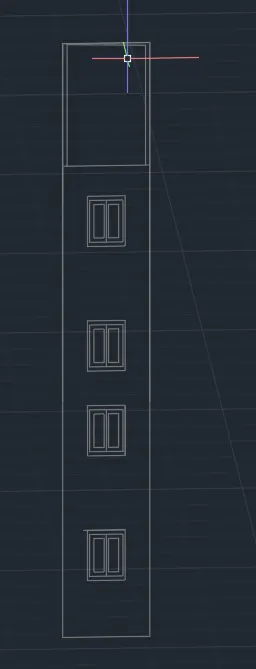
- Then creat the elevation A&B of the plan.
- Click the REC rectangle command to create the elevation.
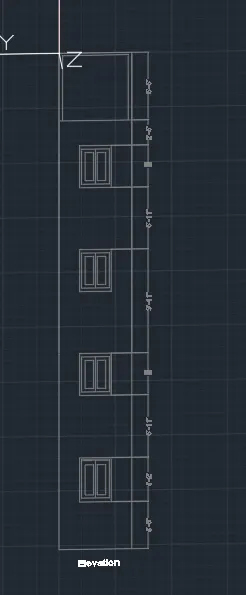
- Elevation create in the isometric view in Zaxis
- And to place the window as per dimension.
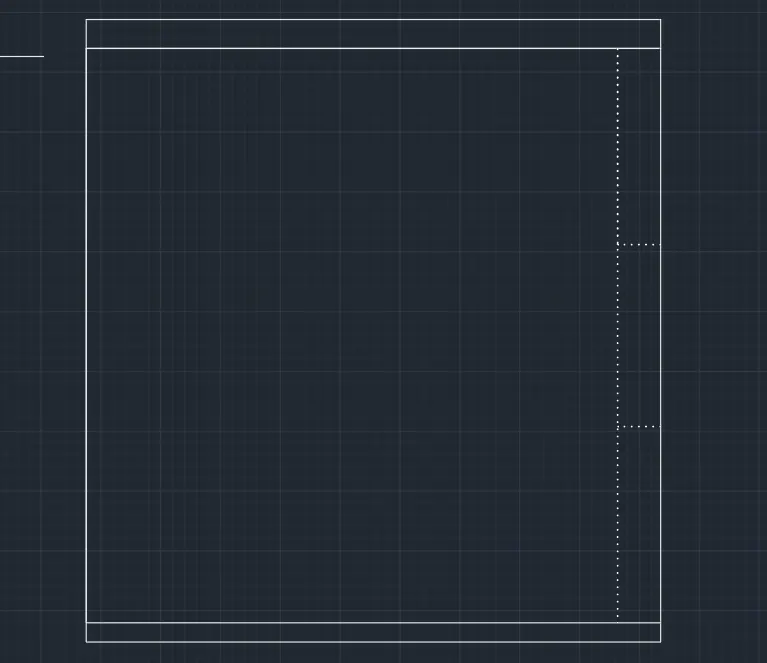
- As per same procedure to follow the elevation B.
- Then Dim dimension command to create the dmension of the plan.
- And Click "SAVE"command to save the Text.
- Finally we SNIPPING TOOL to screenshot the drawing.
2.AIM:
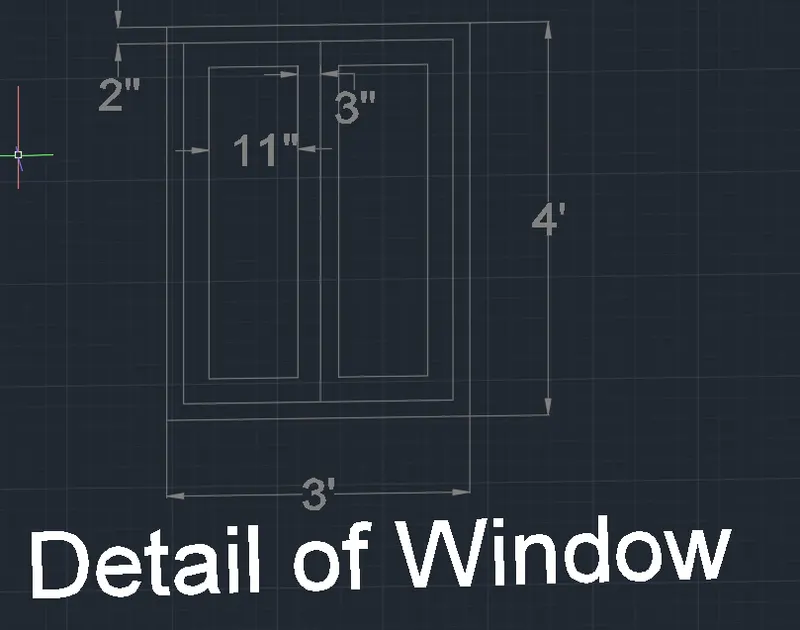
Create the 3D View of the Building Façade as given in the plan and elevation. Also, see the detail of
the window.
Create the 3D View of the Building Façade:
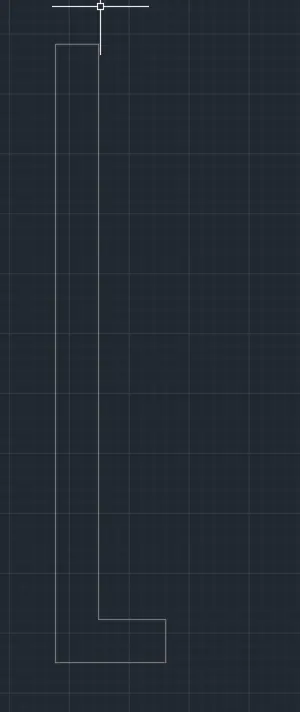
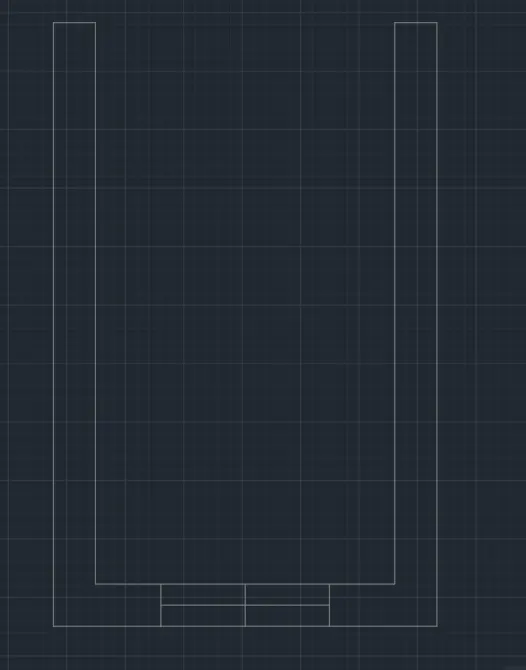
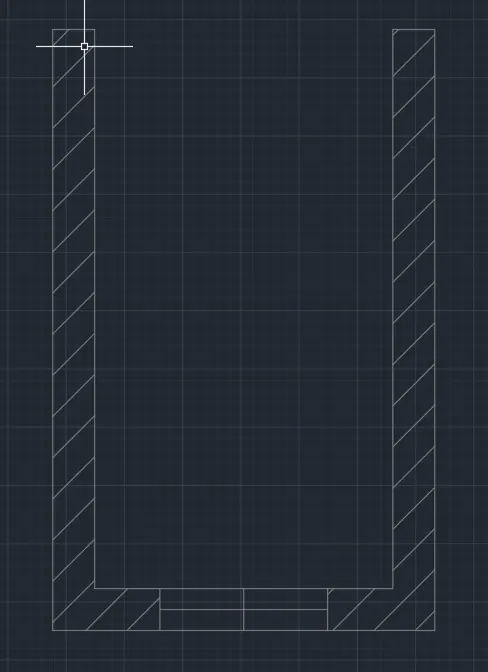
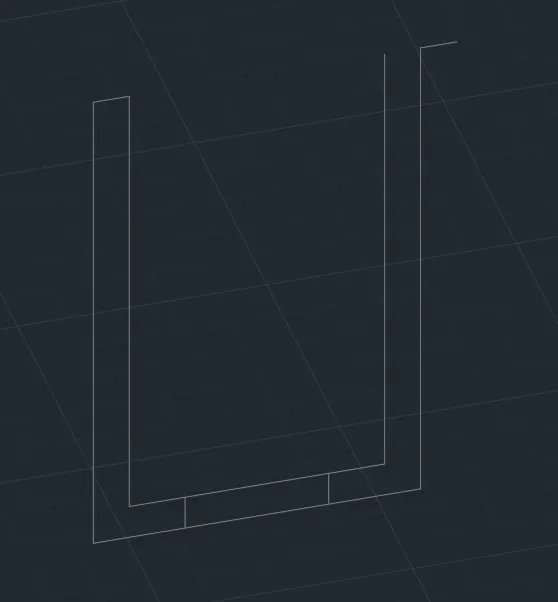
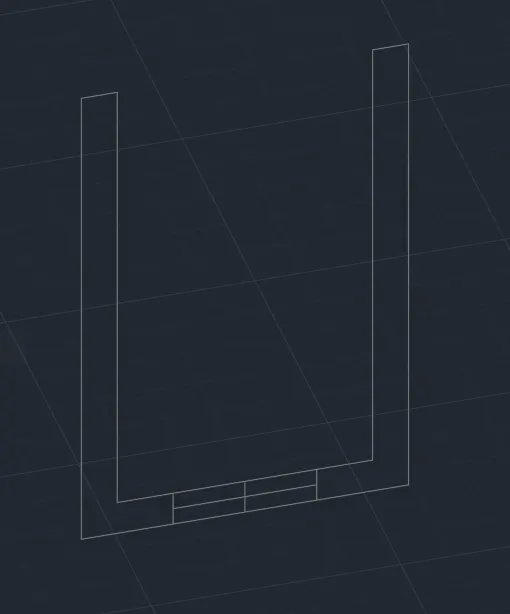
- Create the 2d&3d view of the wall section plan and elevation view.
- Click L line to draw the wall.
- Then create a 3d view in the zaxis of wall plan.
- And Click line through the z axis.
- Then draw the elevation of the wall as per dimension mentiond in the drawing.
- Click line command to draw the elevation
- Then copy the line through the lines.
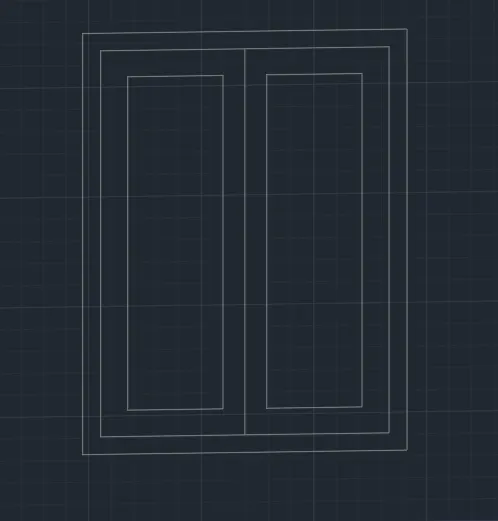
- After need to draw the details of the window.
- Create the window by rectangle command.
- Click Copy command to copy the line for the X axis.
- Click "UCS" command to mention the dimension and click the correct axis to draw.
- Then click "DIMLINER" to create the dimension of the elevation.
- And Click "SAVE"command to save the Text.
- Finally we SNIPPING TOOL to screenshot the drawing.
3.AIM:
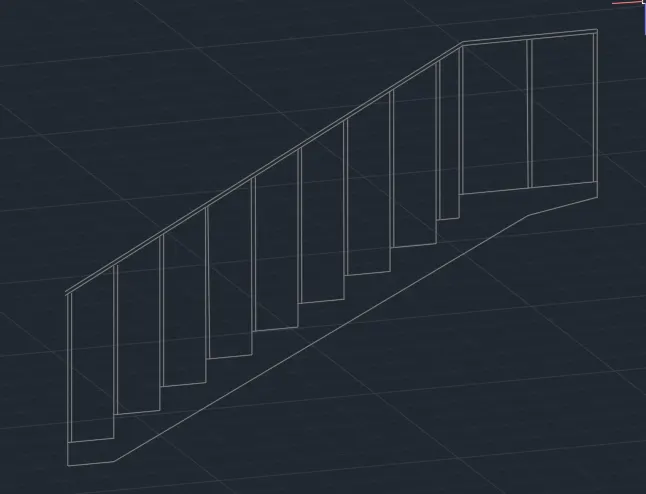
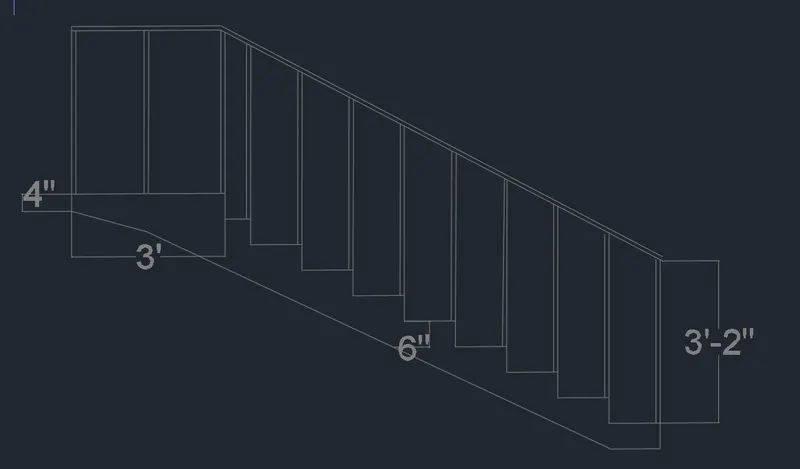
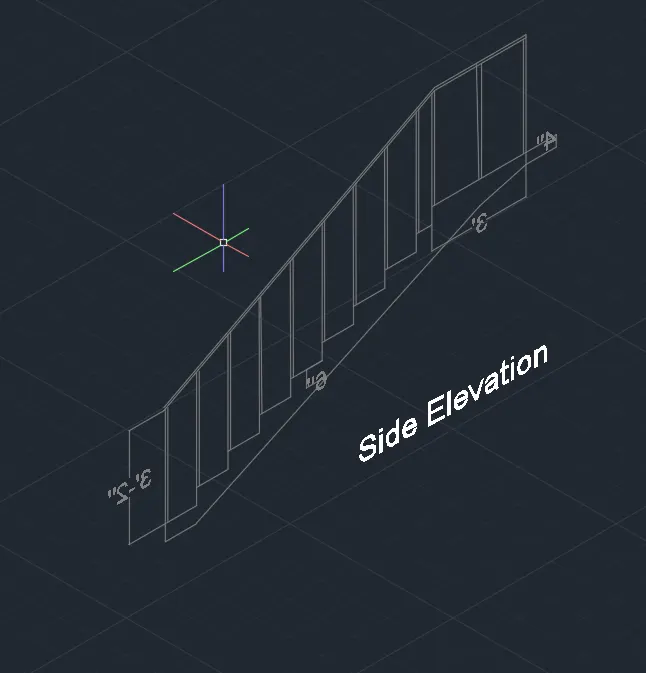
Create the ismoteric 3d view of a stair with railing as shown in the plan and elevation. Assume the
size of the balustrades and the hand rails.
Create the ismoteric 3d view of a stair with railing:
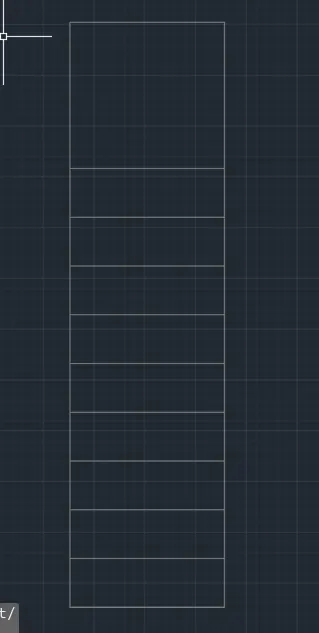
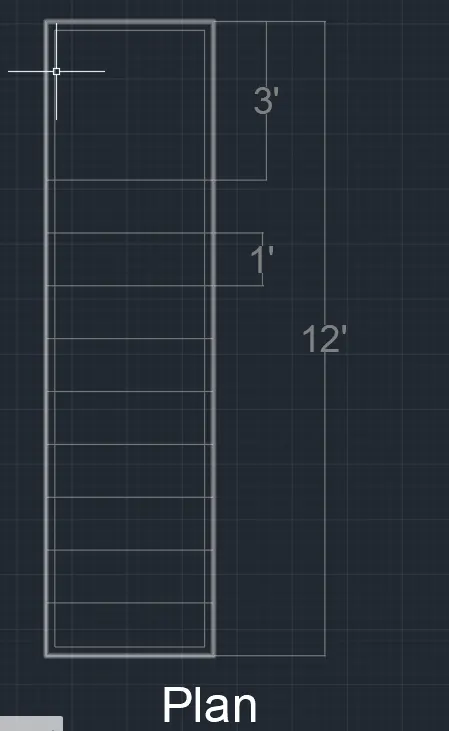
- To create the 3D view of the staircase with railing in plan and elevation.
- Click "REC" rectangle command to create the outline of the plan.
- Then "Array" the line to create the steps.
- Click DIM to create the dimension of the drawing.
- Then click the the 3Dview.
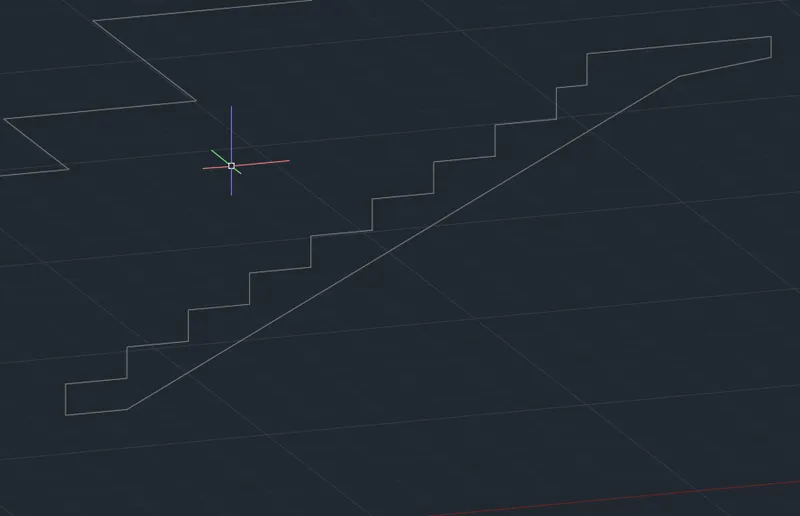
- Now create the Side elevation of the staircase.
- Click Line command to create the elevation drawing.
- Draw the steps in y and Z axis as per dimension.
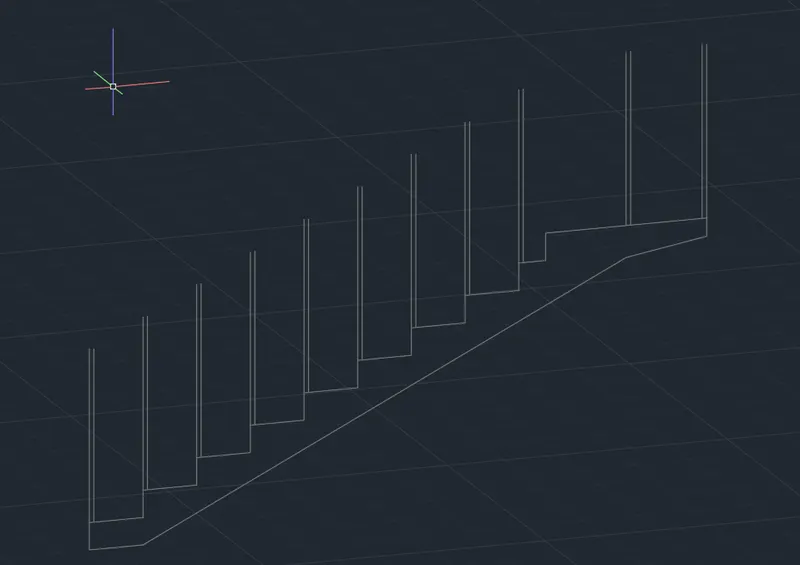
- Then create the handrail with steps.
- Click "UCS" command to mention the dimension and click the correct axis to draw.
- Then click "DIMLINER" to create the dimension of the elevation.
- And Click "SAVE"command to save the Text.
- Finally we SNIPPING TOOL to screenshot the drawing.
4.AIM:
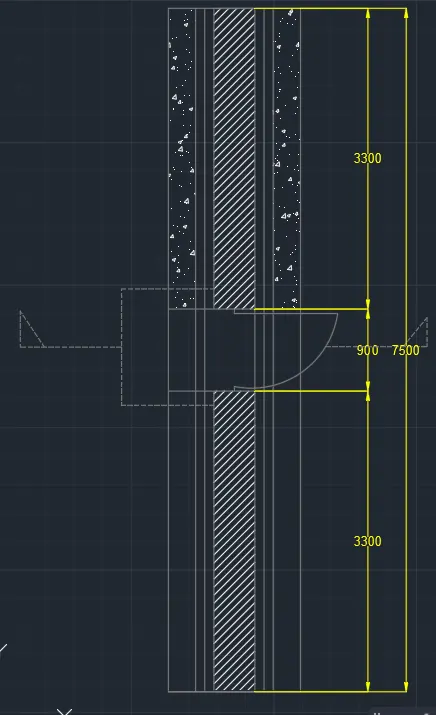
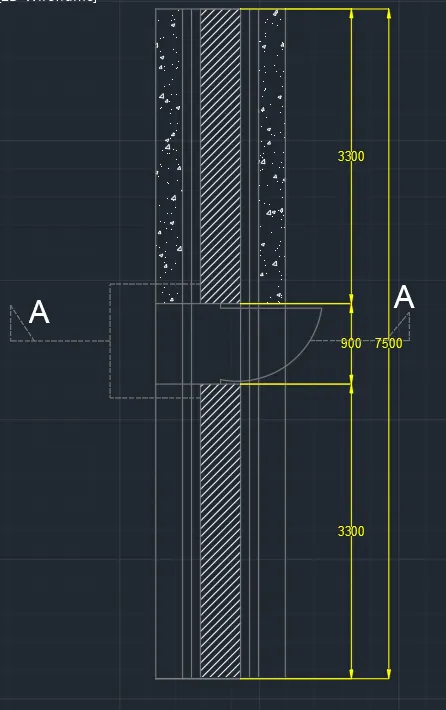
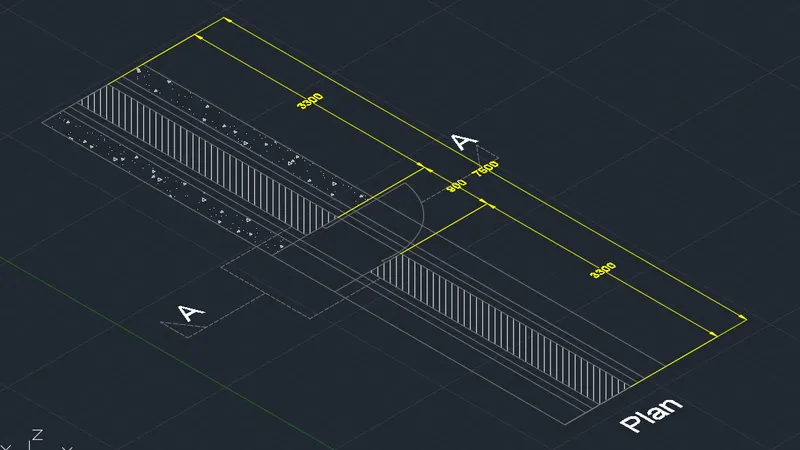
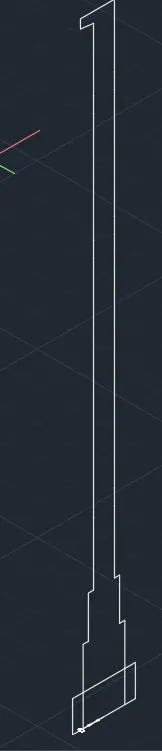
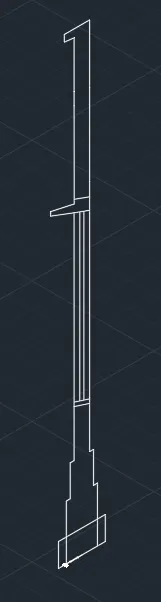
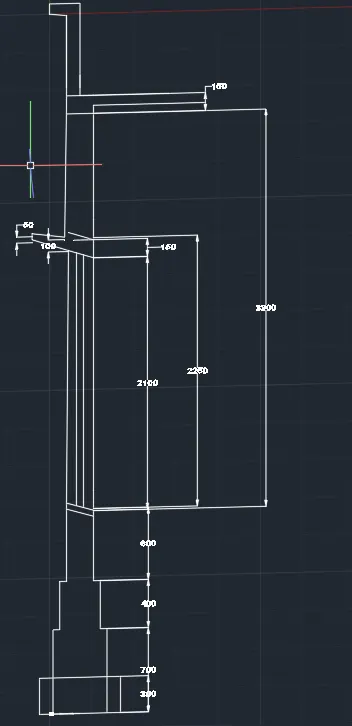
Create the 3D view of a Wall with spread footing . Create the Door opening only. Assume the size of
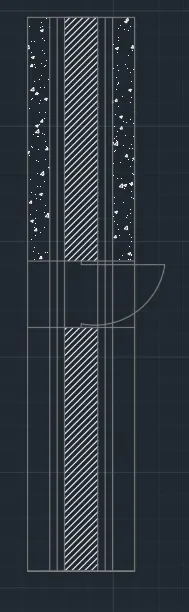
the parpaet and the coping. See the plans and elevation for the details. Also, create a rendered view of
the model with materials.
Create the 3D view of a Wall with spread footing:
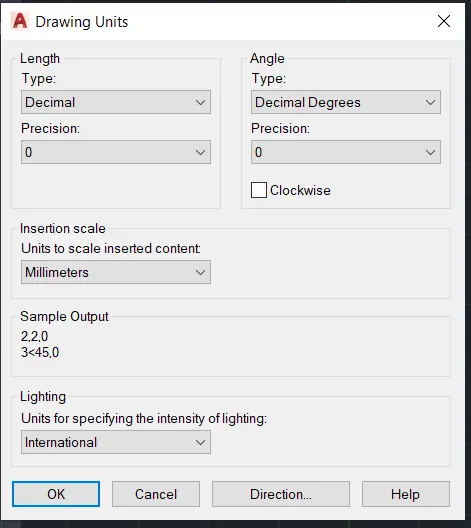
- First to click 'Units" to change as per given plan.
- Then Click 'REC' rectangle command to start the plan.
- The create the window opening as per dimension.
- Now offset the line by window dimension
- Then Dim dimension command to create the dmension of the plan.
- After finally view to the isomaetric view of the building plan.
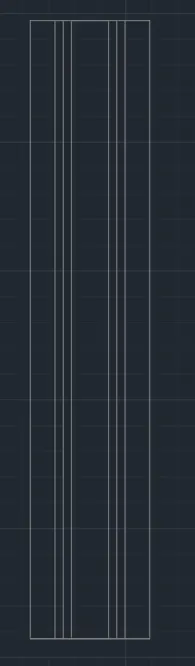
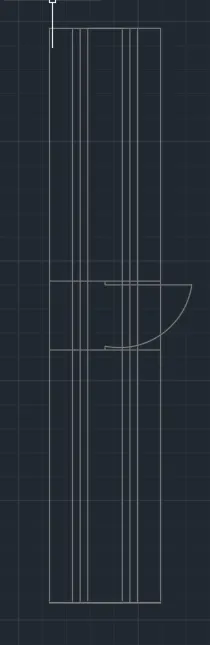
- Then create the Door for the wall.
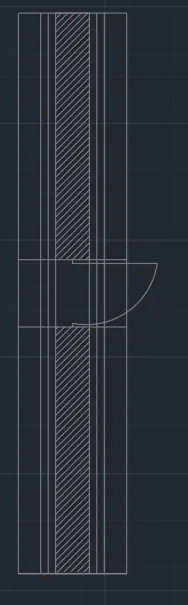
- Click "Circle" command to create the door opening.
- Then Create the wall spread footing as per dimension.
- Click line command to create the wall footing.
- Click "HATCH" command to create the hatch portion in section and plan.
- Click "UCS" command to mention the dimension and click the correct axis to draw.
- Then click "DIMLINER" to create the dimension of the elevation.
- And Click "SAVE"command to save the Text.
- Finally we SNIPPING TOOL to screenshot the drawing.
RESULT:
In this challenge we learn about the isometric view of plan elevation and staircase drawings.And we create the 3Dview of these drawing an rendering of the plan.