Challenge 12 : Rendering Project
RENDERING MODELS
Alias has Ultra-realistic rendering options that give immersive visualization of the rendered models. Inbuilt rendering options can be utilized effectively for so many types of surface visualizations.
Diagnostic shaders are so helpful for surface generation and flow analysis which we have used in all the previous modeling exercises. For rendering projects, we need to use advanced visualization tools with realistic shaders.
This can be done using the hardware shade option in the window display. The toolbox has general settings related to hardware shading and assigning environment colors and backgrounds.
For assigning different shaders to our models, use the visualize tab in the control panel. Before that, choose a visualization option from the diagnostic shade, (either vis1, vis2, or vis3). it involves data of reflection environment that will be applied to the existing model.
In the visualization panel, we can select suitable material for the surface. assign the shader to the model for visualizing. further settings of shaders can be fine-tuned from the resident shaders panel.
for output, We can use file- export- current window.
Some examples are shown below:
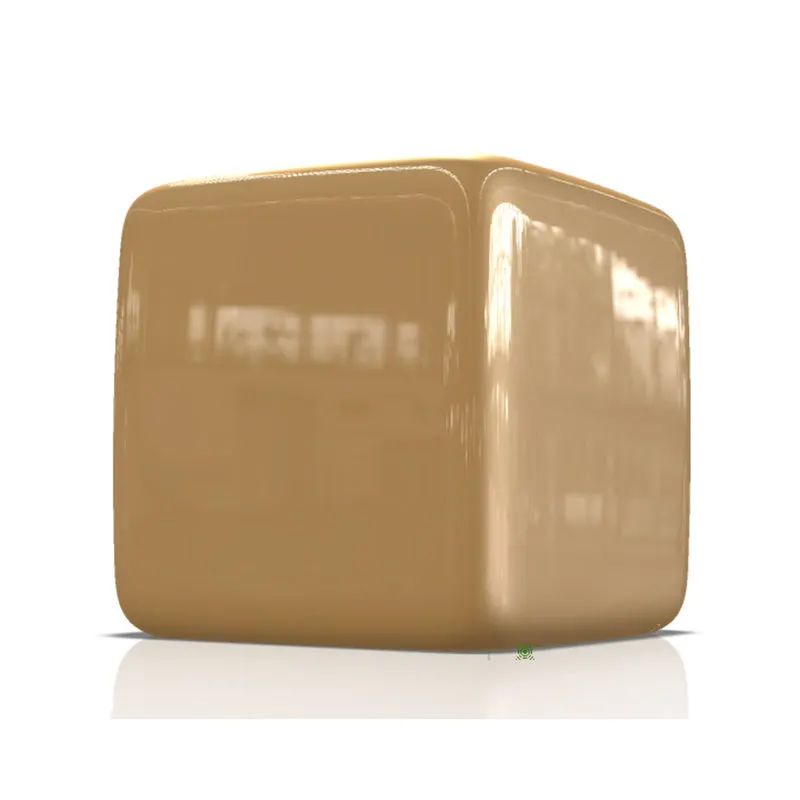
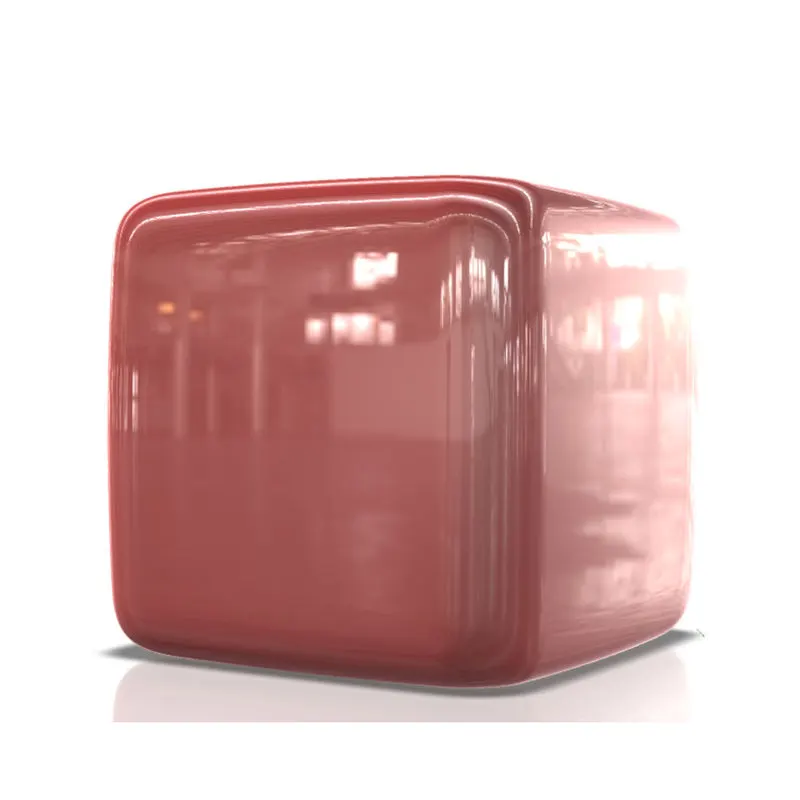
starting with the filleted box we already made,
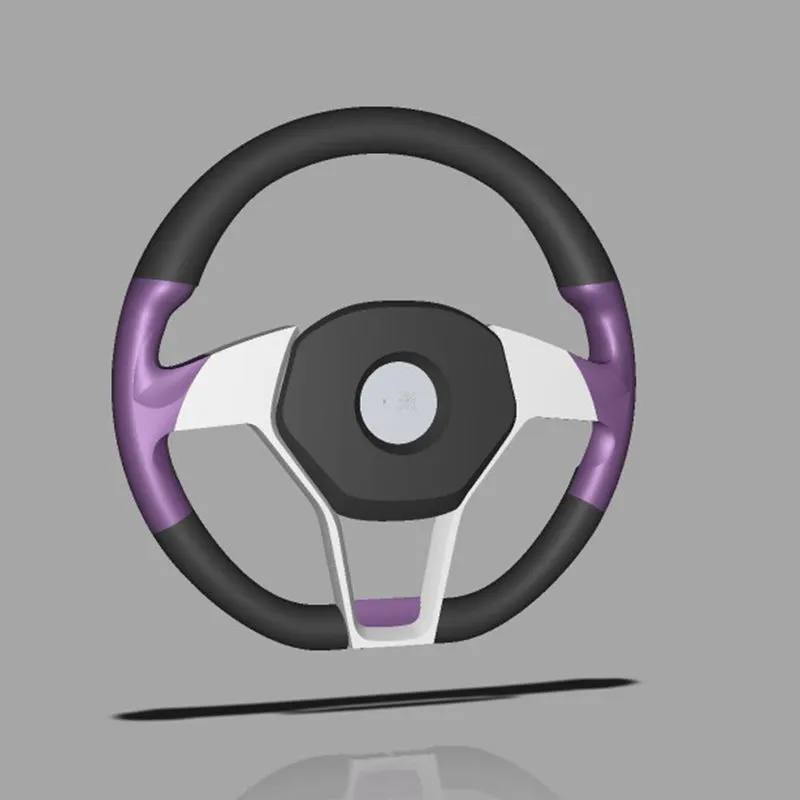
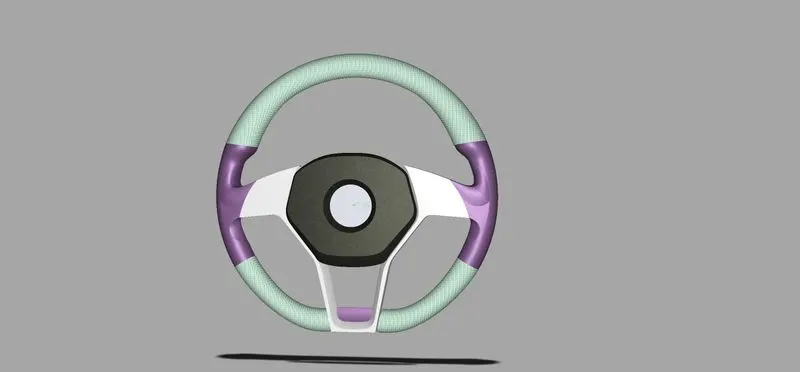
Steering wheel of AMG:-
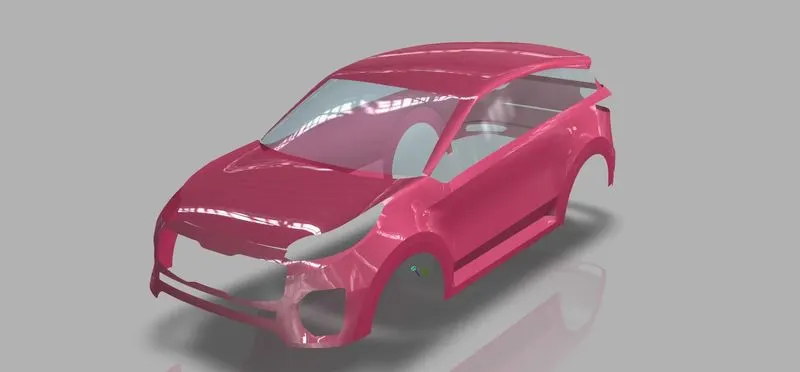
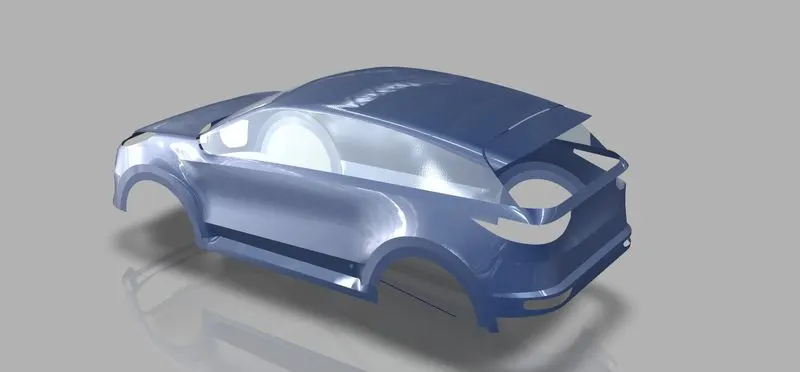
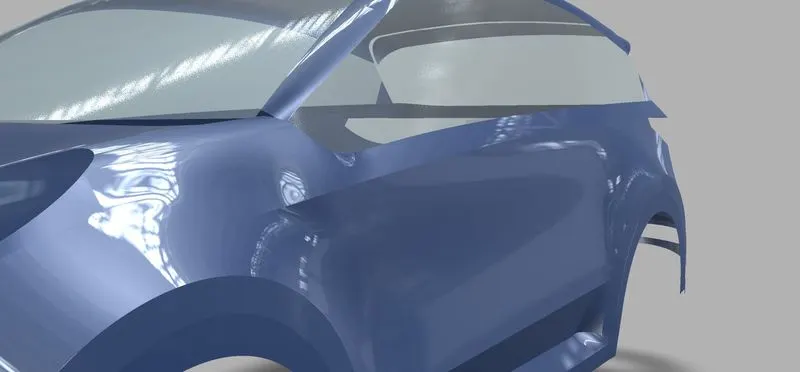
Advanced visualization of the technical surfaces of kia sportage:-
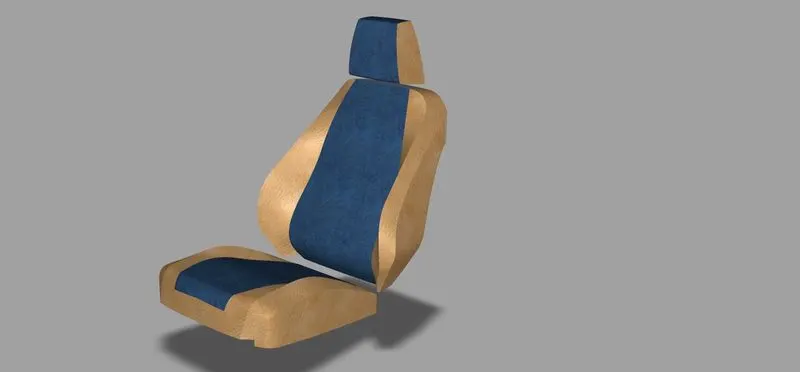
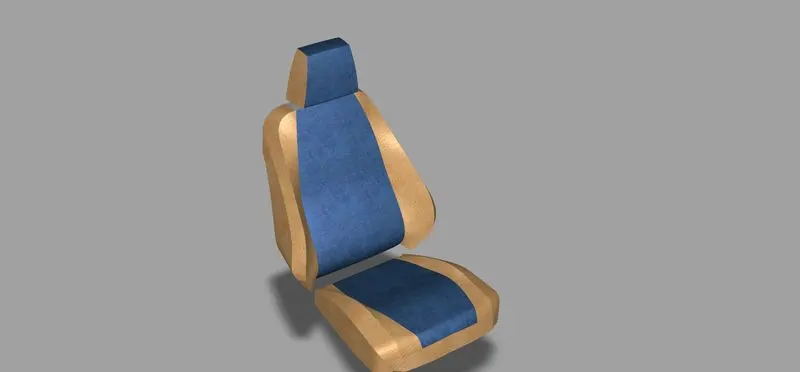
Automotive seat:-