Assignment 6-Frontal Crash Simulation Challenge
AIM:
Fronatal car crash simulation neon BIW using RADIOSS Solver and Pre-processor using Hypermesh/Hypercrash.
OBJECTIVE:
Frontal crash-BIW
- Check unit system and either follow[Mg mm s] or [Kg mm ms].
- Create appropriate interface ,friction 0.2 and recommended parameters.
- Make sure of no penetrations and intersection.
- Correct rigid bodies if any issues.
- Create rigid wall with friction 0.1.
- Compare the model weight with the full scale 300k nodes model and use added masses to reach target weight 700kg while getting CG about the required range.
- Initial velocity 35 mph.
- Use model checker to ensure good quality.
- Time-step :0.5 to 0.1 microseconds.
- Run 80 ms.
Output requests:
- Sectional force in the rails at location of indicated node 174247.
- Axial force received on the rails from bumper.
- Shotgun cross sectional forces.
- A pillar cross section.
- Acceleration curve received on the accelerometer at base of B pillar (on B pillar rocker).
- Intrusions on the dash wall 66695,66244.
CASE SETUP AND EXECUTION:
1. Check the unit system and either follow [mg mm ms] or [kg mm ms]
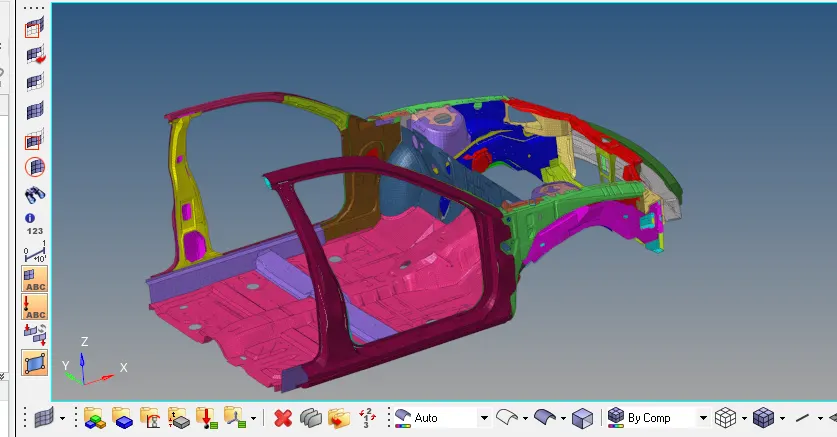
Step 1: Import the neon model (starter file of '.0000rad' file).
In Hypercrash: Import file (Just drag the file and drop into the Hypercrash)
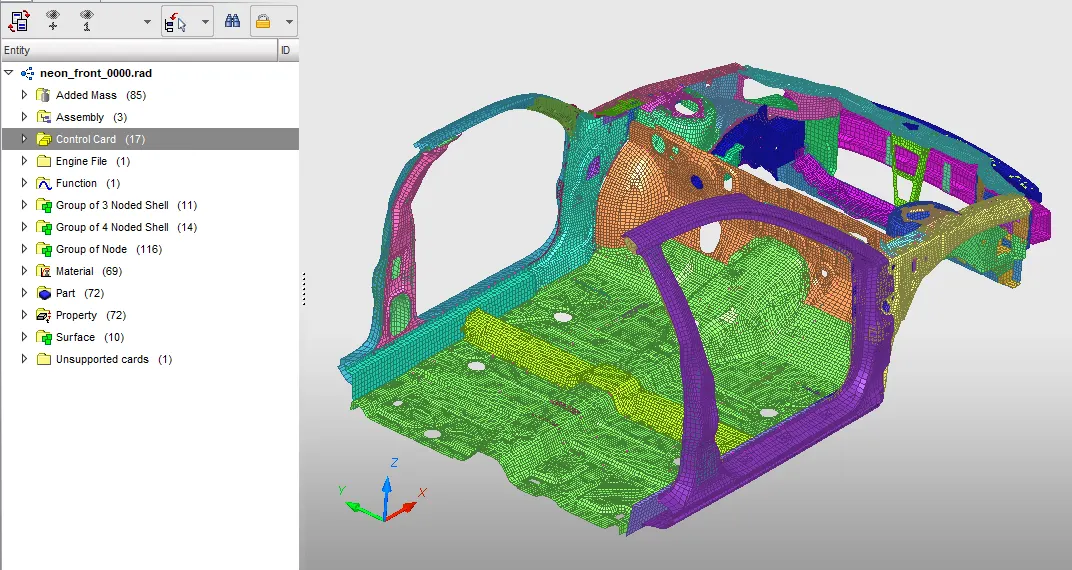
In Hypermesh: Go to menubar-file-import-solverdeck-selcet '0000.rad'-import.
step 2: Check the unit system.
- we check unit system in starter '0000.rad' file.

- In Hypermesh:Go to model browser-cards-Begin_card.
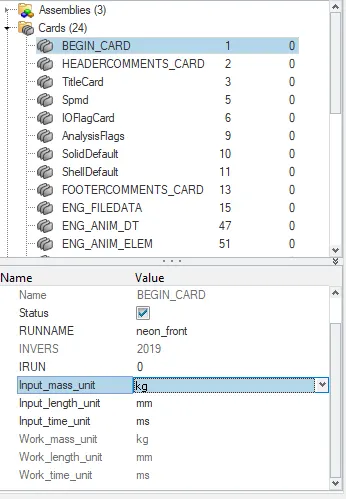
- In Hypercrash: we can select application opening/check in the title bar.

-We Follow the 'kg mm ms' unit.
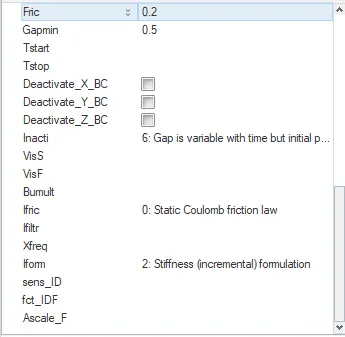
2. Create appropriate interface, friction 0.2 and recommended parameters.
-In Hypercrash: Go to hypercrash-Loadcase-choose contact interface.
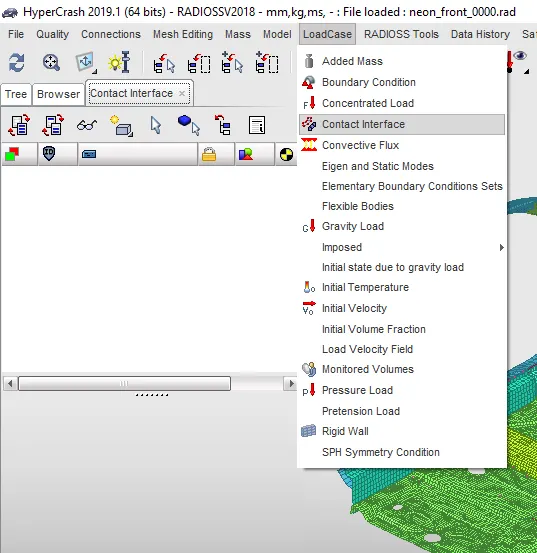
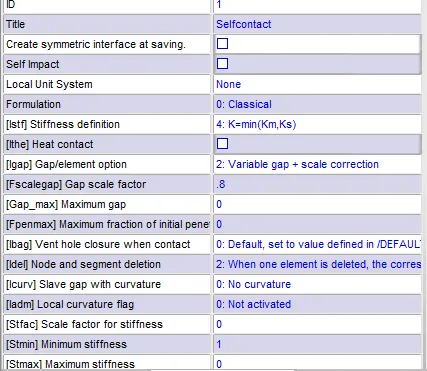
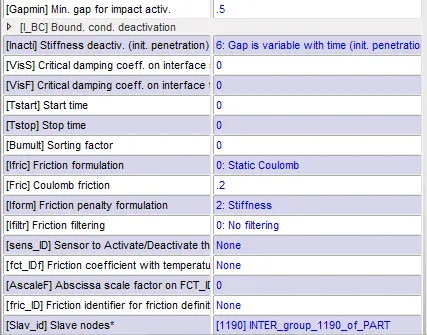
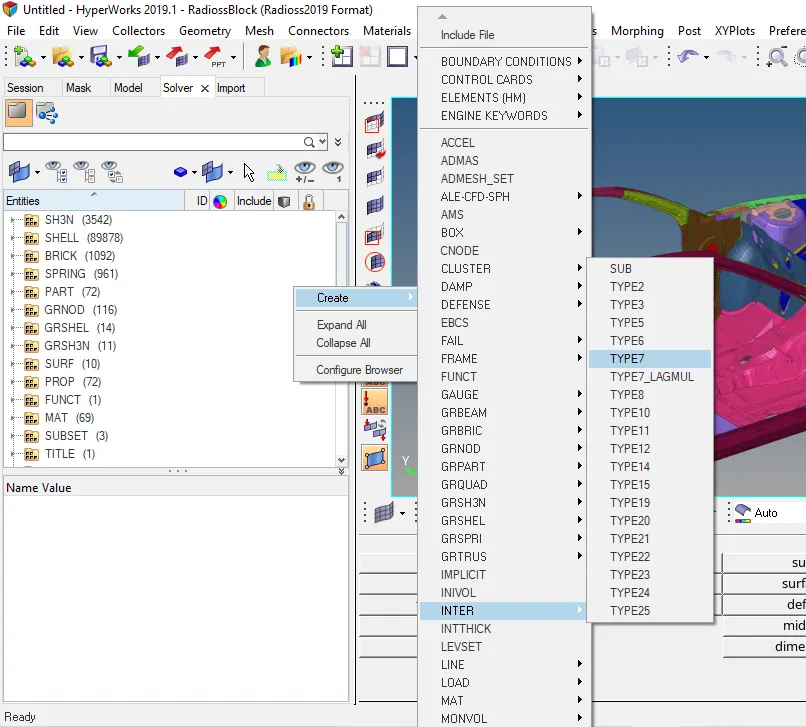
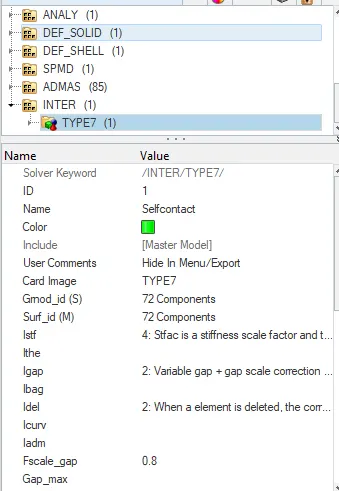
-In Hypermesh: Go to solverbrowser>create>inter>Type7
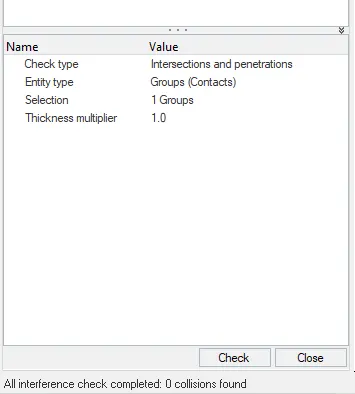
3. Make sure of no penetrations and intersection.
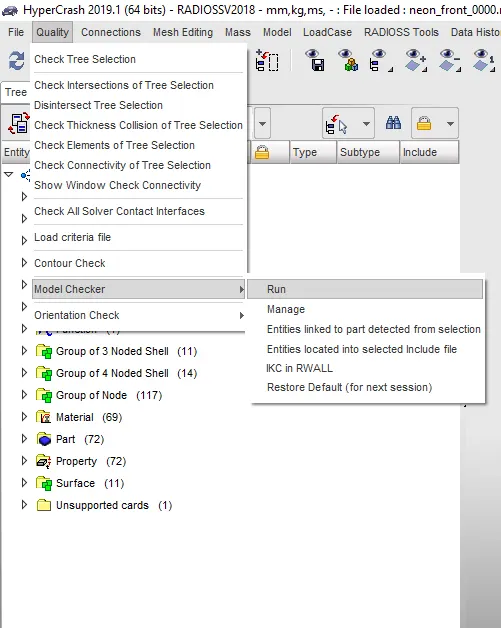
-In Hypercrash: Go to quality>model checker>Run.
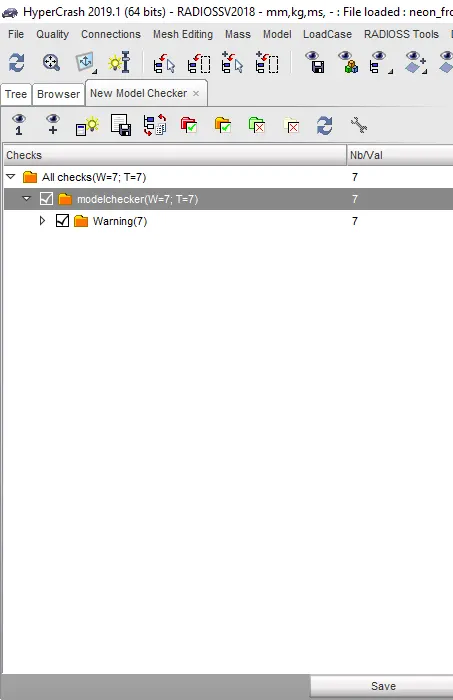
-There is no peneration in this model only warnings that should not affect the results.
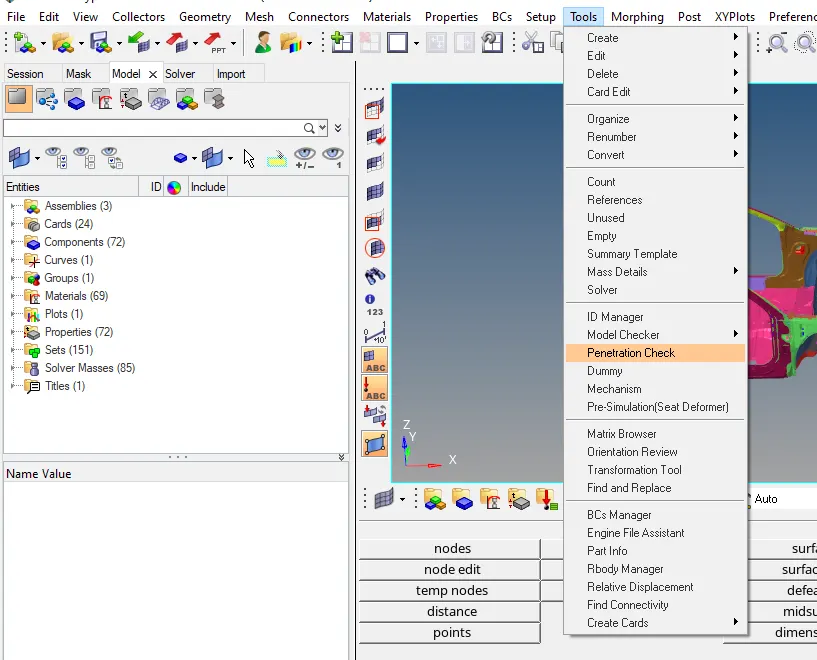
-In Hypermesh: Go to Tools>penetration check
-Select the group (Self contact).
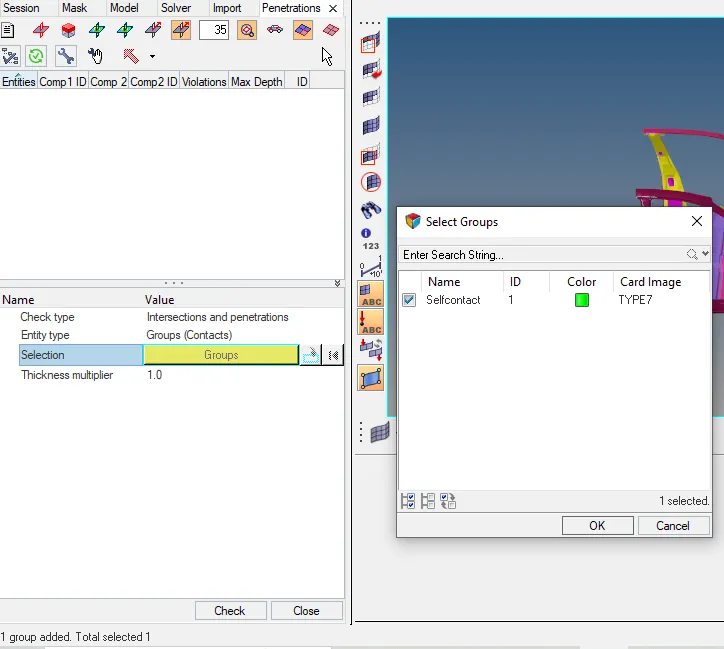
-Add the group and click check .
4. Correct rigid bodies if any issues.
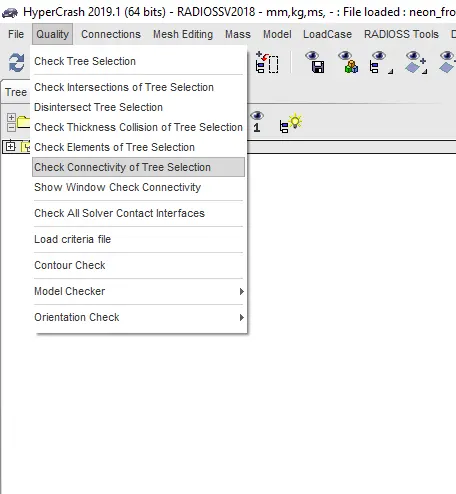
-In Hypercrash: Go to tree>select assembly>click quality>check connectivity of tree selection.
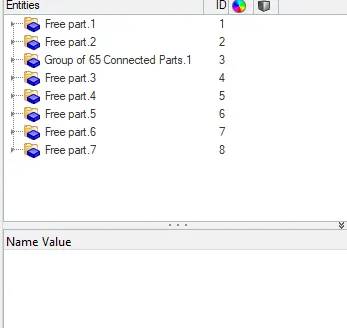
- Some free part are there but that are not available in this model, so skip that.
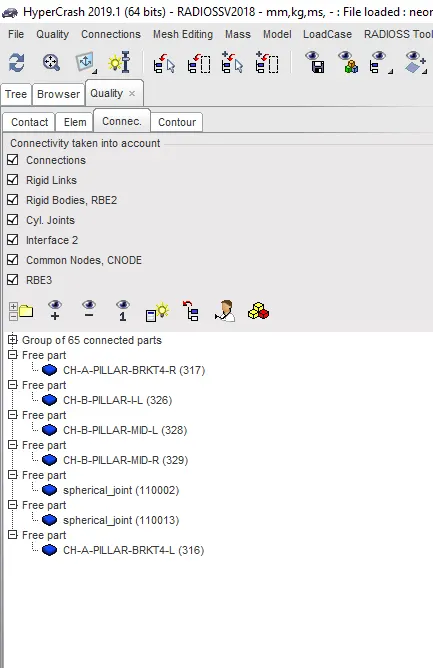
-In Hypermesh: Go to Tools>Find connectivity.
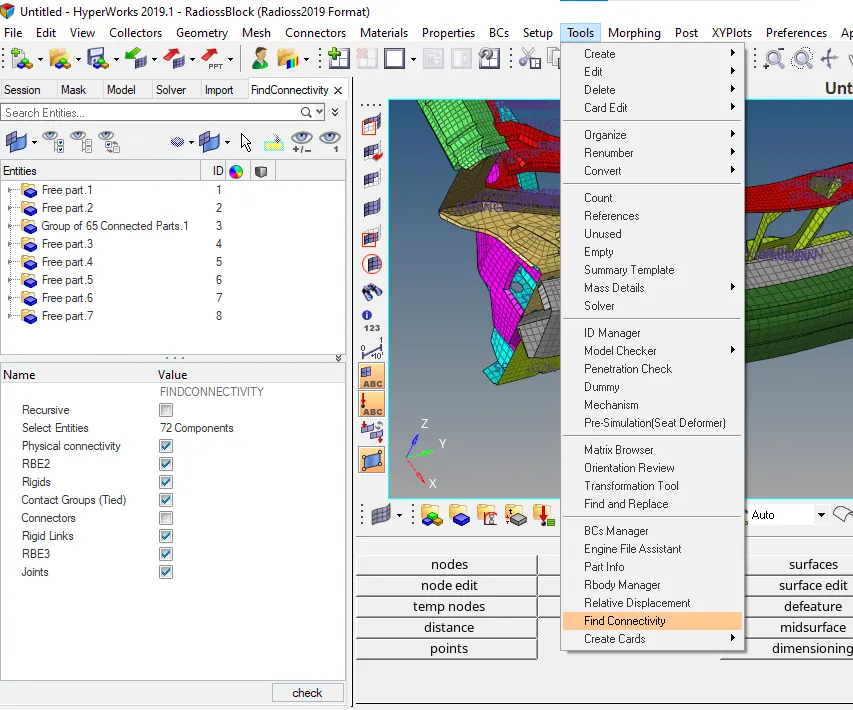
- Some free part are there but that are not available in this model, so skip that.
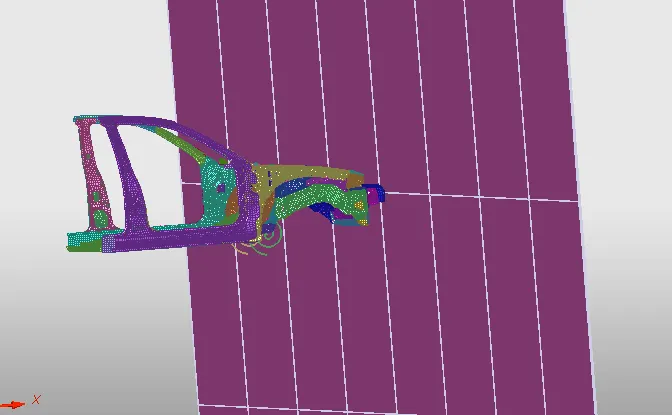
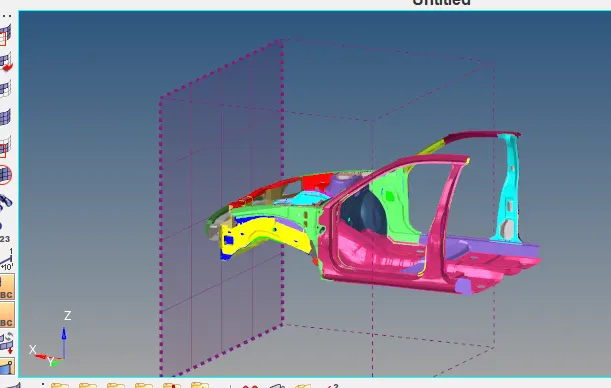
5. Create rigid wall with friction 0.1.
- create rigid wall in Hypercrash/hypermesh.
-In Hypercrash: Go to Loadcase>Rigiwall.
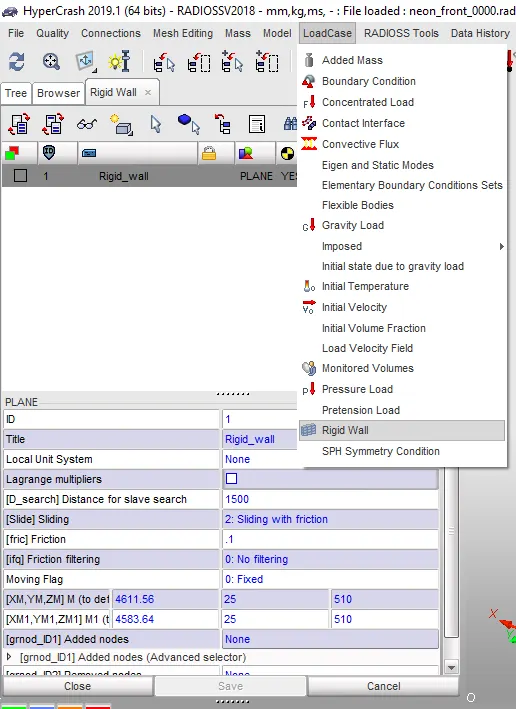
- Define the point/nodes where should i need the rigid wall.
-after create rigidwall to xyz direction of rigiwall.
-create some gap between the wall and slave node.
-set D search and sliding friction.
-slave node availabe in D search zone.
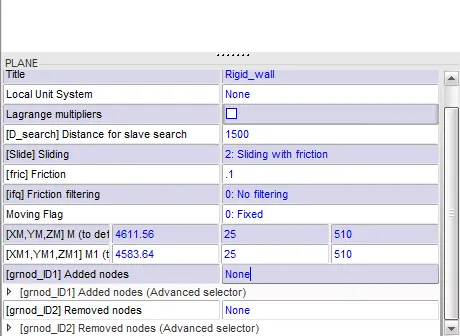
-In Hypermesh: Go to solver model>Rigidwall>plane.
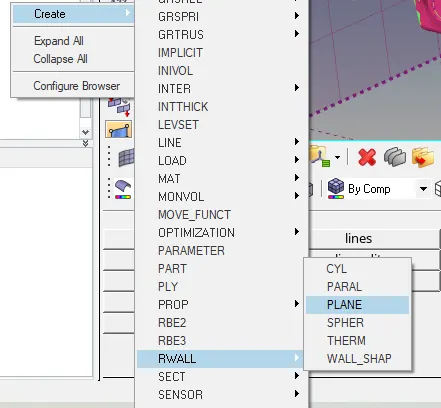
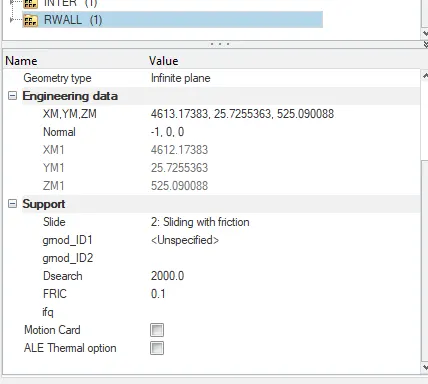
-Select the node for value XM,YM,ZM.
-give normal value.
-create some gap between the wall and slave node.
-set D search and sliding friction.
-slave node availabe in D search zone.
6. Adding masses to reach target weight 700kg while getting CG about the require range.
- Add some mass in model due COG issue.
-How going to add mass in Hypercrash/Hypermesh.
-In Hypercrash: Go to Loadcase>Added mass
-Before add mass see the COG position.
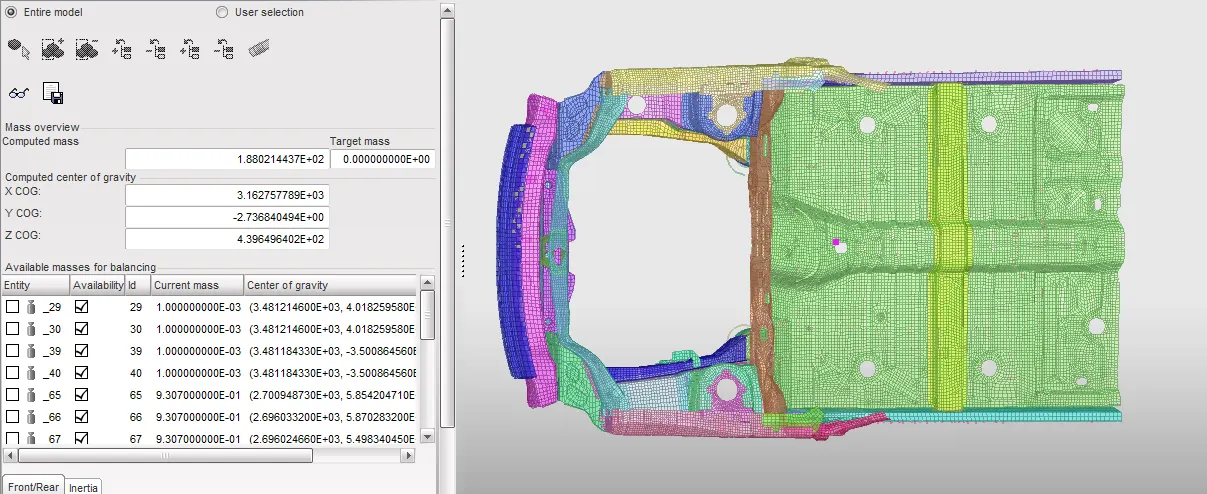
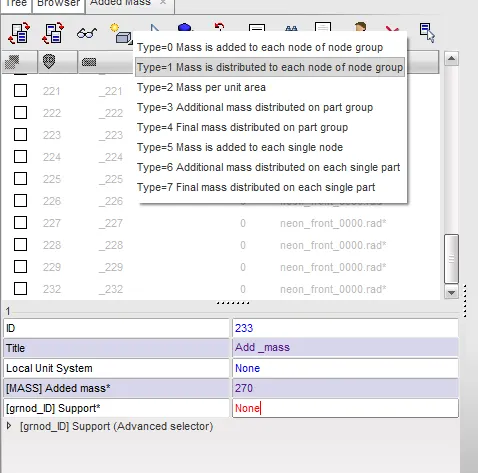
-Create new mass>choose Type =1.
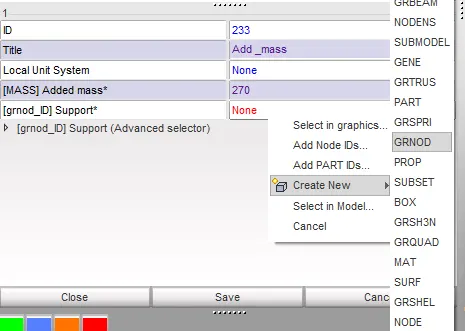
-Create new GRNOD ID
-Select the nodes and save the added mass .
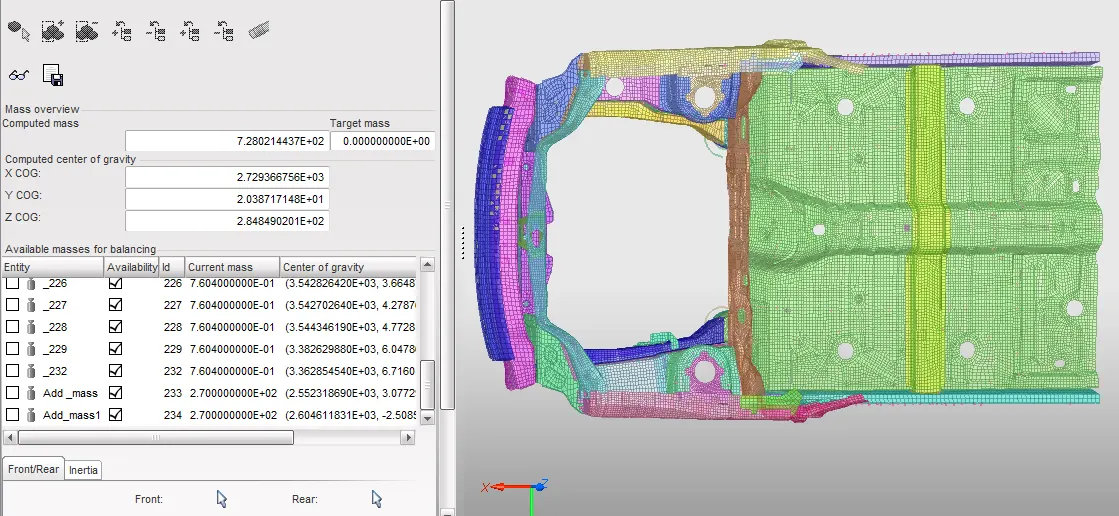
- similary add another new mass for 270kg .
- Now we reach 700kg of the components total mass.
-Check the COG after mass applied.
-Now COG in the right position.
-In Hypermesh: Go to solverbrowser>creat>ADMAS.
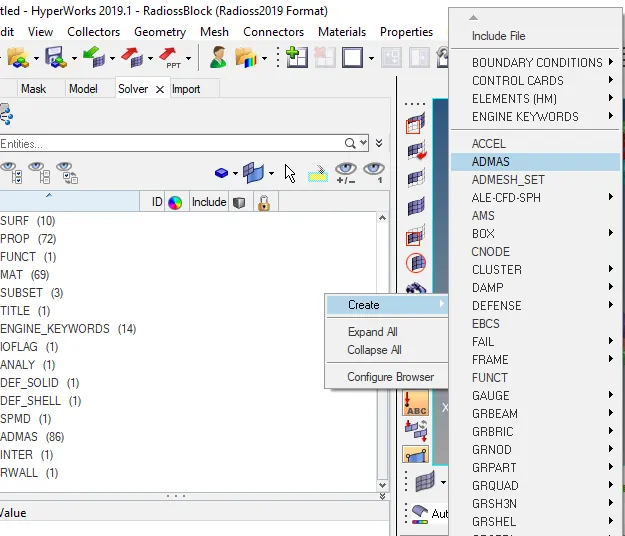
-create the new mass as 270kg of two group.
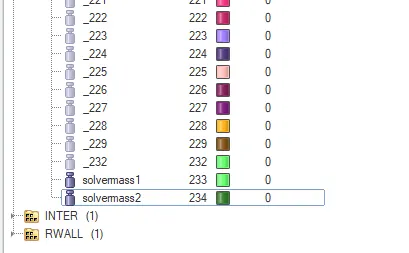
-Now create we reach the total weight of 700kg.
-Tools>mass details.
-Now COG also in the right place.
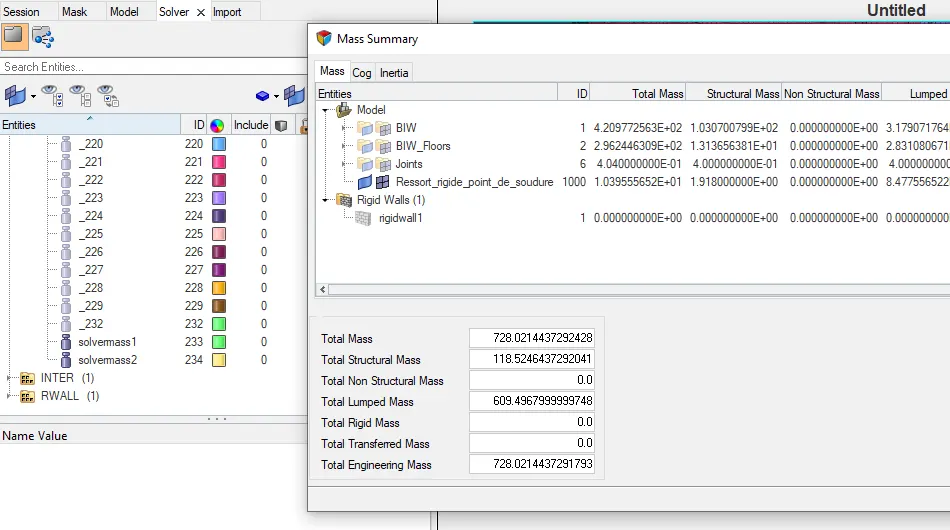
7. Assign initial velocity:
- Define initial velocity of 35mph(15.65ms).
-In Hypercrash: Go to Loadcase>intial velocity.
- In X- direction translation and define (15.65 ms).
-Create Gnod Id and select all parts.
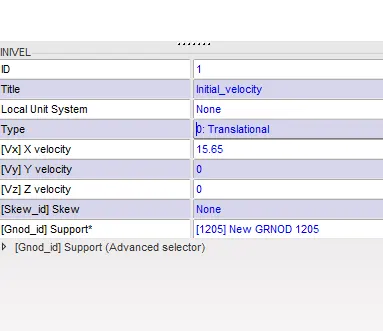
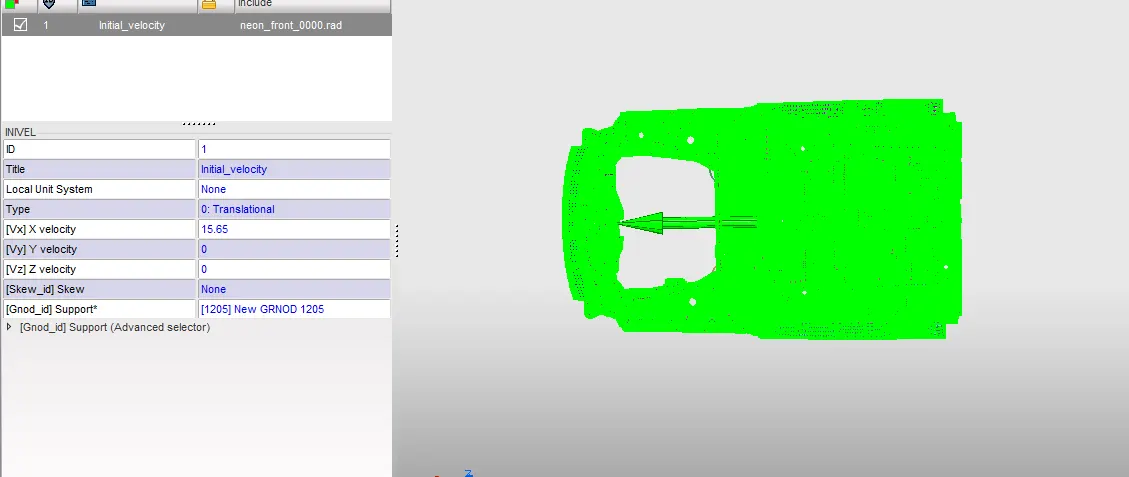
-In Hypermesh: Go to solver browser>create>Boundary condition>invel
- Define initial velocity of 35mph(15.65ms).
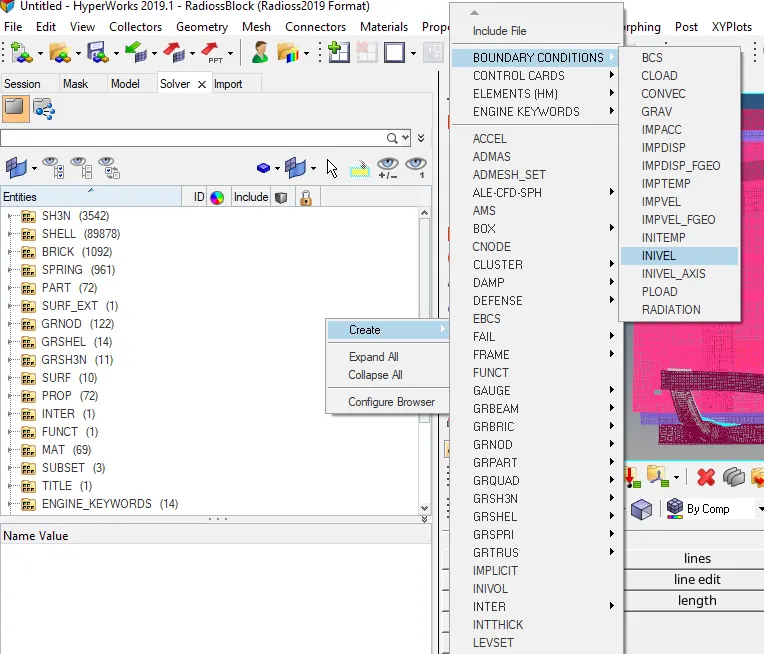
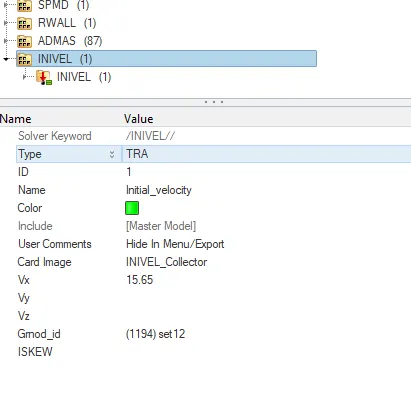
-Define the initial velocity value in global X-direction.
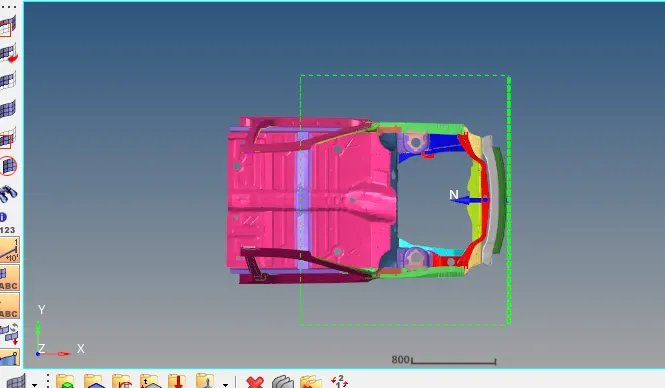
8. Use model checker to ensure good quality.
- In Hypermesh: Tools>Model checker>radioss Block.
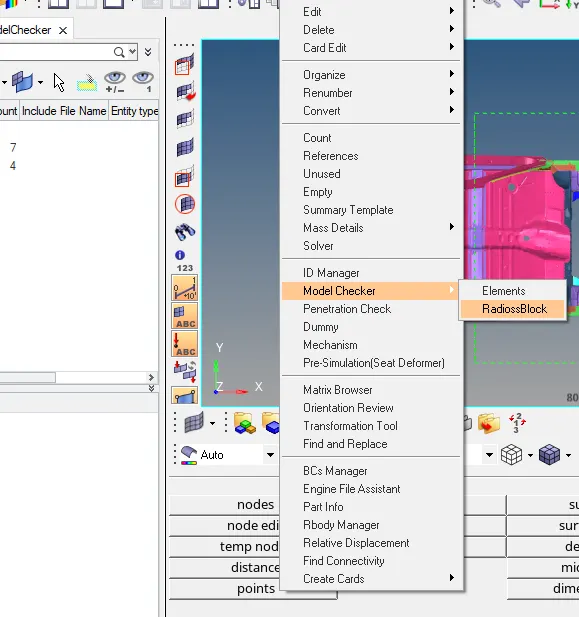
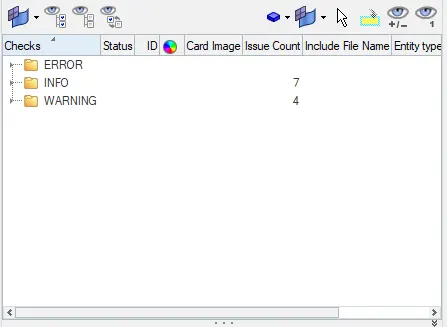
-Run this and check error, solve select auto correction option.
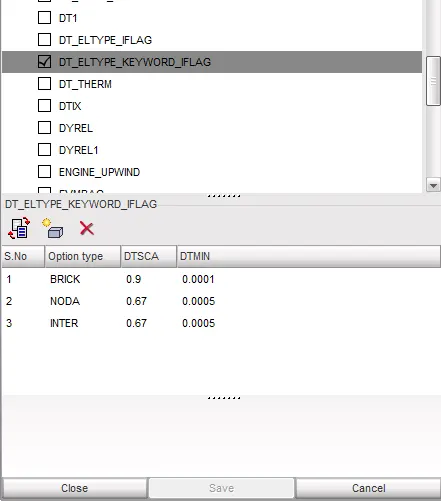
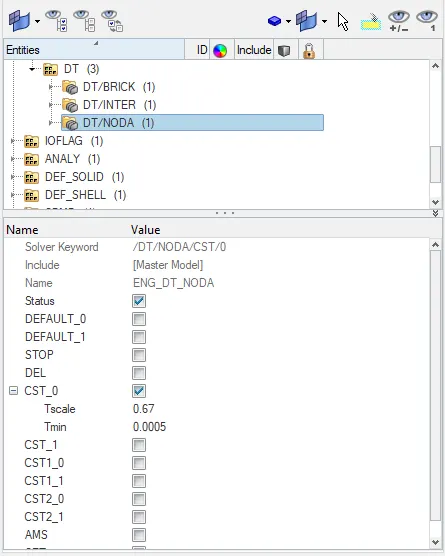
9. Create Time step ( 0.5 to 0.1 ms)
- In Hypercrash: Go to browser>Engine file.
-Select 'DT_ELTYPE_KEYWORD_FLAG' this option.
-Define Nodal,Inter and Brick min Time step value.
- In Hypermesh: Go to solver>Engine keyword>DT
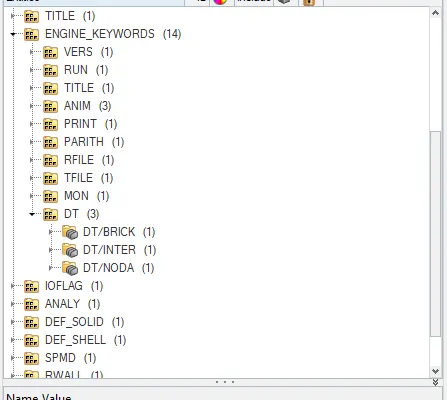
-Define Nodal,Inter and Brick min Time step value.
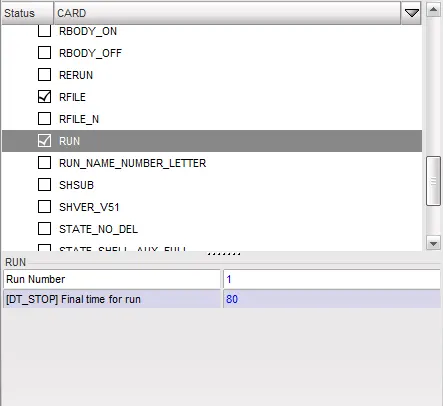
10. Run to 80ms
-In Hypercrash: Go to browser>Engine file>RUN.
- set Tstop value to 80.
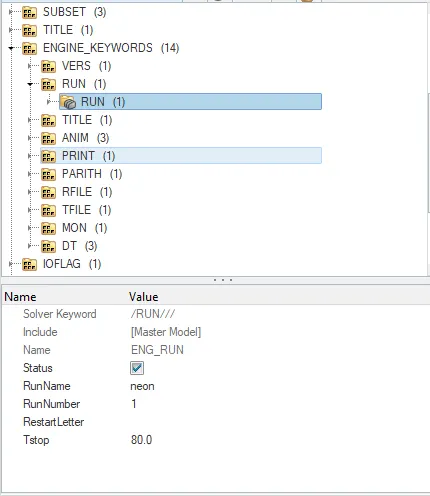
-In Hypermesh: Go to solver>Engine keyword>RUN
- set Tstop value to 80.
Output Request:
1. Sectional Force in the rails at location of indicated node 174247:
-In Hypercrash :
- First isolate the Rail components.
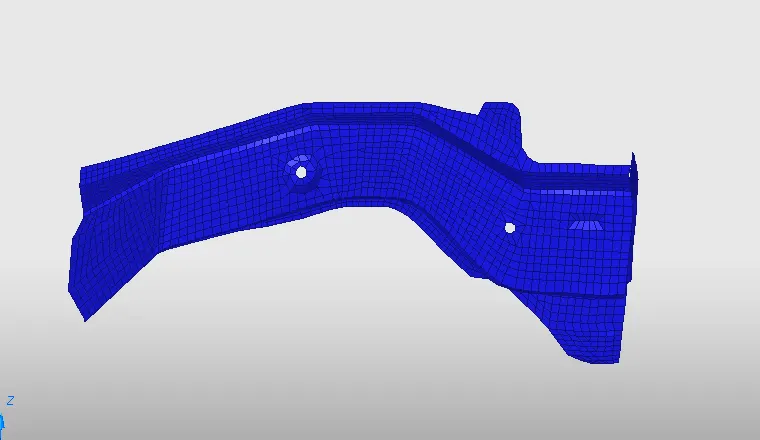
-Go to Data History>Section>Create section.
-Need to define the local axis section.
- use help option to get details.
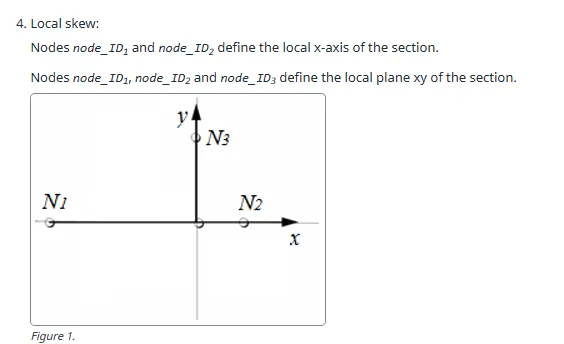
- Going to create local skew. N1,N2- X direction and N3- Y direction.
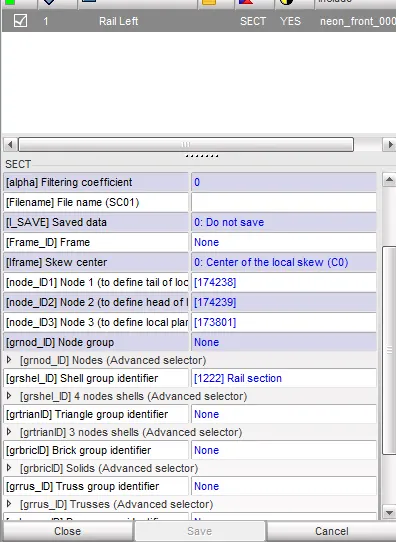
-After define the direction. select element in option of [grshel] option.
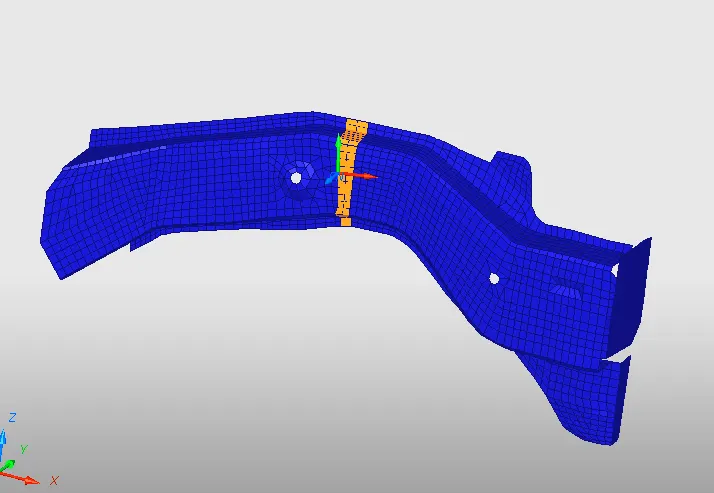
-we get section cut in the rail components.
-In Hypermesh: Go to solver>create>Frame>mov.
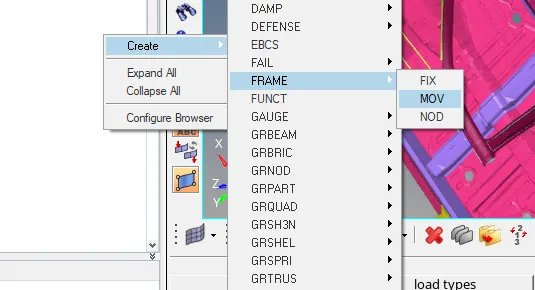
-Create frame(mov) through above pic.
-Frame its local axis direction.
-Its helps the section
-After create frame going to create section
-Create>section>sect
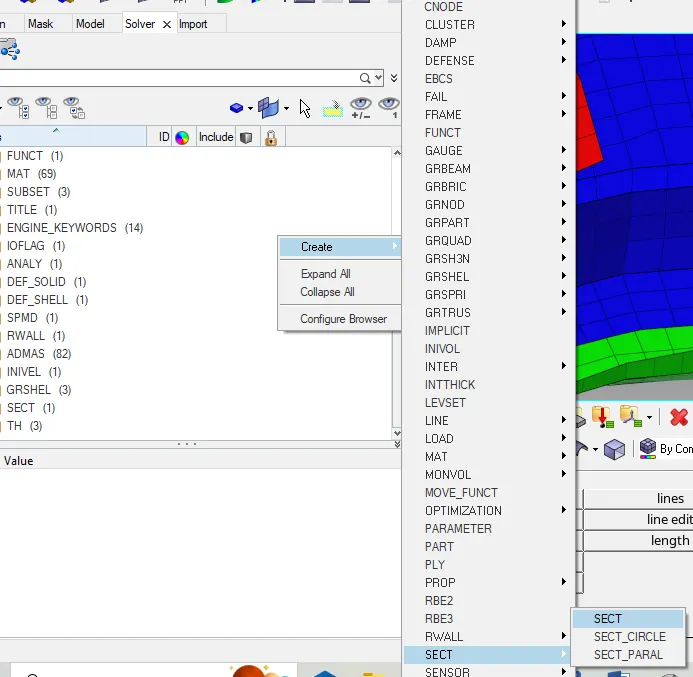
-Give title to the section.
-Define the N1, N2 and N3 helps to create local axis.
-After defien direction.
-click Frame_ID - select the system created in the frame.
select element using [grshel_id].
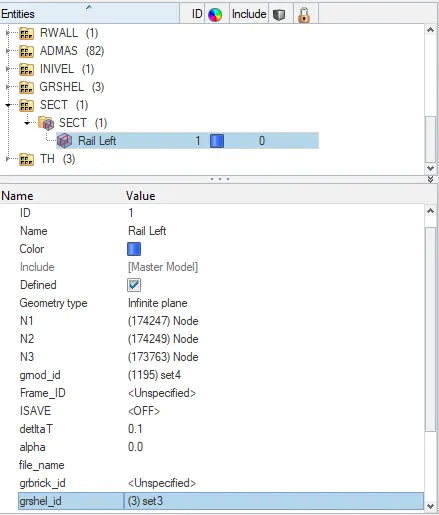
-Rail section is completed
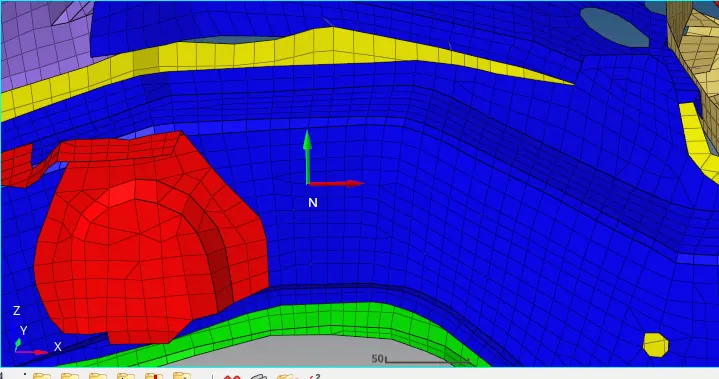
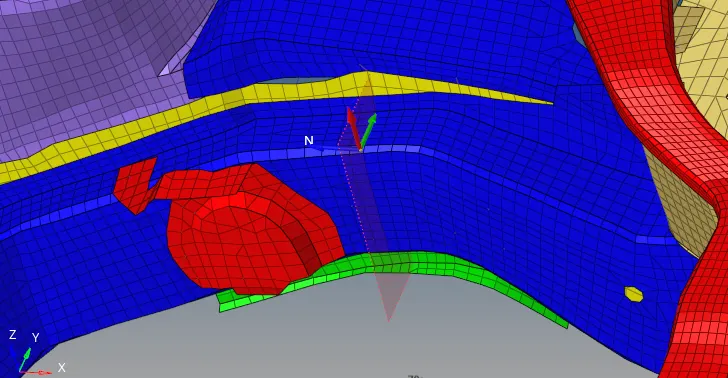
- Similarly create the other crossection.
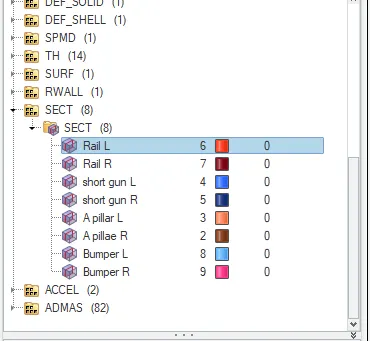
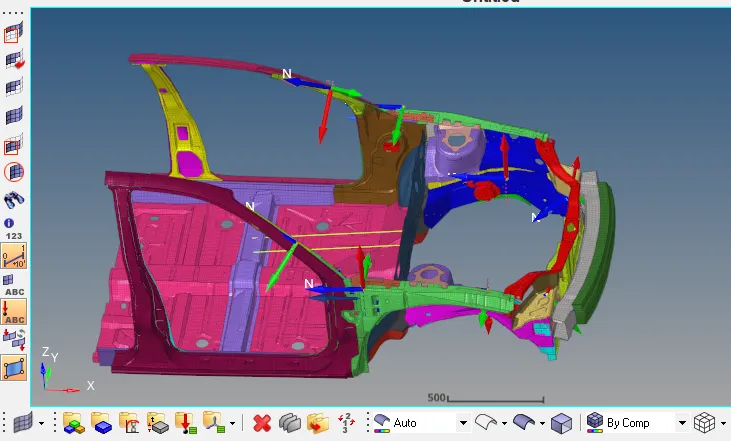
2. Acceleration curve on the accelerometer at of B pillar:
-Create acceleration curve.
-Create>ACCEL
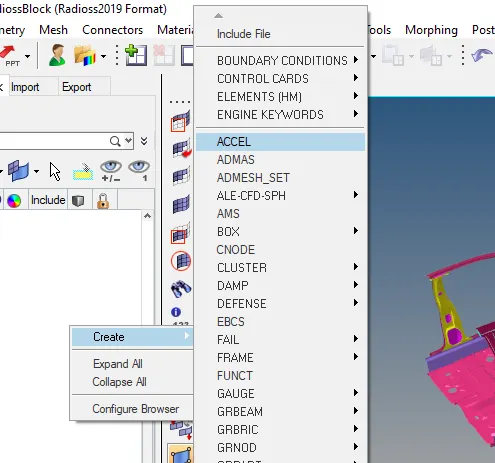
-Select the node in B Pillar
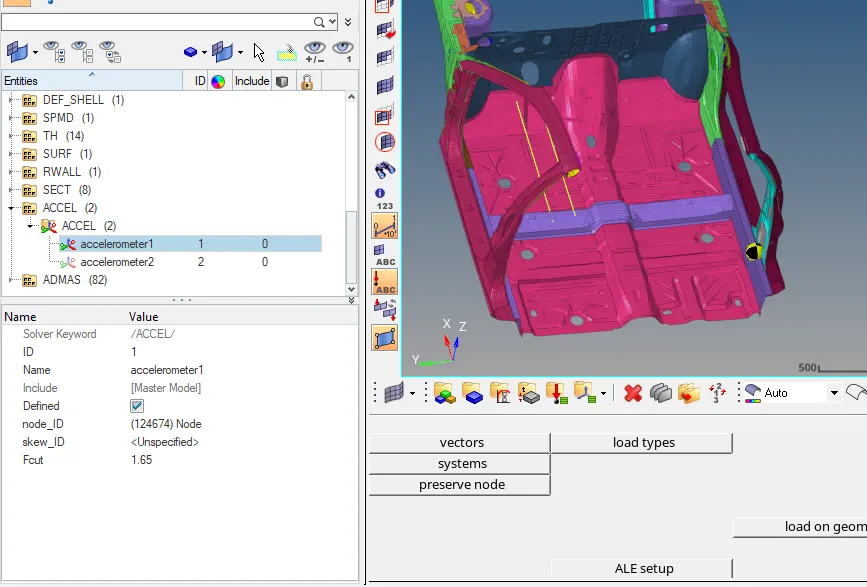
-Giving Output Request model browser Time history(TH)
-select entity of accel.
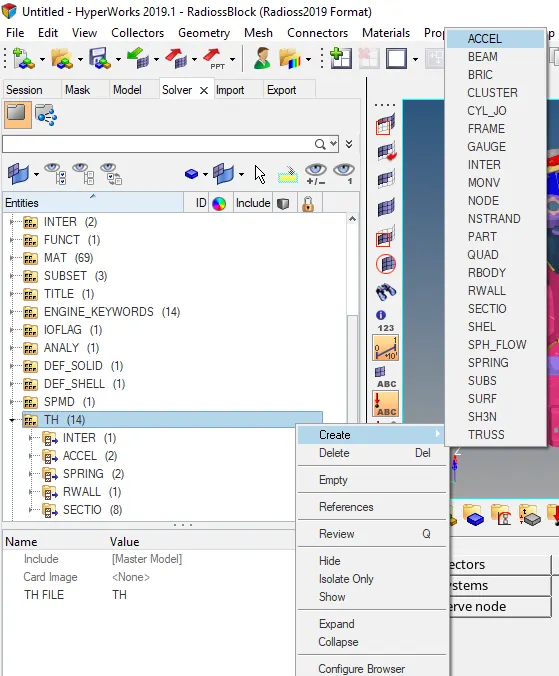
3. Intrusion on the dash wall (66695, 66244)
-To find the intrusion in the dash wall (66695,66244).
-Go to 1D>spring- select the nodes which is noted.
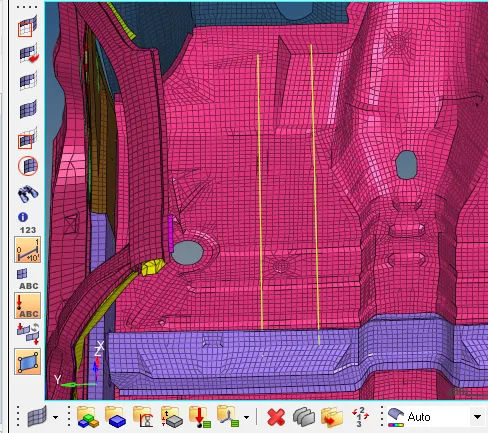
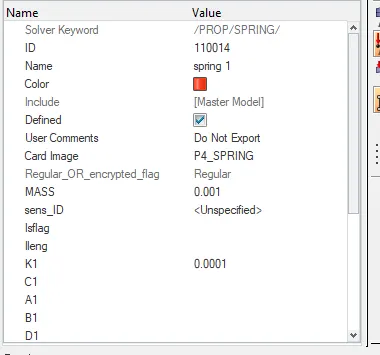
-Then create property card for the intrusion.
-Give mass value as low and k(stiffness).
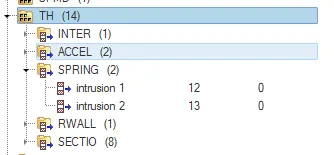
-Give the output request inTH.
4. model checker:
-Go to Tools>model checker>Radioss block.
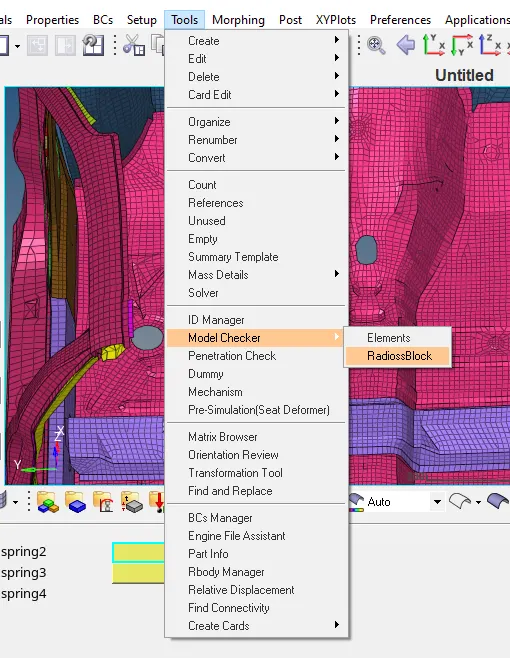
-Run the model checker.
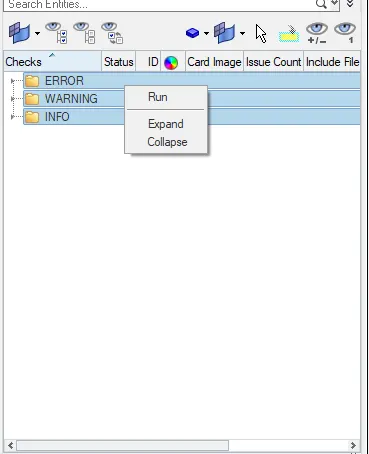
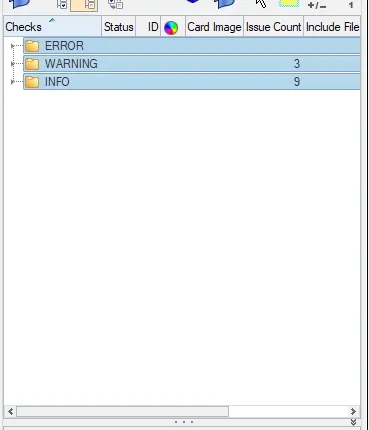
-thats no errors only warning.
- we can ignore the waring no problem .
Simulation:
-finished the every thing is given in the question.
-Lets start the simulation.
-Go to analysis tab-choose radioss.
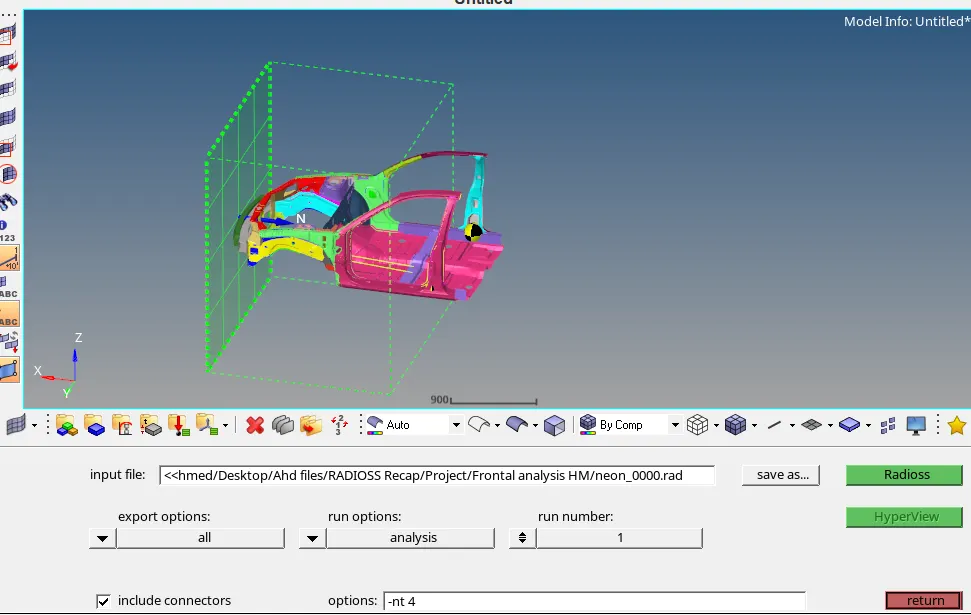
-After complete the simulation check the .out1 file.
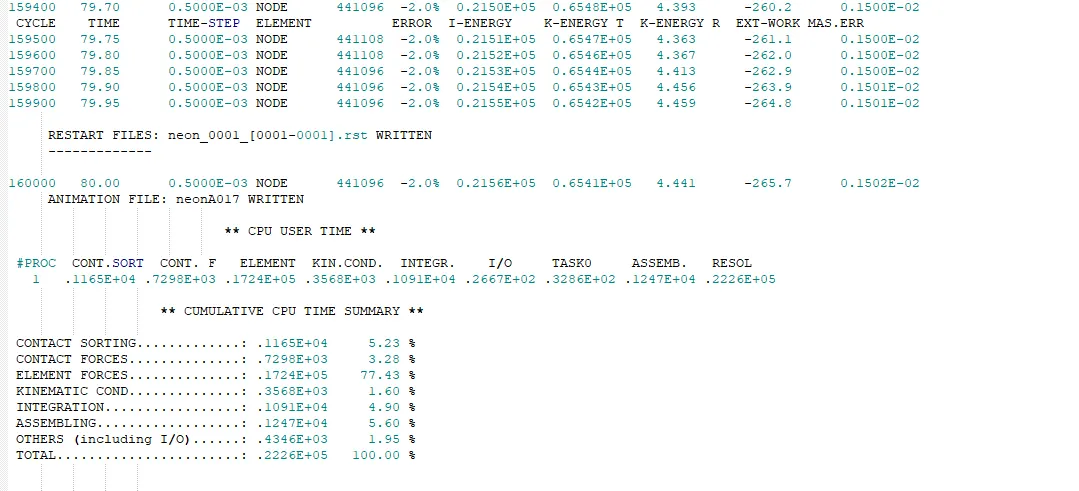
-Energy Error: 0% to -2%.
-Mass Error: 0.9404E-04 to 0.1501E-02
-mass and energy with stable limit.
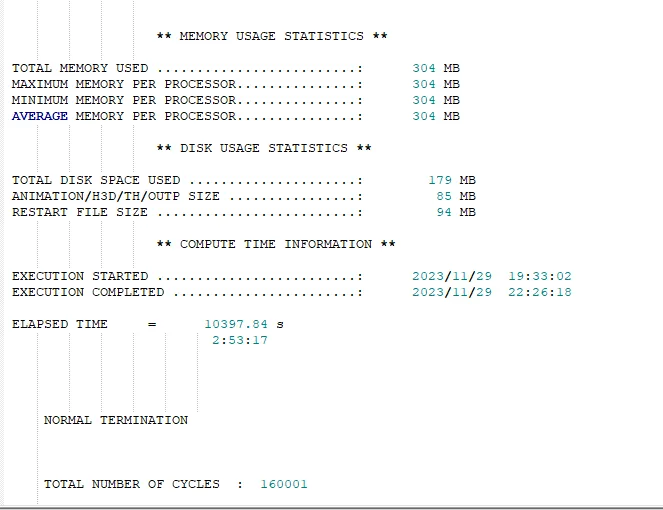
Plot Energy graph:
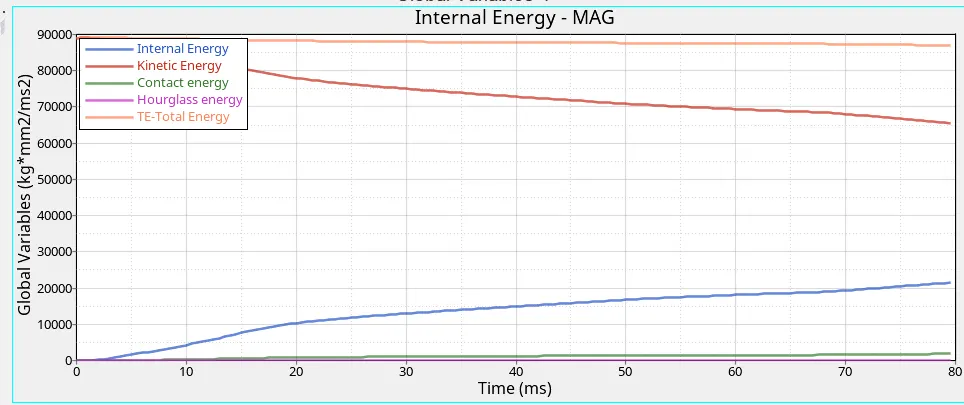
-Internal,kinetic,contact,hourglass and total energy curve are plotted.
-It observe the internal energy gradually increase.
-It kinetic energy gradually decrease.
-There is zero hourglass energy.
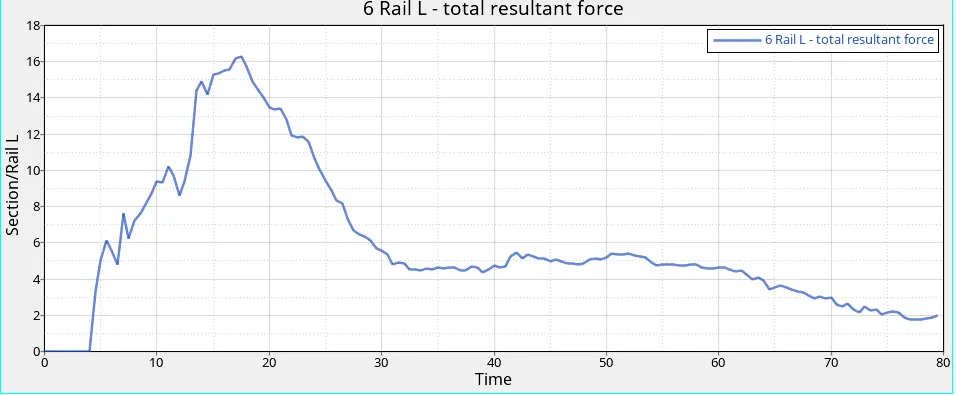
Plot the sectional force usinh Hypergraph in h3d file:
-sectional Rail Left :
-sectional Rail Right :
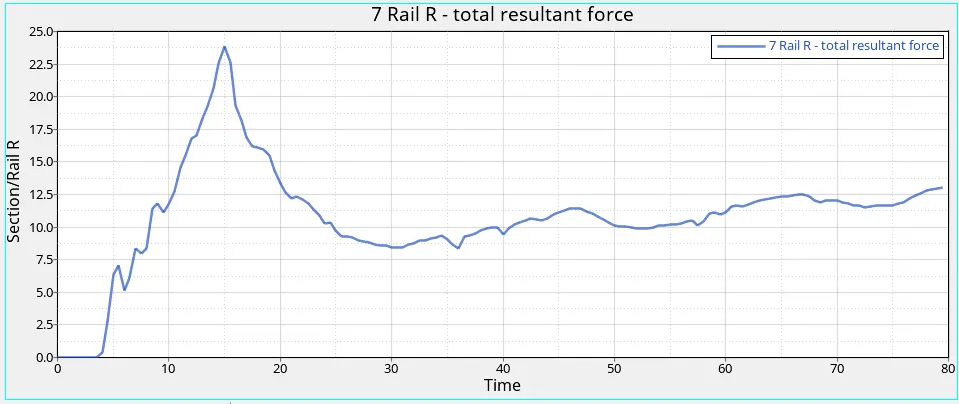
-Short gun Left:
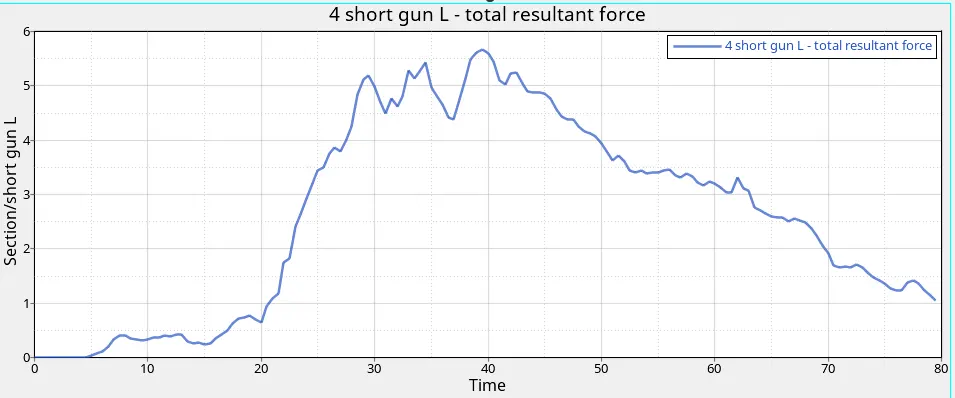
-Short gun Right:
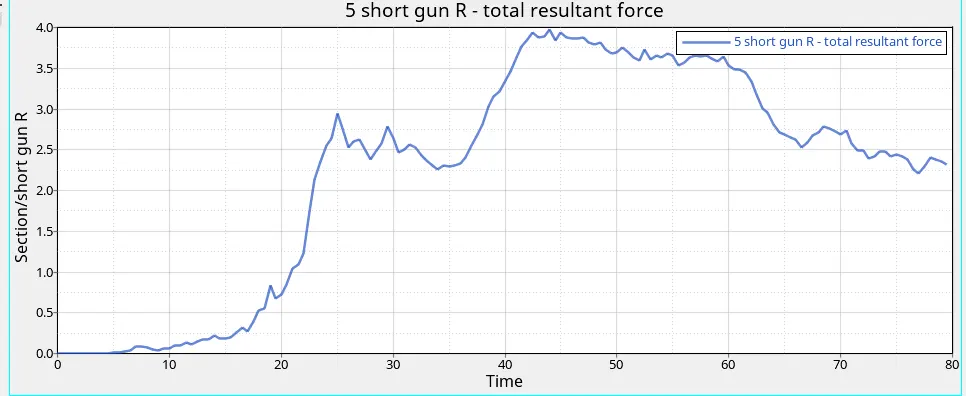
- A-pillar Left:
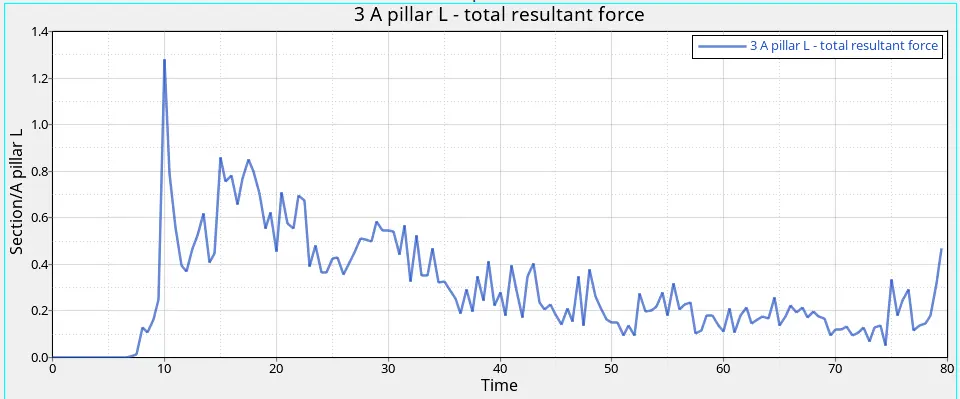
- A-pillar right :
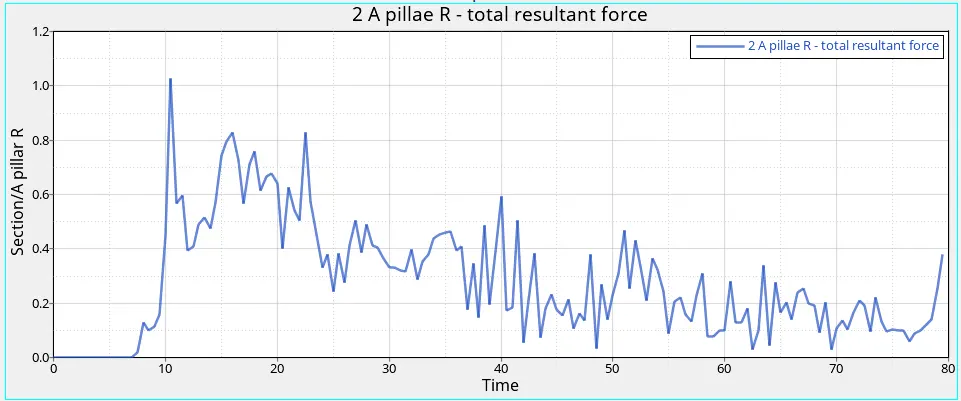
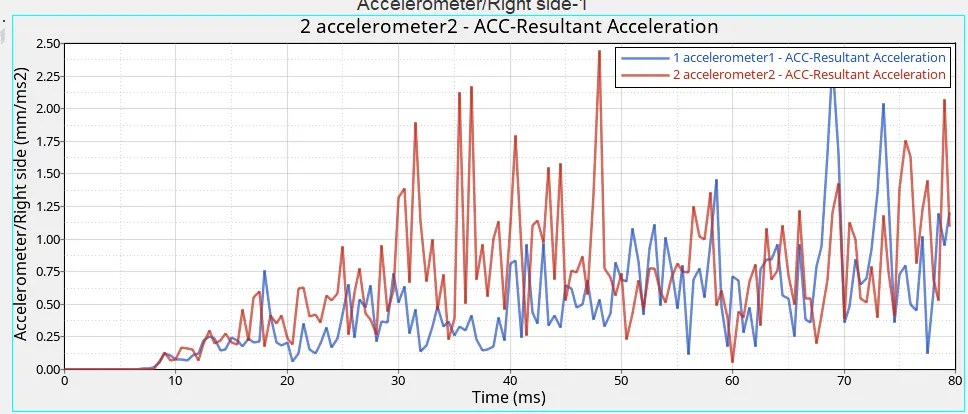
-Acceleration:
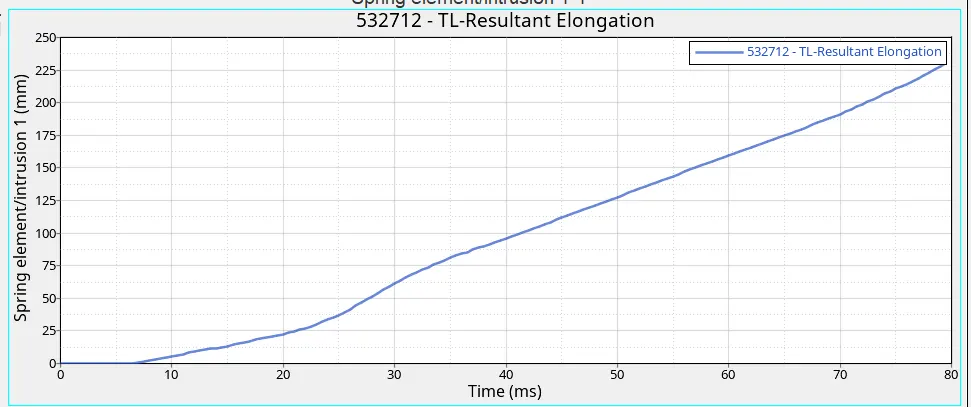
-Intrusion spring 1(66695):
-Intrusion spring 1(66244):
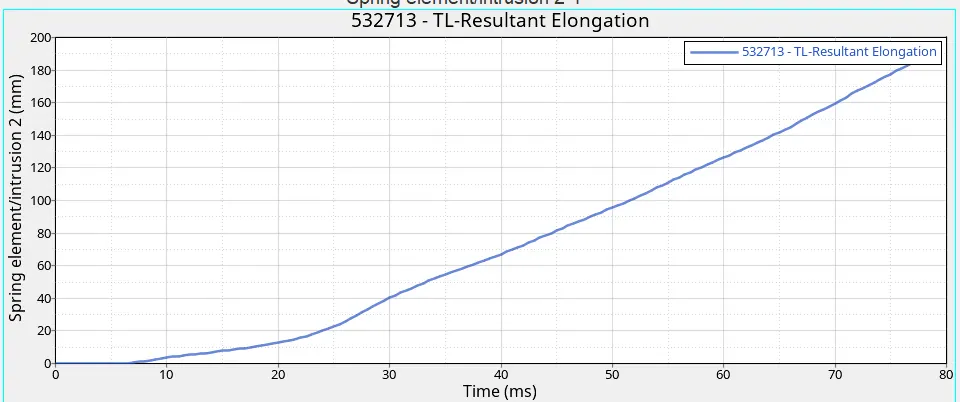
-Graph are plots above pic .
-There are some spikes in graph.
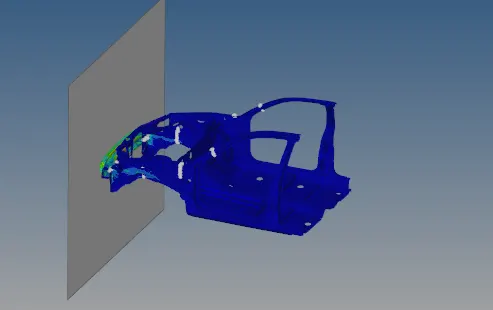
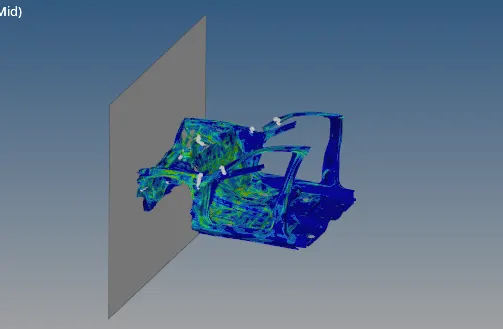
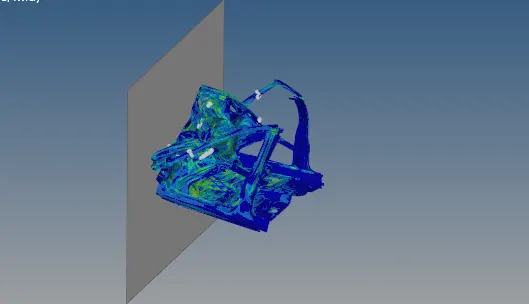
Animation contour:
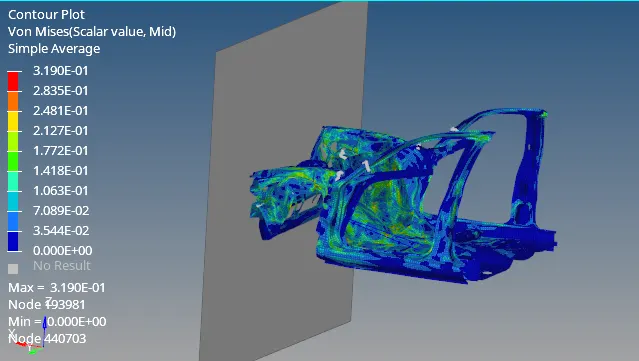
-First bumper hits and observe the erergy .
-remaing energy transfer to the rail ,shortgun etc.
-In this crash A-pillar inner part move towards back side its see like real time crash.
Conclusion:
-Actually complete the given Frontal crash analysis using hypermesh and hypercrash. This challenge learn how to do crash analysis give input file like rigid wall, velocity and output results all the things learn in this crash analysis and such intresting challenge . we learn how this crash analysis working and how we change some value get different result. we learn hyperview much more Then section cut give clear graph result and energy results.