Assignment 3-2D Element Formulation Challenge
CASE 1:
AIM:
To run the simulation in the given model without properties and compare the energy and plot graphs according to the Given Conditions.
PROCEDURE:
1.Importing File into Radioss, Select IMPORT SOLVER DECK>Select the radioss file of the previous loaded assignment > Import.
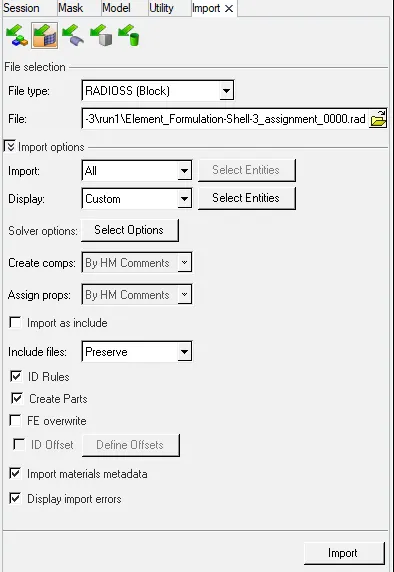
2. The model will be visible on the screen after choosing Import and then switch to shaded element to view the model in non wired mode.
3. From the engine card change the run time to 55 milli seconds as given in the question.
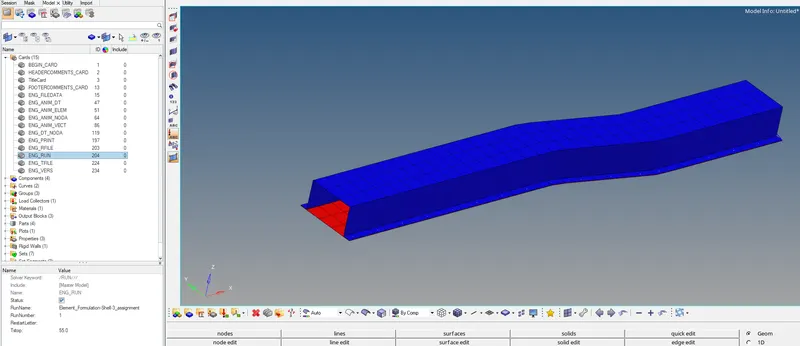
4. Then take the value of the animation step from the given data which will be 55.
Frequency Calculation:
Frequency = Termination End Time/ Steps Required
Frequency =55/50
F=1.1
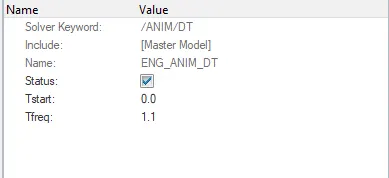
CASE 1:
- Running the simulation without any changes in properties, basic simulation, and choose ANALYSIS and create a new folder to save the simulating files specifically.
- Give -nt 4 for performing analysis as it represents no of threads and 4 CPUs combined for running the operation choose radioss.

- The solver runs and the Hyperworks solver file gets the result displayed and the file will be saved.
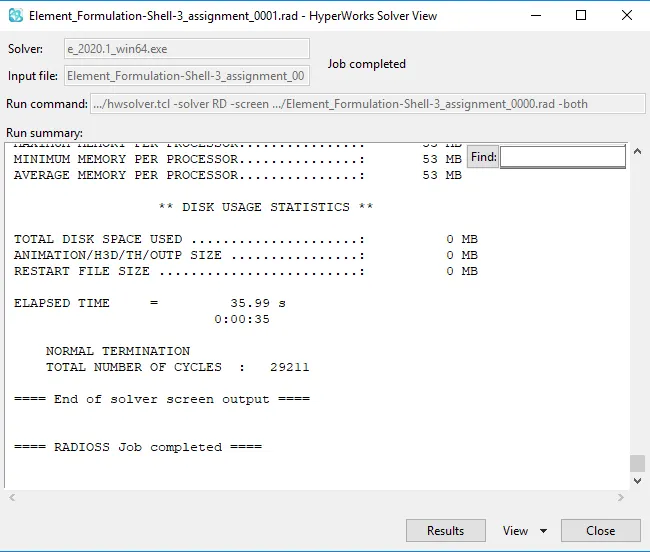
- we can also see the amount of mass error and energy error from the picture below and the file will be saved in OUT file format.

Energy error = -10.30%
MASS ERROR = 0.1659E-03
- From the above results, the 3D ANIME FILE can be viewed in HYPER VIEW mode.
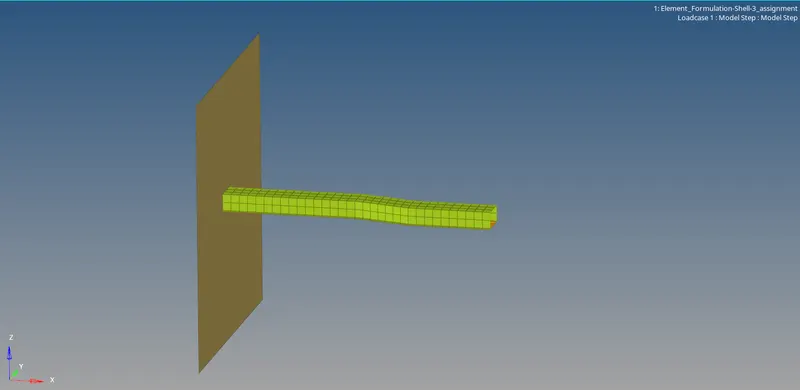
The below-attached model is the gif of the model without properties:
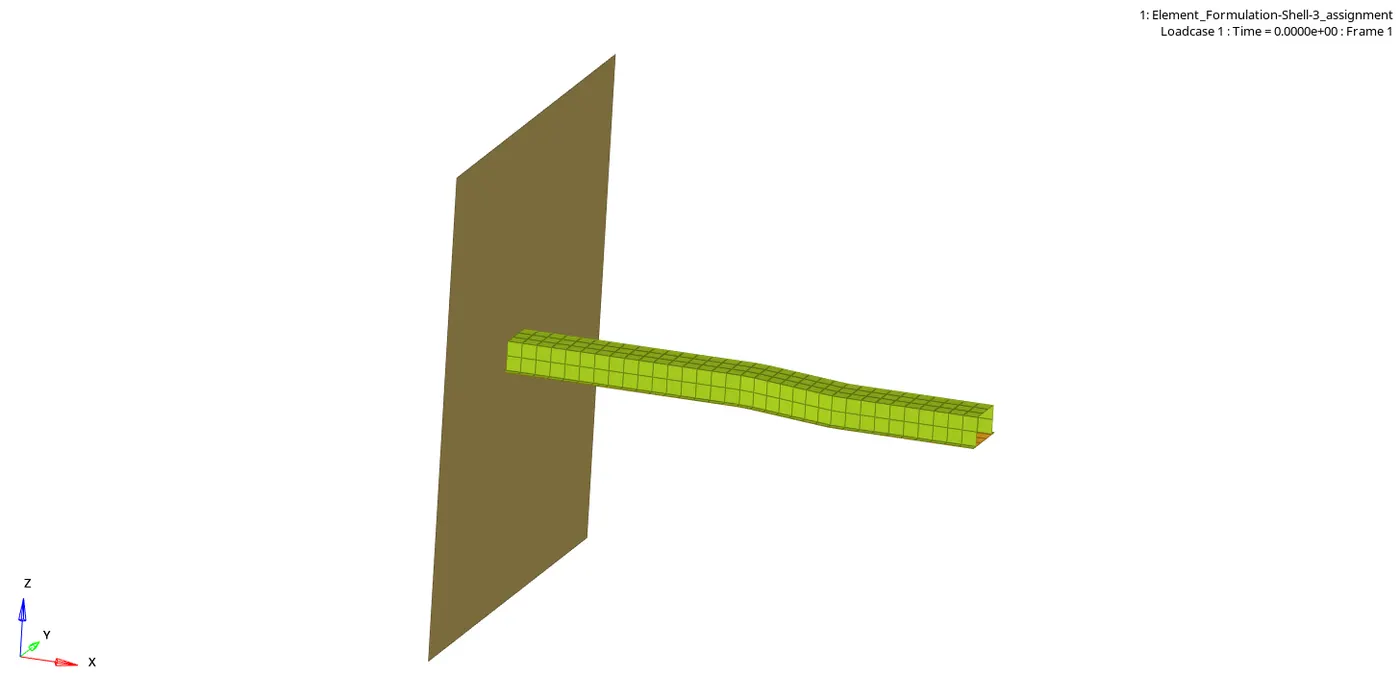
- After doing the 3d simulation the screen is split into 3 parts for viewing the results of the model in Graphical representation.
- The screen is split using the Page window layout option which is right below the preferences option in the total bar and chooses 3 layout pages.
- For viewing graph Hypergraph 2D option is chosen .this used to represent graphical form for the results.


For Rigid Wall:
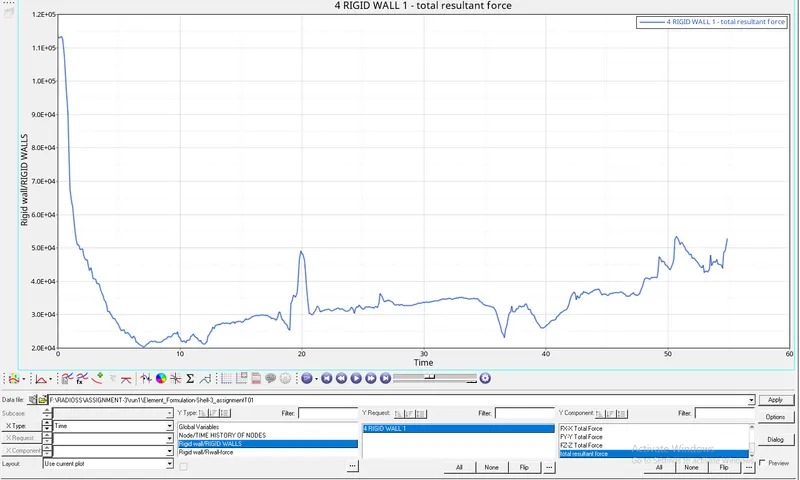
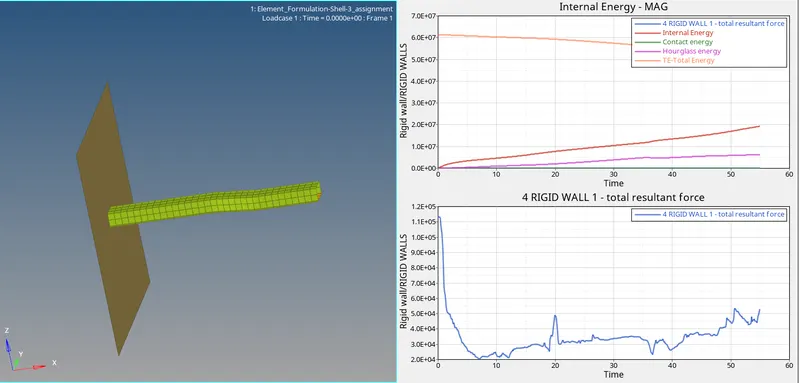
- Select a separate layout for rigid walls and energy for better understanding. For Rigidwalls select: Rigid walls> Rigid wall 1 > total resultant force and choose to apply.
- Since the bar is attached to the wall the energy starts from the point above 1.1E+05. due to sudden impact and the force starts decreasing.
For Global Variable:
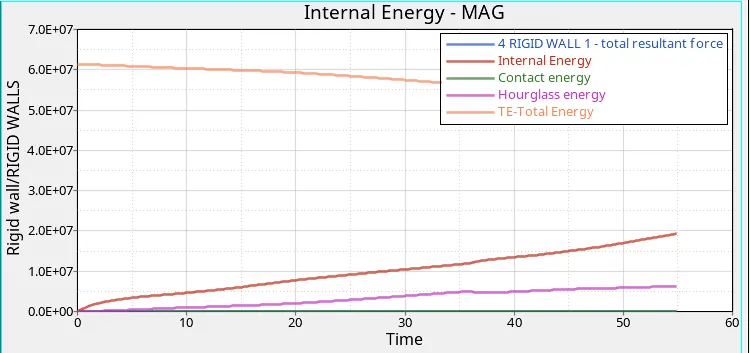
select the energies to be plotted and displayed in the graph sheet for energies Choose Global variables > Internal energy, kinetic energy, total energy, hourglass energy, contact energy> Mag and choose to apply.

GRAPHICAL DESCRIPTION:
- Using Hypergraph 2D, we plot Energy Characteristics (Internal, Hourglass, Contact, Total Energy)and Rigid wall characteristics (Resultant Force).
- The Internal energy was 0 initially, later it increases the change in work done, approximated 2.0E+07.
- The total energy is the sum of HE+IE, which should be a flat line, decreases due to hourglass energy deflection approximated to 5.5E+07
- Contact energy is found to be 0 Throughout the process.
CASE 2:
AIM:
To run the simulation in the given model with properties and compare the energy and plot graphs according to the Given Conditions.
GIVEN PARAMETERS :
Recommended Parameters are to be given as input, for the same components, in which input datas are,
| Parameters | Comment |
|
Ishell =24 |
QEPH 4 node shells are the best combination of cost and accuracy. |
|
Ismstr=2 |
Full geometric nonlinearities (default)with possible small strain formulation activation in RADIOSS Engine. |
|
Ish3n=2 |
Standard 3 noded shell (C0)with modification for large rotation(default) |
| N=5 | A number of integration points set to 5 for accuracy bending. |
|
Ithick=1 |
Thickness change is taken into account for accuracy. |
|
Iplas=1 |
Iterative plasticity for good accuracy. |
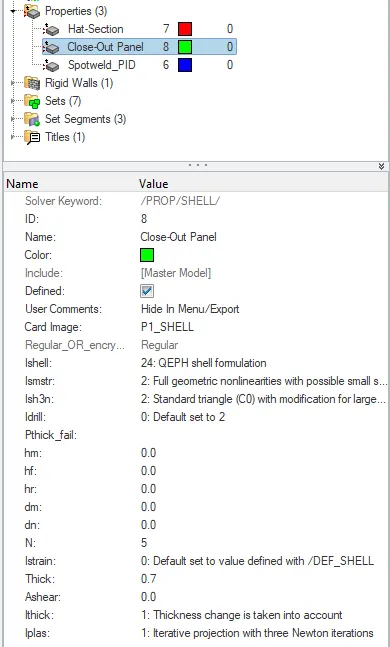
- Same properties are used for both Hat Section and closed out panel and same procedure is to be followed on analysis done on the previous model.
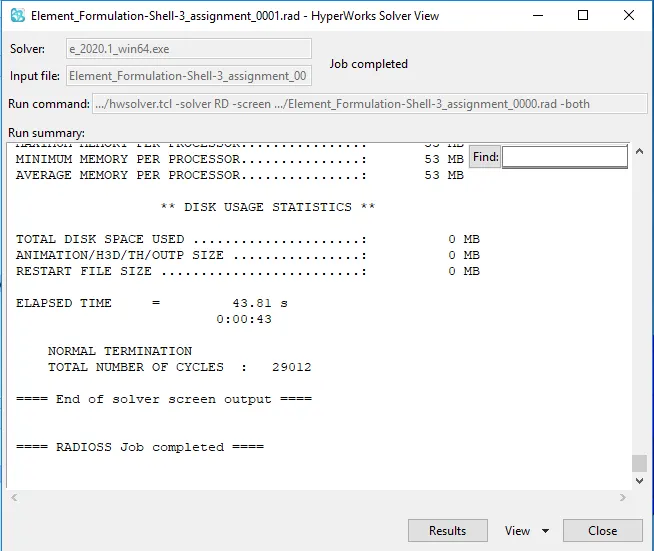

- From the Output file its clear that the Energy Error = -0.1% and Mass Error =0.1659E-03
- Click on Results, to view an animated view of the model which is loaded with properties.
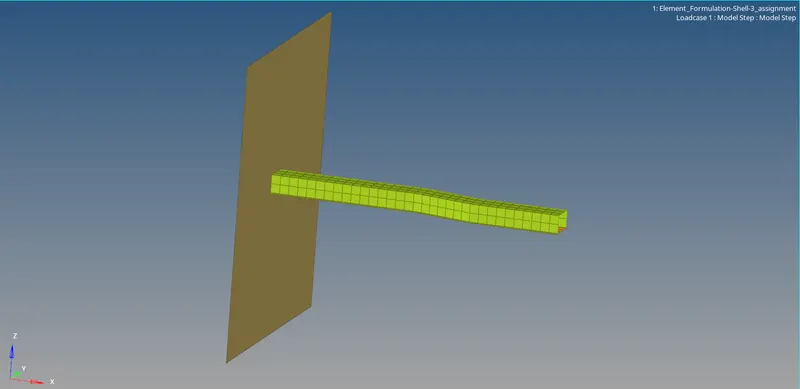
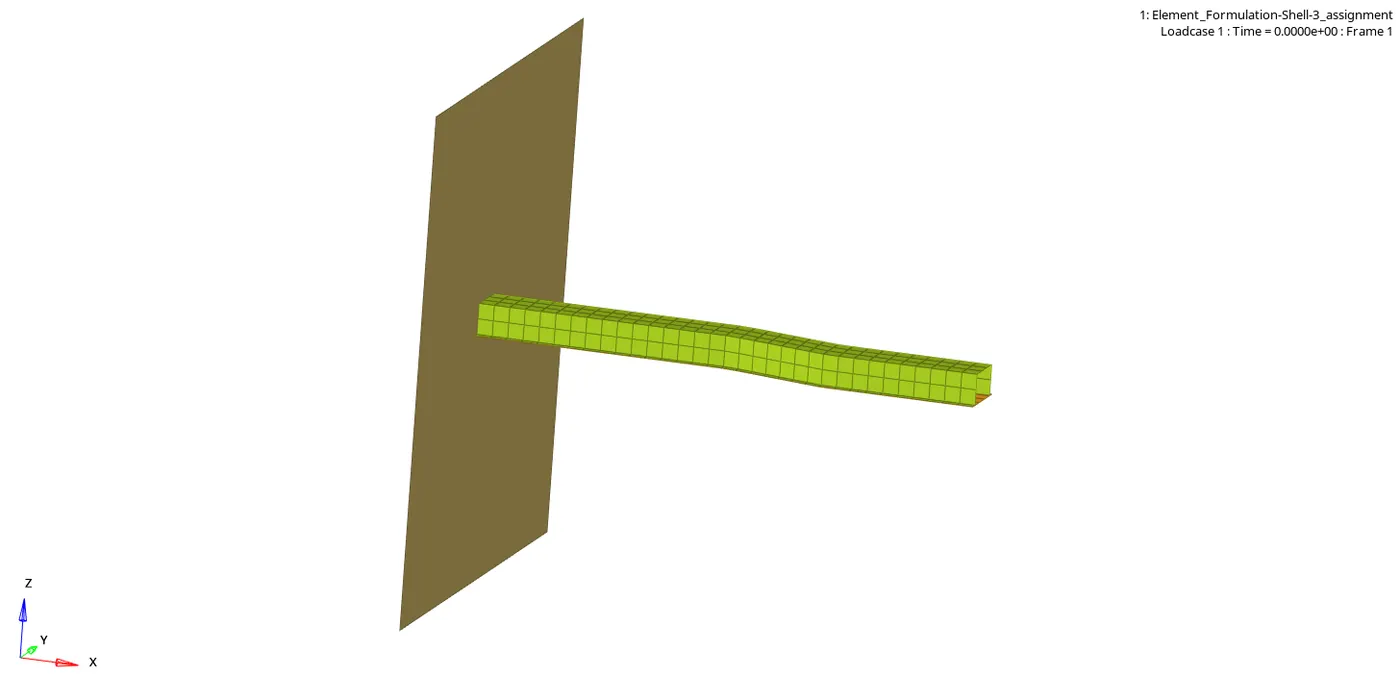
- As Done Above Split the screen layout using page window layout option for graphical representation. select hypergraph 2D option
- Select an layout and import the graph from TO1 FILE in case 2 with properties folder this time.
- Give the boundary conditions for rigid walls as same as the process done above.
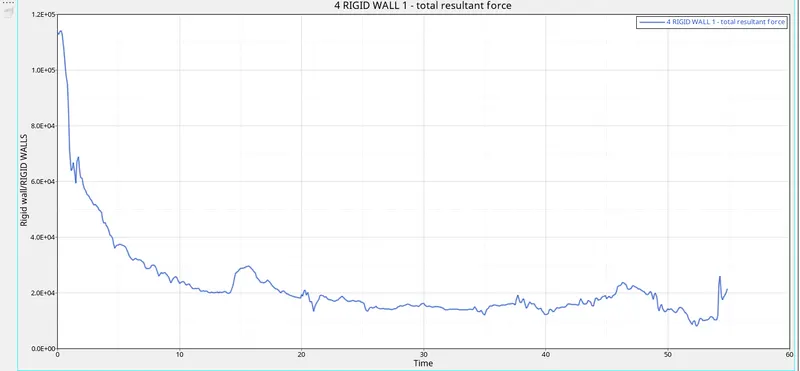
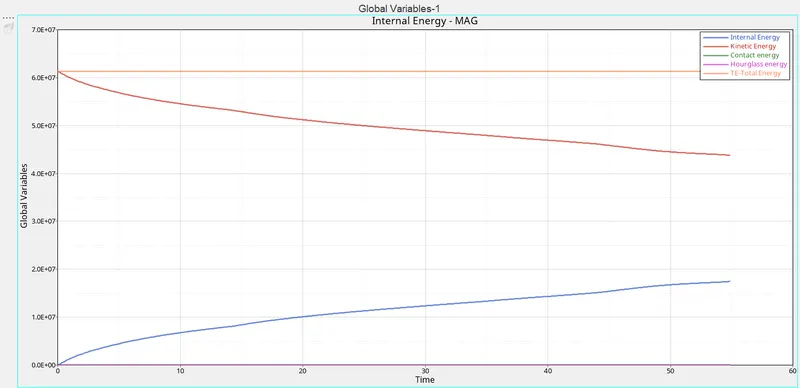
For energy choose to select all the energy to be plotted and give the magnitude:
GRAPH DESCRIPTION:
- Using Hypergraph 2D, we plot Energy Characteristics (Internal, Hourglass, Contact, Total Energy)and Rigid wall characteristics (Resultant Force)
- The Internal energy was 0 initially, later it increases change in work done, approximated 1.7E+07
- kinetic energy is maximum at the initial condition, after crashing in the rigid wall, it slows down and 4.4E+04
- The total energy is the sum of PE+IE, which is a flat line, due to optimization of hourglass energy in modified element property found to be stable.
- Contact energy is found to be 0 Throughout the process.
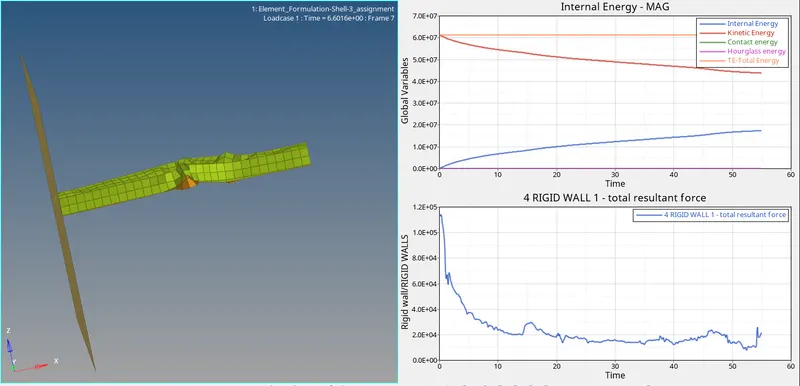
COMPARISON OF DATAs PROCESSED WITHOUT AND AFTER MODIFICATION:
- From the result, we can we that -10.3 of error % in the element and a mass error percentage of 0.1659E-03, and when the property of the element is changed then it is -0.1% and the mass error percentage is 0.1659E-03 from this we can say that there is a reduction the error percentage.
- The internal energy is 0.1932E+08 and after the change in the property, the internal energy is 0.1750E+08. The internal energy has gradually reduced over time.
- The kinetic energy is 0.3563E+08 and after the changes in the property, the internal energy is 0.4376E+08. The kinetic energy has increased.
- The total energy is 5.50E+07 and after the changes the internal energy is 6.13E+07. The total energy has increased gradually.
Hourglass energy:
- Reduced integration can lead to a non-physical zero-energy mode called hourglass modes.
- The normal value of hourglass energy is 10% to 15% of total energy when using integrated elements.
- To avoid the hourglass we must set the recommended parameters for the property definition like HEPH for solid elements and QEPH for shell elements.
There are two methods for controlling the hourglass (ie):
1.Hourglass Perturbation (Viscous) Control method:
- Hourglass deformation is detected with the relative motion of the nodes.
- When hourglassing is detected, a force is applied to the node to stabilize the deformation.
- This force introduced is artificial energy to make the system stable.
2.Stiffness method:
- Hourglass yield depends on natural yield.
- Hourglass loading stiffness depends on the natural tangent modulus.
- The hourglass treatment is done at the material level.
Energy Error: When the elements are subjected to deformation, there will be multiple forces acting on the elements, the elements will undergo a change in shape, which is unrealistic, without proper shape, in which system induces some opposition forces to rectify the deformation that is induced by hourglass energy, is known as Energy error. If the error percentage is between -10% to -15%, then it is considered to be the creation of energy.
MASS ERROR: When there is an energy error affecting the elements, the solver usually adds up or removes mass according to the requirement involuntarily, which caused a mass error. Usually, mass error up to 2-3% is considered to be acceptable.
Result:
Ishell=24 ( Recommended shell property for crash applications) is used, stiffness method is implied to control the hourglass effect. therefore there is no or minimal hourglass effect is found in the second model, which is found to be more accurate.