Assignment 2-RADIOSS Engine File Editing & 3D Meshing Challenge
Objective:
1. Check the material properties of the rail component and calculate the speed of sound in steel rail=_______
2. The length of the rail is about 1000 mm.calculate the time takes for a shock wave to travel from one end of the rail to the other.
3.Time for sound to travel length of rail=______
4.Edit the engine file so that the stress wave can be monitored, moving from one end of the rail to the other during impact -this will require a termination time equal to the time it takes for the sound to travel the length of the rail(set on/RUN card)
5.Set the frequency of animation output to a time that will give 20 animation steps(/ANIM/DT)
6.Change /print -10.
7.3d meshing tetra mesh and hex mesh
- Repeat class examples and, maintain the quality.
- Target tet size=5mm,hex size=10mm,tet collapse=0.15.
Procedure:
Engine File Editing:
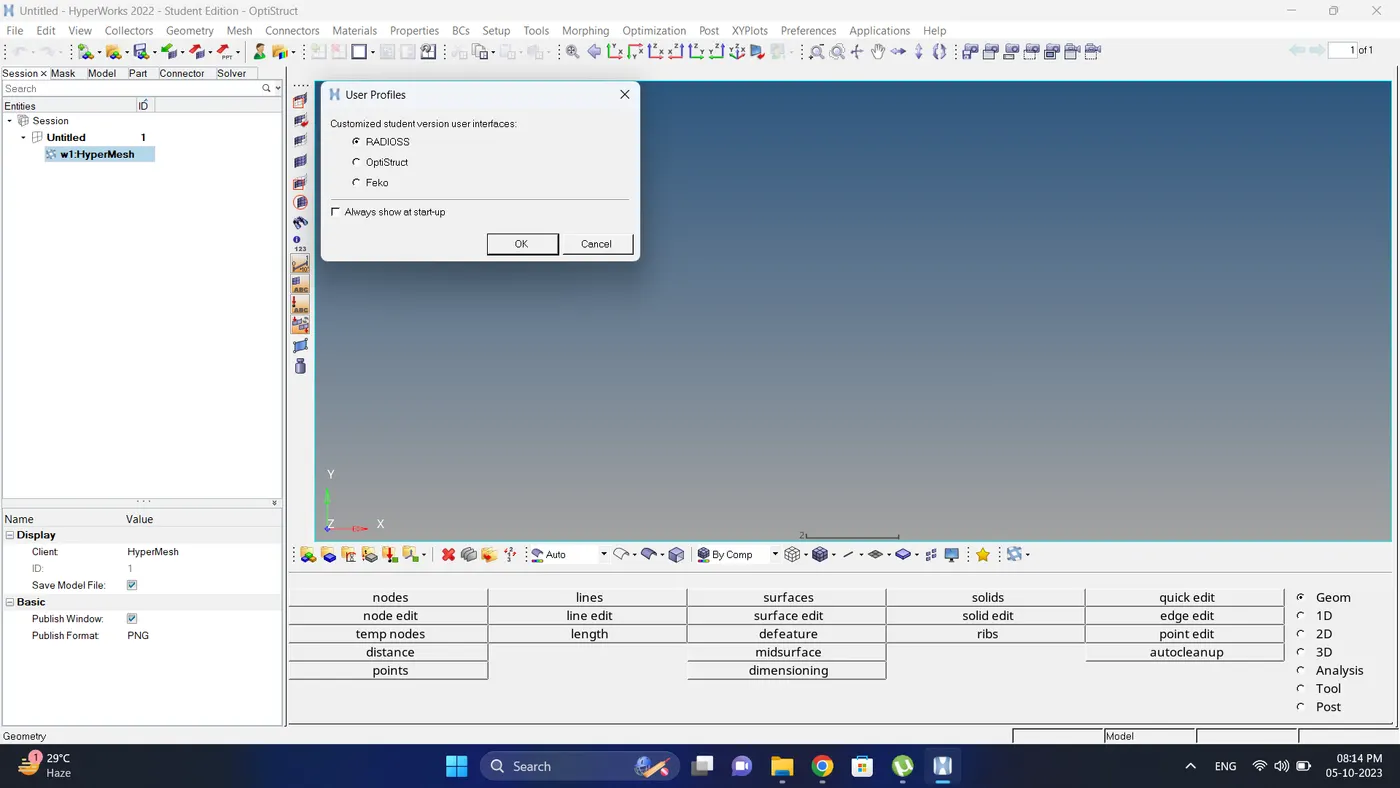
1. Open Hypermesh in RADIOSS user profile and open solver deck.
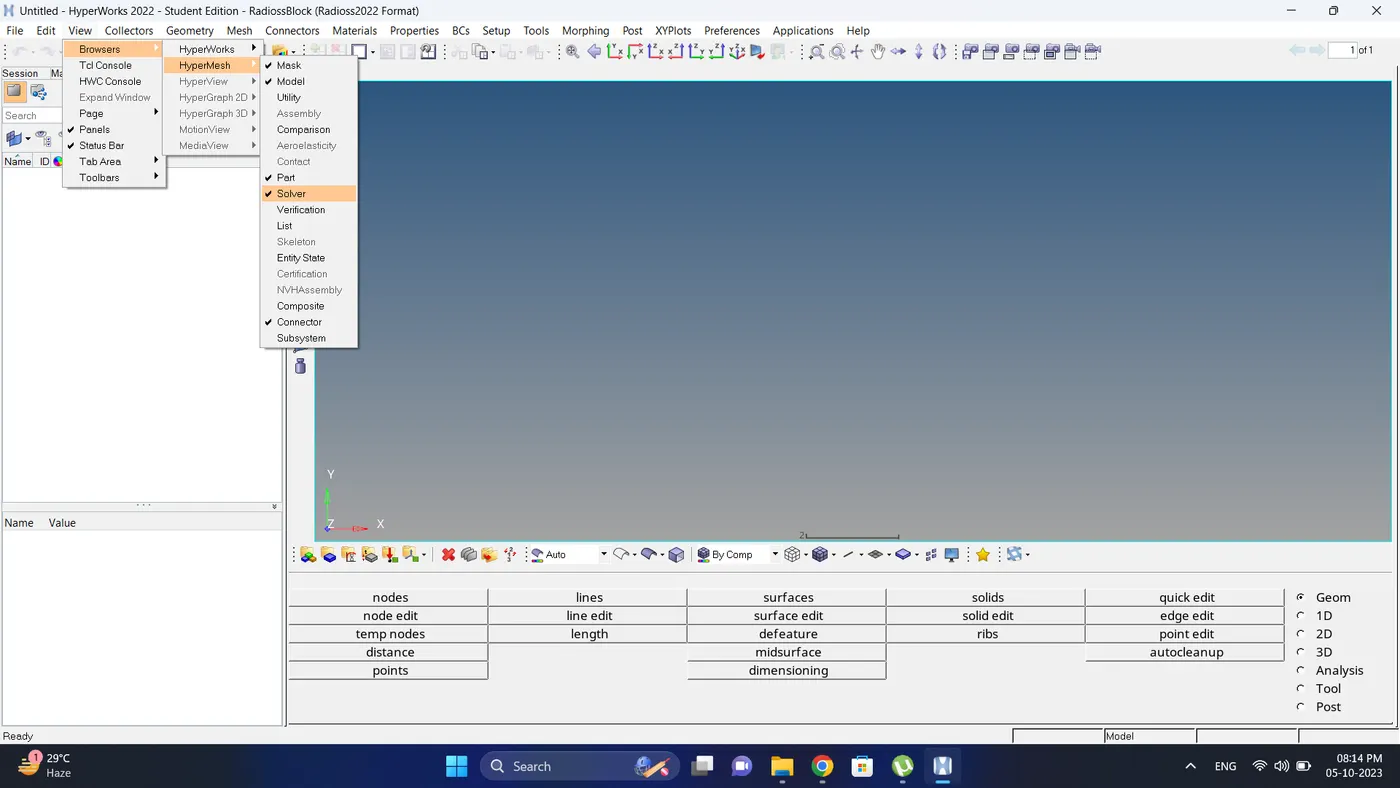
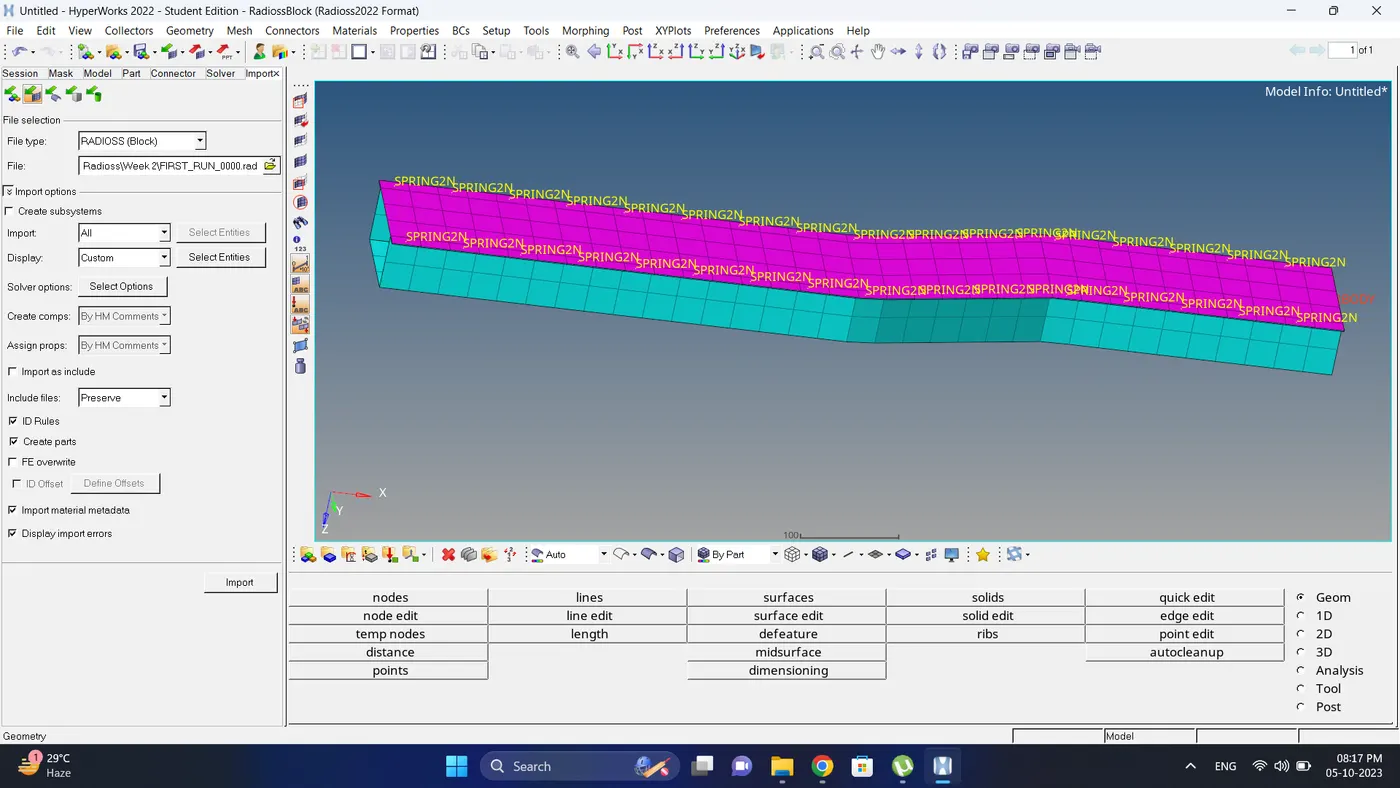
2. Import the FIRST_RUN_0000.rad file.
3. To check the material properties of the Rail component.
Go to the Model browser - Expand Materials - Click on the steel (Material) and all the properties are shown.
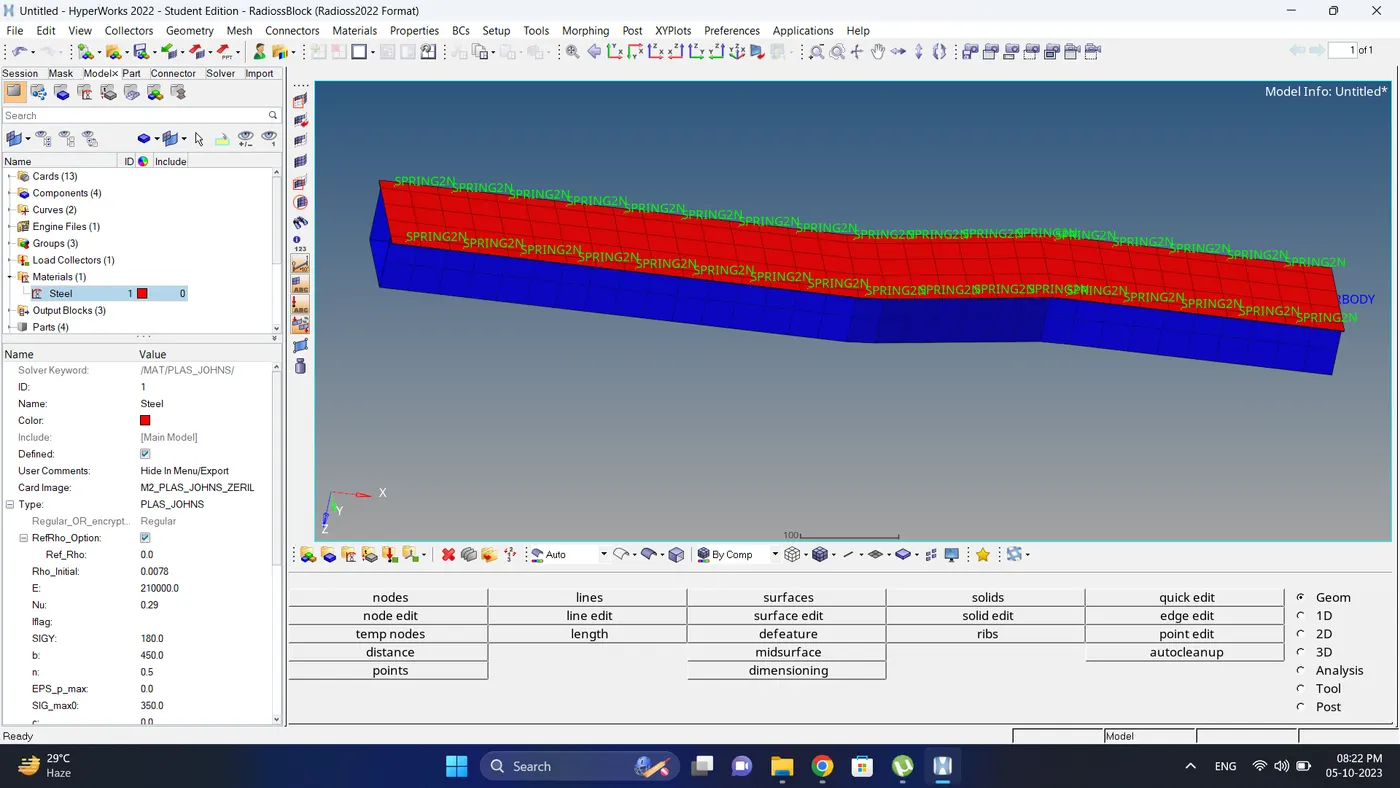
4. To find the value of speed of sound (c) is equal to the ratio of Square root of Young's modulus (E) to the Density (Rho).
Get the value of Young's modulus (E) and Density (Rho) from the property card.
Therefore the speed of the sound is 5188.74 mm/ms.
5. To calculate the time taken to travel a shock wave from one end of the to the other is caluclated using formula is Elemental time step is equal to the ratio of length of element to the speed of sound.
Time taken to the shock wave = Length of element / speed of sound = 1000 / 5188.74
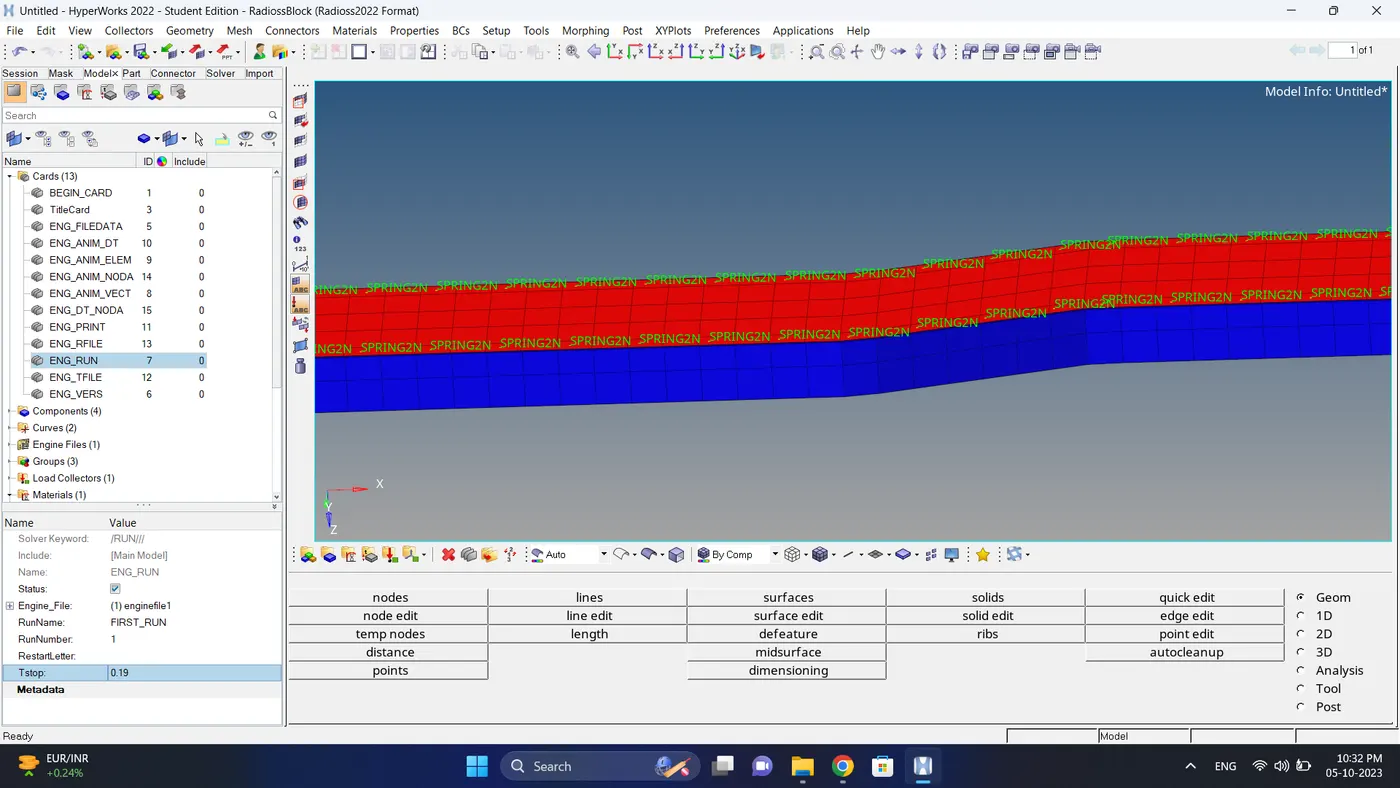
Therefore, Time taken to travel a shock wave is 0.19 ms.
6. Time for sound to travel length of the rail = Time taken to travel a shock wave
Therefore, Time for sound to travel length of the rail is 0.19 ms.
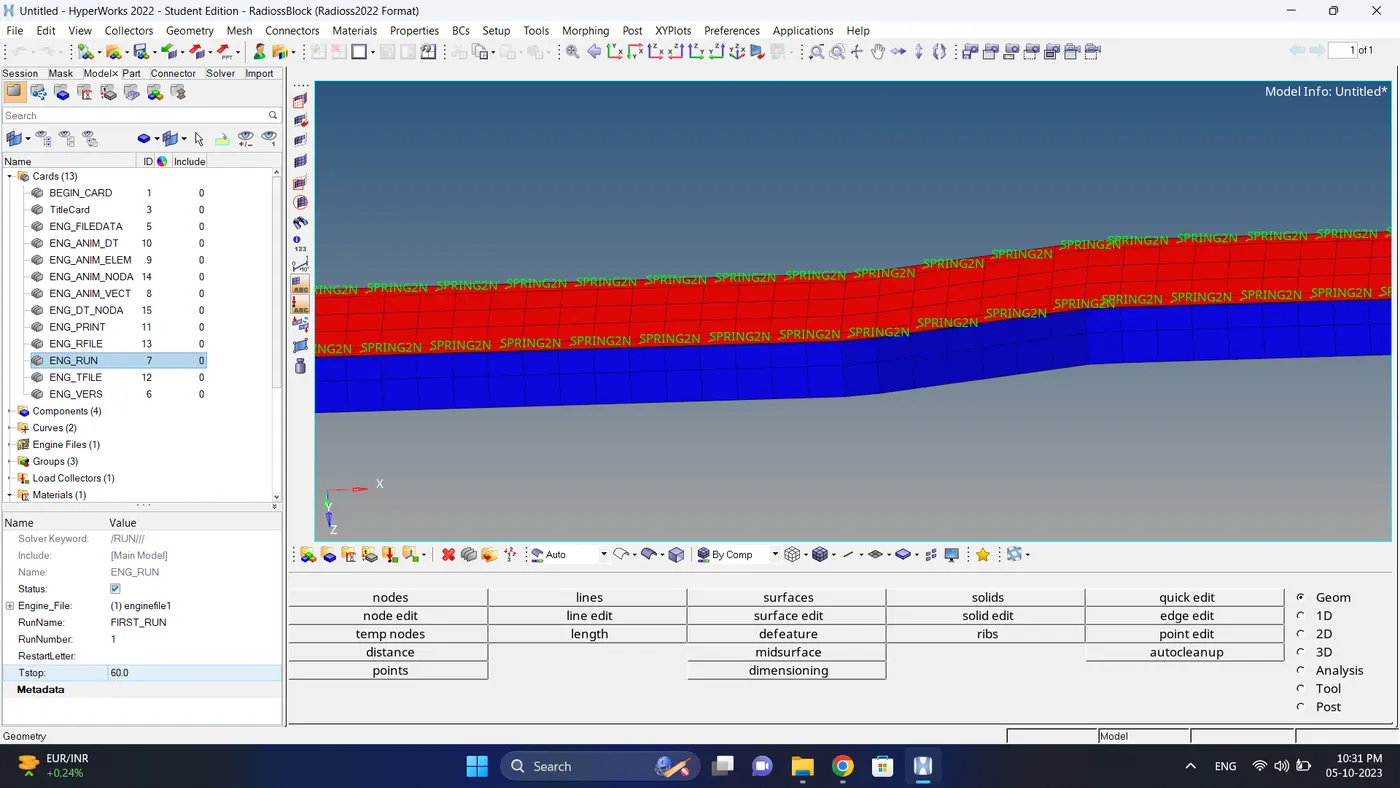
7. To edit termination time go to the hypermesh model browser - Expand Cards - Click ENG_RUN - Change Tstop value to Time taken by stress wave.
Time taken by stress wave = Time taken to travel a shock wave = 0.19ms.
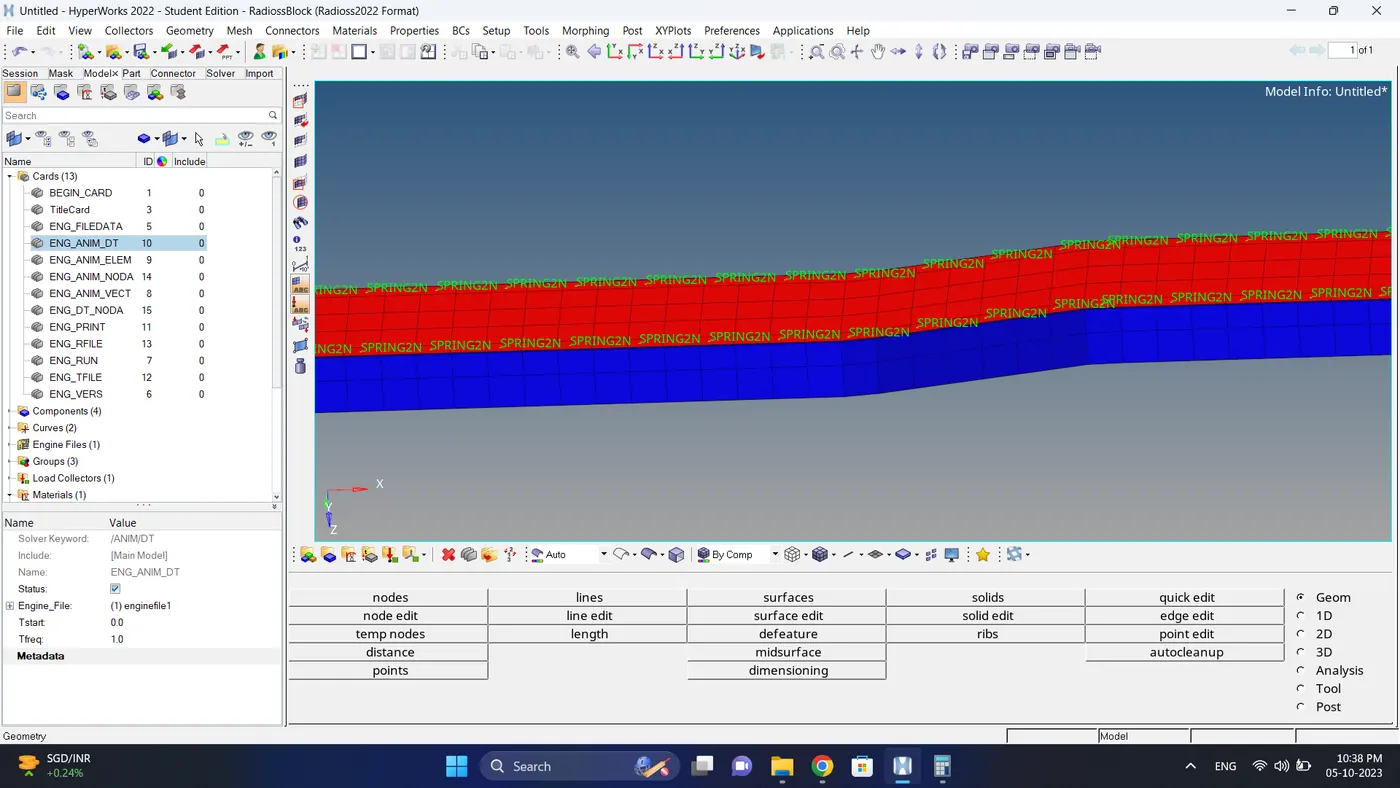
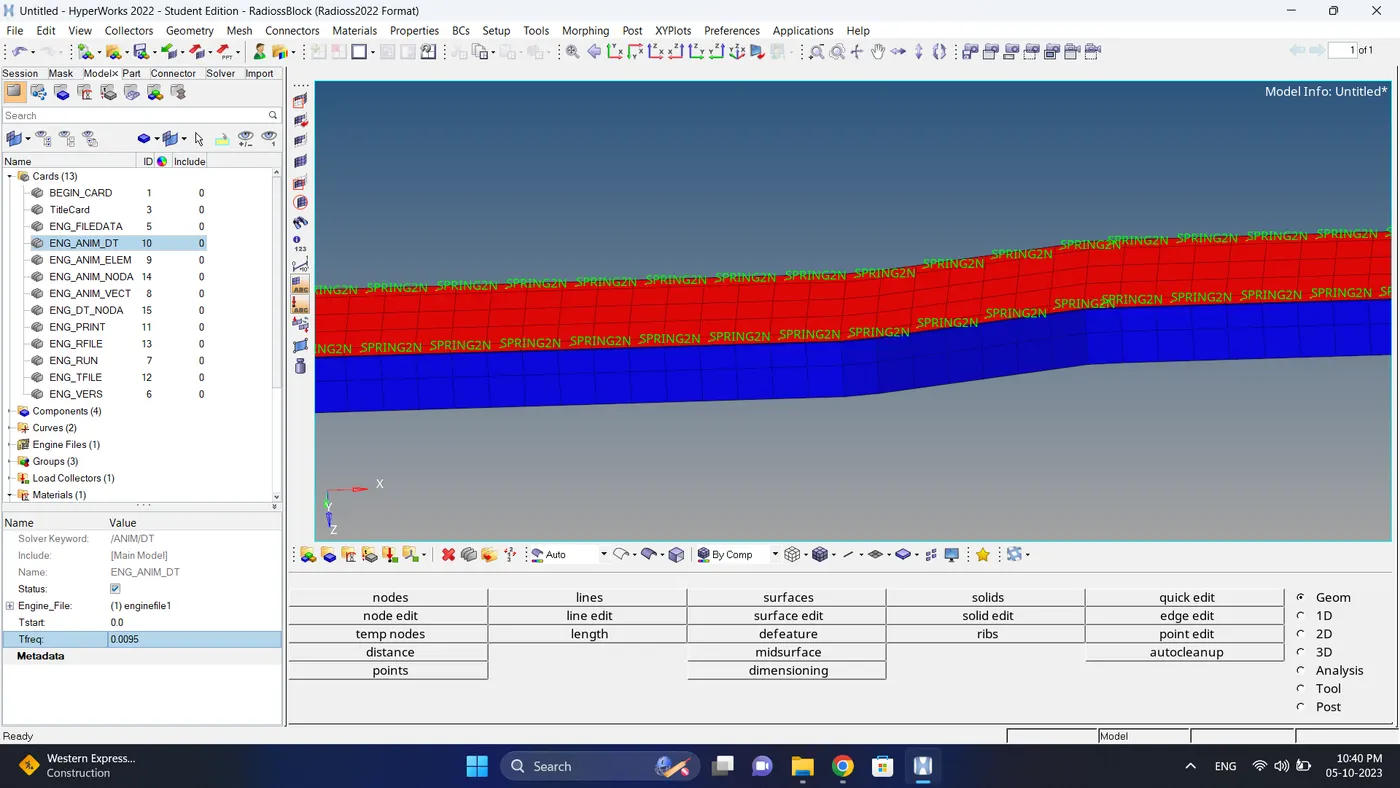
8. To set the frequency by animation output to a time that will give 20 animation steps. i.e. T freq = 0.19 / 20 = 0.0095.
Go to the Hypermesh Model browser - Expand Cards - Click ENG_ANIM_DT - Change T freq value to 0.0095.
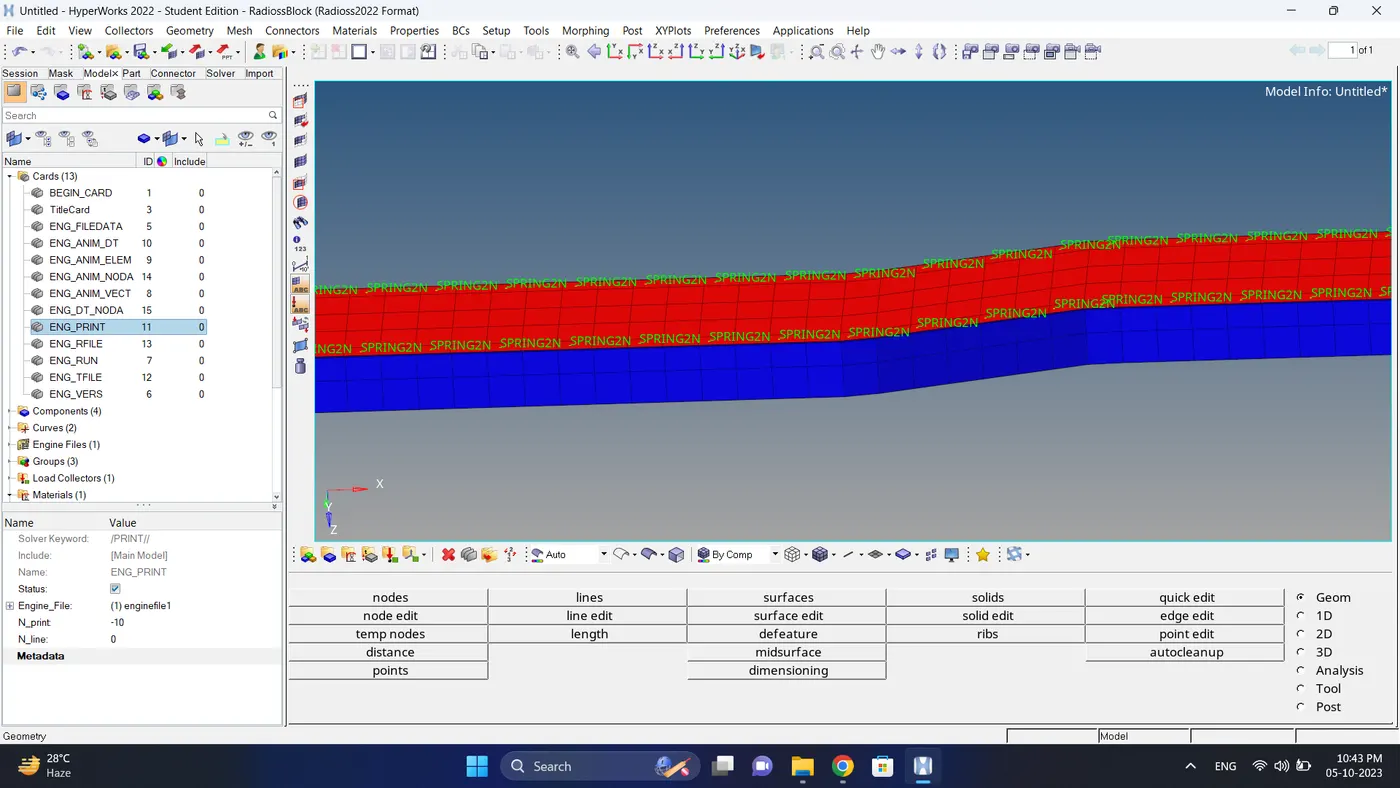
9. To change /print -10 go to Hypermesh Model Browser - Expand Cards - Click ENG_PRINT - Change N_print to -10.
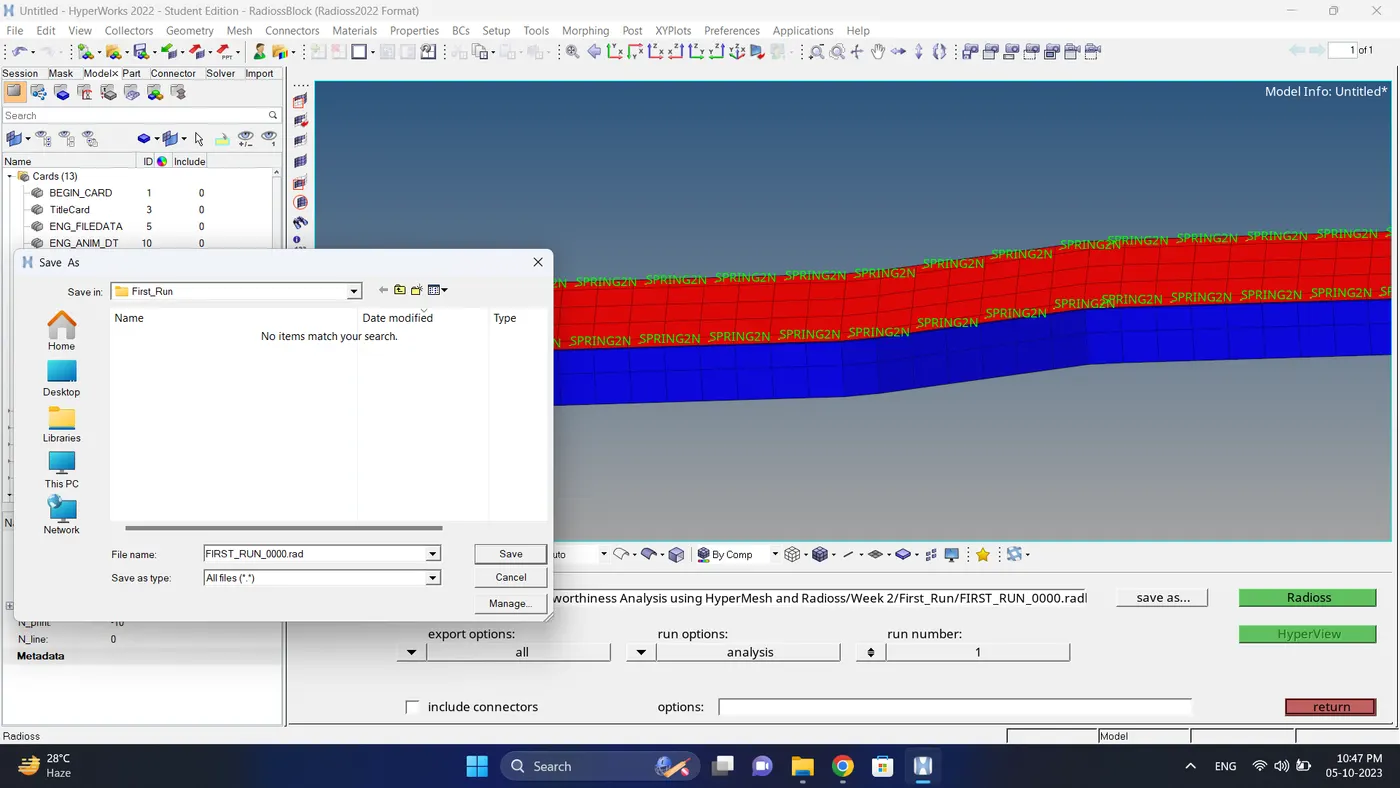
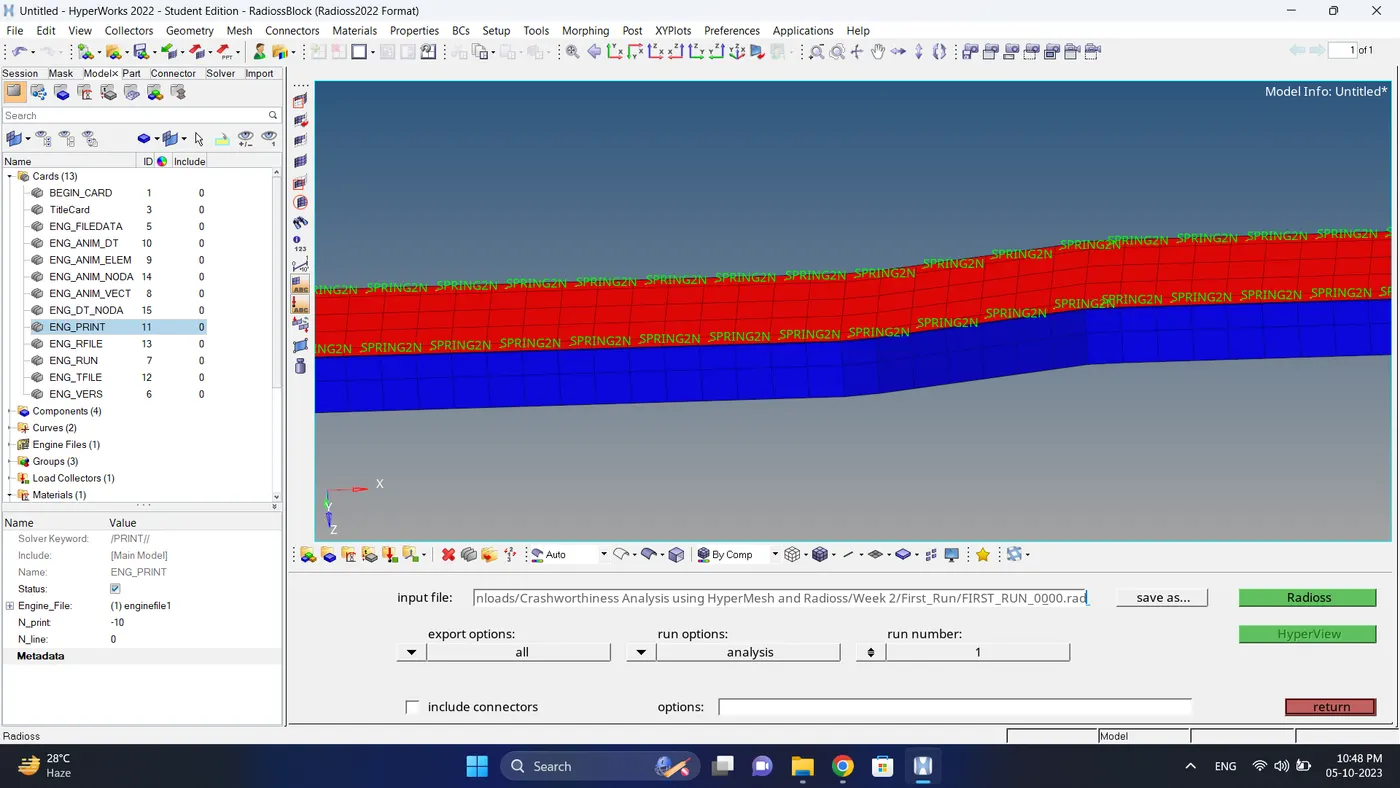
10. Go to the Analysis - RADIOSS - Click on Save as - Rename the File name and at the end type .rad - save the file on selected destination - Click on the RADIOSS
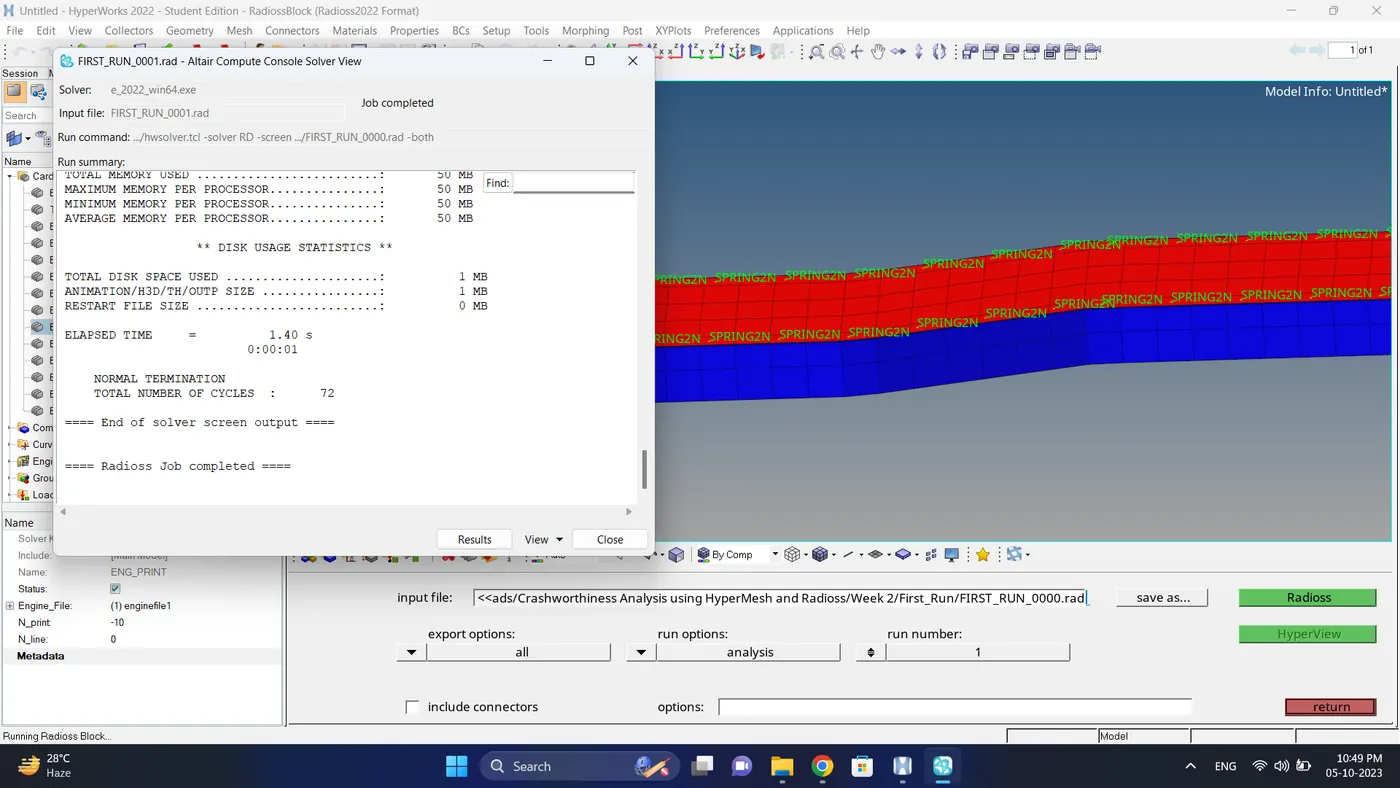
11. One diaglogue box will pop up for the Altair Compute Console Solver View and Editing of the RADIOSS engine file is done successfully.
3D Meshing.
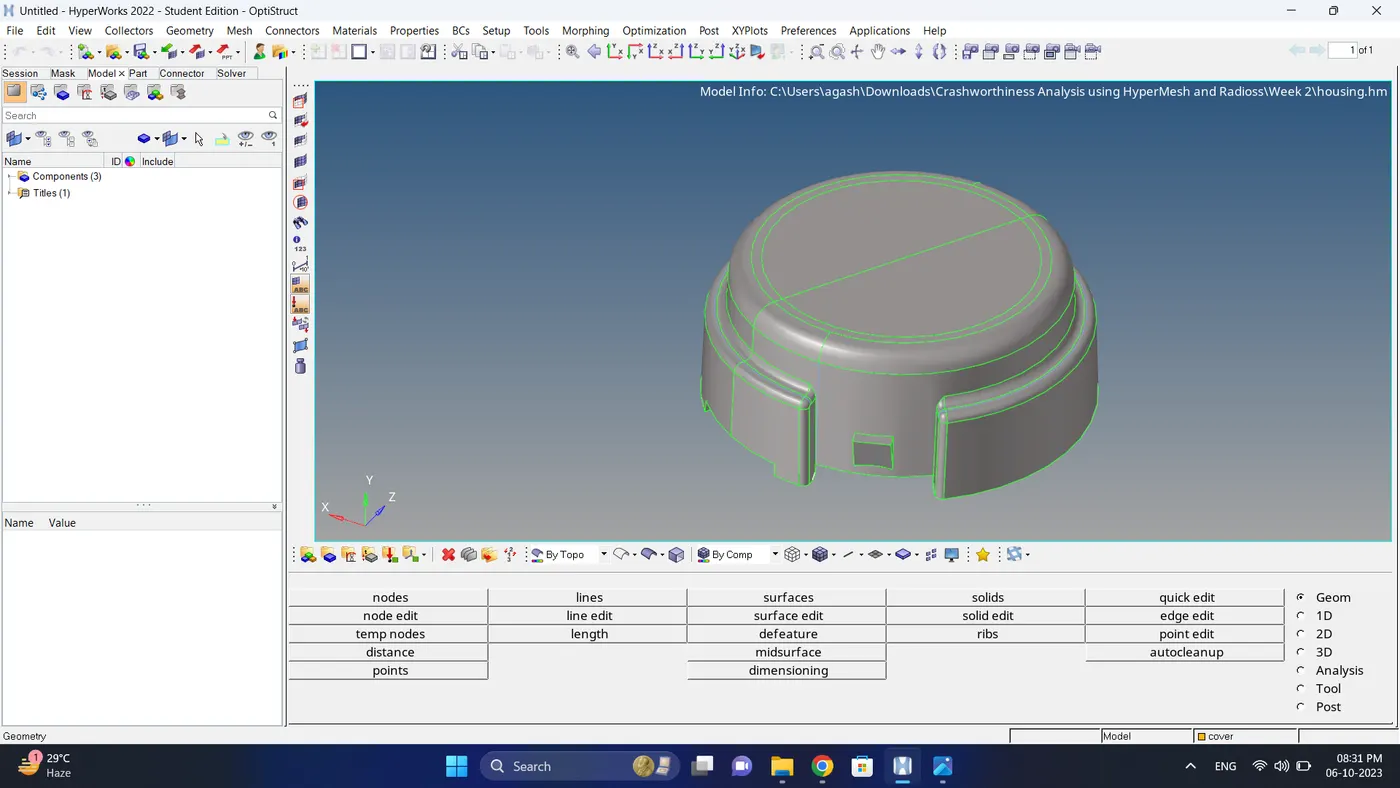
1. Open the housing file in the hypermesh.
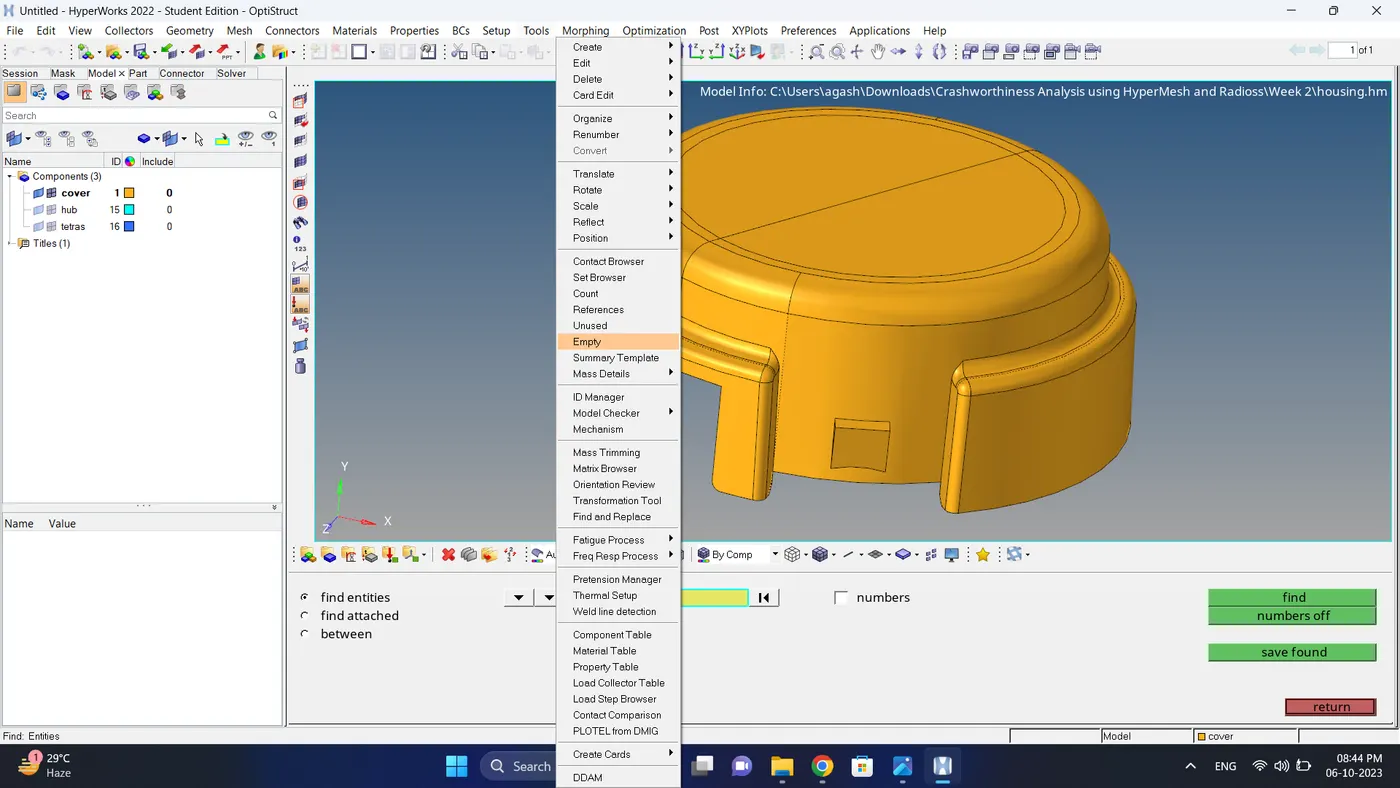
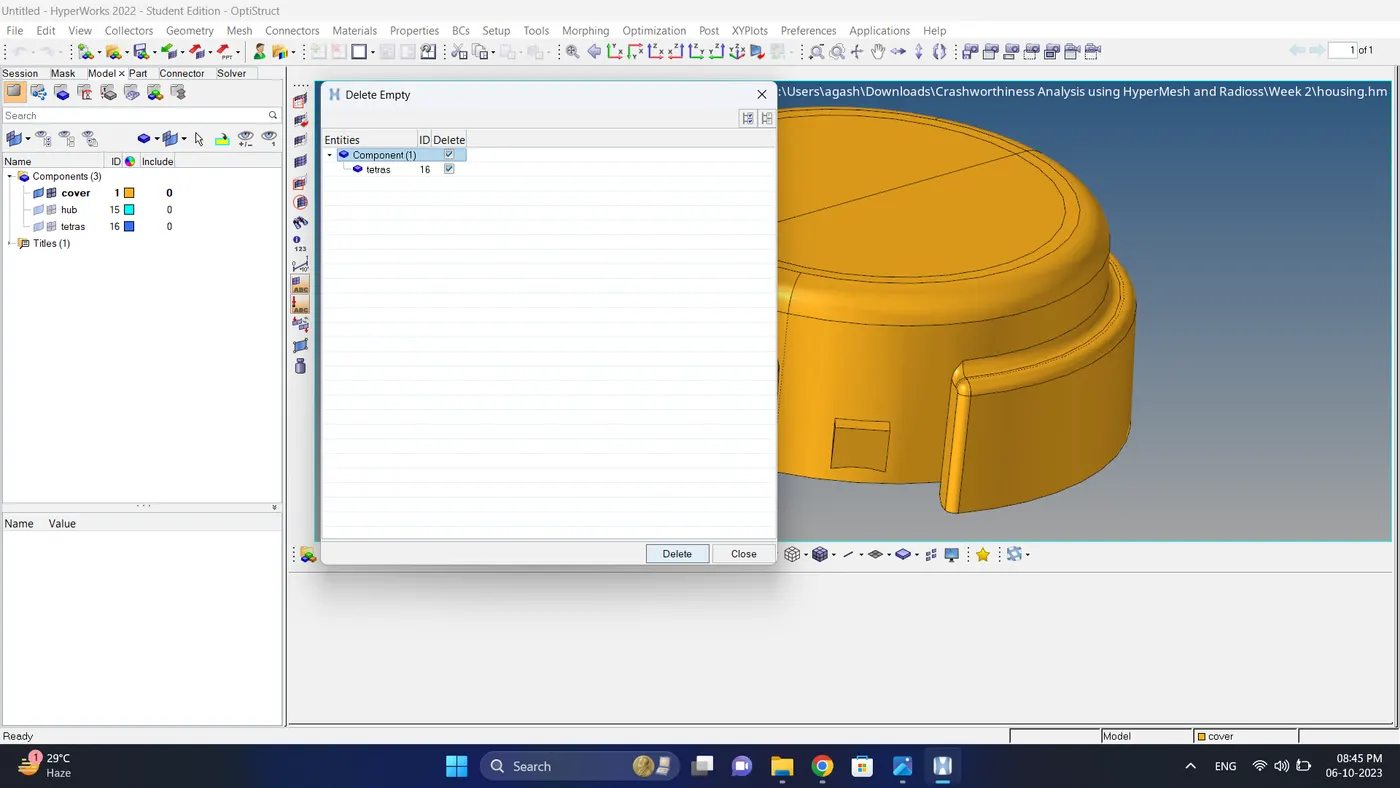
2. Delete the empty component.
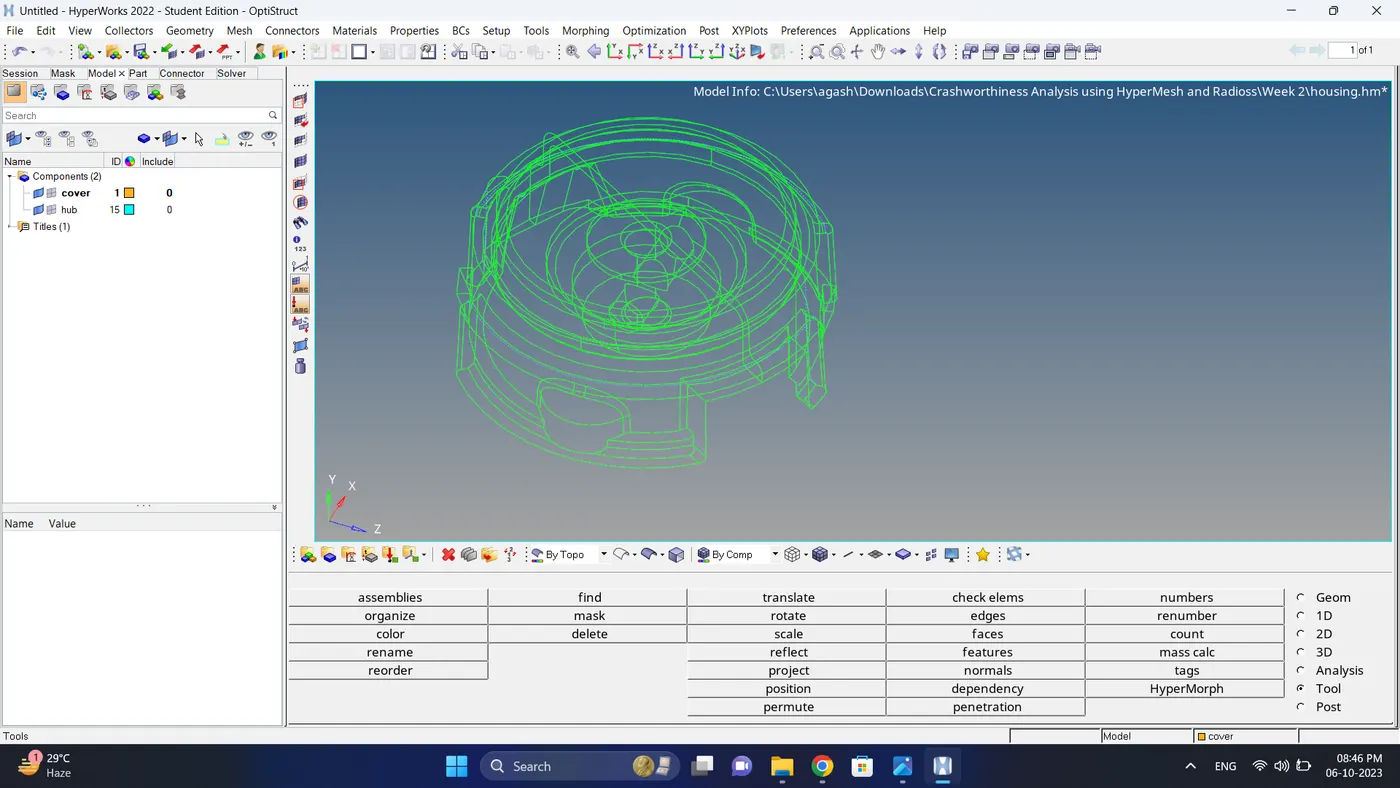
3. Check the Geometry.
If geometry are not proper fix it.
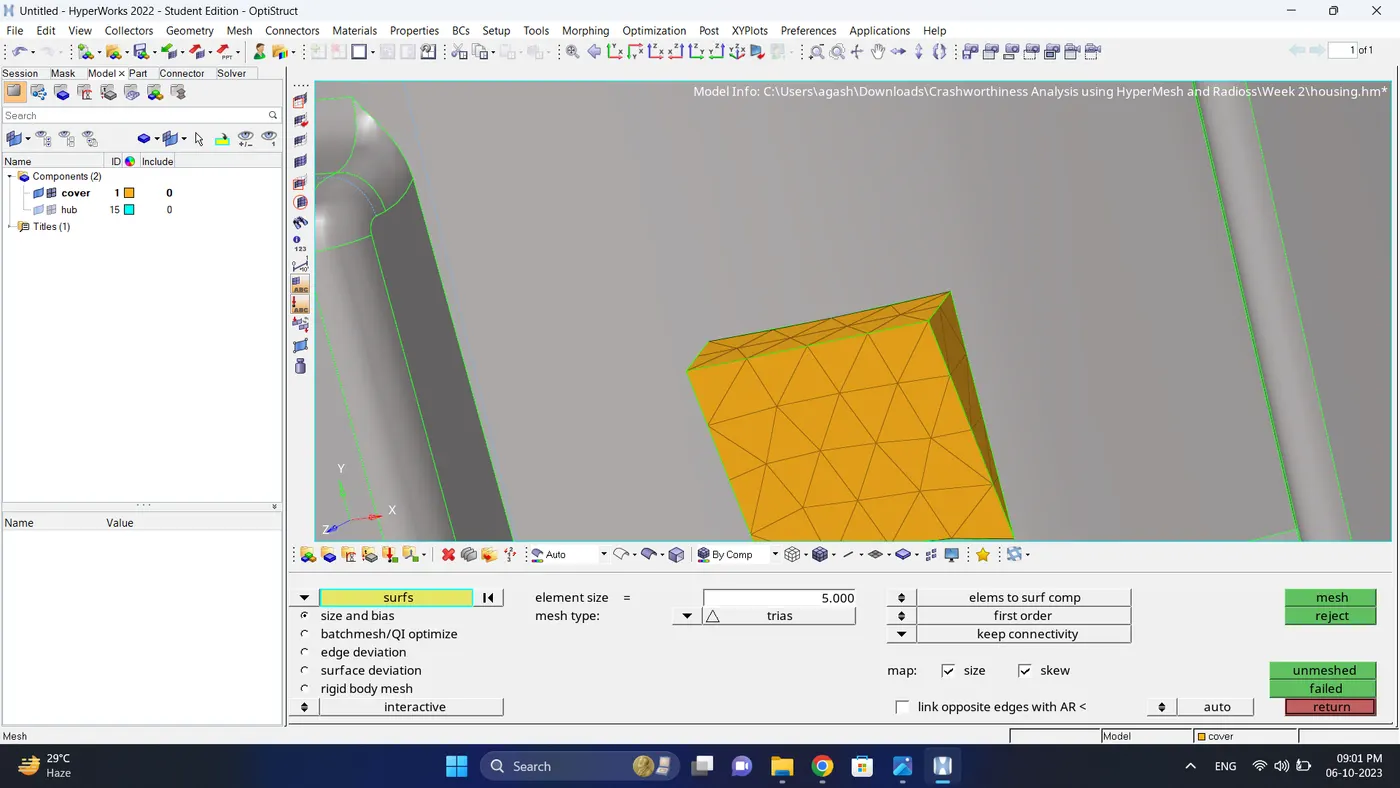
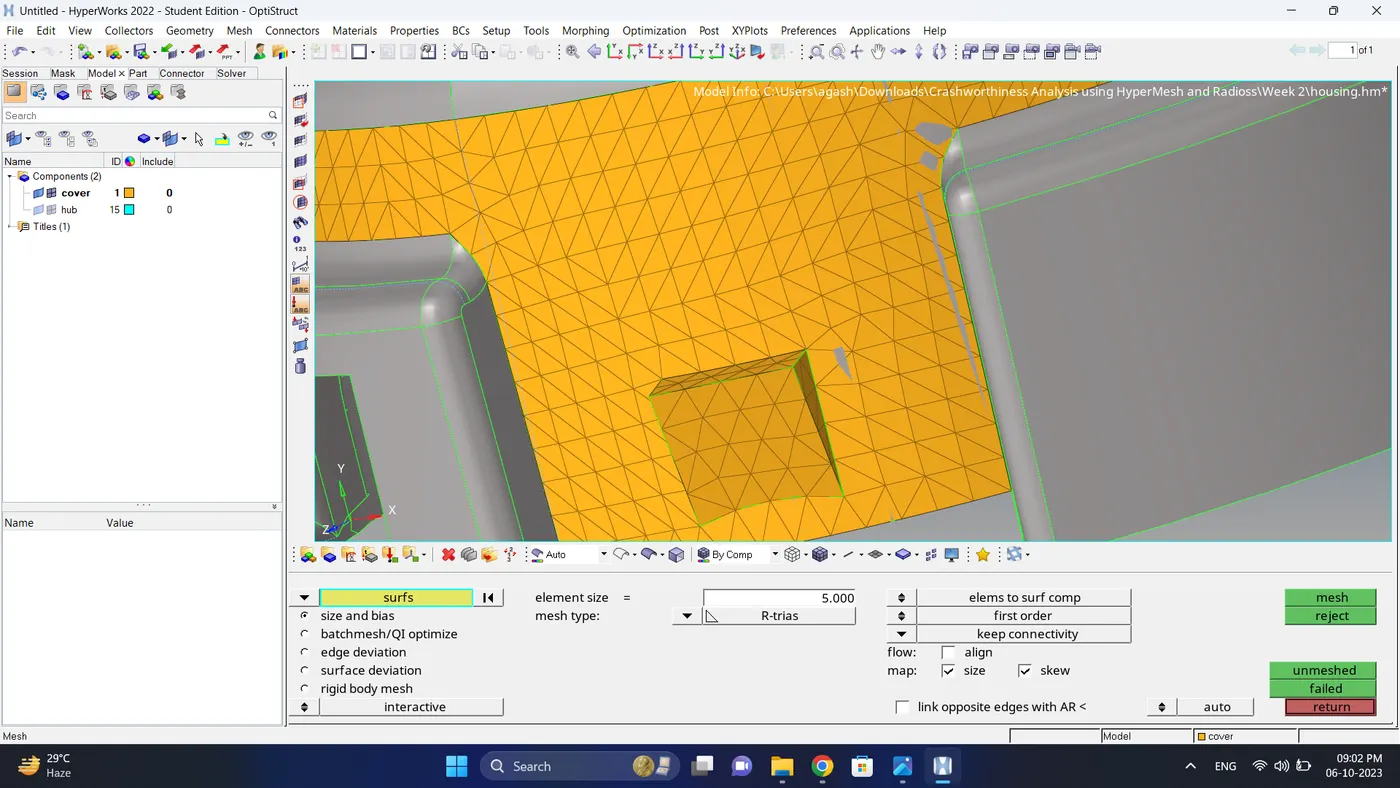
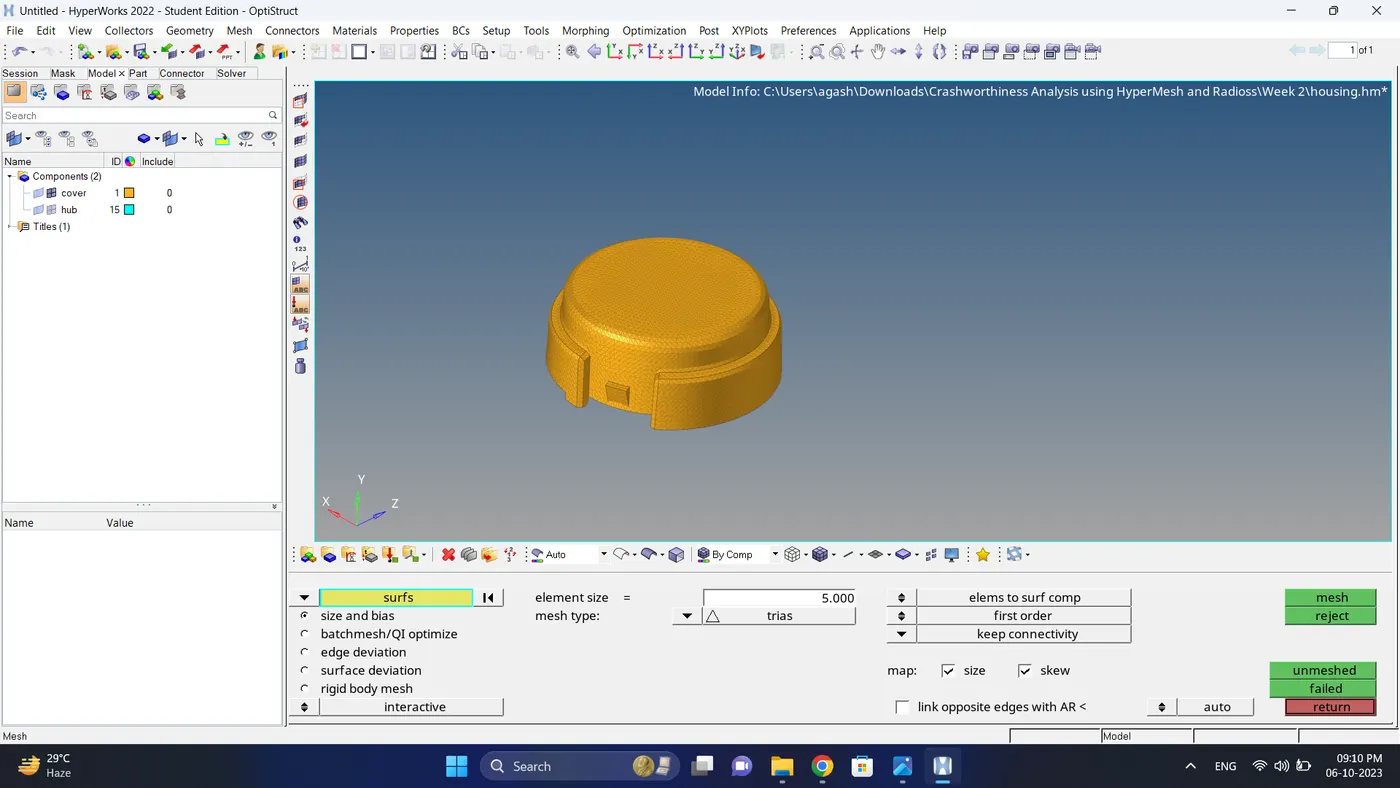
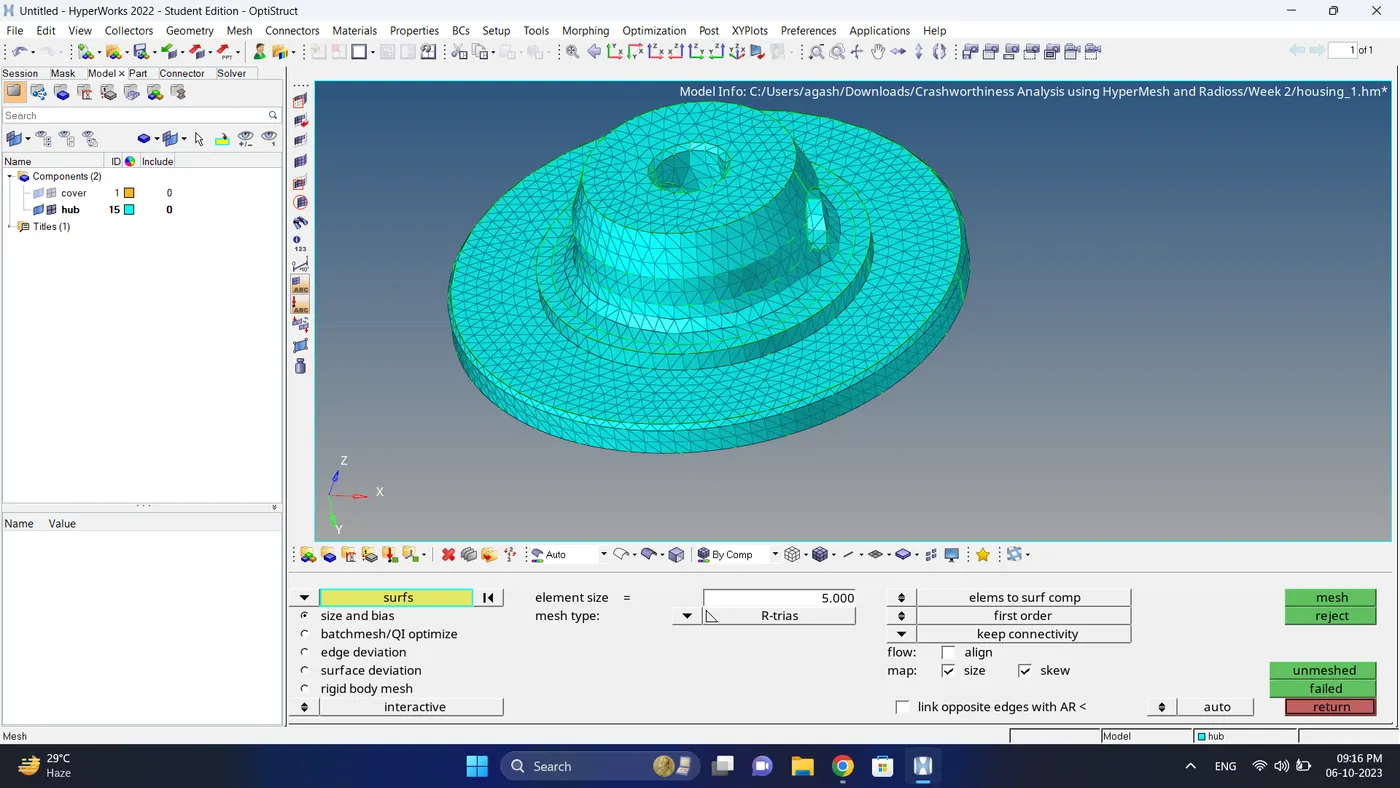
4. Mesh the component cover and hub with 2d meshing. For flat area use trias element and for curve area using R-trias element.
5. Check if there are edges present in mesh go to Tool - edges.
note: if edges are present fix them.
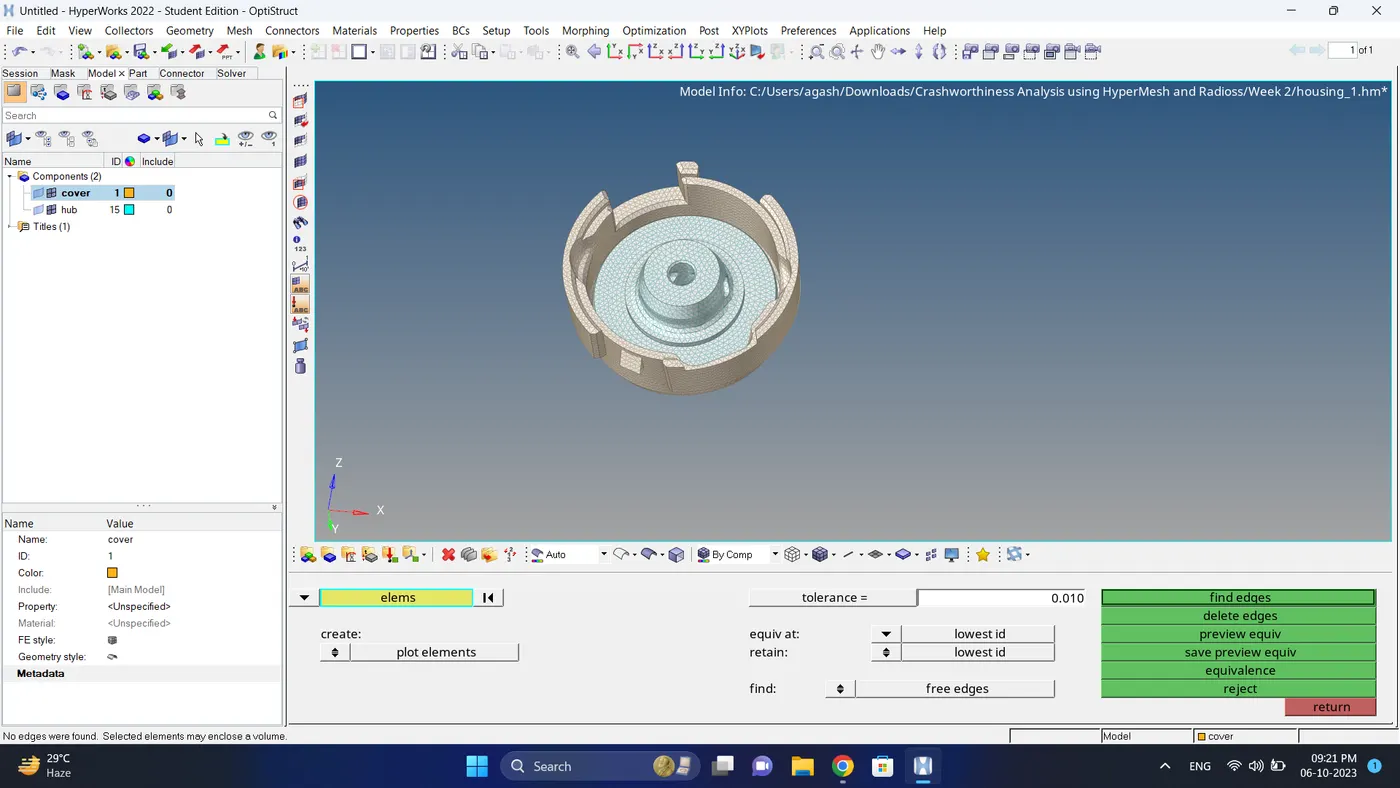
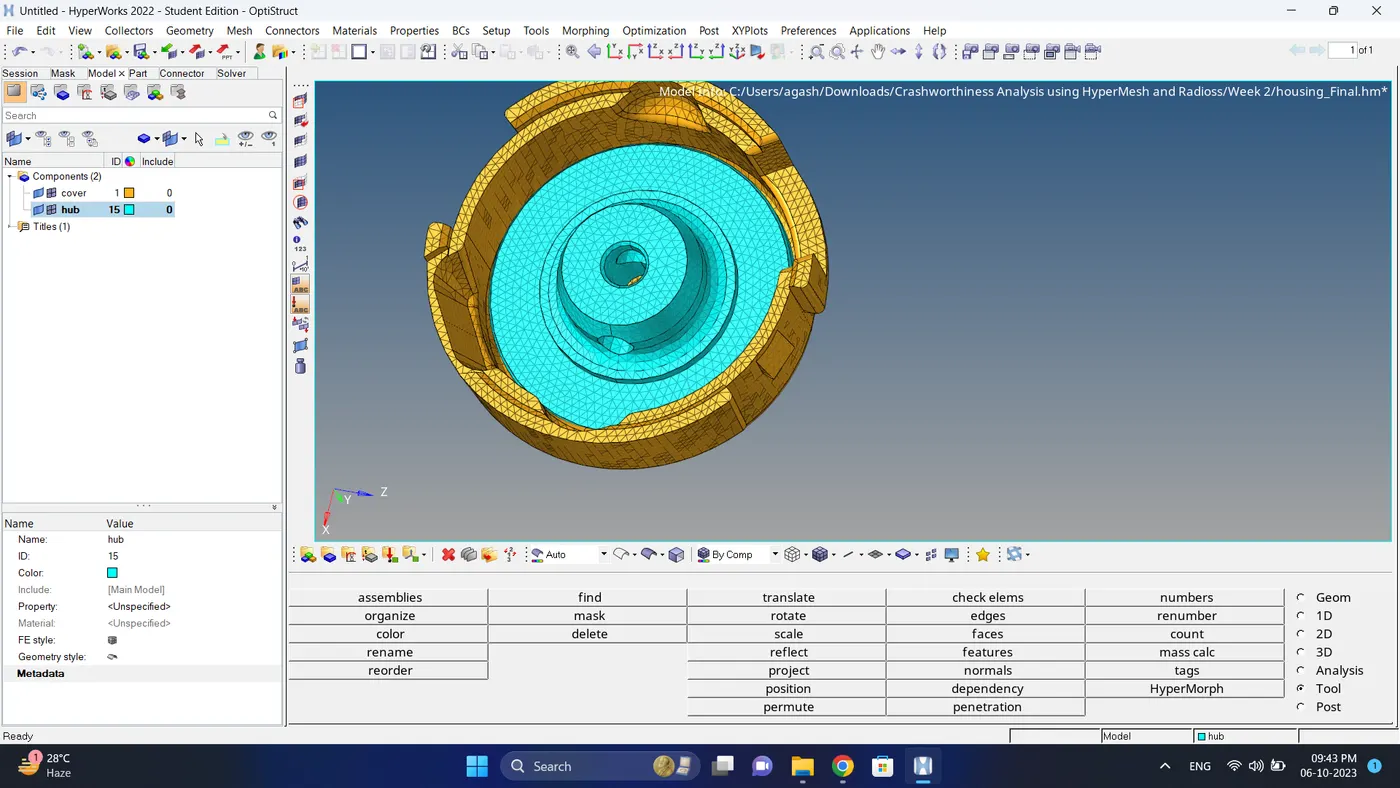
6. To convert the 2D mesh into 3D mesh go to the 3D - Tetramesh - select element/component and click on Mesh.
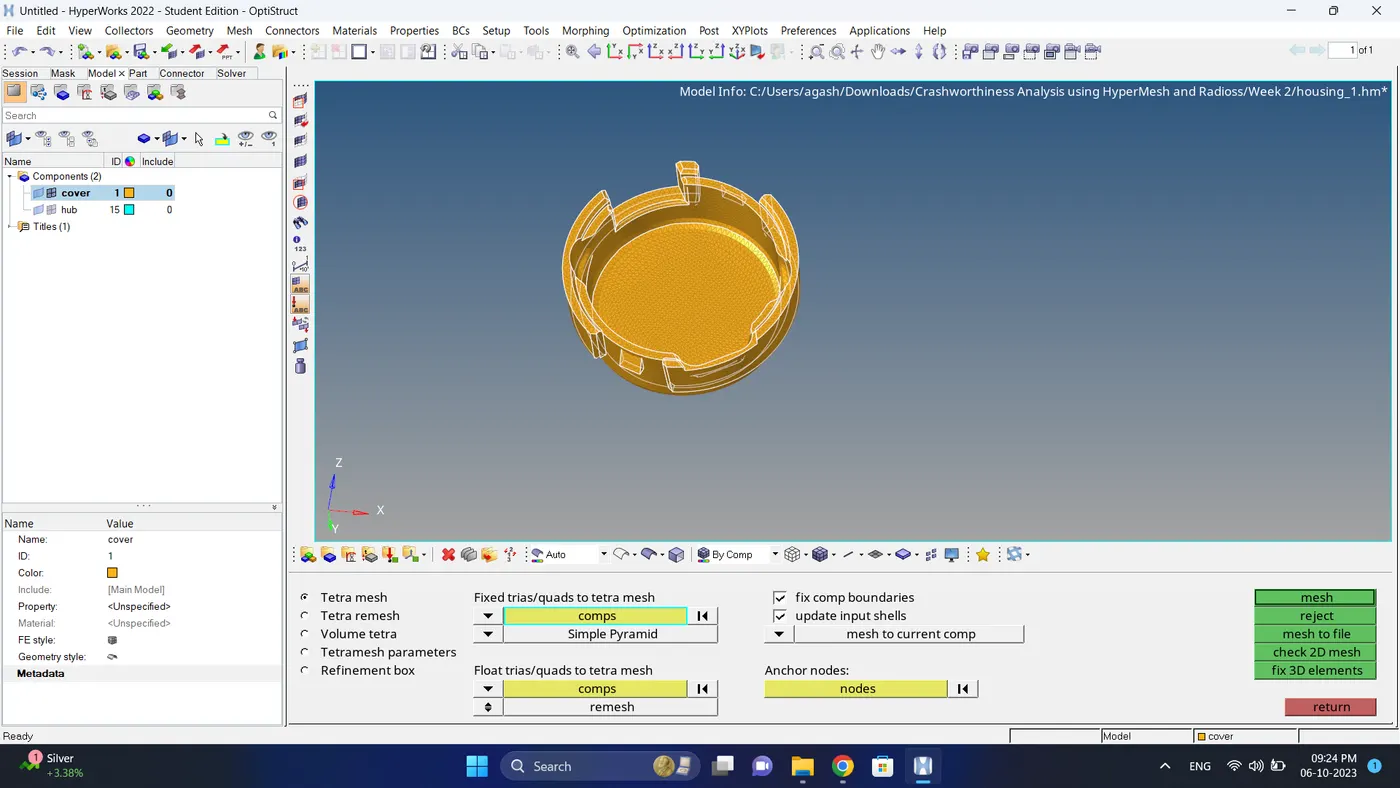
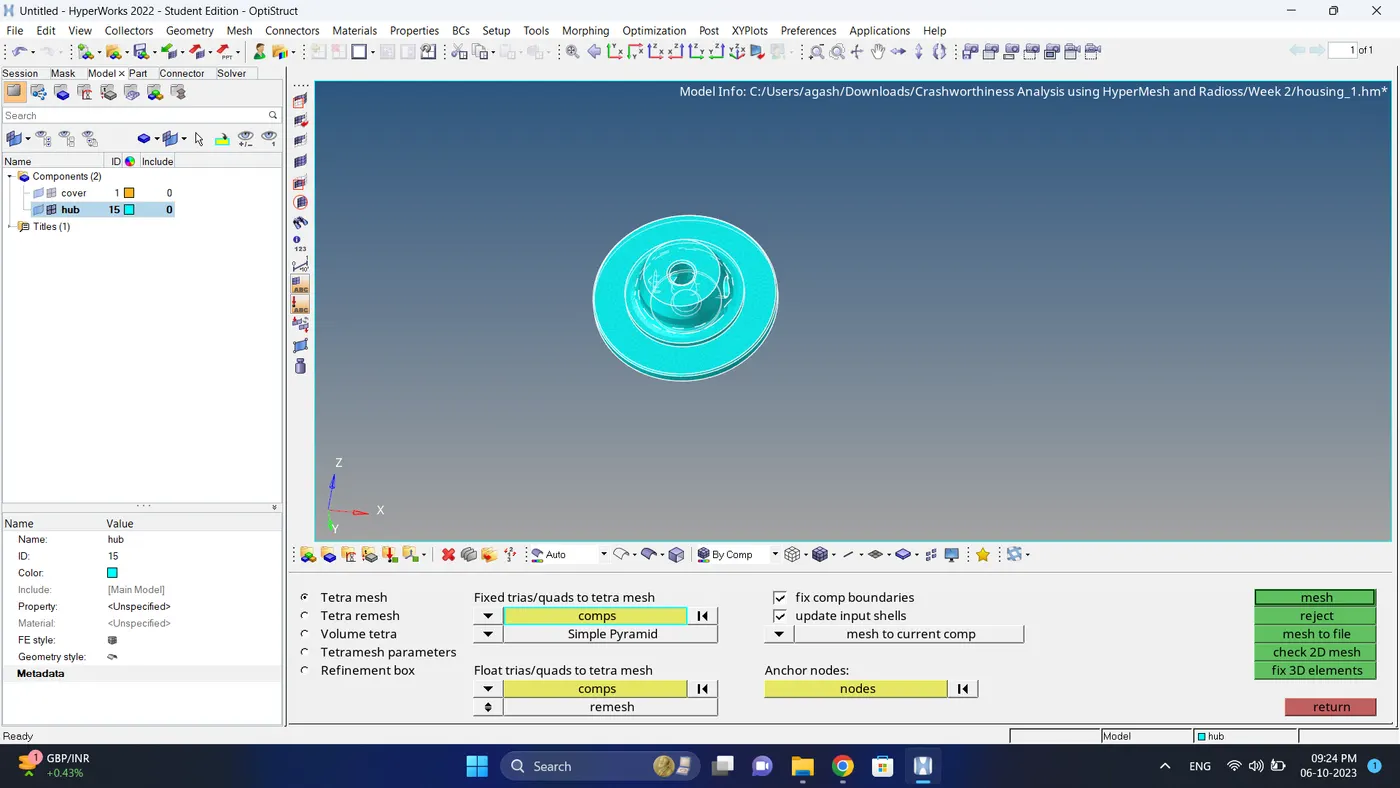
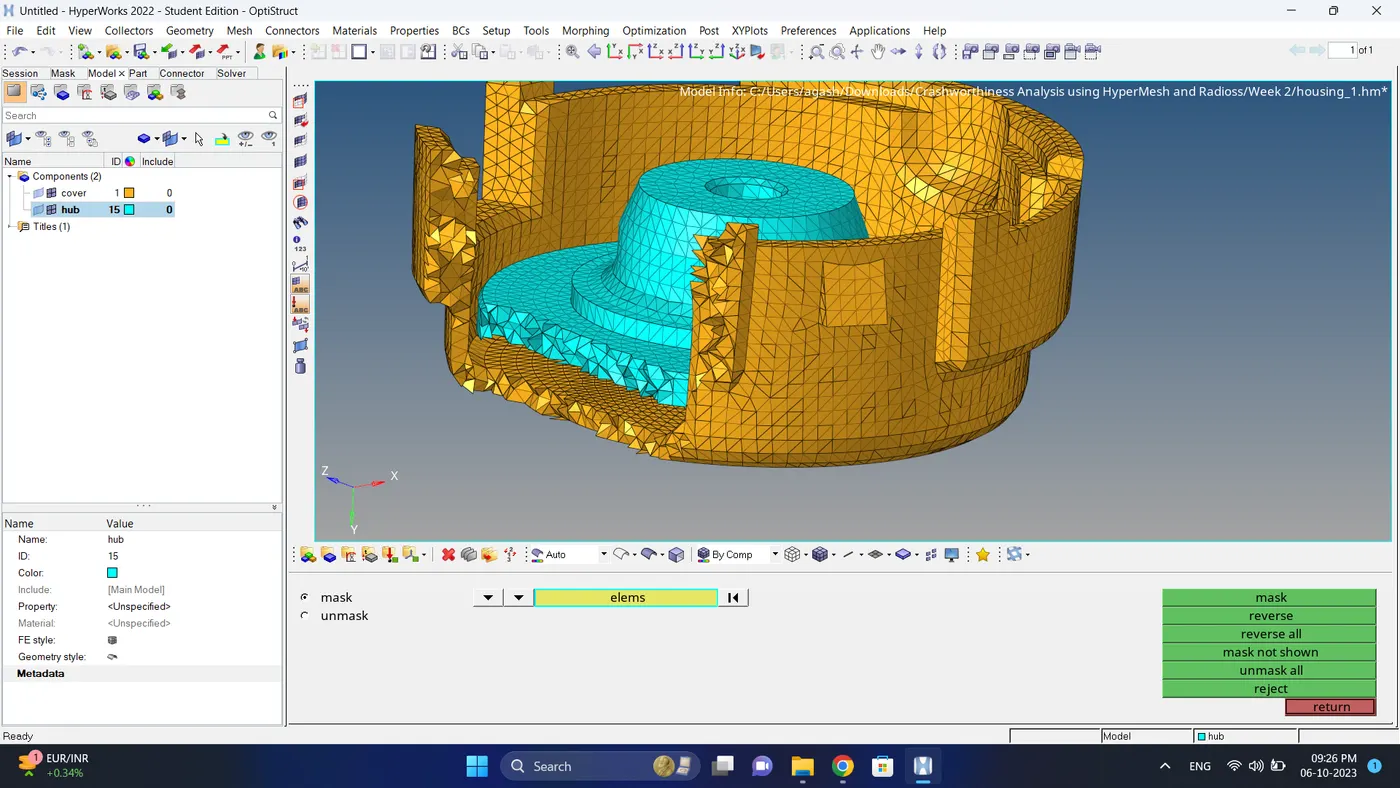
7. Check the 3D mesh is created successfully by hiding some element using Mask option.
8. Check the element failure for Tet Colapse. Go to Tool - Check elems - 3D - Input tet colapse value and check elements.
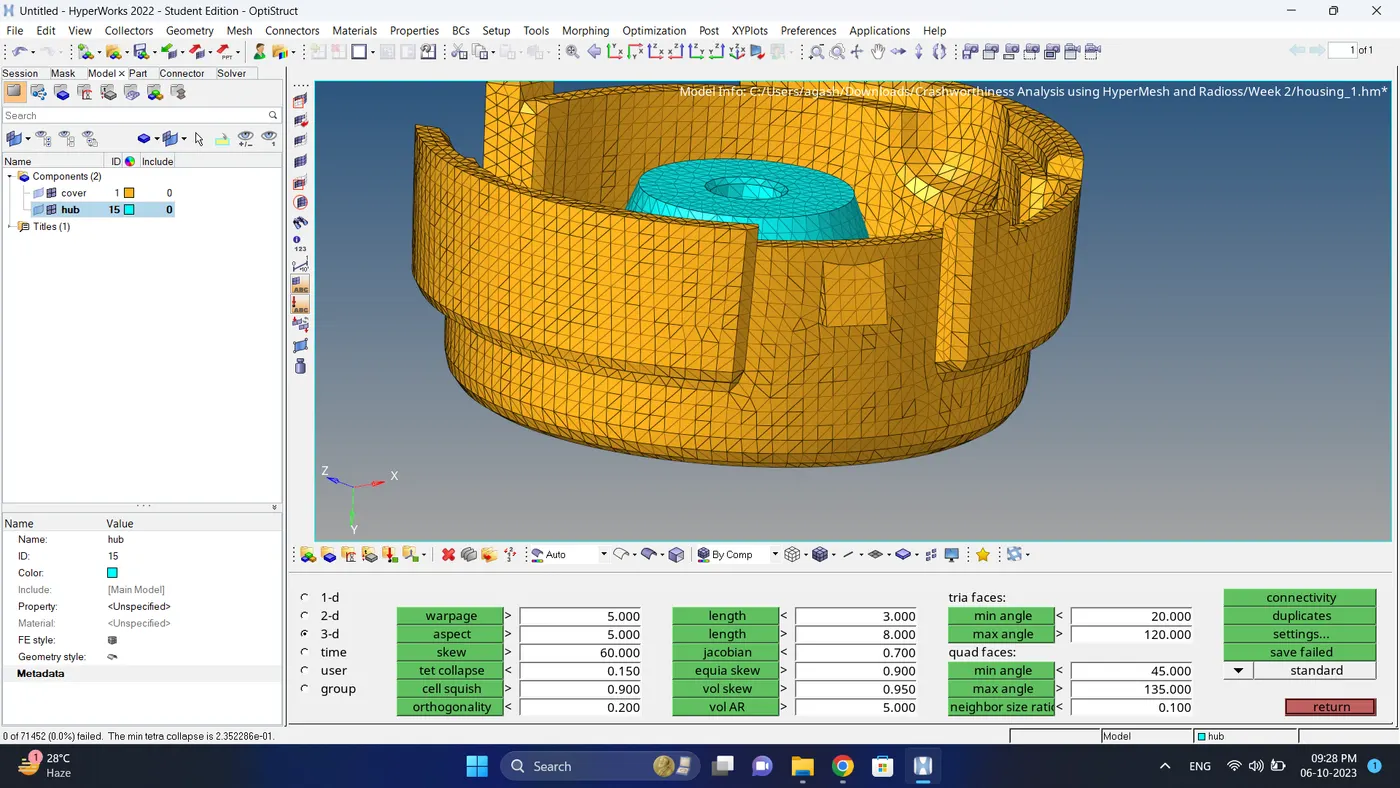
9. Do the final inspection, free edges, duplicate elements and normals.
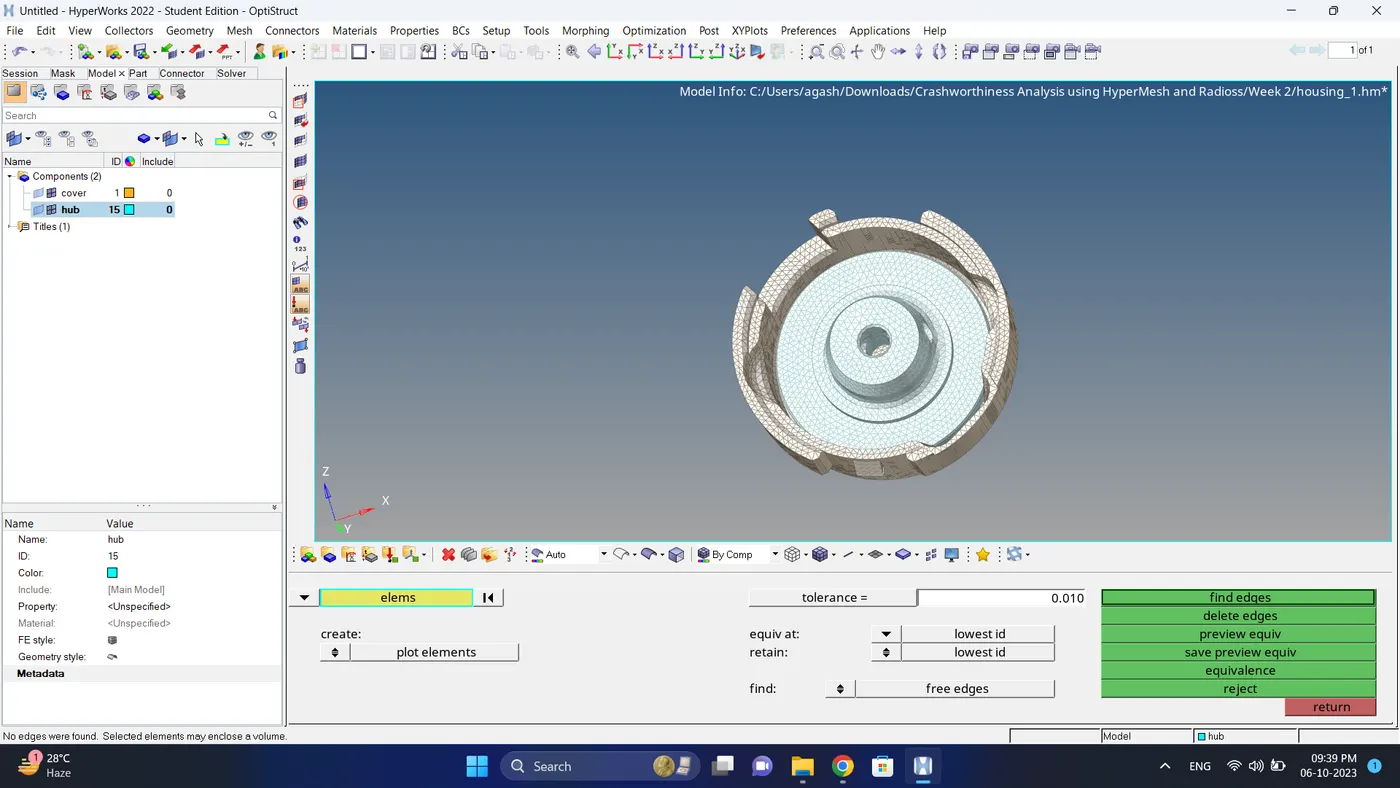
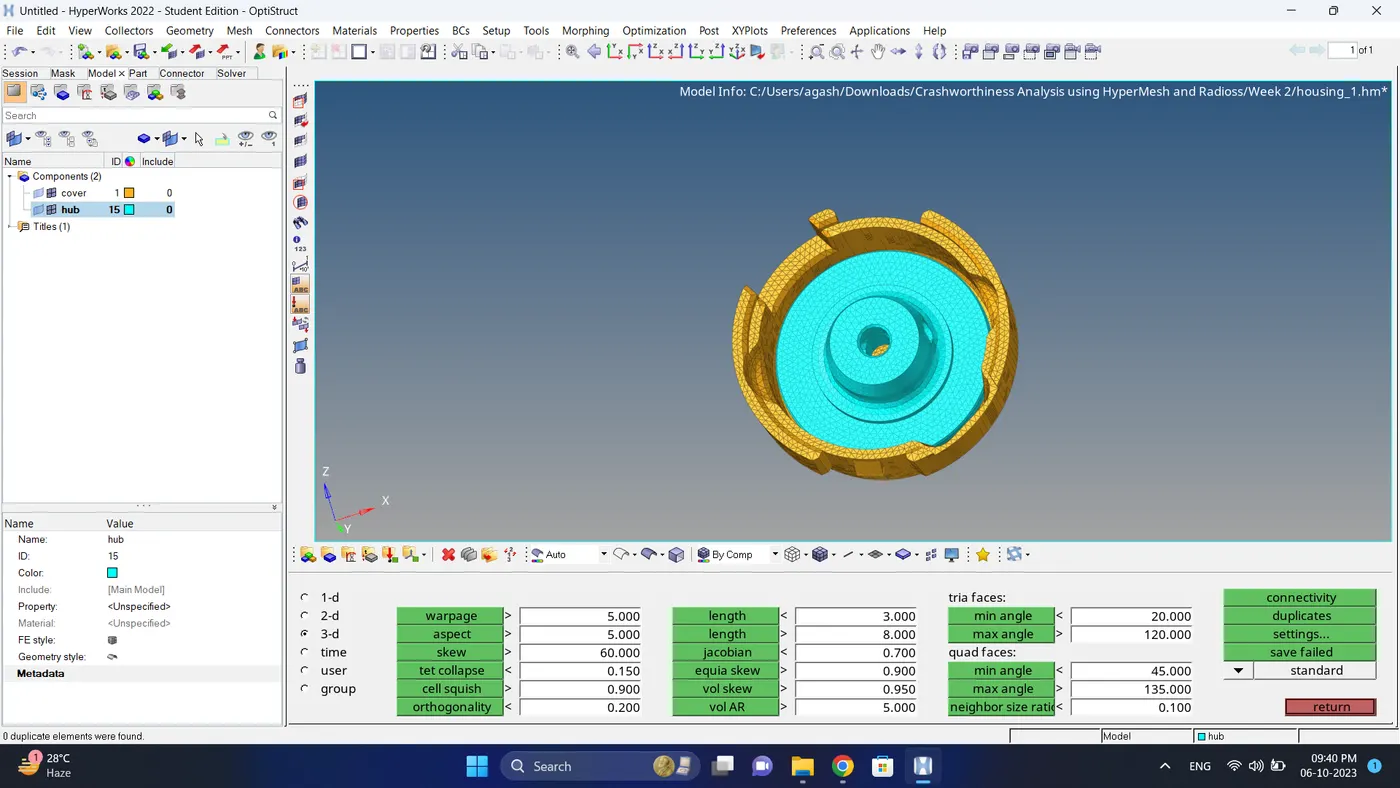
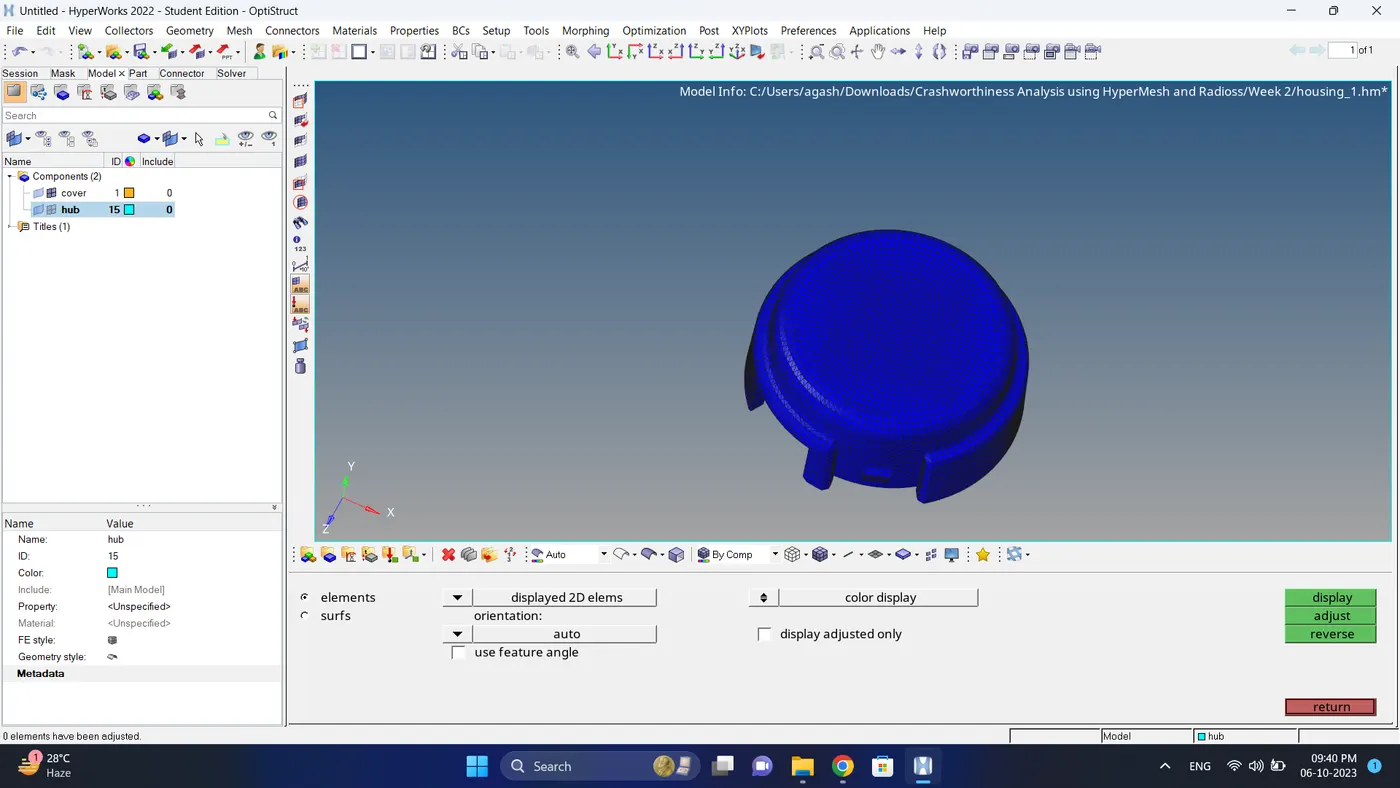
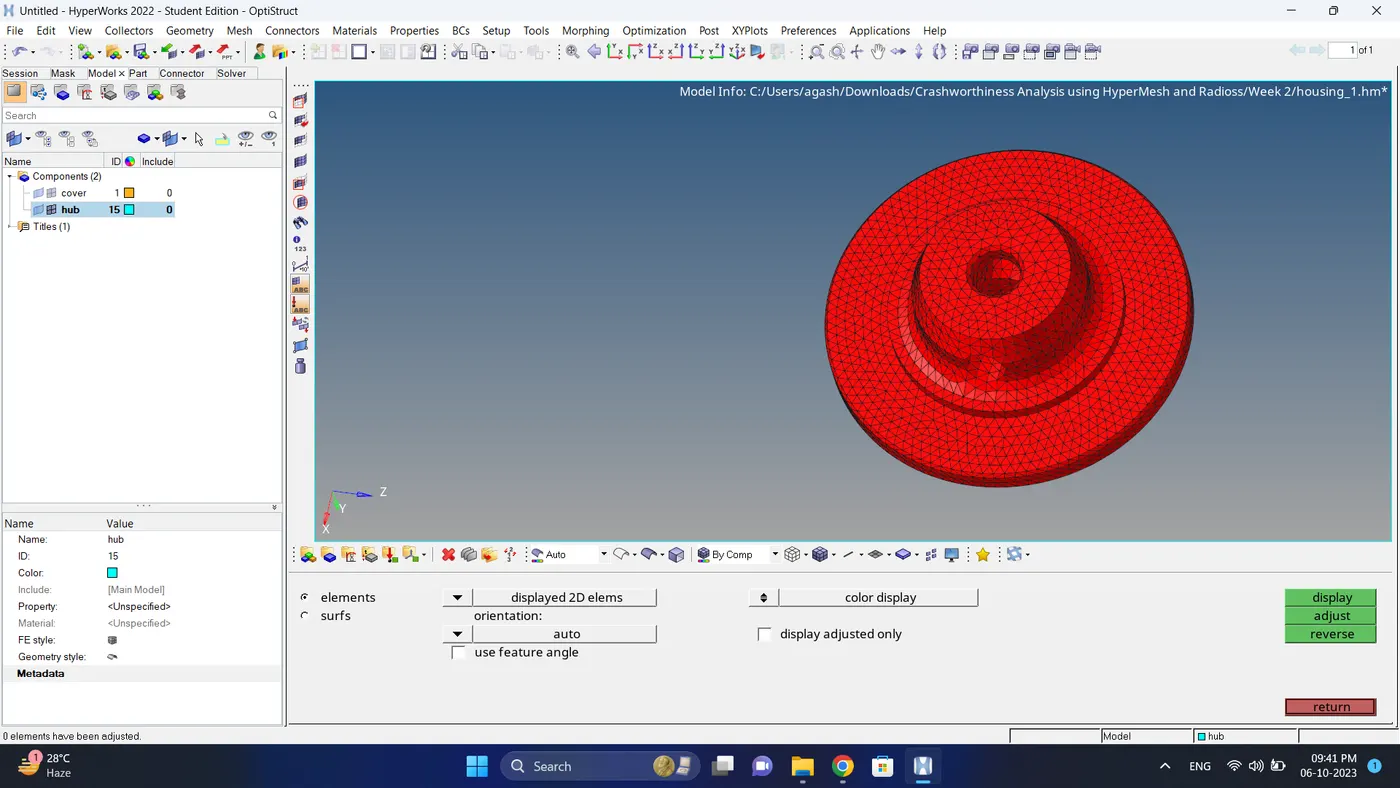
10. 3D meshing of the housing model is done successfully.
Hexa Mesh
1. Open the model.
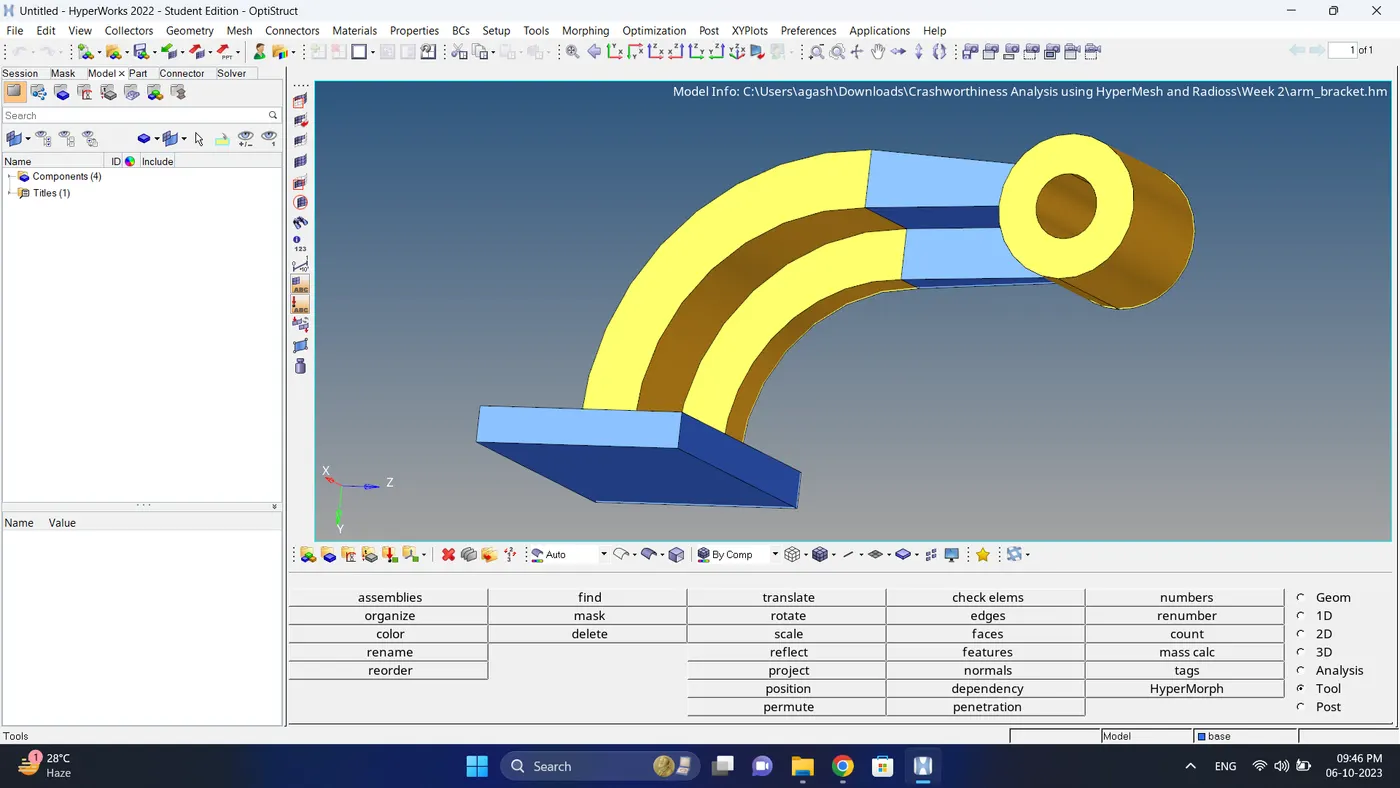
2. Check the geometry.
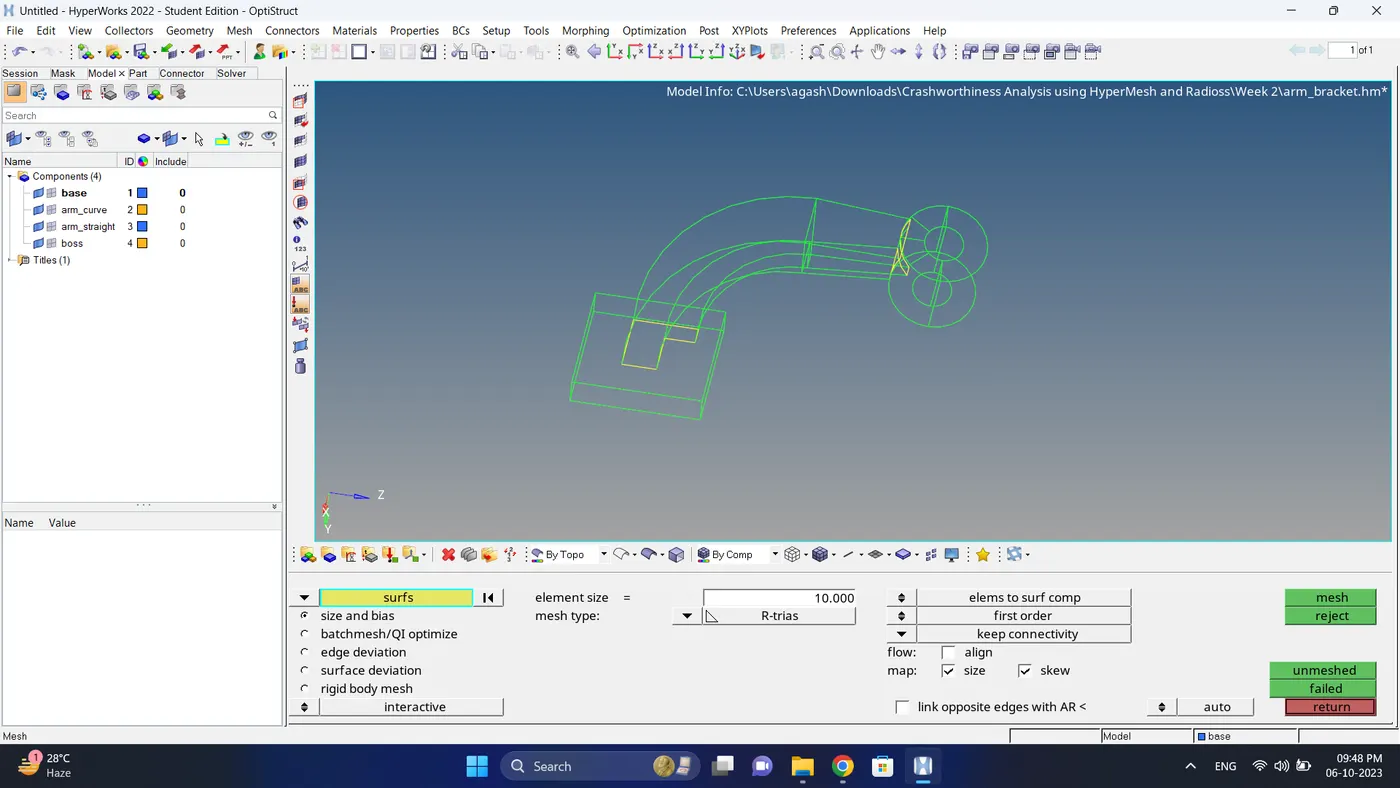
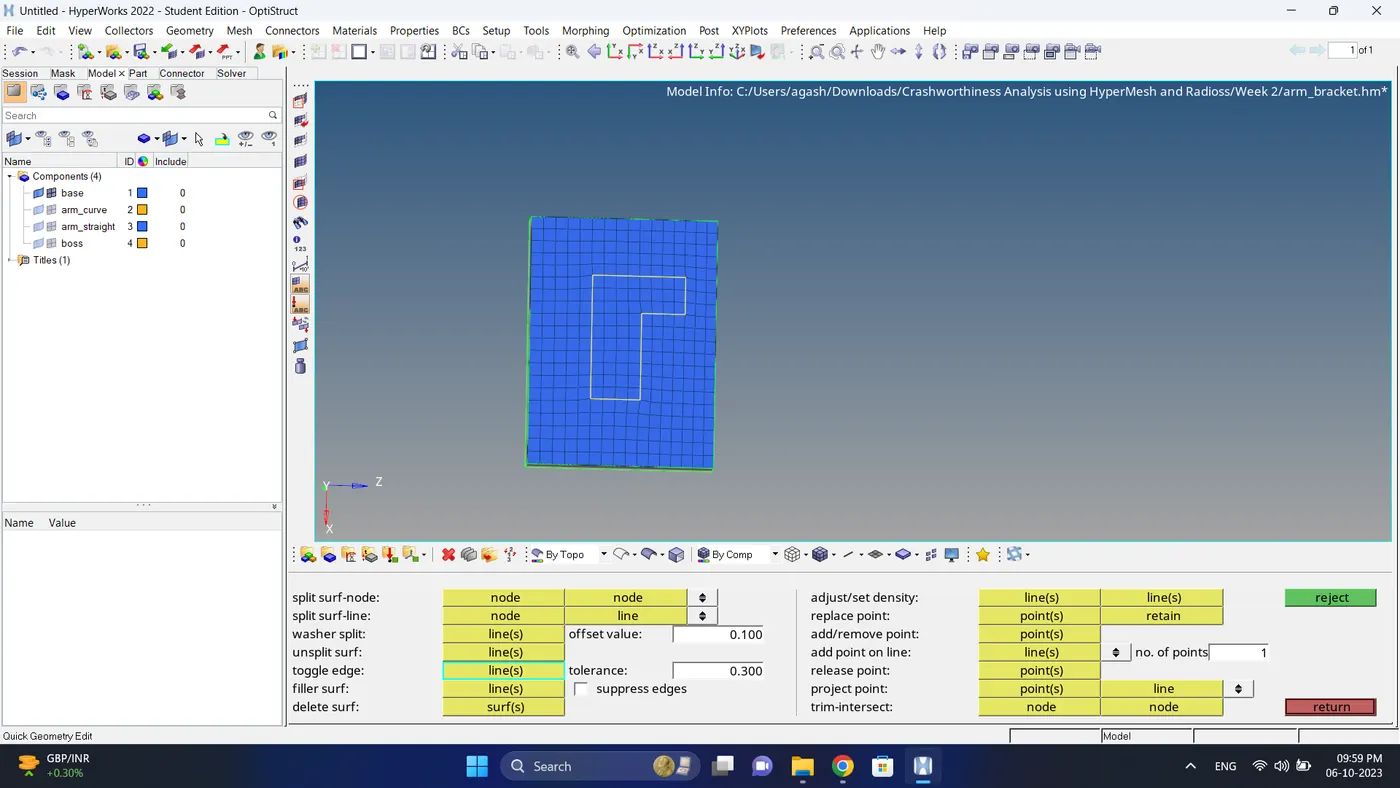
3. Visible only base component and mesh the top side with quad elements.
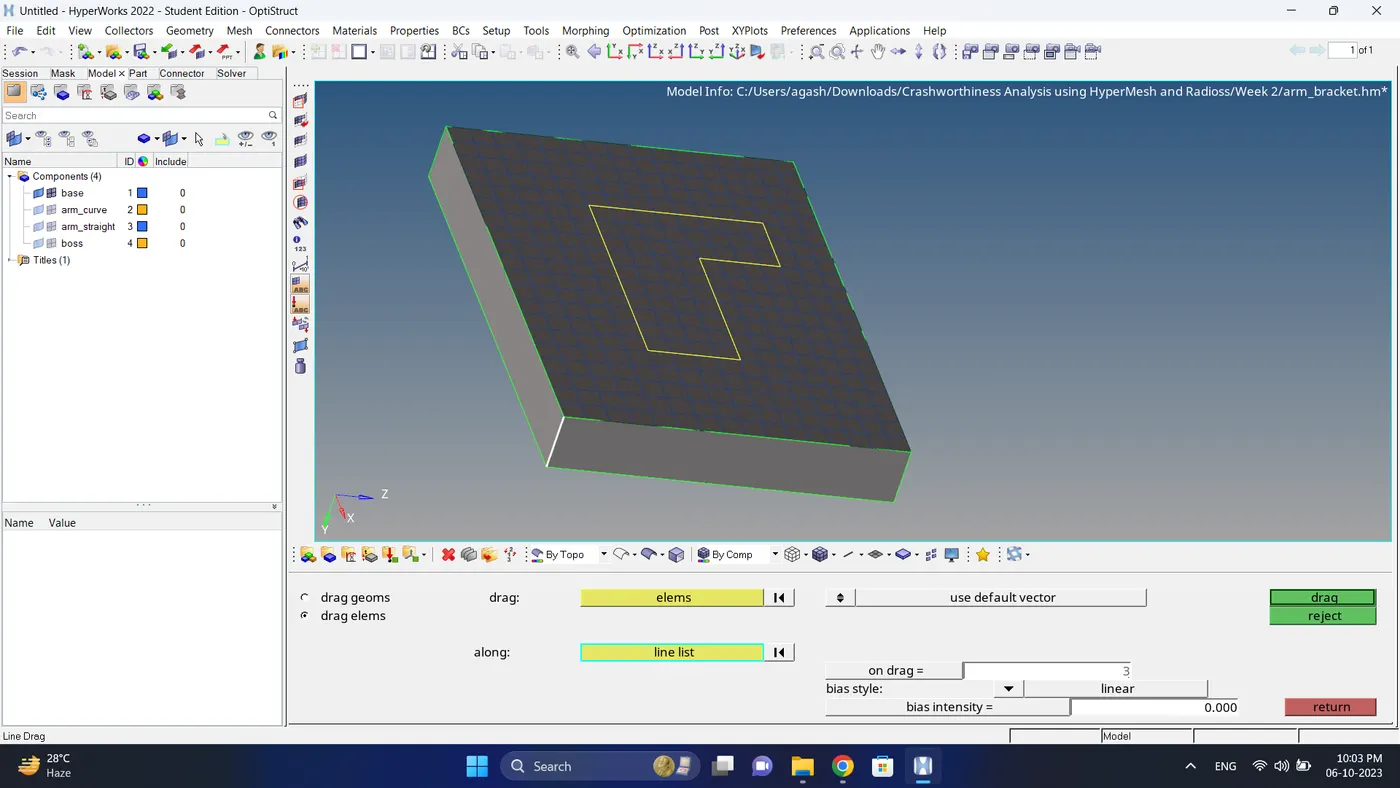
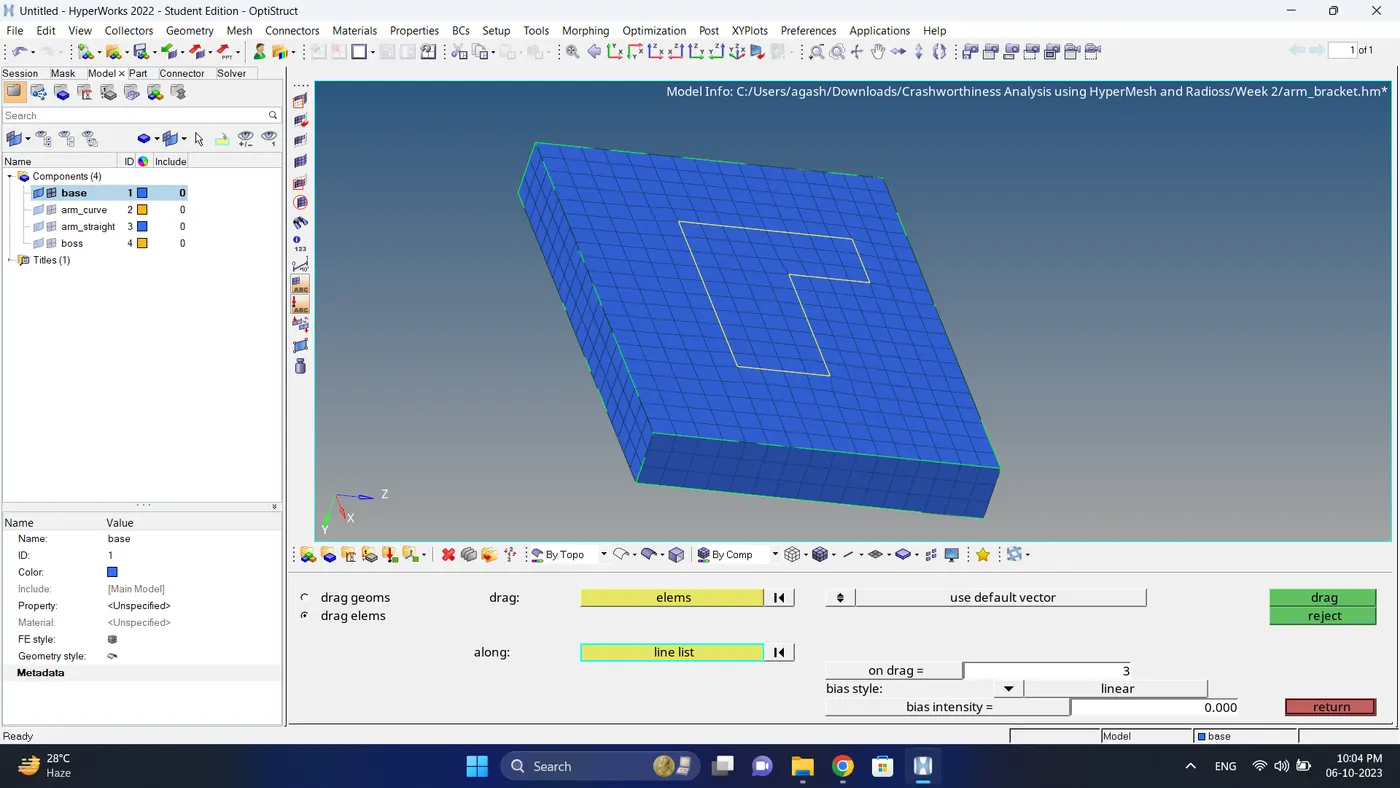
4. Go to the 3D - line drag - select elements and along vector - Input on drag (elements nos) - click drag.
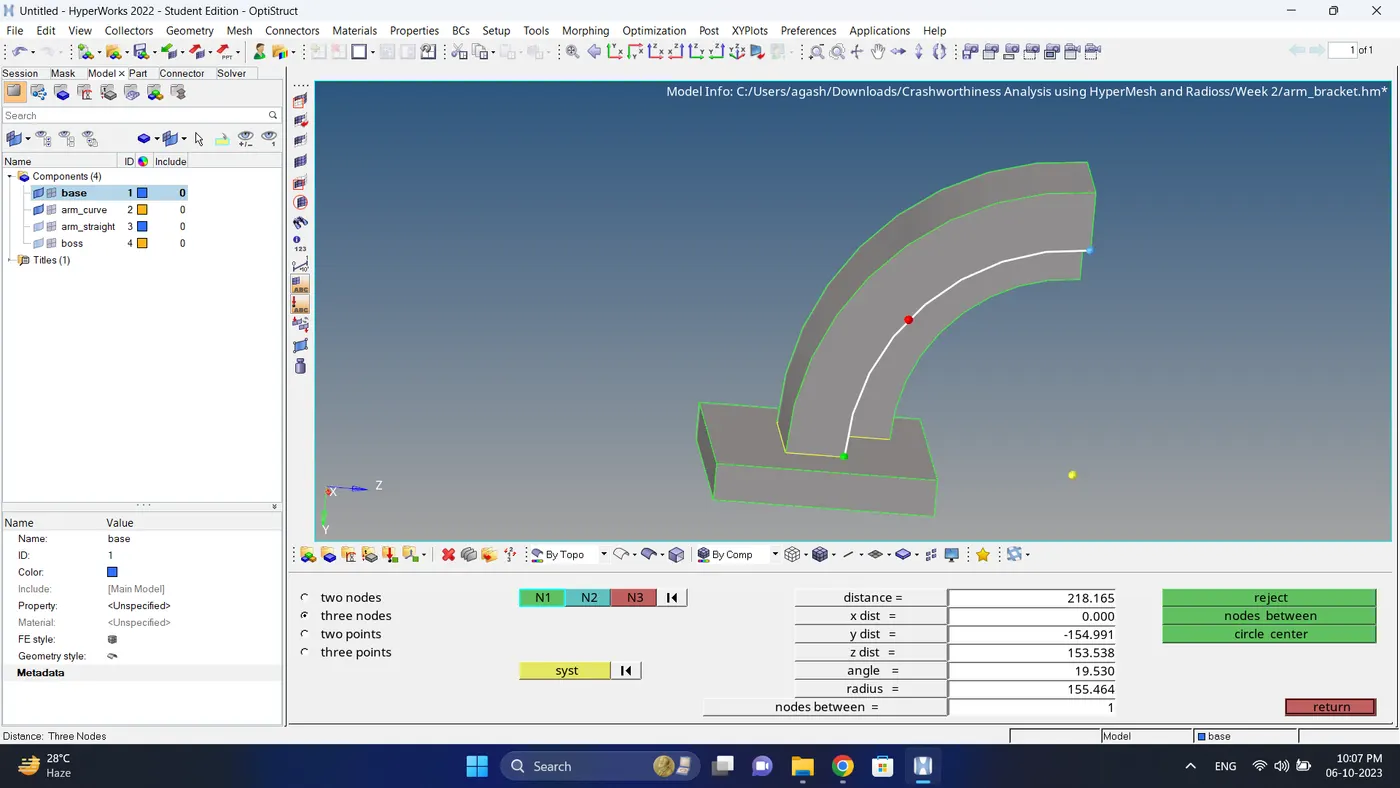
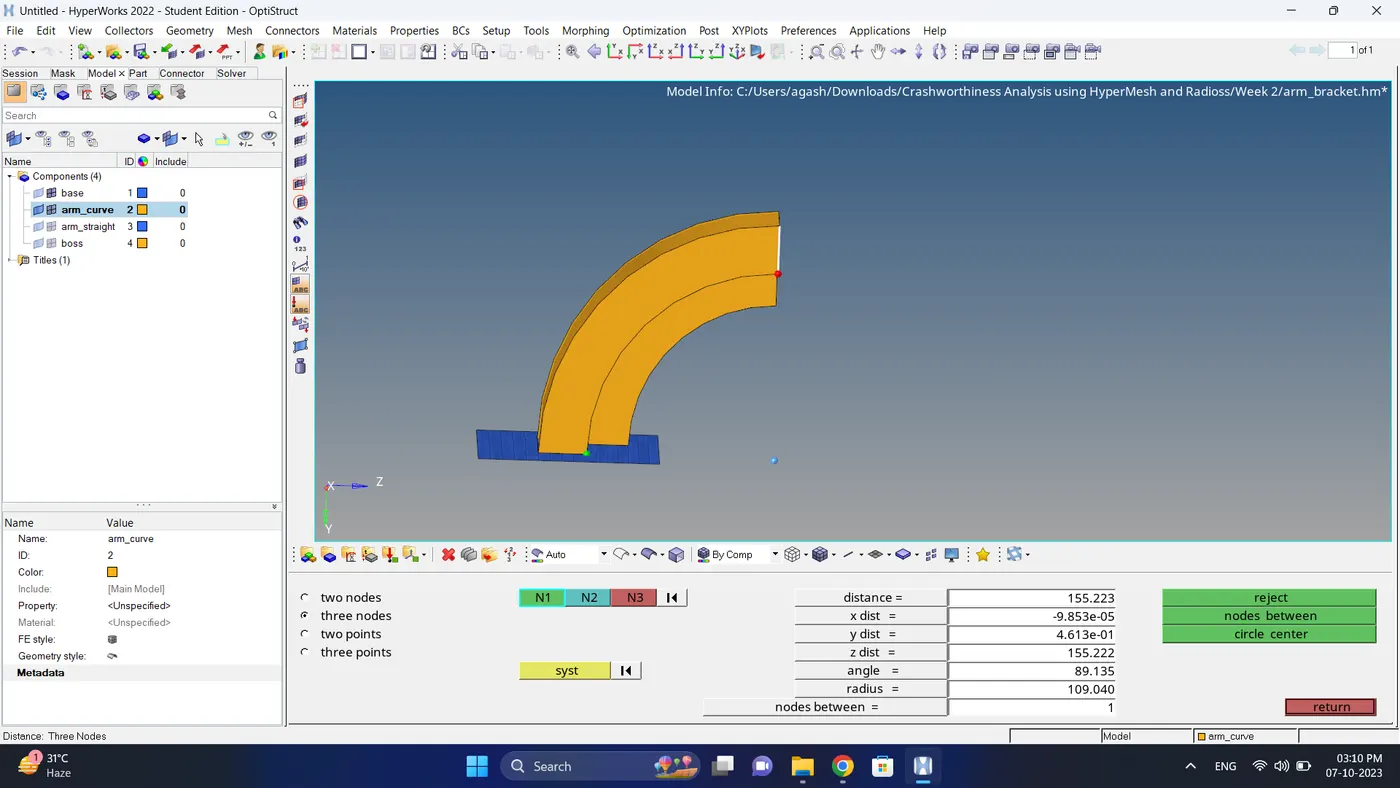
5. Visible arm_curve, create a centre for the arc. Go to the Geom - distance - three node - select 3 node on arc and click circle centre.
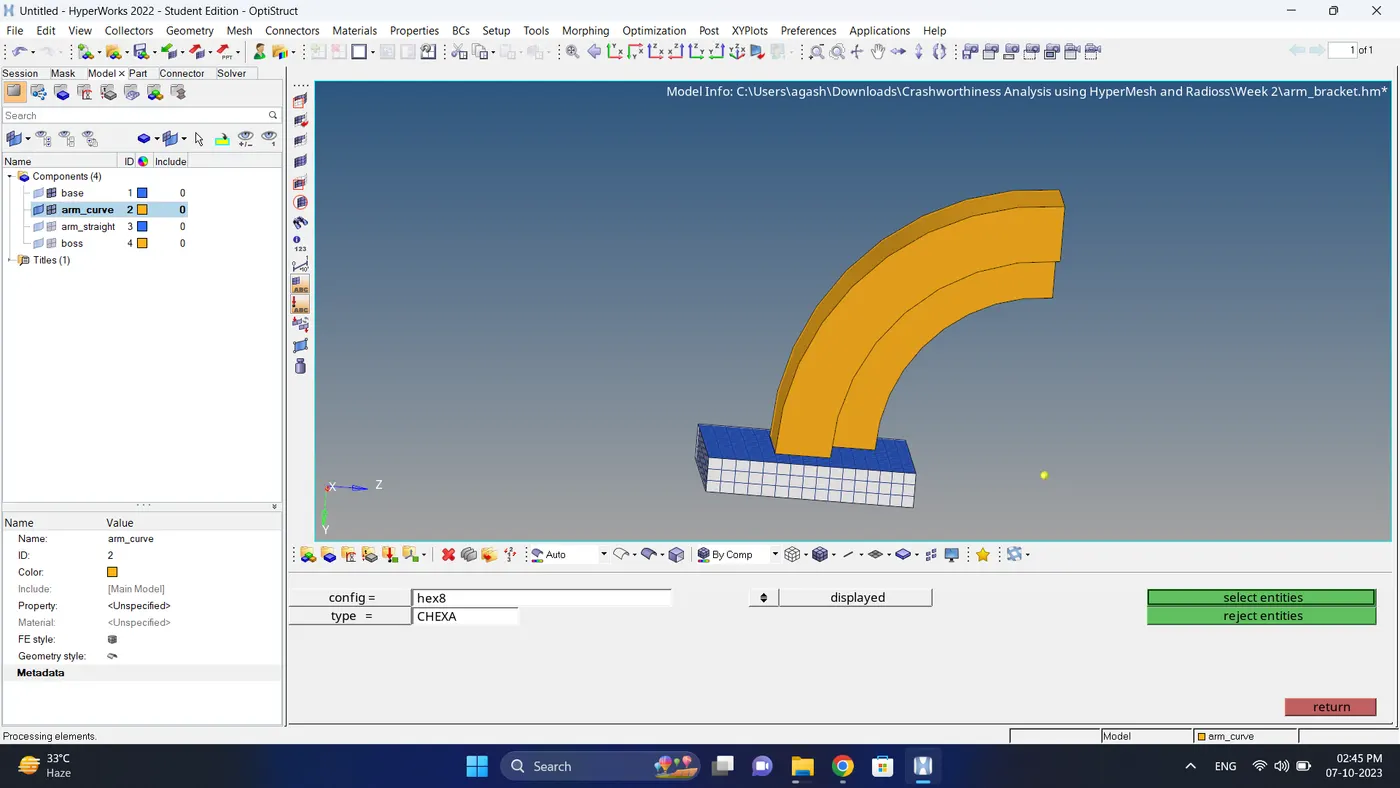
6. Hide all the Hexa element using Tool - mask option.
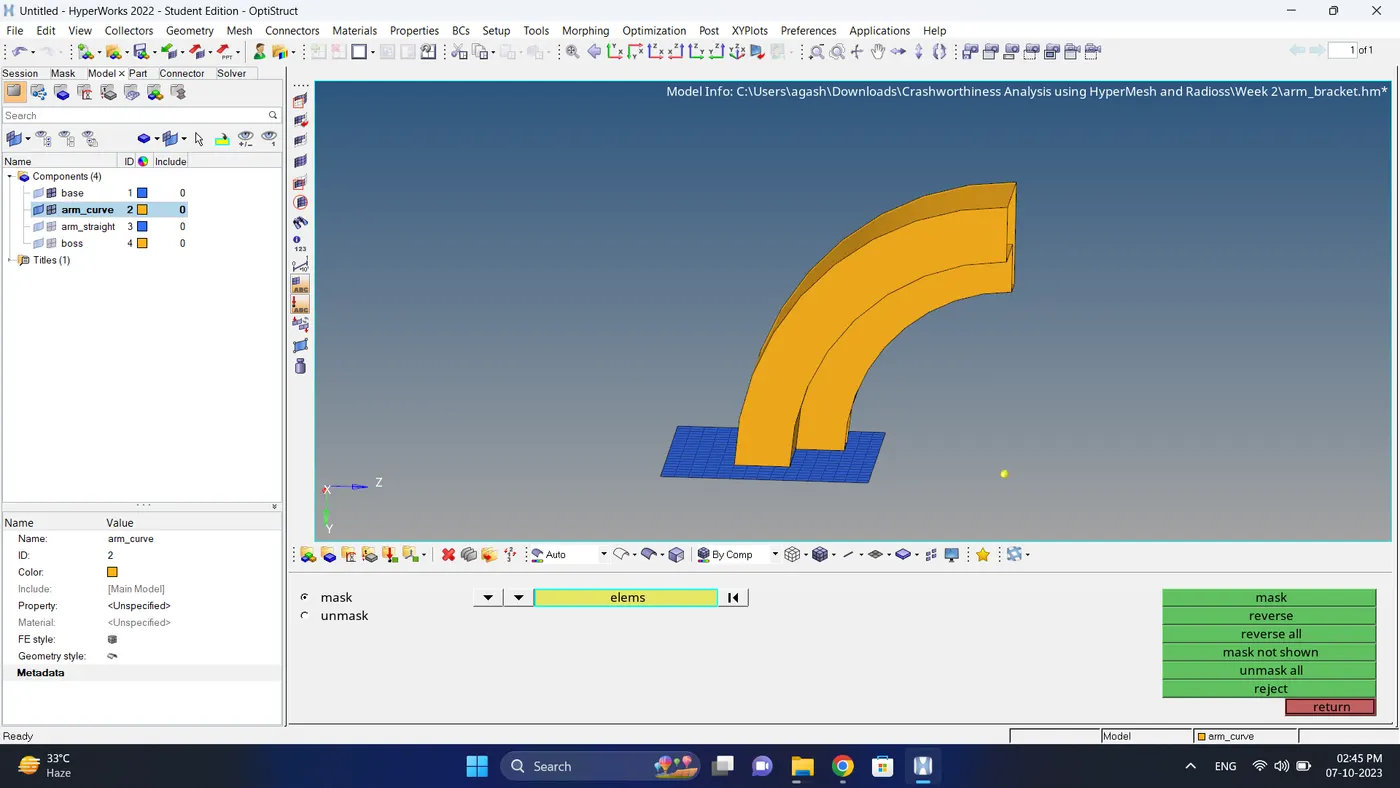
7. Measure the angle for the arm_bracket.
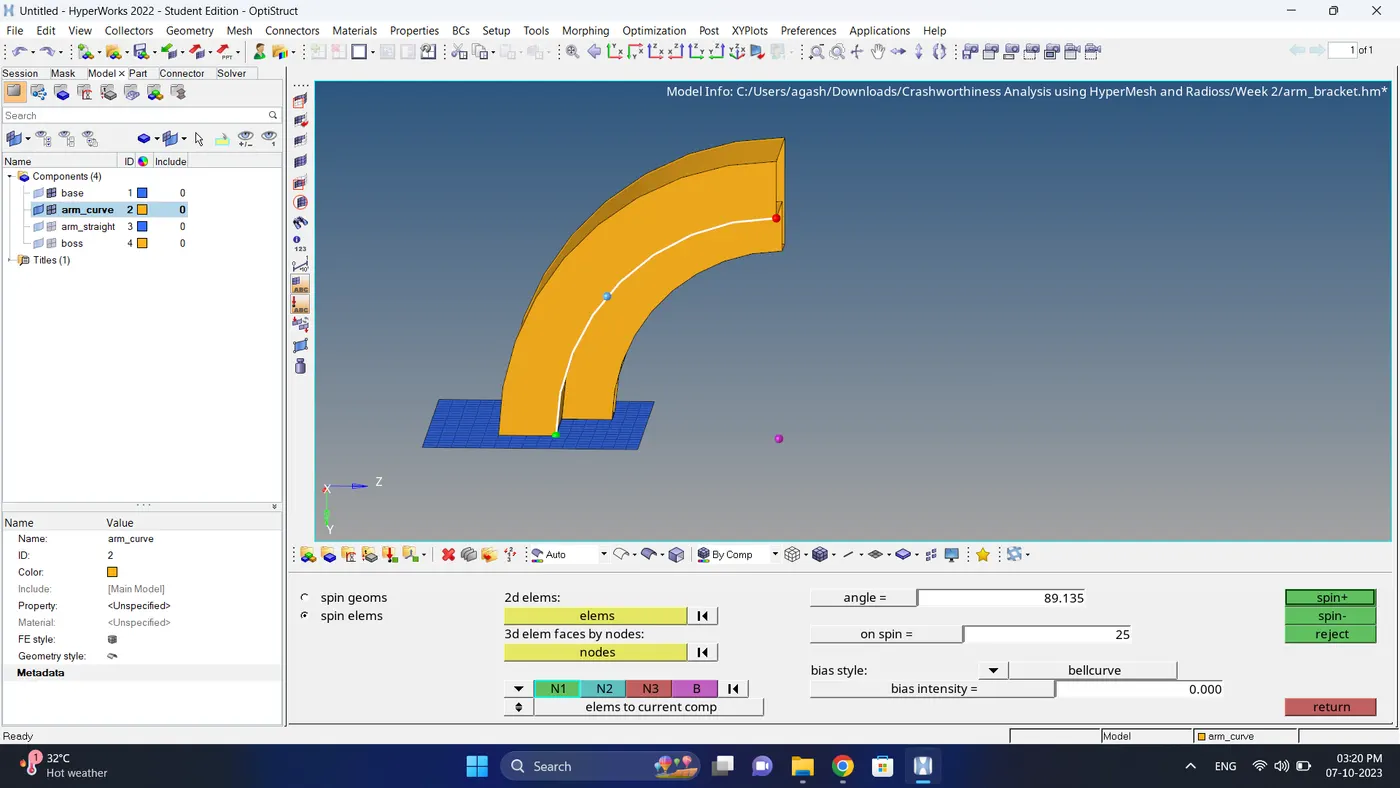
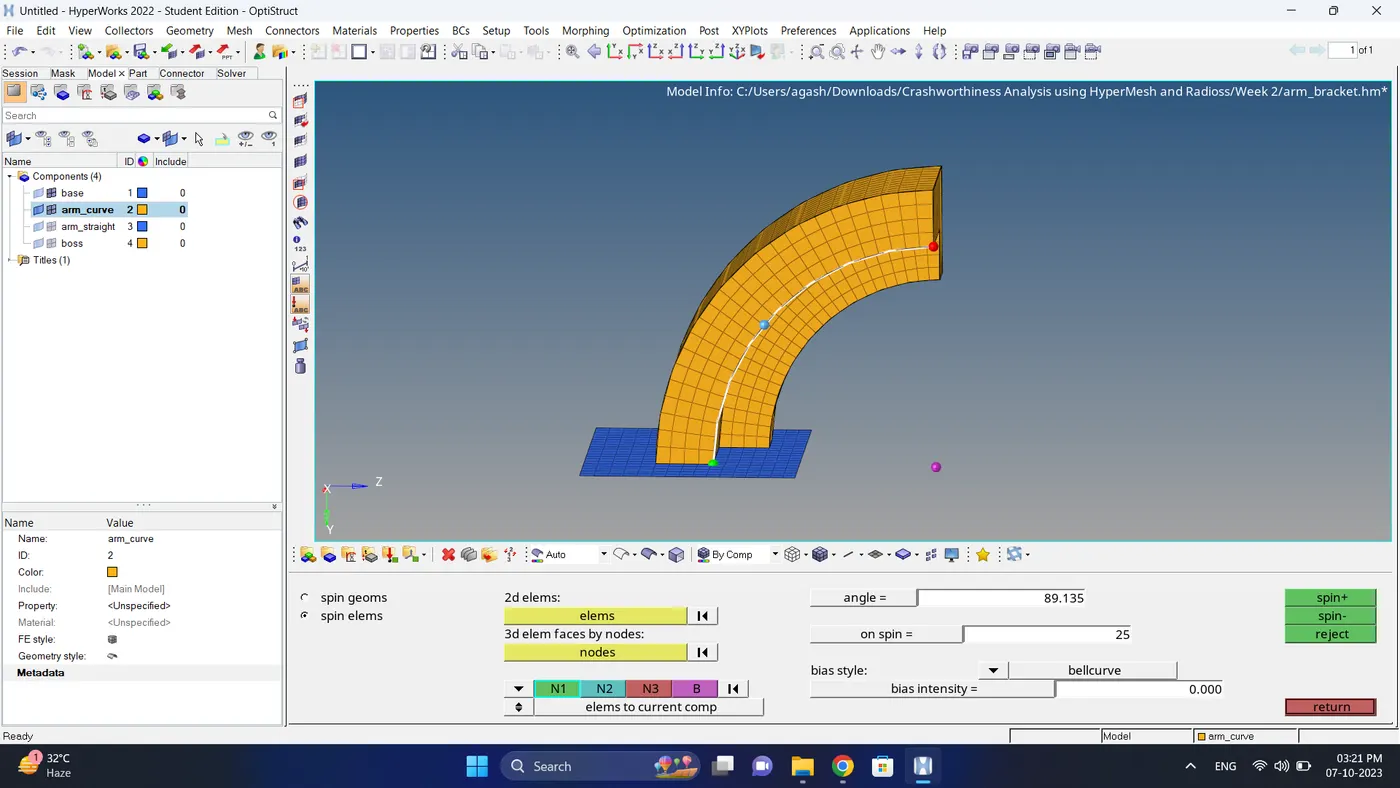
8. Go to the 3D - spin - spin elems - select 2D elems - give angle value - spin (no of elems to be created) value - give vector - click spin.
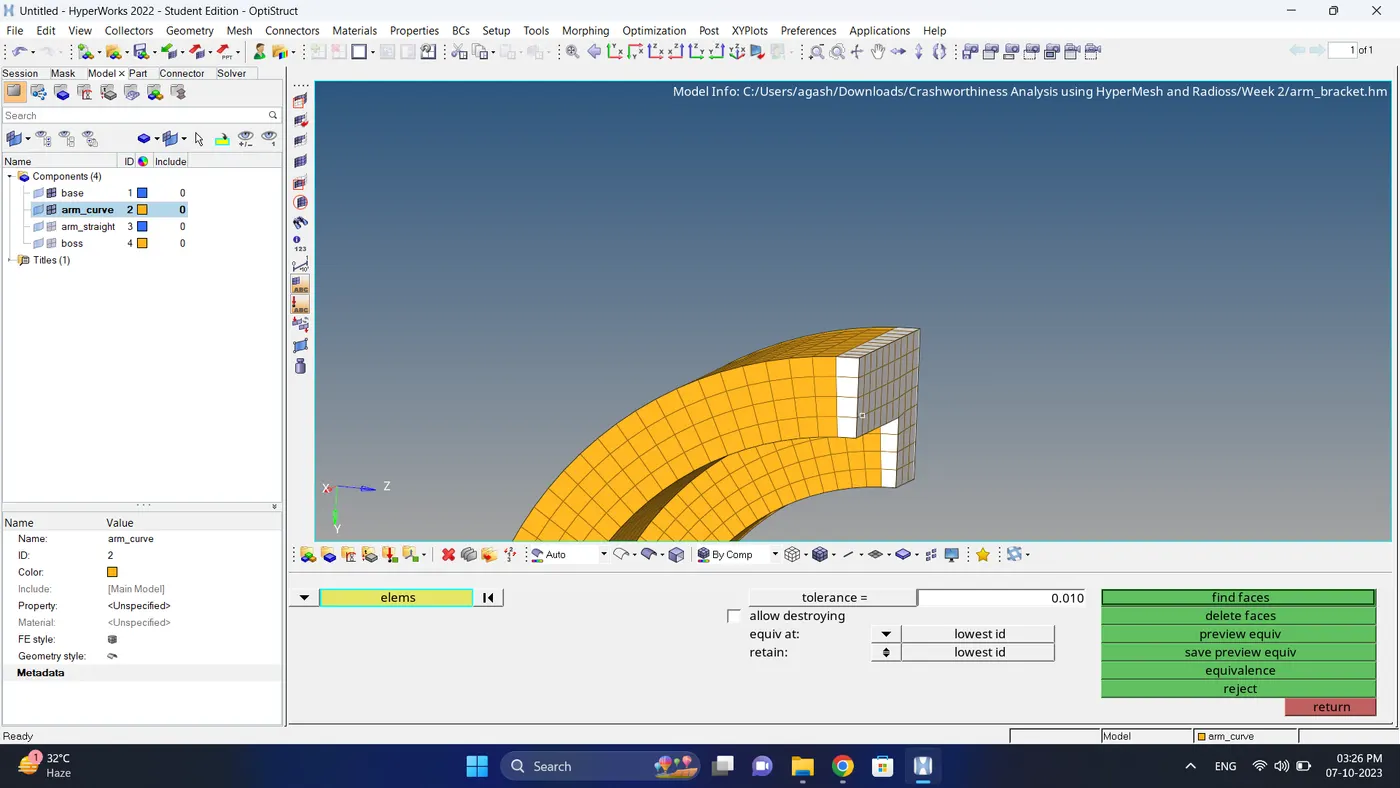
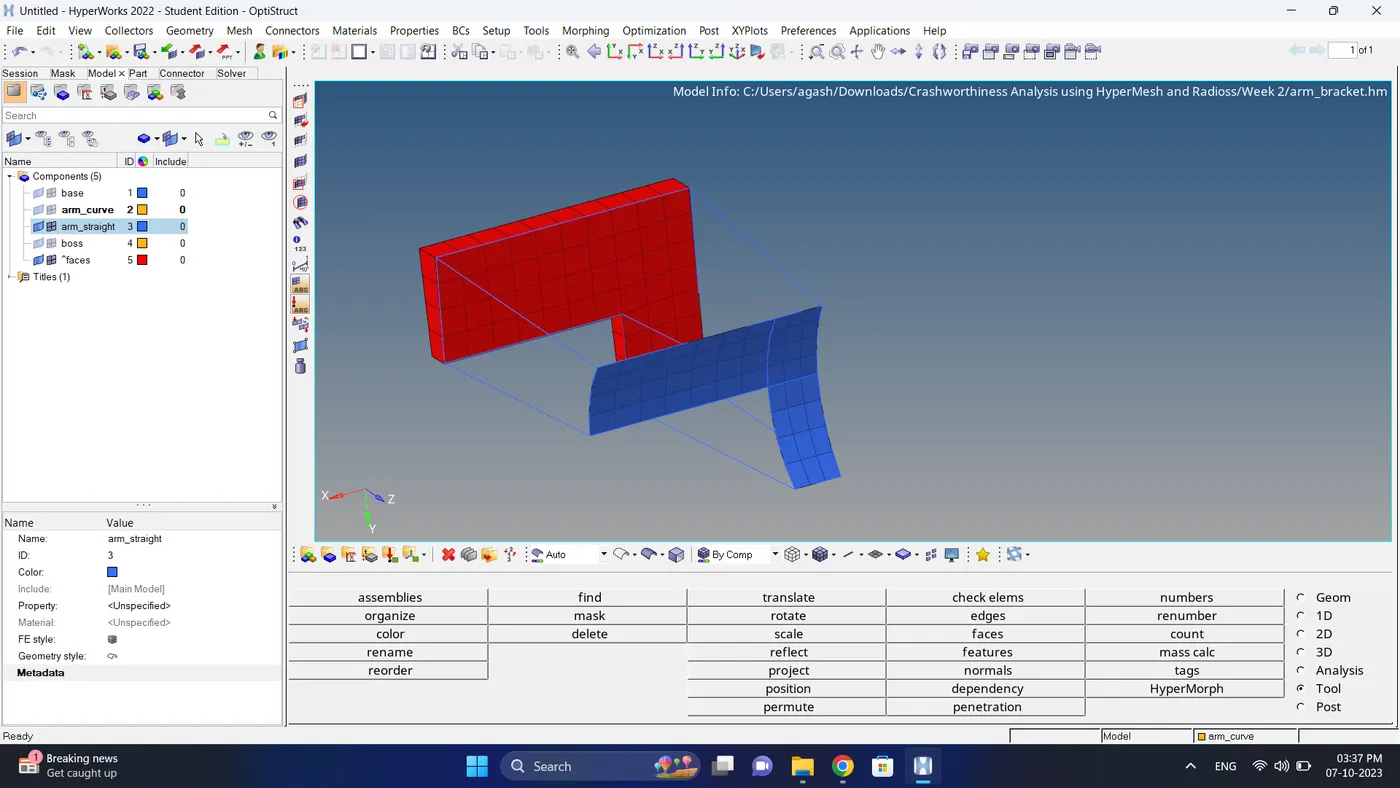
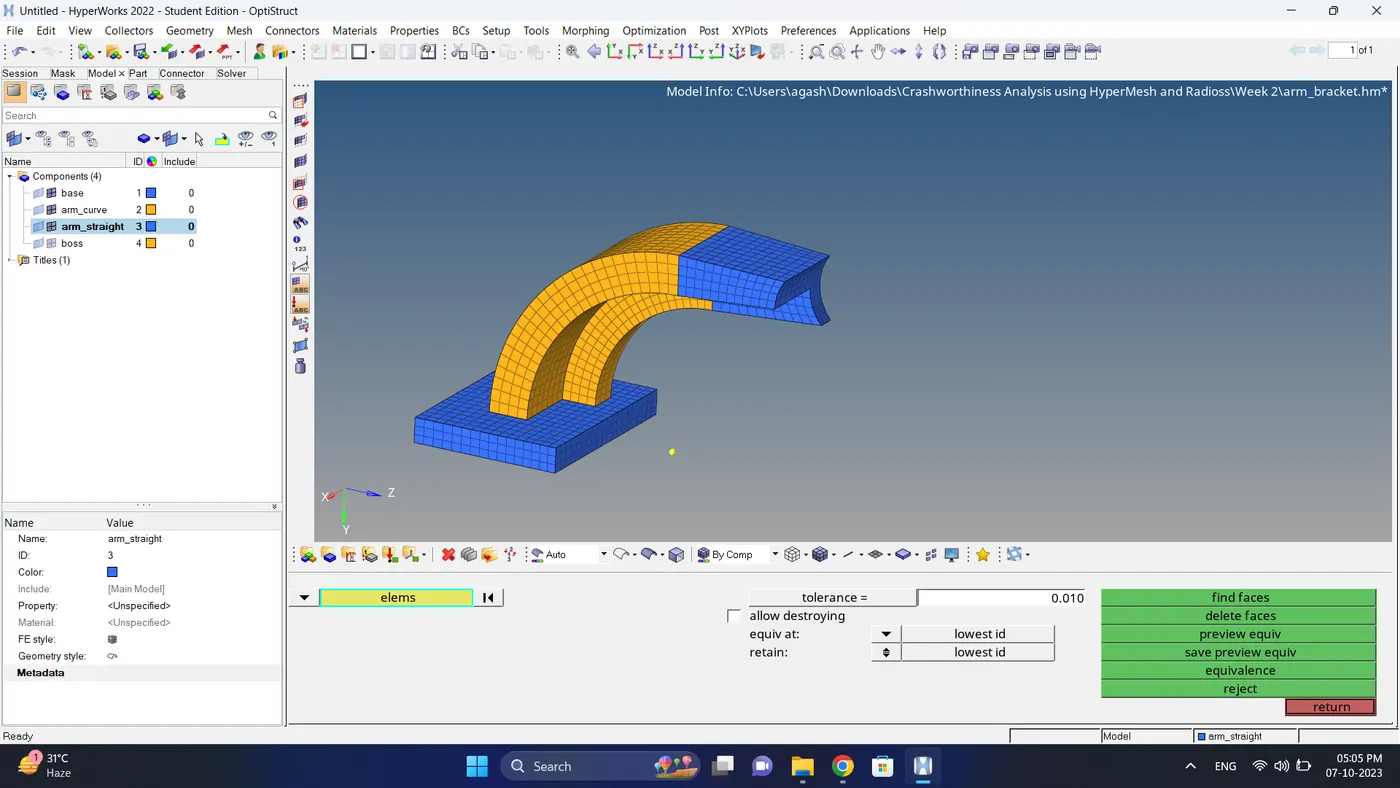
9. To mesh the arm_straight firstly create a faces (element) go to tool - faces - select elems - click find faces.
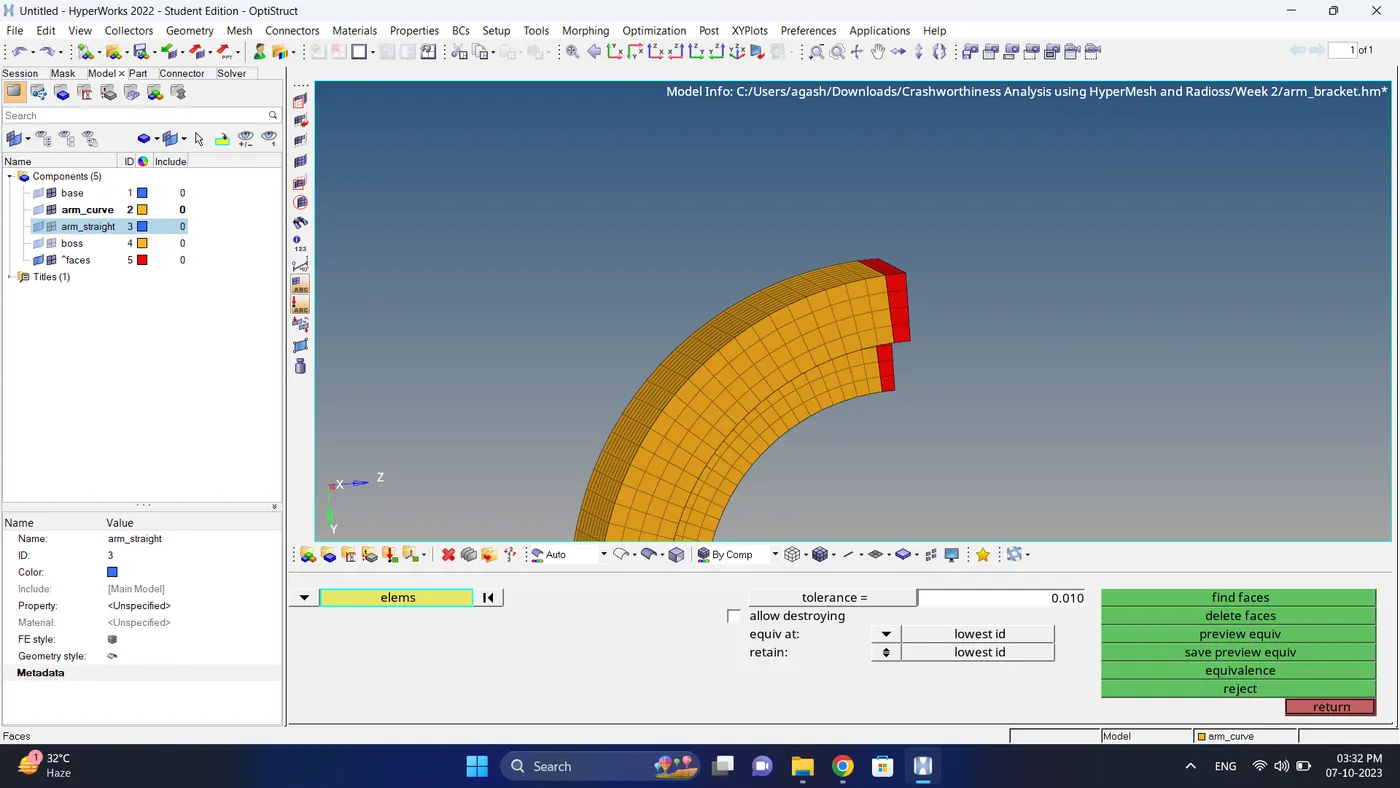
10. Visible only faces and arm_straight.
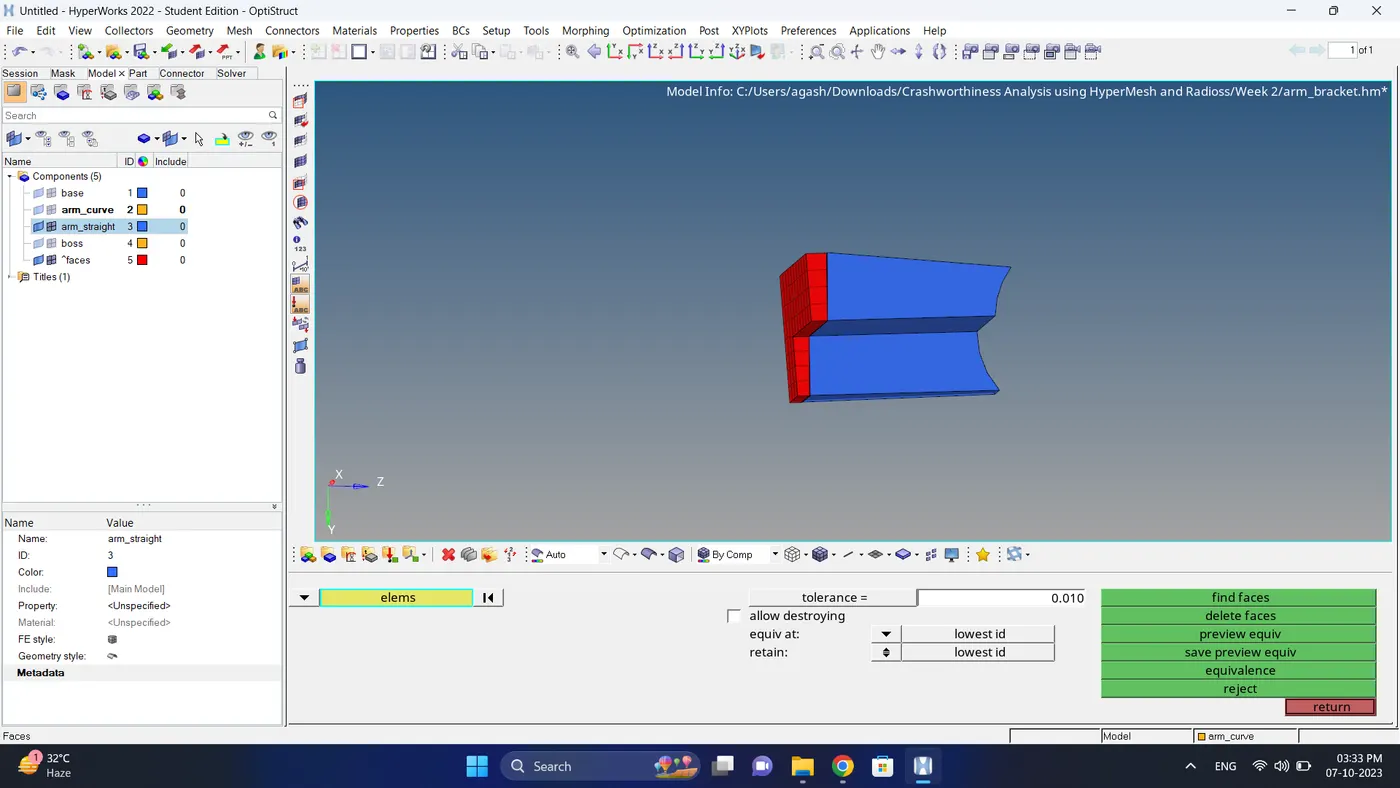
11. create a 2D mesh on the end face of the arm_striaght.
Note: Element numbers should be same as faces element numbers.
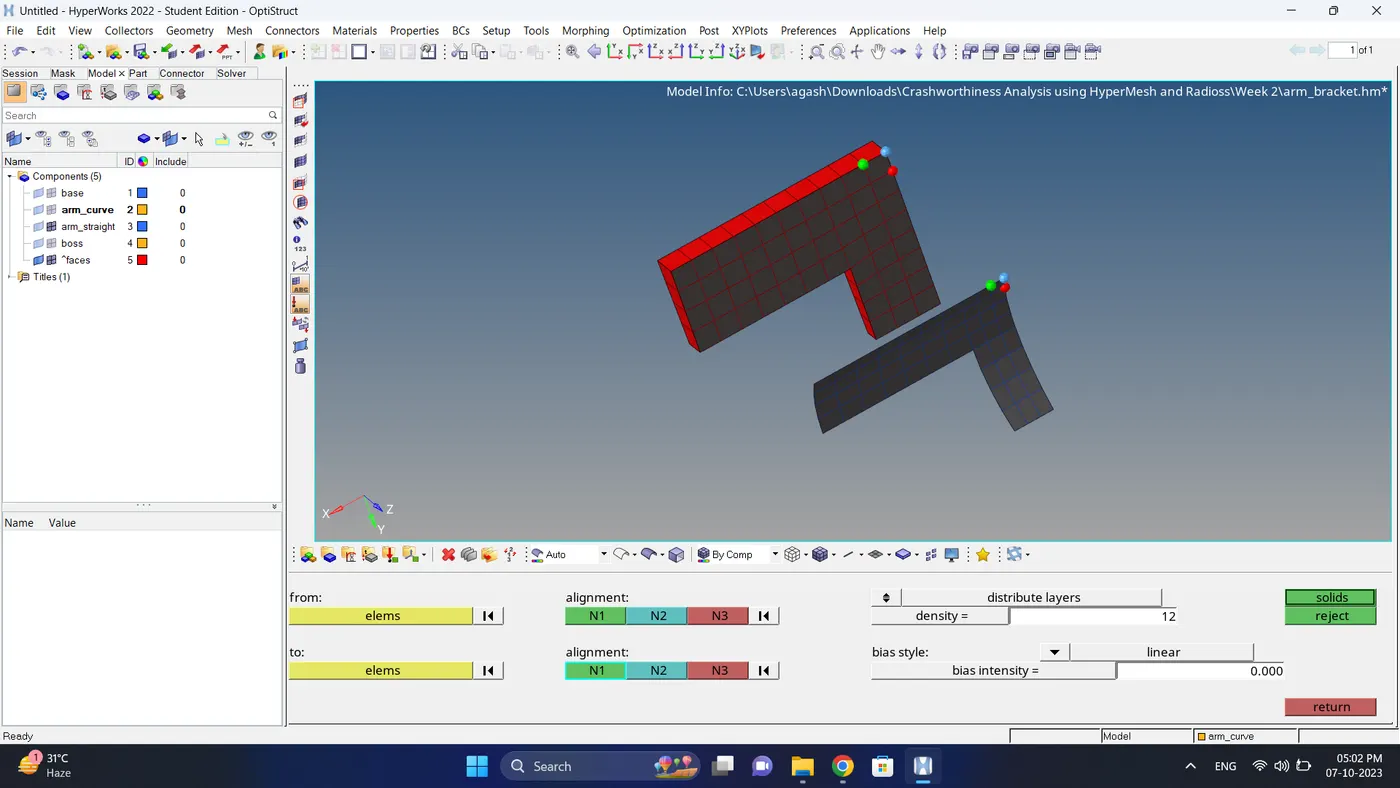
12. To create hexa elems go to 3D - linear solid - select source elems and target elems - give density (no. of element to be created in between) - Click soilid.
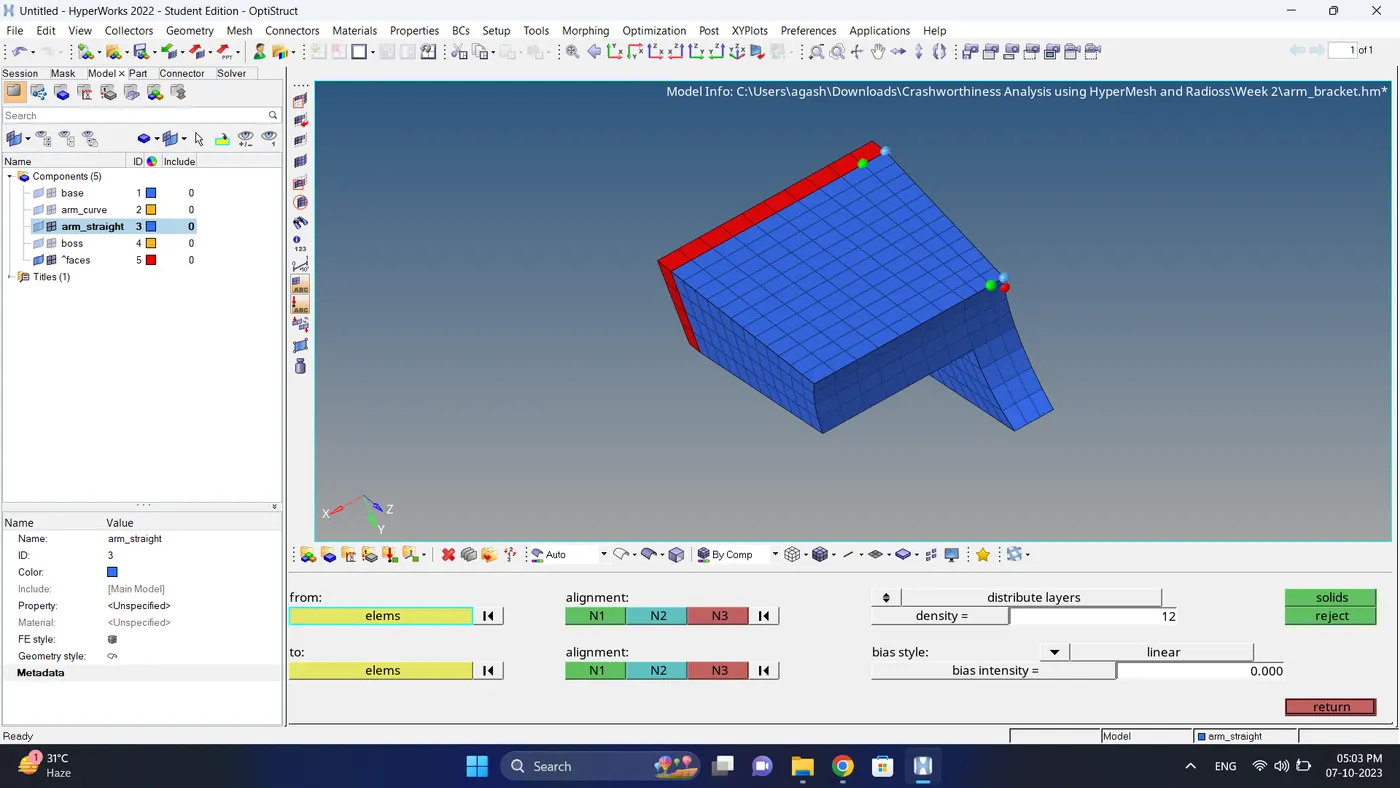
13. Delete the faces.
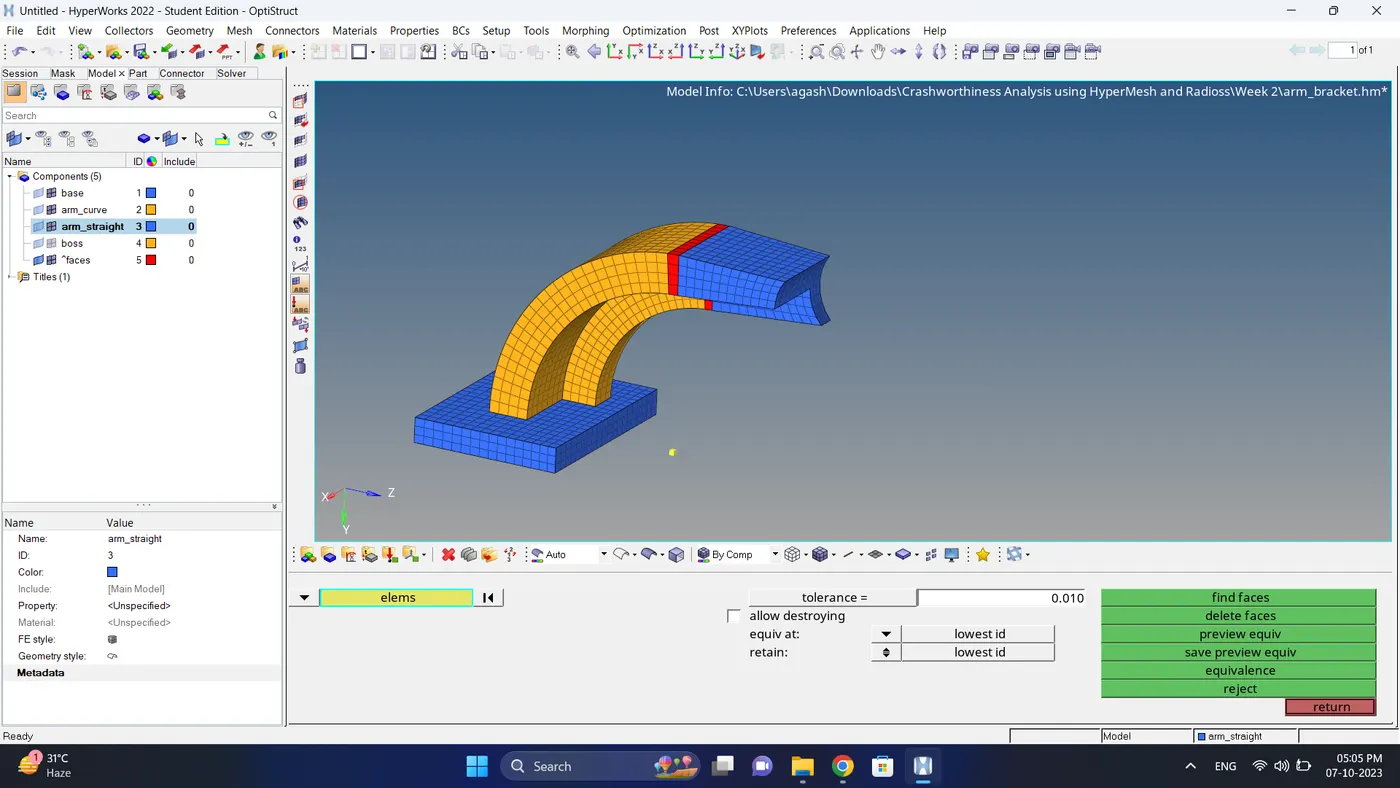
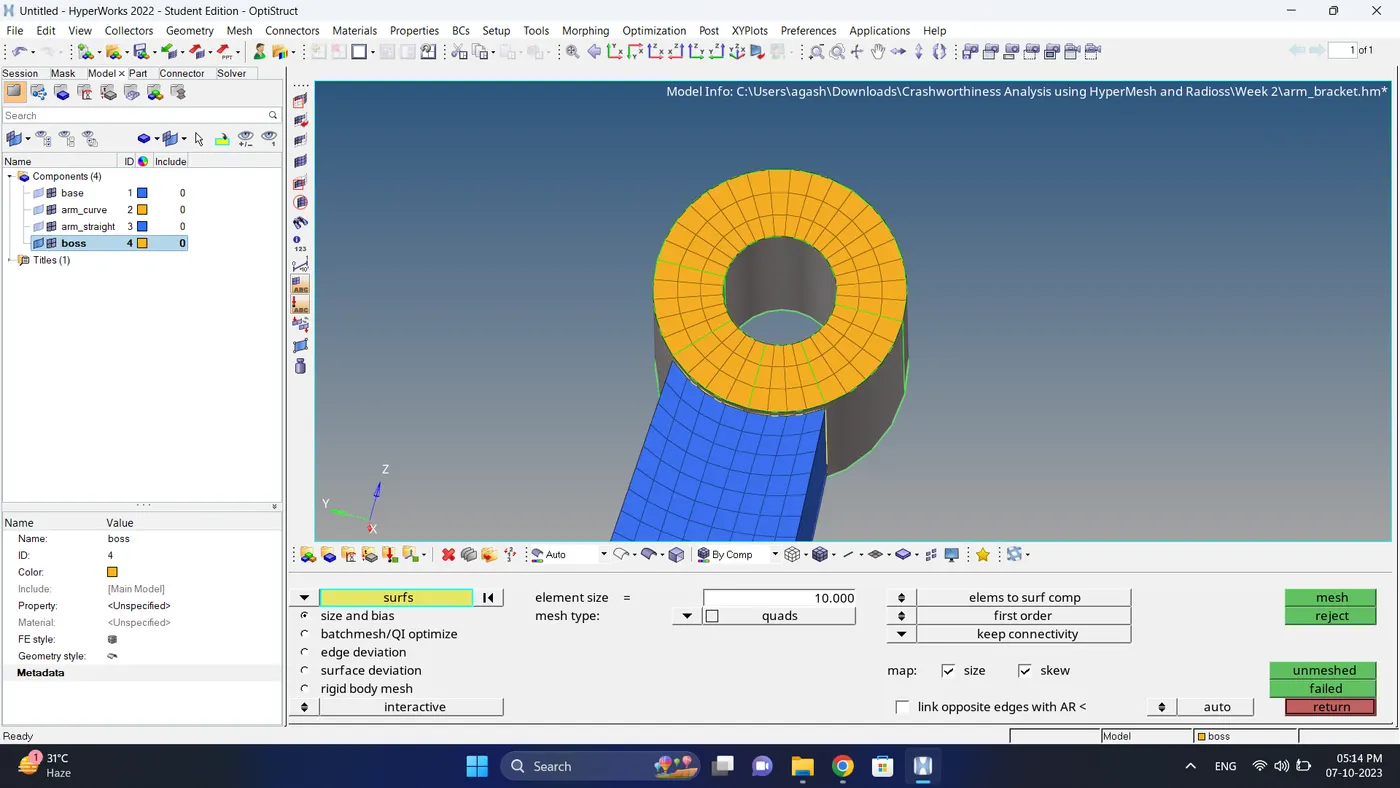
14. Create a 2D mesh on the upper surface of boss.
Note: make sure that element number of boss and arm_straight are same.
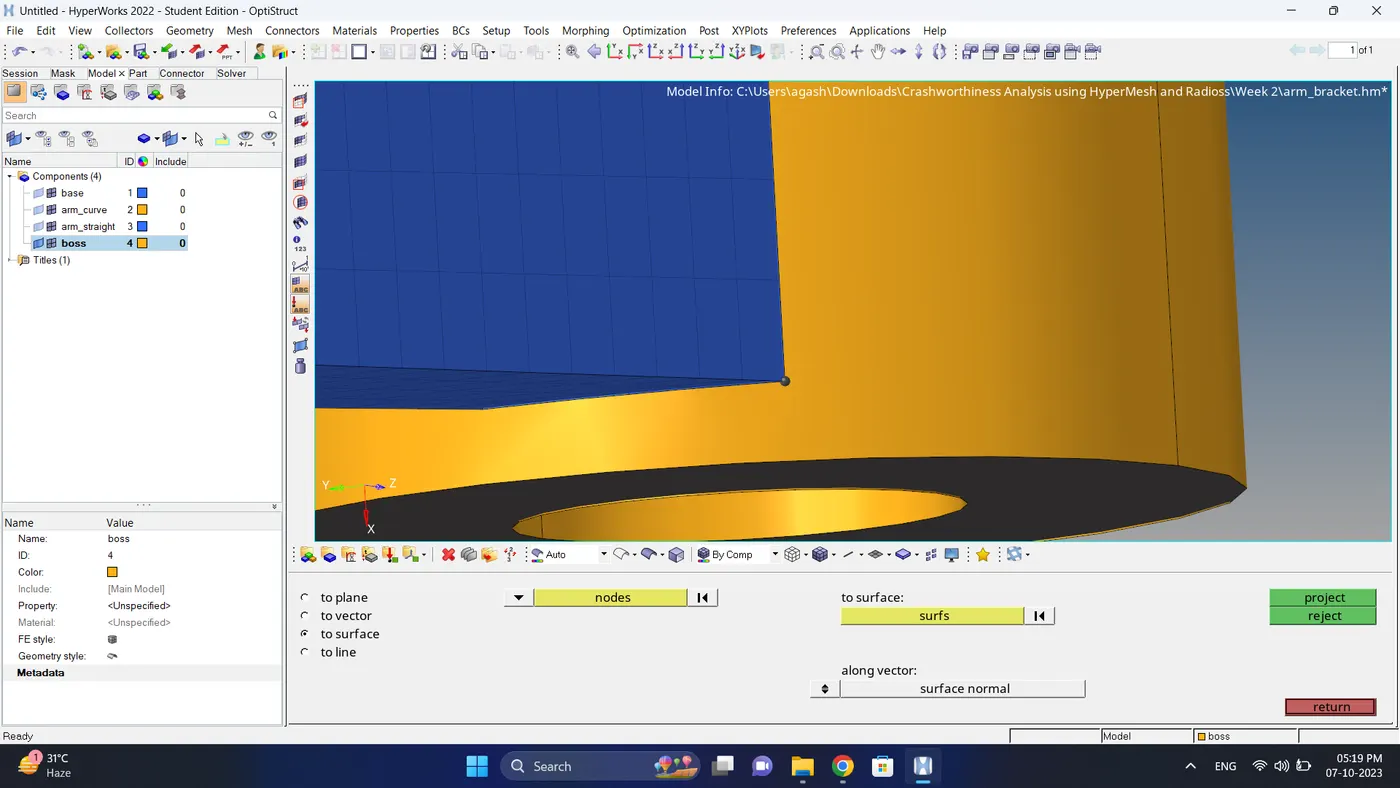
15. Create a node at the boss bottom base which is normal to each other using project option.
Note: before projecting duplicate that node.
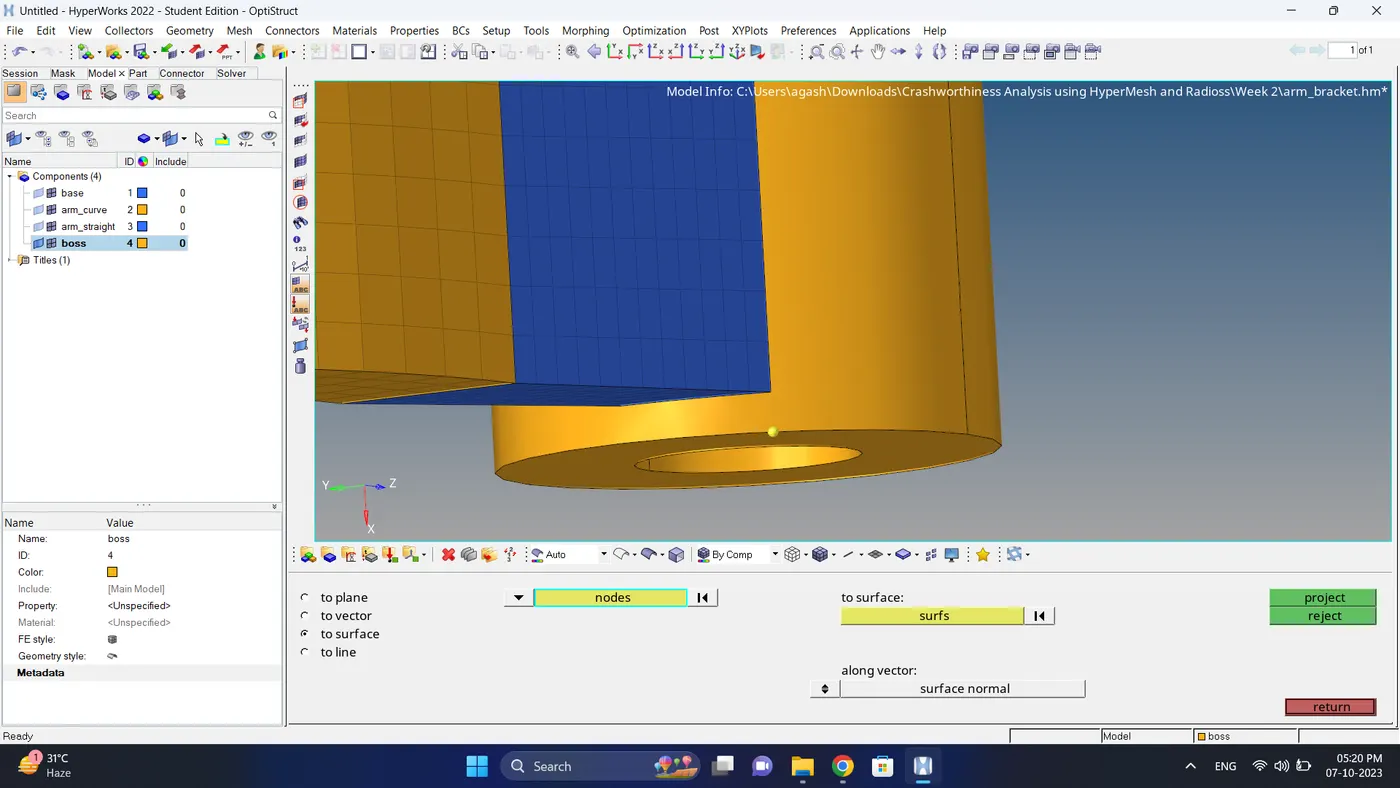
16. Go to the 3D - Solid map - Select element to drag - dest geom - along geom (as node path and line) - give along size (hexa size) - click mesh.
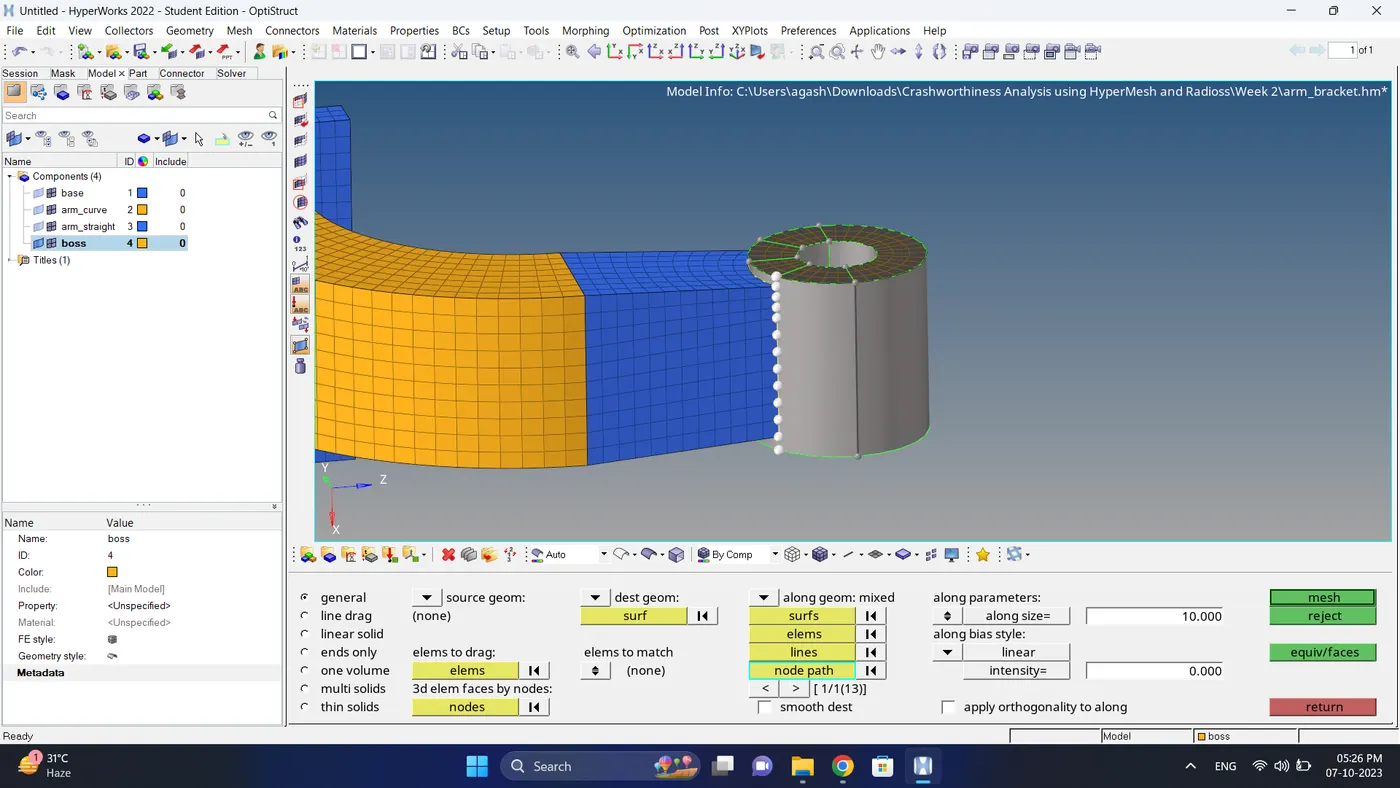
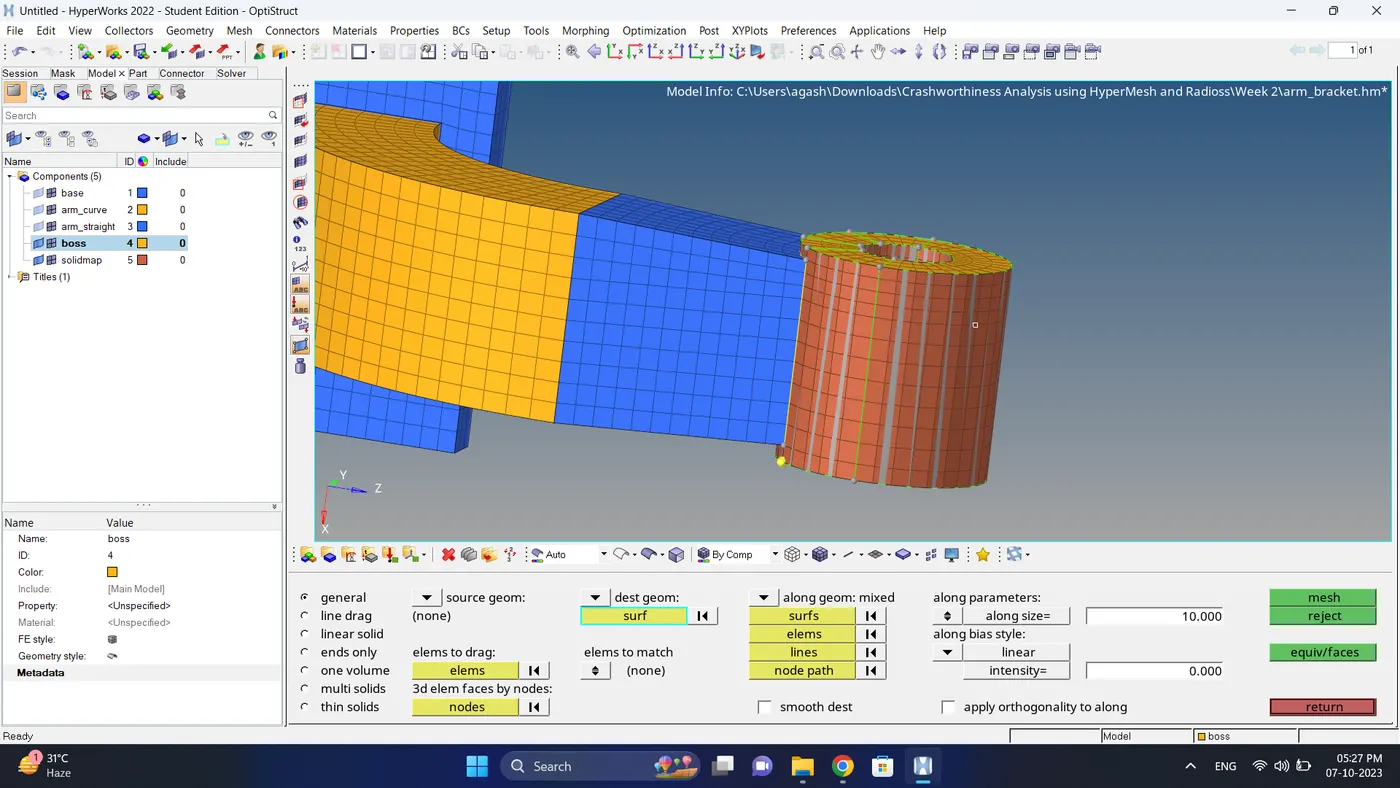
17. Move the solid map element to boss component. Go to tool organize - select element - dest component - click move.
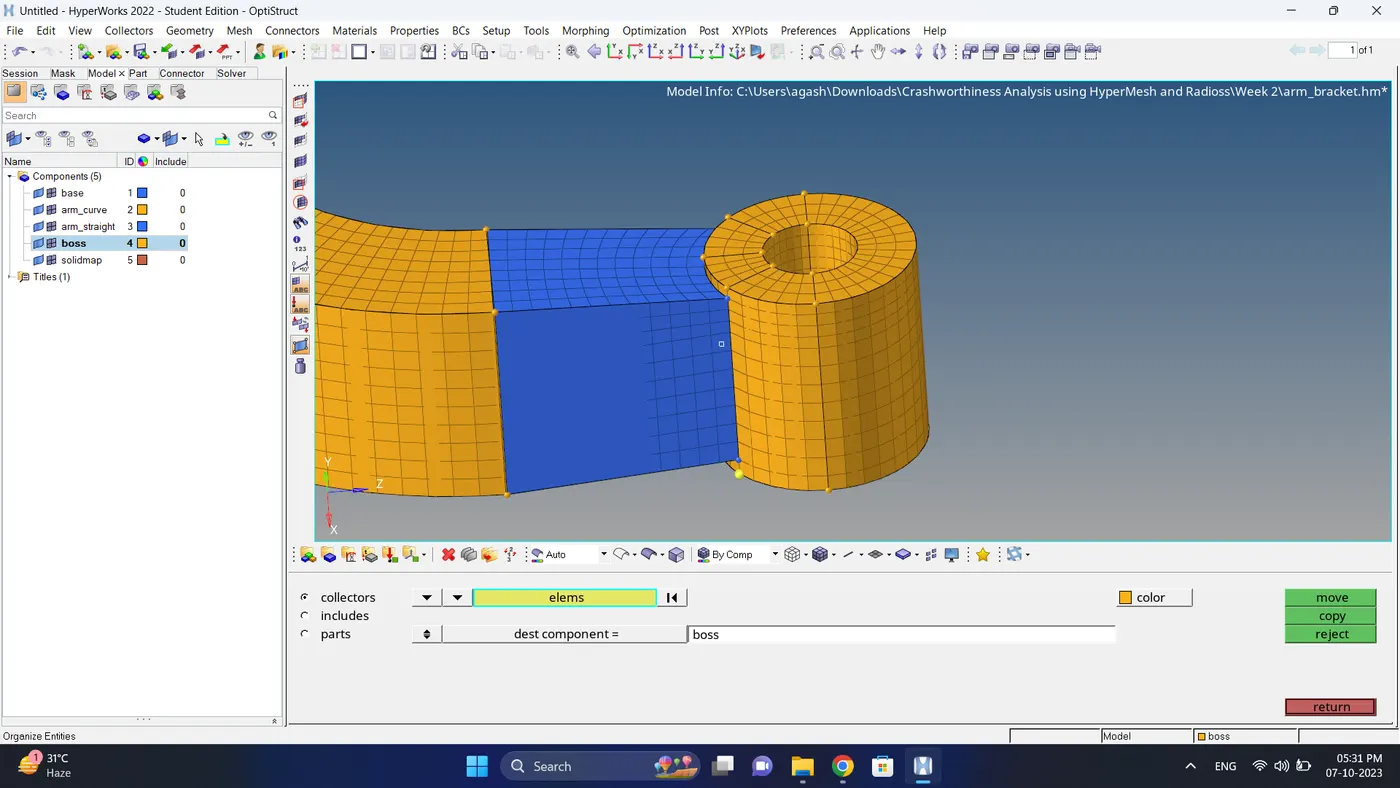
18. After that delete the 2D Quad element that are present in geometry.
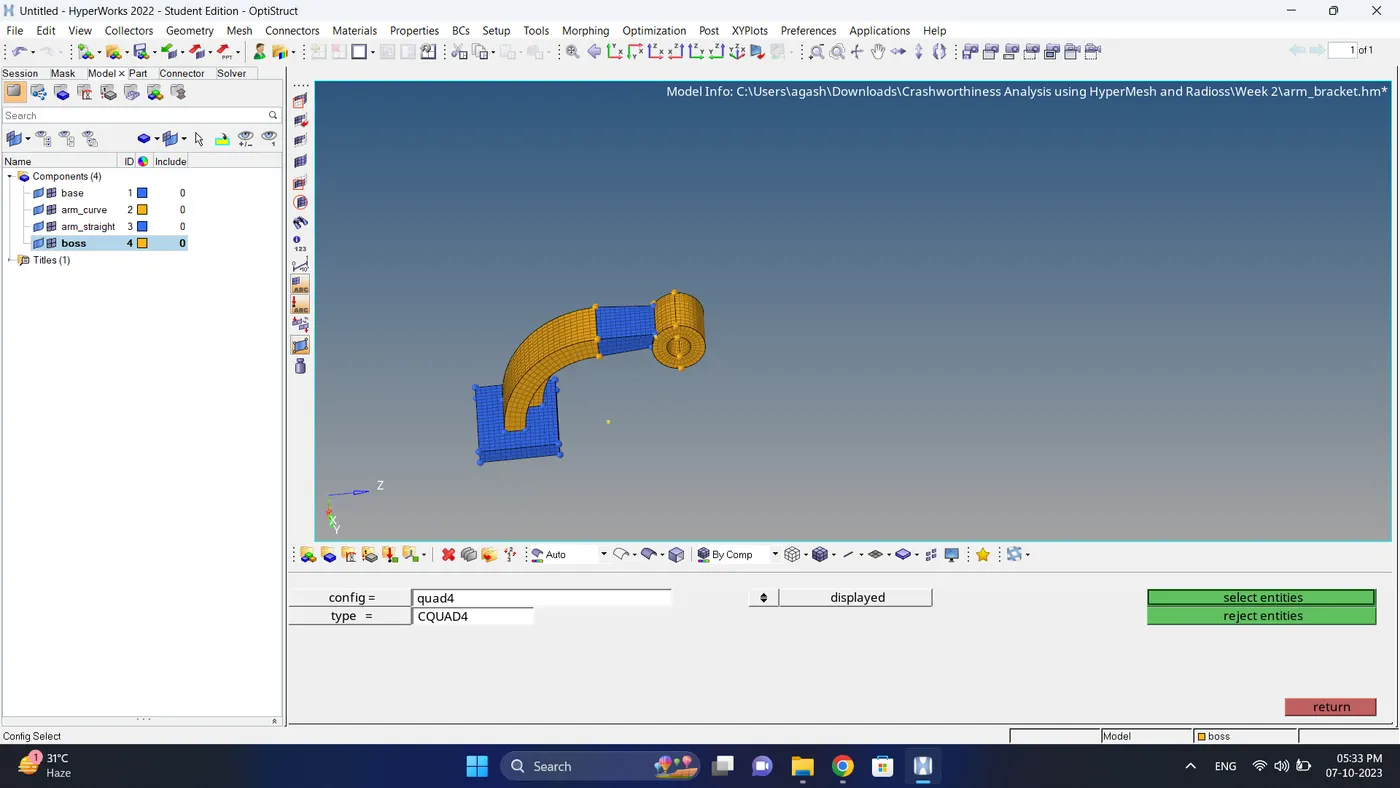
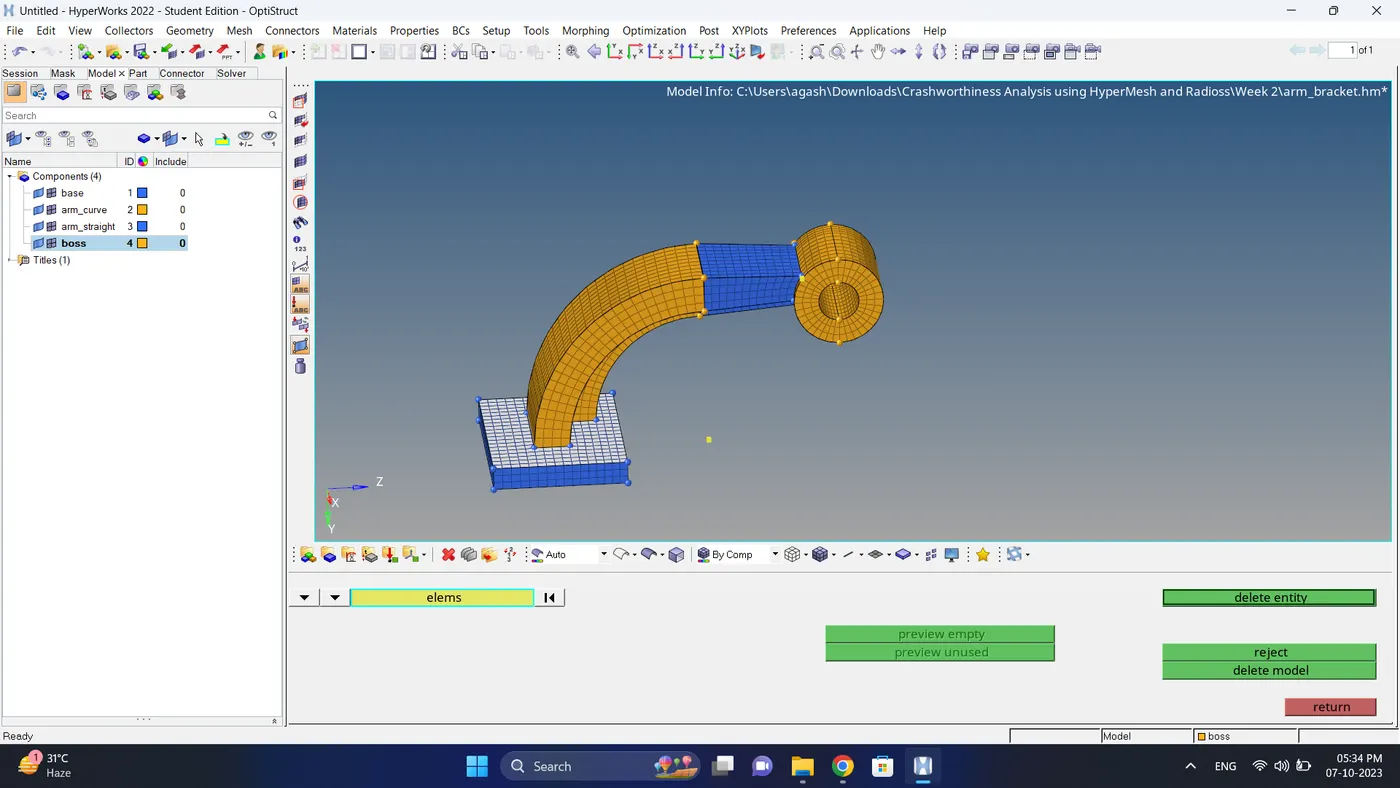
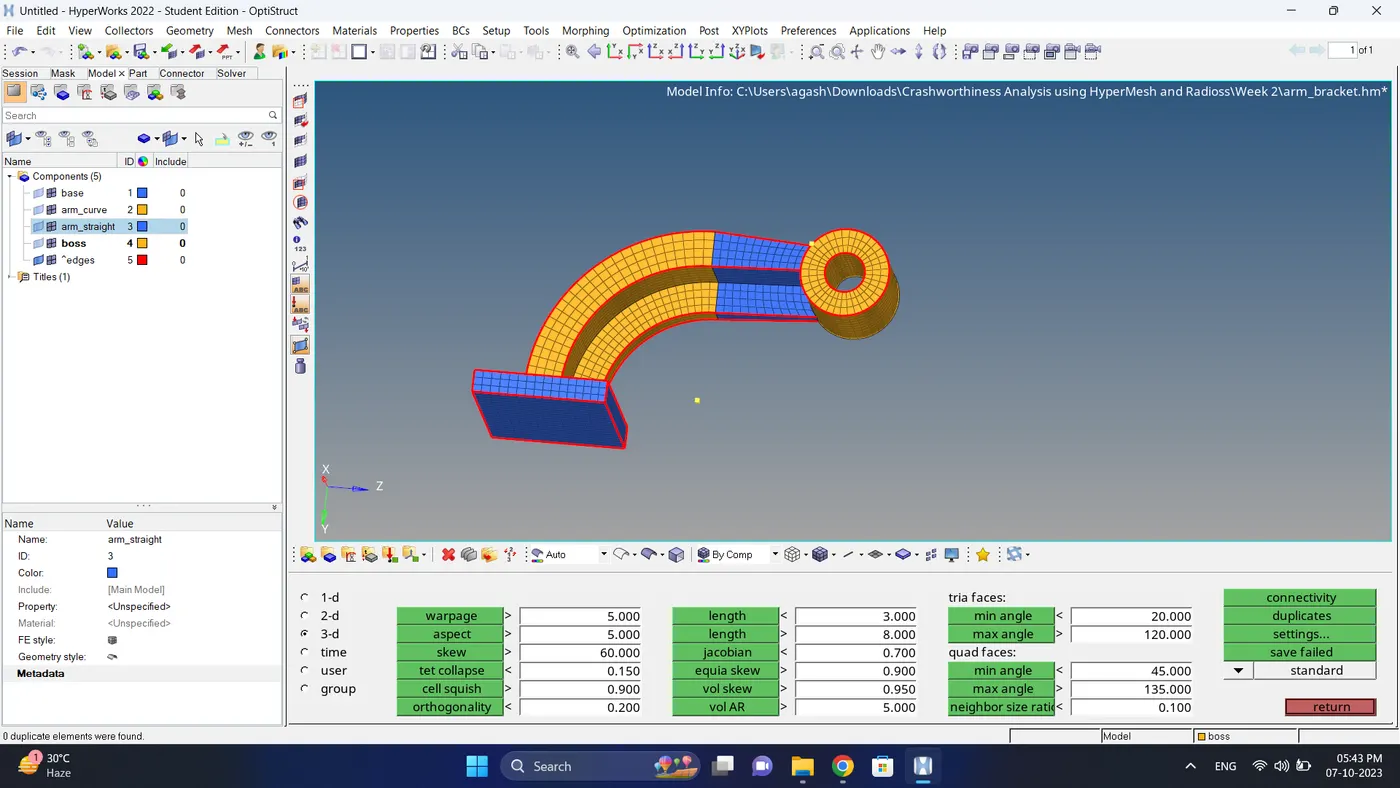
19. Check for the element connectivity, Go to the tool - edges - select element - click preview equiv - click equiv (if there are element present).
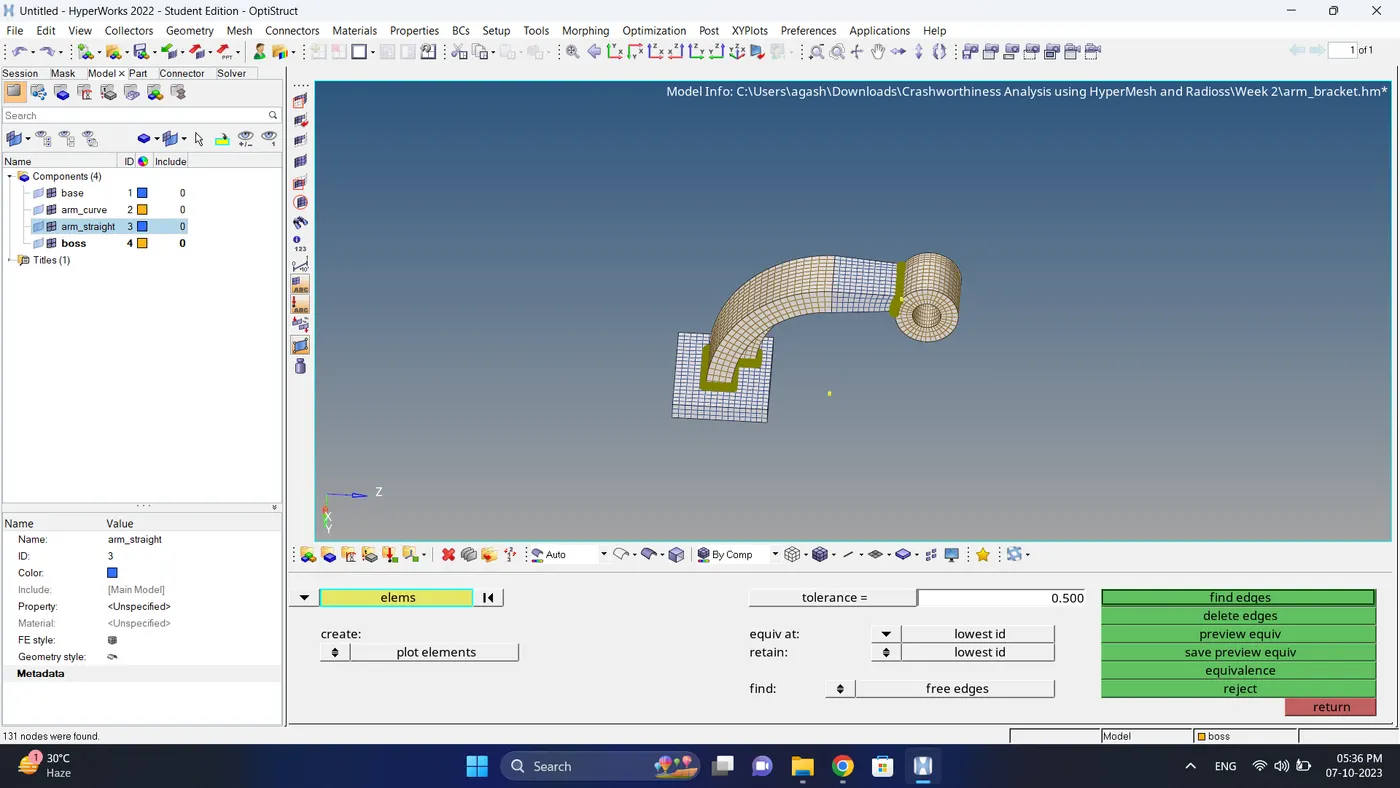
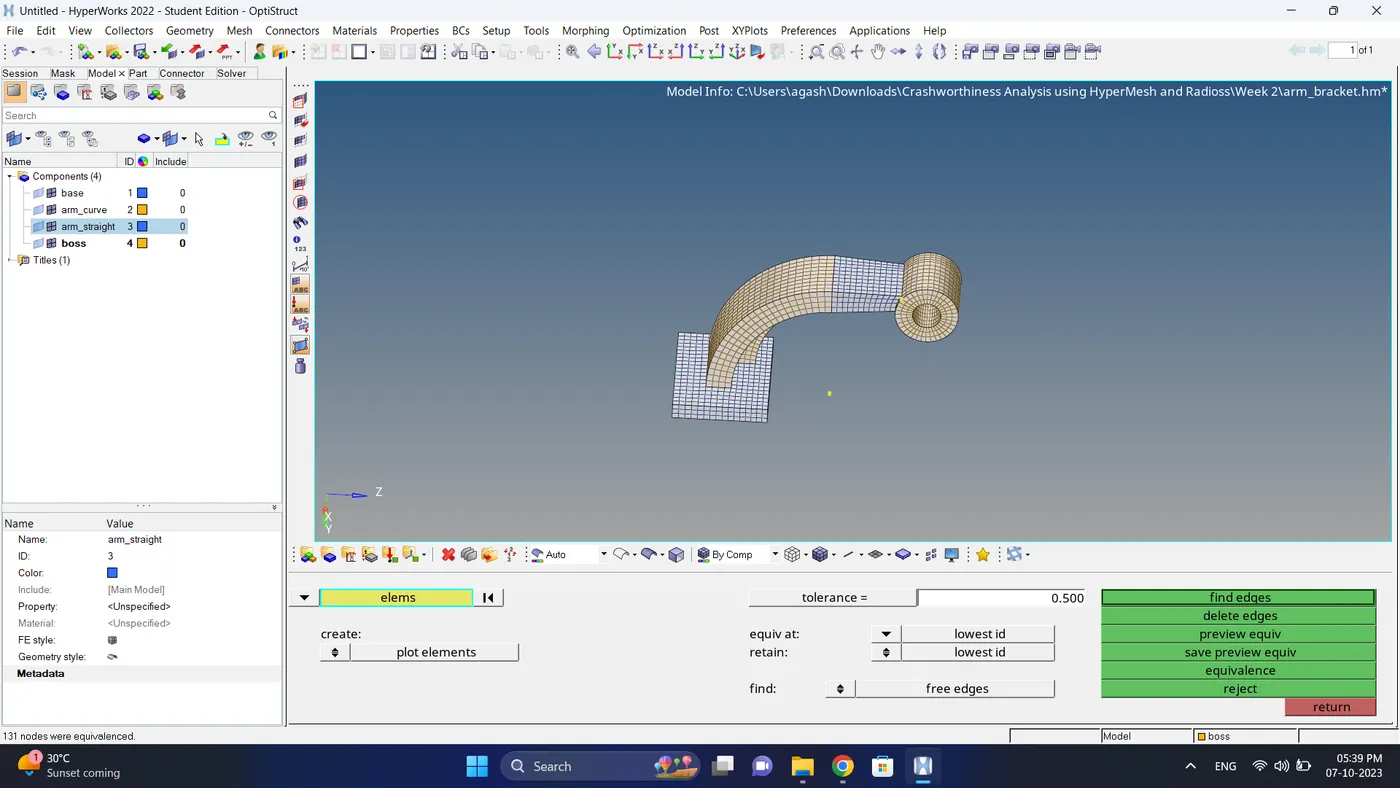
20. Do the final inspection check free edges if there free edges between the elements themn fix them.
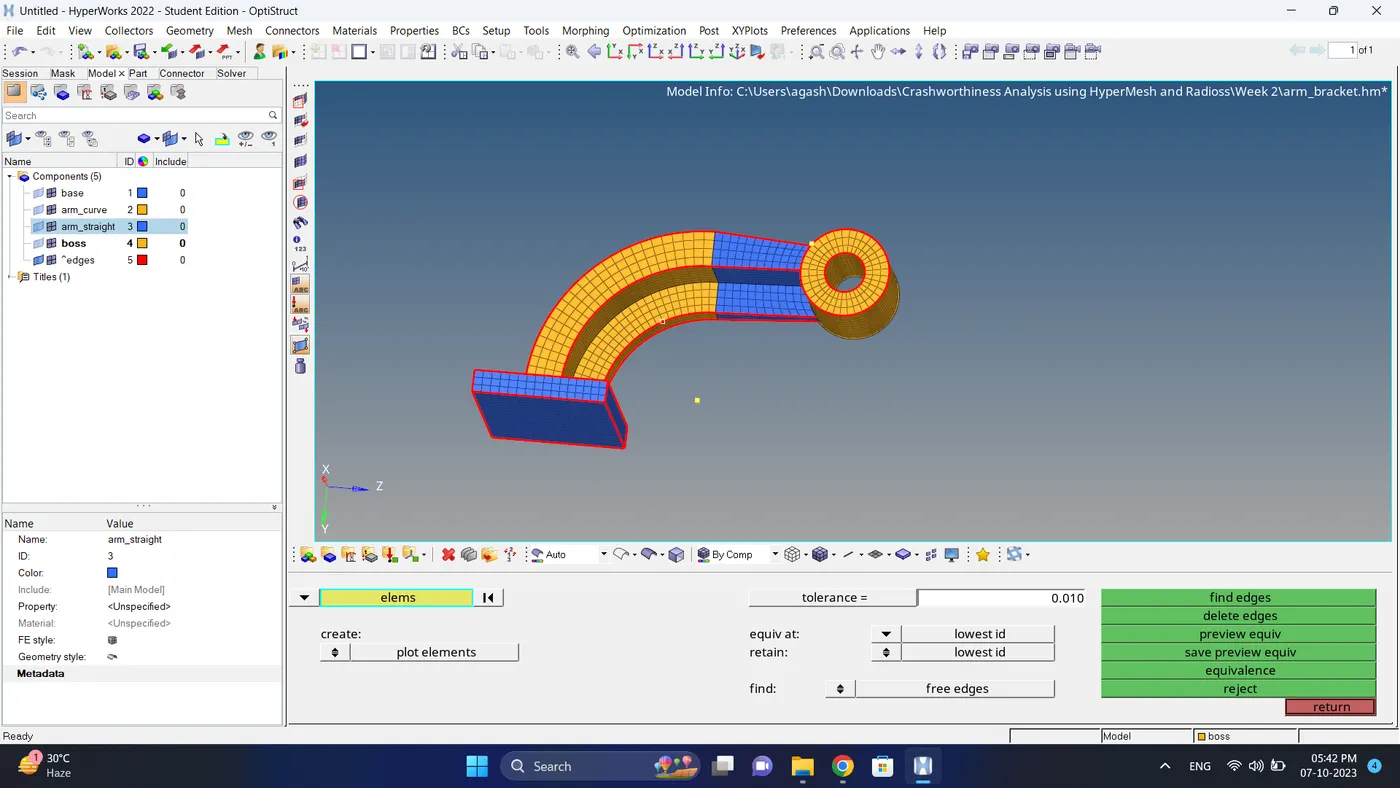
21. Check for the duplicate elements.
Final Model Images:
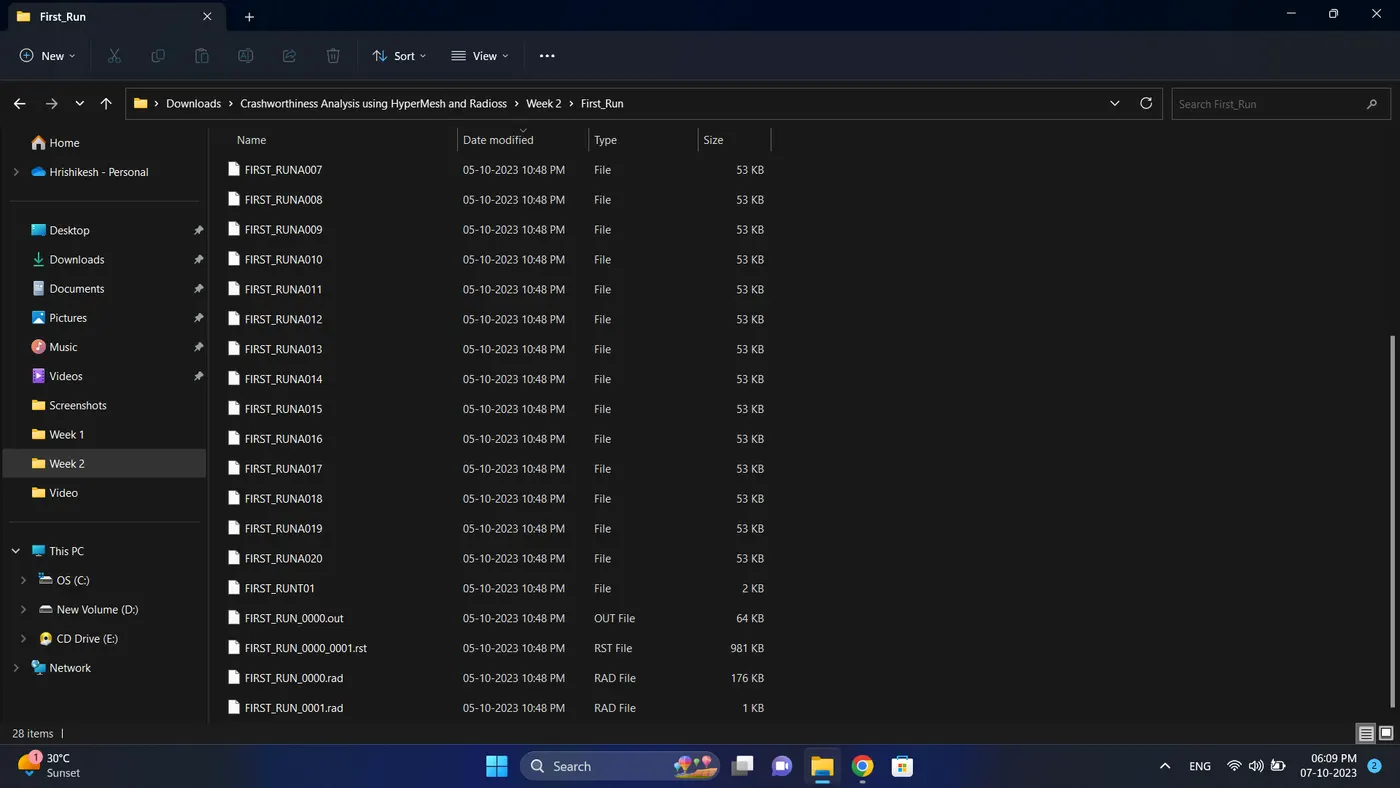
RADIOSS Engine File editing
3D Tetra meshing (Housing)
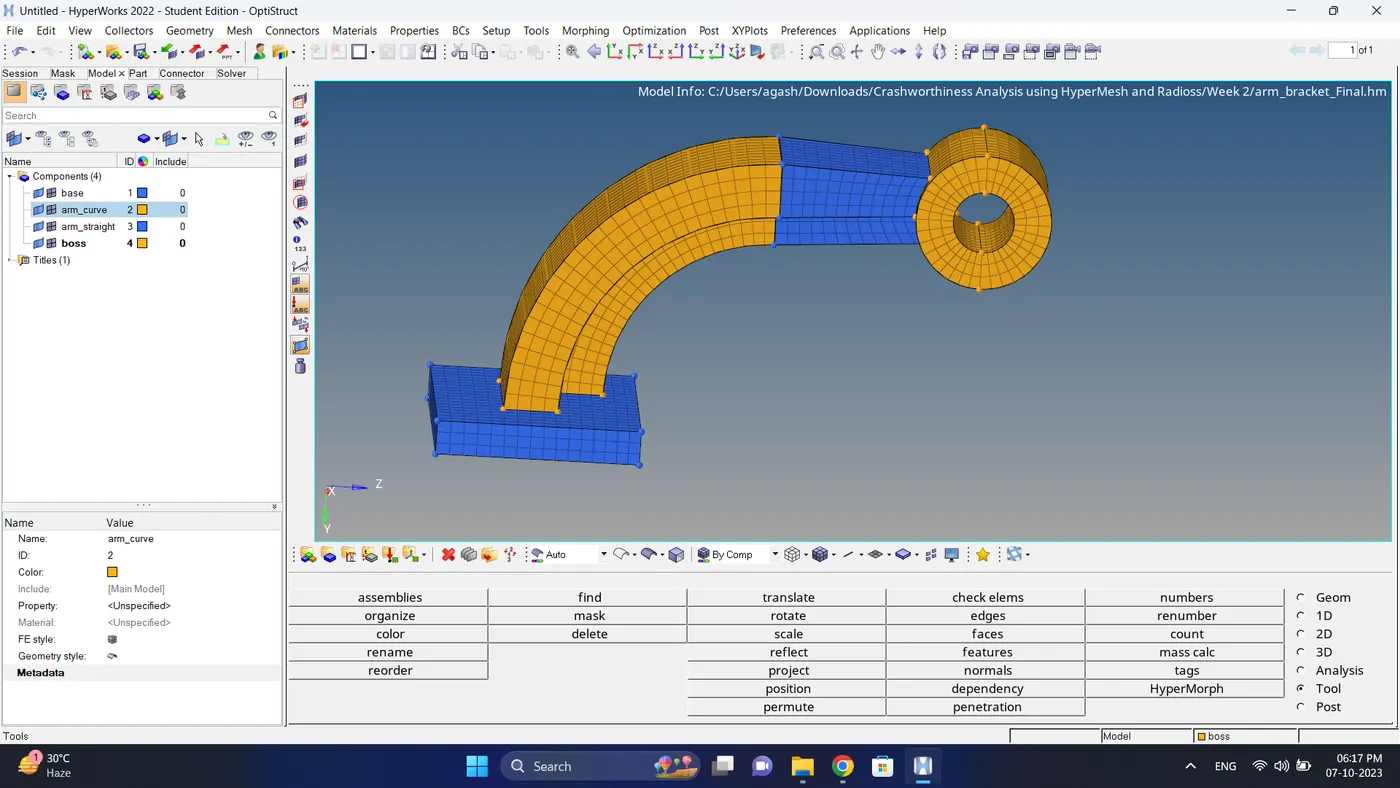
3D Hexa Meshing (arm_bracket)
Result and Conclusion:
1. RADIOSS Engine file editing is done successfully as per given criteria.
2. 3D meshing of Models is done successfully as per given criteria.