Assignment 2-RADIOSS Engine File Editing & 3D Meshing Challenge
Aim-RADIOSS Engine File Editing & 3D Meshing Challenge
Objective- 1.Engine file editing and calculation of given parameter.
2.3D meshing of model.
Procedure-
1.Calculation=
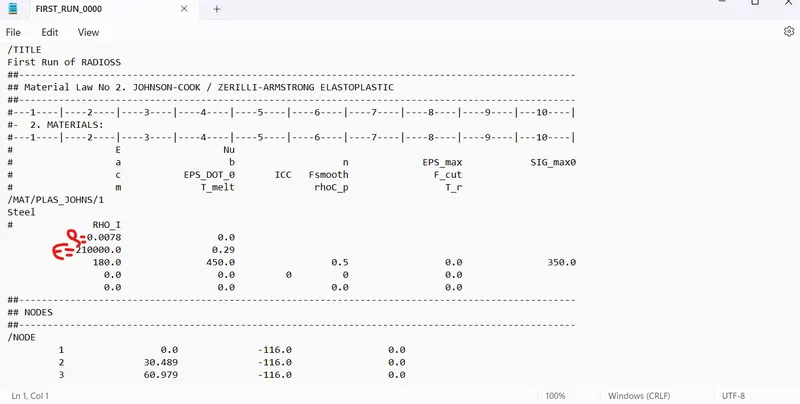
E=210000Mpa
Rho=0.0078g/mm3
Speed of sound c=√E/Rho
Therefore, C=5188.75m/s
2.Time taken for the shockwave to travel a distance of 1000mm (one end of the rail to the other)
Distance d=1000mm
Time taken t=d/c,
T=1000/5188.75
T=0.1927ms
3.The length of the rail is the length mentioned i.e. 1000mm
So time taken is same T=0.1927ms
4 5 and 6
The termination time is same T=0.1927ms
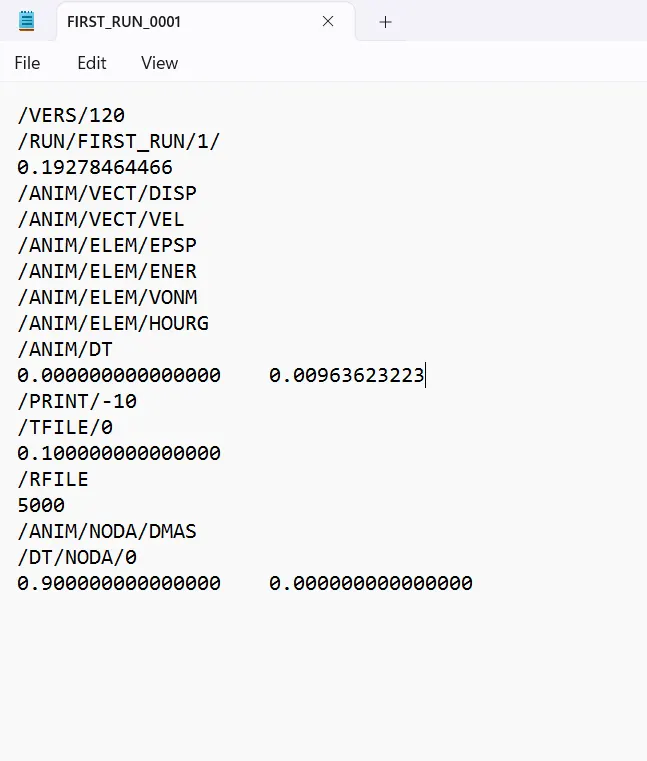
For 20 animation steps, t freq=0.1927/20
, t freq=0.00963ms
Updated the all the value=
Hexa and Tetra meshing-
Model-1 Hexa meshing-
Procedure-
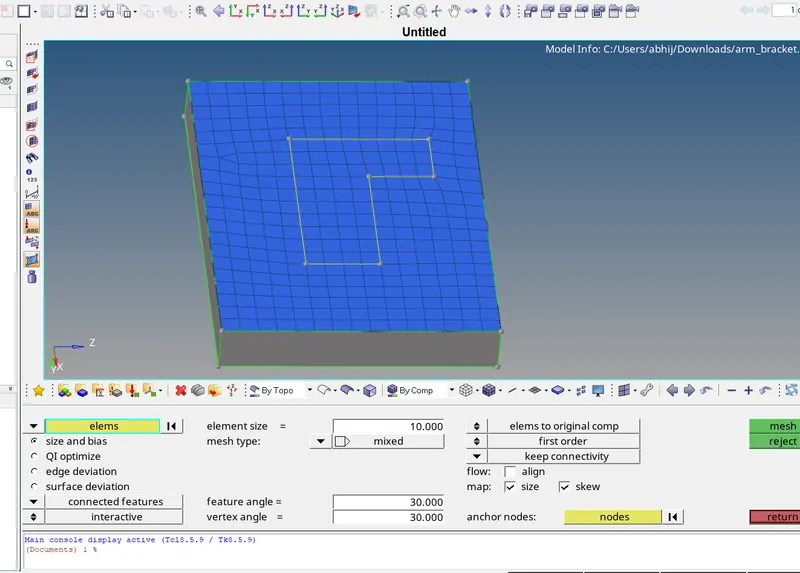
1.2d meshing – First of all we need to generate the 2d quad element by using automesh in 2d panel and 10.0 target element and select only quad so it will generate quad only avoid rotating quad make it equal by remeshing.
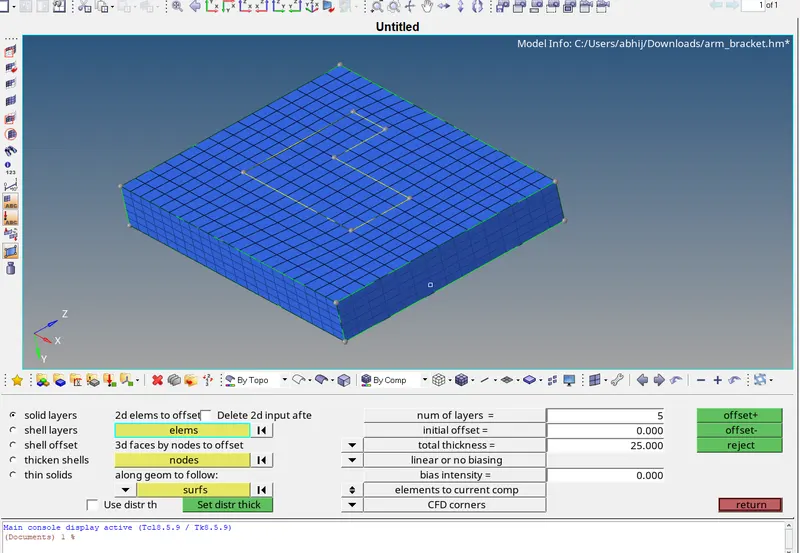
2.3d mesh- In the 3d panel> element offset >select 2d element> select surface> set no. of layer and total thickness> hit offset.
3.Spin- For curved part we are using spin option 3d panel.
First of all we need to generate the centre node of the circle for that geometry> distance >select three points> select the line >create three point on that line> hit circle centre.
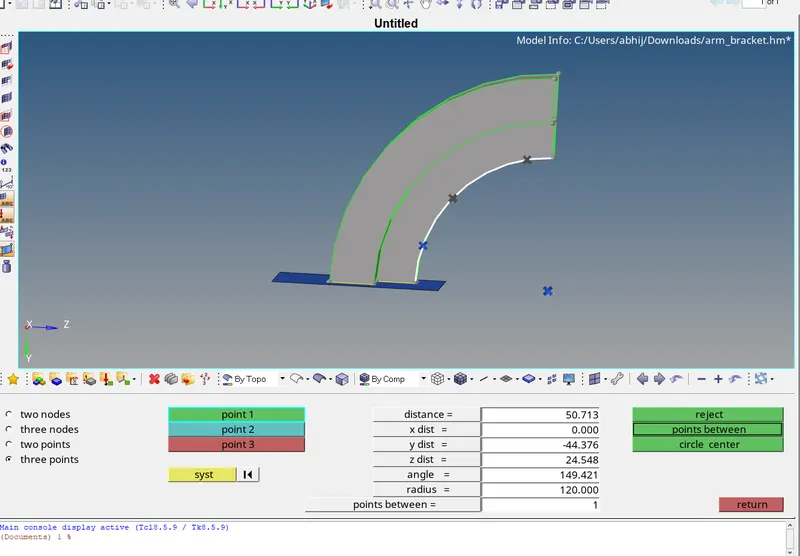
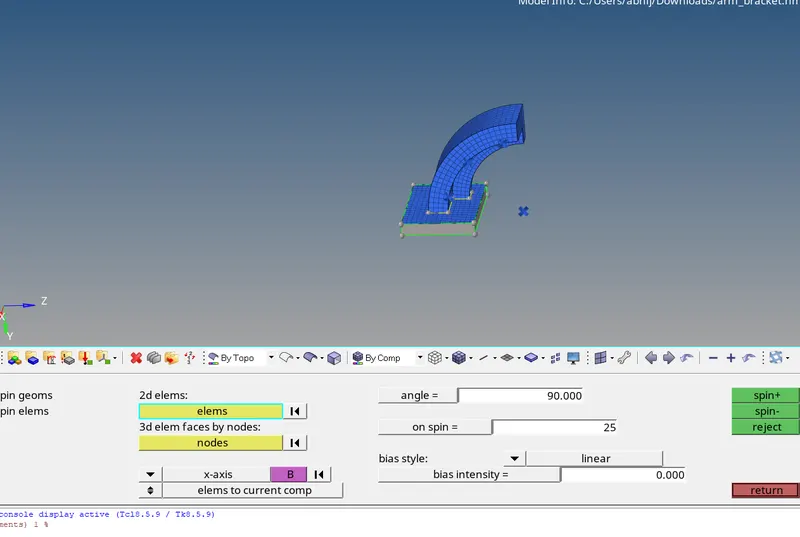
After creating the point 3d panel> spin> spin element> select 2d element>select axis>set angle as 90 degree because it is in 90 degree > set on spin 25> hit the spin.
Completed model-
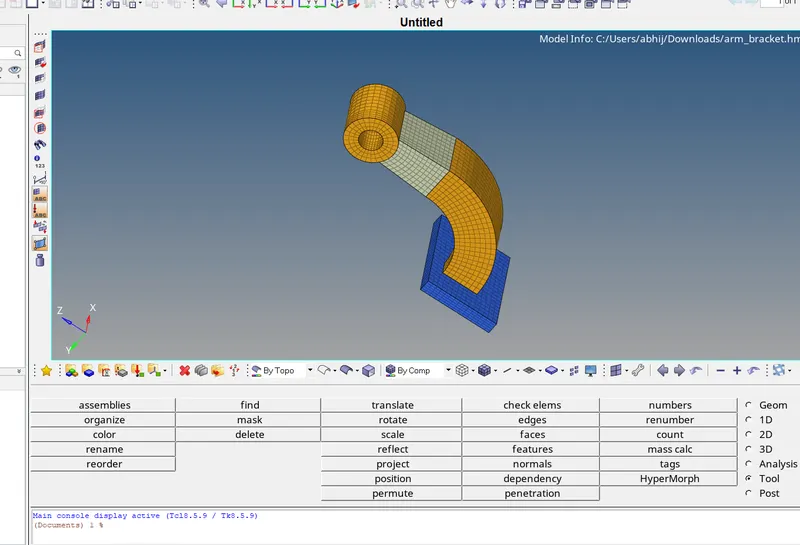
2.Model 2 Tetra mesh-
1.Import the model- In the left side of window import the model which is in stp or iges file format.
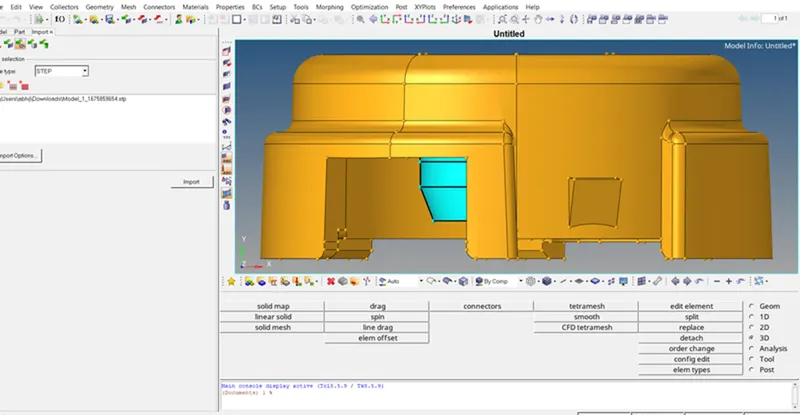
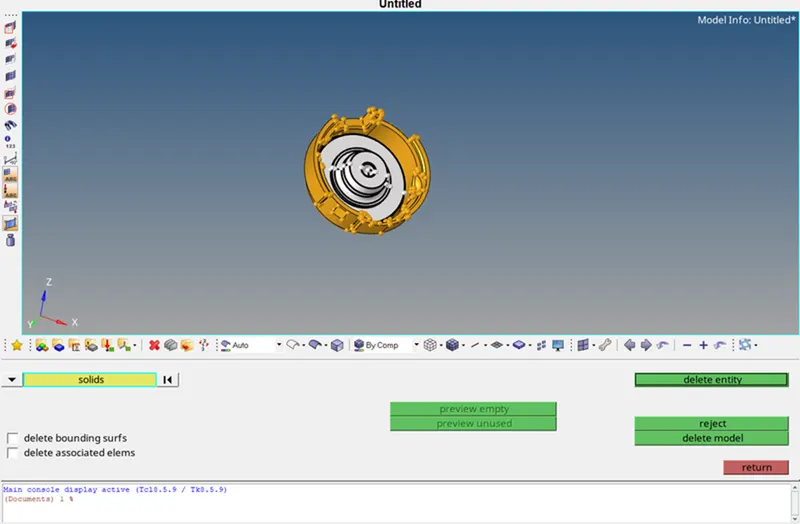
2.Delete the solids- By using delete option select the solids and delete them.
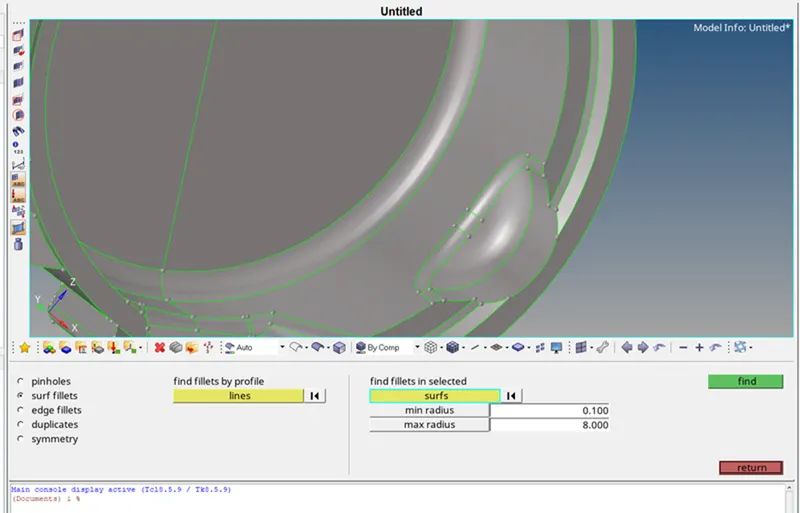
3.Defeature - Defeature the surface by using defeature command in geometry panel. We are defeaturing the surface which is below min length because it will fail for min.length quality criteria.
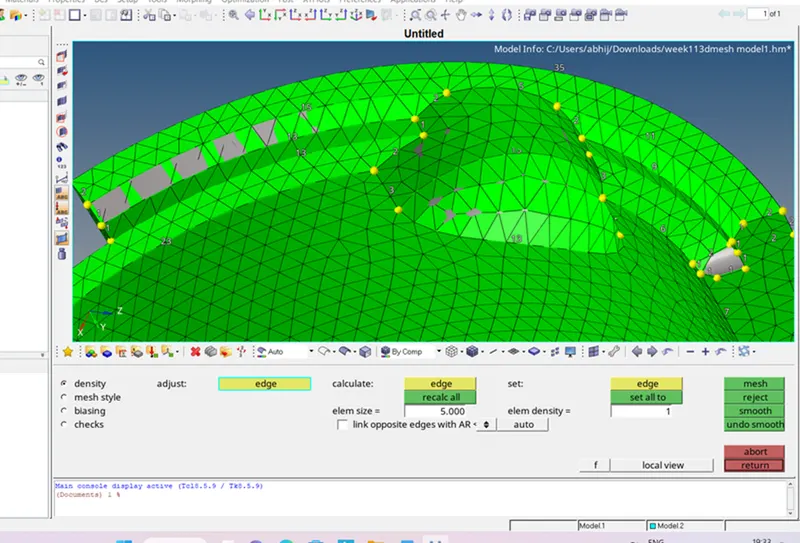
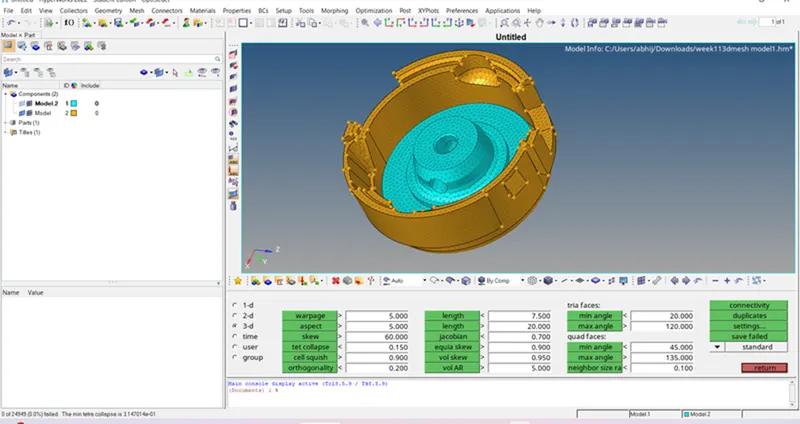
4.Meshing- For mesh first of all we need to set the quality criteria for 2d to 3d mesh conversion .Then go for 2d mesh panel>automesh>set target length >set the tria only>select the surface>hit the mesh button. After that we should clear the off elements because it will fail for tet collapse in final mesh. For resolving the off elements use translate or smooth option.
5.3d meshing- For converting the 2d to 3d mesh go for 3d panel>tetra mesh>select tetra mesh>select the element>Hit the mesh button. After that we should check the elements for quality failure for tet collapse tools>check elements>3d>tet collapse. For resolving the tet collapse we should go for translate command in tool panel.
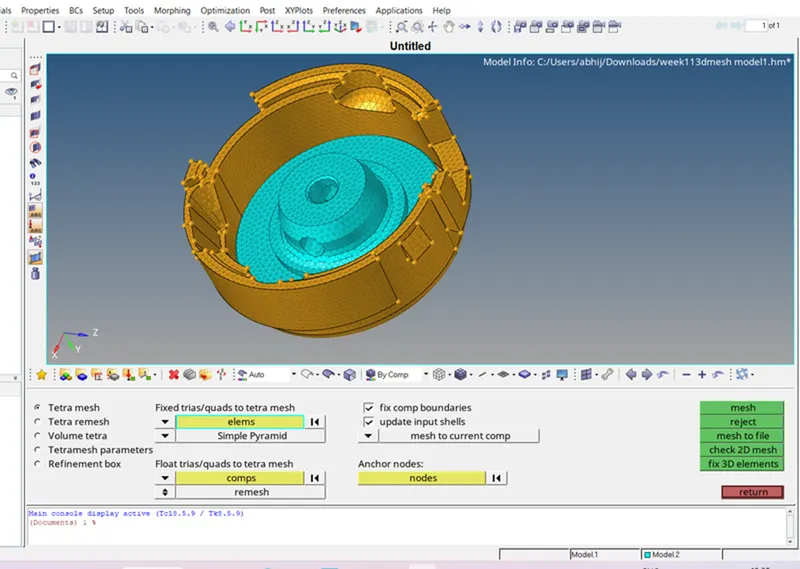
without any failed elements i.e.tet collapse-
Outcomes- Learned about 3d meshing and hexa meshing.