Assignment 2-RADIOSS Engine File Editing & 3D Meshing Challenge
1. Check the material properties of the rail component and calculate the speed of sound in steel rail=_______
Ans :
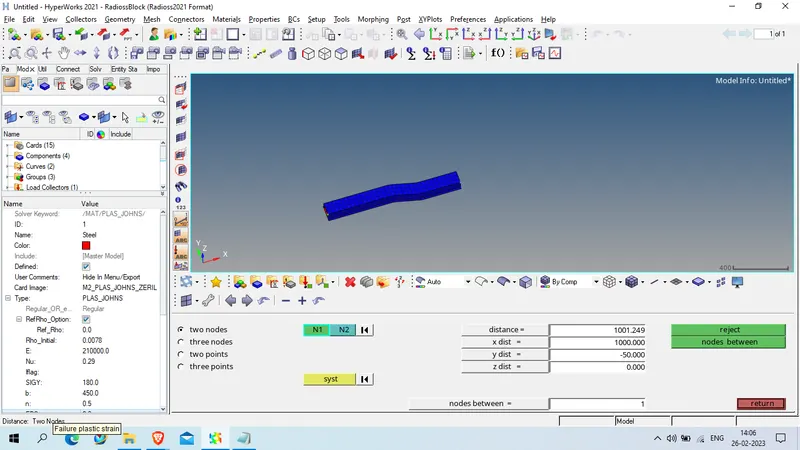 Young modulus of steel : 210,000 N/mm² and dencity : 0.0078 gram/mm^3
the formula for speed of sound wave in material : sqrt(E/Rho)
Sqrt (21000/0.0078)
Velocity of sound wave in (rail material) = 5188.7452 mm/ms or M/s
2. The length of the rail is about 1000 mm.calculate the time takes for a shock wave to travel from one end of the rail to the other
Ans : Length of the rail = 1000 mm
speed of sound wave = 5188.74 mm/ms
time required for shock wave to travell one end to other end in rail : 1000/5188.74 ms = 0.192 ms
3.3.Time for sound to travel length of rail=______
Ans : 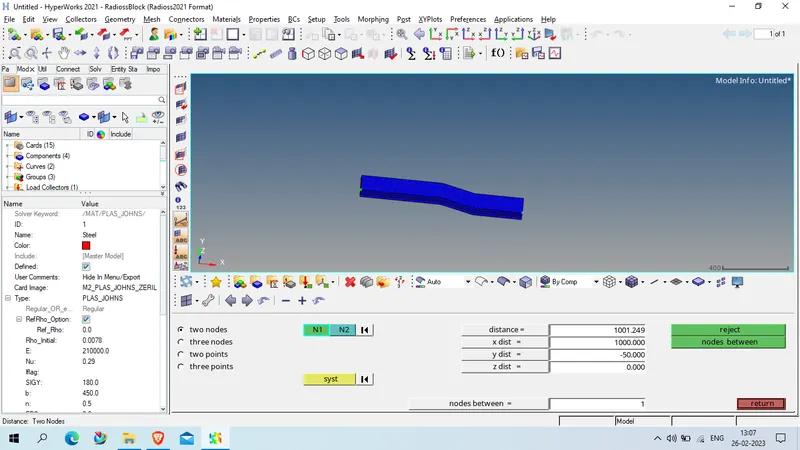
as the length of rail is 1001 mm , and velocity of sound in same material is 5188 mm/ms ,
Time required to pass the component : 1001 / 5188 = 0.1929ms
so we can assume the the sound wave pass the rail in 0.1929 ms.
4.Edit the engine file so that the stress wave can be monitored, moving from one end of the rail to the other during impact -this will require a termination time equal to the time it takes for the sound to travel the length of the rail(set on/RUN card)
Ans :
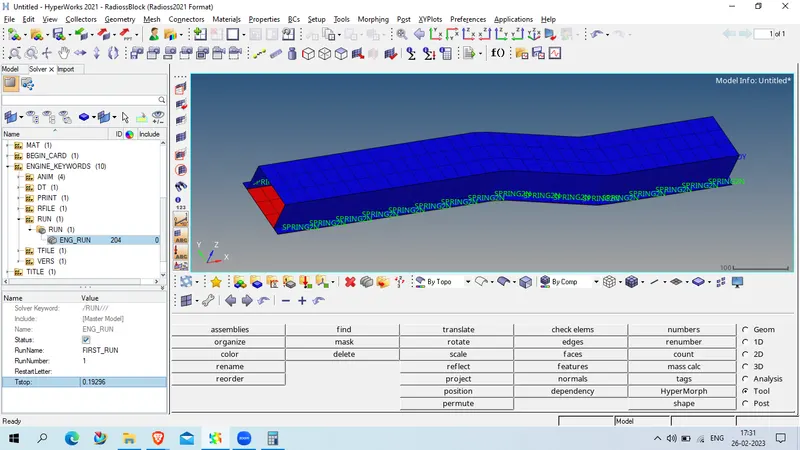
Open first_run_0000.rad file in hypermesh > radioss solver
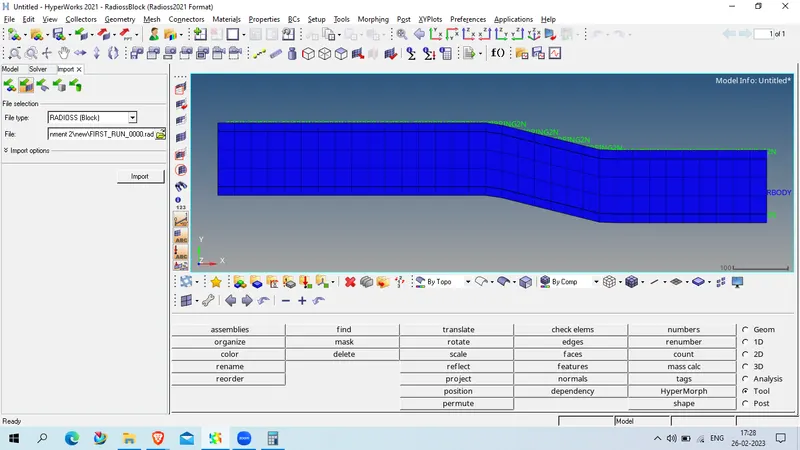
now go to solver under tree diagram.
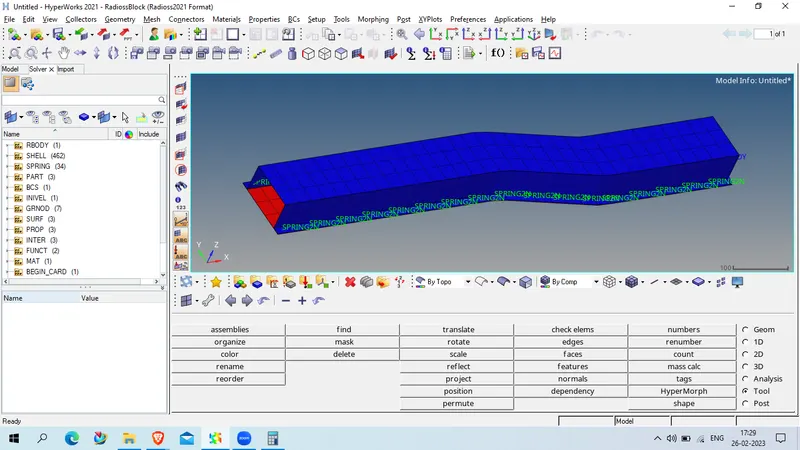
Expand ENGINE_KEYWORD
EXPAND RUN> RUN > ENG>RUN
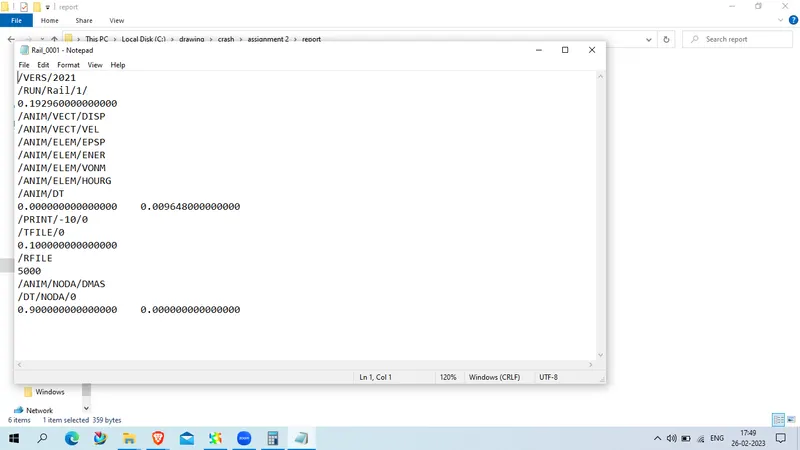
change Tstop = 0.19296
5.Set the frequency of animation output to a time that will give 20 animation steps(/ANIM/DT)
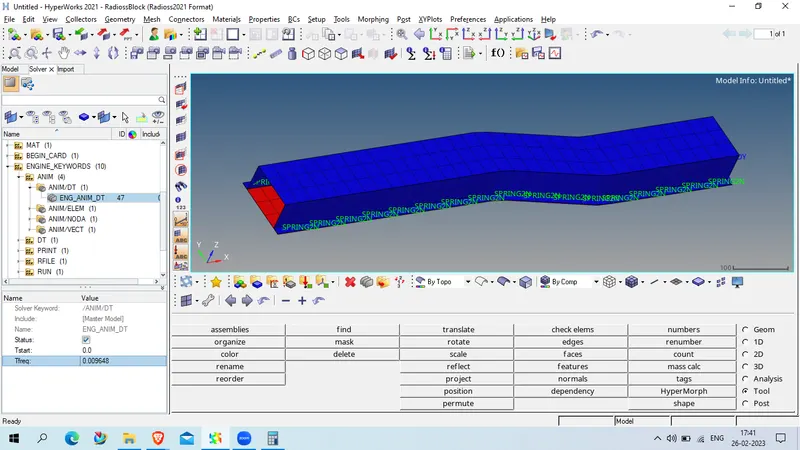
NOw EXPAND ENGINE_KEYWORDS
EXPAND> ANIM > ANIM/DT > ENG_ANIM_DT
as we wo anumation step divide 0.19296 into 20
T freq = 0.009648 ms
6.Change /print -10.
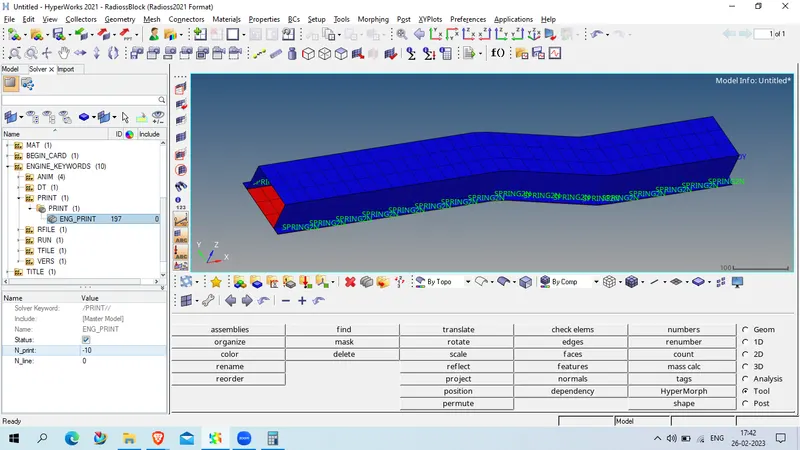
Expand ENGIINE_KEYWORD
EXPAND PRINT> PRINT> ENG_PRINT
Set value as -10
7. 3d meshing tetra mesh and hex mesh
- Repeat class examples and, maintain the quality.
- Target tet size=5mm,hex size=10mm,tet collapse=0.15.
Procedure :
Open Housing model in Hypermesh > radioss
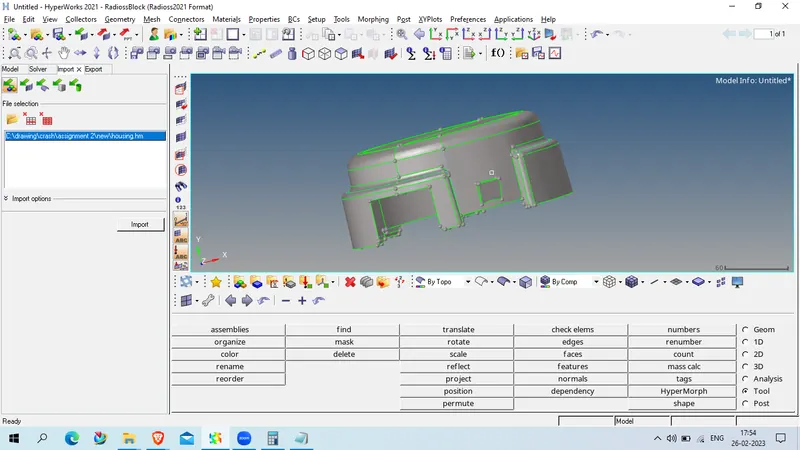
Now check for geometry error and clean that using geom> quick edit
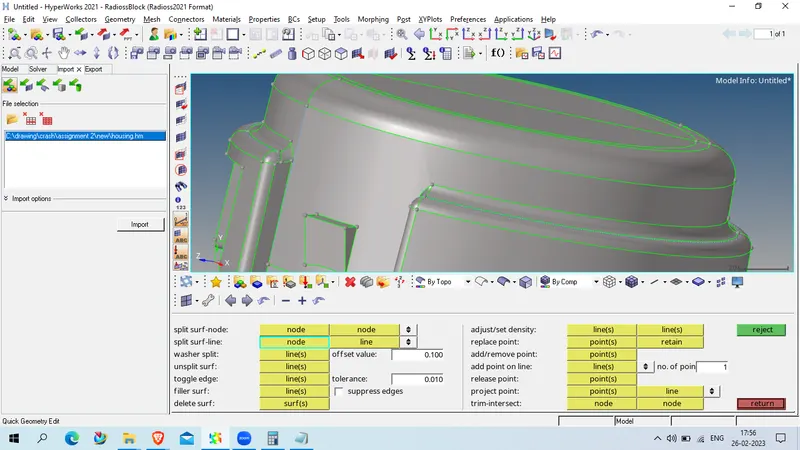
after geometry clean up done , we go to 2D > auto mesh >element size =5 and mesh type = trias
now select the surface and mesh
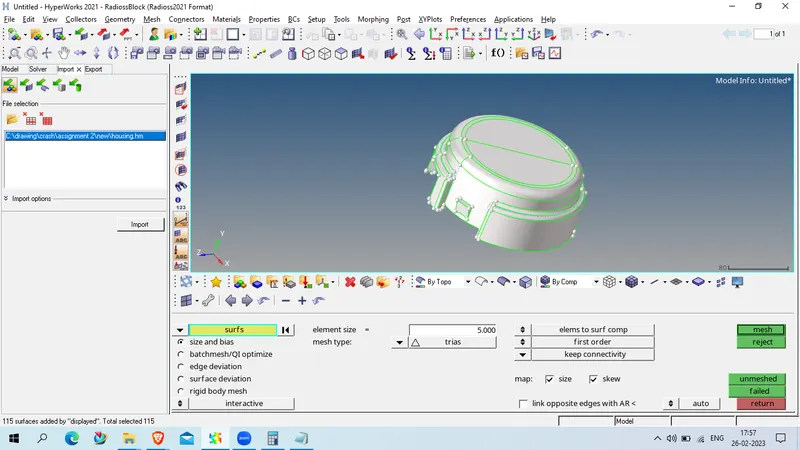
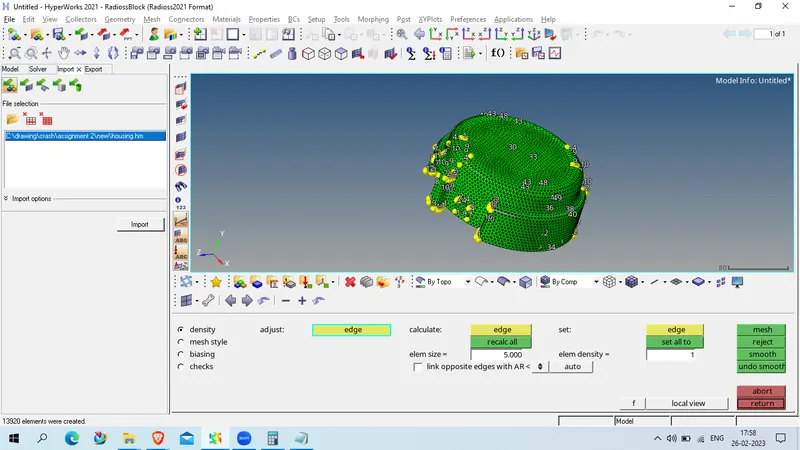
NOw go to 3D> Tetramesh> Tetramesh
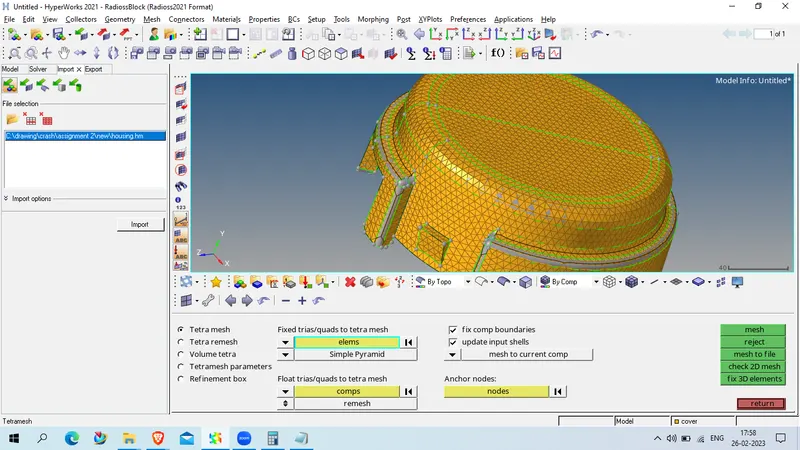
select all displayed element and mesh
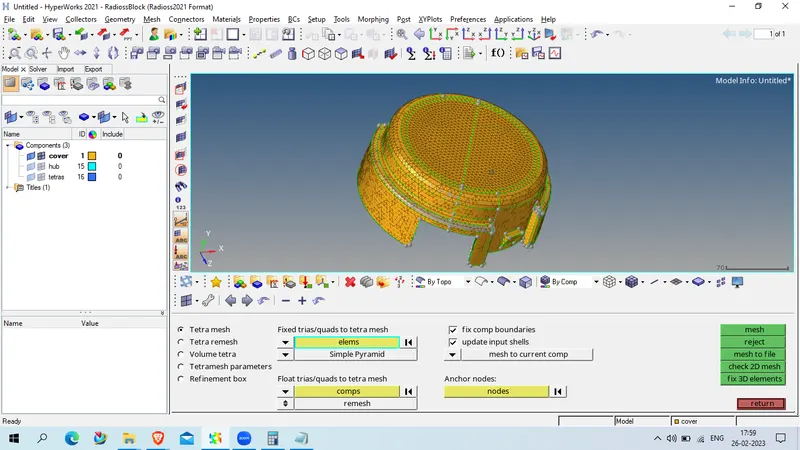
now check for Tet COllaps 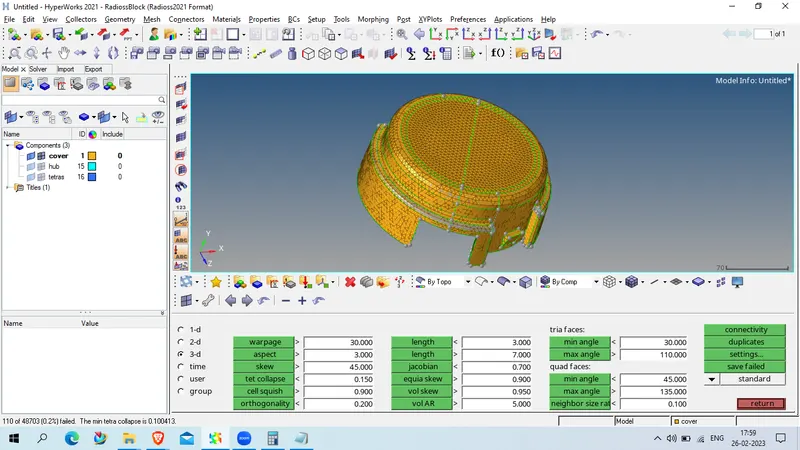
as we have 110 tet collaps error we will mask these element and revese so that we can solve the issue
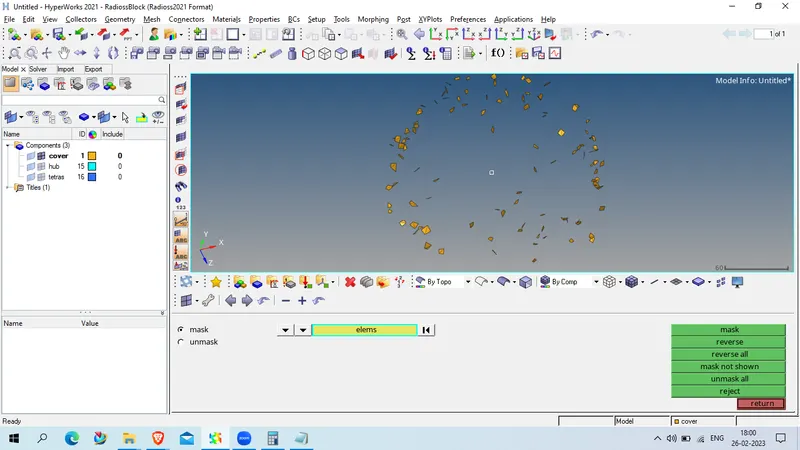
now increase the length of tetras so that it will pass the quality
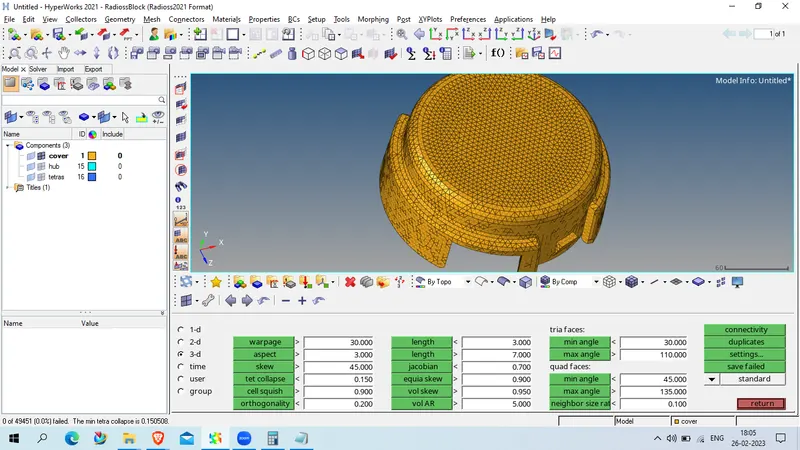
as now all element pass the tet collaps so will will process .
now hide cover and show hub component
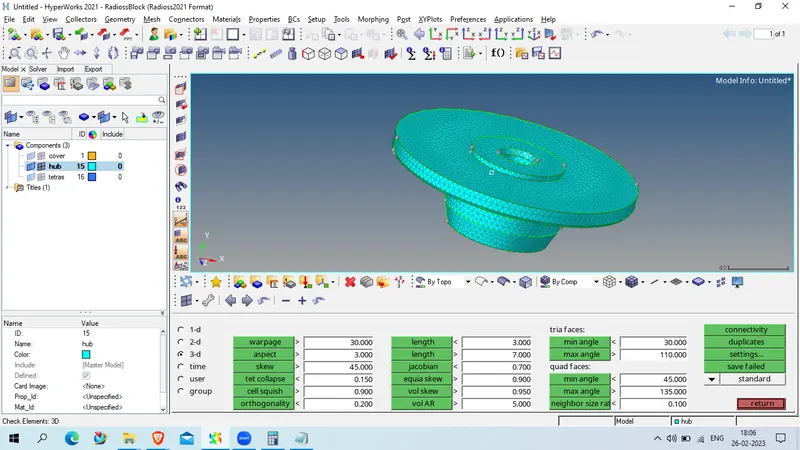
as in this we have face element so will go to 3D > tetramesh
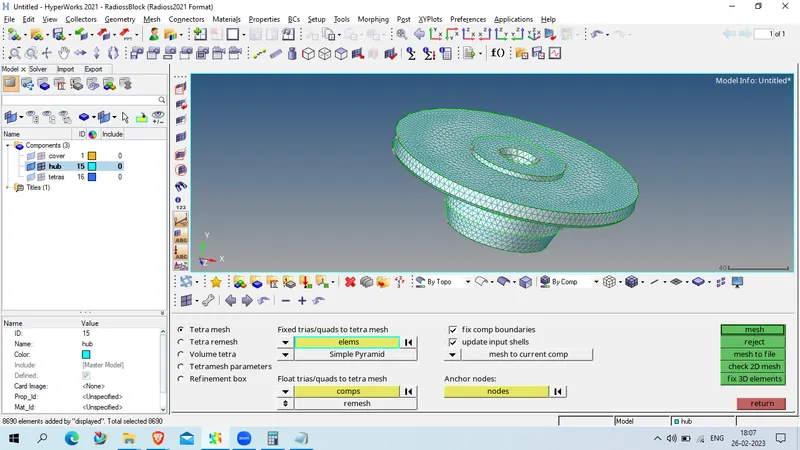
select all element which are displayed and click on mesh
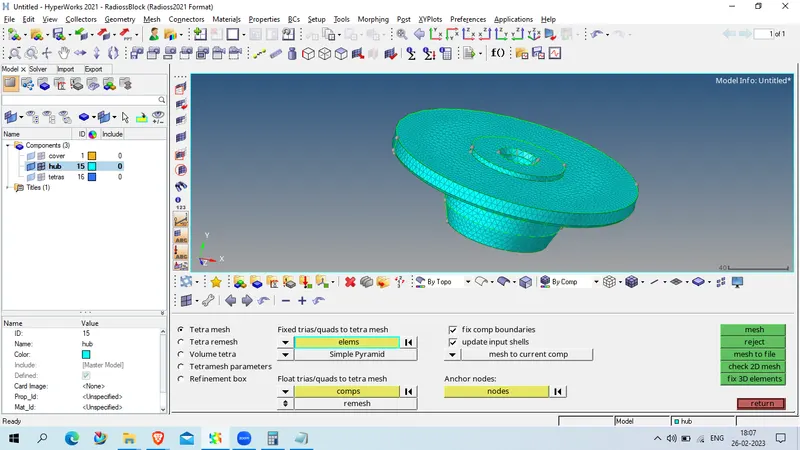
NOw we will check and solve tet collpase issue as above and save the file.
for arm_bracket
Open geometry in hypermesh> radioss solver
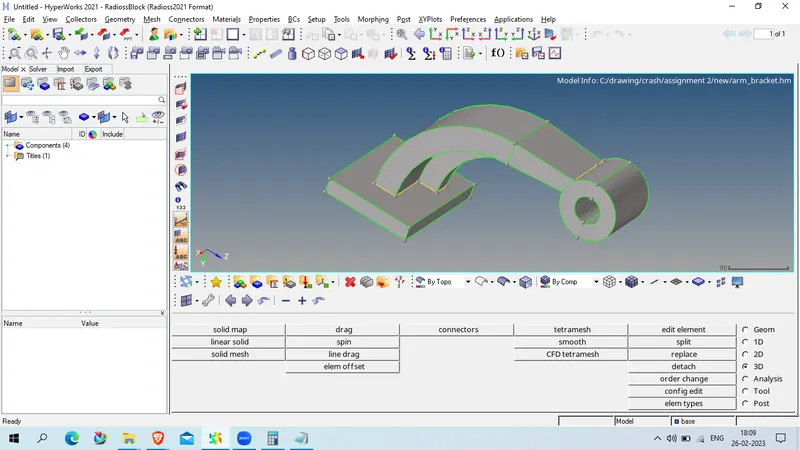
now hide arm_curve, Arm_base and bose compnent and how only base component
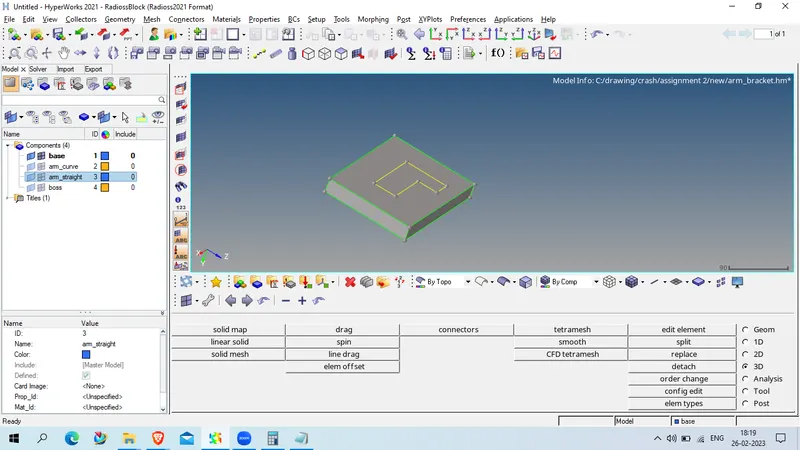
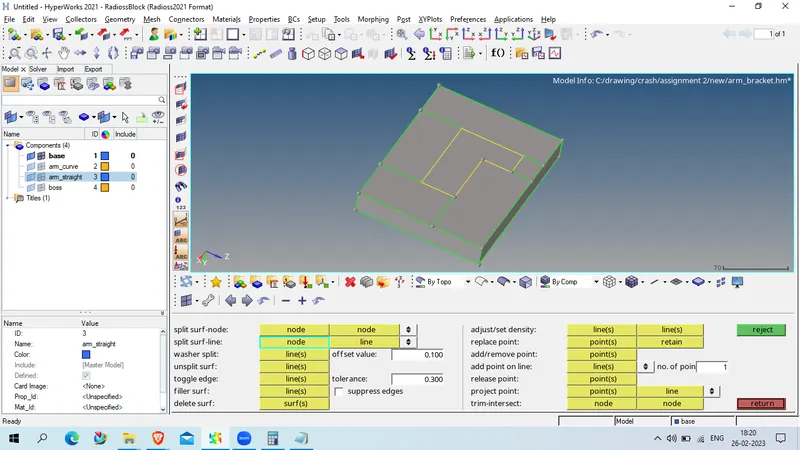
now we divide the face geometry as shown below to get proper quad element
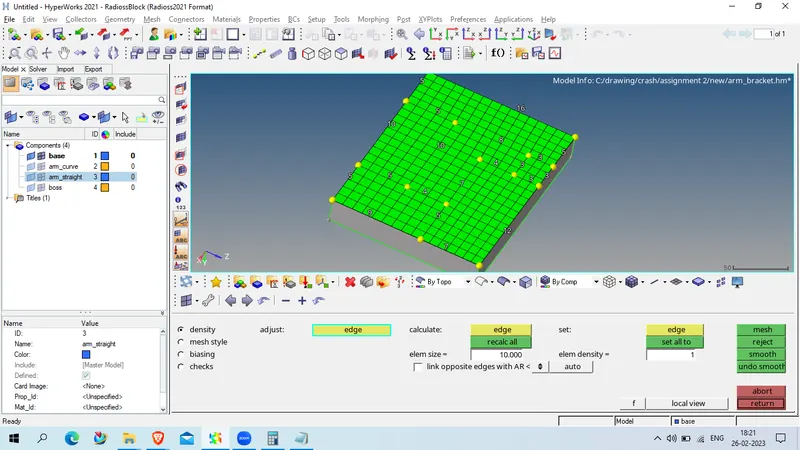
now we will mesh with 2D quad element with element size as 10
now we will go for 3D mesh on base component , for that we will use element offset in 3D
3D> element offset > solid layer
select all diplayed element
select geometry to follow as two side of the base
No of layer =5
total thicknes = 25
and click on offset
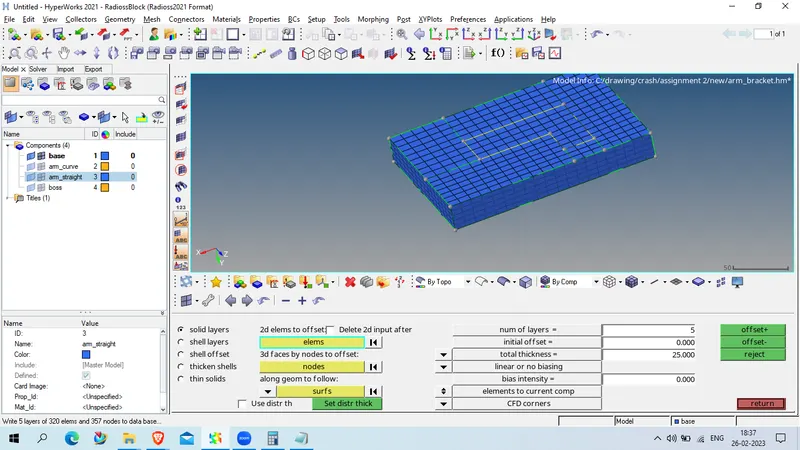
now make ARm_curve as current component and mask the all 3D element using mask > element > by config. > Hex8
select entity
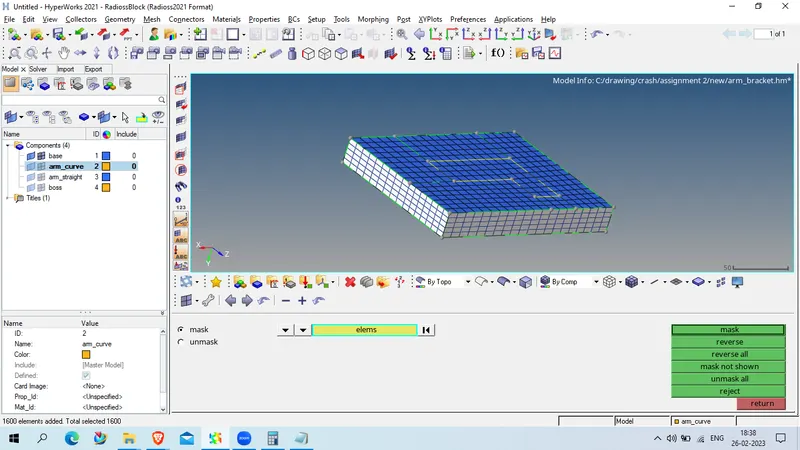
click on mask
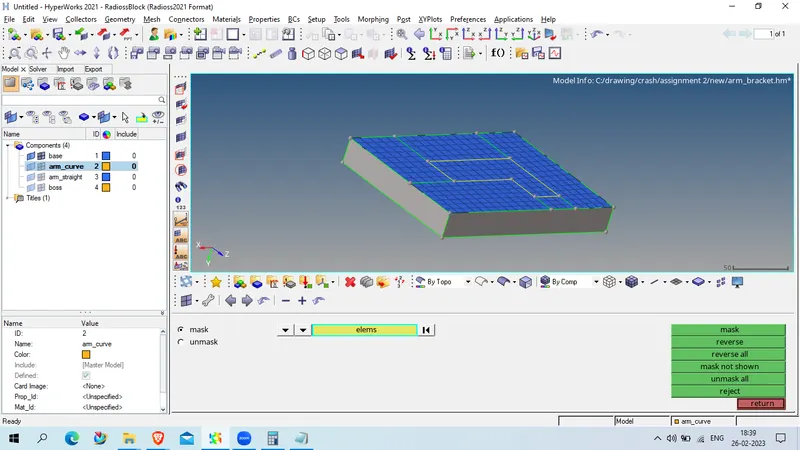
NOw unhide arm_curve and create the center point of curve using
geom> distance (F4) > select three node as shown below on curve
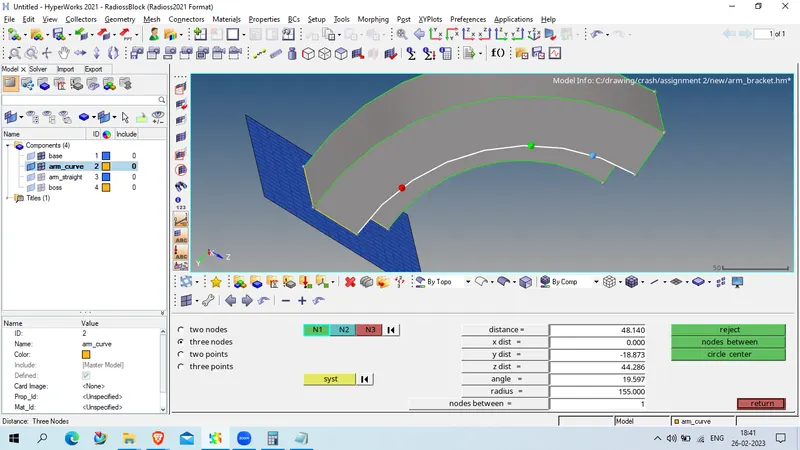
click on circle center
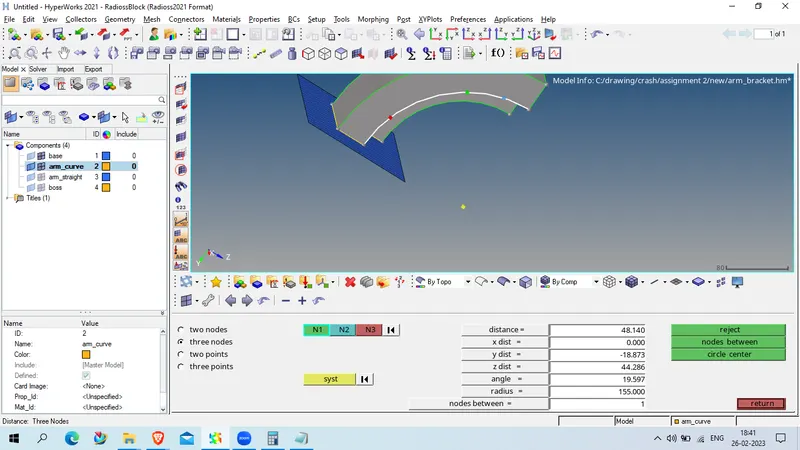
now we will use 3D > spin
Spin element > select element which are required as shown below
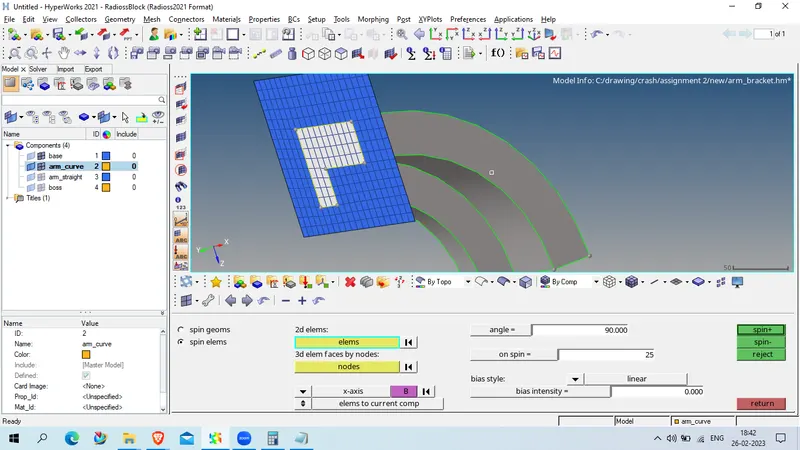
angle =90
select base point as circle center and move along x axis
on spin = 25
and select on spin -
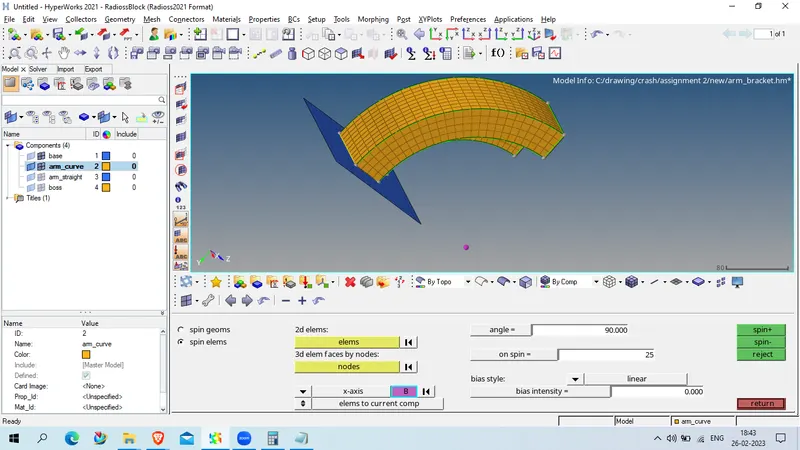
now unhide arm_straight component and mesh opposite face with same no of elements as shown below
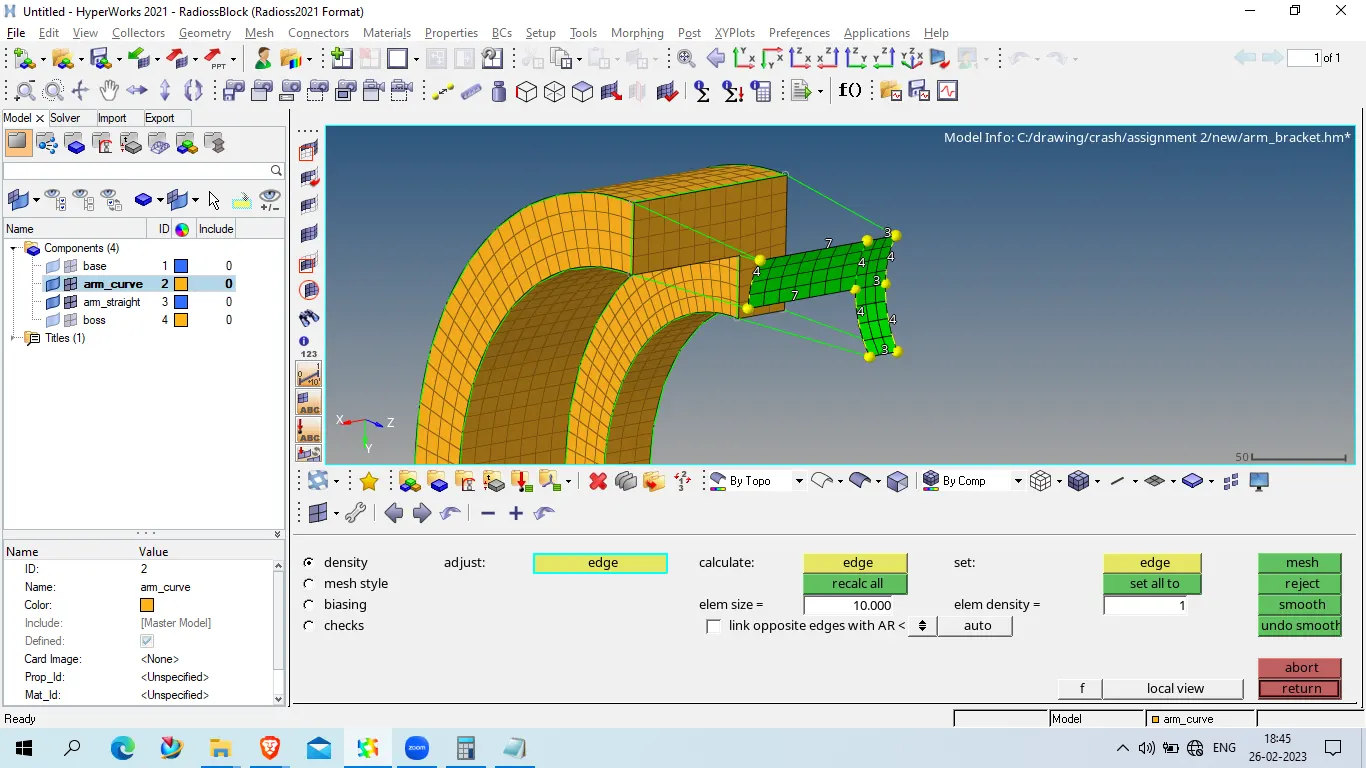
NOw go to tool > fases
select arm_curve
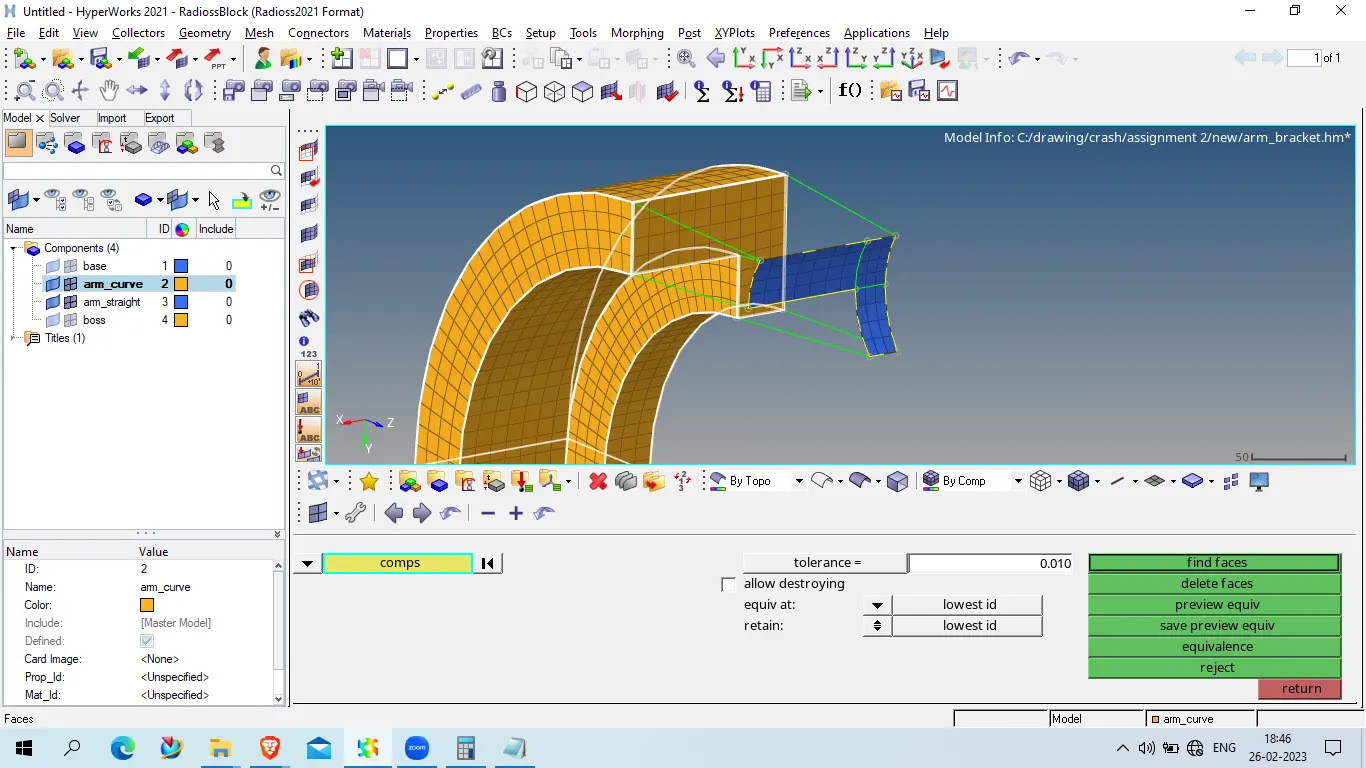
click on faces
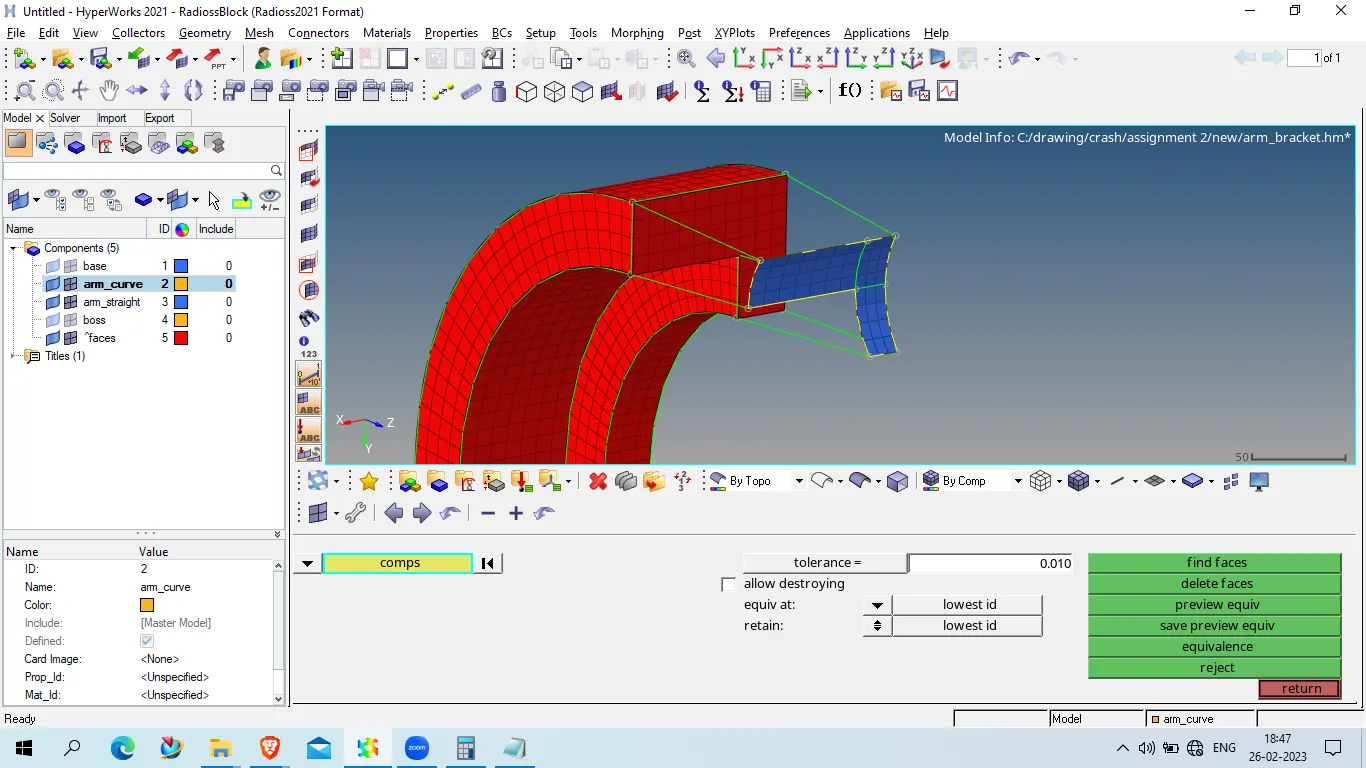
now go to 3D > linear solid
select from element as shown below
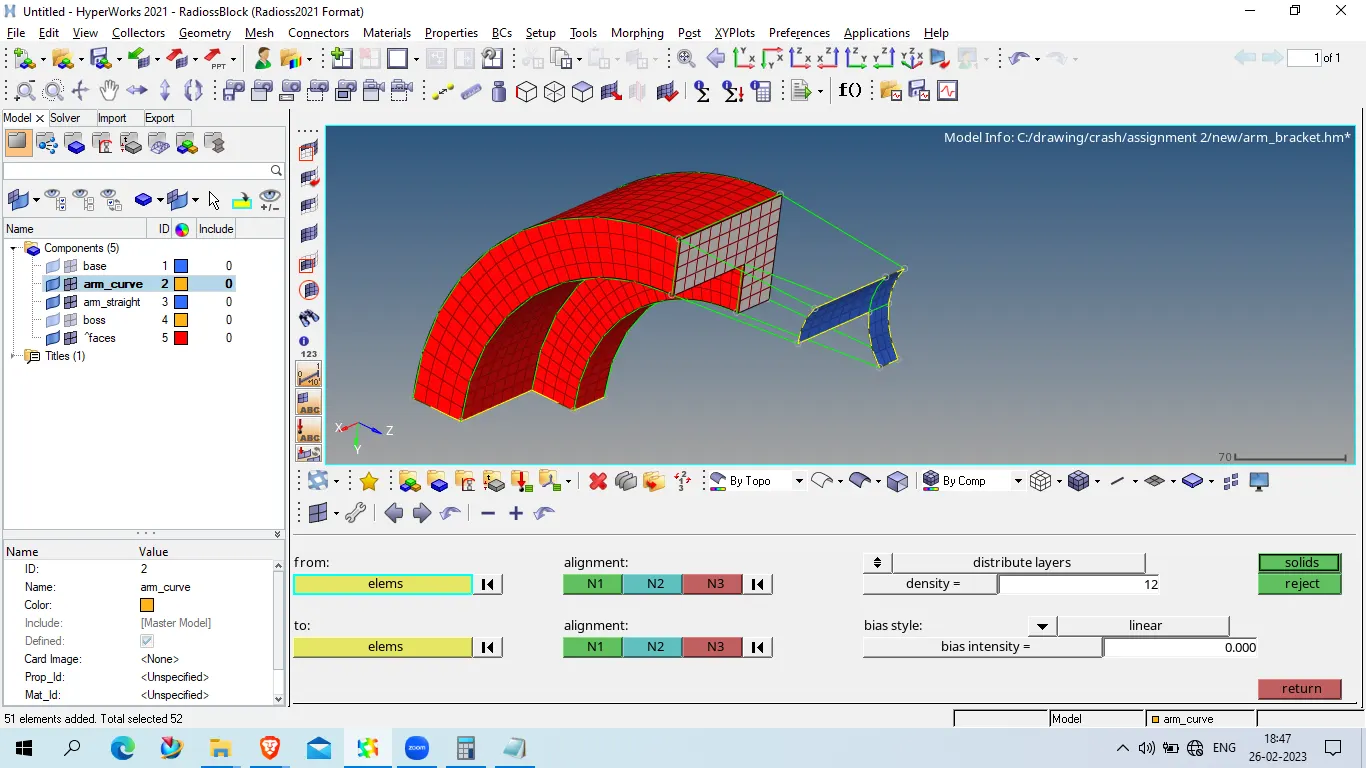
to element as shown below
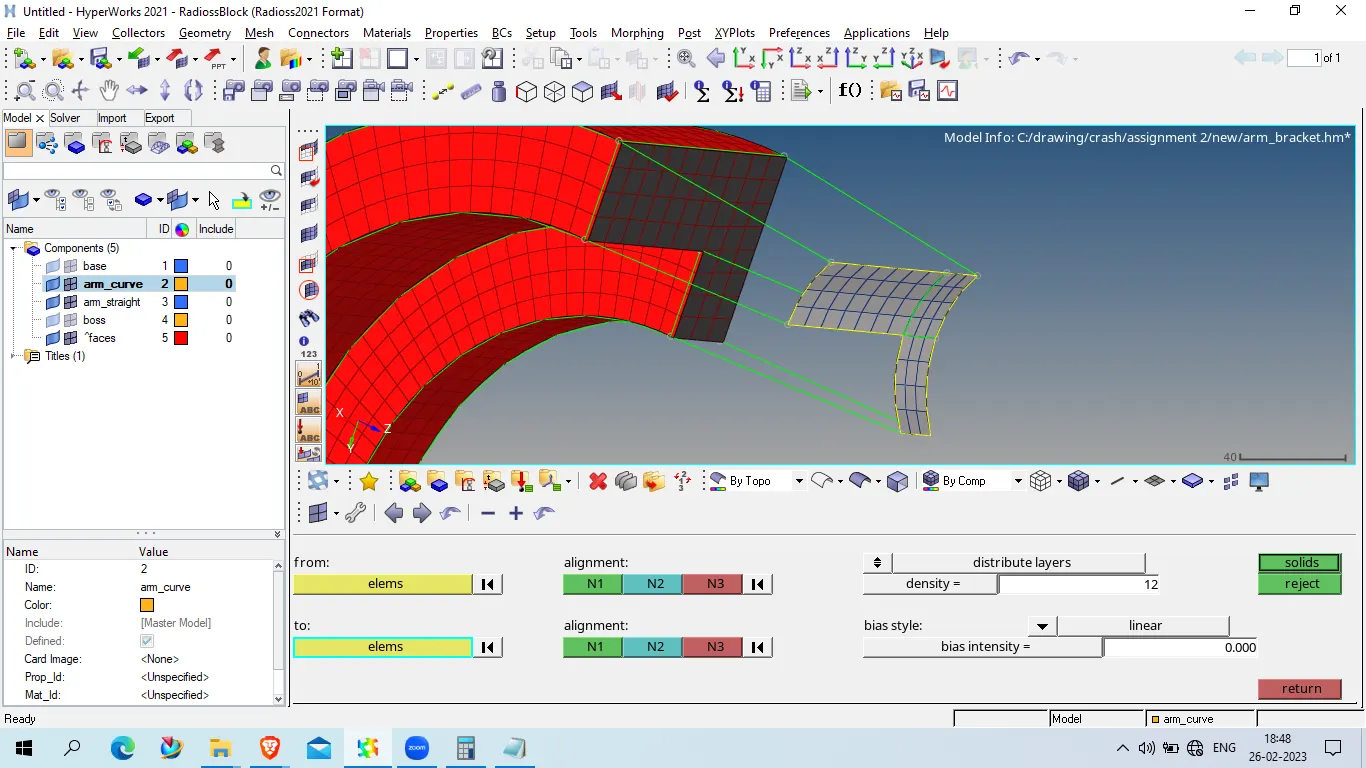
provide proper aligment and click on mesh
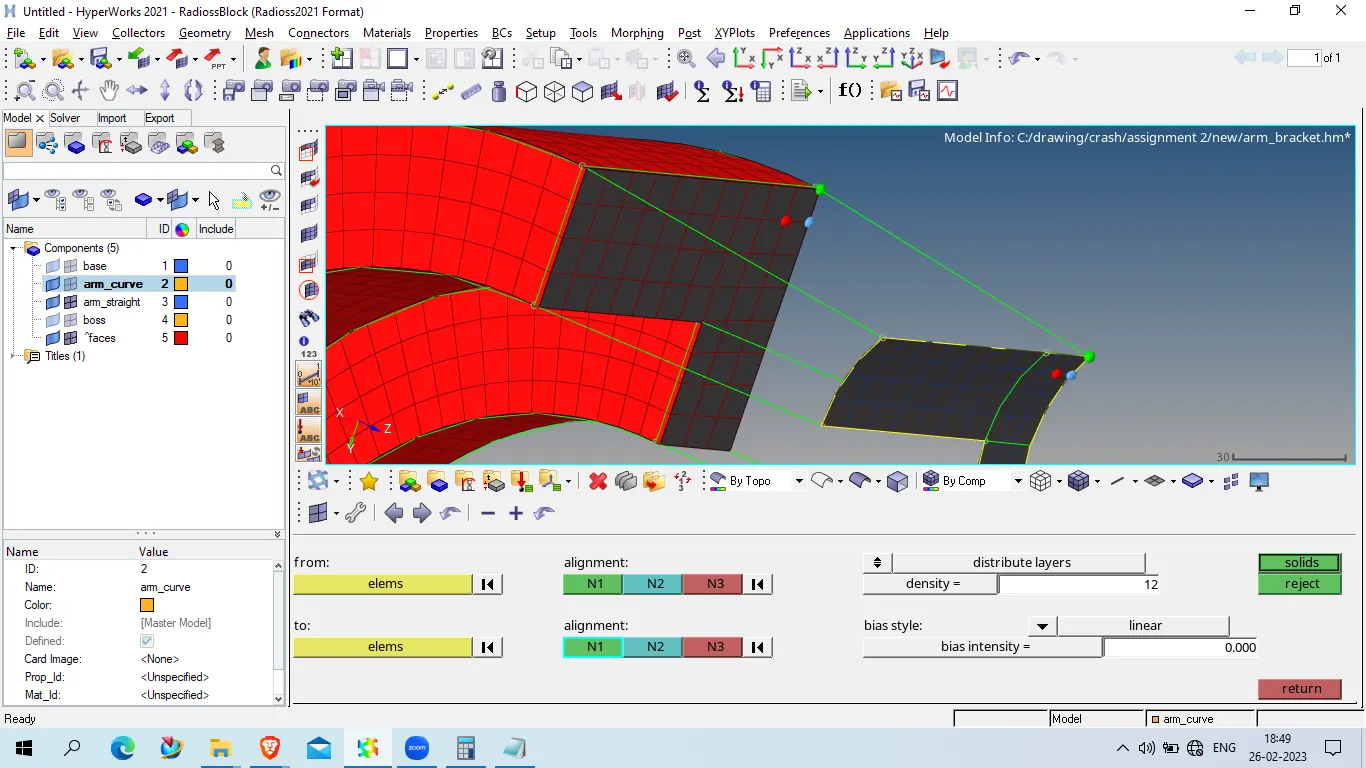
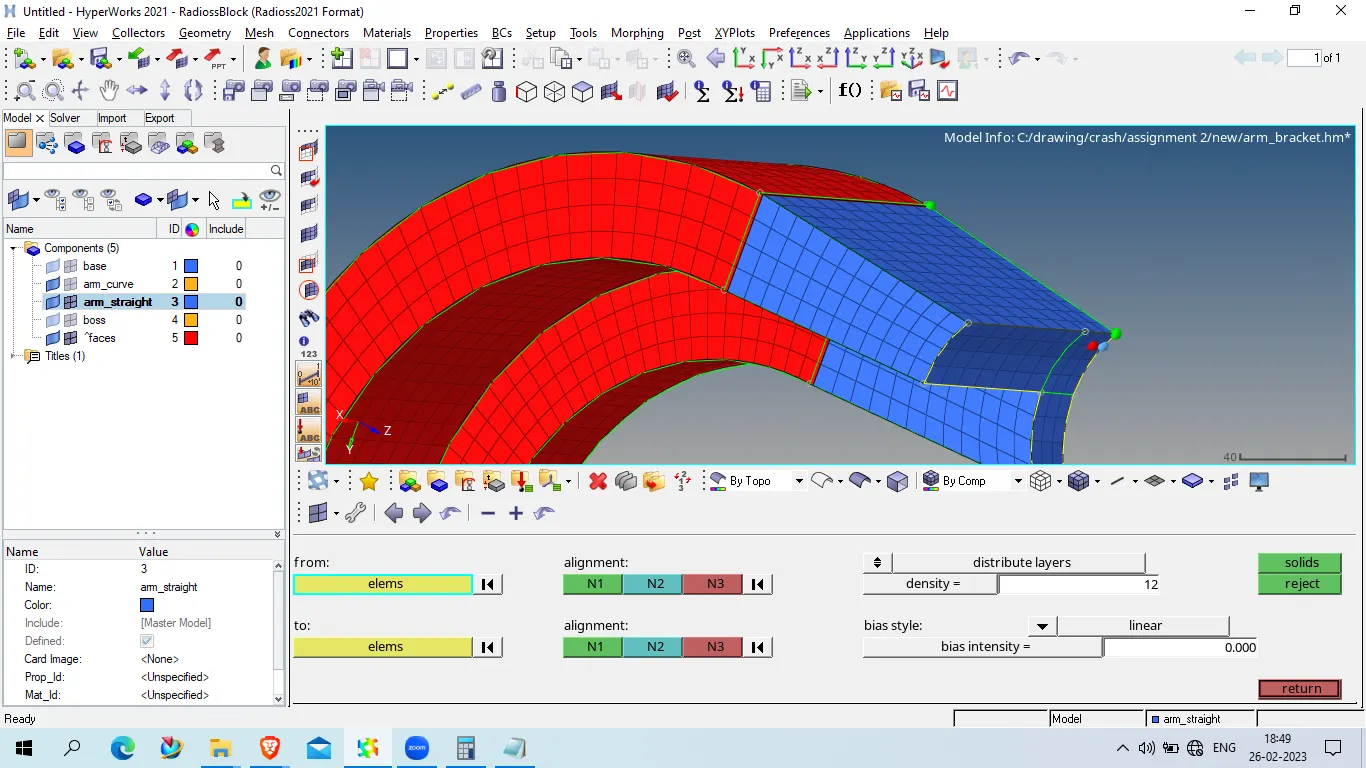
now go to tool > faces > delete faces
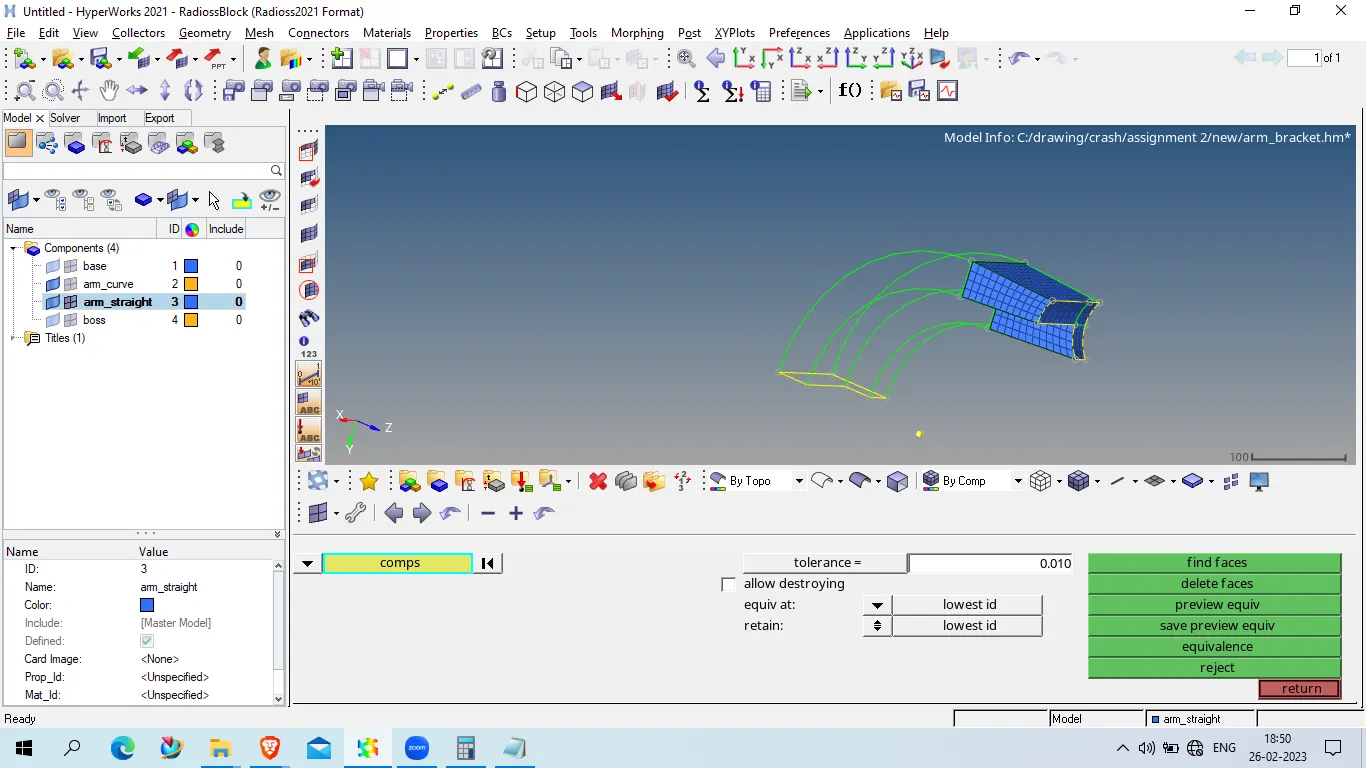
now unhide the bose coponent
and make bose as current component
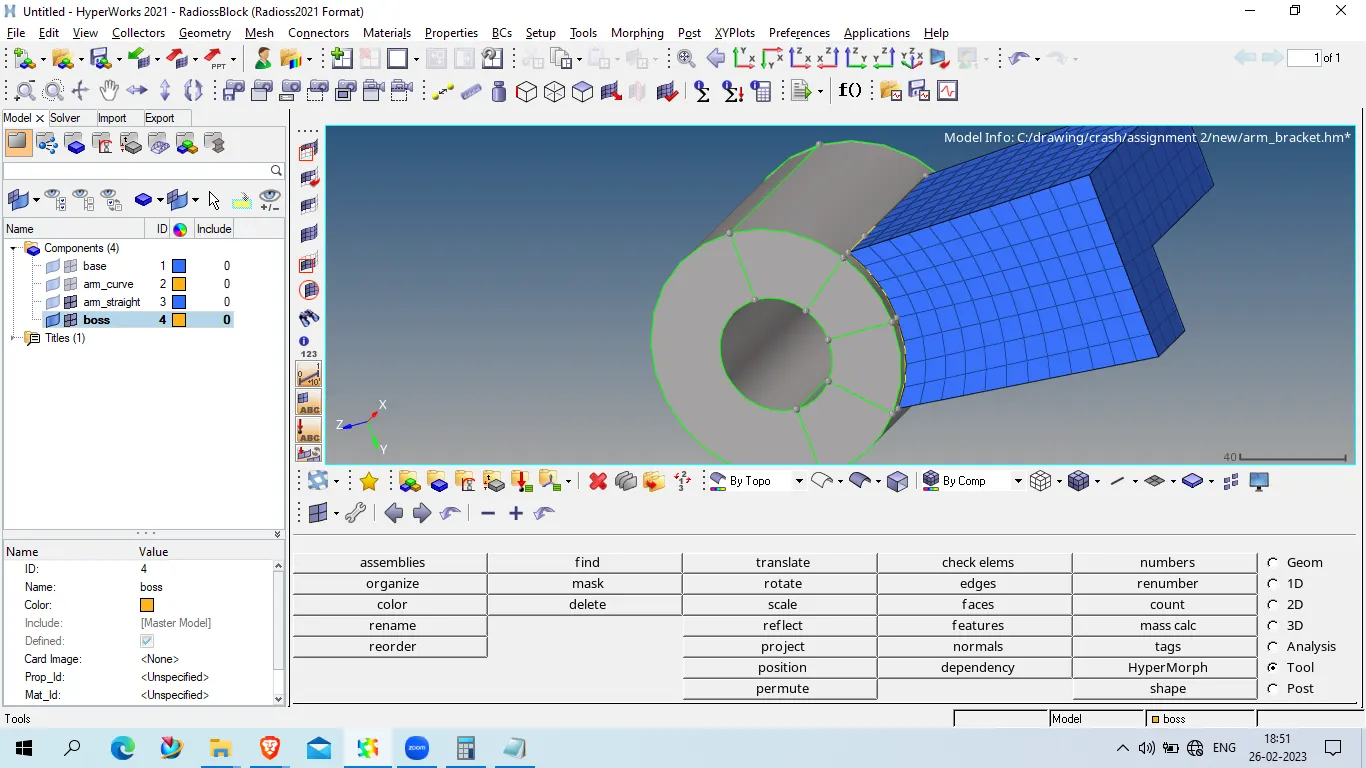
now mesh the face element with quad element as shown below
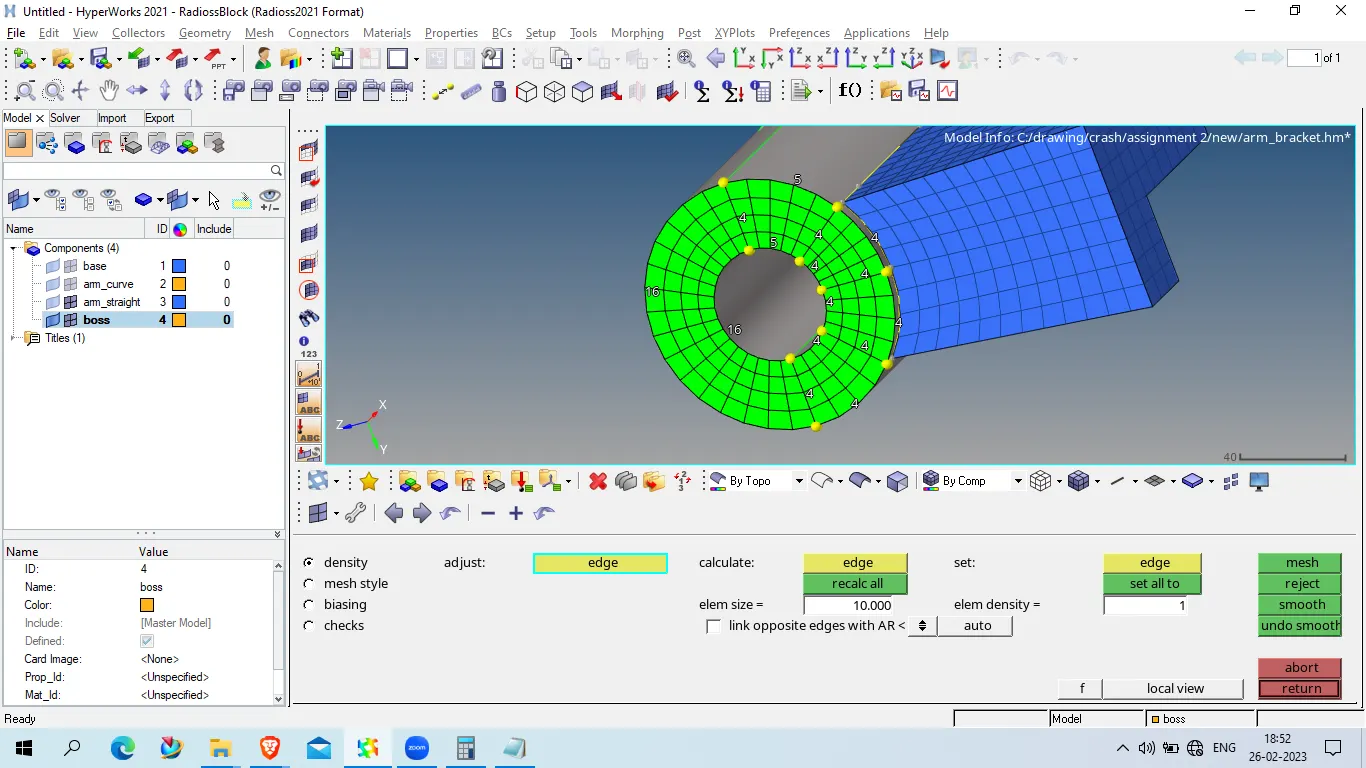
now press Shift and F7 to project node on opposite surface as shown below
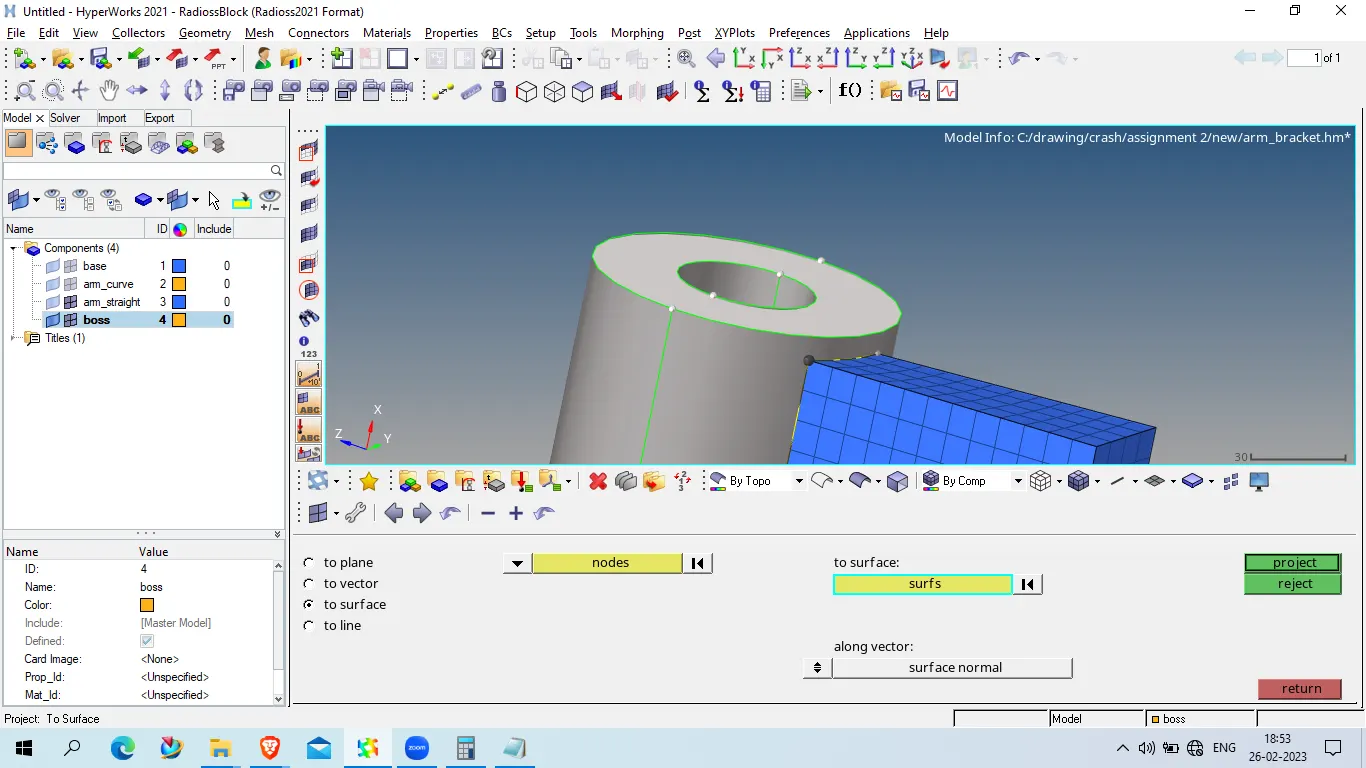
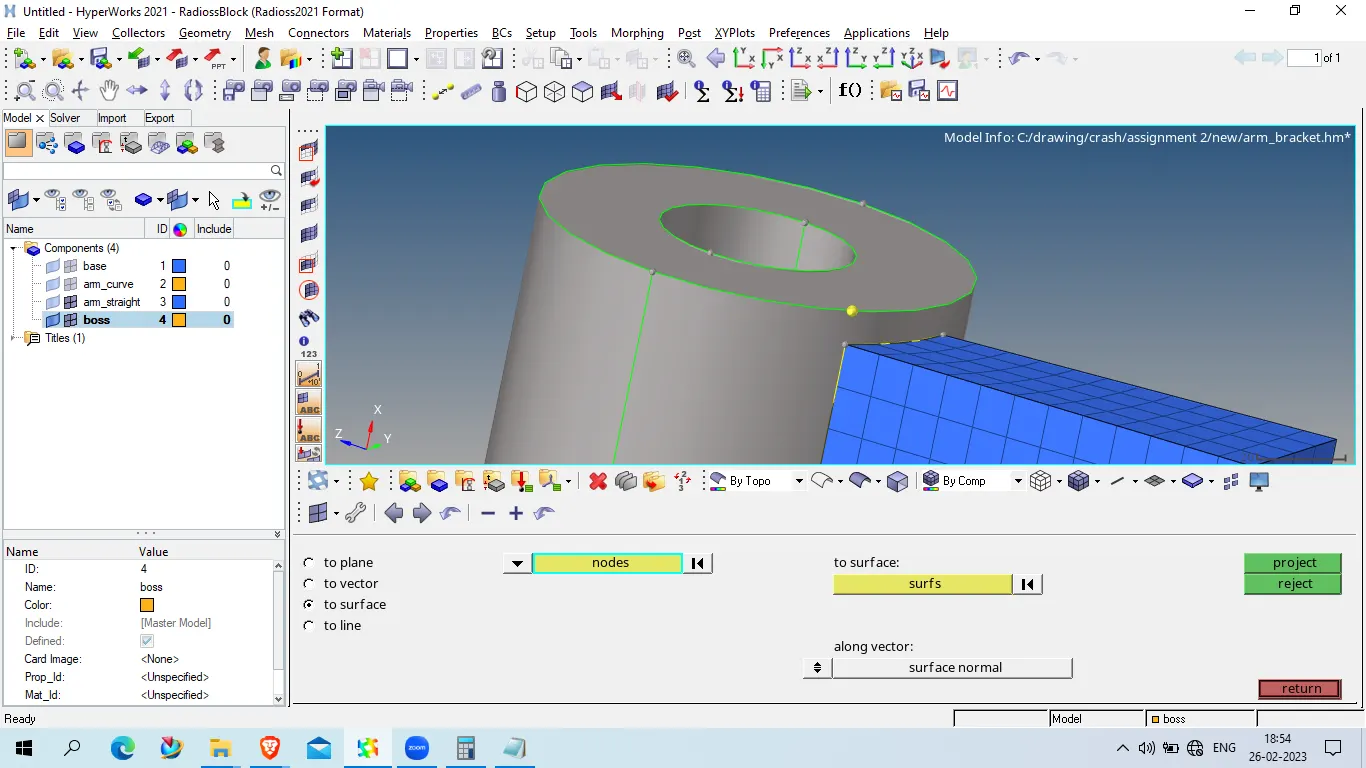
now go to 3D > solid Map> general
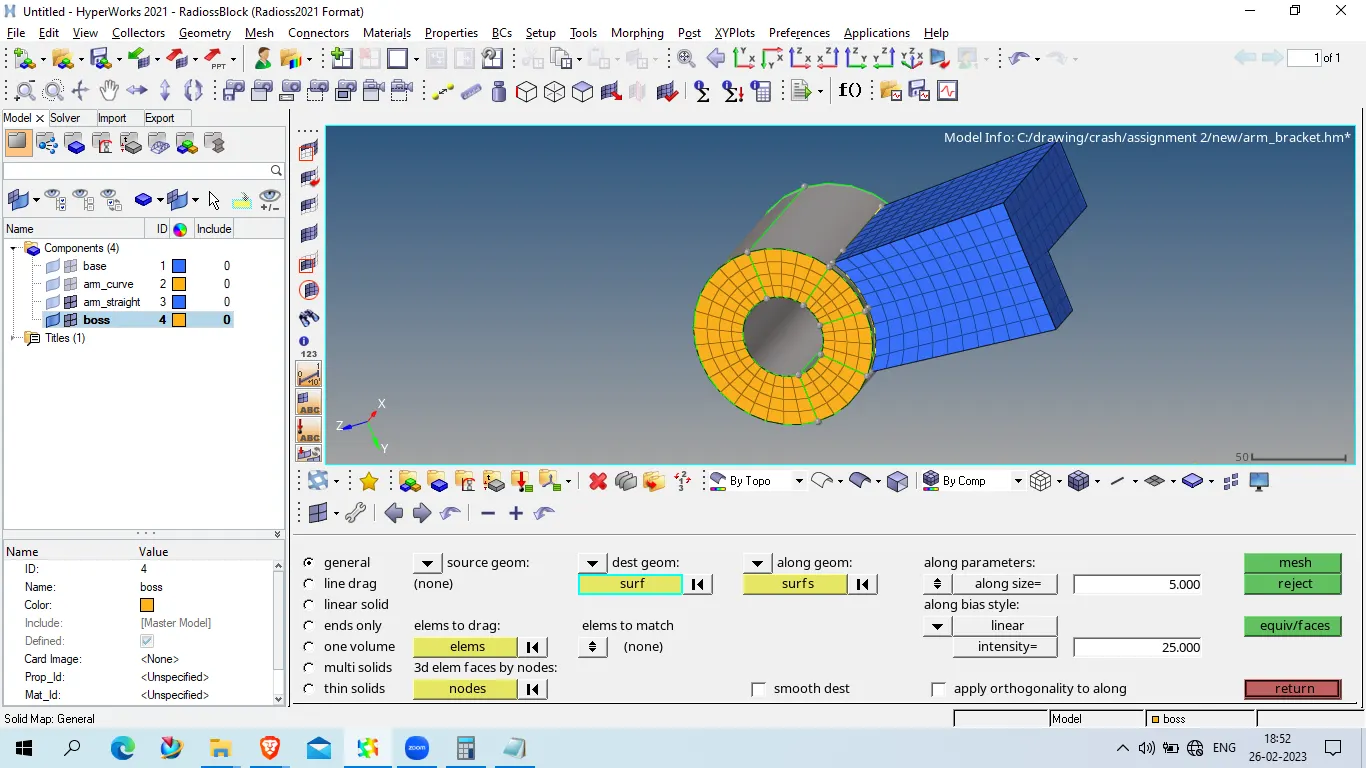
element to drag , select all element as shown below
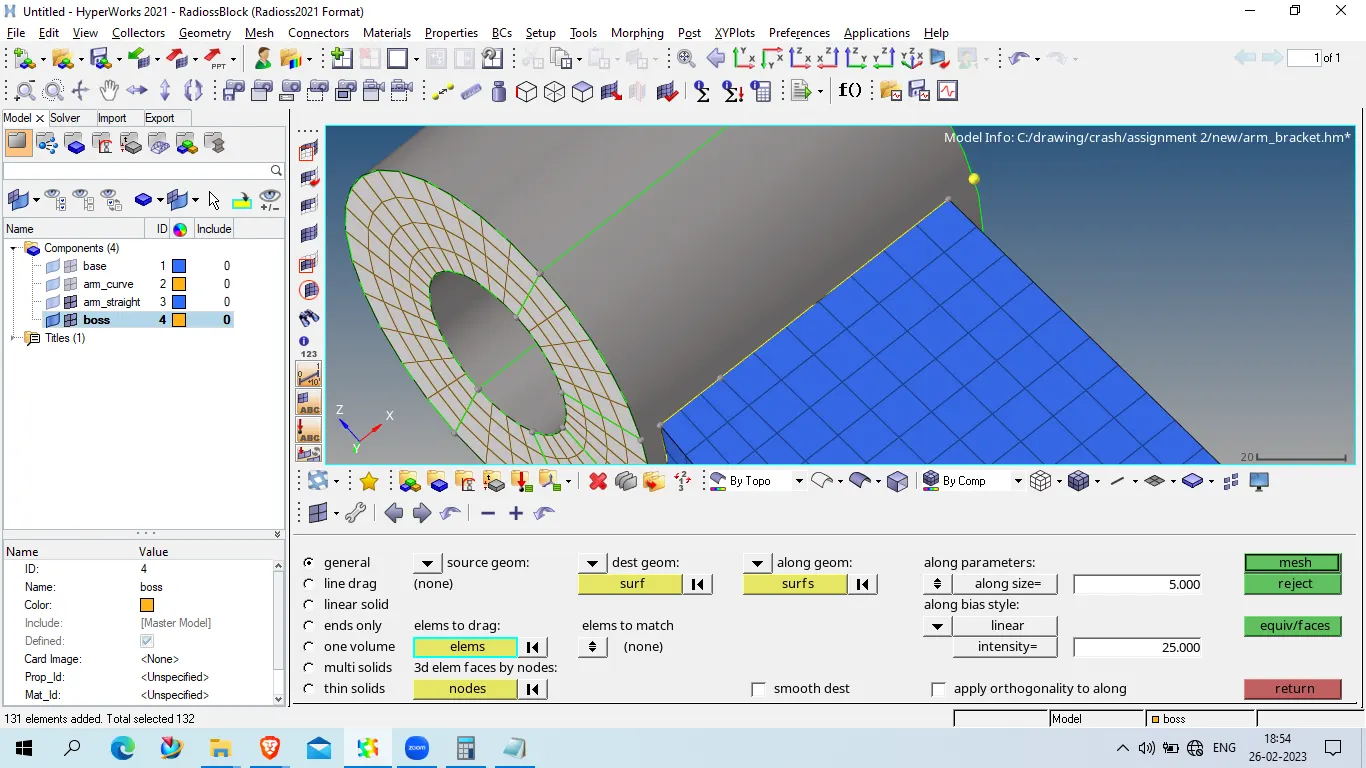
destination geometry
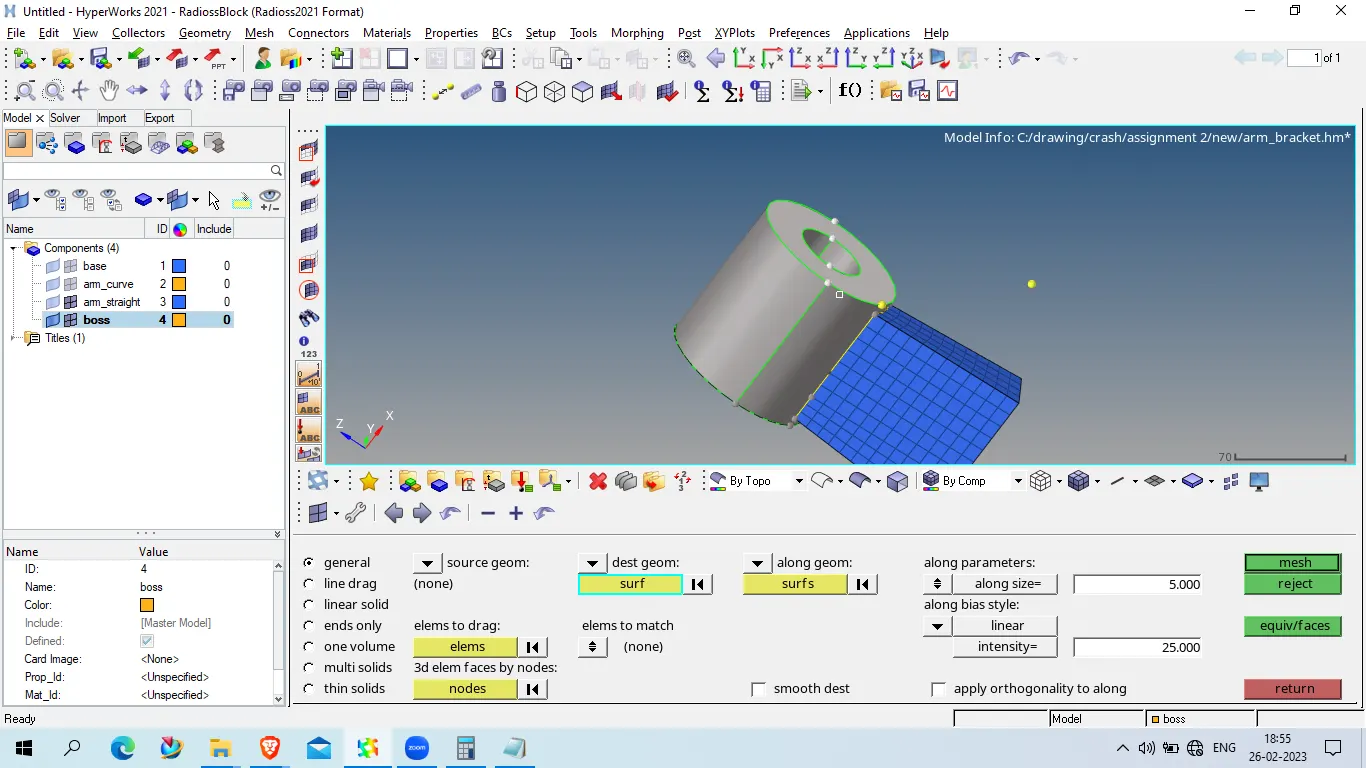
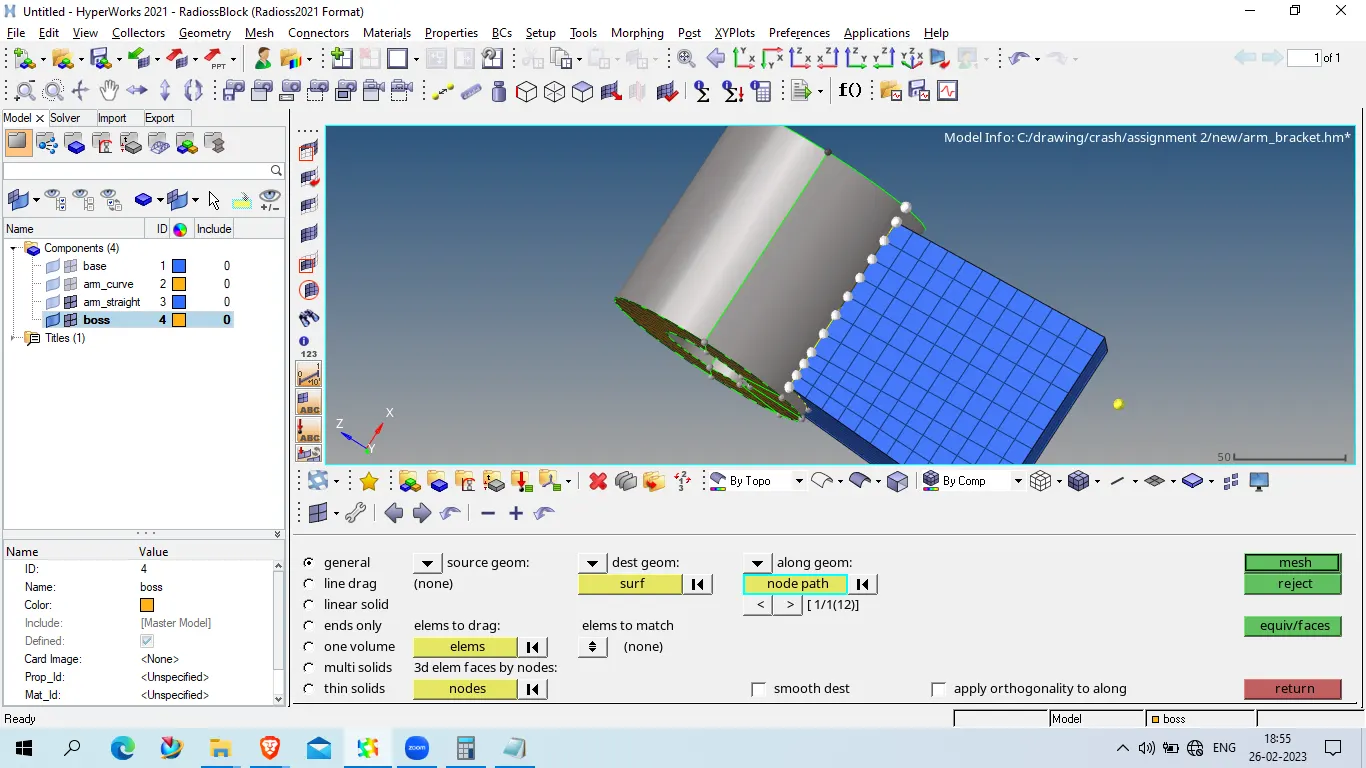
along geom > node path
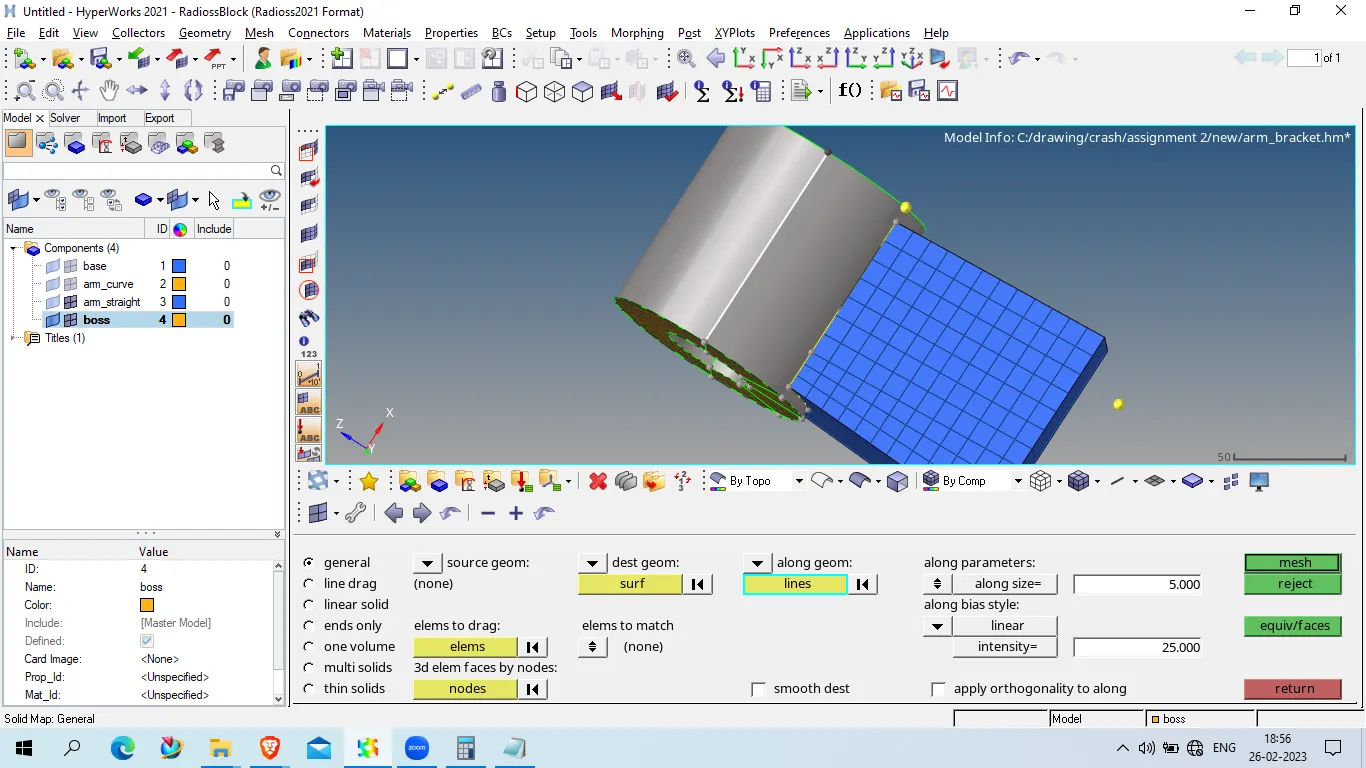
set one reference line
click on mesh
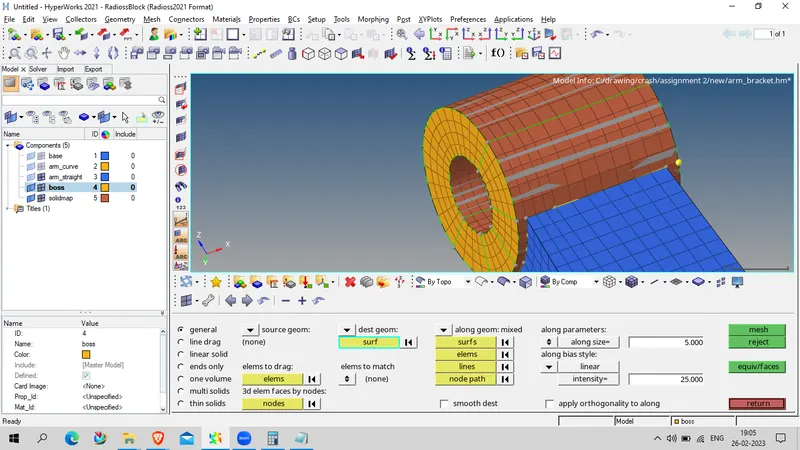
NOw unhide all component
delete all quad 4 element as these are shell element
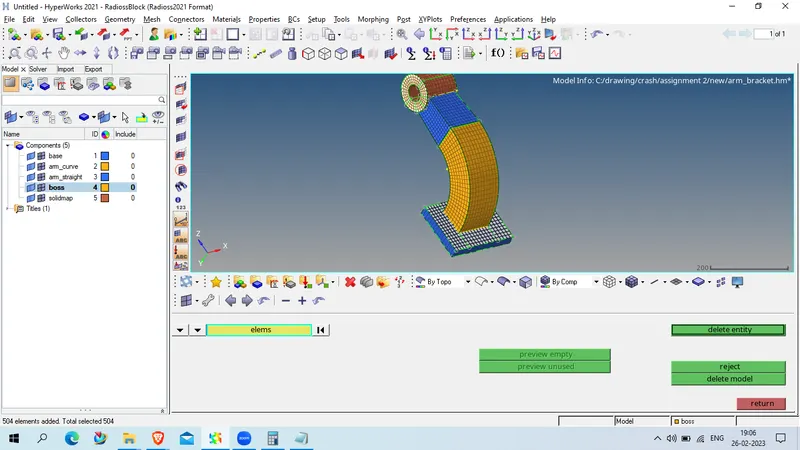
now save the geometry
Now open 1D element in hypermesh > radioss
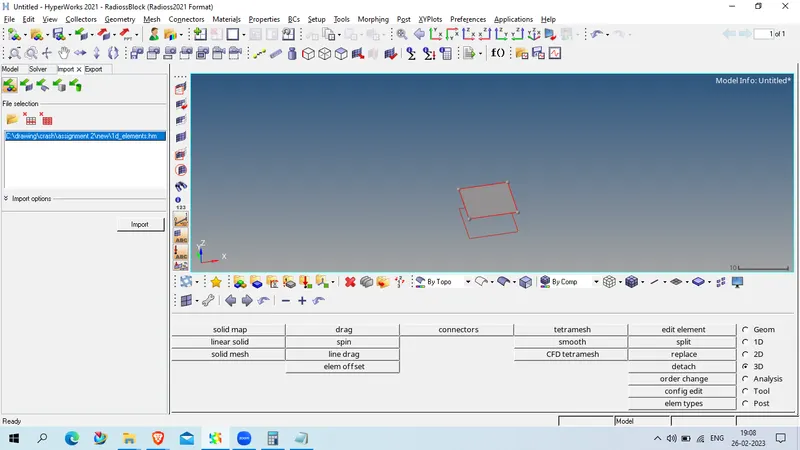
Unhide all component
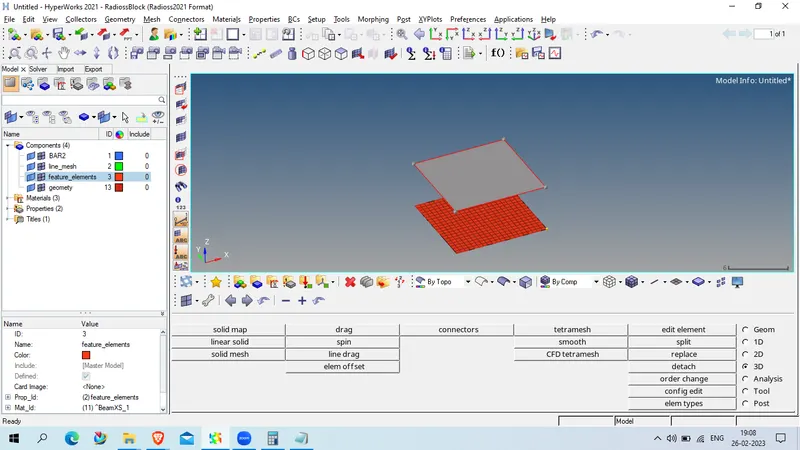
measure the distace between 2 node which is 0.5
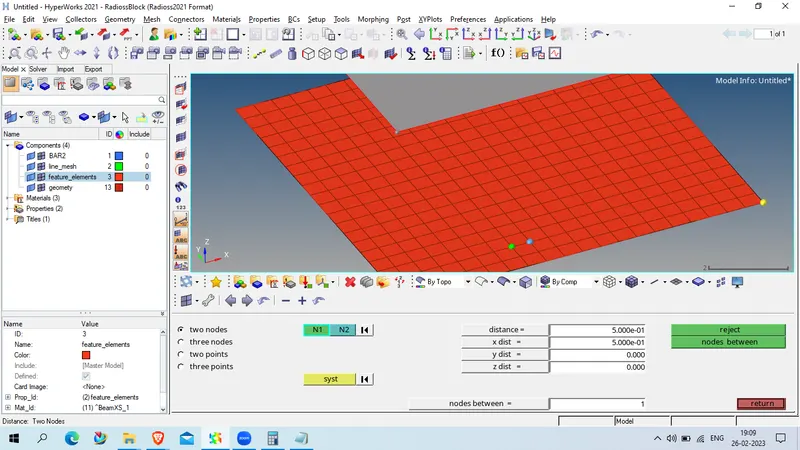
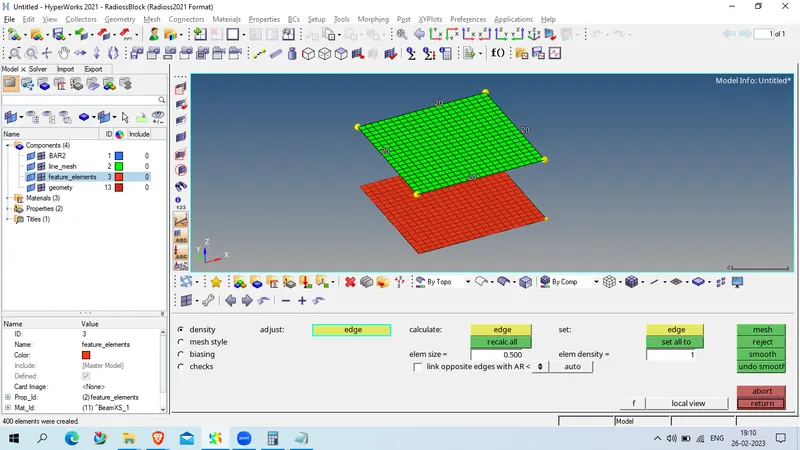
now mesh the geimetry which are not meshed
using element length size as 0.5
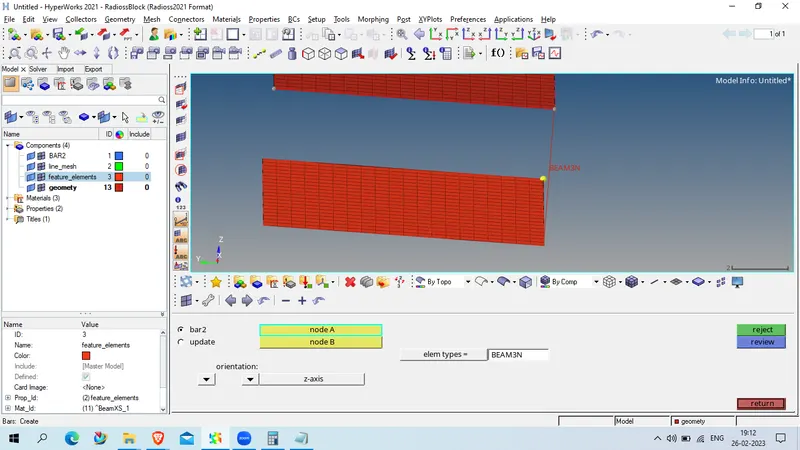
now go to 1D > Bar > element type BEAM3N
select node A and node B
now create property for these quad element
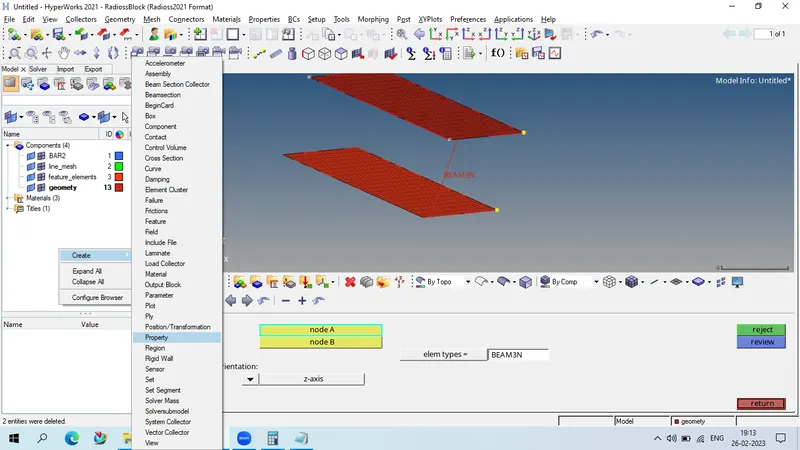
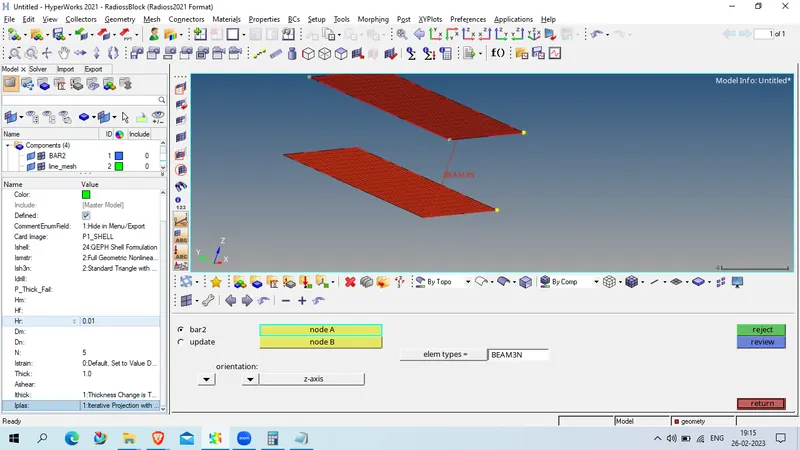
for beam element '
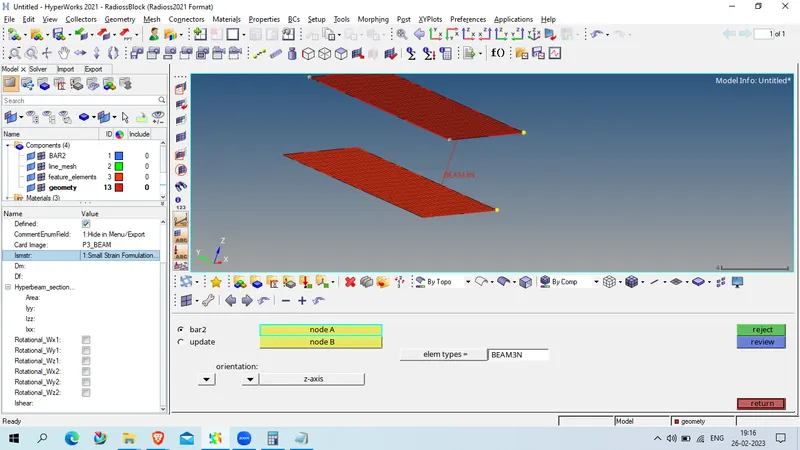
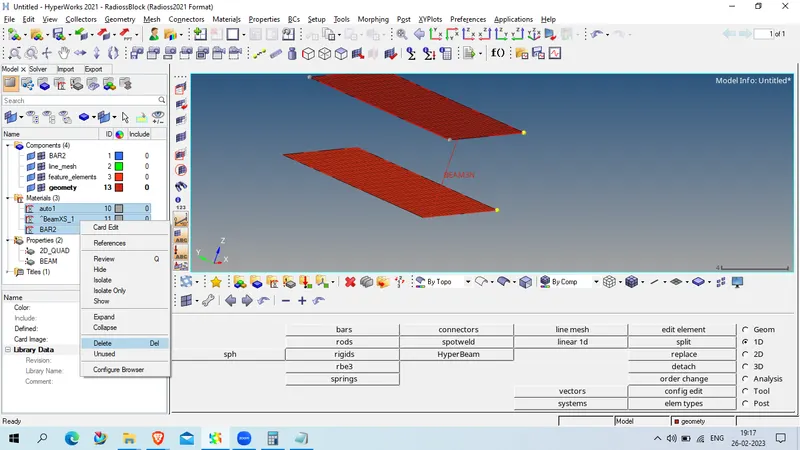
create material
delete all default material and create new
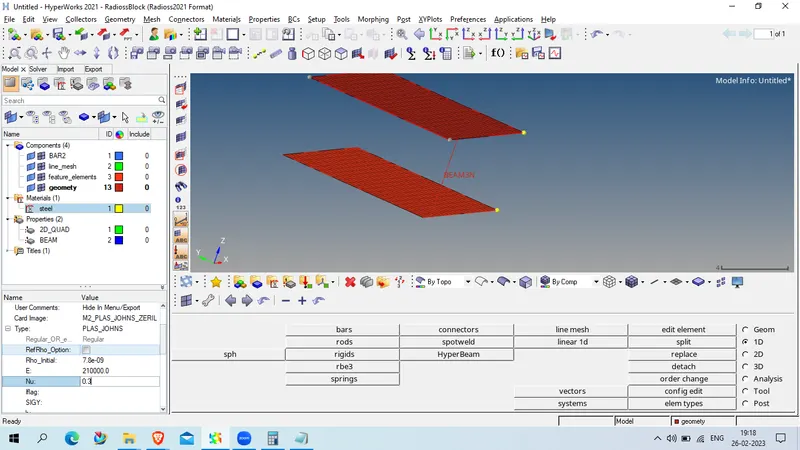
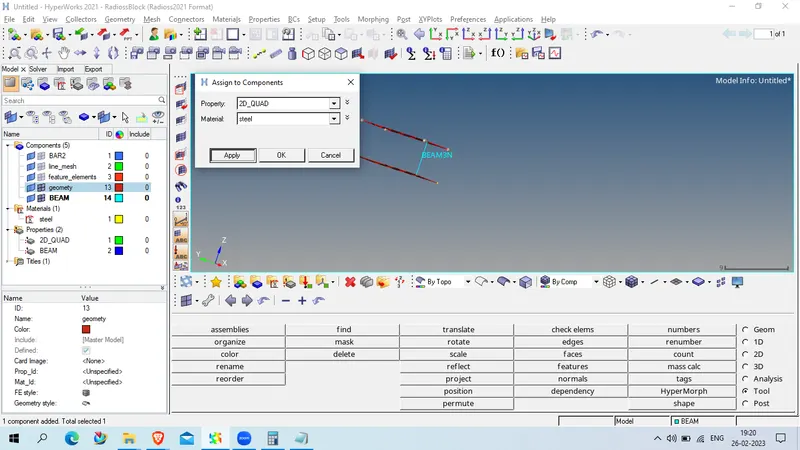
now assign the material and propert to the element s
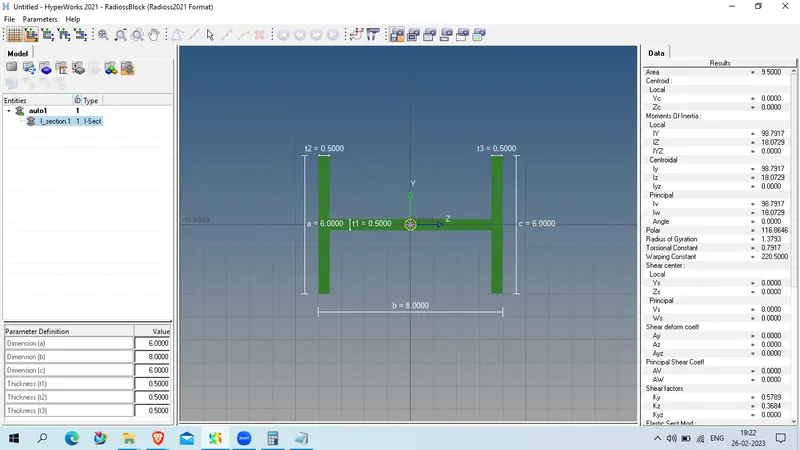
now go to hyperbeam section
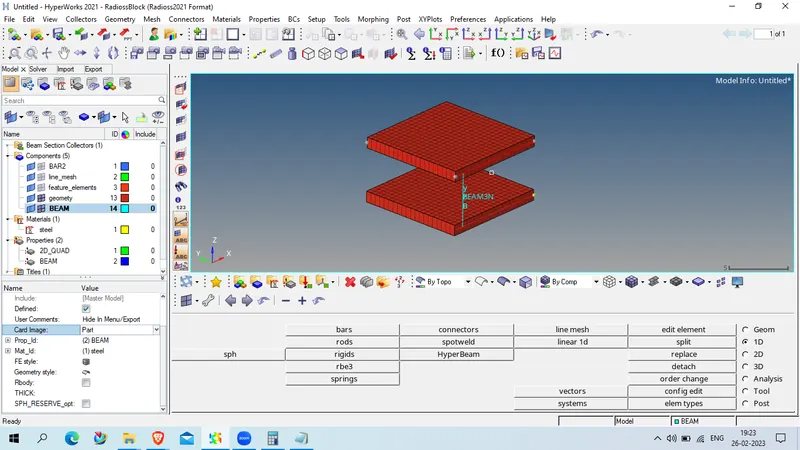
create standard i beam
Now save the grometry