Assignment 2-RADIOSS Engine File Editing & 3D Meshing Challenge
OBJECTIVE
- To check the material properties of the rail component and to calculate the speed of sound in steel rail
- To calculate the time taken for a shock wave to travel from one end of the rail to another
- To calculate the time taken for the sound to travel through one end of the rail to another
- To edit the engine file so that the stress wave can be monitored
- To set the frequency of animation output to a time that will give 20 animation step
- To change print 10
- To create 3D meshing tetra mesh and hexa mesh
PRODECURE
1. Check the material properties of the rail component and calculate the speed of sound in steel rail
From the FIRST_RUN _0000 rad file


Find the following neccessary values
Young modulus = 210000.0
Density = 0.0078
Speed of sound in steel rail(c)= square (E/p)
E=Young modulus (N/mm2)
Force F=ma (mass X acceleration)
= (kgm/s2)
= (1000xgx1000mm)/(1000ms)2
= g mm / (ms)2
(rho)p= density
= (Kg/m3)
= 1000g/(1000mm)3
= 10-6g/mm3
C=square(E/p)
=aquare(210000/0.0078)
Therefore speed of sound C= 5188.74522mm/ms
2. The length of the rail is about 1000 mm.calculate the time takes for a shock wave to travel from one end of the rail to the other.
Time step is the time taken for a shock wave to propogate across the smallest distance of the element
t=L/C
L= Length of the steel rail L= 1000mm
C= Speed of sound in air C = 5188.74522mm/ms
t=1000/5188.74522
= 0.192724822ms
3.Time for sound to travel length of rail
Time taken for the sound to travel through the length of rail - 0.192724822 ms
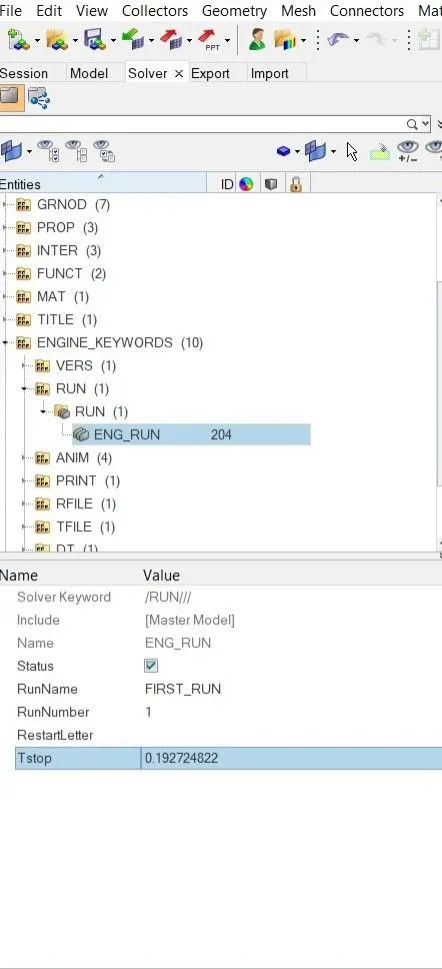
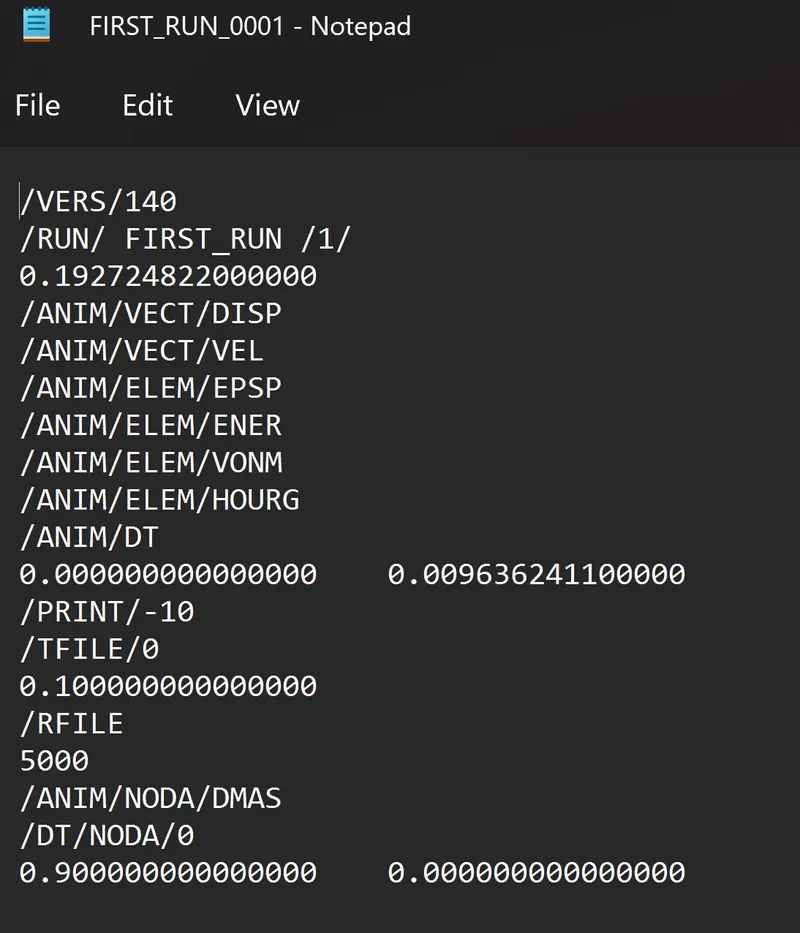
4.Edit the engine file so that the stress wave can be monitored, moving from one end of the rail to the other during impact -this will require a termination time equal to the time it takes for the sound to travel the length of the rail(set on/RUN card)
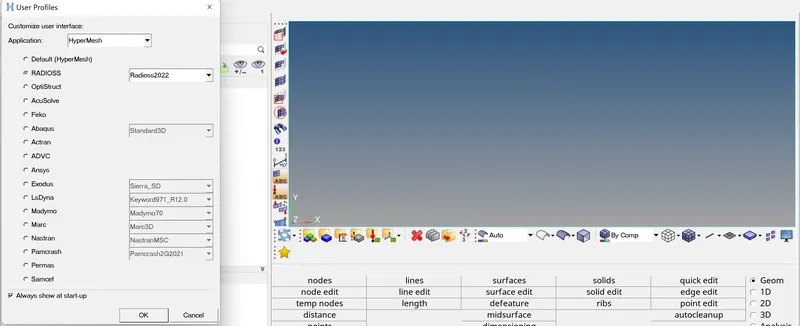
- Open the Hyperworks and select the solver as radioss
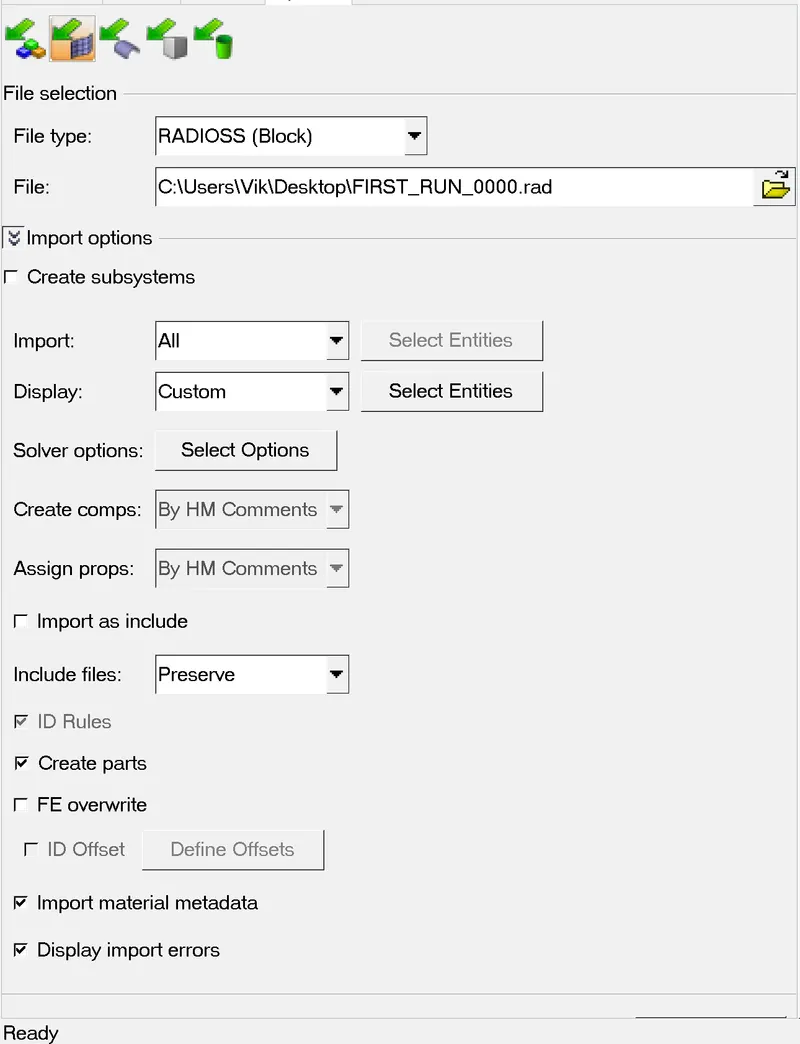
- Import the engine file
- Go to the solver and under tree diagram select ENG_RUN under engine keywords change the time step T stop as 0.192724822
5.Set the frequency of animation output to a time that will give 20 animation steps(/ANIM/DT)
Since we need 20 animation steps we have to divide the time by 20
The total time is 0.192724822
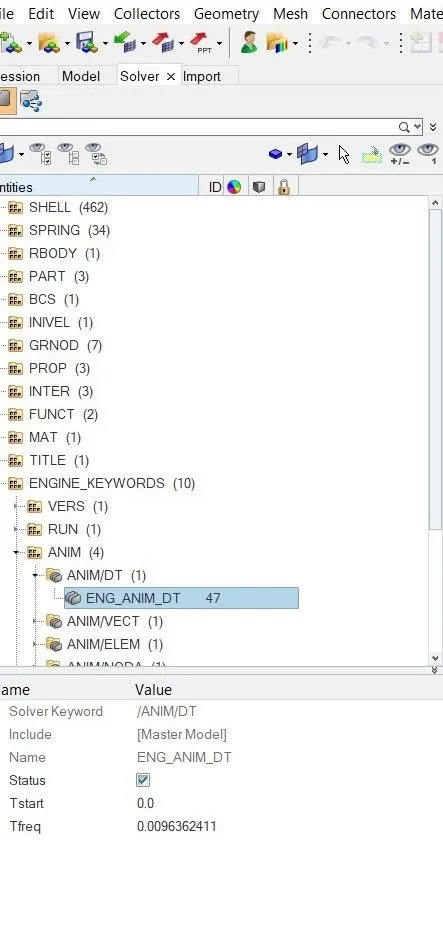
Therefore T freq = 0.192724822/20
T freq = 0.0096362411
Then change the T freq as 0.0096362411 so go to the engine keywords Anim/DT - engine Anim / DT and Set T freq as 0.0096362411
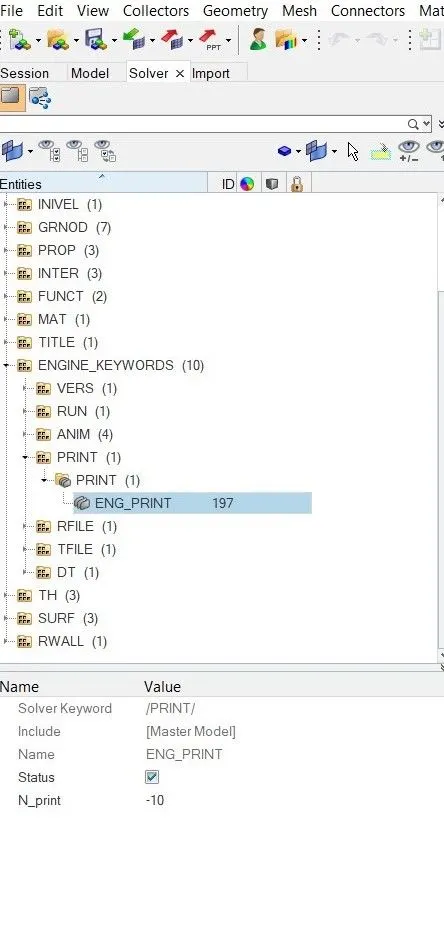
6.Change /print -10
Go to engine keywords -print-ENG_PRINT then change N_PRINT as -10
7.3d meshing tetra mesh and hex mesh
- Open the housing component in the hyperworks
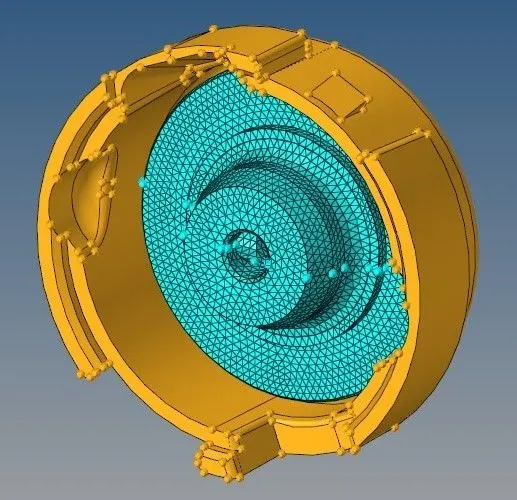
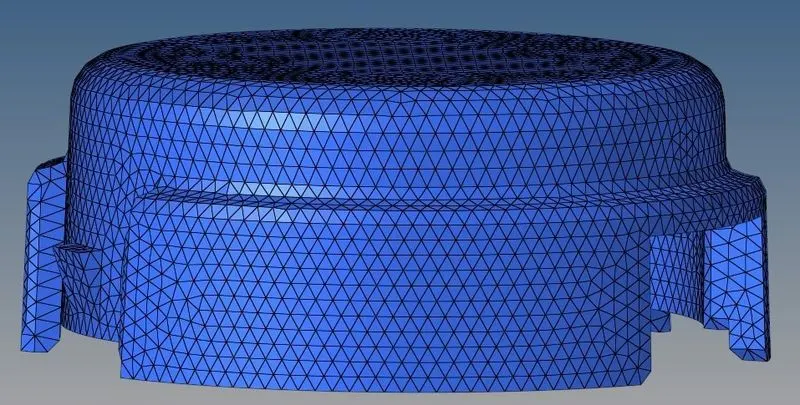
- Hide the hub and perform the meshing operation on the cover by using volume tetra under tetramesh
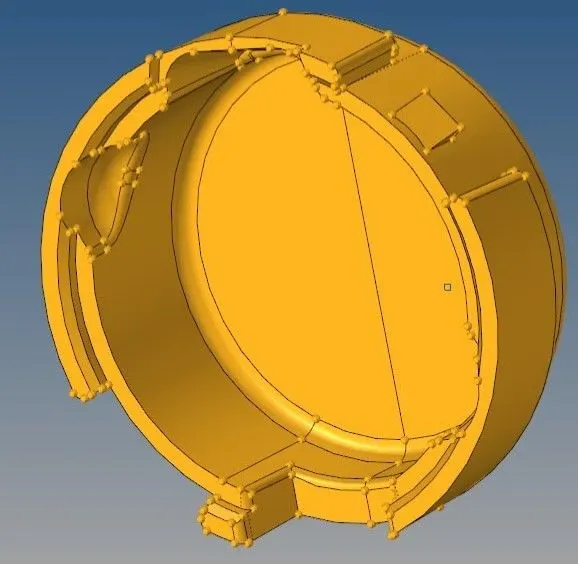
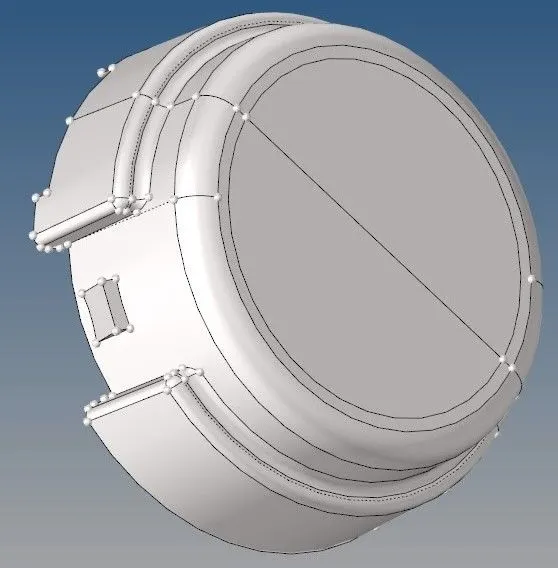
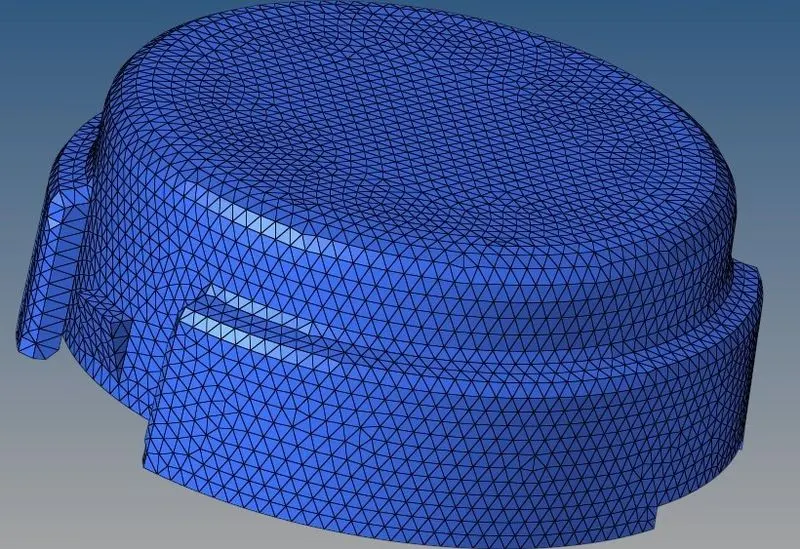
- Masking few element in the component to view the tetramesh 3D mesh
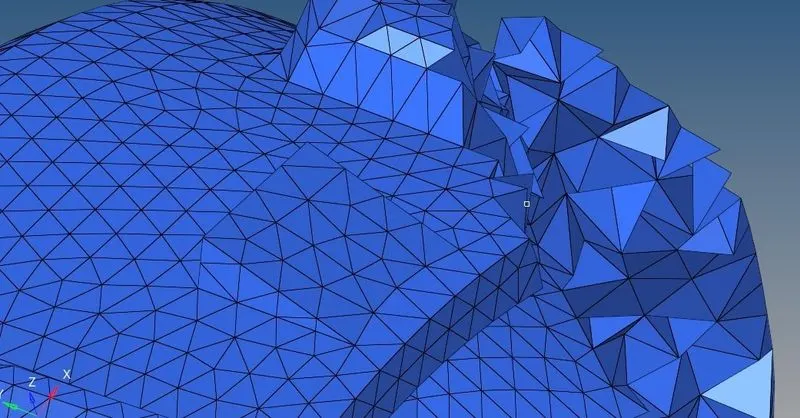
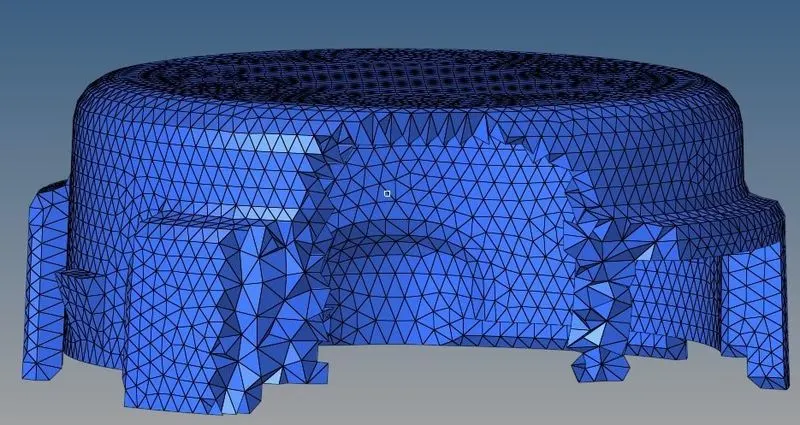
- Checking the tetcollapses and found 0% tetcollapses in the cover
- Now hiding the cover component and unhiding the hub component to perform the 3D meshing . First 2D meshing operation is performed as the hub witha element size of 5mm by using only tria elements . Then tetra meshing operation is performed under tetra mesh and giving tetra size as 5mm and tet collapses as 0.15mm under tetramesh parameters
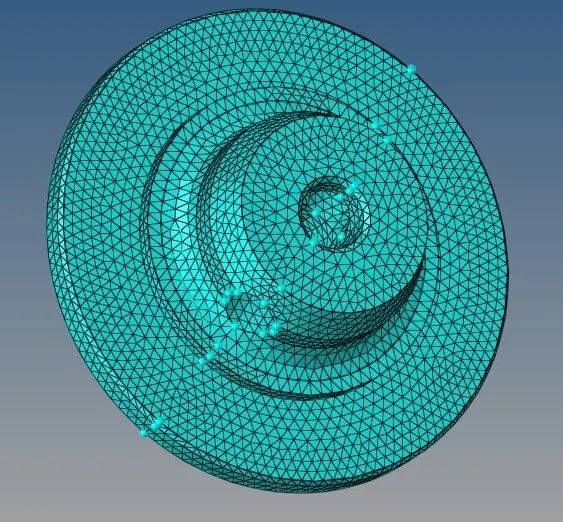
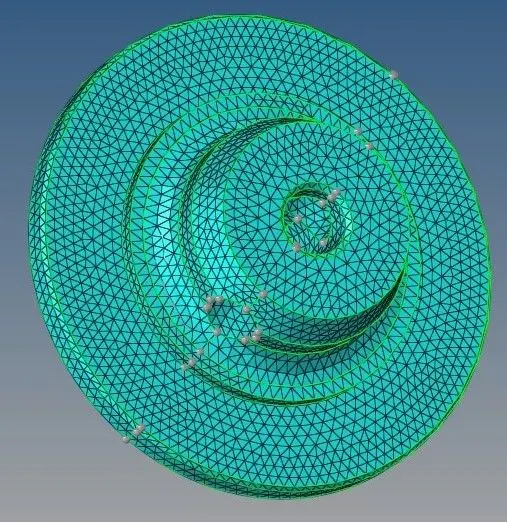
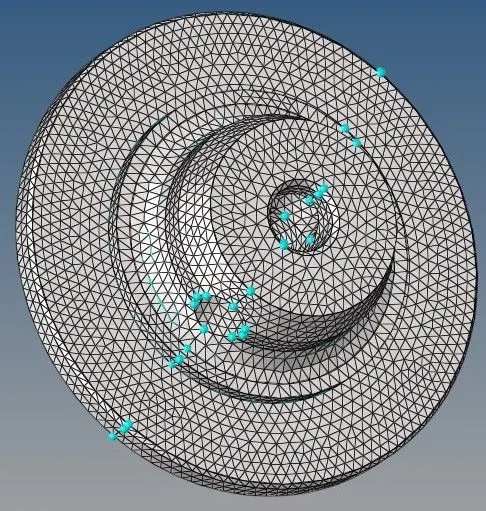
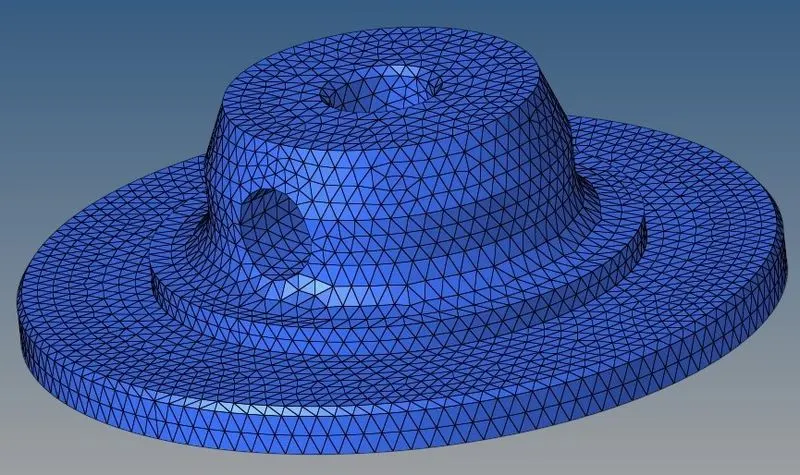
- Checking the 3D meshing by masking few elements in the hub
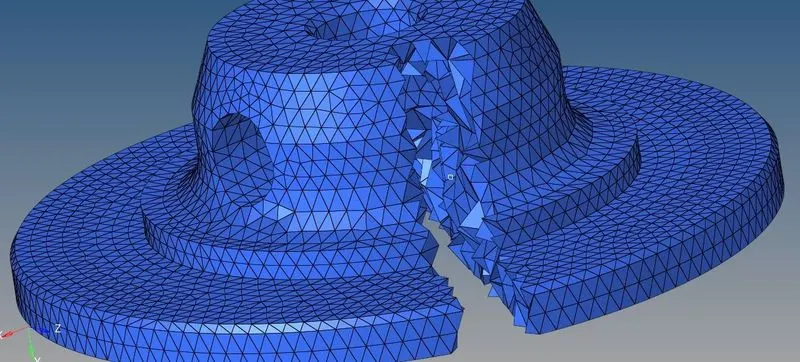
- Checking the element quality with 0% tet collapses
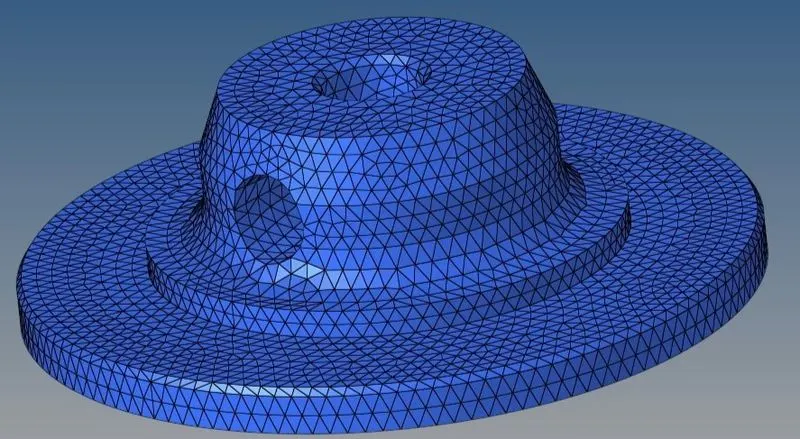
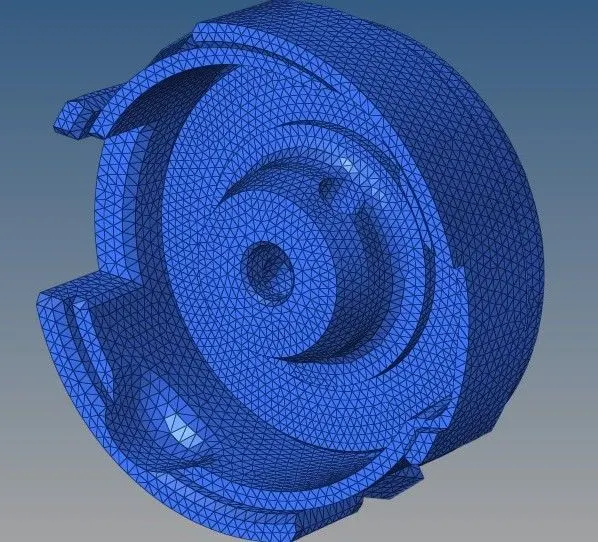
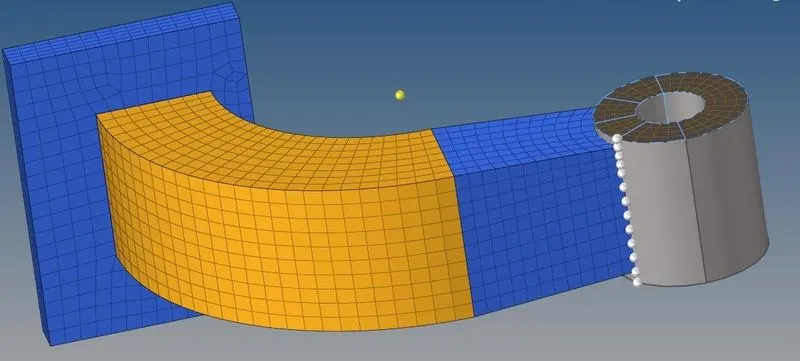
ARM BRACKET
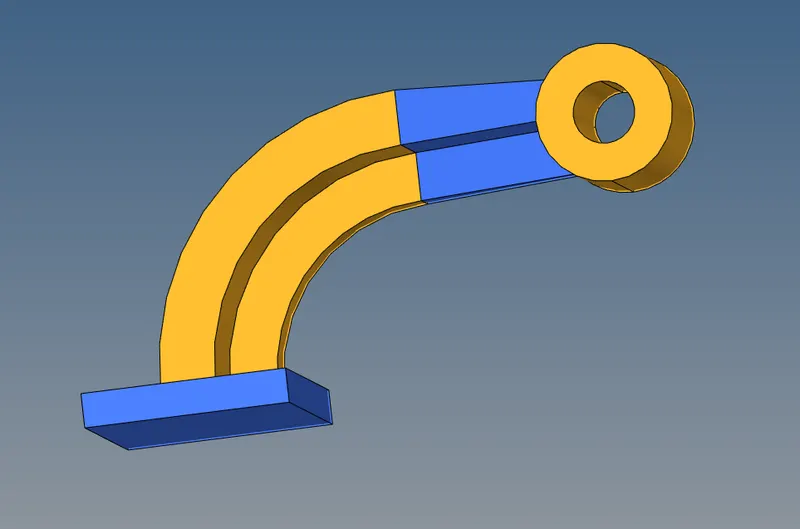
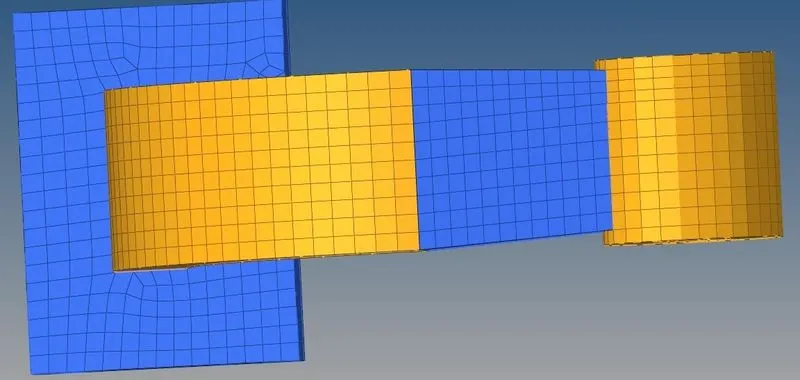
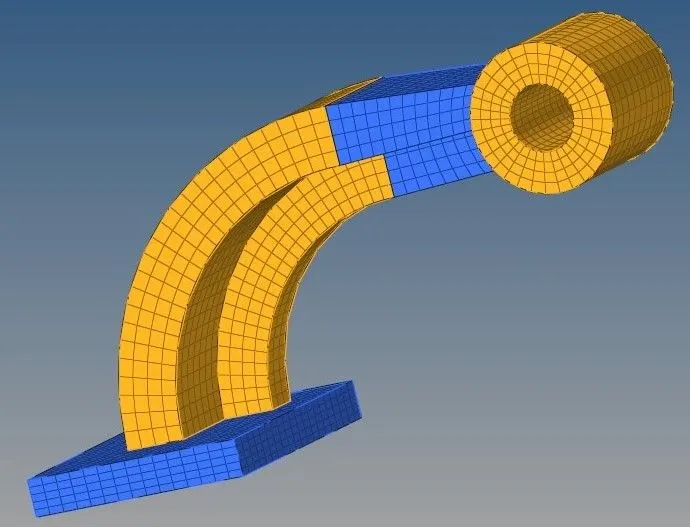
- They are four component in this modle we have to mesh each component separately by starting with the base component and hiding remaining component
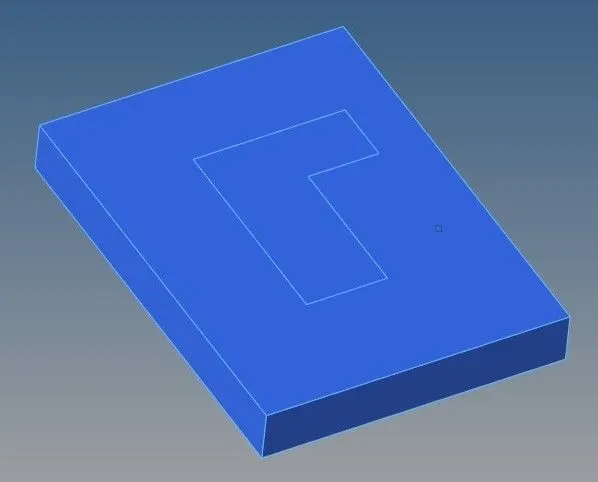
- Go to automesh and select the top surface of the base keep element ype as quad only and element size as 10mm
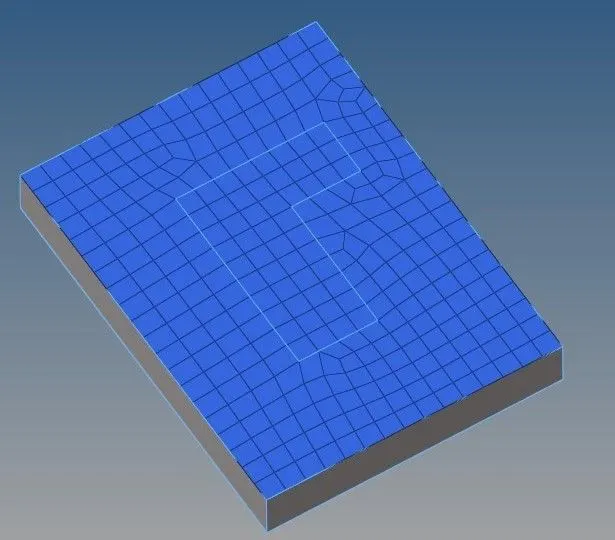
- Then go to 3D element offset- solid layers -element select the top of the base and select the geometry path no of layers as 5 Total thickness as 25mm
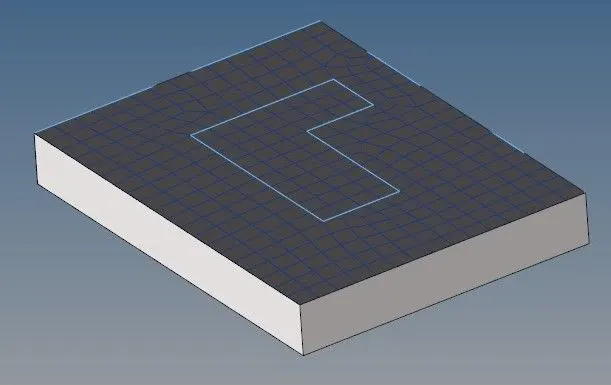
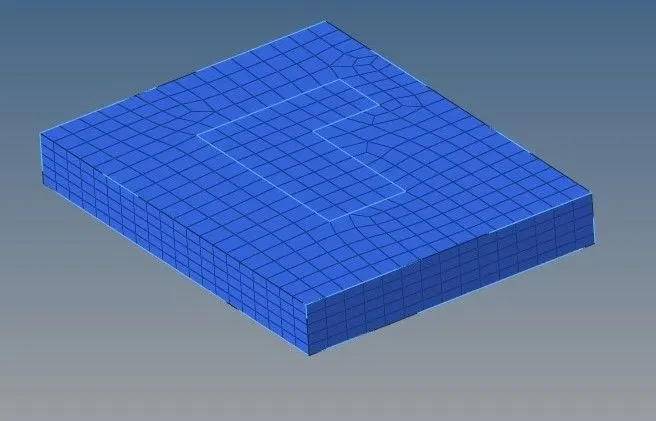
- Checking the 3D meshing hexa element
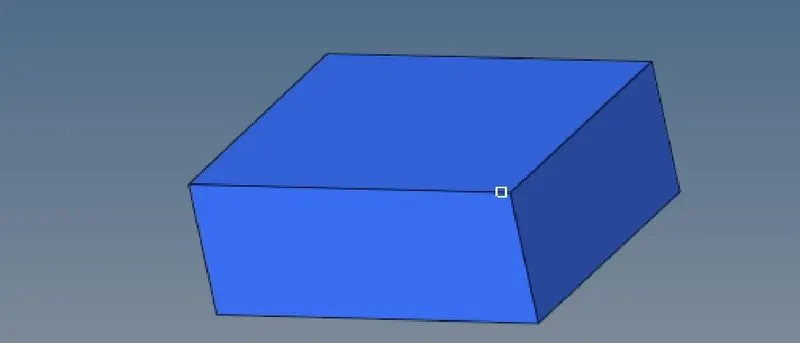
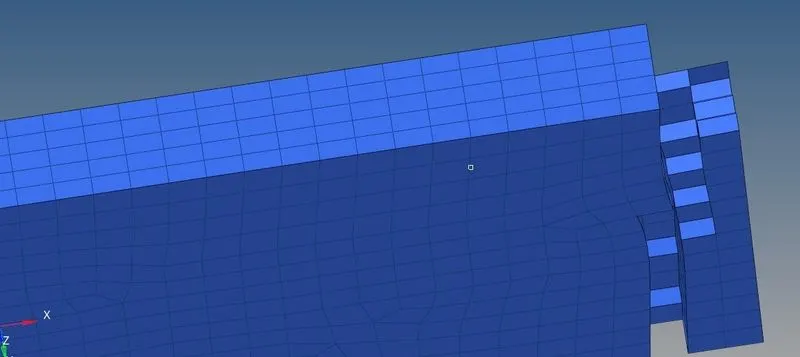
- Then switch on the arm curve and make it as current and hide the base geometry
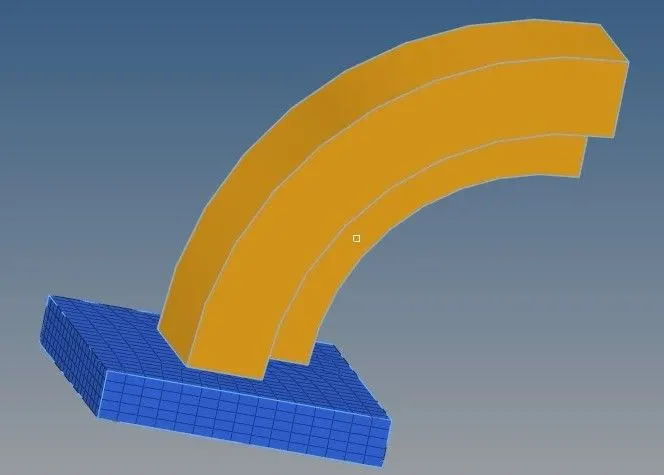
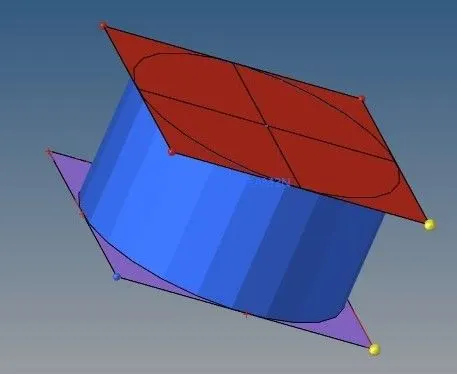
- Now mask the element so go to mask- element -by config- Hex8 select entites ok and we can notice only one face of element which is used for arm curve
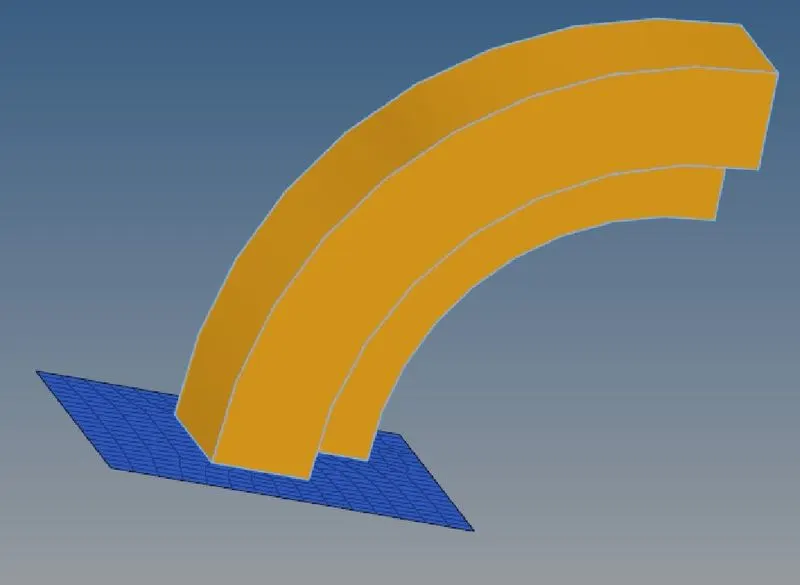
- For 3D spin we requires circle center so press F4 and select three nodes at any one arc and click on the circle center
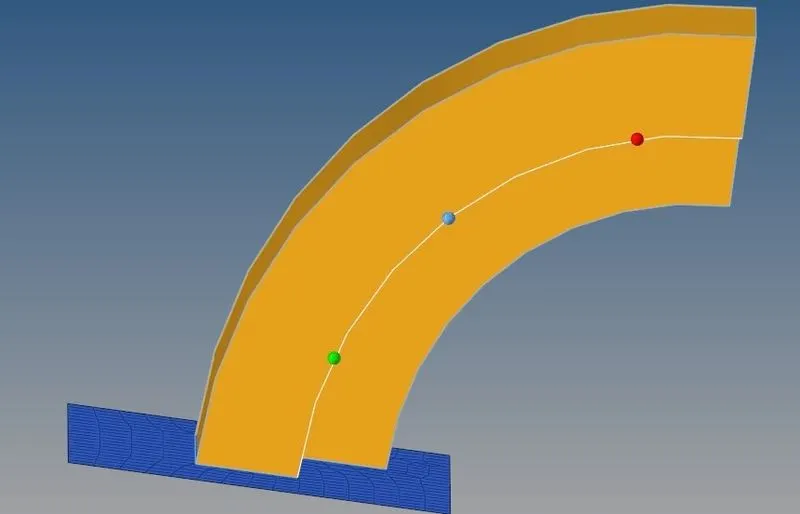
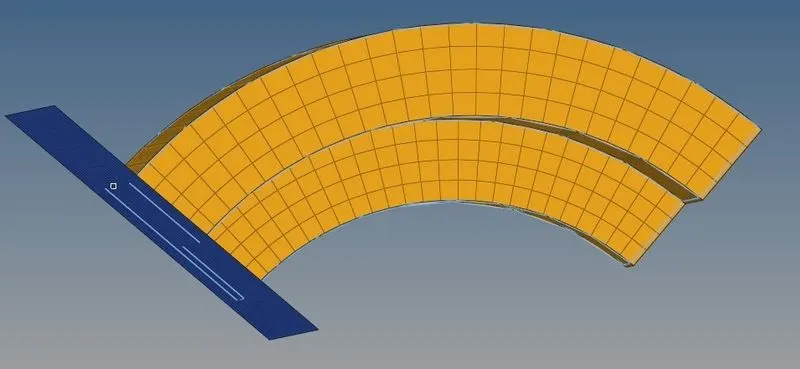
- Now hide the arm curve and unhide the arm straight and we have to create faces so go to tools and select the face and select the arm curve face will be created and hide remaining all components
- Create a 2D mesh on the destination component where the elements on the destination part will be equal to the source part
- Goto 3D-linear solid-select from elements as will as to elements and nodes should be equally placed on the same element each
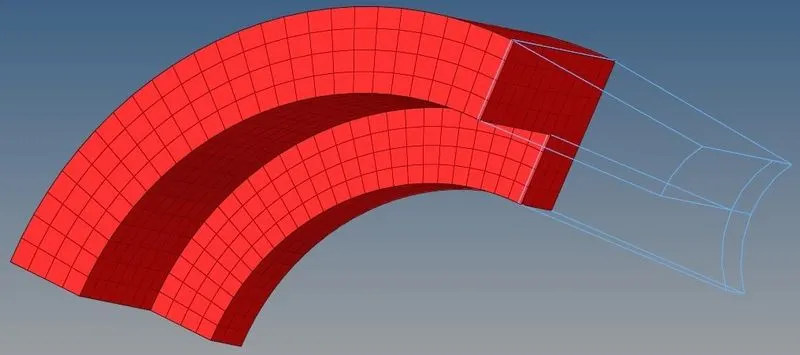
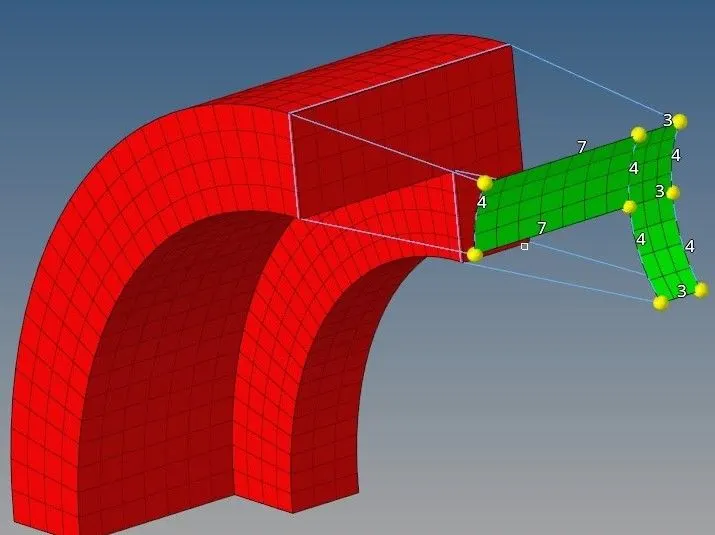
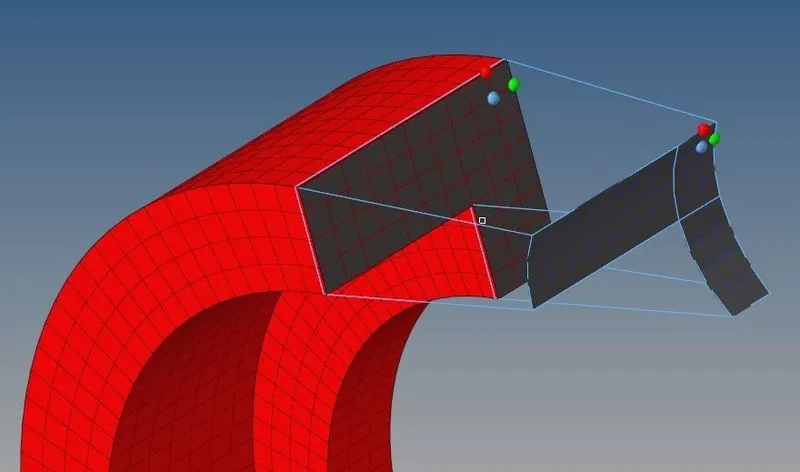
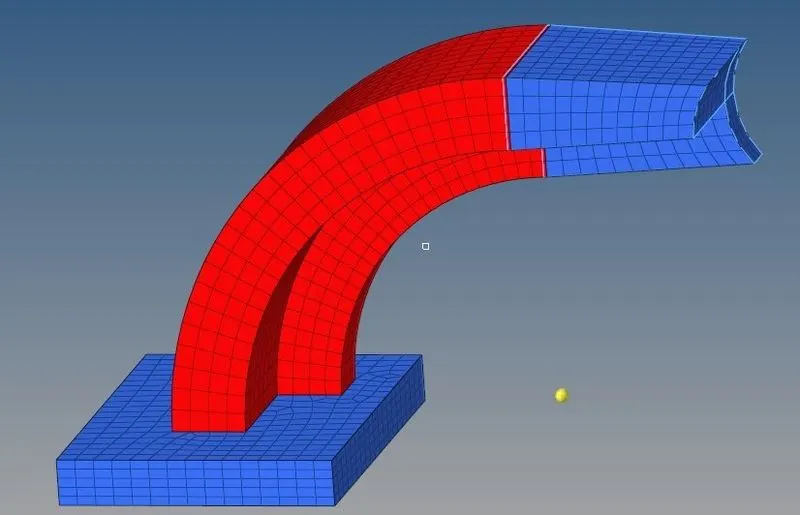
- Then create a 2D mesh on the top which is termed as source with element size as 10mm
- Using organise command under tools translate the elements from solid map
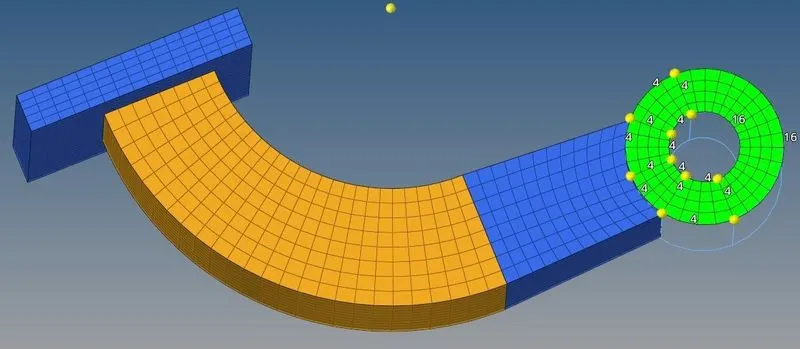
- Import 1D element to hypermesh
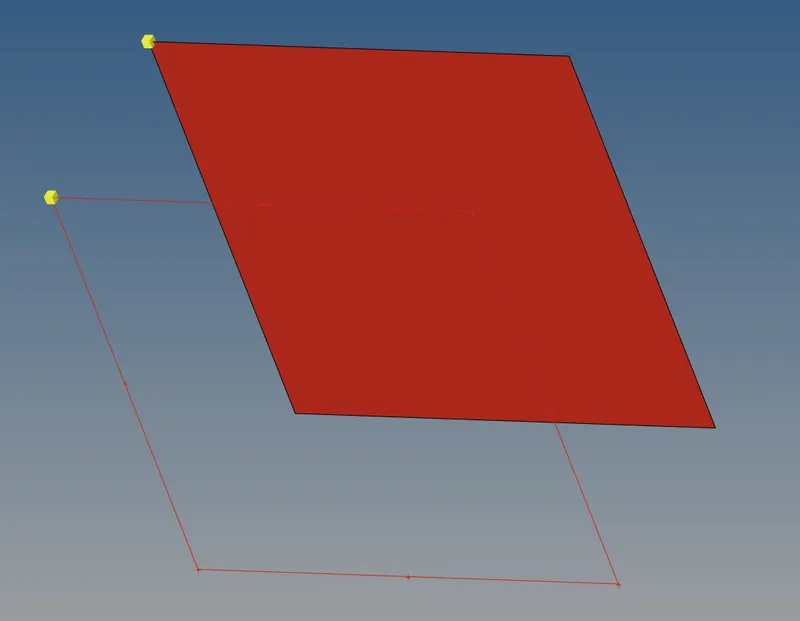
- Create a surface from lines present using geometry -surface command
- Assign the property and material
- Mesh with element size as 5mm
- Under 1D-bar select 2nodes and create a bar element
- Under 1D-Hyperbeam create a cross section for bar element and assign property and material to it.
- Priview its thickness using 1D traditional detailed and element represenatation
RESULT
Checking of material properties of rail component
- Calculating the speed of sound in rail 5188.74522mm/ms
- Time taken for a shock wave to travel 0.192724822ms
- Time taken for a sound wave to travel 0.192724822ms
- Editing engine file and frequency of animation Tfreq 0.0096362411
- Change Print -10
- Creating 3D meshing tetramesh and hex mesh had done successfully and various calculation had done .
CONCLUSION
Learnt how to check the material properties calculating the speed of sound in rail time taken for a shock wave to travel .Time taken for a sound wave to travel editing engine file creating 3D meshing tetramesh.