Assignment 1
AIM: Cleanup the geometry and meshing and assign the thickness of the practice,clip repair,mounting bracket
OBJECTIVE:
- Clean the geometry.
- Extract midsurface.
- Clean midsurface geometry.
- Ignore holes less than dia 5mm.
- Create 2D mesh with target length 5mm, min 3.5mm max 7mm.
- And assign proper thickness, by creating a generic property.
PROCEDURE:
1.PRACTICE:
- Import the practice model in hypermesh.In RADIOUS PROFILE
open file > select model . import
- cleanup the geometry .
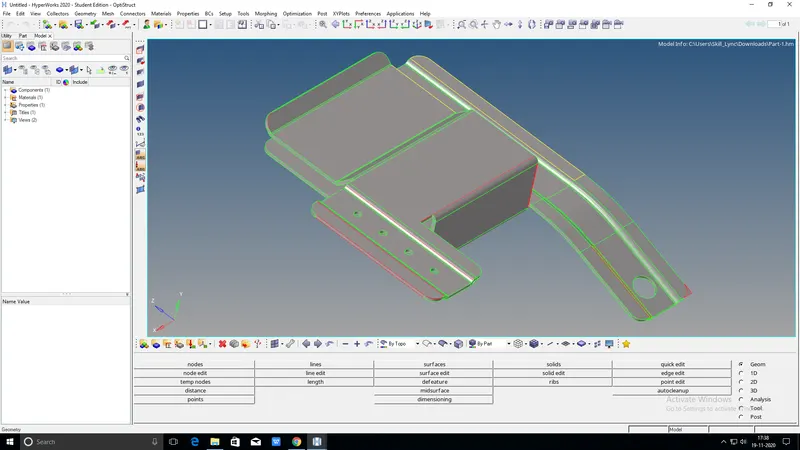
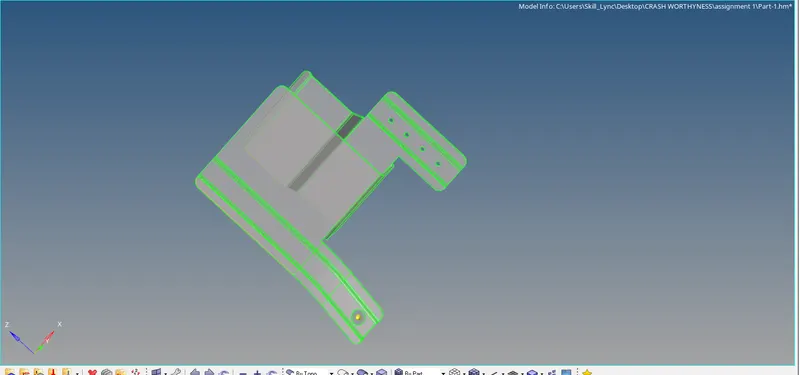
- inthid model missing some surface and have free edges. for getting qulity mid surface toogle the lines
- afte the geometry clenup extract the mid surface of the component
GEOM > click on MID SURFACE > select SURFACE > EXTRAC
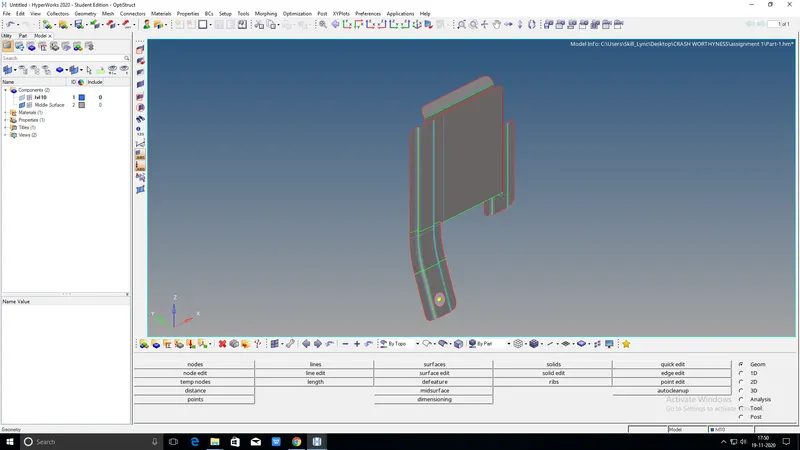
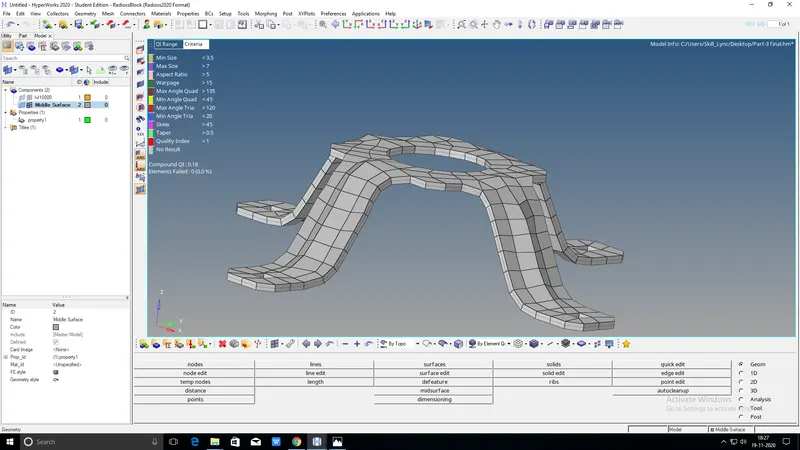
PIC: MID SURFACE
UPLOAD THE CRITERIE FILE MINIMUM LENGTH 3.5 AND MAXIMUM LENGTH 7
PREFERENCESS > CRITERIAFILE SETTINGS > ASSIGN VALUES > APPLY
- After extract the mid surface toggle the lines for
- defure the lines
- after that mesh the component
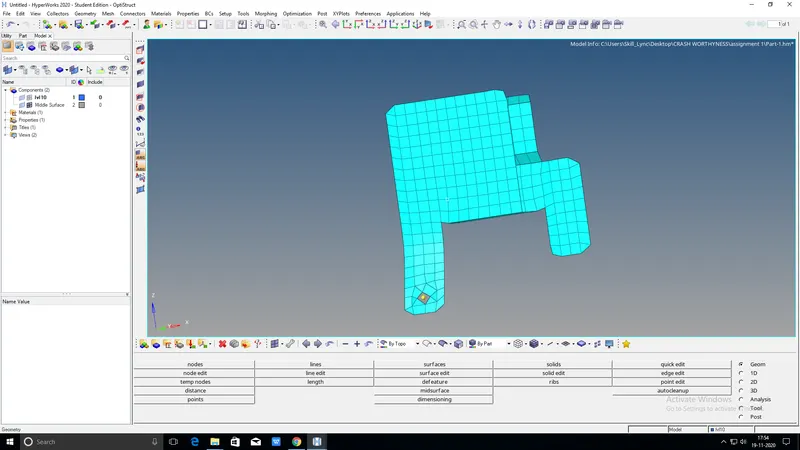
PIC: MESH OF THE COMPONENT
2D > AUTOMESH > select SURFACE > click on MESH

- Go to 2d and select the automesh and select the surface and click on the mesh.genarate mesh completed on the component
- clear t6he failed elements like min size elements
- after getting proper mesh will assign the thickness of the componenet
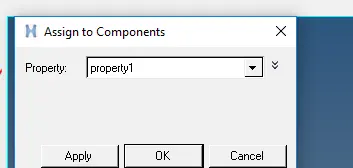
- go to properties and adding thickness than click on the mid and assign the thickness of the component
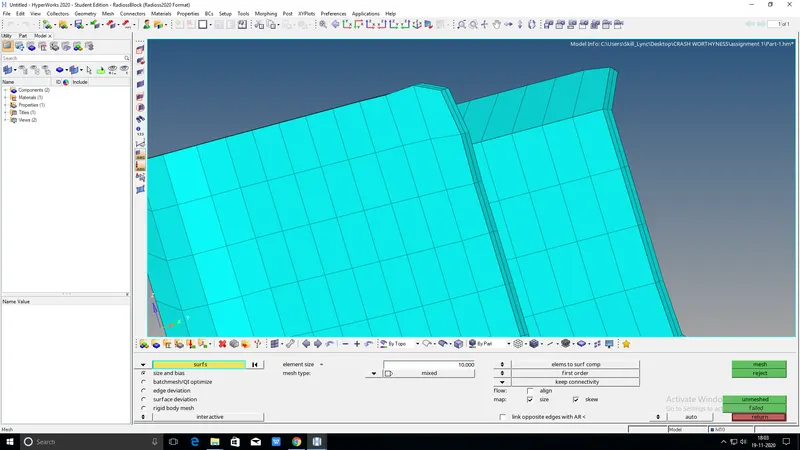
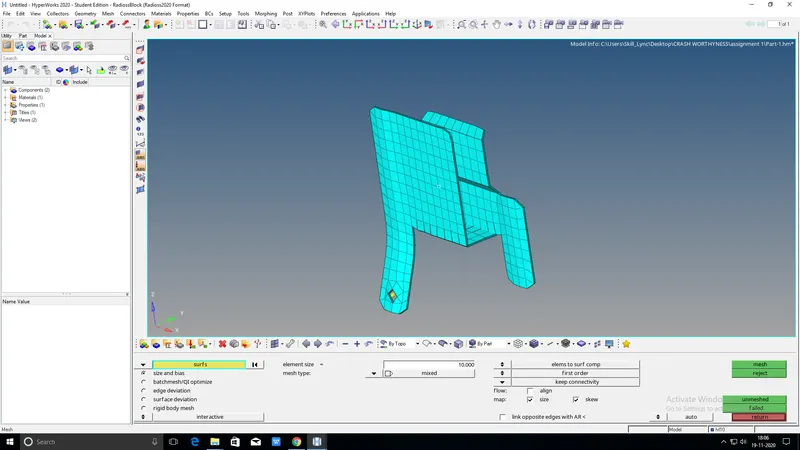
RESULT:
COMPLETED THE CLEANUP GEOMETRY AND MESH THE COMPONENET ASSIGN THE THICKNESS OF THE PRACTICE MODEL
2 CLIP REPAR
- Import the practice model in hypermesh.
open file > select model . import
- cleanup the geometry .
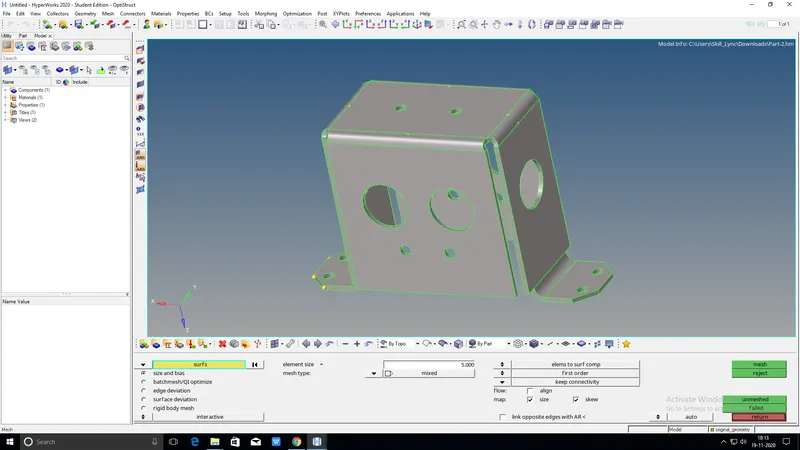
- Extract the mid surface for go to extraction option select SKIN OFFSET
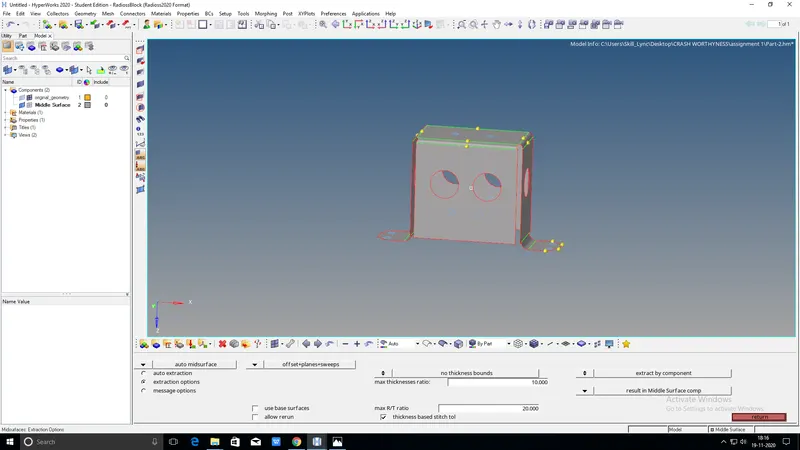

- After extract the mid surface toggle the lines for
- defure the lines
- after that mesh the component
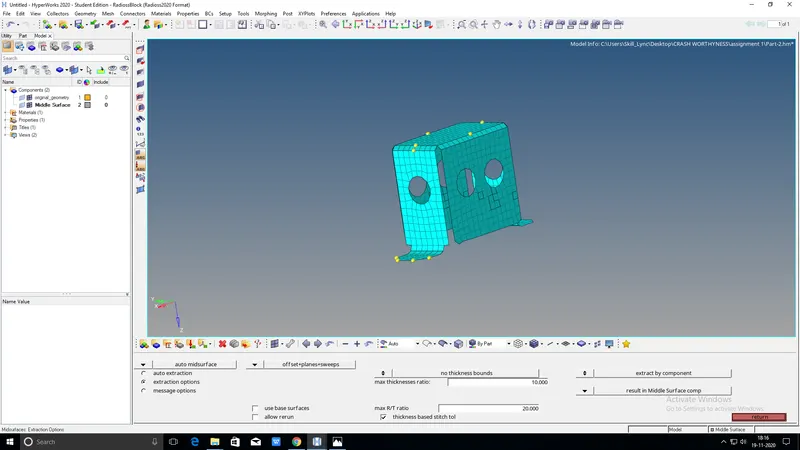
- Go to 2d and select the automesh and select the surface and click on the mesh.genarate mesh completed on the component
- clear t6he failed elements like min size elements
- after getting proper mesh will assign the thickness of the componenet
- t
- go to properties and adding thickness than click on the mid and assign the thickness of the component
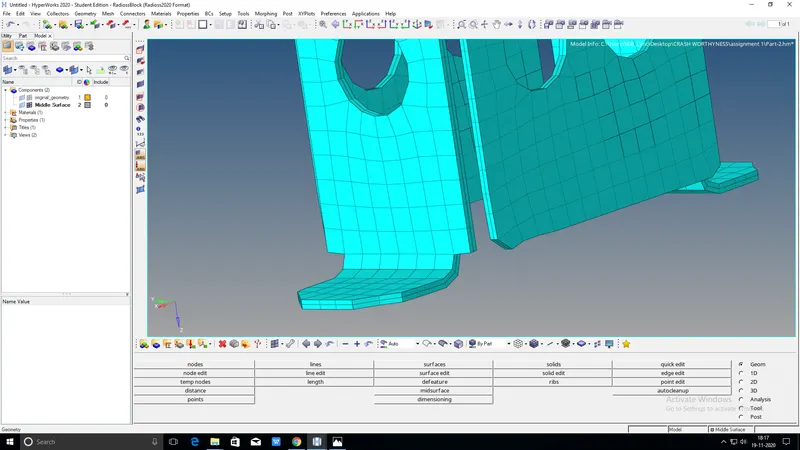
RESULT: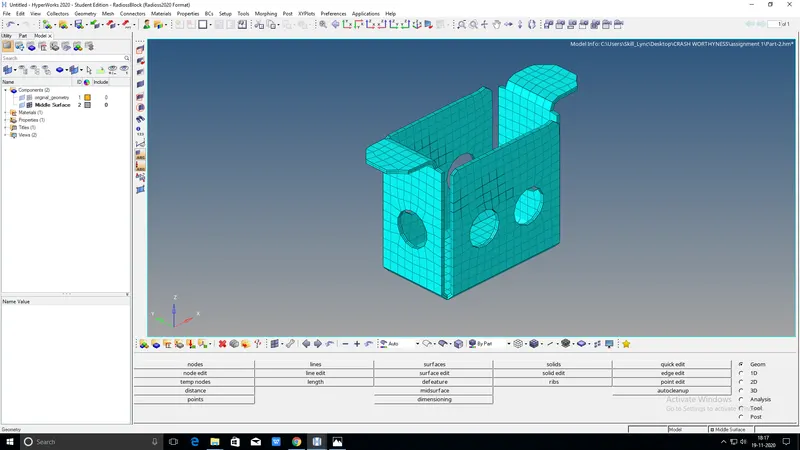
3.MOUNTING BRACKET: This component working same as the above two coponenet
- Clean the geometry.
- Extract midsurface.
- Clean midsurface geometry.
- Ignore holes less than dia 5mm.
- Create 2D mesh with target length 5mm, min 3.5mm max 7mm.
- And assign proper thickness, by creating a generic property.
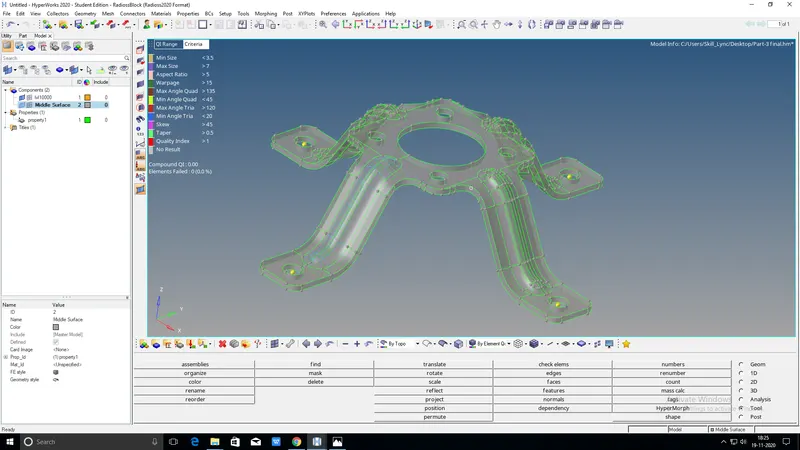
PIC: GEOMETRY
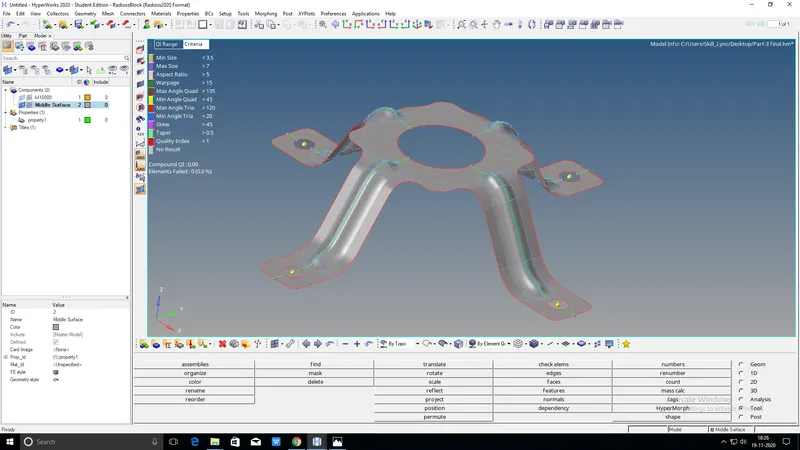
PIC: MID SURFACE OF THE COMPONENET
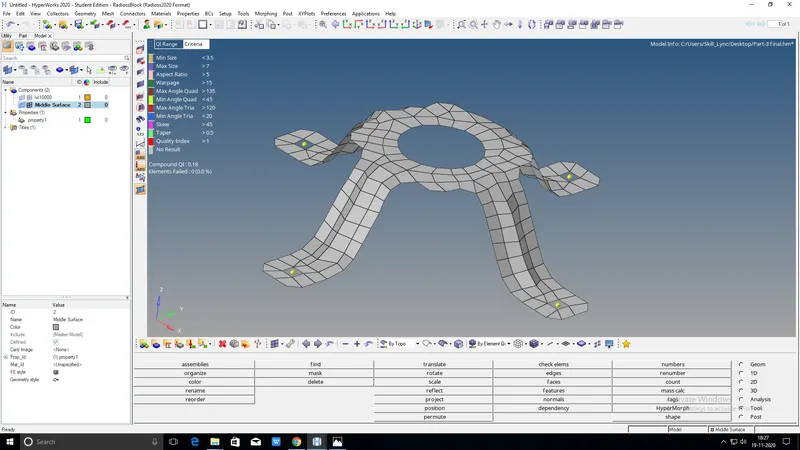
PIC:2D MESH
RESULT: