Adams challenge 5 - post processing
Aim: Run any simulation and try out the following:
1.Graph styles, titles, labels.
2.Plot configuration files – export and import.
3.Export numeric data.
4.Import numeric data and plot.
5.Animations, cameras and video export.
Answer: we will perform all the above task with Mcpherson strut assembly.
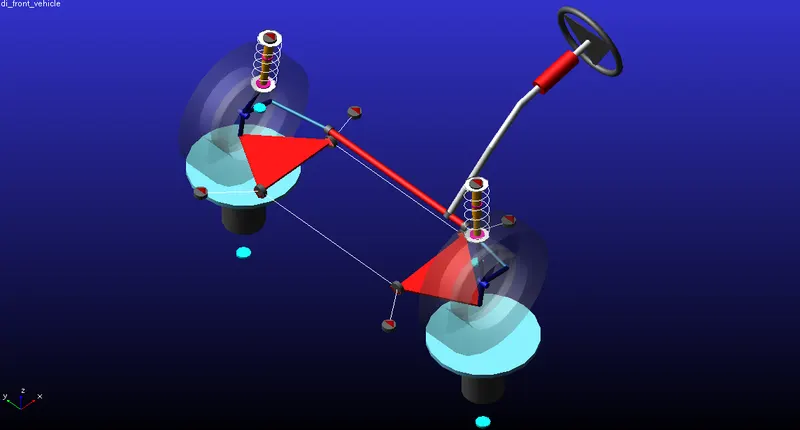
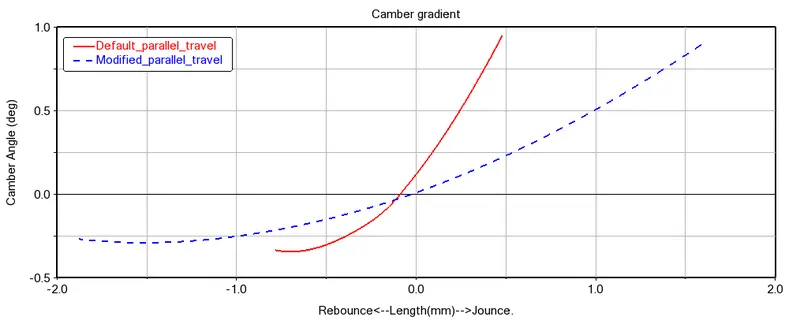
A parallel wheel travel simulation is conducted for 100 steps for 50mm jounce and rebounce. The postprocessor window is opened and graph for camber gradient is plotted.
Here we conduct two simulations first with all default values and the second run we have changed a hardpoit to see the varation. In the second run we have changed lower control arm ball joint.
once we have simulated both the cases now we open the postprocessor window and first seslct independent axis as data and select wheel travel under testrig. Then we select both the cases and plot the graph for camber angle.
Then we have changed the legends and added a title to the graph.
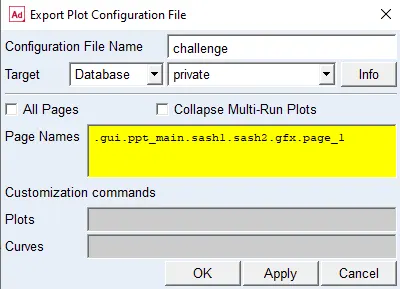
Now the plots created can be exported in the database where it is stored. To export the file,
- Click on file in post processor window.
- select on export and click on plot config file.
- Enter the file name.
- select the data base location.
- Under the title of page name, right click on it and select page , gusses and select the page number you want to export.
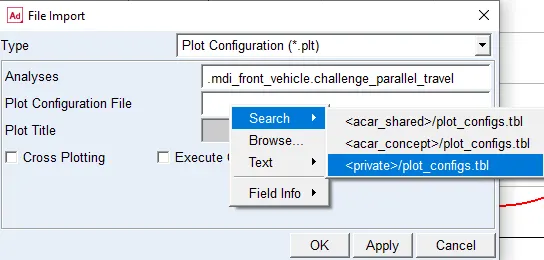
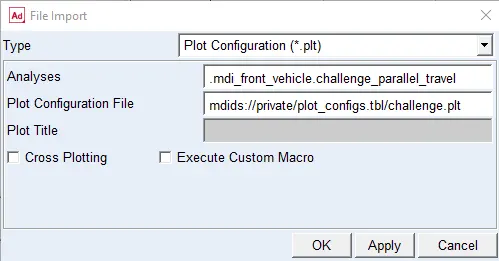
Now this same files can be imported to post processor window from database. To import the file,
- Click on file in post processor window.
- select on import and click on plot config file.
- Right click on the plot config file dialogue box then click on search
- Then select the proper file thet you need to import from the database.
To add animation in post processor window,
- In post processor window, add new page.
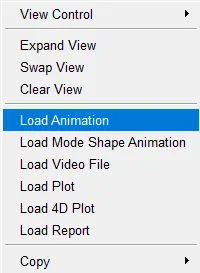
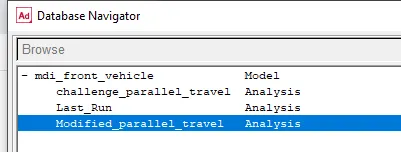
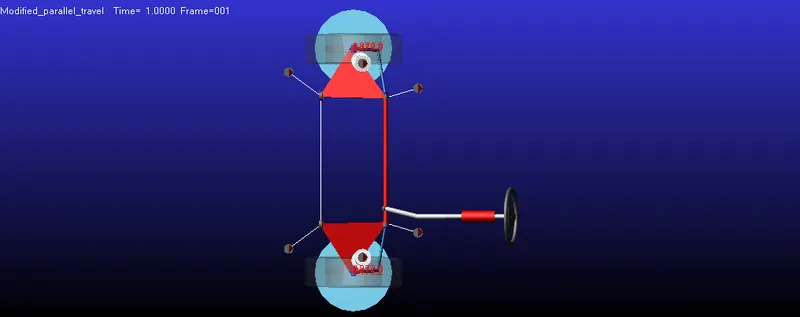
- Right click on the page and select load animation and chosse proper simulation to load in page.
- Frame rate, lighting and camera angles can be altered.
- To record the animation, click on record button and then play the animation.
Numeric data of the simulation can be exported in the form of spreadsheet, html report and text documents. To export files,
- Click on file in post processor window.
- Select on export an the numeric data.
- On right clicking on the result data dialoge box. Select result Set component and click on browse
- select the data to be tabulated.
- Under sort by select on time and click on apply.
- The text document gets saved in the directory as FILE
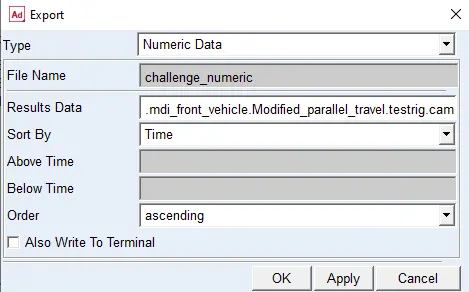
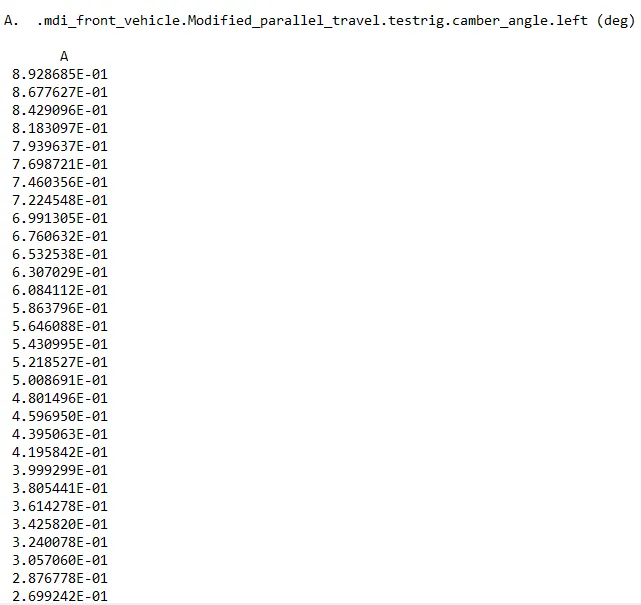
The above is use to make text document, Now we will see how to make spreadsheet,
- Click on file in post processor window.
- Select on export an then spreadsheet.
- Enter the name of file.
- Right click on result set name and then result set and then browse.
- chosse component and click on apply.
- The generated file get saved in directory as TABFILE.
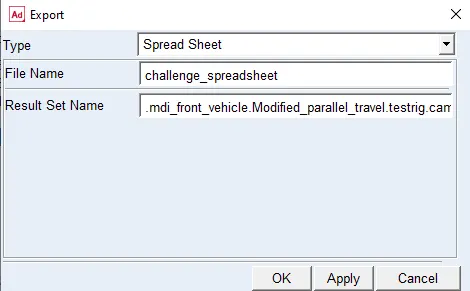
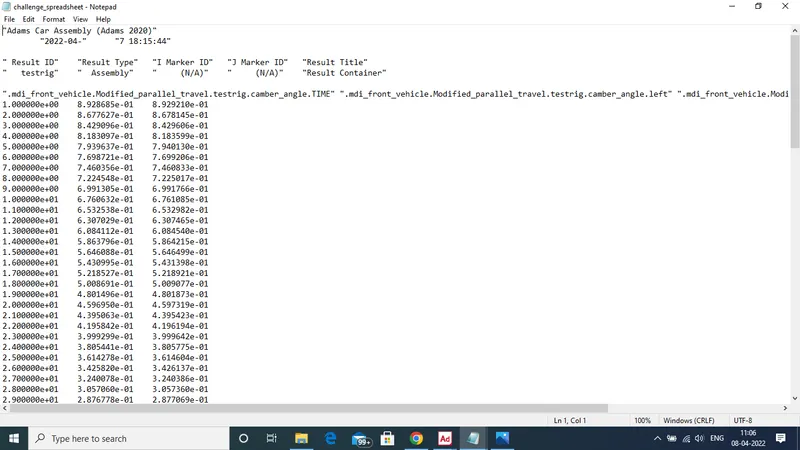
Now to import the numeric data in post processor window,
- Click on file in post processor window and select import.
- select on numeric data
- Right click on file name tab and then search.
- Select the proper file and the same will be loaded in the post processor window.
The animation video is attached below: