Adams challenge 4 - suspension creation
STEP1:
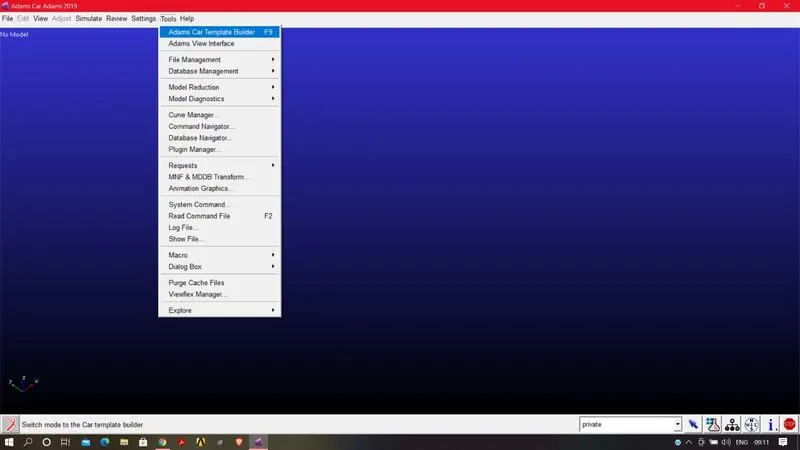
Open ADAMS CAR>TOOLS>ADAMS CAR TEMPLATE BUILDER(this option will availabe if the software is in expert mode)
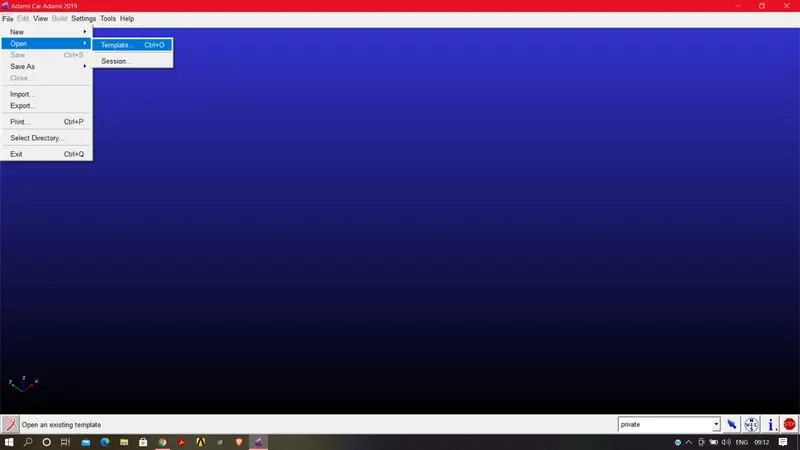
And go to the FILE>OPEN>TEMPLATE to select the required template for creating a assembly,for now we gonna create double wishborne front suspension.
after clicking TEMPLATE a dialogue box would open and right click on the dialogue box<search
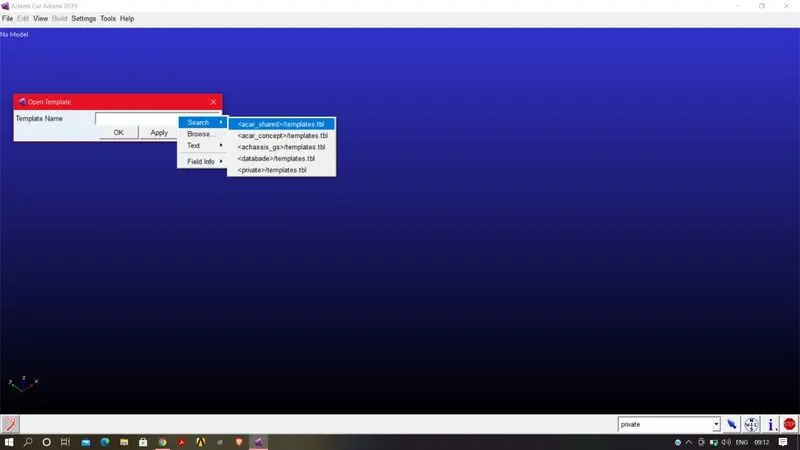
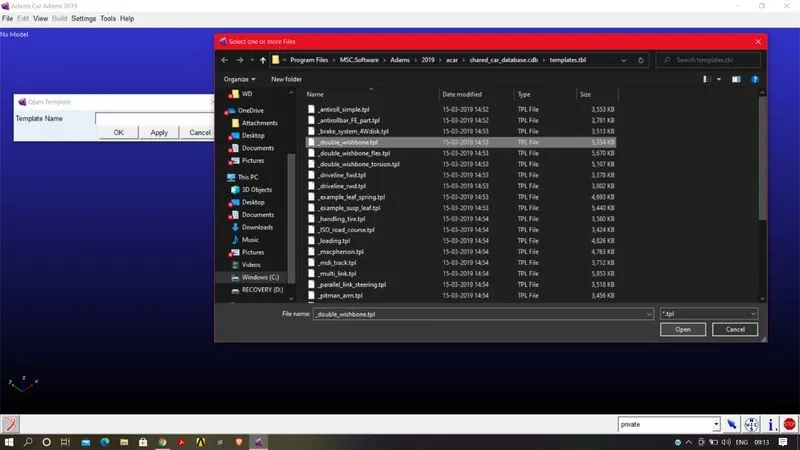
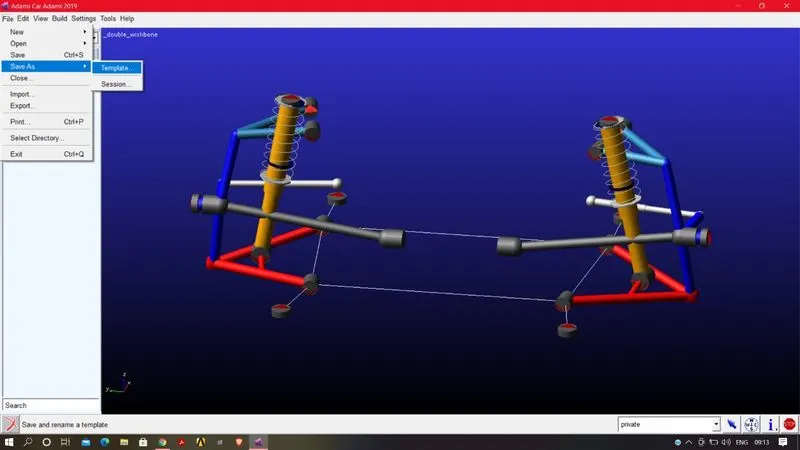
acar_shared_template is the database were we would get the template,assemnbly,which all comes from the software installation,so we dont want to change anything so that it can have affect the original file so we gonna save this file in our own database.so we gonna save this file in our own database called databade.
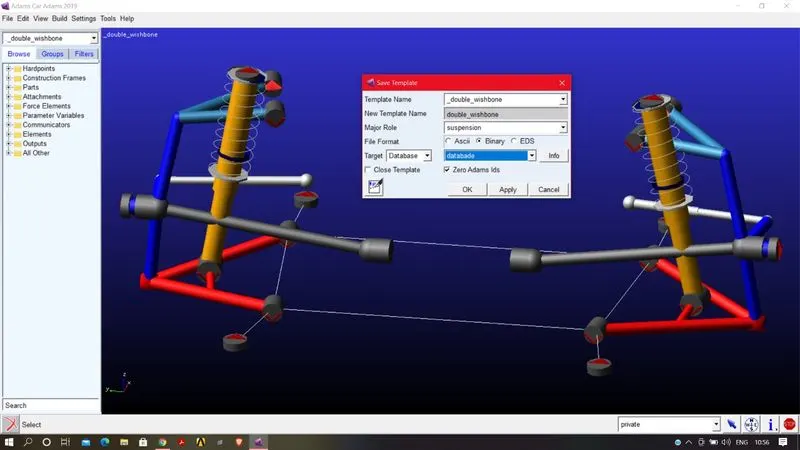
save the template in created data base by giving giving name to the template and choose the target file as databade(created database)
AND leave the template builder by clicking F9.
STEP2:
open new<subsystem and give name to subsytem and open the template from the created database.
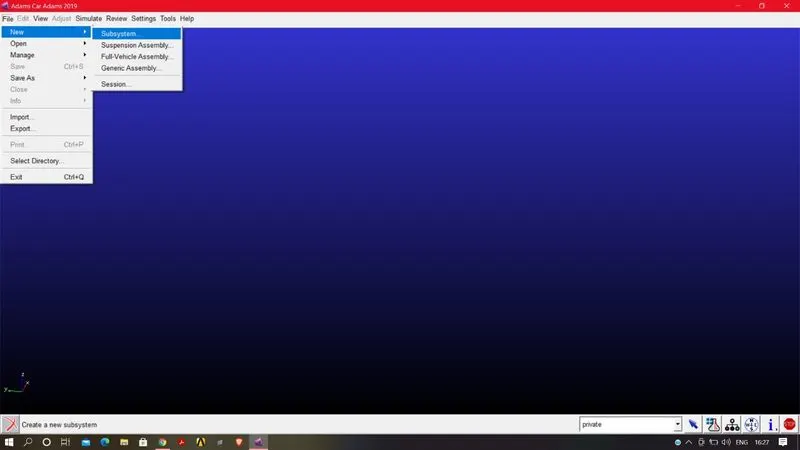
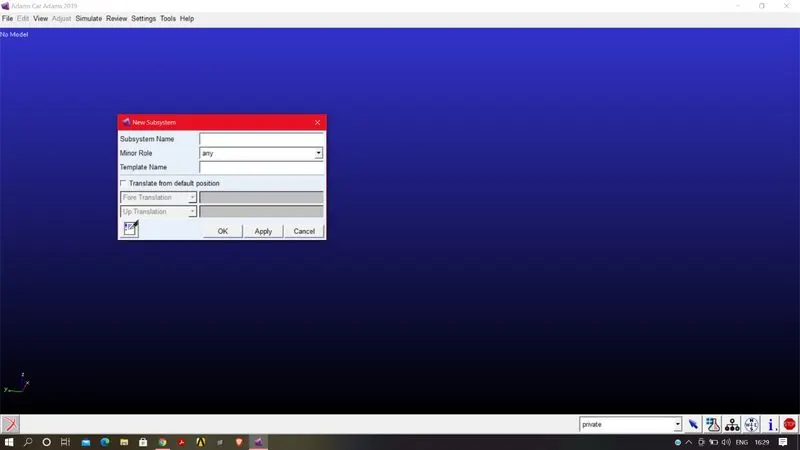
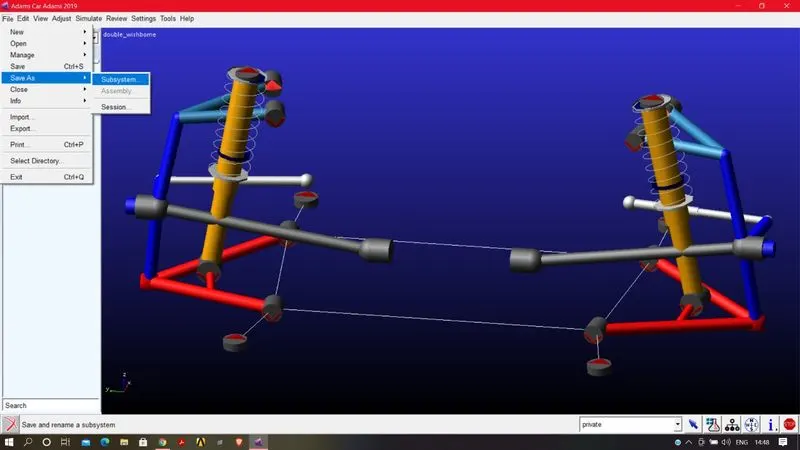
and save the sub system in created database so that it cant afffect the original file.
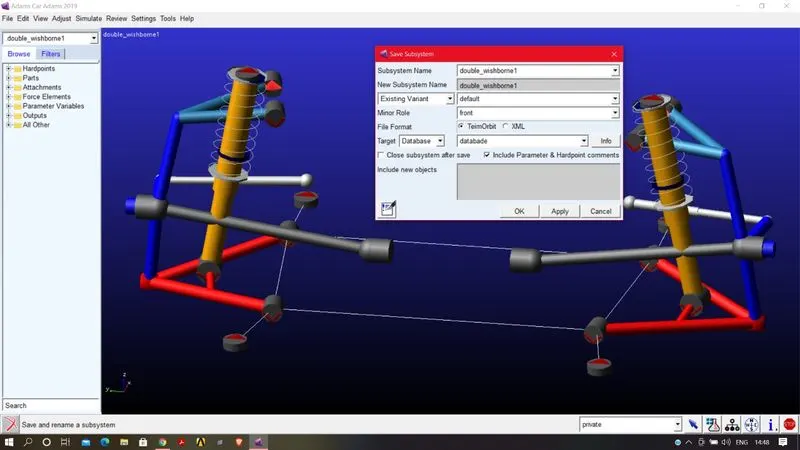
STEP3:
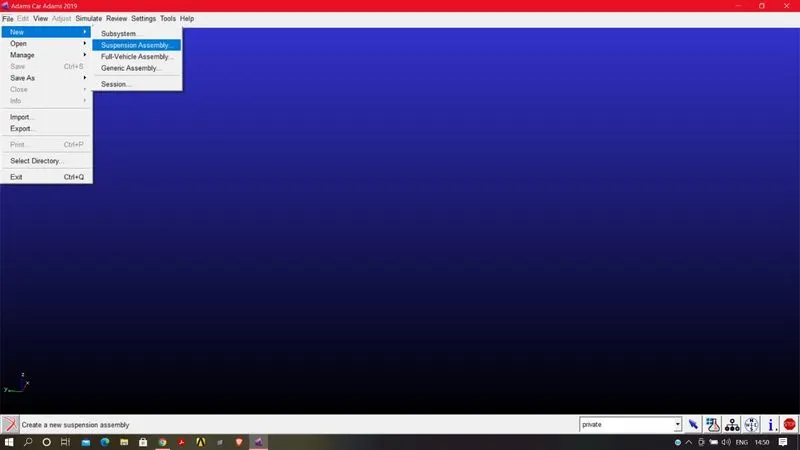
After saving the new susbsystem go to the file>new>suspension assembly to assemble the subsystem to create the double wishborne(front) assembly.
Name the assembly name and right click on the susopension subsystem and go to SEARCH>databade sub system to select the suspensionn subsystem.
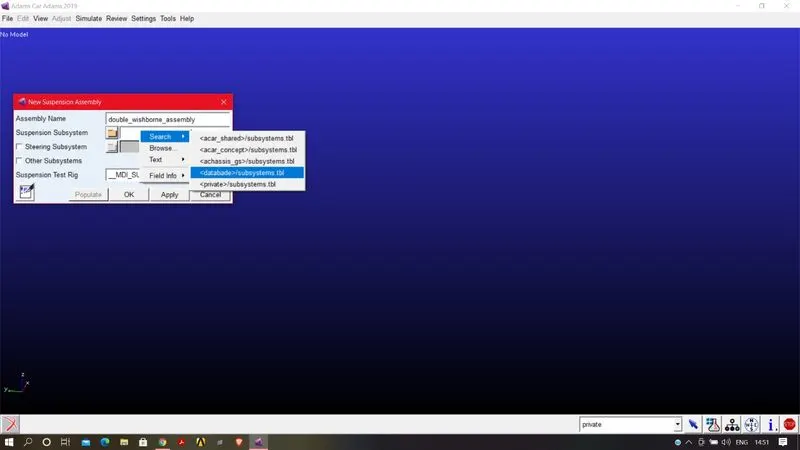
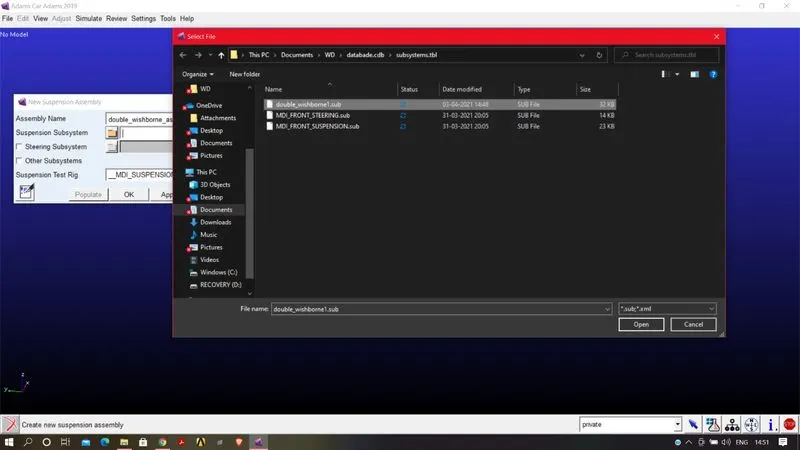
same for steering checked the sterring subsystem and search the created databade for to select the steering subsystem.
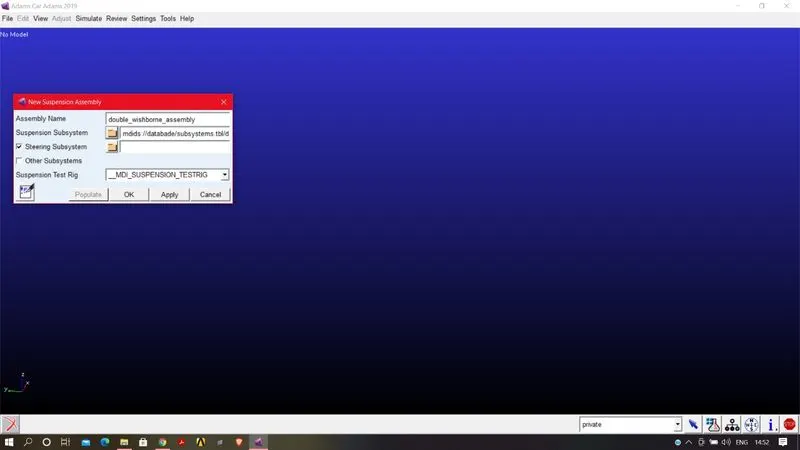
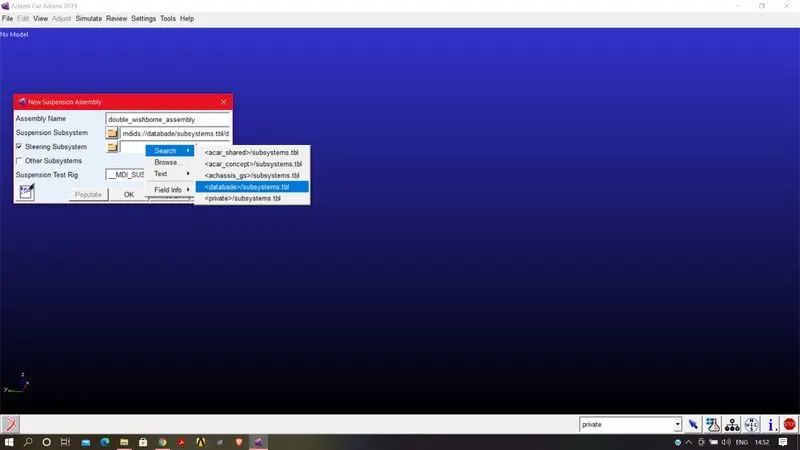
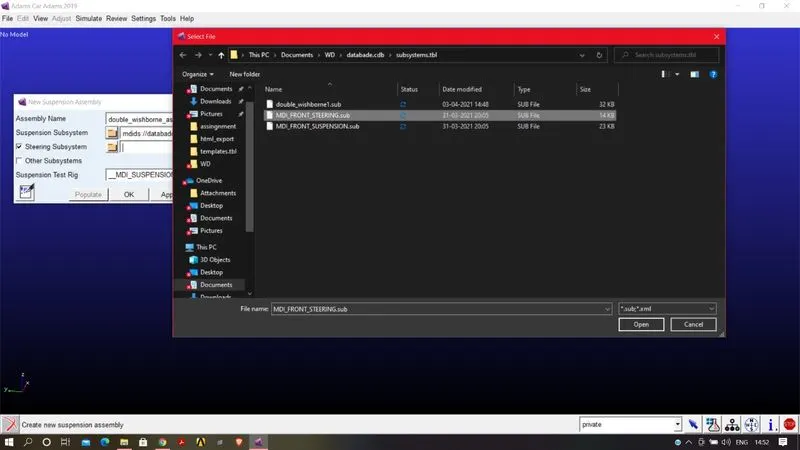
After selecting the two subsytem click APPLY.A message window box open which tells you that where the assembly complete or not .Atlast it show the assembly completed.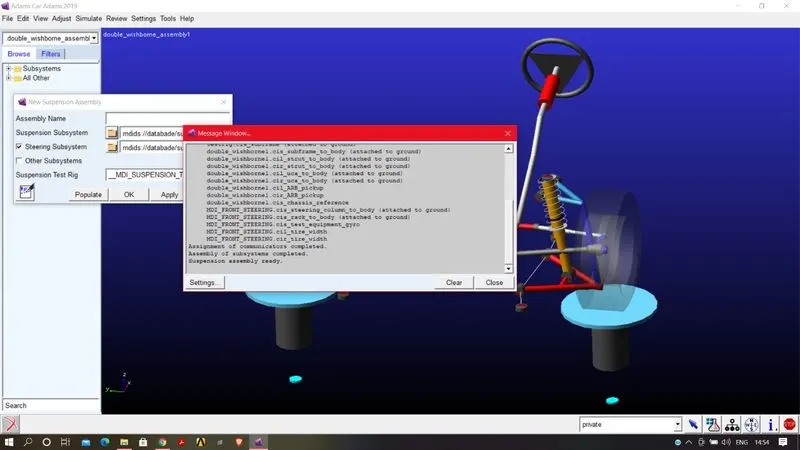
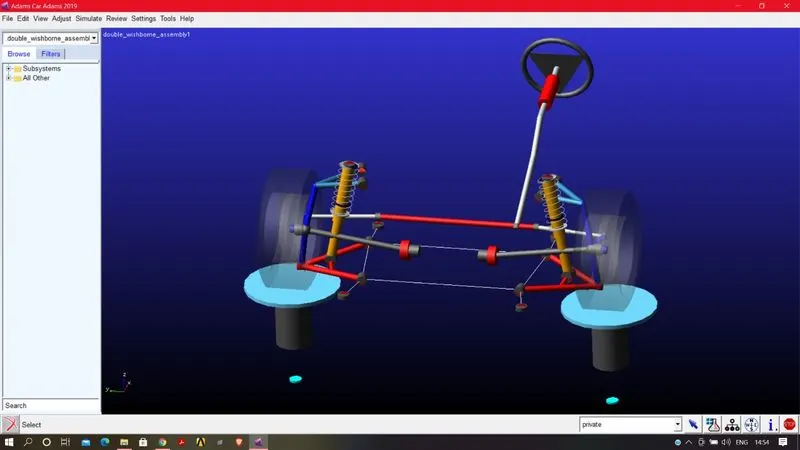
STEP4:
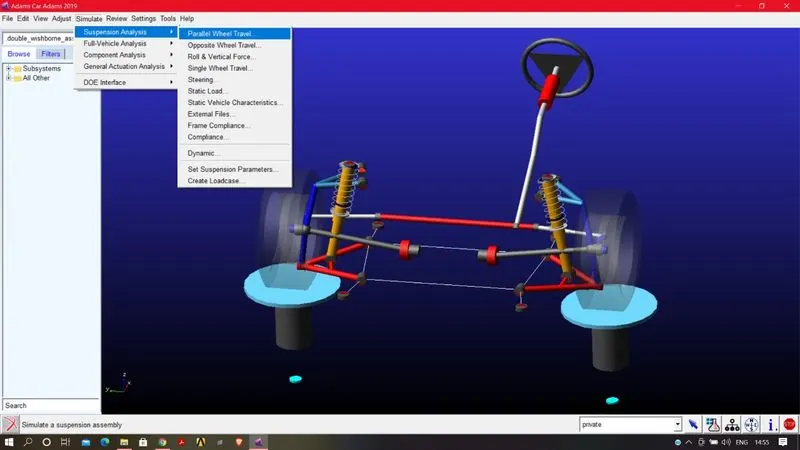
chech that everything is connected by running the animation.Before animating you need choose what kind of stimulation you want. so we choose STIMULATION>PARALLEL WHEEL ANASYSIS
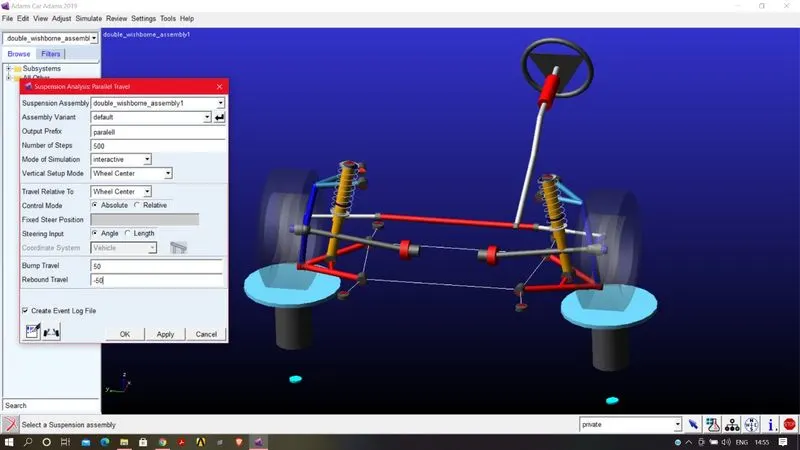
And give the input by giving a name to the result and choose the mode of stimulation as INTERACTIVE and type bump travel/rebound travel as 50/-50mm and click ok.
A message box will pop up,that show that whether the stimulation is complete or not,if the stimulation is completed it will mention at the end of the message box.
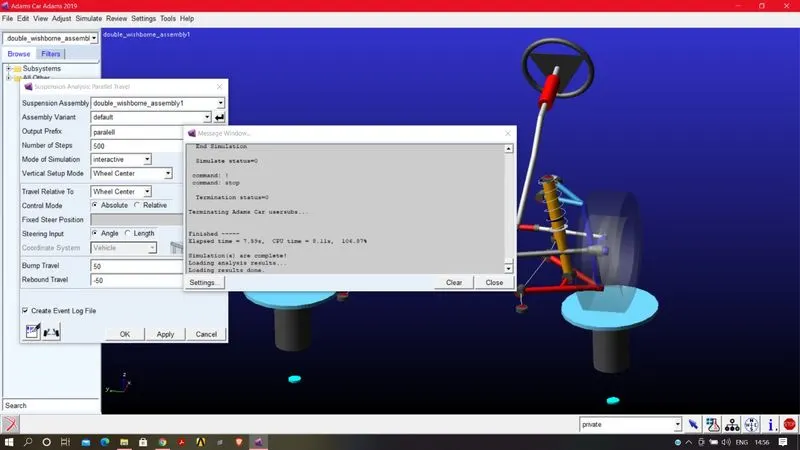
Once the stimulation is completed go the REVIEW>ANIMATION
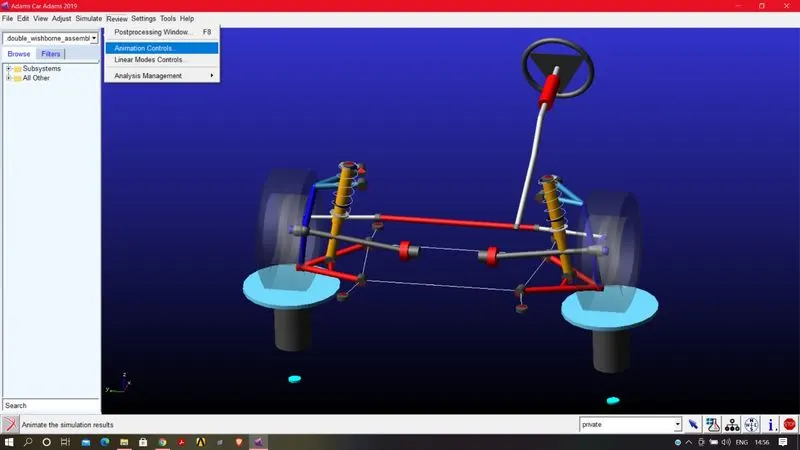
And you can run the assembly by clicking the play button.
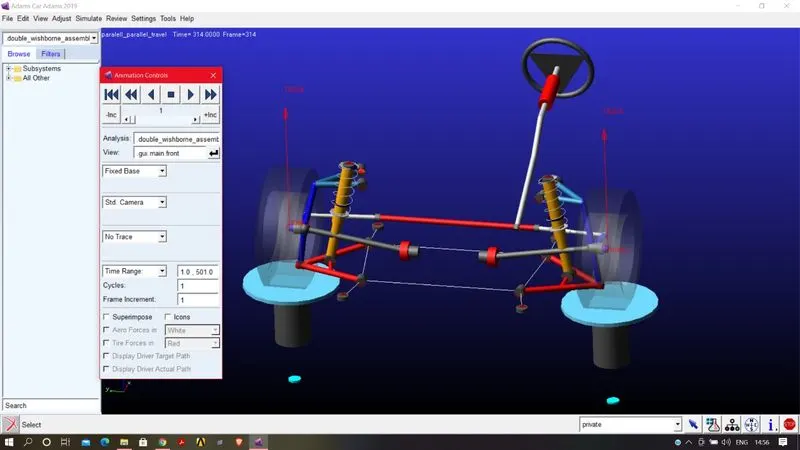
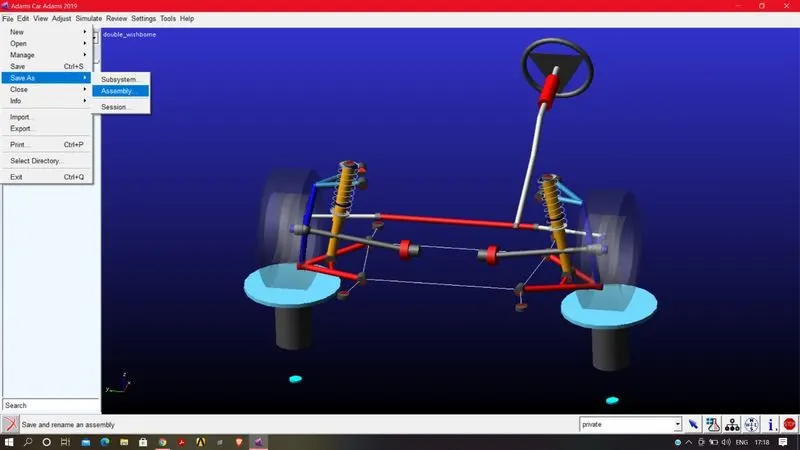
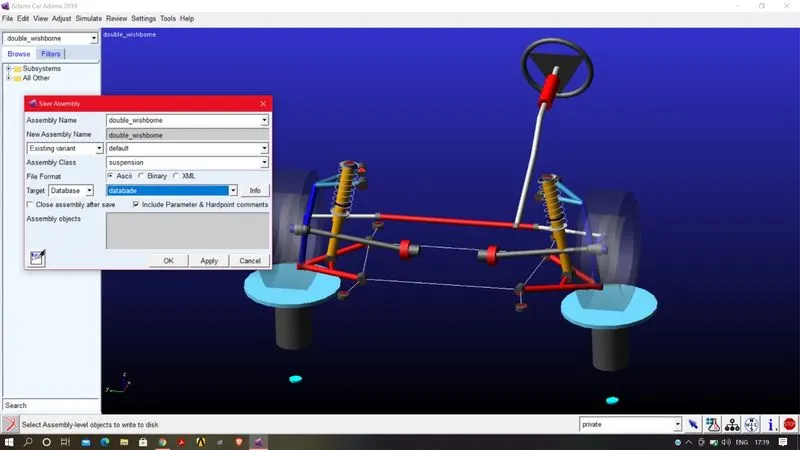
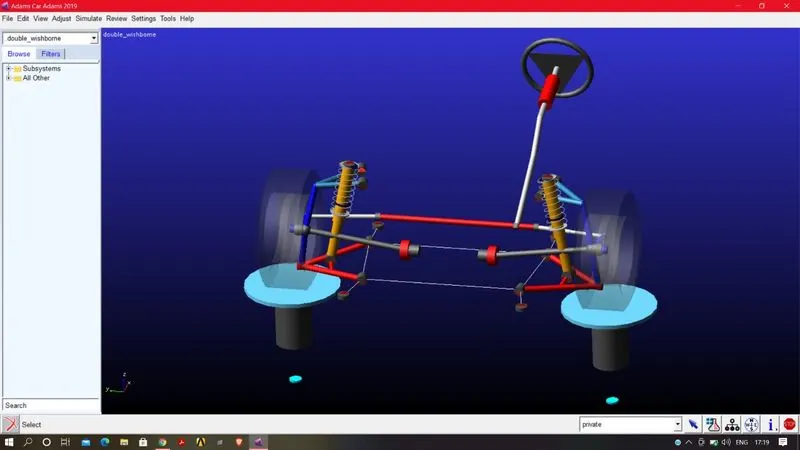
And then you can save the assembly in our created database.