3D Creation of Celing, Roof, Architectural plan, Structural plan, Sectional view, Elevation view and Camera specific view for a house plan using REVIT
AIM:
To create a 3D Ceiling, Roof, Architectural plan, Structural plan, Sectional view, Elevation view, and Camera specific view for a house plan using REVIT.
INTRODUCTION:
The main objective of this task is to understand in-depth about creating a ceiling, Roof to a building. To create the Architectural, Structural plans, Elevation, and Sectional views from the view panel. To create sheet templates and to place views in them.
To create a Ceiling:
Use the Ceiling tool to create a ceiling in a reflected ceiling plan view.
- Open a ceiling plan view.
- Click Architecture tab Build panel Ceiling.
- In the Type Selector, select a ceiling type.
- Place a ceiling using one of the following methods:
Use walls as ceiling boundaries:
By default, the Automatic Ceiling tool is active. When we click inside walls that form a closed loop, the tool places a ceiling within those boundaries. It ignores room separator lines.
Sketch ceiling boundaries:
- Click on Modify, then Place Ceiling tab, then Ceiling panel, then Sketch Ceiling.
- Use tools in the Draw panel of the ribbon to sketch a closed loop that defines the ceiling boundary.
- (Optional) To create an opening in the ceiling, sketch another closed loop within its boundary.
- On the ribbon, click the tick to Finish Edit Mode.
To create a Roof:
- To create a roof for the project, first, open the level closely associated with the roof by double-clicking it in the Project Browser. Then, on the Architecture tab of the ribbon, click the Roof by Footprint tool and choose desired roof type
- Choose a relevant level for the bottom face of the roof
- Use Pick Walls tools and hover over a wall — press tab to select all joined perimeter walls Define roof parameters like overhangs, slopes, offset from level, rafter cut
- Finish the roof by exiting the roof editor
To create a Plan View:
Click View tab, then Create panel, then Plan Views drop-down, and then click
- Floor Plan
- Reflected Ceiling Plan
- Structural Plan
In the New Plan dialog:
- For Type, select a view type from the list, or click Edit Type to modify an existing view type or create a new view type.
- Select one or more levels for which you want to create a plan view.
- To create a plan view for a level that has an existing plan view, clear Do not duplicate existing views. For example, a site plan is a duplicate of one of the project floor plans with a different range setting. Then click OK.
Sheets in Project template:
When creating a project template, we can include sheets in the template. Start with a blank project file, and create the standard views and levels that each project should include. Leave the views empty, but assign standard names to them. To create a standard set of construction documents, create sheets using the desired title blocks. Add views to the sheets, using the desired viewport templates and view title types. Then save the empty project as a project template.
TASK 1:
To create a ceiling from the Architectural tab above the walls at the first floor level on the week 3 residential model plan
PROCEDURE:
- Open the week 3 final drawing, to begin with.
- Our first task is to create a ceiling on top of the wall at the first-floor level. From the properties, the browser clicks on the FIRST FLOOR LEVEL.
- Now in the architectural tab click on the ceiling as shown in the figure.
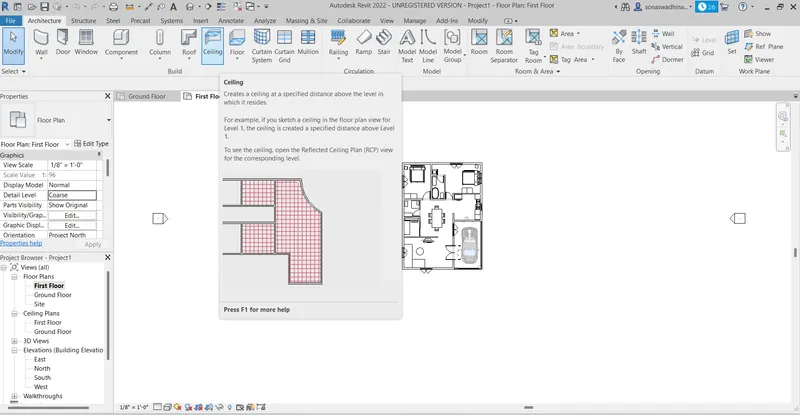
- Now from the modify, create ceiling panel select the sketch ceiling option as shown below.
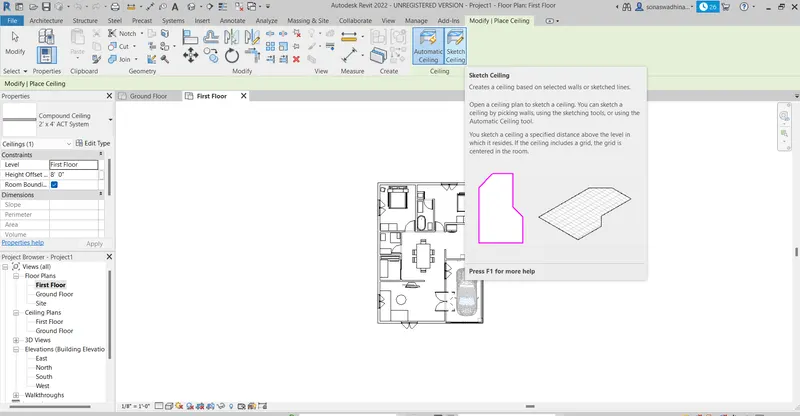
- The ceiling is sketched along the boundary of the first floor as shown and then click on the tick option at the top apply it.
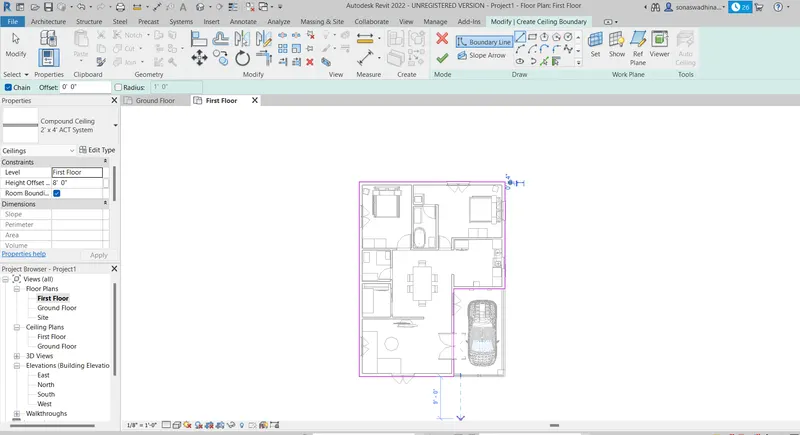
- The ceiling is completely placed and the 3D isometric realistic view is as shown below.
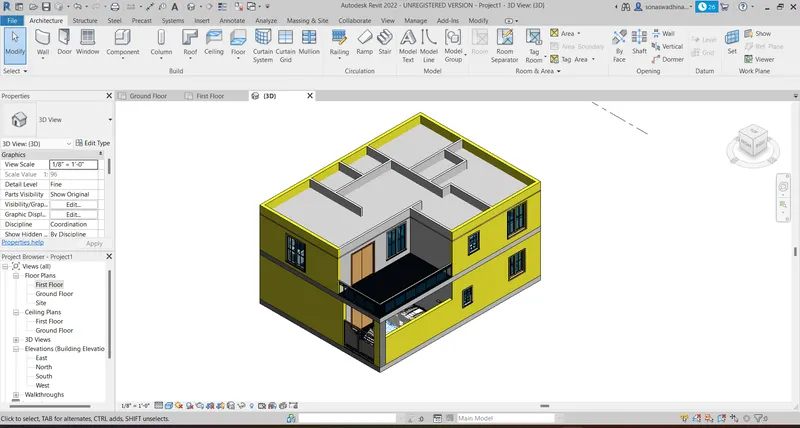
TASK 2:
To model a roof above the ceiling by selecting the footprints of the ceiling and by using the adjustment toolbars appearing on-screen adjust the roof slope to 10 degrees.
The objective of this task is to draw the roof of the residential unit using the Roof by footprints option.
PROCEDURE:
- In the architectural tab select the Roof option and then select Roof by footprints options to draw the roof.
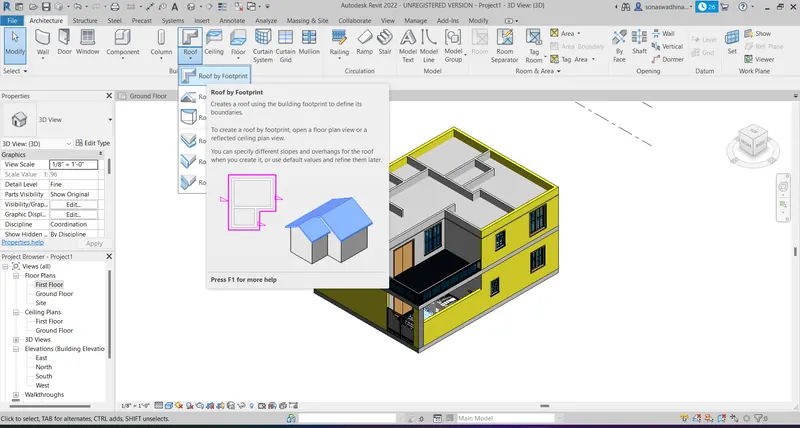
- From the modify or create roof footprint option select the boundary line option
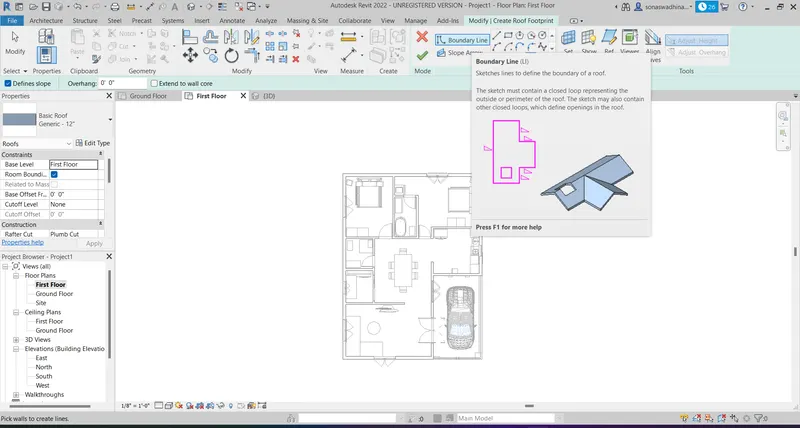
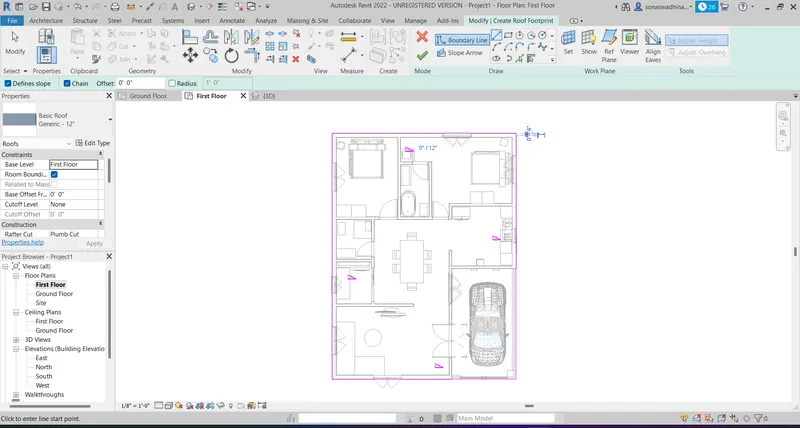
- Now create the roof boundary along the border of the house as shown and then click on the tick mark on top.
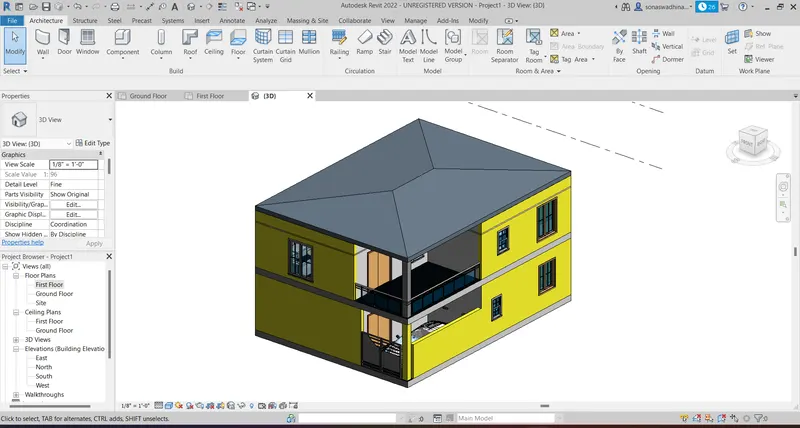
- The roof is now created and the 3D isometric realistic view of the residential unit is as shown below.
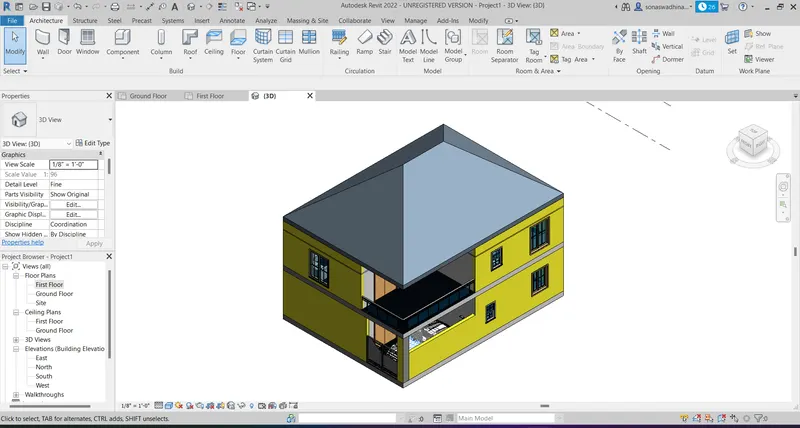
- Now select the roof and in the properties section change the slope of the roof from 30 degrees to 10 degrees as shown below.
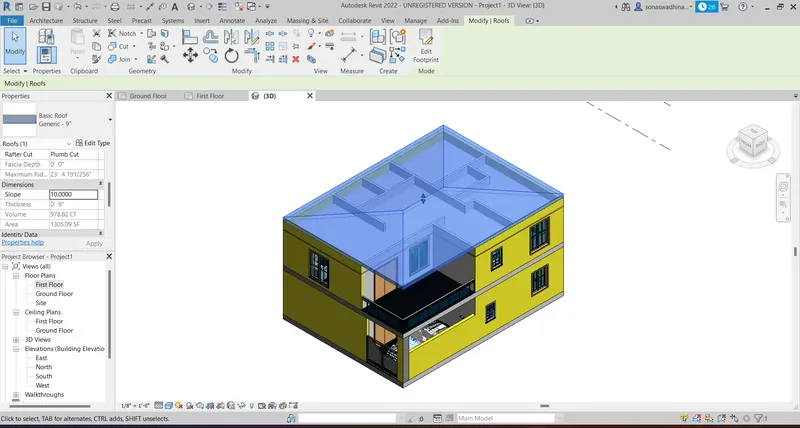
- The slope is now changed from 30 degrees to 10 degrees as shown. The 3D isometric realistic view and front elevation view are provided to understand the slope height reduction.
TASK 3:
To create plan views for ground floor level and first-floor level including all the walls, floors, and components and to separate them to architecture and structural plans
- The architecture plan must have walls, floors, and all the components placed within the building
- Structure plan must have details of only walls, floors, and columns
PROCEDURE:
To create the architecture plan follow these steps:
- In the view, menu selects the plan view option and then select the floor plan from the drop-down menu.
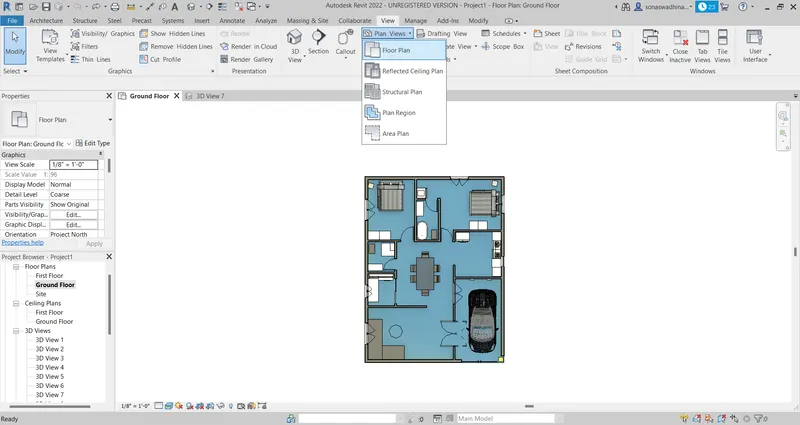
- From the new floor plan, the dialogue box selects the ground floor level and Then clicks ok.
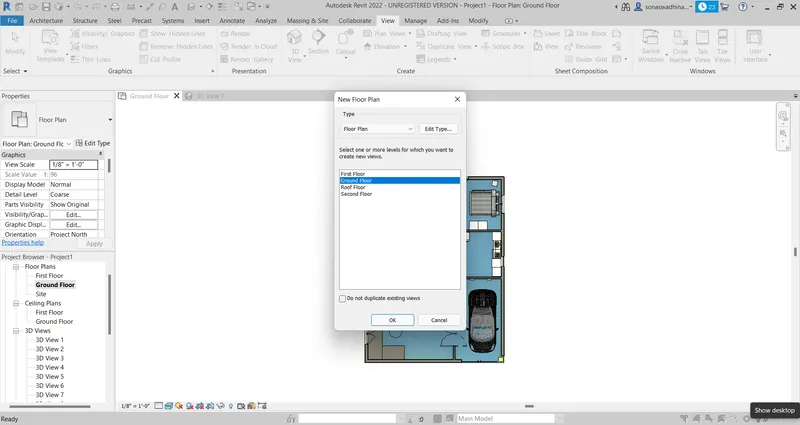
- The Floor plan view of the ground floor is now created and in the properties browser rename the view to GF Arch. Plan for our convenience and Ground floor architectural view is as shown below.
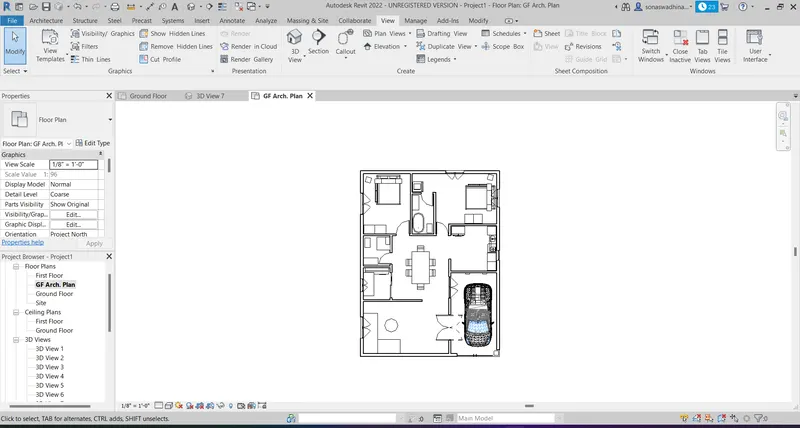
- In the same way, as above first-floor architectural plan was created
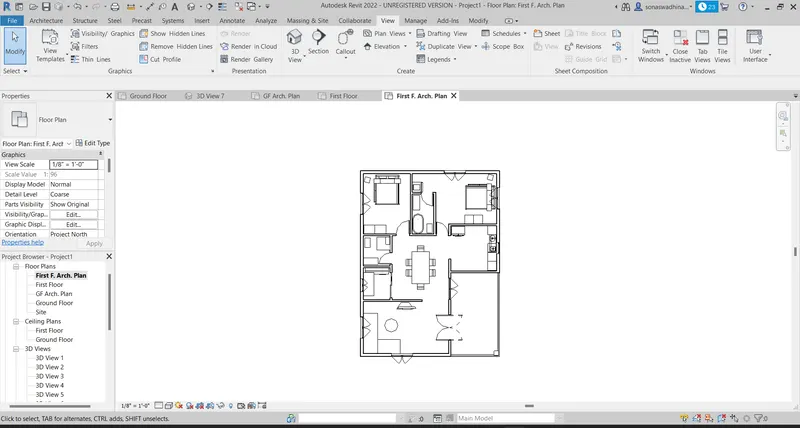
To create the Structural plan follow these steps:
- In the view, menu select the plan view option and then select the Structural plan from the drop-down menu.
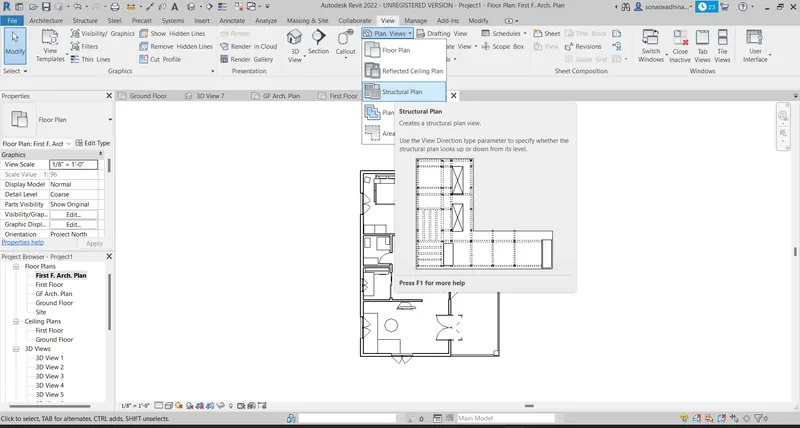
- From the new floor plan, the dialogue box selects the ground floor level and clicks ok.
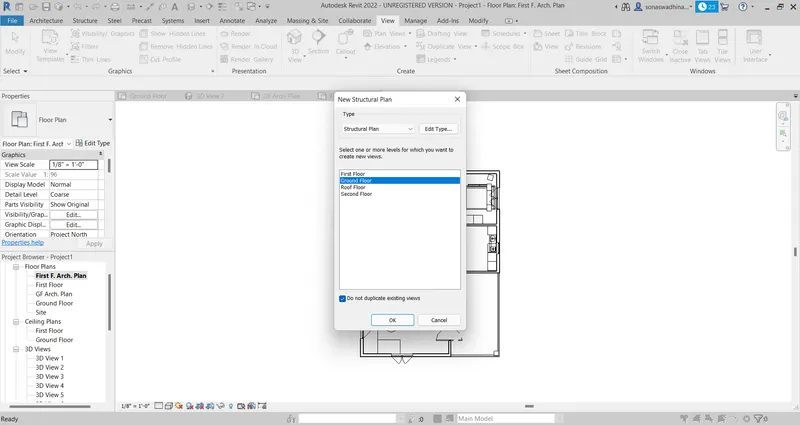
- The Structural plan view of the ground floor is now created and in the properties browser rename the view to GF Structural plan. The view is like this as the beams are not placed in the residential unit.
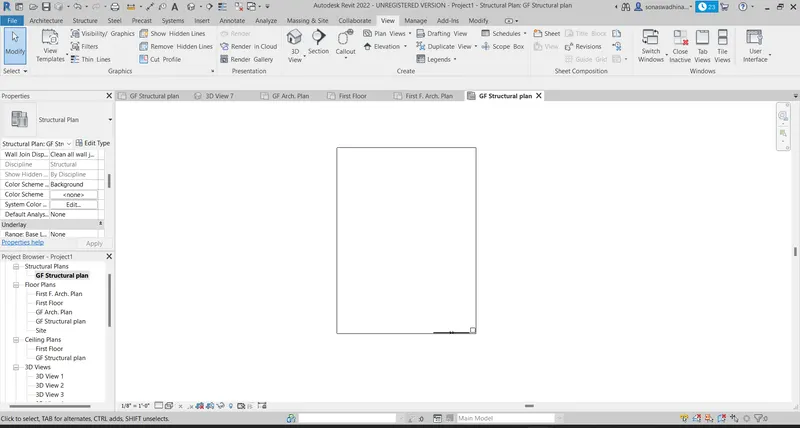
- In the same way, as above first-floor structural plan was created.
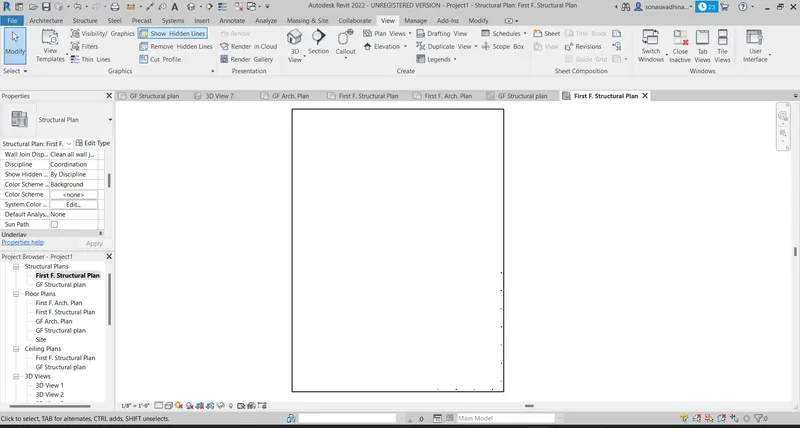
TASK 4:
Using annotate toolbar add dimensions to all the walls and floors with reference to the longitudinal and transverse grids created in the project file
a. The architecture plan dimensions include details on where the components are placed within the buildings with relation to grids. Overall dimensions are sufficient for architecture plans
b. The Structure plan dimensions must include details on the position of all the walls and interior walls with reference to grids. Locate all the framing components of the building with reference to a fixed point using Structural plans
PROCEDURE:
- Open the GF architectural plan to give the dimensions.
- Now in the annotate tab select the linear option to provide the dimensions.
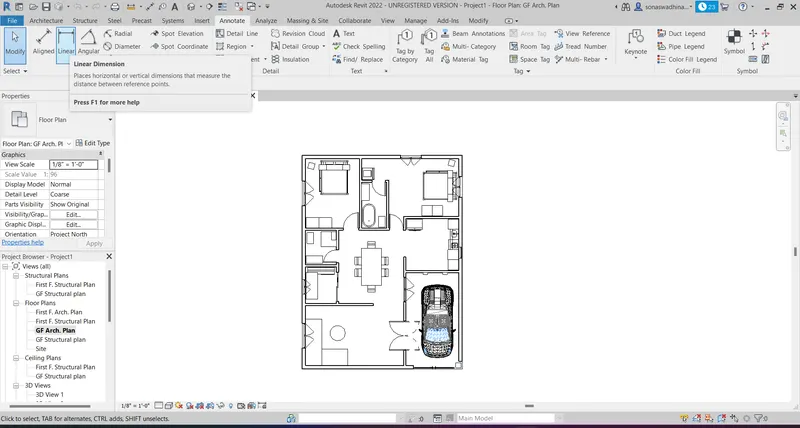
- The horizontal and vertical dimensioning was done as shown
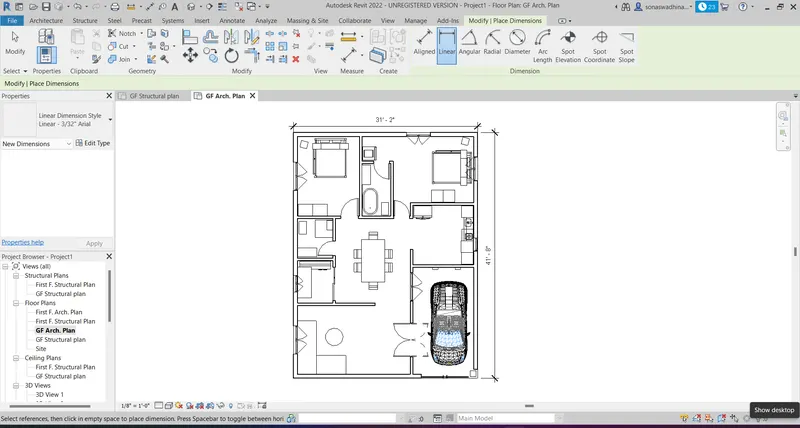
- Now in the architectural tab select grid options to provide the longitudinal and transverse grids.
- The transverse and longitudinal grids were marked corresponding to the wall centerline as shown.
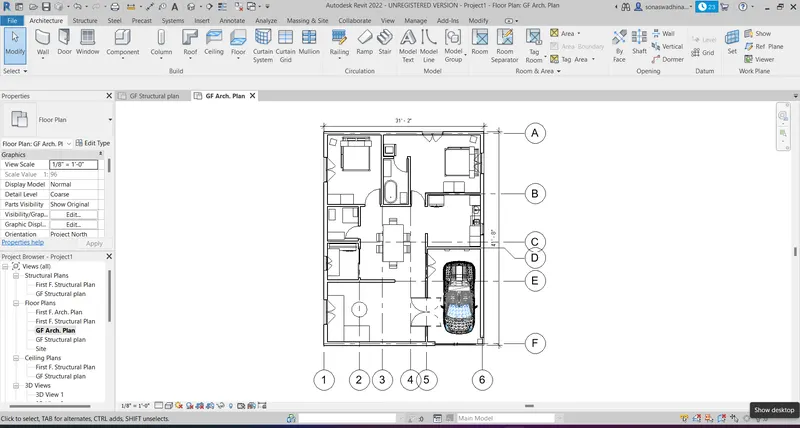
TASK 5:
To Create a sheet template from the view tab and adjust the parameters on the sheet to add appropriate views
PROCEDURE
- In the view, tab click on the sheet option to create a sheet template
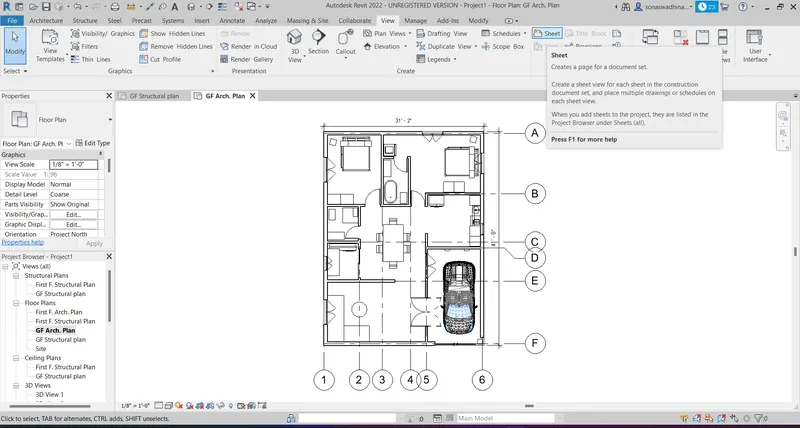
- From the new sheet dialog box that appears select E1 30 X 42 Horizontal and click ok.
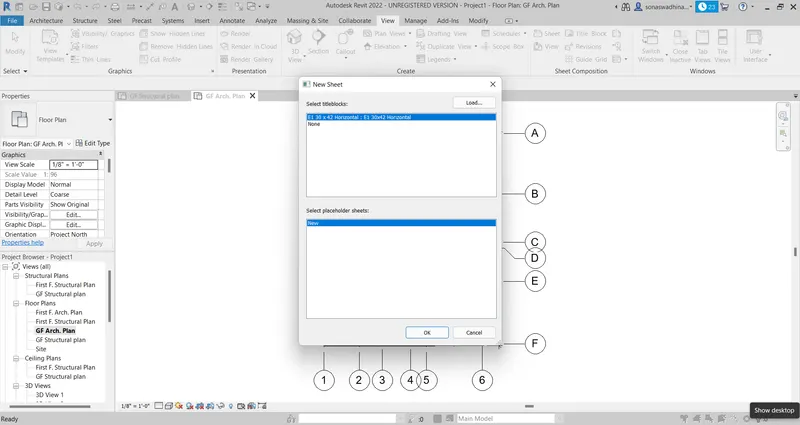
- A new sheet layout is now created as shown.
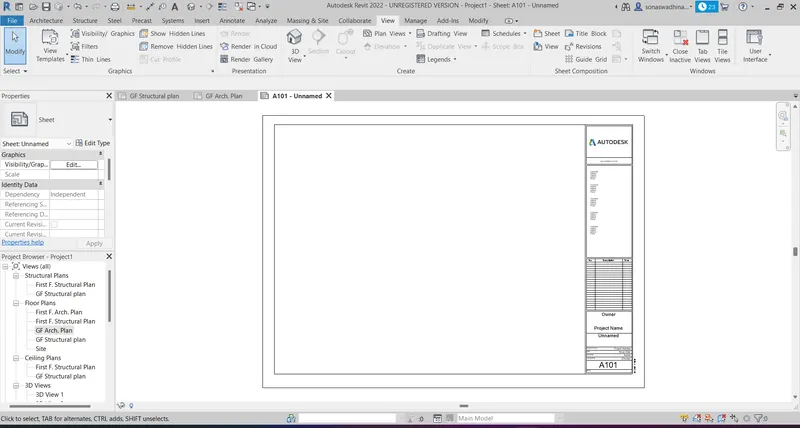
- Now in order to place a view click on the place view option in the view panel
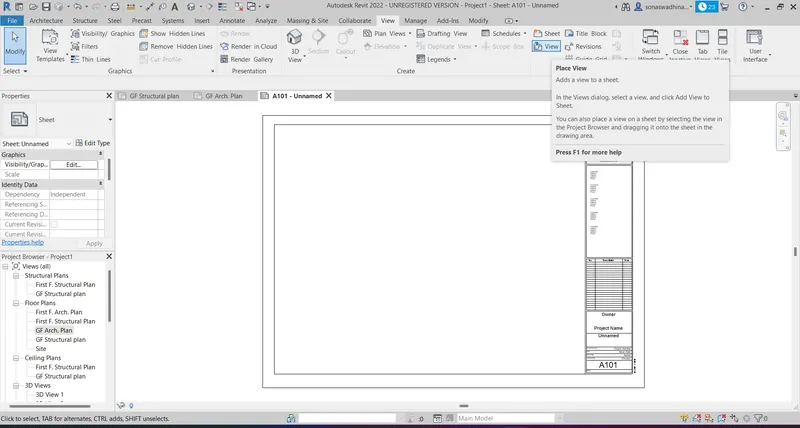
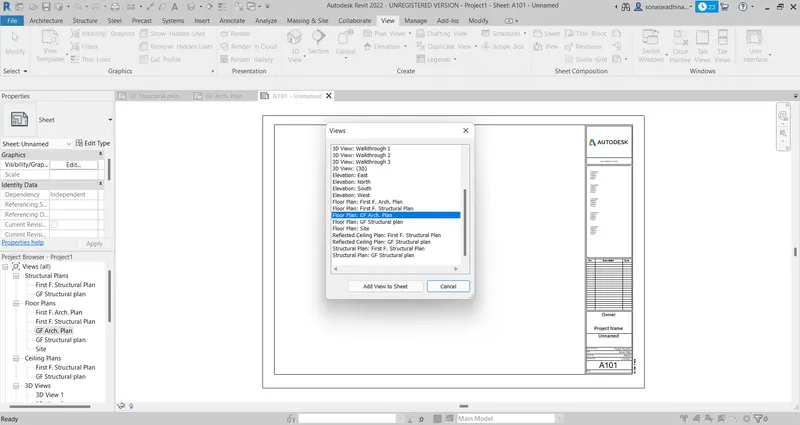
- From the views, list select the desired view of our choice
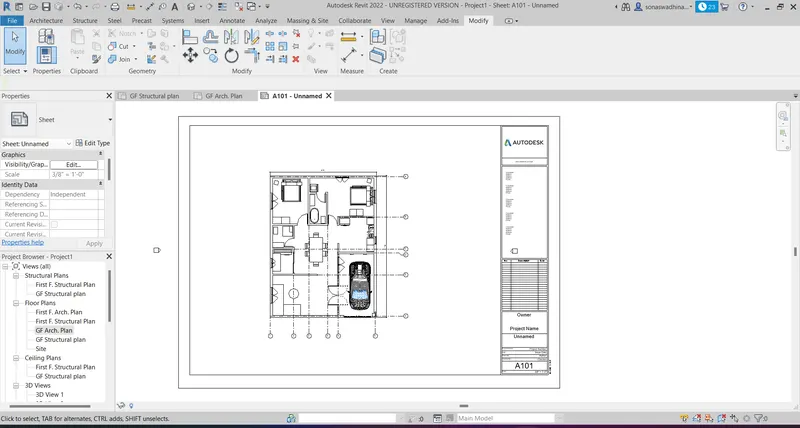
- The ground floor plan is now placed in the template created. Now in order to enter the details in the template just double click on where we want to edit and do the necessary editings and the final template of ground-floor view in A1 metric template.
- In a similar manner as above the first floor, an E1 30 X 42 Horizontal sheet template is created.
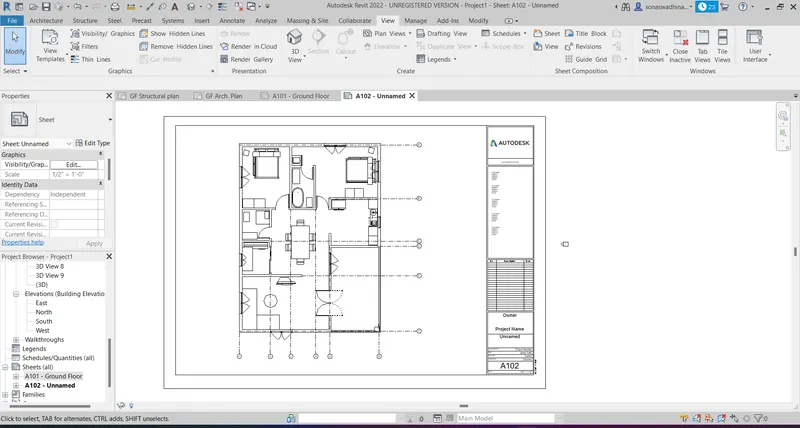
- 3D residential unit A1 metric sheet template:
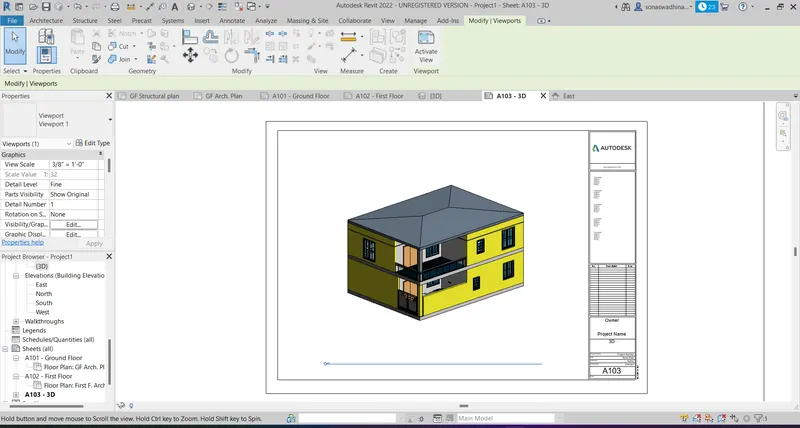
TASK 6:
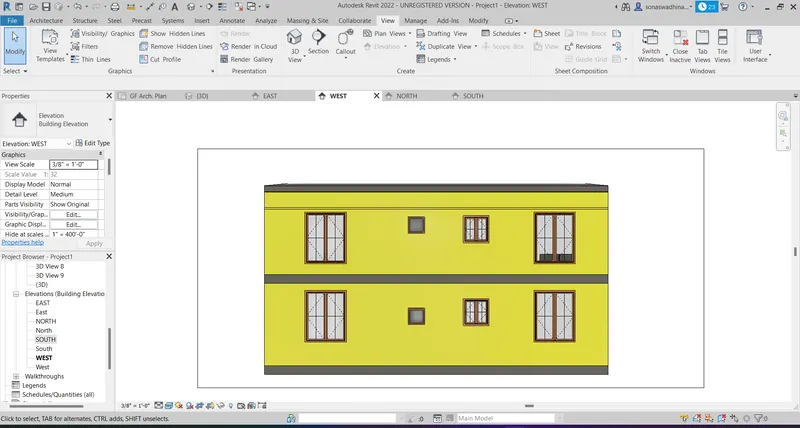
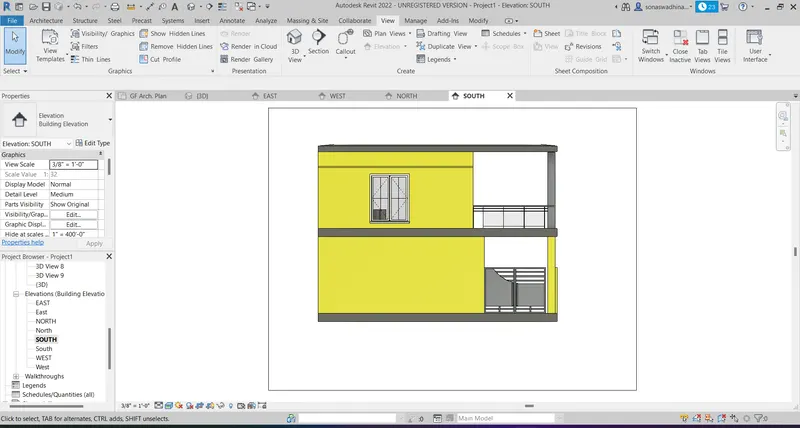
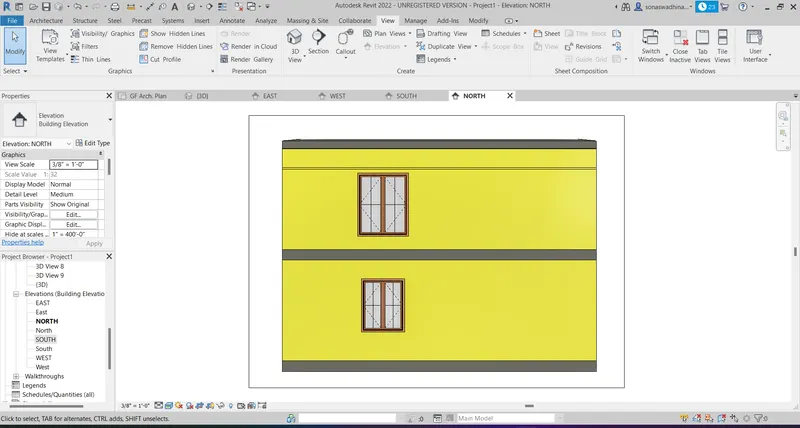
By using the elevation tab create the elevation views from East, North, South, and West.
PROCEDURE:
- In order to create the elevation views select elevation in the view panel.
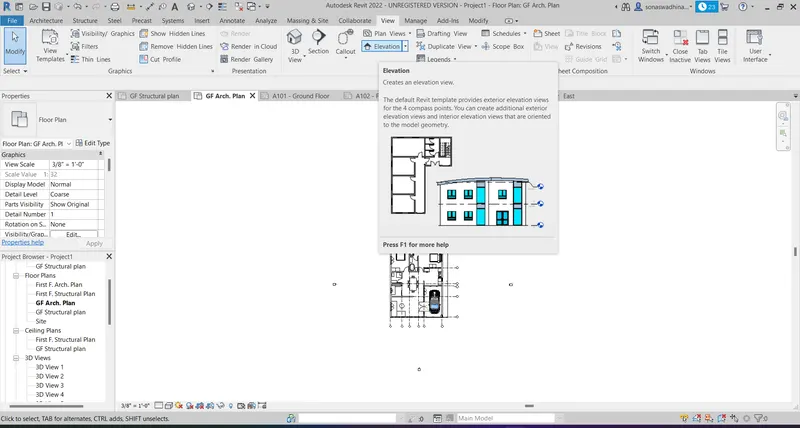
- Now place the views in the North, South, East, and West directions as shown.
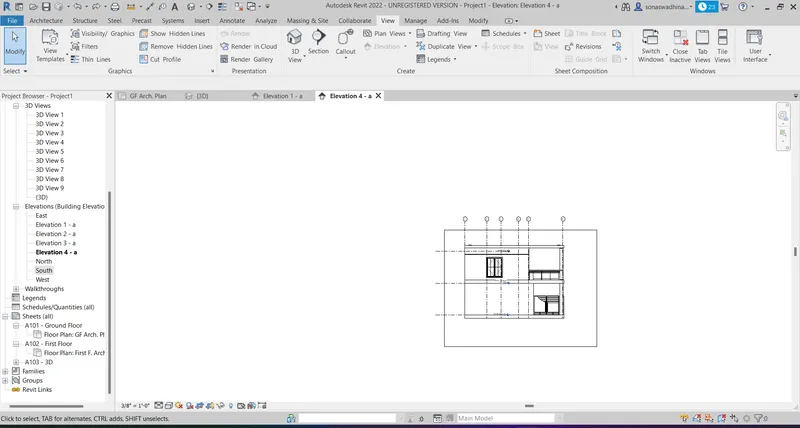
- In the properties browser under the elevation tab, the view names will be present, Rename them to EAST, WEST, NORTH, SOUTH.
EAST Elevation View:
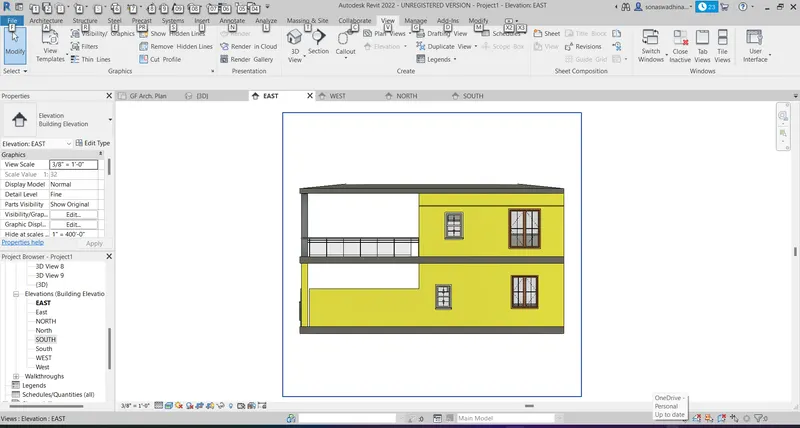
WEST Elevation View:
SOUTH Elevation View:
NORTH Elevation View:
TASK 7:
To produce section cut through each room either across longitudinally or in a transverse direction
PROCEDURE:
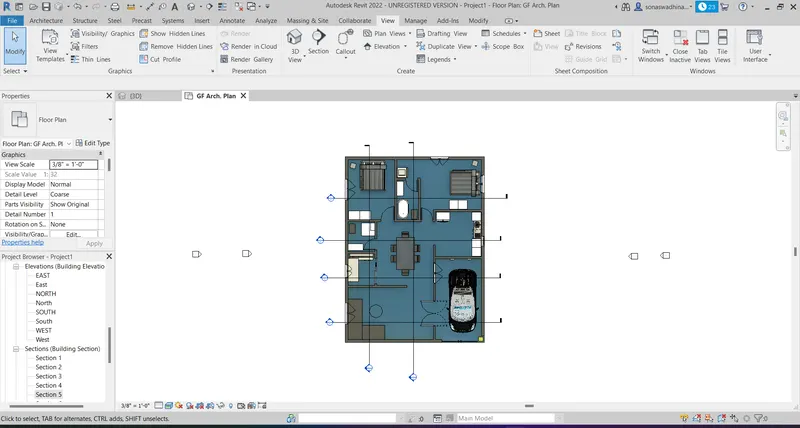
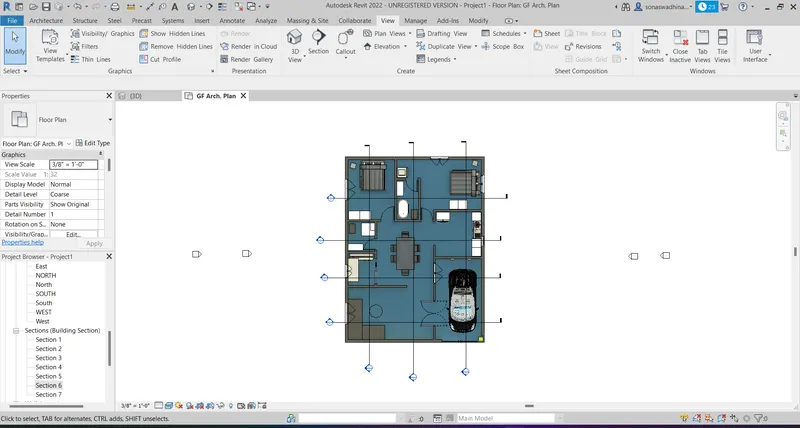
- To draw the sections select the section option under the view panel.
- Now draw a line through the required rooms to obtain the section of that particular room.
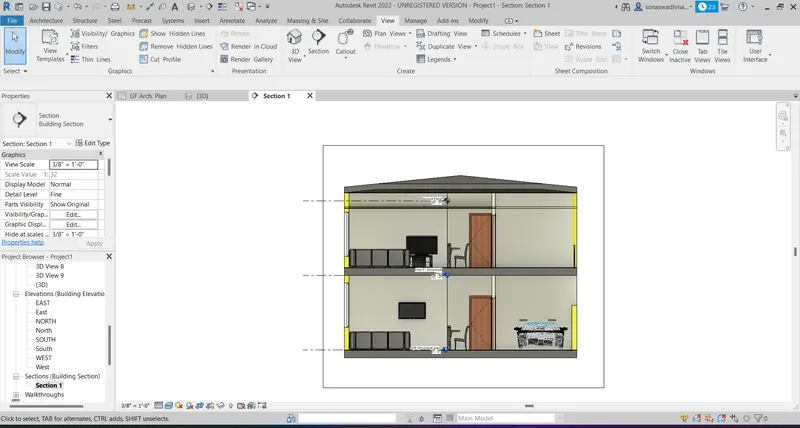
Section 1:
Drawing and Parking section:
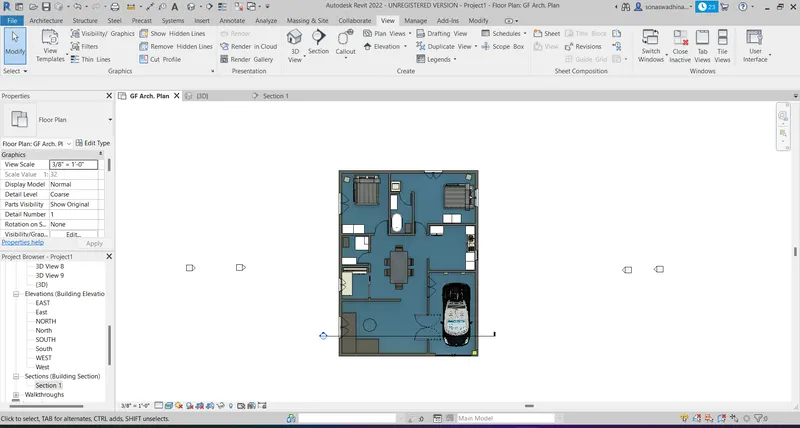
The sectional view of the Drawing and Parking view is as shown
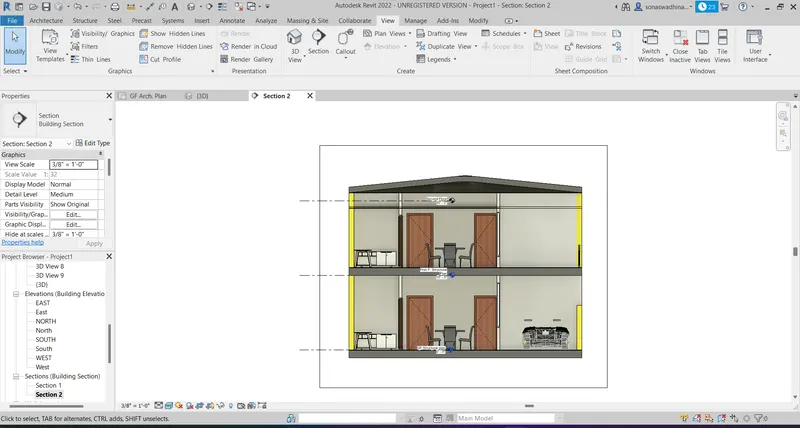
Section 2:
Study, Parking, and Dining section:
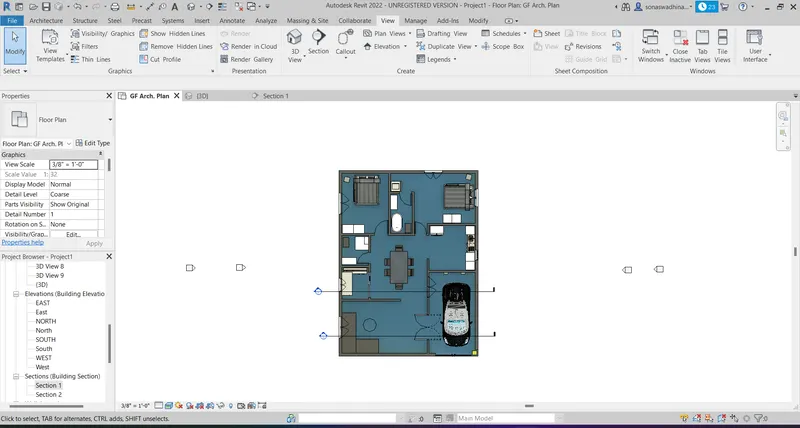
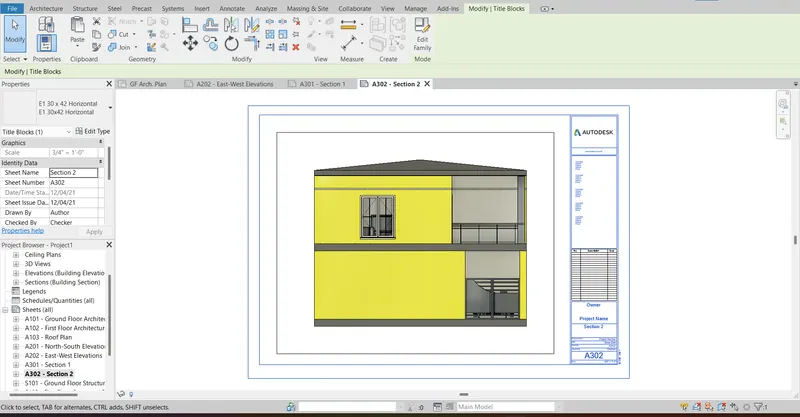
The sectional view of the Study, Parking and Dining view is as shown
Section 3:
Toilet, Dining, and Kitchen Section:
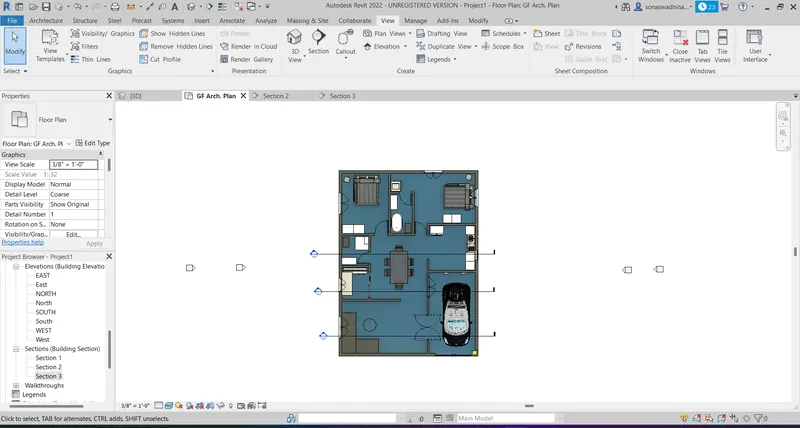
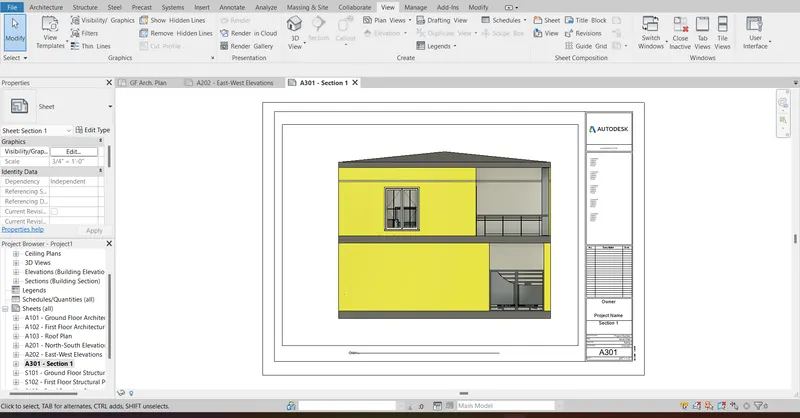
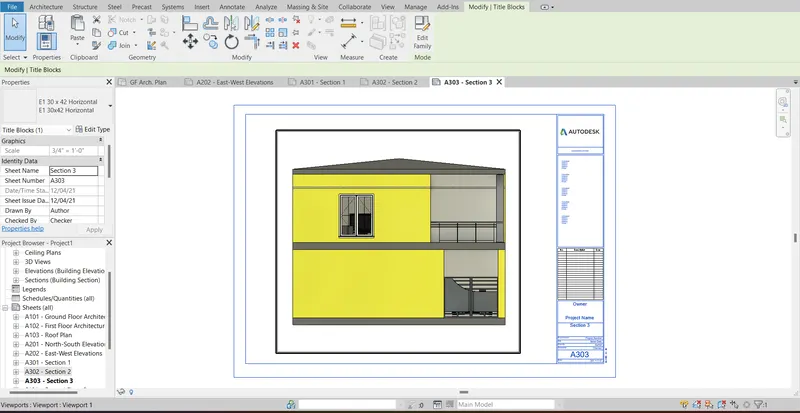
The sectional view of the Toilet, Dining, and Kitchen view is as shown
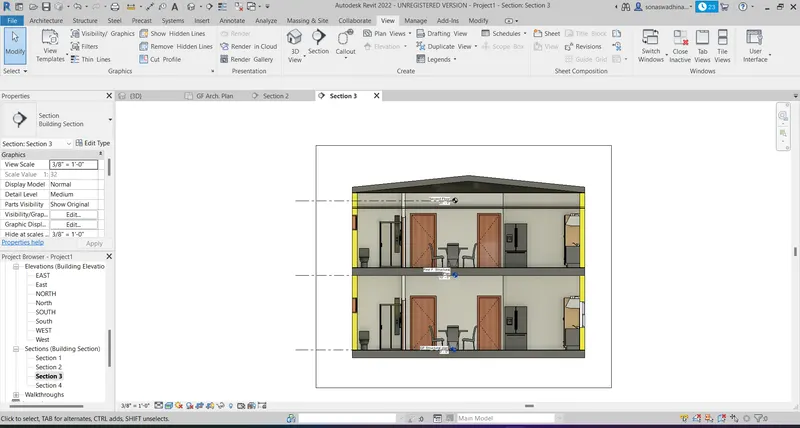
Section 4:
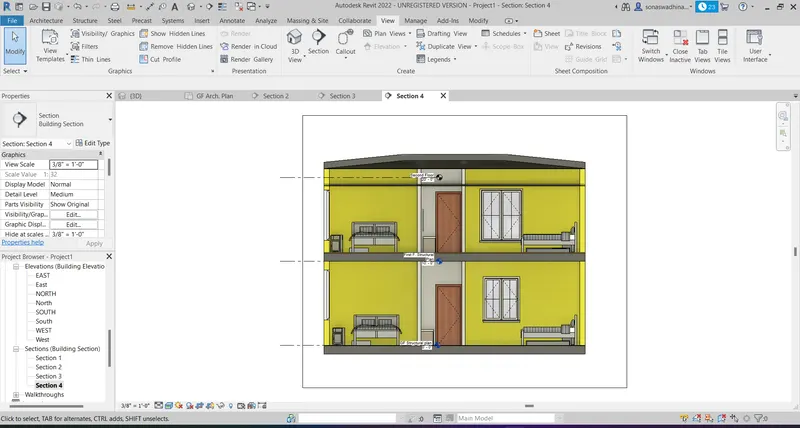
Bedrooms and Toilet Section:
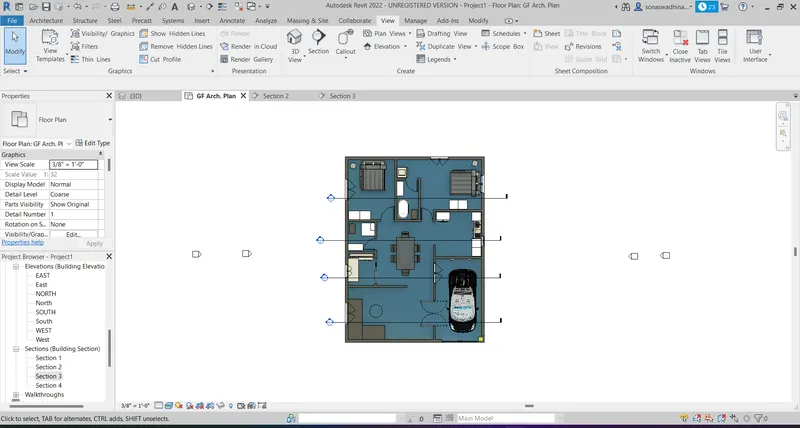
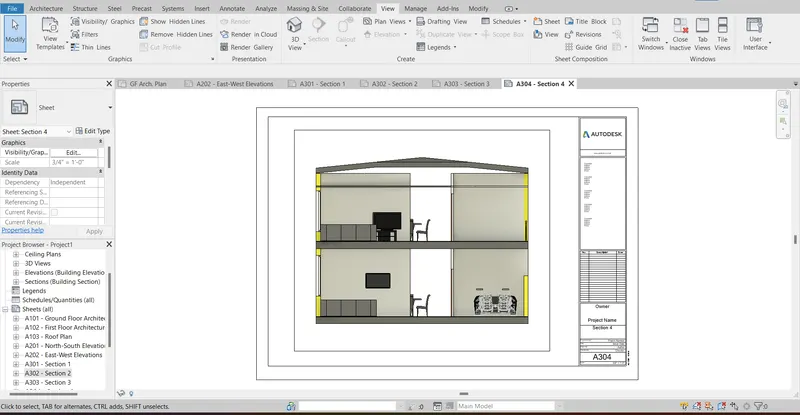
The sectional view of the Bedrooms and Toilet view is as shown
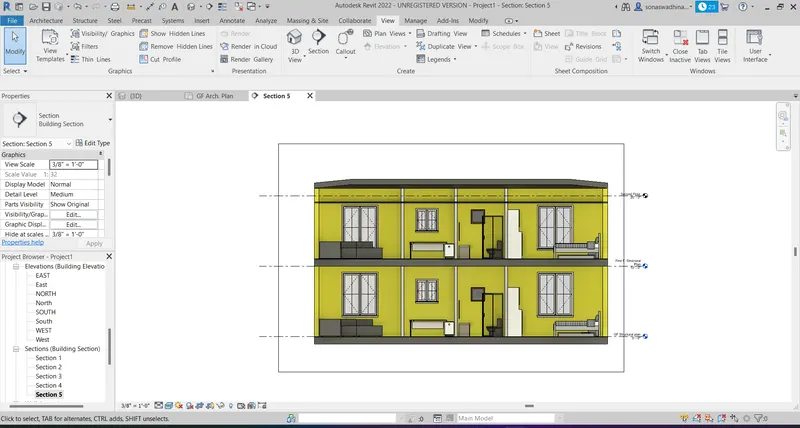
Section 5:
Bedroom, Toilet, Study, and Drawing Section:
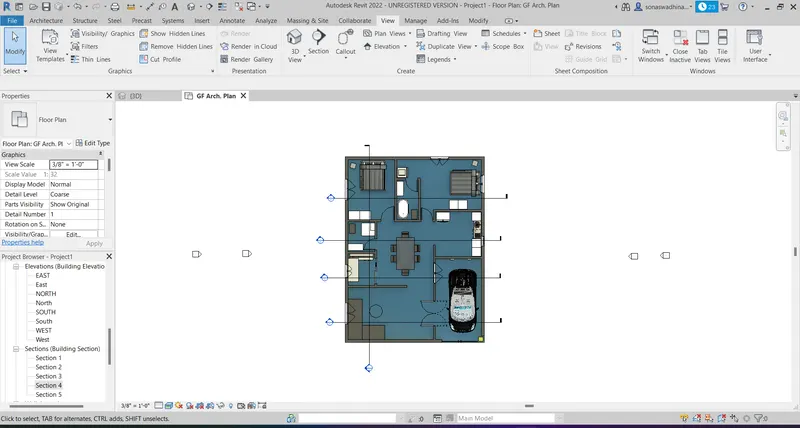
The sectional view of the Bedroom, Toilet, Study, and Drawing view is as shown
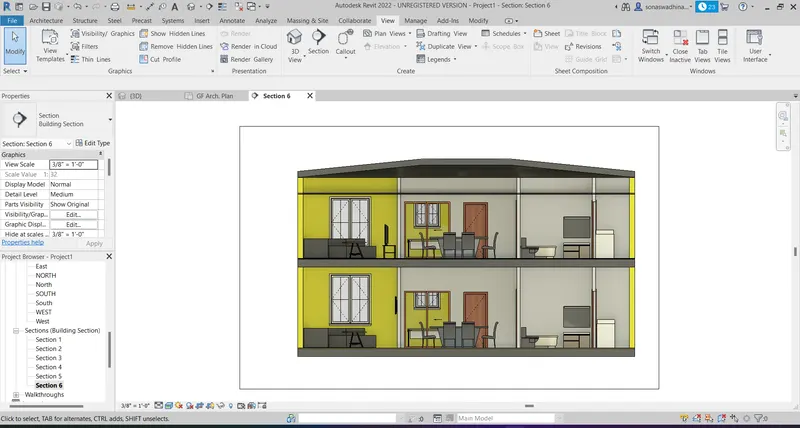
Section 6:
Toilet, Dining, and Drawing Section:
The sectional view of the Toilet, Dining, and Drawing view is as shown
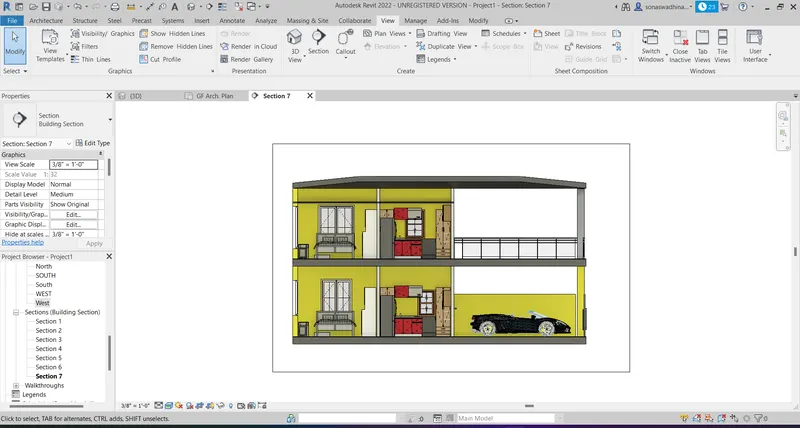
Section 7:
Bedroom, Kitchen, and Parking Section:
The sectional view of the Bedroom, Kitchen, and Parking view is as shown
TASK 8:
To classify the views, Plan Views, Section Views, and Elevation views to either Design or Documentation category using Properties browser.
PROCEDURE:
- In the properties browser, we can see views.
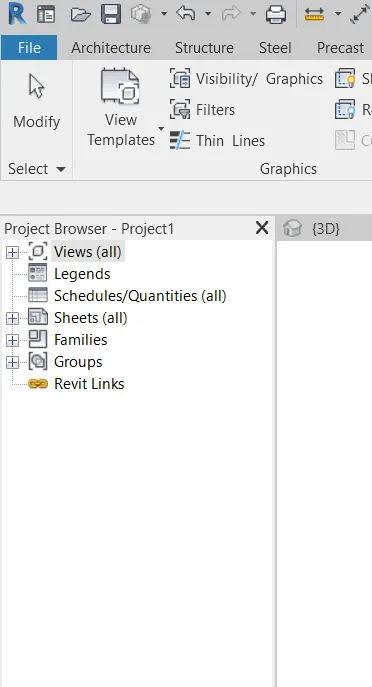
- Now click on the + icon near Views to open the various views.
- The various views are as follows: Structural Plans, Floor Plans, Ceiling Plans, 3D Views, Elevations, and Sections.
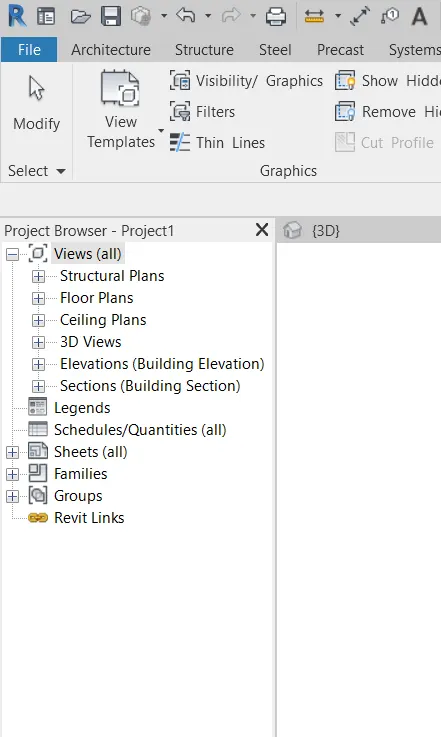
- Click on the + icon near Structural Plan to open Structural Plan Views.
- The various views which we have created under the Structural Plans will be listed.
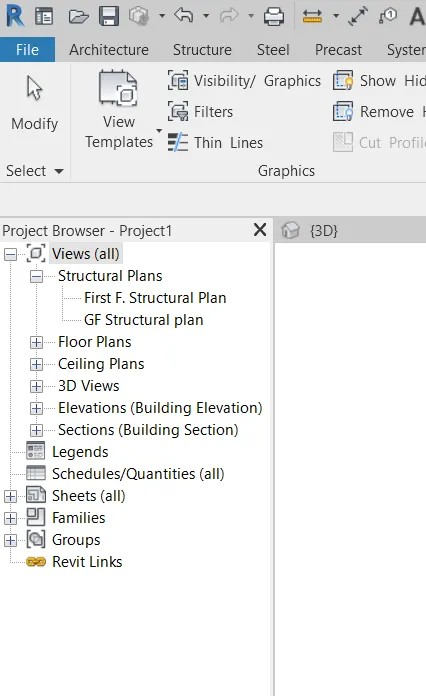
- Click on the + icon near Floor Plan to open Floor Plan Views.
- The various views which we have created under the Floor Plans will be listed.
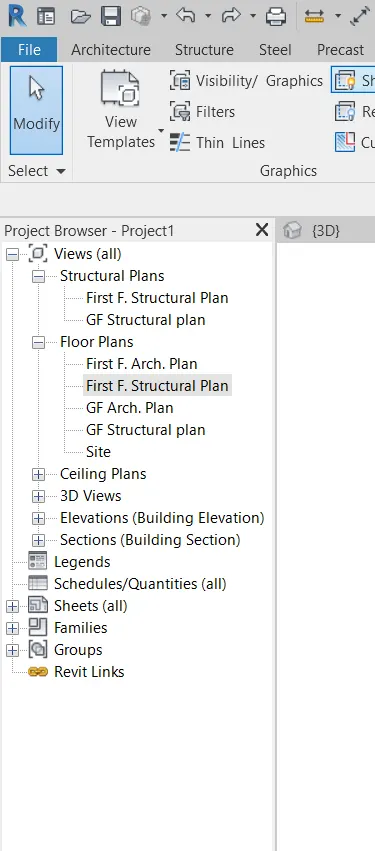
- Click on the + icon near Celling Plan to open Celling Plan Views.
- The various views which we have created under the Celling Plans will be listed.
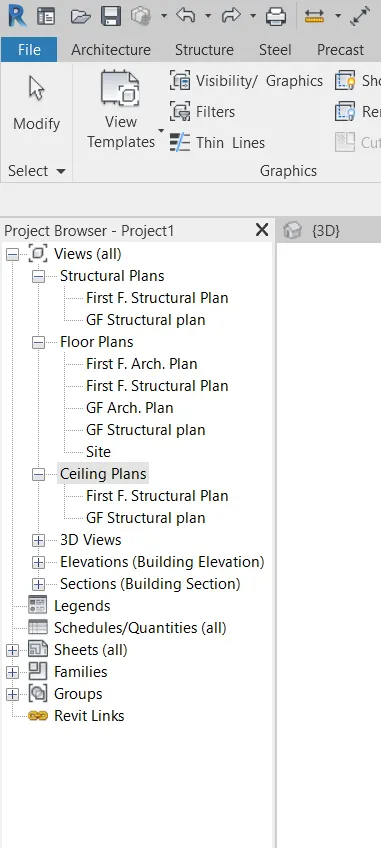
- Click on the + icon near 3D Plan to open 3D Plan Views.
- The various views which we have created under the 3D Plans will be listed.
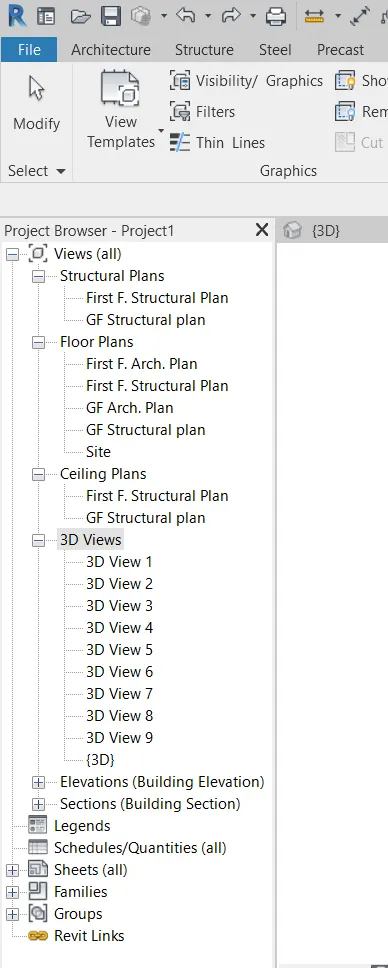
- Click on the + icon near Elevations to open Elevation Views.
- The various views which we have created under the Elevation View will be listed.
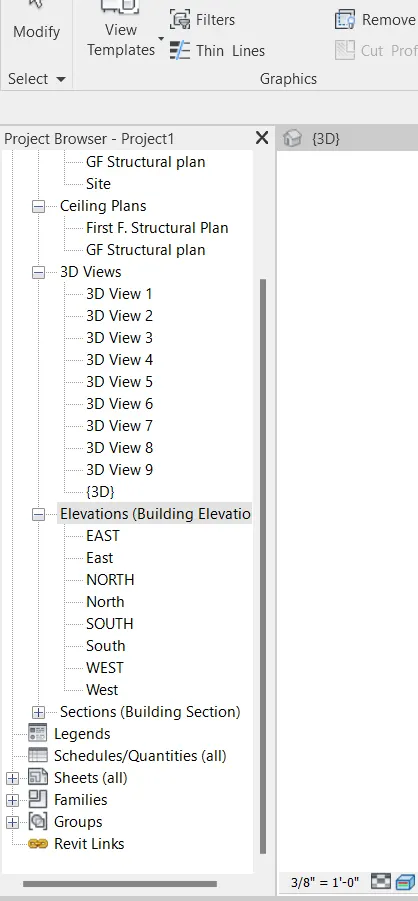
- Click on the + icon near Sections to open Section Views.
- The various views which we have created under the Section View will be listed.
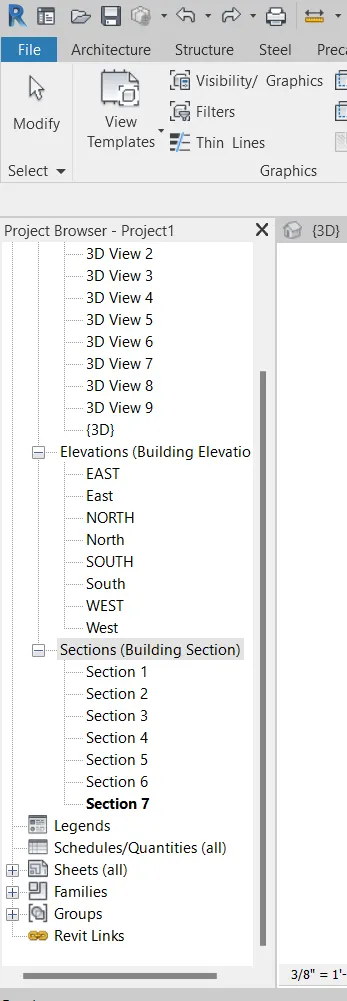
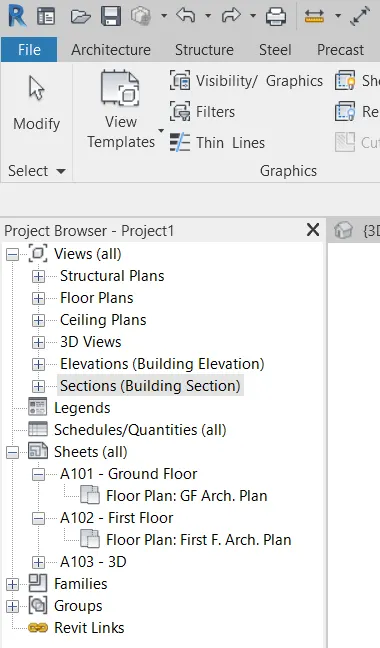
- Click on the + icon near Sheets to open Sheet Template Views.
- The various views which we have created under the Sheet Template View will be listed.
TASK 9:
Using the sheet template produced create multiple sheets as follows
- A 101- Ground Floor Architecture Plan
- A 102- First Floor Architecture Plan
- A 103- Roof Plan
- S 101- Ground Floor Structural Plan
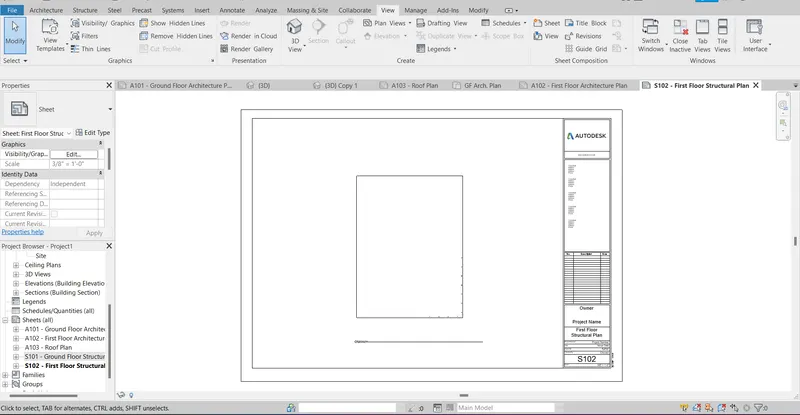
- S 102- First Floor Structural Plan
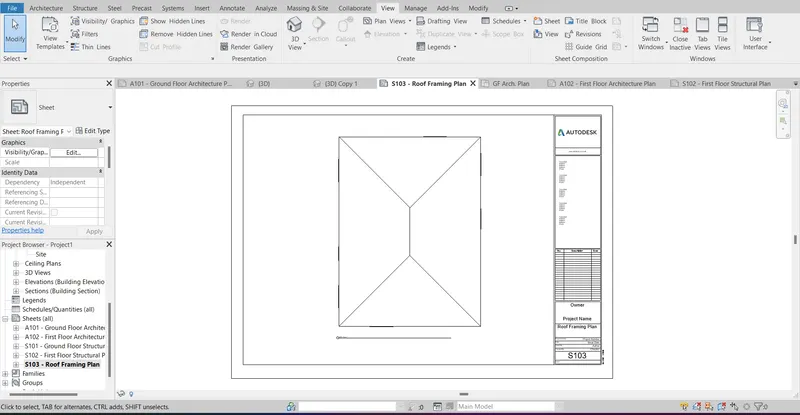
- S 103- Roof Framing Plan
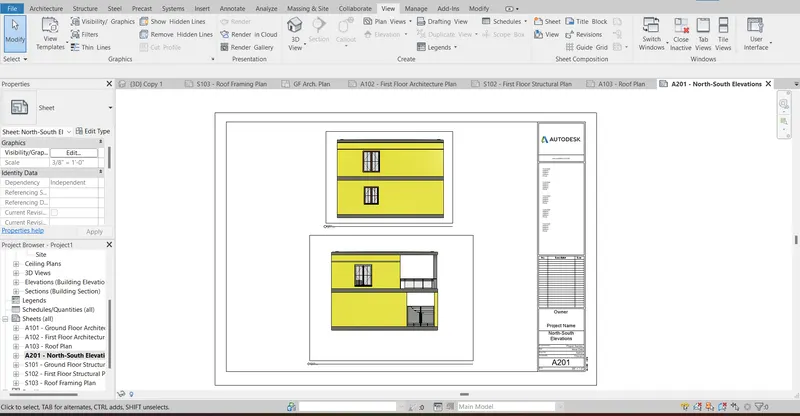
- A-201- North-South Elevations
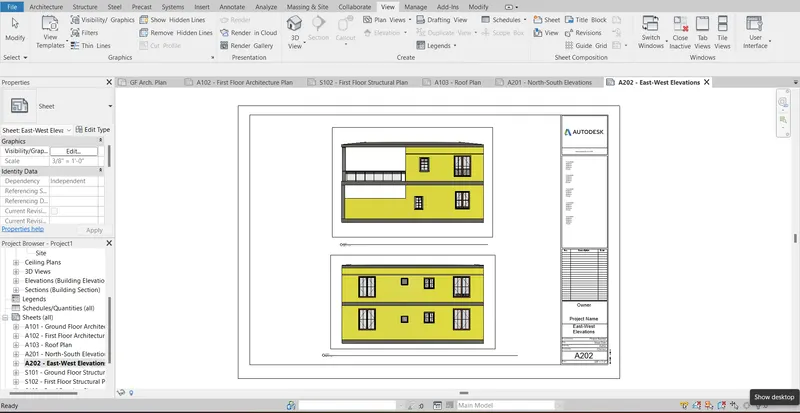
- A-202- East-West Elevations
Add additional sheets based on the sections created in your Revit file
PROCEDURE:
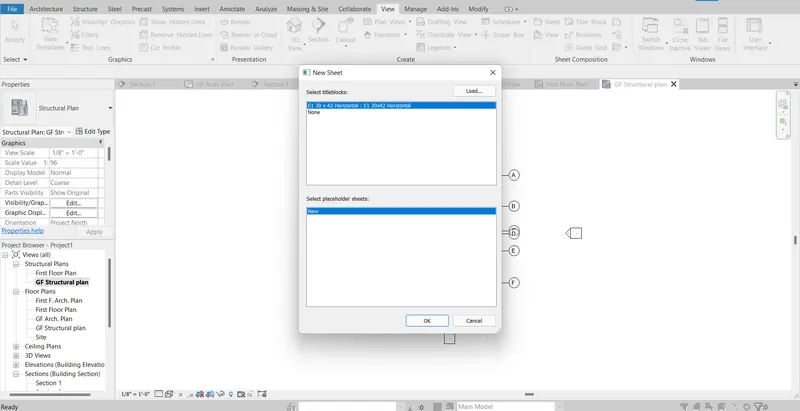
- In the view, tab click on the sheet option to create a sheet template.
- From the new sheet dialogue box that appears select E1 30 X 42 Horizontal and click ok.
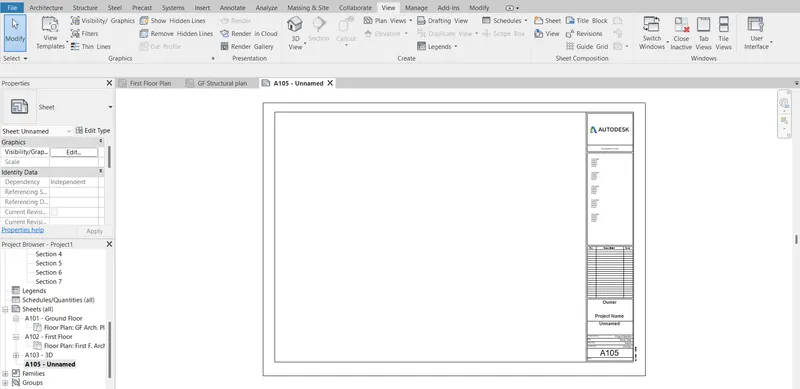
- A new sheet layout is now created
- Now in order to place a view click on the place view option in the view panel.
- From the views, list select the desired view of our choice.
- The ground floor Structural plan is now placed in the template created
- Now in order to enter the details in the template just double click on where we want to edit and do the necessary editing’s and the S1O1 Ground Floor Structural plan is now created.
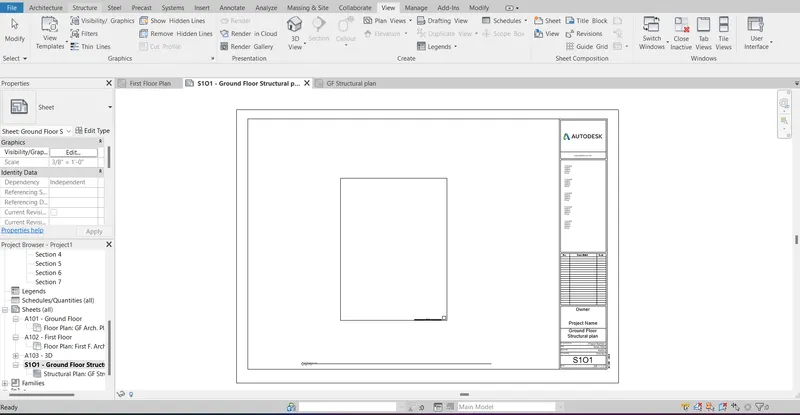
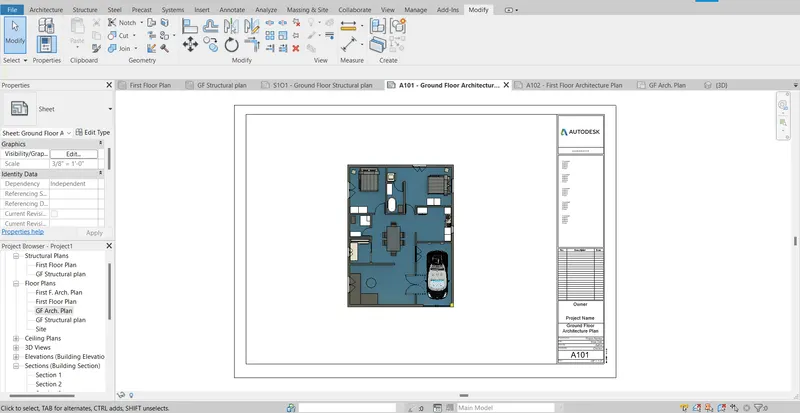
Now similar way as above created the following views.
A 101- Ground Floor Architecture Plan:
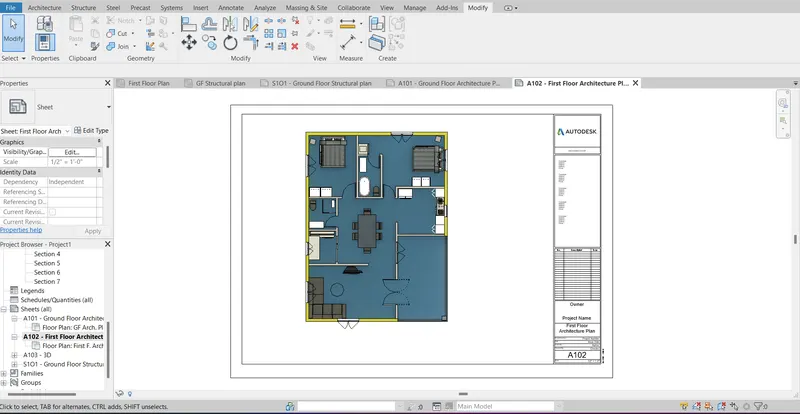
A 102- First Floor Architecture Plan:
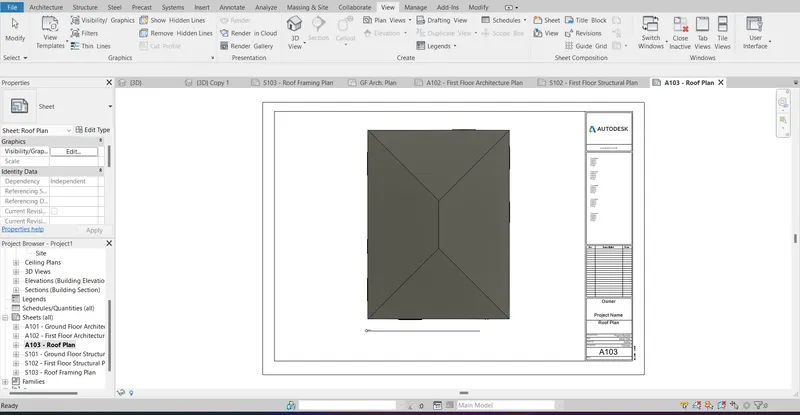
A 103- Roof Plan:
S 102- First Floor Structural Plan:
S 103- Roof Framing Plan:
A 201- North-South Elevations:
A 202- East-West Elevations:
A 301- Section 1:
A 302- Section 2:
A 303- Section 3:
A 304- Section 4:
A 305- Section 5:
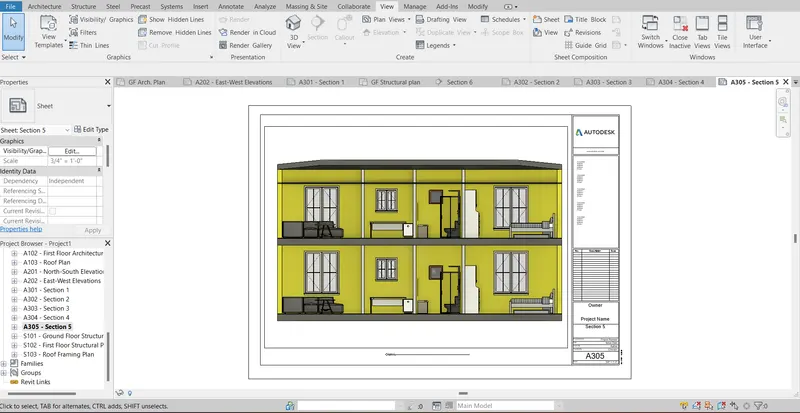
A 306- Section 6:
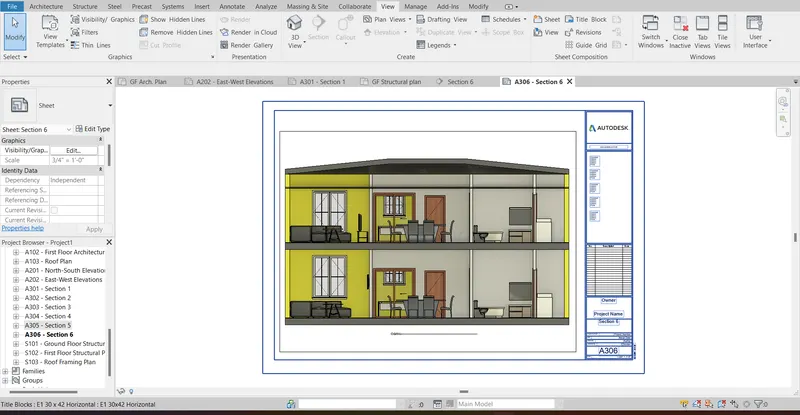
A 307- Section 7:
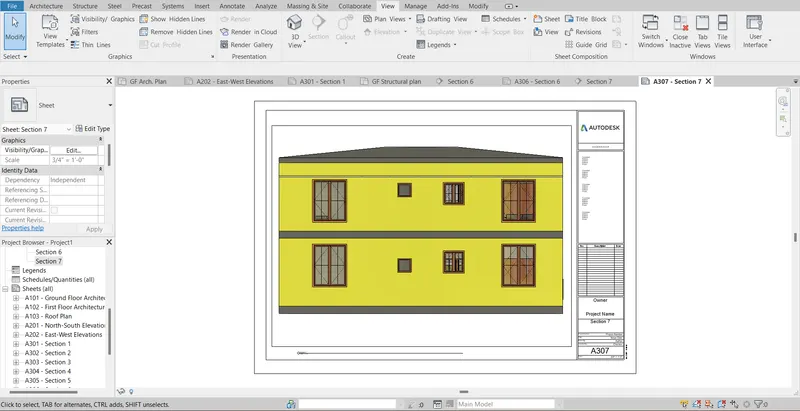
TASK 1O:
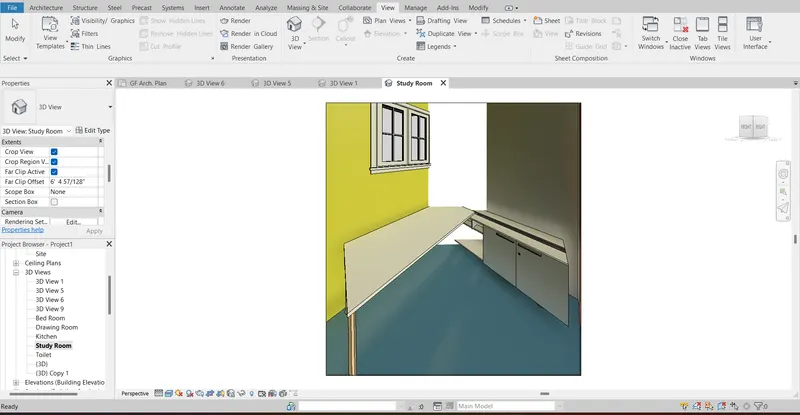
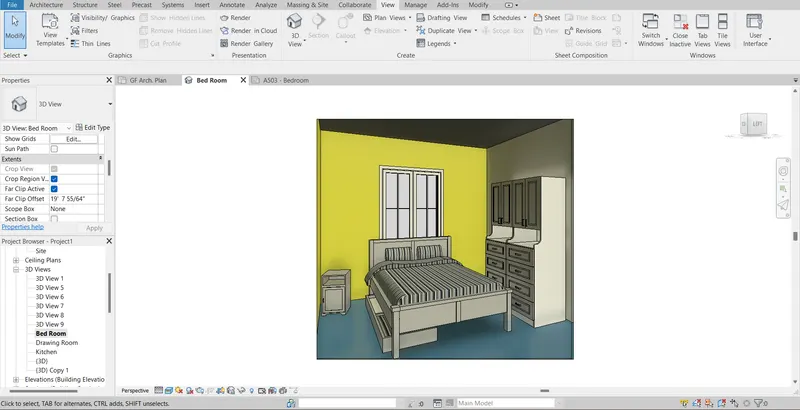
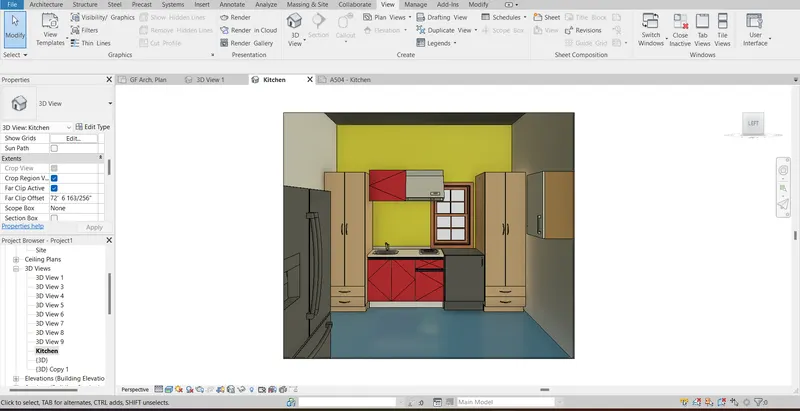
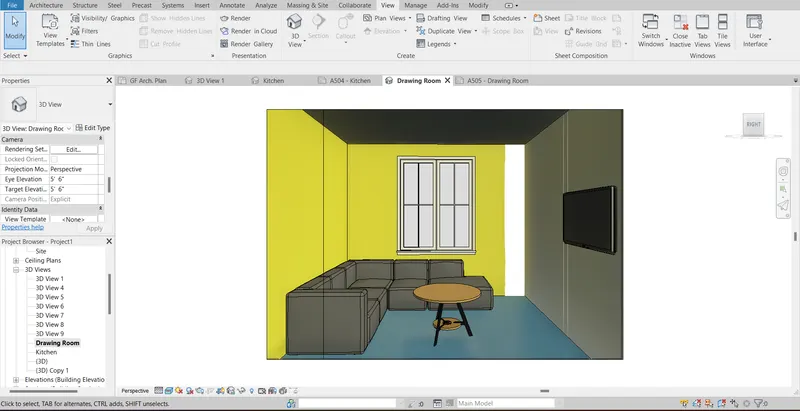
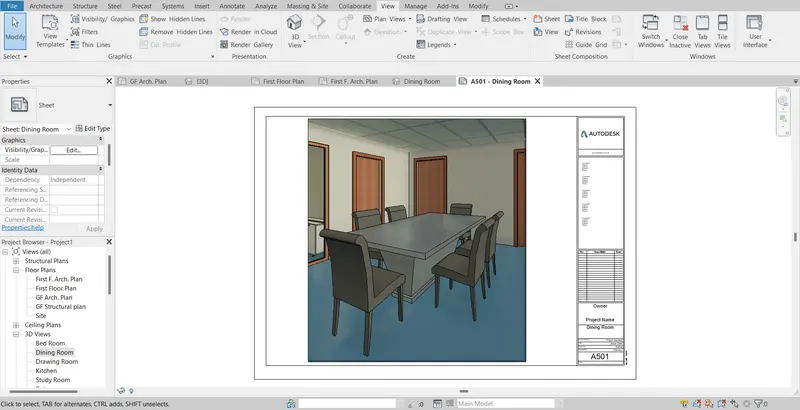
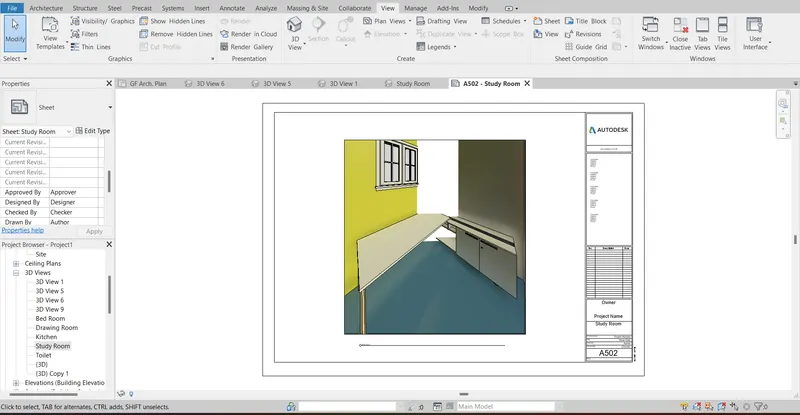
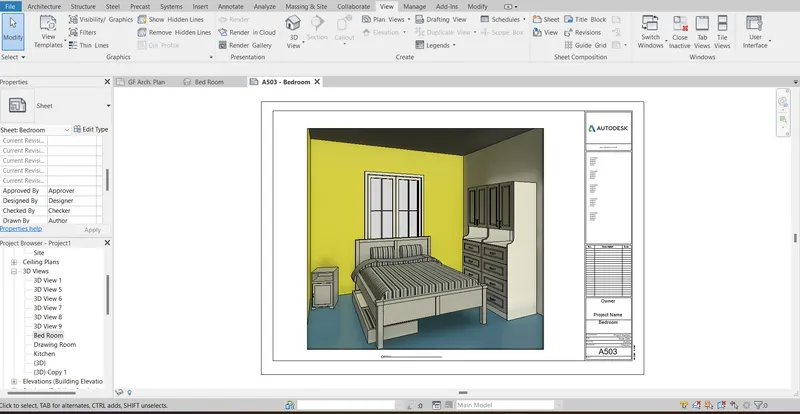
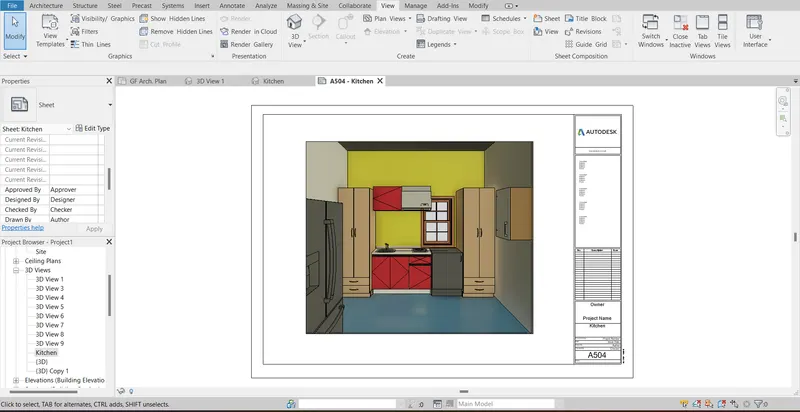
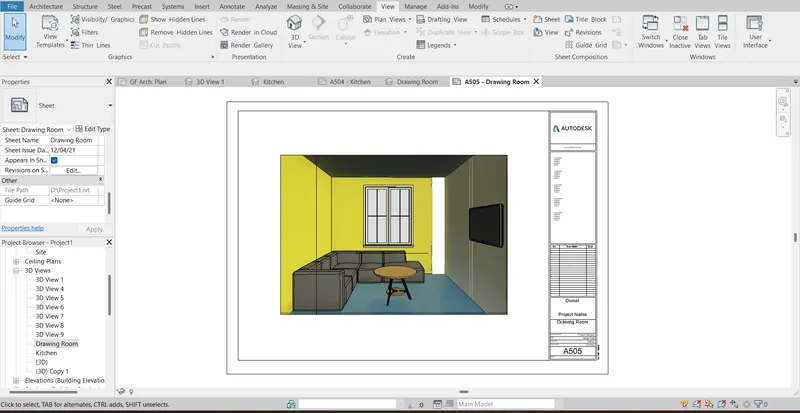
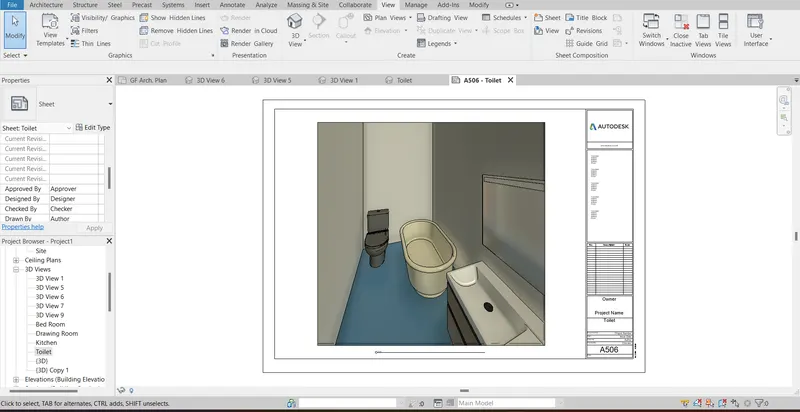
To create a camera-specific view or a 3D view in each room ( living, dining, bedroom). Based on the views create a new set of sheets starting from A-501, 502, etc place the 3D view images. Produce the sheets as a pan of project drafting.
PROCEDURE:
3D views or camera-specific views of all the rooms were created in challenge 3 itself and the final image is as shown.
Dinning:
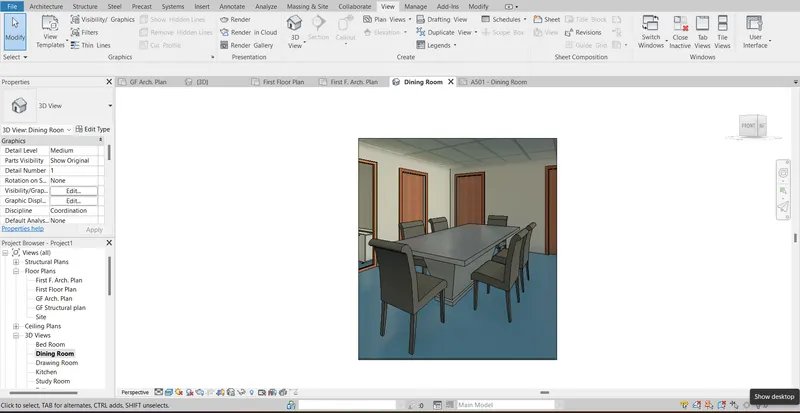
Study:
Bedrooms:
Kitchen:
Drawing:
Toilet:
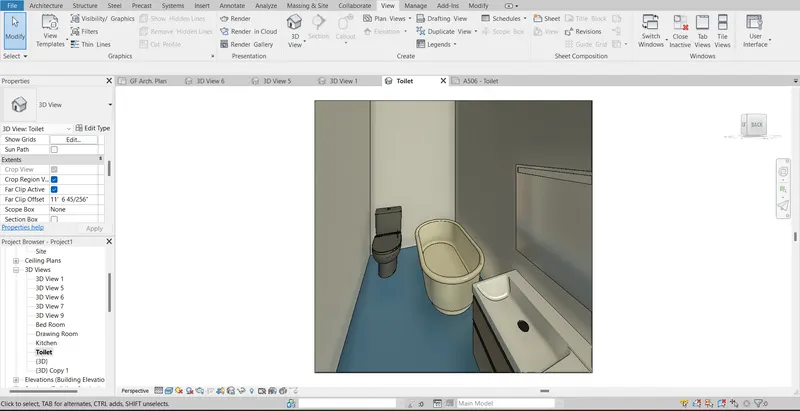
In a similar procedure as in task 9, a sheet template was created and a view was placed for all the rooms as shown.
Dinning:
Study:
Bedrooms:
Kitchen:
Drawing:
Toilet:
CONCLUSION:-
All results of each drawing have been attached which was drawn in Revit.