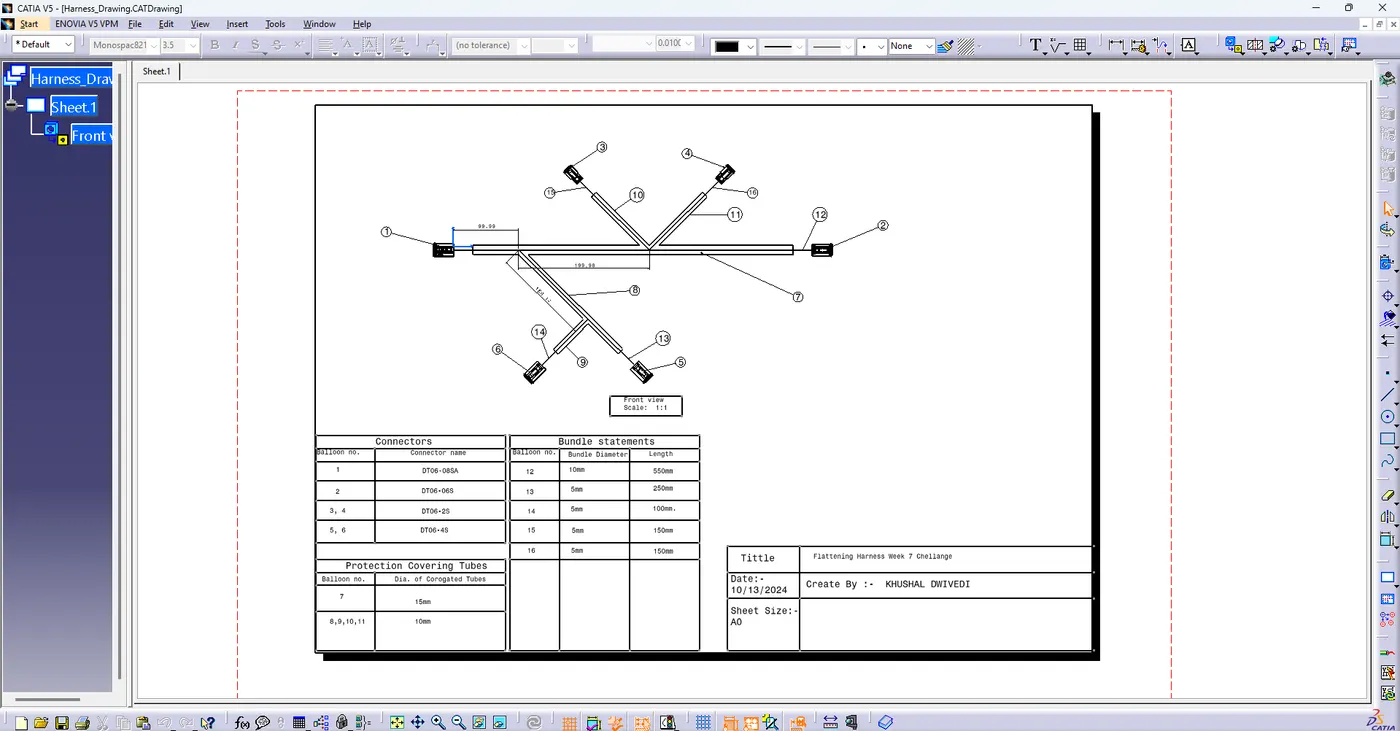
Wiring harness design in CATIA V5 - 3D modeling Week 7 Challenge
3D modeling Week 7 Challenge Flattening
Switching to the electrical harness flattening workbench
- create New Product File
- Switch to the Electrical Harness flatten Workbench
- equipment & systems_ electrical harness discipline_electrical harness flattening.
SETTING THE HARNESS FLATTENING PARAMETERS
- in the new prduct you have just created select the harness flattening parameters icon from the catia workbench .
- select the general tab and use the setting shown below for the parameters .
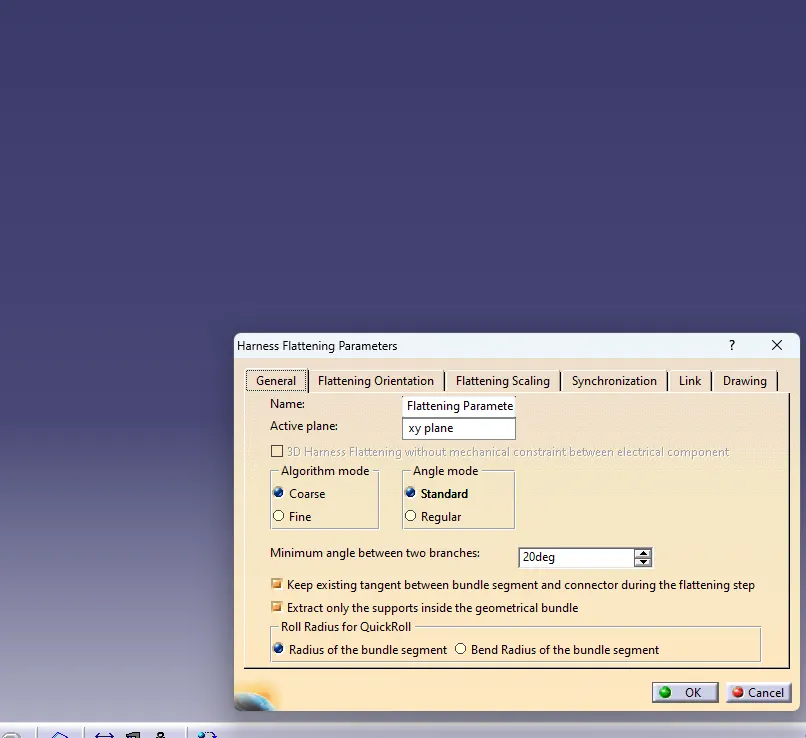
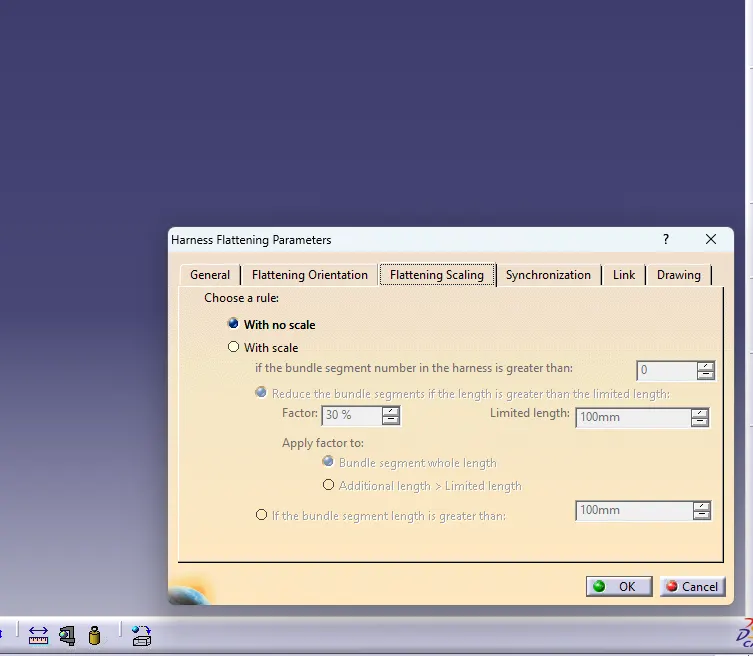
select the drawing Tab and use the setting shown below for the parameters
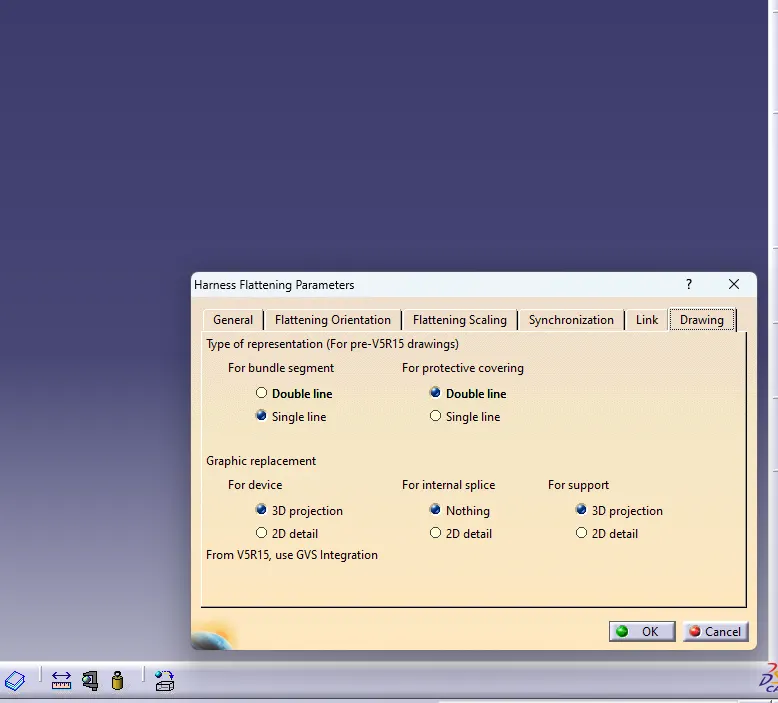
open both product file in vertical tabs
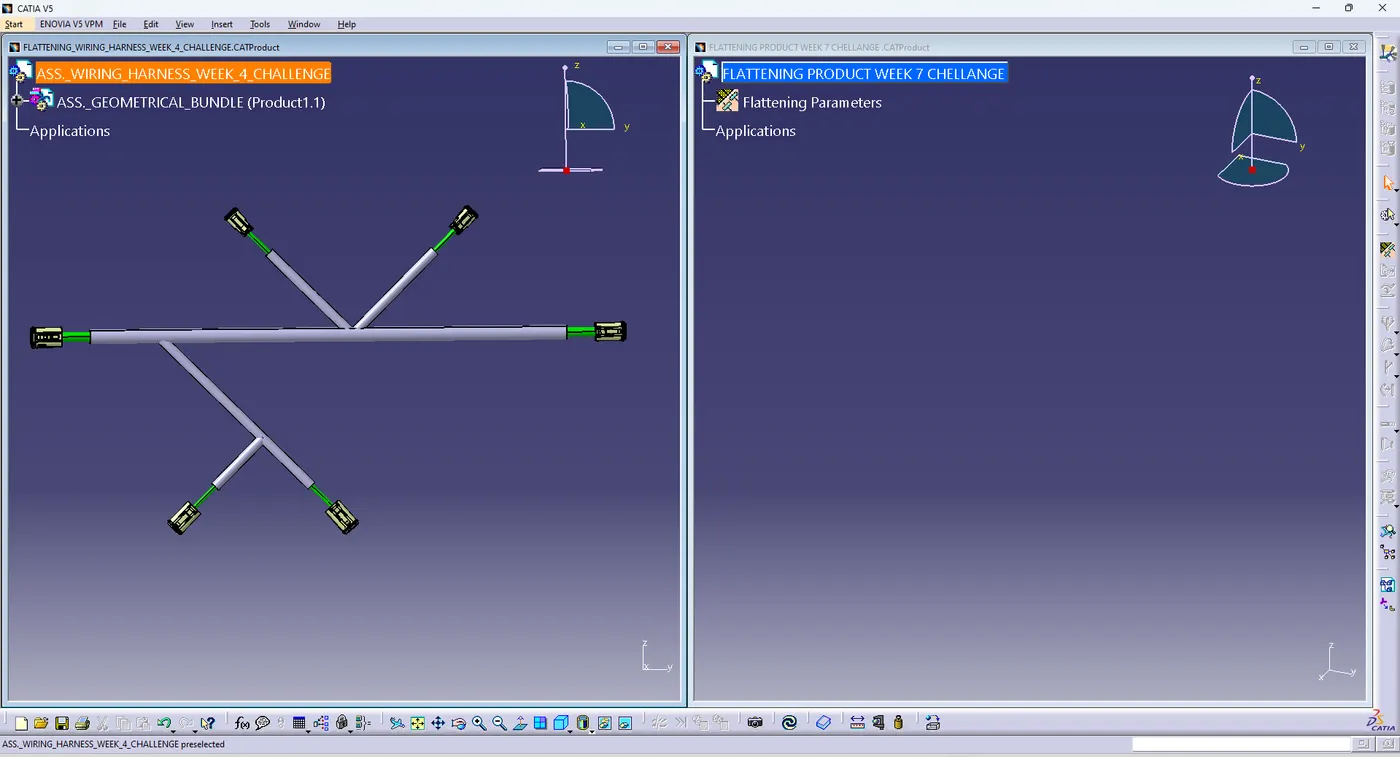

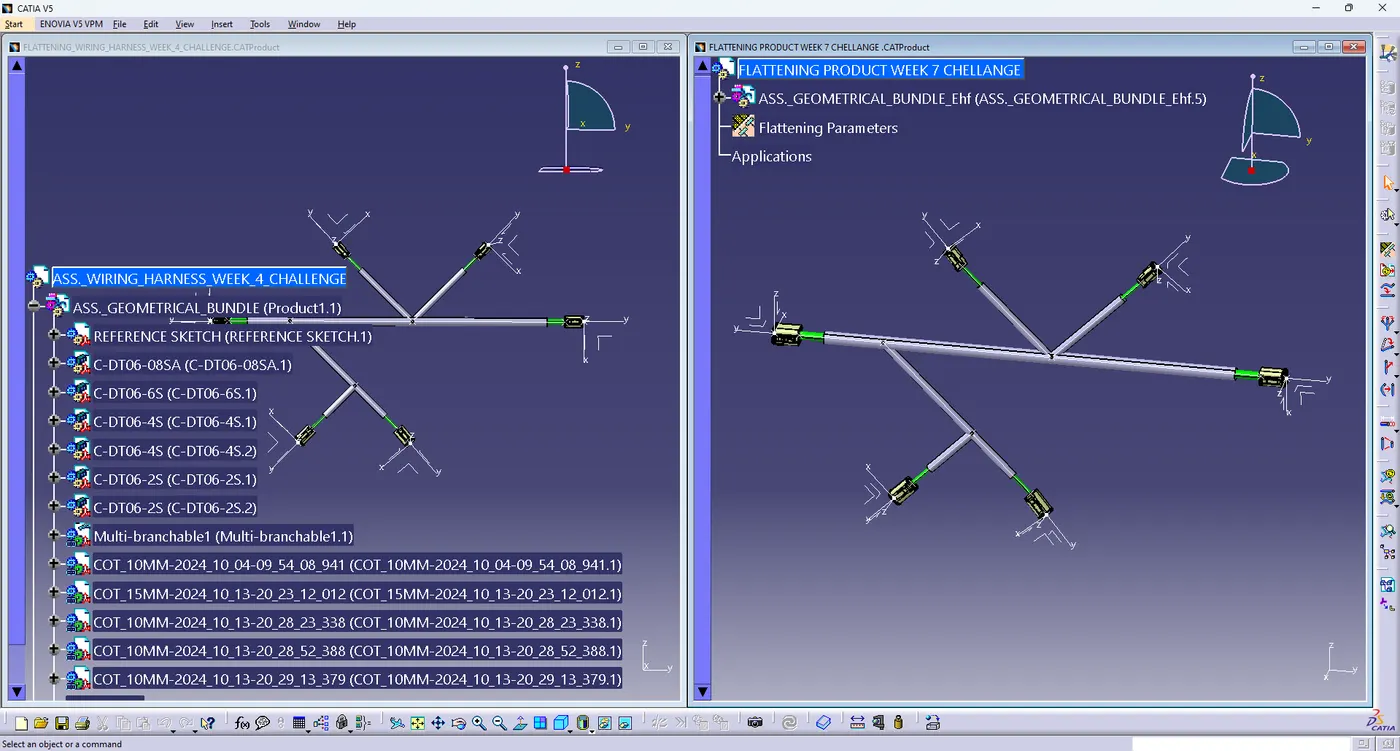
using extract command for insert week 4 chellange file in flattening product week chellange in it
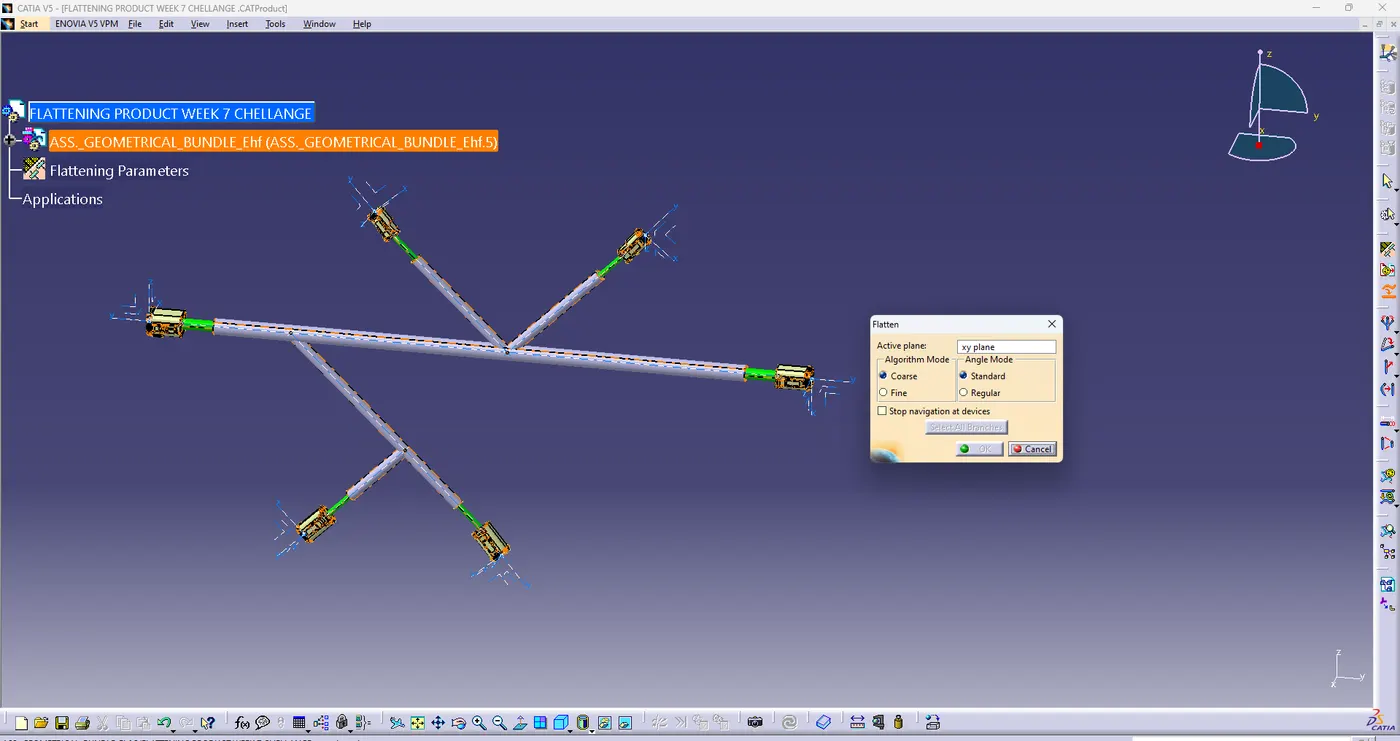
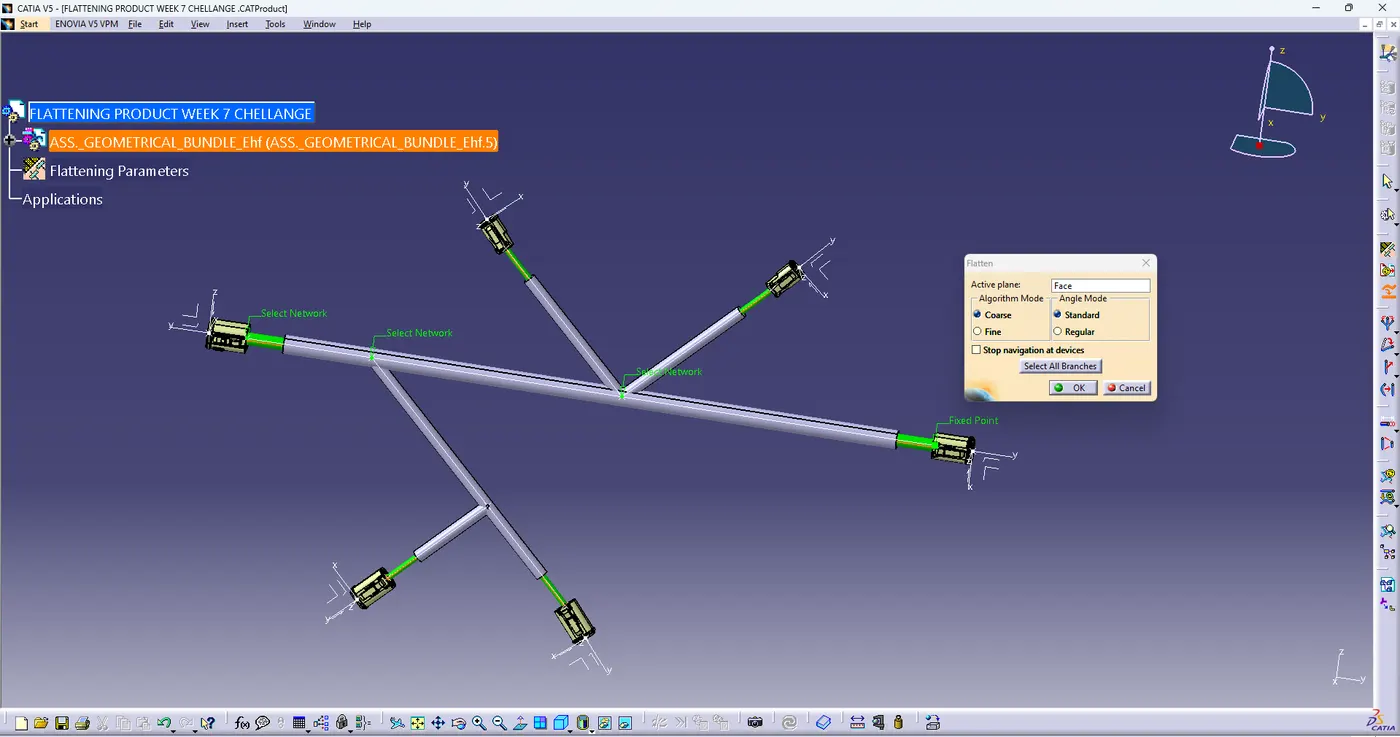
select flatten command > select surface for active plane> select all branches >then ok
open new harness drawing > select sheet style > select landscape ,portrait then ok
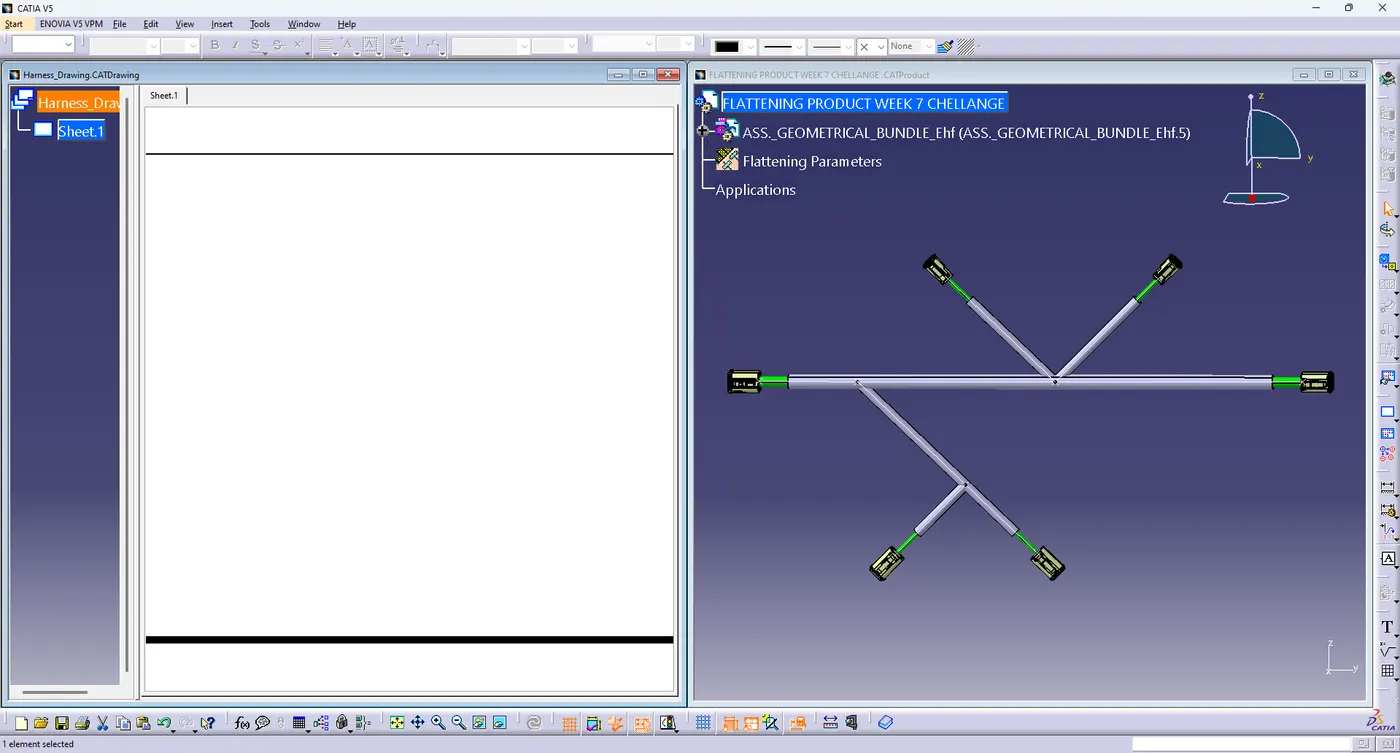
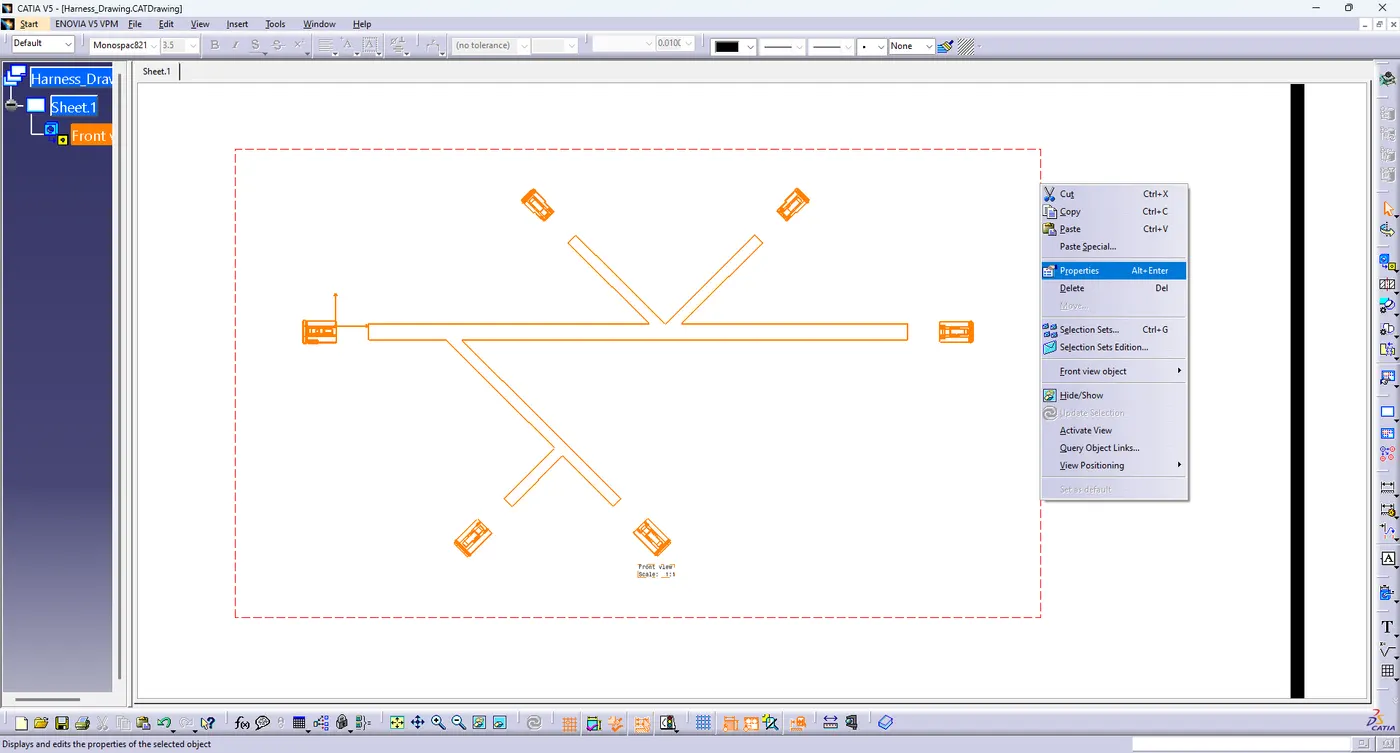
select front view command > go to the flatten surface > select surface >drawing place in sheet
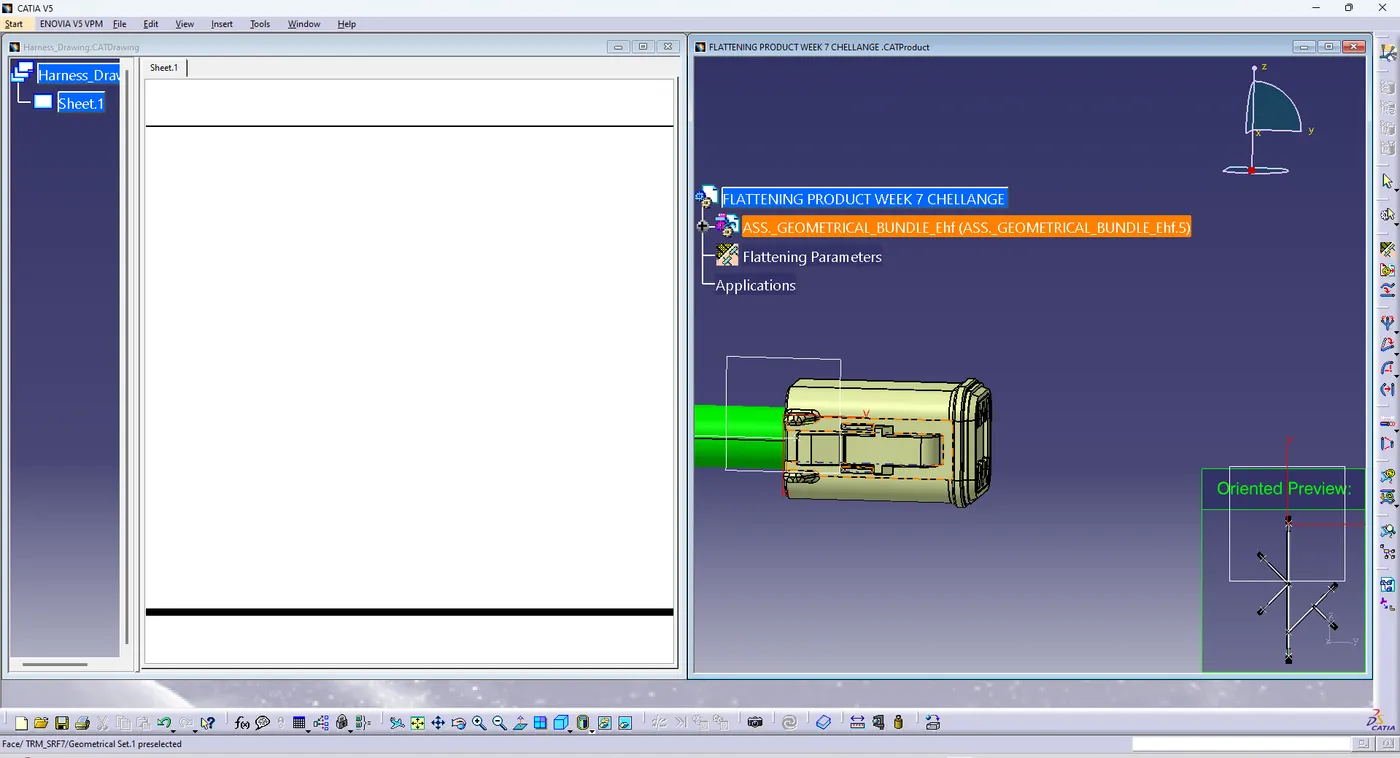
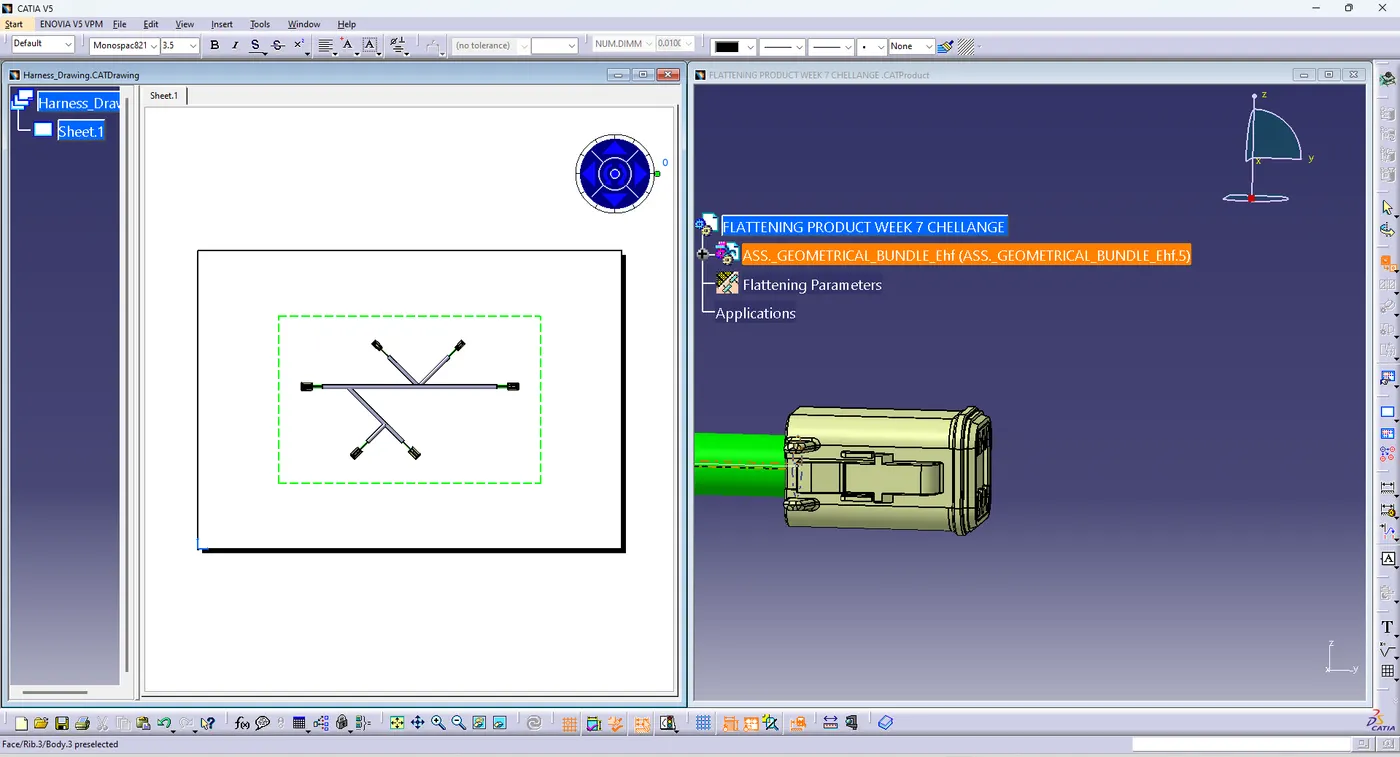
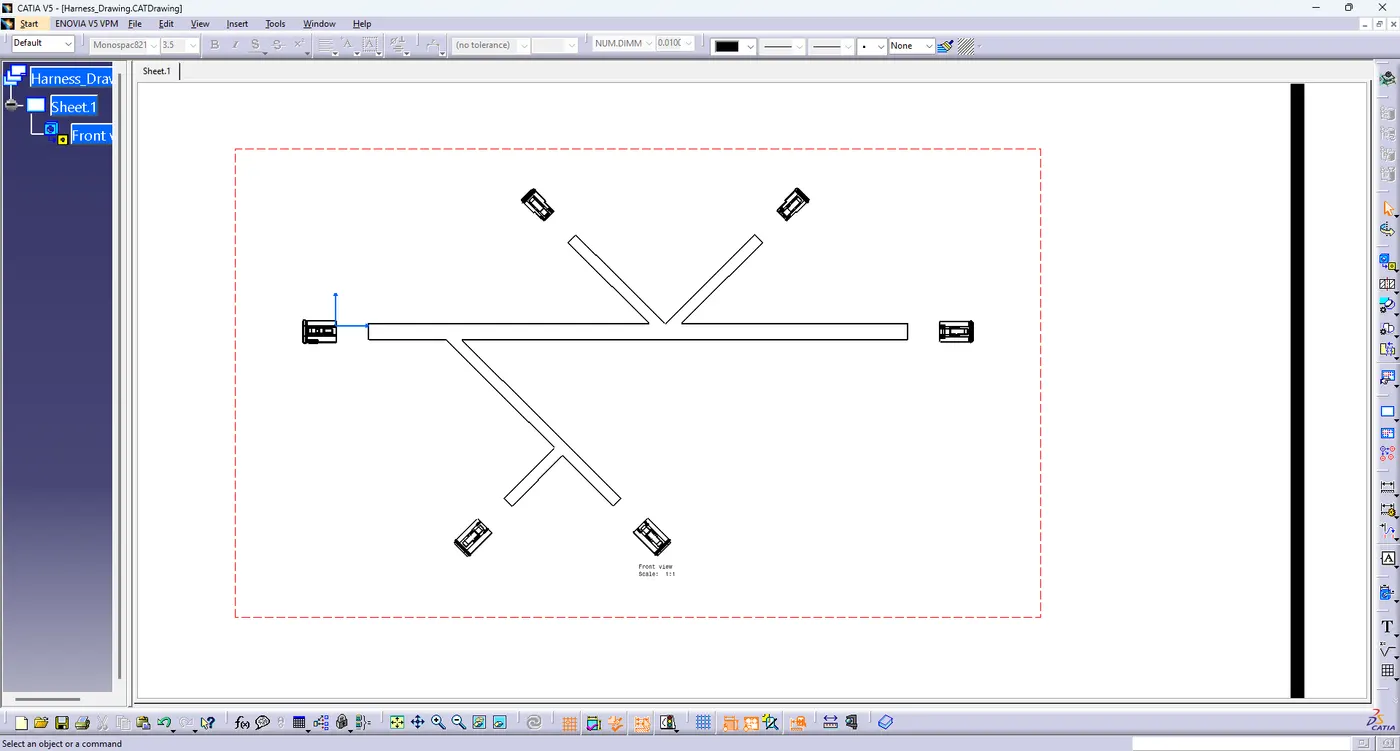
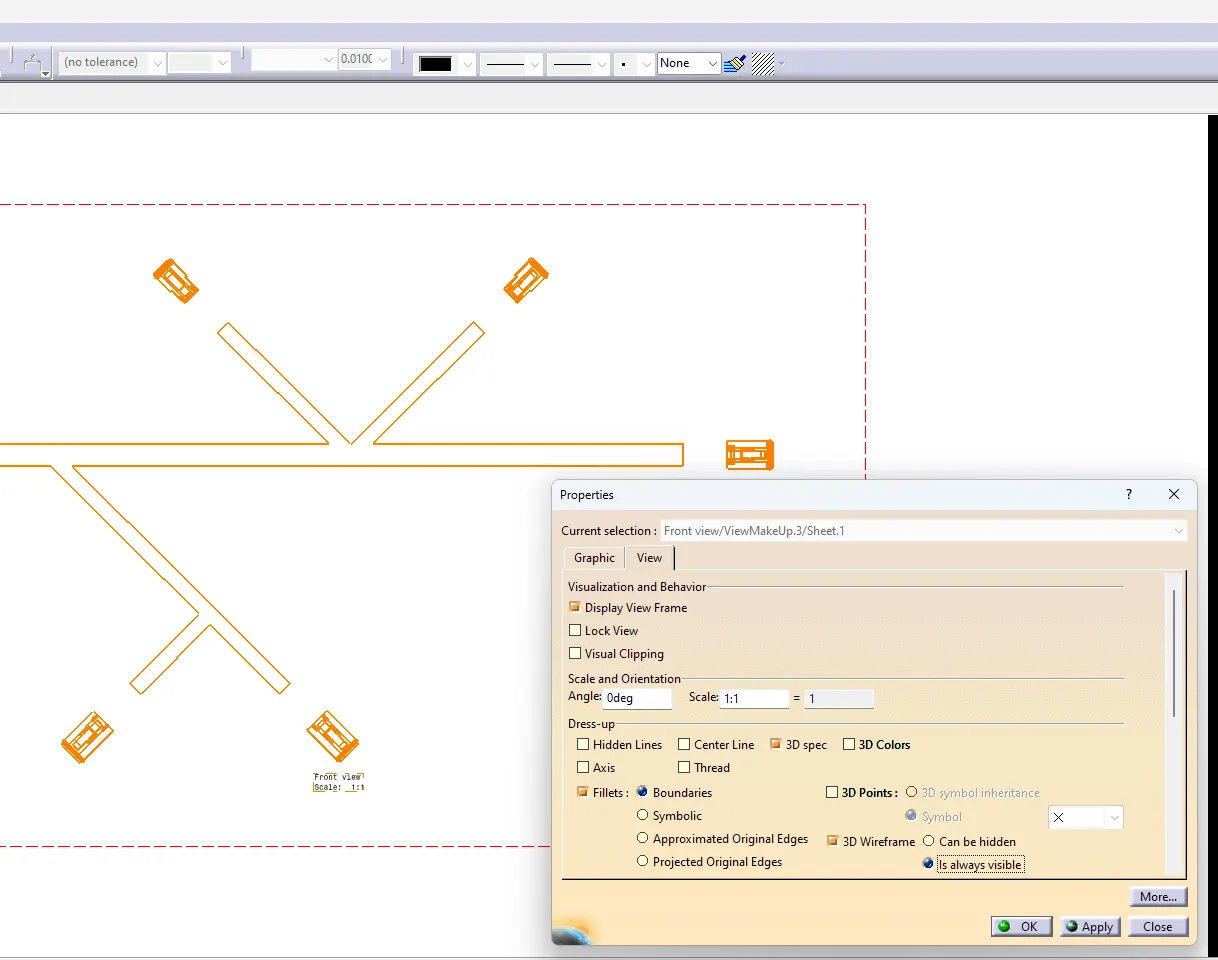
get select the view and right click > goto the properties > go to view propertie> check 3d wireframe is always visible > then ok click
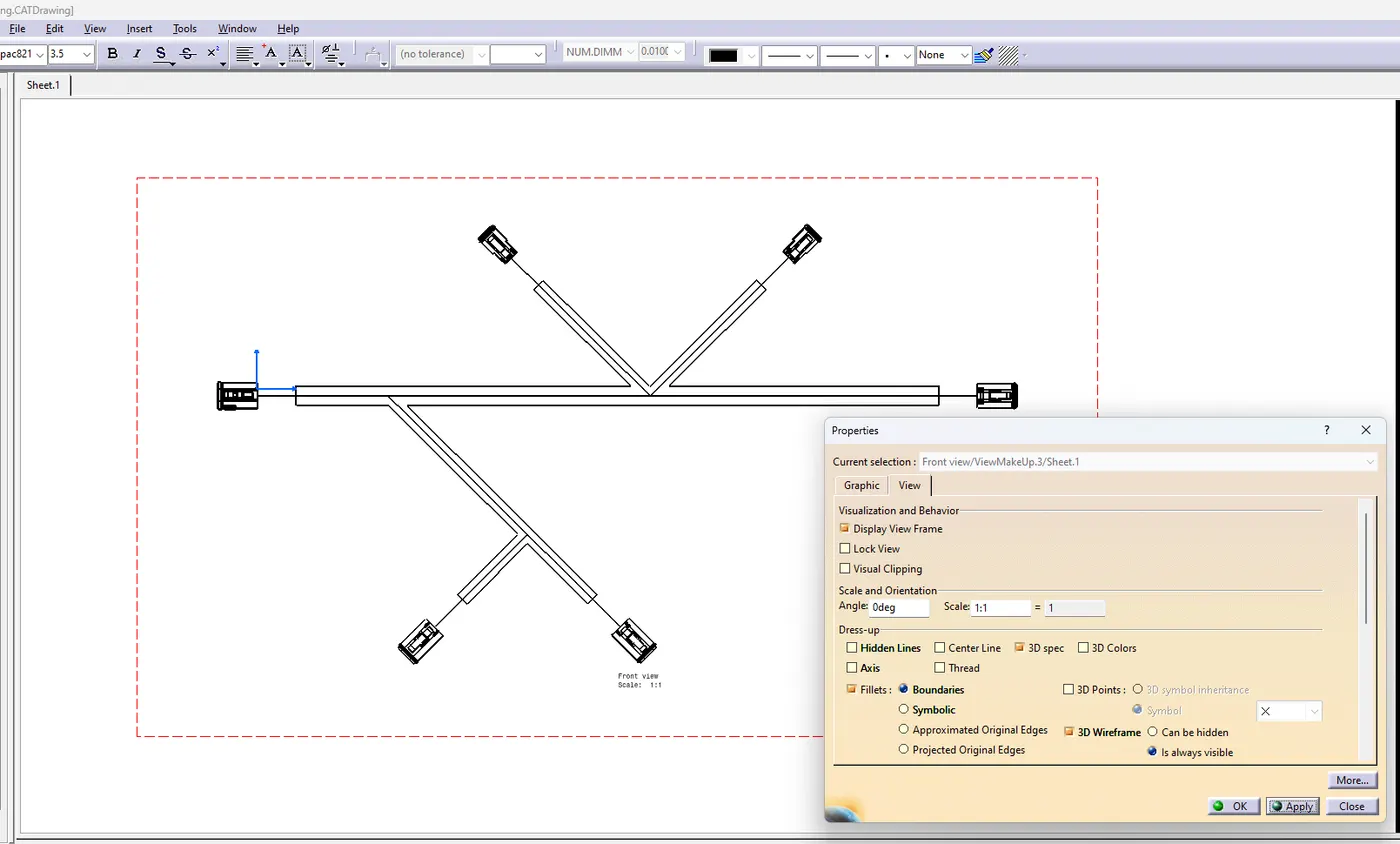
final complete drawing with title box , connector details , branch details , protection details