Wiring harness design in CATIA V5 - 3D modeling Week 7 Challenge
Harness Flattening:
1. Open product file:
Open the product file mentioned in the question, i.e. "week 4 challenge"
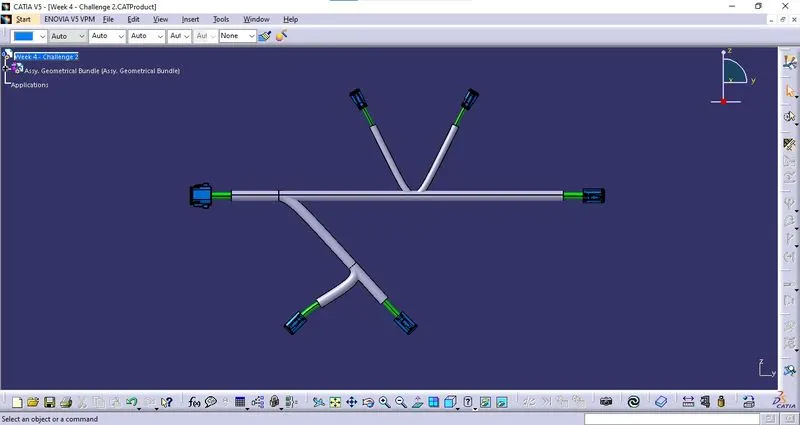
2. Flattening Product File:
i. Create a product:
Create a product file.
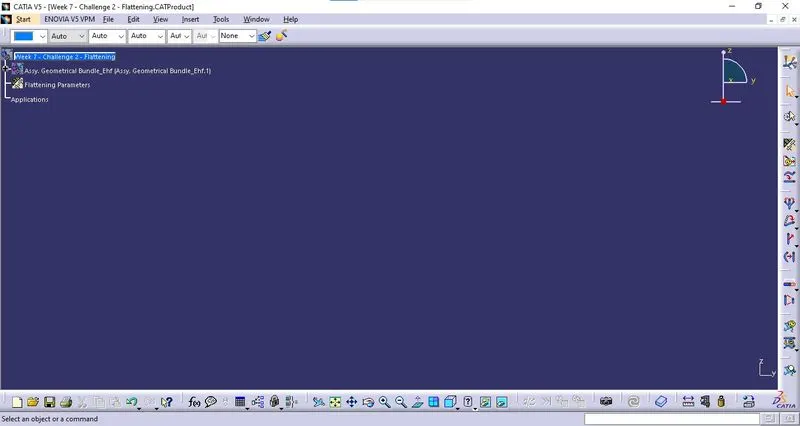
ii. Defining Flattening Parameters:
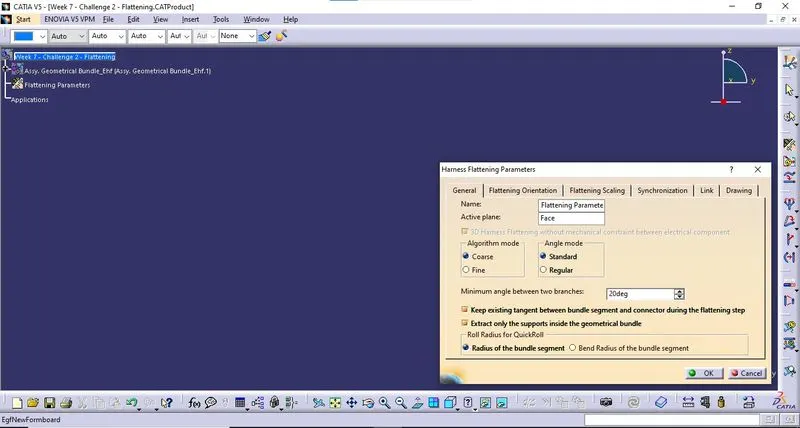
The flattening parameters were created by selecting the "Harness Flattening Parameters" tab in Electrical Harness Flatenning Workbench.
The following parameters are selected in the Harness Flattening Parameters window > General Tab
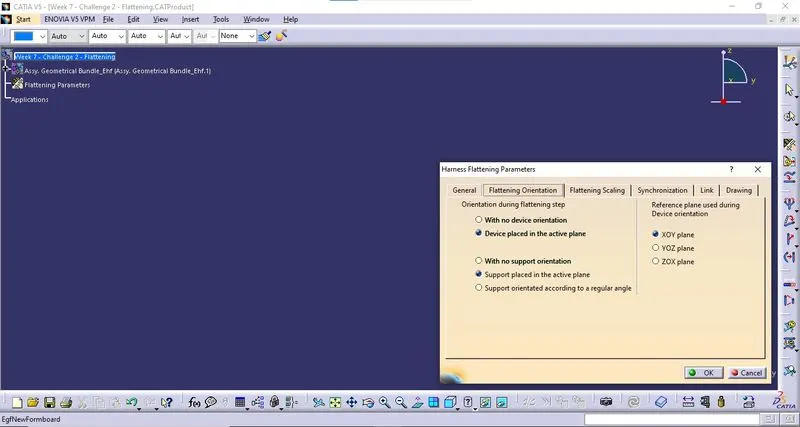
The following parameters are selected in the Harness Flattening Parameters window > Flattening Orientations Tab
The following parameters are selected in the Harness Flattening Parameters window > Flattening Scaling Tab
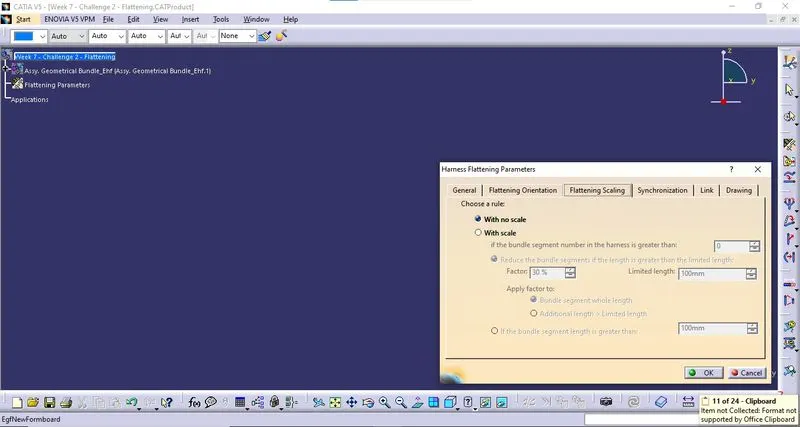
The following parameters are selected in the Harness Flattening Parameters window > Synchronization Tab
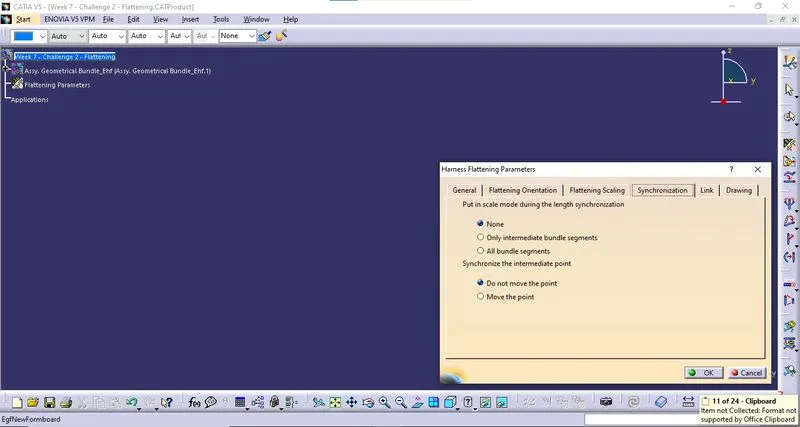
The following parameters are selected in the Harness Flattening Parameters window > Link Tab
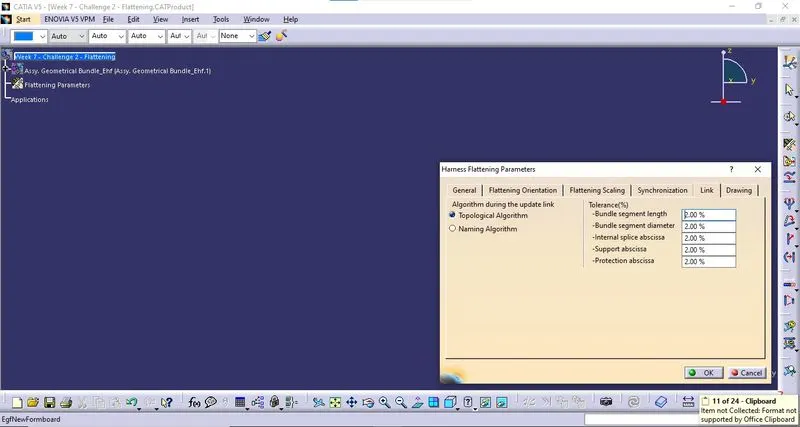
The following parameters are selected in the Harness Flattening Parameters window > Drawing Tab
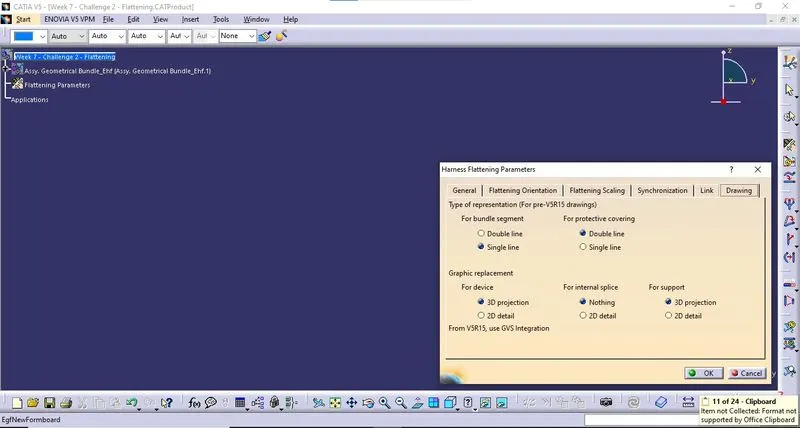
iii. Import the product file:
The product file to be flattened are imported by selecting the Extract command from the "Electrical Harness Flatenning" workbench.
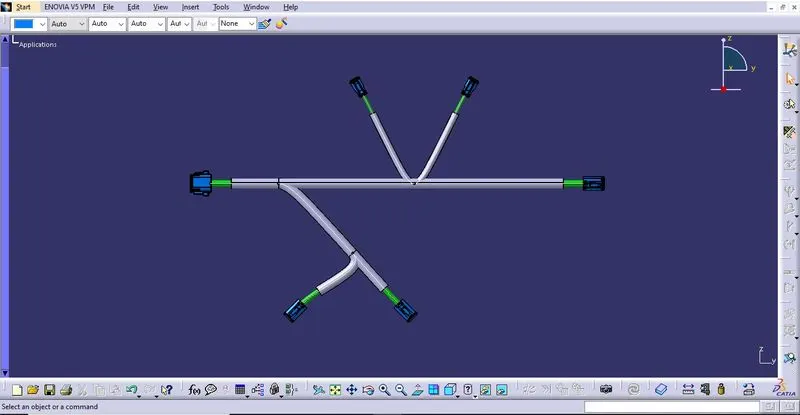
iv. Flatten the Harness:
Flatten the imported wiring harness by selecting Flatten command.
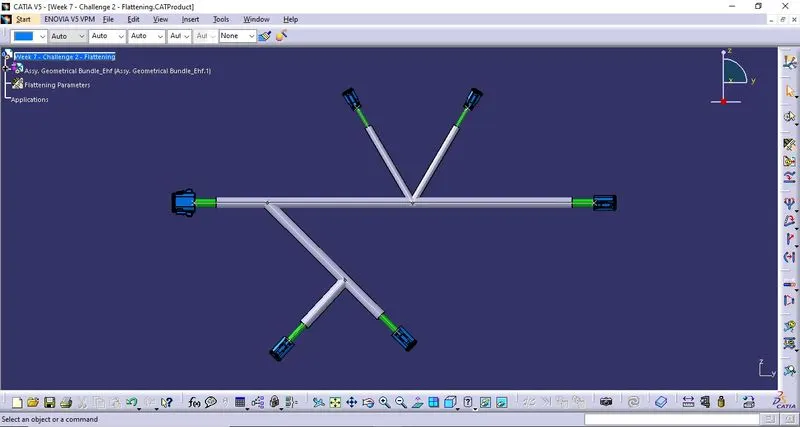
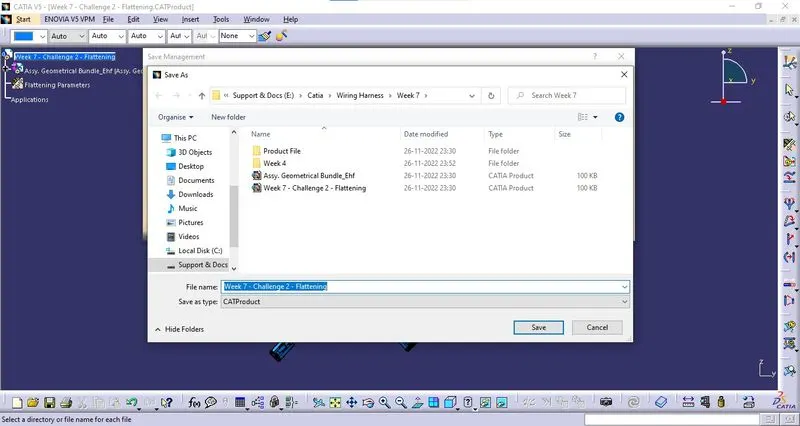
v. Save the file:
Save the product file to the desired location.
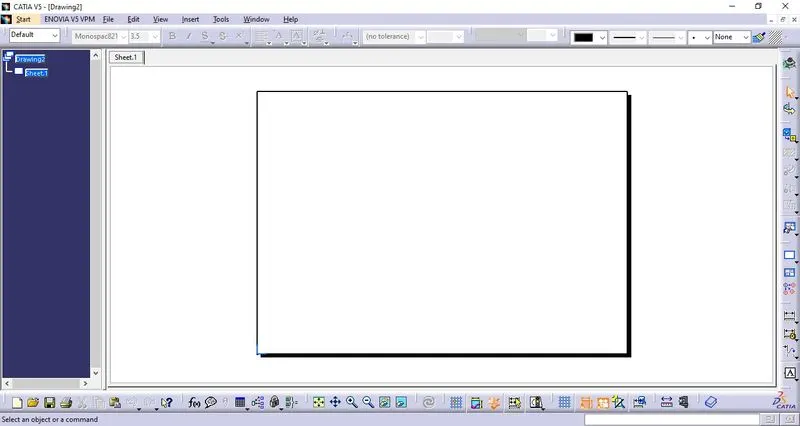
3. Creating Drawing File:
i. Create Drawing File.
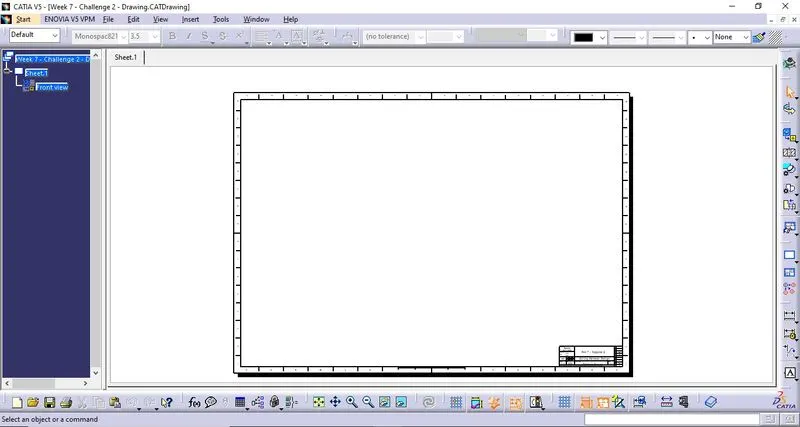
Create a new drawing file by selecting New > Drawing. Choose Standard as ISO & Sheet Style as "A0 ISO".
ii. Add title block:
Add title block by selecting Edit > Sheet Background. Apply a Title block by selecting the "Frame & Title Block" command. Exit the Sheet Background workspace by selecting Edit > Working Views.
iii. Add Drawing:
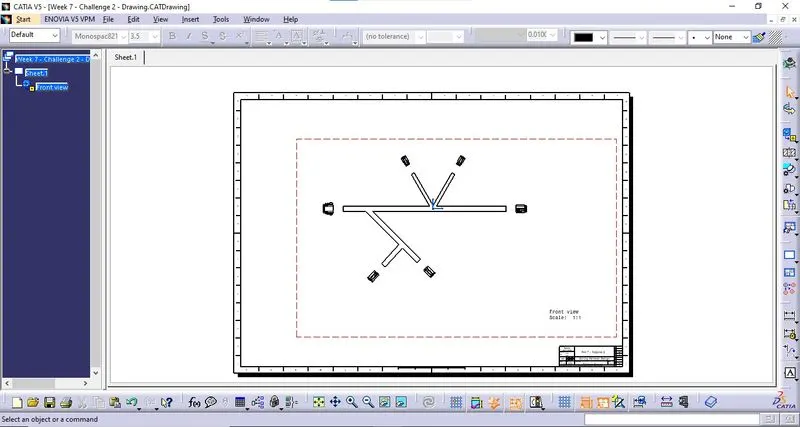
Add a drawing of the product file by selecting Front View Command from Drafting Workbench. Select a surface from the product file window. Orient the harness as required using the manipulation tab.
iv. Change Properties:
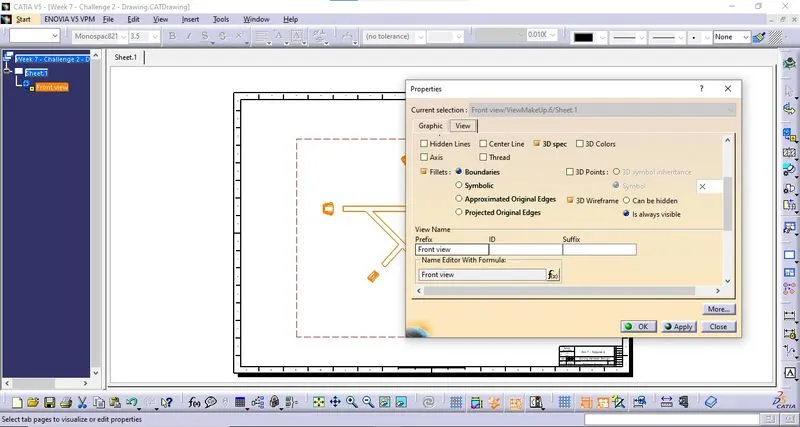
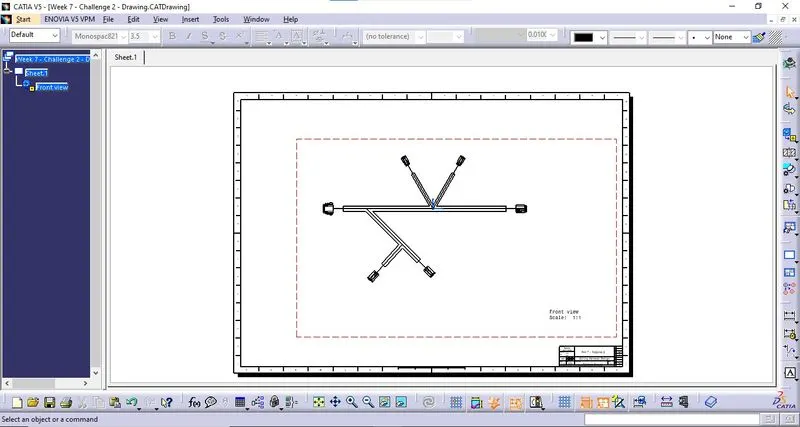
Right Click on the drawing > Properties. Change the properties of the drawing as follows.
v. Save file:
Save the file into the appropriate location.
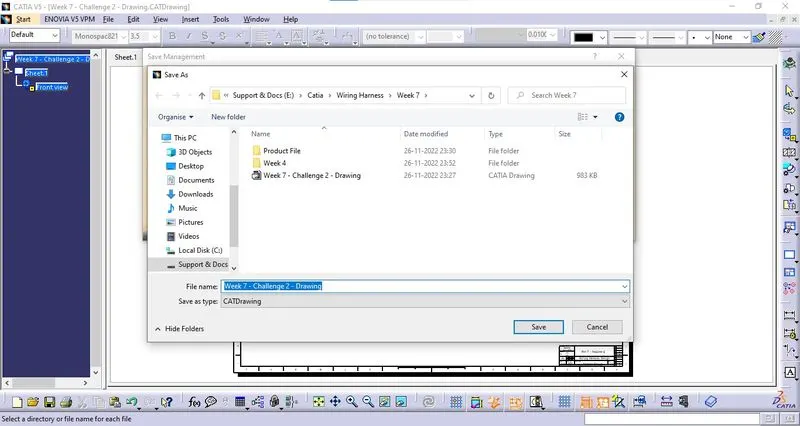
Vi. Save the file as PDF:
The wiring harness drawing is saved as a PDF by selecting File > Save As.
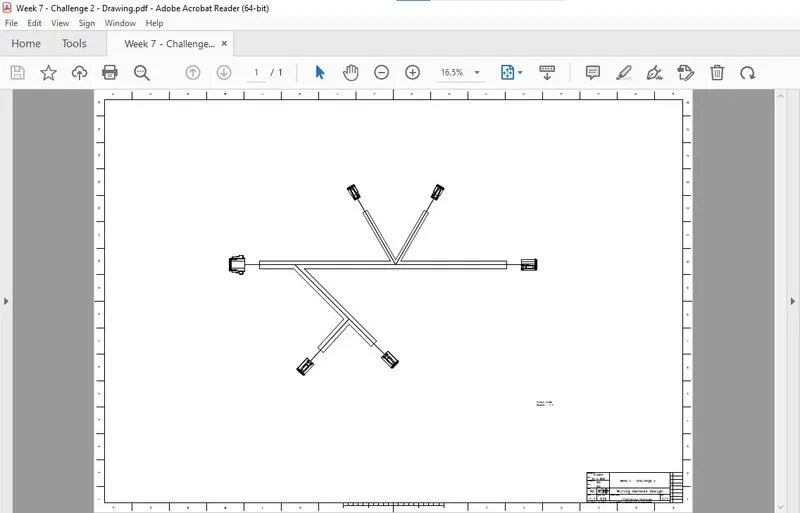
4. Attachments:
All the components and files used are attached as a single compressed Zip file.