Wiring harness design in CATIA V5 - 3D modeling Week 5 & 6 Challenge
0.// Download all the CAD data and routing mapping data. //
///NOTE: No Bundle warning has occured in any features. Bundle Check dialog box has been attached for verification at bottom of the report. ///
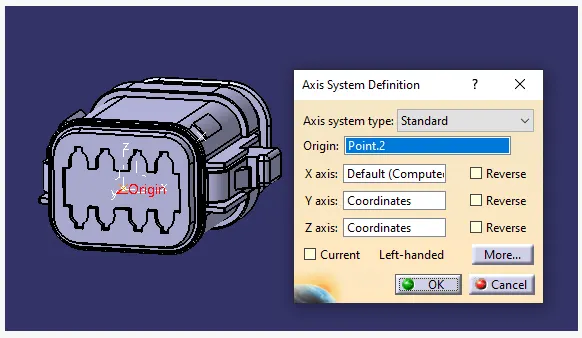
1.Defining all the connectors in Electrical Part Design [EPD] using point and Axis.
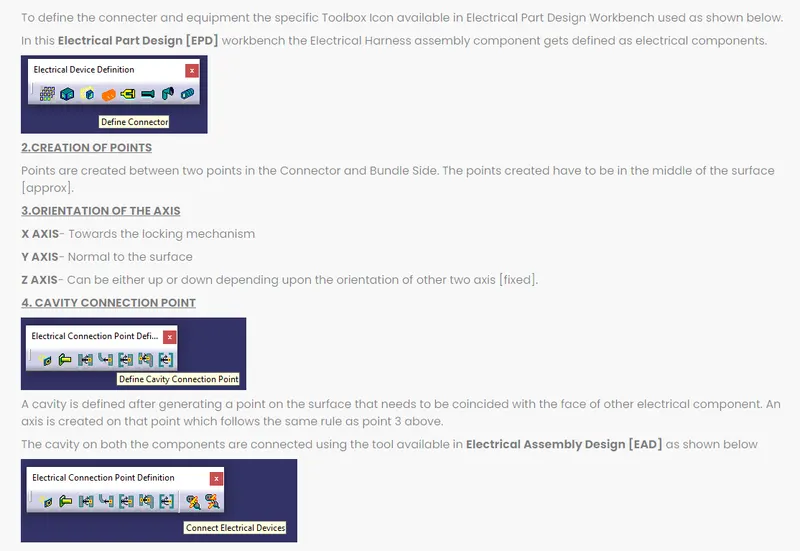
DEFINING THE COMPONENT AS CONNECTOR IN ELECTRICAL PART WORKBENCH [EPD]
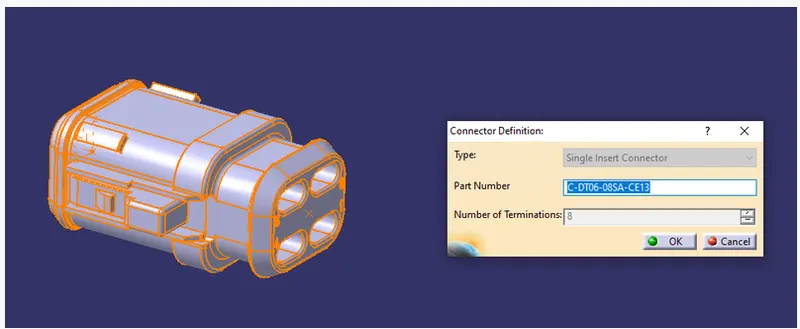
GENERATION OF POINTS ON BUNDLE AND CONNECTION SIDE
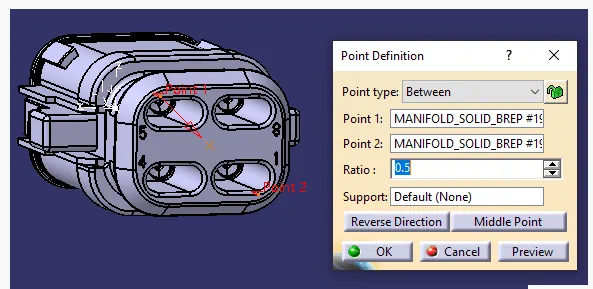
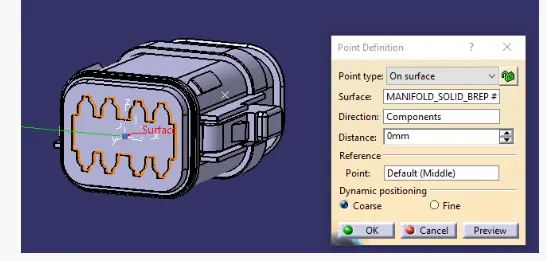
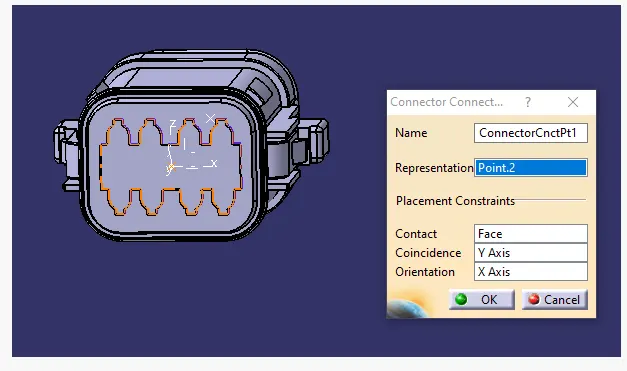
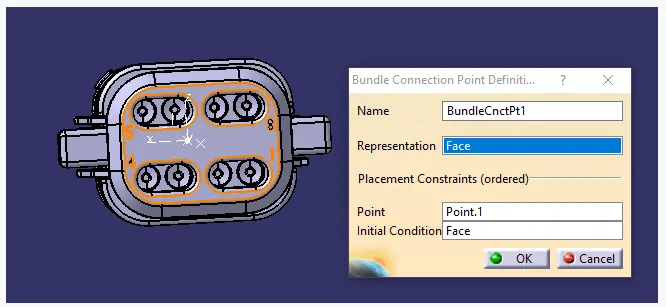
DEFINING THE CONNECTING CONNECTION AND BUNDLE CONNECTION POINT IN EPD
2. GENERATING BRANCHES FOR HARNESS A AND B
Creating the customised branches for both Harness A and B in Sketcher Workbench as shown.
HARNESSS A BRANCH
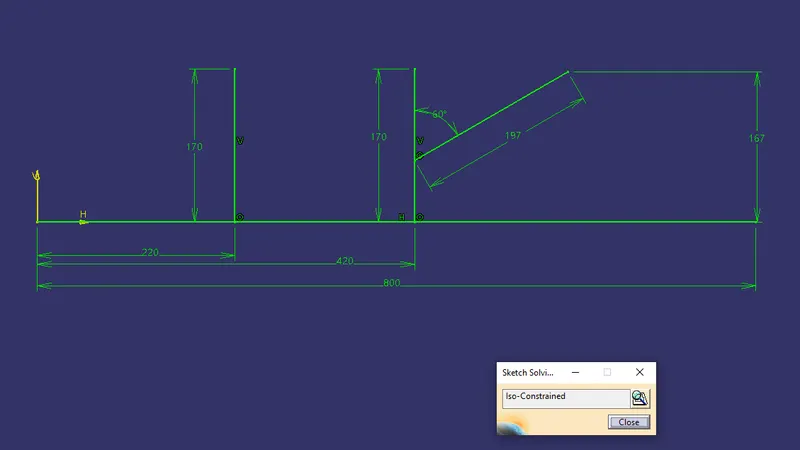
HARNESS B BRANCH
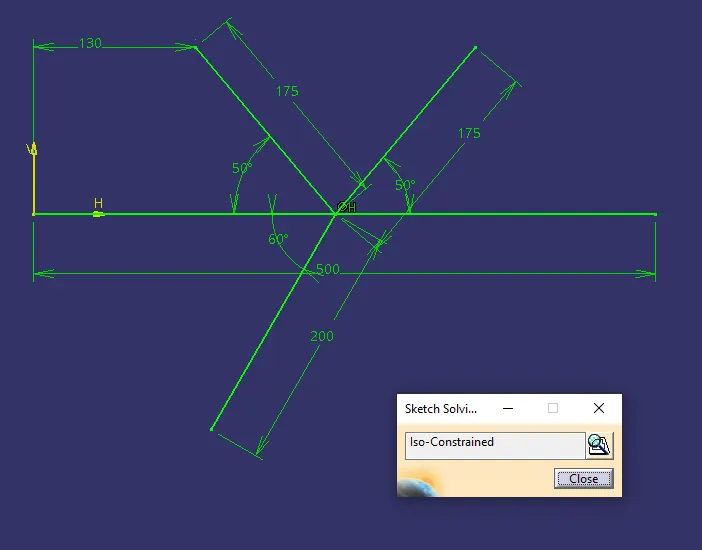
3.Importing all the defined Connector and Branches in specific product file as shown below.
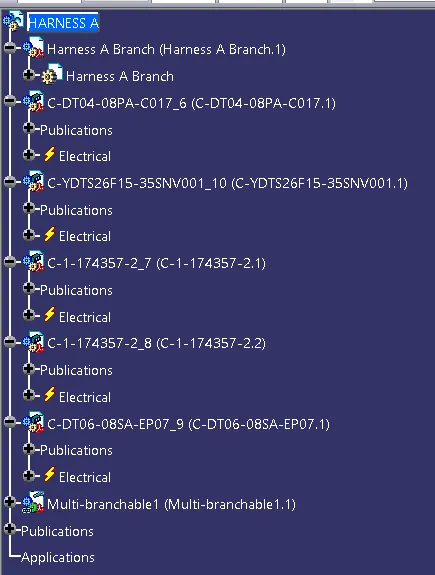
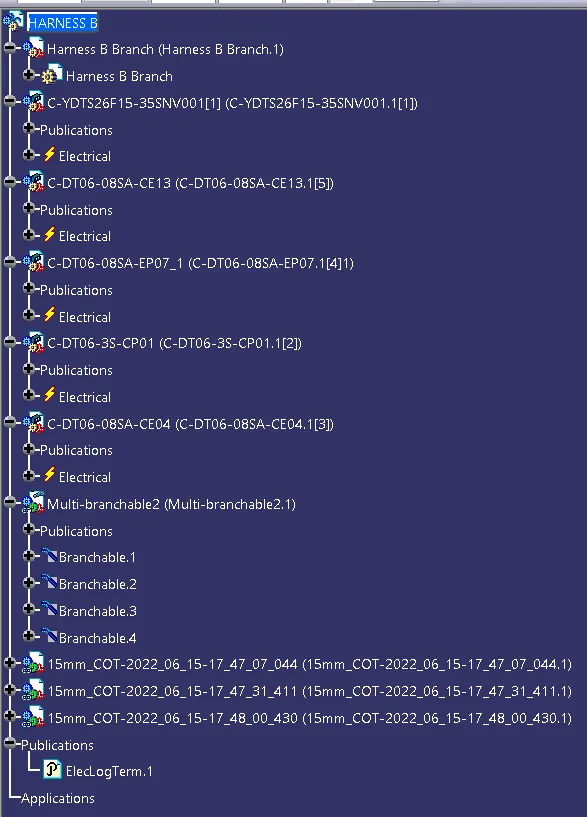
4. GENERATING ROUTING AND PROTECTIVE COVERINGS IN ELECTRICAL HARNESS ASSEMBLY
4.1 Assemble the connectors accoring to the mapping data in Assembly Design Workbench using snap option to align the connectors with the branch.
Below images shows how to generate Bundle segments in EHA Workbench on clicking the icon as shown below.
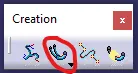
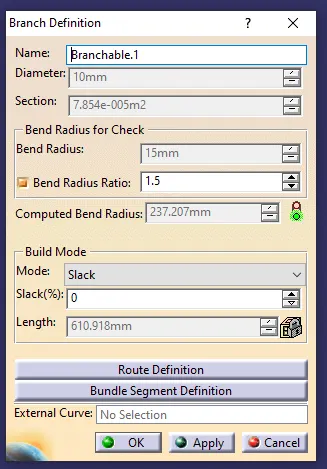
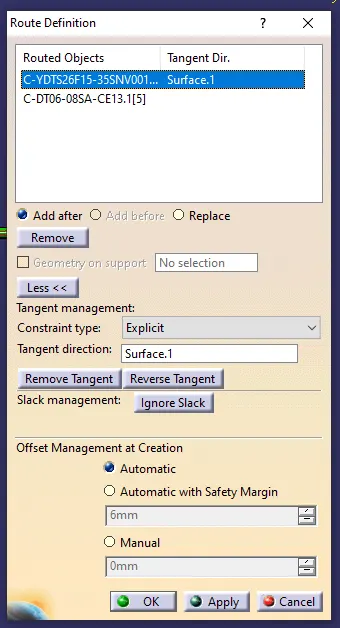
Bundle segment is generated in the Electrical Harness Assembly [EHA] and branches in Electrical Harness Instalation [EHI] Workbench for both Harness A and B.
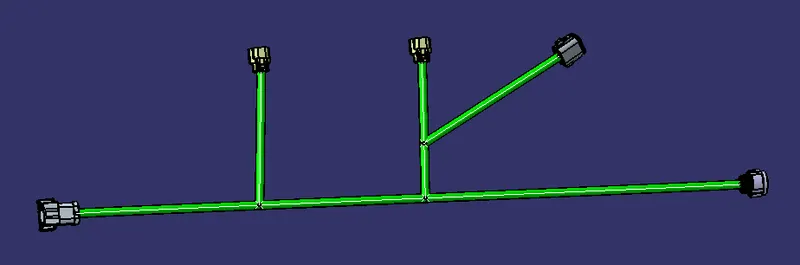
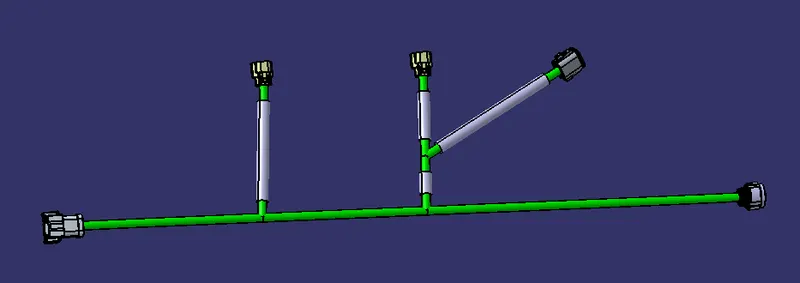
Bundle Segments for Harness A generated as shown.
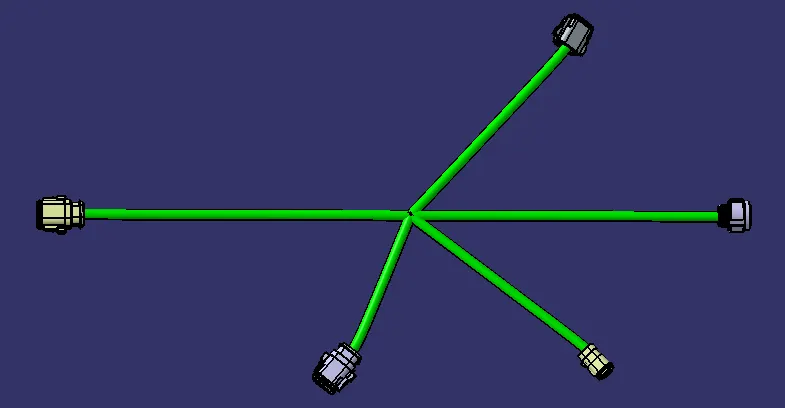
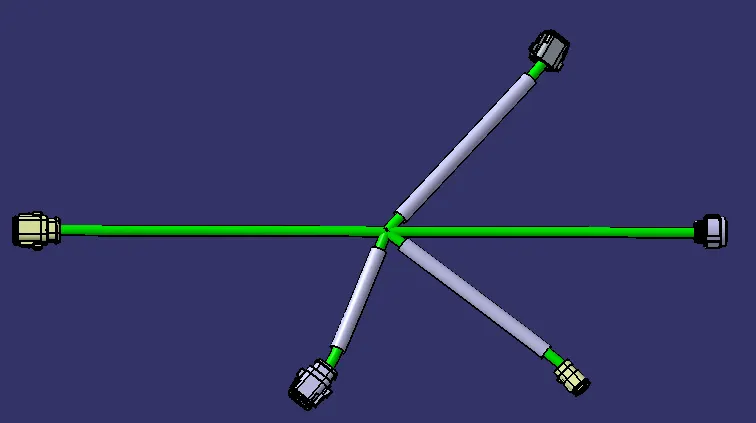
Bundle Segments for Harness B generated as shown.
The Icon available in the Electrical Harness Assembly [EHA] 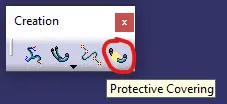 used to generate protective coverings according to the requirements which is accessed from the customised catalog documents generated.
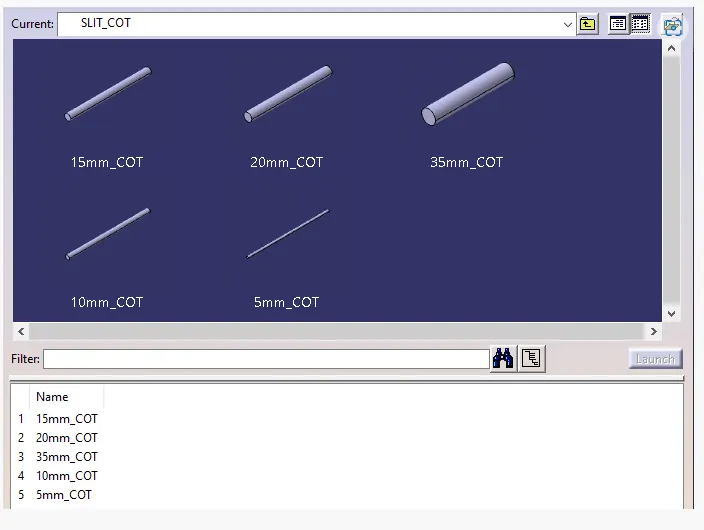
HARNESS A PRODUCT FILE
HARNESS B PRODUCT FILE
5. Importing HARNESS A AND B in Electrical Assembly Design Workbench as separate Product file and assemble using option available in EAD.
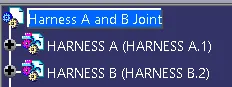

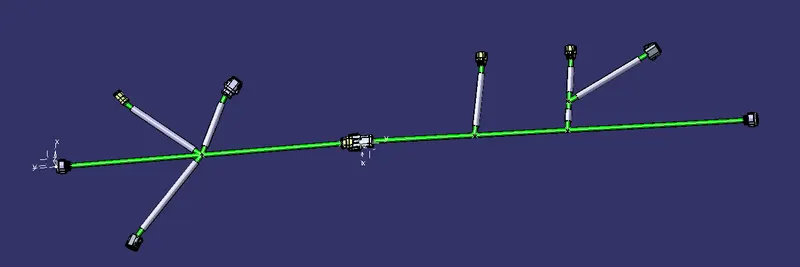
Bundle Connectivity Status
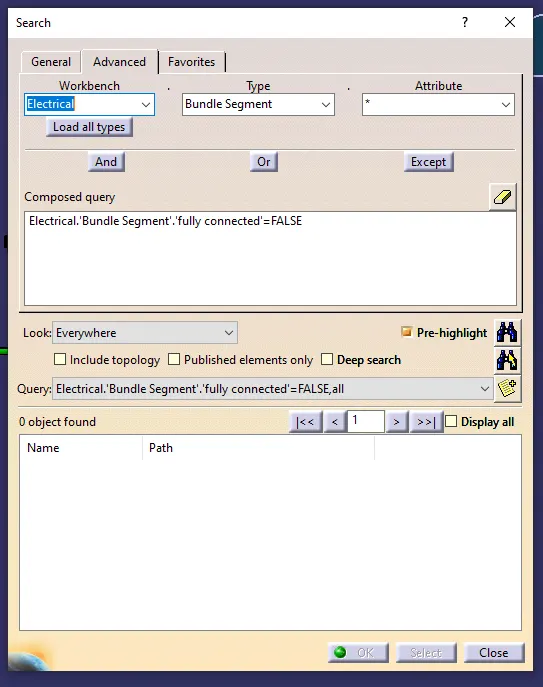
The above dialog box shows that there is no connectivity issue between the Bundle segments.
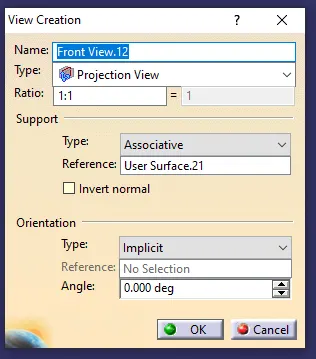
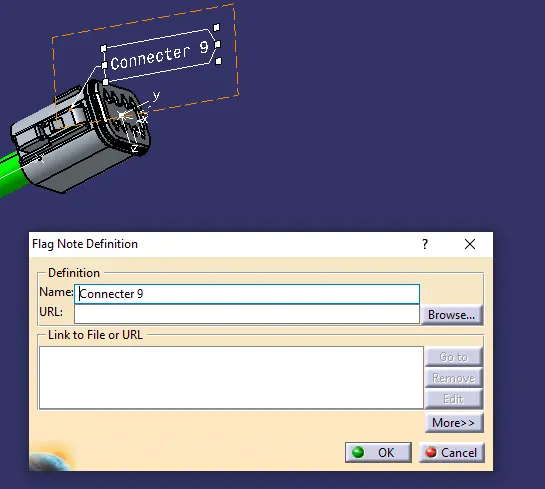
6.Annotations are given in the Assembly Design Workbench [ADW] from the Toolbar which contains the needed options as shown below.
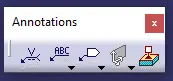
 - View Creation ;
  - Flag Note With Leader
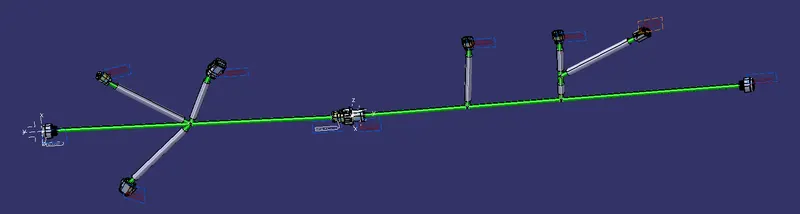
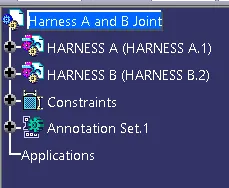
Final Geometric Tree
7. GENERATING igs FORMAT FILE FROM PRODUCT FILE.
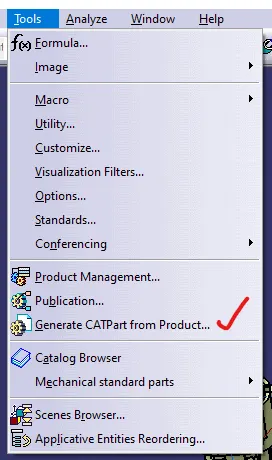
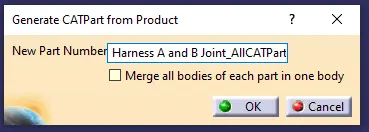
The resulting CATPart File from product file as shown below.
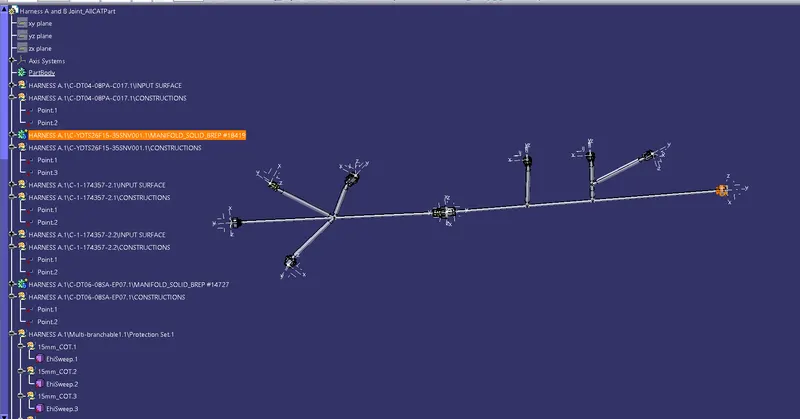
CATPart further can be converted into igs format using "Save as" Dialog Box.