Wiring harness design in CATIA V5 - 3D modeling Week 5 & 6 Challenge
3D modeling Week 5 & 6 Challenge
:- wiring harness is an assembly of many components in it,it follows the assembly structure in virtual environment too.
- week 5& 6 challenge is main assembly
- Multi branchable (contains all wiring Bundles)
- Connectors/Terminals as .CATPart
- clips/clamps/ channels/brackets as .CATPart
- Publications/Electrical properties
> CREATING THE WIRE HARNESS GEOMETRICAL BUNDLE
- create New Product File
- Enter Desire details like Description part number then click ok
according to given data download all connectors in step file then change into part file
create points and axis of all parts , after select store device to store all parts in catalog.
1. in this some commands use like define mounting equipment, define connectors, define connector connection points , define bundle connection points, define cavity connection point,
2. open ass. week 5& 6 challenge > go to insert manu select new product > give name of adding two new product file- 1. harness A 2. harness B
3. insert all connector by existing components command
4.all connectors located by manipulator ,snap command
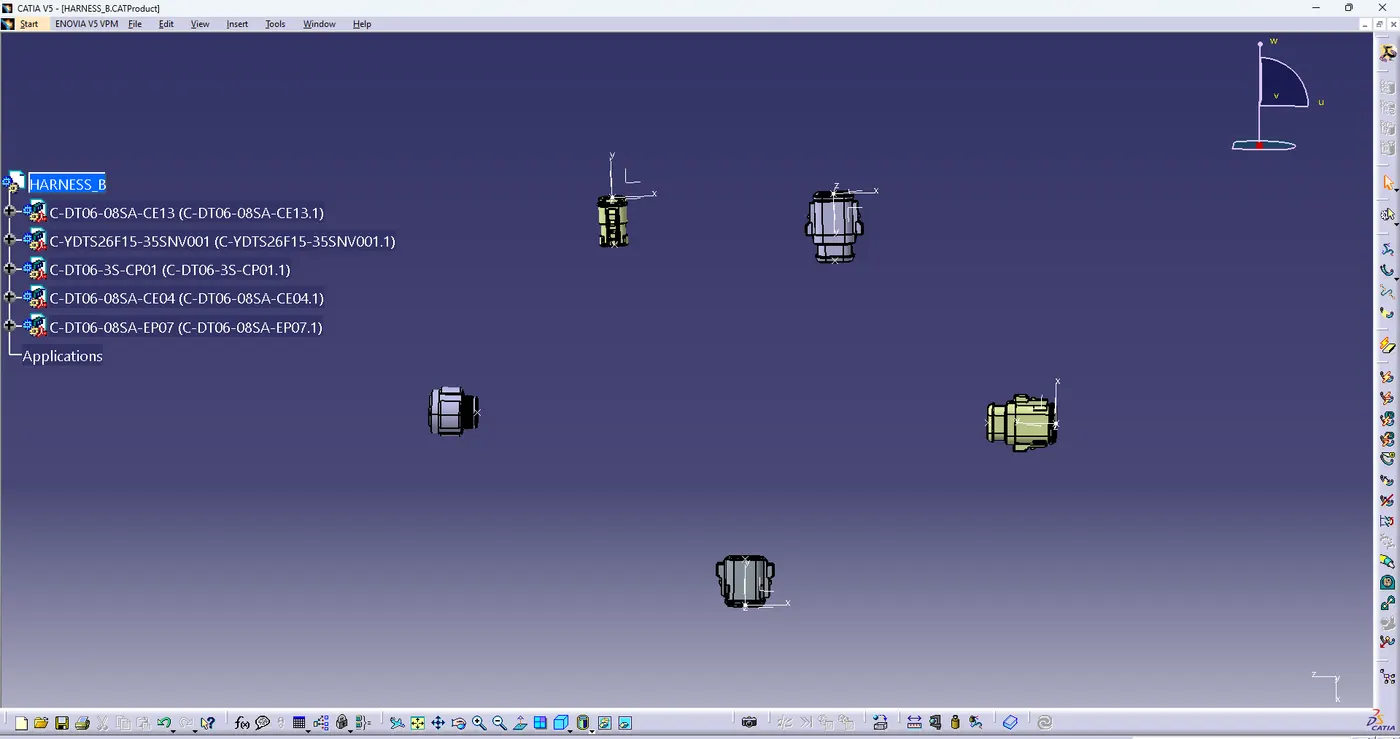
5. HARNESS_A & HARNESS_B product file switch to electrical wiring harness assembly workbench > double click on HARNESS_A & HARNESS_B > go to the electrical bundle command icon select it .
6. select multi branchable document command > open branch definition > insert diameter of branch
7. select Route definition> select connectors to join branches
8. select add branch point command then select branch point according to given data then create branch
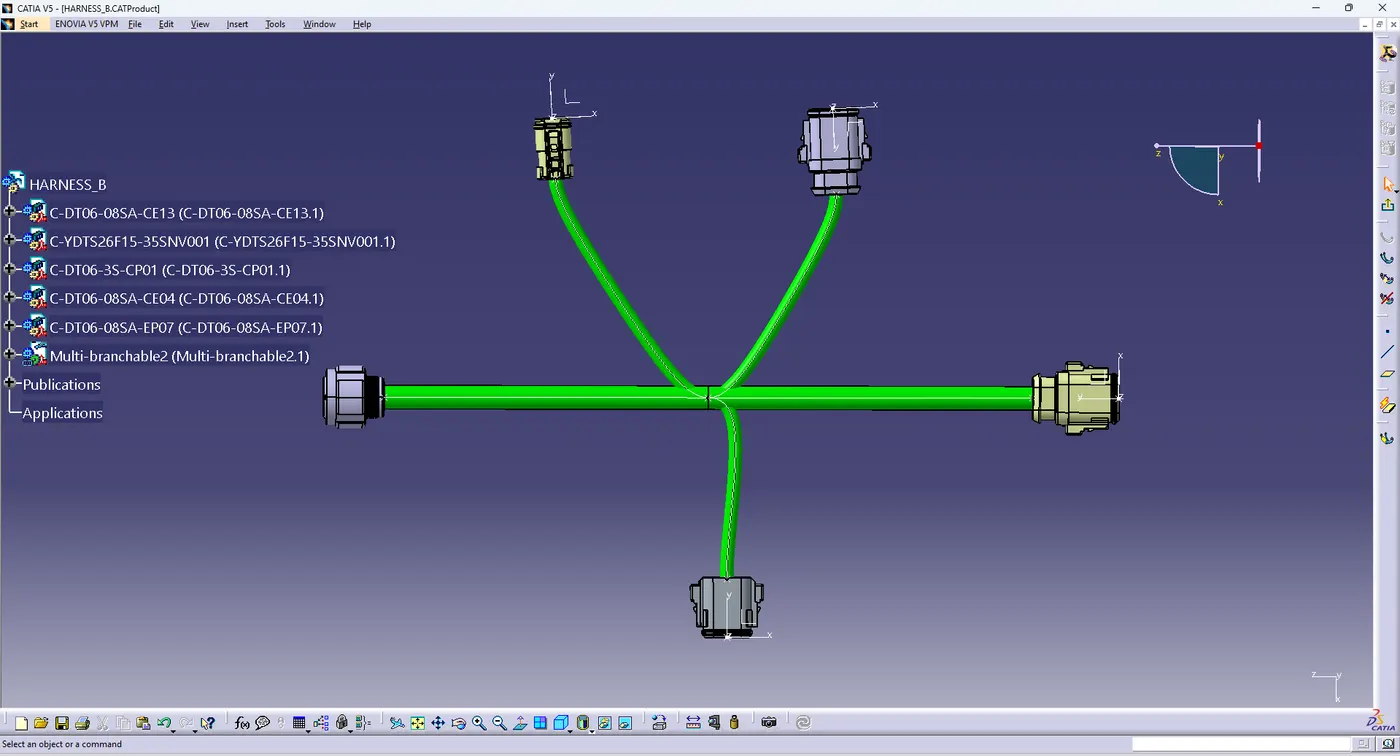
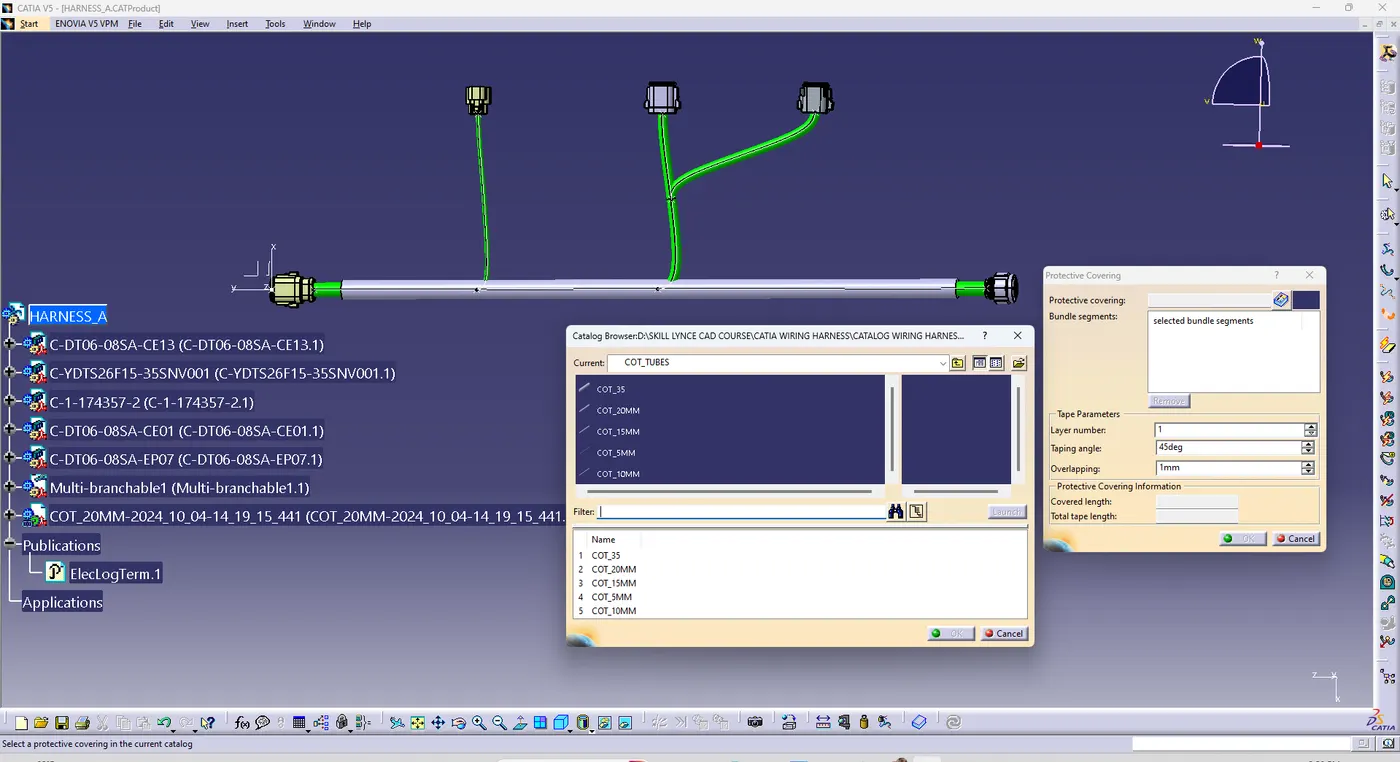
9. select protective covering command to cover all branches > select catalog option for select cot tube which you select .
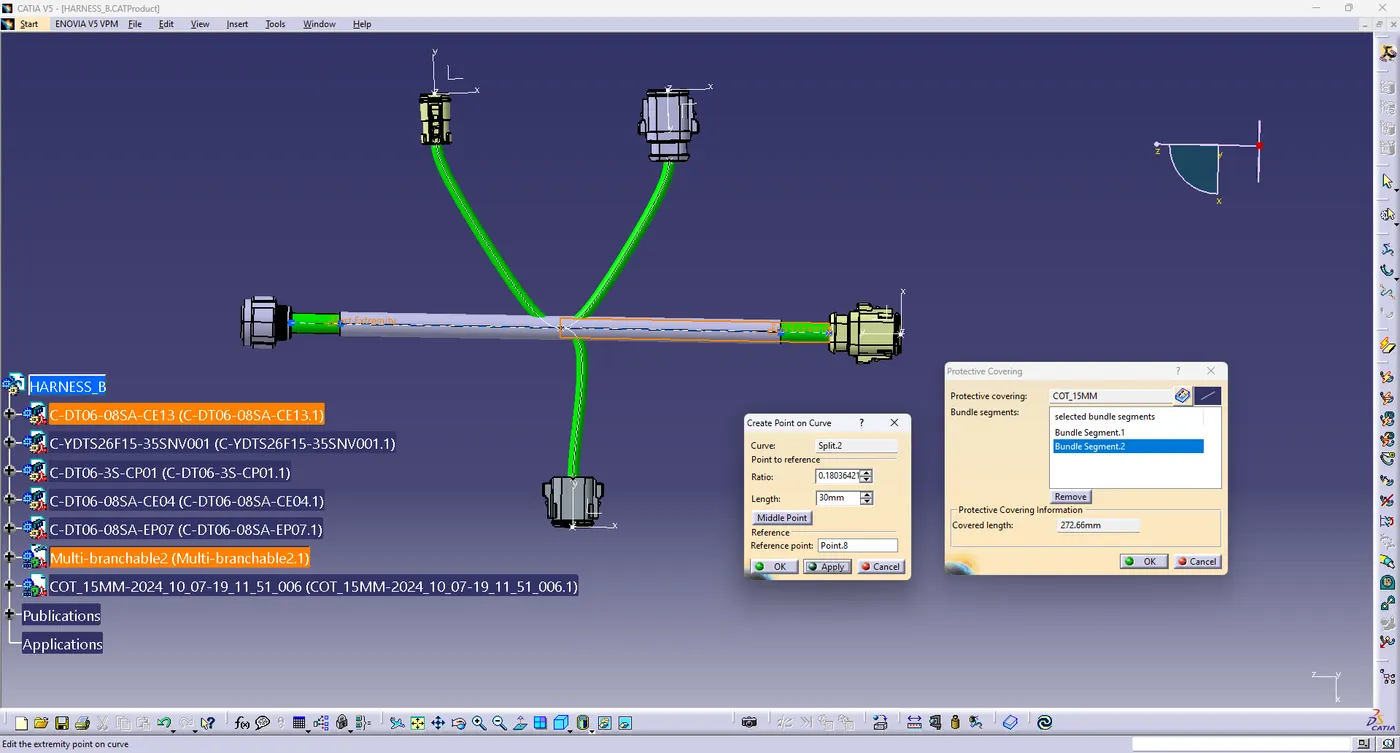
10. according given data keep end extremity of 30mm end of the connector .
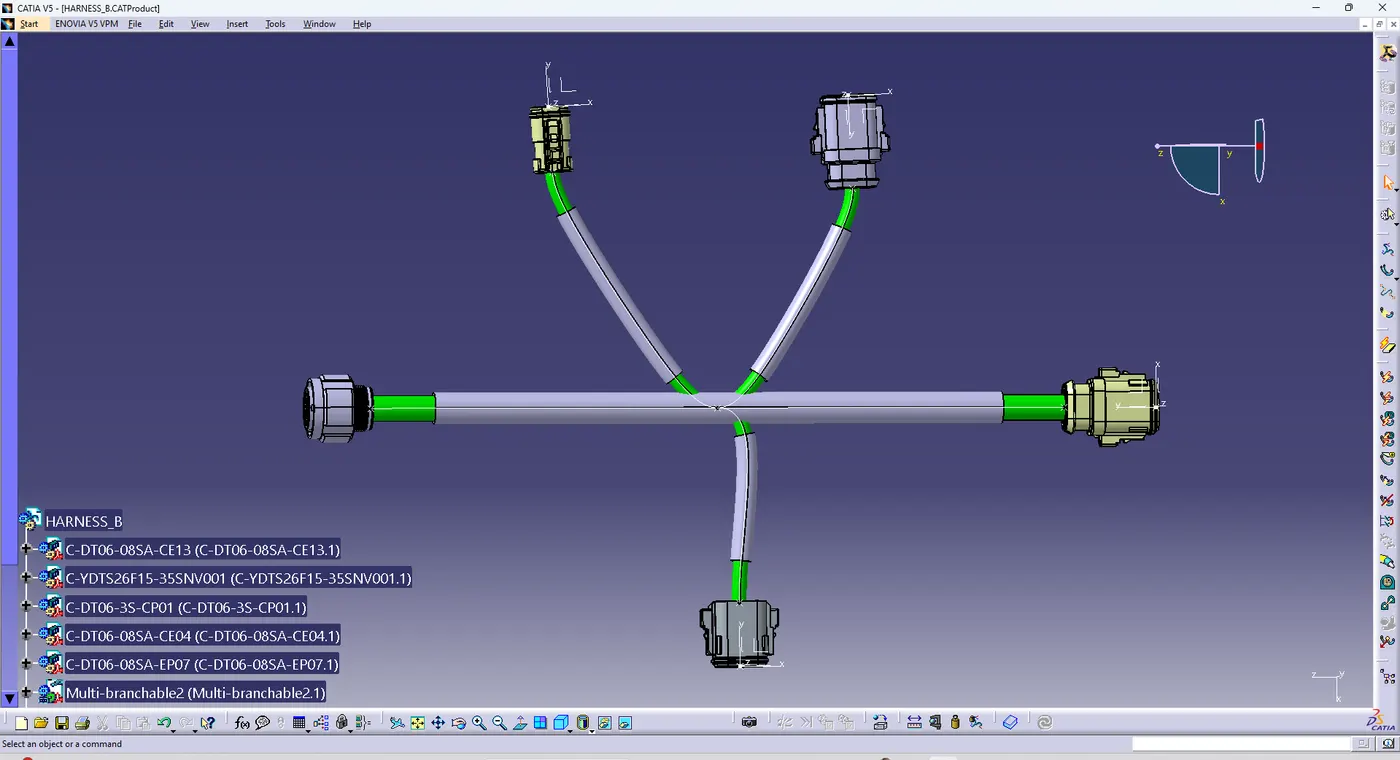
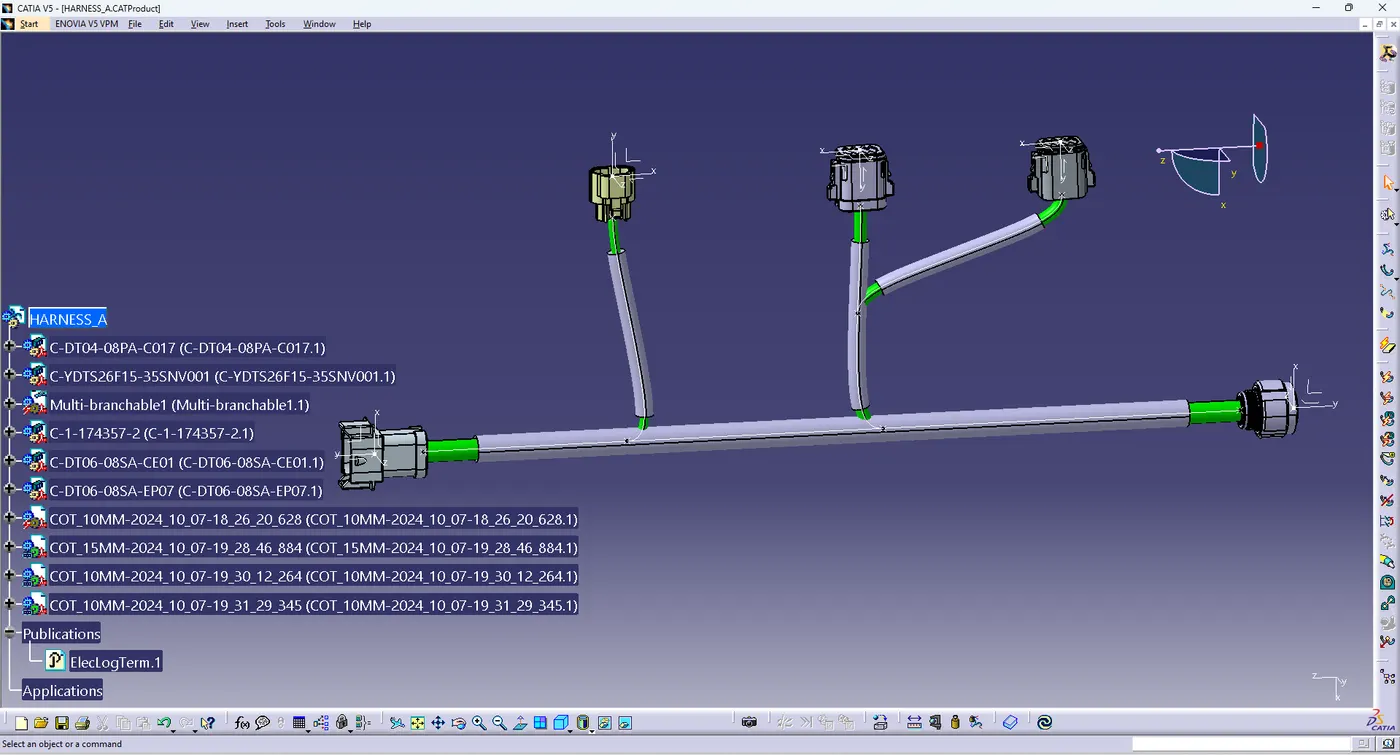
11. final HARNESS_A & HARNESS_B CONNECTED BY CONNECT ELECTRIAL DEVICE
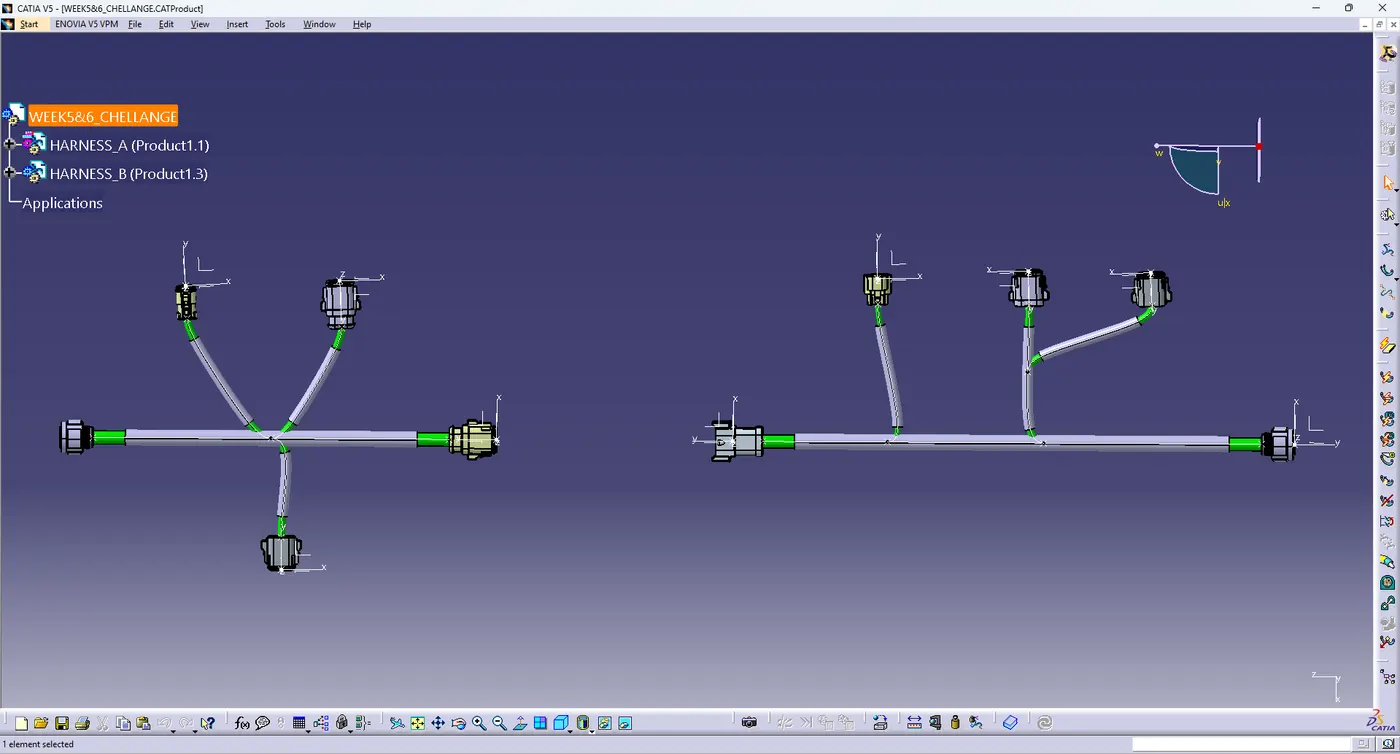
SO OPEN POP UP SMALL WINDOW FOR NOTIFICATION
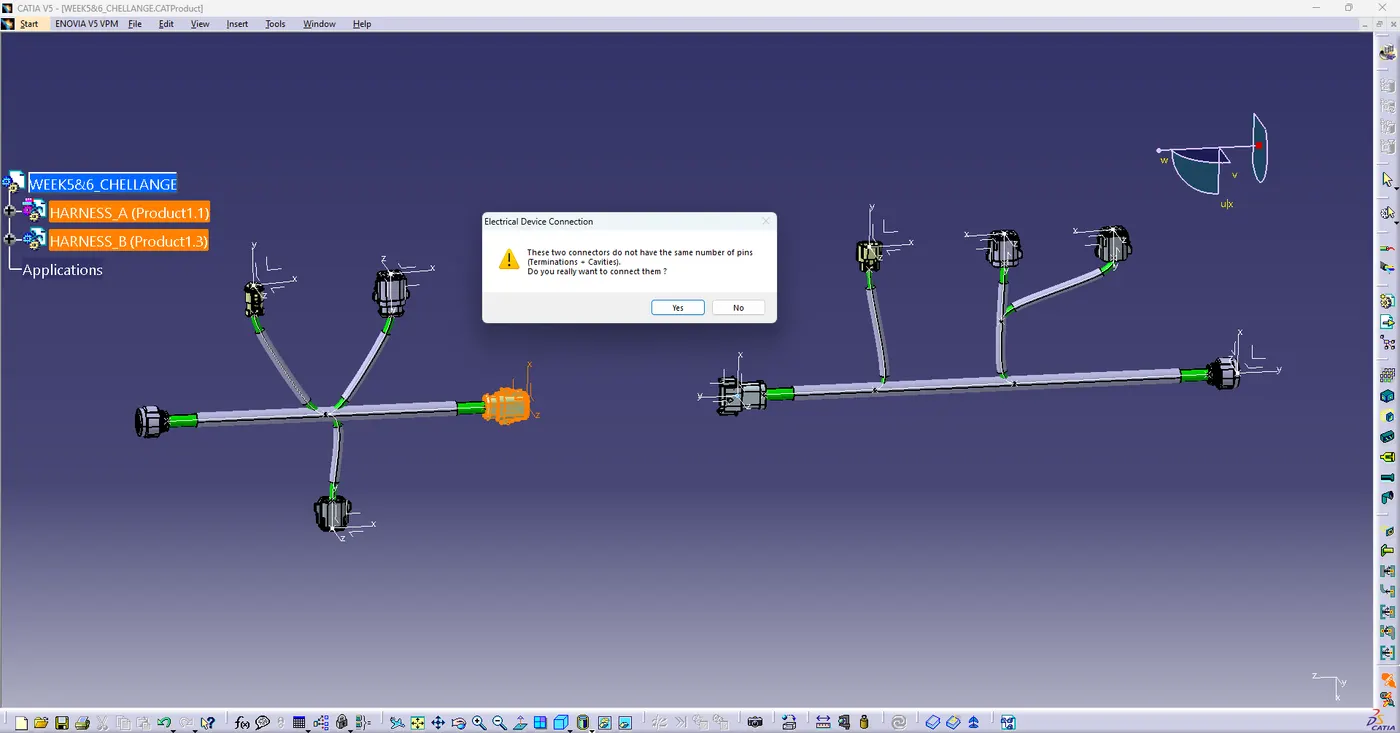
SHOWN HIGHLIGHTING BUNDDLE IN RED LINE SO SOLVED THIS PROBLEM BY ADJUSTING CONNECTORS
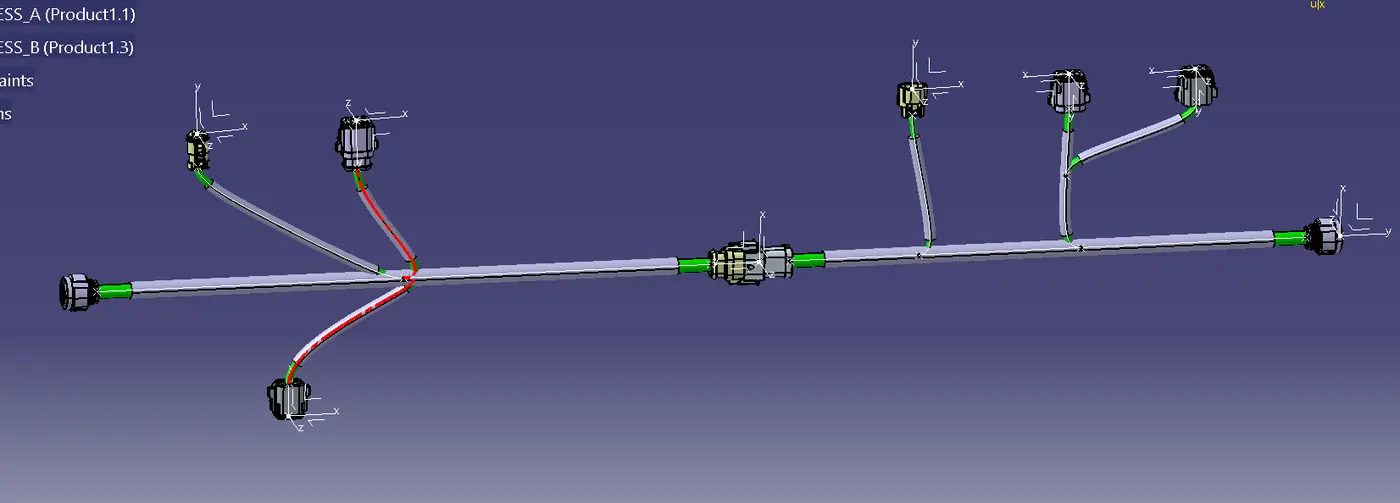
ADJUSTING CONNECTOR ACCORDING SO SOLVED THIS ERROR
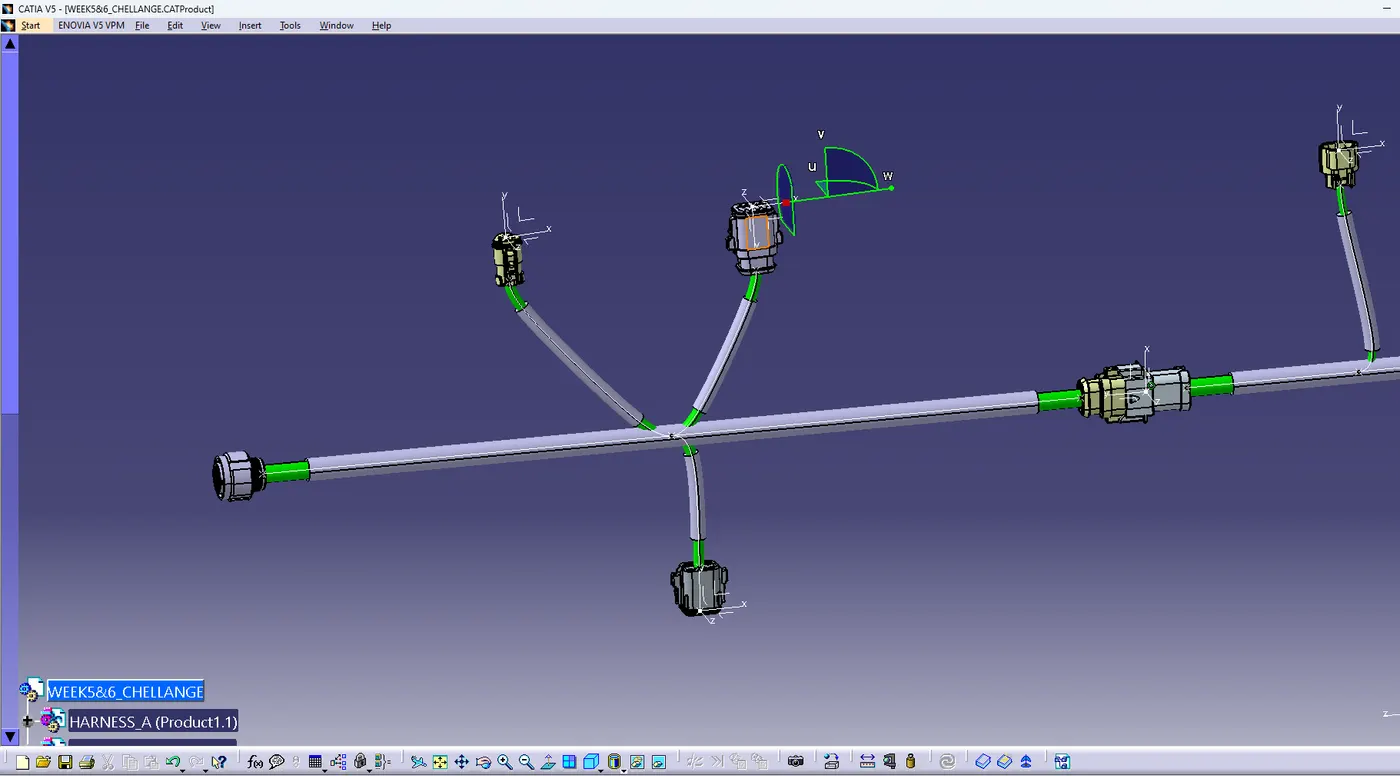
FINALY SOLVE THIS HARNESS :-
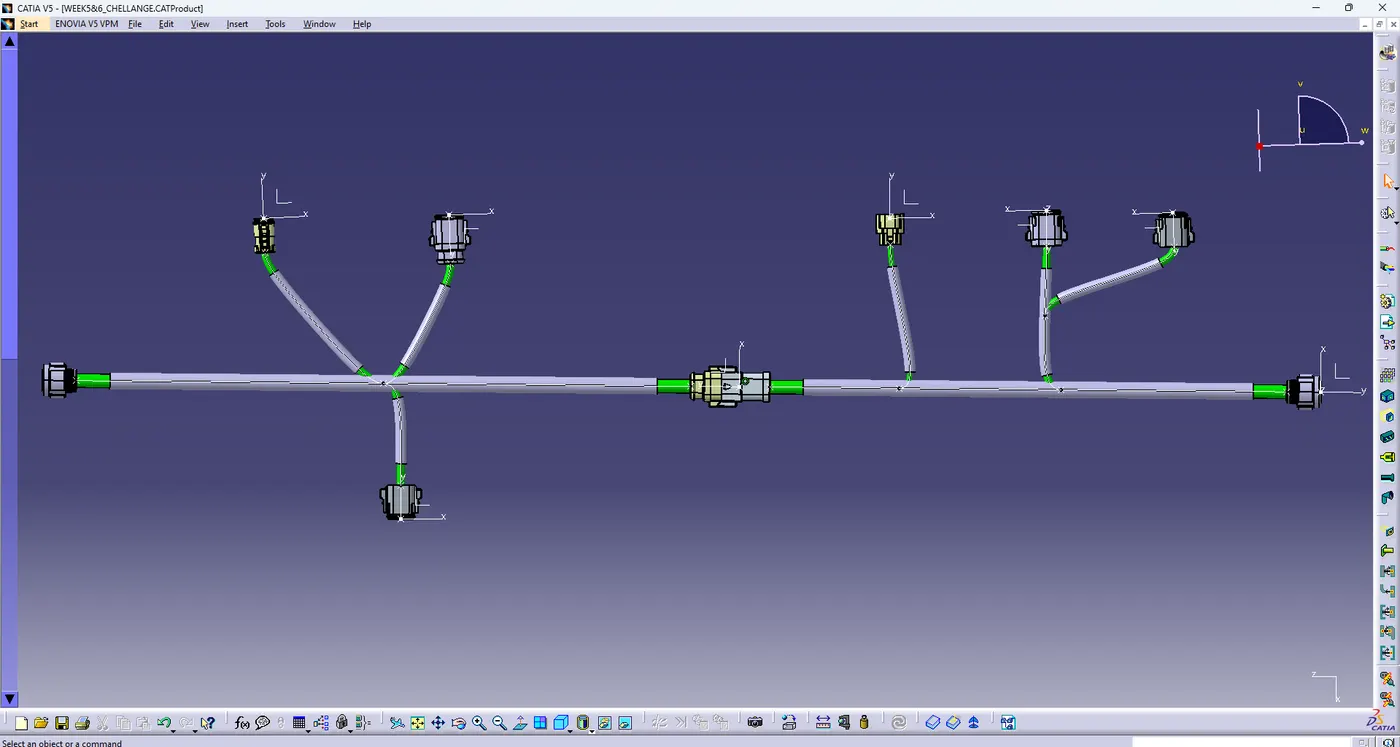
Some problem facing that time im defind route definition i select connector but select only point ,after i adjust the connector are diffrent diraction so move connector but bundle not update so.... so how to solved this problem
go to the tools> options > go to the part infrastructure> go to general option> enable the keep link with selected object > then ok