Wiring harness design in CATIA V5 - 3D modeling Week 5 & 6 Challenge
WIRING HARNESS CHALLENGE WEEK 5&6
In this challenge, as per the given diagram of the routing of the wiring and position of the connectors, I have started to work. Initially, I have downloaded the CAD data of the connectors from the link given. Then I extracted it and then converted the igs or stp files into CATPart files and saved it.
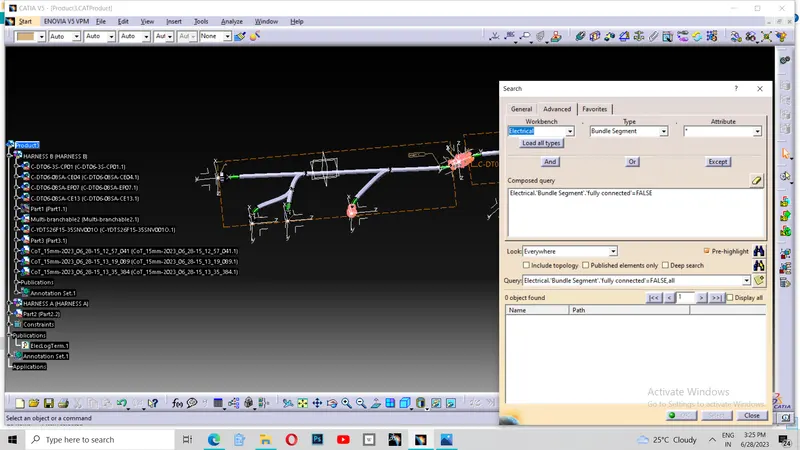
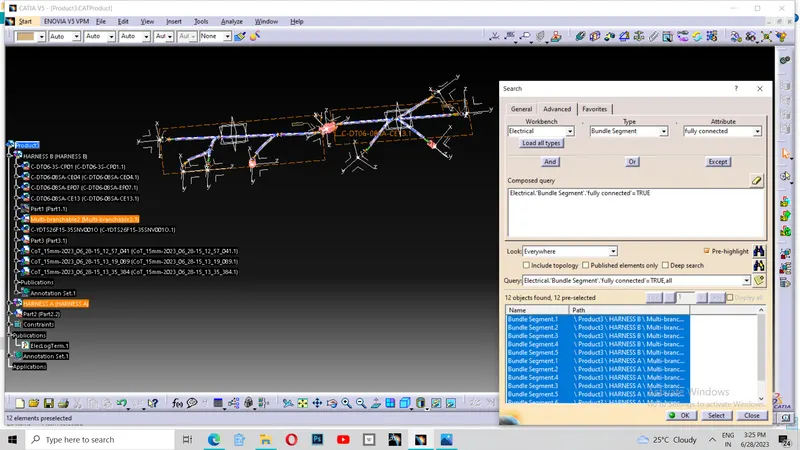
Then I opened each CATPart files of the connectors and defined it individually and added them to Catalogue of the connectors.. Then, I have added them to a product file(First product file named Harness A) and placed the connectors at it needed positions(6,7,8,9 and 10). Then I position it properly. Then I started to given the routings to from connectors to the connectors. And added 2 branch points in the main branch and added 1 more branch point in the sub-branch. Thus connected everyone. And then checked the connectivity , using Find tool. After confirming it is fully connected, I have added the Corrugated tubes to it having 15 mm diameter.
Then I opened 1,2,3,4 and 5 connectors to the another product file named Harness B and positioned it according to the given diagram . Then I added routings between the connectors by adding one branch point to it. Then I have checked the connectivity of the routings and find it is fully connected bundle segment as electrical. Then I have added corrugated tubes with 15 mm dia to it with end extremity of 30 mm gap.
Then I added these two product files named Harness A and Harness B to the new product file. Then position it correctly and interconnected the two connectors( 5 and 6).
Then I have added flag note to the main bundles of two different harnesses and named Harness A and Harness B rerspectively after the selection of the plane I needed to write. Then I added text with ladder to the each connectors and named their number representing in the diagram I followed for the positioning of the connectors and their routings.
Then I converted the CATProduct file into CATPart file using the option in the tool bar named "Generate CATPart from CATProduct" and saved it as an igs file. Thus I completed my challenge. Here I submitting my igs file, CATPart files and CATProduct files . THANKYOU.