Wiring harness design in CATIA V5 - 3D modeling Week 5 & 6 Challenge
Q1. Route the following harness layout in Electrical workbench. Make assumption for harness bundle diameters. Use the connectors provided. After completion of routing,
- Check the bundle Continuity. Add snap of result in submission
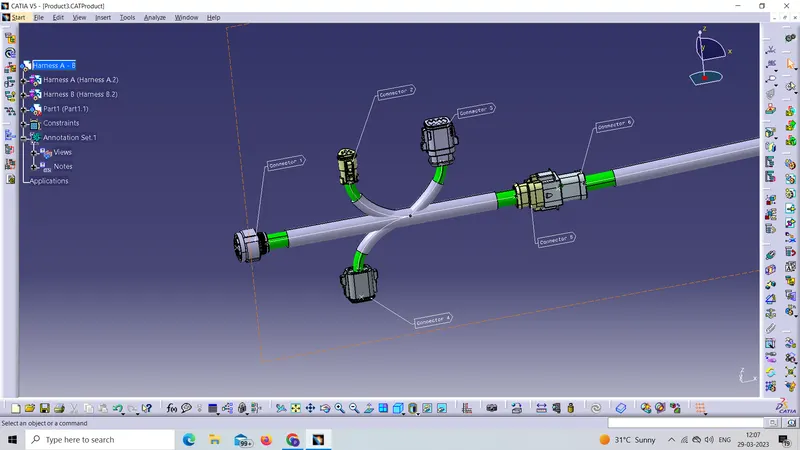
- Add annotation to all connectors. Make an assumptions for annotations like connect 1 , 2 etc
- Check for the bundle warning. Add snap.
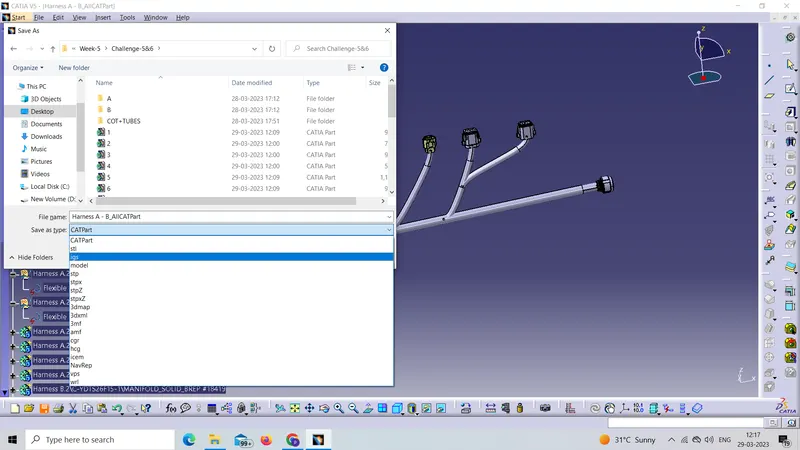
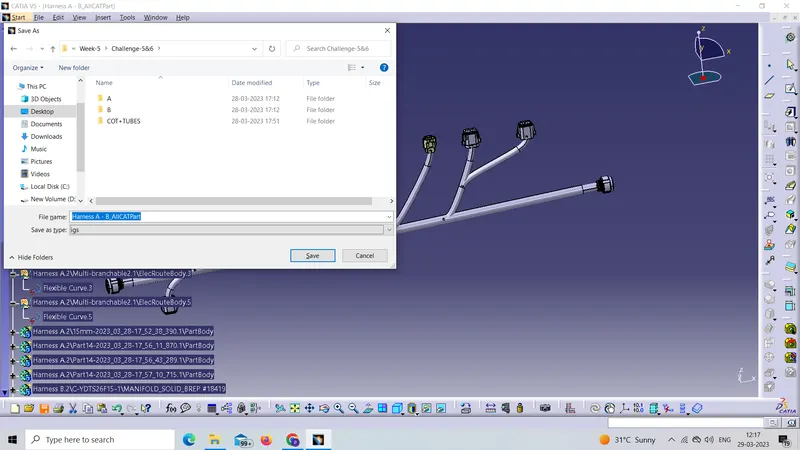
- Generate CAT.part of harness assembly and convert is in. igs format.
Answer:-
firstly we have define all connectors as eletric part by using electrical workbench.(Electric Part Design)in that we use command like Define connector, Conector connection point, Bundel connetion point for using these command we have creat point And axis system on the bundle connection point And Connector connection point side of connector
1. Connector 1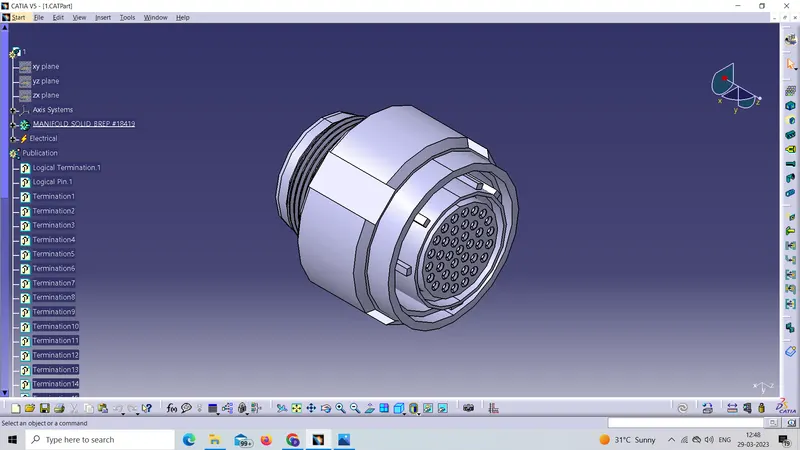
2. Connector 2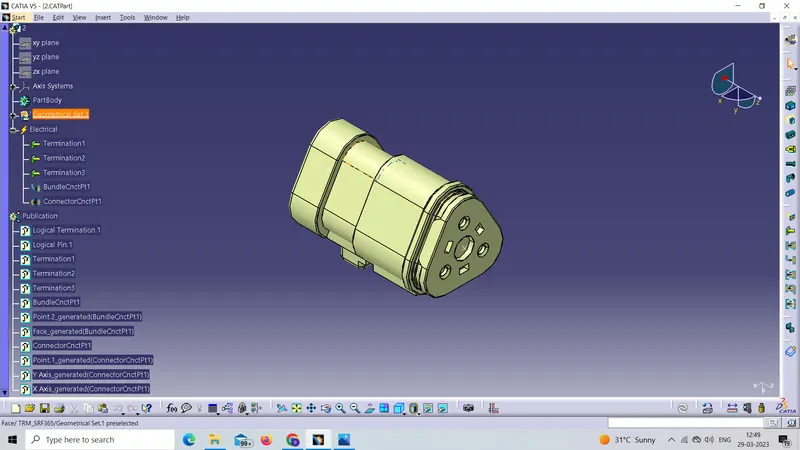
3. Connector 3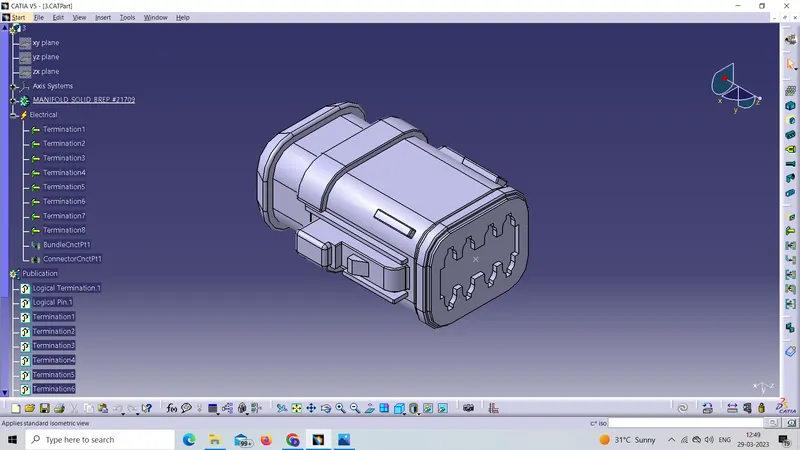
4. Connector 4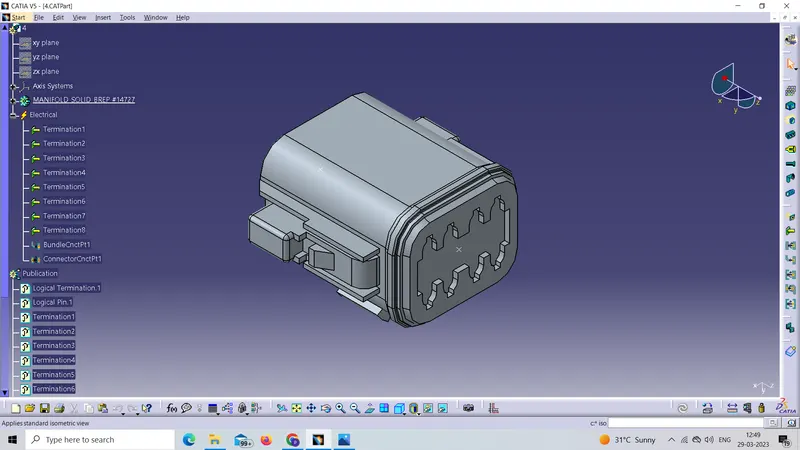
5. Connector 5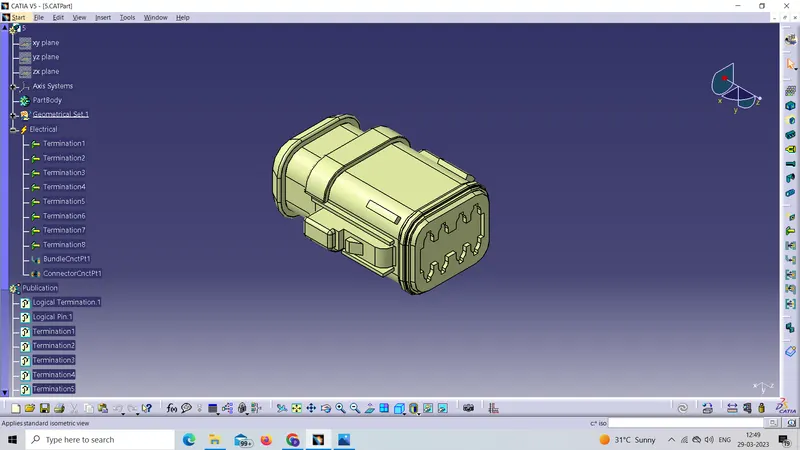
6. Connector 6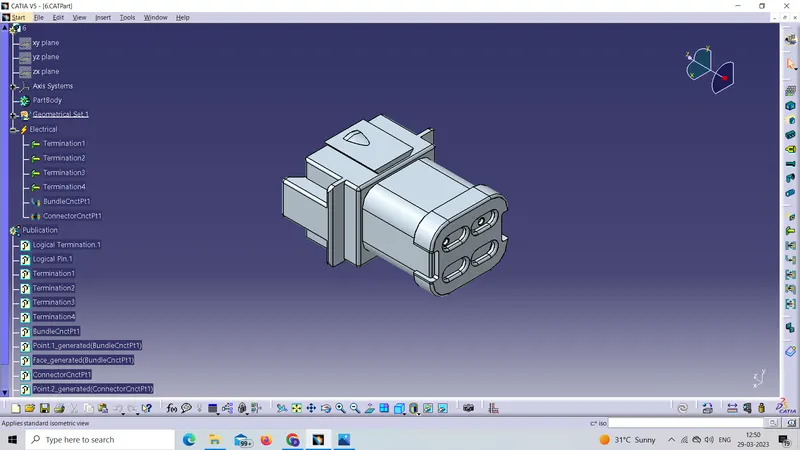
7. Connector 7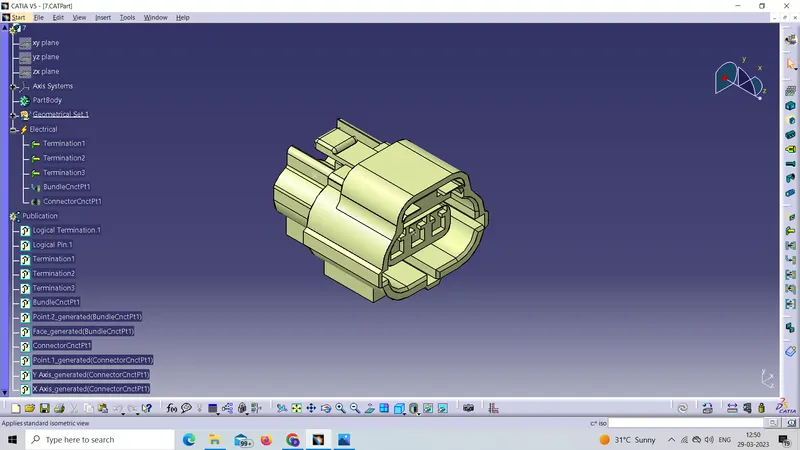
8. Connector 8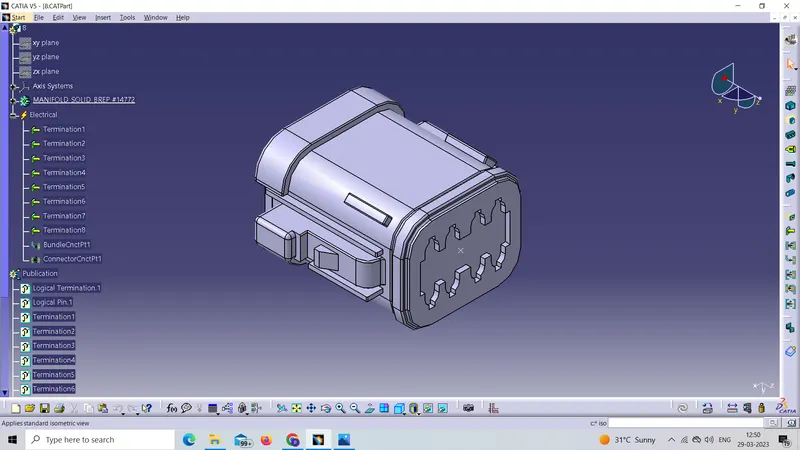
9. Connector 9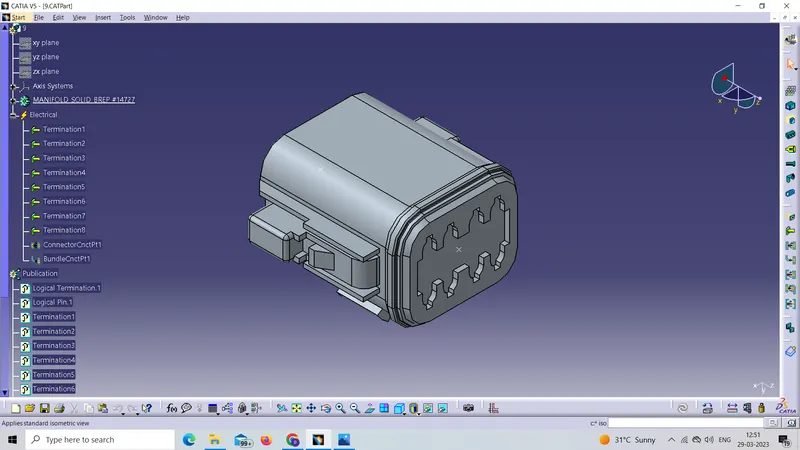
10. Connector 10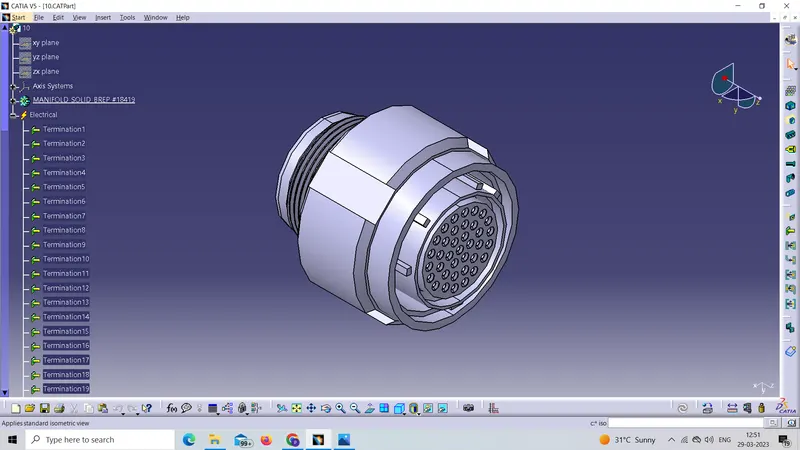
After defining electrical properties to the connectors now doing multibranching for routing
Harness A And Harness B
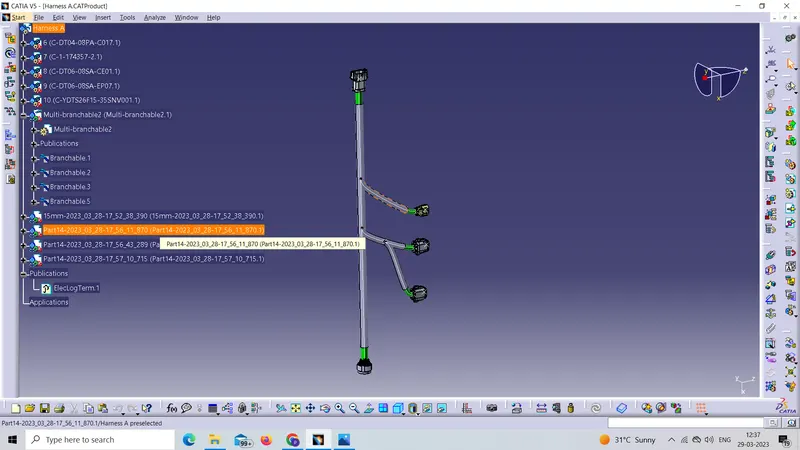
Harness A
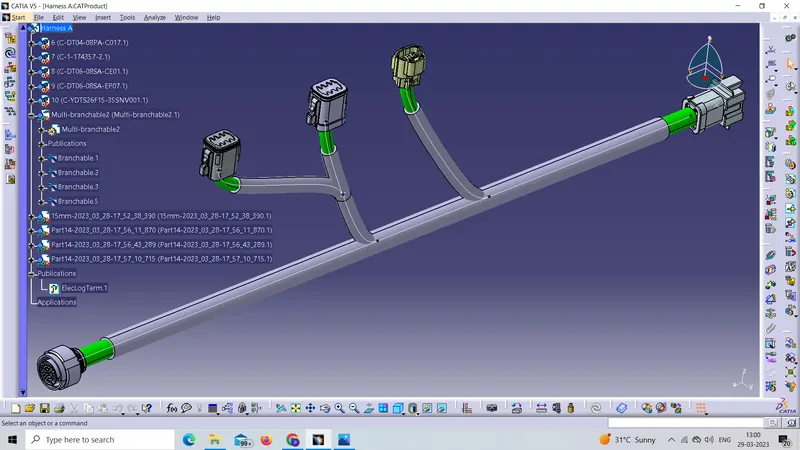
here we also added porection covering by using protective covering command
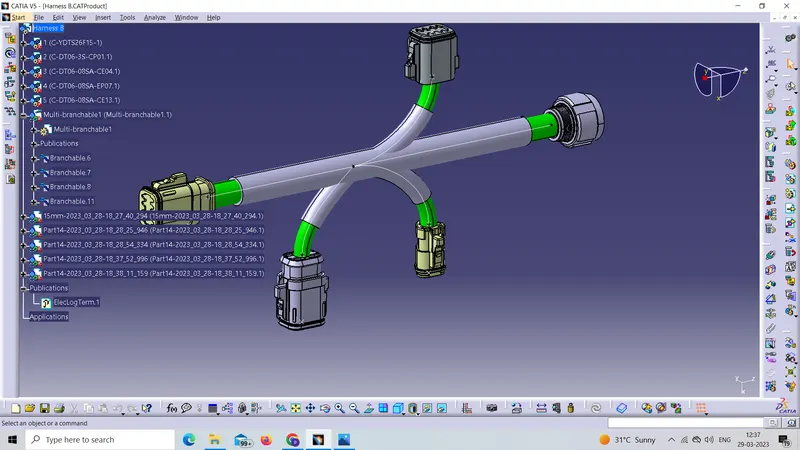
Harness B
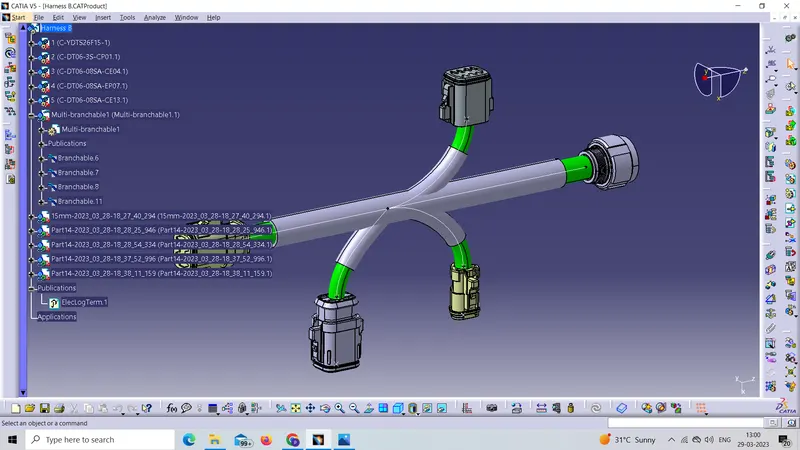
here we also added porection covering by using protective covering comman
Now going to eletrical workbench to assembl the Harness A & Harness B
Steps to switcing the electrical Asembly design workbench shown in below picture
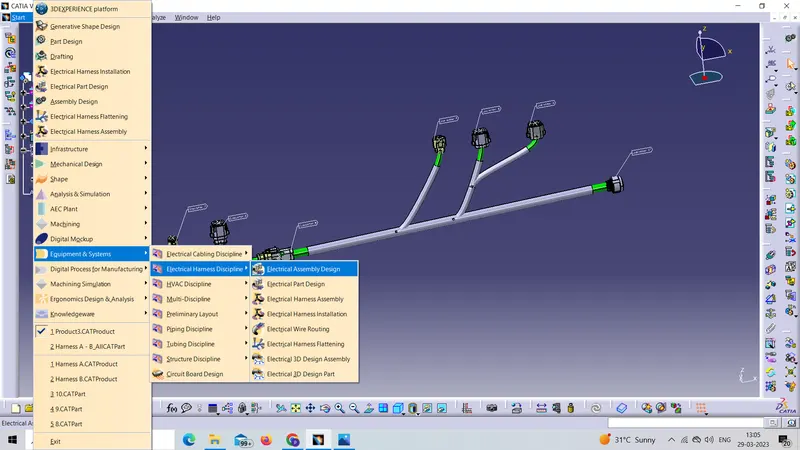
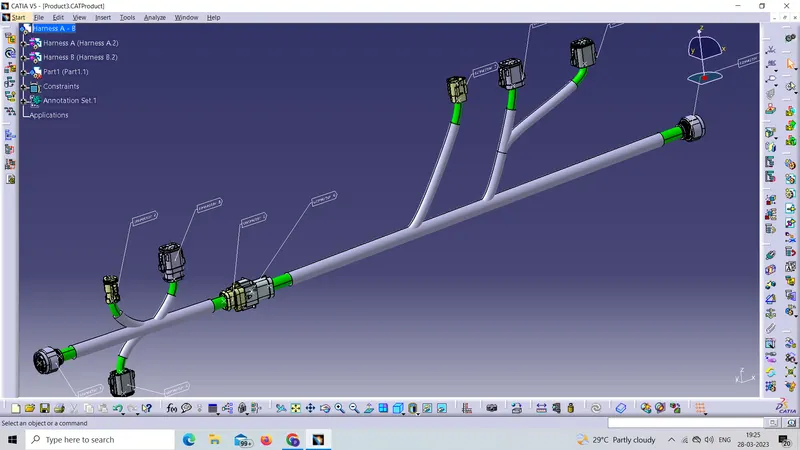
1. Check the bundle Continuity. Add snap of result in submission
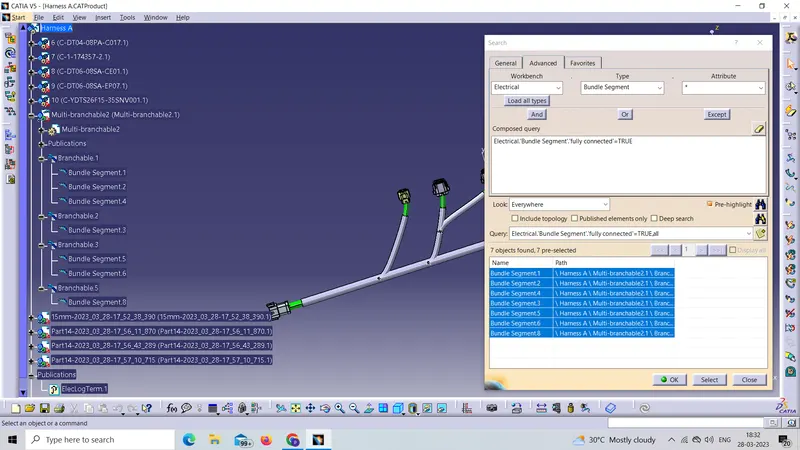
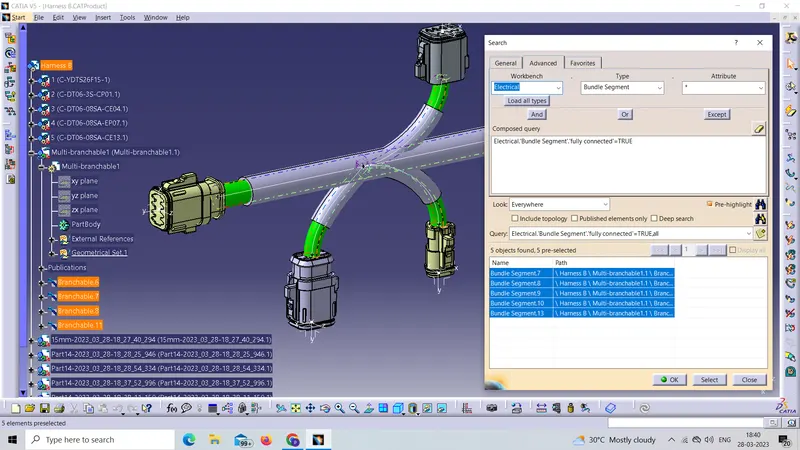
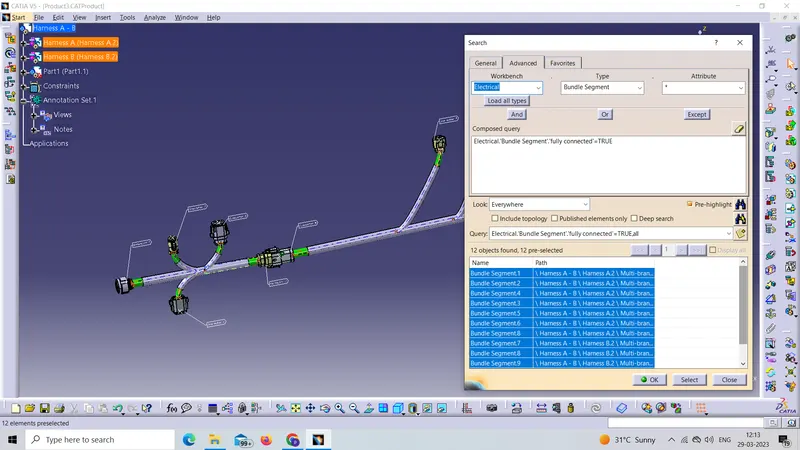
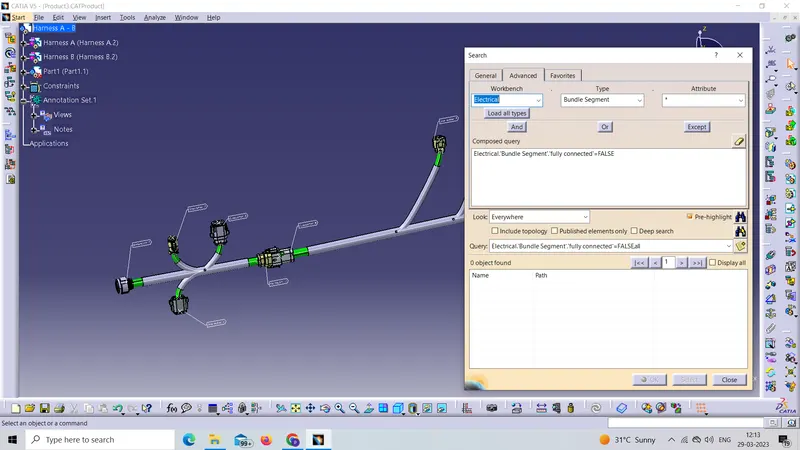
2.Add annotation to all connectors. Make an assumptions for annotations like connect 1 , 2 etc
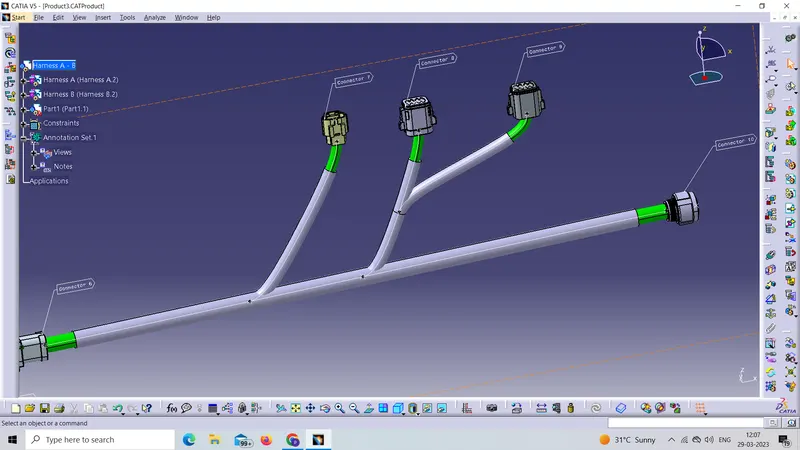
3. Check for the bundle warning. Add snap.
We can check the bundle warning checking the multibranche tree as we see in below pictur e no waring is showing
Harness A
Harness B
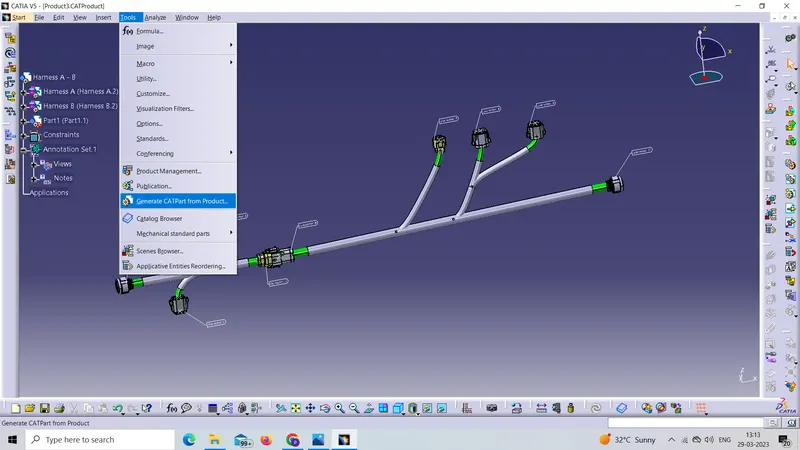
4.Generate CAT.part of harness assembly and convert is in. igs format.
For creating CAT.part we have to siwtch in the mechanical worknench then tools in tools we have to click on the Generate CATPart From Product
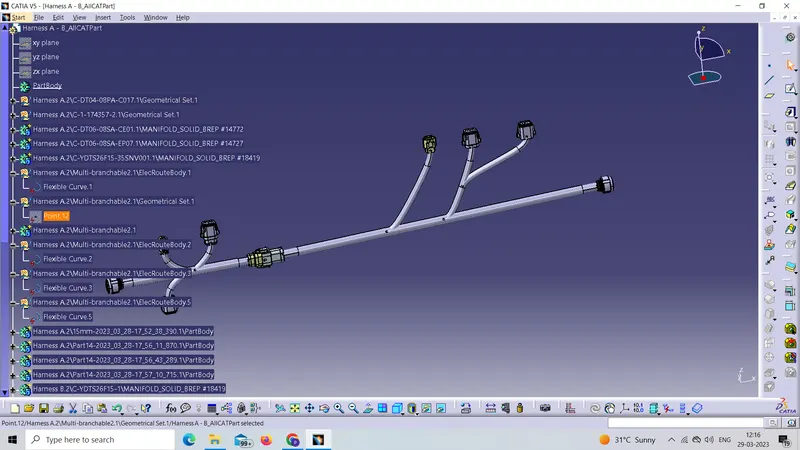
After completing the above step our CATPart is created
Now save the file as per our required extension file as we need igs extension file we select the save as type is igs as shown in below figure
(Note:-1. All the necessary file converted into signal zip file and attached below )