Wiring harness design in CATIA V5 - 3D modeling Week 5 & 6 Challenge
Procedure :
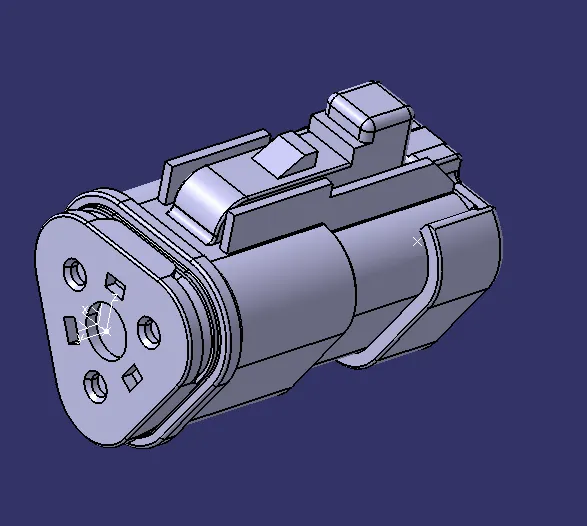
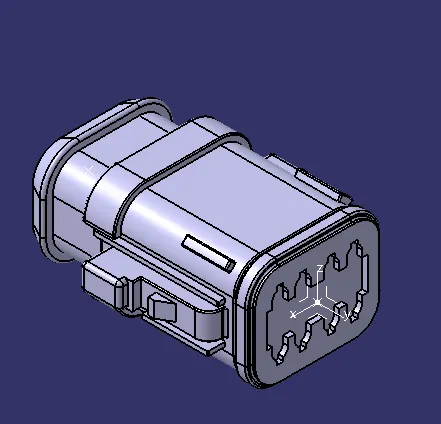
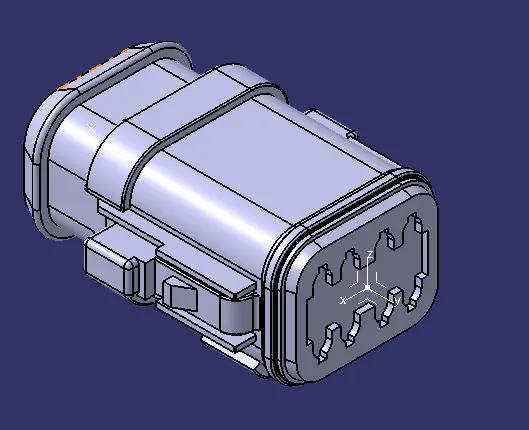
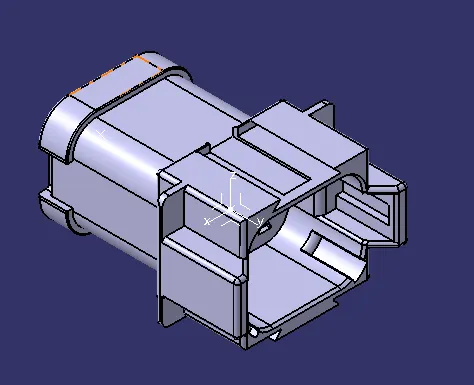
- Go To the Part design workbench & Taking A middle Point From The Connector Connecting Side As Well As Bundle Connecting Side.
- Taking the axis Origin of Connector connecting Point.
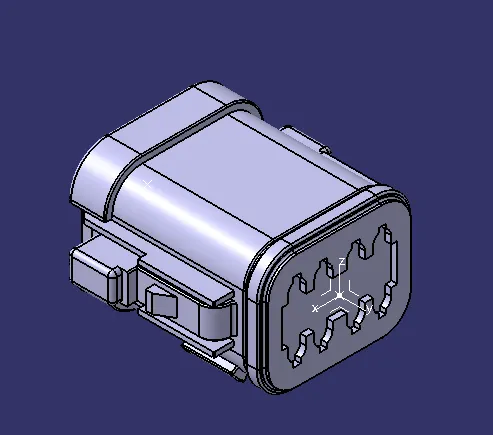
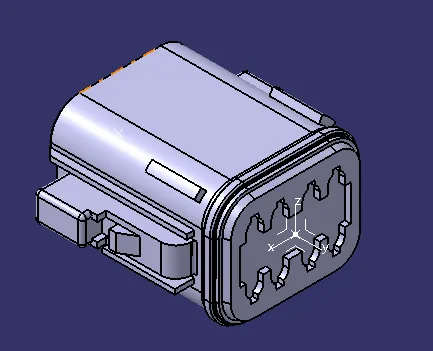
- Adusting the y-axis is normal to the face of connector connecting Point & X-axis would be locking side & Z-axis would be Up or down side.
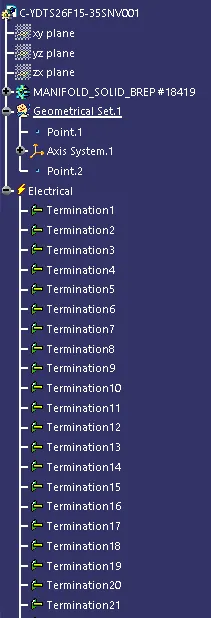
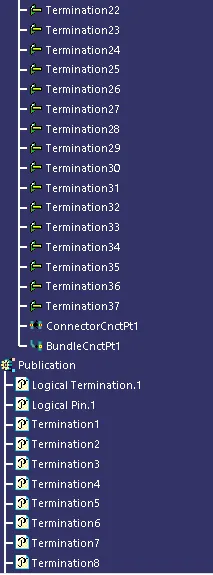
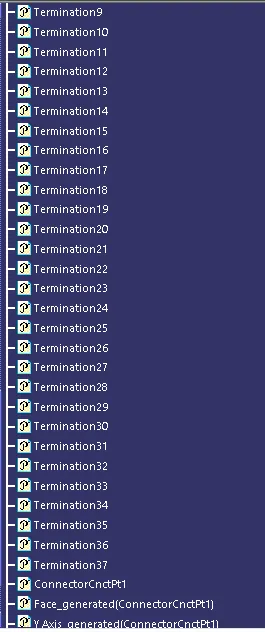
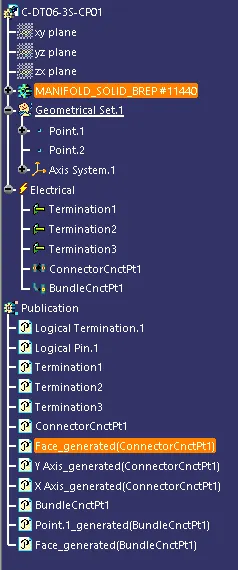
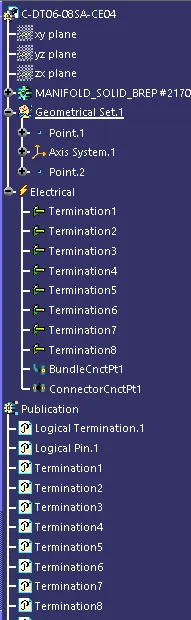
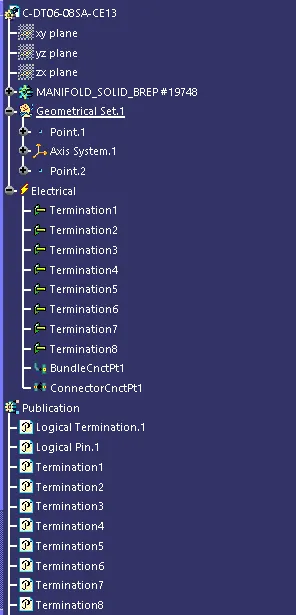
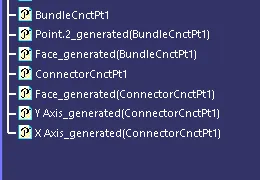
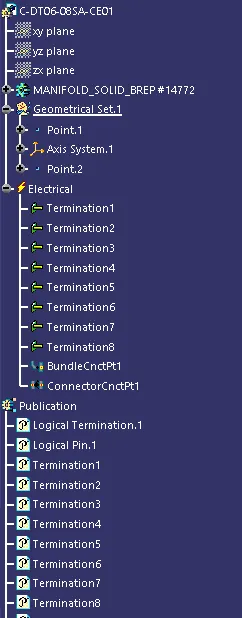
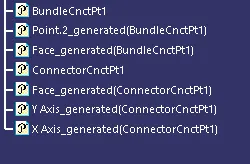
- Then go to the electrical part design workbench after that defined it as a connector & Add no of terminals it has & defining the connector connection point As well as bundle connection point
1st Connector of Harness B :
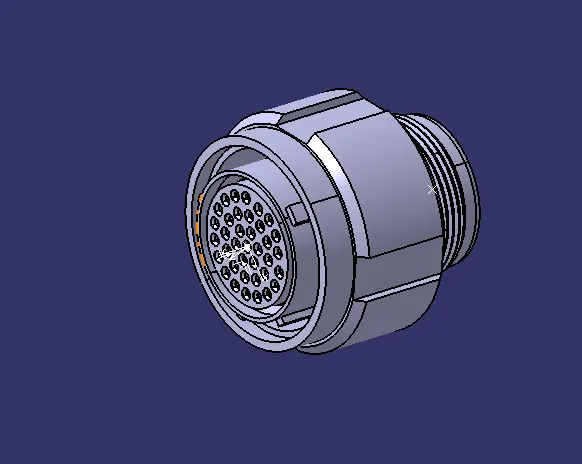
TREE STRUCTURE
2st Connector of Harness B :
TREE STRUCTURE
3st Connector of Harness B :
TREE STRUCTURE
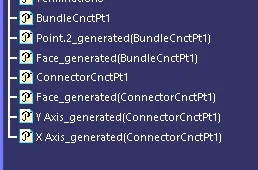
4st Connector of Harness B :
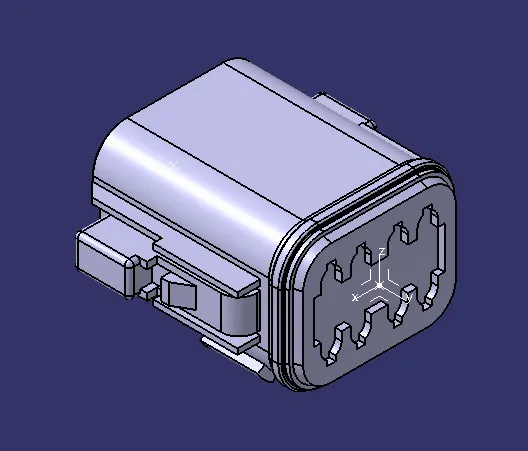
TREE STRUCTURE
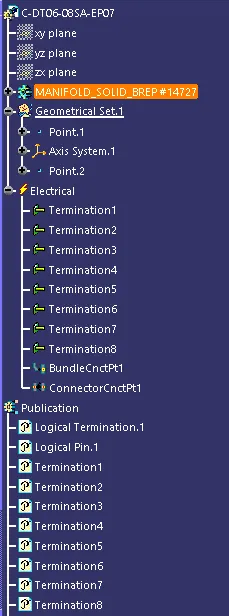
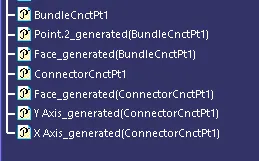
5st Connector of Harness B :
TREE STRUCTURE
6st Connector of Harness A :
TREE STRUCTURE
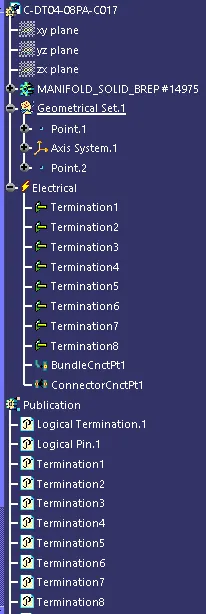
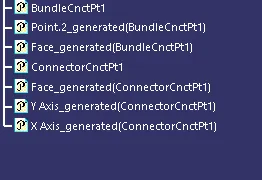
7st Connector of Harness A :
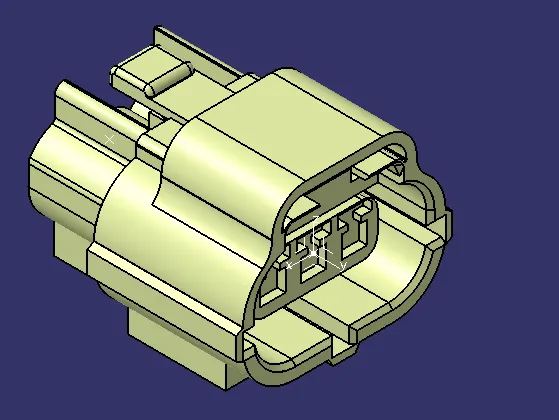
TREE STRUCTURE
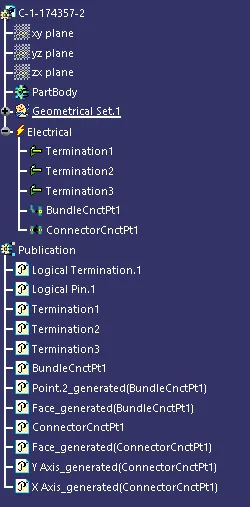
8st Connector of Harness A :
TREE STRUCTURE
9st Connector of Harness A :
TREE STRUCTURE
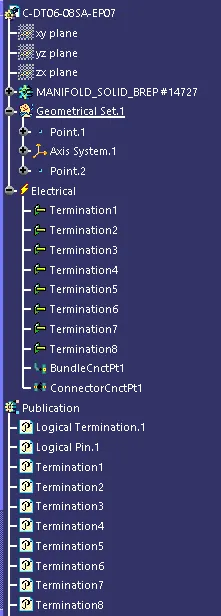
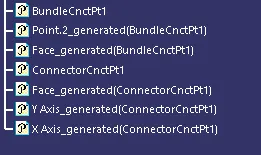
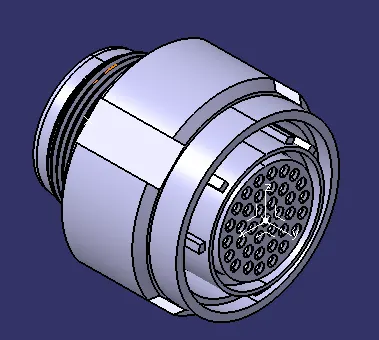
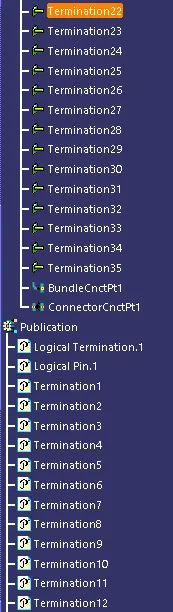
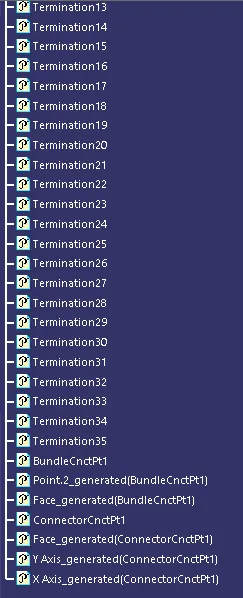
10st Connector of Harness A :
TREE STRUCTURE
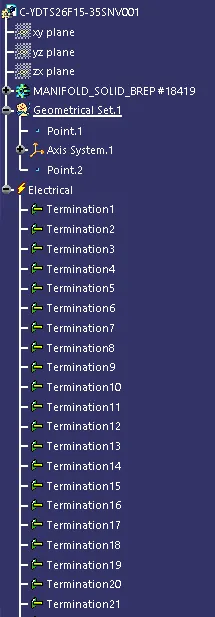
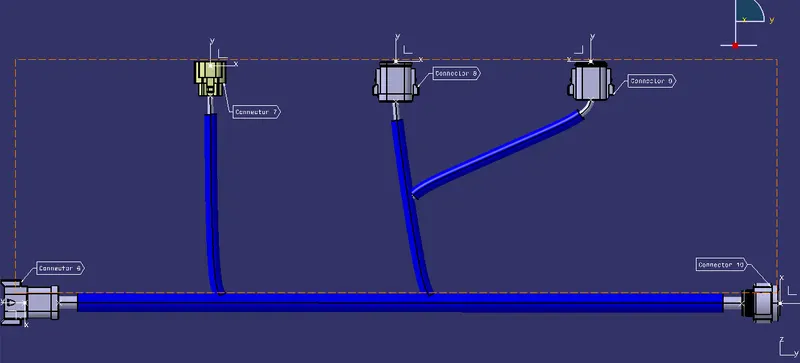
Electrical harness Assembly A :
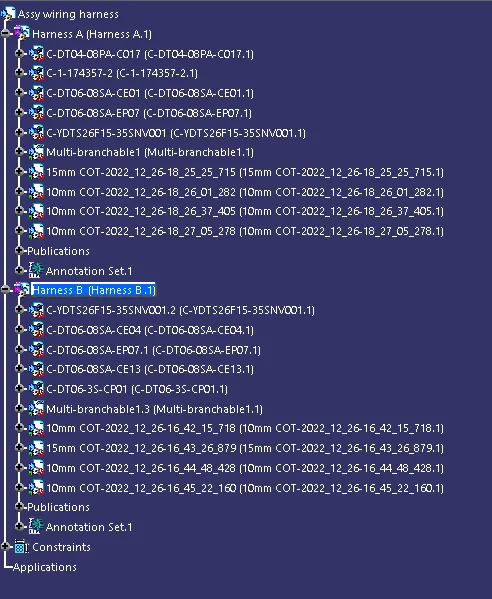
TREE STRUCTURE
Procedure :
- Then Go to the electrical harness Assembly Define the product as an geometric bundle.
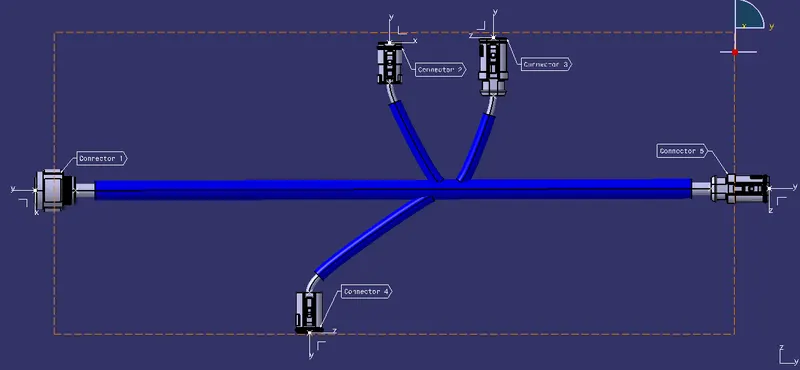
- Then go the multibranchable point Route the bundles And suiatable break points with respect to the given Diagram
Electrical harness Assembly B:
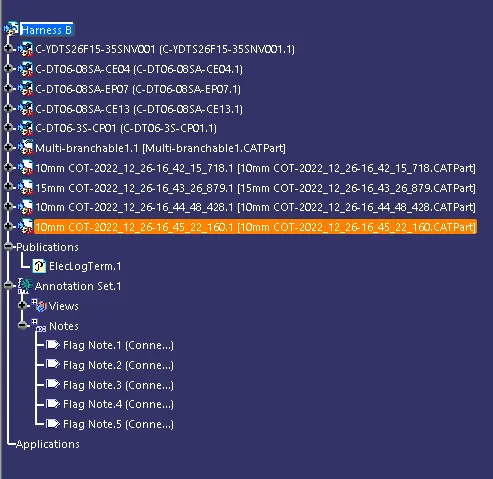
TREE STRUCTURE
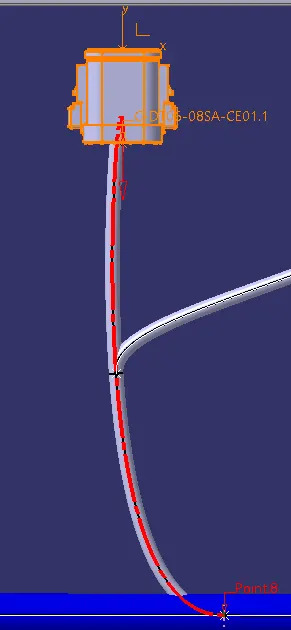
Bundle warning
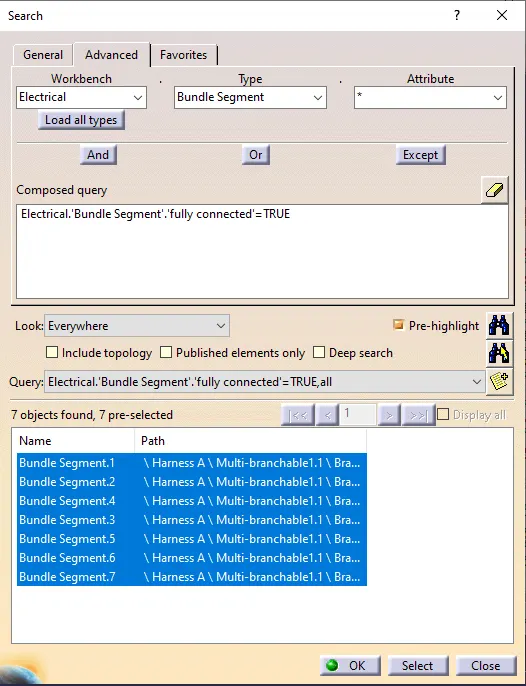
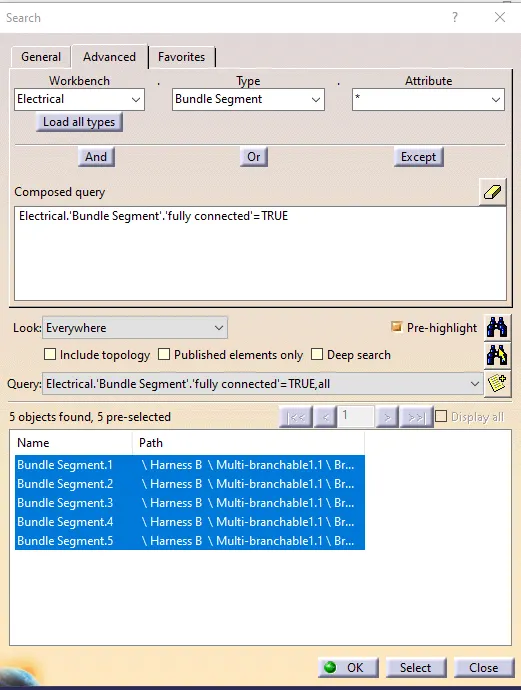
Checking The Bundle Continuity :
- By Clicking the Ctrl+F Key we go the pop up .
- Then Go To The Advanced & Select the Electrical workbench & select the bundle segment on type & go to the attributes select the Fully Connected
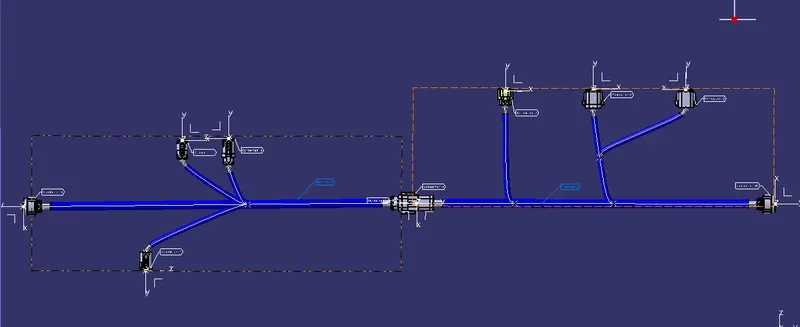
- Electrical harness Assembly A
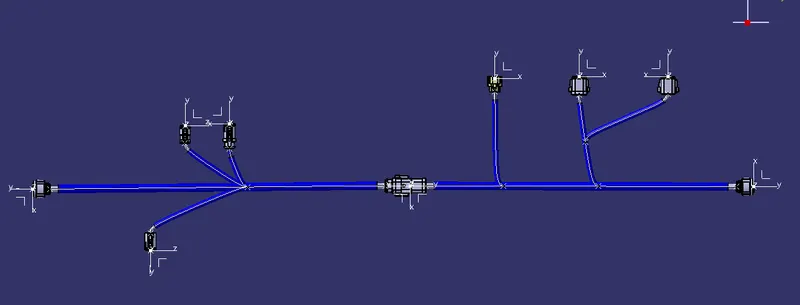
Electrical harness Assembly B
Annotations & Assembly :
TREE STRUCTURE
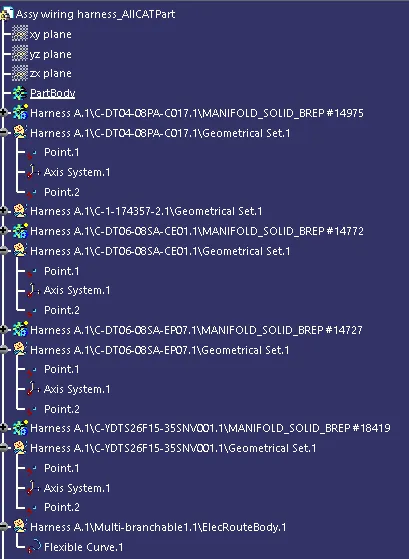
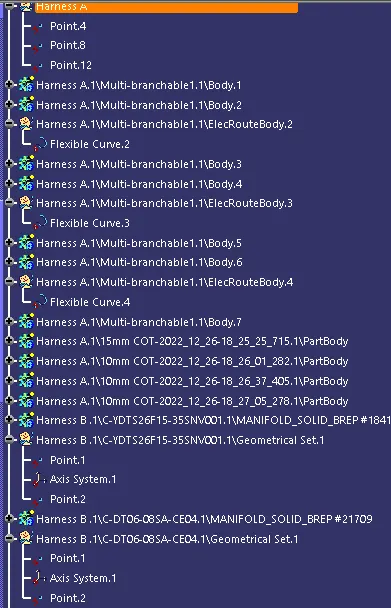
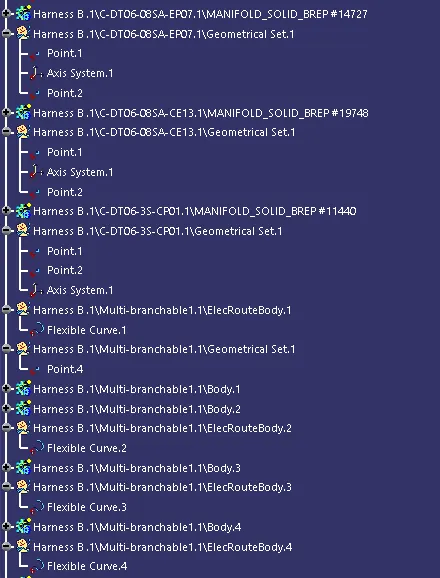
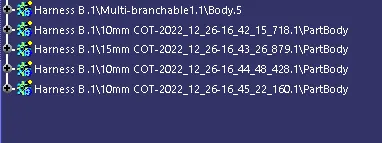
Generating CAT.part of harness Assembly :
TREE STRUCTURE
CONCLUSION:
- Thus, The required Harness(A&B) routing has created for given layouts in Electrical workbench.
- Bundle continuity has cheked and Annotation created on all connectors.
- Bundle warning has successfully checked and resolved.
- The required CAT.Part has created and converted as igs.in file.