Week 9 Tension and Torsion test challenge
AIM:
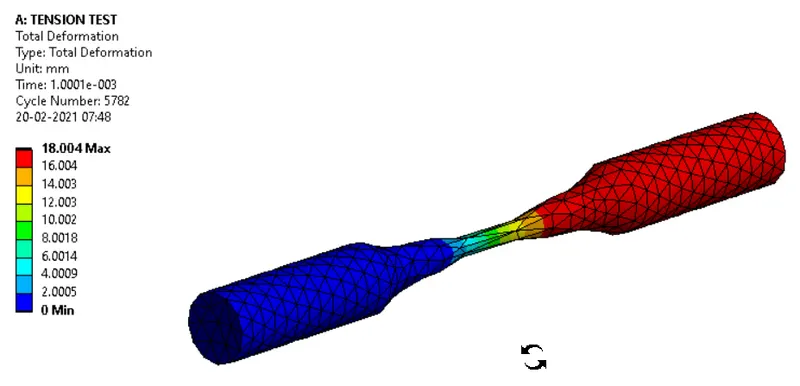
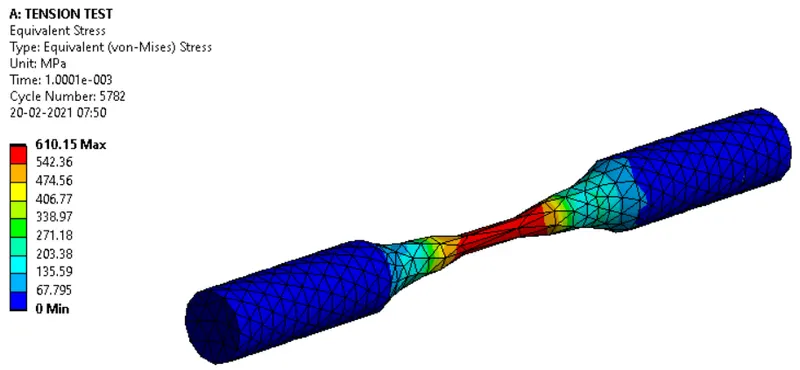
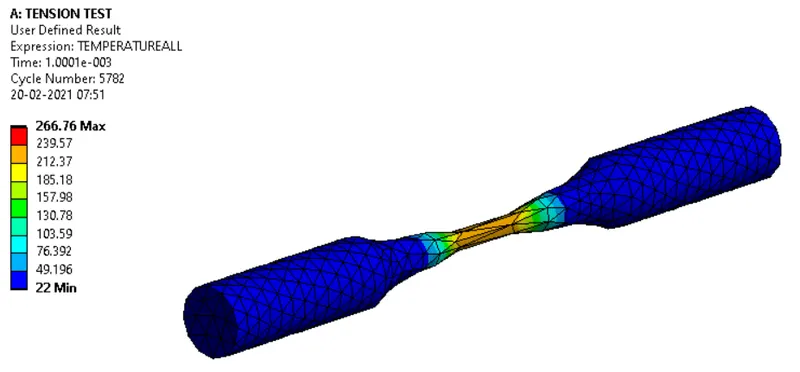
- To perform the tension test on the given specimen using ansys workbench to find equivalent stress, Total deformation, and temperature of the specimen.
- To perform the torsion test on the given specimen using ansys workbench to find equivalent stress, Total deformation, and temperature of the specimen.
PROCEDURE:
TENSION TEST:
- Open ansys workbench.
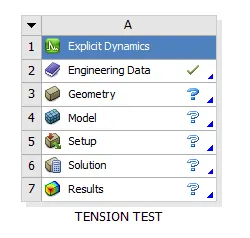
- Dropdown explicit dynamic analysis system to perform both torsion and tension test.
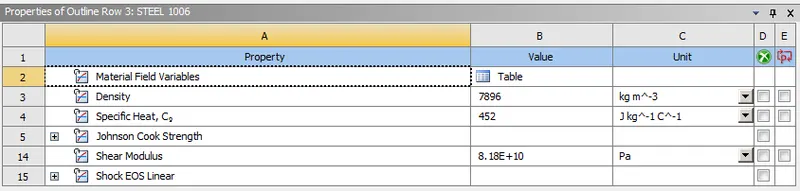
- Open engineering data resources and add Steel 1006 to perform the simulation and close engineering data.
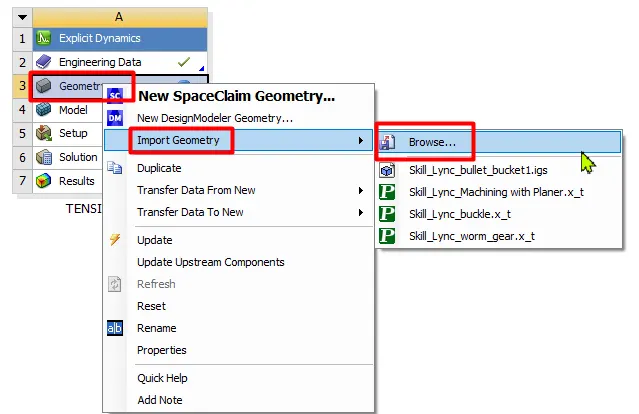
- Import the geometry by browsing to the file location.
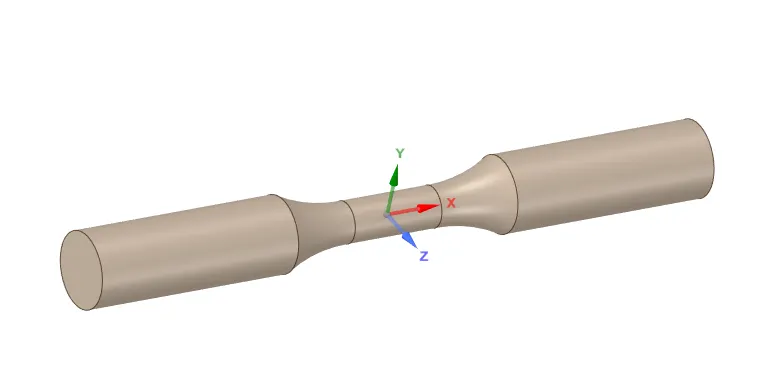
- Open the model using SpaceClaim to check for abnormalities in the geometry.
- Close the Spaceclaim and open ansys mechanical to set up the simulation.
- Change the material of the specimen to steel 1006.
- Create two coordinate systems using the face geometry of the specimen as below.
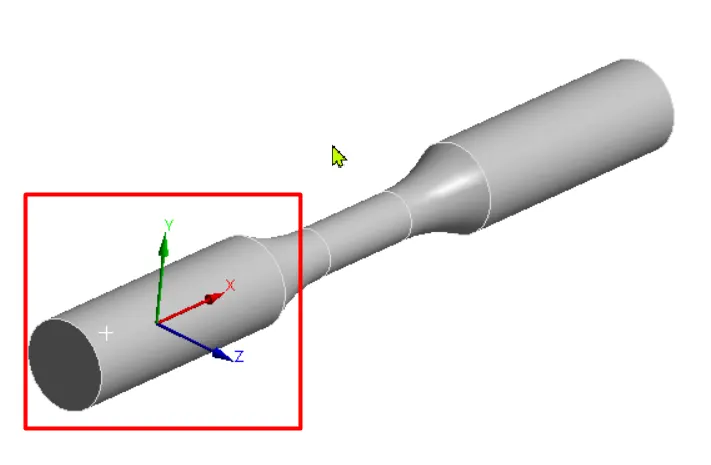
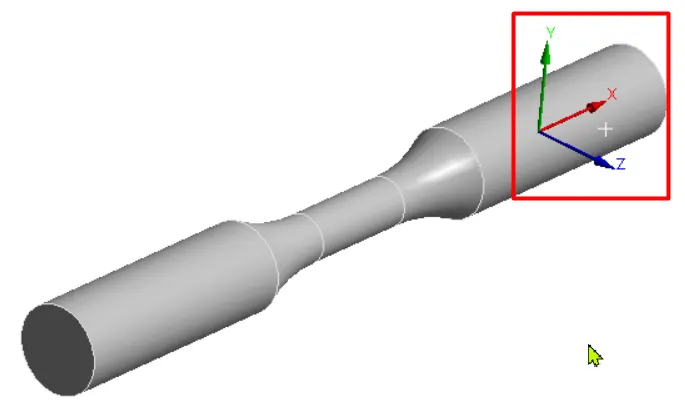
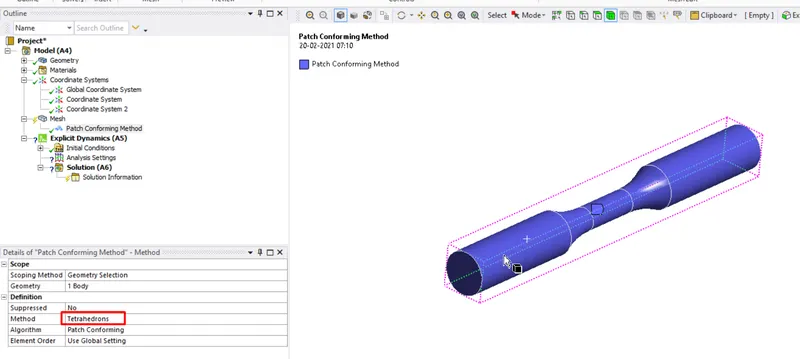
- Now go to mesh and insert a method and select specimen using body filter and apply and change the method to tetrahedrons.
- Insert a sizing and change type to the sphere of influence by using the face filter select the below face and center as the coordinate system created using the face and change the sphere radius to 22mm and change the element size to 3mm.
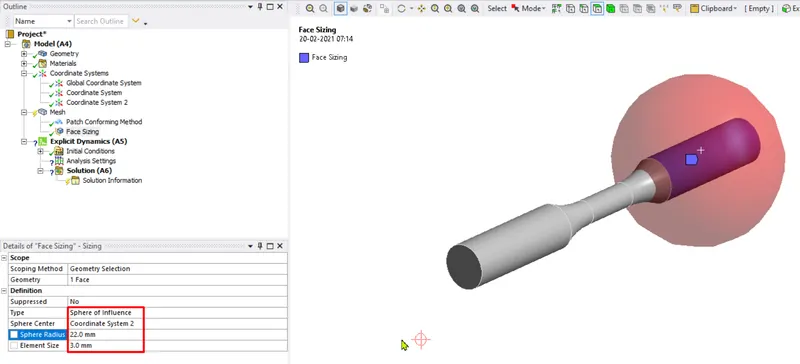
- Do the same for the other side of the specimen.
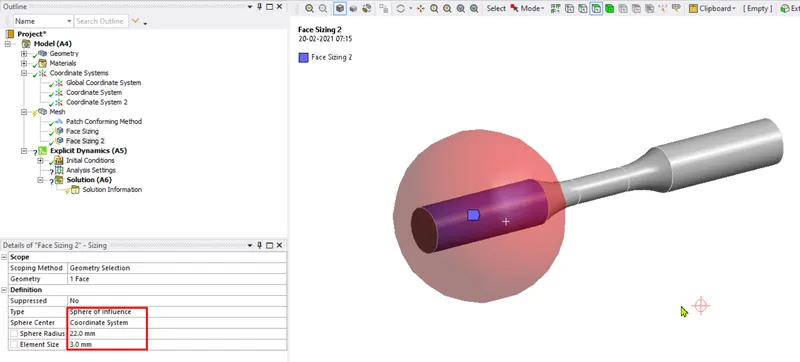
- Generate mesh.
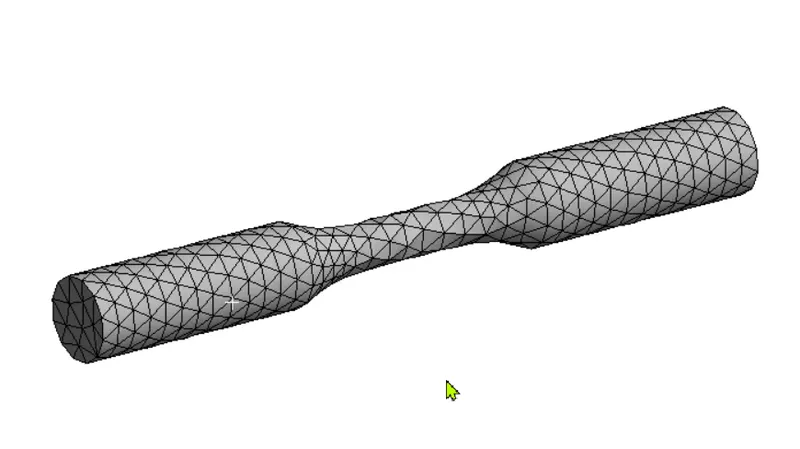
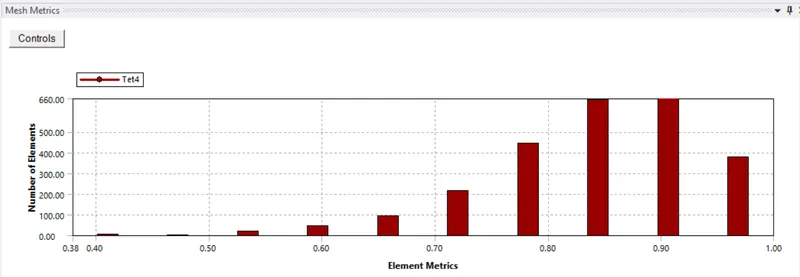
- The above graph represents the element quality and type of elements used for the simulation.
- Now under analysis settings change the end time to 1e-3.
- Now apply displacement load on one side of the specimen along x-direction as 18mm and fixed support on the other side of the specimen.
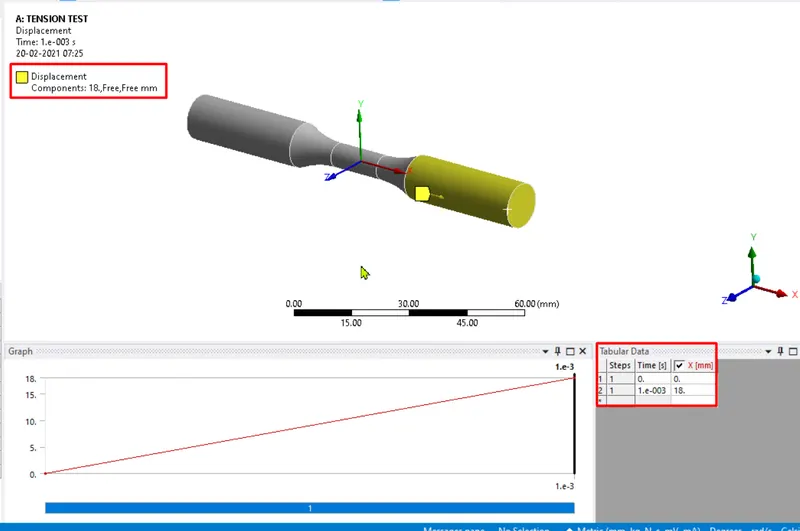
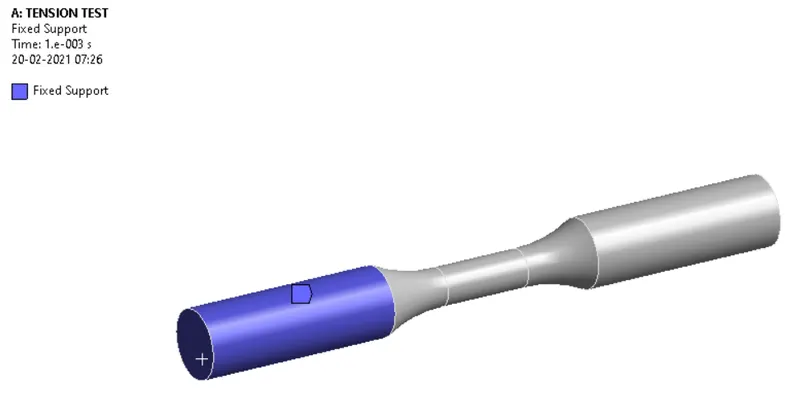
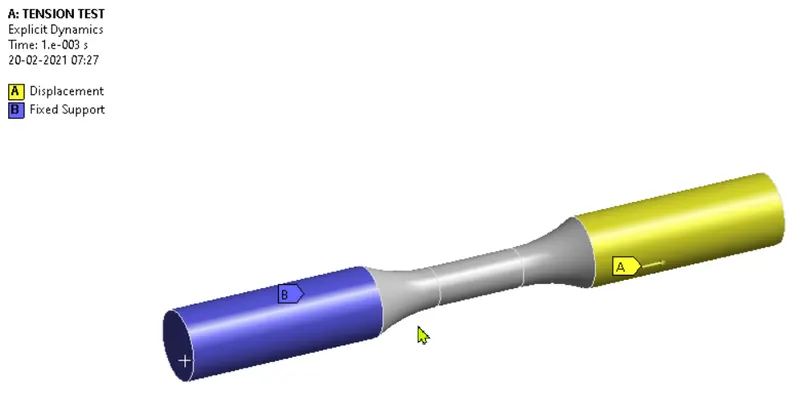
- Now list down the outputs required from the simulation and simulate to obtain results.
PROCEDURE:
TORSION TEST:
- Now to perform the torsion test duplicate the tension test simulation system.
- Under mesh insert face sizing with an element size of 1.5 mm for the below faces.
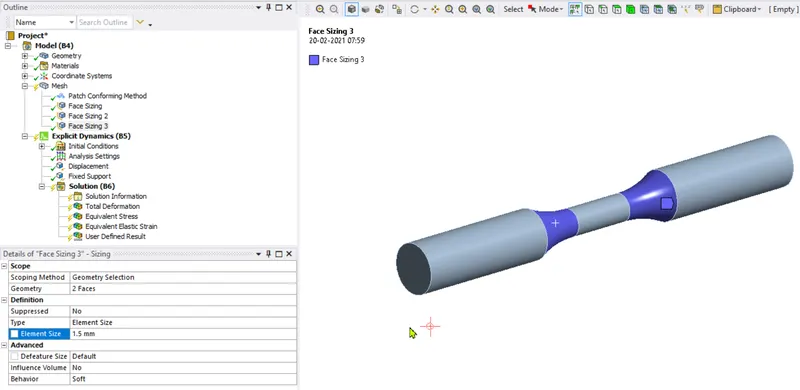
- Now insert the face sizing with type as the sphere of influence for the below face using as sphere radius as 8mm and element size as 1mm and sphere center as a global coordinate system.
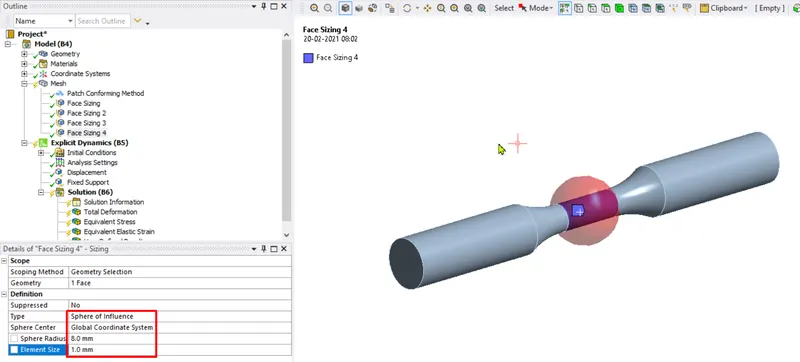
- Generate mesh.
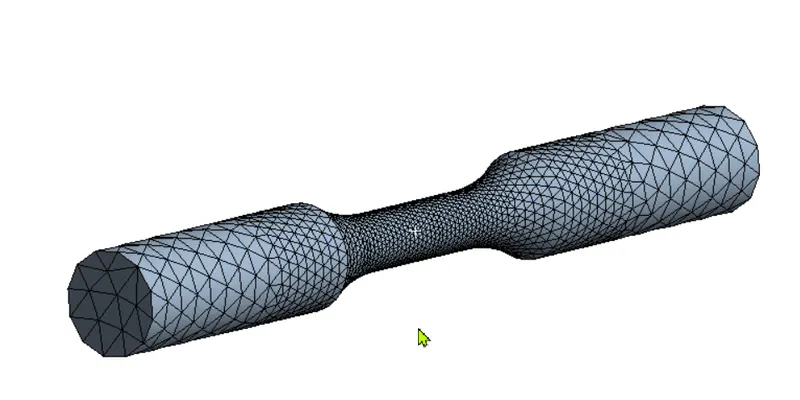
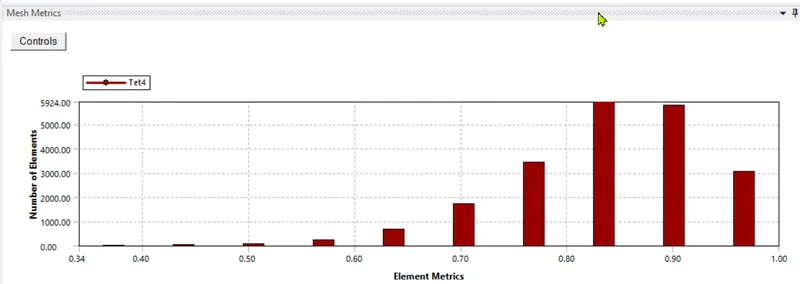
- The above graph represents the element quality and type of elements used for the simulation.
- Now to perform the torsion test create a cylindrical coordinate system for the below face.
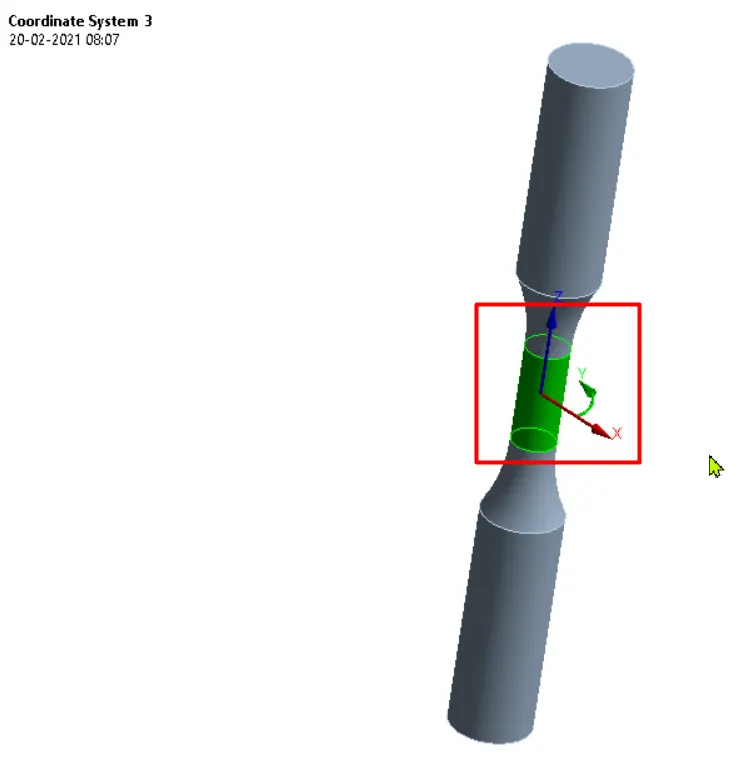
- Now click on the displacement load and change the coordinate system to the newly created one and change the values of displacements of x and z to zero and y to 1200 degrees.
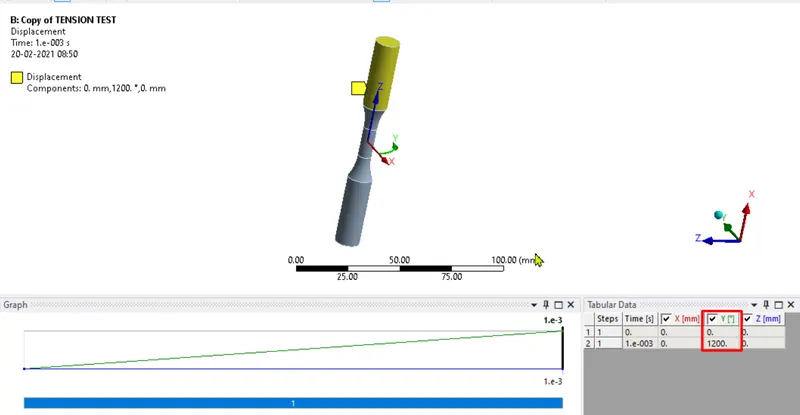
- Now simulate to obtain the results.
RESULTS:
TENSION TEST:
TOTAL DEFORMATION:
EQUIVALENT STRESS:
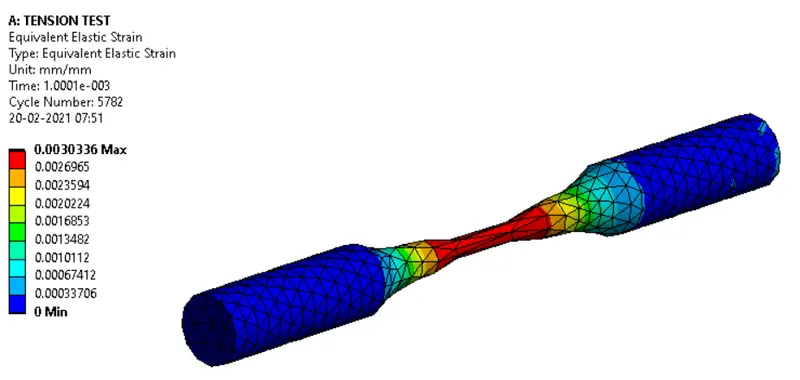
EQUIVALENT STRAIN:
TEMPERATURE OF THE SPECIMEN:
TORSION TEST:
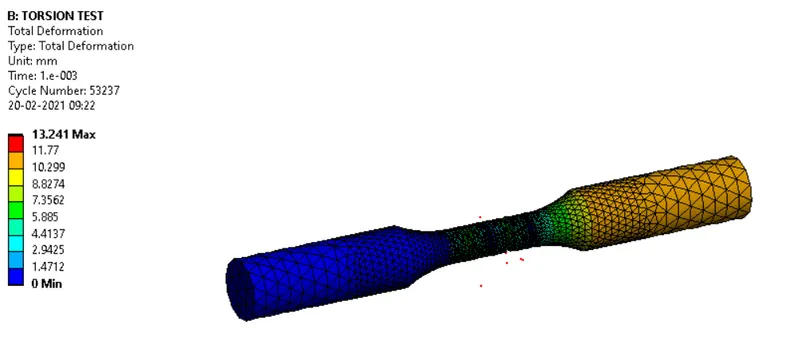
TOTAL DEFORMATION:
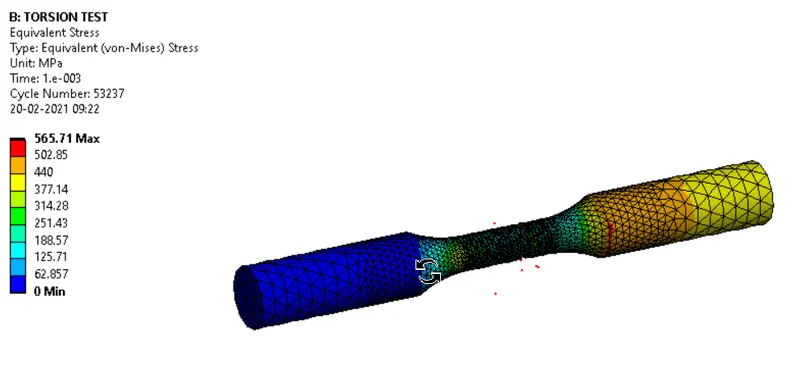
EQUIVALENT STRESS:
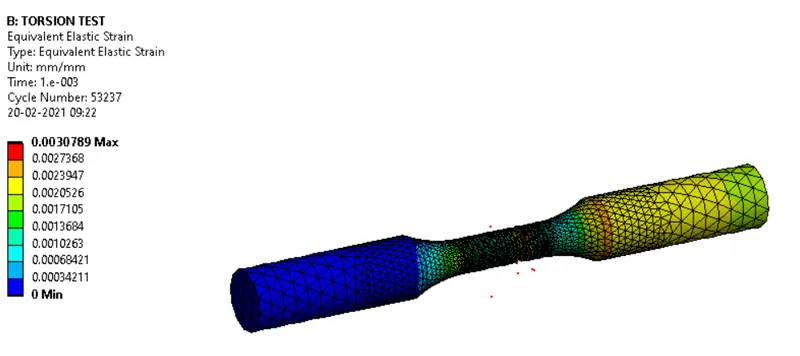
EQUIVALENT STRAIN:
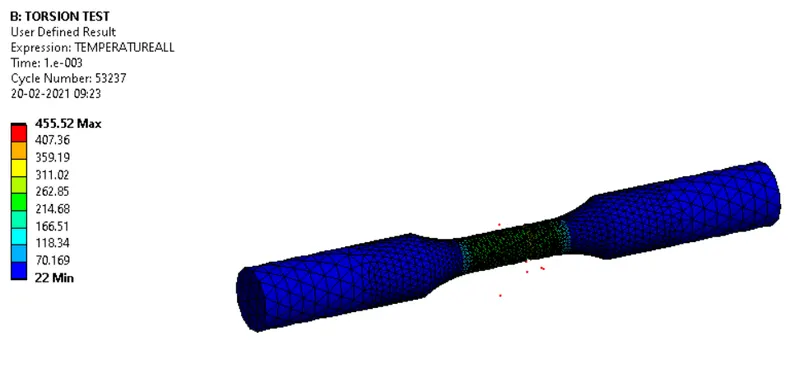
TEMPERATURE OF THE SPECIMEN:
CONCLUSIONS:
- The tension and torsion test on the given specimen is performed successfully and required results are obtained using explicit dynamic analysis using ansys workbench.