Week 9 Tension and Torsion test challenge
AIM:
we have to perform the tensile and torsion test on the specimen provide.
PROCEDURE :
TENSILE TEST
1.Download the model from the challenge.
2. Open the ANSYS workbench and drag the explicit dynamic analysis.
3. Double click on the engineering materials and steel 1006.
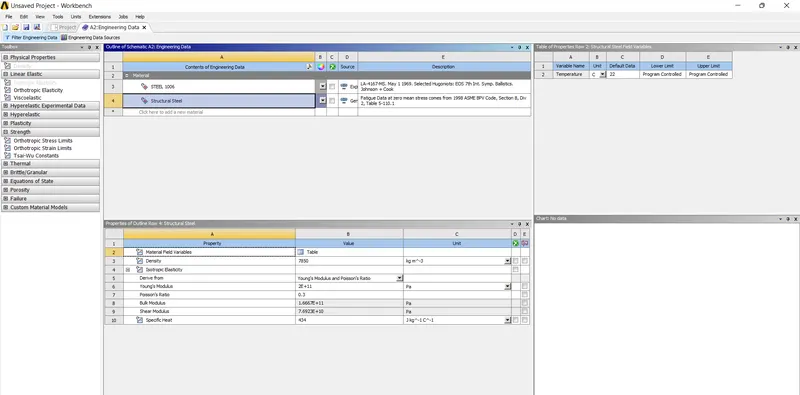
4. now right click on the geometry, import the model downloaded.
5. Now double click on the model. And check the model loaded properly or not.
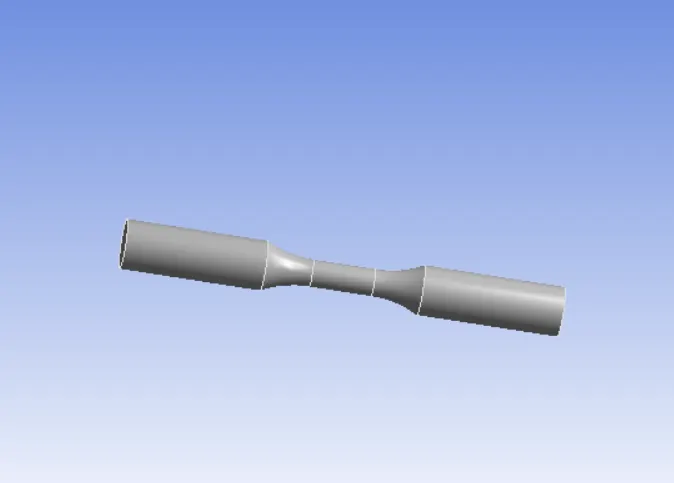
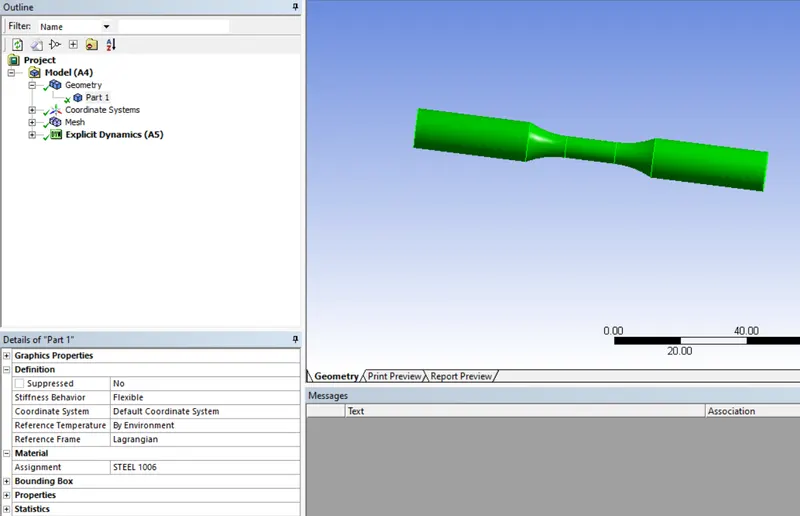
6. Now click on the geometry in the outline tree. And assign the steel 1006 to the specimen.
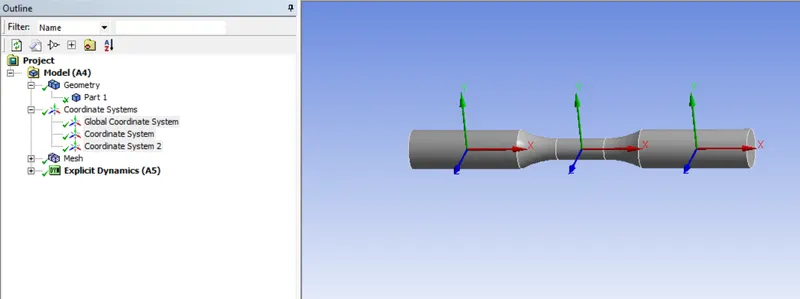
7. add the cordination system to the specimen as shown in the below.
8. Click on the mesh and insert the one mesh tab. select the face and add the spherical sizing as shown below.
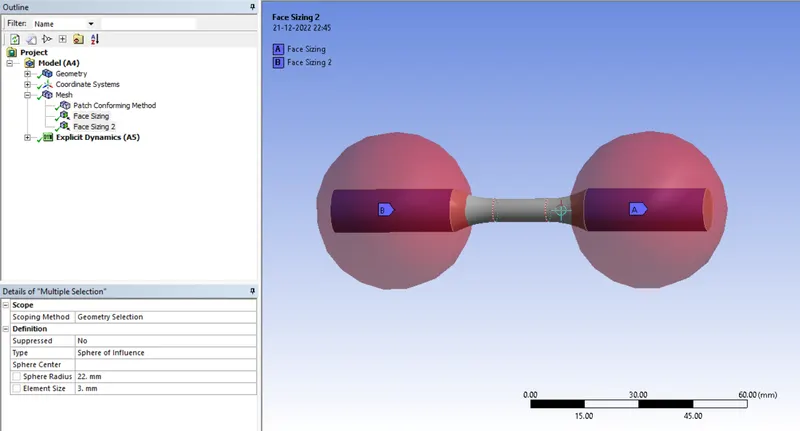
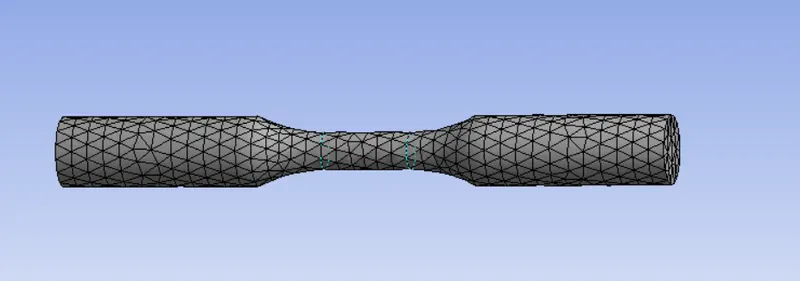
9. Also add the meshing method as tetragonal mesh. click on the generate mesh.
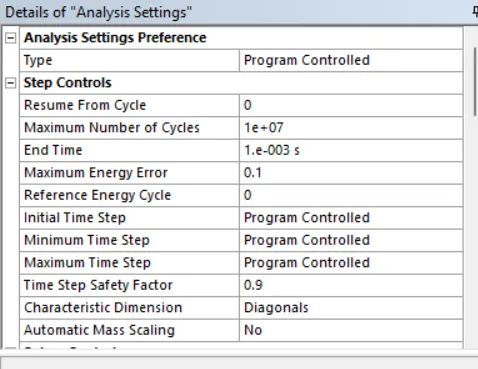
10. Now go to analysis setting and change the end time as 0.001 sec.
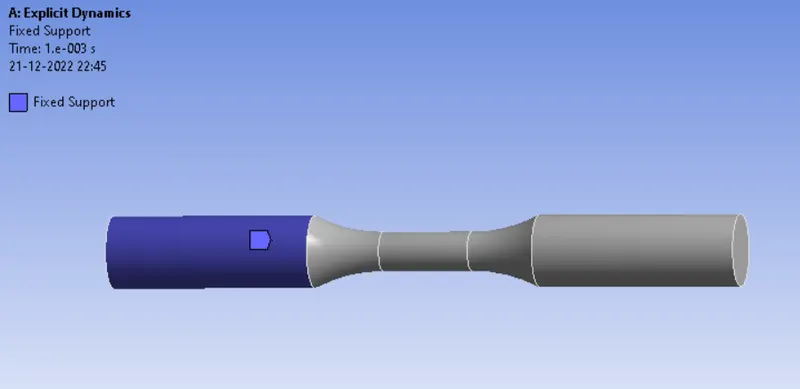
11. Now insert the fixed support and fix the one side of specimen.
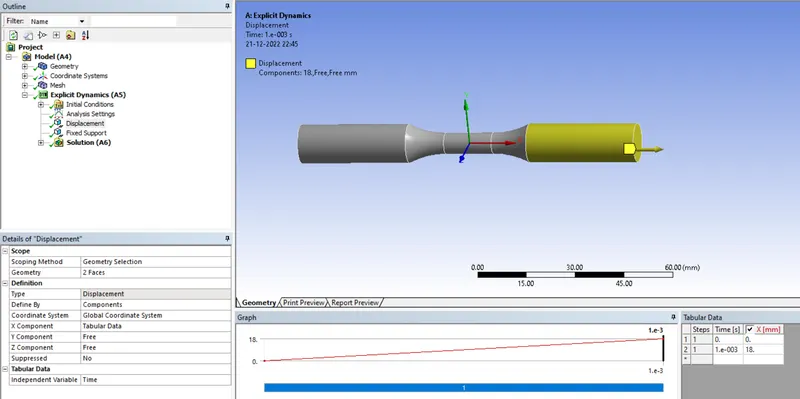
12. Also add the displacemen to the other end of specimen. make Y and Z aixes are free.
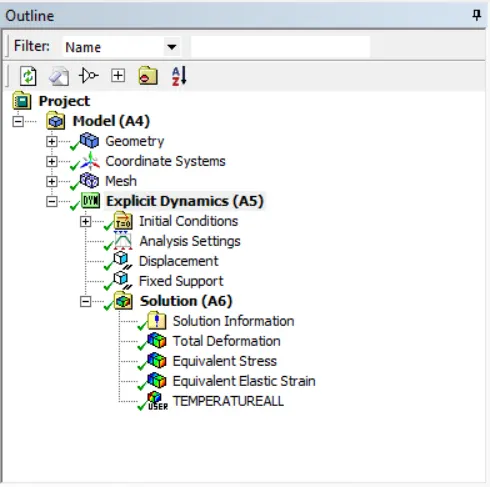
13. Now insert the solution parameters as shown below.
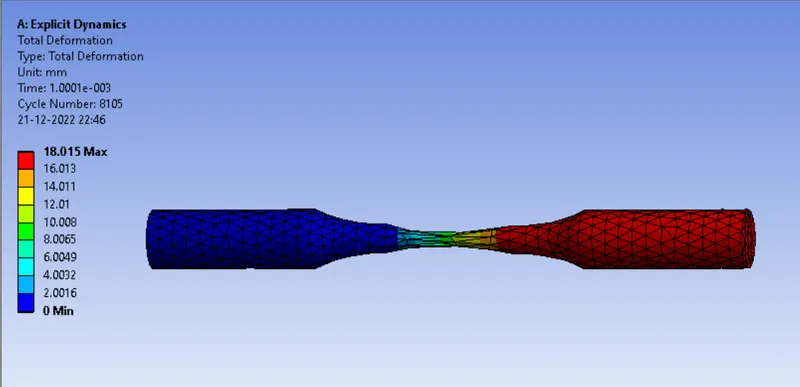
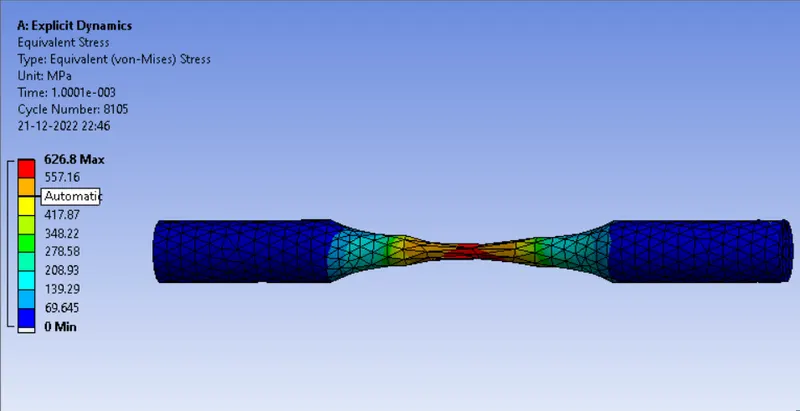
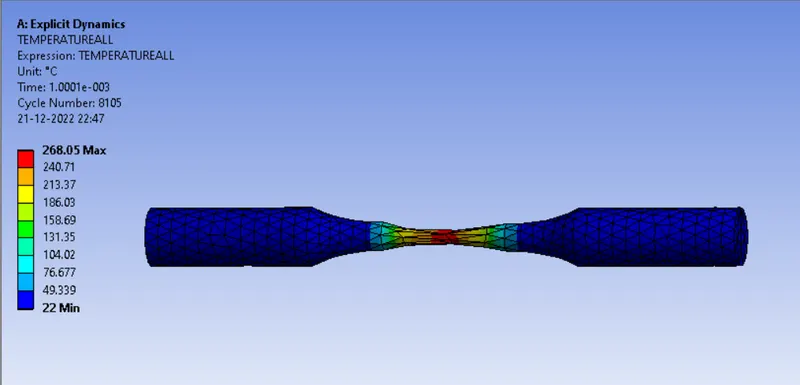
14. Now solve the model. After providing the solution it shows the following results.
TORSION TEST :
1. Now duplicate the model explicit dynamic analysis.which we done for the tensile test.
2. Now add the meshing size and change as shown below.
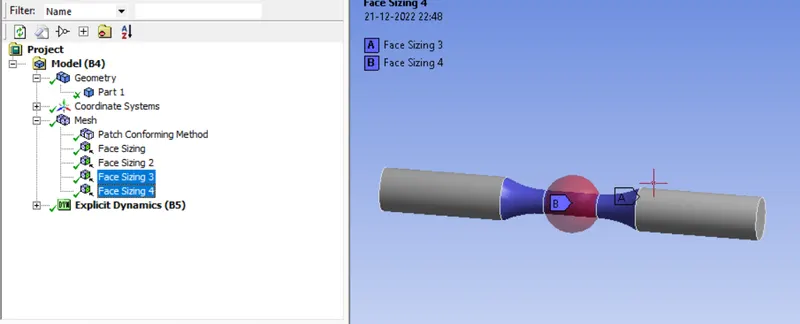
3.now add the cordination system as cyclindrical type.
4. change the displacement setting as shown below.
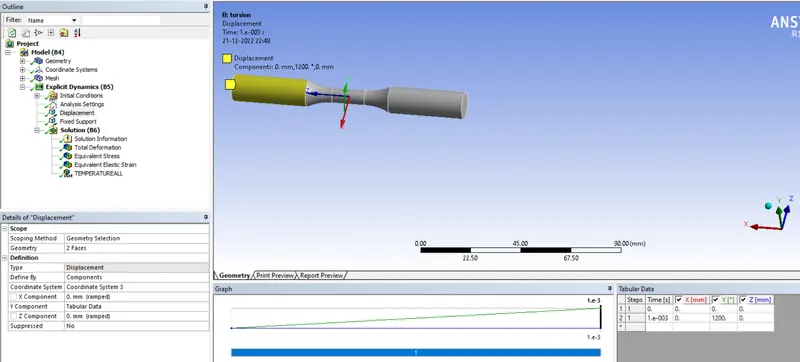
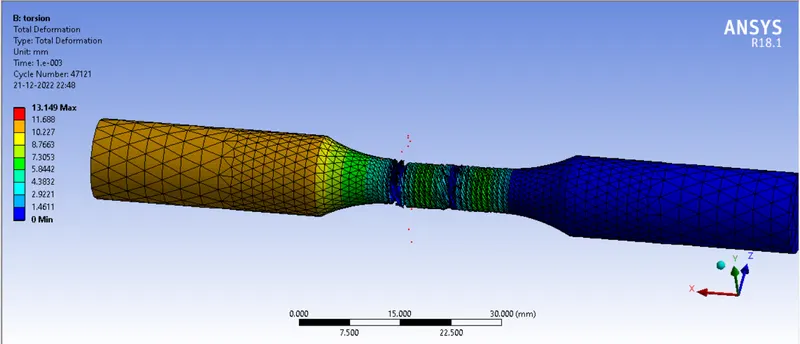
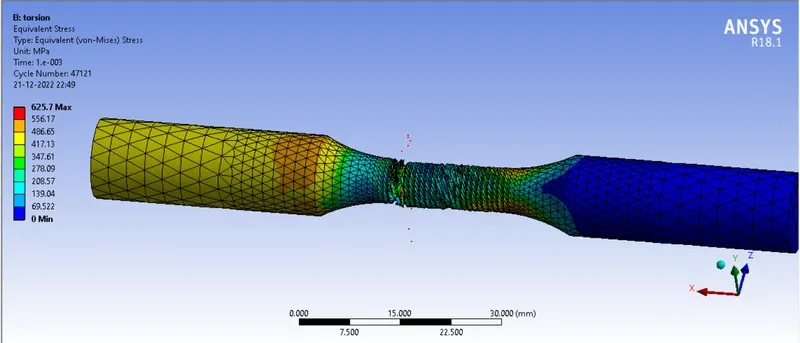
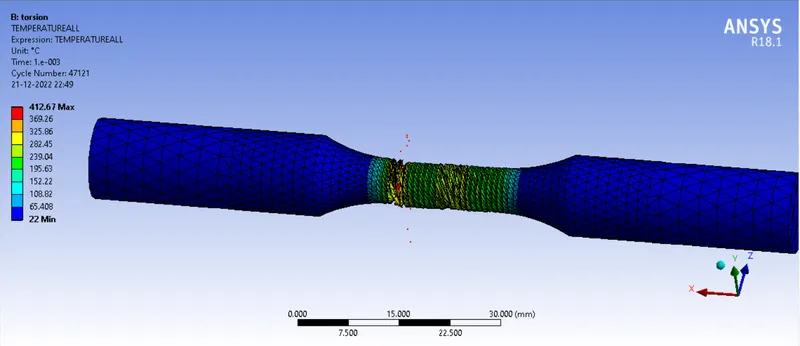
5. Now run the solution. the results as shown below.
CONCLUSION :
The tensile and torsional test on the given speciemen.
the total deformation, equalent stess and temperature results shown in the photos.