Week 9 - Project - Master Section Development
Plastic Design for B Pillar Cover
Aim:
To create a solid component from the given Class-A surface and to create engineering features for the component.
Introduction:
Engineering features are the extensions on the plastic components such as ribs, Screw bosses, heat stakes, locaters etc., which help fix the plastic component to the main surface and to avoid plastic defects while manufacturing the component through mould process.
The engineering features are to be added for the component shown below.
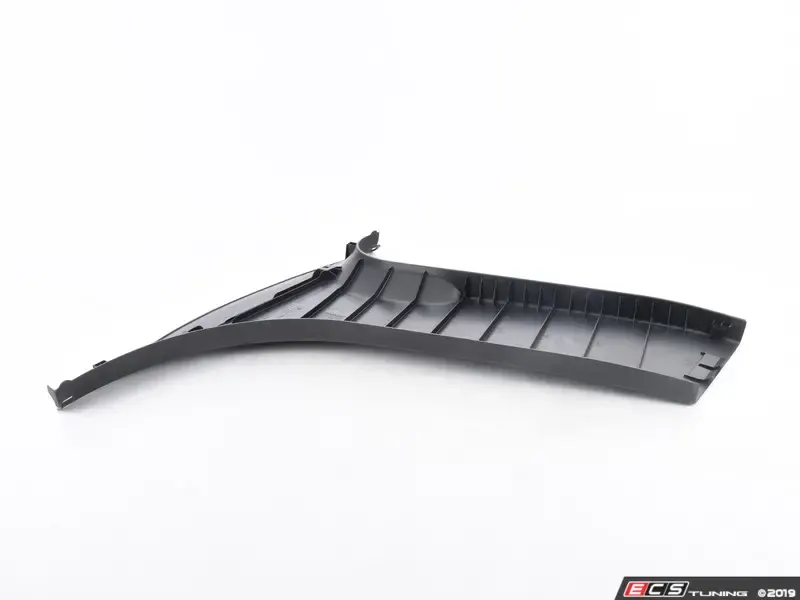
Fig 1: Manufactured B pillar cover
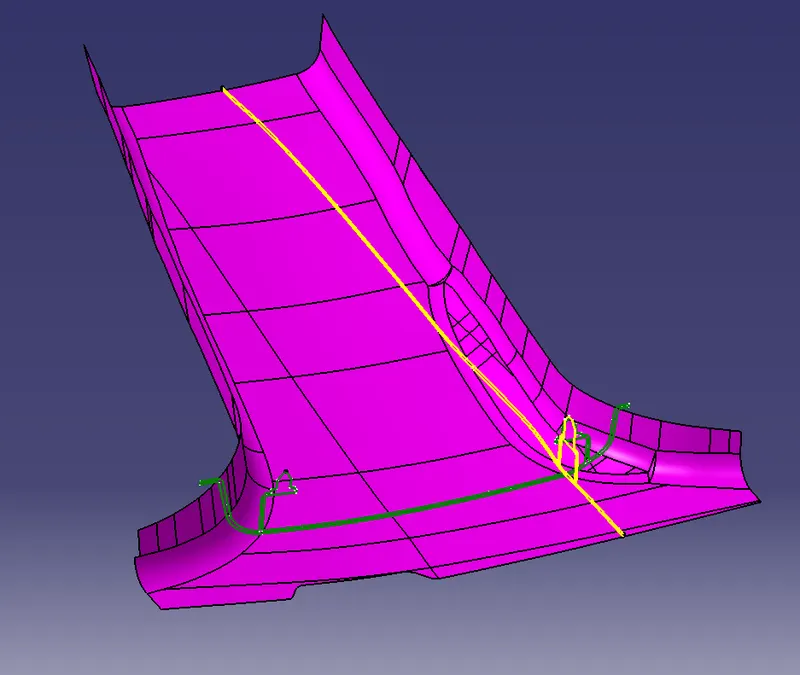
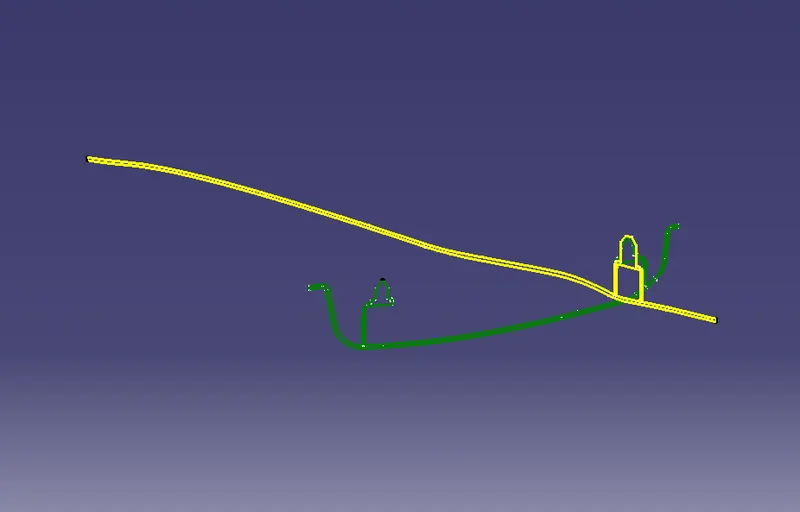
Fig 2: Class A surface for the B Piller cover Fig 3: Mater section reference lines
Procedure:
- Check the component for any kind of surface openings such and fix them if any.
- Create a tooling axis for the class A surface following the steps mentioned below.
(i) Extract the locater lines in the master sections perpendicular to the surface.
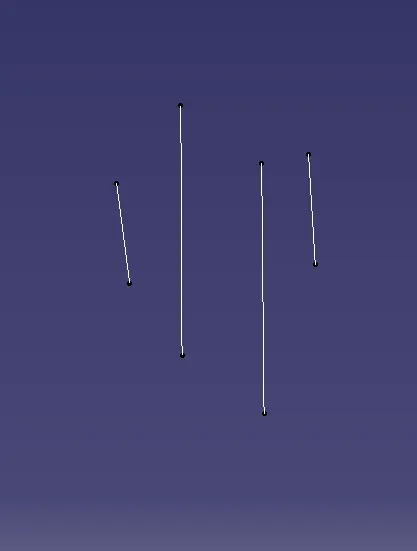
Fig 4: Extracted lines from the locater
(ii) Create a point in between the extracted lines for reference.
(iii) Create two bisecting lines in between with the help of the first two opposite facing lines and the second two opposite facing lines.
(iv) Create another bisecting line with the help of the two lines. The bisecting line will be the tooling axis.
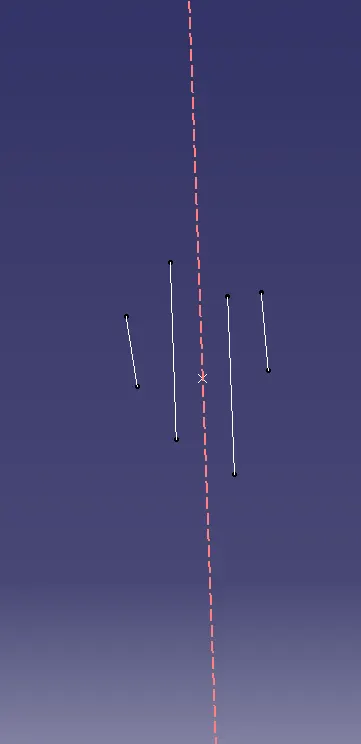
Fig 5: Created tooling axis.
(v) Now create a draft analysis for the Class A surface such that the total component in hilited in green by adjusting the axis in the draft.
(vi) Adjust the tooling axis according to the draft axis.
3. Class B and C surfaces are to be created for the component. As per the master sections 1 and 2, the side flanges are also needed to be made for the component.
4. Class B surface:
(i) Extract the class A surface with an offset value of 2mm which will be the Class B surface. Extract the edge lines of the class B surface.
(ii) Smooth the extracted surface and extract the surface using the sweep option. Set the angle closest to the master section lines.
(iii)Extract the master section lines and create a line on the sweep surface using the intersect option.
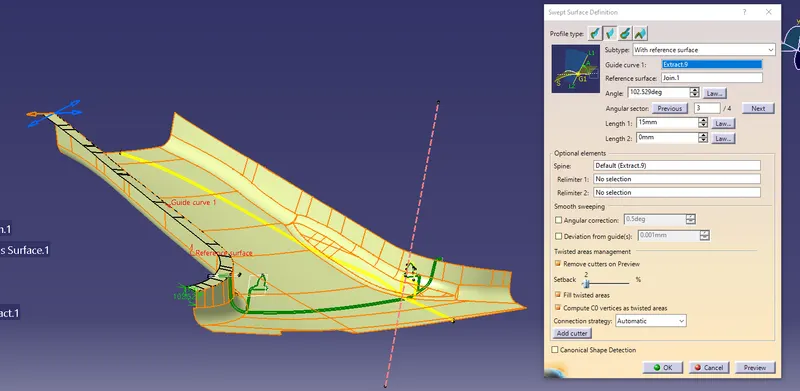
Fig 6: Sweeping surface to create a flange
(iii) Measure the angle between the extracted lines and adjust the sweep surface angle until the angle between both the lines are near to 0 degrees.
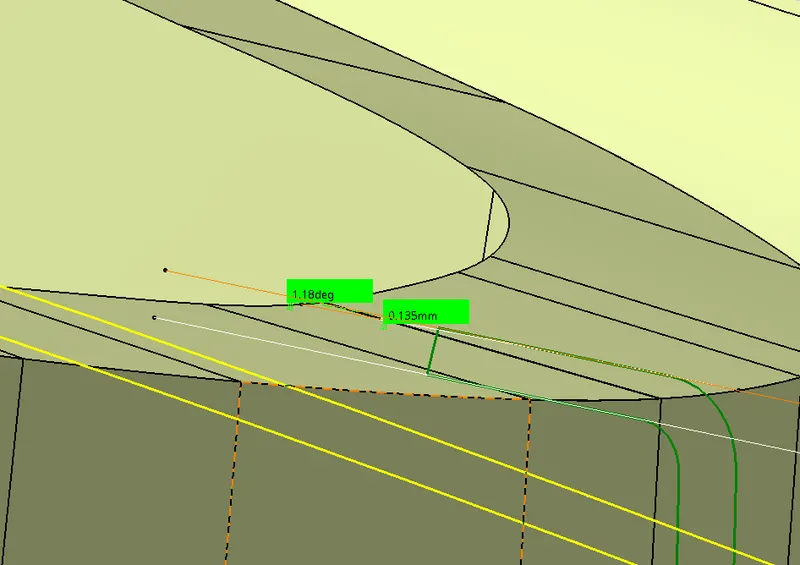
Fig 7: Measuring angle between the sweep surface and the master section line
(iv) Offset the sweep surface to the class A surface and join both surfaces using trim option.
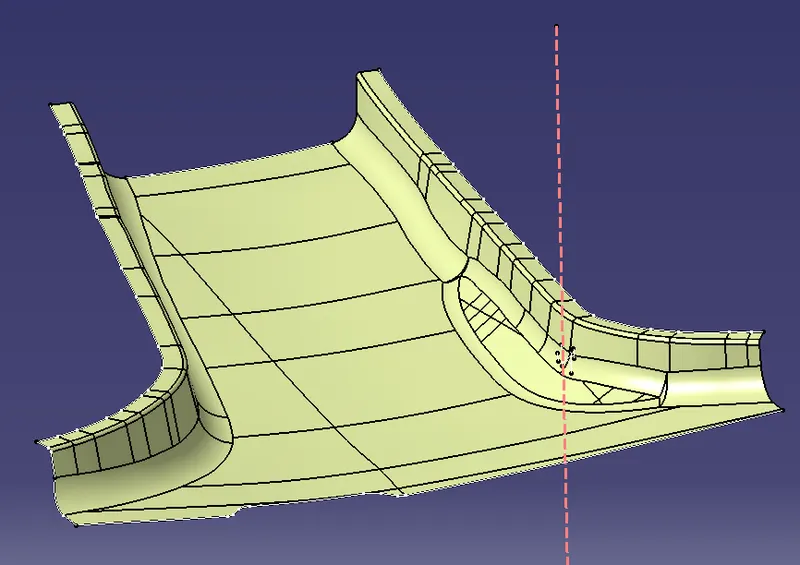
Fig 8: Class B surface
5. Class C surface:
(i) After joining the sweep surface to the class A surface create class C surface by extracting the edge lines of the class A surface into four different phases and sweep the extracted lines.
(ii) Set the sweep mode to draft direction, select the extracted lines as guide curves and the tooling axis as the draft direction. Set the sweep angle as 3 degrees and the length of sweep more than 2 mm.
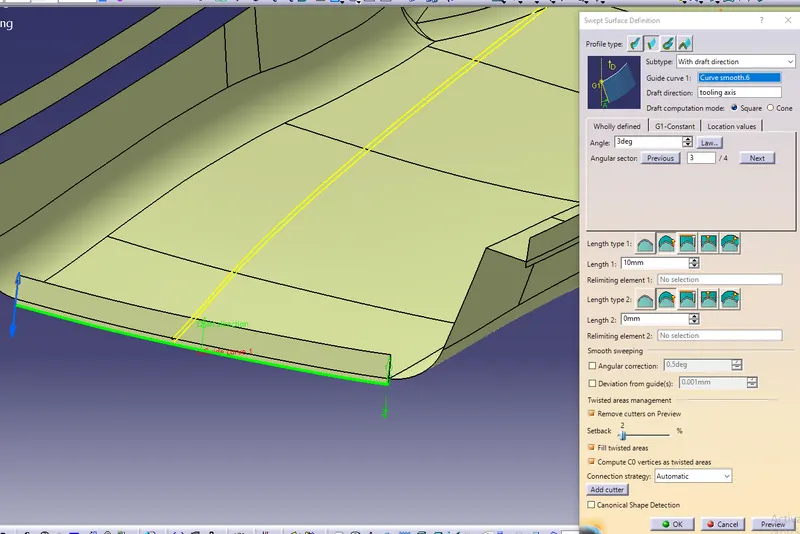
Fig 9: Creating sweep for class C surface
6. Now trim the class B and C surfaces as required to create a thickness of the component.
7. After trimming the Class B and C surfaces join the Class A surface together.
8. Check for any kind of open edges between the joined surfaces using the boundary feature. Fix the open edges if any.
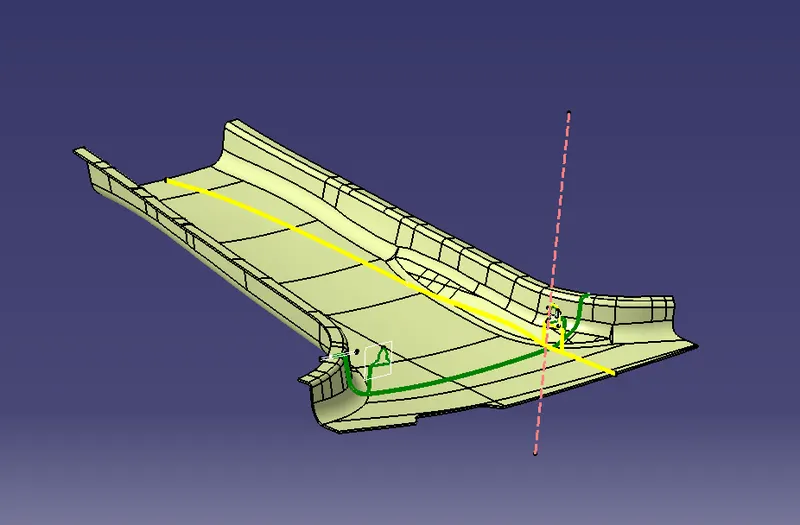
Fig 10: surface component.
9. Now create a solid component for a closed surface component using the ‘Closed’ feature in the part design window. The solid will not be formed if there are any kind of open edges.
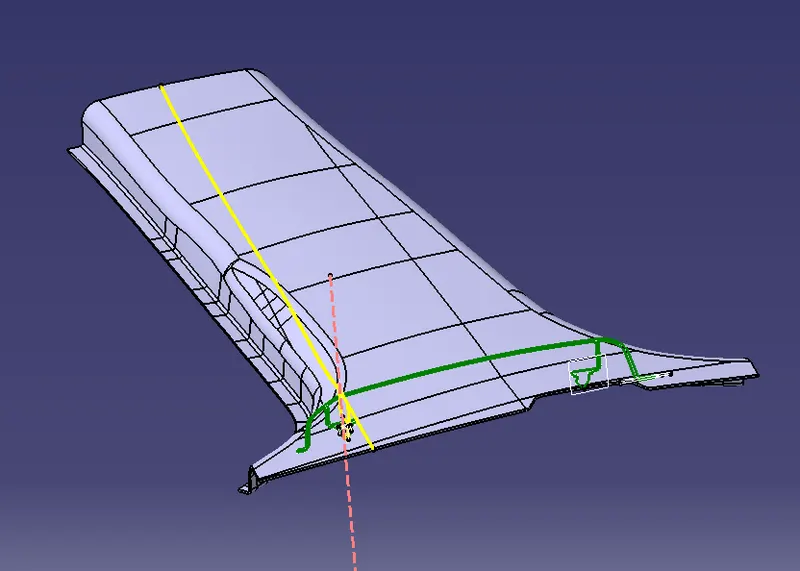
Fig 11: solid component.
10. Now the engineering features i.e., ribs and dog houses should be created for the component.
11. Follow the steps below to create the features.
(i) Using the position sketcher, extract the dog house lines from master section 1 and constraint them.
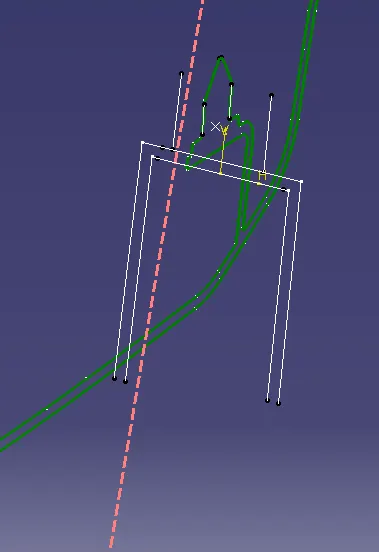
Fig 12: Extracted lines
(ii) Extrude the lines for a certain length.
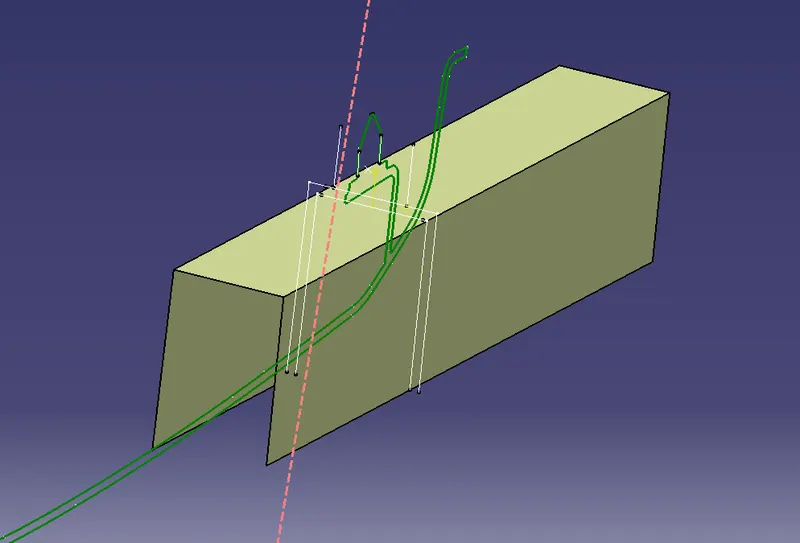
Fig 13: Extruded surface from the sketch
(iii) Extract the dog house lines from master section 2 using position sketcher and extrude the line such that both extruding are intersecting each other.
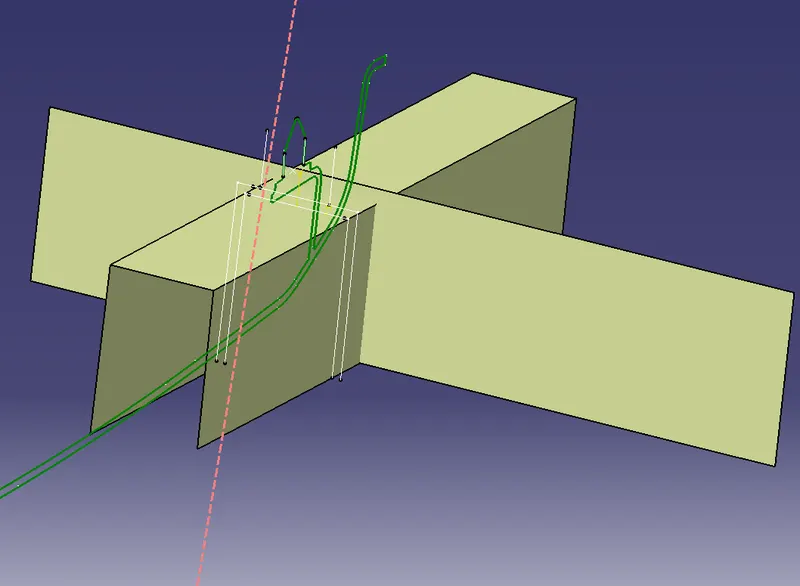
Fig 14: Extruded line from the master section 2
(iv) Trim the surface in a dog house shape.
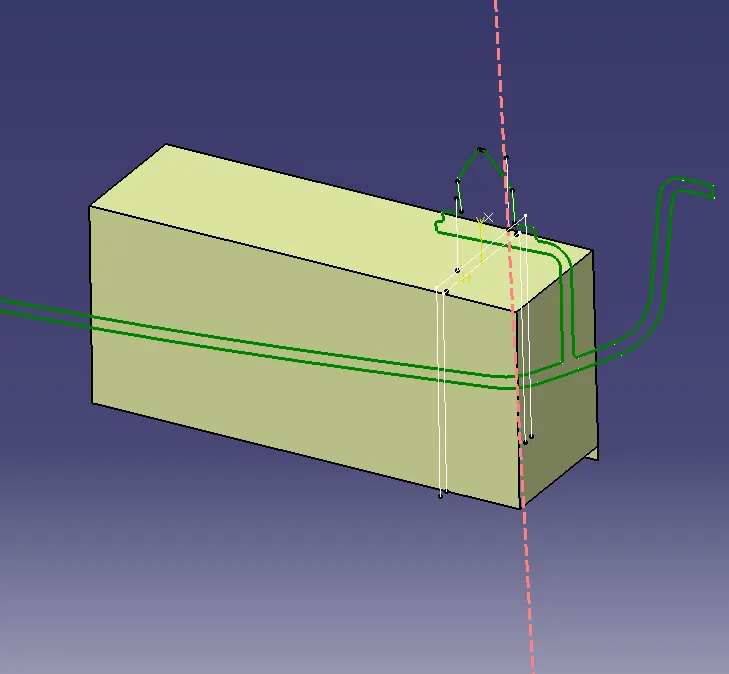
Fig 15: Trimed surfaces.
(v) Now thicken the surface in the part body with a thickness of 2mm.
(vi) Draft the inner wall of the dog house up to 1.5 degrees.
(vii) Create the inner spacing for the dog house as shown below. As per the calculations the wall thickness spacing is to be maintained up to 40%. Thus the value of the spaced walls is 1.2mm thick.
(viii) Extract the class A surface and offset it up to 4m. Offset the extracted wall surfaces to 1.2 mm towards the inner side and trim the solid with the surface as shown below.
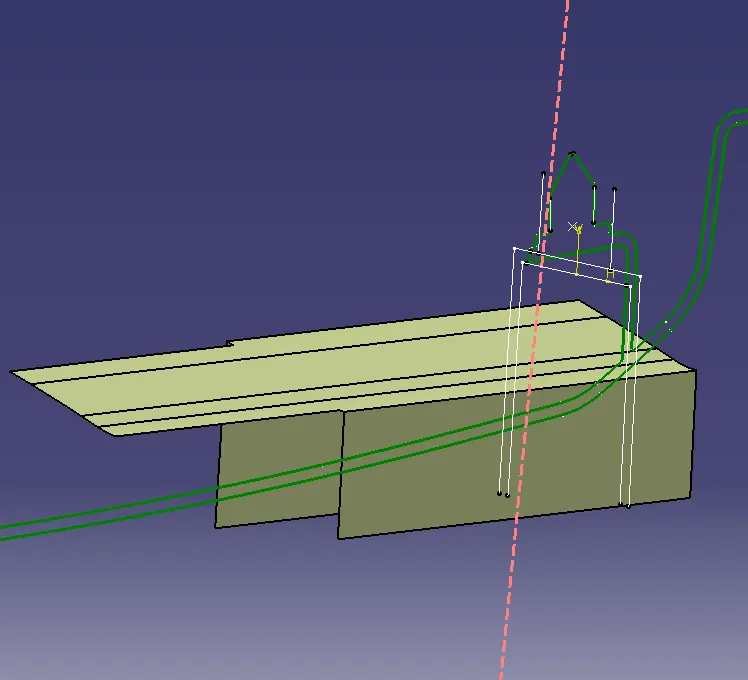
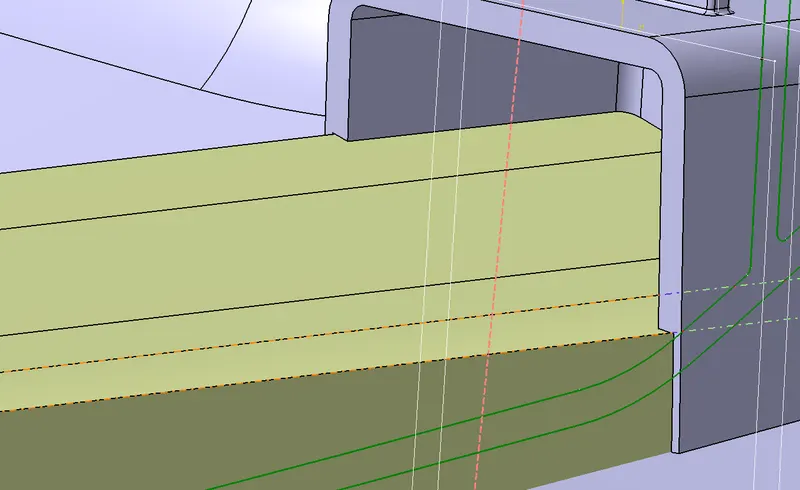
Fig 16: created surface to trim the dog house. Fig 17: Trimming the dog house with the surface
(ix) Draft the inner walls as done before and create fillets for the dog house.
12. Create a locator on the created dog house by taking reference to the master sections provided. Create reference lengths in a new sketch for the locators and pad the reference lines as shown below.
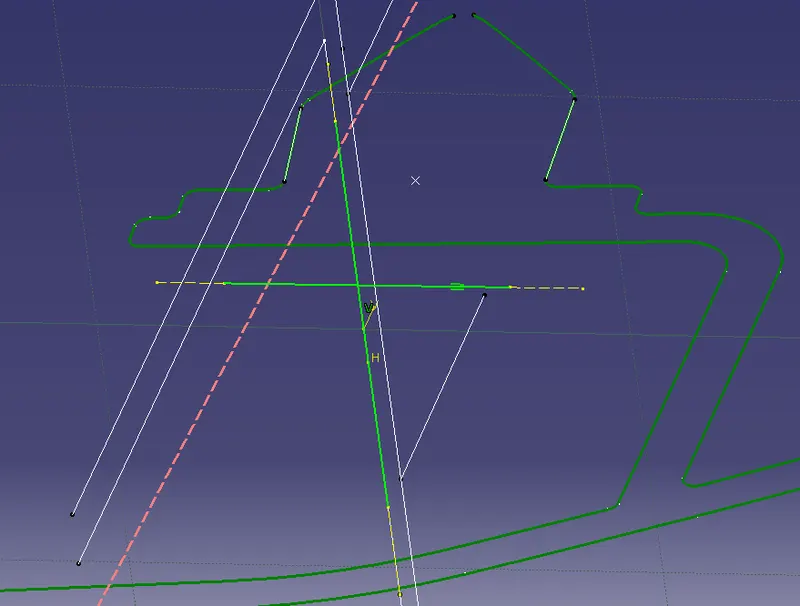
Fig 18: Created sketch for the locater.
13. After creating the locator on the dog house, fix the component to the dog house using unitrim option. Draft the component up to 0.5 mm, create chamfer according to the locator and create fillets for the locator.
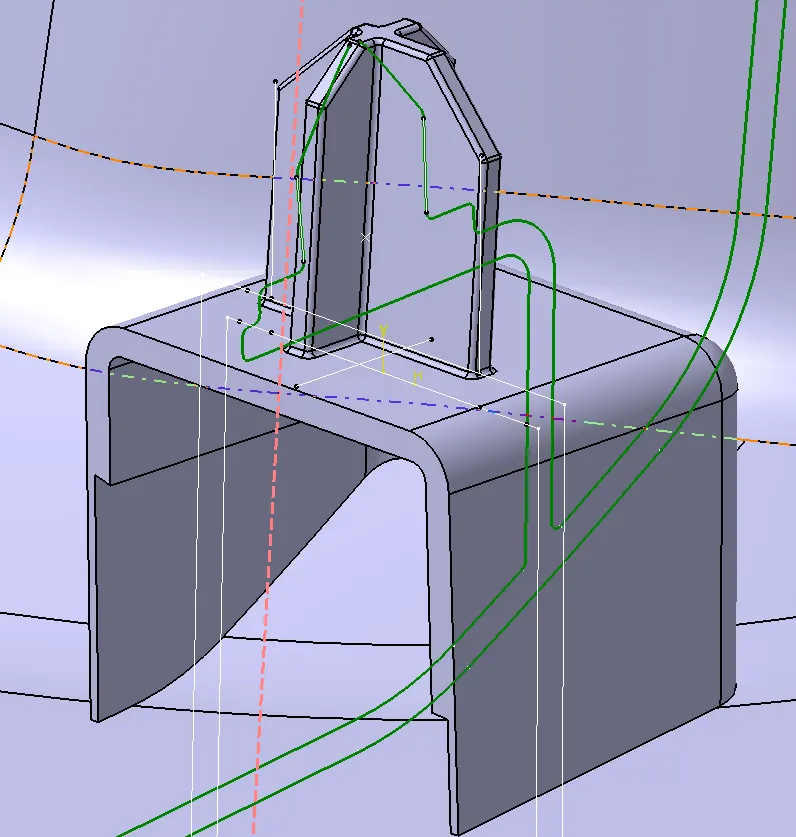
Fig 19:Dog house with the locater.
14. Now translate the dog house to the opposite side of the component using mirror option. The component is to be placed as per the master sections dimensions.
15. Now create ribs for the component as per the rules to create according to the dimensions of the component.
(i) Create a new geometry set for the rib sketches and draw reference lines for the ribs maintaining 50mm distance from each other.
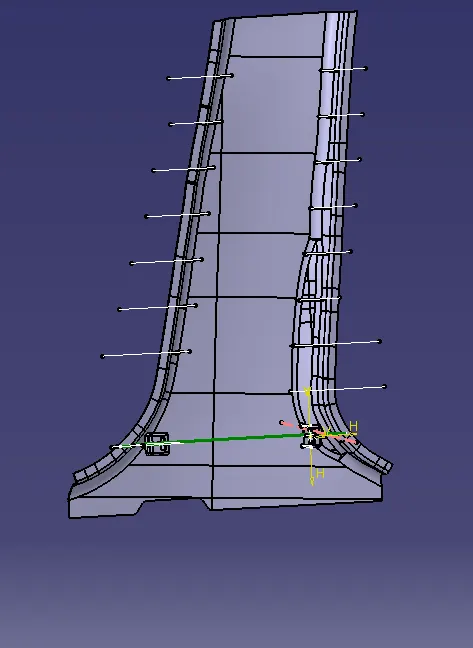
Fig 20: Created sketches for the ribs.
(ii) Extrude all the ribs on both sides of the component as shown below, with random lengths.
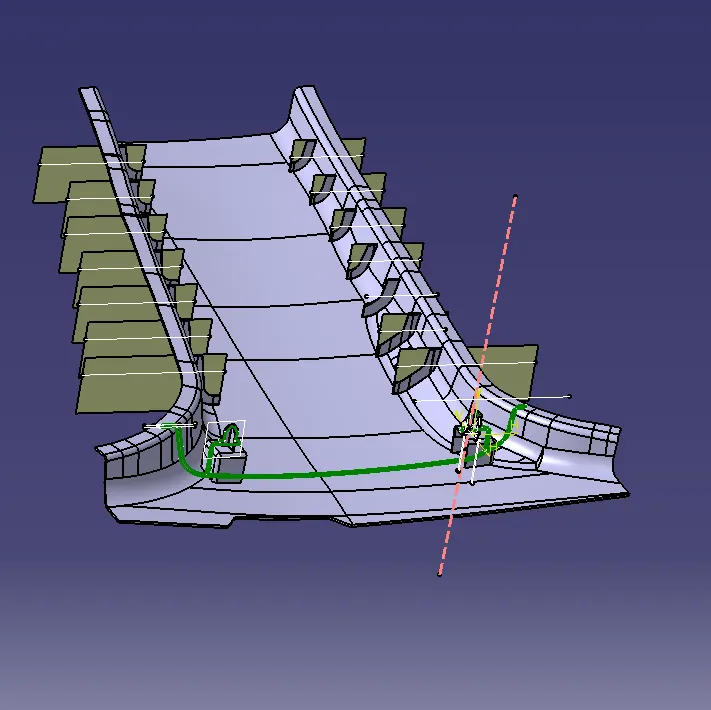
Fig 21: Extruded surfaces from the sketches
(iii) Create thickness for the extruded surfaces of 0.8mm as per the thickness of the component using the thicken option in part workbench.
(iv) Now offset the class B surface up to 10mm hight in surface workbench.
(v) Trim the ribs with the help of the offset surface in part workbench.
(vi) Now create draft and fillets for the ribs as required for the component.
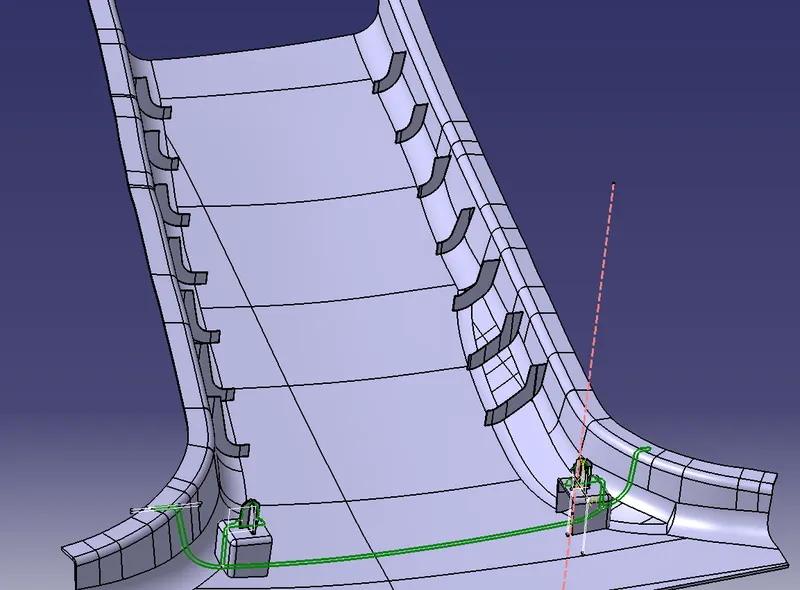
Fig 22: Created ribs for the component.
16. After creating the features, fix them to the main component using Unitrim option.
17. Now the draft analysis is to be done for the component. Place the axis to the created tooling axis and analyze the component. Draft analysis is to be done for the main component, rib features and to the dog house feature.
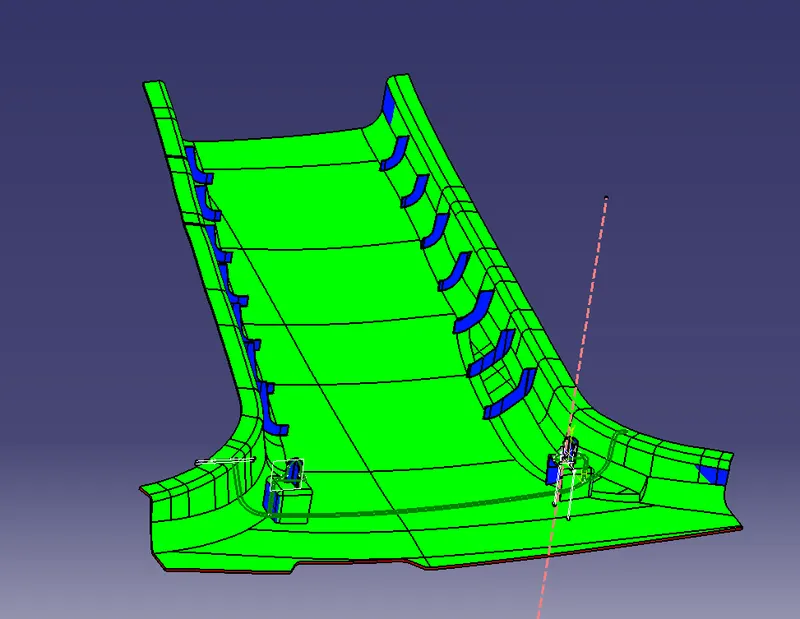
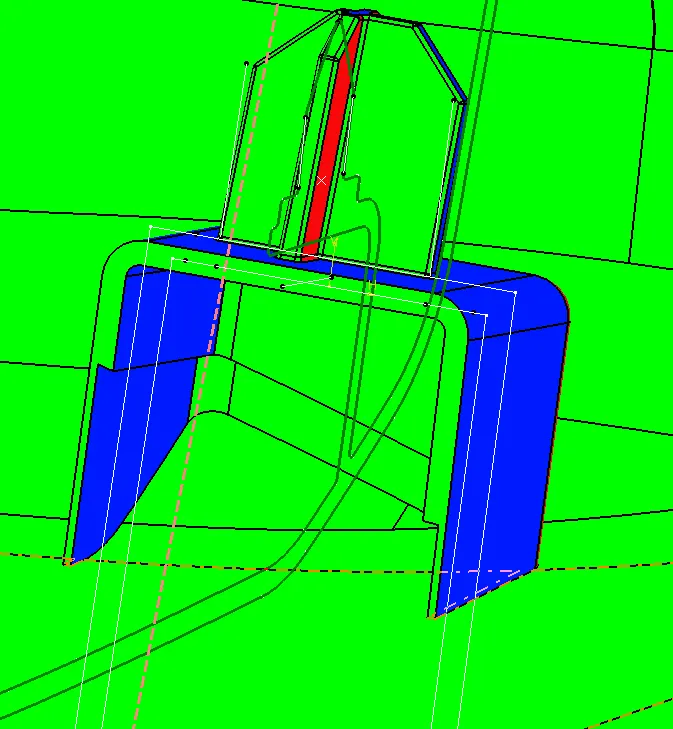
Fig 23: Draft analysis 1 Fig 24: Draft analysis 2
Result:
Thus creating a solid component from the given class A surface and creating engineering features for the component is completed.