Week 9-Challenge
Challenge 9
Connections
Aim:
To connect the given component using the connection feature in HyperWorks.
Abstract:
The given model in this challenge is a set of rail and truss components which are to be connected using a different connection features such as spot weld, bolt, seam weld, Hexa etc. Each different connection is given differently for different connection areas as mentioned for the challenge.
Methodology:
- Identify the region to be connected as per the given conditions in the challenge.
- Select the connectors option in the 2D menu and set the connection type as required.
- Select the data as required such as node list, components, tolerance, etc.
- Create the connection as required.
Introduction:
Connectors is a feature in Hyperworks software which is used for connecting the meshed 2D components so that to indicate the connected components and the pressures to flowing through the connected components while the simulation process. The following component is to be connected as per the given conditions in the challenge.
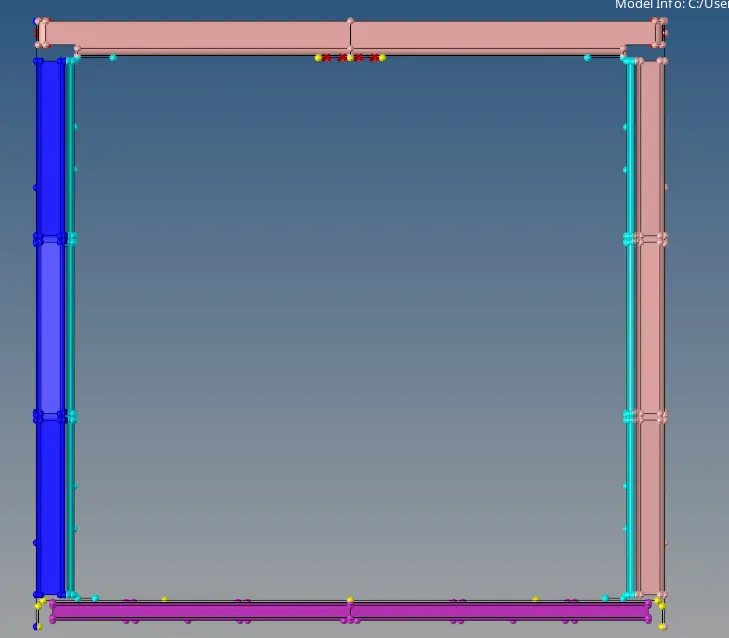
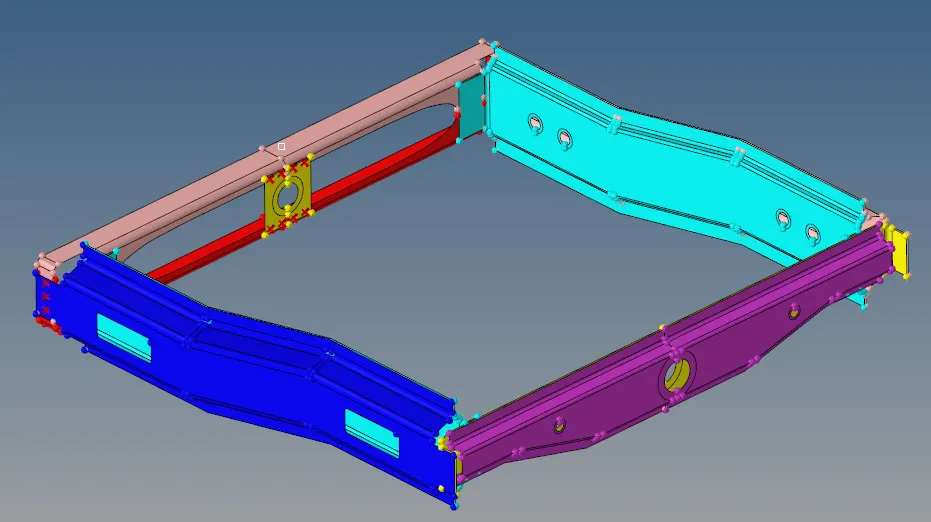
Fig 1: component top view Fig 2: given component
Procedure:
- Mesh the given model with a random target length for the connection process. The target length used for this challenge is 5mm.
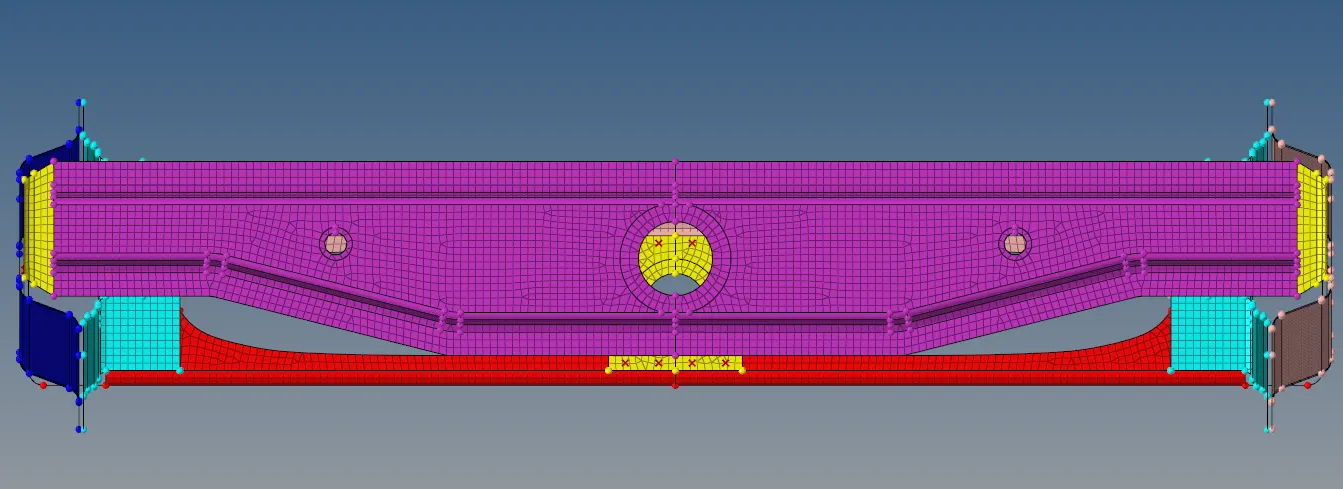
Fig 3: meshed component
- Select the connectors option in the 2D menu. Identify the 2 components which are to be connected. The steps for different connection options are as shown below:
a) Seam quad connection:
- The components Right rail 2 and front truss 1 are to be connected with this connection.

Fig 4: Connecters menu
2. Select the seam option in the connection menu and enter the required data such as selecting the nodes to be connected, components to be connected, tolerance etc.
3. Set the type of connection as quad (angle+capped +L).

Fig 5: Seam connection control panel.
4. Create a connection between the two components. The component will be as shown below.
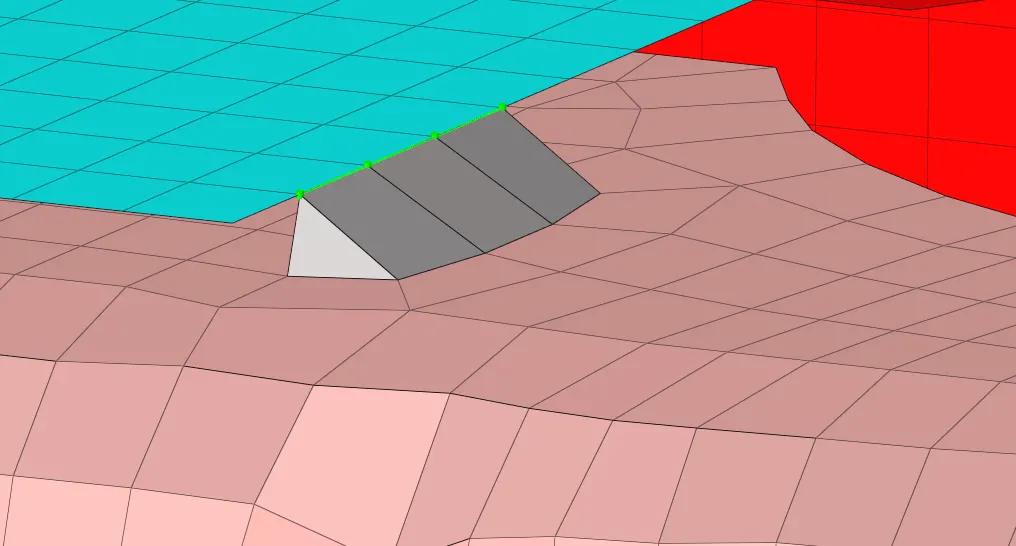
Fig 6: Quad (angle+capped+L) Connection.
b) Quad elements:
1) THe connection is done between left rail 2 and front truss 1.
2) Follow the procedure as shown for the seam quad and set the type to quad connection
3) Create the quad connection as shown below.
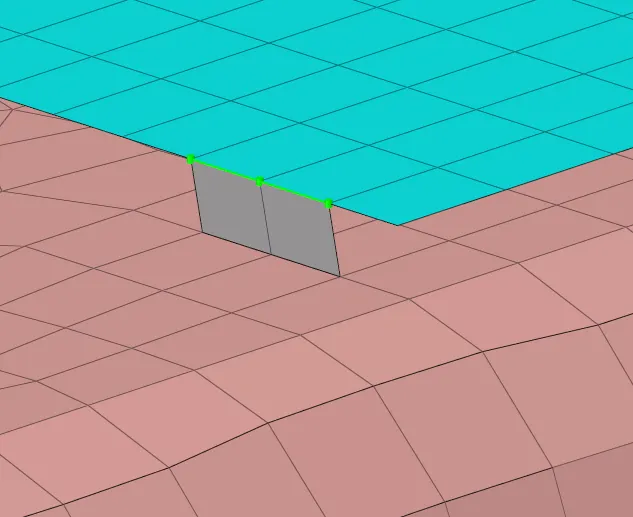
Fig 7: Quad connection
c) Spot weld with three layers:
1) The connection is done between Front truss 2, Front truss 1 and right rail 1.
2) Select the spot option in the connection menu shown in fig 4.
3) Set the type of connection as weld and the diameter of the weld as 5. The connection should be done for three components so the number of layers should be set as 3.

Fig 8: Spot connection control panel.
4) Select the nodes for connection and the components to be connected and create a spot weld connection as shown below.
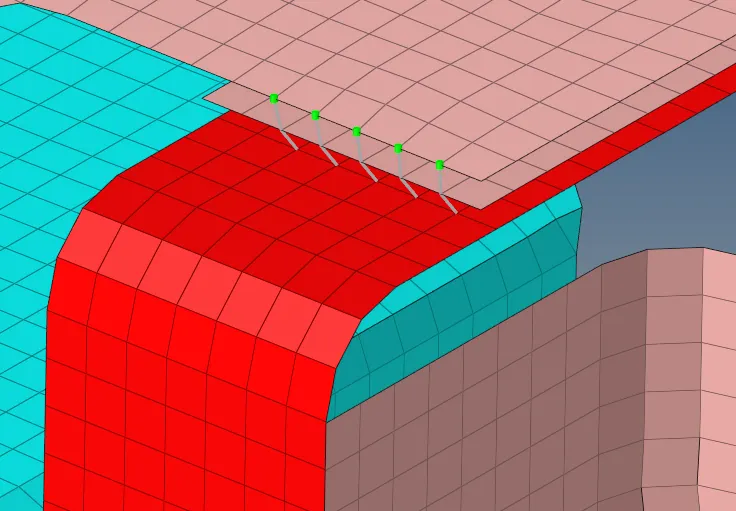
Fig 9: Spot weld connection.
d) Hexa (adhesive) connection:
1) This connection is done for front truss 2, front truss 1 and left rail 1.
2) Select the seam weld option in the connectors menu shown in fig 4.
3) Set the type of connection as Hexa(adhesive). Select the nodes to create a connection and components to be connected and create a connection.
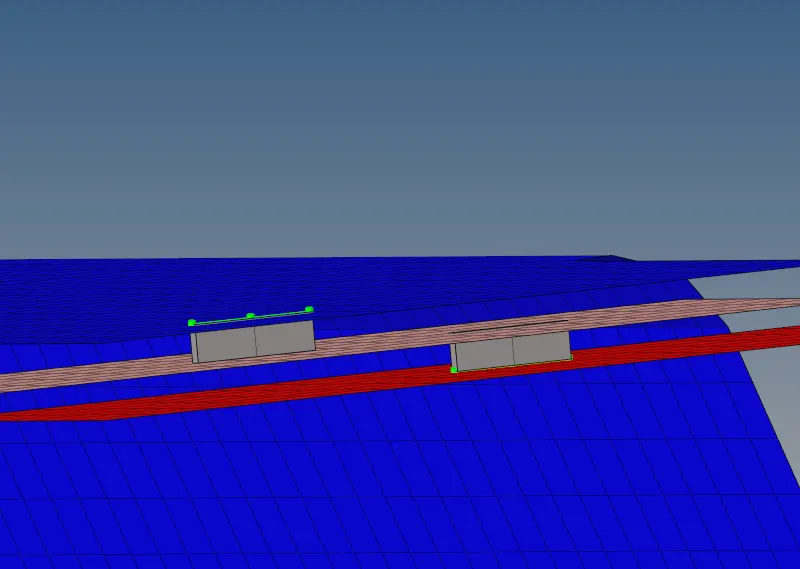
Fig 10: Hexa (adhesive) connection.
4) Hear the control panel for Hexa (adhesive) does not have the option to select the number of layers to be connected, so the connection has been done two times.

Fig 11: Control panel for Hexa(adhesive) connection.
e) Bolt connection:
1) The bolt connection is created for Rear truss 2 & right rail 2 and rear truss 2 & left rail 2.
2) Select the bolt option in connectors menu as shown in fig 4.
3) Select a single node in the middle of the component such that the diameter created for the connection will not touch the edge of the component.
4) Set the number of components to be connected as 2 and set the type of connection as bolt general. Set the tolerance to 10mm and create the connection on both sides as shown below.
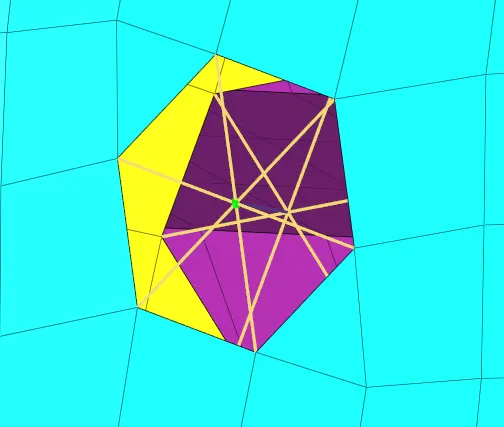
Fig 12: Bolt connection.
f) Spot weld with rigid and spring elements:
1) This Rigid and spring connections are done for right rail 1 & right rail 2 and left rail 1 &left rail 2 respectively.
2) Select the spot connection option in connector menu and set the type of connection as rigid or spring depending on the components to be connected first.
3) Select the nodes to connect, components to be connected. Set the tolerance and diameter as required.

Fig 13: Spot weld control panel.
4) Create the connection as shown below.
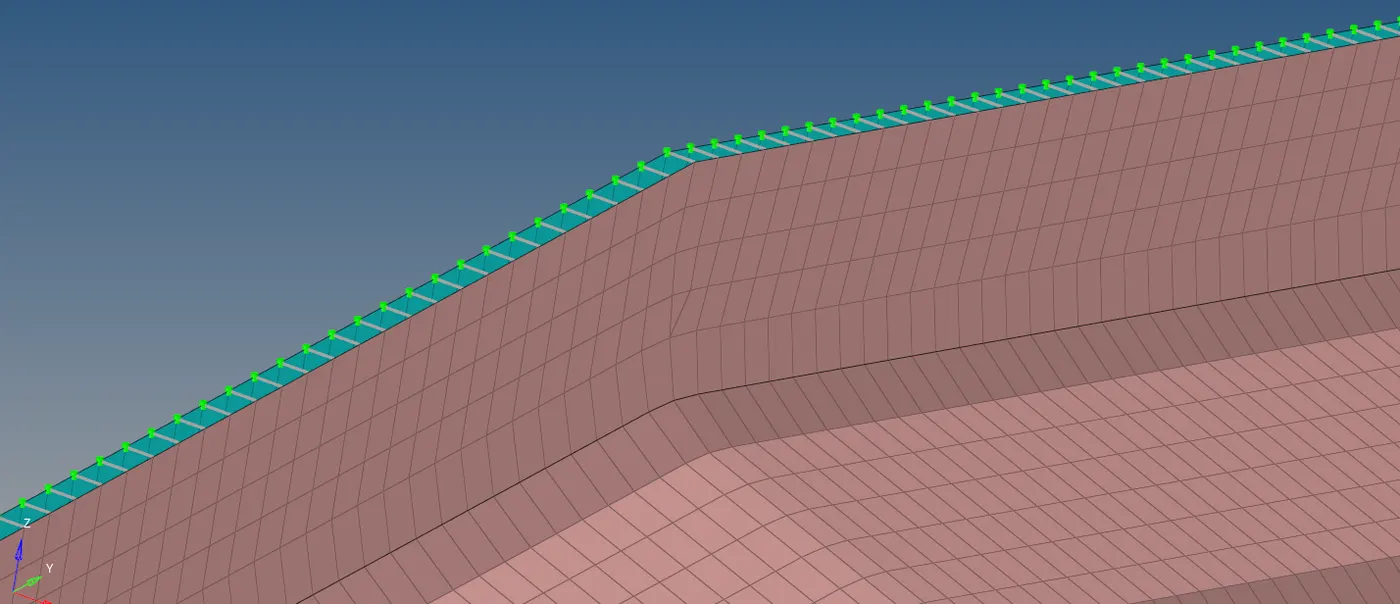
Fig 14: Spring connection
5) Similarly connect the rigid connection.
- While connecting the components the green line and dots formed after connecting represent that the connection is done successfully. If not the failed connection is represented in red colour.
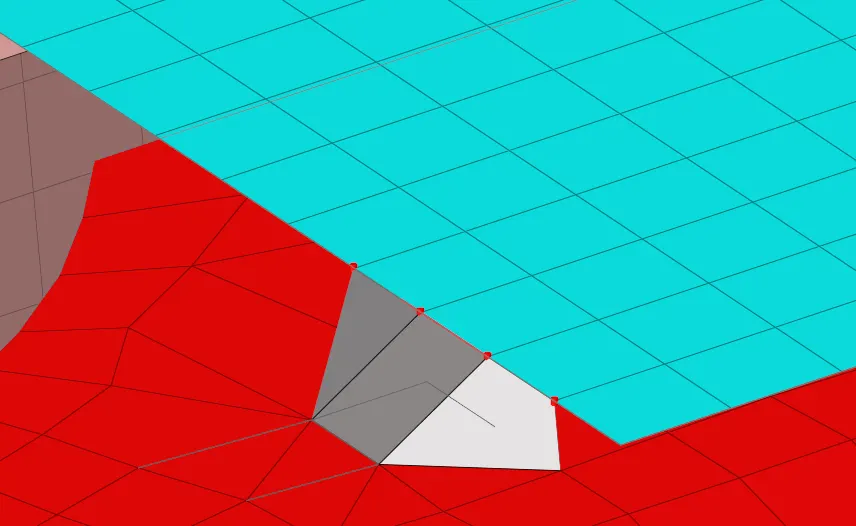
- Connect the remaining free components with suitable connections.
Result:
Thus the connections for the given component is completed as per the given connecting conditions.
Learning outcomes:
- Learned to connect the components using the connection features.
- Learned to connect three components at a time.
- Learned to connect the components as per the mesh and tolerance.
Challenge link:
https://drive.google.com/file/d/19xSlhH_uf3rnq2tgZbhc9ev4oD7Ye9ie/view?usp=sharing