Week 9 - Challenge 2 - Switch Bezel Design
SCREENSHOTS:
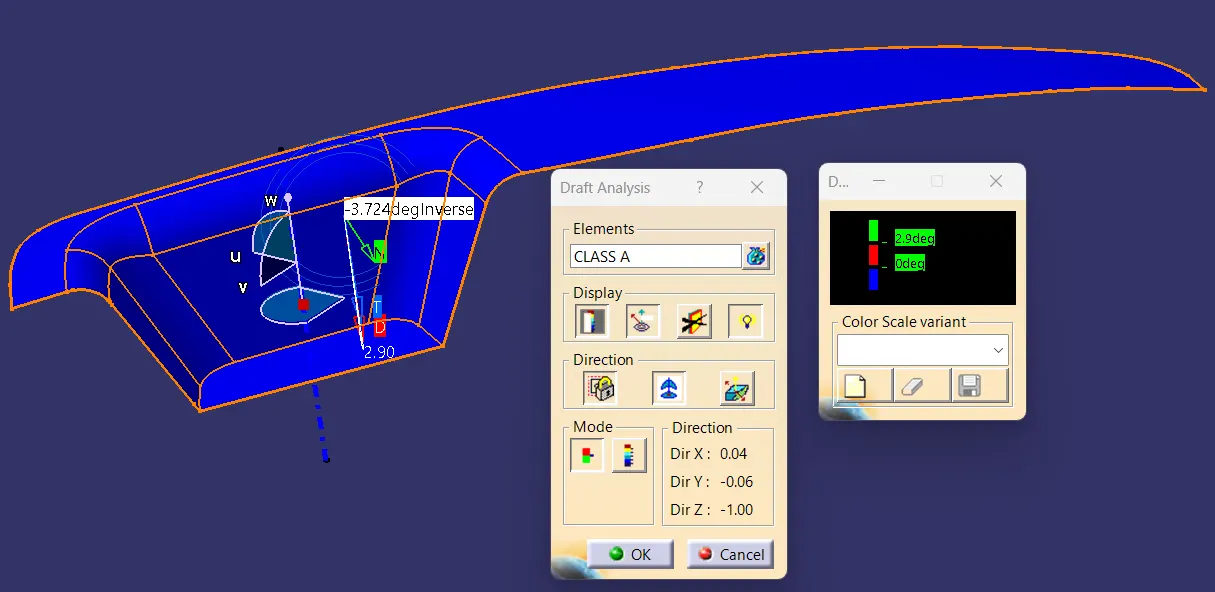
- CLASS A Draft Analysis.
- Final Plastic Component Draft Analysis.
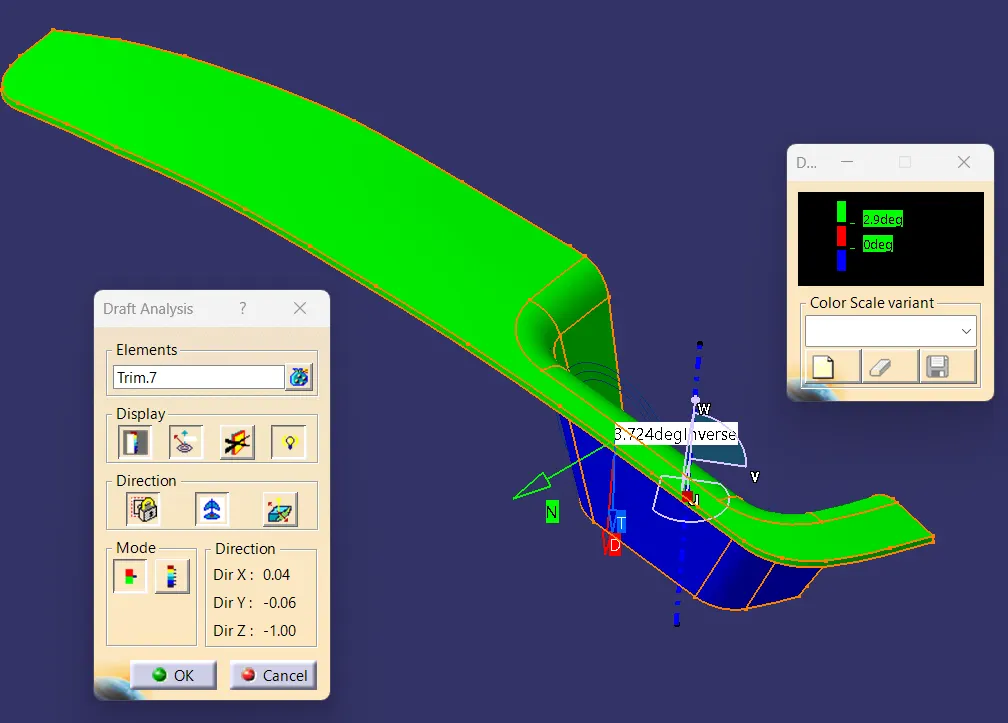
Isometric View.
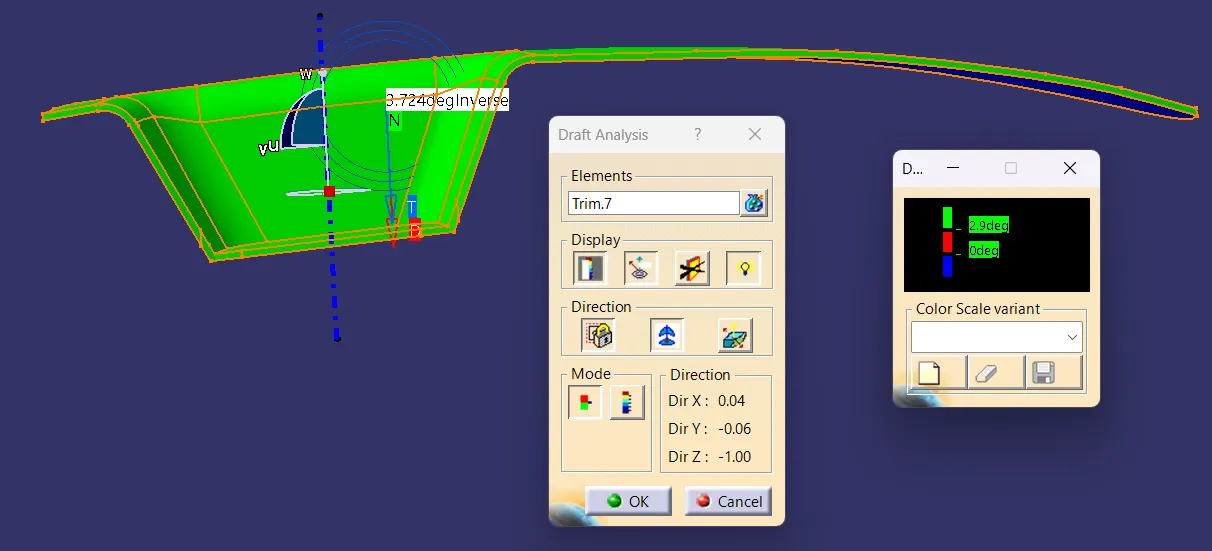
Front View.
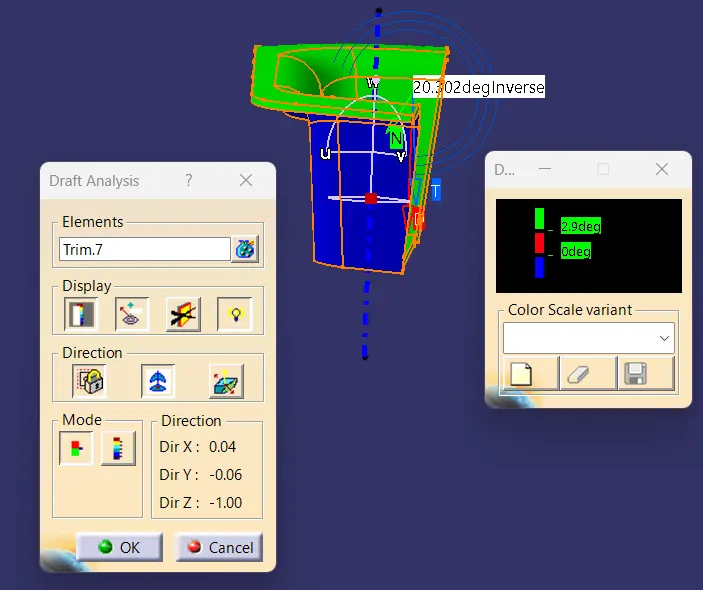
Side View.
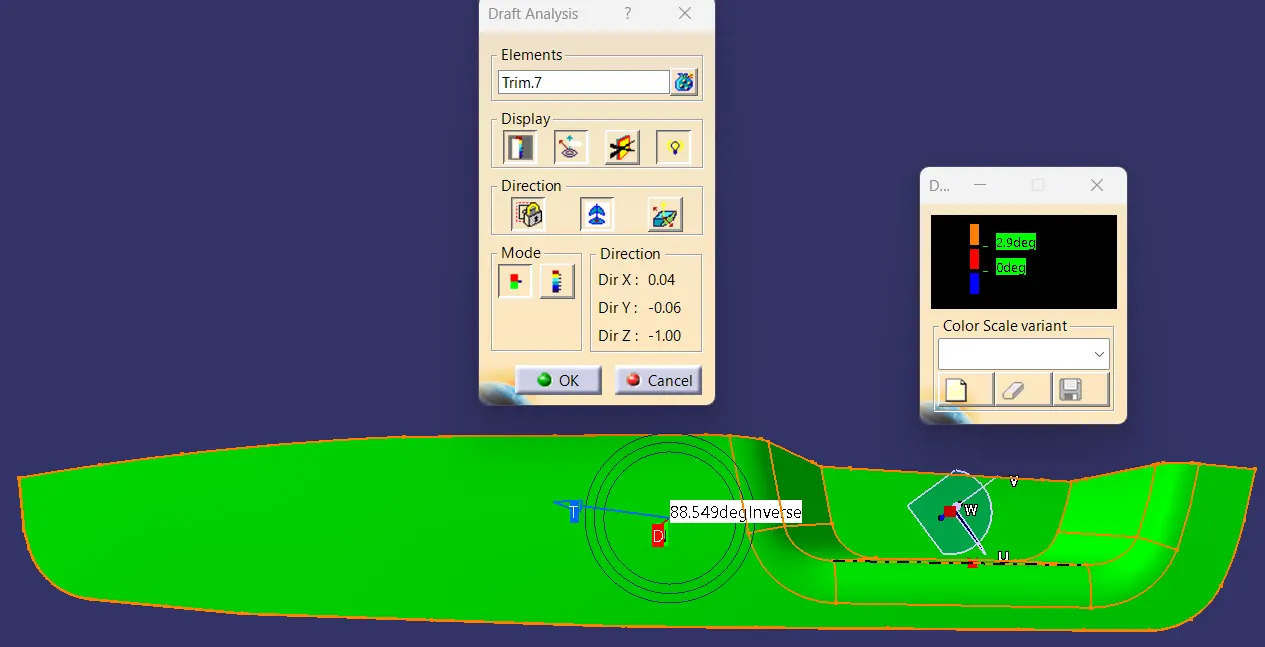
Top View.
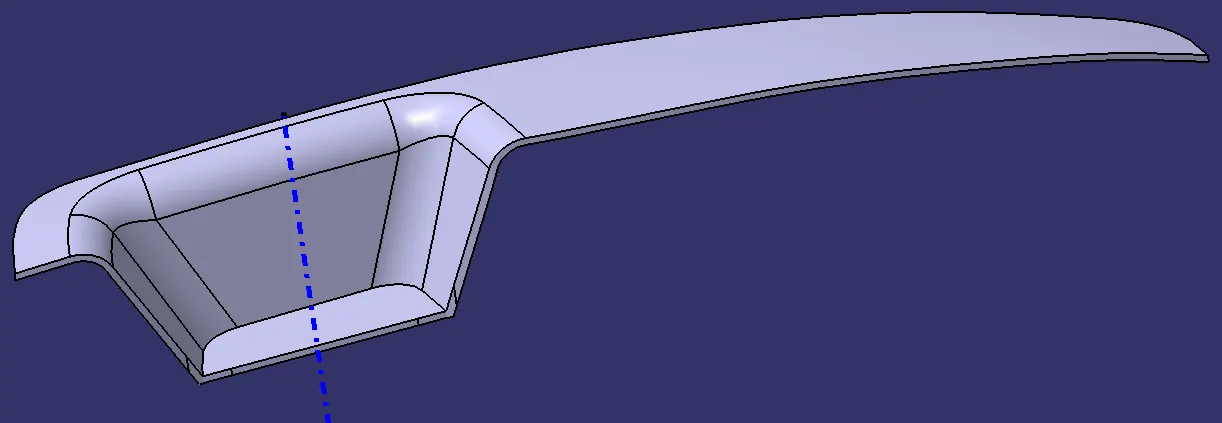
Solid Plastic Component formed using Close Surface Feature.
REPORT:
- Tooling Axis Creation and Draft analysis:
- To get the tolling axis, first get the intersection line on yz plane over the base surface and draw the line on the inclined part. So by those 2 lines we will be getting the intersecting line from the intersect feature in the line command.
- Then get the intersection line on xz plane over the base surface but here we will get only one inclined line because on opposite side there is no surface. So we will be drawing an imaginary line from the center of the base surface with a certain length and the angle between the inclined and the imaginary line is 3 degrees.
- By these both intersection lines we will be getting the Bisecting line from the Bisection Option from the line command and this will be the Tooling Axis for the component.
- After completing the closed surface creation Draft Analysis will be done by comparing it with the CLASS A draft analysis.
- To do draft analysis go to Insert>Analysis>Draft analysis, before doing the analysis ensure that component is in the material mode.
- Two tabs will appear on screen, then click on the compass and drag it and place it over the tooling axis.
- Then click on the component it will change the colour as per the draft angle which in the second tab. Ensure that except the lower surface whole surface has to be more then the 3 degrees draft angle. If the draft angle is not achived change the angle of the xz plane's intersection line untill we obtain the required draft angle over the component.